Customer Journey Analytics
In this exercise you'll learn:
- how to analyse your data in Customer Journey Analytics;
- how to create fallout visualisations and filter;
- how to export an audience to RTCDP for activation.
Setting up your project
To get an overview of the available projects to you, click on Workspace.
- Click on Create Project for a new Workspace project.
- From the pop-up, select Blank Workspace project, and click Create.
Creating your panel - Fallout analysis
- To begin, please rename the project to reflect your name.
- Click on the title New project and change it to [your name] - DB Customer Fallout Analysis.
- In the Workspace, you will find a panel available with the name Freeform. Click on the name to rename it to Fallout analysis.
- Finally, select the date range Last 3 full months from the date selector below the Data View box, and select Apply to all Panels.
- Click on the dropdown menu for Data Views located in the top right corner of the panel, and select the option for Danske Bank - DataView.
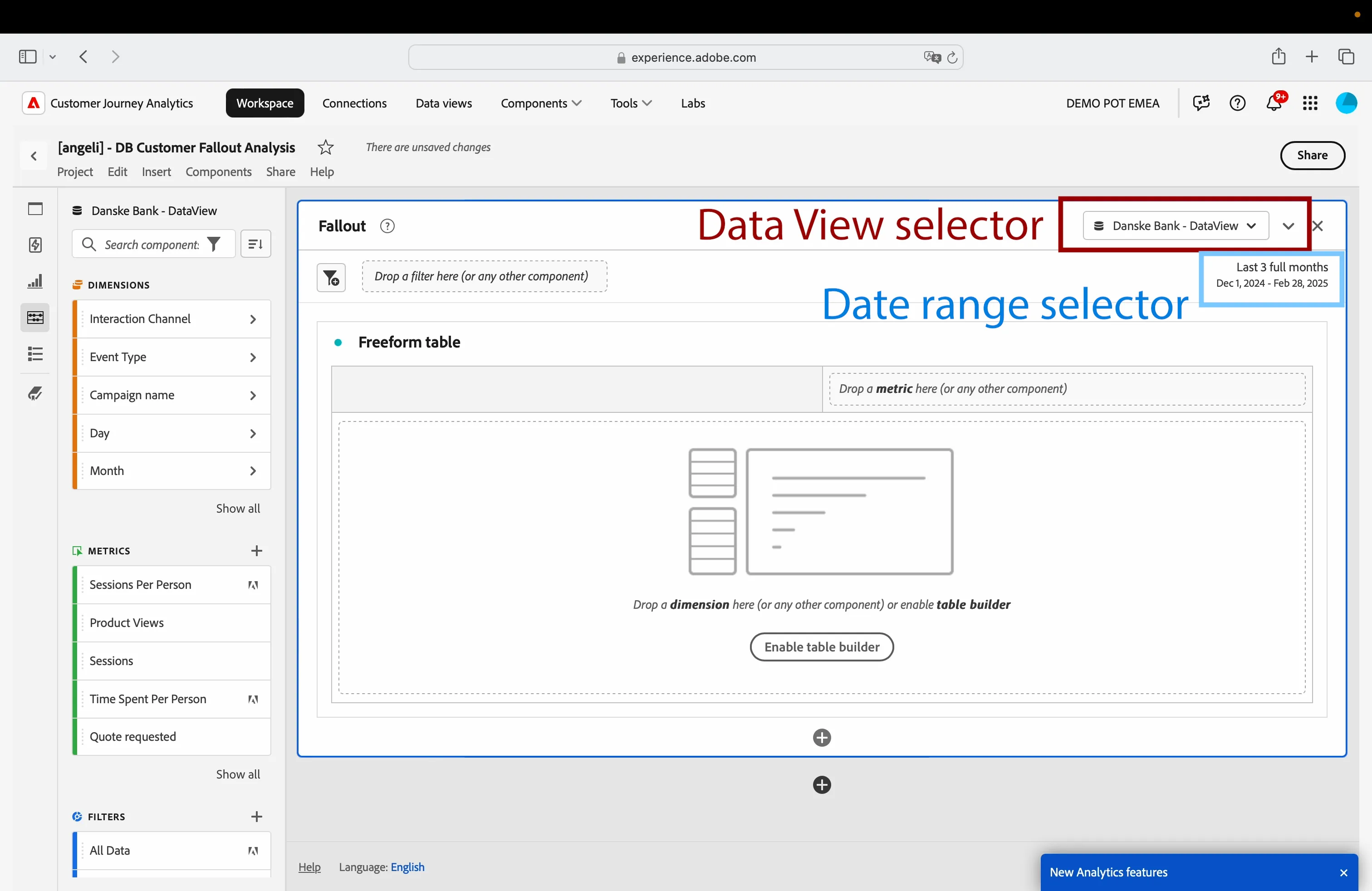
Now you're all set to begin your journey of building with data!
- To remove the Freeform table, click on the X icon that appears on the right when you hover over the table with your mouse.
- A list of possible visualizations will be displayed; select Fallout.
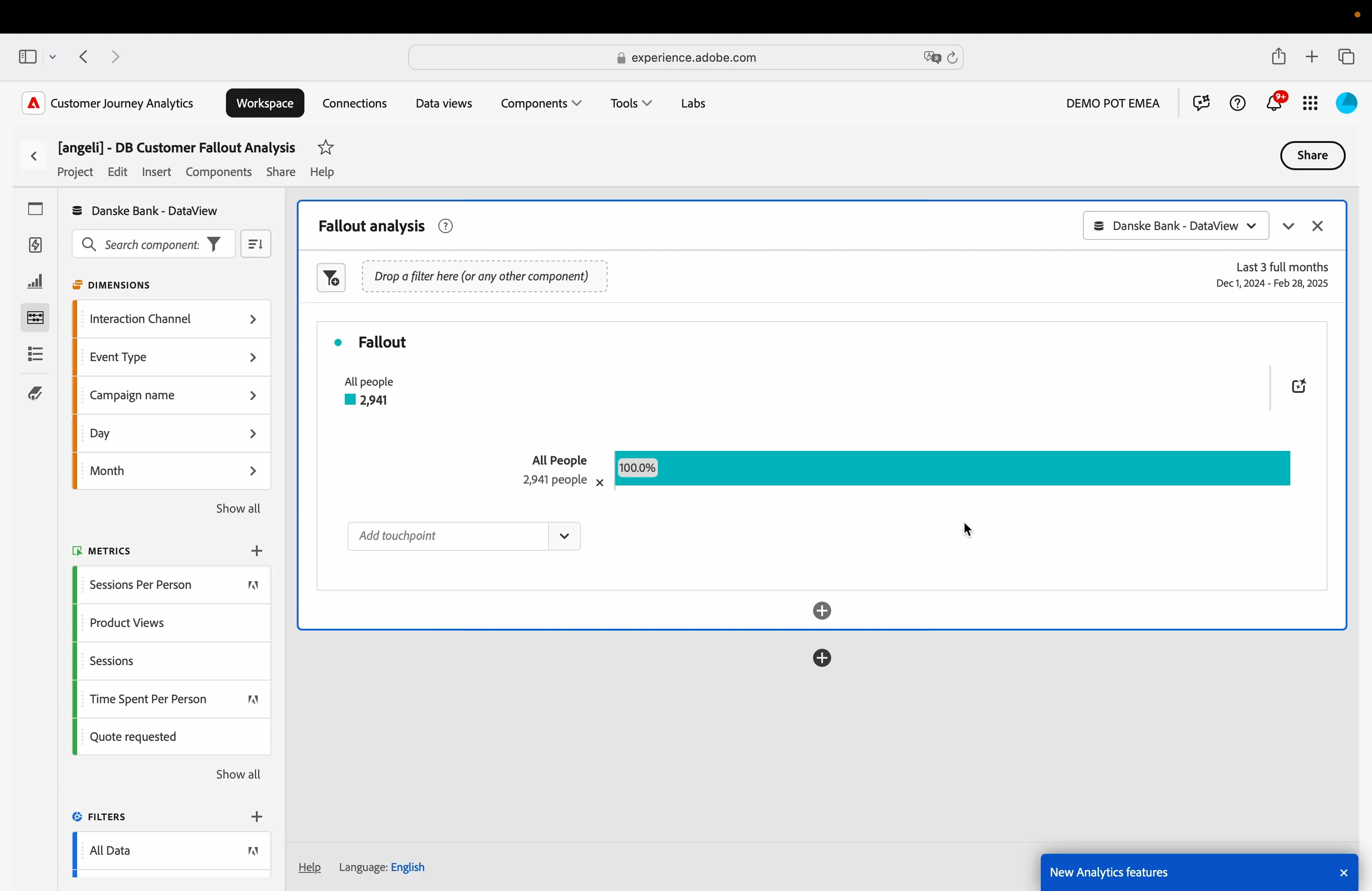
To save all your work, just go to Project and click Save.
Let's add the first fallout touchpoint:
- Click on Search Components in the left hand side panel.
- Search for Product Views.
- Drag and drop the item in the fallout visualisation.
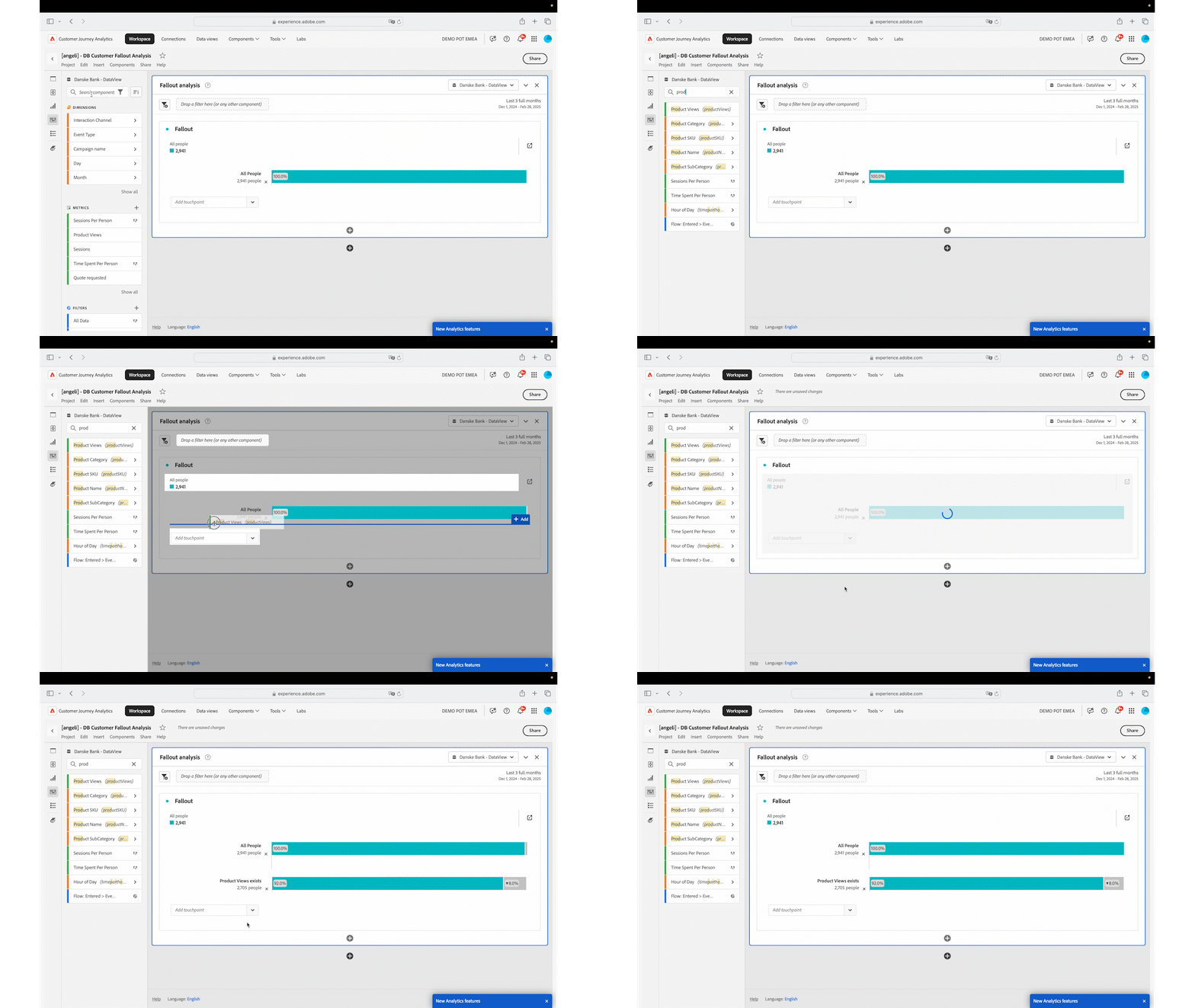
- Click on the X in the search text box to reset the component list.
Repeat the sequence for the other touchpoints:
- Click on Search Components in the left hand side panel.
- Search for Quote requested.
- Drag and drop the metric in the fallout visualisation, under the last element.
Then:
- Click on Search Components in the left hand side panel.
- Search for Home Loan Applications.
- Drag and drop the metric in the fallout visualisation, under the last element.
Your project should now be presented in this manner.
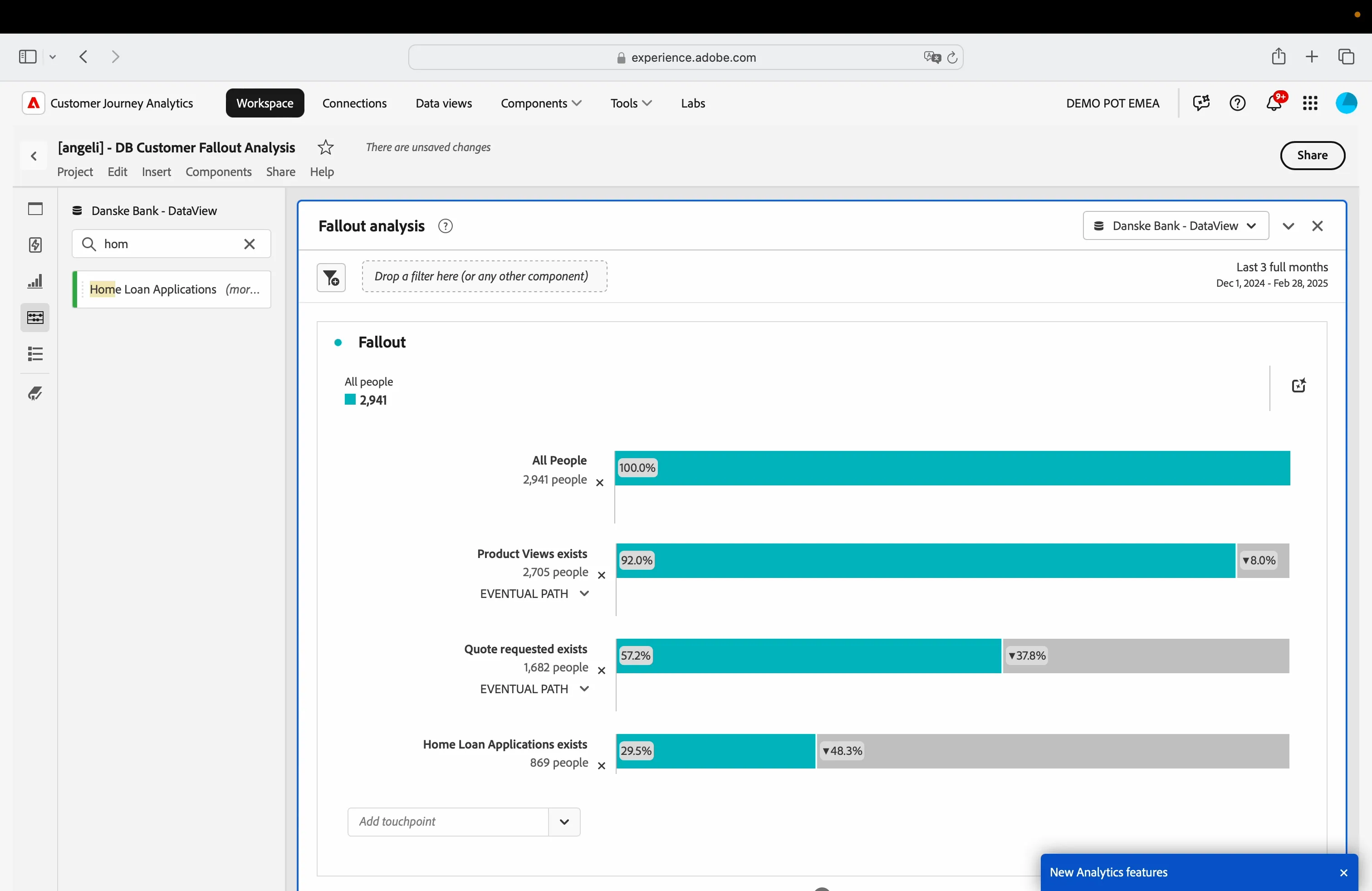
This analysis enables you to comprehend the number of individuals who successfully progressed through the funnel and converted.
Compare channels
The current fallout analysis lacks detailed insights into the performance of various channels, specifically web and mobile. To enhance our understanding, we should incorporate some additional items for comparison.
- Click on Search Components in the left hand side panel.
- Search for Interaction Channel.
- Click the arrow beside Interaction Channel to visualize the possible values.
- Drag the item web in the fallout visualisation, on the top, over "All People".
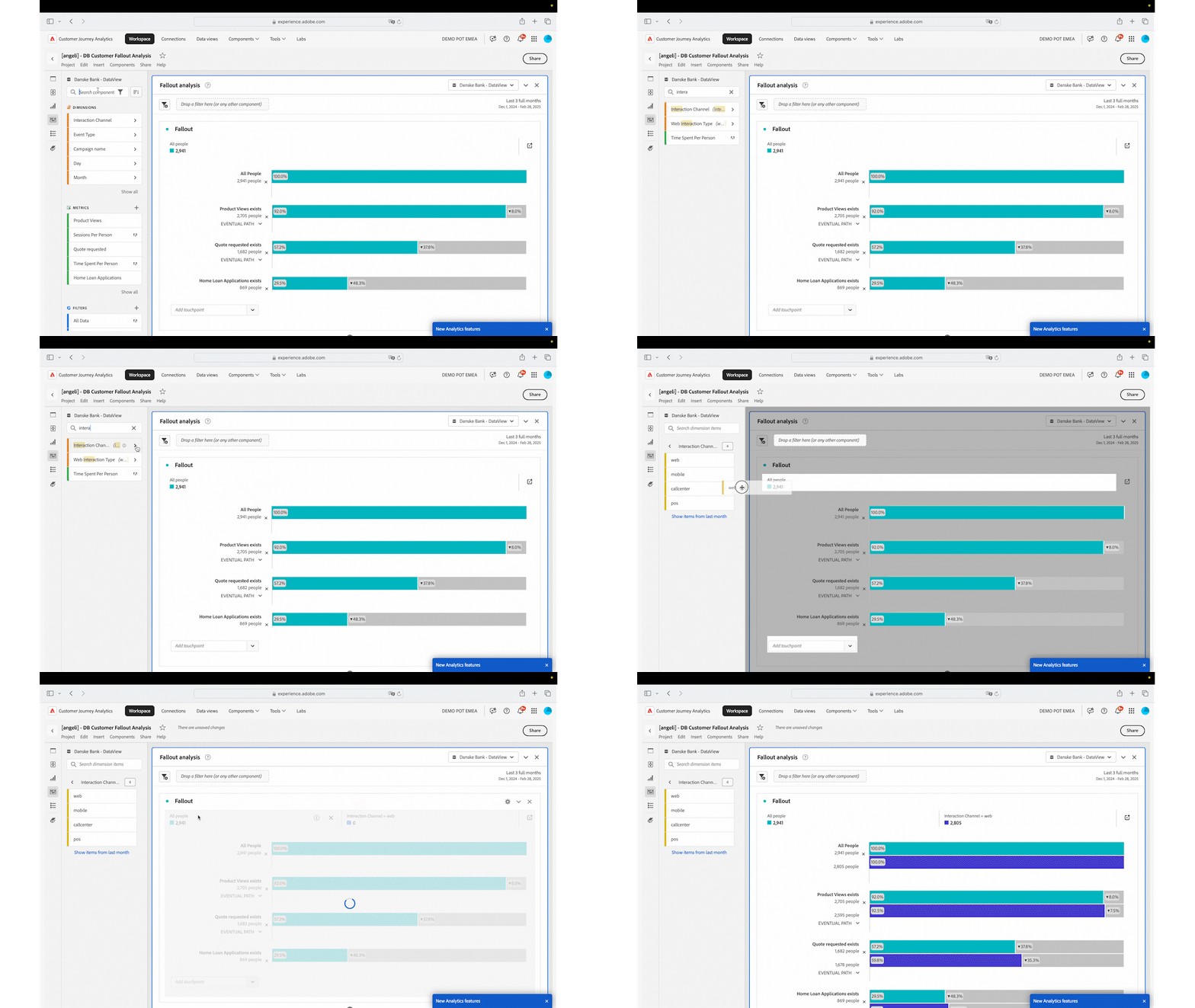
Repeat the same process for the mobile channel:
- Click on Search Components in the left hand side panel.
- Search for Interaction Channel.
- Click the arrow beside Interaction Channel to visualize the possible values.
- Drag the item mobile in the fallout visualisation, on the top, over All People.
Now you have 3 bars in the fallout report:
- (light blue) one that encompasses all individuals.
- (blue) one that comprises solely those who have engaged with the web channel.
- (orange) one that accounts exclusively for those who have interacted with the mobile channel.
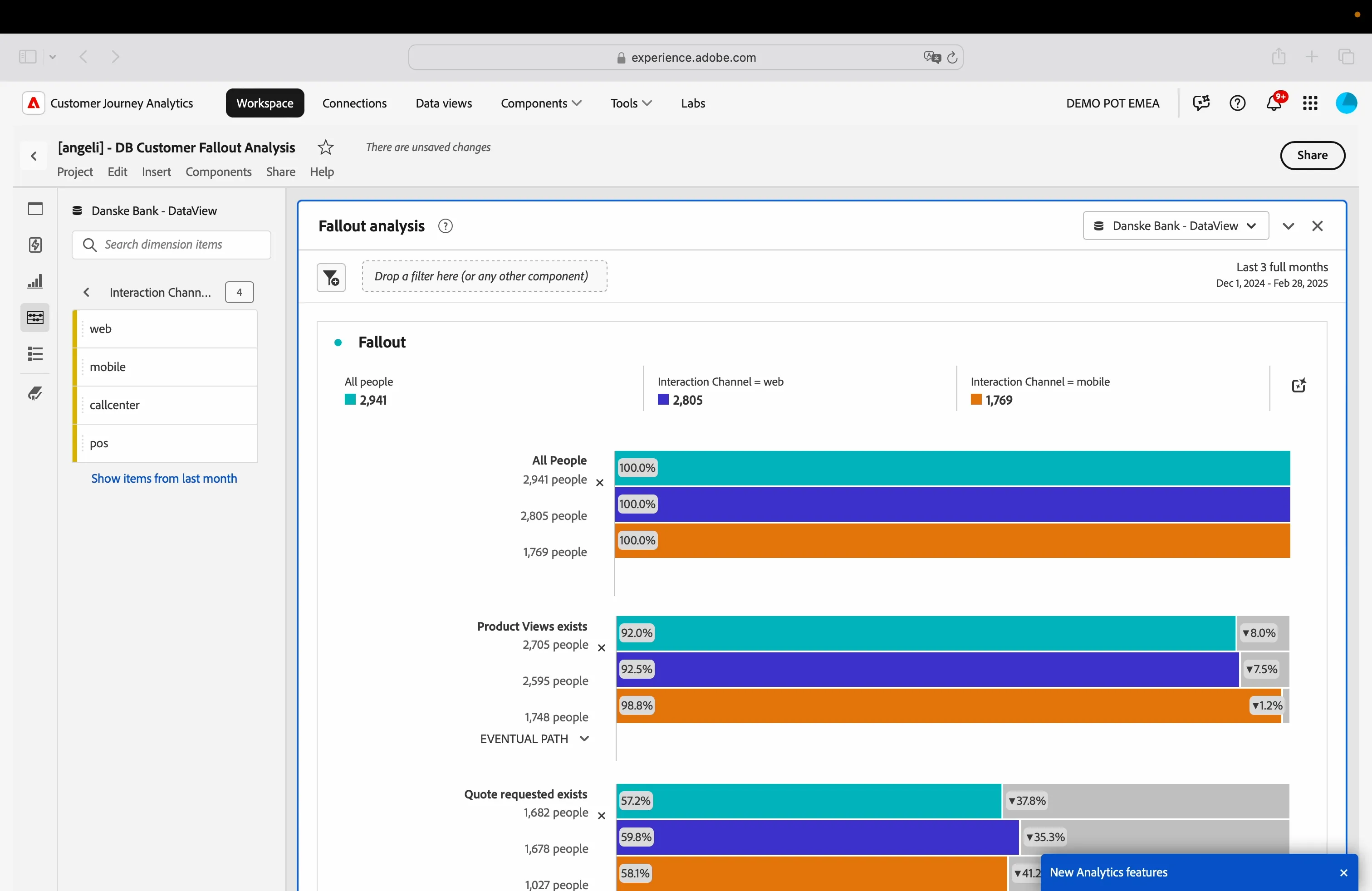
Now is a great time to save your progress! Just head over to Project and click on Save.
Export audience to RTCDP
After reviewing the report, it’s clear that the web channel isn’t performing quite as well as the mobile one. How about we set up a filter to group those customers and then export the data to RTCDP for activation?
Create filter
As first step, let's create a filter to match the required condition. This can be done manually, but CJA provide us a shortcut to avoid starting from scratch.
- Scroll down to the very bottom of the fallout visualization.
- Once you’re there, hover your mouse pointer over the blue bar that represents the web channel in the last step of the funnel, and give it a right click.
- From the menu that appears, select Create filter from touchpoint.
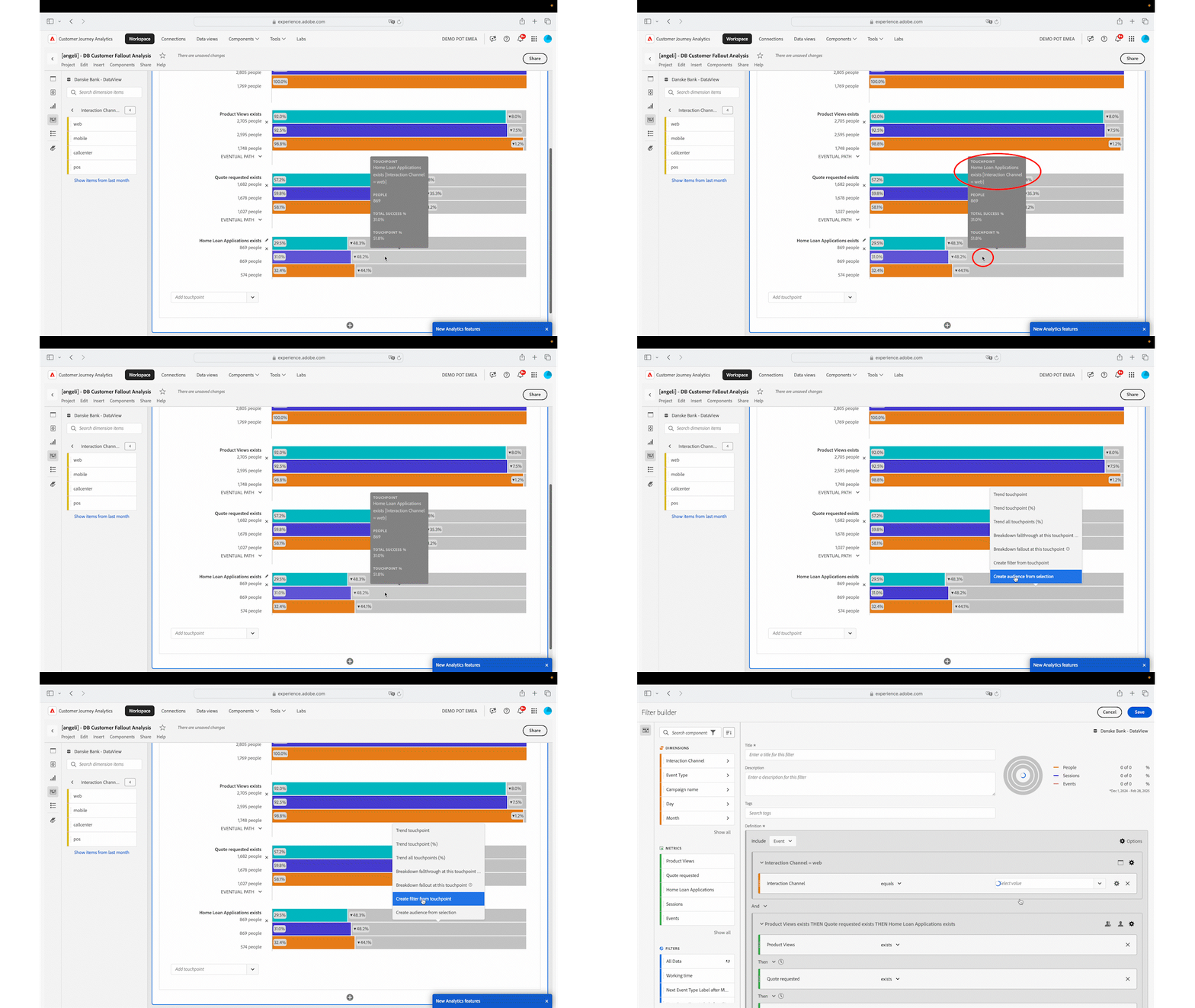
This action opens up the Filter builder UI, which comes with a handy pre-built setup. Tweak the filter configuration so that it perfectly aligns with your needs!
- Scroll down to the bottom of the main section.
- Change the condition in the Home Loan Applications step from exists to does not exist.
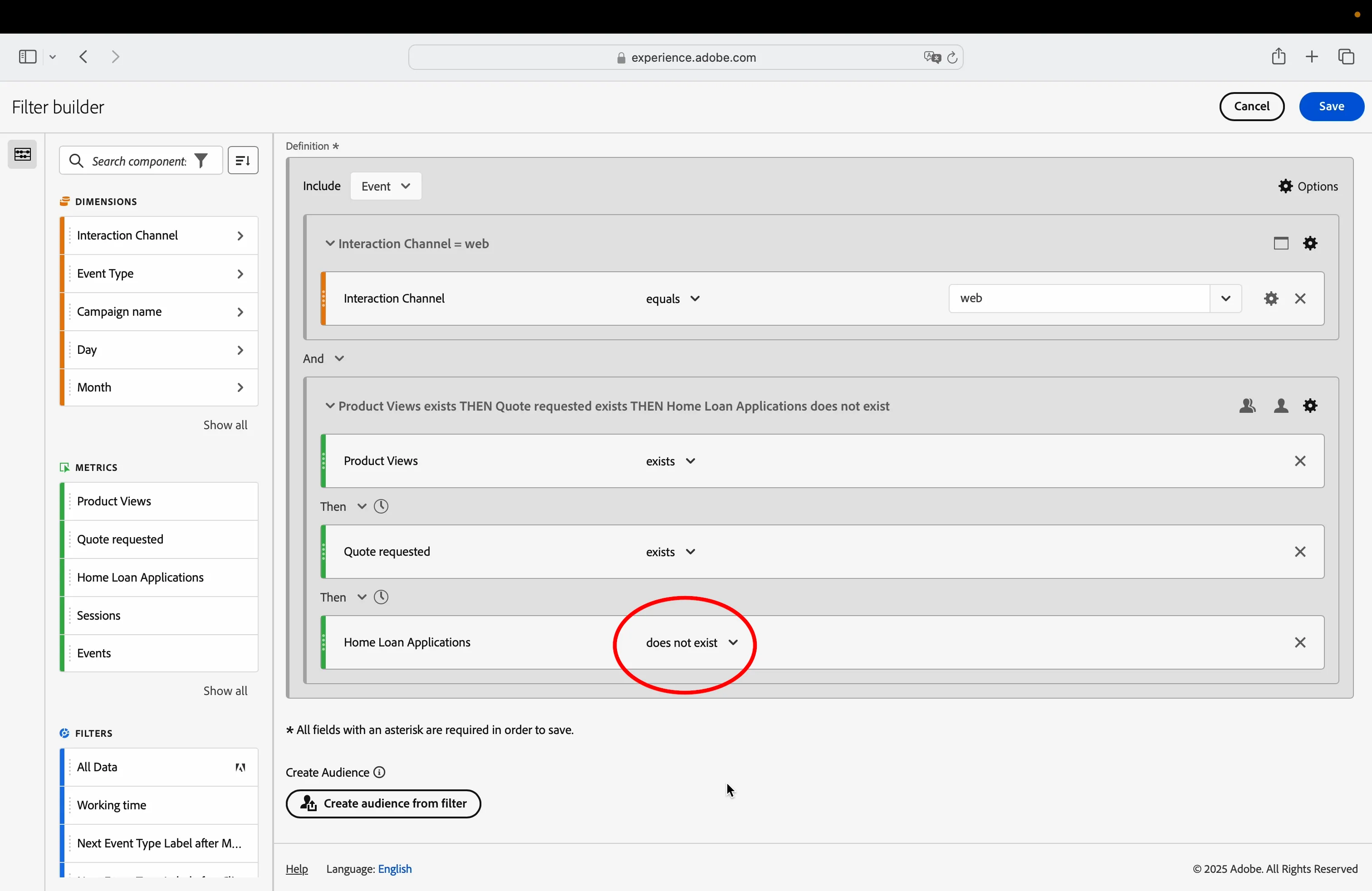
- Scroll up, click on the title textbox and type in [your name] Home Loan prospects that disengaged.
- Click Save.
Create audience
Now let's take the final step and create the audience that we can share with RTCDP for activation.
- From the top menu, click on Components > Create audience.
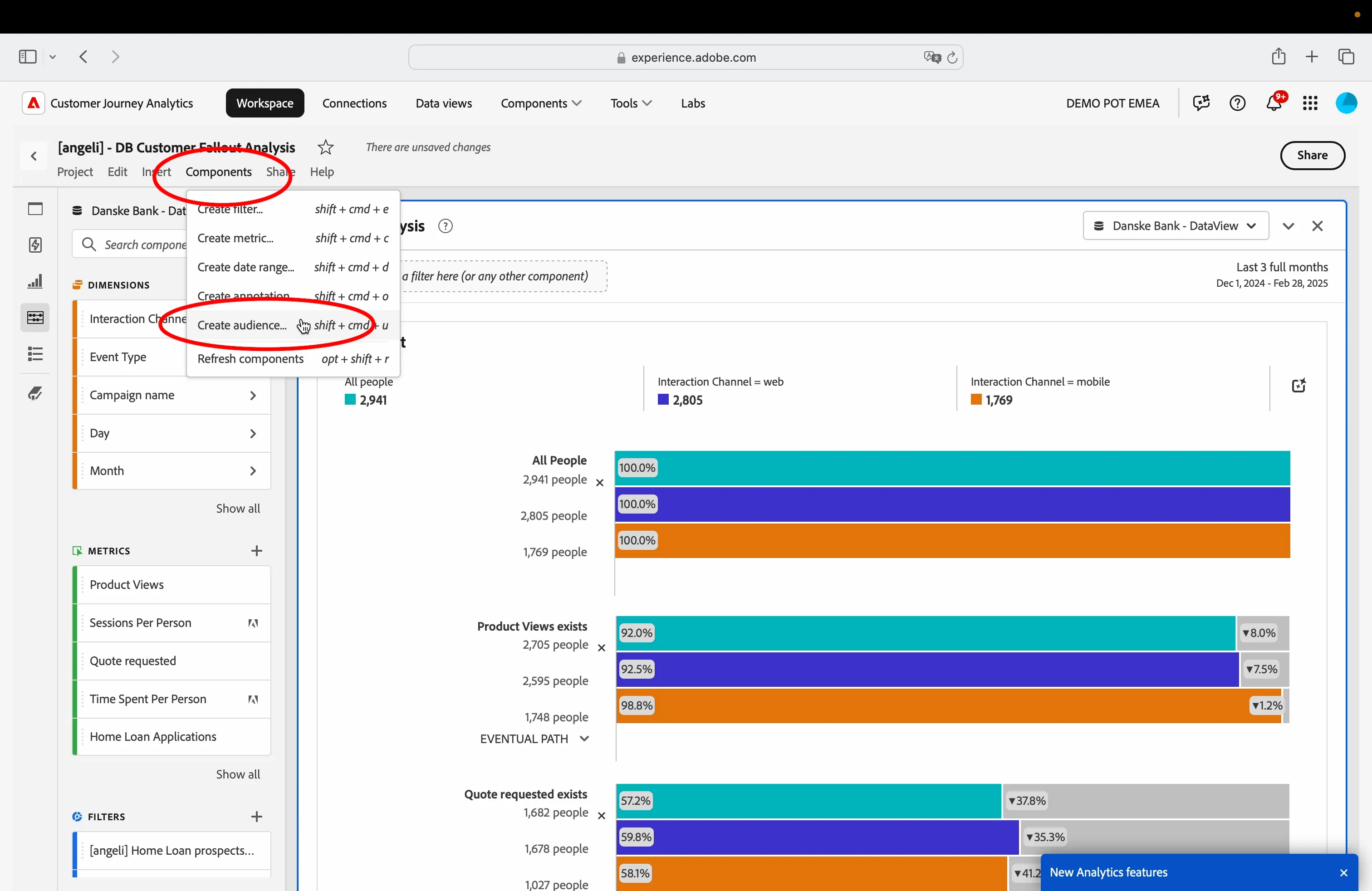
- From the left rail menu, find the filter you have created in the previous step, drag and drop in the area Drag and drop a filter here.
On the right-hand side, you’ll notice a preview of the data that will be shared with RTCDP.
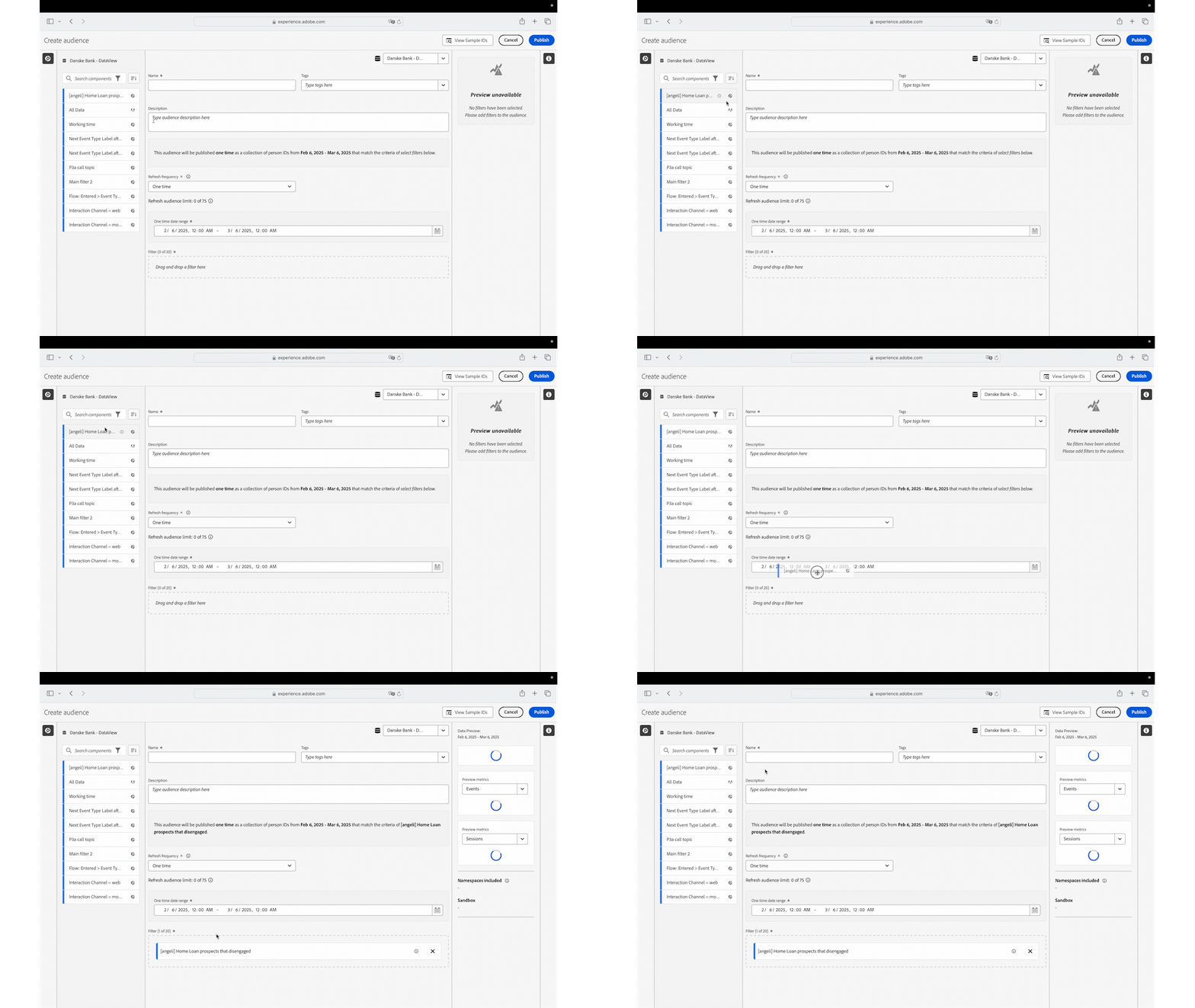
- Click on the Name textbox and type in [angeli] Home Loan prospects that disengaged.
- Click Publish.
Now is a great time to save your progress! Just head over to Project and click on Save.
Visualize the audience in RTCDP
Once your audience is published, you'll find it available in RTCDP, just like all your other audiences.
- Click on the nine-dots icon on the top right corner of the screen.
- Select Experience Platform.
Add image
- From the left hand menu, click Customer > Audiences.
- Click on Browse to view the list of available audiences.
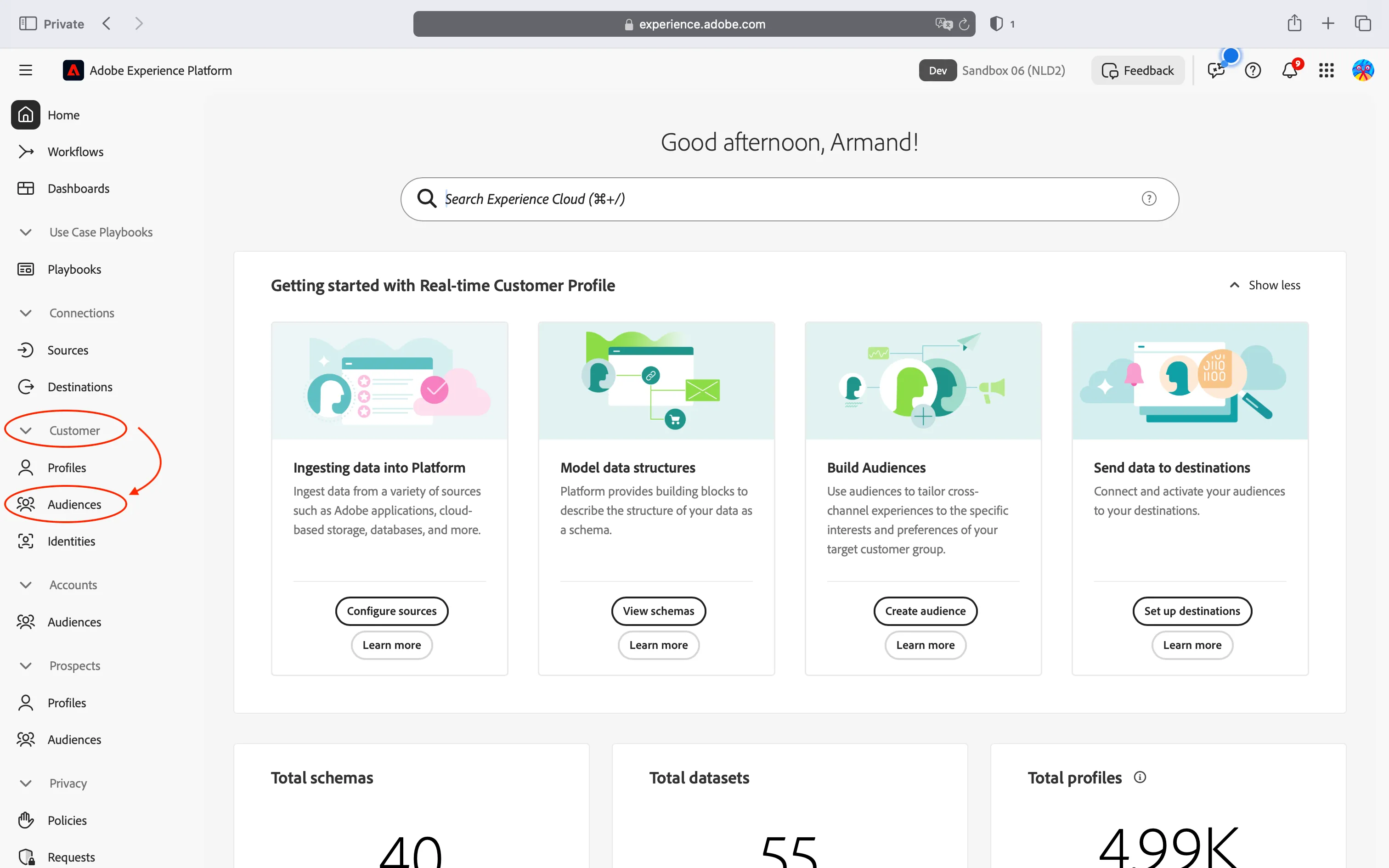
In the list of audiences find out the audience with same name used in the previous step.
You can manage your audience just like any other! For instance, adding a tag can make it easier to find what you're looking for.
- Click on the three-dots icon beside the audience title.
- Click on Manage Tags.
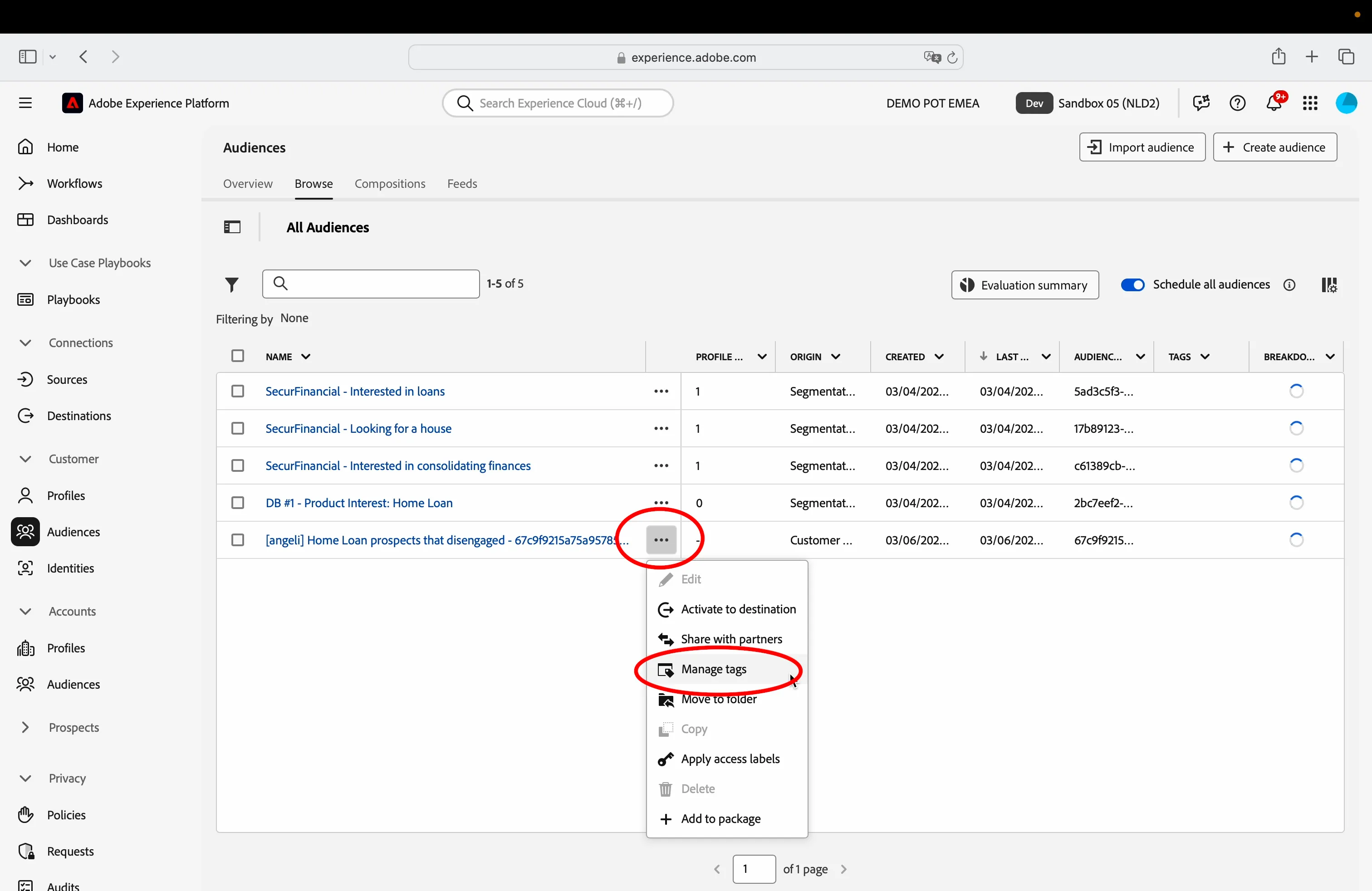
In the Tags dropdown type [your name] my tag ; since it's a brand new tag, click on Create [your name] my tag, then click Save.
Now your audience is properly tagged.
Click on the name of the audience to open the details.
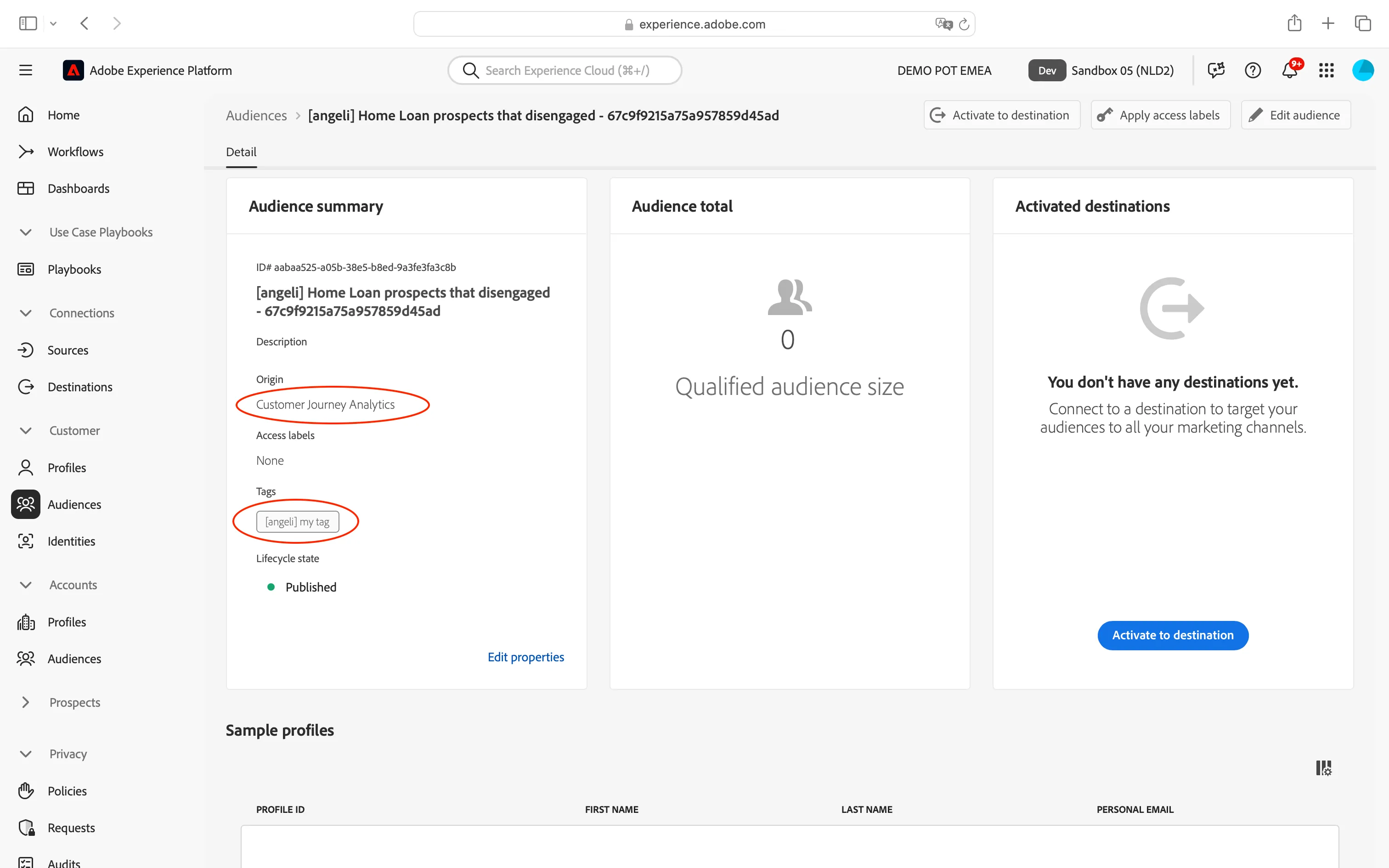
As you can see, the audience originates from Customer Journey Analytics, and you will find the newly created tag listed.
Congratulations on successfully completing the exercise!
Now that you have identified the individuals who have yet to submit their application forms on the website, you can engage them with tailored communication to encourage them to complete the process.