Ingest data via the UI
In the previous section you have completed your Schema definition for CRM data. You will now need to create a corresponding dataset before onboarding your data.
To log into the Adobe Experience Platform, check the Welcome! section.
Step 1: Create a Dataset
To do this:
- Navigate to Datasets in the left hand menu.
- Click on + Create dataset, in the top right corner.
- Select Create Dataset from Schema.
- Choose the schema you just created for CRM Data, click Next.
- Give your Dataset a name. E.g. [Your name] - Profile Dataset for CRM Data.
- Click Finish and you will be taken to the Dataset UI.
Do not enable your Dataset for Profile.
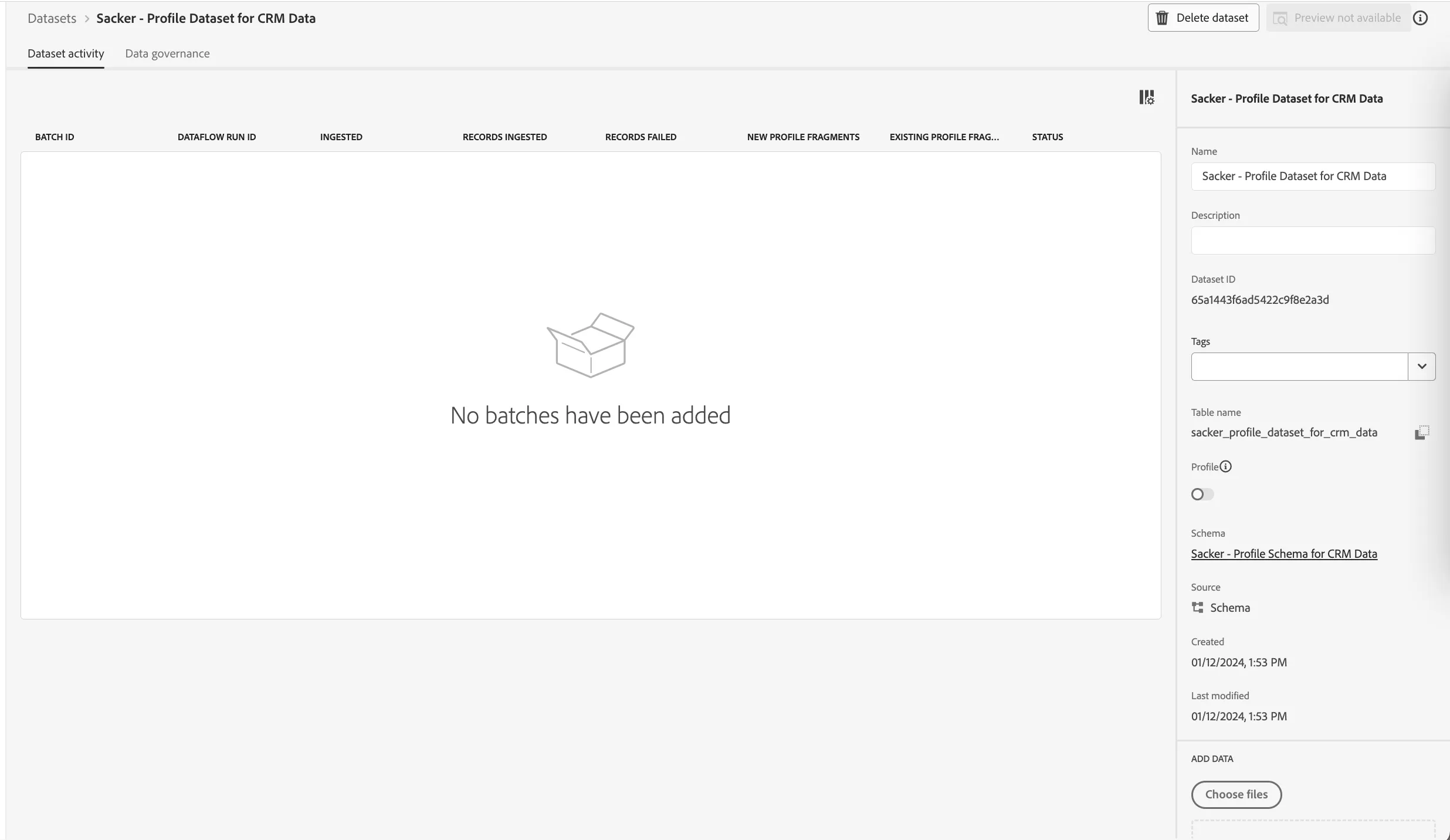
If you didn't create your own Schema/Dataset in the previous exercises, you can use the precreated dataset for Step 2 below:
DB - Profile Dataset for CRM Data
Step 2: Using a Workflow to map a CSV file to an XDM Schema
The goal of this is to onboard your CRM data in Platform. Most of the data that is ingested in Platform should be mapped against a specific XDM Schema. What you currently have is a CSV dataset on one side, and a dataset that is linked to a schema on the other side. To load that CSV file in that dataset, a mapping needs to take place. To facilitate this mapping exercise, we have Workflows available in Adobe Experience Platform.
There are more options available for ingesting batch data, such as via the APIs. To learn more refer to our online documentation.
In this exercise, we will ingest a CSV file with CRM data manually, using a Data Ingestion workflow in the UI.
Download the CSV file with Demo CRM data from below.
- Navigate to Workflows in the left hand menu.
- Under Data Ingestion, select Map CSV to XDM Schema.
- Click Launch.
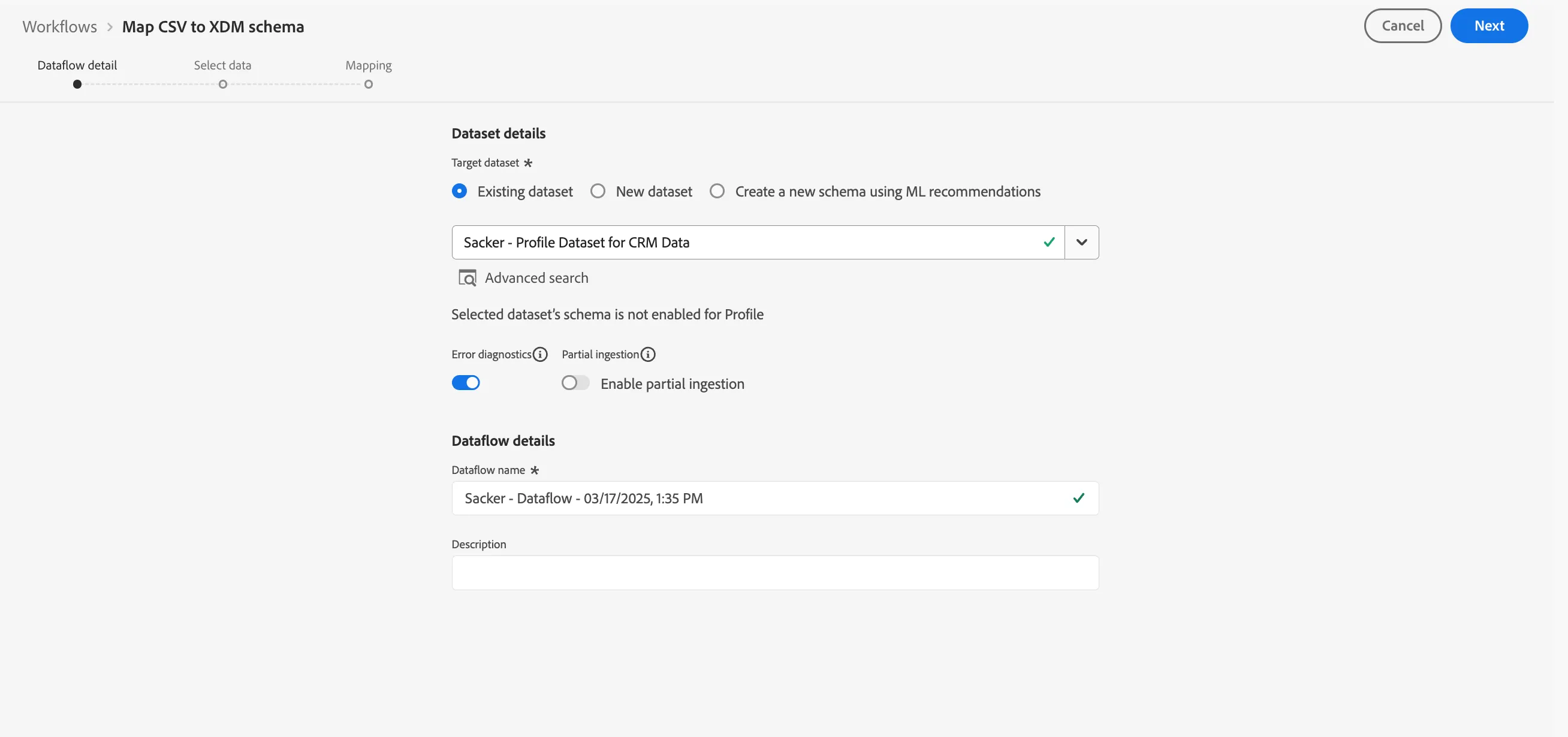
We now need to specify the Dataset where this file will be ingested:
- From the dropdown list under Target dataset, select [Your name] - Profile Dataset for CRM Data from the Dataset details drop down.
- Under Dataflow details prefix the Dataflow name with your own name so you can find this later.
- Leave the other settings as the default.
- Click Next.
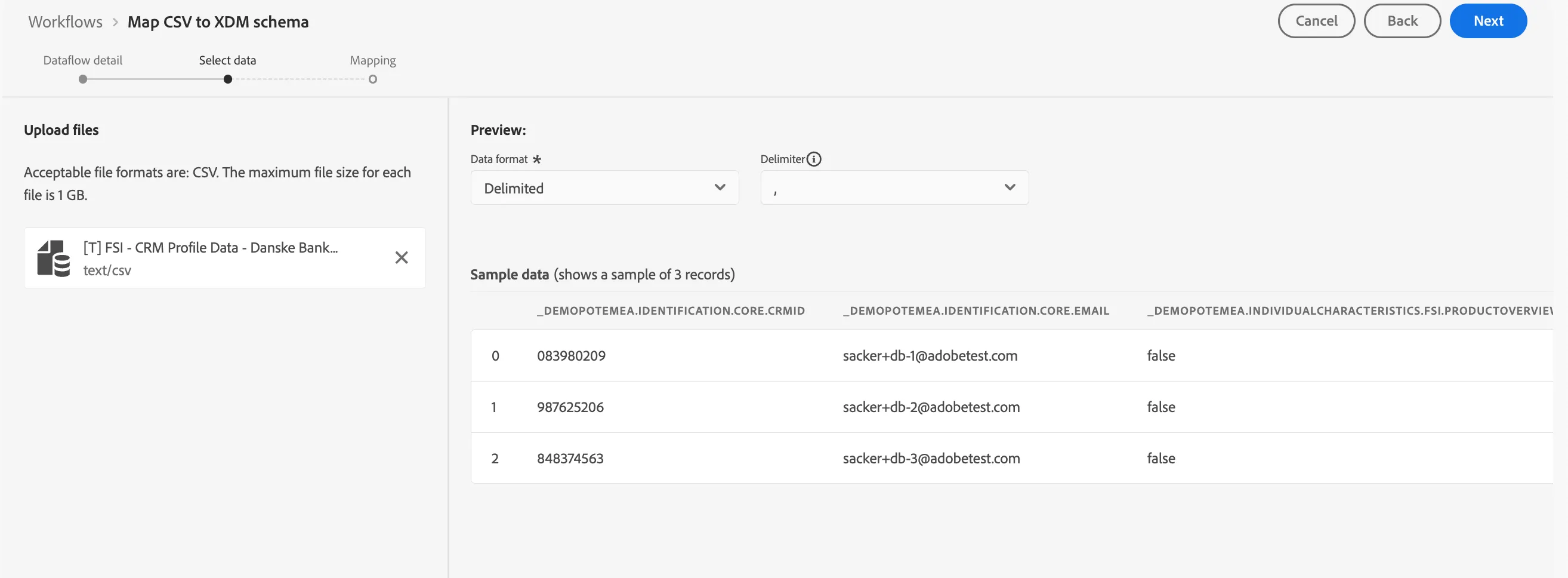
Now we need to upload the CSV file we want to onboard.
- On the Select Data step, click Choose files. Select the CSV file you previously downloaded.
- Choose Delimited for the file format from the drop down.
- Click Next.
You will be shown a preview of the data so you can validate the Adobe Experience Platform is interpreting the data in the file correctly.
You should now be on the mapping step of the Workflow. You now need to map your CSV Column Headers with an XDM-property in your Dataset.
NOTE: for the Schema Mappings, Adobe Experience Platform has linked fields together already. However, in the case not all proposals of mapping are correct, you can adjust the individual mappings in the UI.
To edit the mappings:
- Select the lightbulb icon on the Target field you want to change.
- If your chosen field doesn't appear in the list, choose Select manually.
- Select your chosen field from the schema structure.
- Your source attribute is now mapped to your chosen Target filed.
- You can also type your Target field directly in the text box, if you know the path.
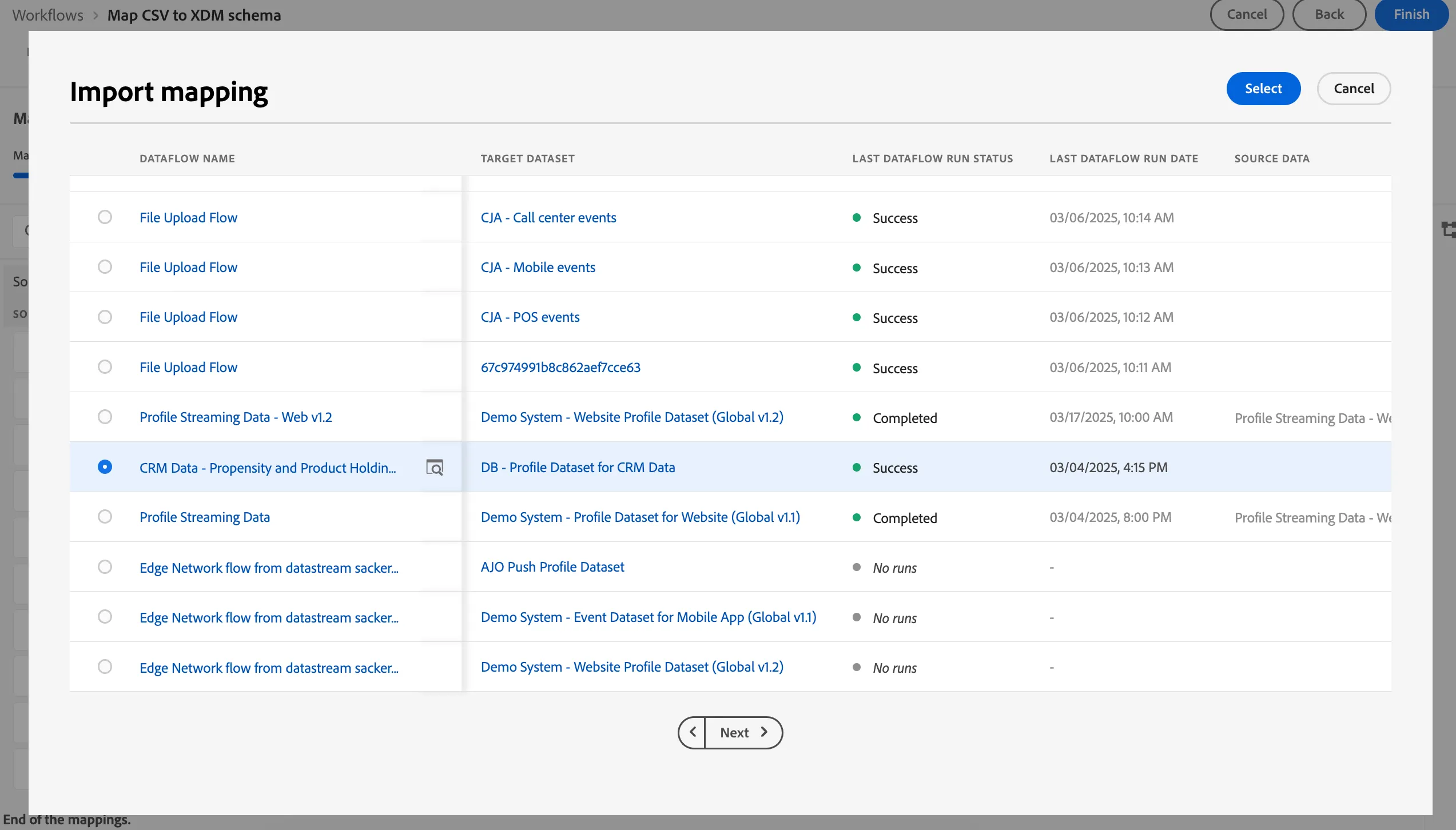
For this exercise you will not need to edit any of the mappings. Instead will choose to Import Mapping from a previous ingestion.
- Select Import mapping, then Import mapping from flow from the menu above the mappings near the center of the screen.
- This will open a window with mappings from previous Dataflows.
- Select the mapping: CRM Data - Propensity and Product Holdings.
- Click Select.
Verify your final mappings
Your final mapping should be:
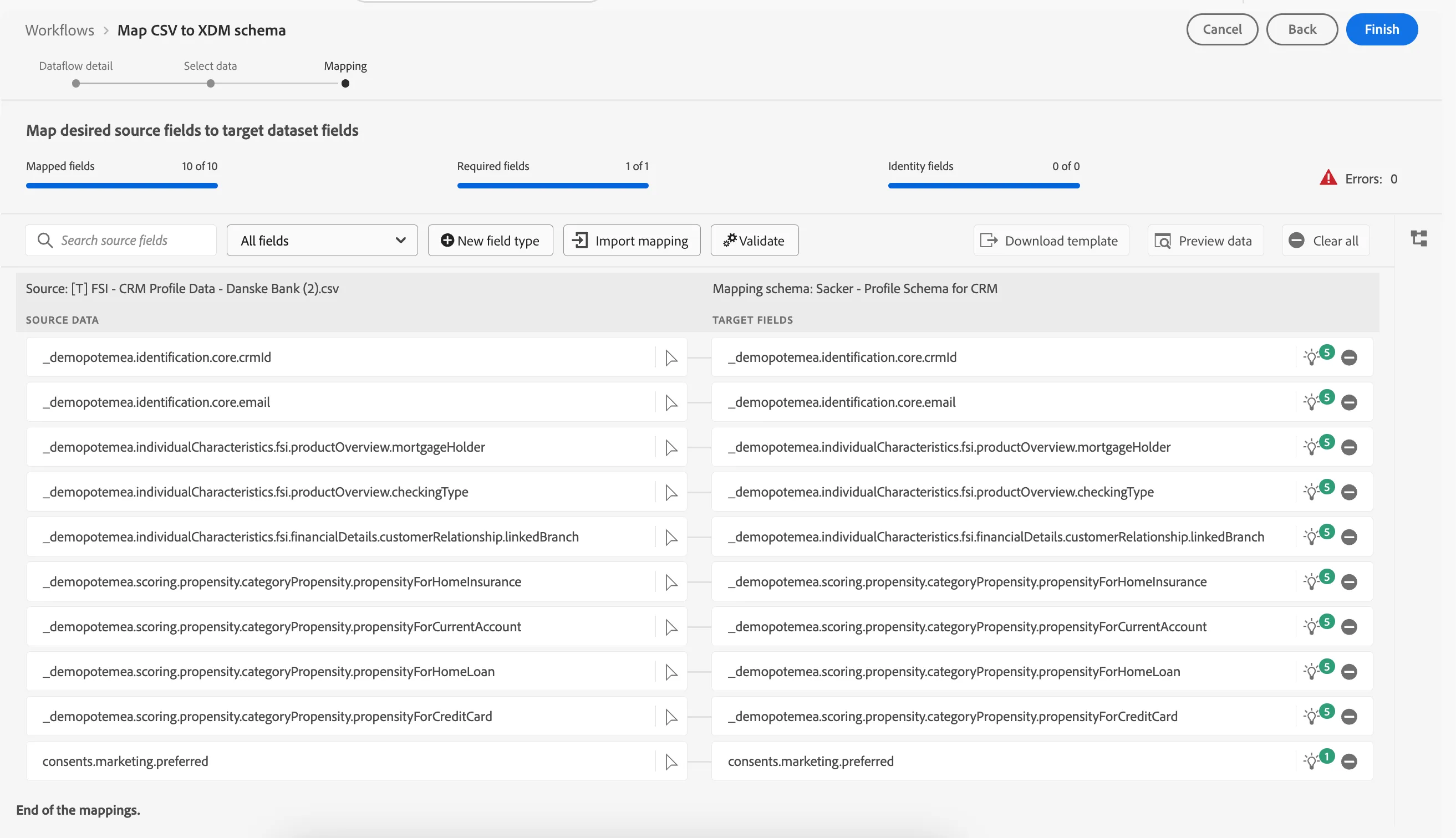
- Click Finish to onboard your data.
You'll then be directed to the Sources overview, where you will see the list of the Dataflows configured for this source.
- Find yours and select the Target Dataset to view the Dataset Activity.
- You'll then see the Dataset Overview where your ingestion has processed, and after a couple of minutes you can refresh your screen to see if your workflow completed successfully.
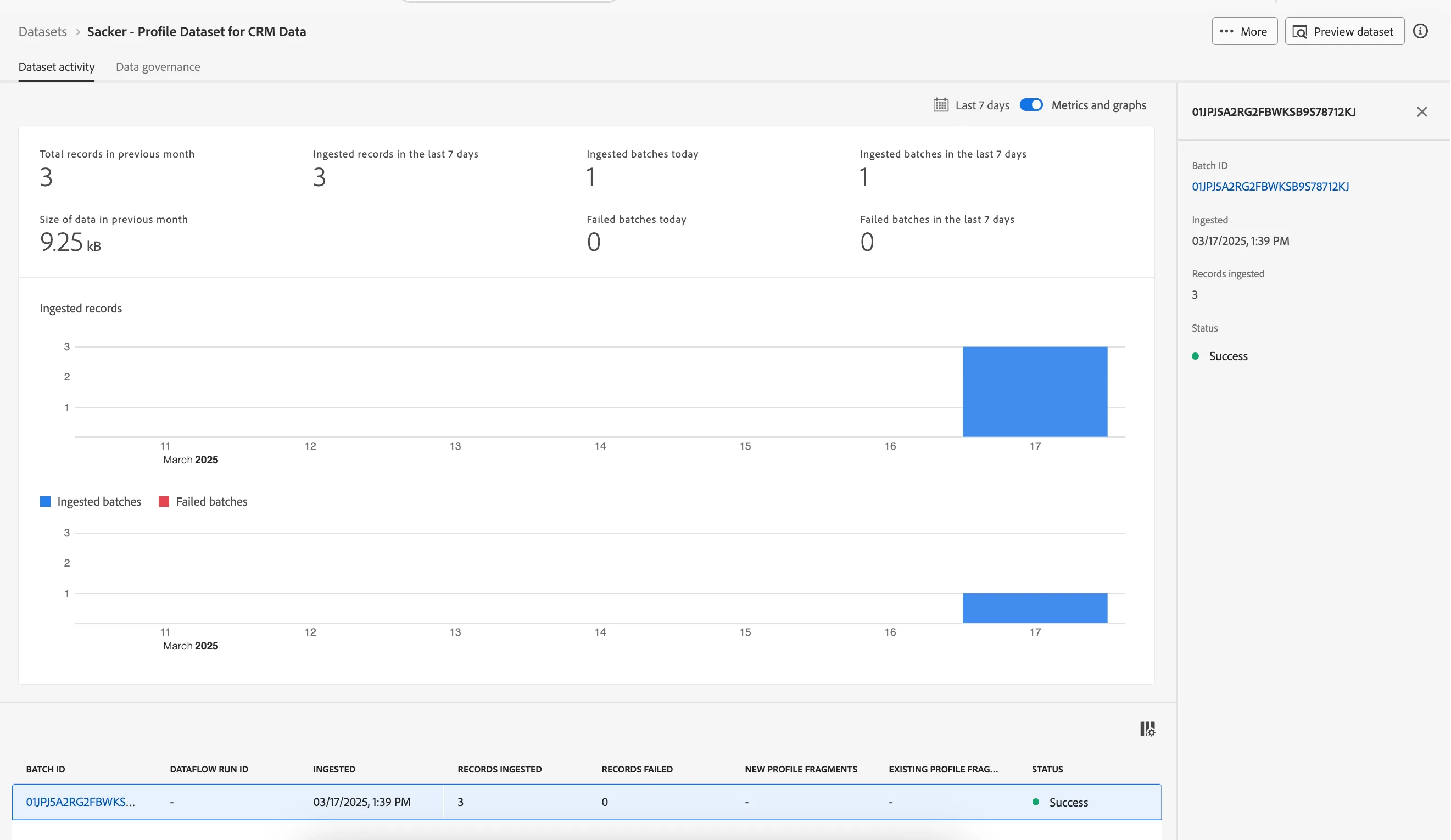
On the Dataset activity screen, you'll see a Batch ID that has been ingested just now, with 30 records ingested and a status of Success.
- Click on the Preview Dataset button to get a quick view of a small sample of the data ingested to ensure that it loaded correctly.
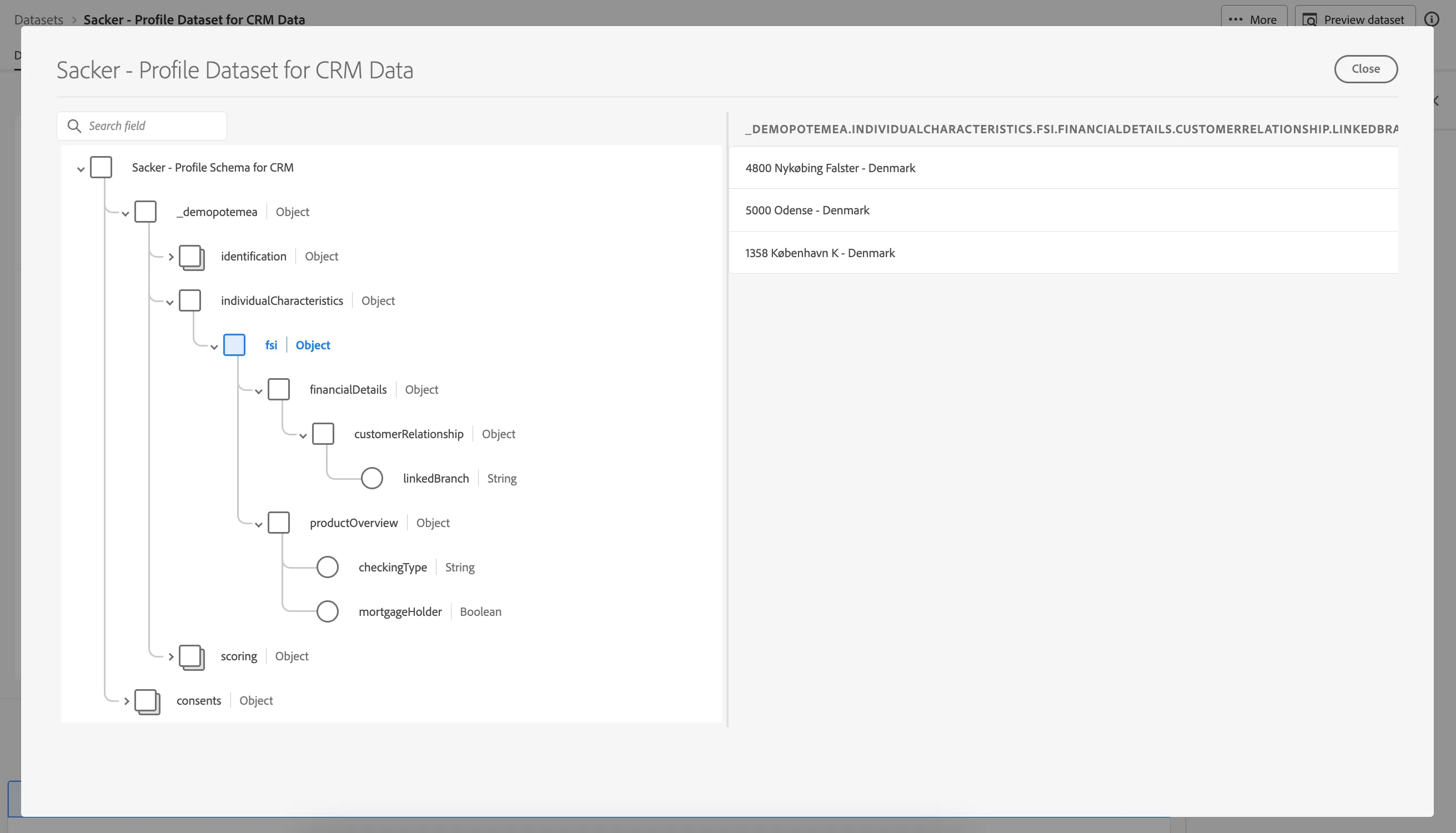
With this, you’ve now successfully ingested CRM Data in Adobe Experience Platform!