1. Analysis Workspace Intro
Customer Journey Analytics helps organisations unify customer interactions across channels into a single journey view, enabling teams to identify drop-offs, optimise experiences and activate insights. It transforms analytics from reactive reporting to a proactive driver of customer experience and business growth.
CJA's Analysis Workspace is an intuitive, drag-and-drop UI designed to allow easy data exporation and discovery. It enables users to explore data freely, create tailored dashboards, and share insights across teams - empowering both analysts and business users to make data-driven decisions without relying on predefined reports.
UI Components
Key components of the UI are:
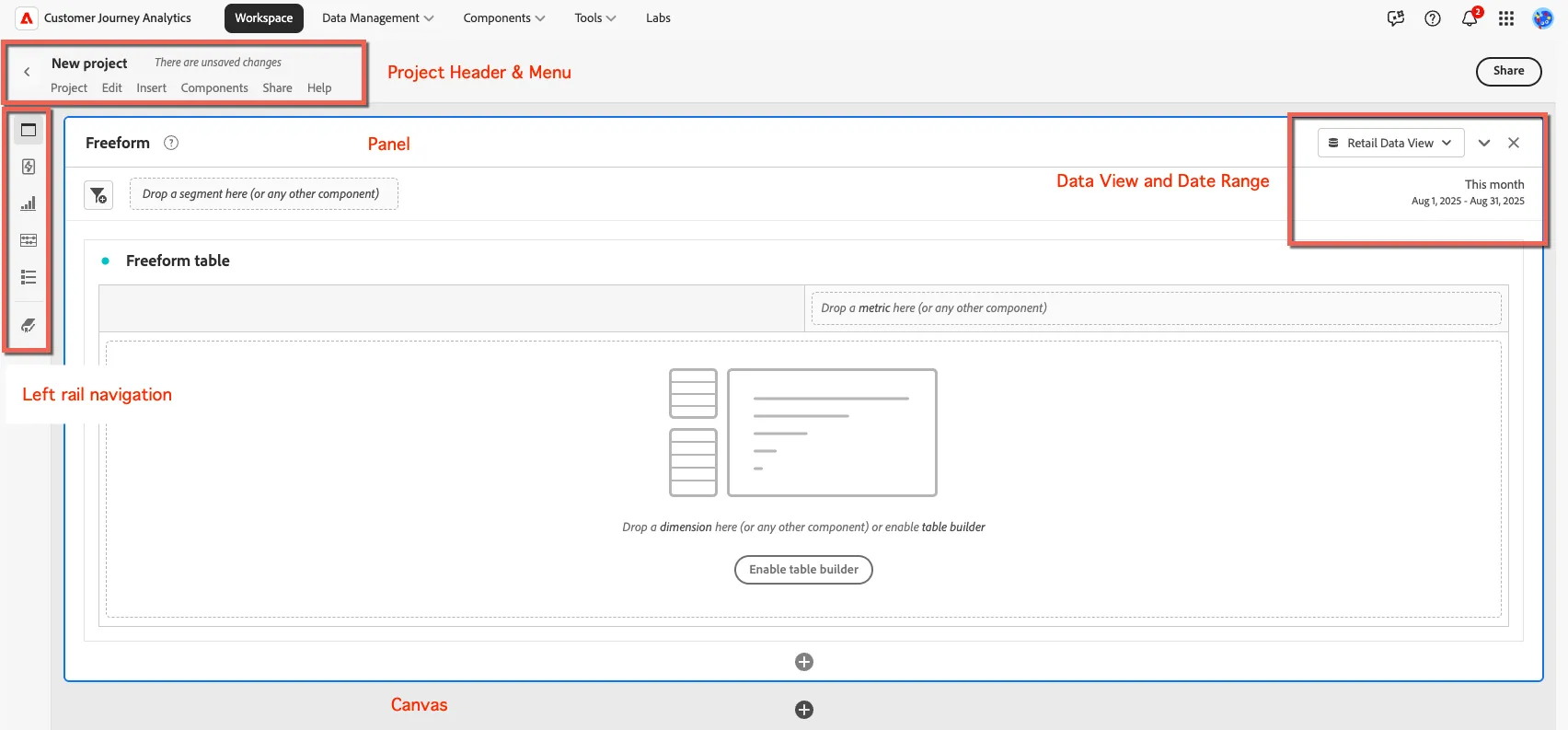
Core Navigation
Canvas - The central workspace where users drag and drop elements from the left rail to build their analysis. It supports multiple panels and visualisations per project.
Project Header & Menu - Located at the top, this includes the project name, sharing options, and access to project-level settings.
Context Menu & Shortcuts - Most functionality is accessible via drag-and-drop or right-click context menus, with shortcut keys available for efficiency.
Data View - Controls what data is available in the panel
Date Range - The date range applied to all of the visualisations within the panel
Left Rail Navigation
- Panels: Organize your analysis into sections using different data views.
- Guided Analysis: Answer questions to generate automated insights and charts.
- Visualizations: Create charts and graphs to visually explore your data.
- Components: Drag dimensions, metrics, and segments to build your analysis.
- Table of Contents: Navigate your project’s panels and visualizations easily.
- Data Dictionary: View definitions and metadata for all data components.
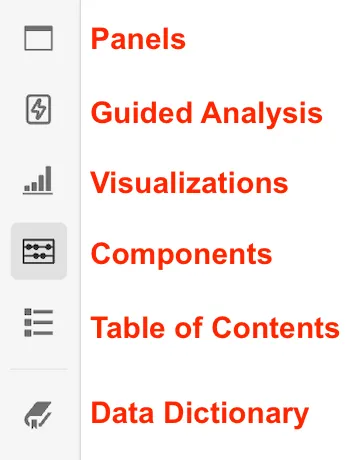
Components Panel
A lot of time will be spent working with the Components panel which allows drag-and-drop access to Dimensions, Metrics, Segments and Date Ranges. It also allows quick creation through + icons next to each component header. Which components appear here depend on the Data View that is selected in the currently active panel.
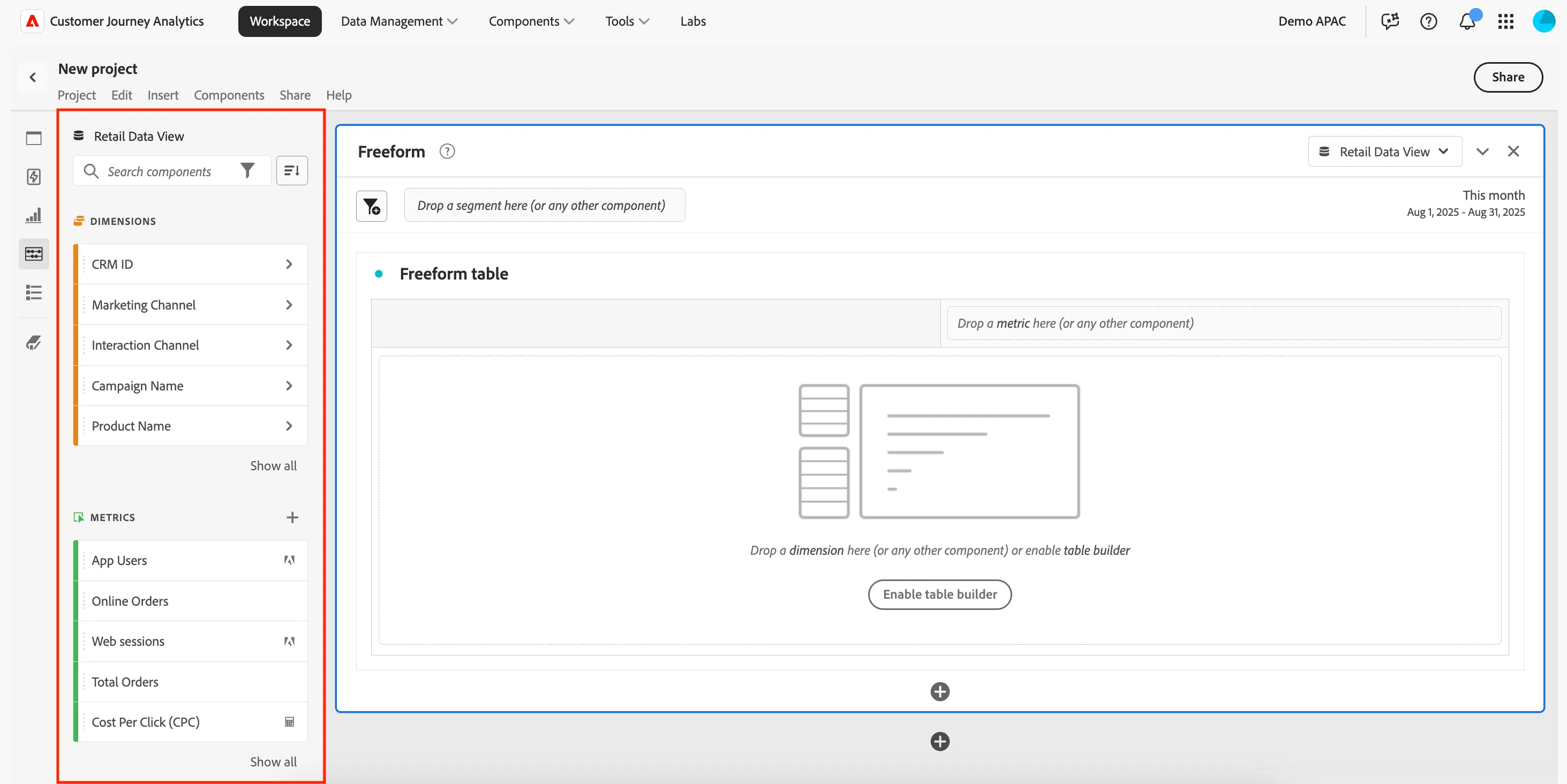
Tricks & Tips
- Use Ctrl - and Ctrl + (Command - and Command + on Mac) to zoom the UI out or in. This is particularly handy when working on small screens such as laptops.
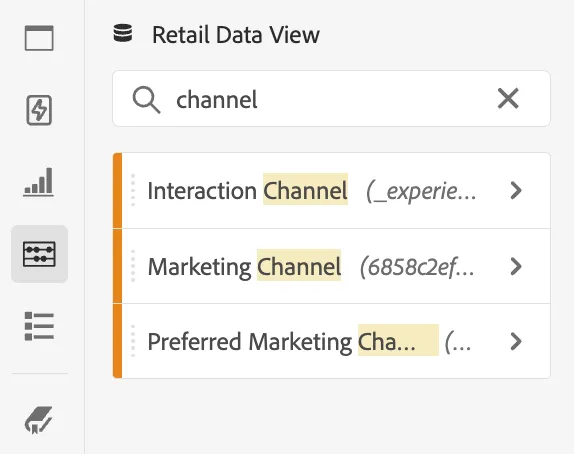
- Search is your friend. You can easily search for the data you need to build your visualisations by using the Component Search box. For example, if I'm not sure what channel data exists I can simply search for "channel":
- To select multiple items, hold Ctrl (Windows) or Command (Mac) while clicking each item. To select a sequential list of items, hold Shift instead.
Start from a template
For the exercises today we'll work off a partially built dashboard which we've saved as a template.
- Click to open Demo APAC templates in the left navigation.
- Check that the Retail Data View is selected on the right hand side, and change it if needed.
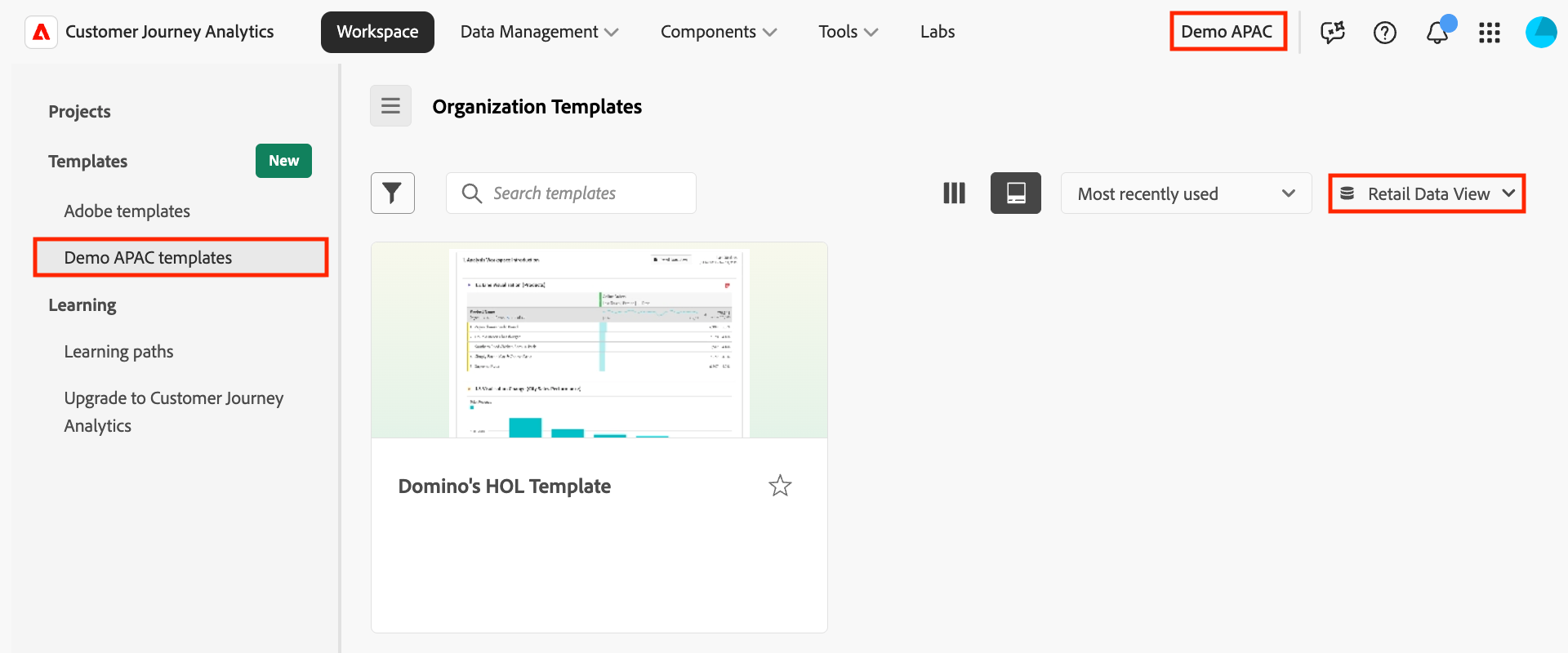
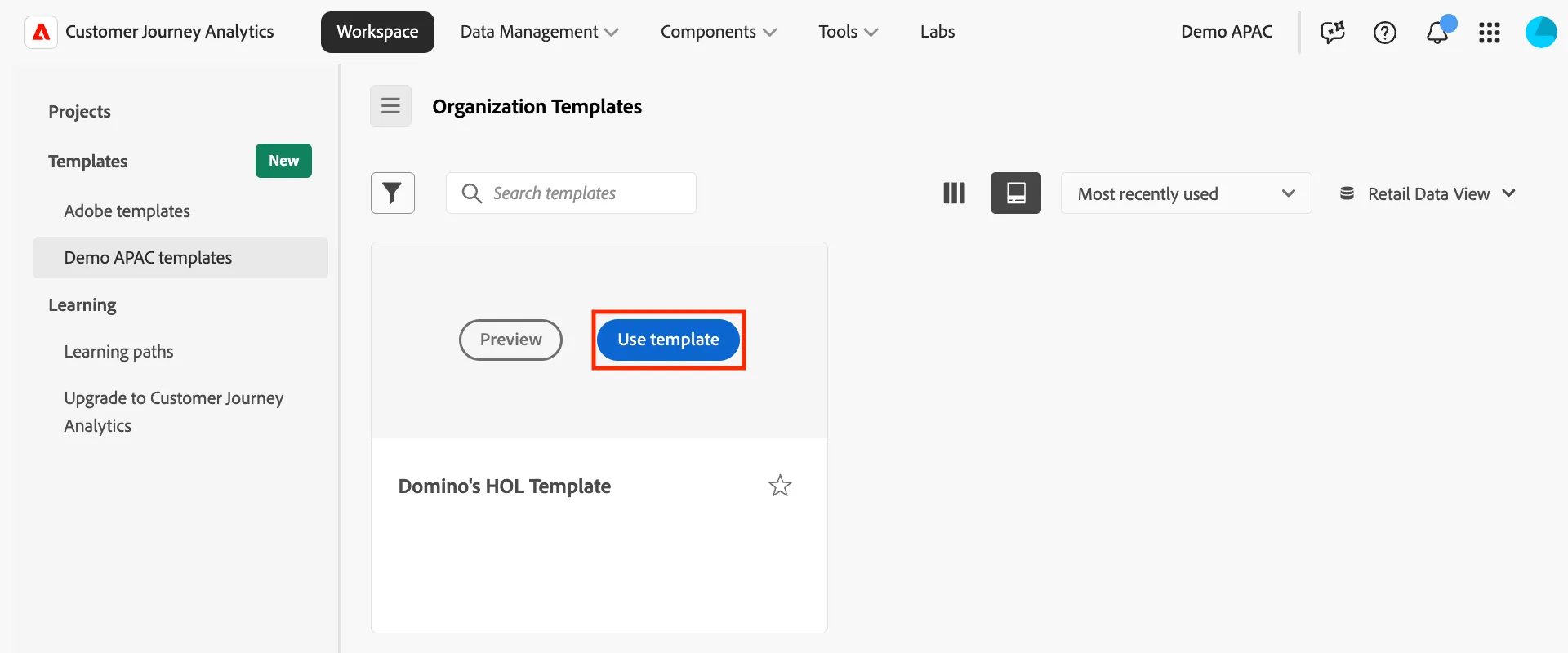
- Hover over the Domino's HOL Template, click on Use template and continue to Exercise 1 Analysis Workspace Intro.
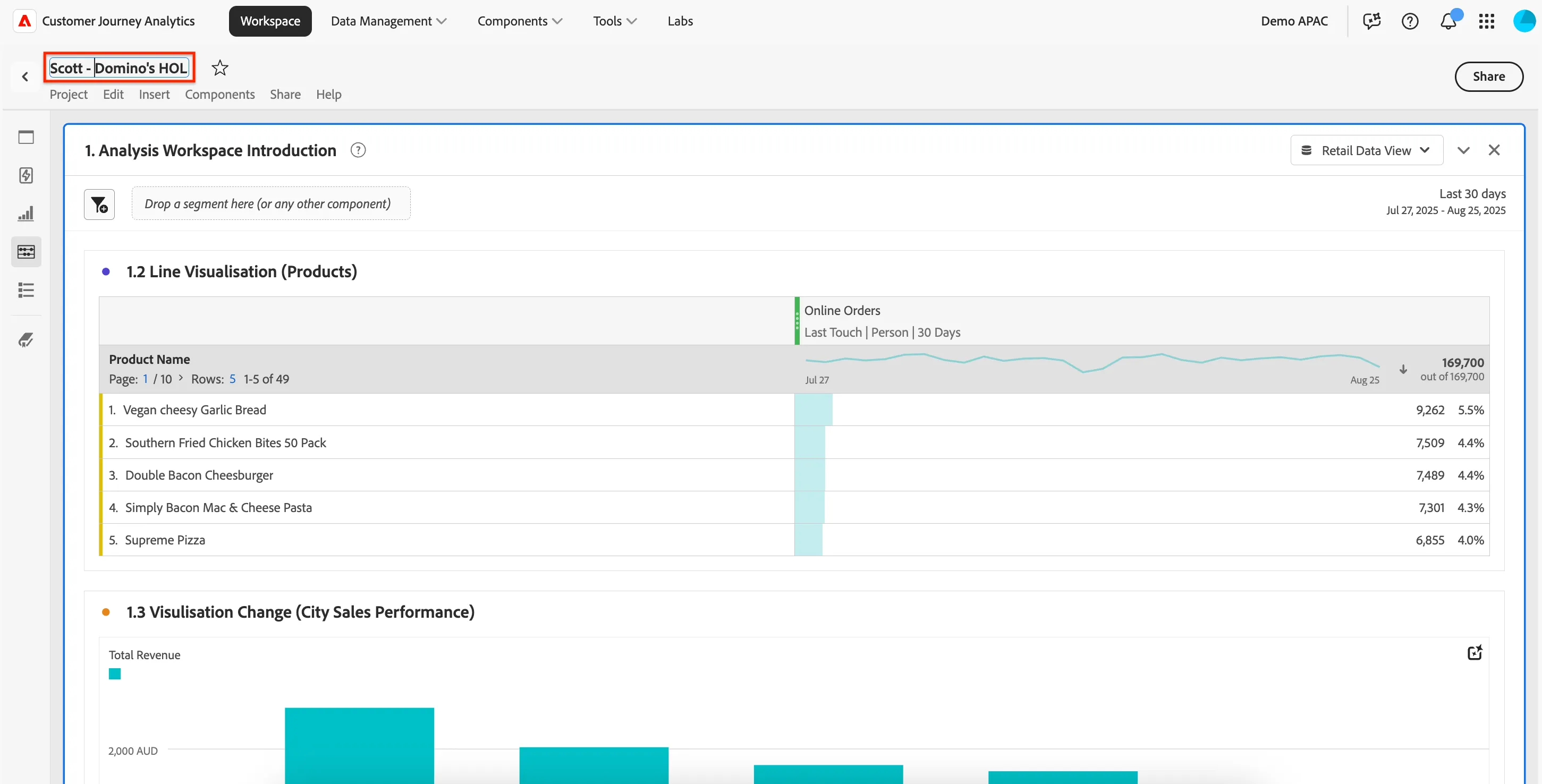
- You should see a template with some pre-made panels and visualisations. You're going to be adding new visualisations to these and modifying the existing ones. But first, change the name by clicking on the Domino's HOL Template text and changing it to <insert your name> - Domino's HOL.
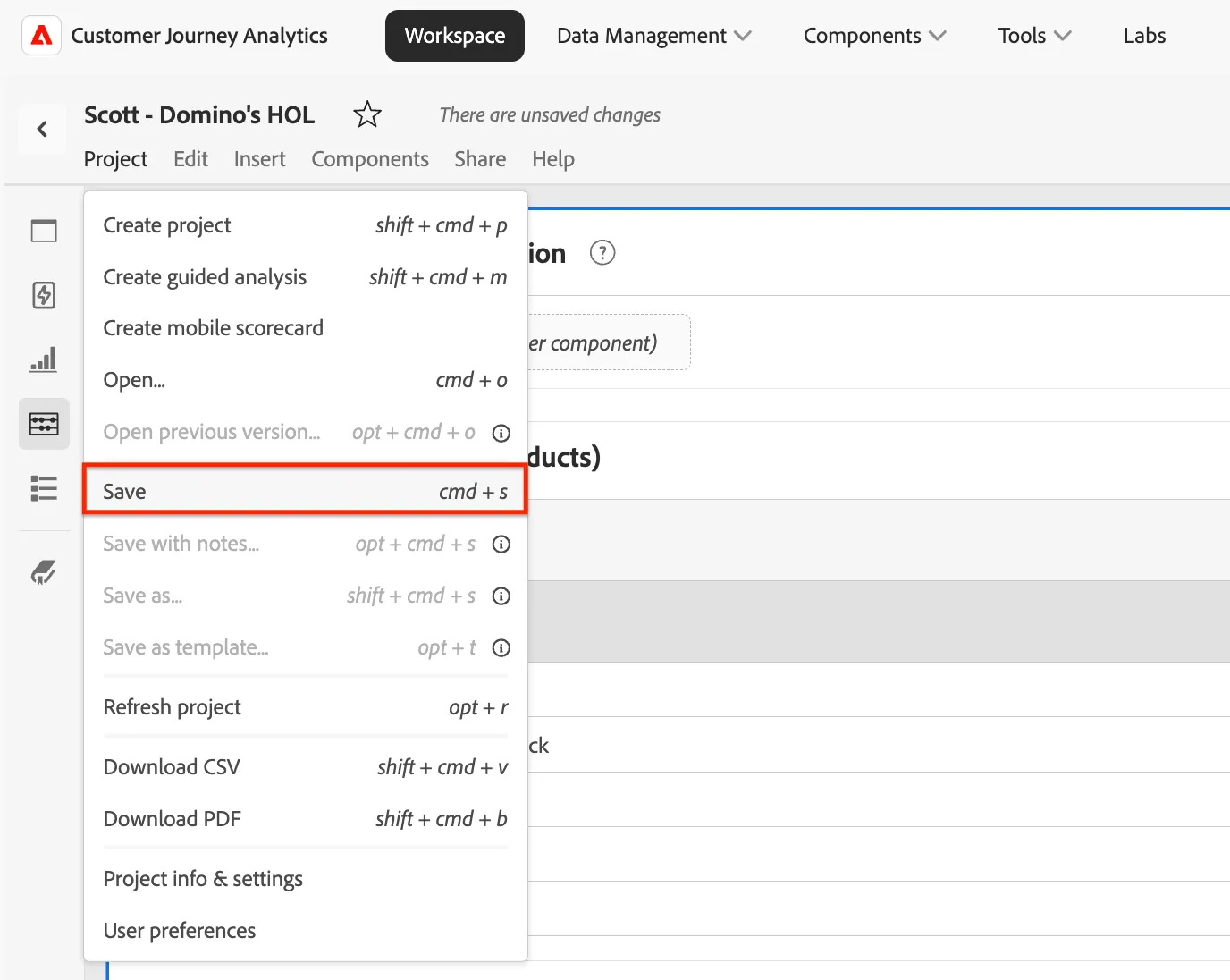
- In the menu, click Project > Save. Enter a description if you like, then click Save again.
1.1 Freeform Table
The freeform table is a core analytical tool within Adobe's Customer Journey Analytics (CJA) Analysis Workspace. It enables users to interactively explore and analyse customer data by combining dimensions, metrics, segments, and filters in a flexible, drag-and-drop interface.
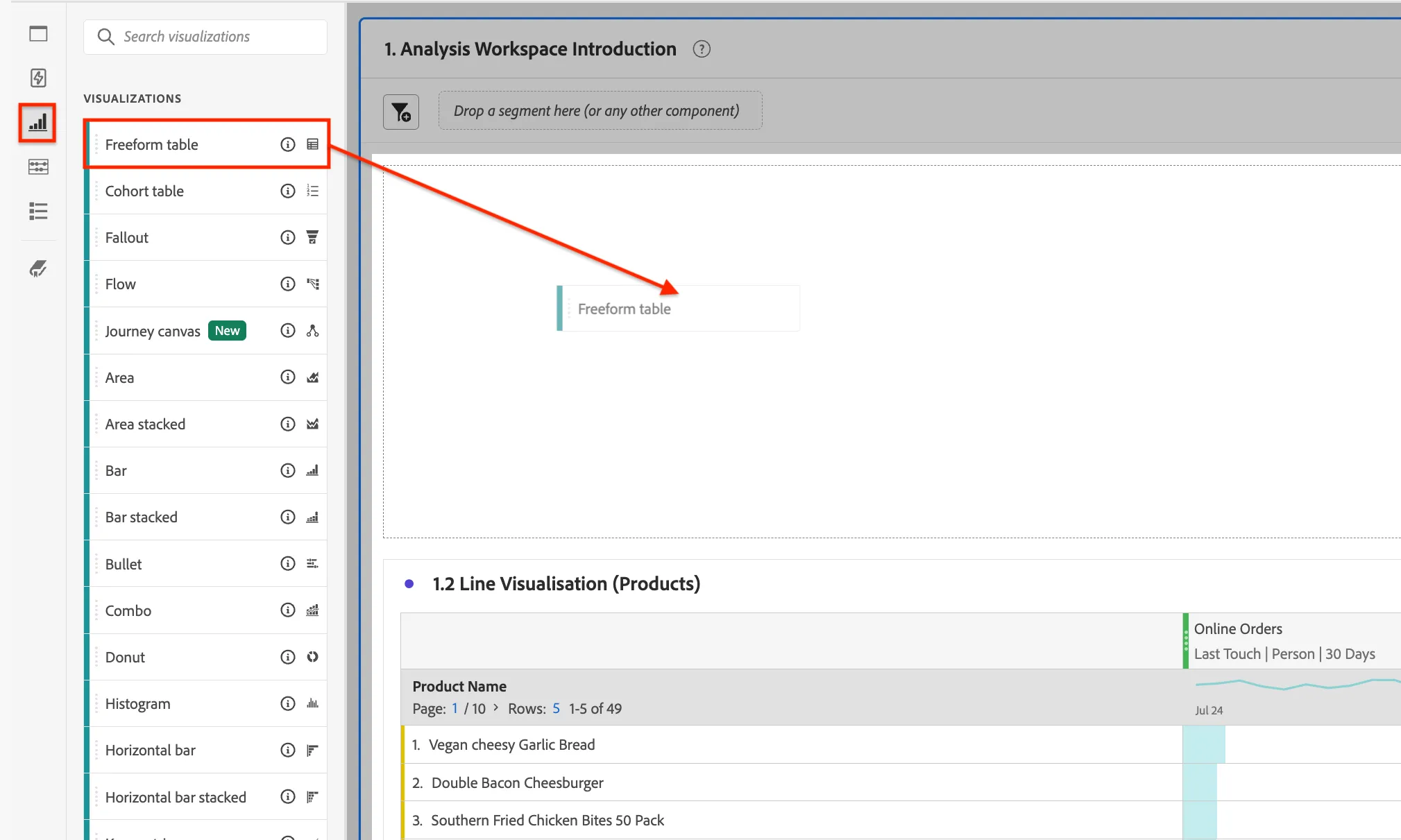
- From the left rail, click on the top Visualizations icon.
- From the Visualizations, drag the Freeform table and drop it above the visualisation name 1.2 Line Visualisations (Products).
- Click on the Freeform table title to rename it. Name it 1.1 Freeform table.
- Click on the Components icon in the left rail, drag Interaction Channel dimension and drop it in the middle area of the table. Notice how dimensions are marked orange.
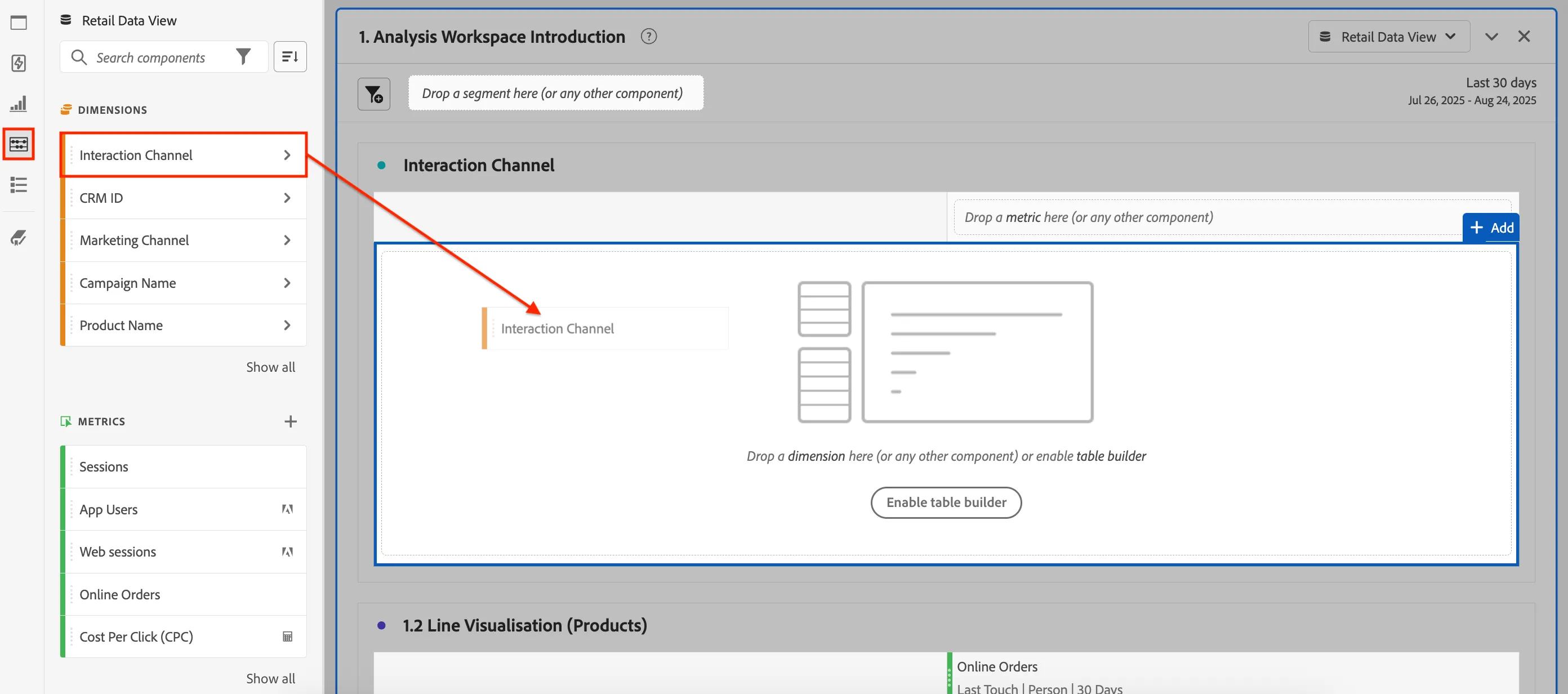
- The interaction channel is a key dimension representing the channel that the event originated on. With Customer Journey Analytics you can report on event based data from any source system you use for customer engagement, including channels which are considered offline like point of sale or call center.
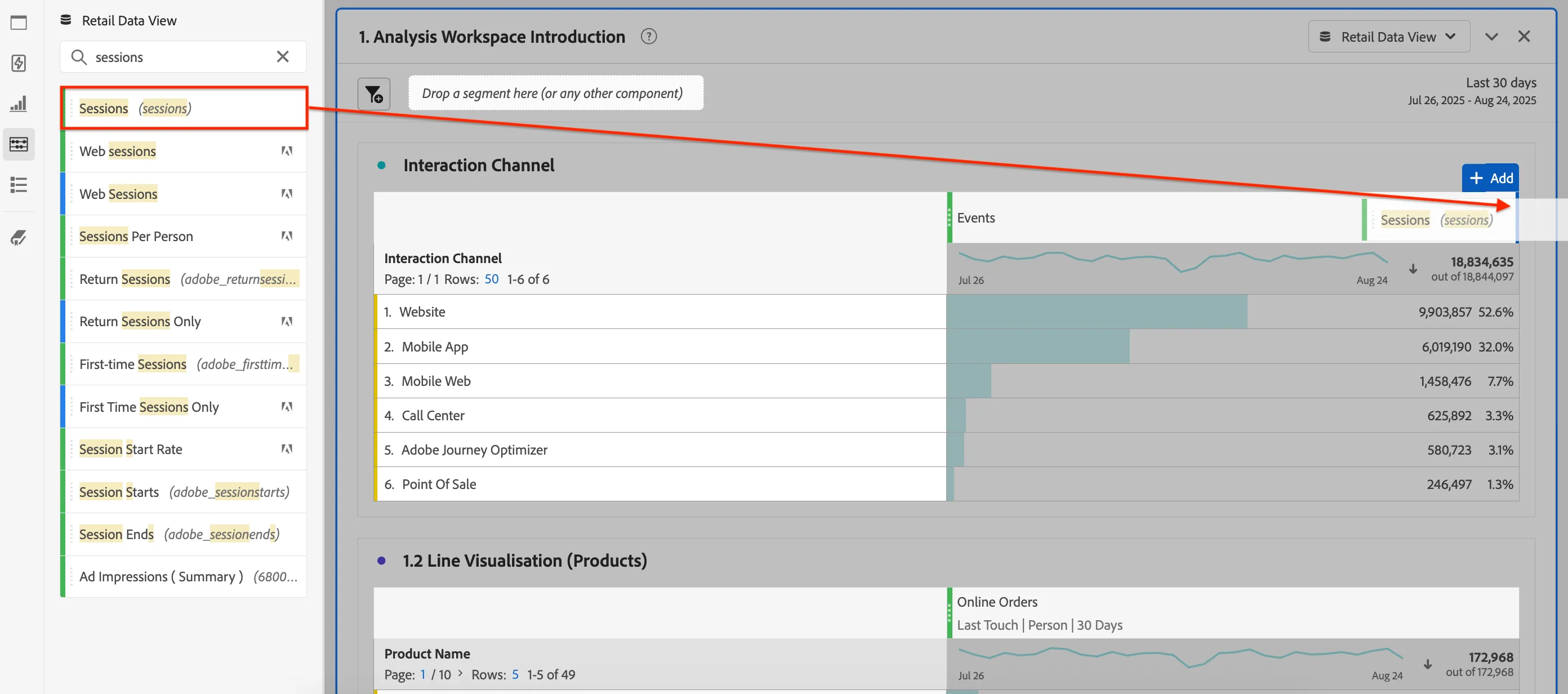
- Search components for Sessions. Drag the Sessions metric and drop it as a new column to the right of Events. Notice the guidemarks that appear before you drop. Also notice how metrics are marked green.
- Repeat the previous step but this time search for People and drop it to the right of Sessions.
- Differentiator: CJA moves beyond other digital analytics solutions as it allows People-level analysis instead of a device or session level.
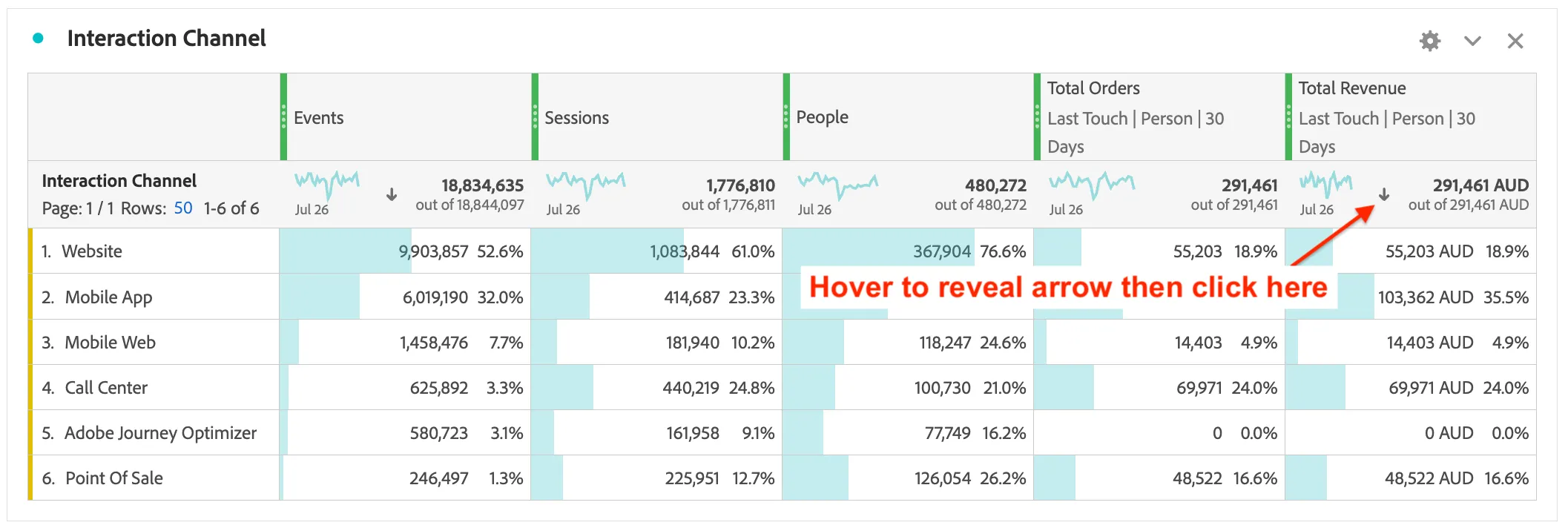
- We want to focus on business insights, so repeat the process for the Total Orders then Total Revenue metrics.
- Hover over the Total Revenue value and click on the sort arrow that appears:
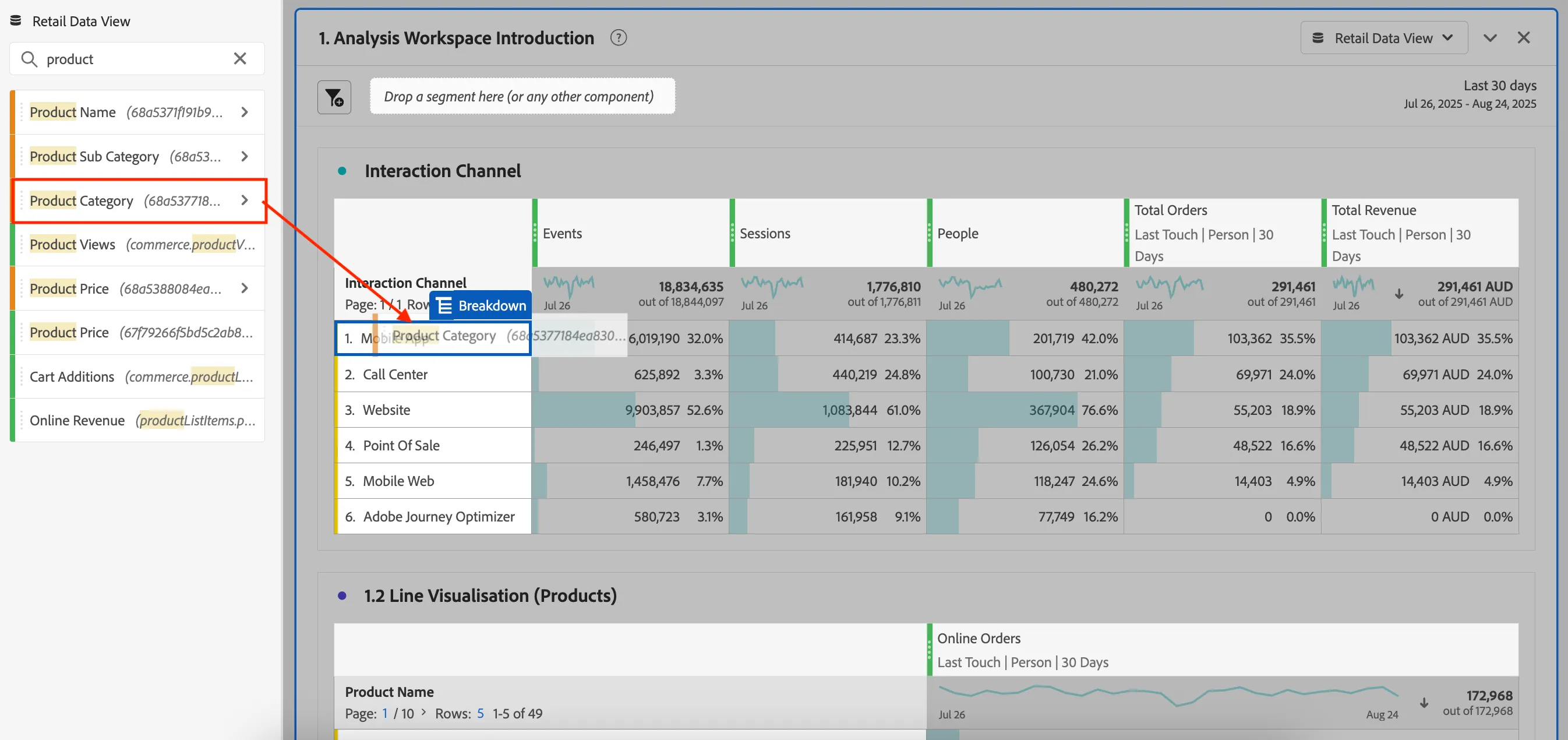
- Type product into the component search. Drag Product Category and drop it over one of the Interaction Channels, such as Mobile App. Notice the Breakdown guidemark before dropping.
- Repeat but this drag Product Sub Category and drop it on a Product Category such as Pizza. You should end up with something like this:
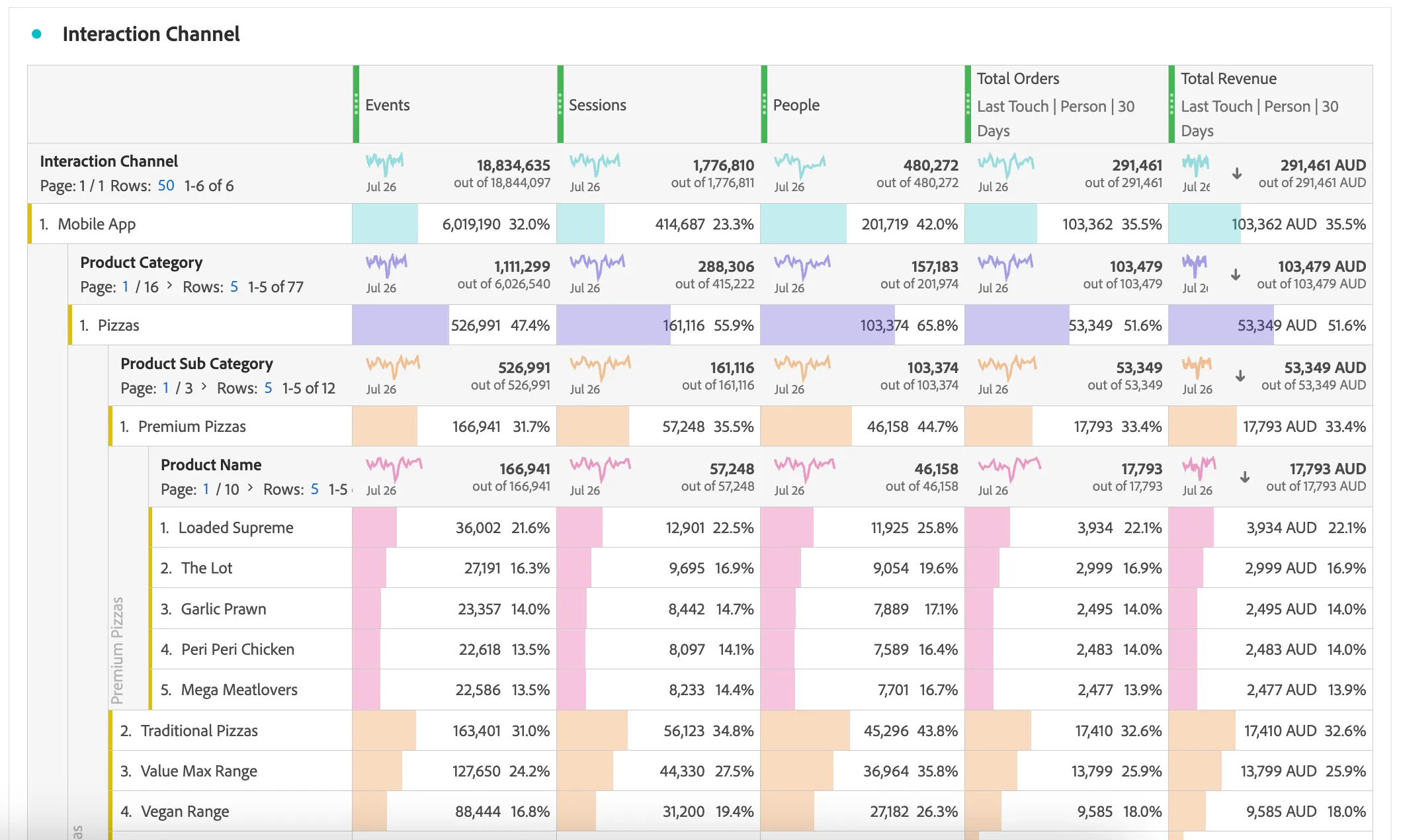
Differentiator: CJA allows you to break down your data in Analysis Workspace in unlimited ways for your specific needs; build queries using relevant metrics, dimensions, segments, time lines, and other analysis breakdown values. Other analytics solutions are often limited to a maximum of 1 or 2 levels of breakdowns.
Congratulations! 👏🏻 You've completed building your first Freeform Table and successfully explored your data by leveraging interactive Breakdowns!
Click Ctrl S (Command S on mac) to save your project.
1.2 Line Visualisation
In this exercise we'll show how you can quickly add a line visualisation to show how online orders are trending per product.
We already have a freeform table which containing the data we want to visualise.
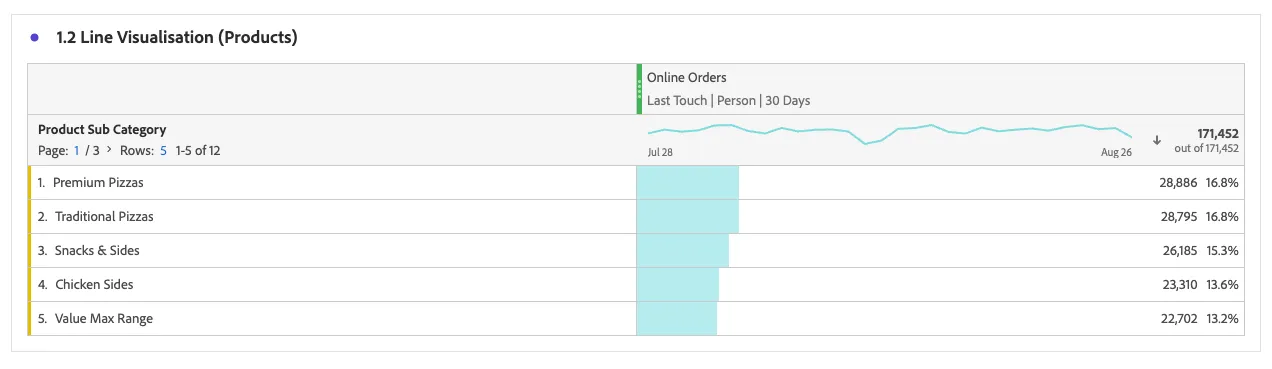
- Click on the Visualisations icon, drag the Line visualisation and drop it above 1.2 Live Visualisation (Products) freeform table.
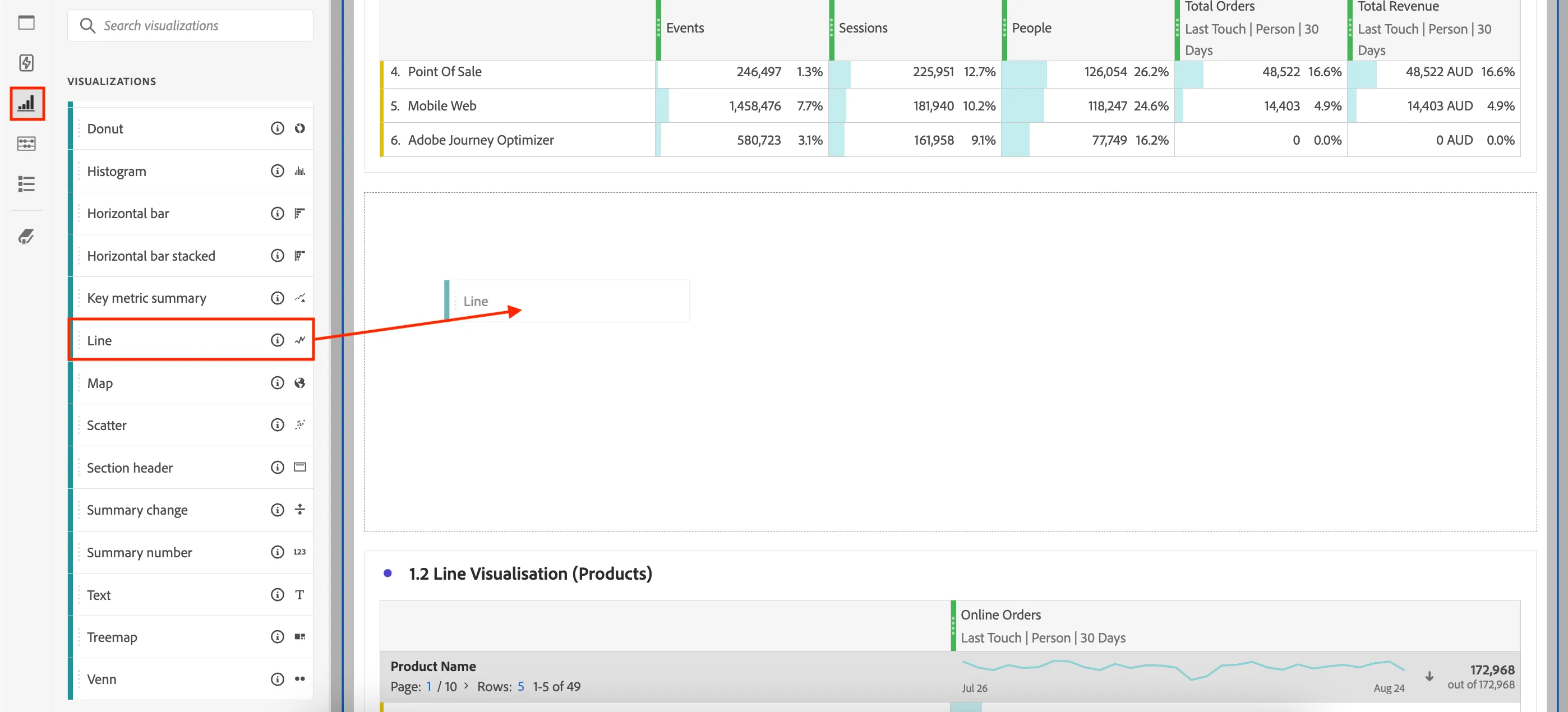
- Dropped visualisations automatically connect to the closest freeform table. You can modify this quickly in the Data Source tab of the visualisation settings. Change the Data Source from Interaction Channel to 1.2 Line Visualisations (Products). This connects the Line visualisation with the data in the Freeform Table.
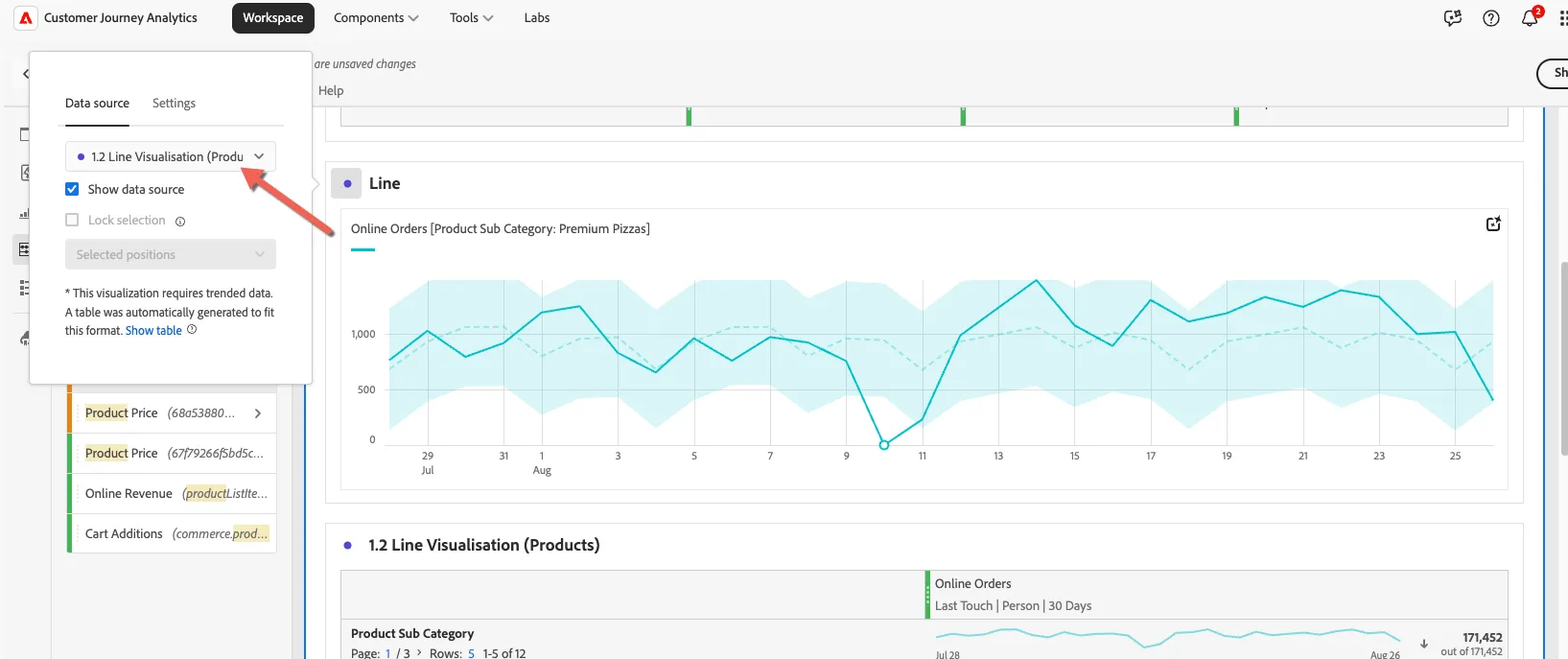
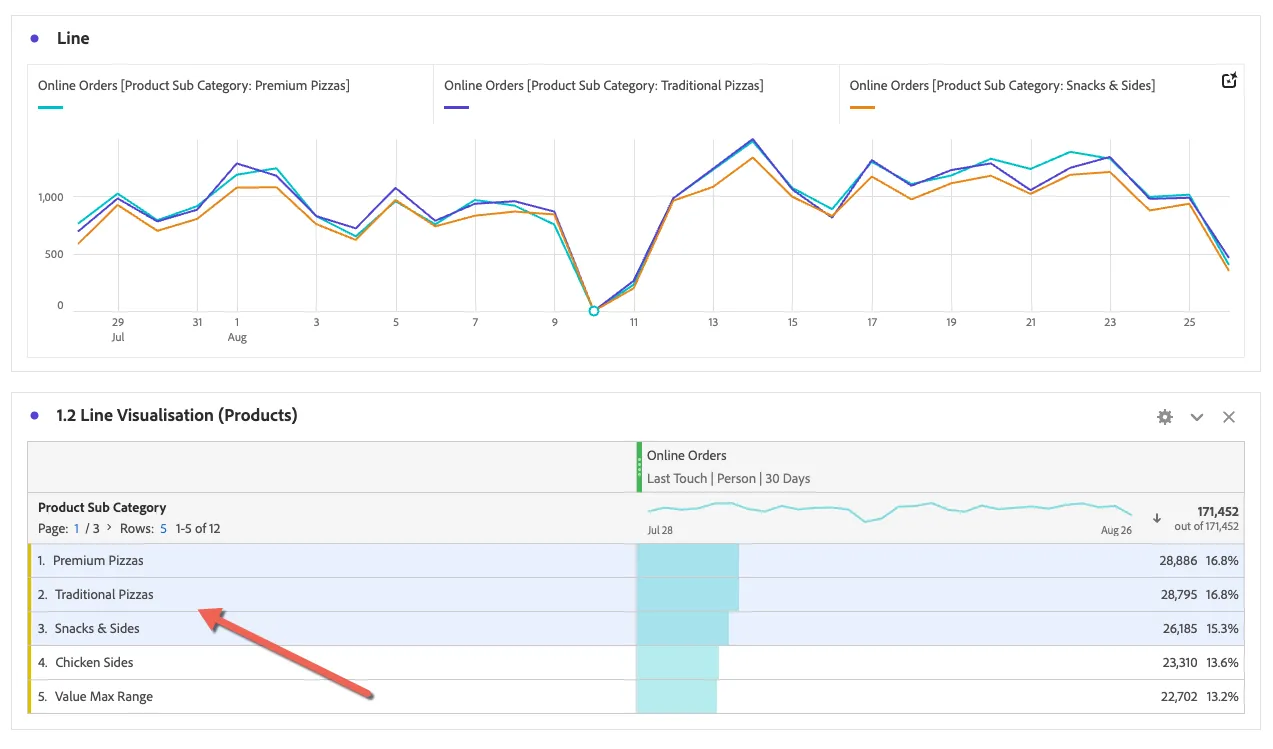
- You can change the data that's shown in the line chart by selecting elements in the freeform table. Select the top 3 products to update the chart.
- We can lock this in by clicking on the cog icon > Data source > Lock selection.
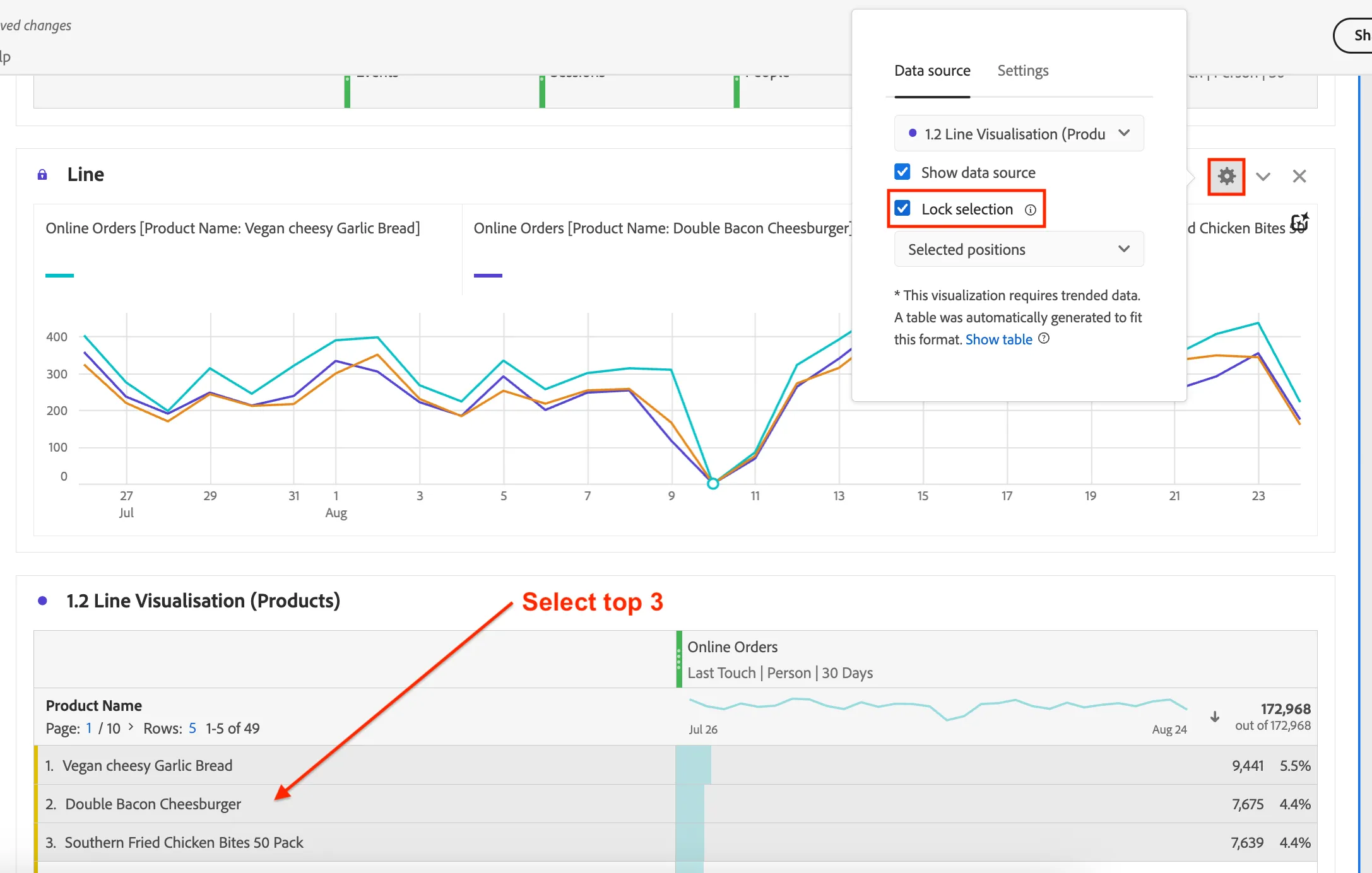
- The Line visualisation is now locked to only show the top 3 product categories, regardless of where we now click in the freeform table. You can also uncheck Show data source if you want to hide the freeform table now.
- Even with the selections locked, you can turn each axis on and off by clicking on the axis key.
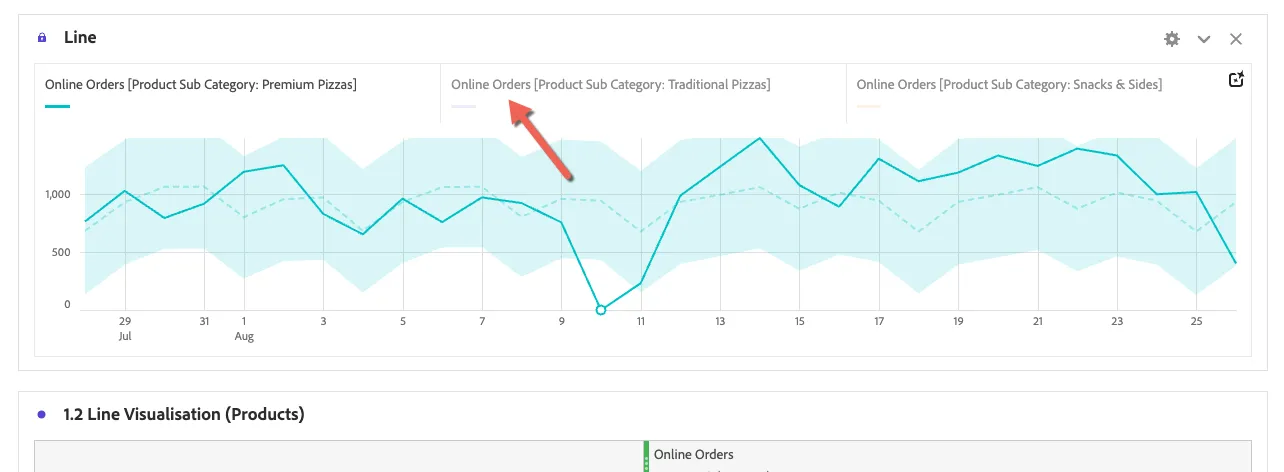
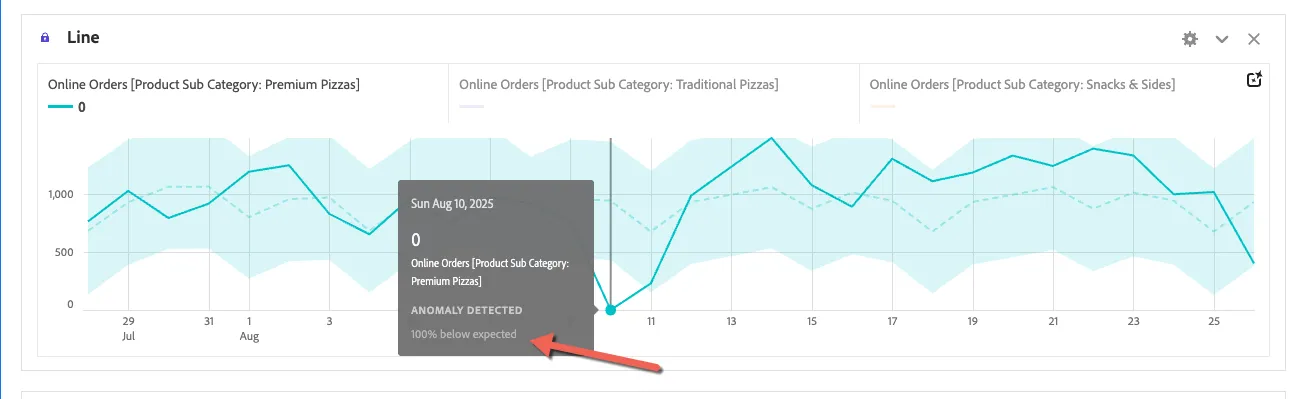
- We can see an Anomaly has been detected on 10th August with zero online sales.
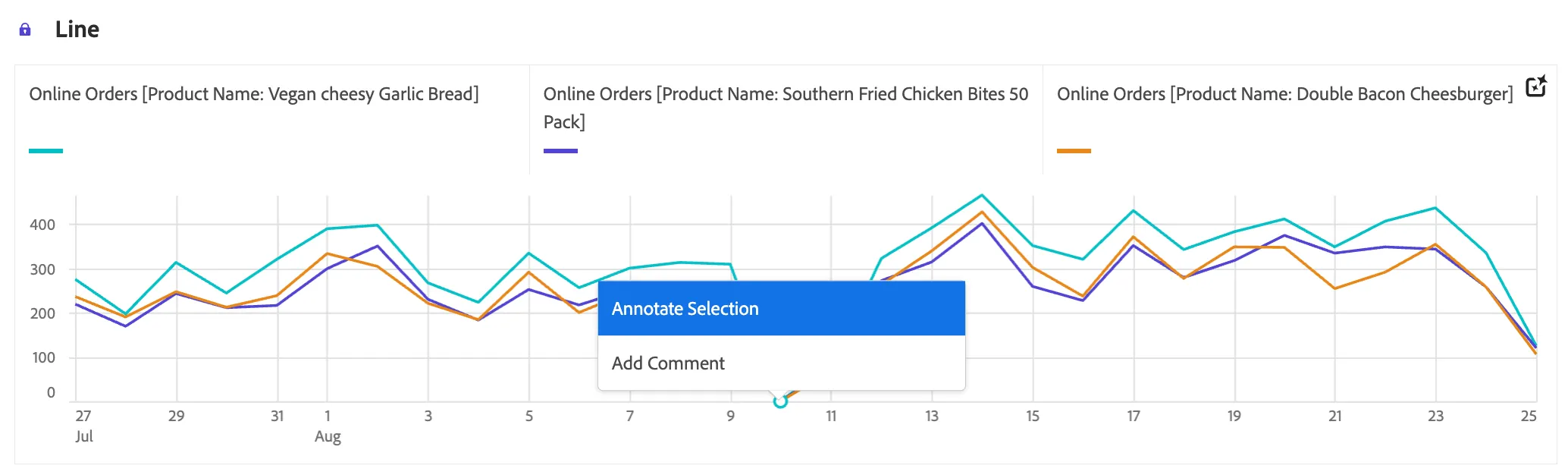
- If we know the reason for such an issue we can add an annotation to share the explanation with other users viewing the dashboard. Hover somewhere over the Line visualisation such as where there's a dip or a spike. Right click and select Annotate Selection.
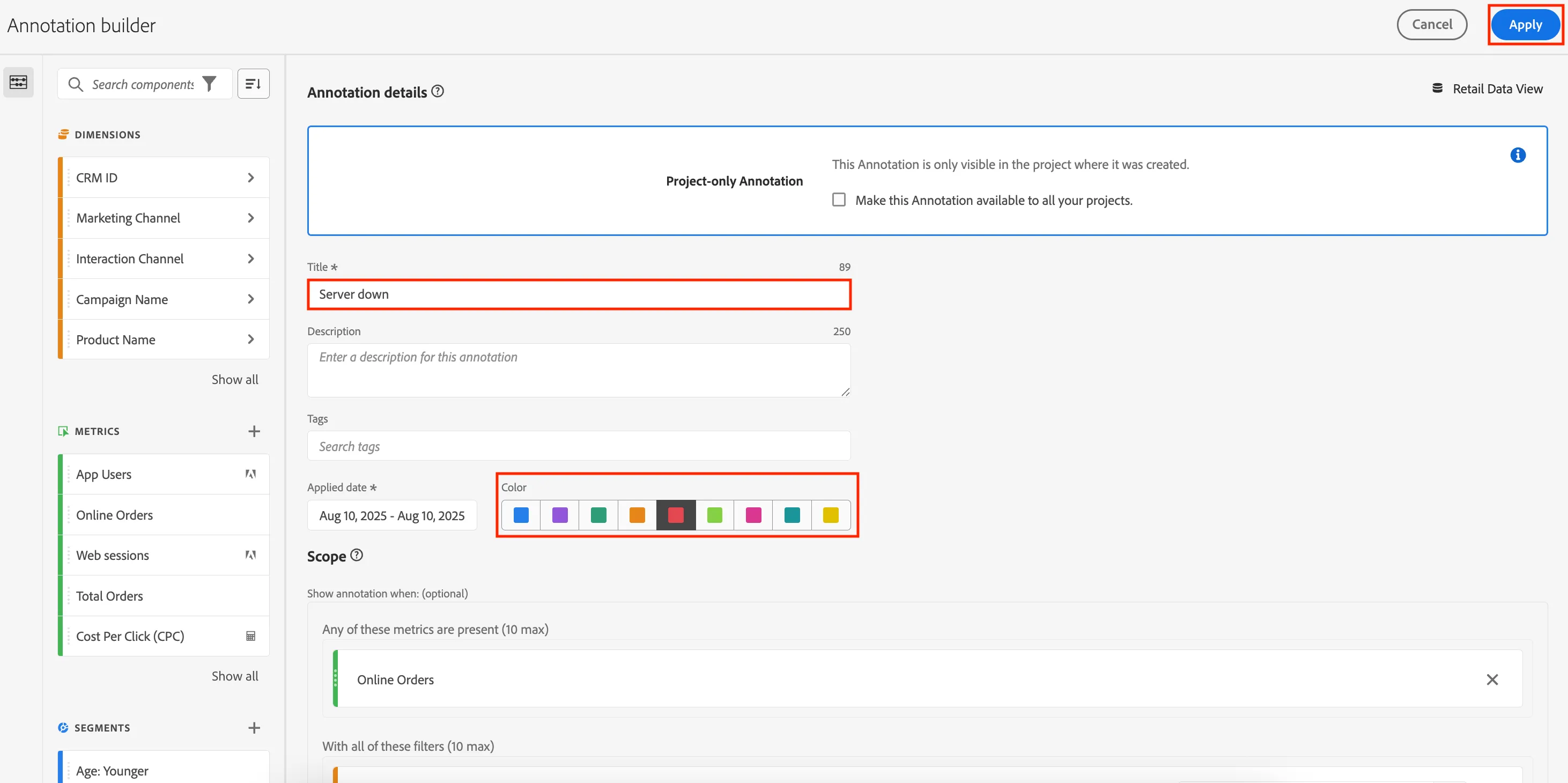
- Set a title such as Server down, pick your colour and click Apply.
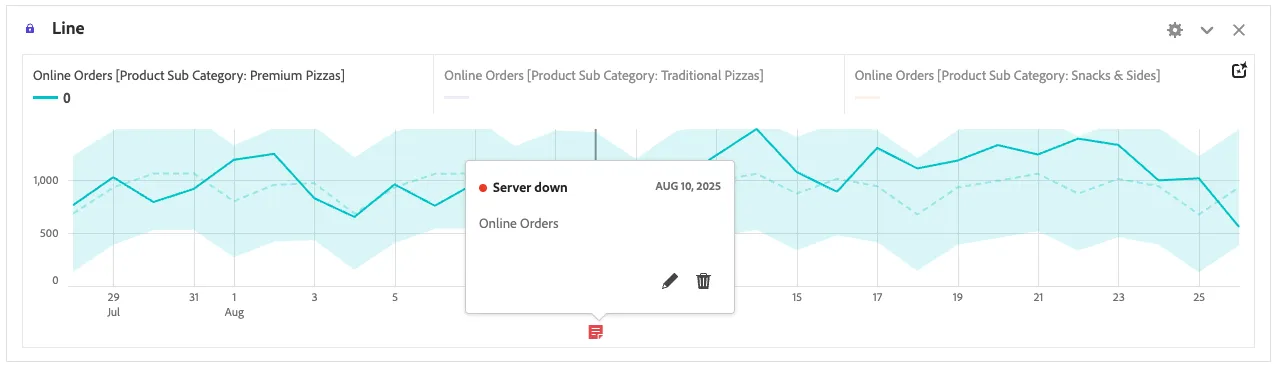
- Your annotation will appear as a note on the visualisation for others to view.
1.3 Visualisation Change
- For the 1.3 Visualisation Change (City Sales Performance) visualisation, click on the cog icon > Visualization and change it to a Donut (yum!).
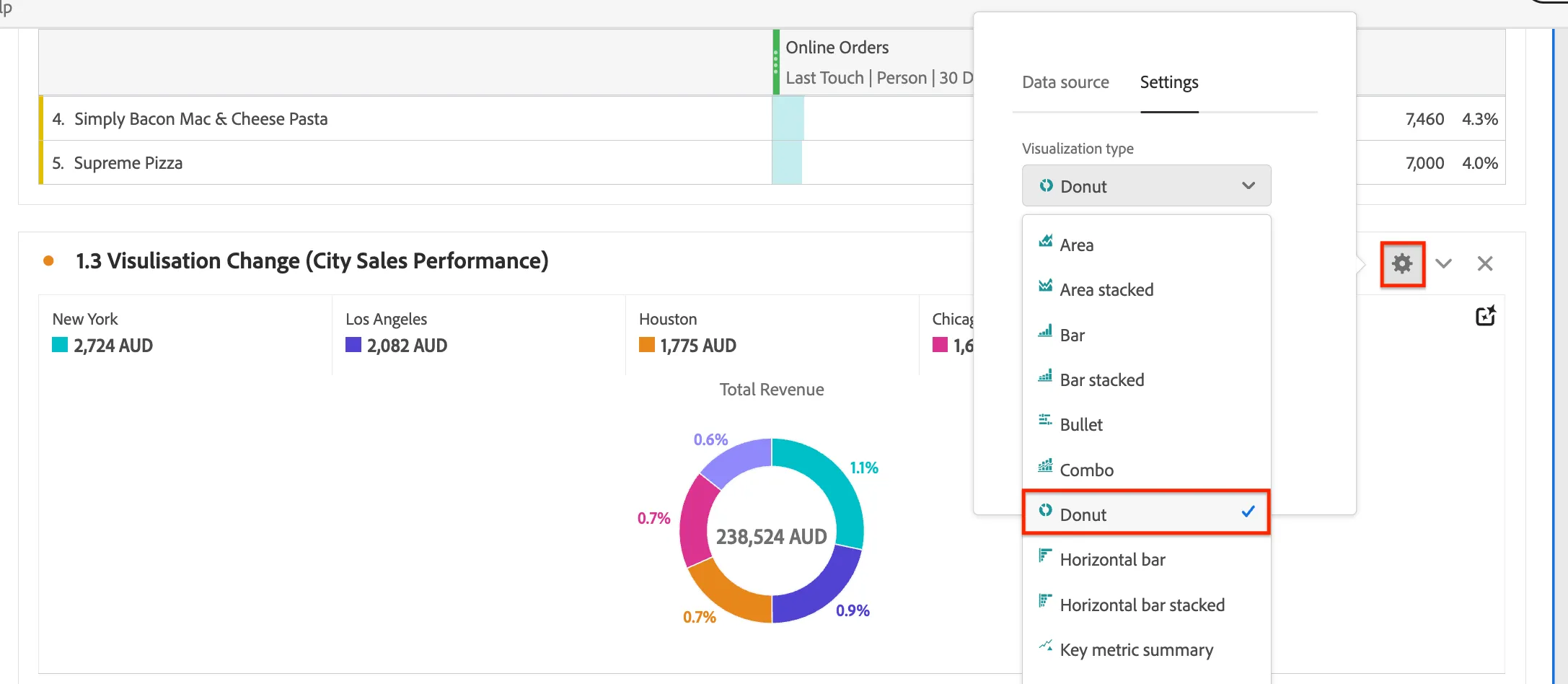
Differentiator: CJA allows you to easily change visualisations without having to navigate to different views/pages. These small efficiencies add up to dramatically improve your productivity and time-to-insights.
1.4 Attribution
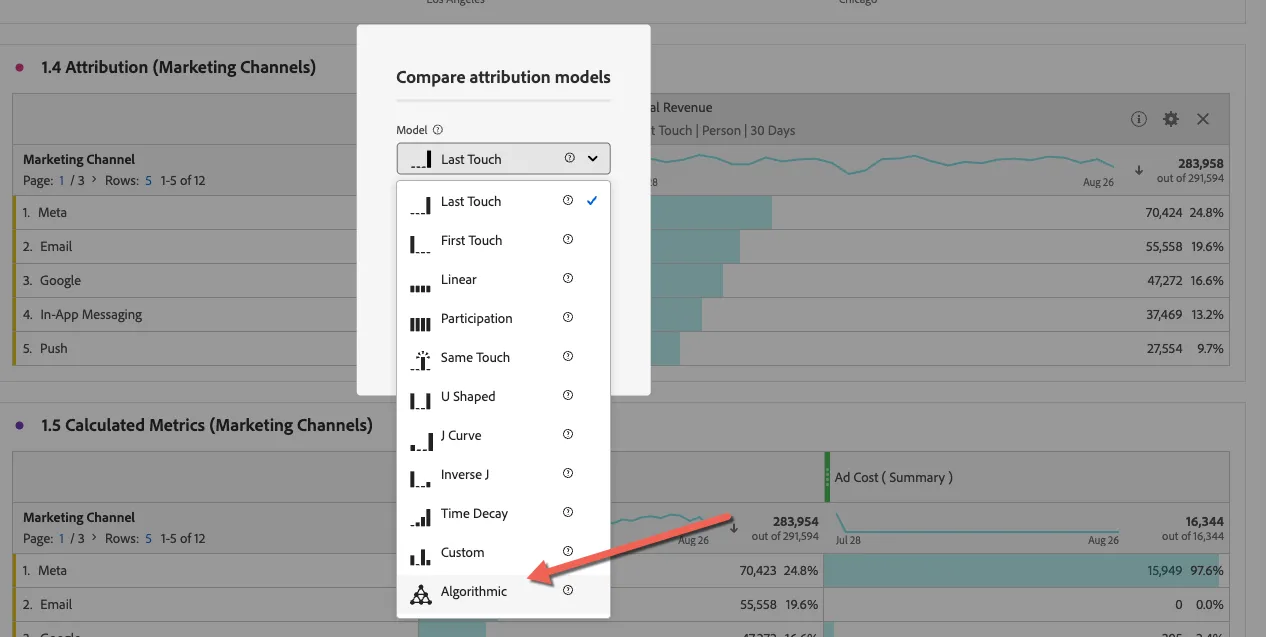
In this exercise we'll look at how your marketing channels are impacting revenue using different attribution models. CJA supports 11 different attribution models including Algorithmic attribution which uses statistical techniques to fairly and dynamically allocate credit for conversions across all contributing touchpoints.
The "Marketing channel" dimension differs from the "Interaction Channel" dimension we used earlier. The marketing channel represents the channel the customer came from when landing on the website or app. It is typically derived from campaign parameters attached to digital ads or marketing messages like emails.
Each metric can be configured with a default attribution model but you can update this easily directly in the dashboard. Looking at the freeform table labeled 1.4 Attribution (Marketing Channels) you can see the attribution model assigned to the Total Revenue metric is Last Touch | Person | 30 days. This means we'll credit 100% of the revenue to last marketing channel that the customer entered from up to 30 days before a purchase was made.
Let's compare this model with a multi-touch model which will split the credit across multiple channels when the customer engaged with more than one in the lead up to their purchase.
- In the 1.4 Attribution (Marketing Channels) freeform table, hover over the Total Revenue column header. Right click and select Compare attribution models.
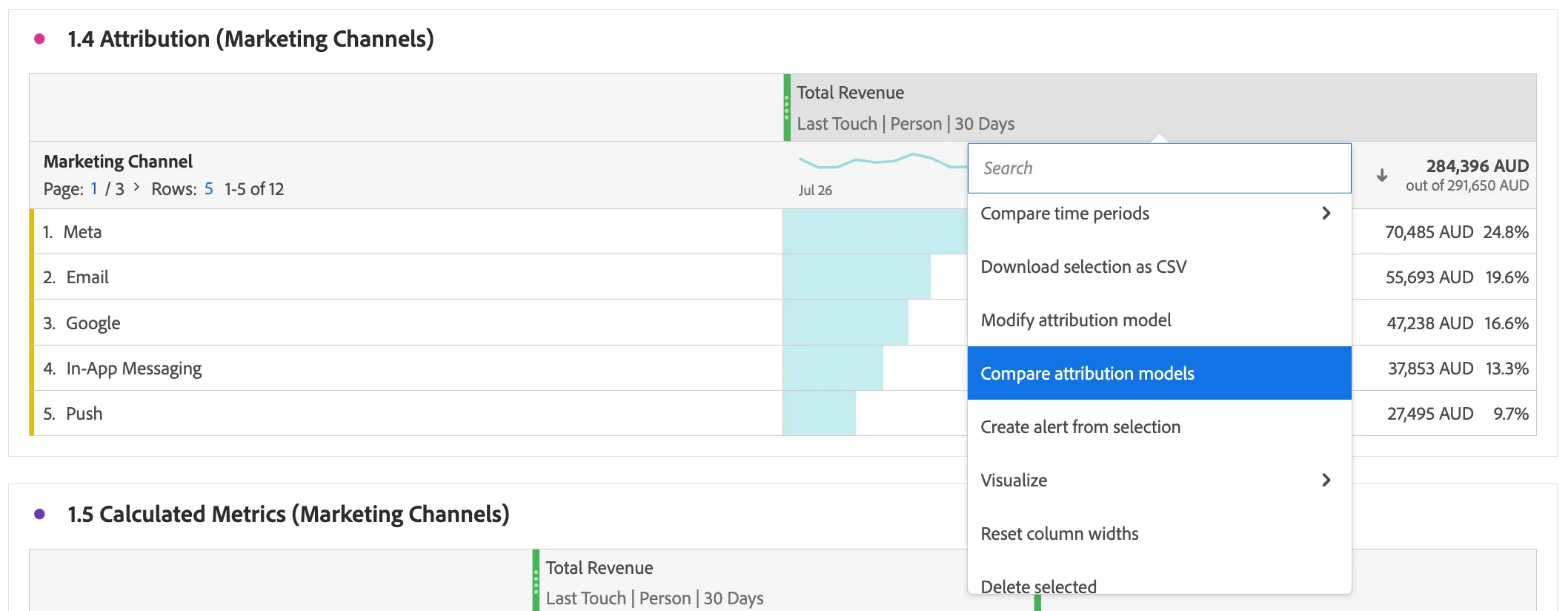
- Select Algorithmic or one of the other models:
- You can also modify the lookback window from 30 days to 14 days to shorten the period we want to consider in our attribution.
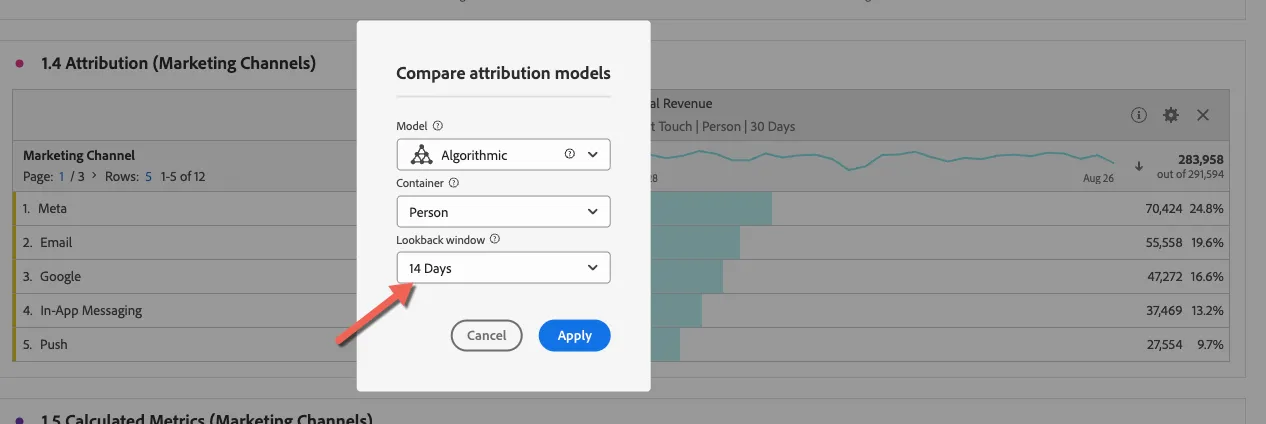
- Two new columns will be added to our freeform, one with the new attribution model and another showing the percent difference between the two models.
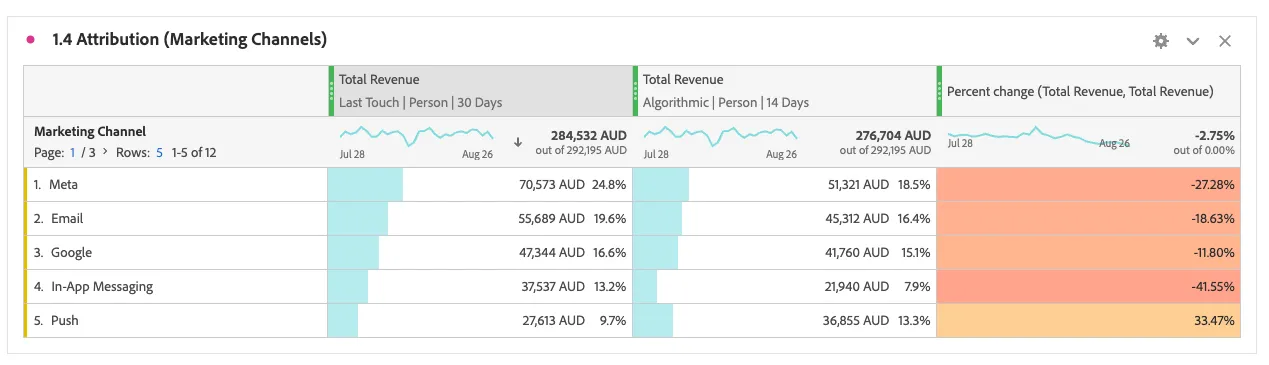
Differentiator: Most people think of attribution in terms of marketing channel influence but it can also be used for many other use cases. In Customer Journey Analytics we can use attribution models to measure the influence that any data point has on driving any event of interest, for example, measure the influence of web pages on driving calls to the call center.
1.5 Calculated Metrics
In this exercise you'll learn how we can quickly create new metrics on the fly directly from your dashboard. Looking at the 1.5 Calculated Metrics (Marketing Channels) visualisation we can see the Ad Cost (this is a summary metric ingested from Ad Platforms) and the Total Revenue per marketing channel. Now what if we want to understand the ROI we need to divide these two metrics.
- Select both of the column headers
- Now right click > Create metric from selection > Divide.
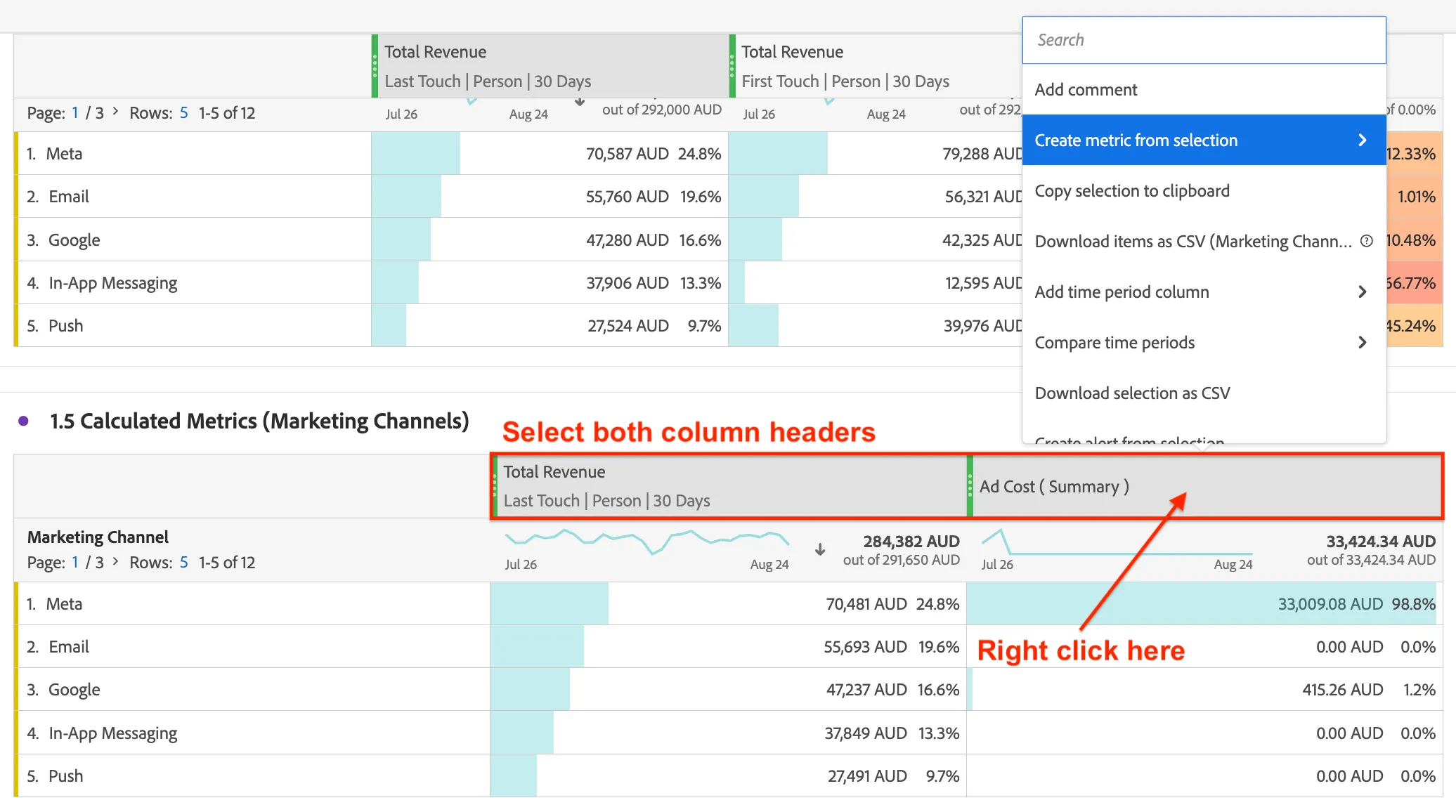
- You will end up with something like this:
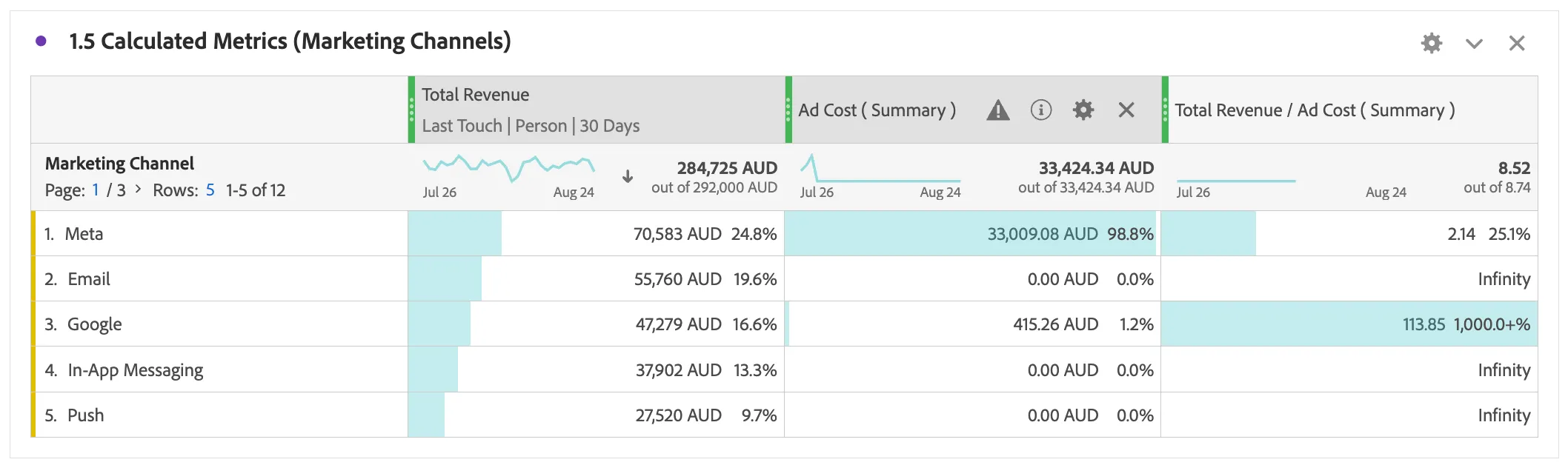
- You can view the metric definition and edit it if necessary by clicking the info icon in the column heading.
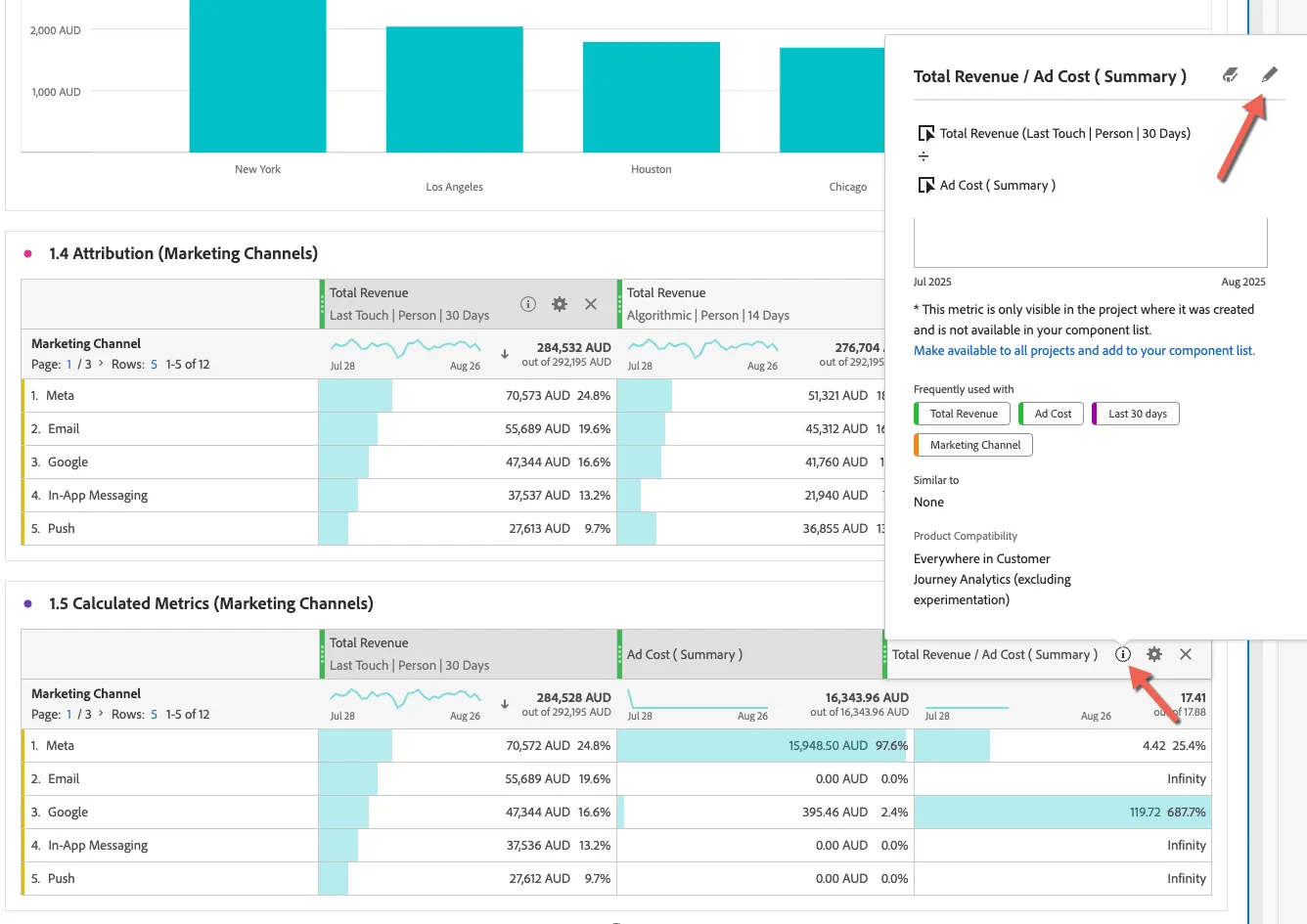
- Click Ctrl S to Save your project.
Differentiator: No more exporting to Excel or other tools to do basic (or even more complicated) calculations! 🏆 CJA also allows you to bring in summary level data which isn't directly tied to a person, this is useful for ingesting campaign performance data from social and other advertising platforms. This allows a holistic view of your marketing efforts and performance.