5. Guided Analysis
5.1 Active Growth
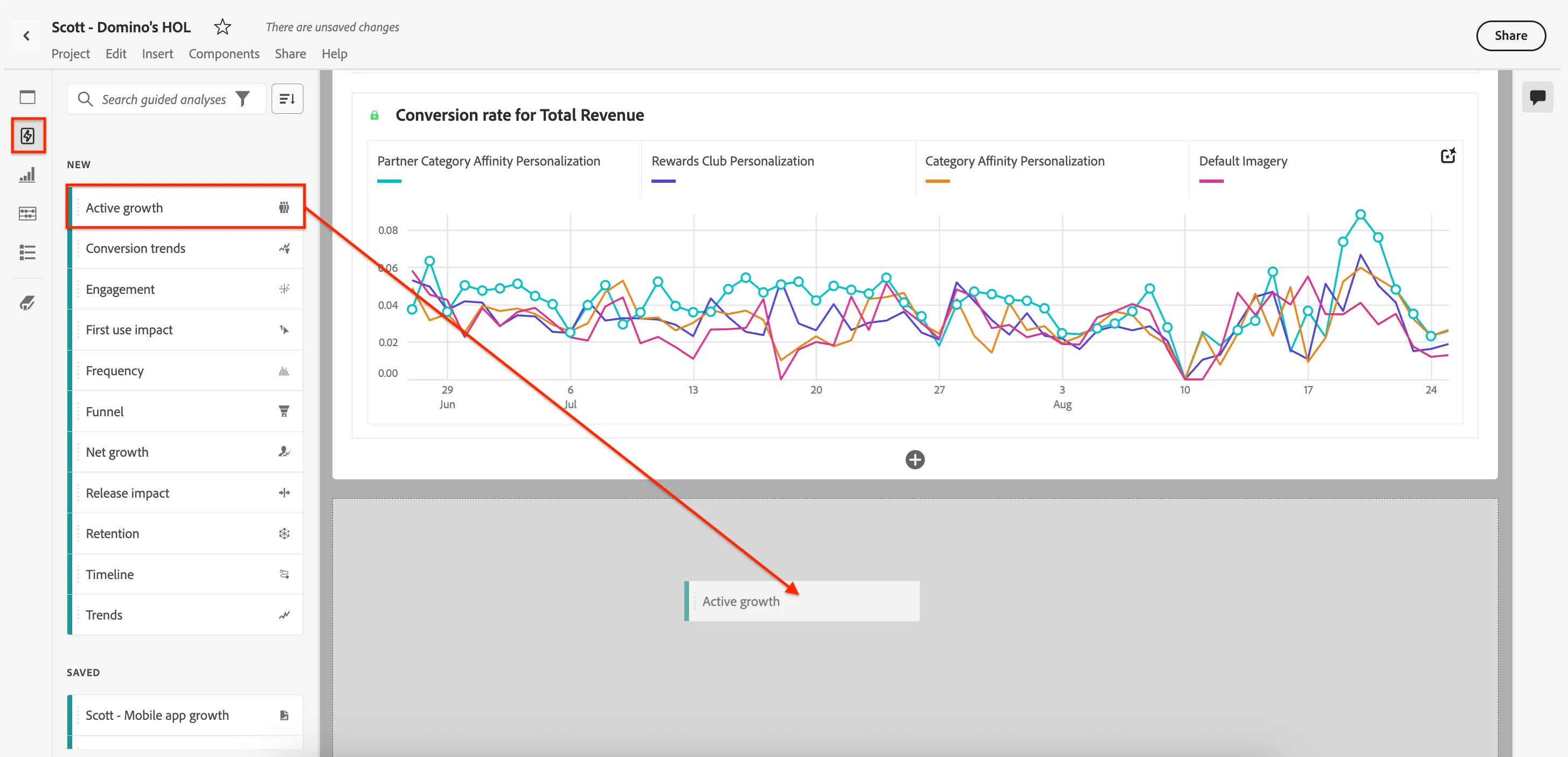
- Click on the Guided Analysis icon from the left rail, then drag-and-drop Active growth to below the Experimentation Panel.
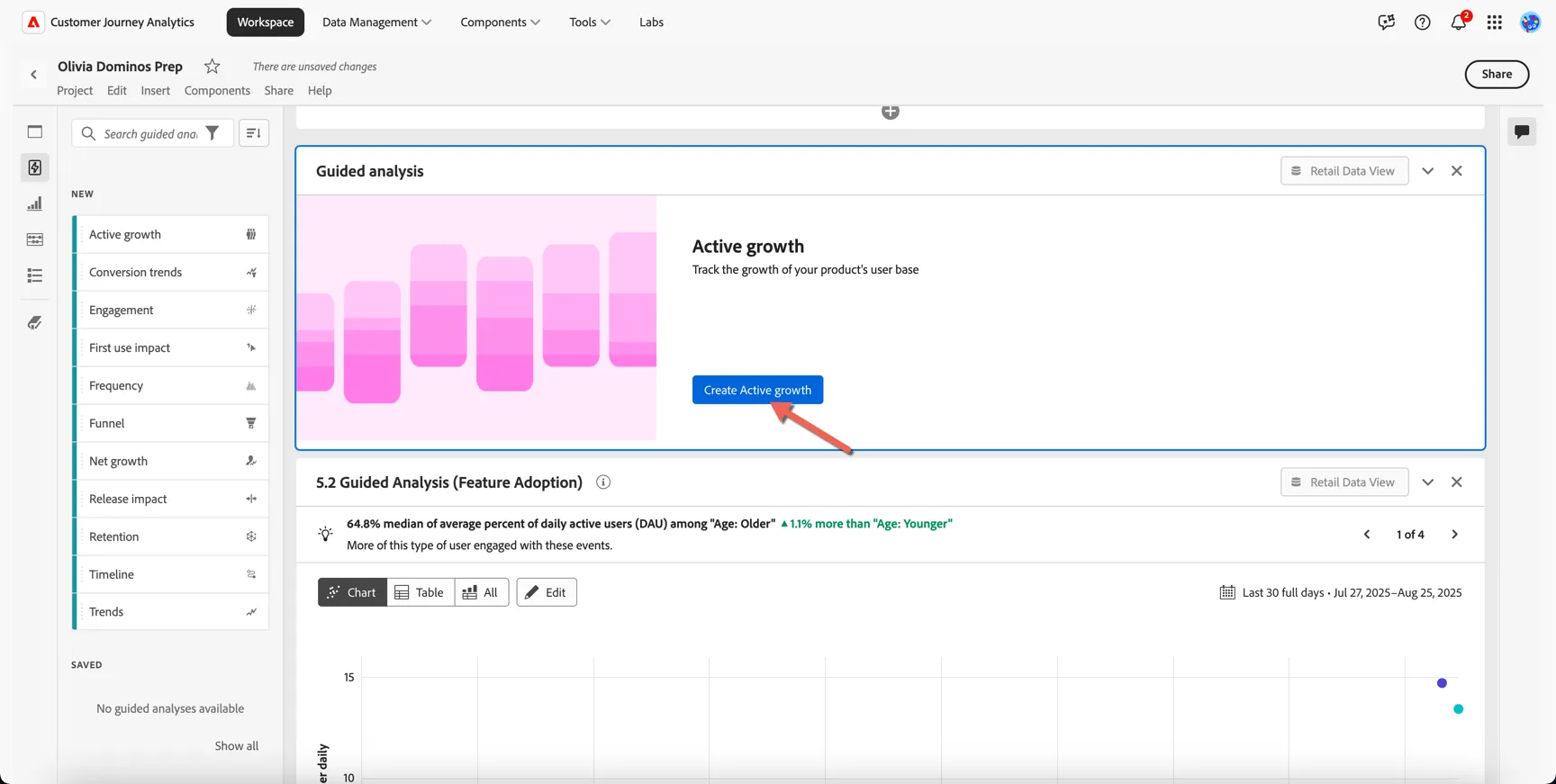
- Click Create Active growth.
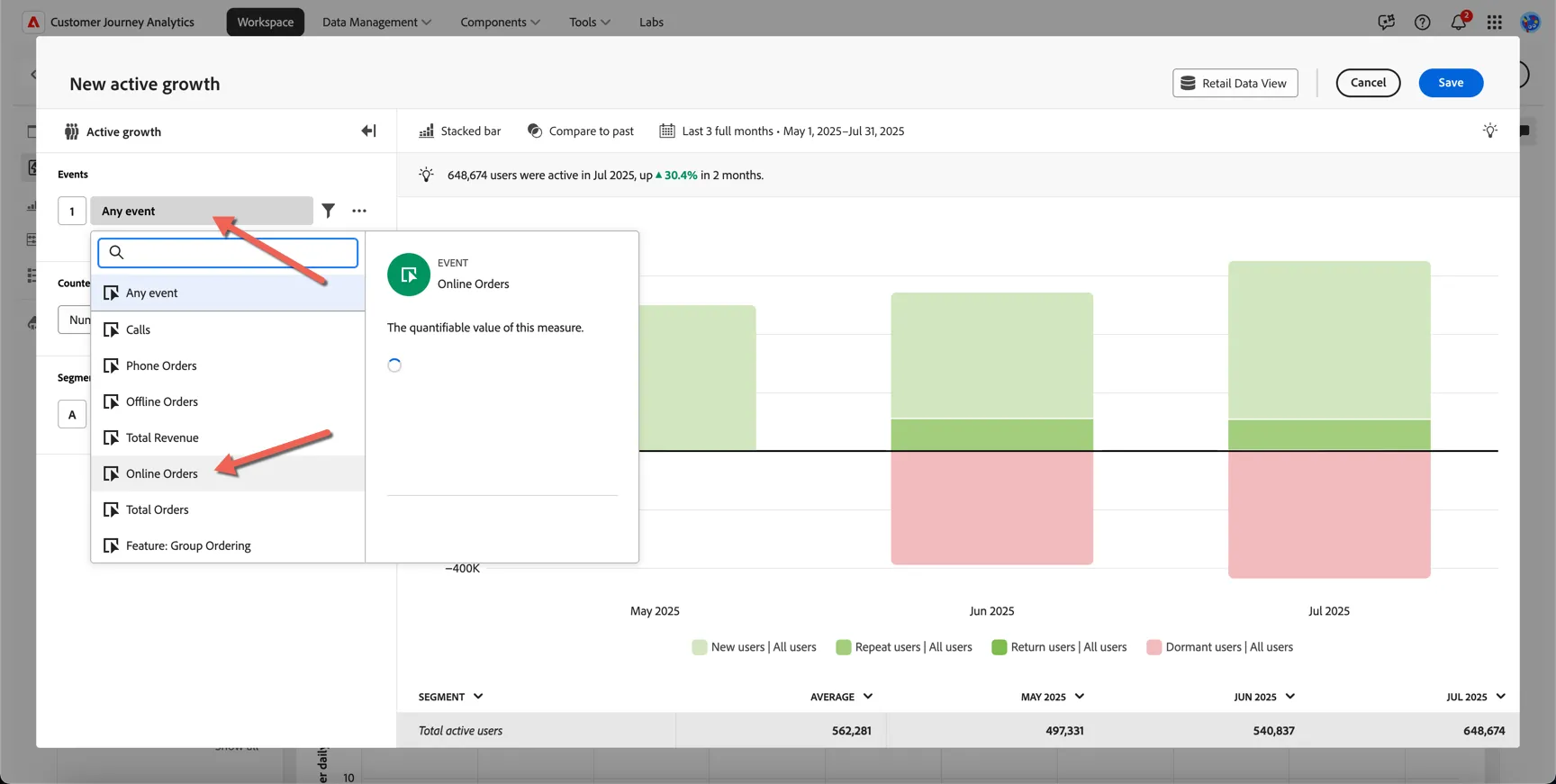
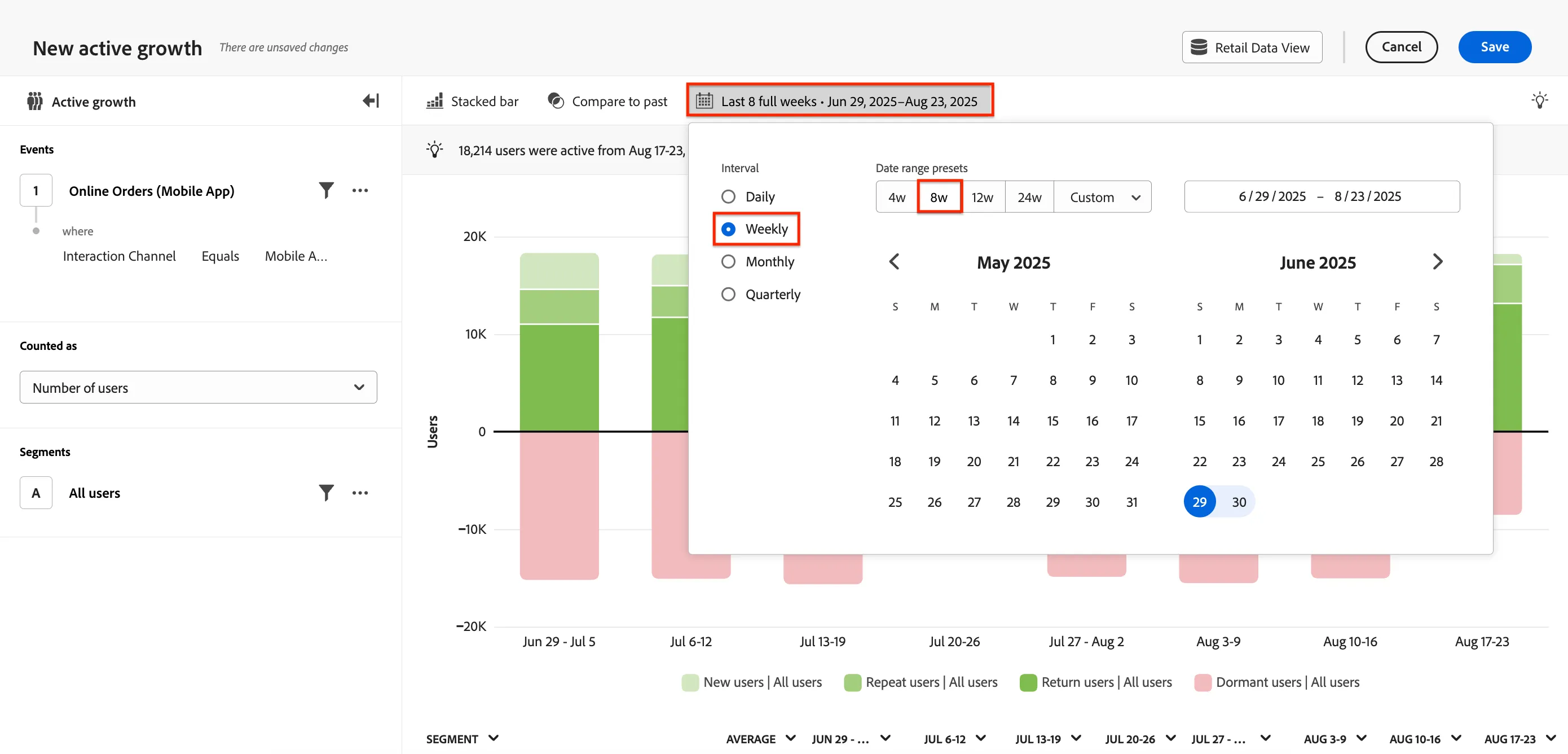
- Change Any event to Online Orders.
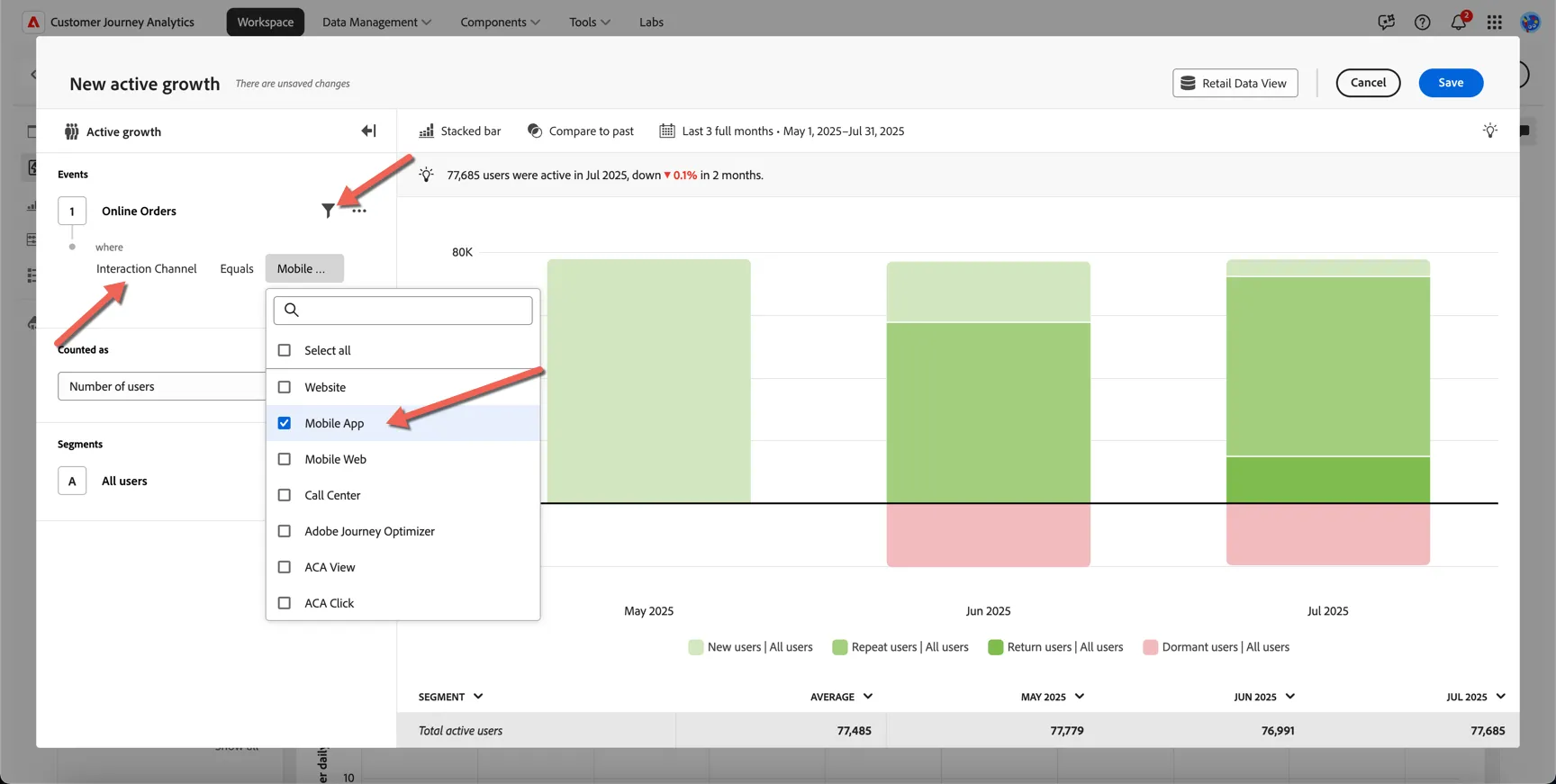
- Click the Filter icon > Interaction Channel > Mobile App.
- Click on the date range and select Weekly, 8w.
- Click on the New active growth title at the top left and change it to <insert your name> - Mobile app user growth.
- Click Save.
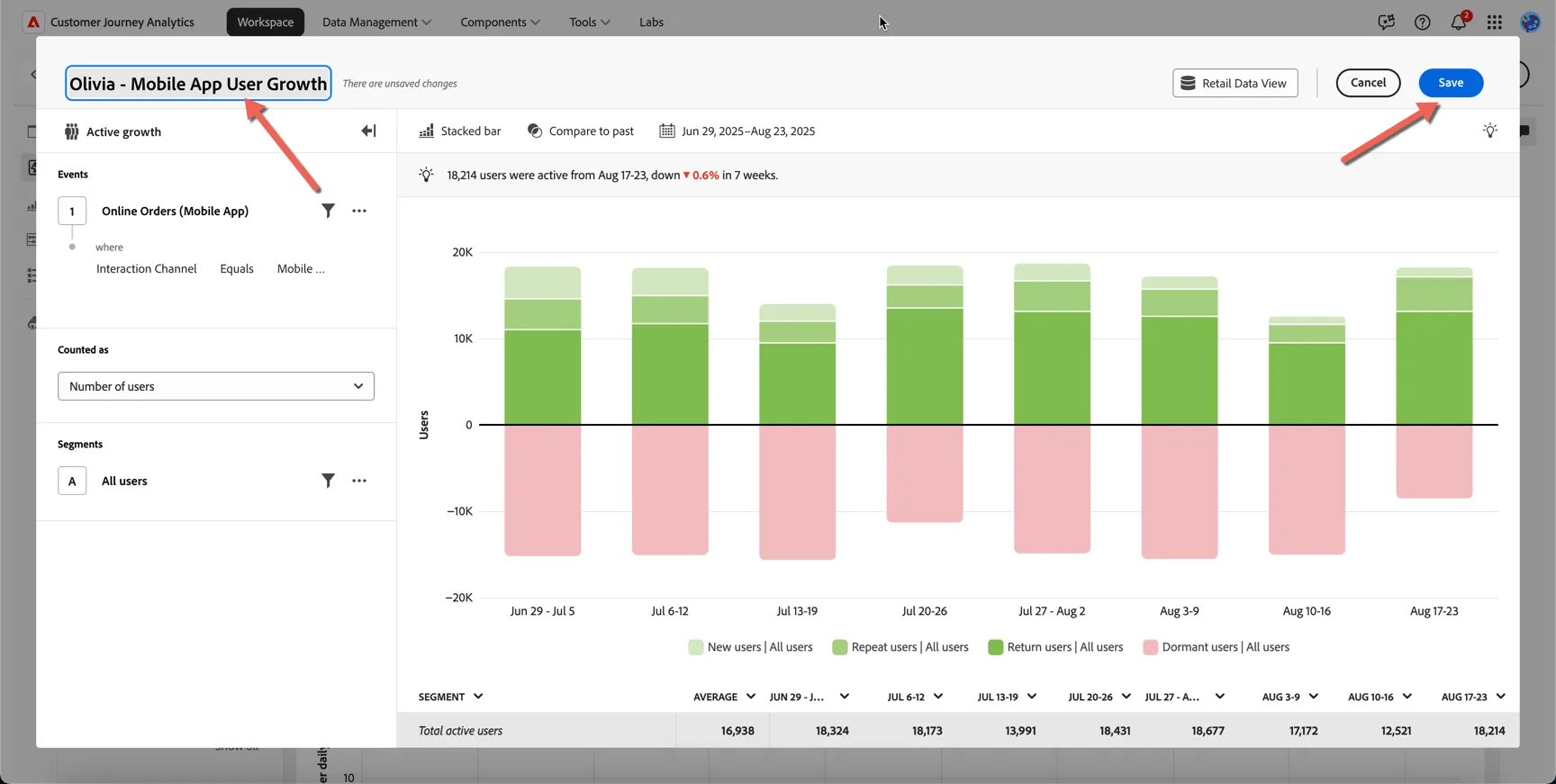
Differentiator: CJA not only gives you a quick view of growth, including New, Repeat, Return and Dormant users, but it also allows quick activation when combined with Adobe Real-Time CDP. For example, you can right click on a Dormant User segment and click Save Segment, then use this segment to create an Audience that can be activated/targeted.
5.2 Engagement / Feature Adoption
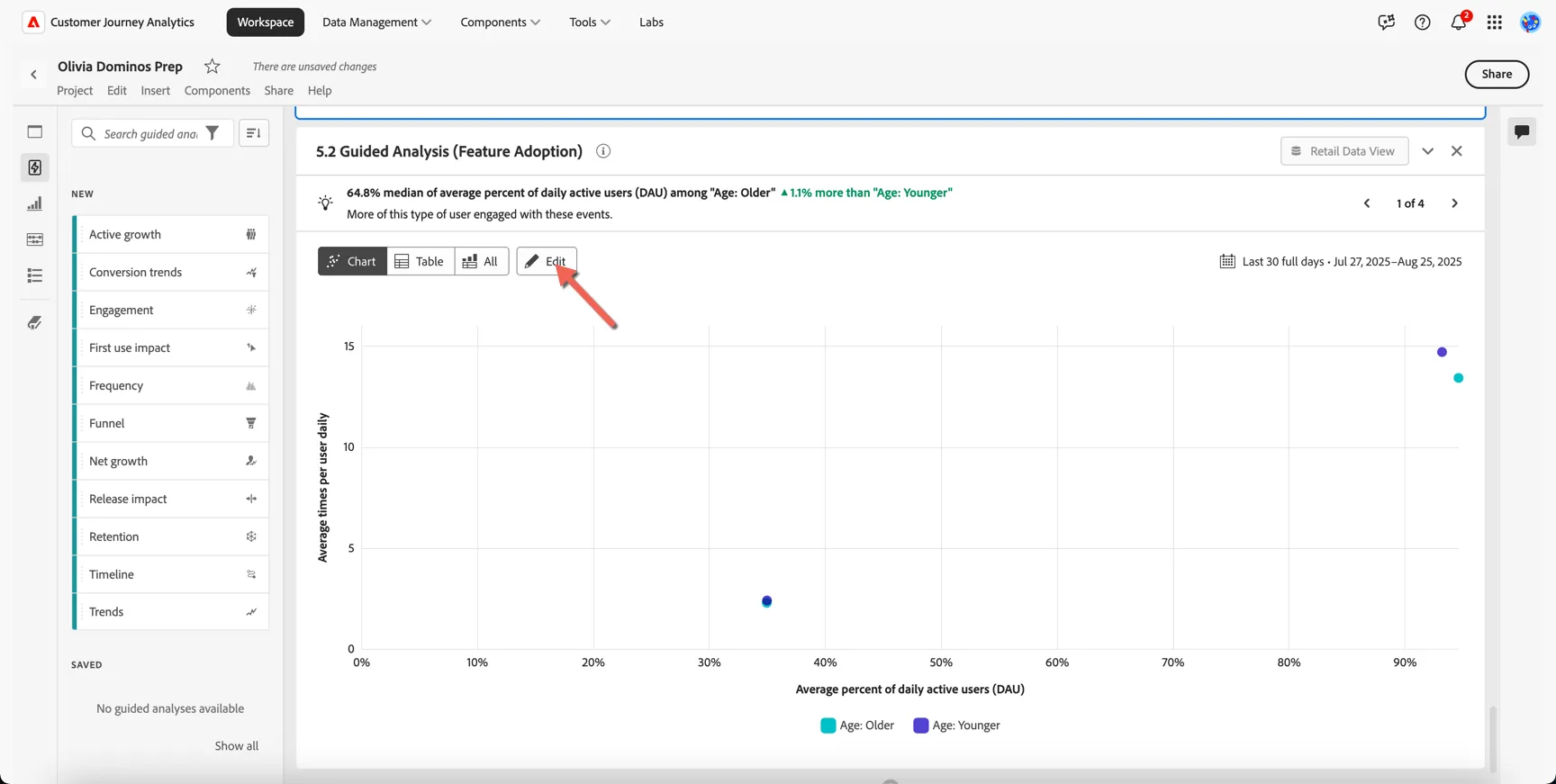
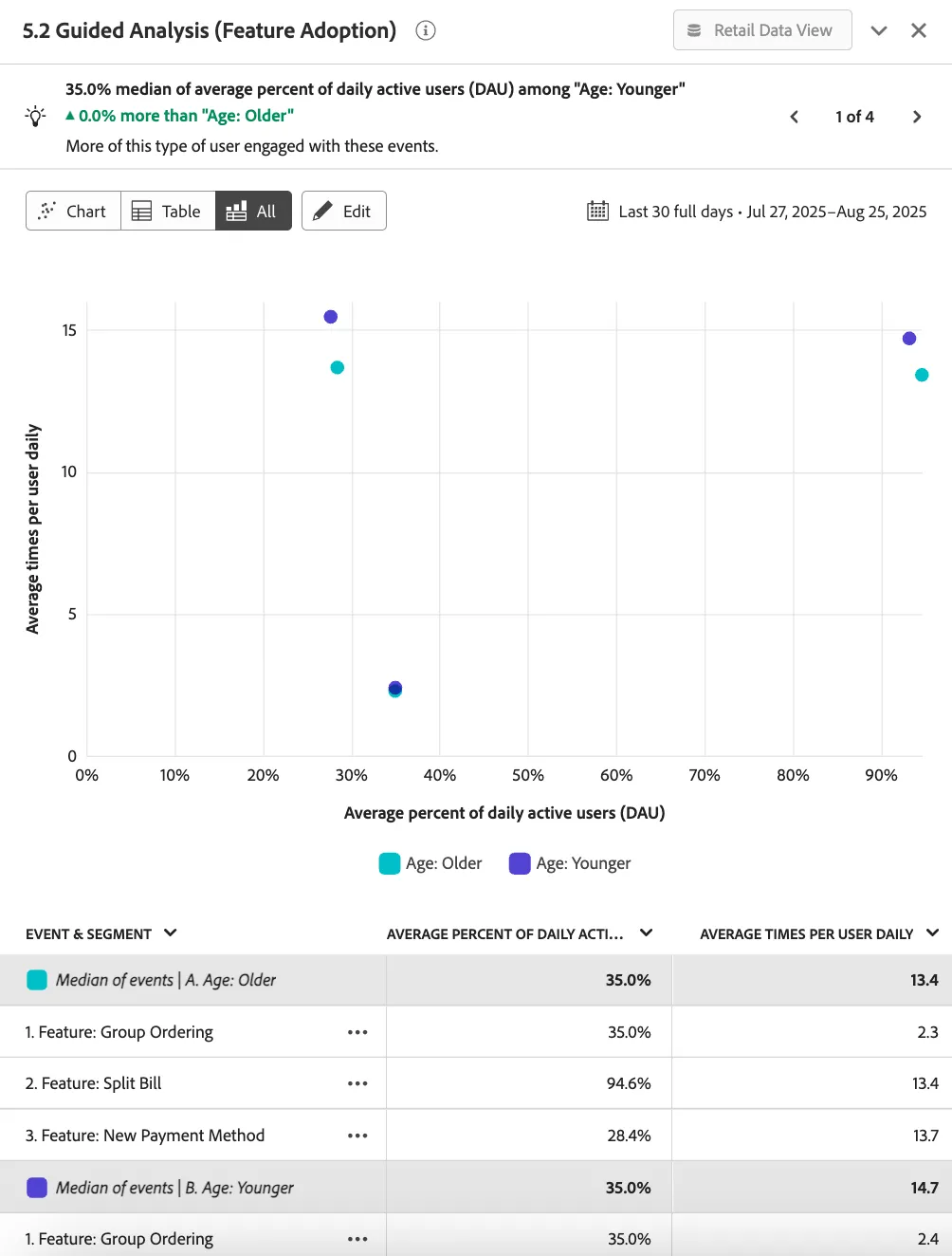
Another Guided Analysis panel called 5.2 Guided Analysis (Feature Adoption) has already been added to our dashboard. Currently it is comparing the engagement of 2 new features - Group Ordering and Split Bill. Engagement by demographic is also included via the inclusion of 2 segments - Age: Older and Age: Younger.
- Click on the Edit button.
- Click on + Add an event on the left and select Feature: New Payment Method. Click Save.
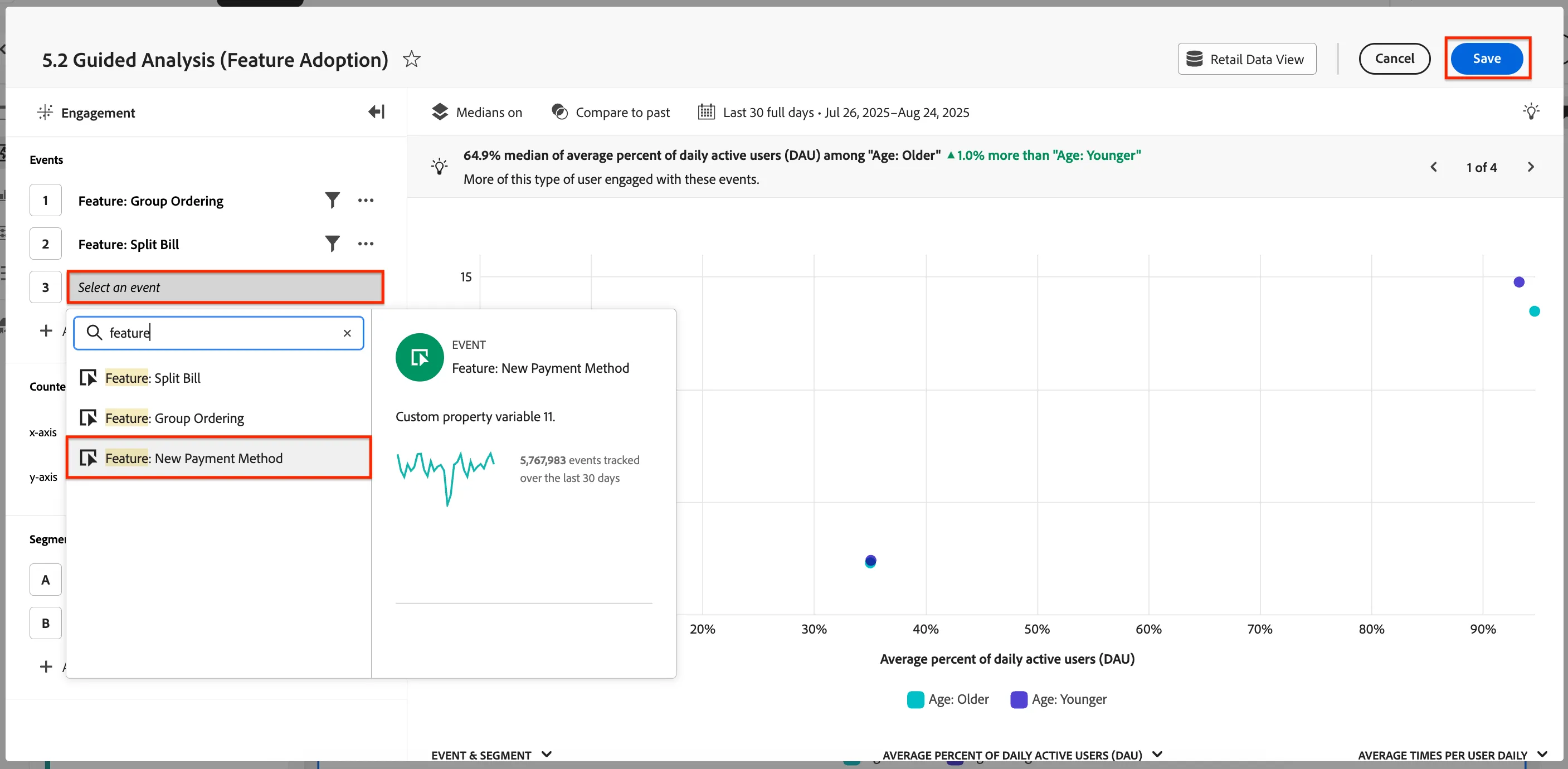
- You now have a single view to see Feature Adoption by looking at the engagement metrics of Average percent of daily active users (DAU) and Average times per user daily. In the case of the New Payment method, notice how the adoption rate differs between the Older and Younger segment. Another valuable insight to help shape your strategy!
Congratulations! You've successfully used Adobe's Guided Analysis to quickly analyze key product usage patterns to enable data driven product feature design and prioritization.