2. Segment Creation & Analysis
10 min
2.1 Quick Segment Filters
In this exercise you'll learn how to quickly add filters to your dashboard panels and visualisations.
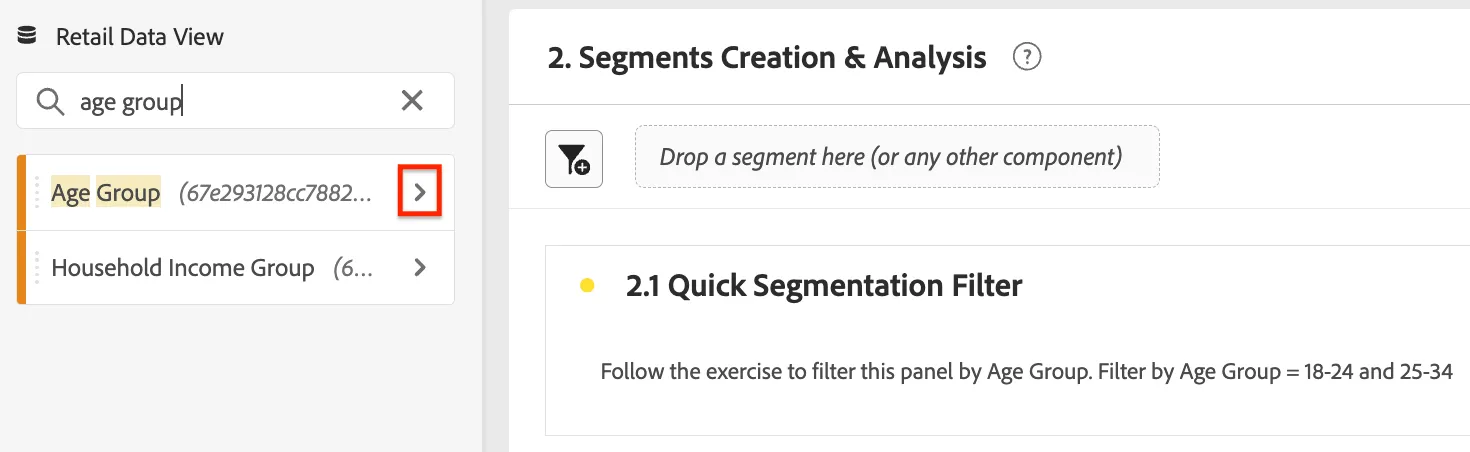
- Search for the Age Group dimension and click the right arrow to view the available values. We're going to use these values to create a Quick Segment filter.
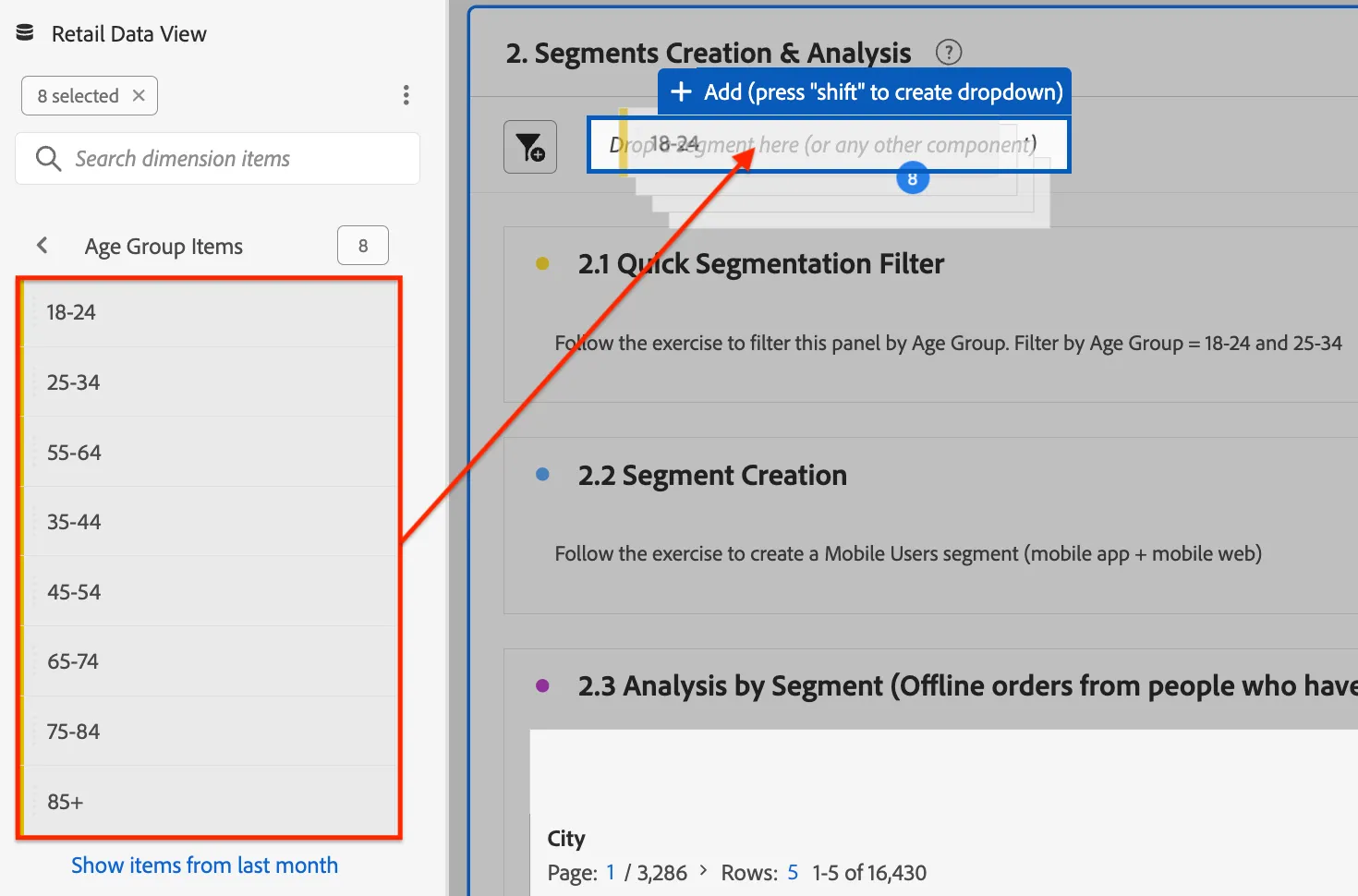
- Select all of the age group values by holding the shift key and clicking the 1st and last age group.
- While still holding shift, drag the age groups and hover over where is says Drop a segment here (or any other component). Notice the + Add guidemark. Drop it here. You have now created a dropdown filter.
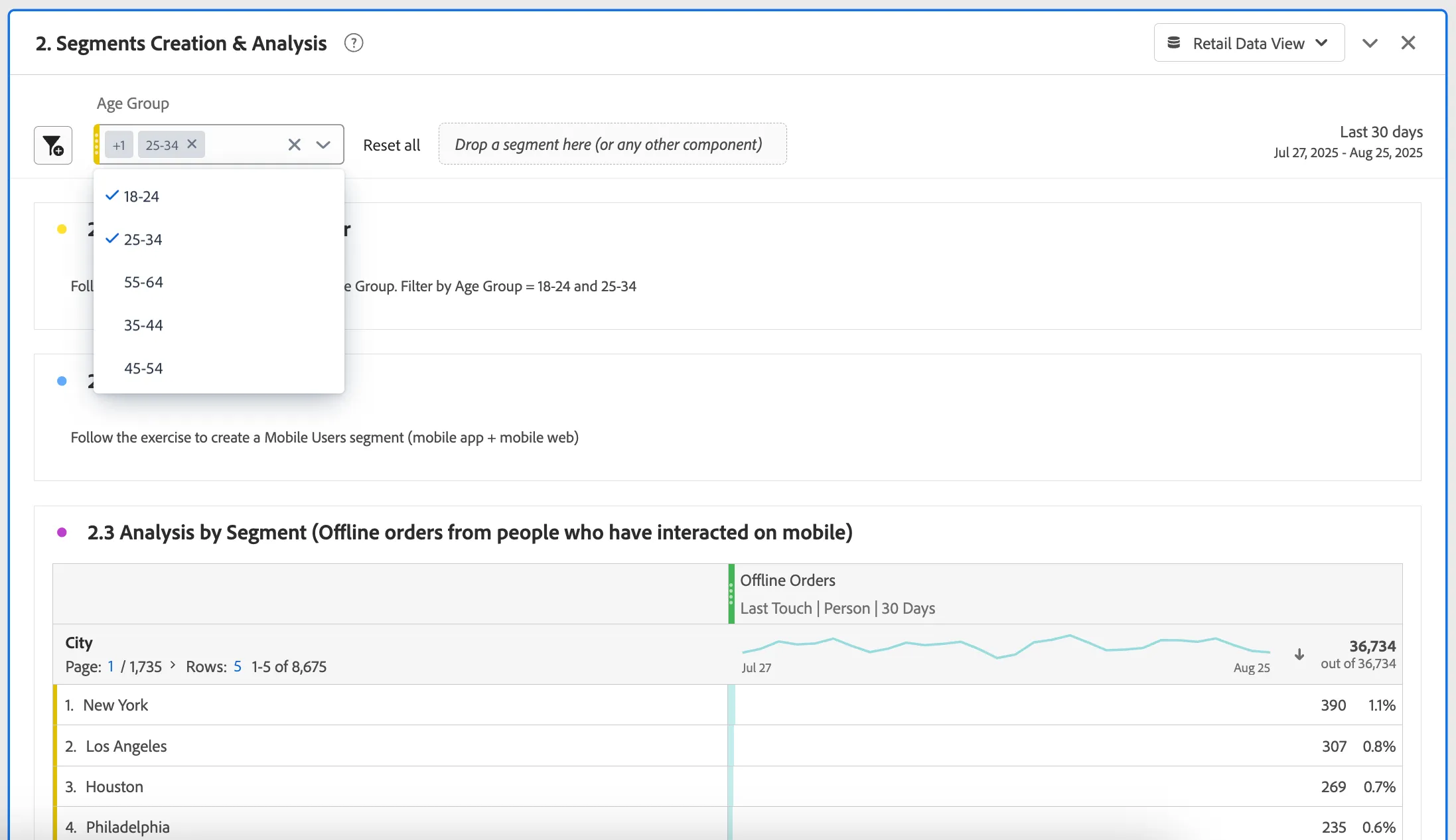
- Click on the filter and check 18-24 and 25-34. Notice the data in the freeform table updating.
2.2 Create a Segment
In this exercise you'll learn how to create a segment that can be made up of one or more rules. Segments can be shared with other users and re-used across dashboards.
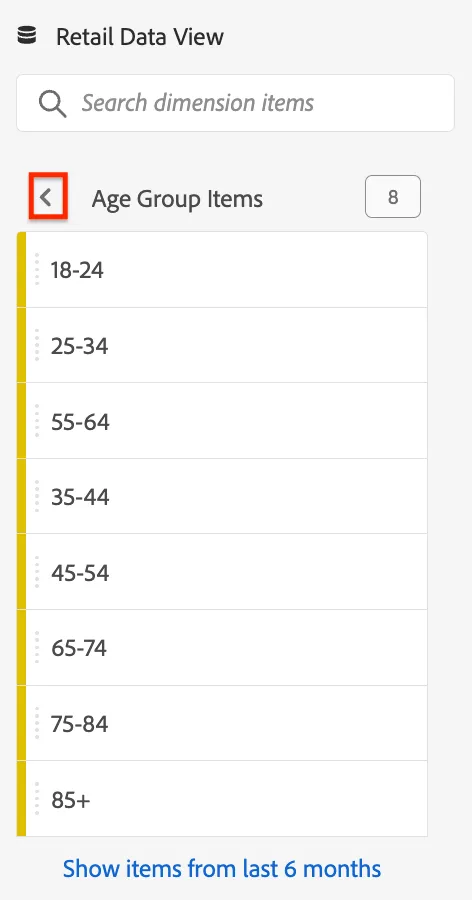
- Click on the back arrow on the Age Group dimension.
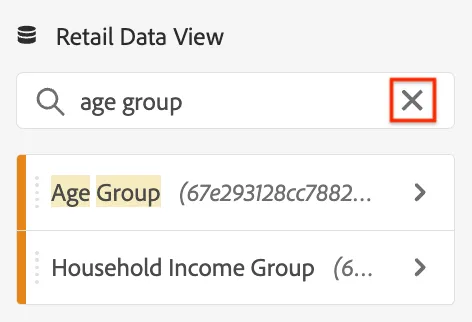
- Clear the age group search with the X icon.
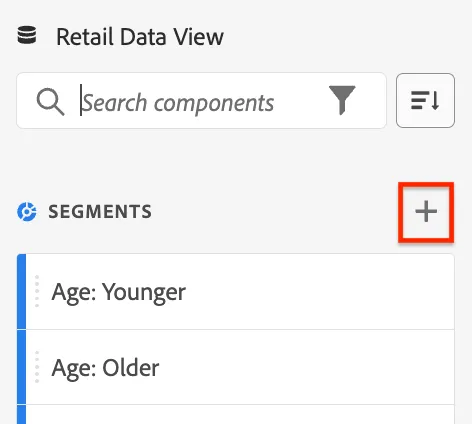
- Scroll down to Segments and click the + icon to the right of the Segment header.
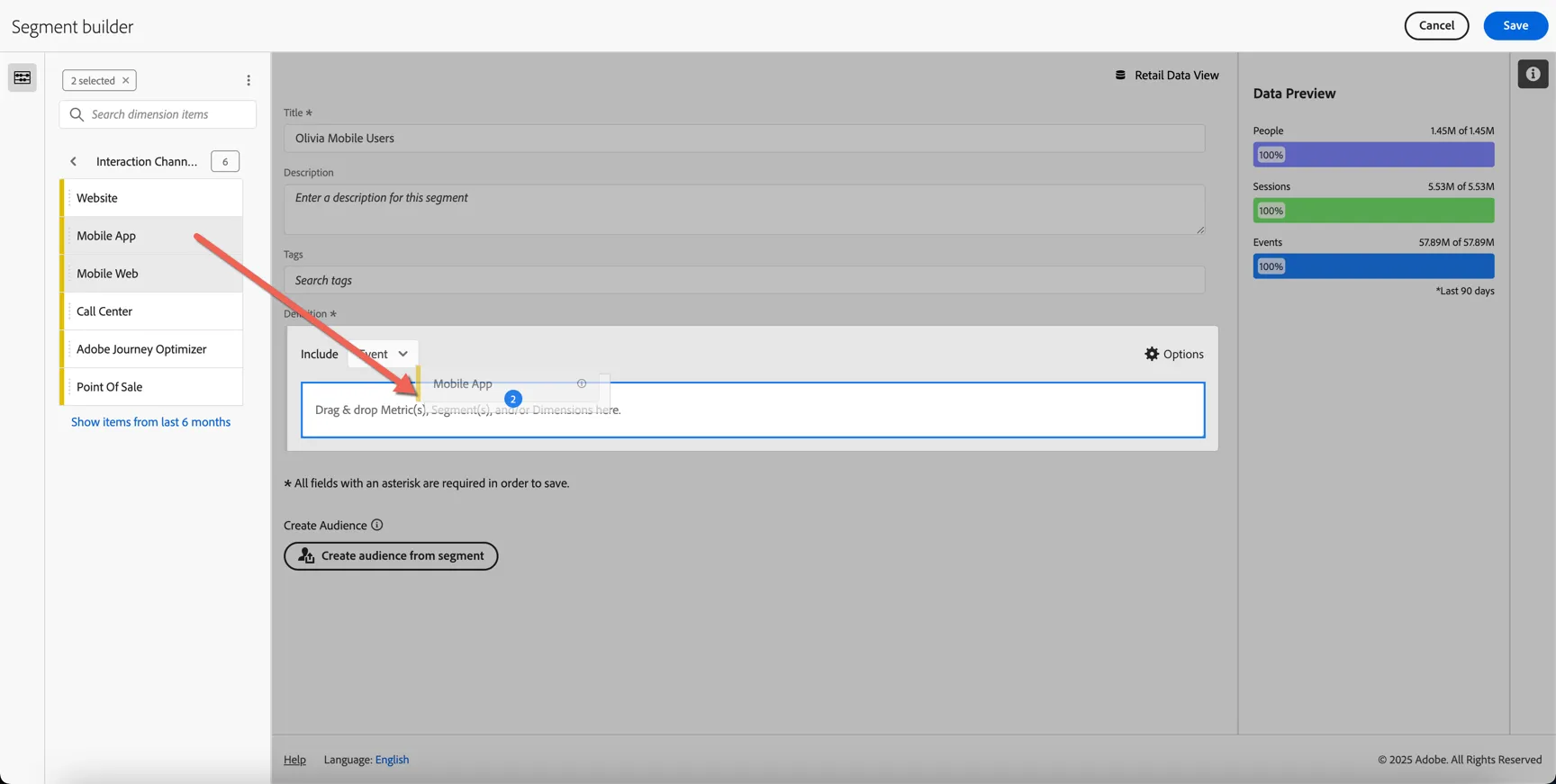
- Set the Title to <your name> Mobile Users.
- From the left rail, find the Interaction Channel, hover over the dimension and click on the right arrow to view the values.
- Select Mobile App and Mobile Web while holding shift or control/command.
- Drag the selection and drop it on the Definition area.
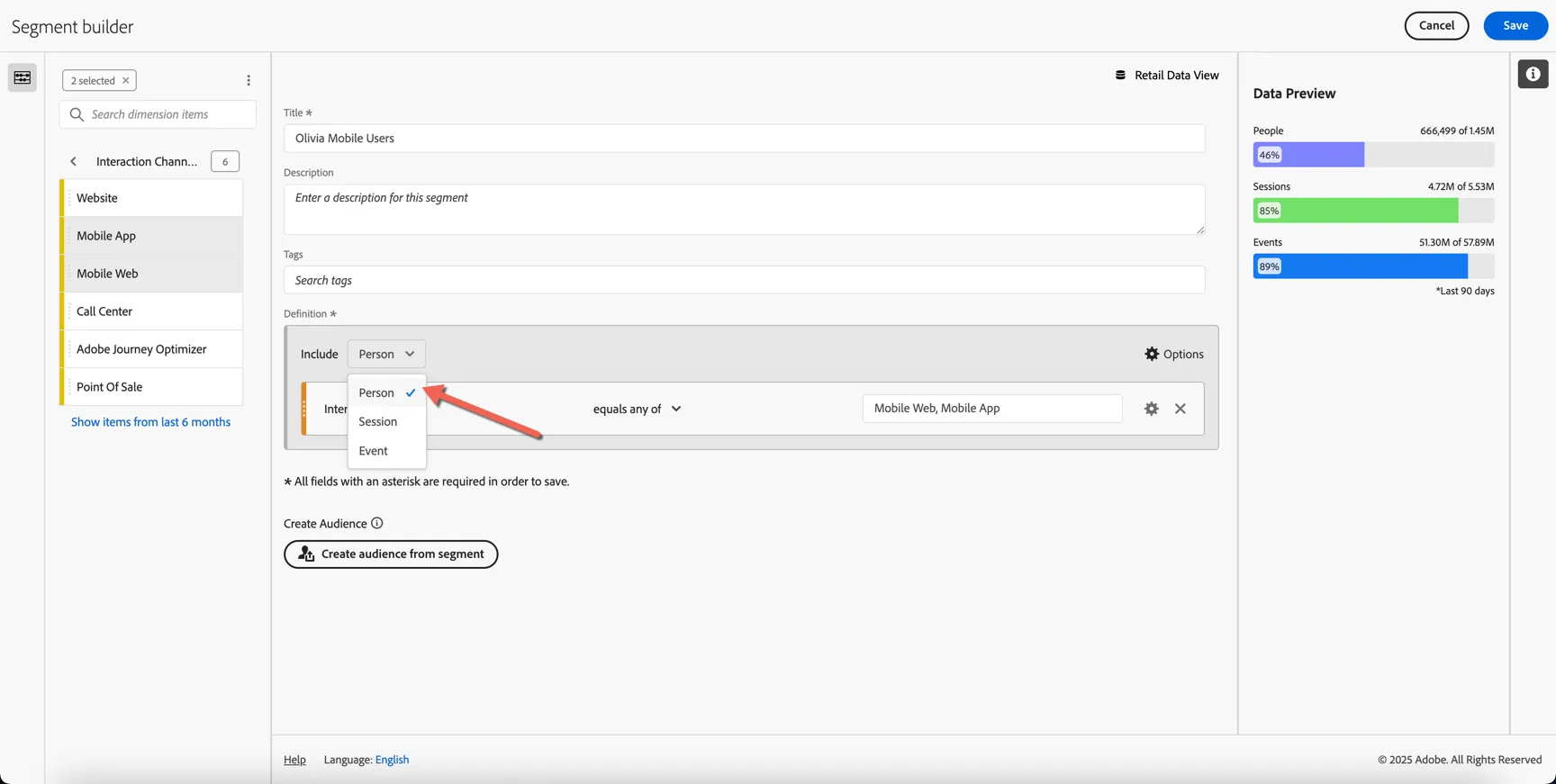
- Now change the container from Event to Person. This means the segment will include ALL events tied to People who have interacted on a mobile channel, not just the events that happened on those channels.
- Click Save on the top right of the screen.
2.3 Analysis by Segment
- Search for the segment you just created and drag it under Phone Orders in the visualisation named 2.3 Analysis by Segment (Phone orders from people who have interacted on mobile).
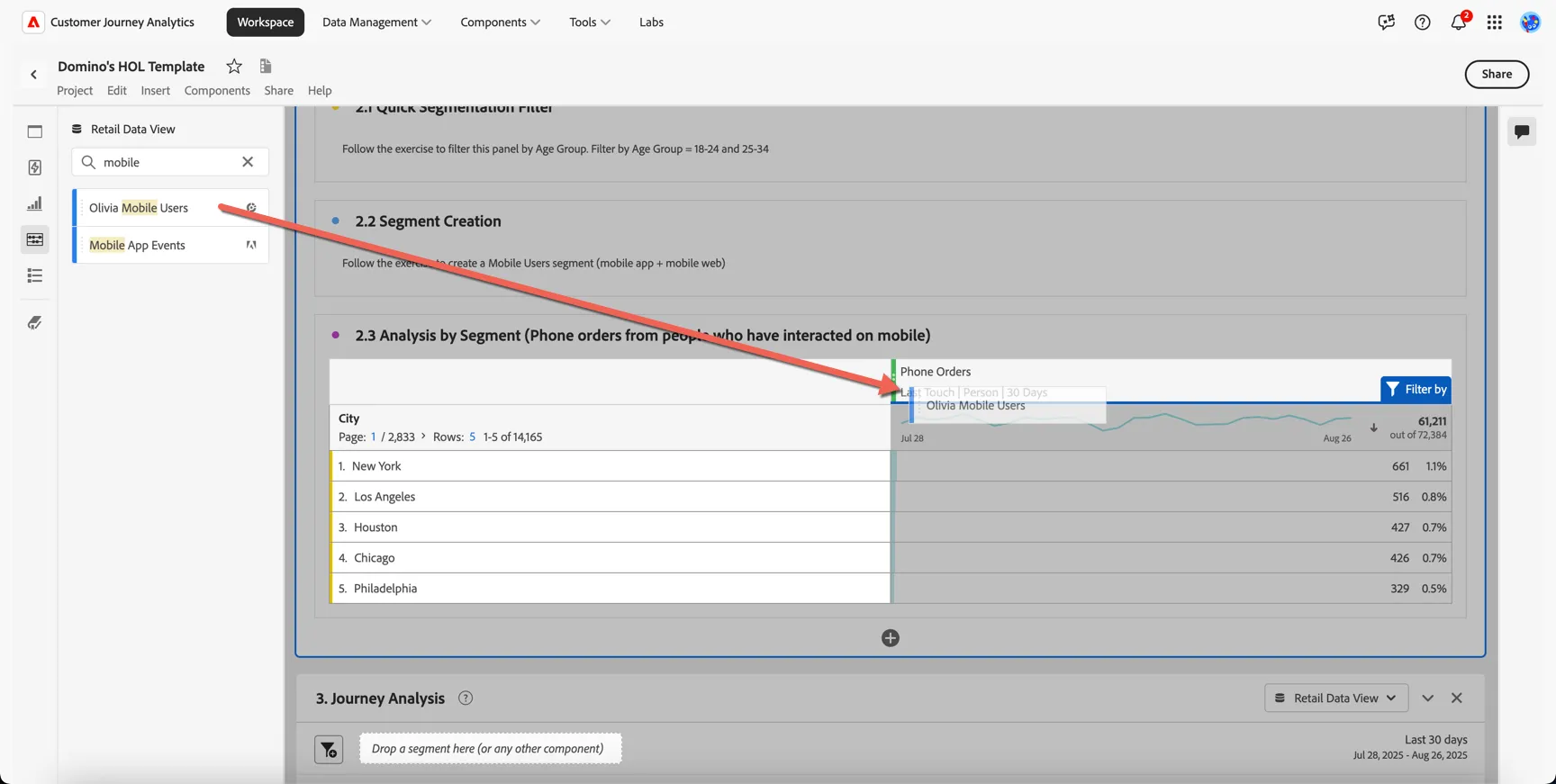
Congratulations, you've learnt how to create a segment and add it to your analysis.