7. Data View Administration
Data views control how the data ingested into a CJA Connection is to be interpreted. They specify all of the dimensions and metrics which will be available for reporting within Analysis Workspace and which columns those dimensions and metrics obtain their data from. Data views are defined in preparation for reporting in Analysis Workspace. Each connection can have multiple Data views.
In this exercise you'll learn:
- How to configure dimensions and metrics
- How to create derived fields
Configuring data views requires Administration access to Customer Journey Analytics.
7.1 Create a data view
Rather than starting from scratch we're going to duplicate an existing data view.
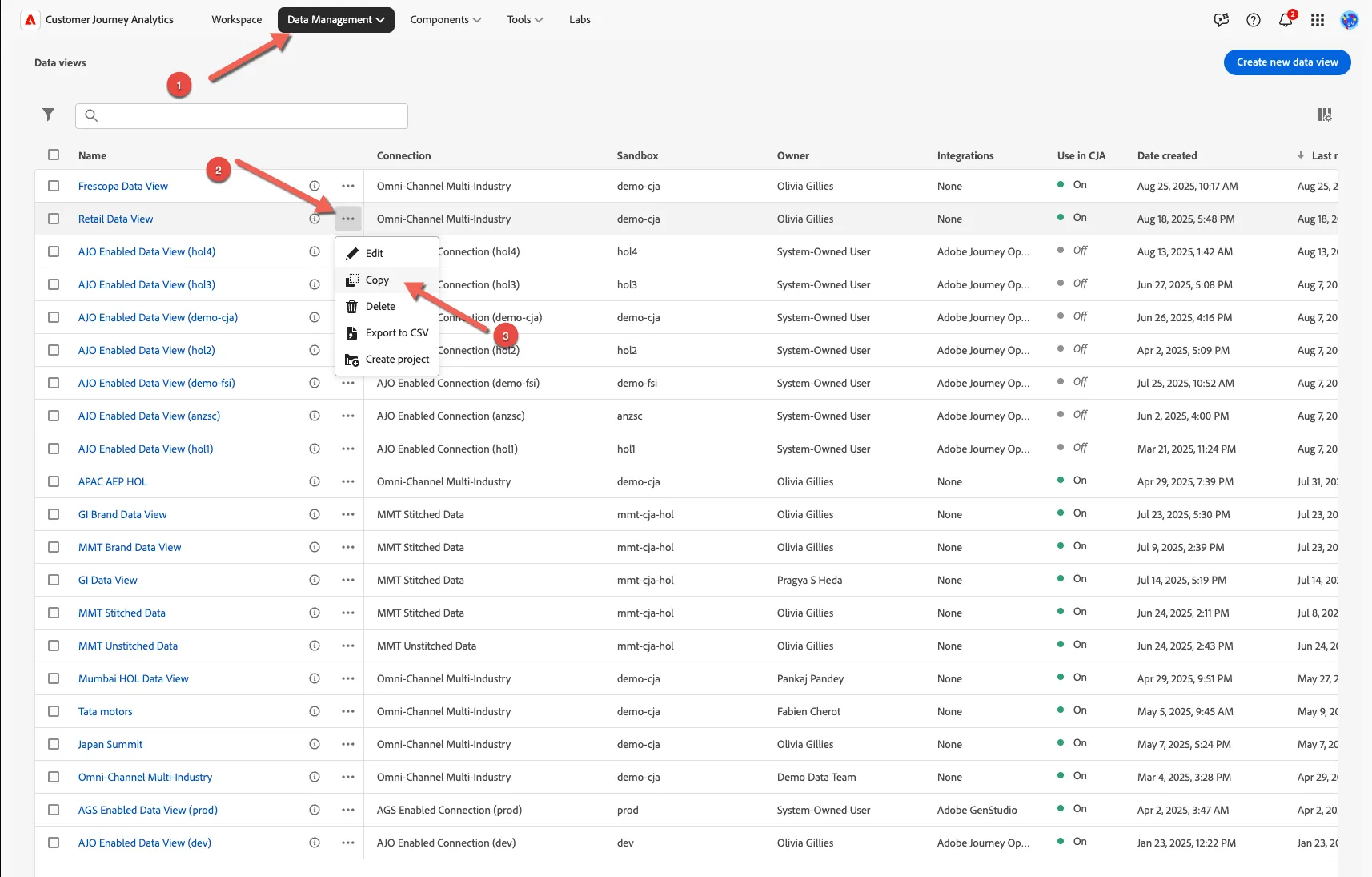
- Browse to the Data management -> Data views tab. Find the Retail Data View and click on the 3 dots to view the options. Click to copy the dataview.
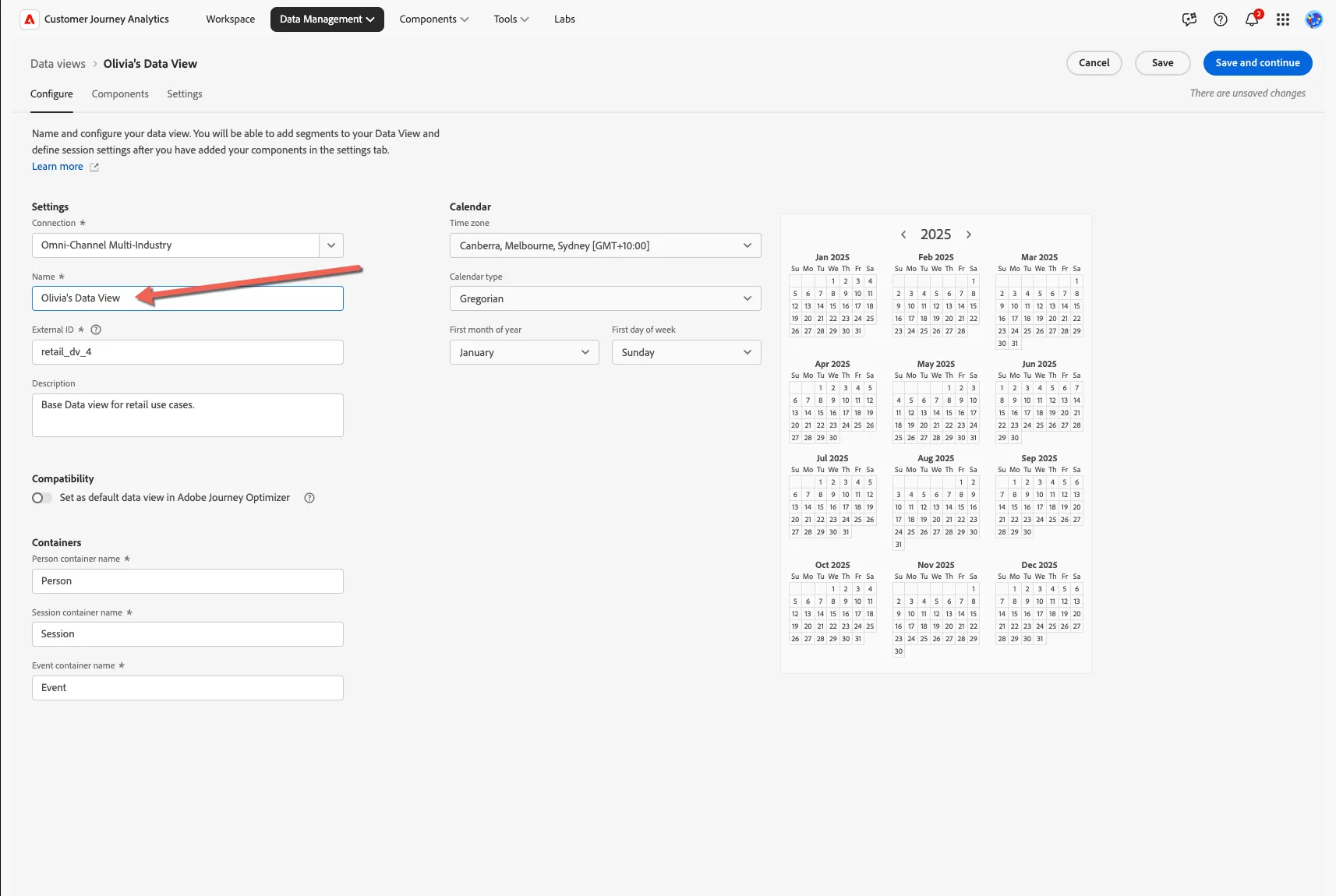
- Click to open your Data View. Update the name of the data view so you can easily recognize it as yours - eg. add your name.
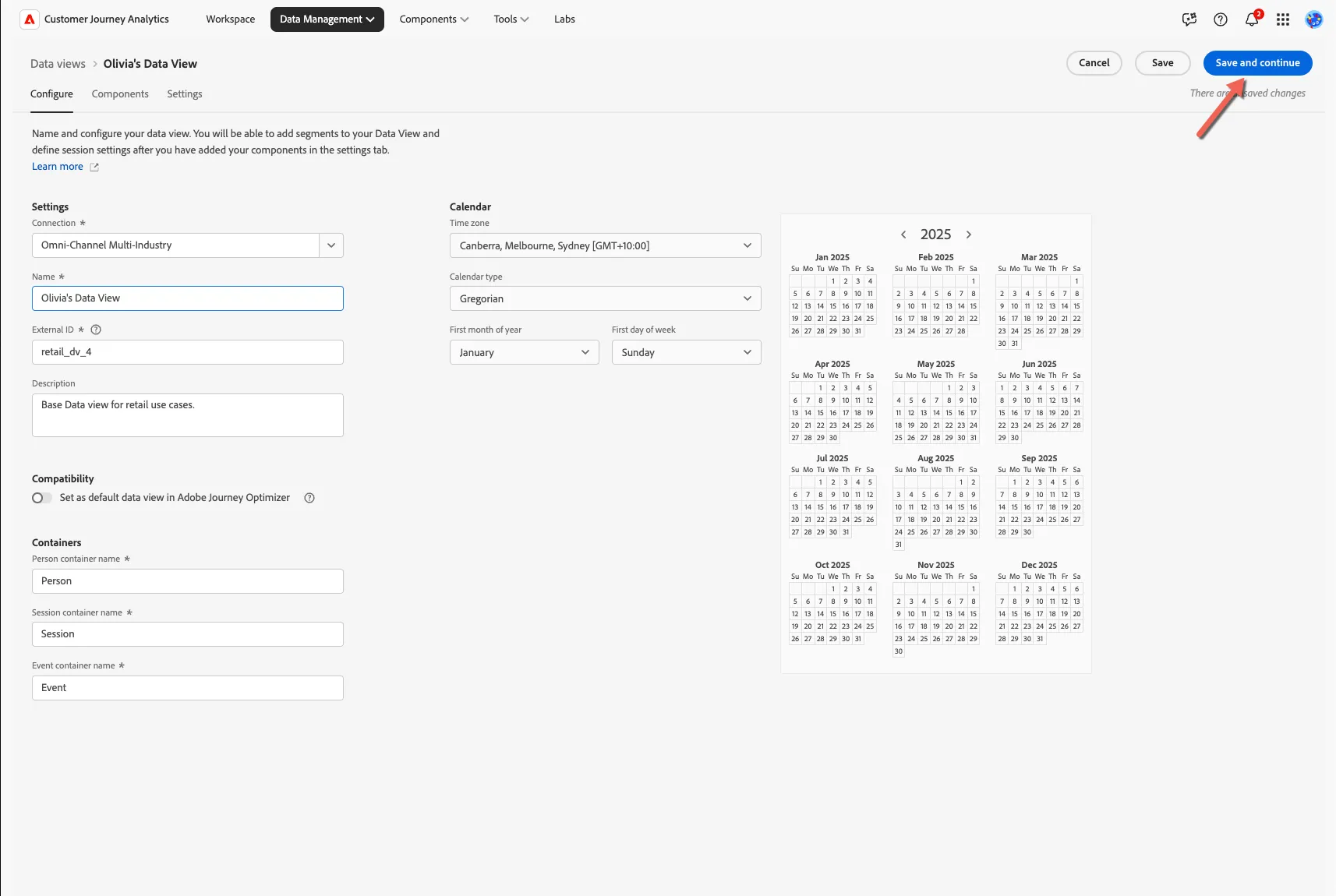
- Click on Save and Continue to move to the Components tab.
7.2 Add a dimension
CJA supports three types of data, profile data (attributes about your customer such as loyalty tier, NPS scores, address and age), event data (coming from multiple channels) and lookup data. For this exercise, let's add a lookup attribute as a dimension into our data view.
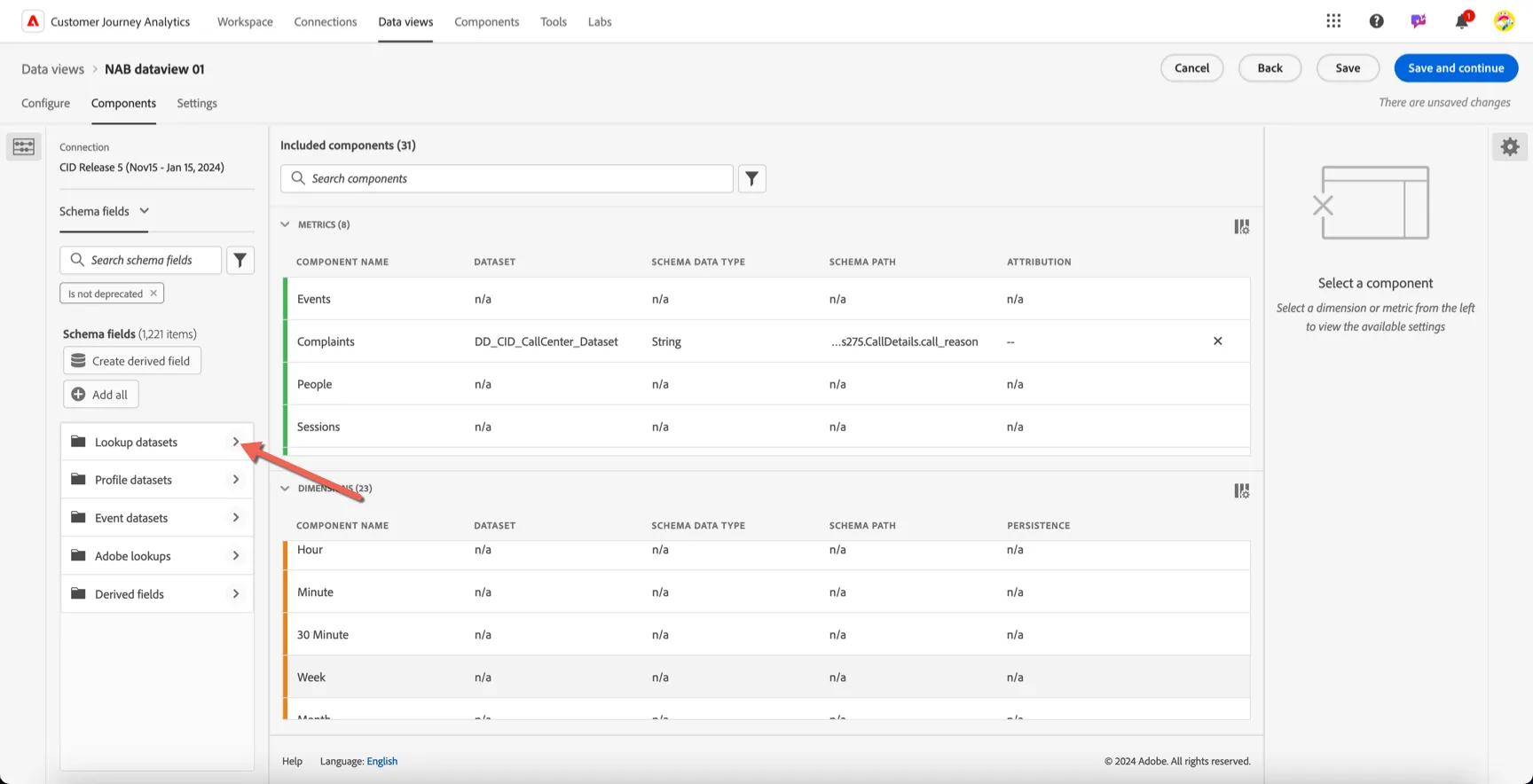
Click into the Lookup datasets in the left hand panel.
Campaign tracking codes are used for tracking which marketing campaigns a customer lands from, this code is mapped to user friendly campaign names stored in a lookup table.
- Click into the Lookup datasets in the schema fields panel
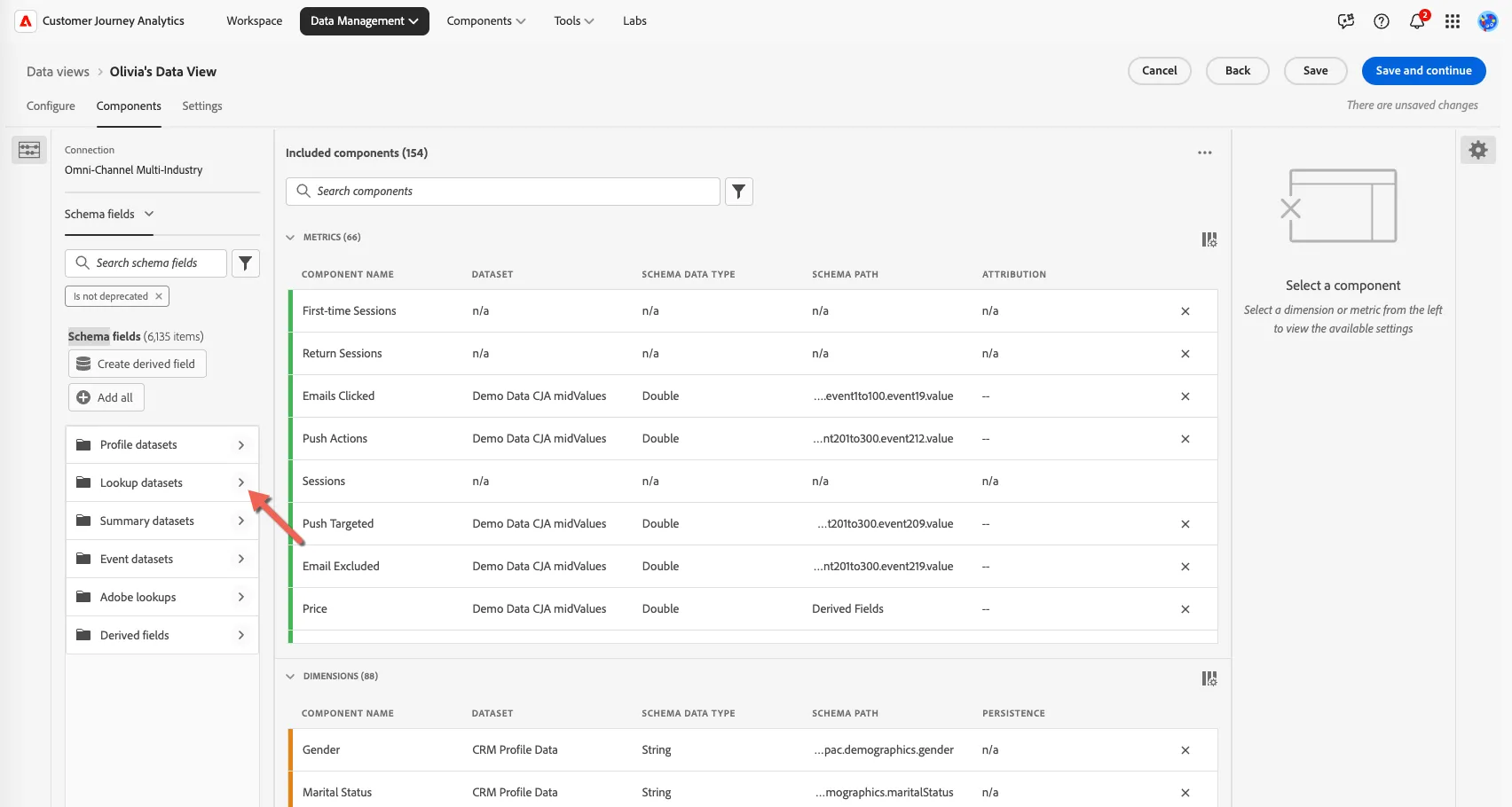
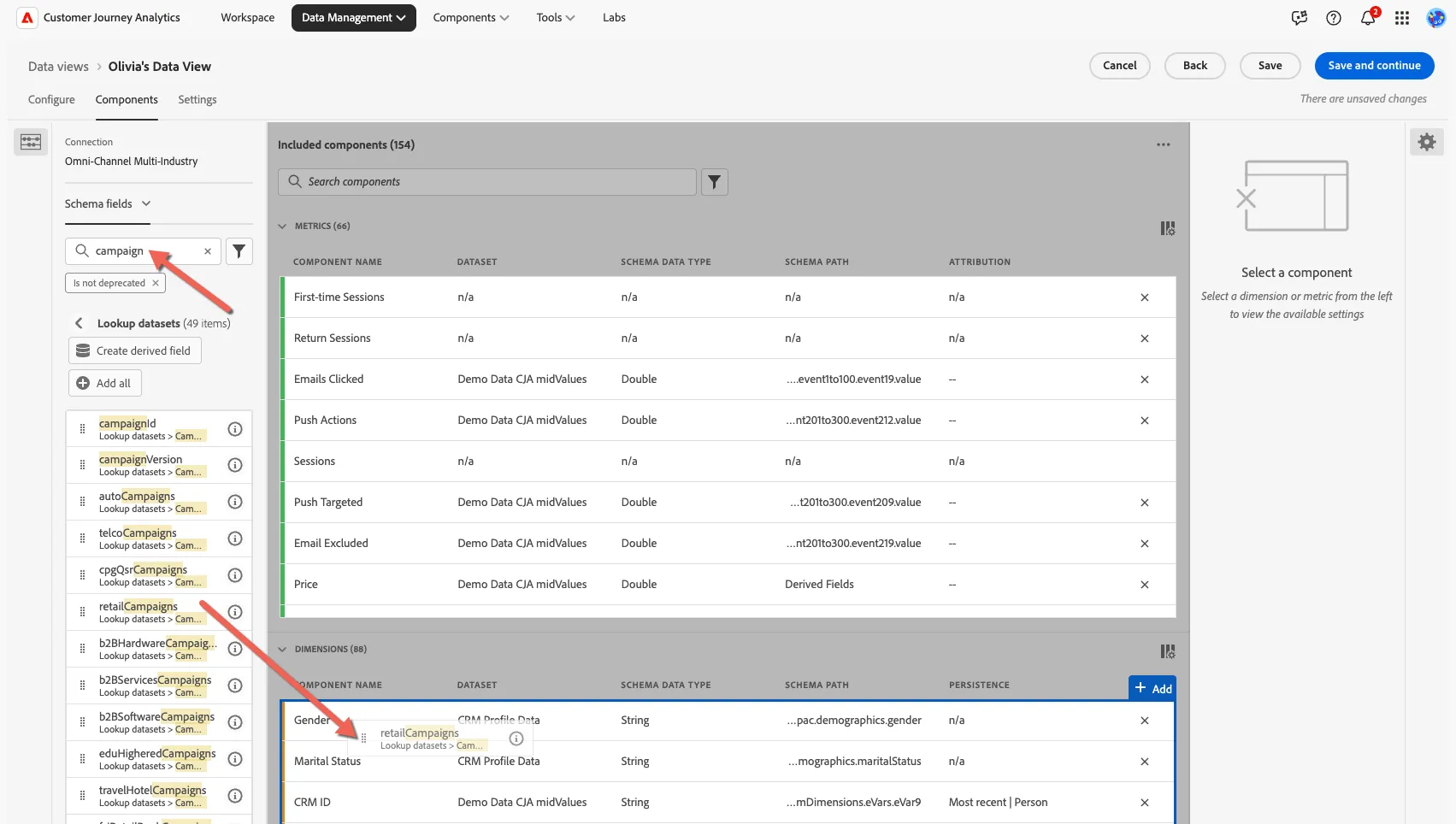
- Search for campaign you'll notice we have different lookup values depending on the industry, drag the Retail Campaign attribute into the Dimensions.
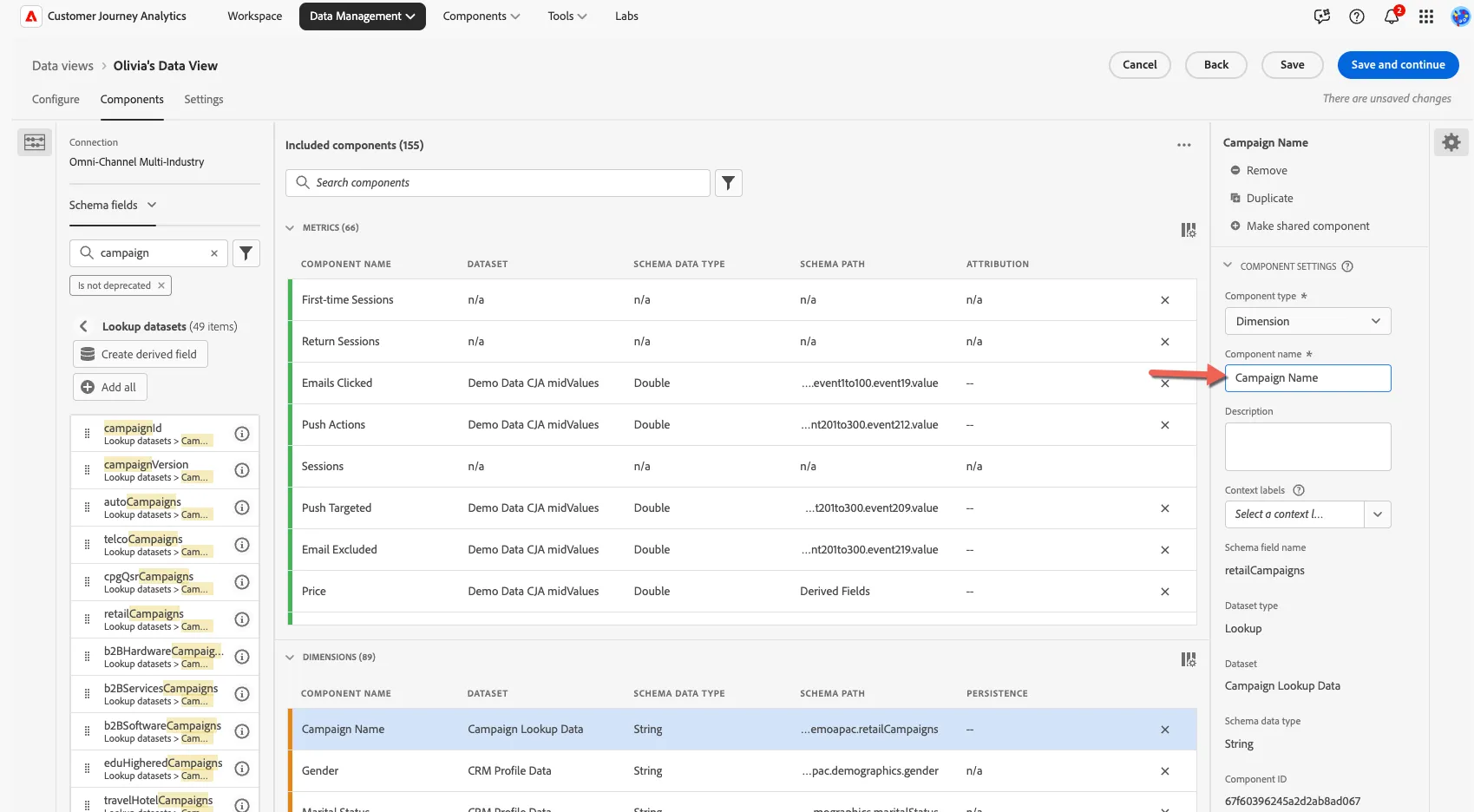
- Now, let's update the dimension properties on the right hand side and rename the dimension to Campaign Name.
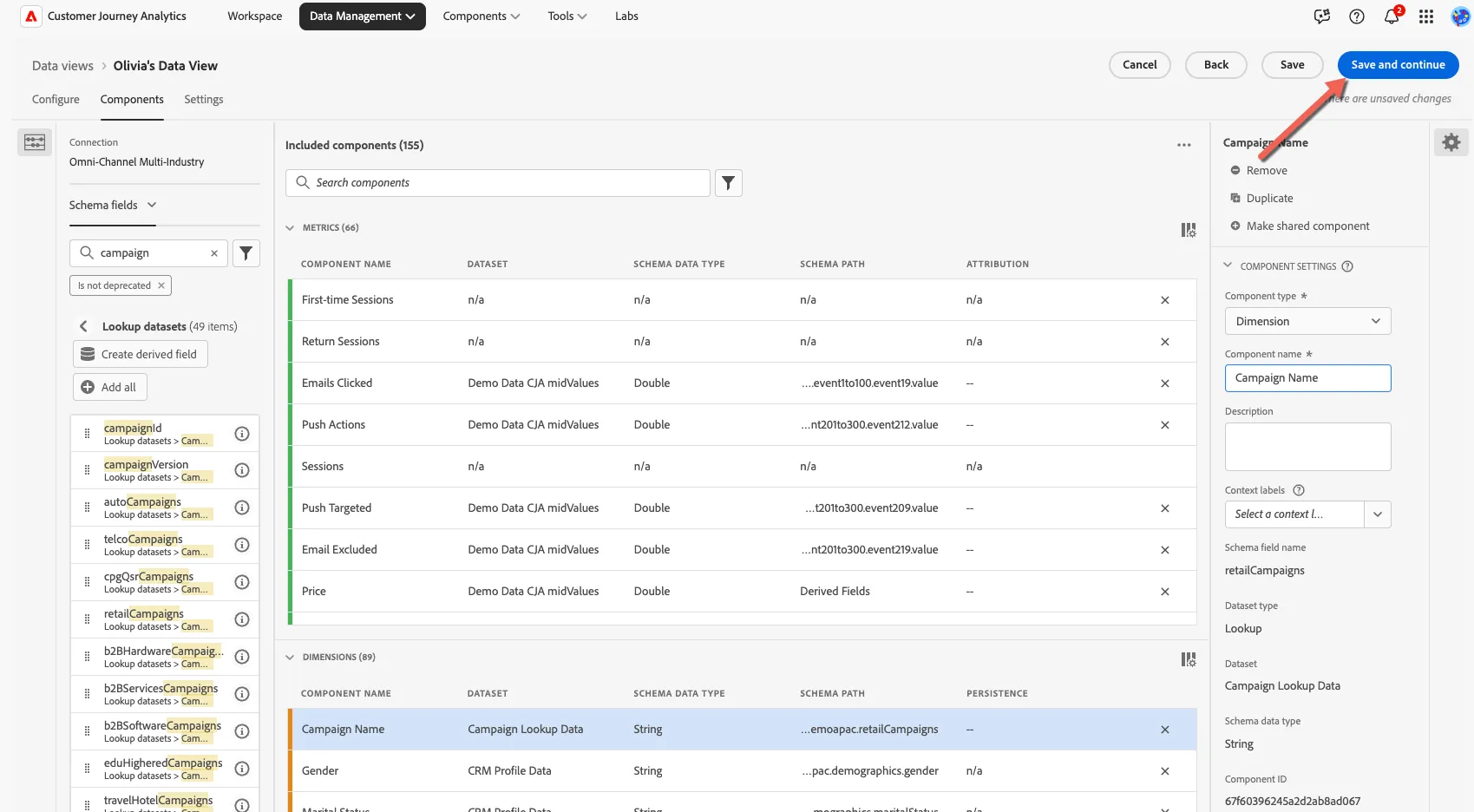
- Click Save and continue
- On the settings tab we can configure the session timeout and add global filtering if desired. We will leave these as is. Click Save and finish.
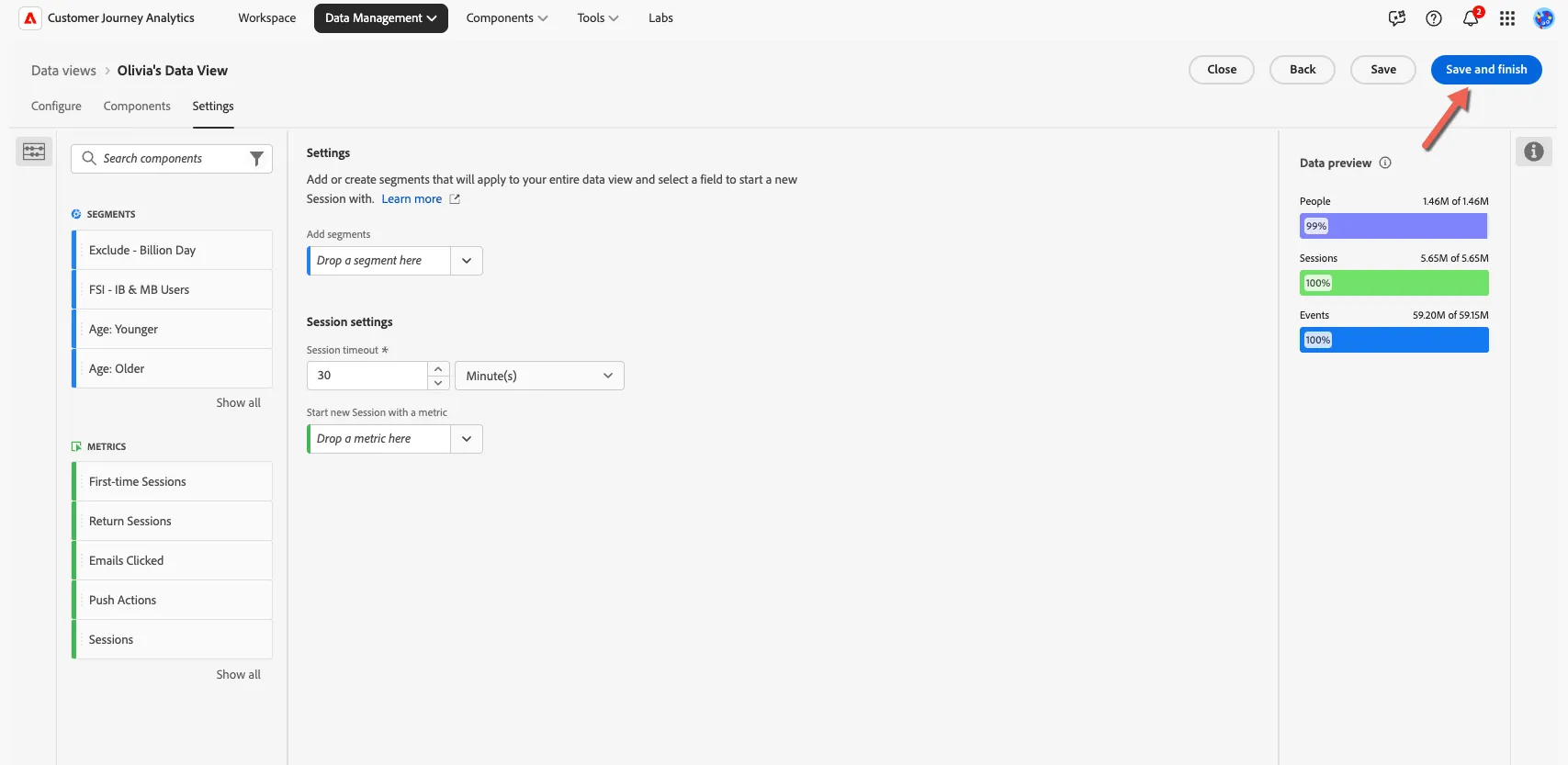
Congratulations, you've created your first Data View in Customer Journey Analytics. Let's create a quick project to test it out.
7.3 Use your Data View
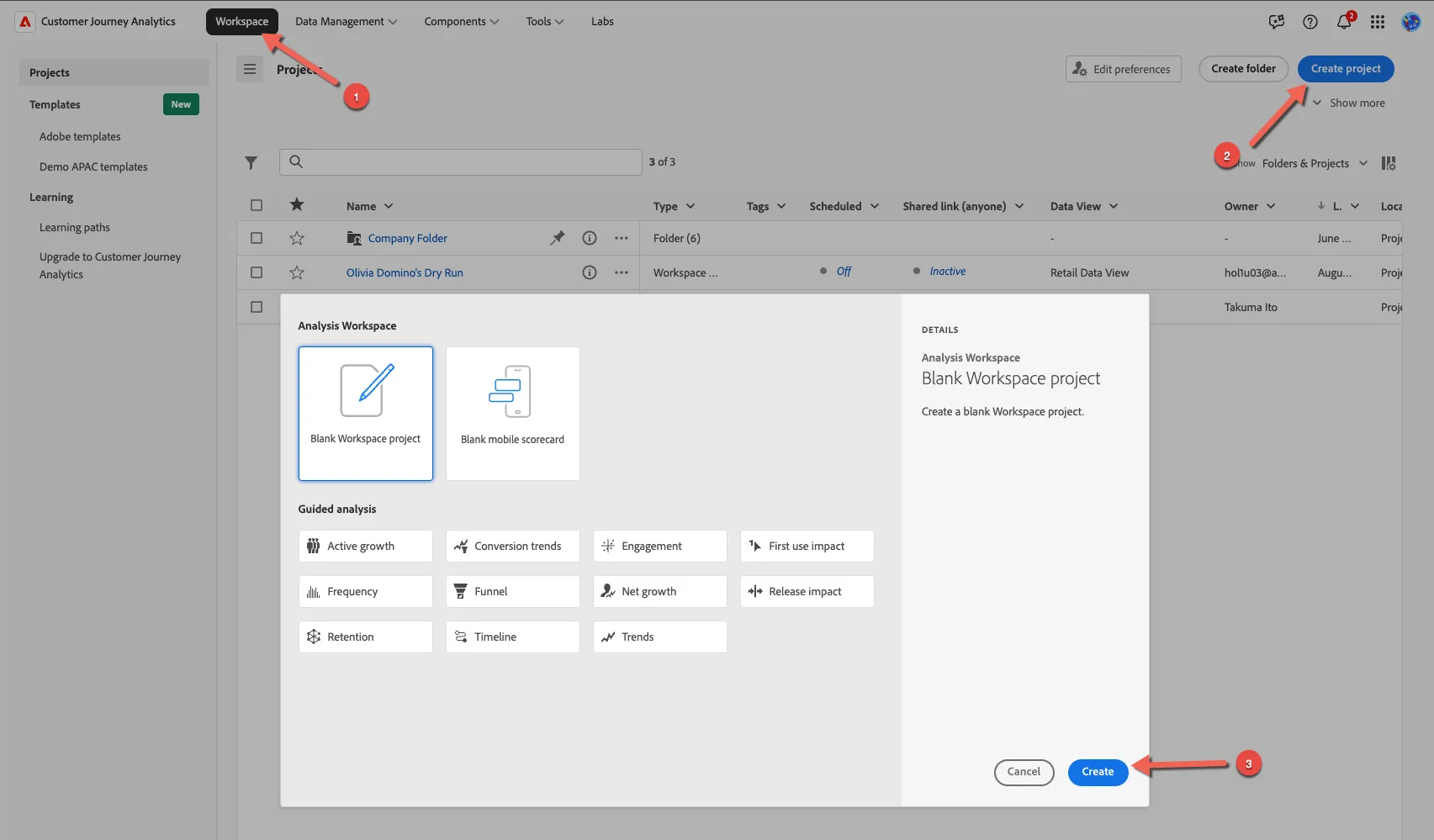
- Click to the Workspace in the top navigation and create a new project.
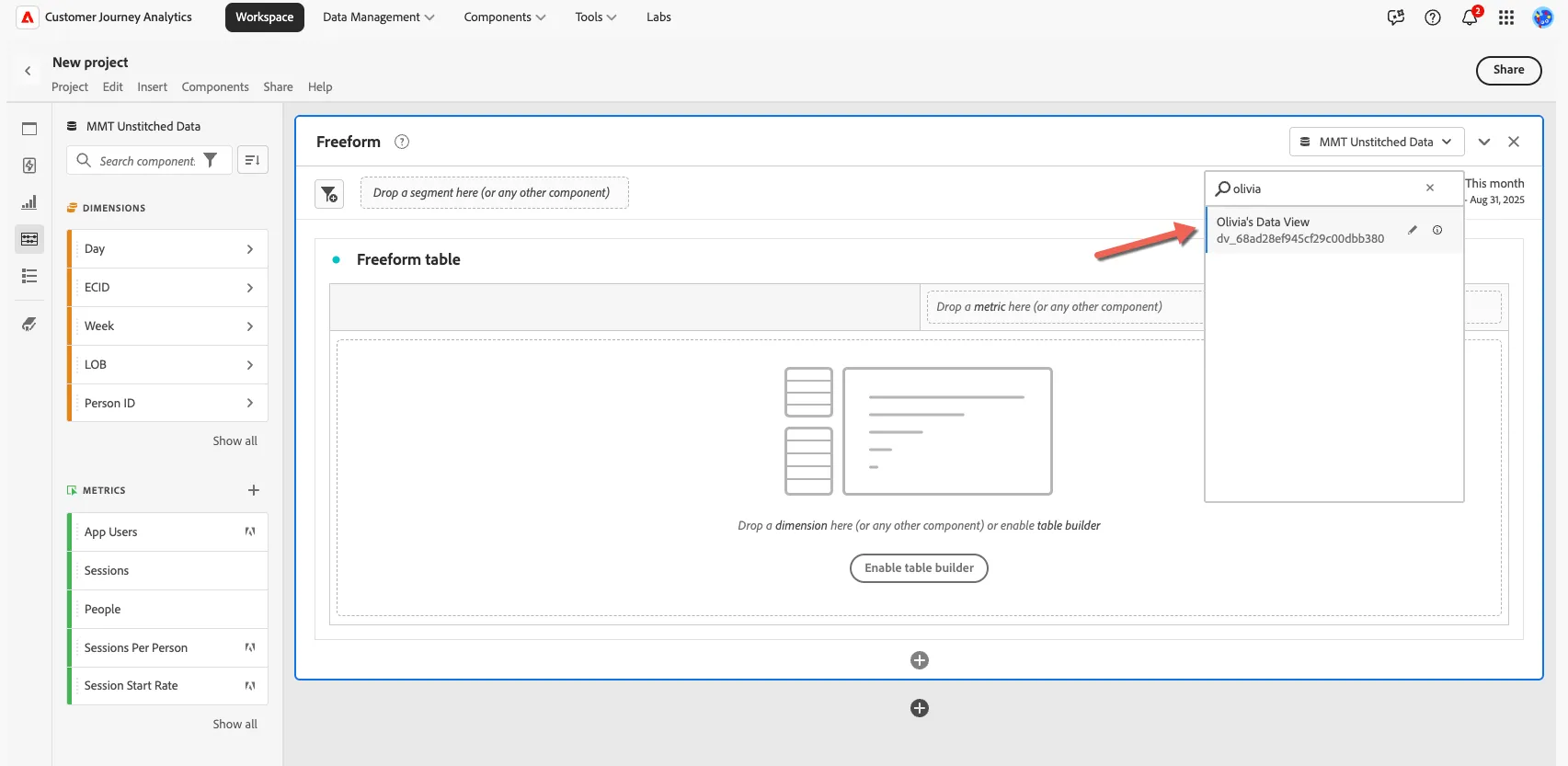
- Ensure that you've selected your Data View in the Data View selector. Hint: you might need to search for it or do a hard refresh to clear the cache.
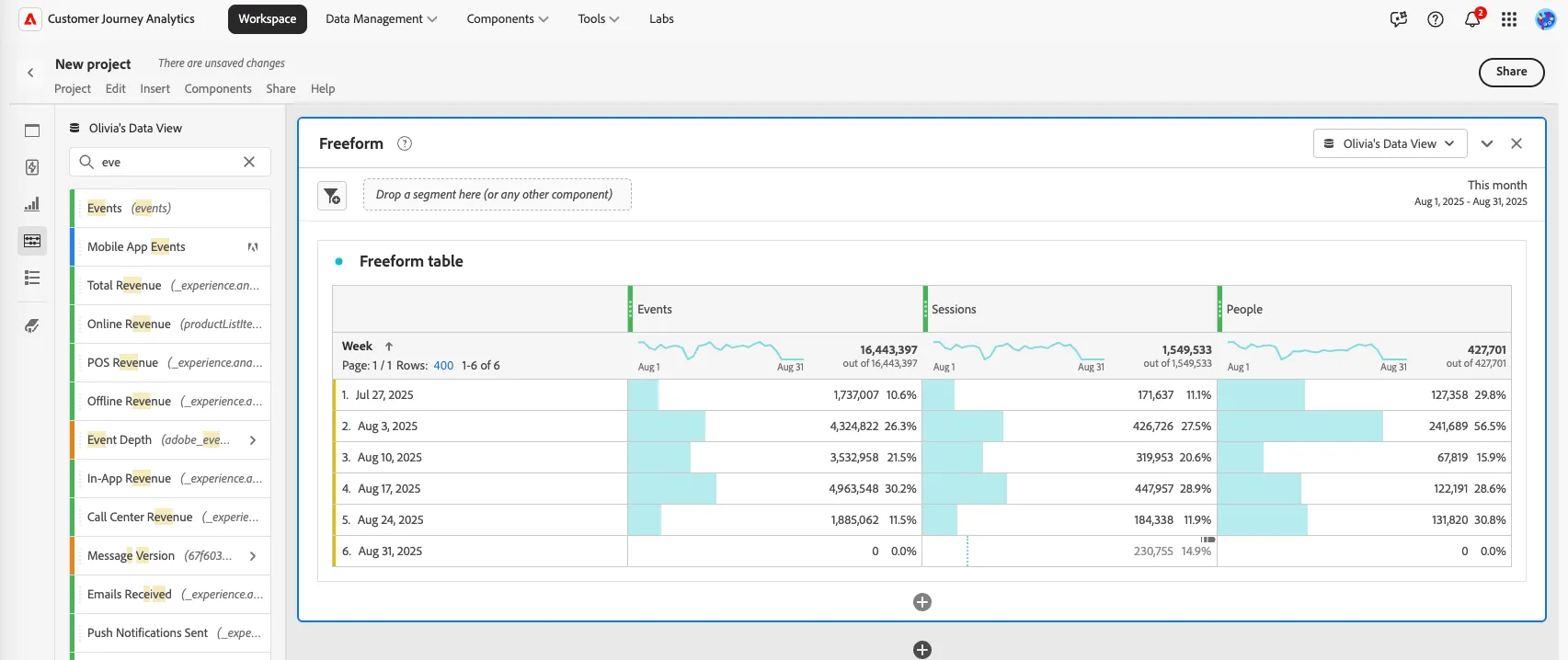
- Drag the events, sessions and people metric into your freeform. Change the dimension to Week to verify that you have data displaying for your new dataview.
- Swap the Week dimension for Campaign Name and add the Calls metric.
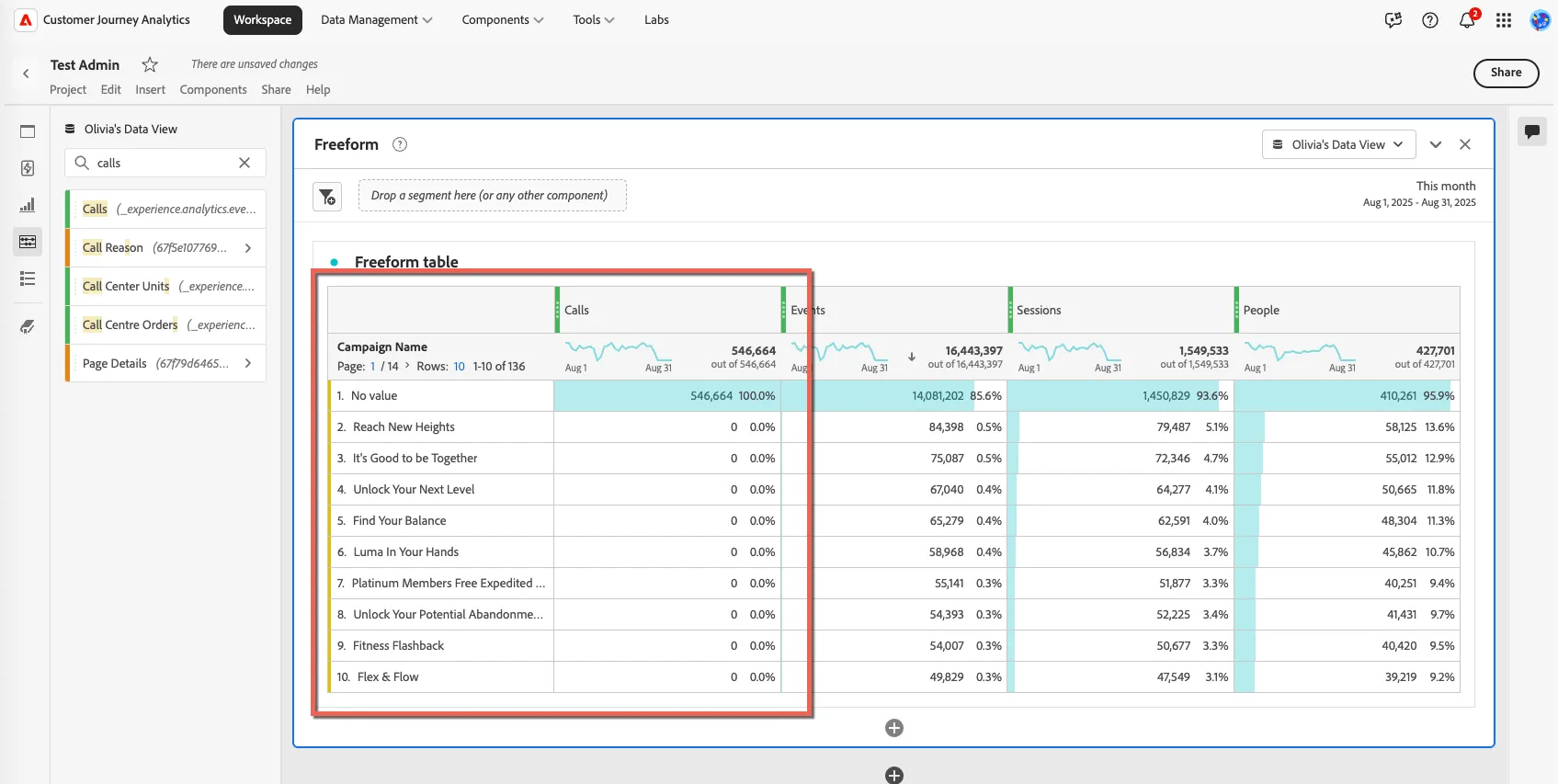
You'll notice that there are no campaign names aligned to calls! That's to be expected because the campaign name is collected when a customer lands on the website, the calls metric is coming from a completely different dataset coming from the call center!
Let's see now how dimension persistence and/or attribution can be used to connect these disconnected events!
7.3 Set dimension persistence
Persistence in analytics tools often needs to be configured up front and is applied at ingestion time. In Customer Journey Analytics we set persistence in the Data View and this is applied at run time, allowing changes to be applied retroactively.
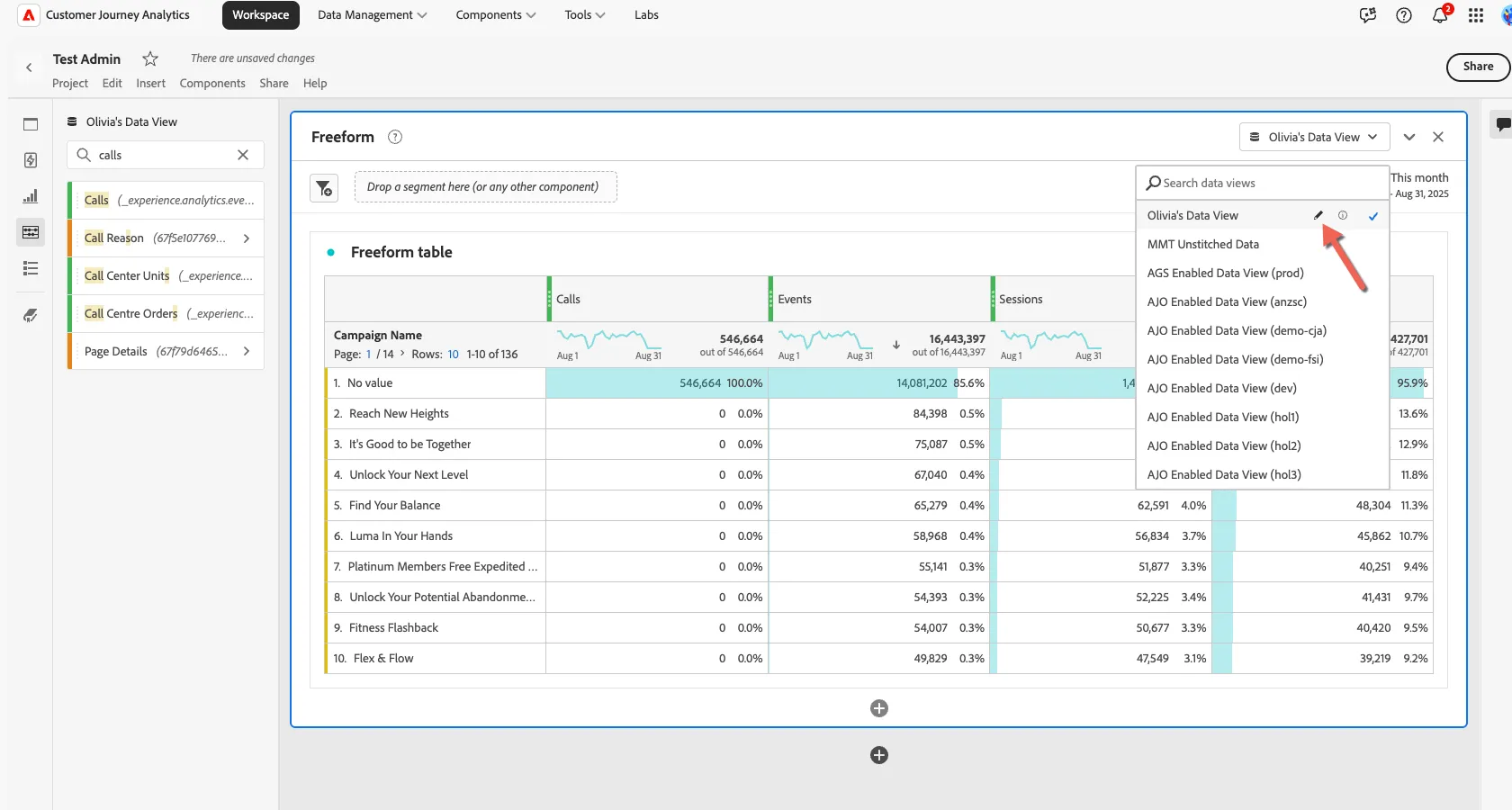
- Click to edit your Data View, you can do this directly from your project by clicking the edit icon in the Data View selector.
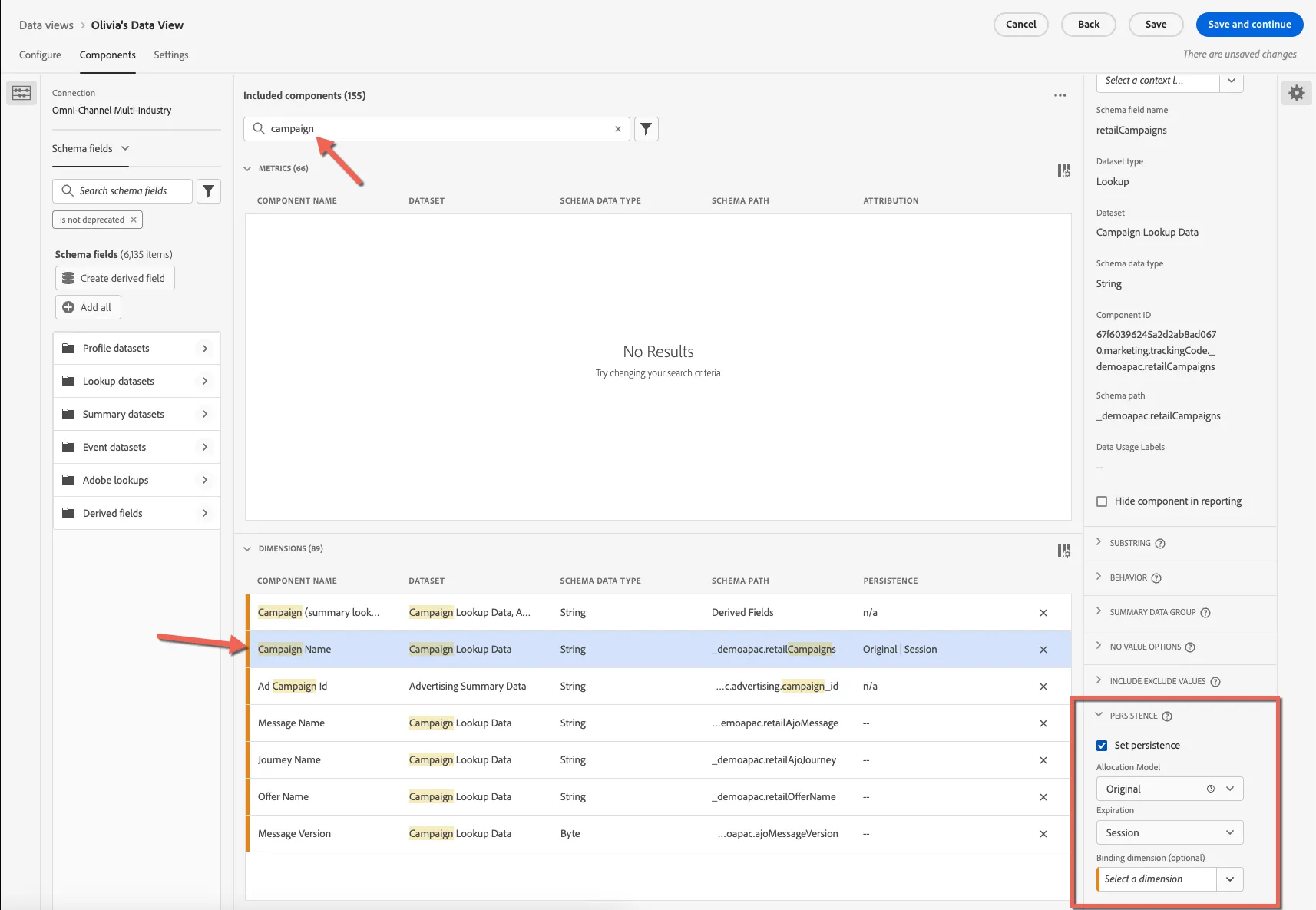
- Switch to the Components tab and search for the Campaign Name in your dimensions. Scroll to the bottom of the properties for this component and enable Persistence. Set the persistence to Original for the session.
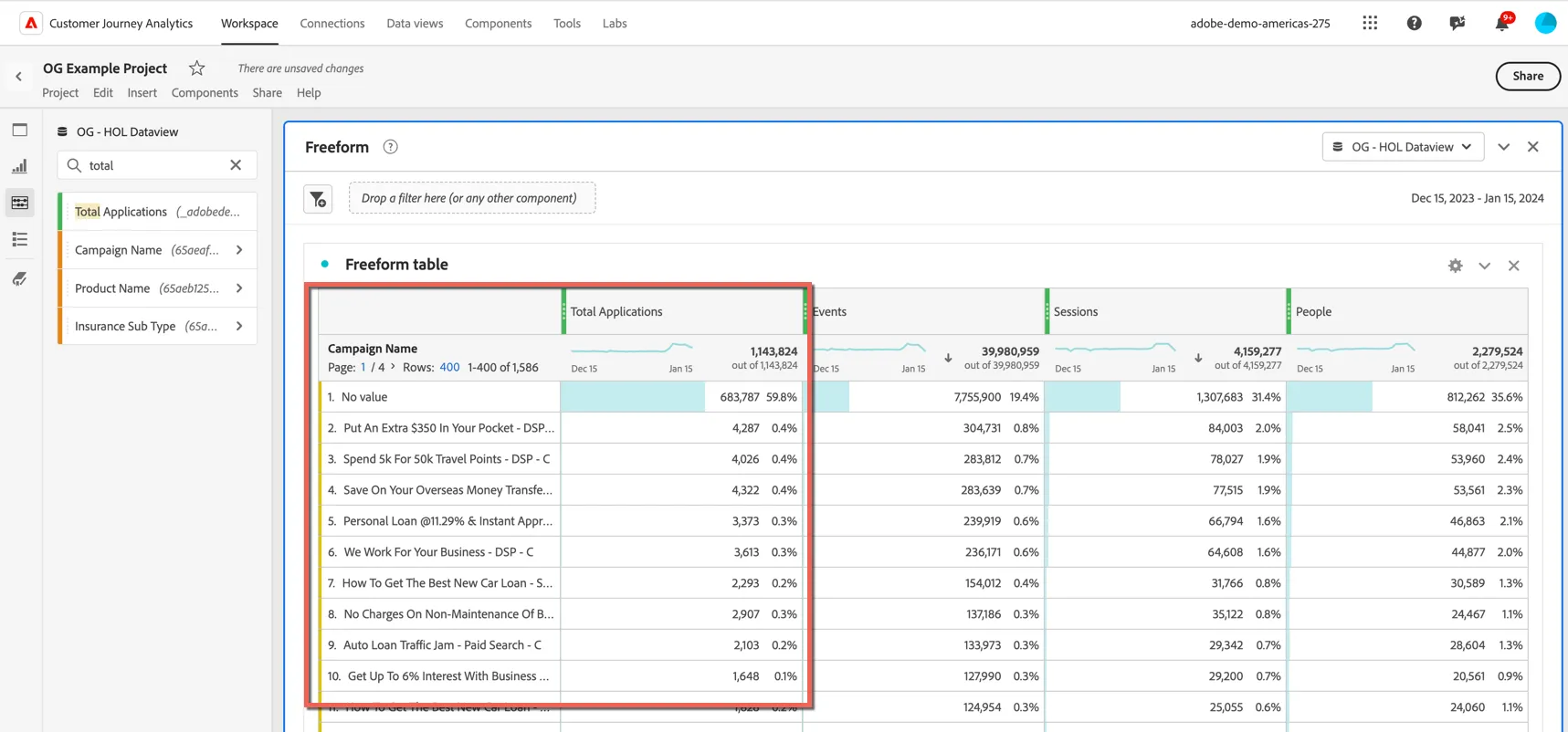
- Click Save. Then click Close to return to your dashboard. You can see there are now campaigns associated with your calls! This is because the call event was received within the 30 minute session window after the customer landed on the website from the marketing campaign! This is possible because we are connecting the events across datasets in the connection using the person id.
7.4 Create a metric from a dimension
Another advantage to this on-the-fly processing allows us to create new metrics from dimensions. What if we forgot to add a specific event field for the metric we want to report on? For example if we know that the call reason "callreasonid:337426" means it was a complaint we can use this to create a new "complaints" metric.
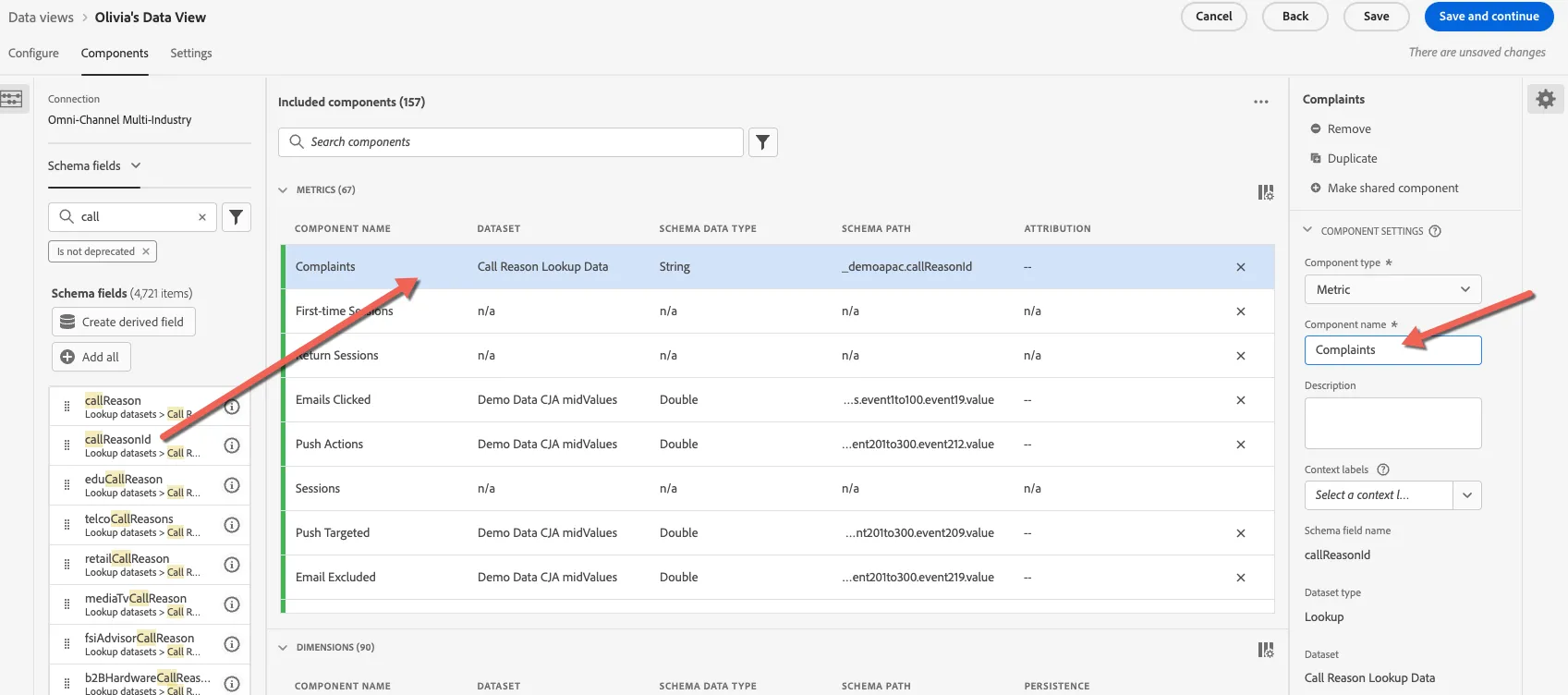
- Drag the callReasonId field into the metrics, update the component name to Complaints.
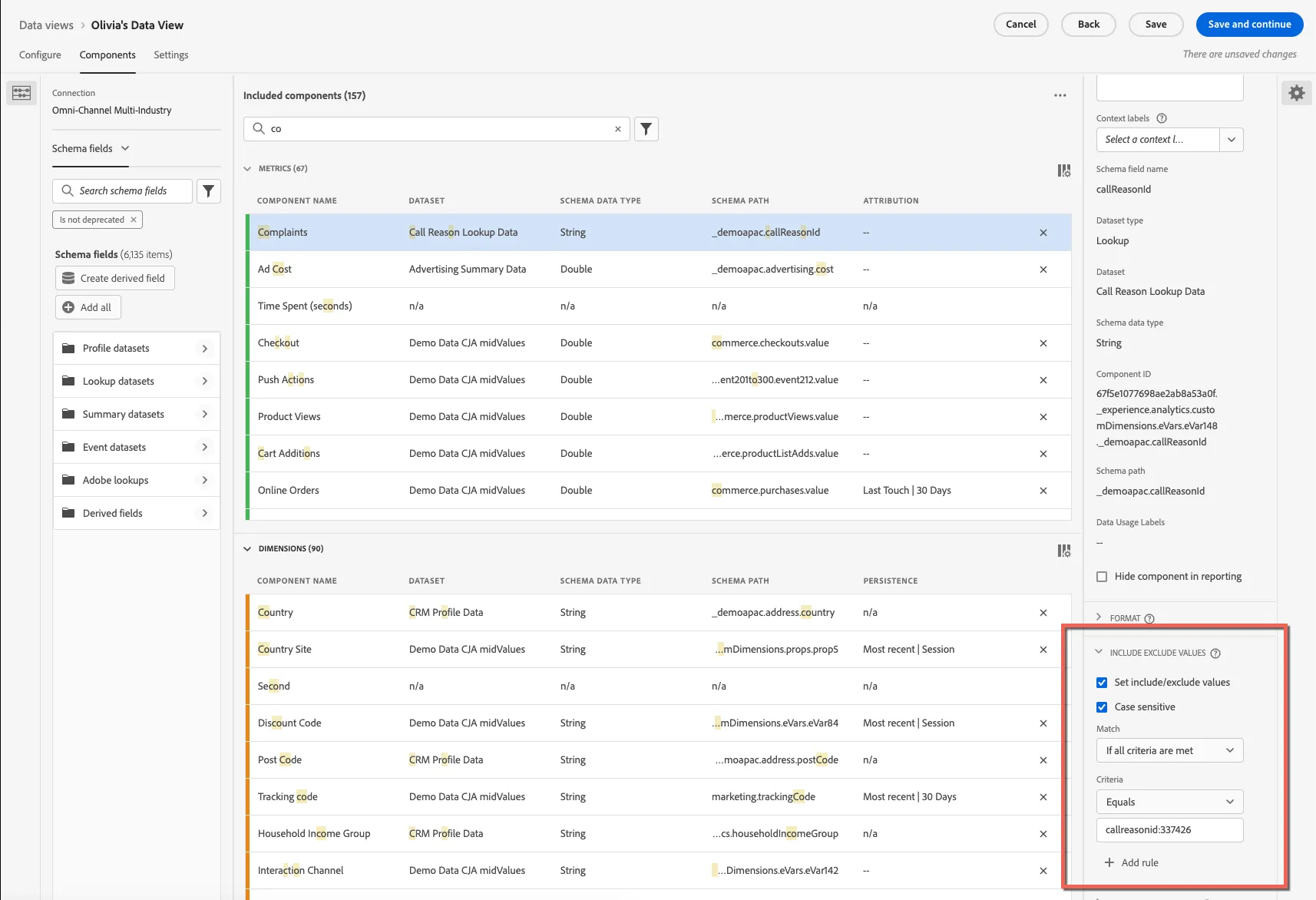
- Under the component settings scroll down to INCLUDE EXCLUDE VALUES and set the metric to include only values that equal callreasonid:337426. We now have a new metric to report complaints separately from other call reasons.
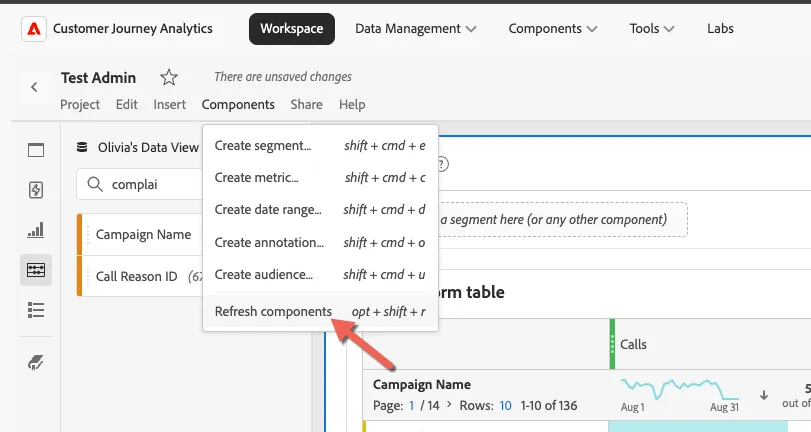
- Save the Data View and return to your dashboard, click to Refresh Components.
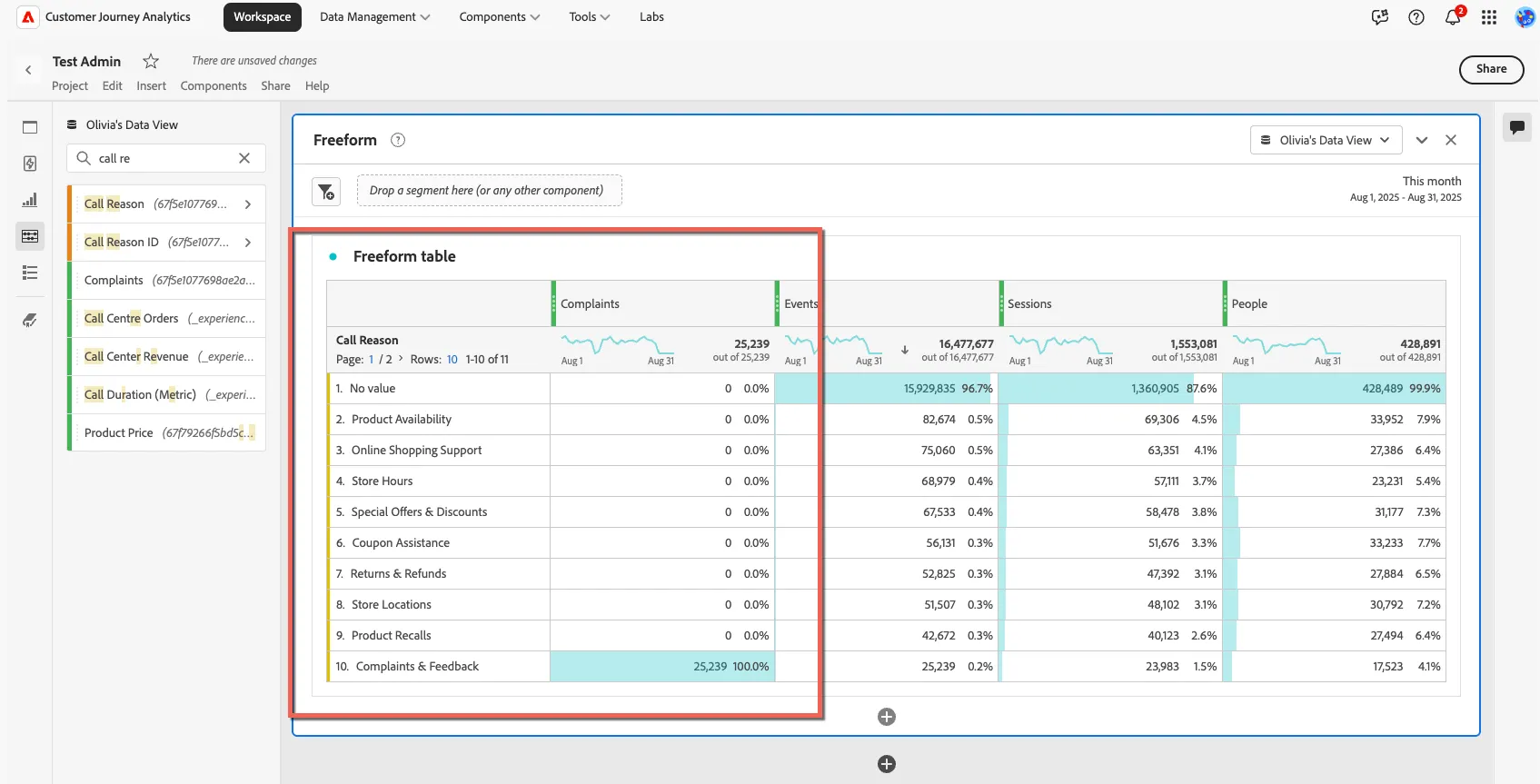
- Drag the new Complaints metric into your freeform and change the dimension to Call Reason
7.5 Derived Fields
One of the most powerful features of Customer Journey Analytics is Derived fields. These allow you to instantly and retroactively apply complex data changes on-the-fly, without the need to rewrite and re-ingest data.
Imagine the website team made an error when coding the data layer for the mobile website, and now all of the page names coming from this version of the site are pre-fixed with "mobile web:".
On your dashboard, change the dimension to Raw Page Name, apply a filter on the list to include only page names including the word category. You can see that we're reporting mobile web pages separately to desktop which is not the desired state.
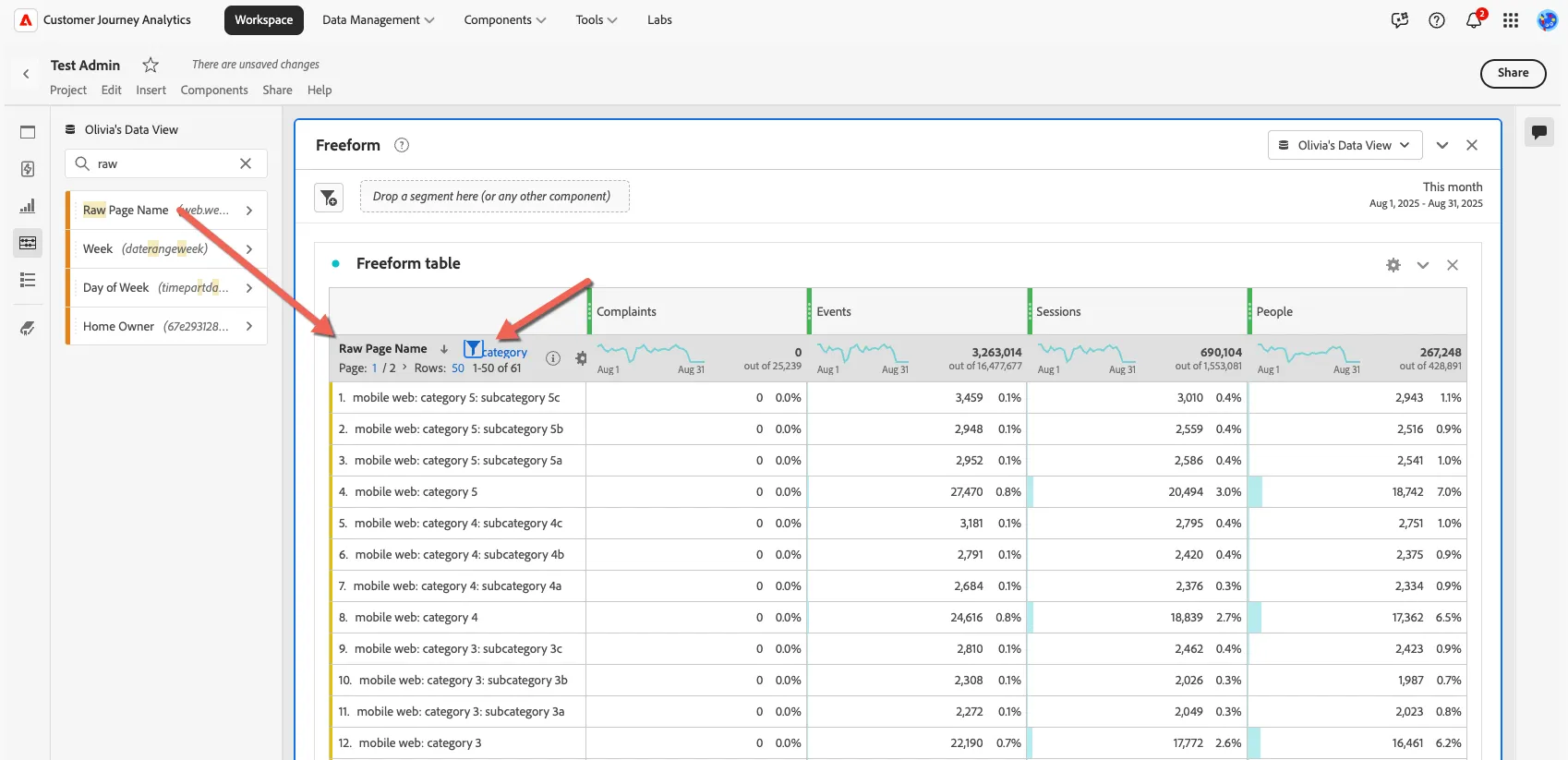
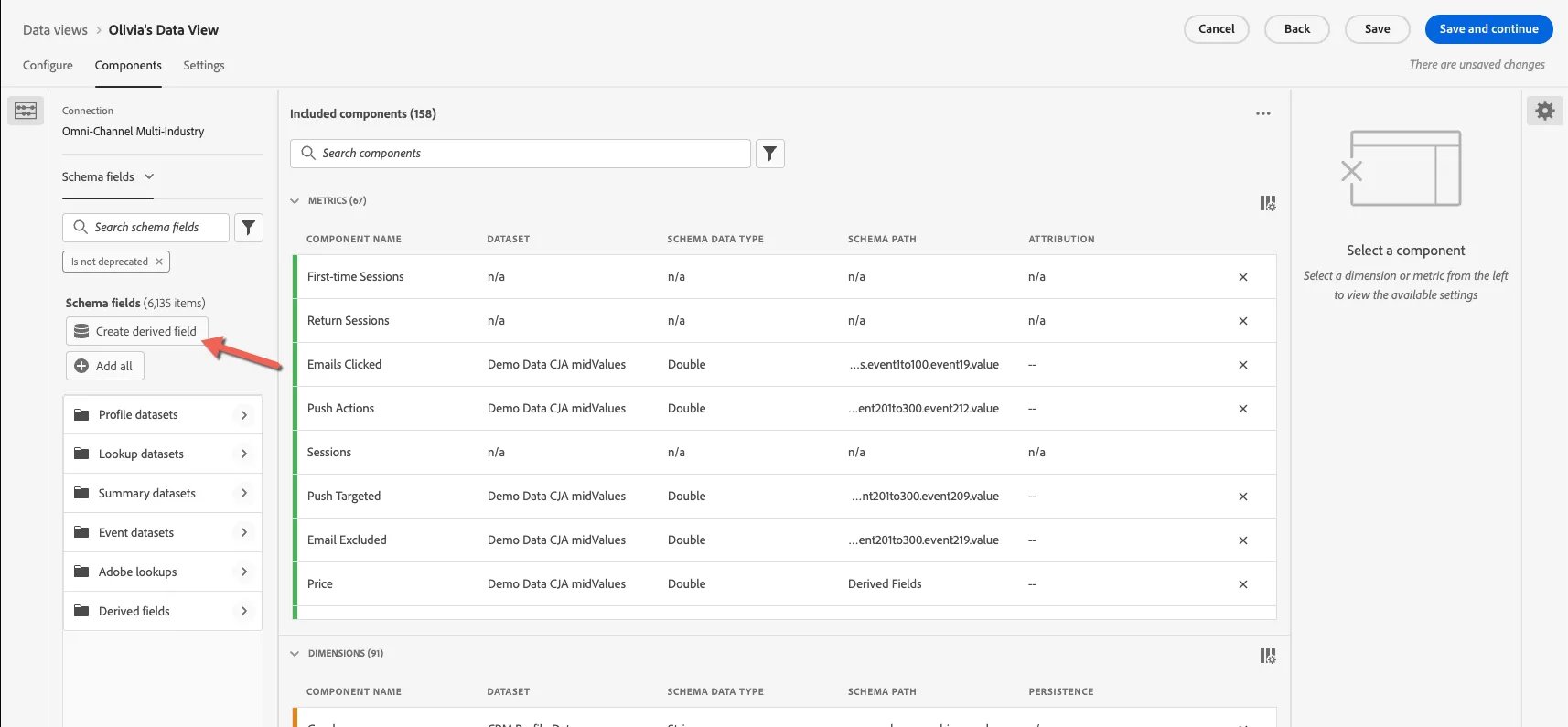
You want to report on category pages across all versions of the website. We can quickly fix this using derived fields. Click to edit your dataview and create a derived field.
Adobe provide a number of derived field templates available to help you get started but for this exercise we'll skip this step.
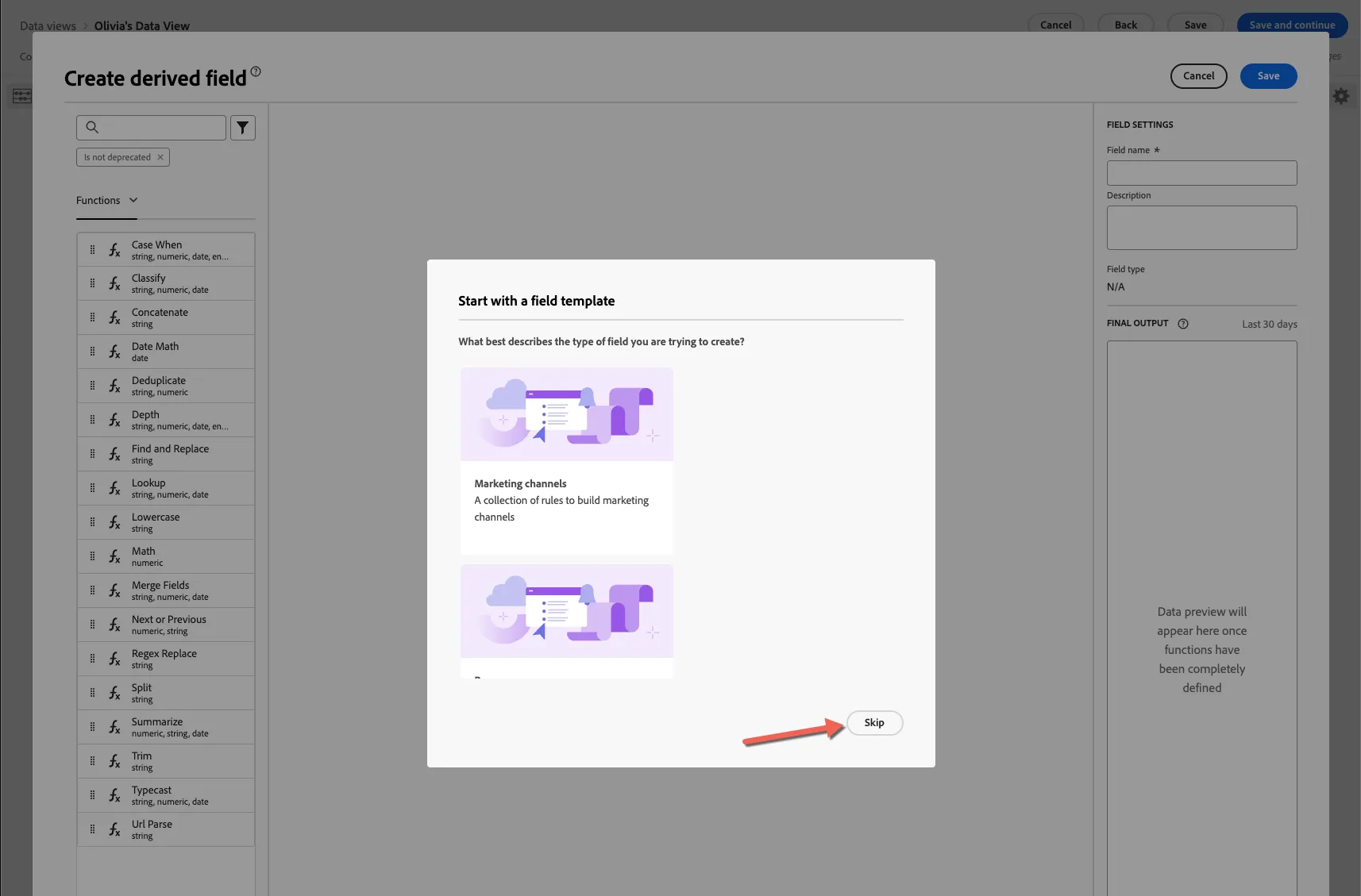
You can see there are a number of functions available. For this use case, we're going to use the regex_replace function to create a new pagename field that removes "mobile web: " from the start of any value. Drag the regex_replace function into the canvas.
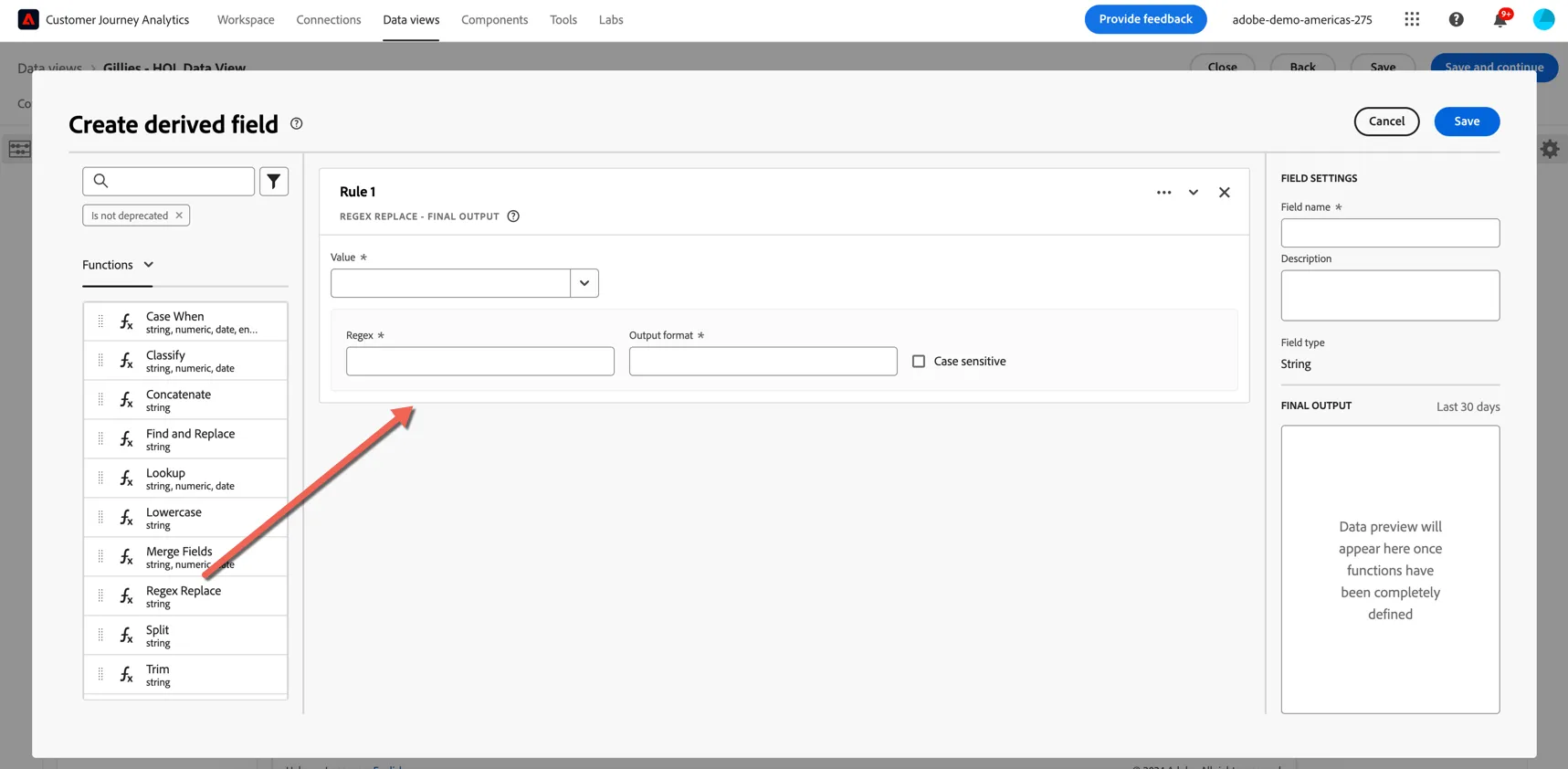
In the value field, start typing to find the page name field: web.webPageDetails. Select the Name field when it appears.
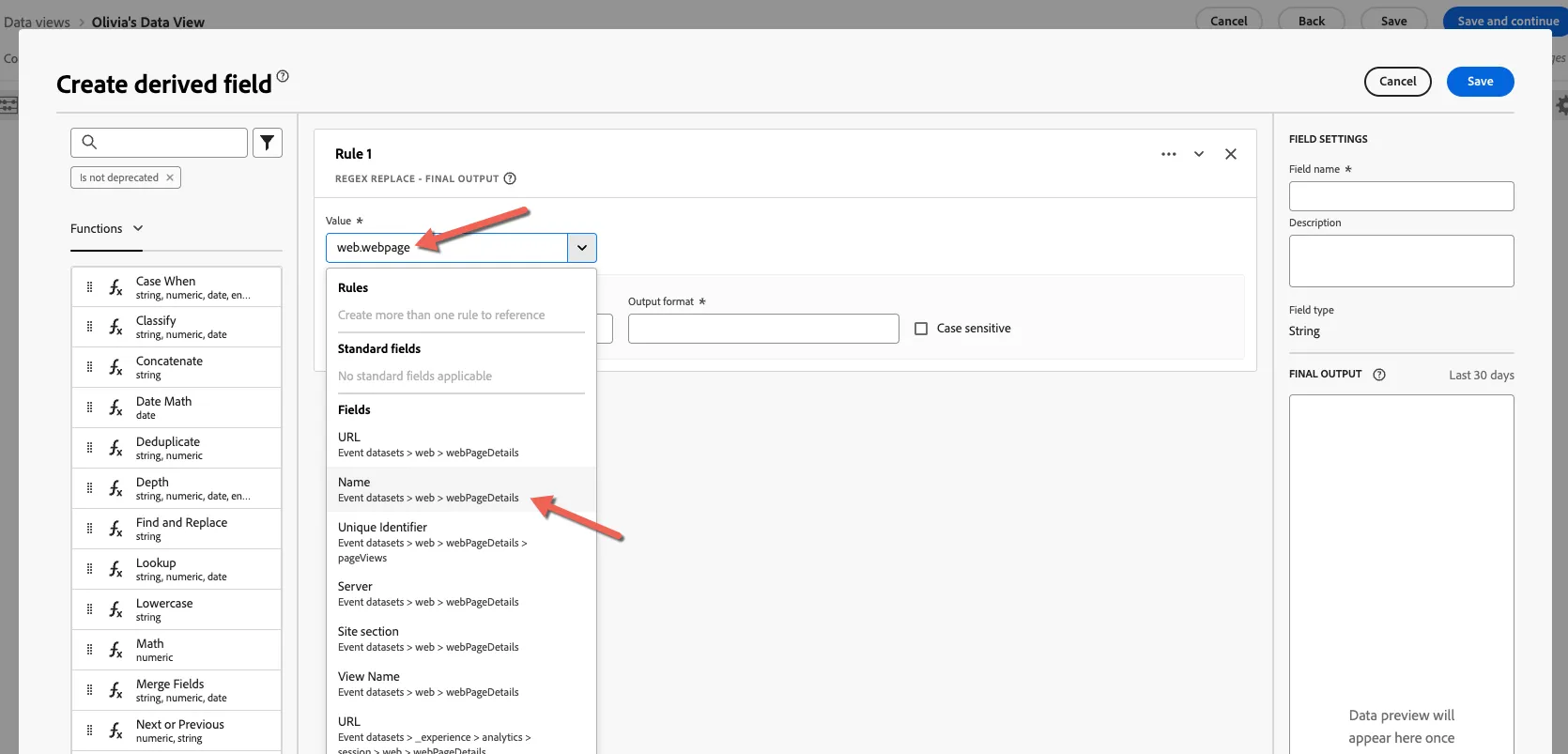
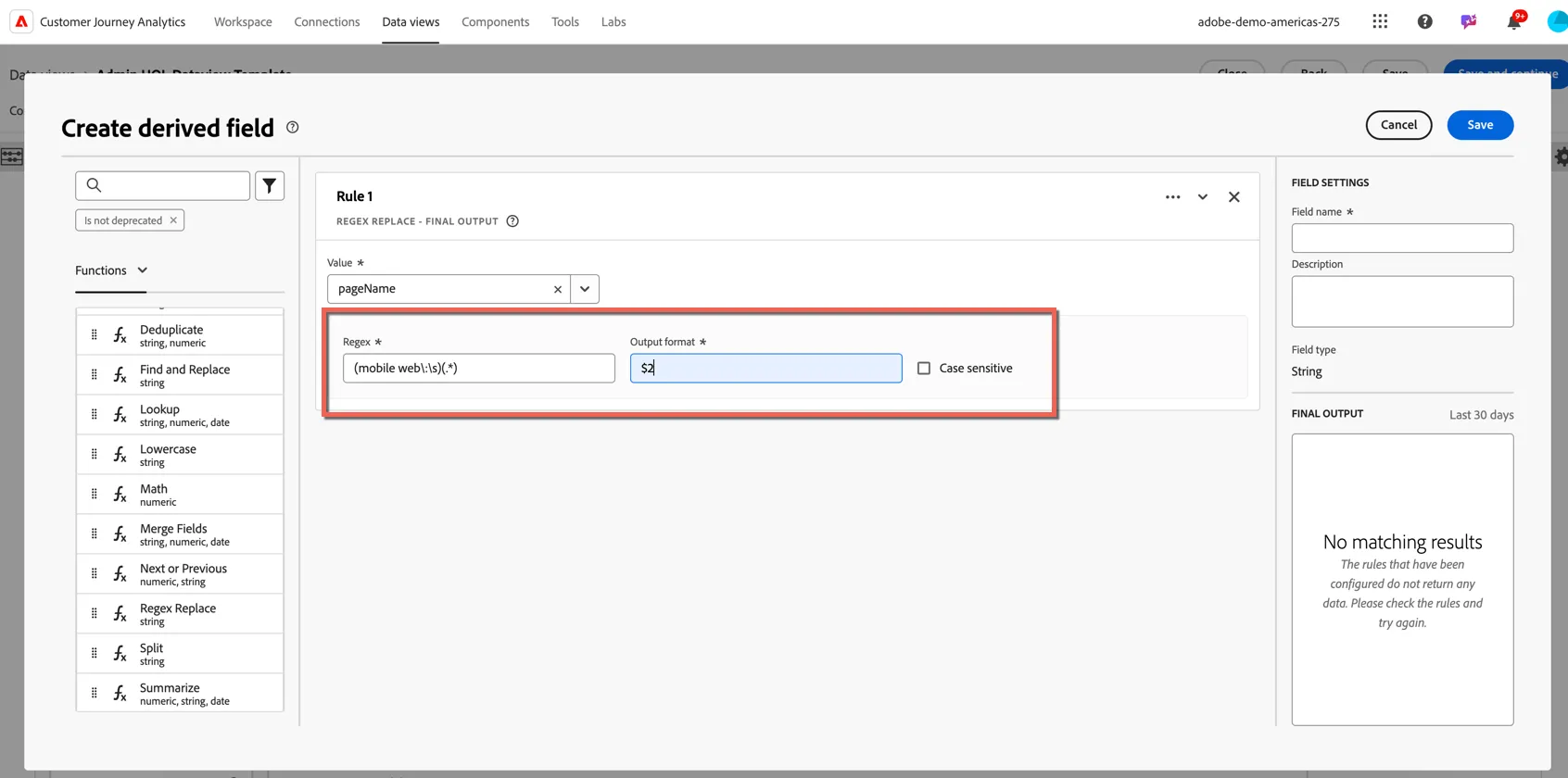
Set the regex pattern to (mobile web\:\s)(.*) and the output format to $2.
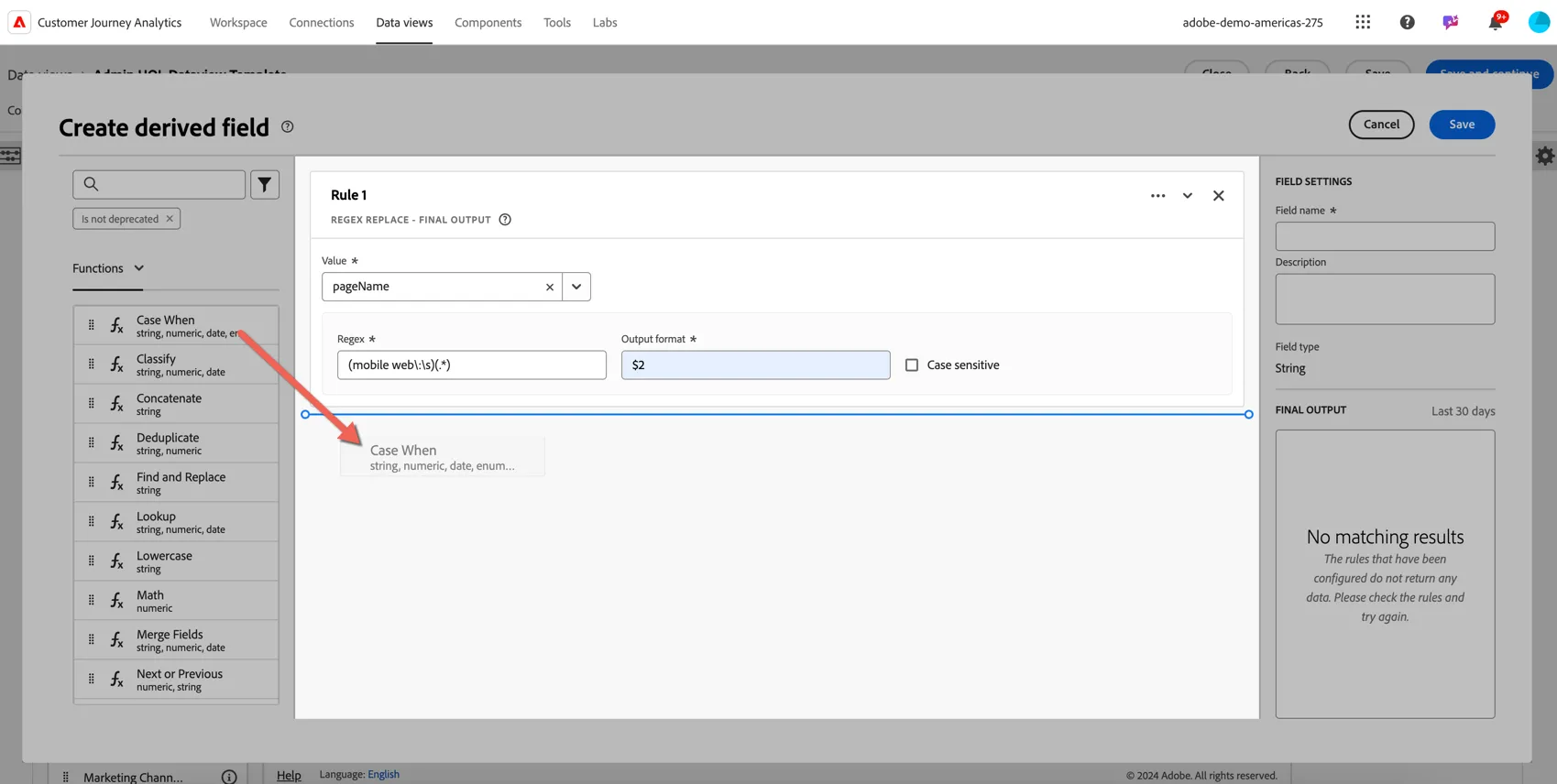
Now we only want to apply the regex on the problem values, so we need to add a second function to our derived field. Drag the Case When function into the rule builder under Rule 1.
Now update Rule 2, to also look at the web.webPageDetails.Name value, set the Criterion to starts with and the Value to mobile web:
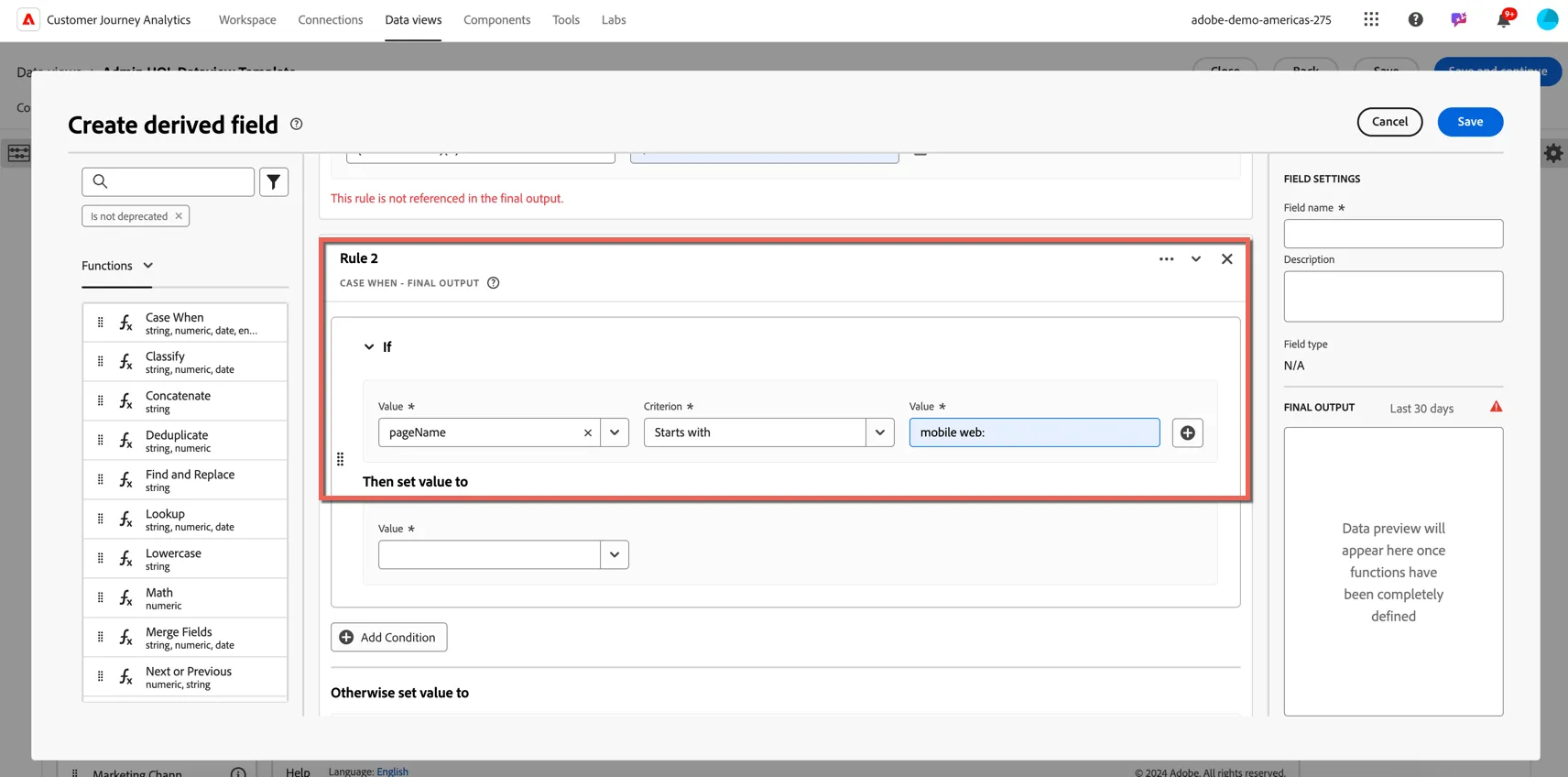
In this case we want to return the output from our regex, so set the output value to Rule 1. Otherwise we want to return the original value for web.webpagedetails.name.
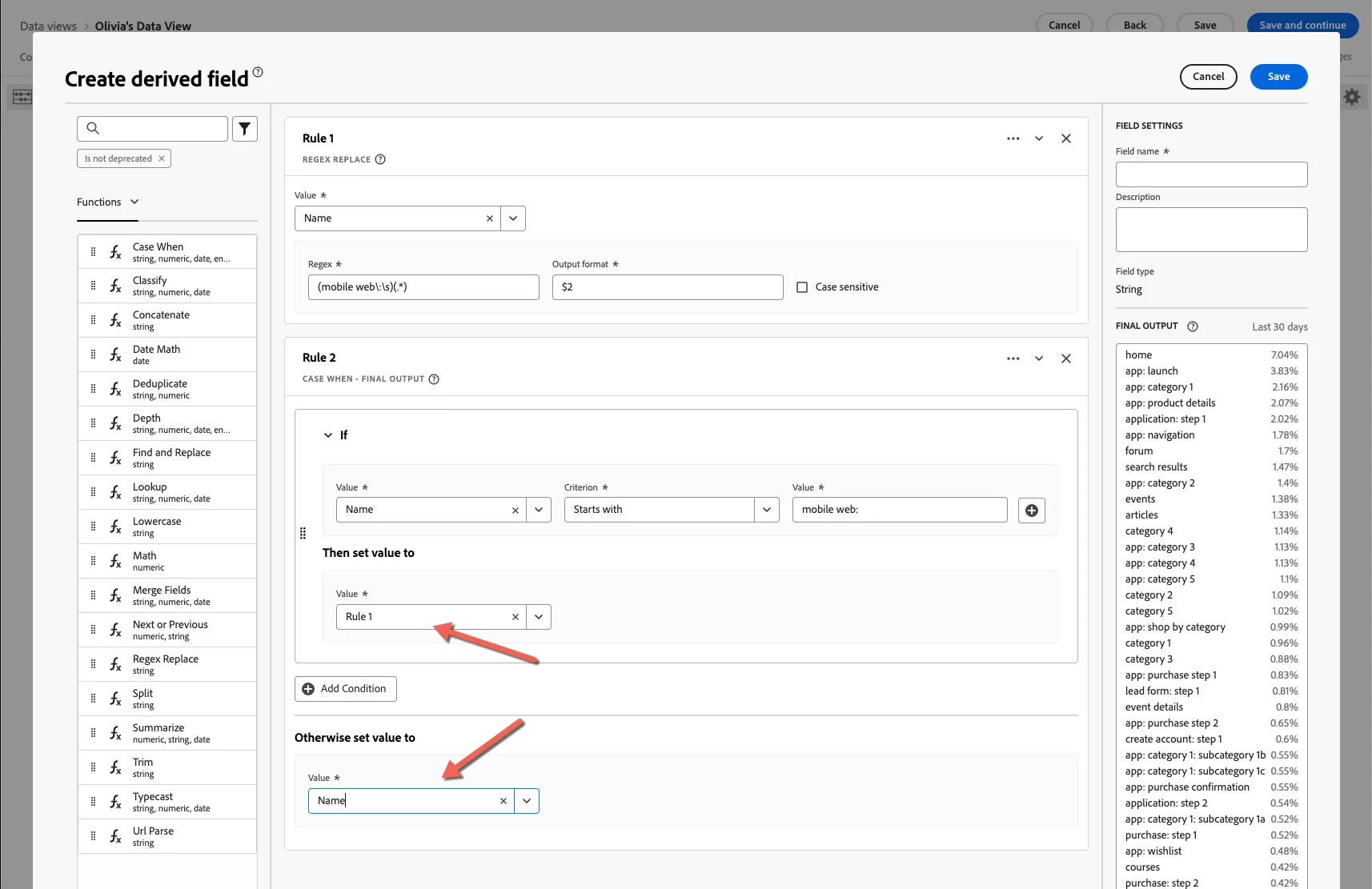
Give your new field a name that's unique to you, eg. <your name> - pagename derived. (derived fields are applied to the connection itself not specifically the data view, so we can't all create the same derived field on this connection).
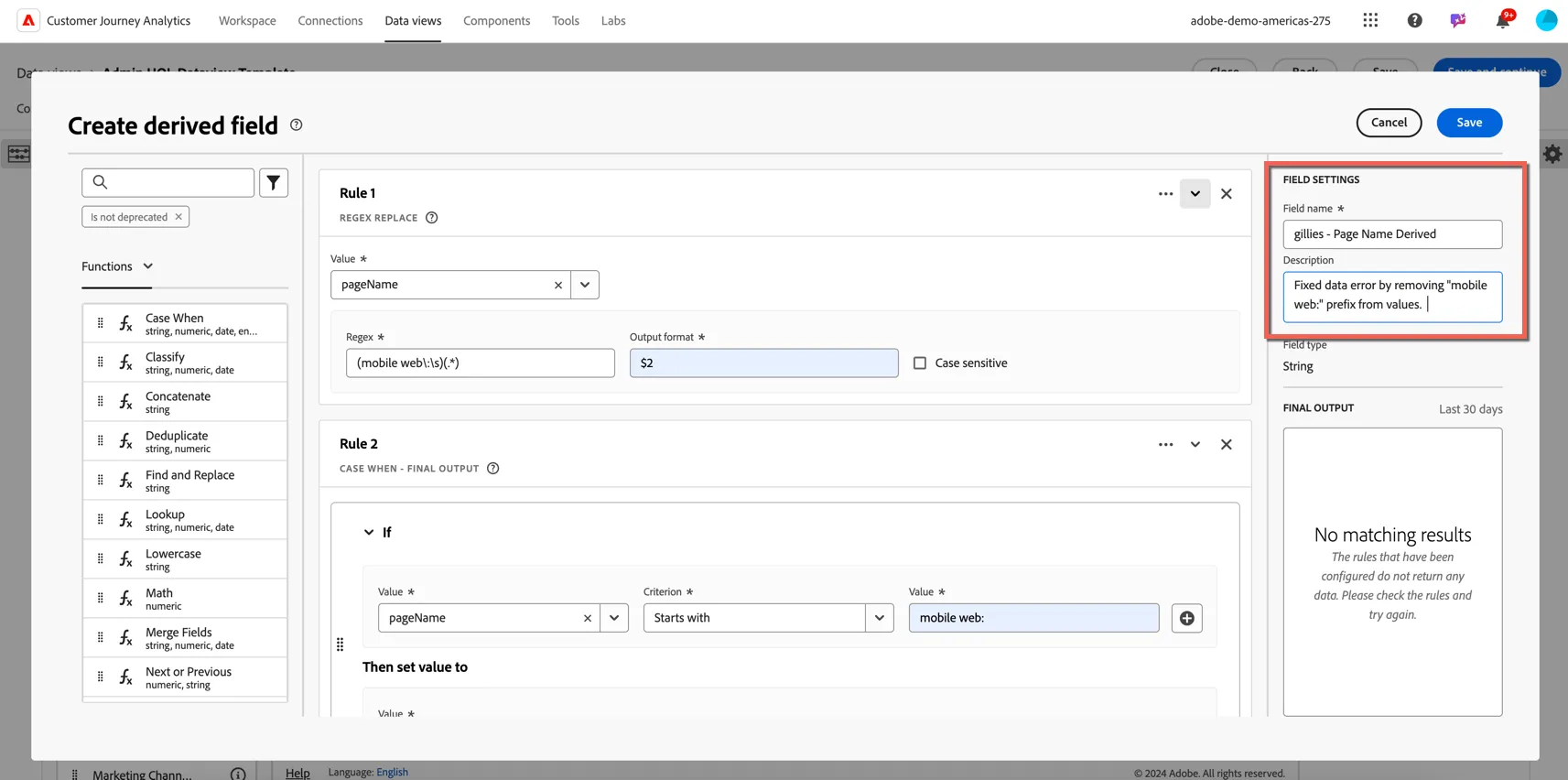
Click Save. Then drag your newly created field into your dimensions list.
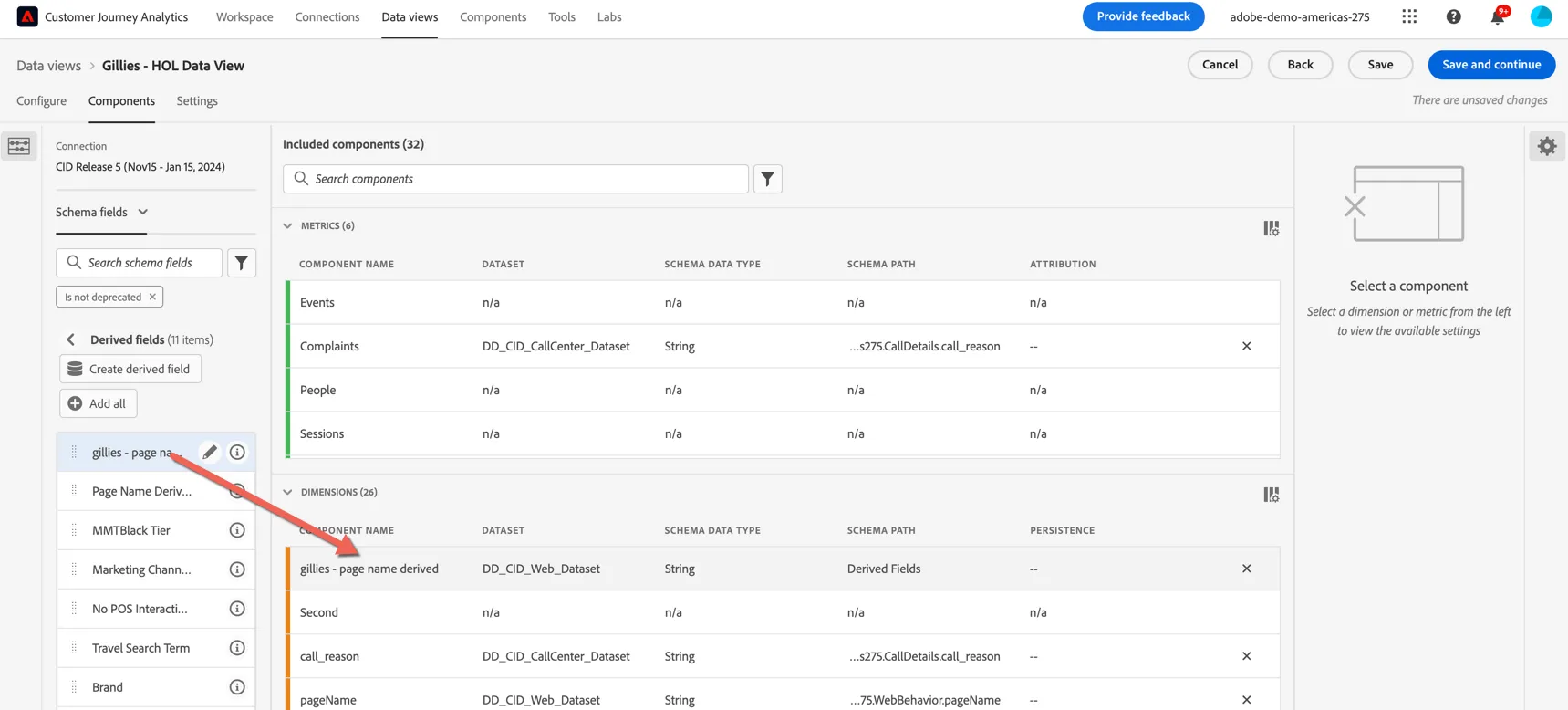
Click Save. Click Close to return to your project and Refresh Components.
Replace the page name dimension with your new derived field, values are now reported together.
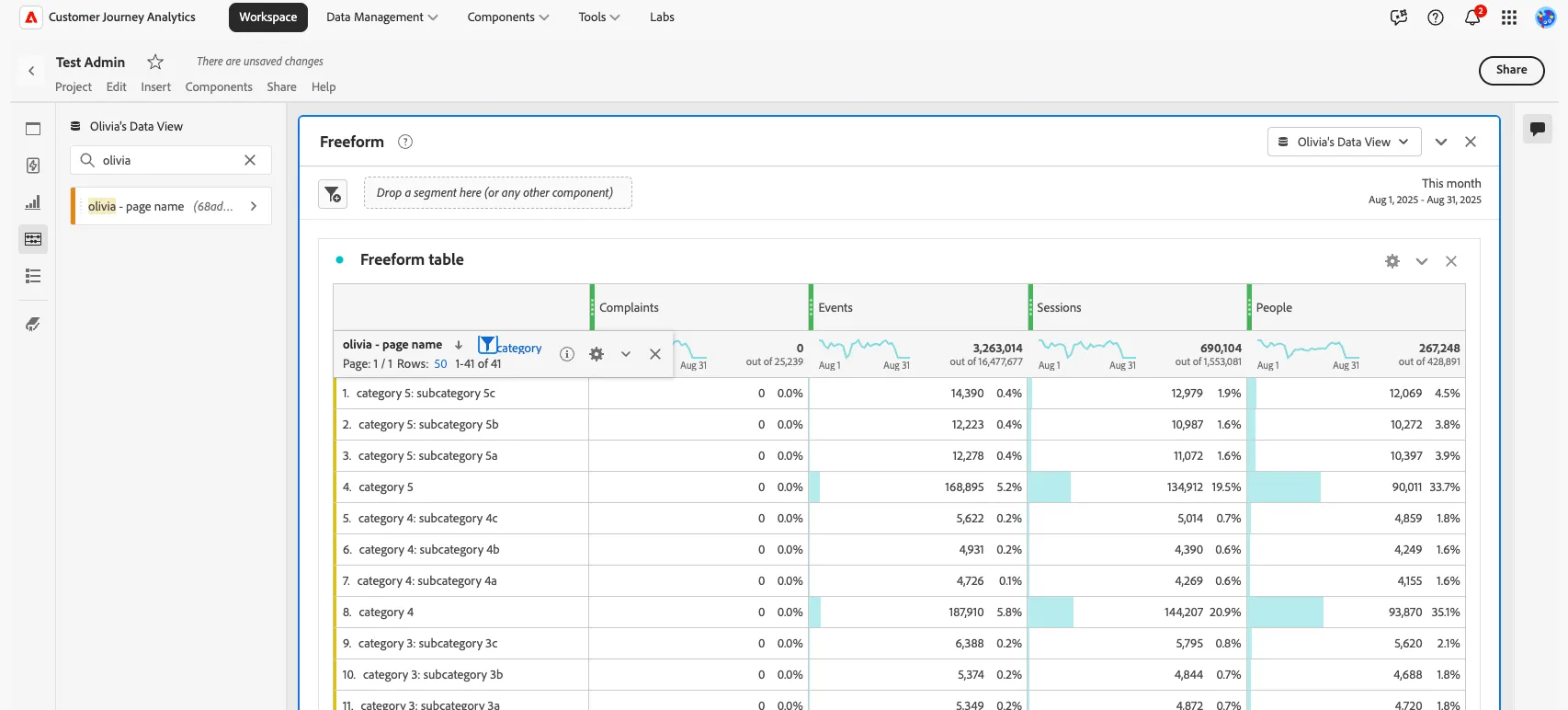
Congratulations you've completed the exercise on Data View Administration!