3. Journey Analysis
3.1 Fallout Visualisation
- Navigate to the panel 3. Journey Analysis. Notice there is a Fallout visualisation that shows a typical e-commerce checkout funnel.
- Drag the Mobile Users segment and drop it next to the visualisation title 3.1 Fallout (Order Funnel). You will see a guidemark with + Add around the top rail.
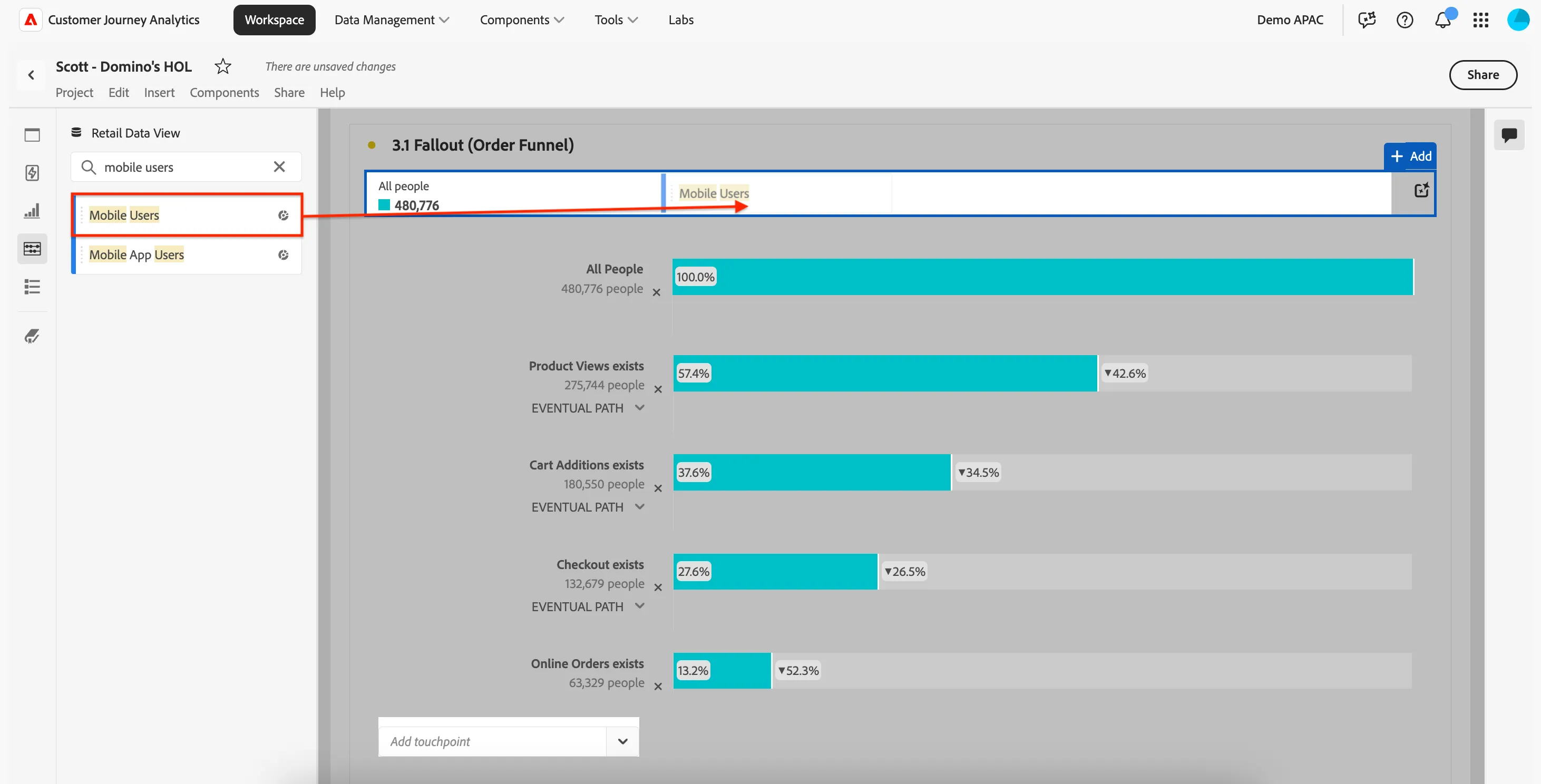
- Similar to what you did in the Quick Segment exercise, search for Age Group and click the right arrow to see the Dimension values.
- Drag 18-24 and drop it next to Mobile Users.
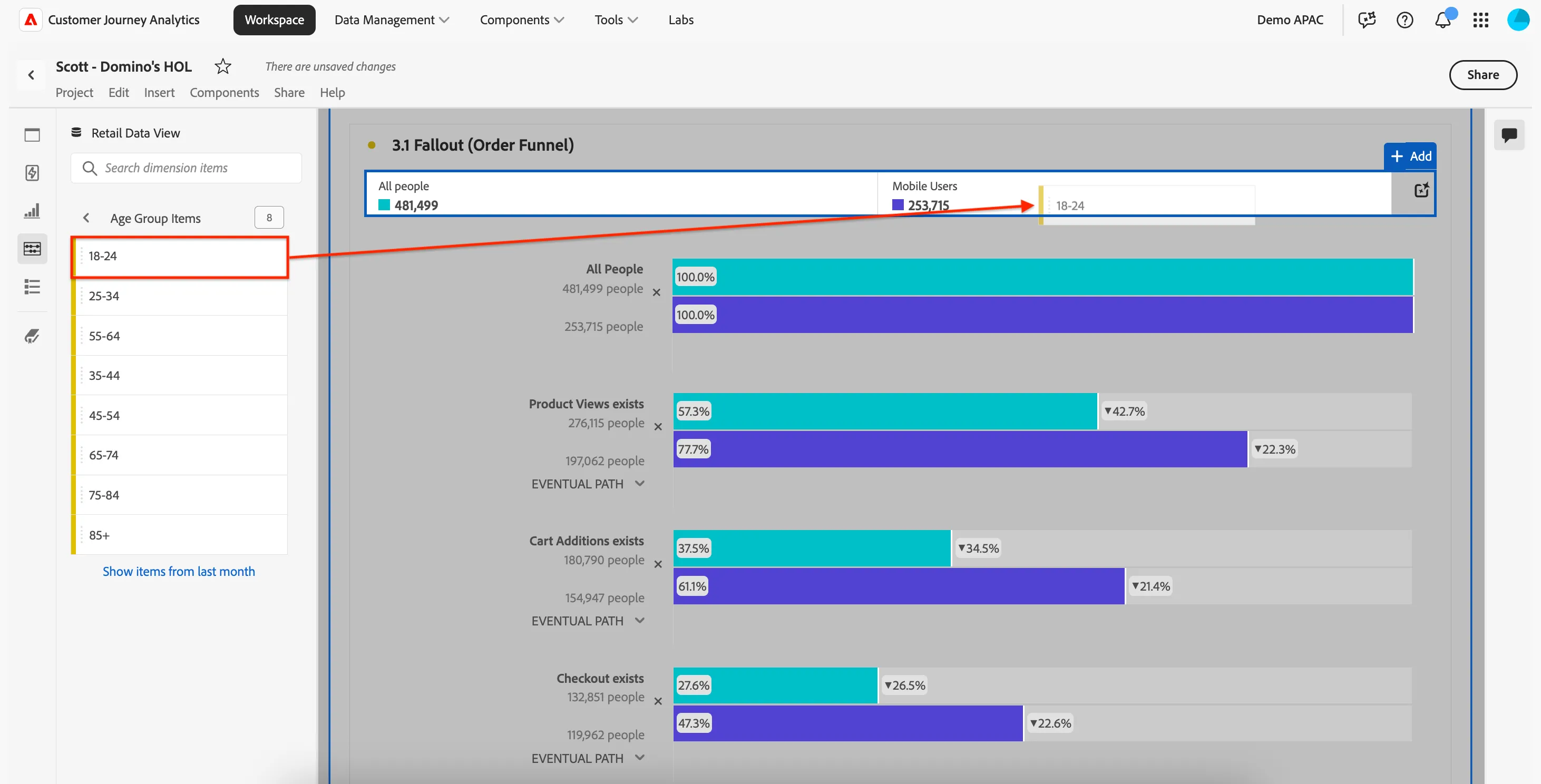
- You now have a side-by-side analysis of the fallout across multple different segments even those built with different dimensions.
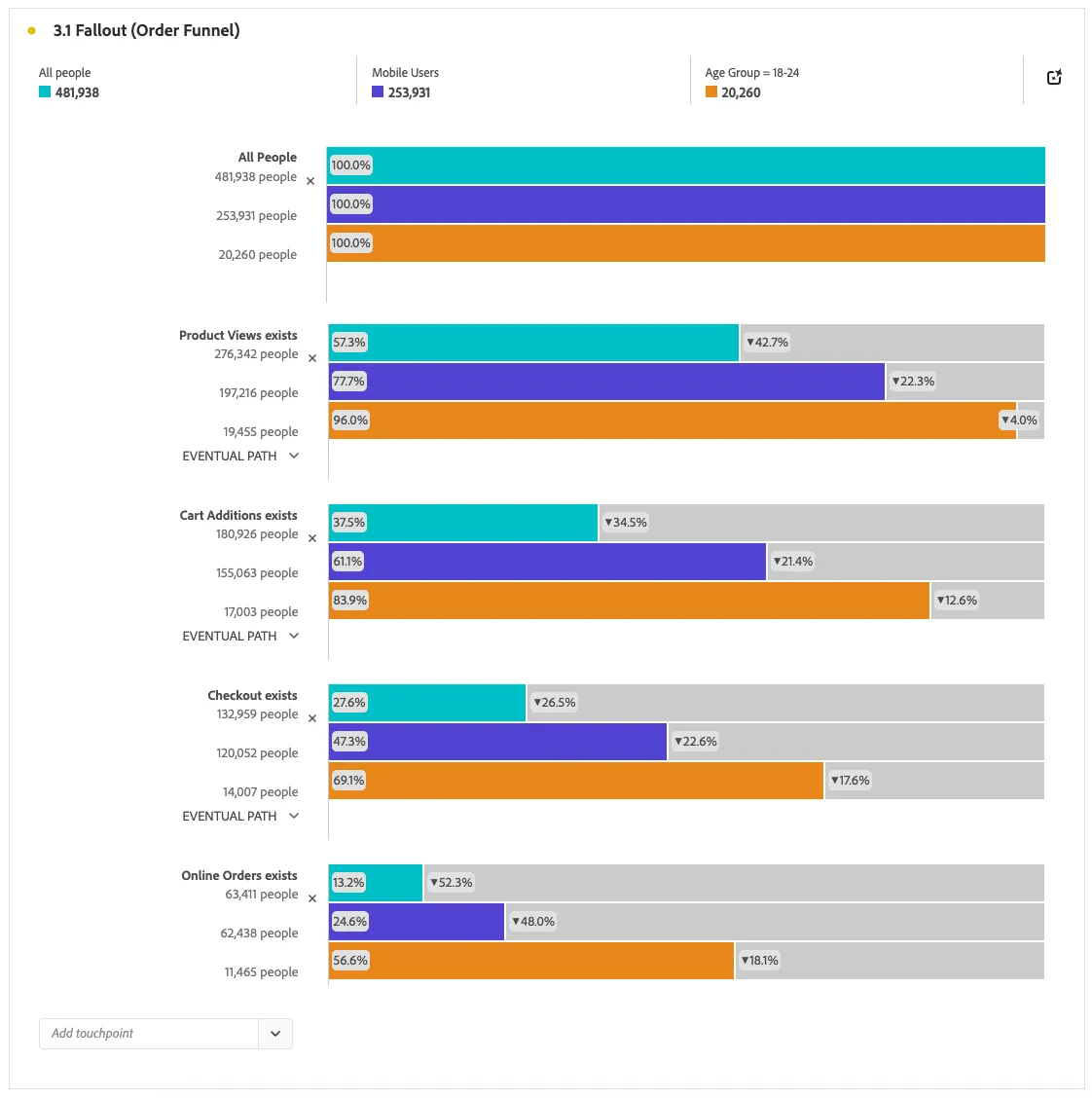
Differentiator: CJA allows you to analyse fallouts/funnels by multiple dimensions in one view. It also allows you to bring in offline events! In the above example you could imagine adding a "Picked up in-store" step for example.
3.2 Flow Visualisation
In this exercise you'll learn how to use a Flow visualisation to explore the paths customers are taking. This path can cross multiple channels, in this instance we'll explore which pages customers are viewing on the website before making an offline order.
Offline orders here could represent a phone order or an order received through aggregator apps like Uber Eats or Menulog*.
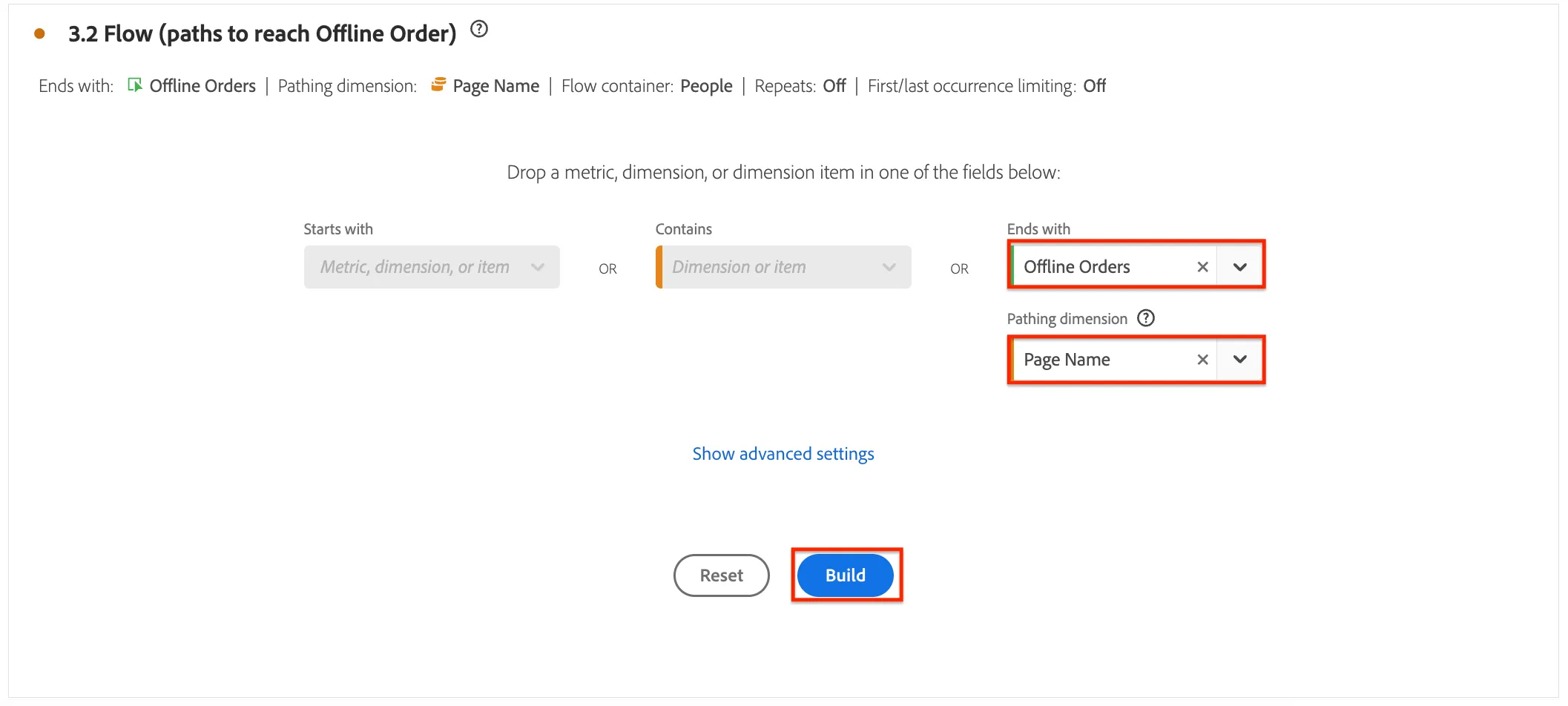
- In the visualisation 3.2 Flow (paths to reach Offline Order) we can build out a Flow visualisation by starting with an end point.
- Change Ends with to Offline Orders and Pathing dimension to Page Name using the search or drop-down.
- Click Build.
- You can now explore the paths people used to reach this end-point. In this case, we want to understand why people had to order offline instead of completing a self-service digital order.
- Note: the data in this exercise is generic retail data from a fictitious sportsware brand called Luma.
- If you click on any node to the left, you can explore the earlier pathing that resulting in reaching that node.
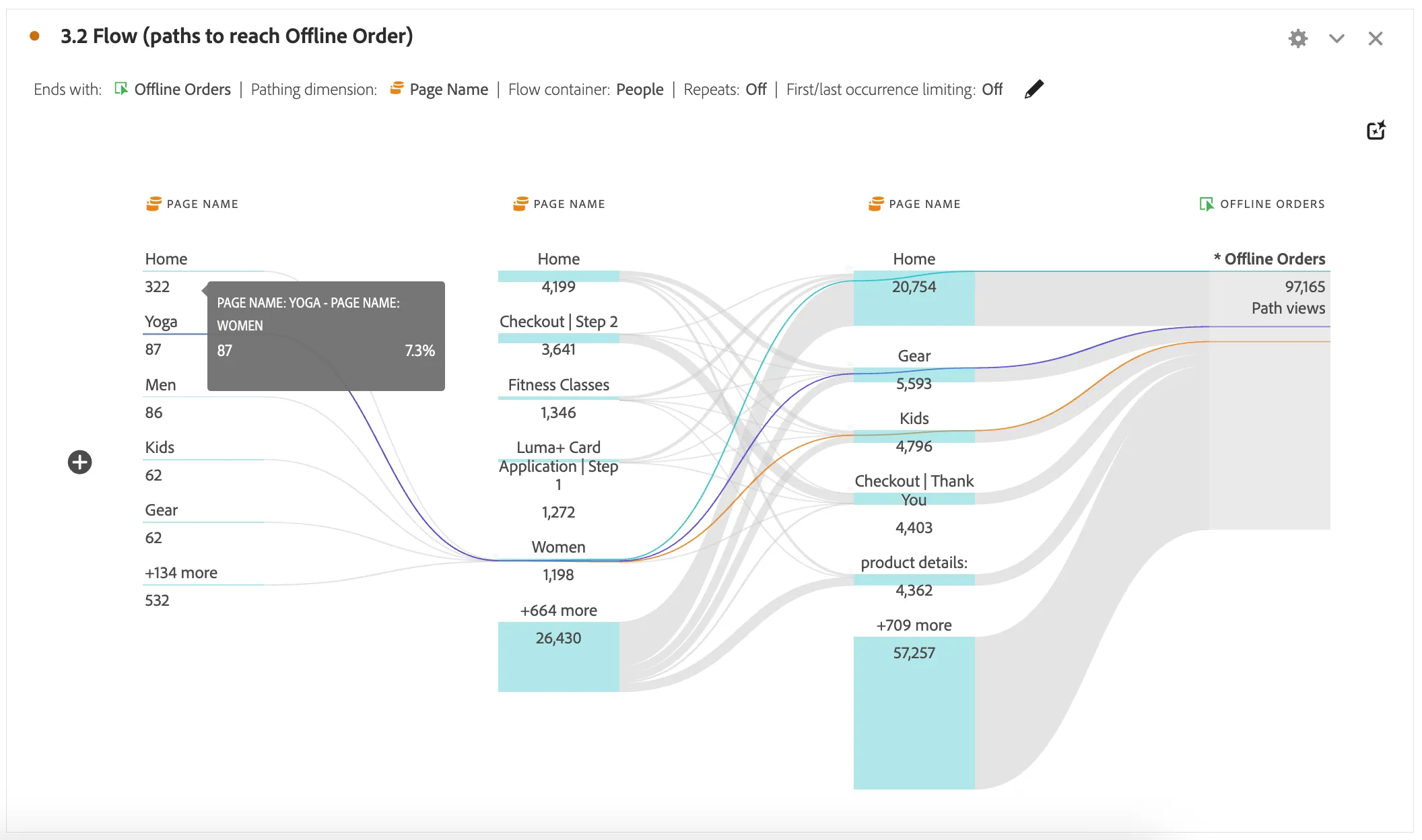
Differentiator: CJA's intuitive UI allows for next-level customer journey exploration. Journeys can be explored from the desired end point (like above), the entry point or any point in between!
3.2 Journey Canvas
Once you're done some exploration to understand the journey trends, you can drill down into specific journeys using the Journey Canvas visualisation.
- A Journey visualisation called 3.3 Journey Canvas (Digital self-service) has already been made for you. Let's add an extra node to the journey to look at how many people are moving off our happy path (digital self-service) to another channel.
- Search for Calls and drag the Calls metric onto a blank area on the right of the canvas.
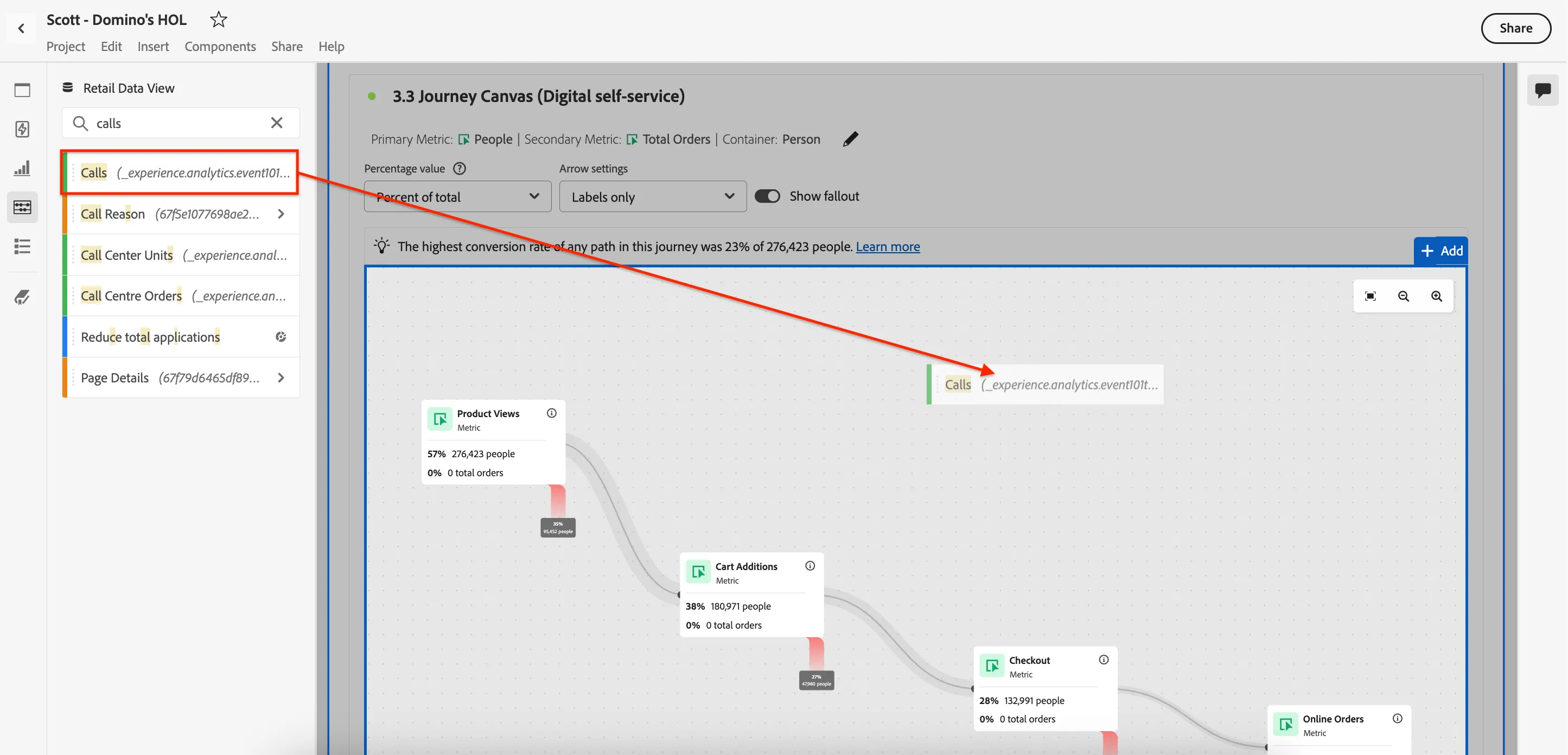
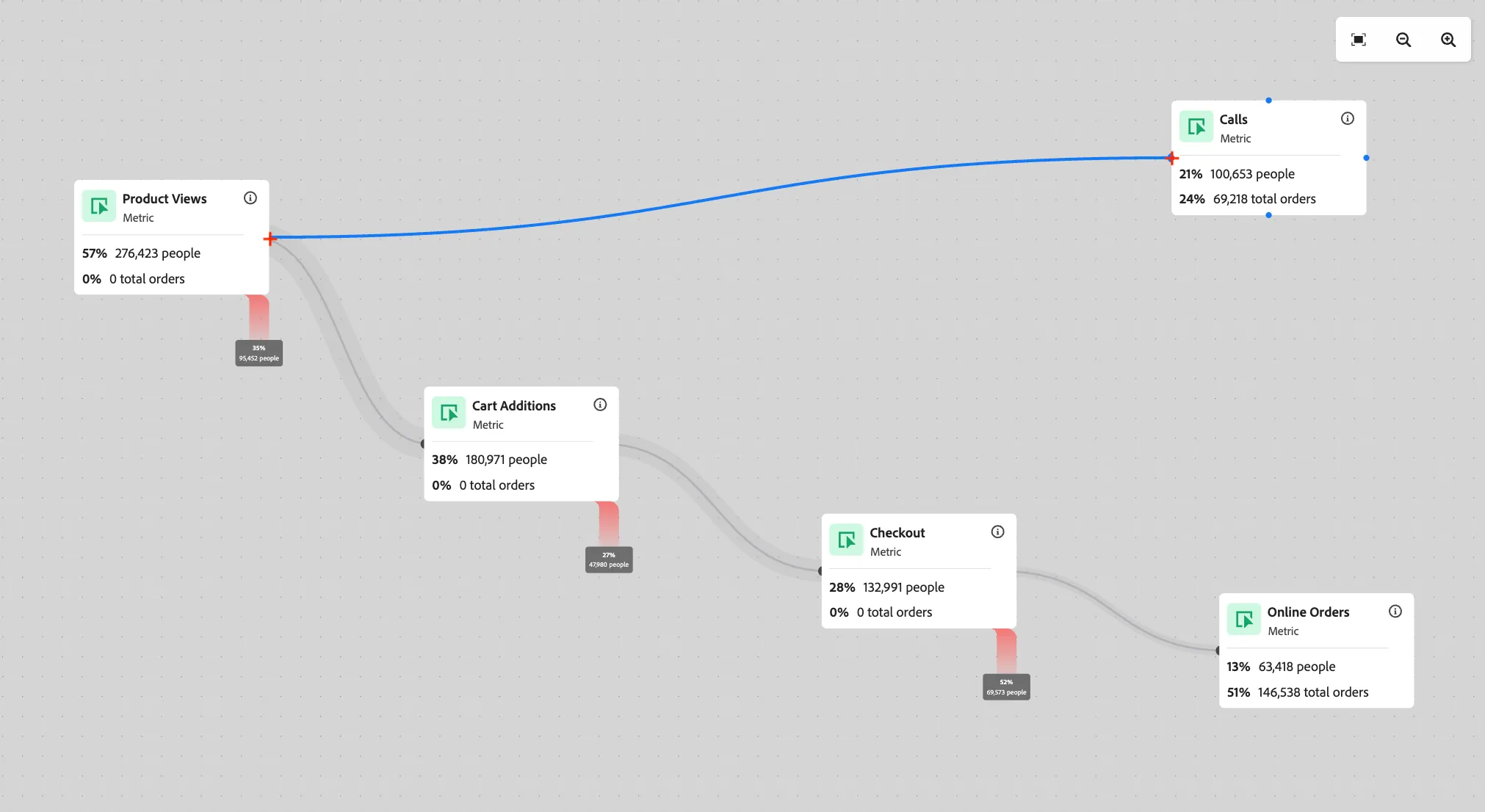
- For the Product Views node, hover over the right edge until the cursor turns into a crosshair (+).
- Click and drag a line from there to the left side of the Calls node as such (note: the cursor should be a hand pointer when you drop):
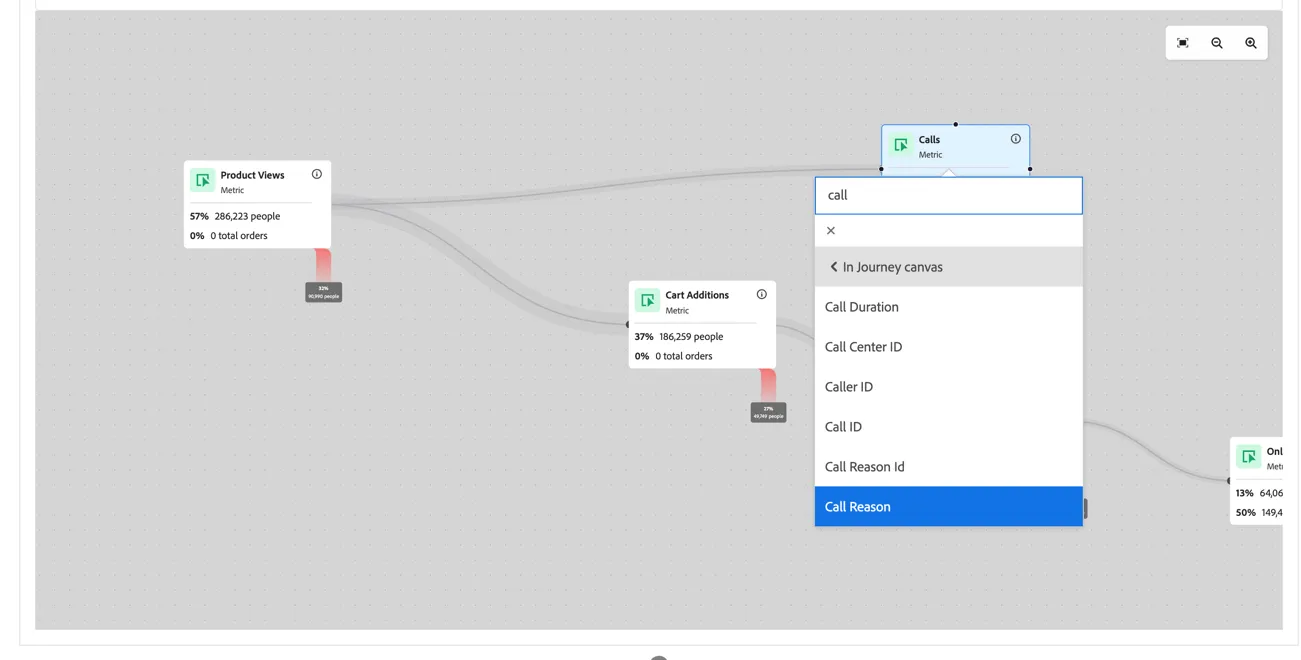
- Right click on the Calls node where it lists the number of people and total orders and select Breakdown
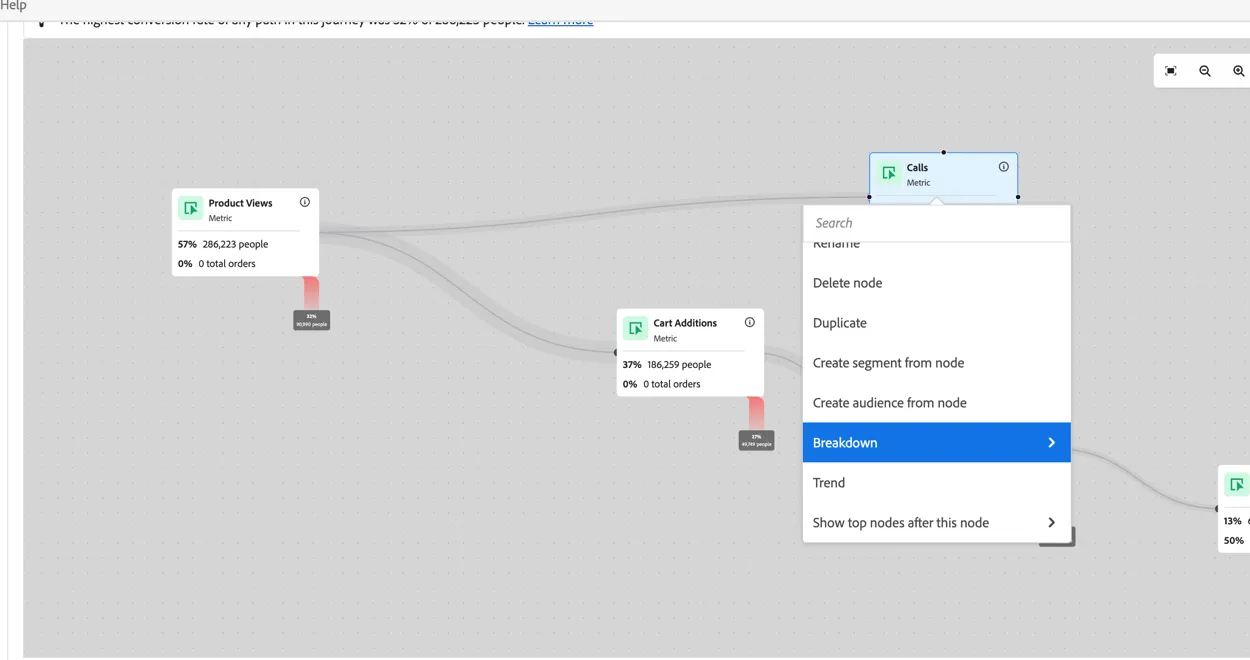
- select In Journey canvas > Call Reason (note: you can use the box at the top to search - eg. type "call"):
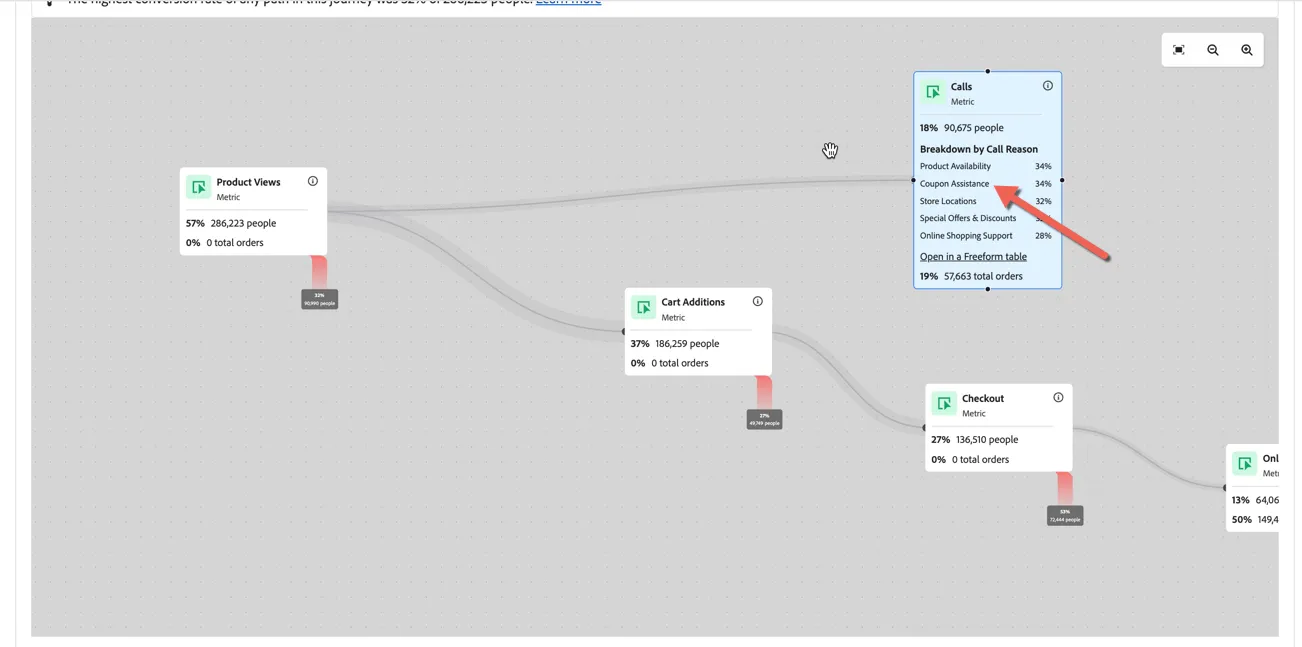
- We can see a lot of calls are coming in related to coupon issues after customers view products online. We can use this insight to update the experience onsite to reduce call volumes and redirect customers to self service channels.
Differentiator: CJA allows for dynamic, drag-and-drop exploration of data to quickly move from insights to action!