Customer-managed Keys (Demo)
Data stored on Adobe Experience Platform is encrypted at rest using system-level keys. If you are using an application built on top of Platform, you can opt to use your own encryption keys instead, giving you greater control over your data security.
NOTE
Data in Adobe Experience Platform data lake and Profile Store (CosmosDB) are encrypted using CMK.
This document covers the process for enabling the customer-managed keys (CMK) feature in Platform.
Prerequisites #prerequisites
In order to enable CMK, your Azure Key Vault must be configured with the following settings:
Process summary #process-summary
CMK is included in the Healthcare Shield and the Privacy and Security Shield offerings from Adobe. After your organization purchases a license for one of these offerings, you can begin a one-time process for setting up the feature.
WARNING
After setting up CMK, you cannot revert to system-managed keys. You are responsible for securely managing your keys and providing access to your Key Vault, Key, and CMK app within Azure to prevent losing access to your data.
The process is as follows:
- Configure an Azure Key Vault based on your organization’s policies, then generate an encryption key that will ultimately be shared with Adobe.
- Use API calls to send your encryption key ID to Adobe and start the enablement process for the feature.
Once the setup process is complete, all data onboarded into Platform across all sandboxes will be encrypted using your Azure key setup. To use CMK, you will leverage Microsoft Azure functionality that may be part of their public preview program.
Configure an Azure Key Vault #create-key-vault
CMK only supports keys from a Microsoft Azure Key Vault. To get started, you must work with Azure to create a new enterprise account, or use an existing enterprise account and follow the steps below to create the Key Vault.
IMPORTANT
Only the Premium and Standard service tiers for Azure Key Vault are supported. Azure Managed HSM, Azure Dedicated HSM and Azure Payments HSM are not supported. Refer to the Azure documentation for more information on offered key management services.
NOTE
The documentation below only covers the basic steps to create the key vault. Outside of this guidance, you should configure the key vault as per your organization’s policies.
Log in to the Azure portal and use the search bar to locate Key vaults under the list of services.

The Key vaults page appears after selecting the service. From here, select Create.

Using the provided form, fill in the basic details for the key vault, including a name and an assigned resource group.
WARNING
While most options can be left as their default values, make sure that you enable the soft-delete and purge protection options. If you do not turn these features on, you could risk losing access to your data if the key vault is deleted.
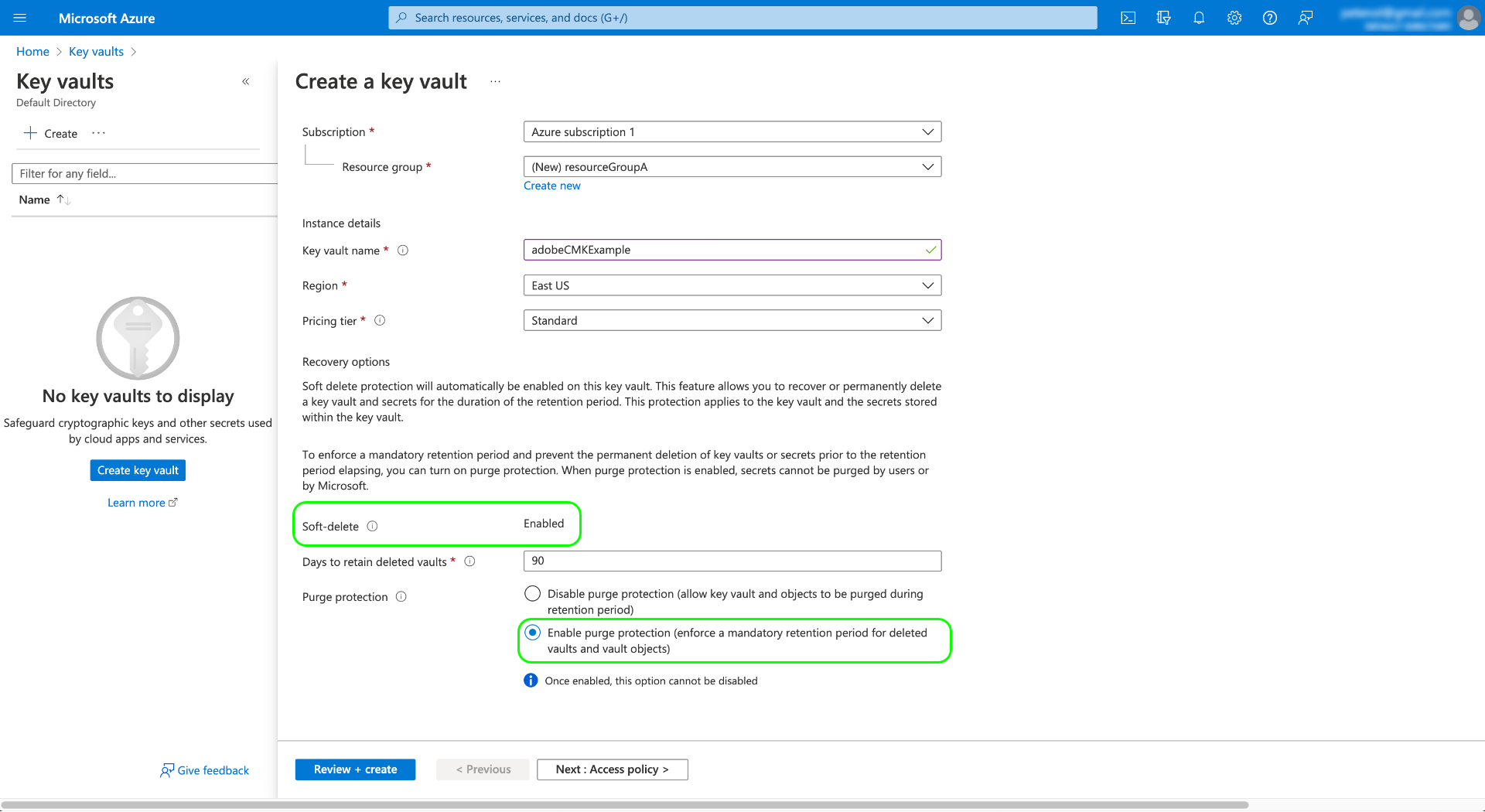
From here, continue going through the key vault creation workflow and configure the different options according to your organization’s policies.
Once you arrive at the Review + create step, you can review the details of the key vault while it goes through validation. Once validation passes, select Create to complete the process.

Configure networking options #configure-networking-options
If your key vault is configured to restrict public access to certain virtual networks or disable public access entirely, you must grant Microsoft a firewall exception.
Select Networking in the left navigation. Under Firewalls and virtual networks, select the checkbox Allow trusted Microsoft services to bypass this firewall, then select Apply.

Generate a key #generate-a-key
Once you have created a key vault, you can generate a new key. Navigate to the Keys tab and select Generate/Import.

Use the provided form to provide a name for the key, and select RSA for the key type. At a minimum, the the RSA key size must be at least 3072 bits as required by Cosmos DB. Azure Data Lake Storage is also compatible with RSA 3027.
NOTE
Remember the name you provide for the key, as it will be used in later step when sending the key to Adobe.
Use the remaining controls to configure the key you want to generate or import as desired. When finished, select Create.

The configured key appears in the list of keys for the vault.

Set up the CMK app #register-app
Once you have your key vault configured, the next step is to register for the CMK application that will link to your Azure tenant.
Getting started #getting-started
Registering the CMK app requires you to make calls to Platform APIs. For details on how to gather the required authentication headers to make these calls, see the Platform API authentication guide.
While the authentication guide provides instructions on how to generate your own unique value for the required x-api-key request header, all API operations in this guide use the static value acp_provisioning instead. You must still provide your own values for {ACCESS_TOKEN} and {ORG_ID}, however.
In all API calls shown in this guide, platform.adobe.io is used as the root path, which defaults to the VA7 region. If your organization uses a different region, platform must be followed by a dash and the region code assigned to your organization: nld2 for NLD2 or aus5 for AUS5 (for example: platform-aus5.adobe.io). If you do not know your organization’s region, please contact your system administrator.
Fetch an authentication URL #fetch-an-authentication-url
To start the registration process, make a GET request to the app registration endpoint to fetch the required authentication URL for your organization.
Request
curl -X GET \
  https://platform.adobe.io/data/infrastructure/manager/byok/app-registration \
  -H 'Authorization: Bearer {ACCESS_TOKEN}' \
  -H 'x-api-key: acp_provisioning' \
  -H 'x-gw-ims-org-id: {ORG_ID}'
CopyToggle Text Wrapping
Response
A successful response returns an applicationRedirectUrl property, containing the authentication URL.
{
    "id": "byok",
    "name": "acpebae9422Caepcmkmultitenantapp",
    "applicationUri": "https://adobe.com/acpebae9422Caepcmkmultitenantapp",
    "applicationId": "e463a445-c6ac-4ca2-b36a-b5146fcf6a52",
    "applicationRedirectUrl": "https://login.microsoftonline.com/common/oauth2/authorize?response_type=code&client_id=e463a445-c6ac-4ca2-b36a-b5146fcf6a52&redirect_uri=https://adobe.com/acpebae9422Caepcmkmultitenantapp&scope=user.read"
}
CopyToggle Text Wrapping
Copy and paste the applicationRedirectUrl address into a browser to open an authentication dialog. Select Accept to add the CMK app service principal to your Azure tenant.

Assign the CMK app to a role #assign-to-role
After completing the authentication process, navigate back to your Azure Key Vault and select Access control in the left navigation. From here, select Add followed by Add role assignment.

The next screen prompts you to choose a role for this assignment. Select Key Vault Crypto Service Encryption User before selecting Next to continue.

On the next screen, choose Select members to open a dialog in the right rail. Use the search bar to locate the service principal for the CMK application and select it from the list. When finished, select Save.
NOTE
If you cannot find your application in the list, then your service principal has not been accepted into your tenant. Please work with your Azure administrator or representative to ensure that you have correct privileges.
Enable the encryption key configuration on Experience Platform #send-to-adobe
After installing the CMK app on Azure, you can send your encryption key identifier to Adobe. Select Keys in the left navigation, followed by the name of the key you want to send.

Select the latest version of the key and its details page appears. From here you can optionally configure the permitted operations for the key. At a minimum, the key must be granted the Wrap Key and Unwrap Key permissions.
The Key Identifier field displays the URI identifier for the key. Copy this URI value for use in the next step.

Once you have obtained the key vault URI, you can send it using a POST request to the CMK configuration endpoint.
NOTE
Only the key vault and key name are stored with Adobe, not the key version.
Request
curl -X POST \
  https://platform.adobe.io/data/infrastructure/manager/customer/config \
  -H 'Authorization: Bearer {ACCESS_TOKEN}' \
  -H 'x-api-key: acp_provisioning' \
  -H 'x-gw-ims-org-id: {ORG_ID}' \
  -d '{
        "name": "Config1",
        "type": "BYOK_CONFIG",
        "imsOrgId": "{ORG_ID}",
        "configData": {
          "providerType": "AZURE_KEYVAULT",
          "keyVaultKeyIdentifier": "https://adobecmkexample.vault.azure.net/keys/adobeCMK-key/7c1d50lo28234cc895534c00d7eb4eb4"
        }
      }'
CopyToggle Text Wrapping
Property | Description |
|---|---|
name | A name for the configuration. Ensure that you remember this value as it will be required to check the configuration’s status at a later step. The value is case-sensitive. |
type | The configuration type. Must be set to BYOK_CONFIG. |
imsOrgId | Your organization ID. This must be the same value as provided under the x-gw-ims-org-id header. |
configData | Contains the following details about the configuration:providerType : Must be set to AZURE_KEYVAULT . keyVaultKeyIdentifier : The key vault URI that you copied https://experienceleague.adobe.com/docs/experience-platform/landing/governance-privacy-security/customer-managed-keys.html?lang=en#send-to-adobeearlier . |
Response
A successful response returns the details of the configuration job.
{
  "id": "4df7886b-a122-4391-880b-47888d5c5b92",
  "config": {
    "configData": {
      "keyVaultUri": "https://adobecmkexample.vault.azure.net",
      "keyVaultKeyIdentifier": "https://adobecmkexample.vault.azure.net/keys/adobeCMK-key/7c1d50lo28234cc895534c00d7eb4eb4",
      "keyVersion": "7c1d50lo28234cc895534c00d7eb4eb4",
      "keyName": "Config1",
      "providerType": "AZURE_KEYVAULT"
    },
    "name": "acpcf978863Aaepcmkmultitenantapp",
    "type": "BYOK_CONFIG",
    "imsOrgId": "{IMS_ORG}",
    "status": "NEW"
  },
  "status": "CREATED"
}
CopyToggle Text Wrapping
The job should should complete processing within a few minutes.
Verify the configuration’s status #check-status
To check the status of the configuration request, you can make a GET request.
Request
You must append the name of the configuration you want to check to the path (config1 in the example below) and include a configType query parameter set to BYOK_CONFIG.
curl -X GET \
  https://platform.adobe.io/data/infrastructure/manager/customer/config/config1?configType=BYOK_CONFIG \
  -H 'Authorization: Bearer {ACCESS_TOKEN}' \
  -H 'x-api-key: acp_provisioning' \
  -H 'x-gw-ims-org-id: {ORG_ID}'
CopyToggle Text Wrapping
Response
A successful response returns the status of the job.
{
  "name": "acpcf978863Aaepcmkmultitenantapp",
  "type": "BYOK_CONFIG",
  "status": "COMPLETED",
  "configData": {
    "keyVaultUri": "https://adobecmkexample.vault.azure.net",
    "keyVaultKeyIdentifier": "https://adobecmkexample.vault.azure.net/keys/adobeCMK-key/7c1d50lo28234cc895534c00d7eb4eb4",
    "keyVersion": "7c1d50lo28234cc895534c00d7eb4eb4",
    "keyName": "Config1",
    "providerType": "AZURE_KEYVAULT"
  },
  "imsOrgId": "{IMS_ORG}",
  "subscriptionId": "cf978863-7325-47b1-8fd9-554b9fdb6c36",
  "id": "4df7886b-a122-4391-880b-47888d5c5b92",
  "rowType": "BYOK_KEY"
}
CopyToggle Text Wrapping
The status attribute can have one of four values with the following meanings:
- RUNNING: Validates that Platform has the ability to access the key and key vault.
- UPDATE_EXISTING_RESOURCES: The system is adding the key vault and key name to the datastores across all sandboxes in your organization.
- COMPLETED: The key vault and key name have been added to the datastores.
- FAILED: A problem occurred, primarily related to the key, key vault, or multi-tenant app setup.
Next steps #next-steps
By completing the above steps, you have successfully enabled CMK for your organization. Data that is ingested into Platform will now be encrypted and decrypted using the key(s) in your Azure Key Vault. If you want to revoke Platform access to your data, you can remove the user role associated with the application from the key vault within Azure.
After disabling access to the application, it can take anywhere from a few minutes to 24 hours for data to no longer be accessible in Platform. The same time delay applies for data to become available again when re-enabling access to the application.
WARNING
Once the Key Vault, Key, or CMK app is disabled and data is no longer accessible in Platform, any downstream operations related to that data will no longer be possible. Ensure that you understand the downstream impacts of revoking Platform access to your data before you make any changes to your configuration.