Apply a label to a Role
3 min
In this exercise we will:
Add the PSPD label to your user role, to re-instate access to the audience built in the previous exercise
- Navigate to the Permissions under the Administration accordion
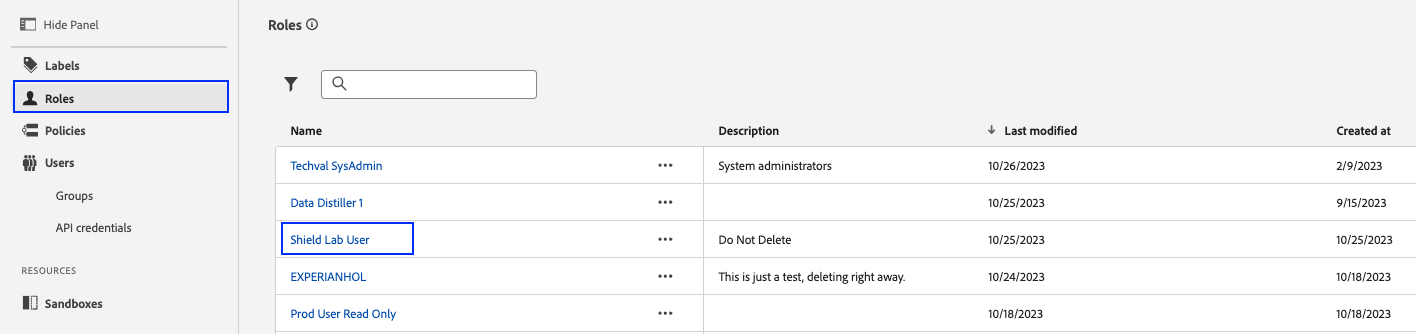
2. Click Roles
3. Find and click into the GovLabUser Role. This is the role that defines the current access config for all lab participants
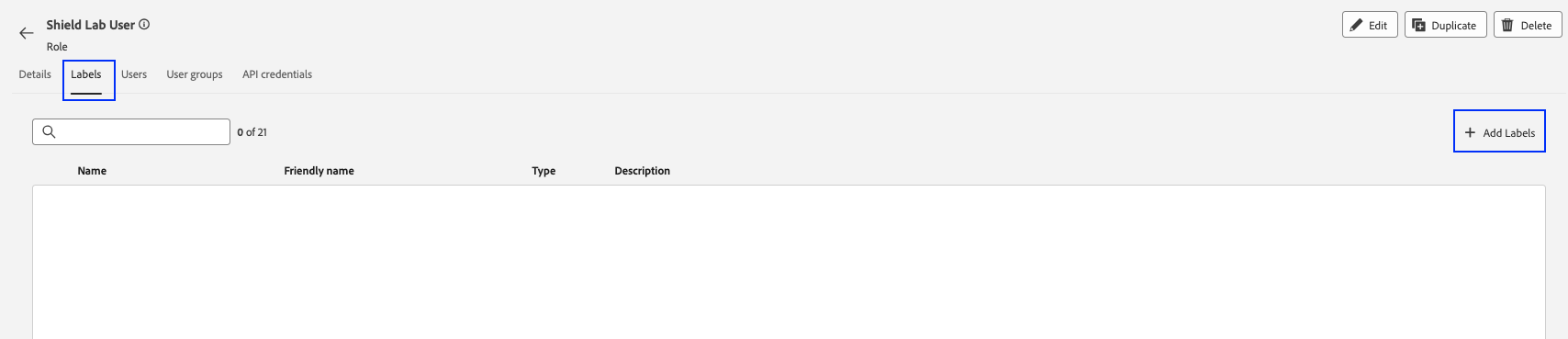
4. Click the Labels tab. No labels have been added to this role, yet
5. Click Add Labels
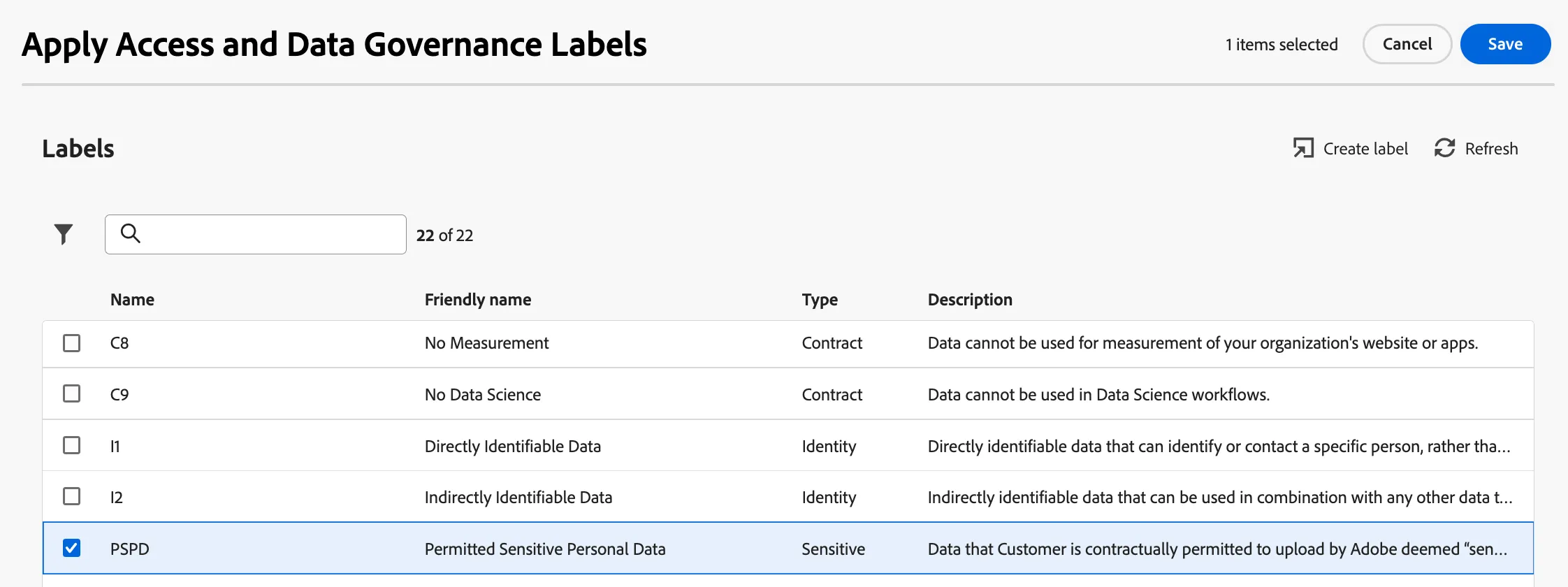
6. Add the PSPD label to this role then Save
7. Navigate to the Audience under the Customer accordion in the left-hand navigation bar
8. Notice the previously built audience is now visible again
To further validate...
Watch the instructor log in using a different username (assumed to be a third party vendor user) and note that they do not have access to the audience. This is because the Access Policy dictates that the segment be visible ONLY to users assigned a role with the PSPD label