Roles
4 min
In this section we will:
Review the Role that was configured to grant you access to Platform
- Navigate to the Permissions section through the Menu section within Adobe Experience Platform
The workspace can be found in the Experience Cloud homepage or in Experience Platform under the Administration section in the left-hand sidebar.
Access to the Permissions tab is available for Product Admins
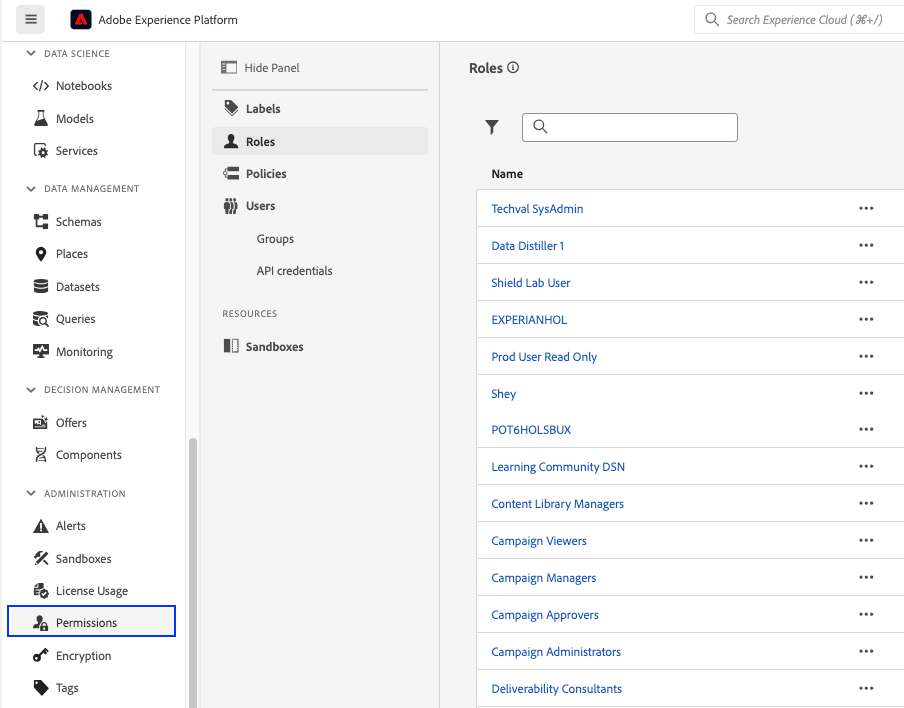
2. Click on the Roles subsection
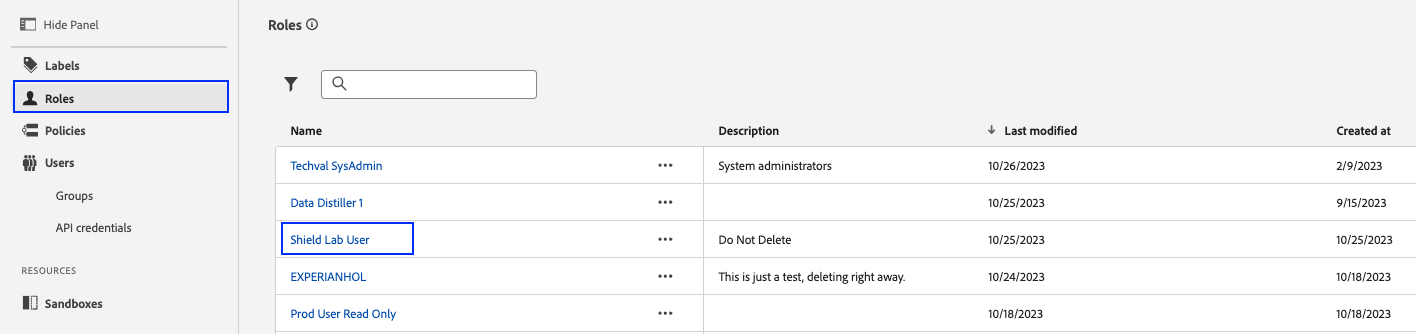
3. Search and click on the the GovLabUser Role. This is the Role that defines the current access config for all lab participants.
-
4. Review the below tabs within the Role
- Labels: No Labels have been added to this Role, yet
- Users: No independent users have been added to the Role
- User Groups: The GovLabUser User Group is added to the Role. Click on this user group and note that your user email is part of this group
- Roles: Roles assigned to this User Group
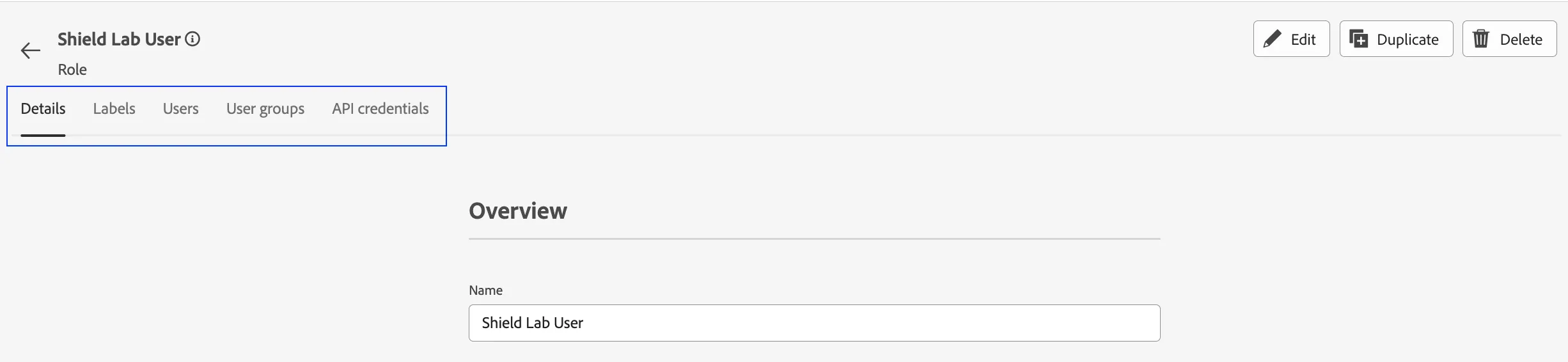
5. Click on the GovLabUser Role to come back to the Role screen

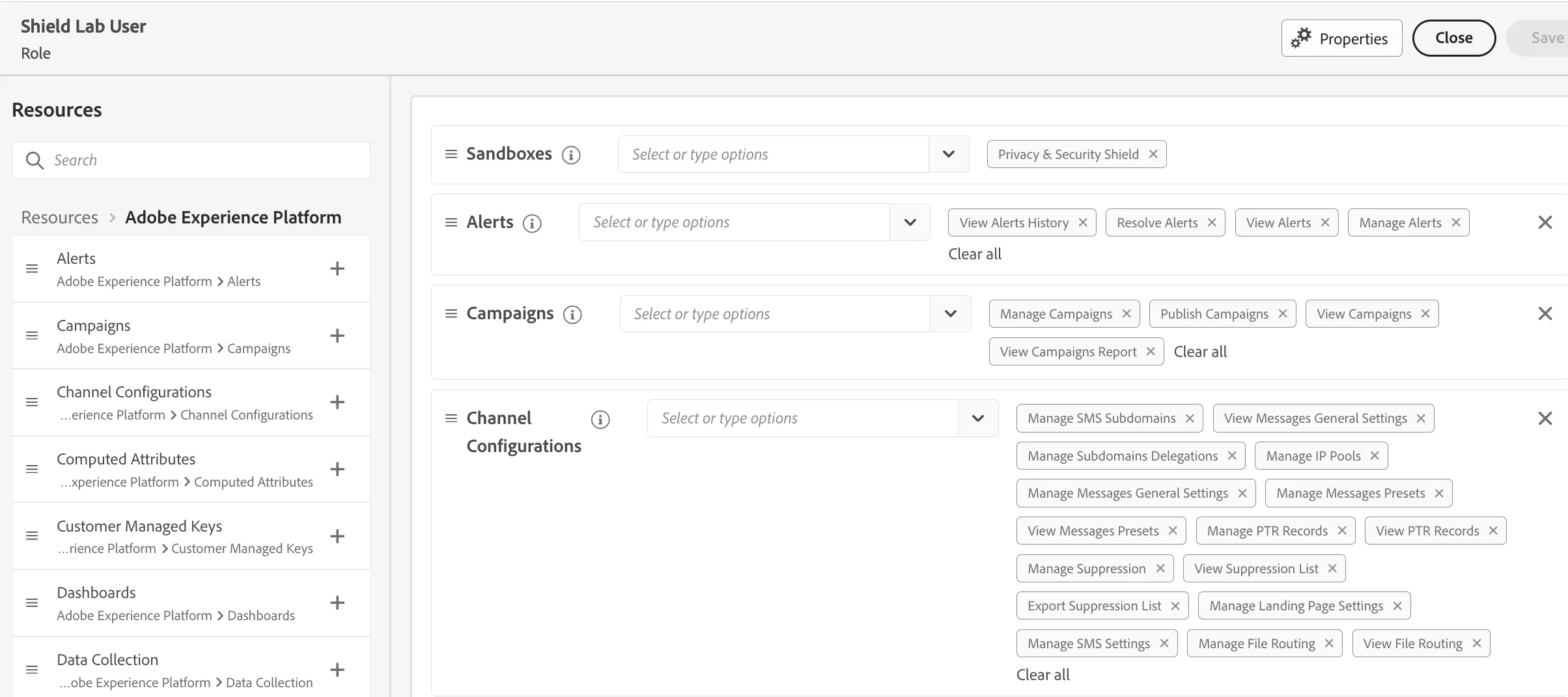
6. Click on Edit

7. Explore the access privileges for this Role