Restrict Exports of Sensitive Data to Third Party Destination
In this exercise, we will enable a data usage policy to restrict any usage of sensitive data to a third party destination.
- Apply a sensitive data label (PSDPD) to a data field in the schema
- Apply a marketing action to a destination
- Create and enable a data usage policy
- Validate the restriction by mapping an audience
Steps 1-2 The application of a label and a marketing action happens once. Please watch the instructor for these steps in the workflow
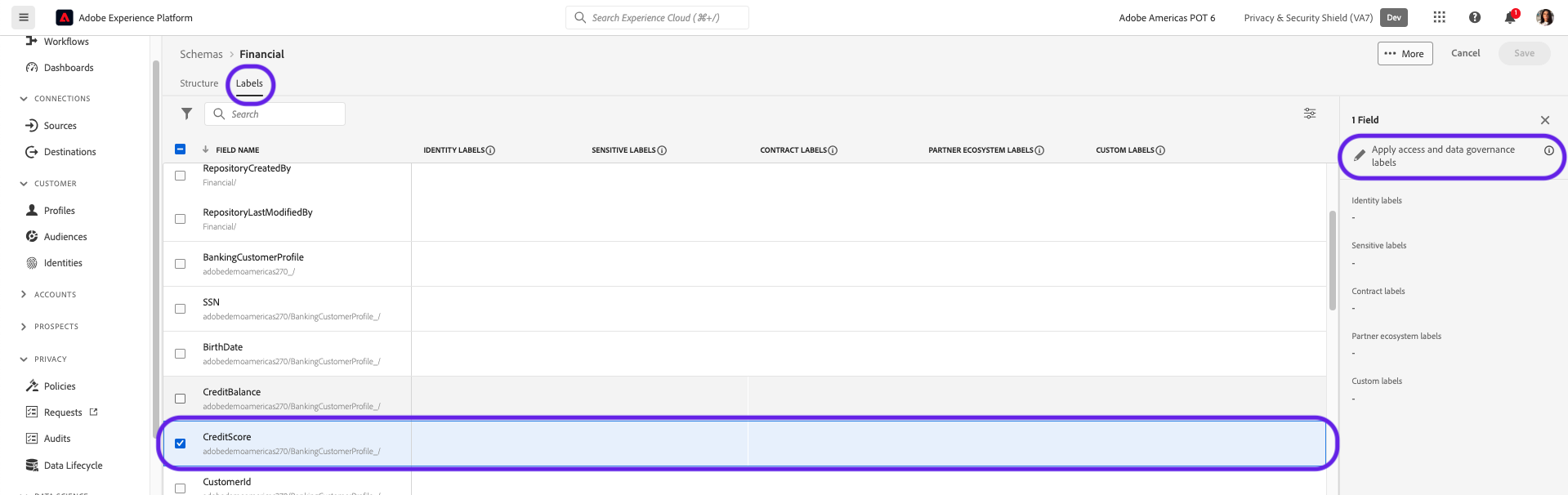
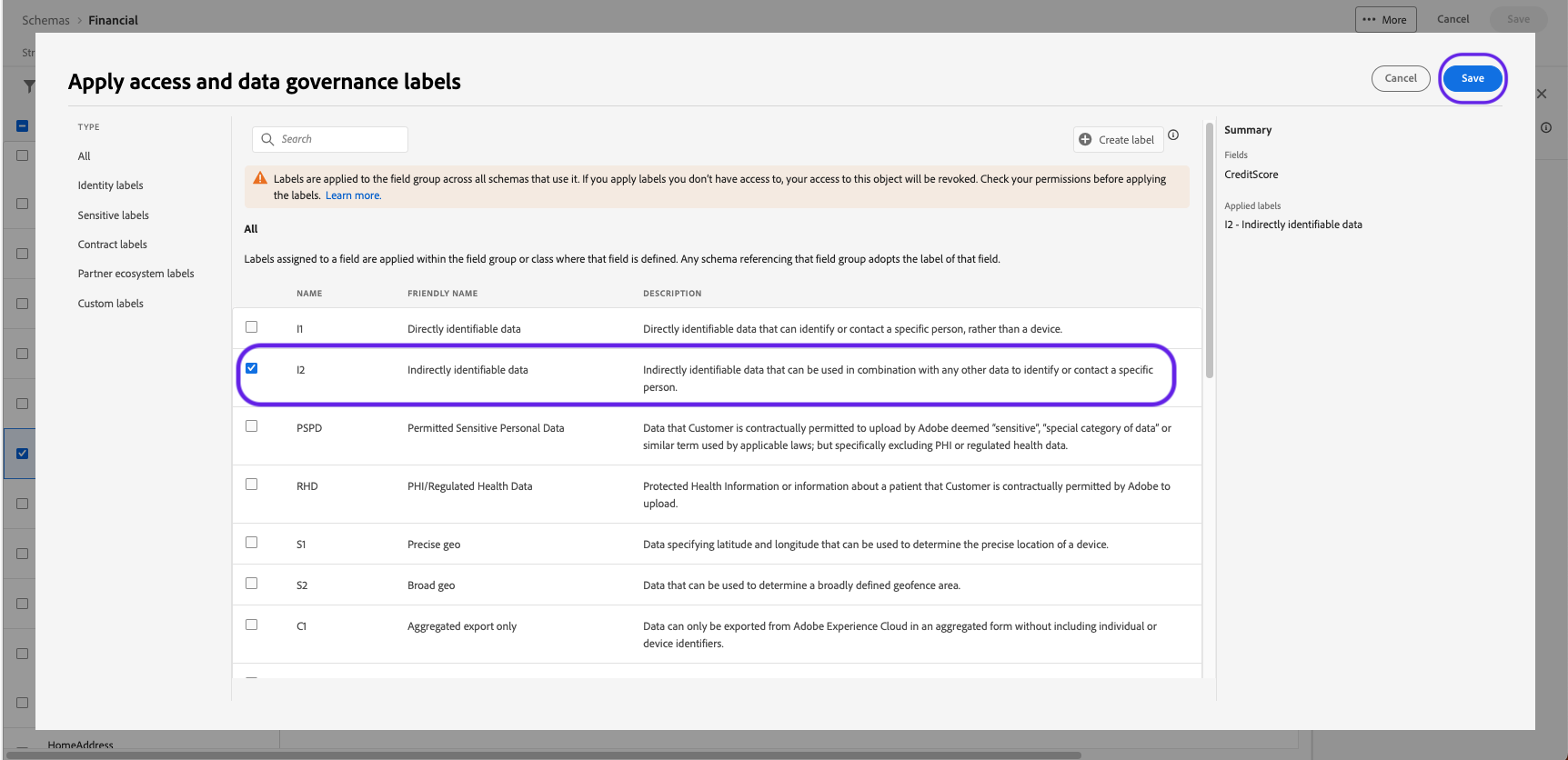
Step 1 Apply a sensitive data label (PSPD) to a data field in the schema
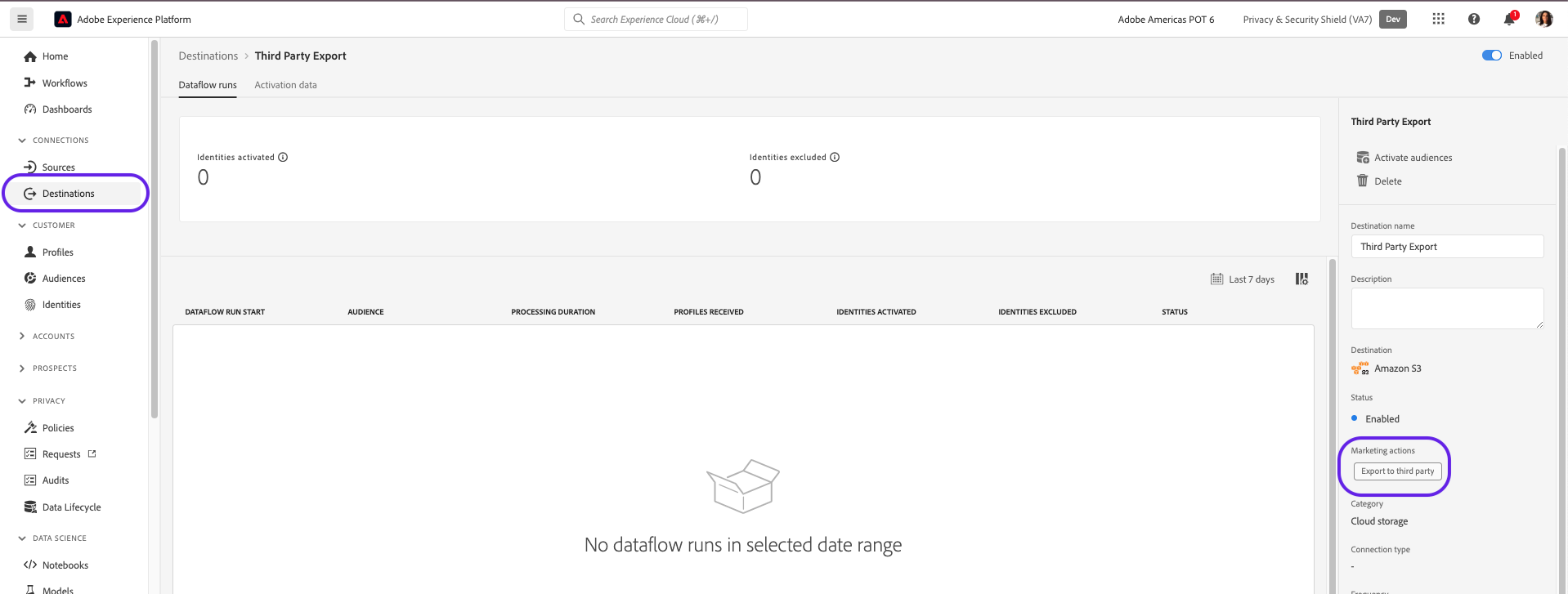
Step 2 Apply a marketing action to a destination
Now, let's create a policy that uses the label and marketing action
Creating a Data Governance Policy
Instructions:
In the left-hand menu, navigate to Policies.
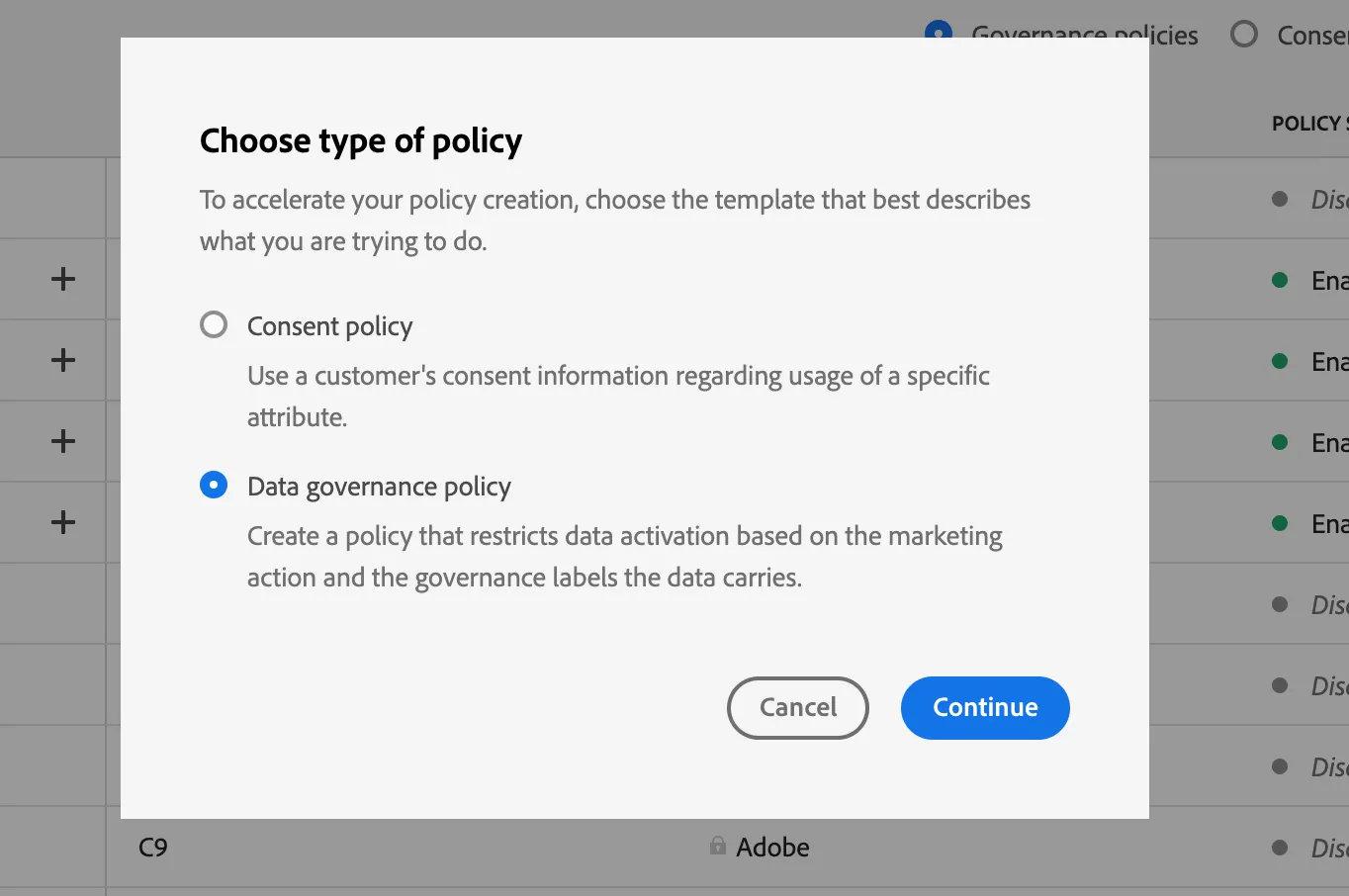
Verify you're on the "Browse" tab. Click "+ Create policy" in top right corner.
Select "Data Governance Policy" and click Continue.

Under Policy details, enter the name
Restrict Sensitive Data in Third Party Exports and append your initials
e.g. Restrict Sensitive Data in Third Party Exports SS
Under Select governance labels, select "PSPD"
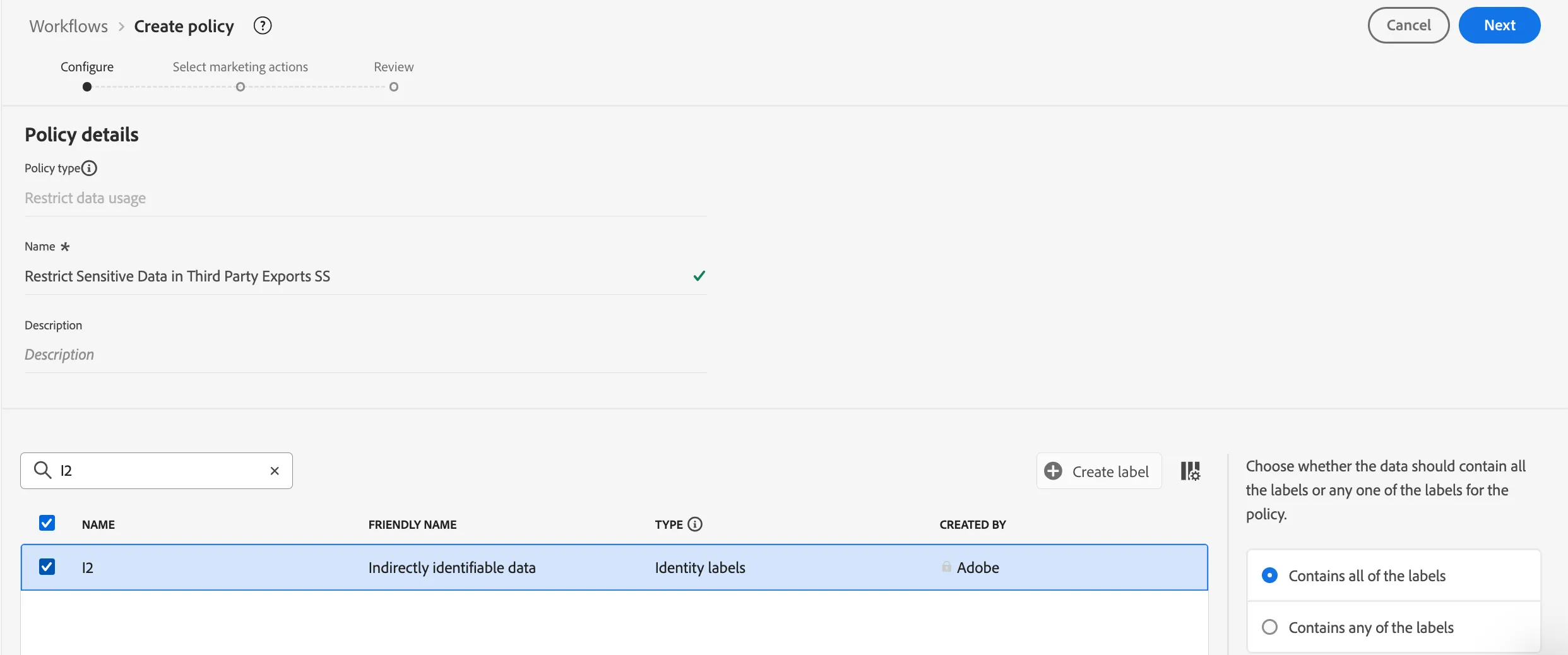
Click Next
Select the marketing action Export to Third Party
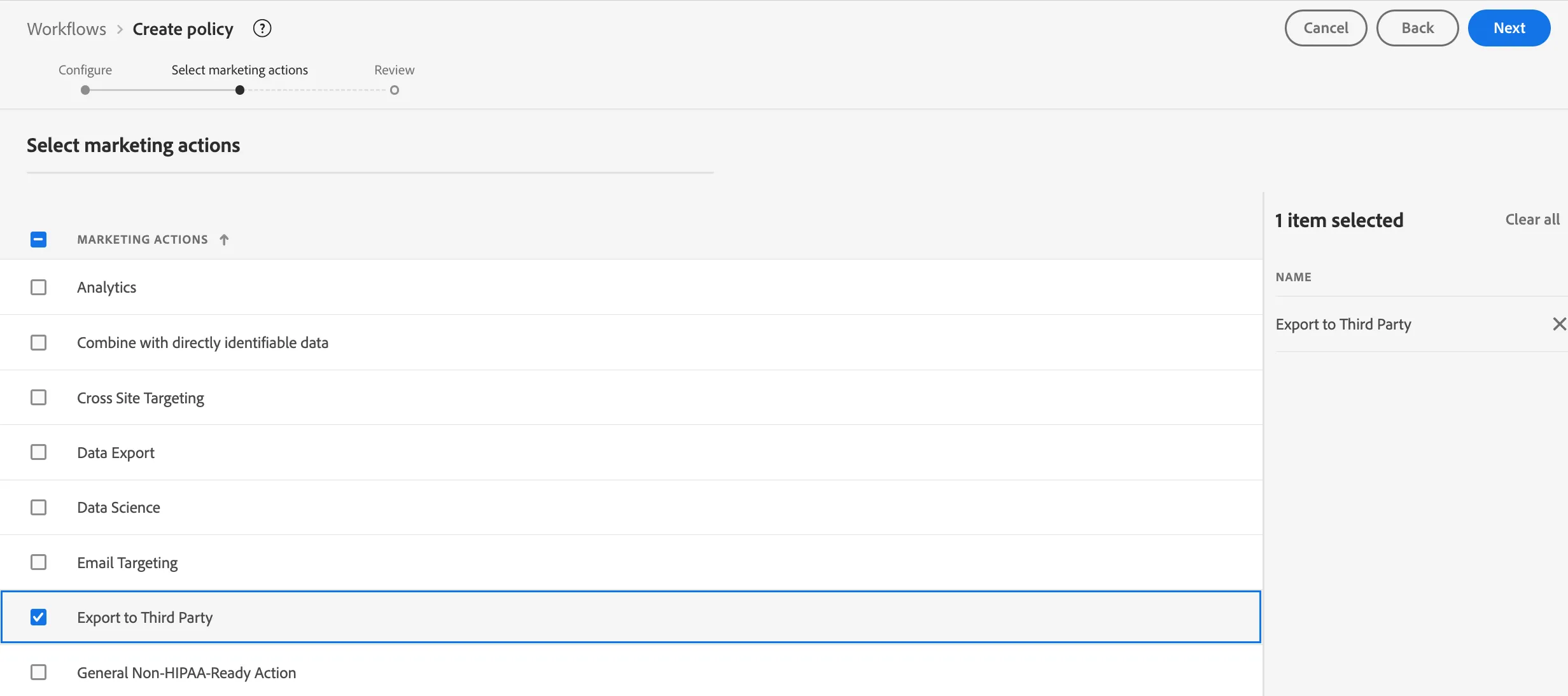
Click Next. Review the policy summary and click Finish.
Now, enforce the data usage policy.
Test your policy enforcement
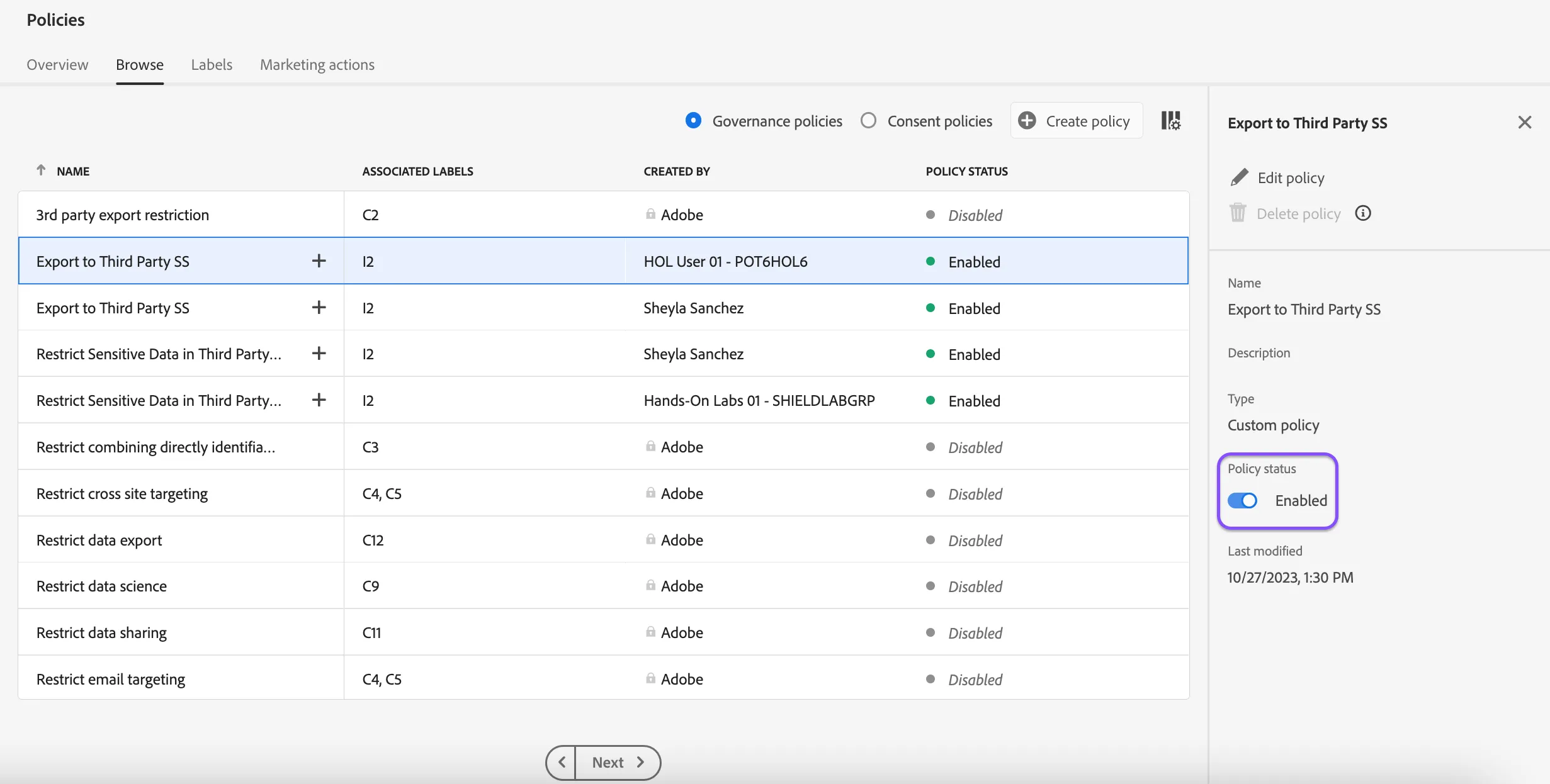
In the Policies > Browse page, find and select your newly created data usage policy.
In the right-hand rail, toggle the Policy status button to enable your policy.
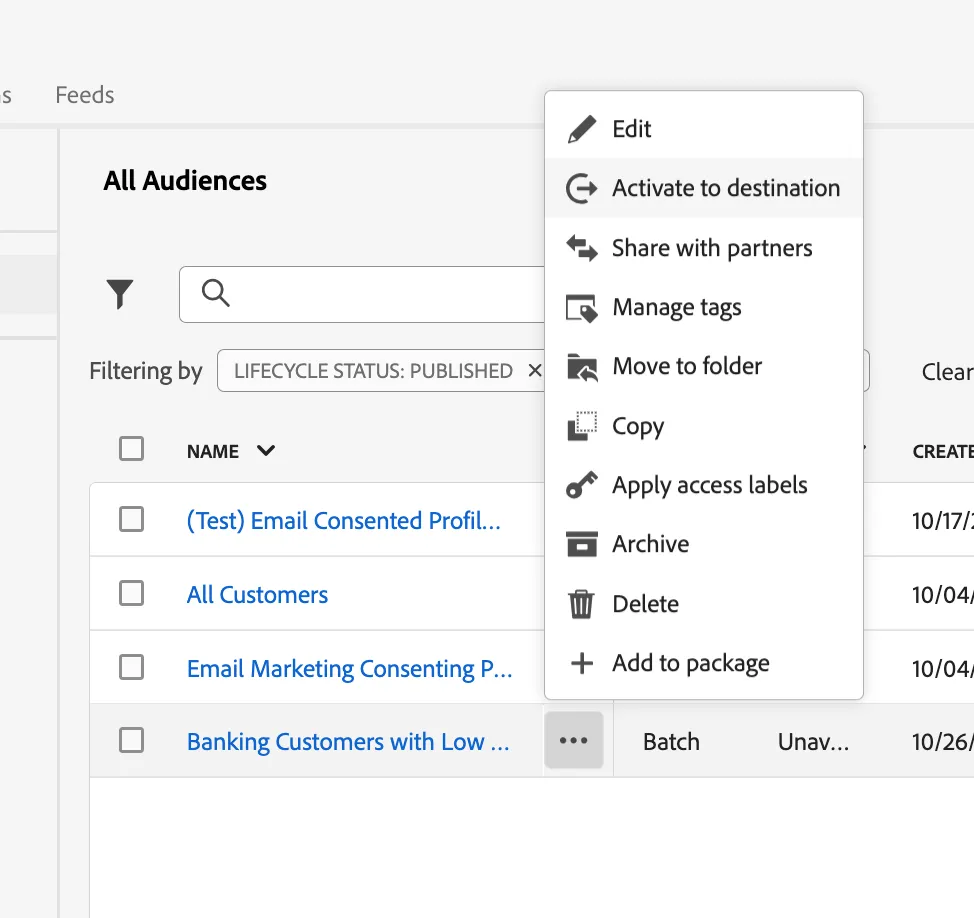
In Audiences > Browse, find the following audience: Banking Customers with Low Credit Score
Click the 3 dots (menu) button then click Activate to destination
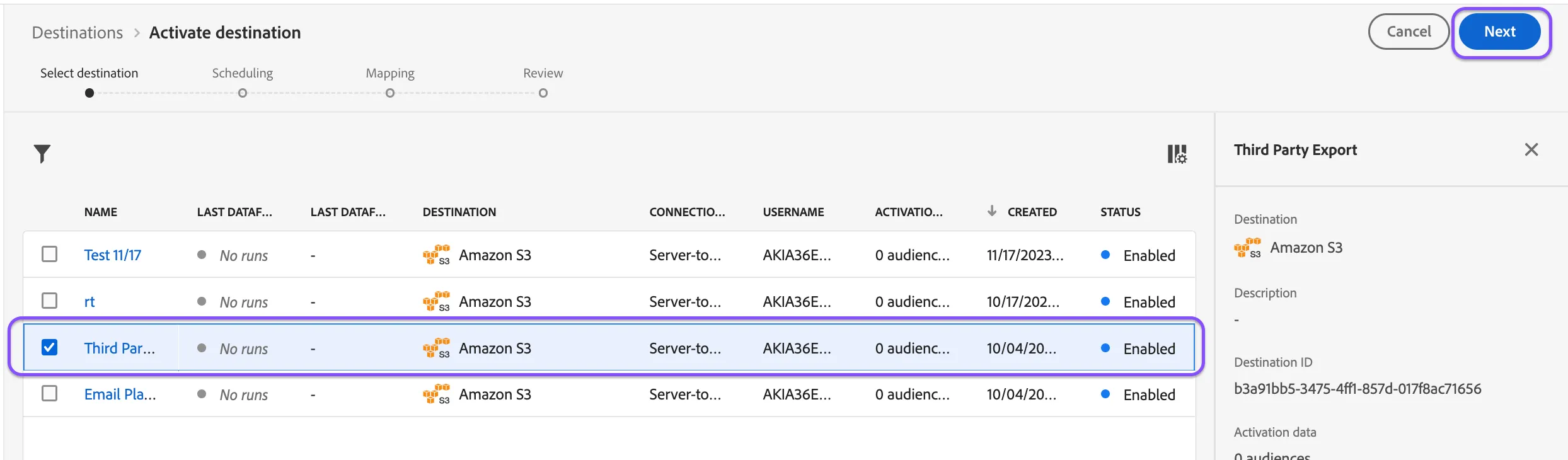
In the Destinations selection screen, select Third Party Export and click Next.
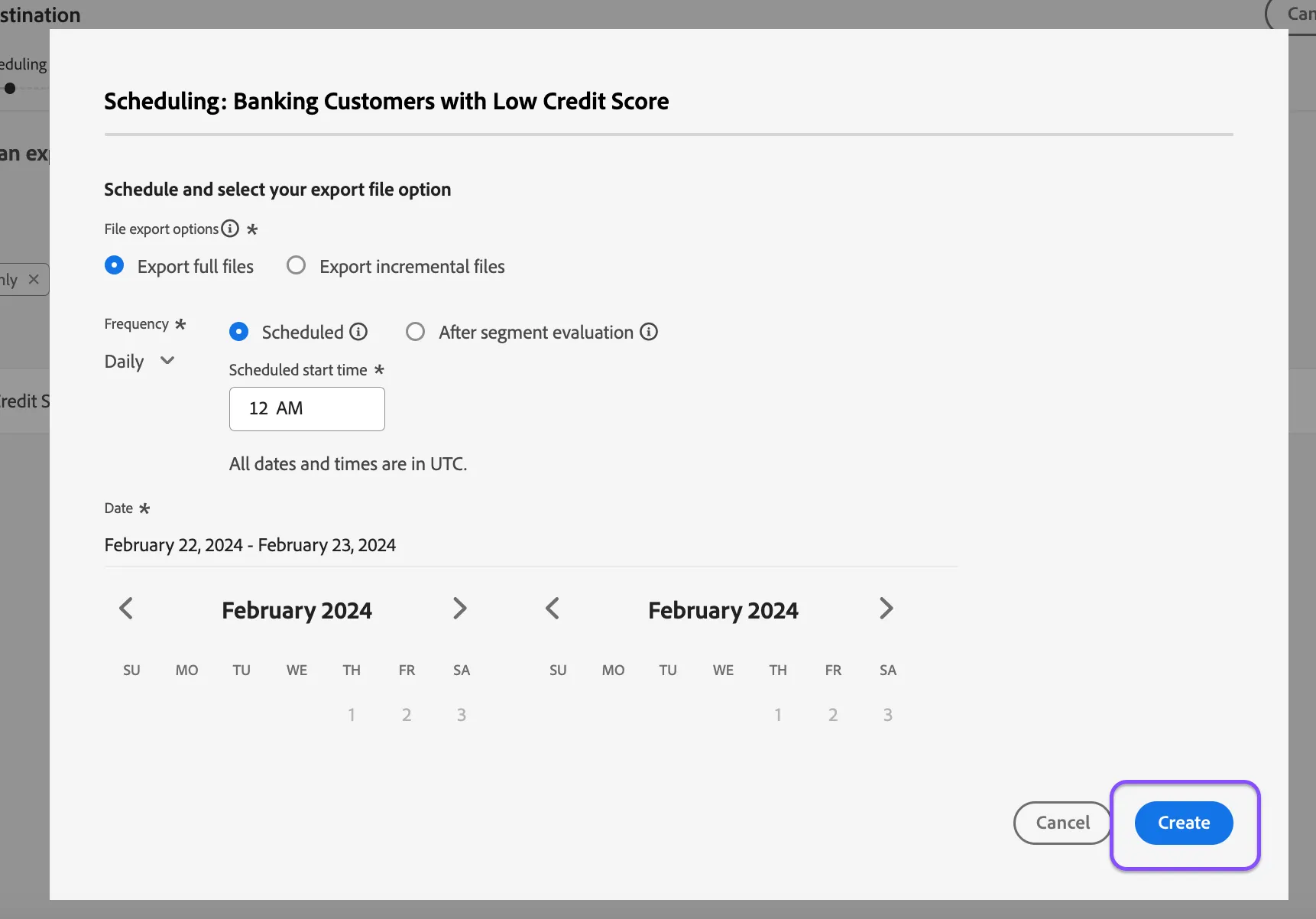
Click Create Schedule then Create. Click Next.
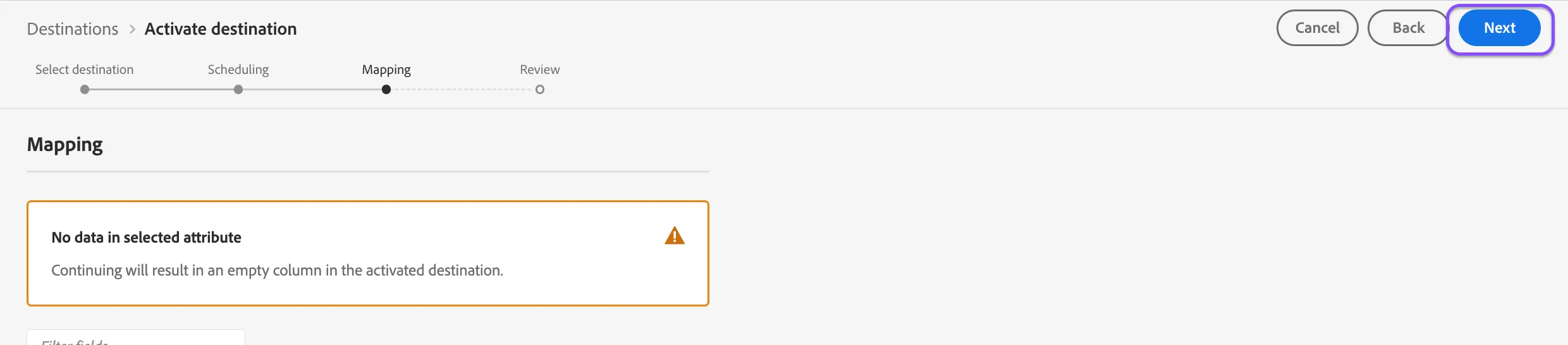
Click Next again.
In the Review screen, click Finish.

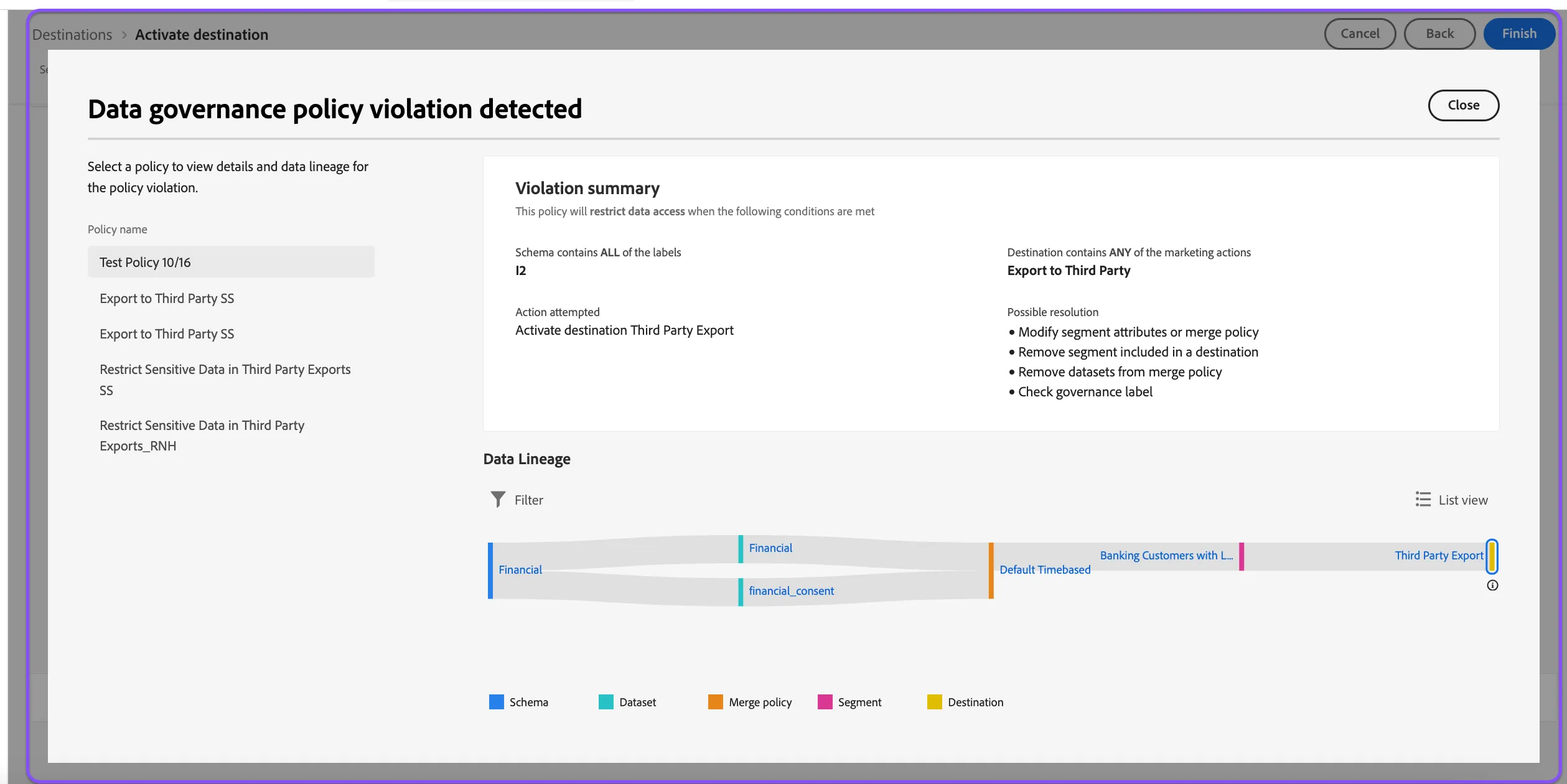
Notice the policy violation detection. Review the reasons for the restriction.