Data Ingestion
In this exercise you'll learn how to stream profile data to Adobe Journey Optimizer via the HTTP API Source Connector.
Authentication
For data ingestion authentication is optional and can be configured in the source connector.
You can read about the authentication method here: https://experienceleague.adobe.com/en/docs/experience-platform/landing/platform-apis/api-authentication
For now, let's generate an Access Token for your lab exercises today.
Open the postman collection installed before the lab, and click to the Adobe Authentication request. A temporary client Id and secret has been created for you and are already configured in the form-data.
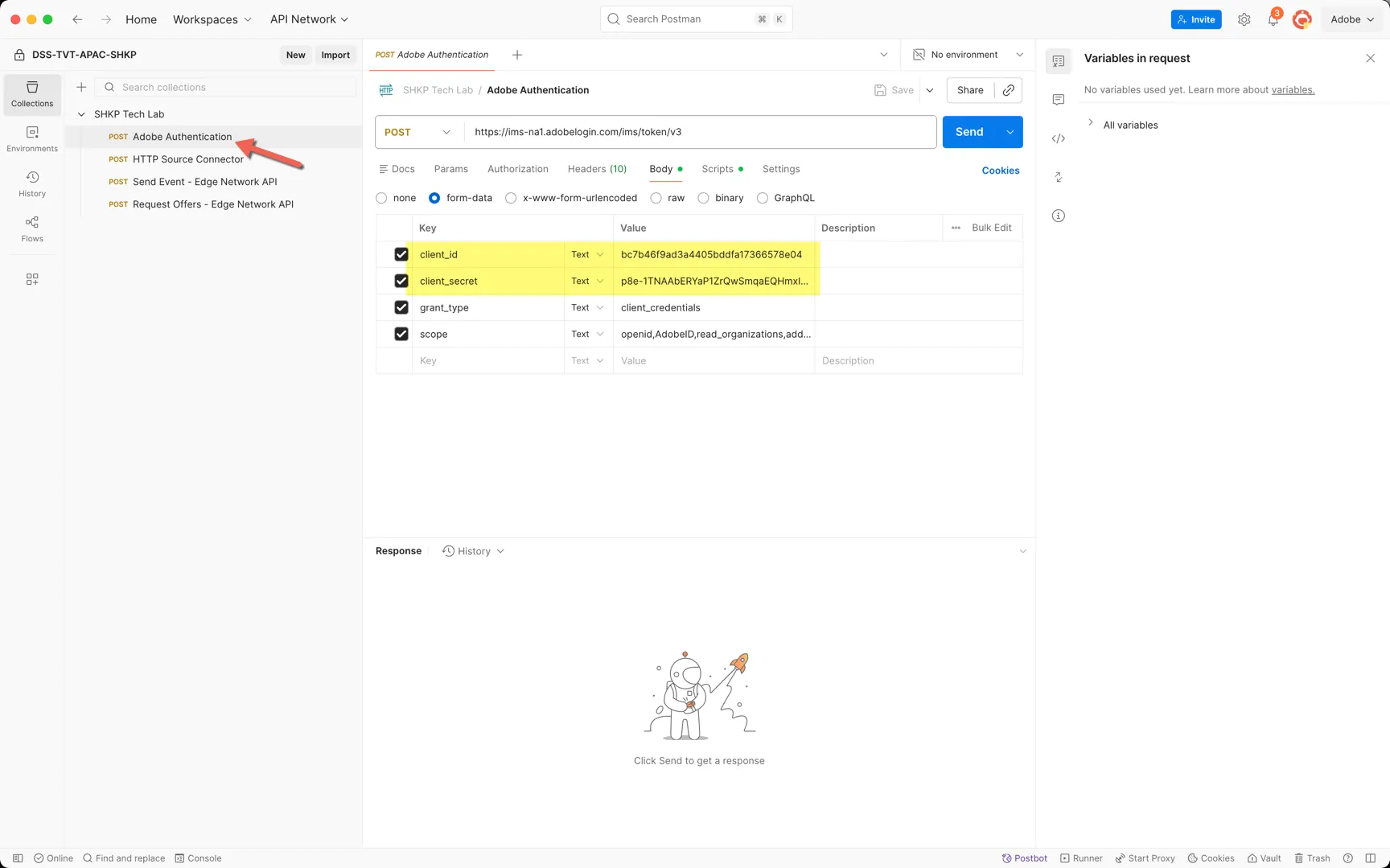
An access token will be returned which has a 24 hour lifespan. Postman will automatically add this to the collection variables for use in the subsequent exercises.
HTTP API Source Connector
Before you can stream profile data directly to Adobe Experience Platform you need to configure an API Inlet to receive the data.
An inlet has already been created for you to use within this exercise, we need to retrieve the inlet URL to use for our API calls.
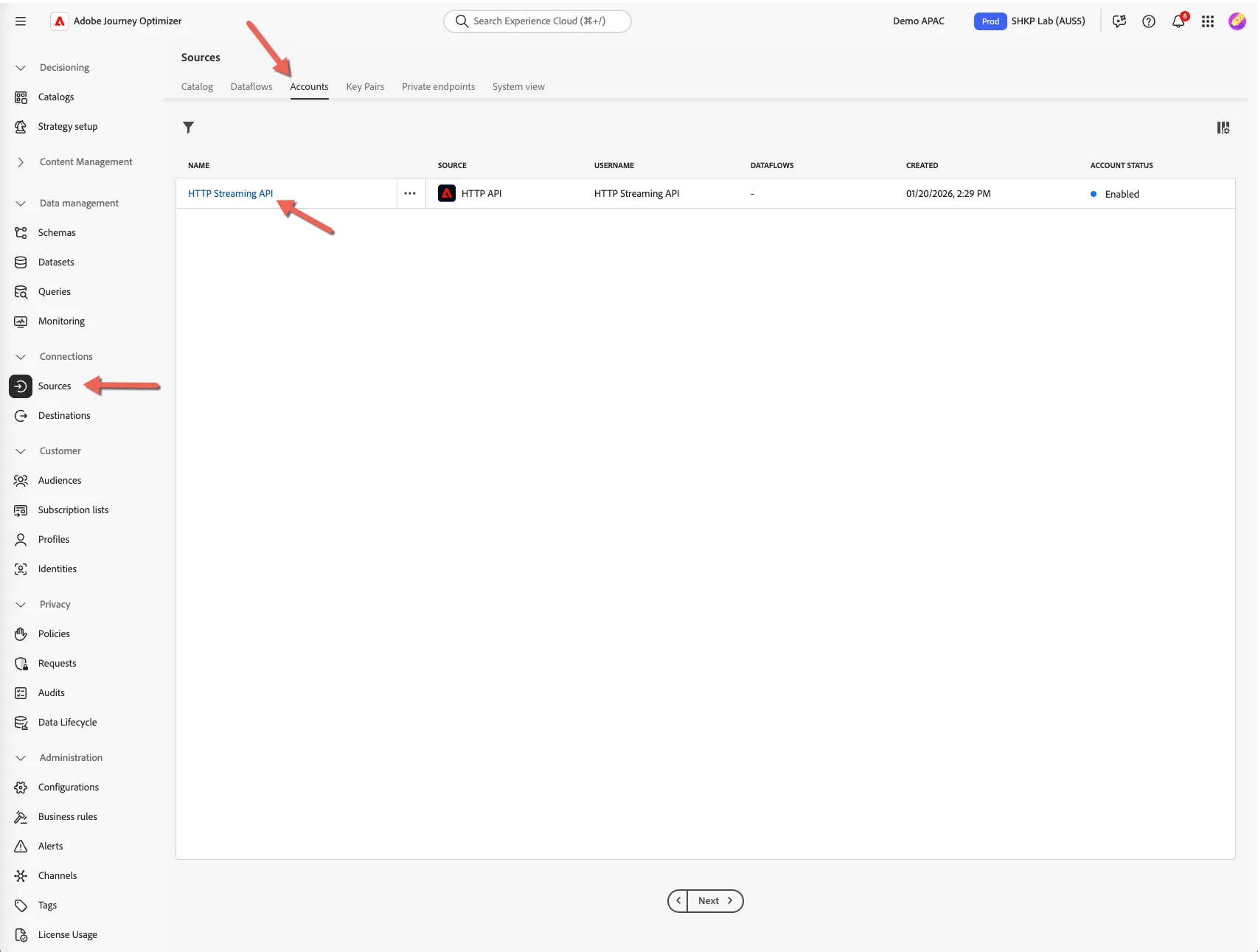
Navigate to Connections -> Sources -> Accounts. Click to open the HTTP Streaming API connection.
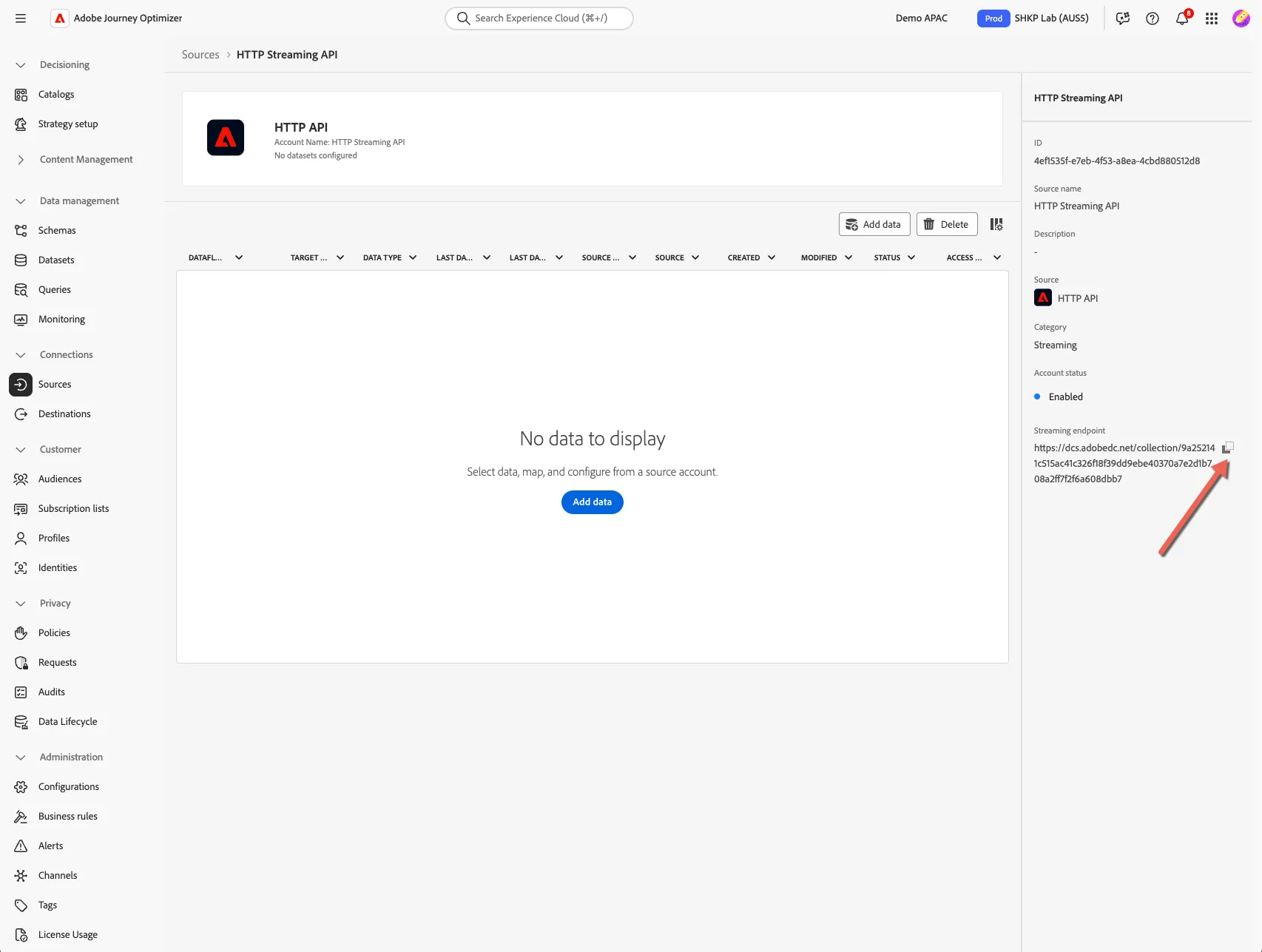
Copy the streaming endpoint URL from the connection properties.
Create / Update a Profile
We've created a sample API request for you to run to ingest your profile data.
Open the postman collection installed before the lab, and click to the HTTP Source Connector request. There are a few important elements we need to update before pressing send.
Paste the Inlet URL from the source into the URL field
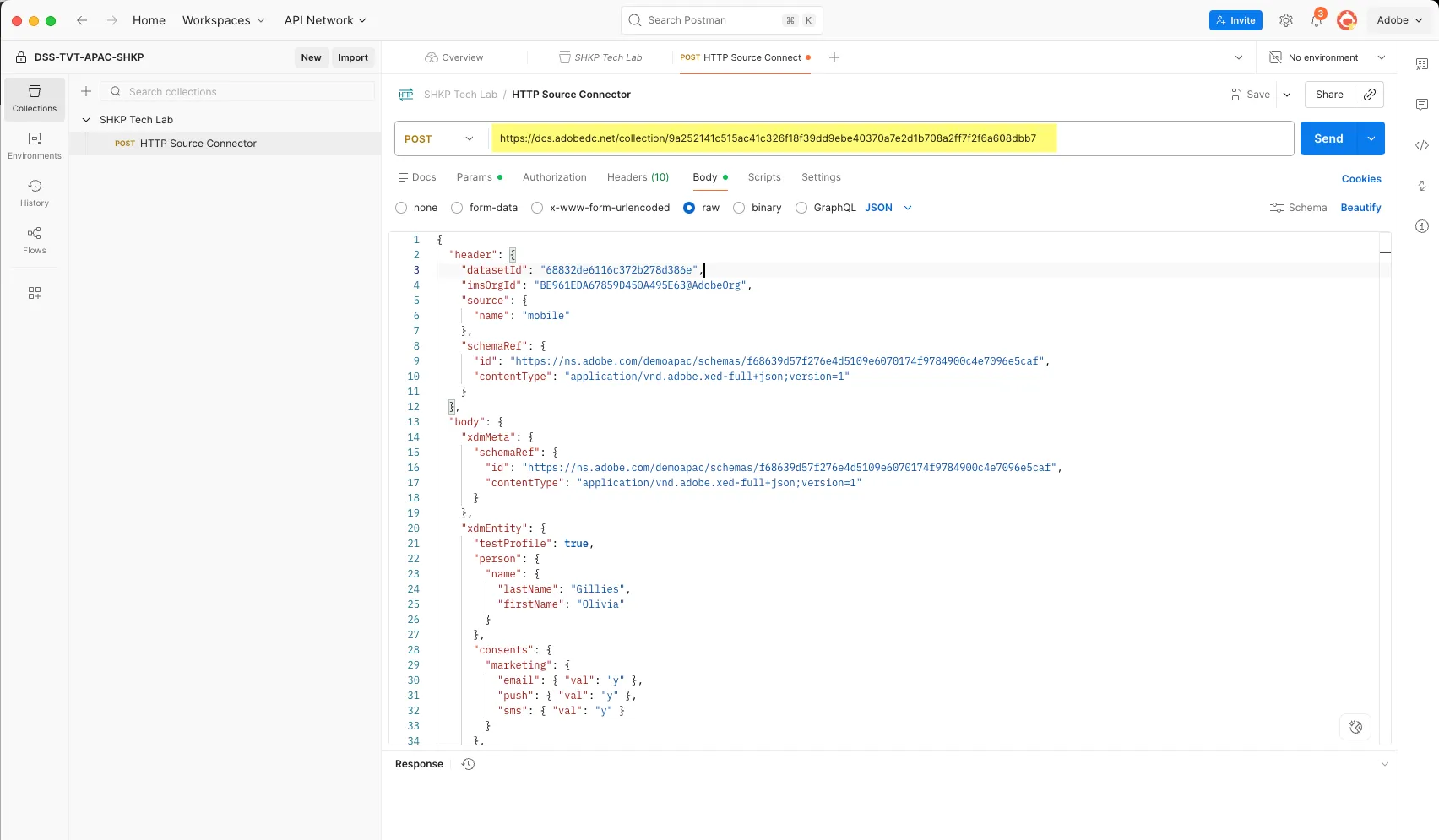
Note the body of the message is broken into two parts the header and the body.
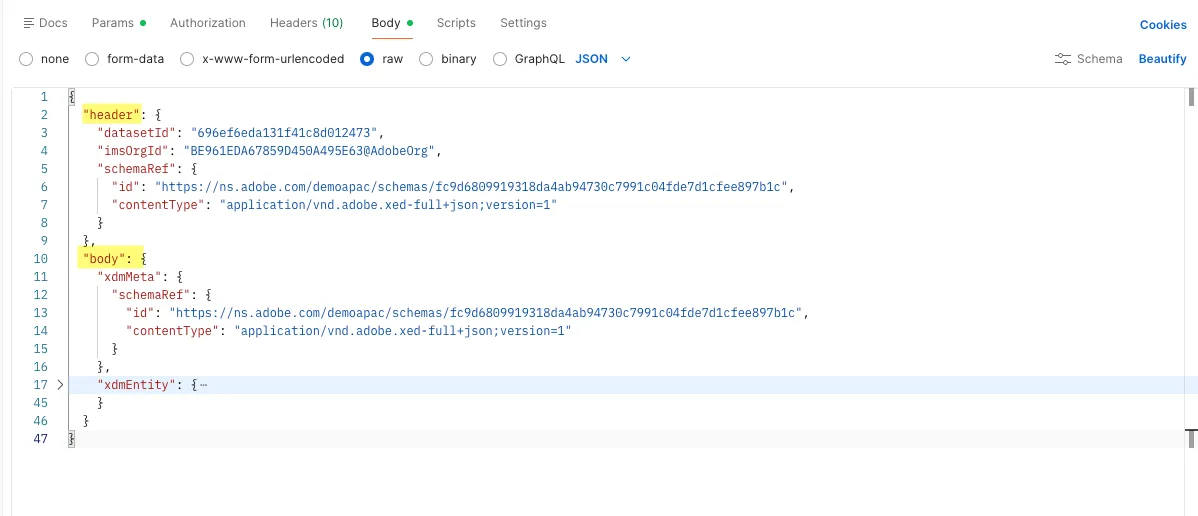
Firstly we need to define which dataset and which schema we're ingesting data into.
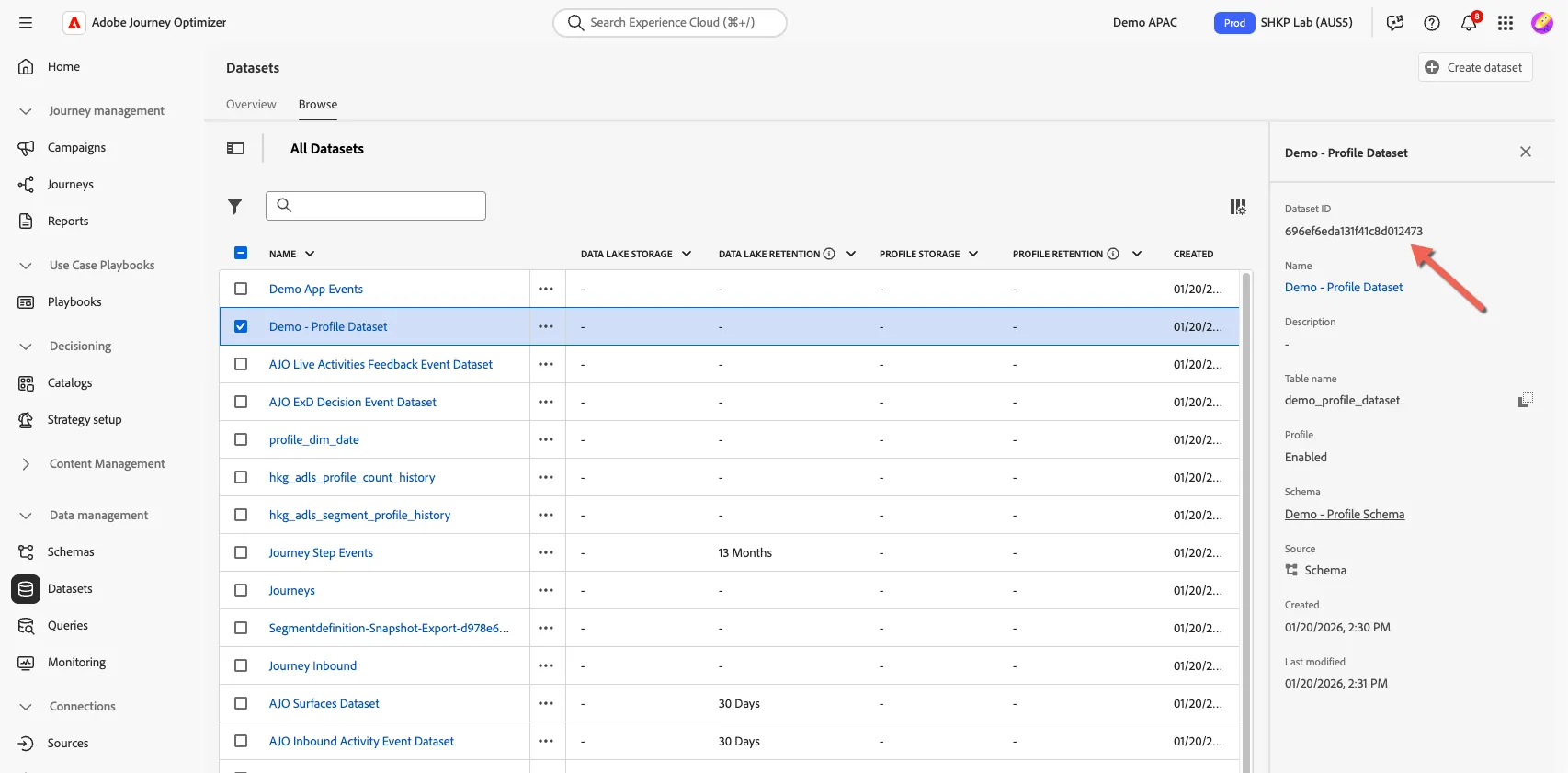
Copy the dataset Id from the Profile Dataset you created in the previous exercise.
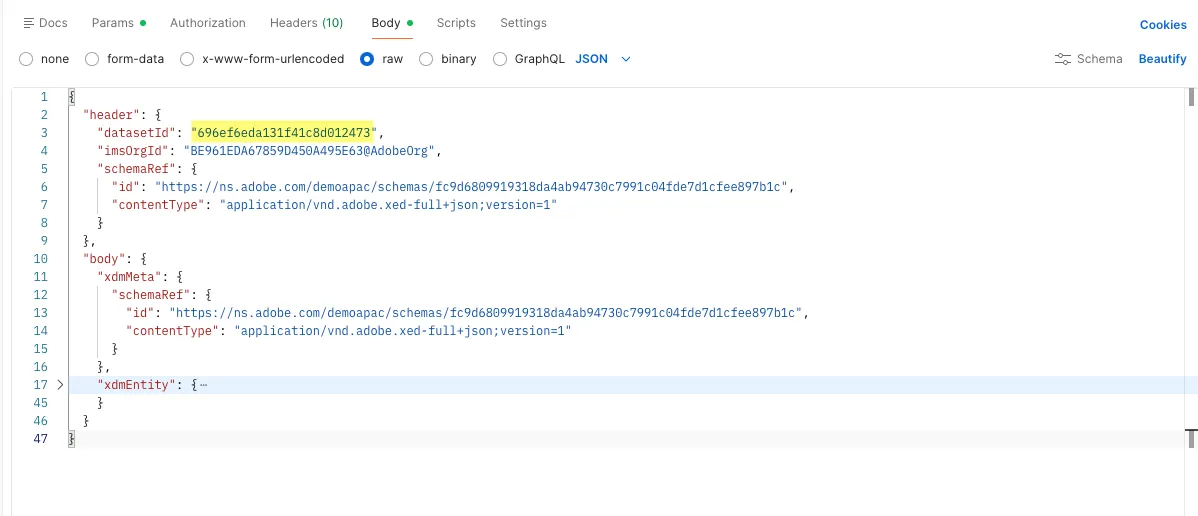
Update this in the body of your message.
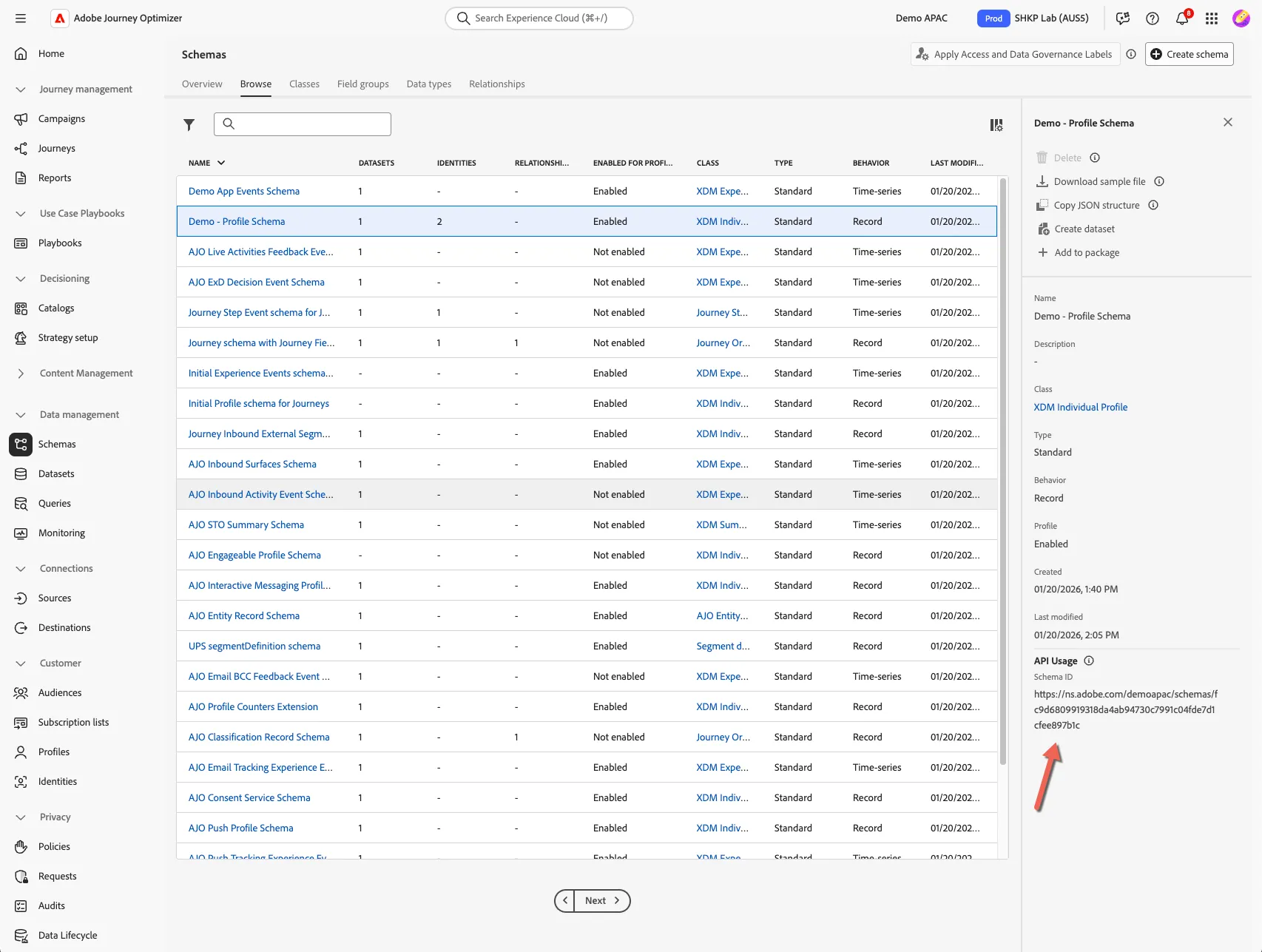
Next we need to update the schema reference, copy your profile schema URL from the list of schemas.
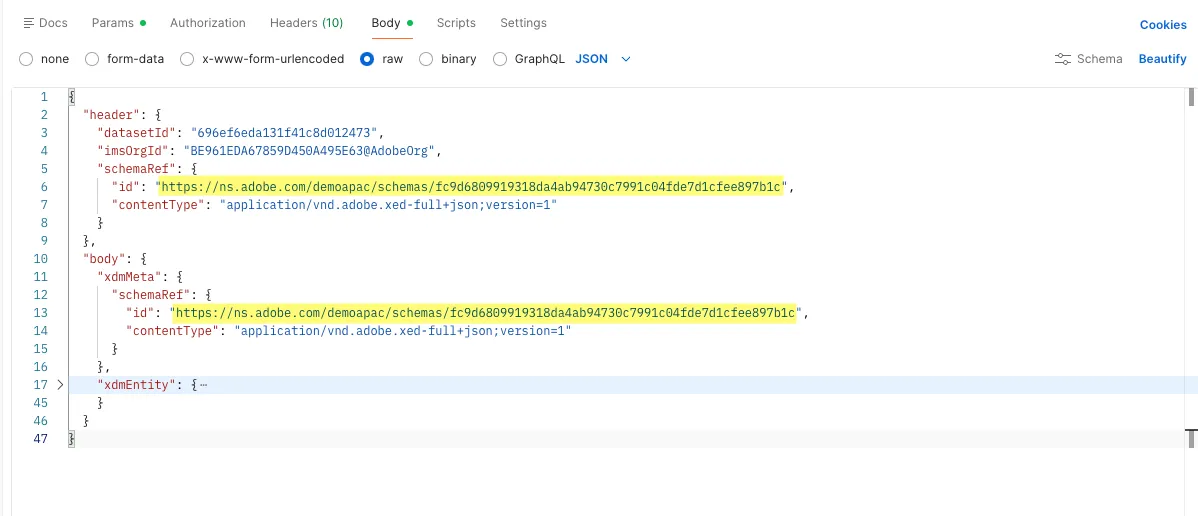
Paste it into the 2x schemaRef fields within the message body.
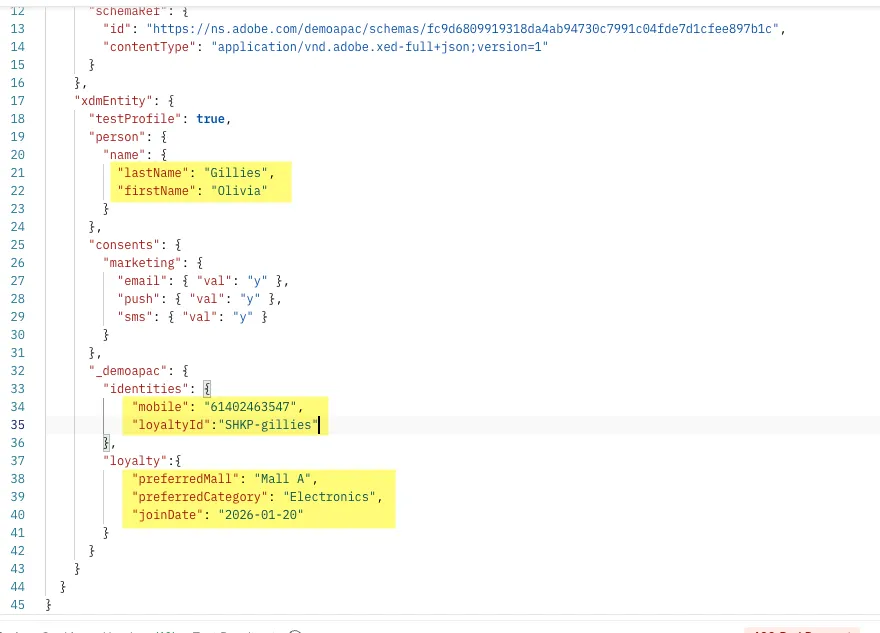
The data to be added to the dataset is in the xdmEntity field. Update the content of the request to add a new profile to the sandbox. Pay attention to setting a value you remember for the 2 identity fields: loyaltyId and mobile.
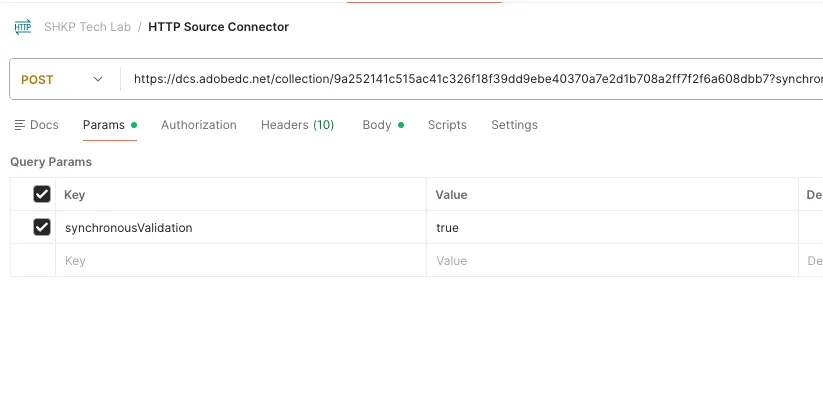
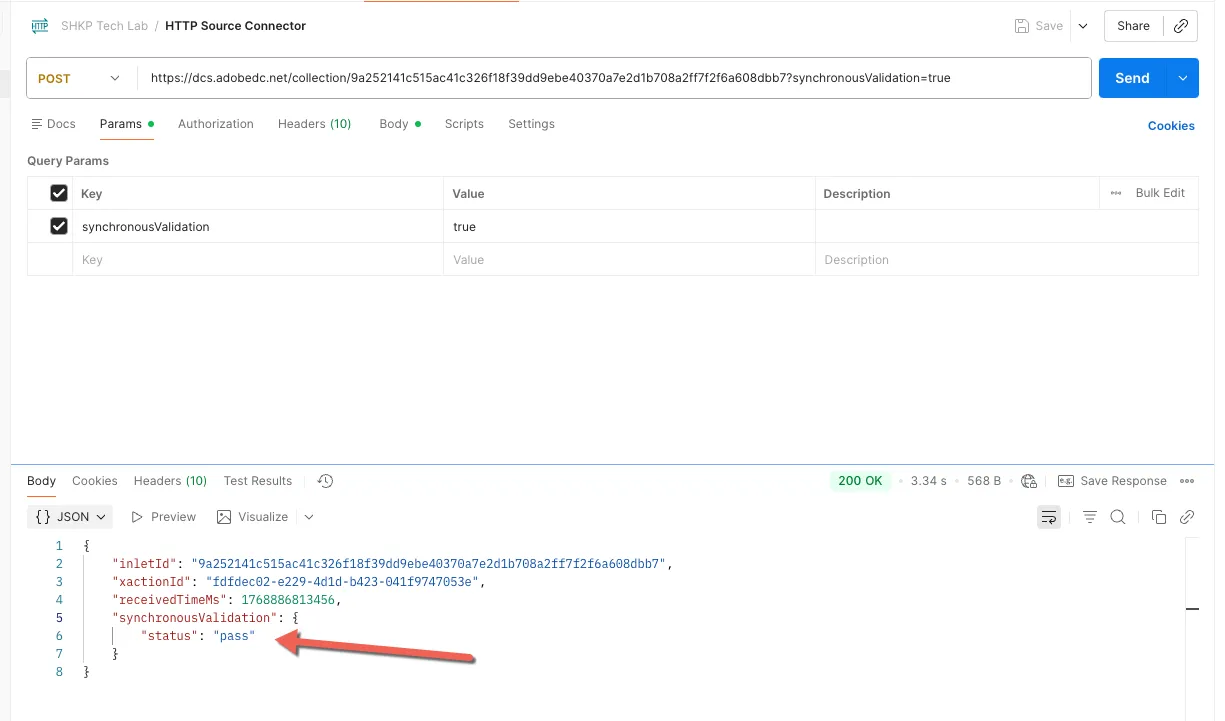
Verification of the payload against the schema is done asychronously unless requested otherwise. Enable the synchronousValidation parameter.
Click Send. You should see a pass status for the validation of the payload.
Lookup Profile
Now that the record has been successfully ingested we should be able to lookup the profile immediately.
- Navigate to Customers -> Profiles ->
- Select the Browse tab
- Select LoyaltyId ID Namespace
- Input the Identity Value used for loyalty Id in your API call.
- Click to View
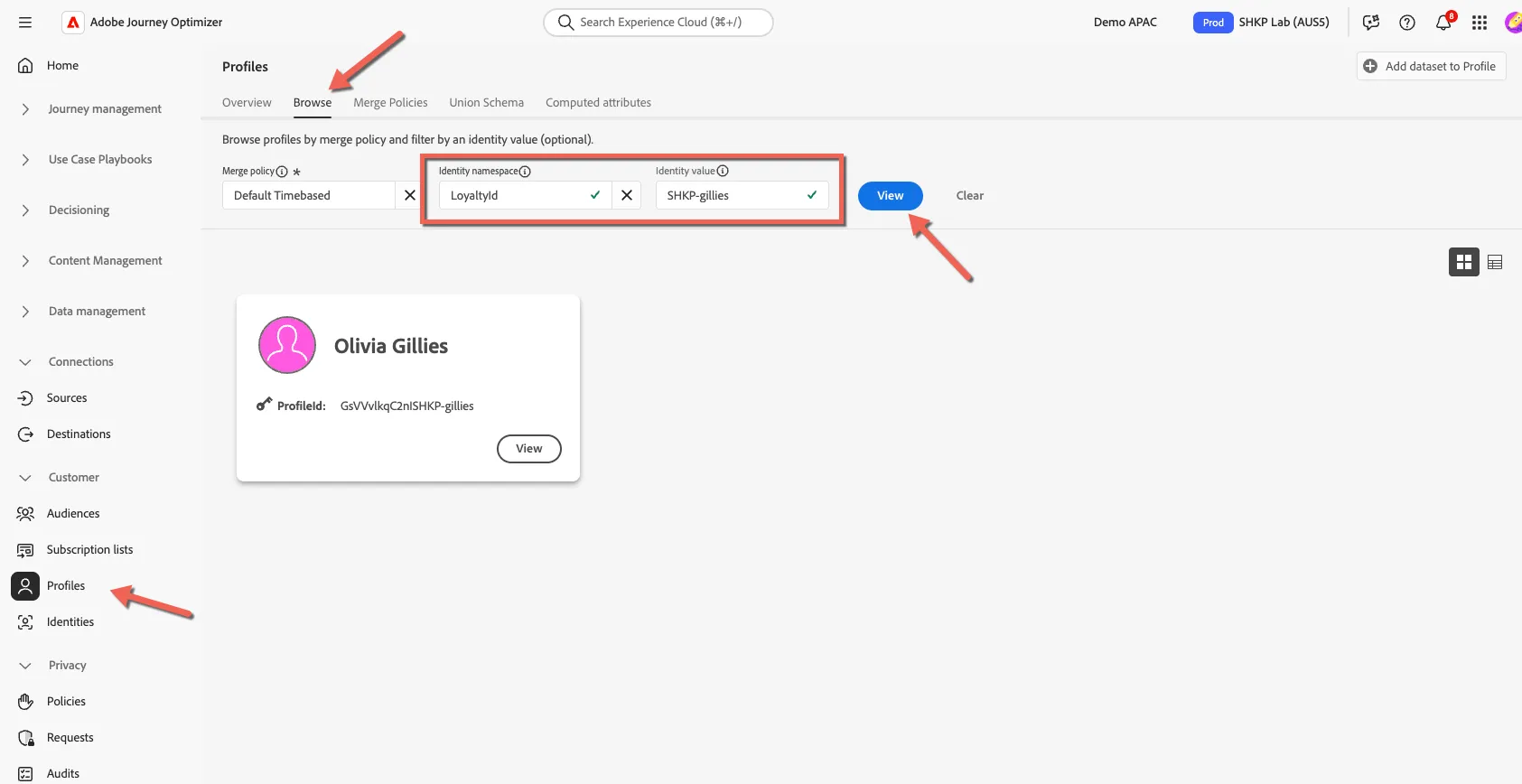
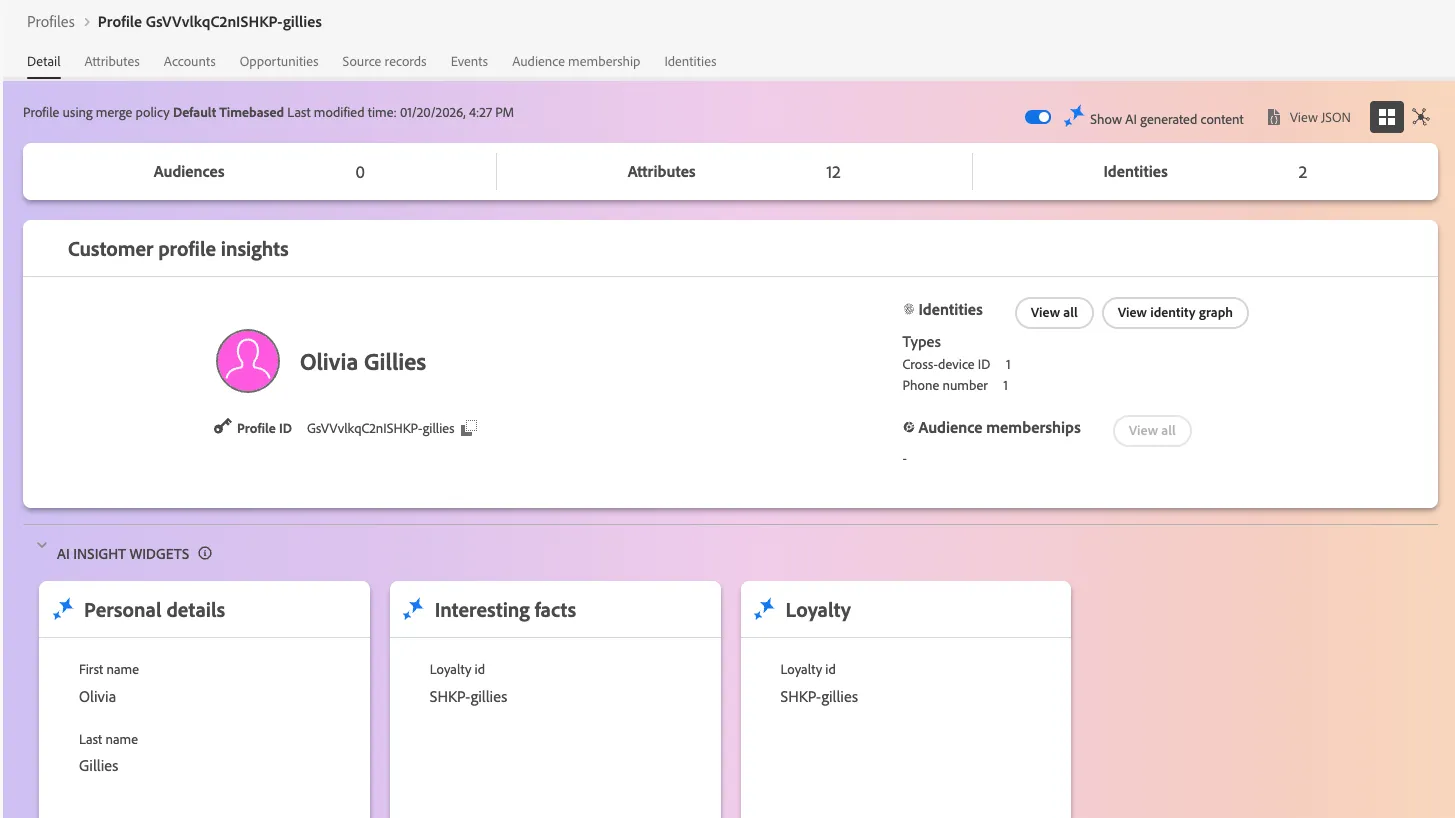
Click on the profile card to view the details of your profile.