Measure
Background Information
Adobe AI Assistant Features
Data Analysis AI Assistant in Adobe Customer Journey Analytics
Data Analysis AI Assistant in Adobe Customer Journey Analytics is a generative AI conversation agent that quickly and efficiently answers questions about your data. It builds relevant visualizations in Analysis Workspace using components from your data view and using your actual data.
Using the AI Assistant to answer data-centric questions in Analysis Workspace can save countless hours that you might otherwise spend manually building visualizations in Analysis Workspace and familiarizing yourself with your data view components.
Current Product Status: Limited Beta
Targeted General Availability (GA): June 2025 as Data Insights Agent
Beta Participation and Customer Feedback: Contact Taylor Baker at [email protected]
Future Functionality: Exploring additional capabilities such as forecasting, anomaly detection, root cause analysis, panel insight summarization.
Product Documentation: LINK
Experience Overview
You’re an analyst tasked with identifying key insights for the Coca-Cola Real Magic campaign. Use Customer Journey Analytics to generate key performance metrics on-the-fly with simple prompts. Get actionable insights in record time with AI Assistant.
"Customer Journey Analytics seamlessly integrates with Adobe Journey Optimizer that you used for messaging in the previous Engage step. Each application has access to the same datasets that are part of Adobe Experience Platform. CJA has direct access to all the message delivery data generated by AJO, and with AI Assistant you will see how easy it can be to gather quick insight just by entering a few simple prompts."
The Booth Experience
Data Analysis AI Assistant in Adobe Customer Journey Analytics is currently a beta feature that will launch as Data Insights Agent with expected release in June 2025.
Due to the nature of generative AI, you may experience different results from the output listed in this demo guide.
If you experience any unexpected results, you can move on to the next step to complete the task.
Step 1: Launch AI Assistant
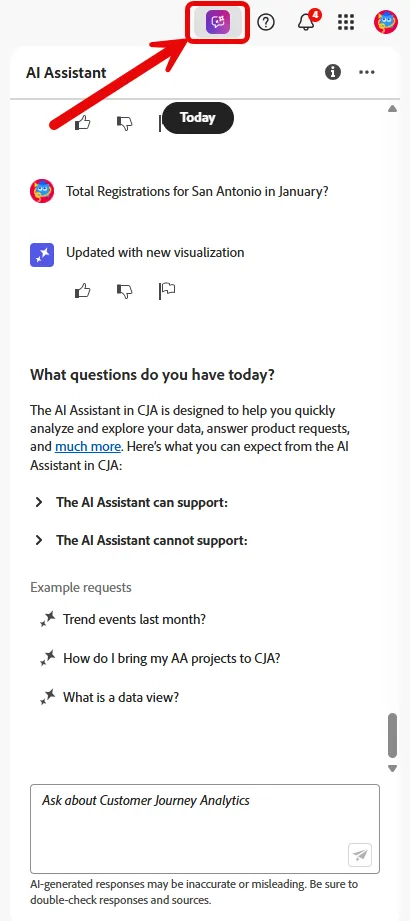
To launch AI Assistant, select the AI Assistant icon from the top header of the page in the Customer Journey Analytics UI.
Step 2: Ask a question
In the text box provided, ask a specific natural-language question to the AI Assistant in order to find out how many Email Opens there were in the month of January.
Attendee can type the prompts or copy from the top panel in the workspace.
Attendee can enter any freeform text into the AI Assistant, but deviating from the provide prompts could return error messaging.
What were opens for January by day?
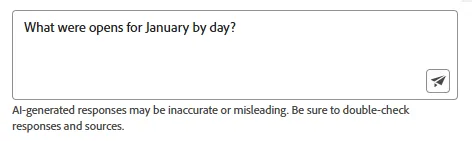
Click the icon on the bottom right of the AI Assistant text box and observe the rendered Line chart that appears in a new panel within Analysis Workspace.
While AI Assistant is running you can callout that, "The AI Assistant is evaluating the prompt across the whole data view and it is working to render a line chart and a freeform table that will appear in a new panel in the workspace."
Step 3: Ask a follow up question to add a metric
In the text box provided, ask a follow up natural-language question to add Email Clicks to the rendered Line chart from the previous question.
Add clicks
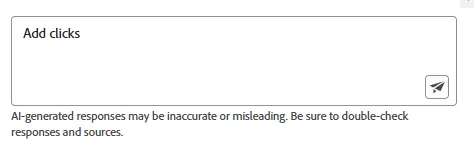
Click the icon on the bottom right of AI Assistant text box and observe the Email Clicks metric was added to the rendered Line chart.
"AI Assistant is intelligent enough to handle follow on prompts from previous questions and do things like change the reporting date range or add additional metrics."
"It also will close match metrics and dimensions where the prompt was 'Add clicks' but the actual metric added was 'Email Clicks'"
Step 4: Use Intelligent Captions to identify a spike
Click the Intelligent Captions icon in the upper right of the Line cart to get summary insights from the rendered visualization.
Click the right > icon to scroll to identify the Highest Spike
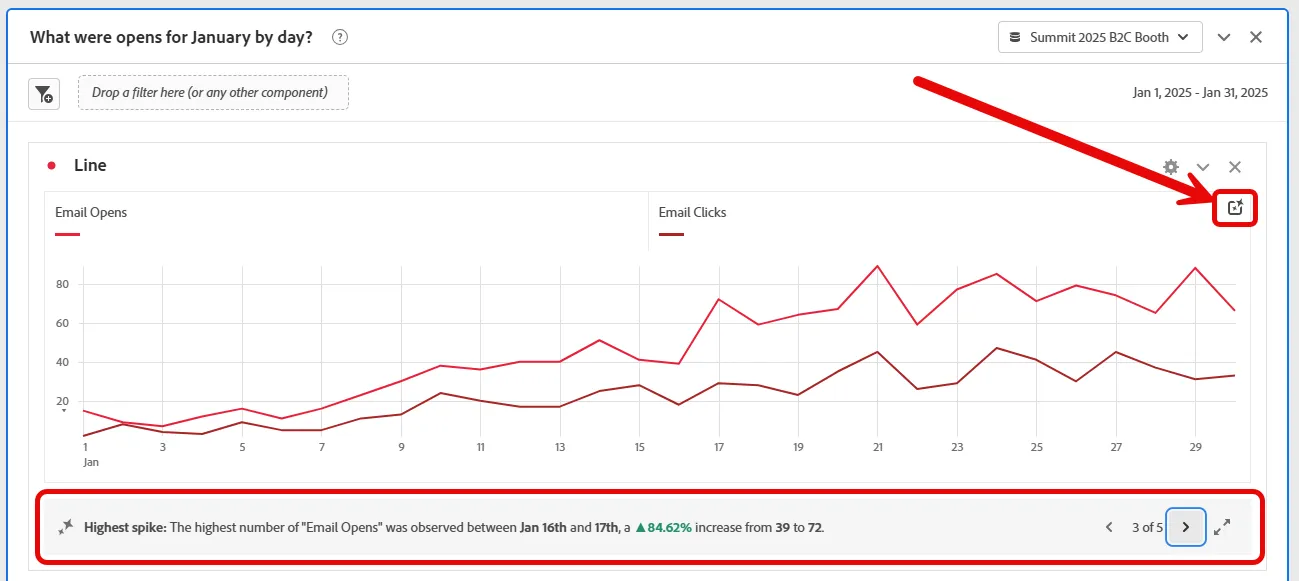
Cycle through all the intelligent captions and callout the findings. You can callout that AI is running each time Intelligent Captions launched, and it is possible that there can be different findings on each rendering.
Step 5: Ask a question to find top performing cites
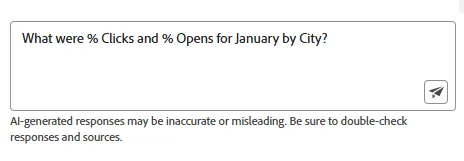
Now we want to know which cities had the greatest open and click percentages. In the AI Assistant text box enter another question.
What were % Clicks and % Opens for January by City?
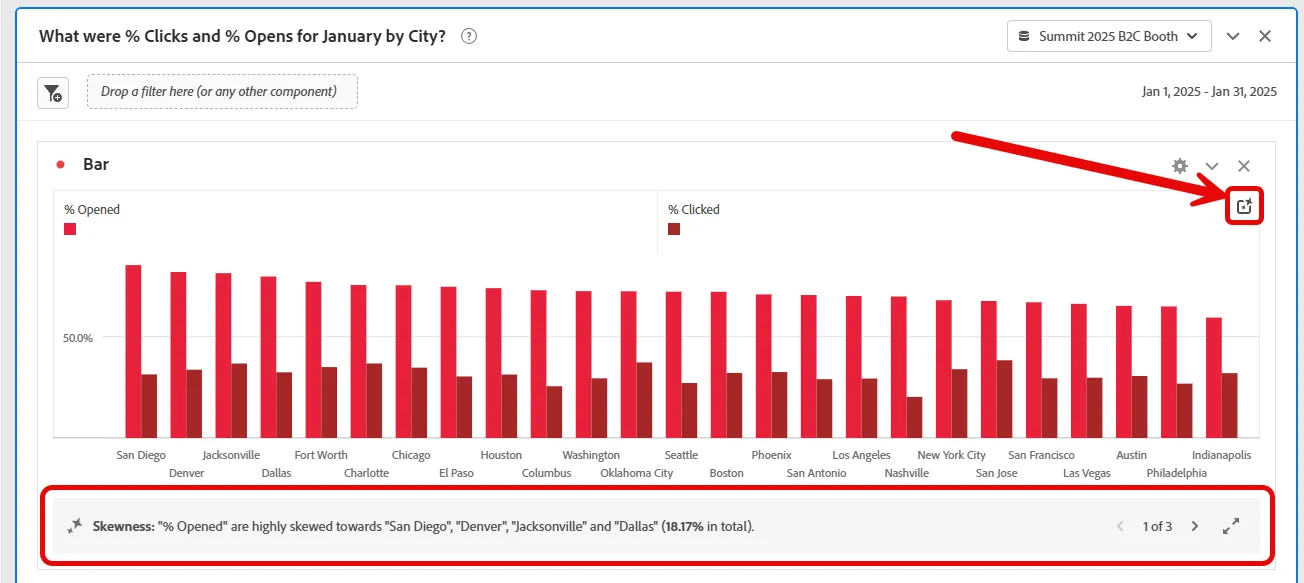
Observe the new rendered Bar chart in a new panel, and launch Intelligent Captions to find any skewness.
You can call out since the prompt was for a dimension (City), AI Assistant knew to show a Bar Chart with the metrics requested. The first prompt was time-based so a Line Cart was rendered.
The AI Assistant currently can render Line Chart, Bar Chart, Donut and Summary Number visualizations with more to come in future releases. As before cycle through all the Inteligent Captions and callout the findings. These findings can change in each new rendering.
Step 6: Ask a question to find Registrations in a specific city
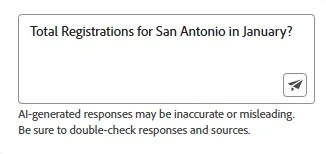
Now we want to know how many registrations there were in a specific city. In the AI Assistant text box enter another question.
Total Registrations for San Antonio in January?
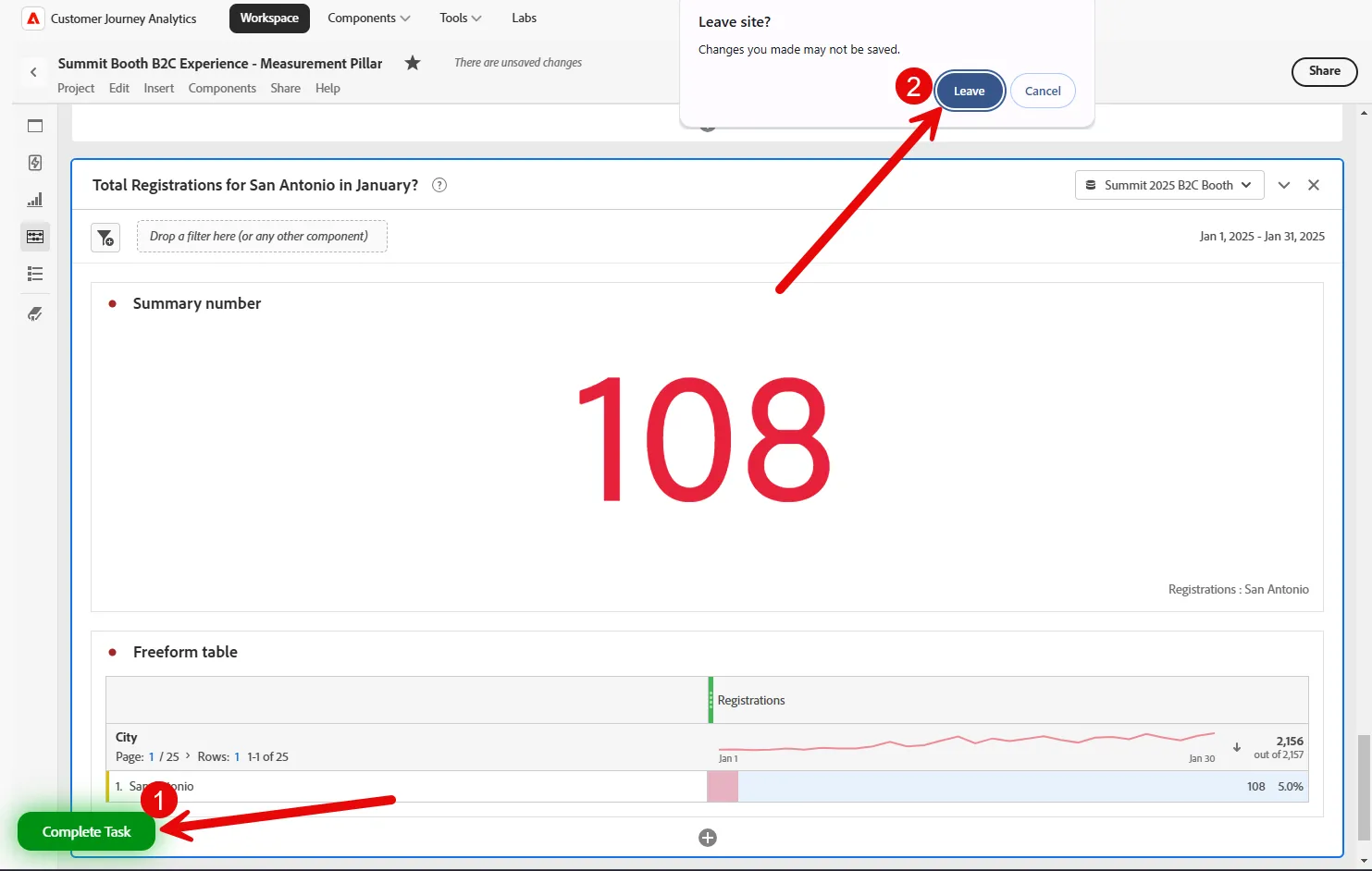
Observe the new rendered Summary number in a new panel with Registrations for San Antonio.
The rendered Number Visualization may show the total for all Registrations (2,156), if they click in the freeform table on the smaller number below the total in the header row, across from San Antionio (108), the visualization will change to Registrations for just San Antonio.
If the Attendee is interested, you can have them open the 'Selectable Campaign Performance' panel to show an example of a more robust campaign dashboard calling out the various visualizations on data that is reported directly from Adobe Journey Optimizer datasets.
Included at the bottom of this panel is the recently released 'Journey Canvas' that allows for analysis of complex journeys using filters, metrics and dimensional items in a free flow format.
Step 7: Task Complete
You successfully completed the Measure task by using the Data Analysis AI Assistant in Adobe Customer Journey Analytics to generate key performance metrics on-the-fly with simple prompts!
Click the green Complete Task button on the bottom left of the screen and also click the Leave button if prompted.
You should now see the completion screen.