Plan
Support Contacts:
Background Information
Functionality currently available for the AI Assistant
Currently, the AI Assistant is available in the Planning area of Workfront for the following pages:
- Workspace page
- Record type page
- Record page
You can use the AI Assistant to perform the following actions, at this time:
- Search for records. You can search by information contained in any record fields.
- Create records. An ID with a link to the new record displays after the record is created. You can specify the fields you want to update during the creation process, like dates or description.
- Create records based on a document that you upload. Workfront supports the following document formats for the AI Assistant:
- Update fields for the records you see on the screen
- Delete records
- Restore records that you just deleted
Product Documentation: LINK
Experience Overview
You’re the marketing manager tasked with creating the Coca-Cola Real Magic campaign project plan. Using Workfront, upload a PDF document to generate branded Workfront campaigns and projects, along with a list of Adobe Experience Platform audiences to target. See how quickly and easily you get from presentation to project plan.


The Booth Experience
Step 1: Open the AI Assistant
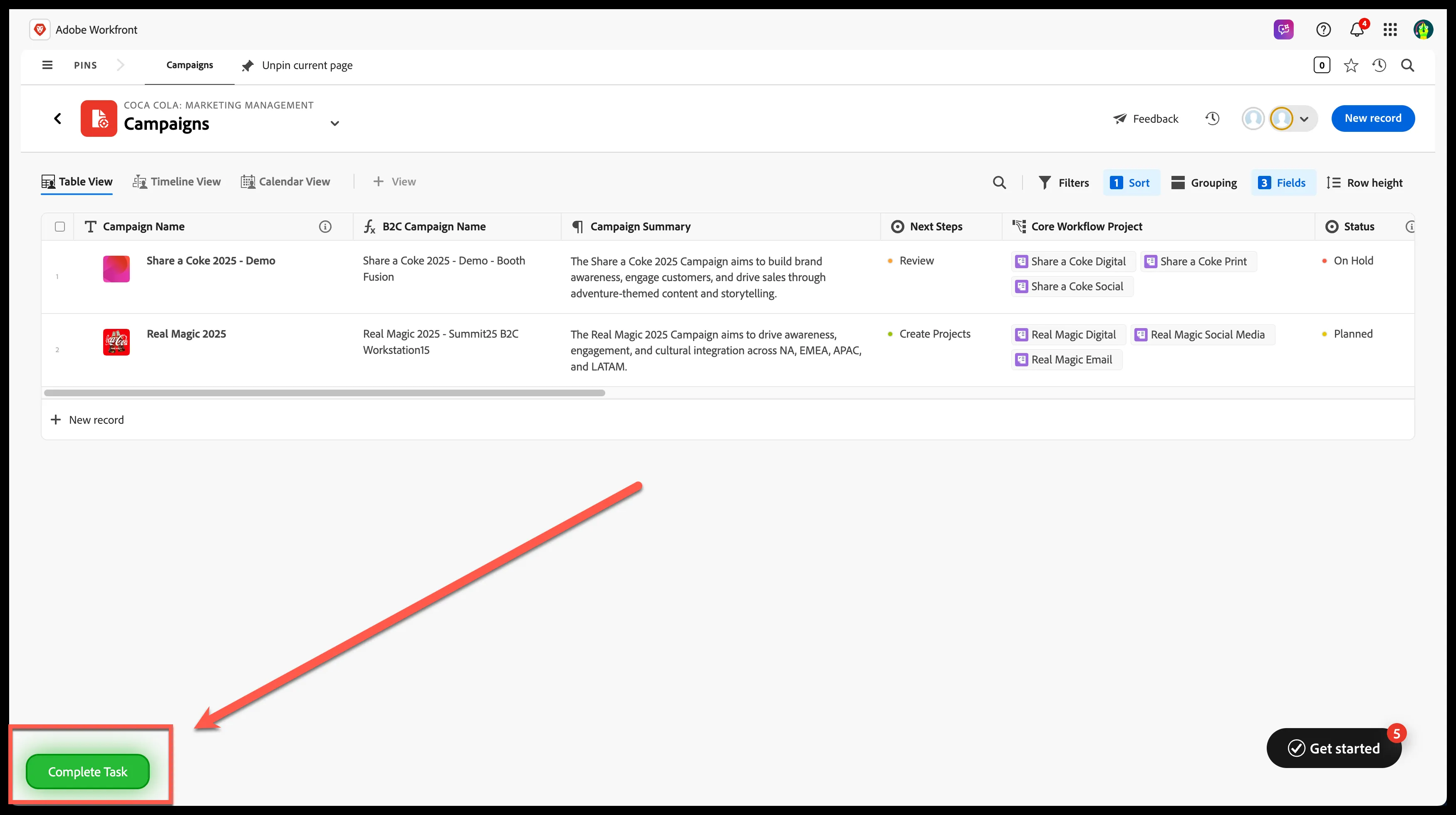
The canned record should be updated to maintain the default values. Please check the 'Share a Coke 2025 - Demo' record occasionally for missed update fixes.
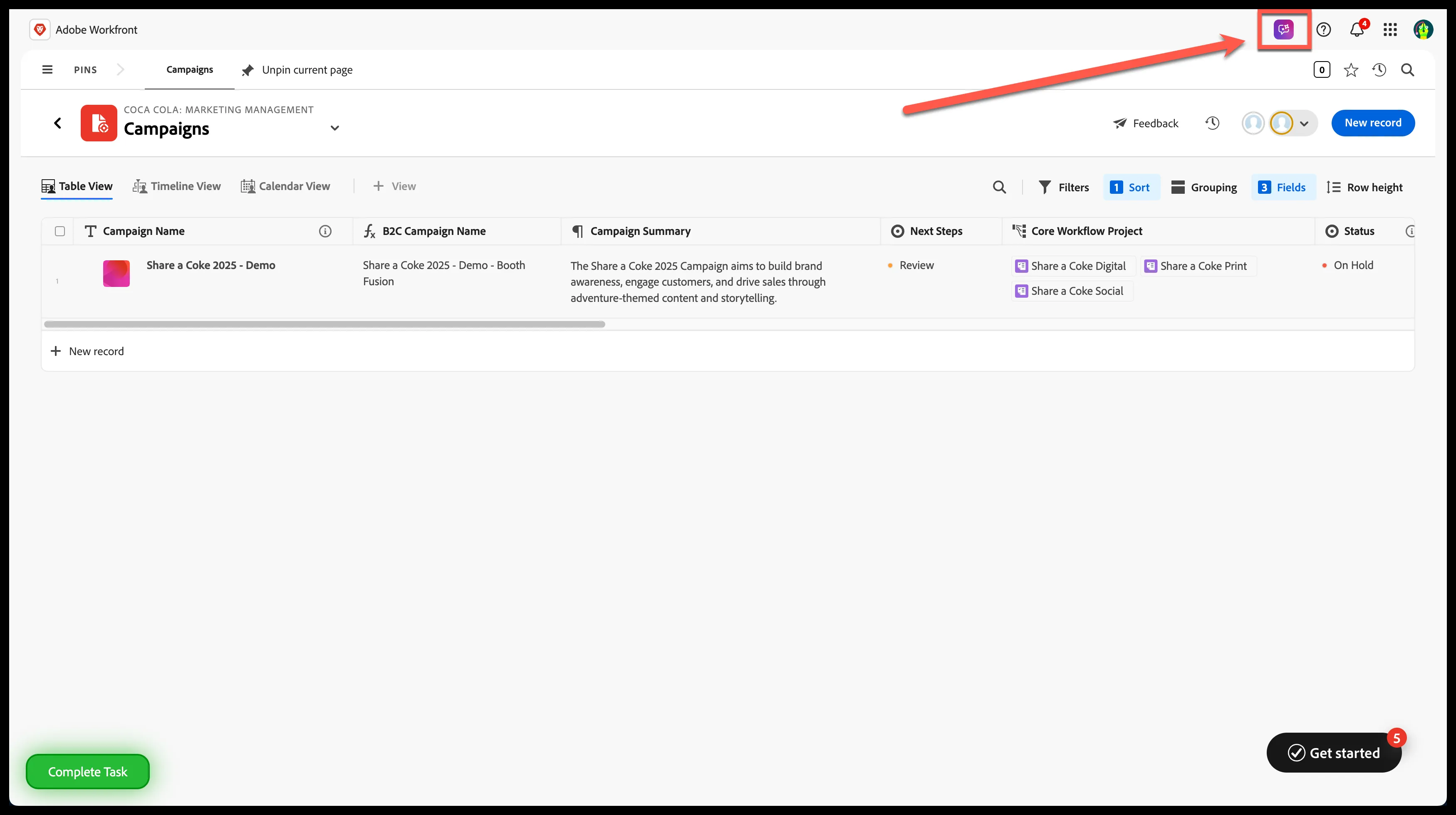
Get ready to elevate your campaign planning! On the Campaign List page, kick things off by selecting the AI Assistant icon in the top right corner of the screen—it’s your gateway to smarter, streamlined workflows in Workfront Planning.
Step 2: Upload the 'Campaign Brief' document
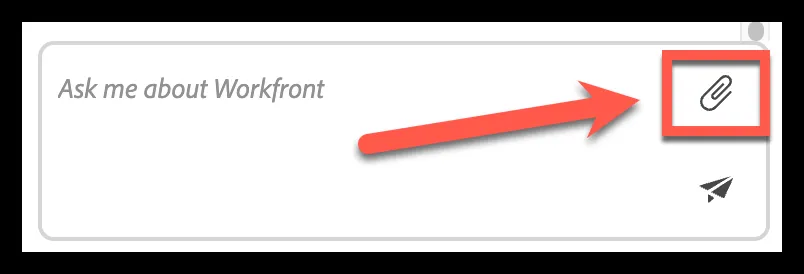
Click the attachment icon:
- Select the 'Real Magic 2025 Campaign Brief.pdf' document
- Right Click and select 'Quick Look'
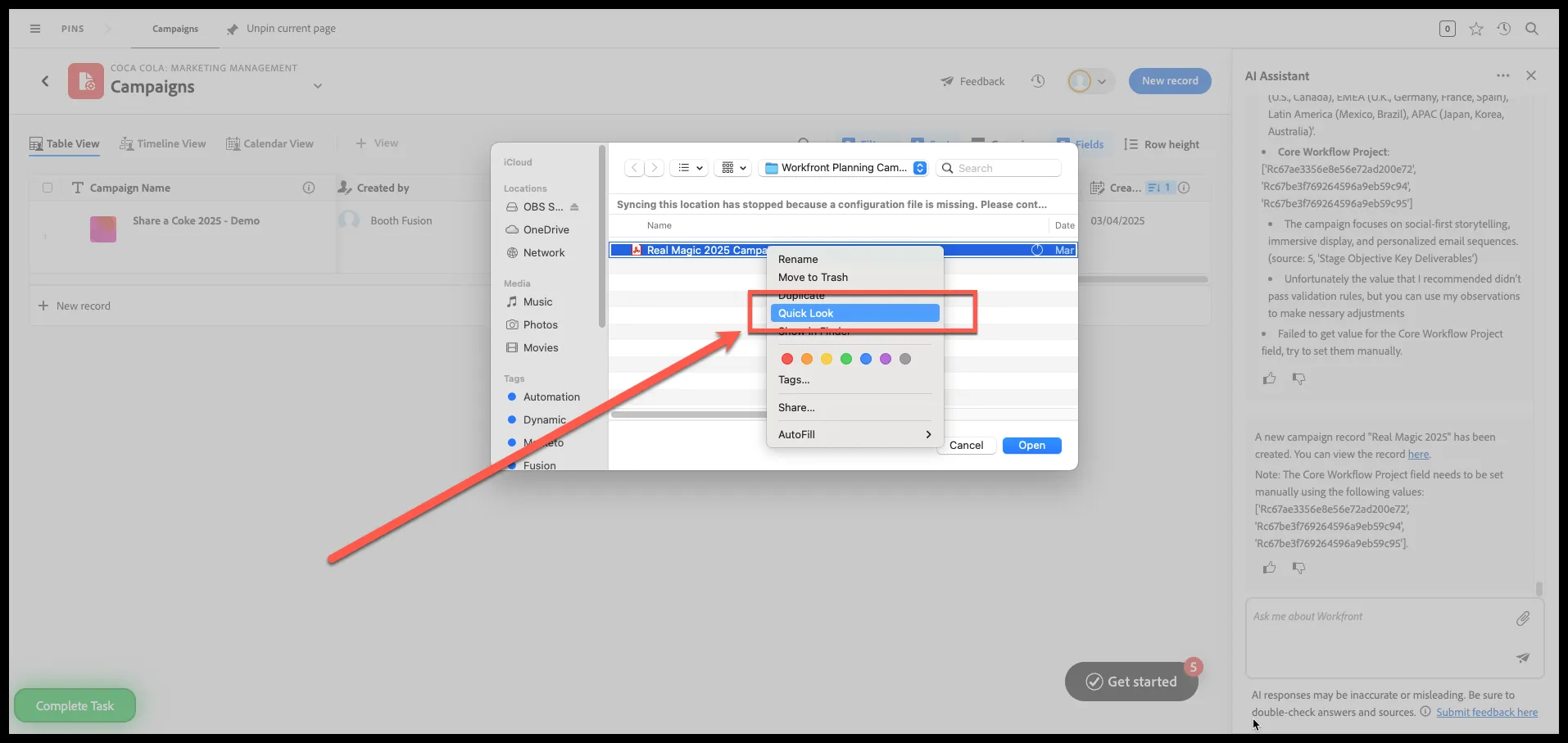
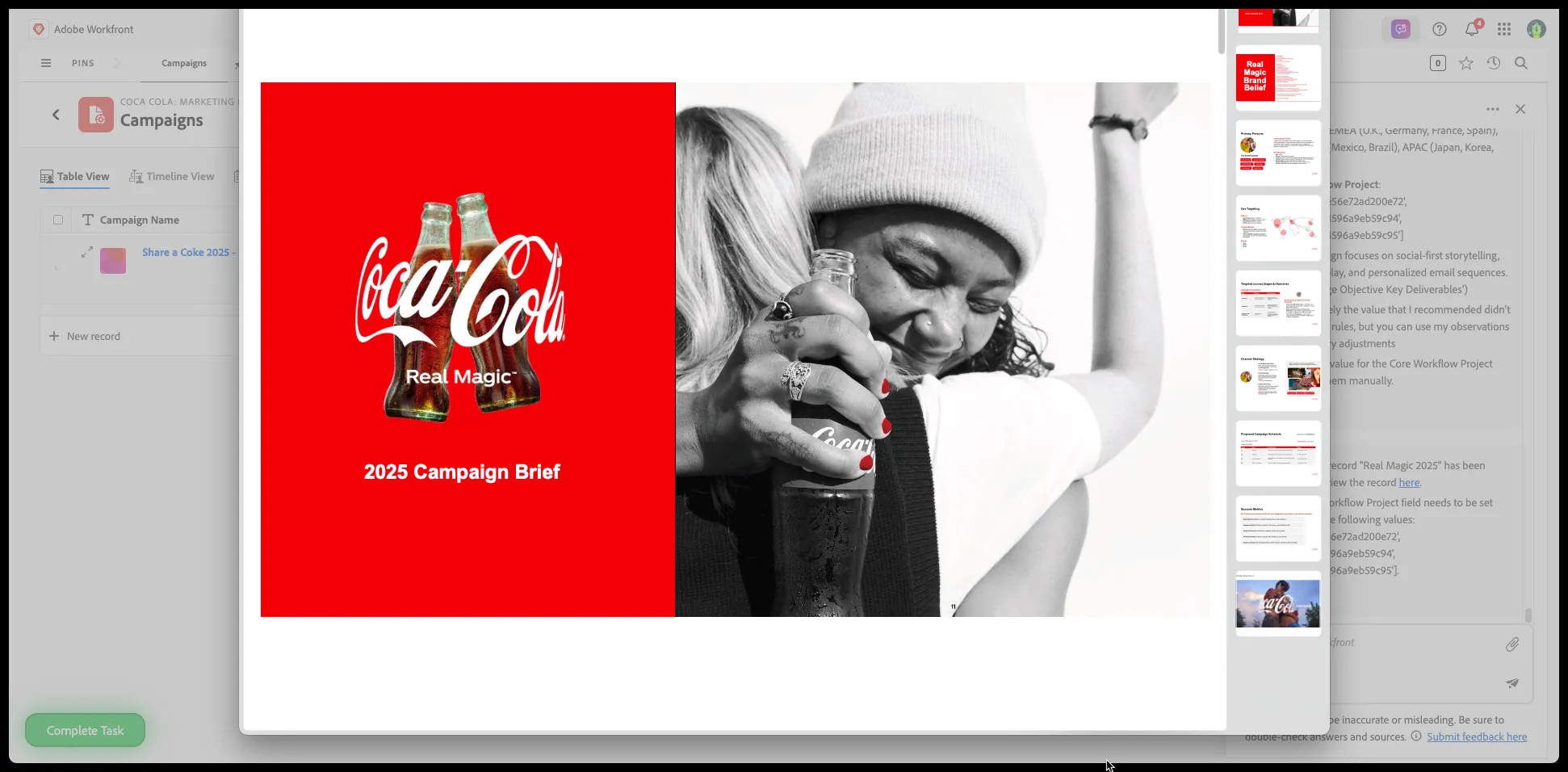
Close preview
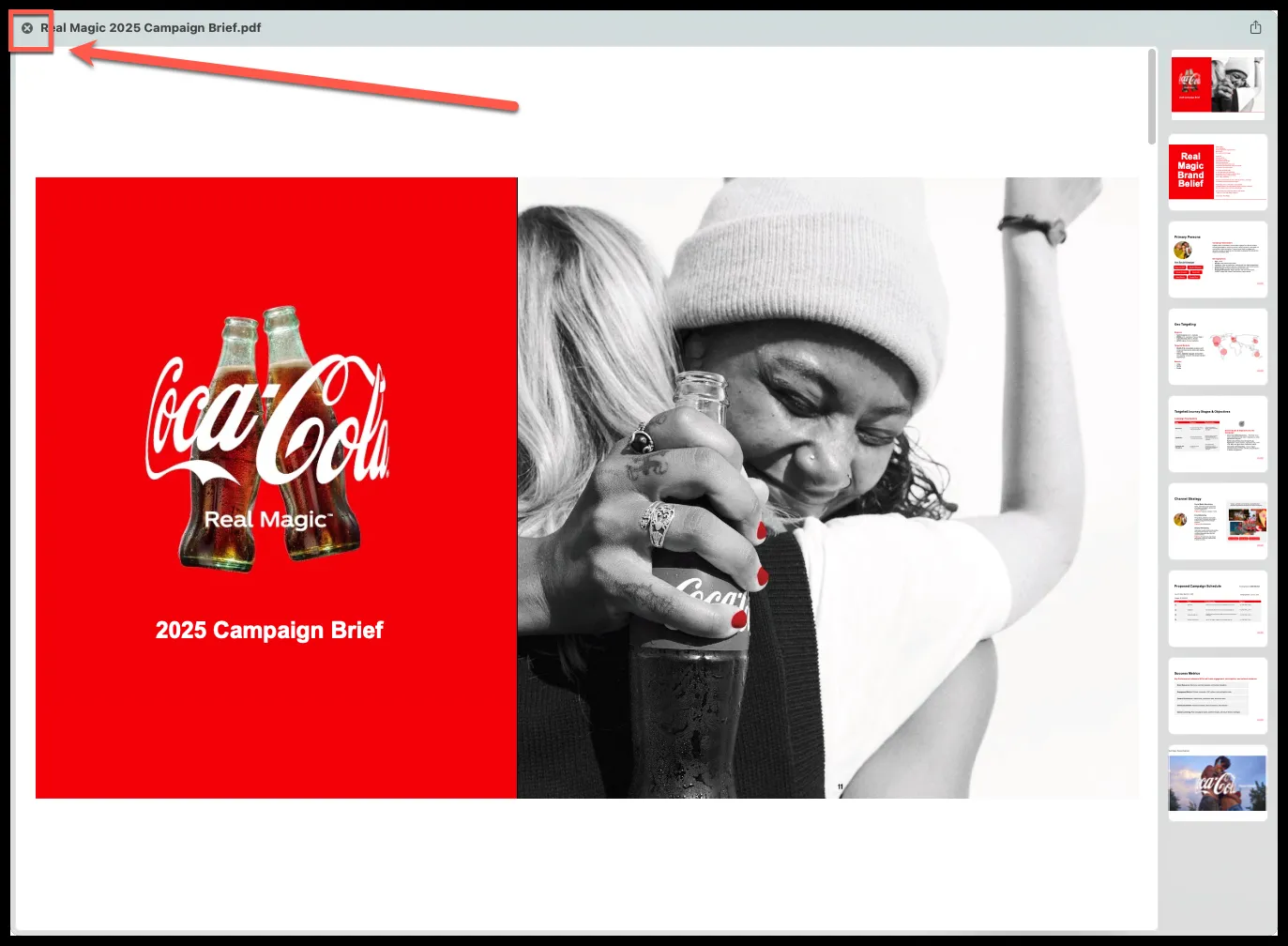
- Click 'Open'
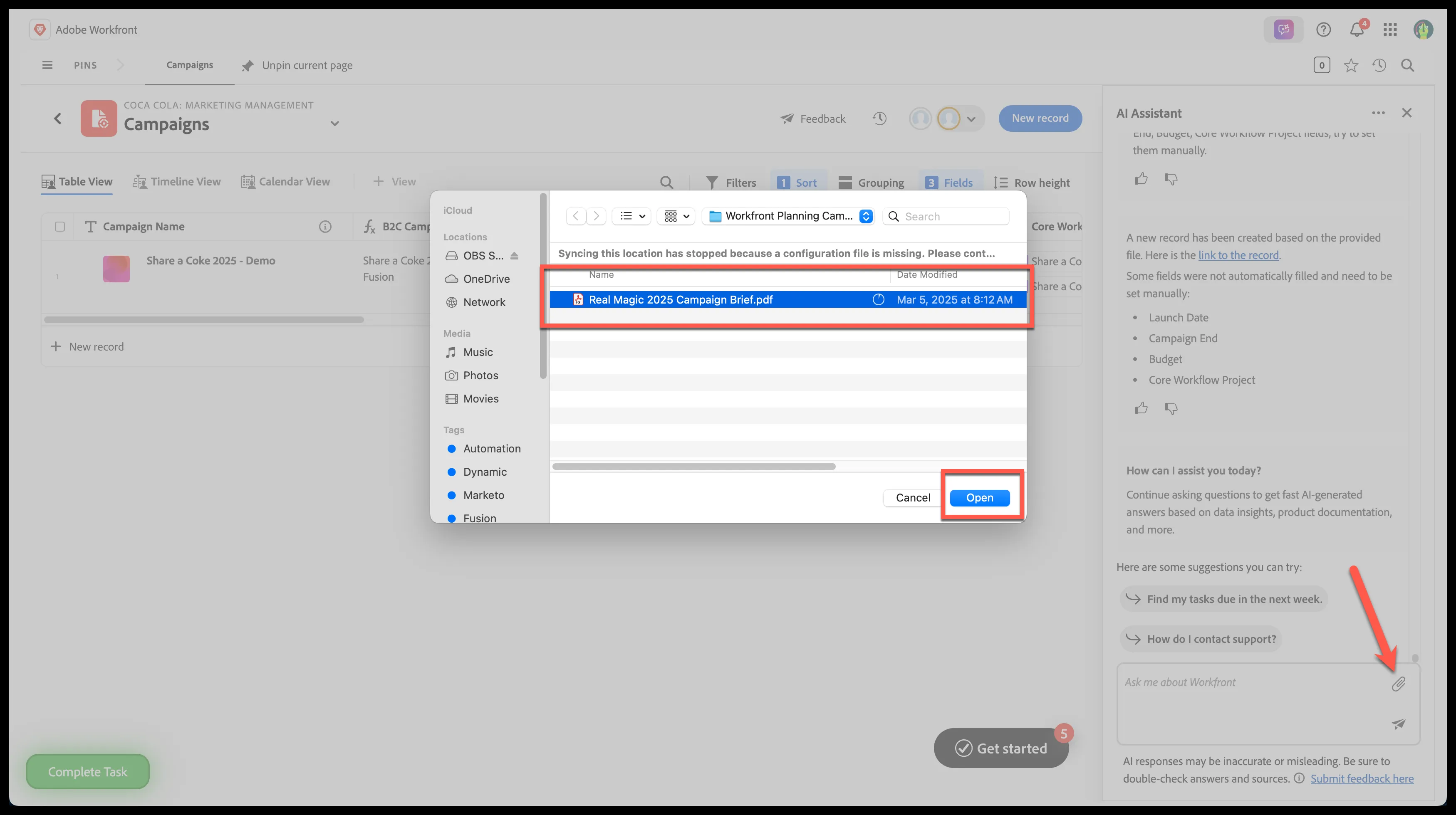
Step 3: Create a campaign record with AI
There is a potential data population impact if a user selects the 'Summarize the File(s)' option before selecting 'Create a record in Workfront Planning'.
Select 'Create a record in Workfront Planning'
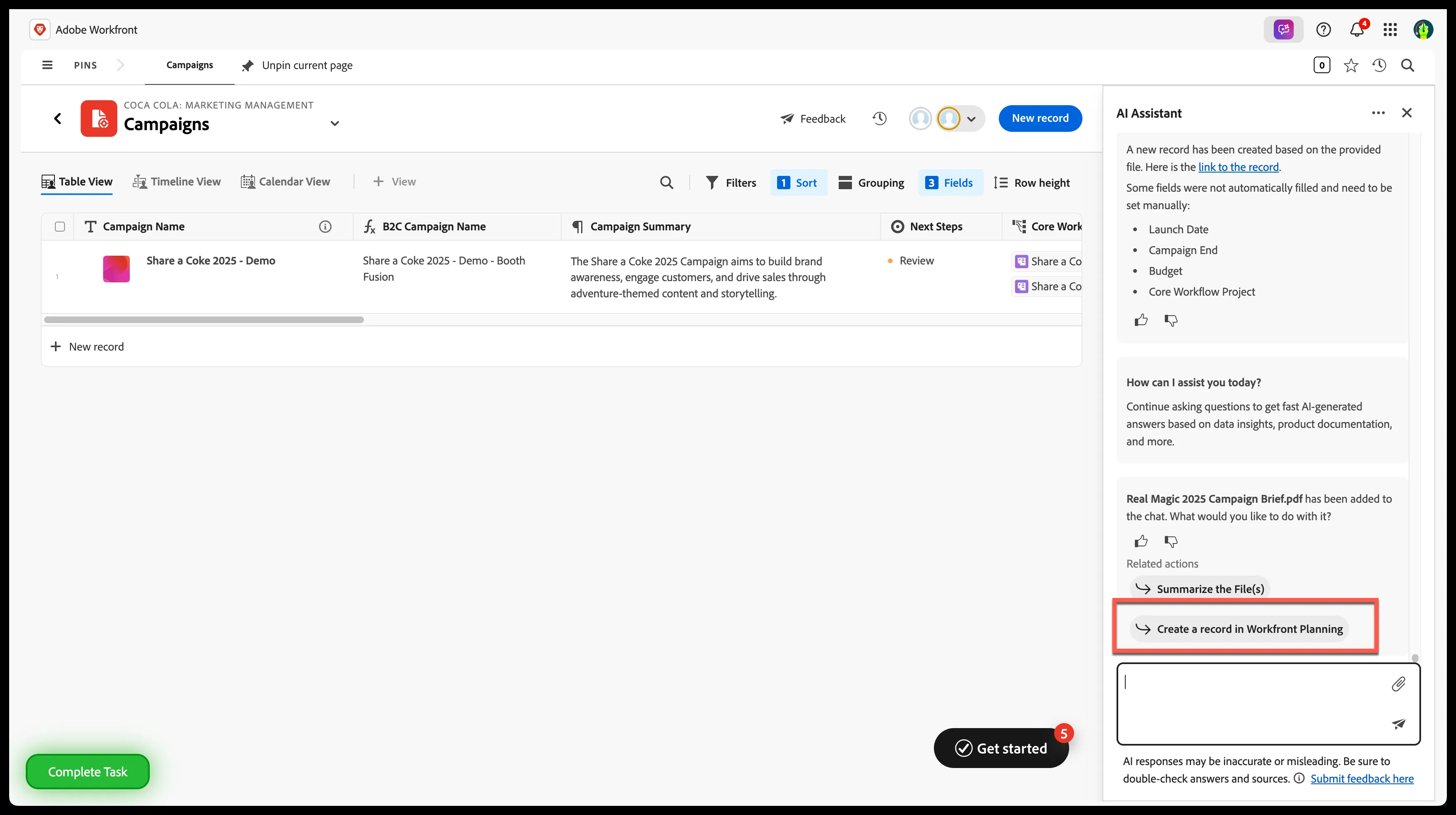
After initiating the 'Create a record in Workfront Planning', move onto step 4 to fill time while the AI Assistant is reading and generating the data,and in parallel limit the records displayed in the view.
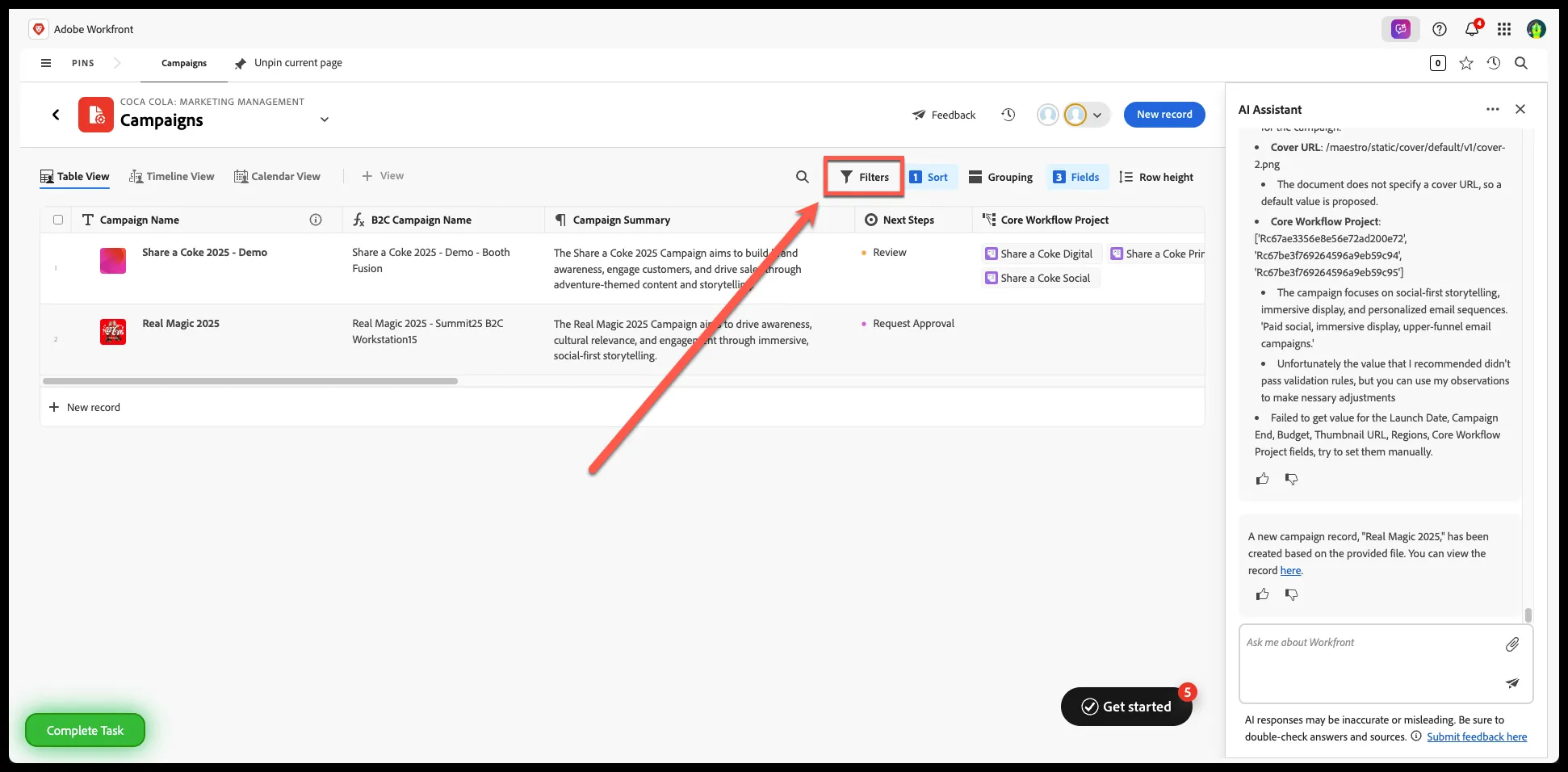
Step 4: Create Filter for Campaigns View
Click 'Filters'
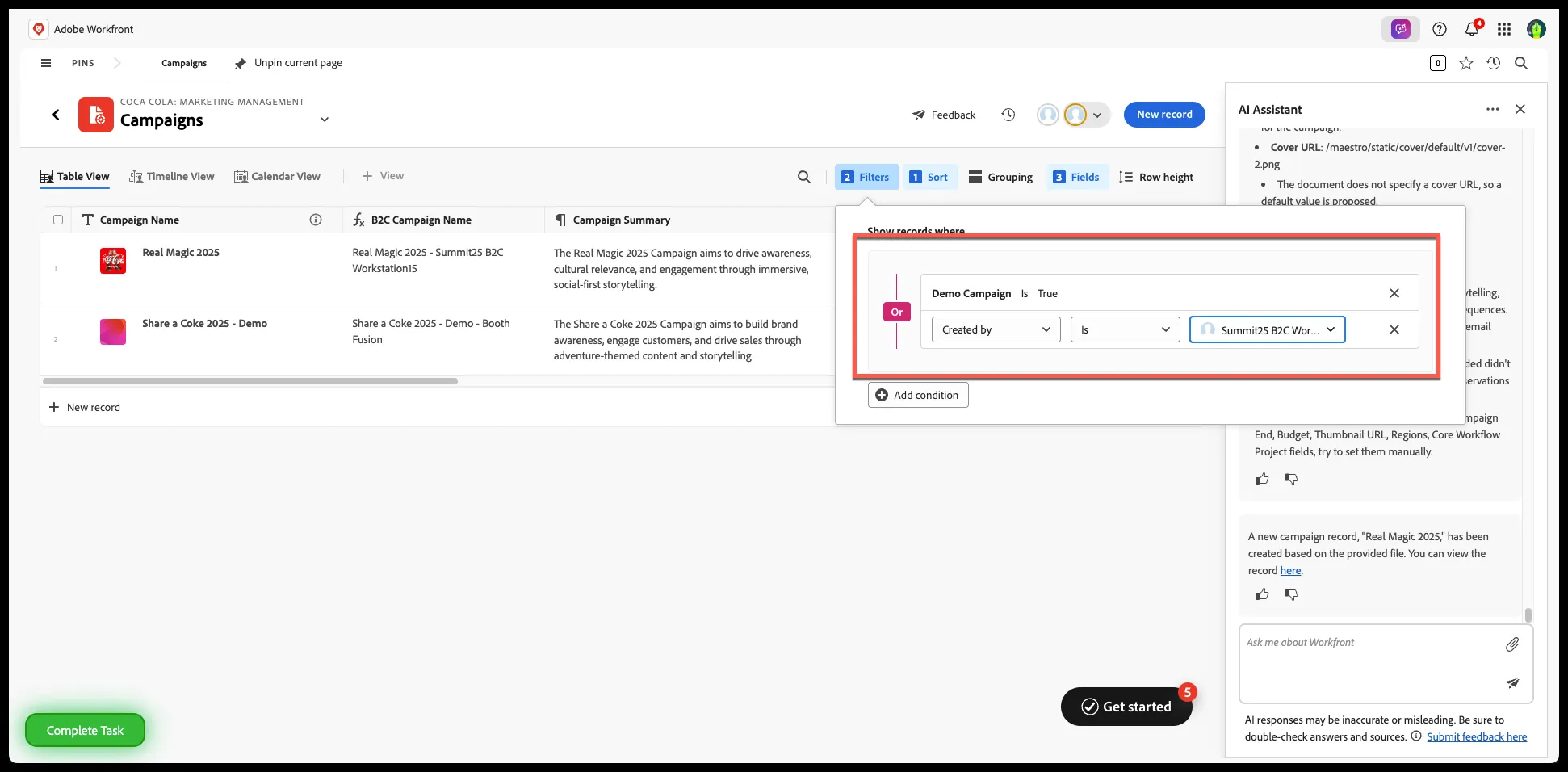
- Select 'Demo Campaign' is 'True'
- Select 'Created By' is 'Summit25 B2C Workstation##'
The workstation name at the top of the list should be correct station.
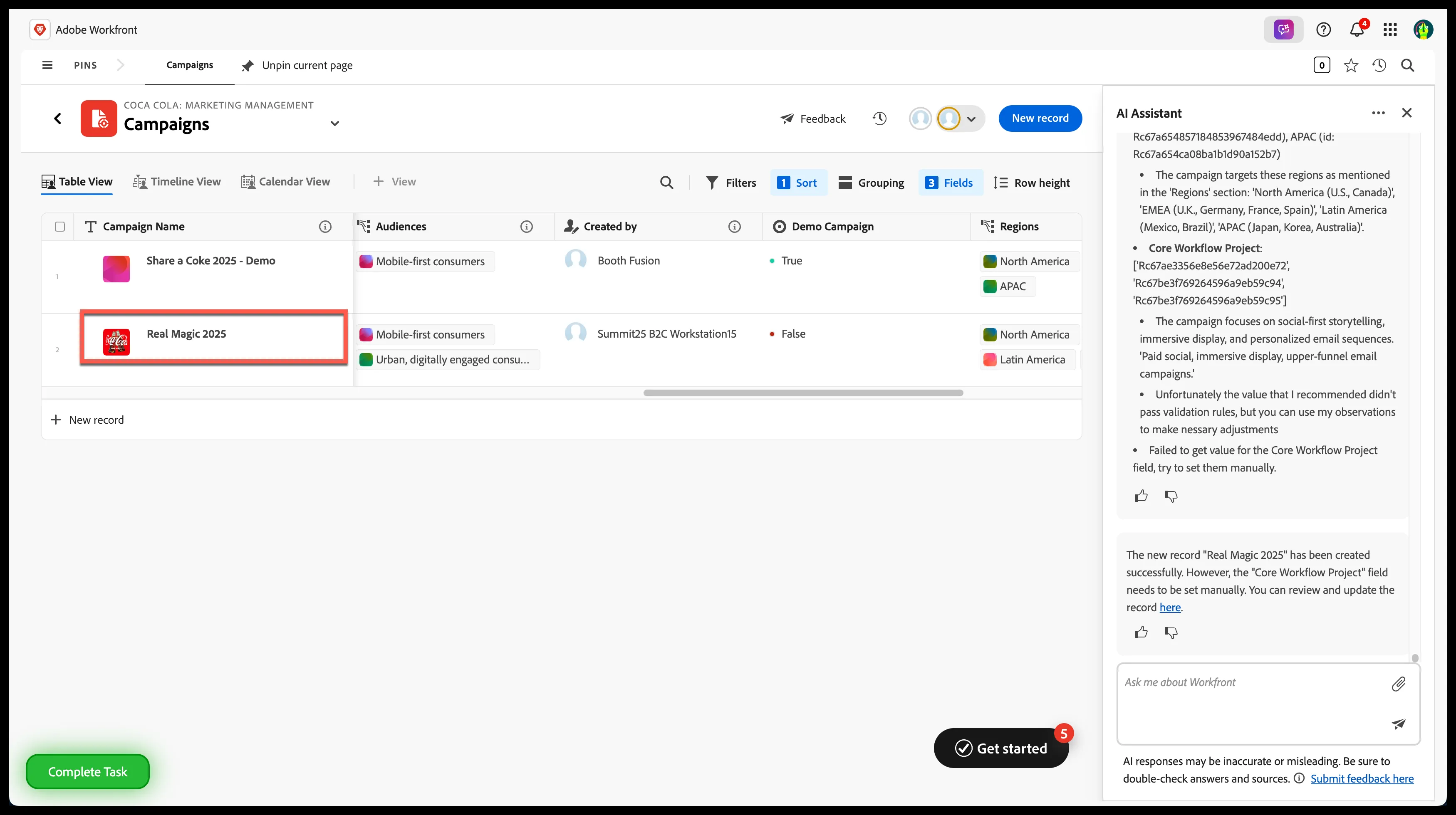
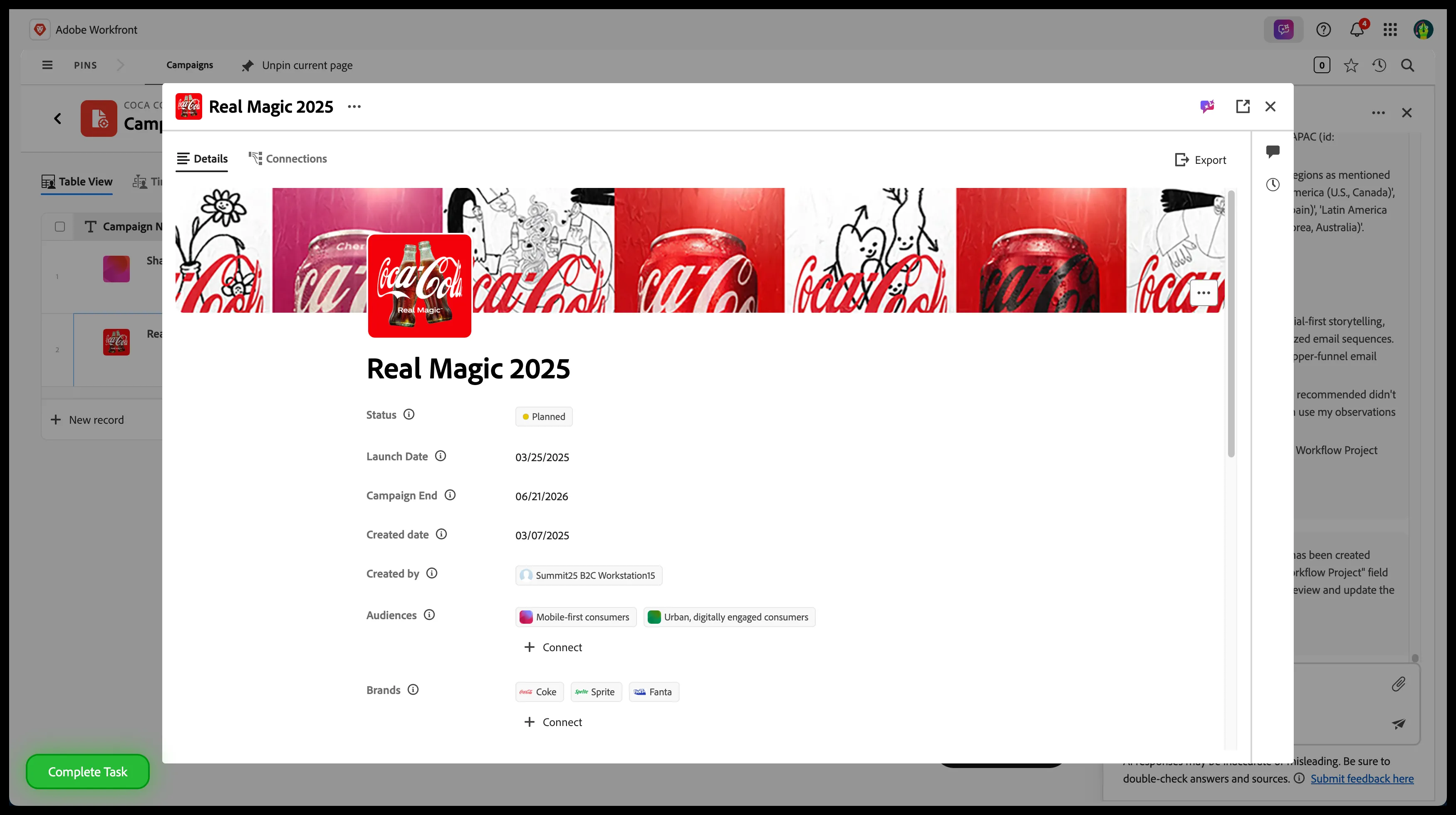
Step 5: Access 'Real Magic 2025' campaign Details
Click 'Real Magic 2025' campaign name
Step 6: Initiate Project Creation
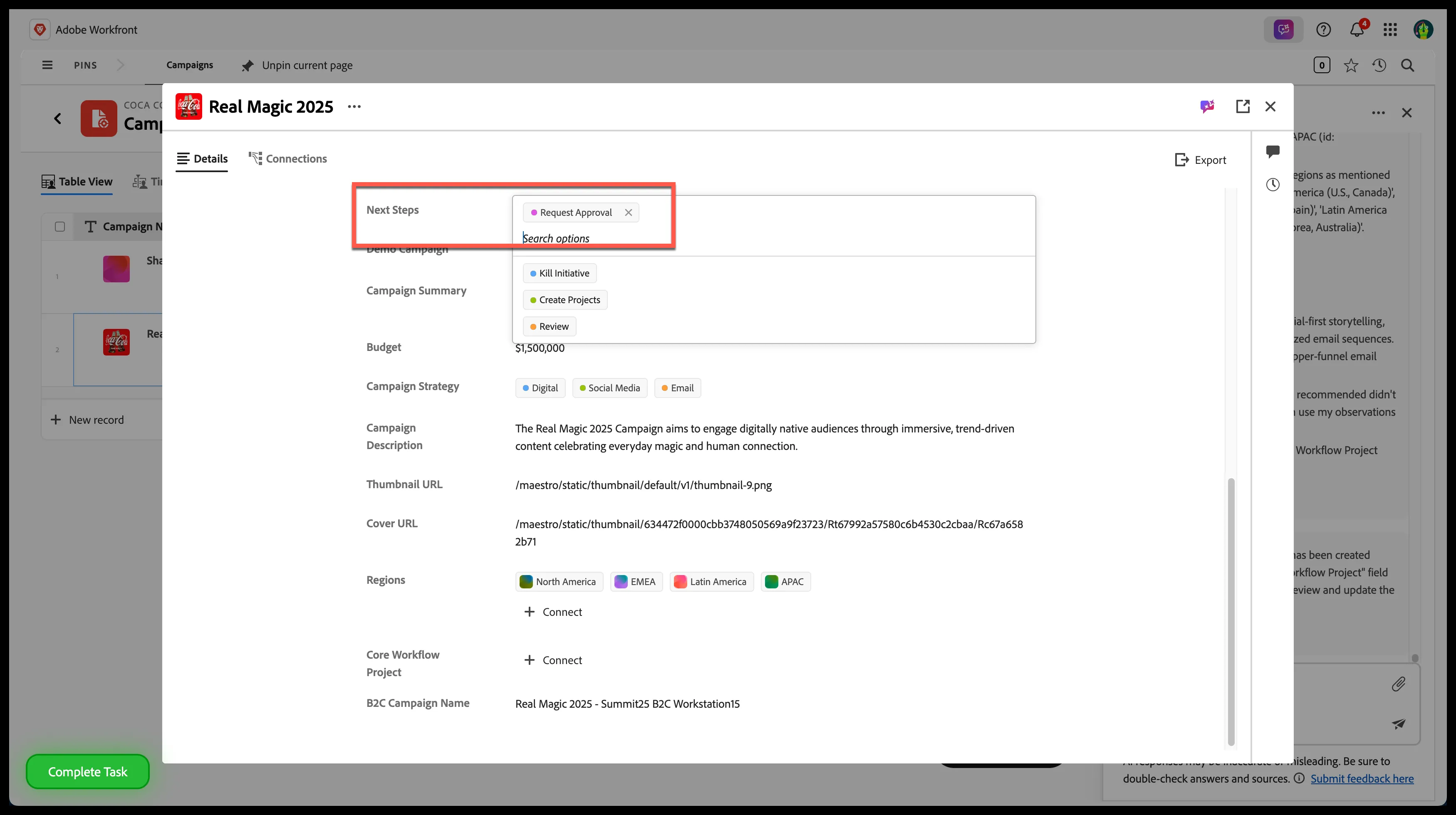
- Click on the 'Next Steps' option
- Select 'Create Projects'
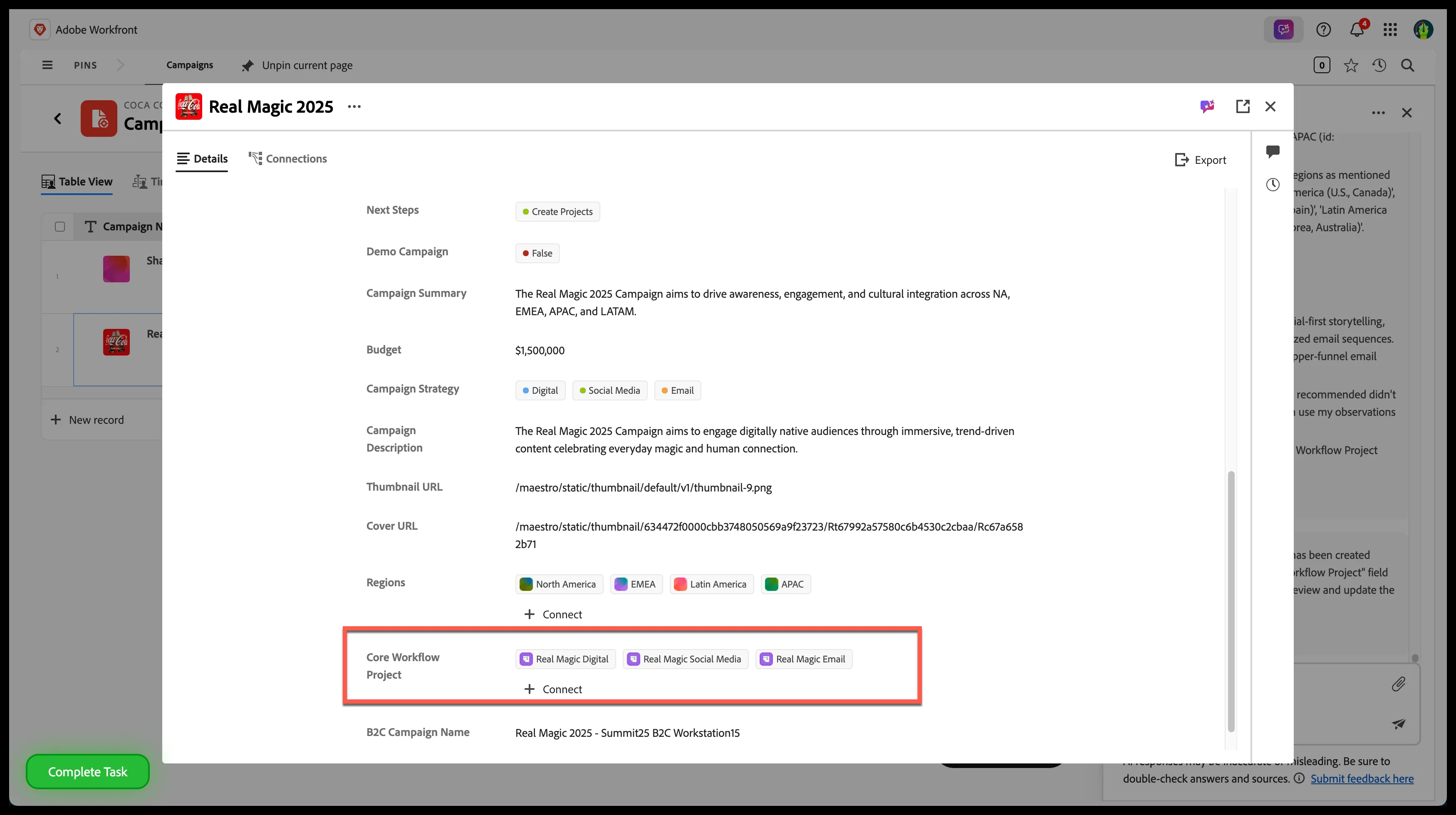
Review Projects in the 'Core Workflow Projects' field
Step 7: Explore & Experience Workfront Planning
Step 8: Exit Planning Pillar