Work station set up
Setting up the work stations
To set up the work stations, go through the following steps:
- TamperMonkey Installation
- Adobe Environment Log-in
For every morning of Summit, make sure all workstations have the latest version of TamperMonkey installed and are logged into the Adobe platform.
Step 1: TamperMonkey Installation
TamperMonkey is a browser extentsion which allows customization in our demos (e.g. disablilng certain clicks on the web page, adding in buttons, etc.). This demo needs to run on Chrome to make use of TamperMonkey.
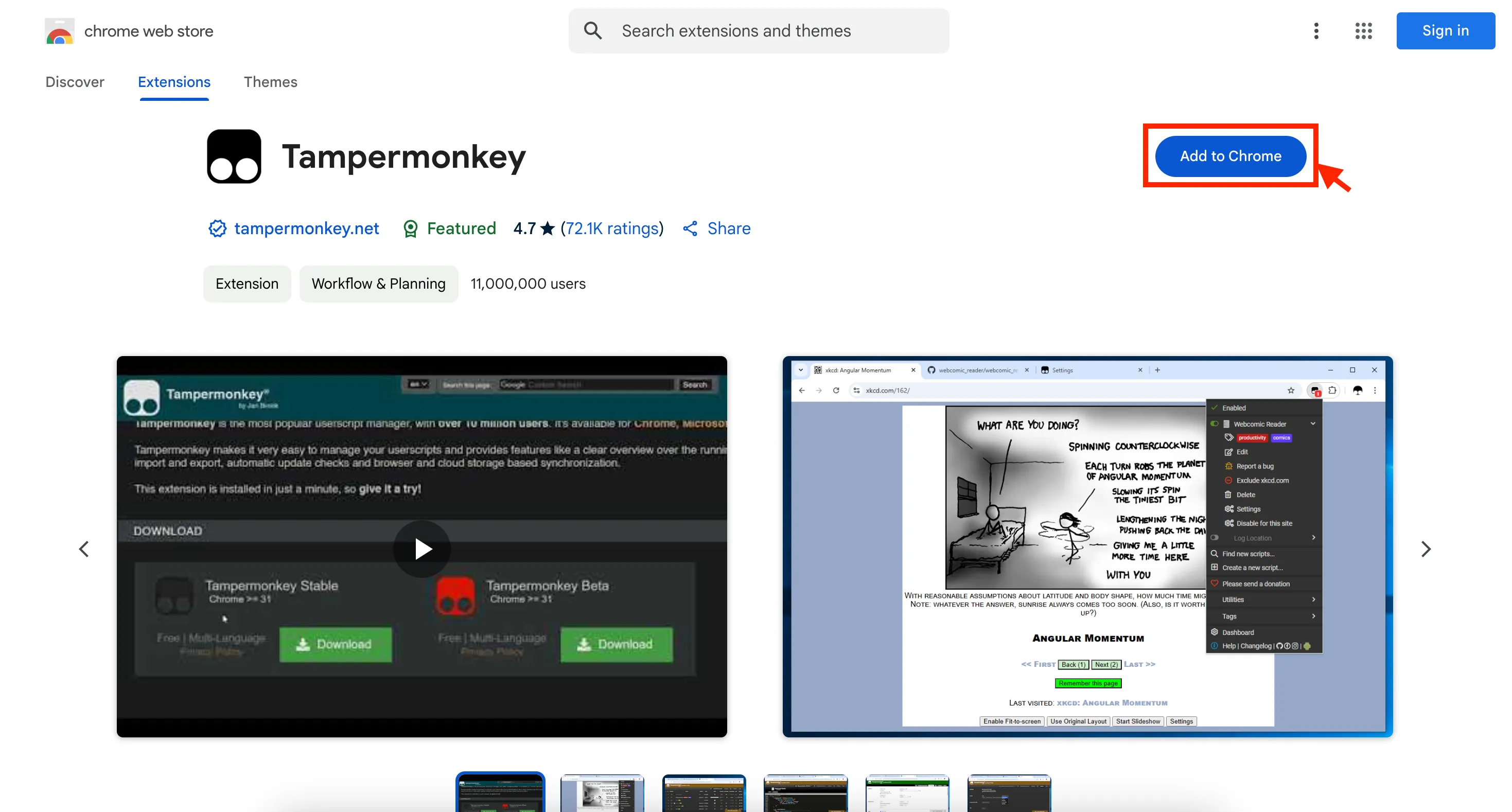
Install TamperMonkey by adding the extension to the Chrome browser.
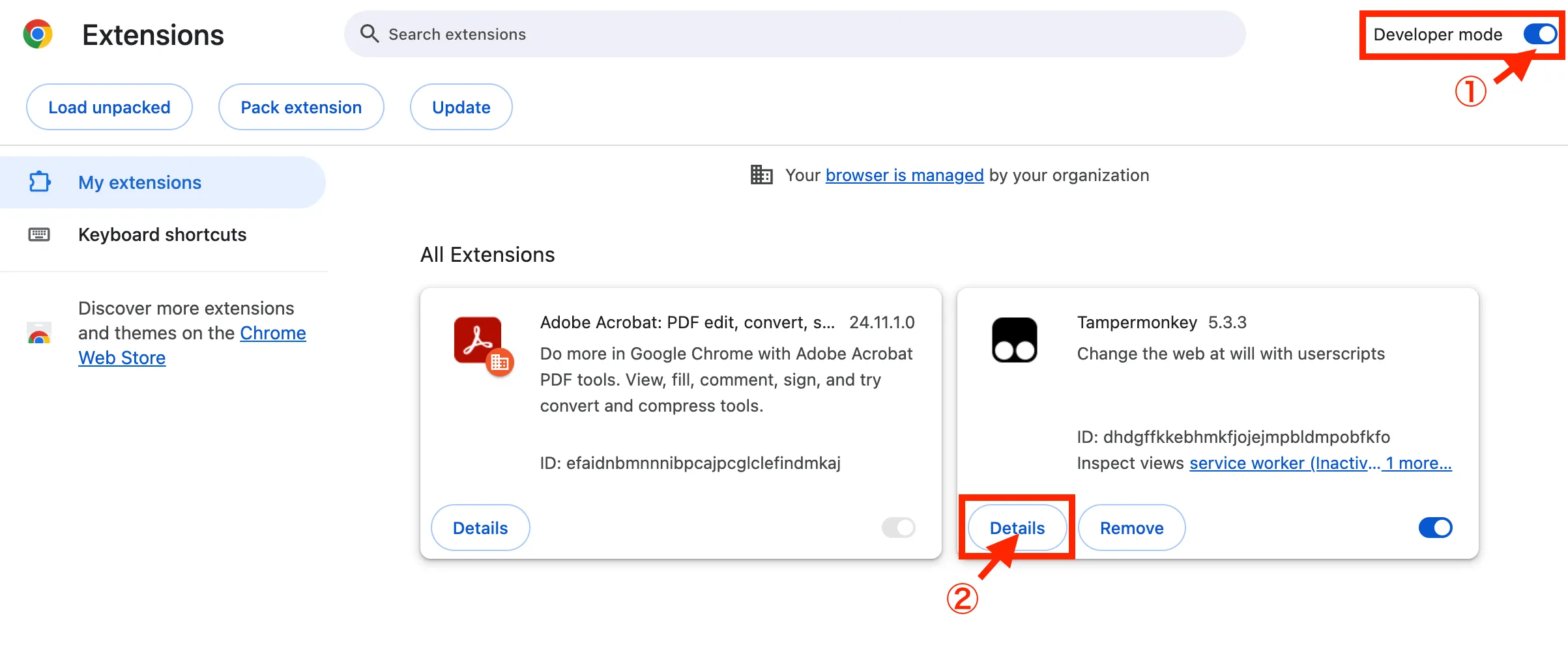
- Go to chrome://extensions (copy & paste this URL in your browser). Turn on 'Developer mode' using toggle on the upper right corner, and click 'Details' of TamperMonkey.
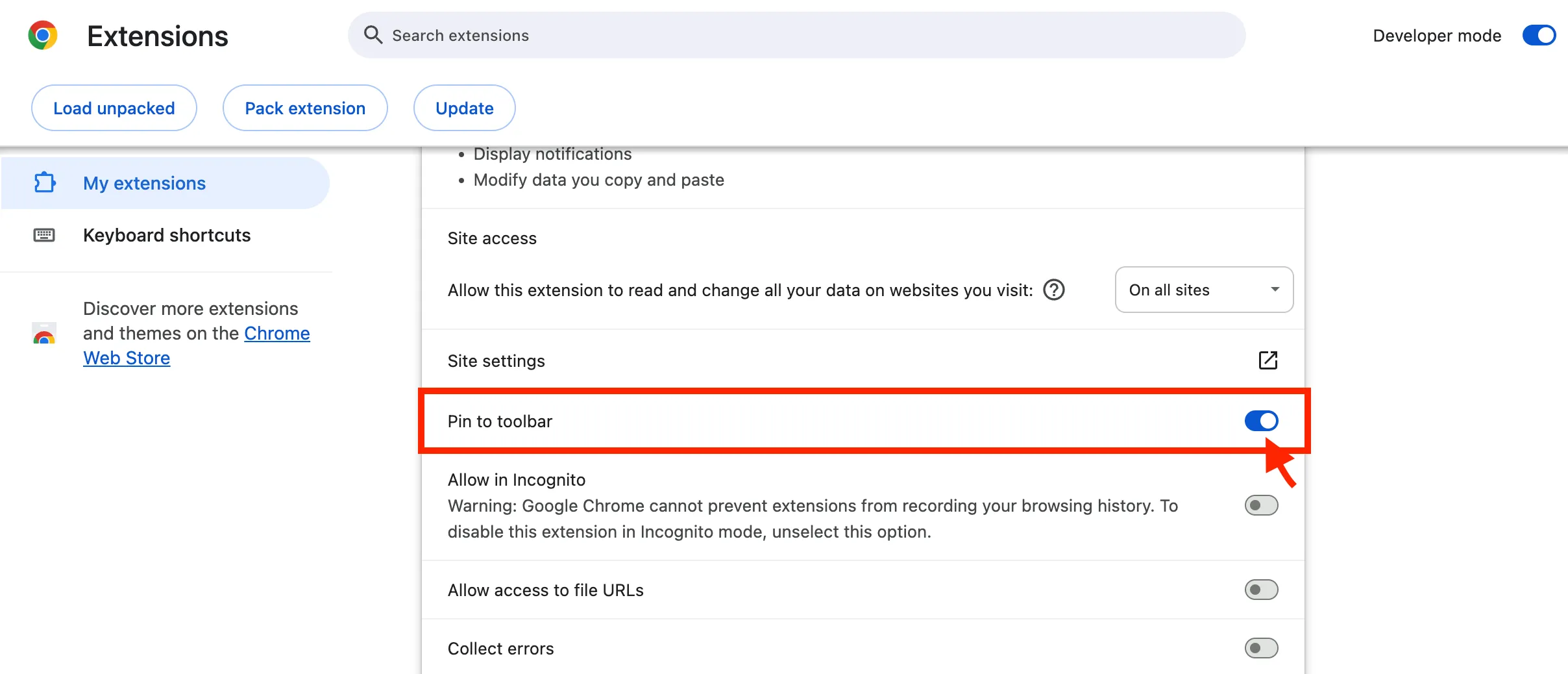
- Turn Pin to Toolbar on.
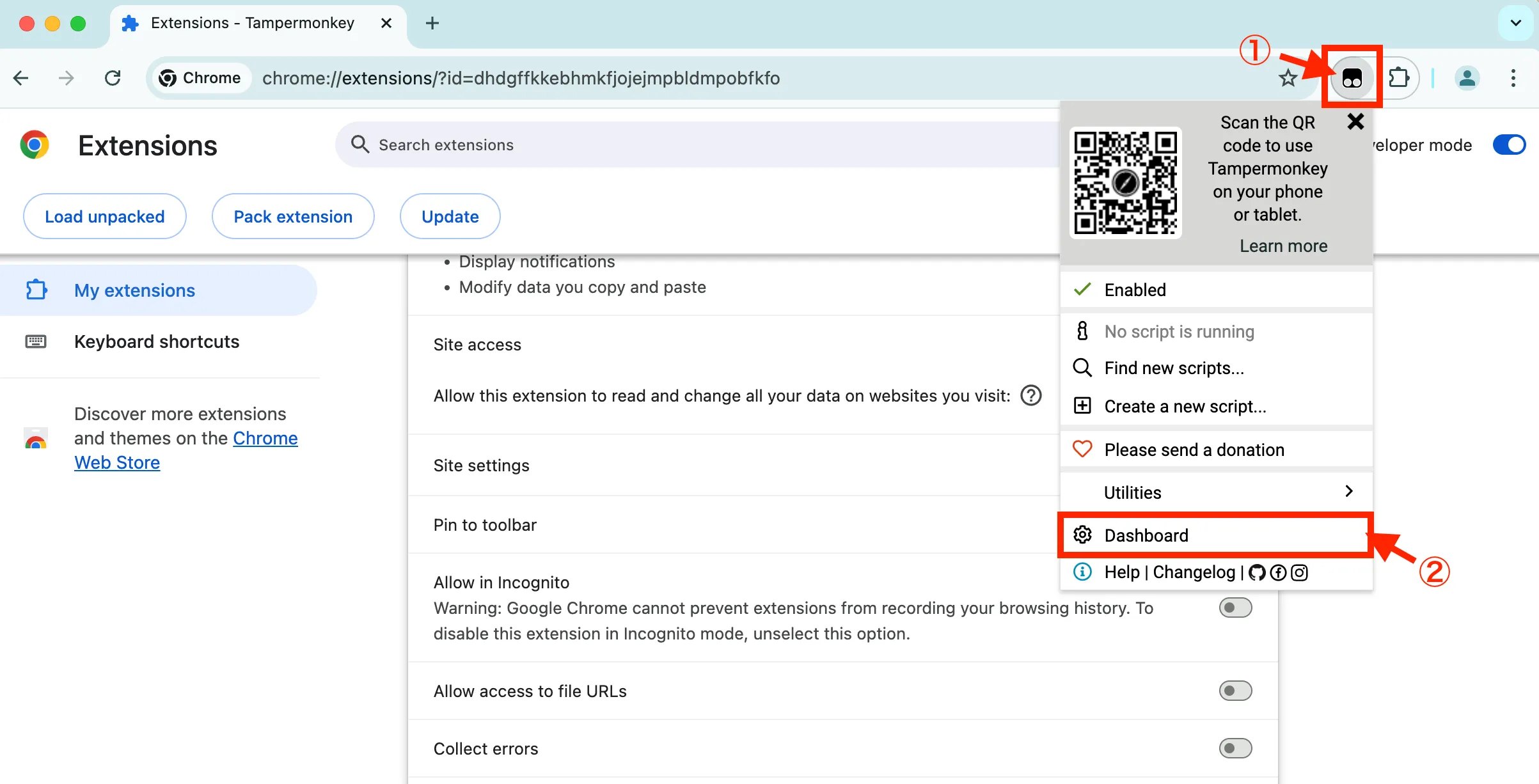
- From the pinned Extensions, click the TamperMonkey icon and select Dashboard.
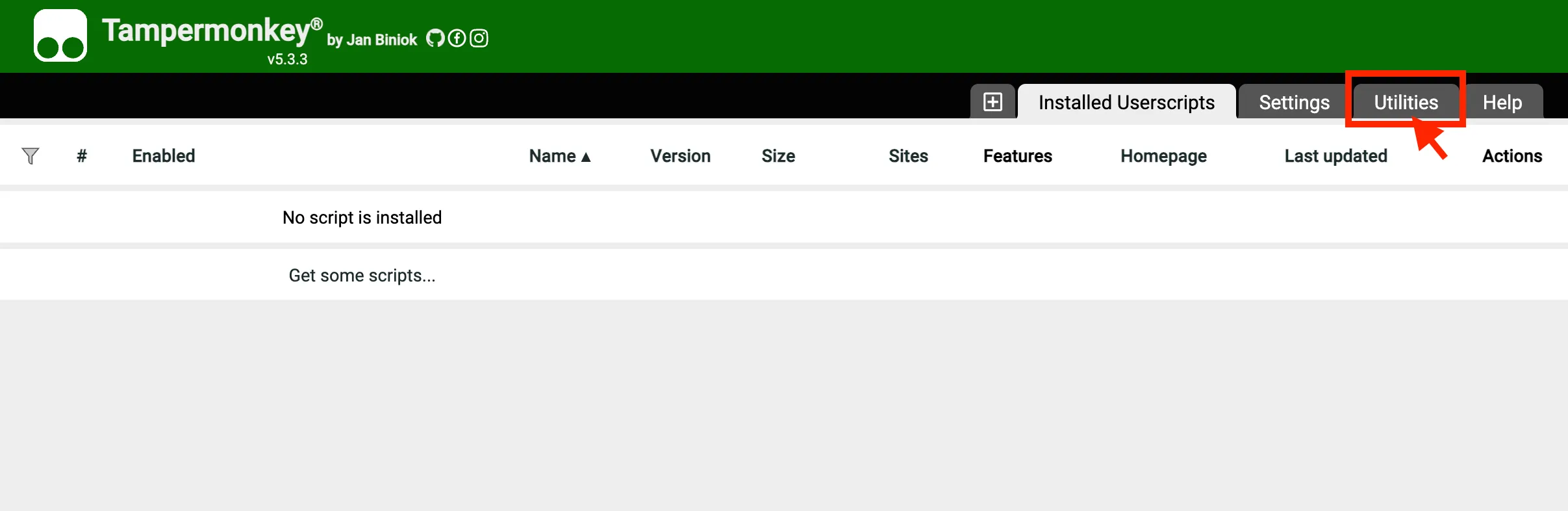
- Click the Utilities tab.
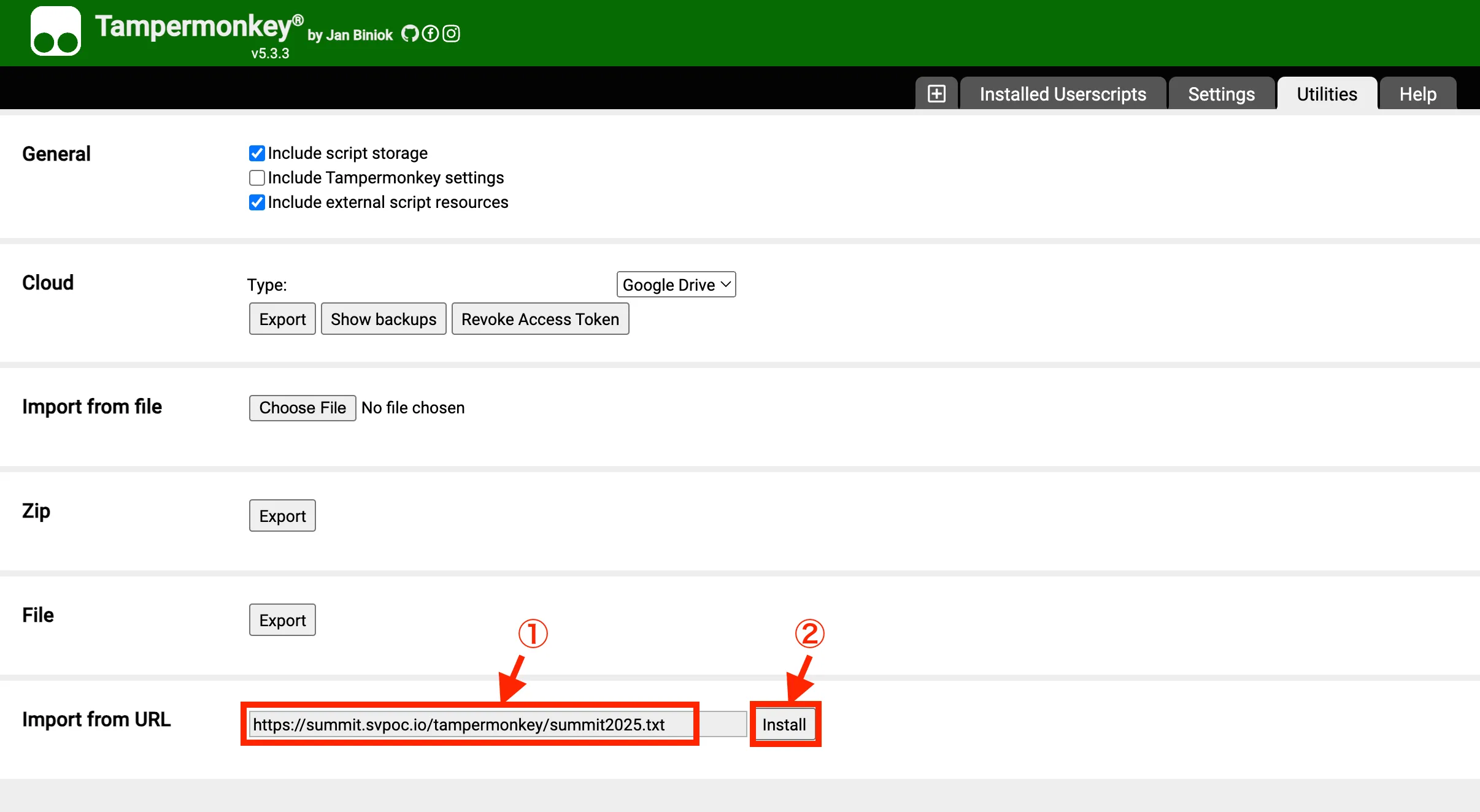
- In the Import from URL field, enter: https://summit.svpoc.io/tampermonkey/summit2025.txt then click Install.
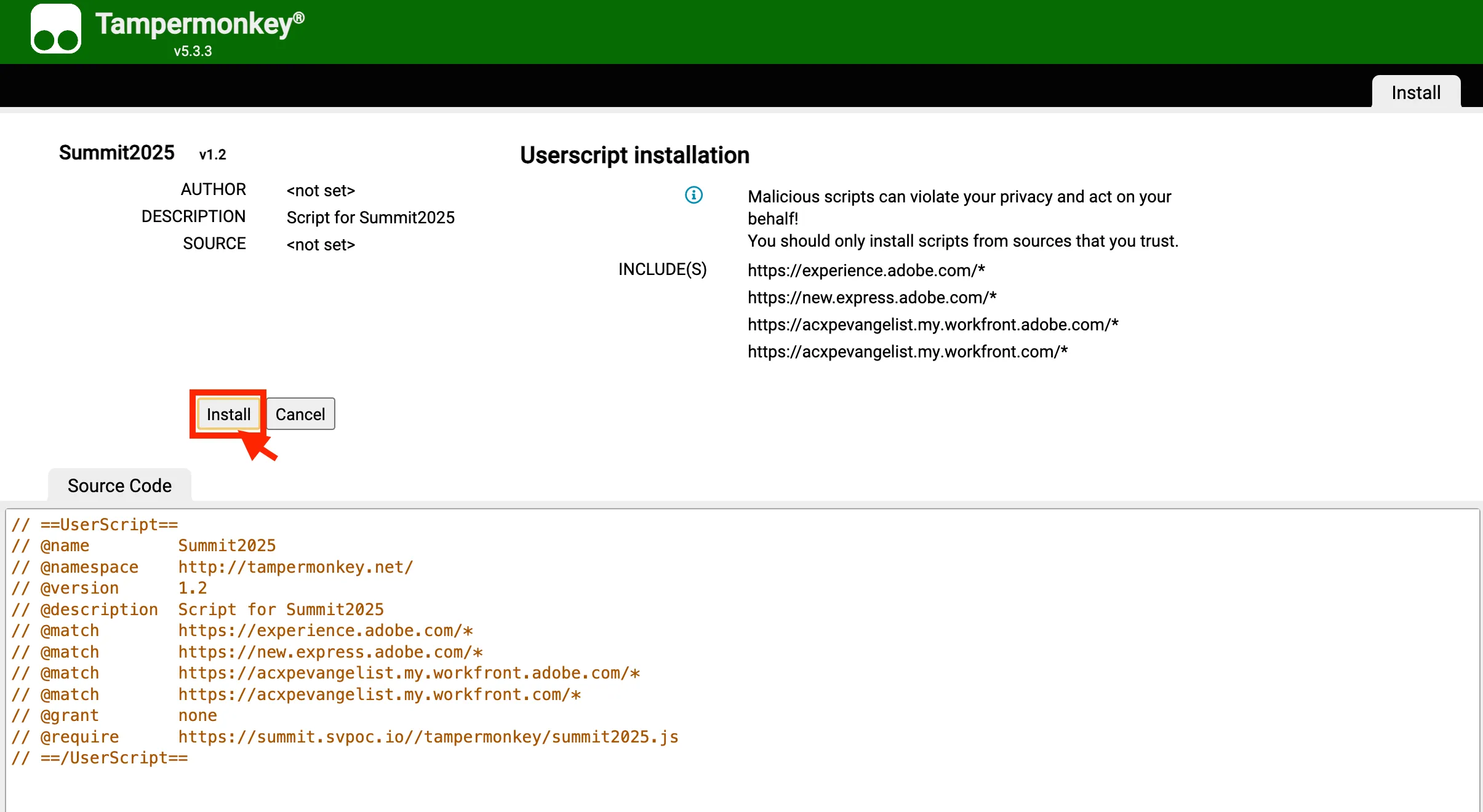
- Click Install again.
- Whenever a TamperMonkey script has been updated, make sure to re-install the latest version of TamperMonkey by repeating through step 4 ~ 7 above.
- If you need to disable the TamperMonkey script go to the extensions tool bar, click the TamperMonkey extension and turn off the Summit 2025 script.
- To run TamperMonkey in incognito mode you must grant permission explicitly.
Step 2: Adobe Environment Log-in
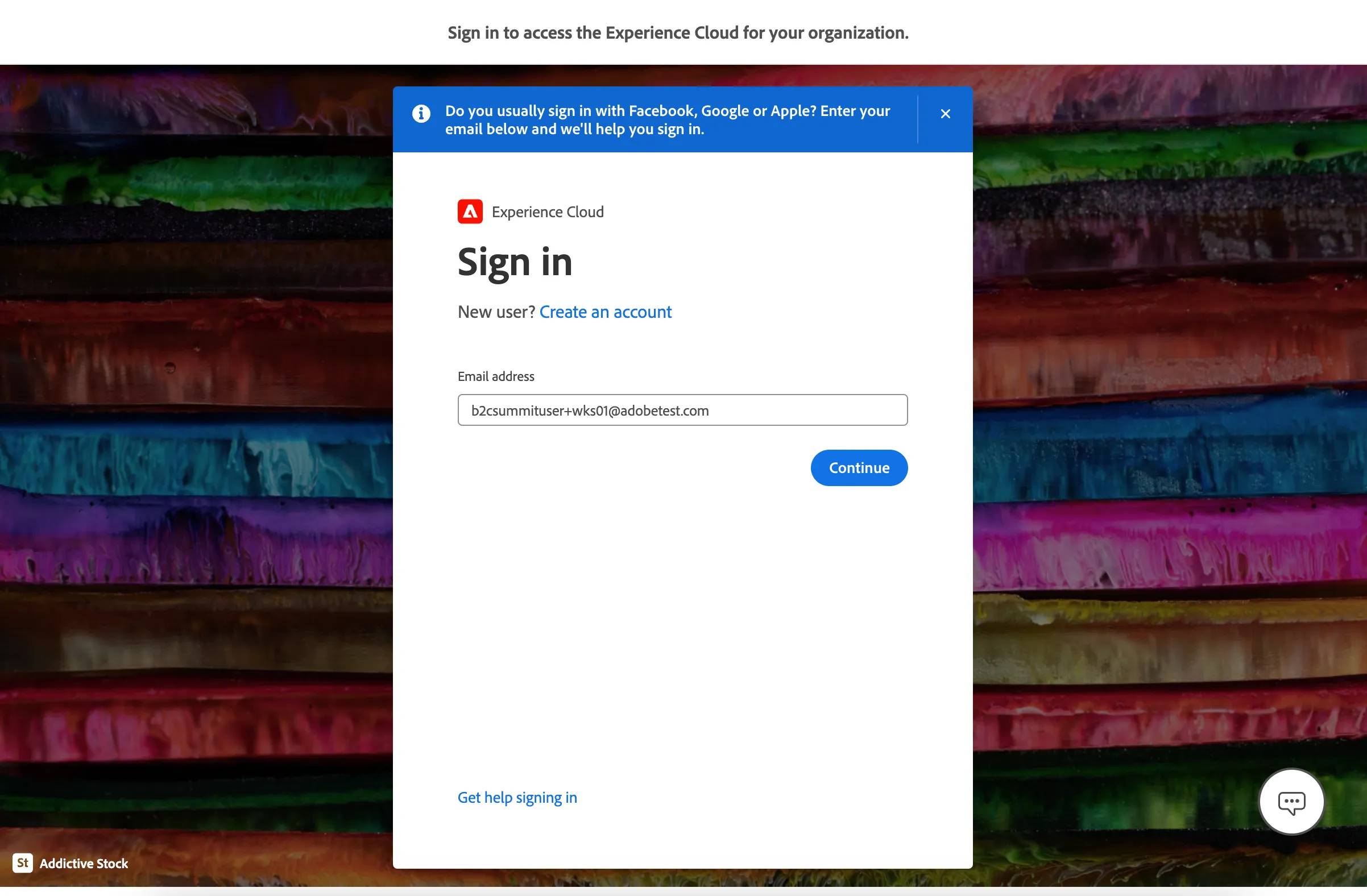
Use the assigned user ID and password (see table below) to log into the Adobe platform.
Work station # | User ID | Password (same password for all IDs) |
|---|---|---|
1 | b2cSummit!2025 | |
2 | b2cSummit!2025 | |
3 | b2cSummit!2025 | |
4 | b2cSummit!2025 | |
5 | b2cSummit!2025 | |
6 | b2cSummit!2025 | |
7 | b2cSummit!2025 | |
8 | b2cSummit!2025 | |
9 | b2cSummit!2025 | |
10 | b2cSummit!2025 | |
11 | b2cSummit!2025 | |
12 | b2cSummit!2025 | |
13 (extra) | b2cSummit!2025 | |
14 (extra) | b2cSummit!2025 | |
15 (extra) | b2cSummit!2025 |