Email Designer
5 min
This lab will walk through the steps to create an Email in Adobe Journey Optimizer.
NOTE: Some exercises may vary during the actual Hands on Lab versus what is listed in the Archbee Page, due to industry setup and / or Presenter preferences.
Create a New Message
- Within the Basic Journey, click on Email action node
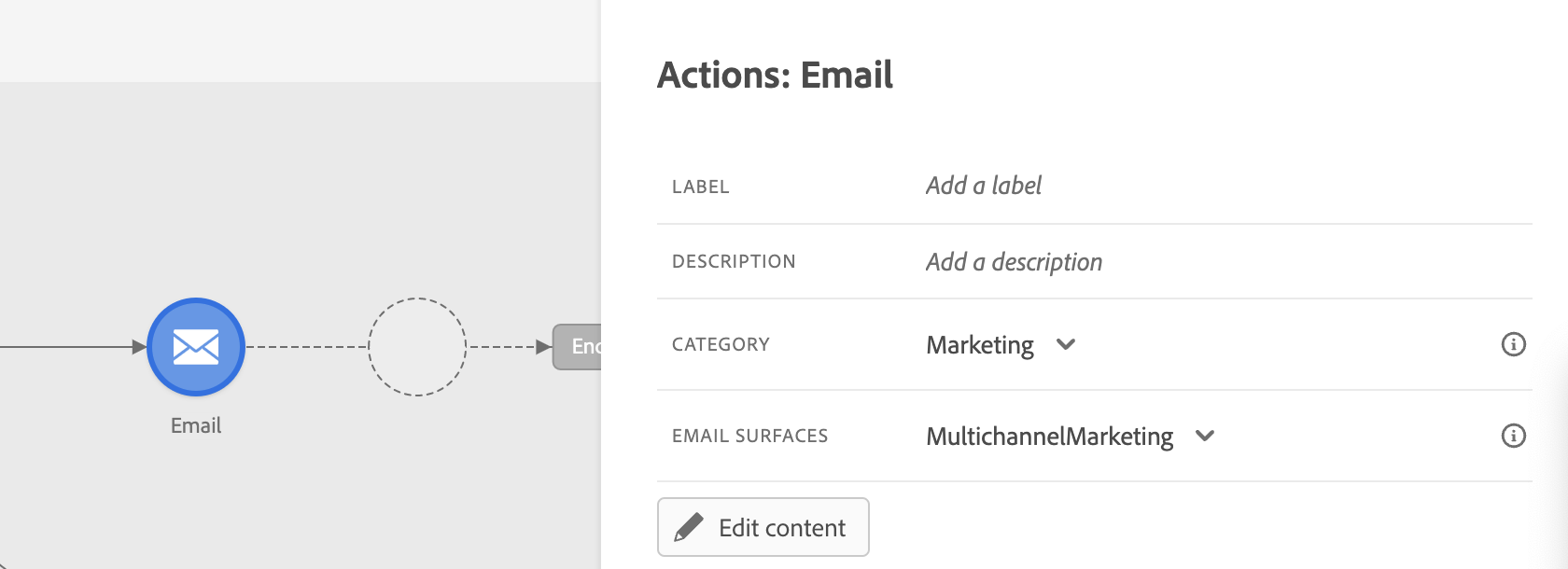
- Enter a Label and Description for the message.
- Choose Marketing for Category and MarketingEmail for Email Surfaces.
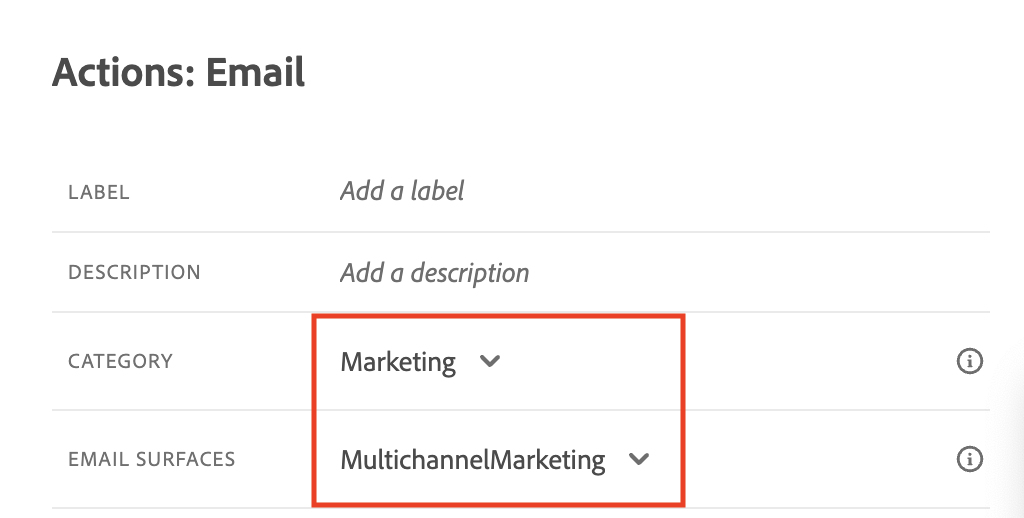
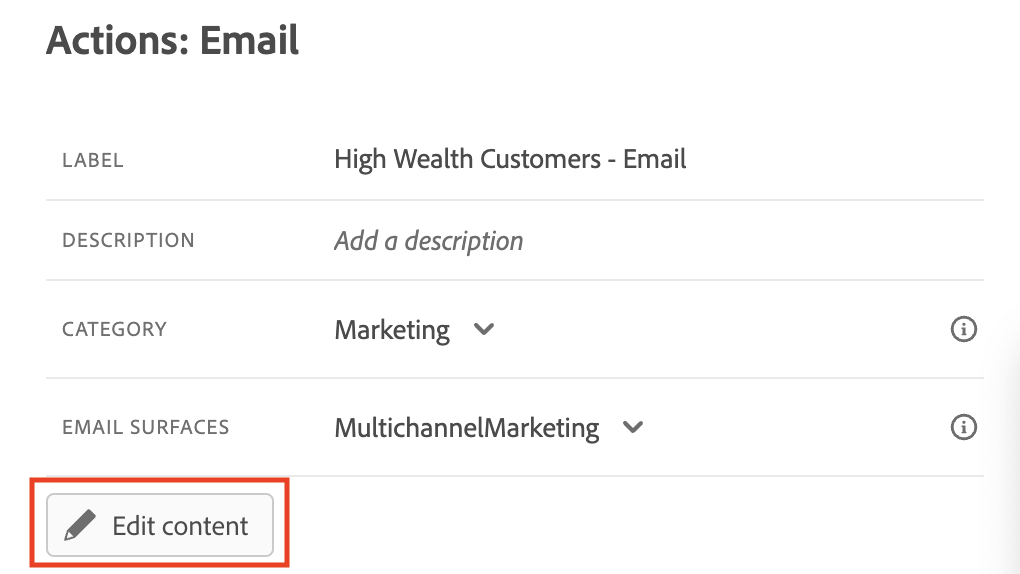
- Click on Edit Content
Define a Subject Line
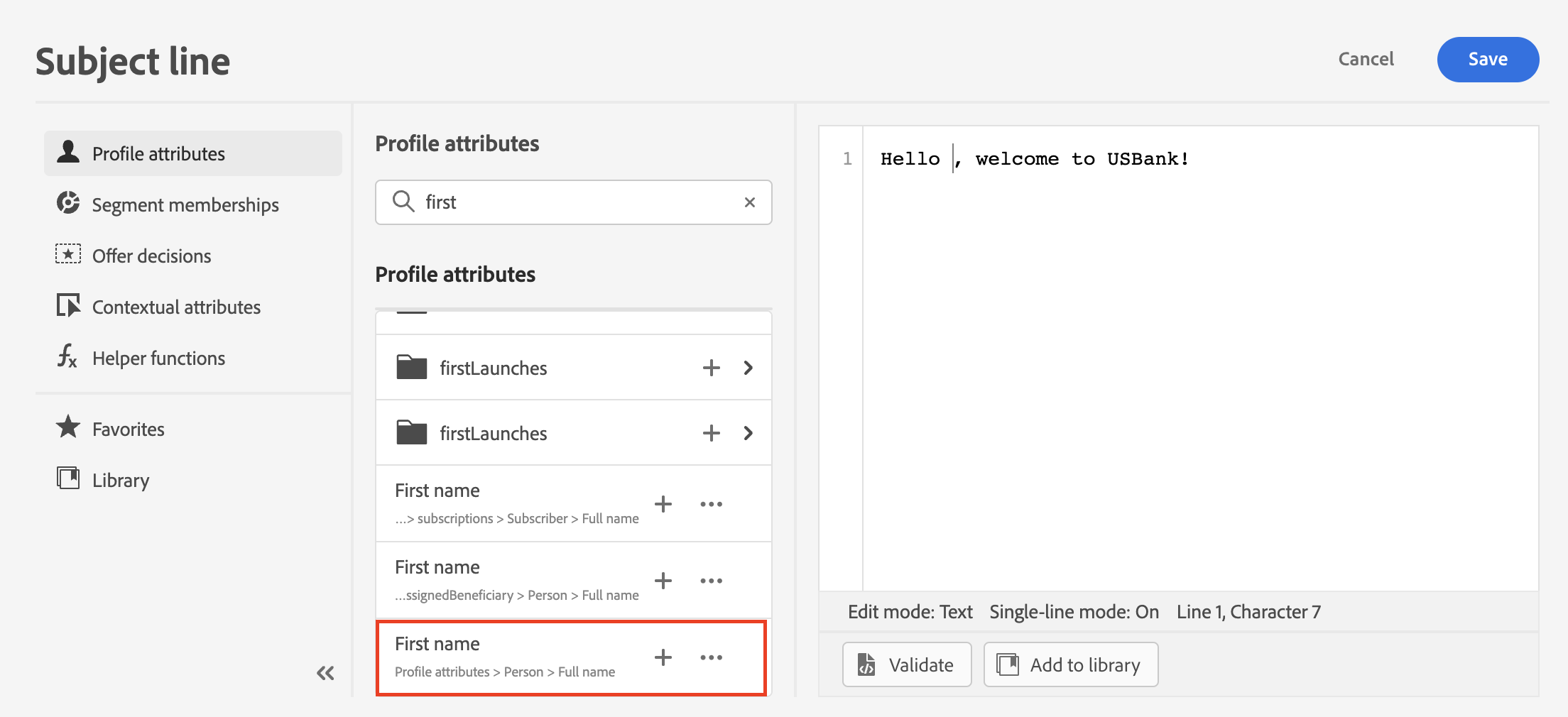
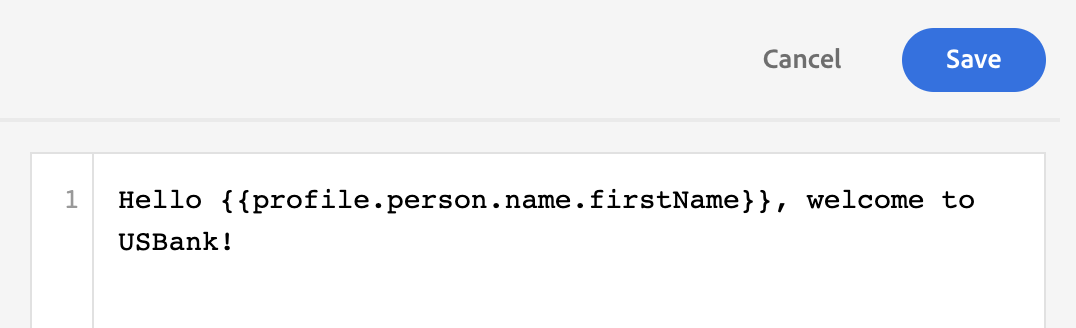
- Enter a Subject Line.
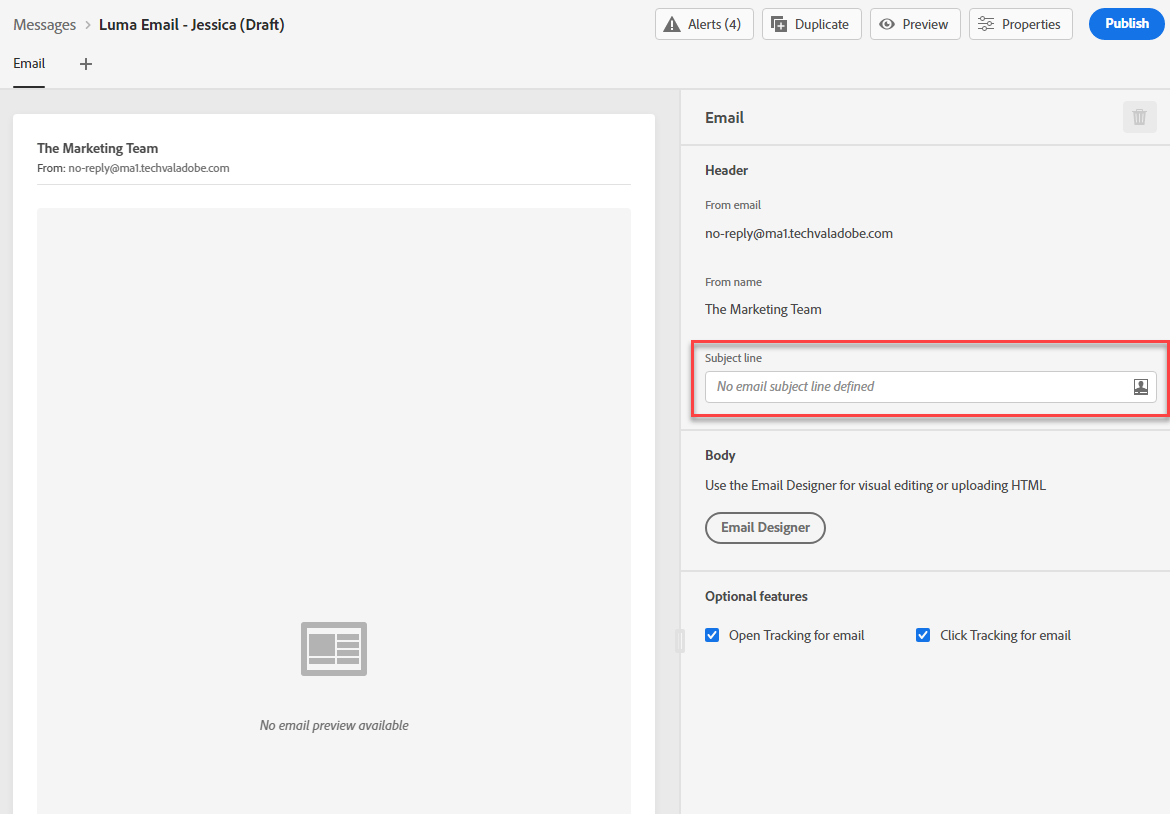
- Click on the Personalization icon to add personalized data available for customer record.

- To add personalization, place your cursor where you want the personation added. Search for first name by searching for "first" and clicking the plus sign. Click Save.
Design Email
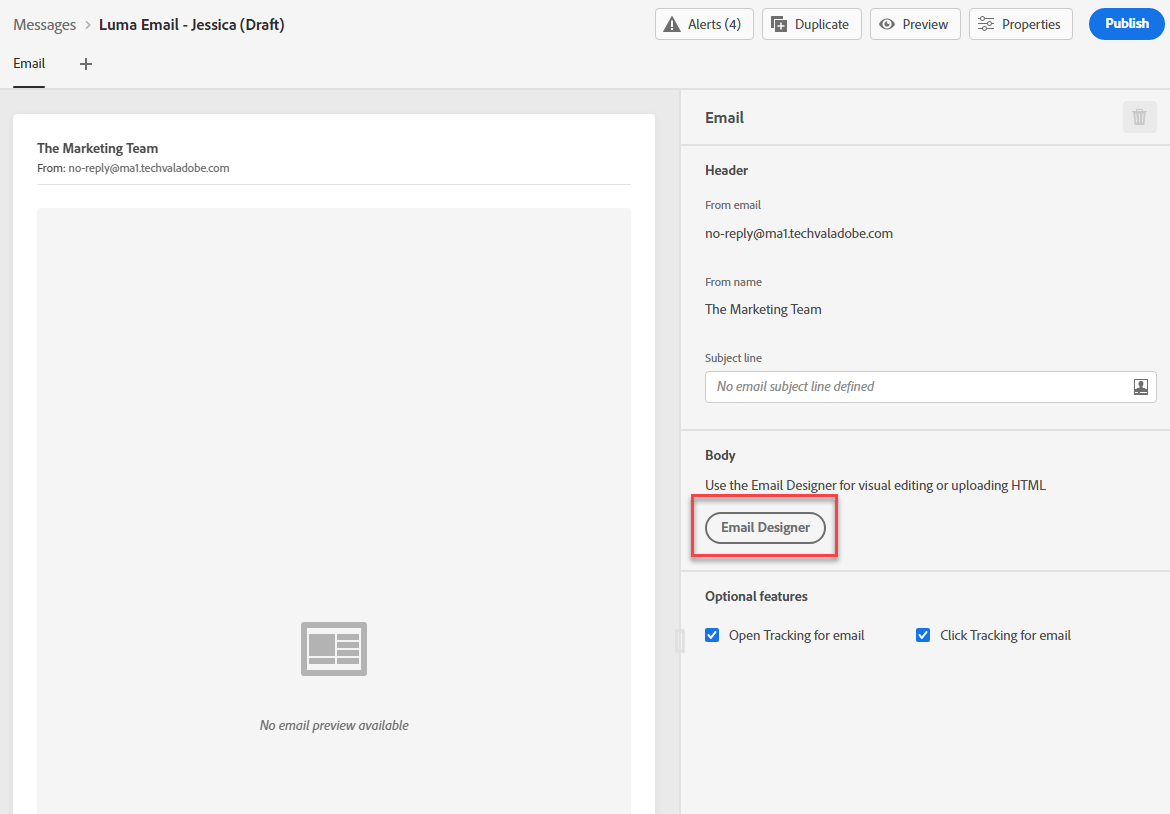
- Click Email Designer
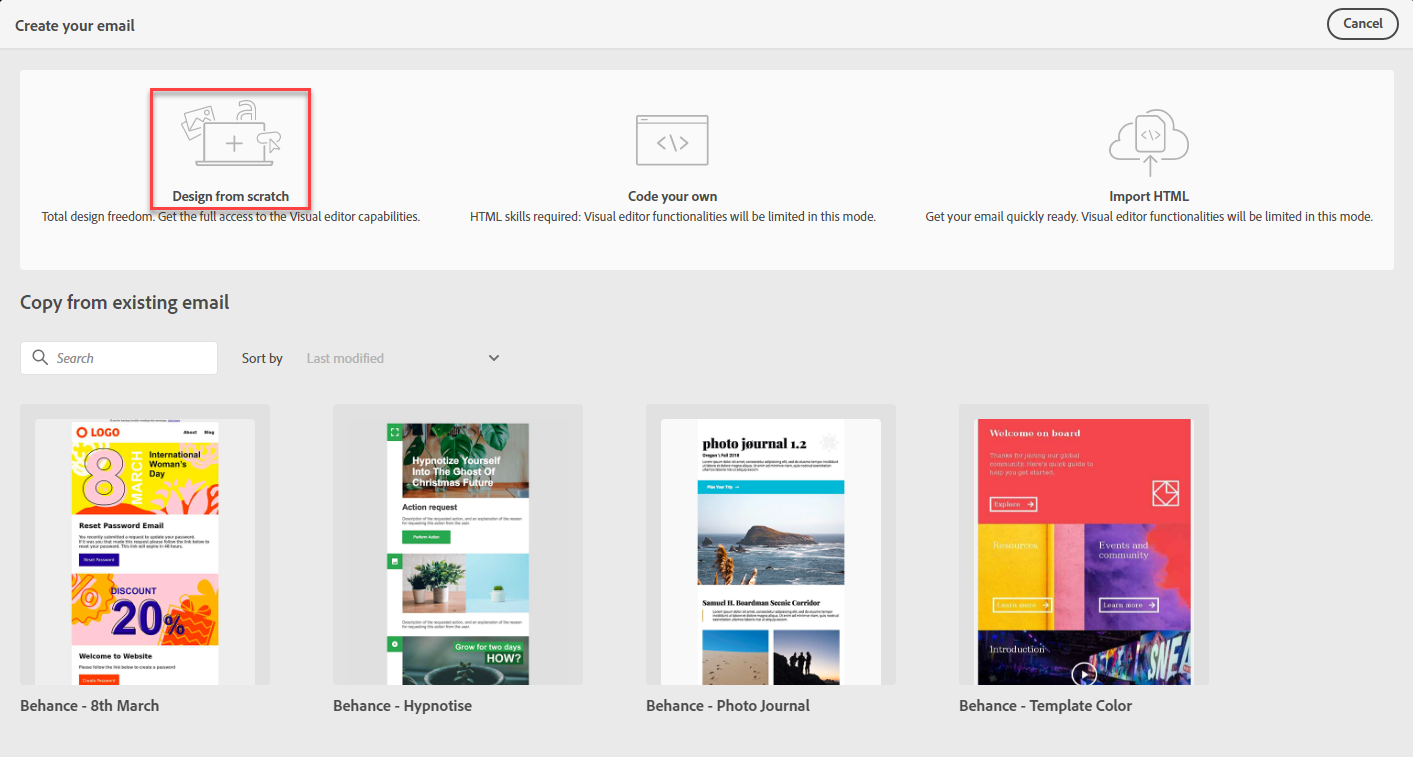
- Select “Saved Templates” and Chose Attrition (Churn Risk) Prevention:
- Drag an Offer Decision Block and drop it on each row of the grid.
- Click Add on the top block.
- Select Email-Image
- Search and select your Offer Decision. Click Add
- Do the same for Email-Text.
- Click Save.
- Go back to the journey canvas.