Push Designer
2 min
This lab will walk through the steps to create an Push Message in Adobe Journey Optimizer.
NOTE: Some exercises may vary during the actual Hands on Lab versus what is listed in the Archbee Page, due to industry setup and / or Presenter preferences.
Create a New Message
- Within the Basic Journey, click on push action node
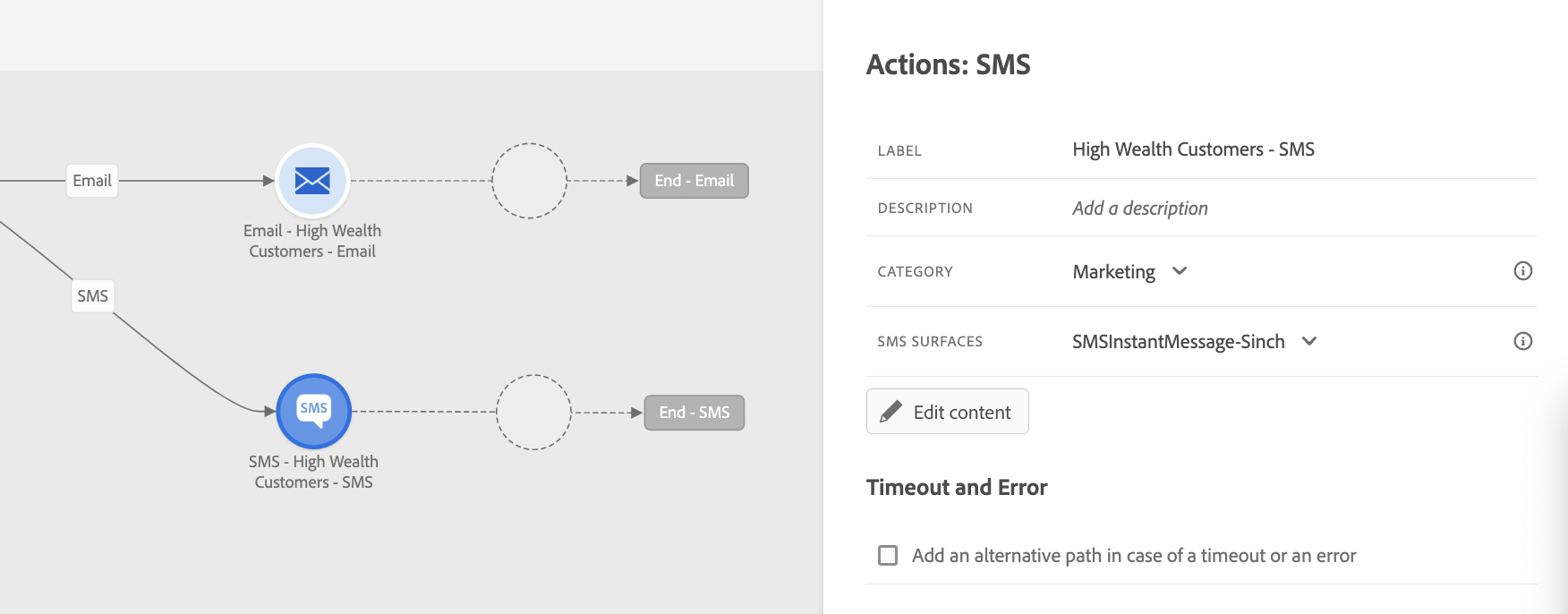
- Enter a Label and Description for the message.
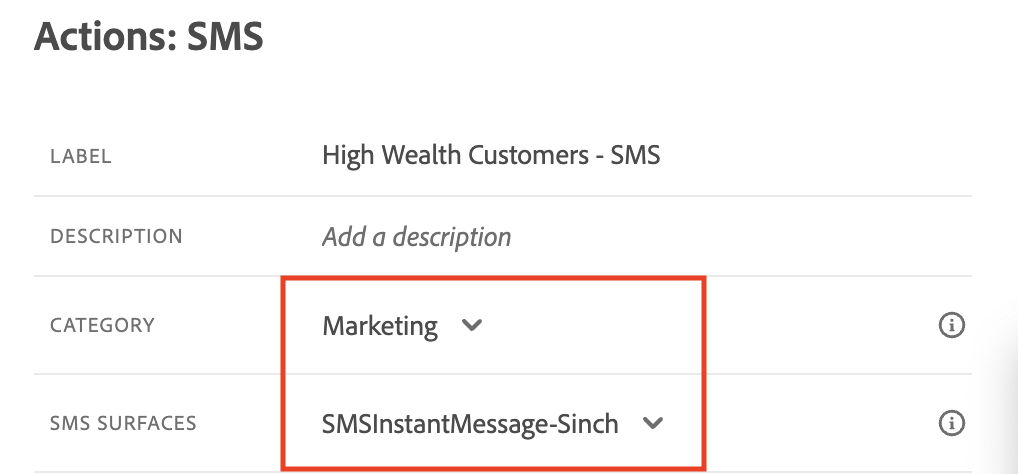
- Select Marketing for Category and push for push Surfaces
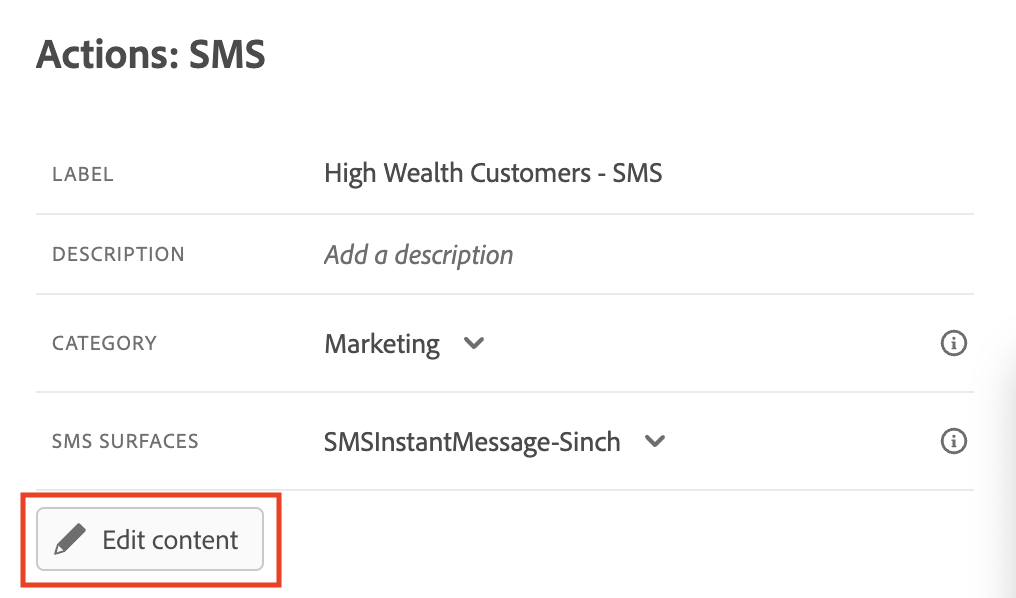
- Click on Edit Content
Define the Push Message
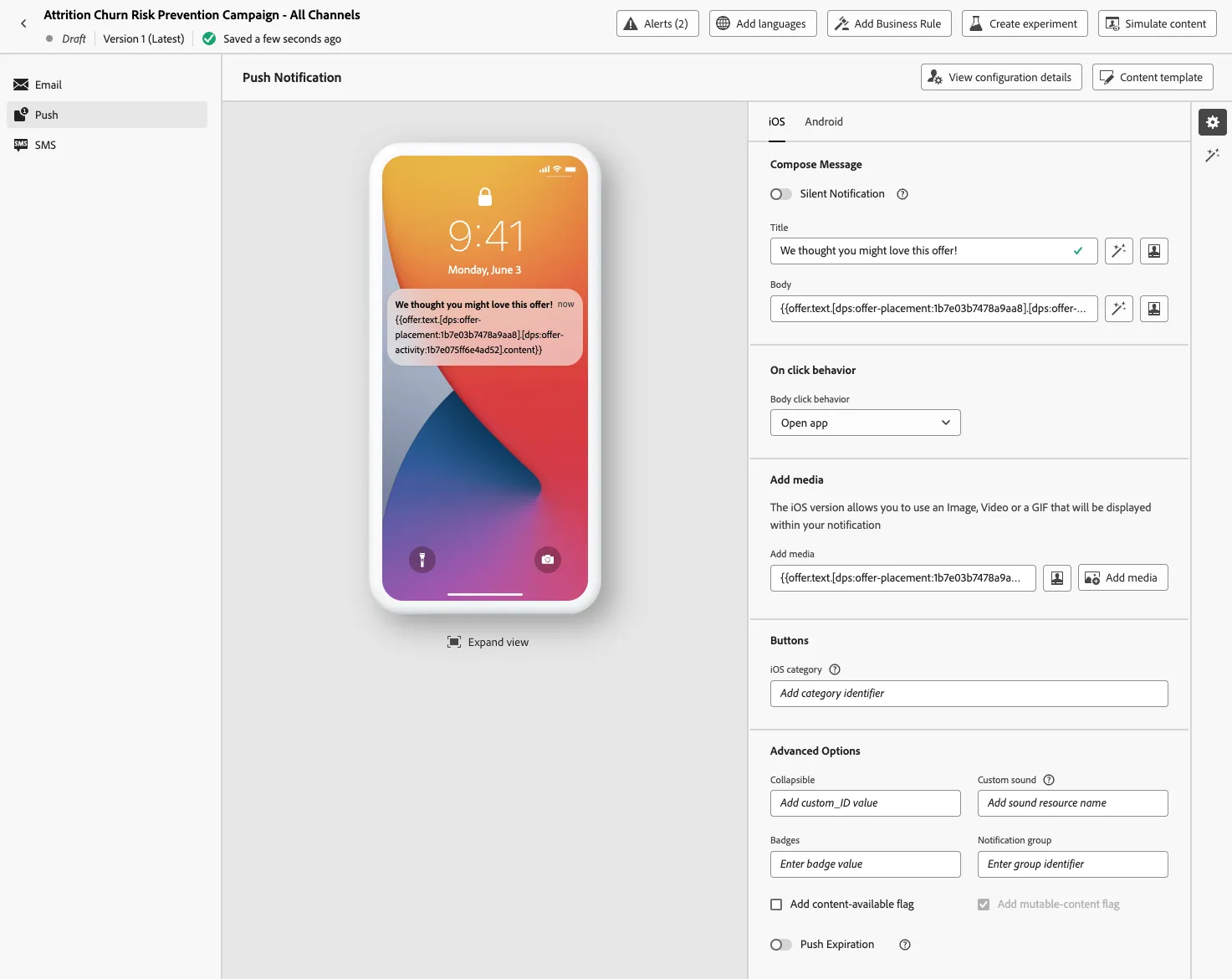
- Personalize the Title
- Add your Offer Decision to the body for Push-text
- Add your Offer Decision to the Media for Push-image
- Exit the designer after composing the message.