Configuring the events
est completion: 10 min
Event configuration is a technical step and is managed by the technical administrators at Admiral. If you feel like this is not required for your role, feel free to skip this section and leverage the pre-built events that we have prepared for you.
To open Adobe Journey Optimizer, go to Adobe Experience Platform then click on nine dots on the top bar on the right, and select Adobe Journey optimizer.
Event overview
To get an overview of all events in Adobe Journey Optimizer:
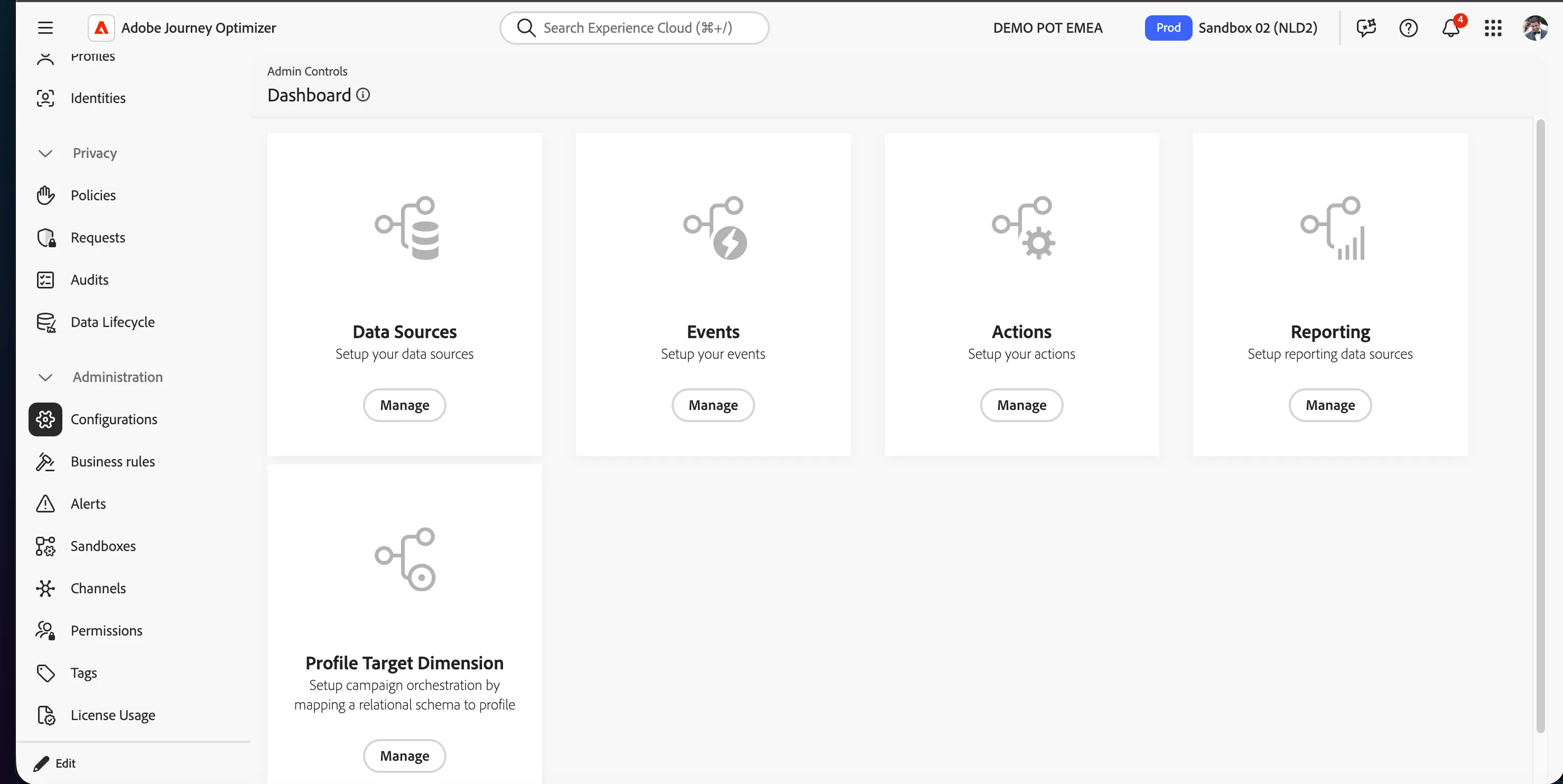
In the menu on the left side, under Administration, click on Configurations. You will see a set of tiles. Click on Manage in the Events tile to get an overview with all existing events.
Configuring an event
We'll be configuring an event that we can use in our journey. The event should trigger whenever a customer starts a quote, regardless of the insurance product.
To configure a new event, click Create Event. A menu will open on the right side.
- Set the name to yourname_vehicleQuote_start.
- Keep Type as Unitary and Event id Type as Rule based.
- For schema, click on Select a schema and choose Demo System - Event Schema for Website (Global v1.1) v.1 in the dropdown.
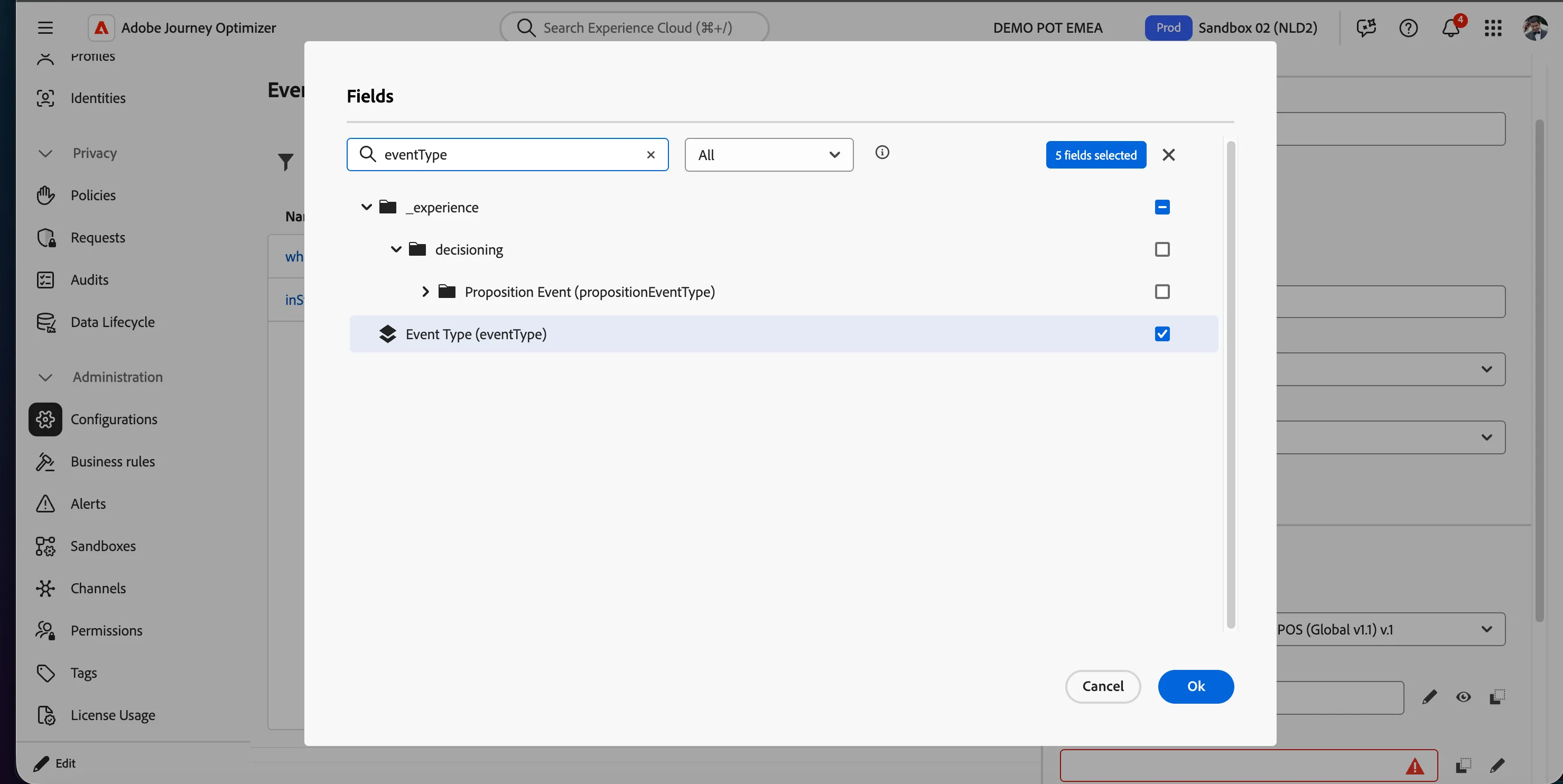
- For fields, click on 4 fields selected, a pop-up window will open. In this window we can select the data fields we want to have available for the event.
- Scroll down or (use the search field) to find Event Type (eventType) and check the checkbox.
- Clear the search field to show full list if you used in previous step.
- Scroll down (or use the search field) to find onlineQuotes (onlineQuotes) and check the checkbox. This will bring all the Admiral quote-specific fields from your data model.
- Clear the search field to show full list if you used in previous step.
- Scroll up to the folder _demopotemea > identification > core and check the following field: ecid (ecid)
- Click Ok. The window will close and you should now see 34 fields selected.
- For the event ID condition, click on -icon. Another pop-up window will open.
- Drag the Event Type (eventType) from the left menu onto the right side.
- You'll be prompted to choose a value. Look for quoteInsurance.start. Check this value.
- Scroll back up and click Ok.
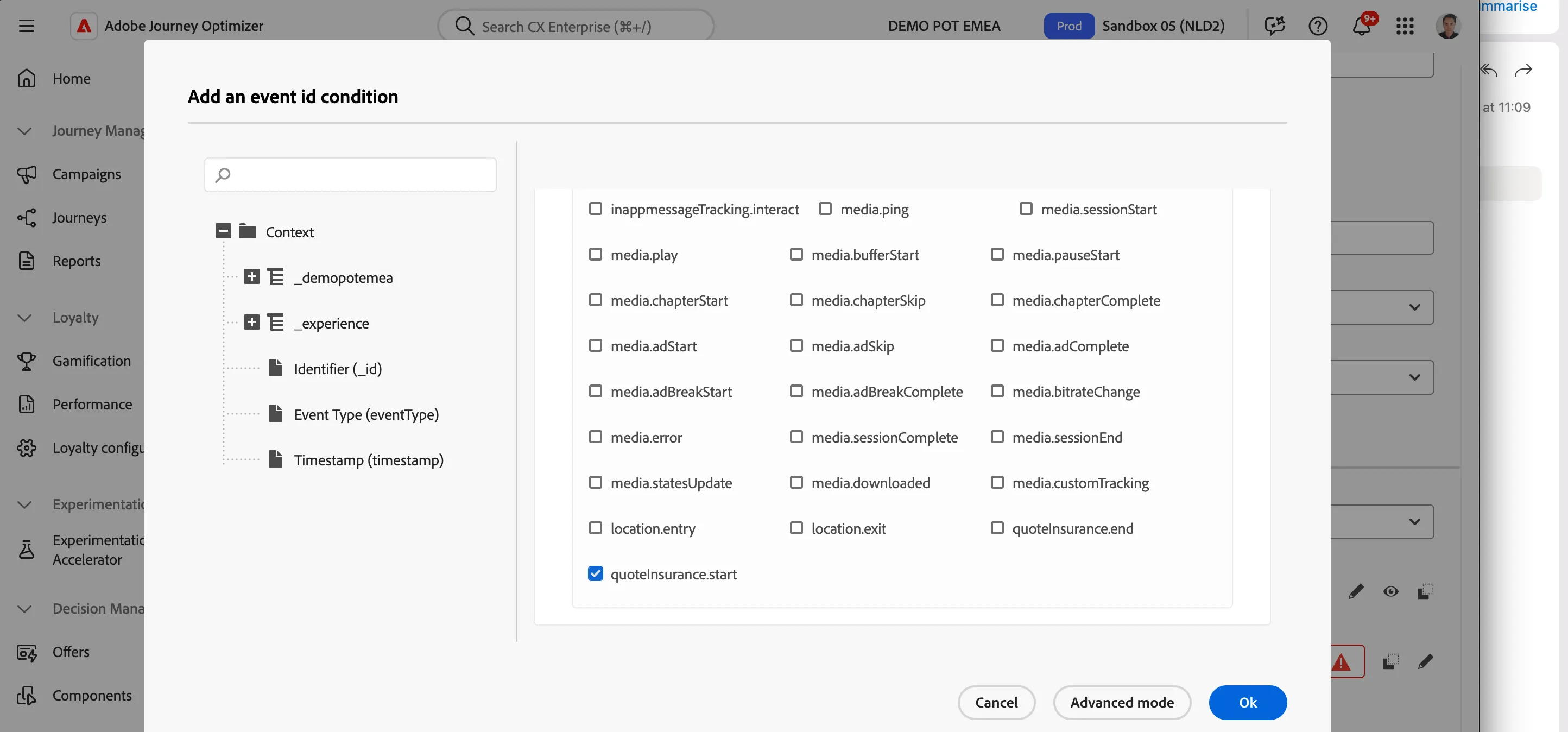
- The rule should now say Event Type (eventType) is equal to quoteInsurance.start.
- On the left-hand side expand Context > _demopotemea, then onlineQuotes and then common to find the product attribute. Drag and drop underneath the first condition until you find a blue dotted line. Automatically this is set as an AND condition which is what we need. Keep the condition to "equal to" and write carInsurance in the text field to indicate that the quote that started is a car insurance product. Click Ok to save and close the pop-up window.
- Check if the namespace is set to ECID (ECID).
- Check if the profile identifier is set to The ECID of core. If this is not set, select Context > _demopotemea > identification > core > ecid (ecid).
- Your screen should look like the image below. Click on Save at the top right corner.
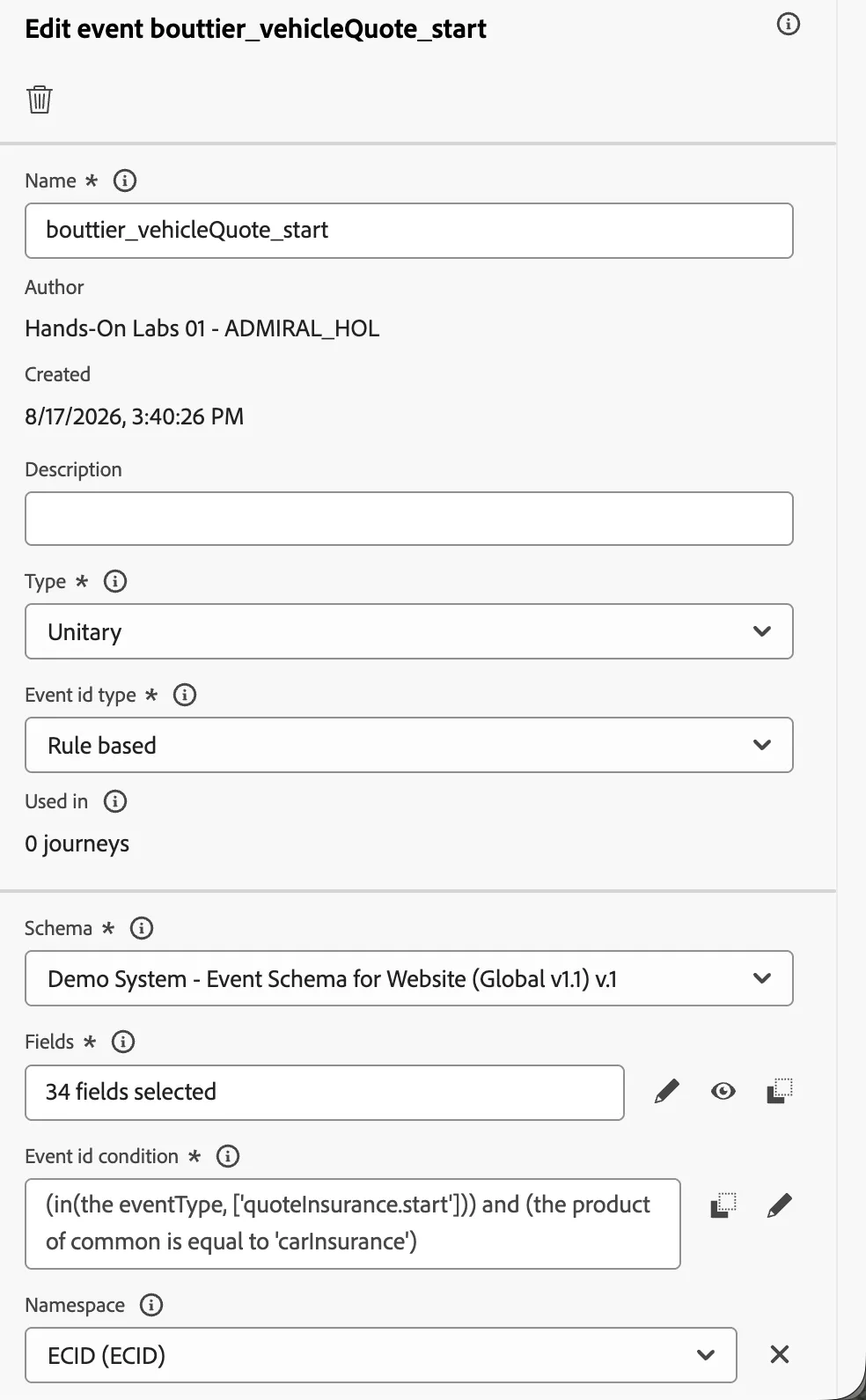
You have successfully created an event for when a car quote insurance is started by a prospect.
Duplicating an event
Let's now create a similar event to listen for the quote completion event. This will be used to test that we haven't received this event.
Stay on the Event screen and locate the event your have just created.
- Click on the 3 dots icon next to the event name, and click on Duplicate.
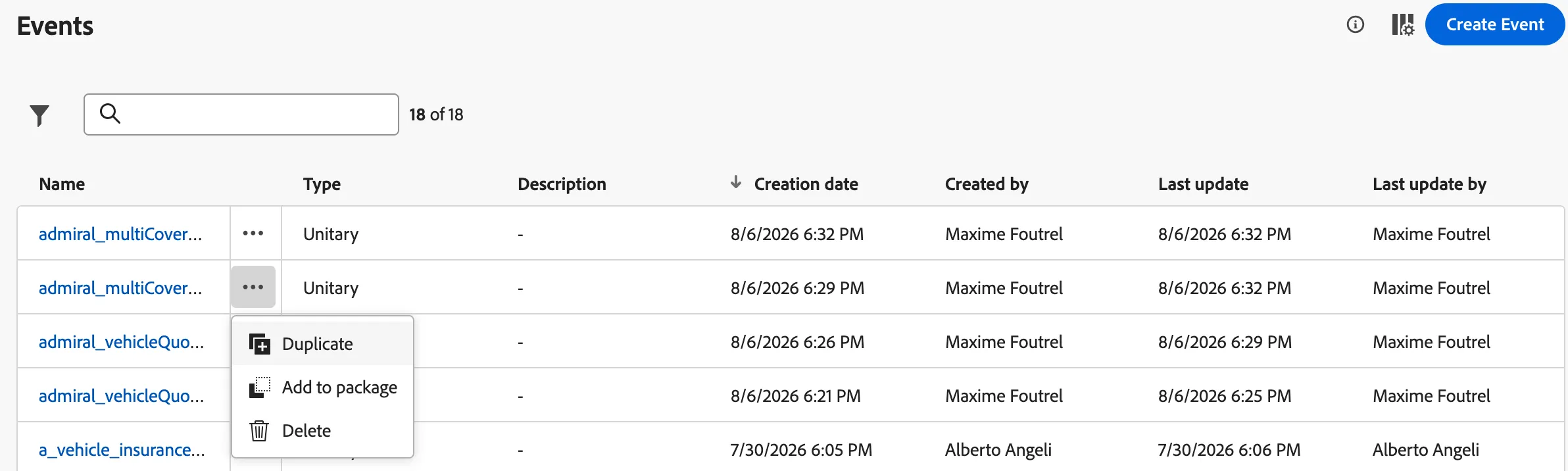
- Find the duplicated event (it has "copy" at the end) and click on it. Change the end of the label by replacing Start by End so it becomesyourname_vehicleQuote_end
- Scroll then to update the Event id condition
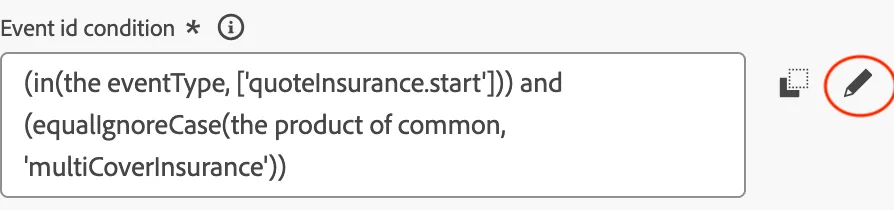
- In the condition change quoteInsurance.start by quoteInsurance.end so it becomes:
(in(@event{bouttier_vehicleQuote_end.eventType}, ["quoteInsurance.end"])) and (@event{bouttier_vehicleQuote_end._demopotemea.onlineQuotes.common.product} == "carInsurance")- Scroll back up and click on the Save button.
You have successfully created the event required to perform the Use case 1 journey.