Creating the journey
est completion: 50 min
We'll be building a journey that cross-sells home insurance (via MultiCover) to customers who currently hold only a car insurance policy.
To open Adobe Journey Optimizer, go to Adobe Experience Platform then click on nine dots on the top bar on the right, and select Adobe Journey optimizer.
Configure the journey
To open Adobe Journey Optimizer, go to Adobe Experience Platform then click on the nine dots on the top bar on the right, and select Adobe Journey Optimizer.
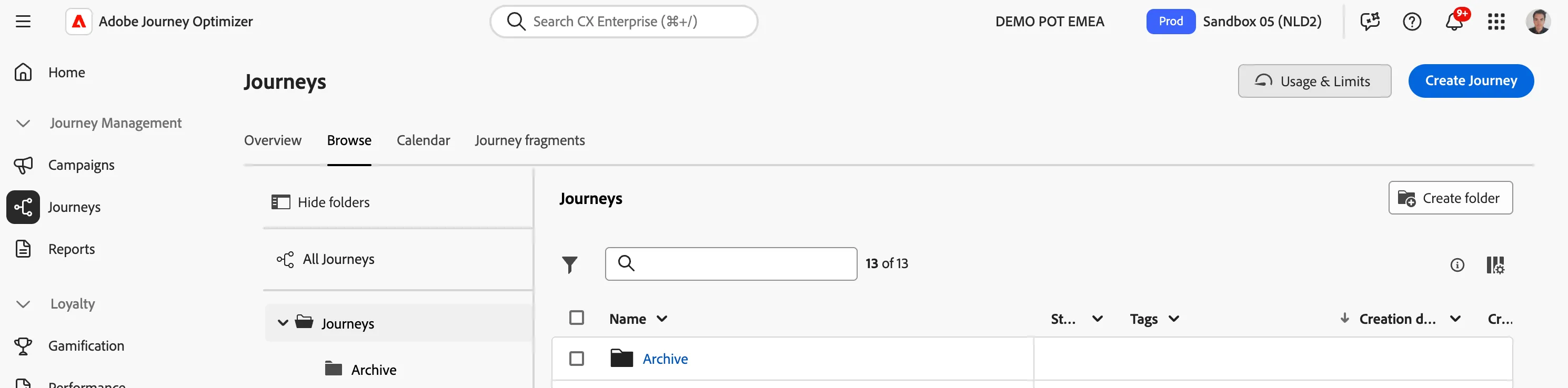
In the menu on the left side, under Journey Management, click on Journeys. Click Create Journey in the top-right corner.
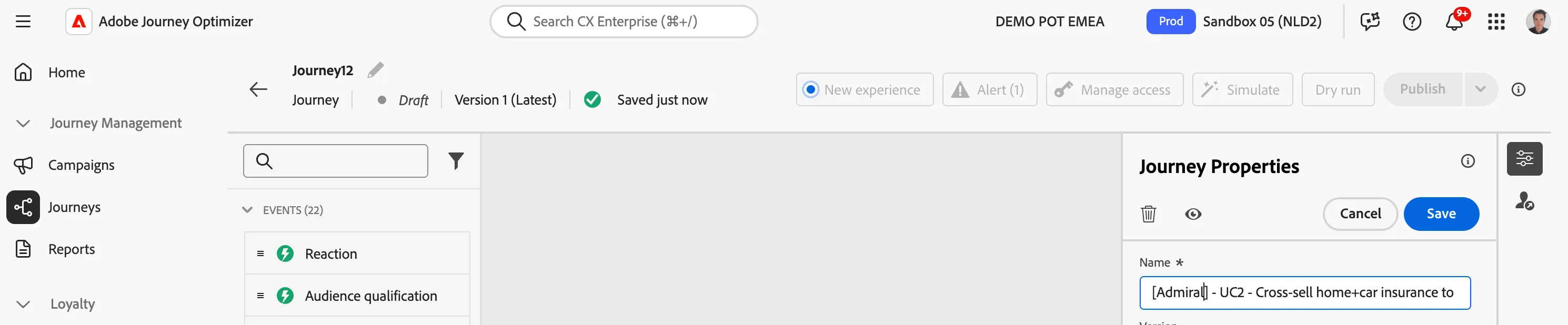
The journey properties panel will open on the right side.
- Set the Name to [your name] - UC2 - Cross-sell home+car insurance to car-only clients.
- For the other properties we'll keep the default values.
- Click OK to confirm.
If your journey has the "new experience" activated, switch back the the "Old experience" by a click on this button 
The first wave of actions
We'll now add the entry event that brings car-only clients into the journey.
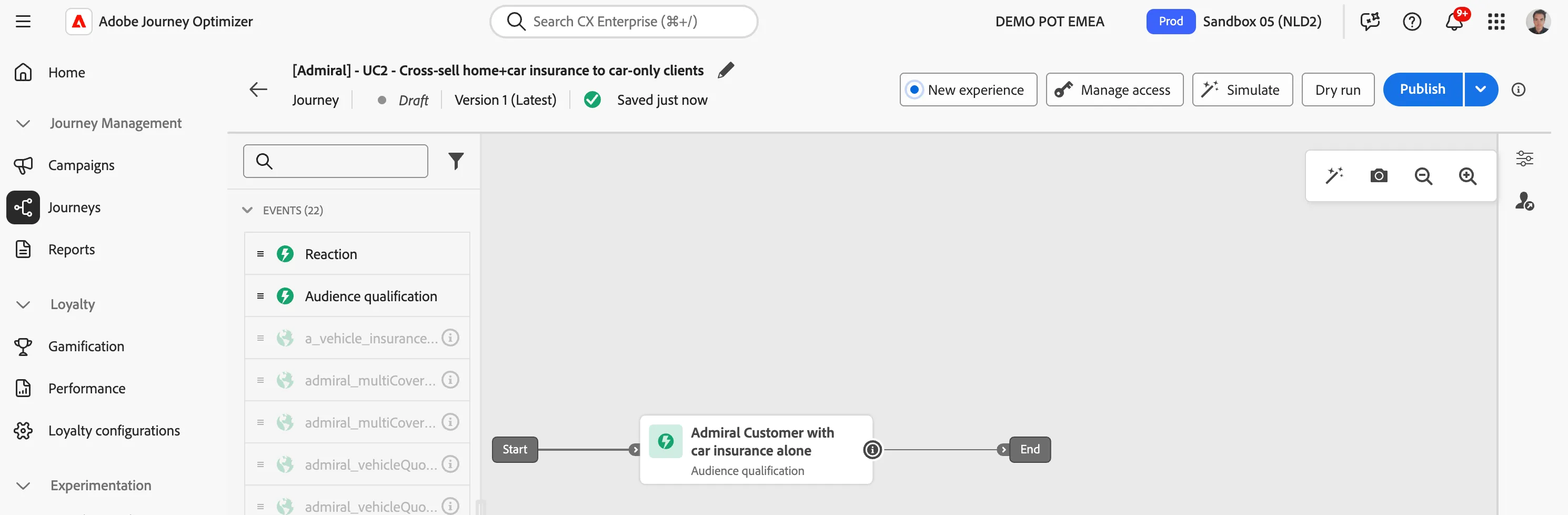
From the left palette, under Events, drag Audience Qualification onto the canvas as the entry point. A configuration menu will open.
- For Audience, select Admiral Customer with car insurance alone.
- For Namespace, choose ECID(ECID).
- Click Save.
- Drag an Action activity onto the canvas, connected after Audience Qualification.
- Select Code-based experience and click Add.
- Click on the Configure action button.
- In the Code-based experience channel configuration drow-down, select AdmiralMobileCBEConfiguration.
- Set the label to Insurance Mobile Offer.
- Click the Edit content button.
- Click the Content template button, then Apply content template to select a pre-configured content.
- Select the Admiral - Code-based experience for Mobile and click Confirm.
- Click the Edit code button. You should see this content that is a JSON fragment of code to share toward the mobile app so it can personalise the hero image.
The Decision Policy contains the configuration to include the offer for the Multi Cover. It has been pre-included within the content template that you have just used.
The following steps are required to update the instance of this decision policy, so Journey Optimizer knows for reporting purposes that it is used within your own journey, not the journey of the other users.
- Create a new line by pressing the enter key at the end of this code.
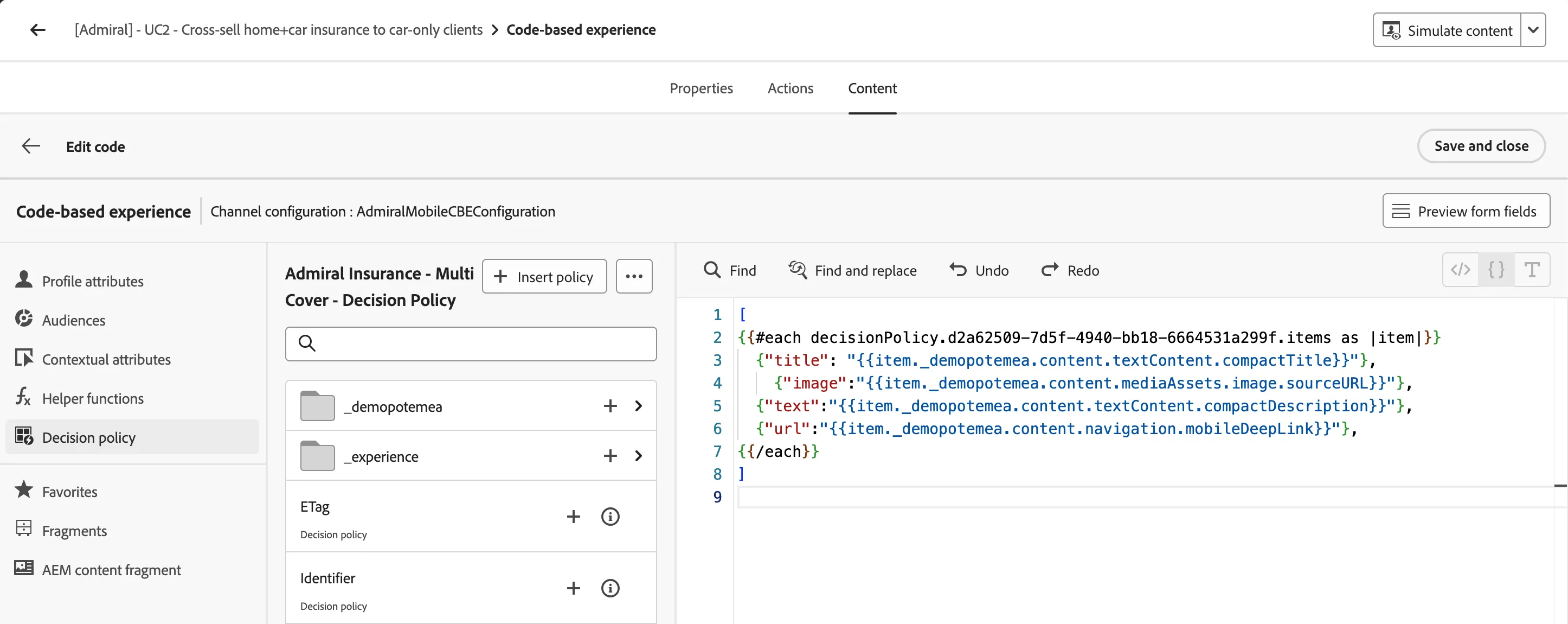
- On the left-hand side menu click on Decision policy and click on the +Insert policy button.
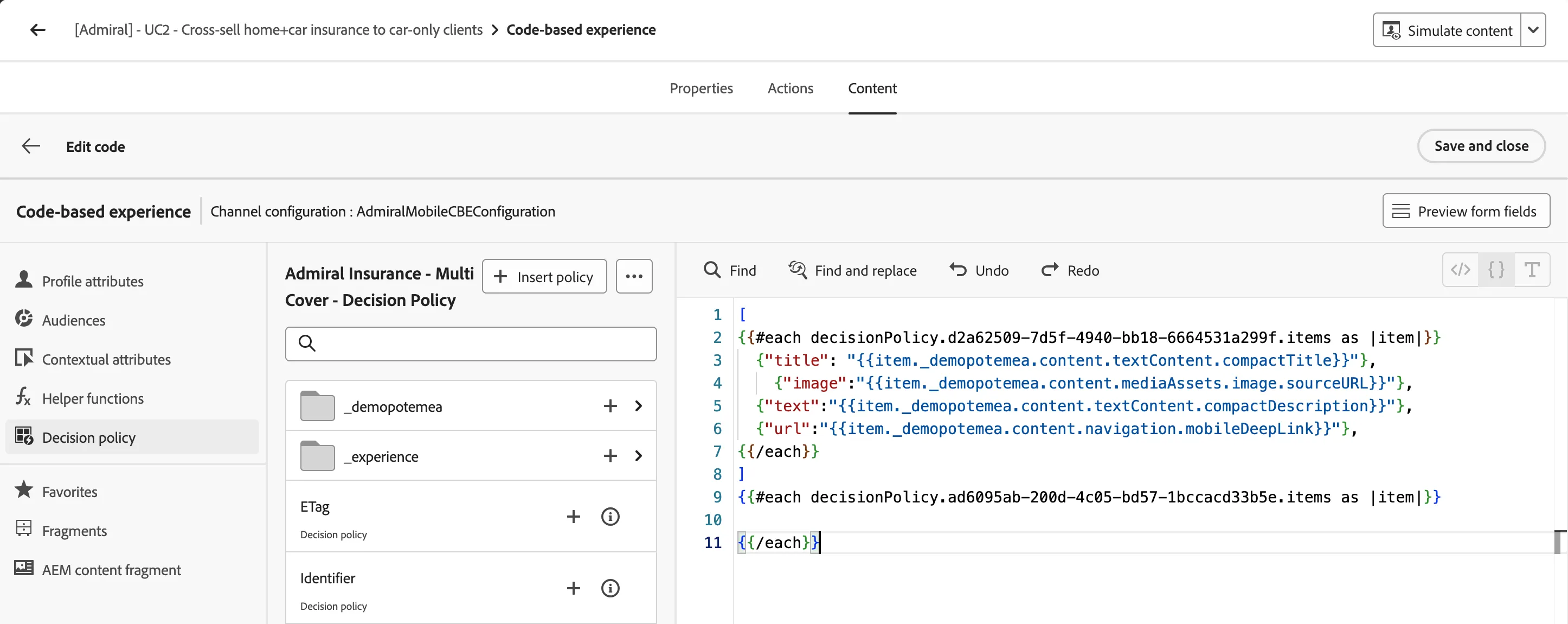
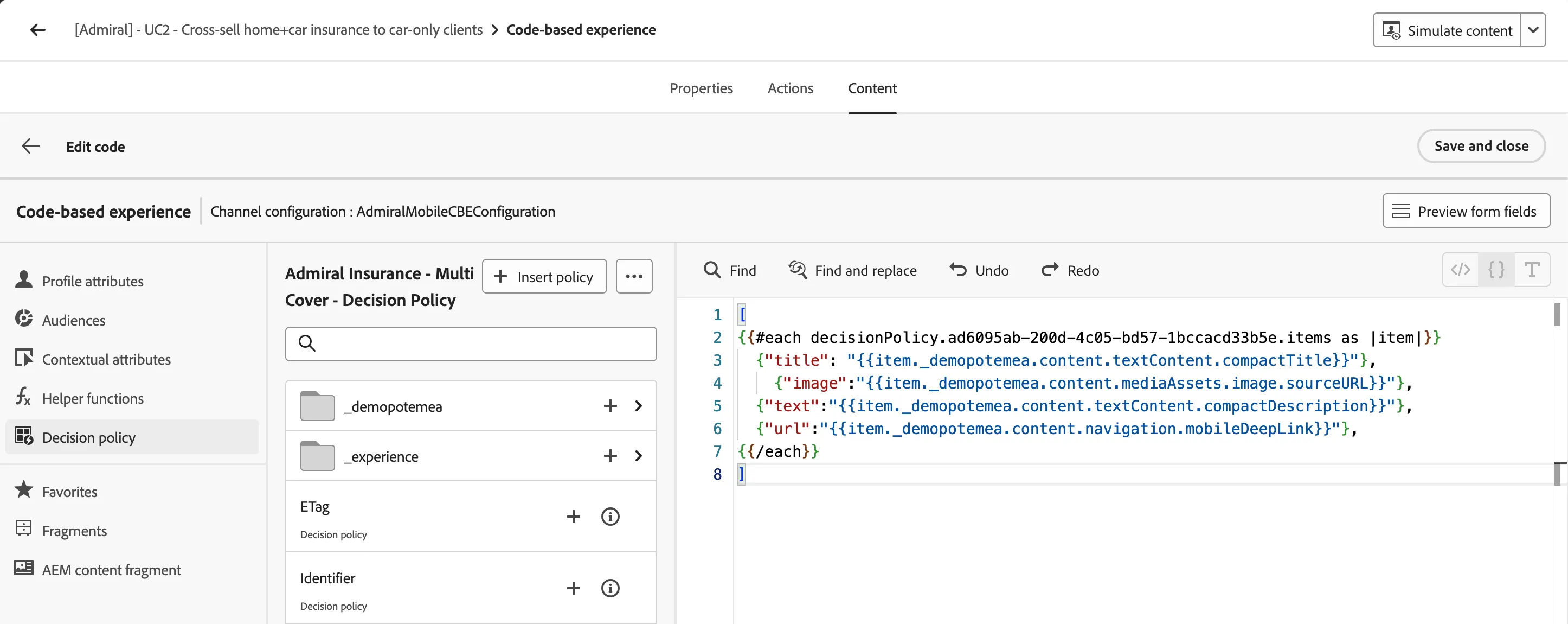
- Replace line 2 with line 9 and remove the extra {{/each}} a the end of the script. It should look like below. Click on the Save and close button.
- Once completed, click on the
 in the top left corner. Click on the Save button. Your journey should look like this:
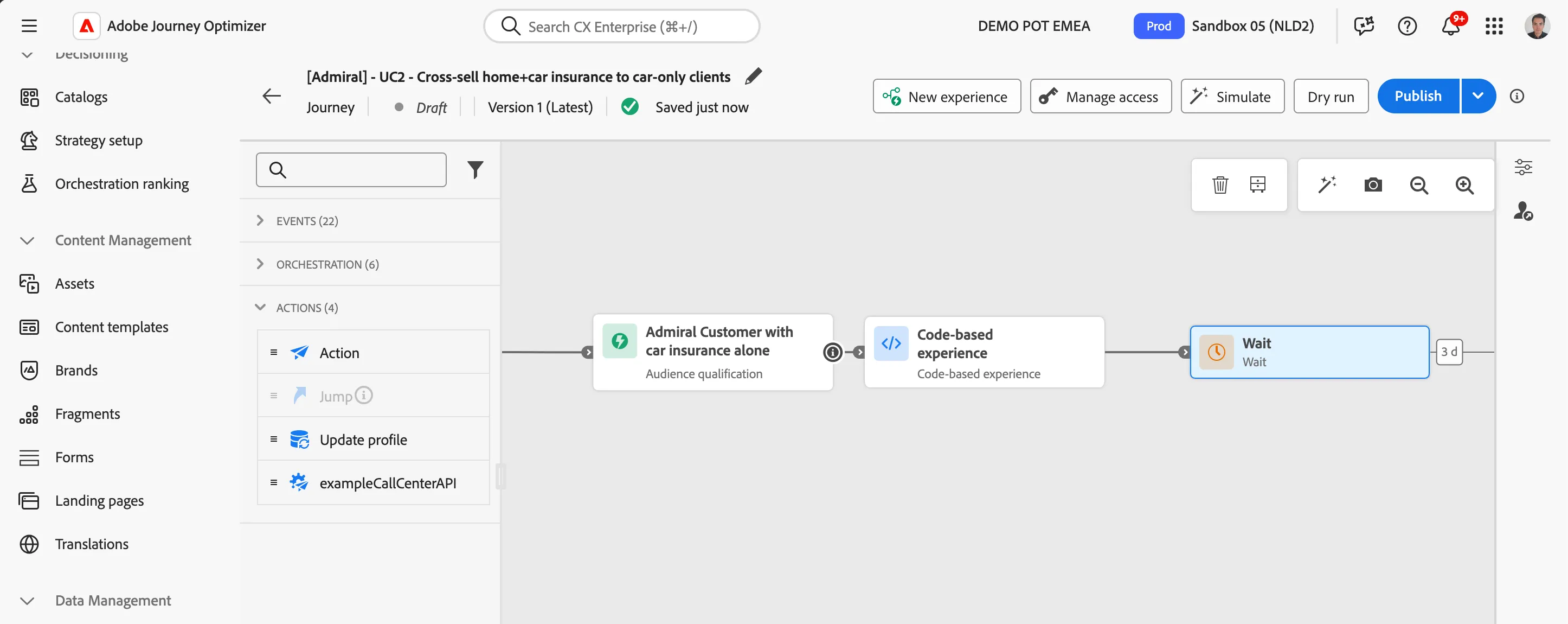
Remove the Wait activity that has been created automatically by selecting it and click on the  button, we will add one at the end of the finished journey.
From the Orchestration section, drag a Content decision activity onto the canvas, and connect it after Code-based experience
- Name it Admiral Offer decision
- Click on Add decision policy
- Name it Admiral Decision Policy and leave the number of items to 1
- Click on next to add the Strategy sequence
- Click on Add and Selection strategy
- Choose Admiral - insurance offer
- Configure now the fallback offer by selecting Admiral - default offer
- Click on next and create to finalize
- Click Save to close the content decision panel.
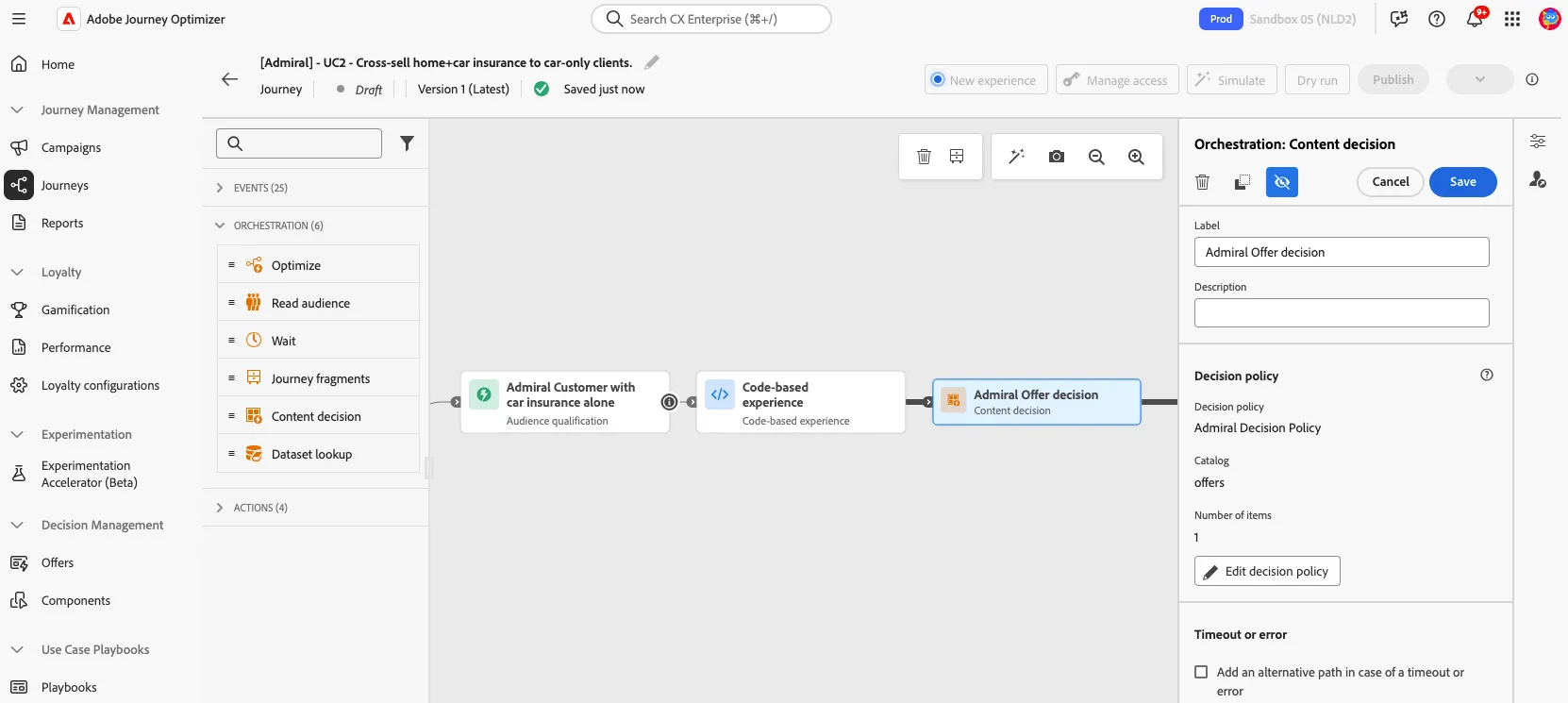
You will now select an action of type web to configure the personalization of the website regarding the visitor
- Set the label to Home page personalisation
- Click on configure action
- Choose the channel config-webHomePageFinal
- Click now on edit content to personalize the home page of the website
- Click on edit the webpage to start personalizing the home page. As a reminder this section requires either Google Chrome or Microsoft Azure web browser.
- We will start by changing the text of the first banner
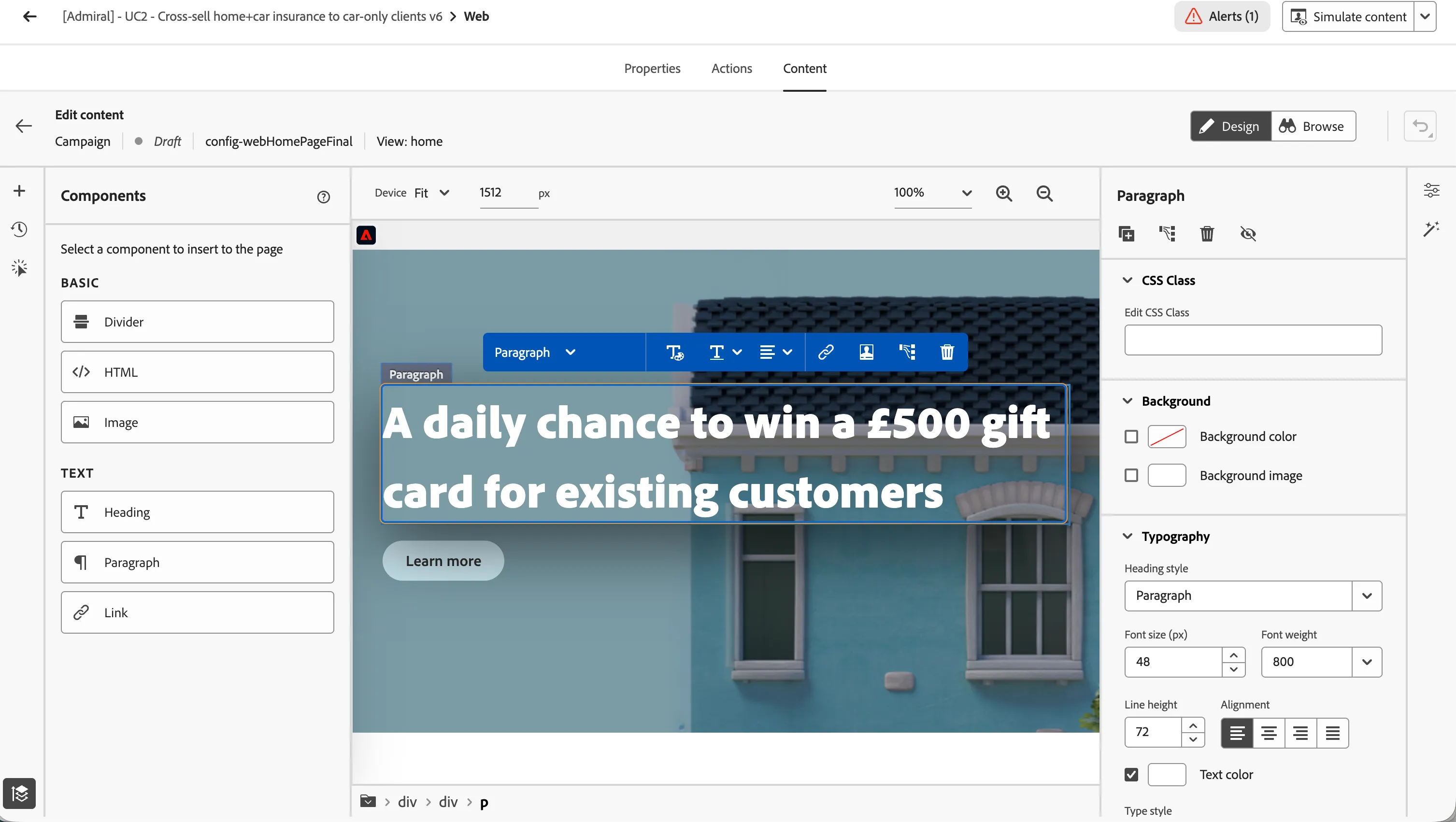
- Replace it by "Peace of mind: Group your insurance with Multi Cover by Admiral"
- Click now on the image then on the source section (right side), click on the icon
- Click on the Asset Selector icon

- Search for annie-hat-over
- Click on the Learn more button, and paste the following link : https://dsn.adobe.com/web/homepage/multi-cover-insurance
- Click on the icon in the top left corner. You should see this screen :
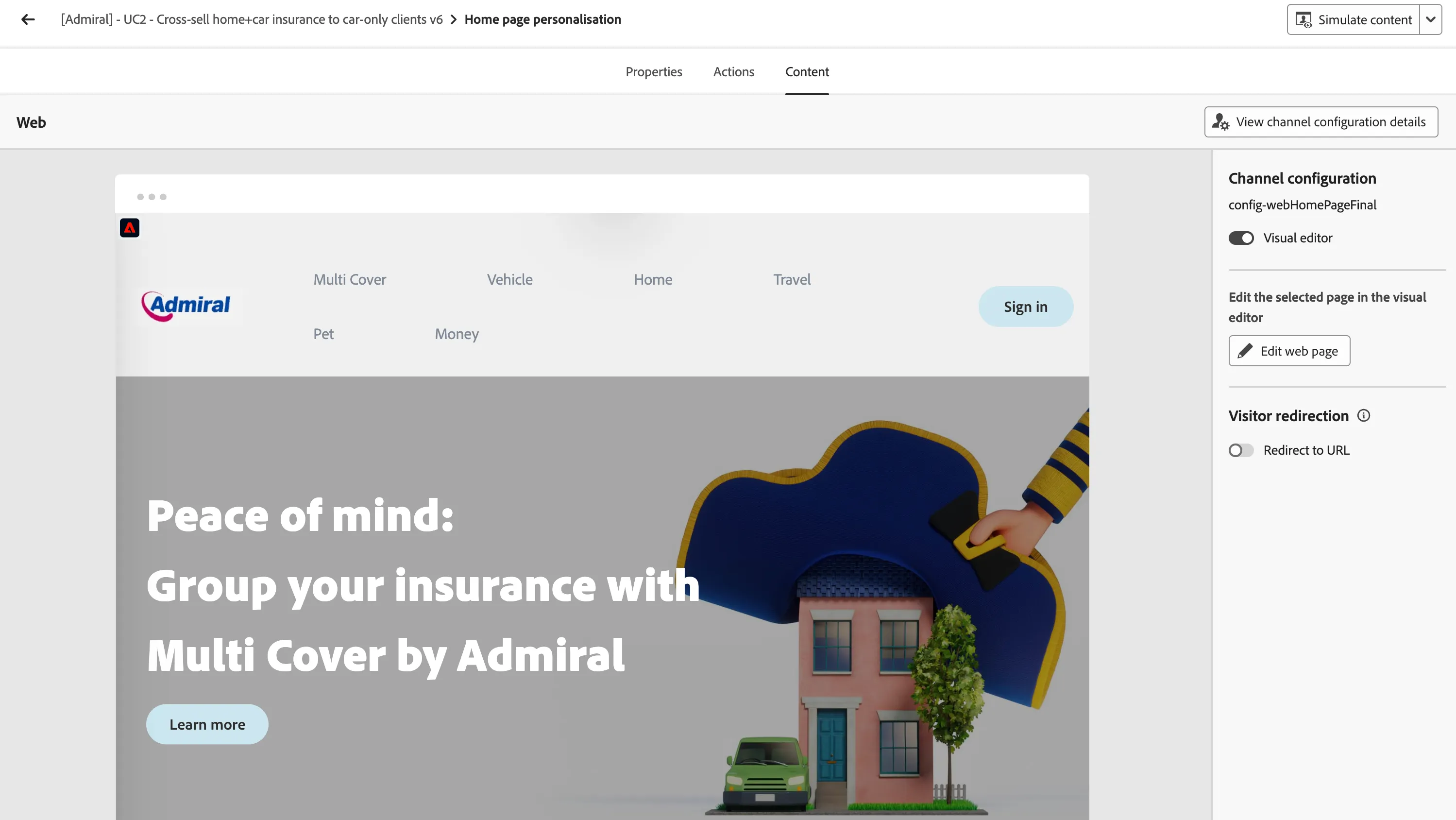
- Then click again on the icon in the top left corner.
- Before continuing, delete the wait activity at the end.
Your journey should look like this :
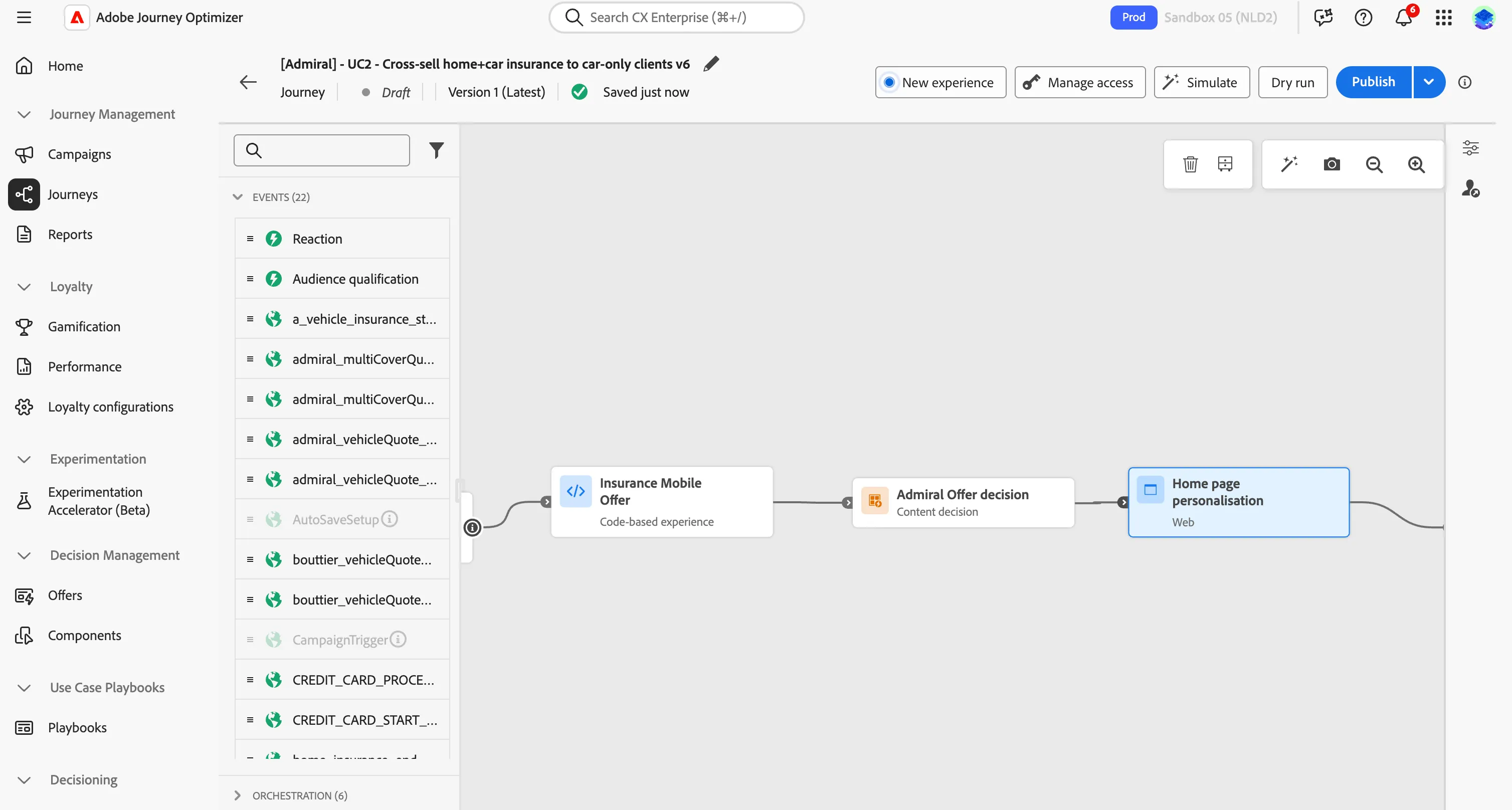
A first push notification will be sent containing an offer from the previous Content Decision activity.
- Drag and drop an action onto the canvas and set the type to Push.
- Set the Label to Offer for customer with home insurance only subscription and click Configure Action
- Set the Push notification channel configuration to pushMobile and click on Edit content.
- In the title section click on the
 icon.
icon.
- Go to the Decision Policy section and add a new one by clicking Add decision policy
- Name it Admiral Decision Policy and let the number of offer to 1. Click next to go to the Strategy sequence
- Add a Selection strategy and choose Admiral insurance offer
- Select the Admiral - Default offer as a fallback offer
- Click on next and create
- Click on
 and then search for title and add the Full Title result by clicking on the "+" icon
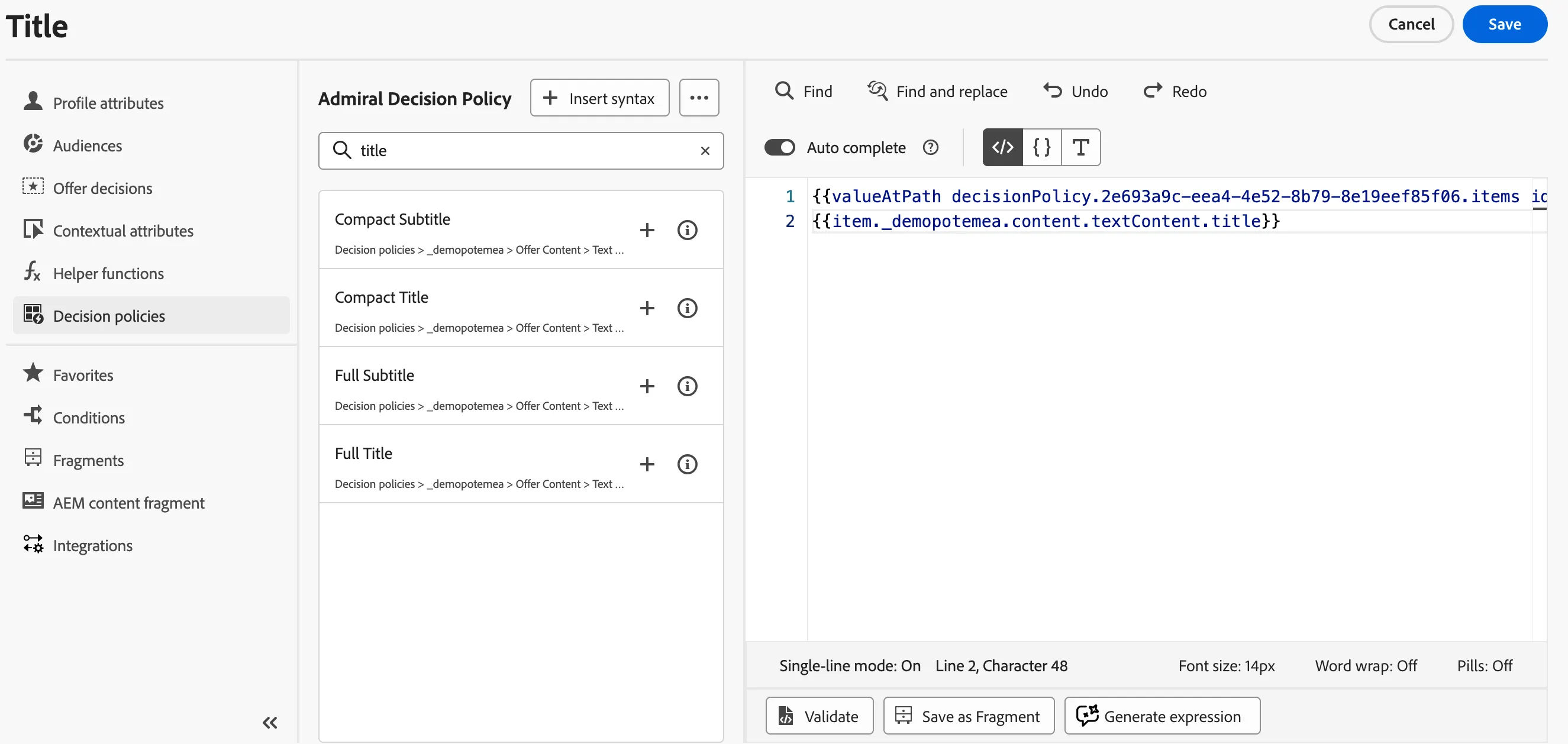
- Click Save
- Repeat the steps from point number 4 with the body field. For point number 10, search for description and select the Full description attribute instead of title.
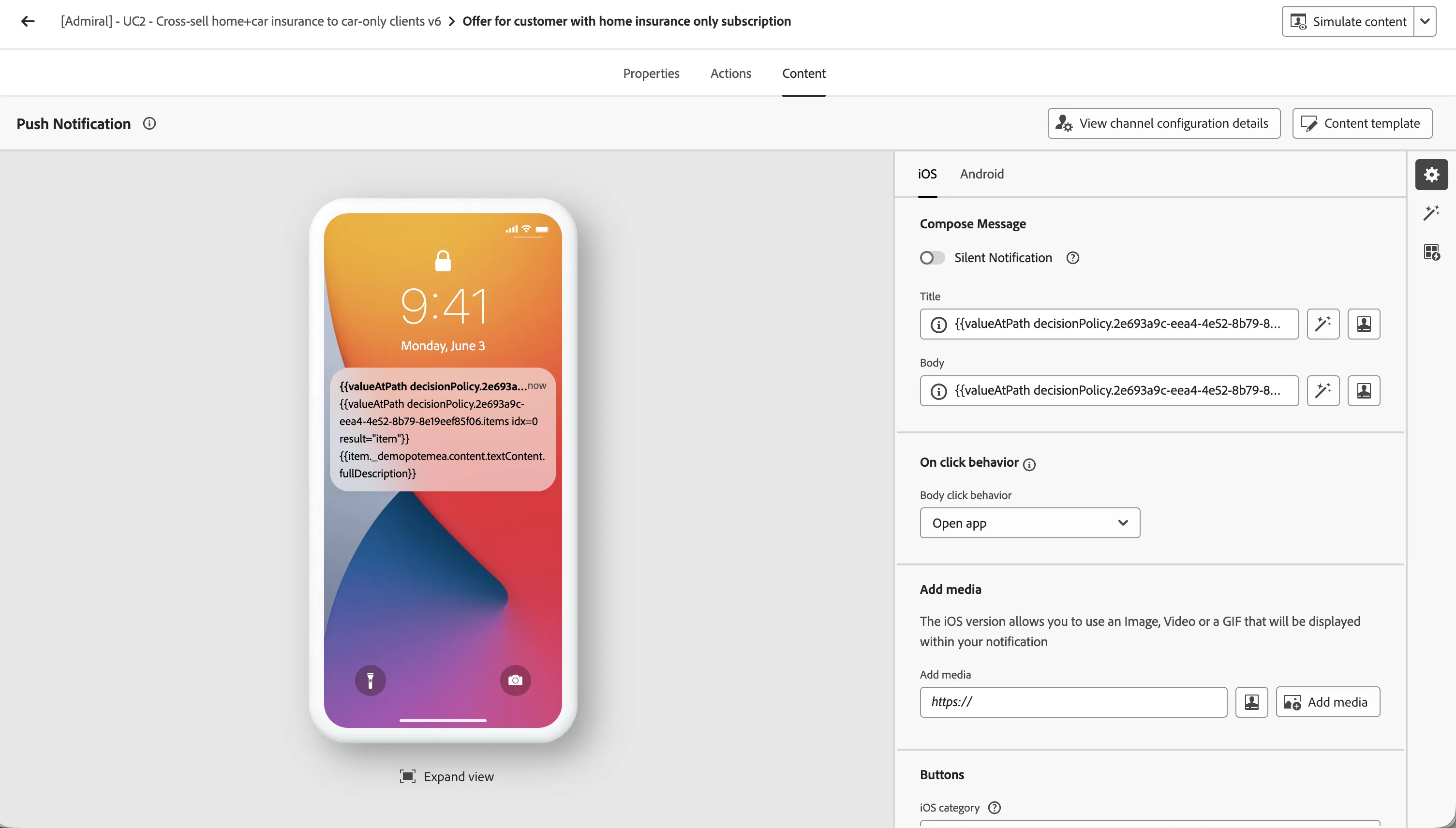
- You should now see this screen after saving.
- Click on the icon in the top left corner.
- Your journey should look like this:
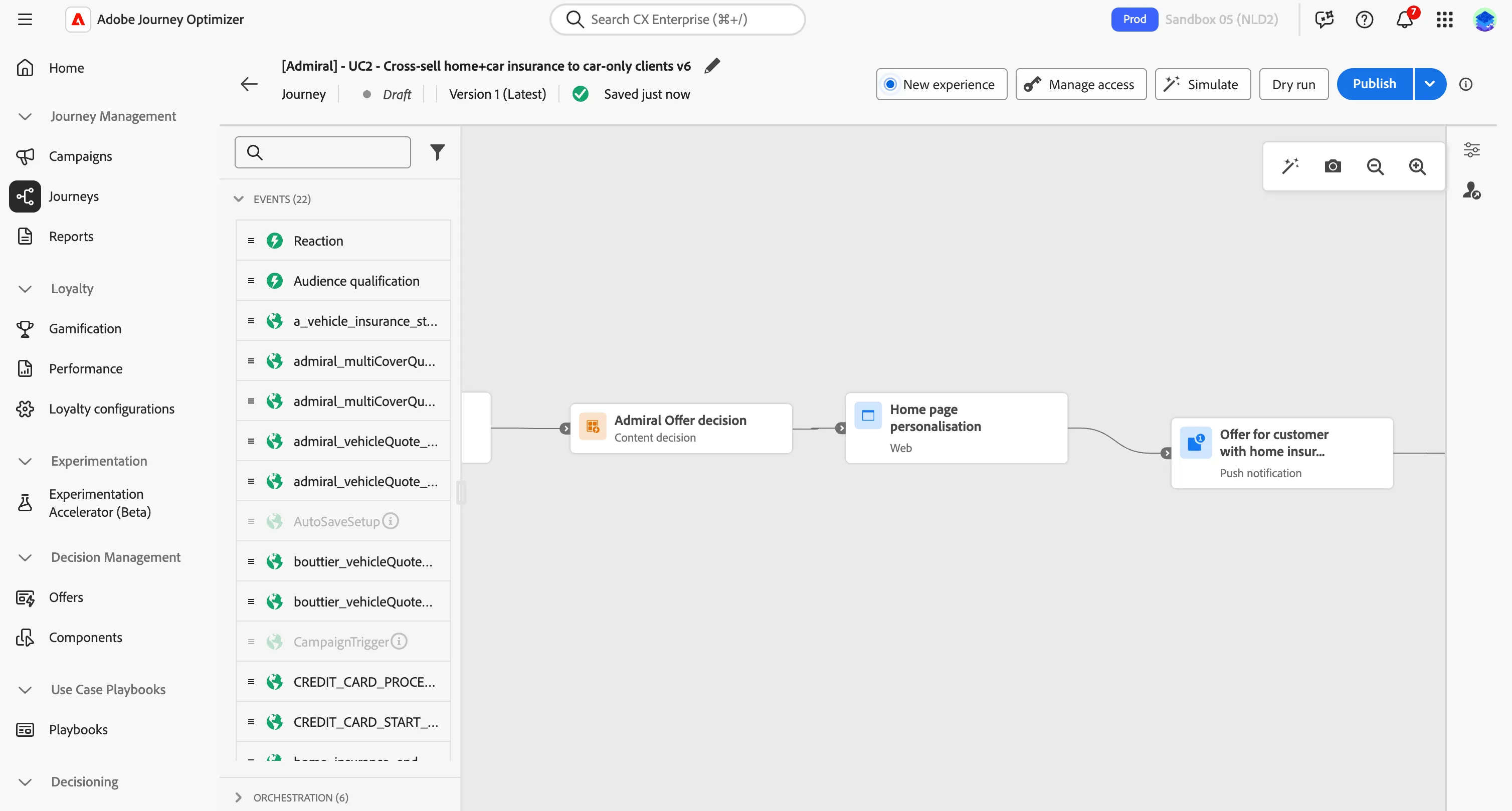
Waiting for the client's reaction
After that last push notification, the journey will wait for the customer to finally start a quote for a multi insurance.
- Drag and drop an event admiral_multiCoverQuote_start and name it MultiCover Quote Start
- Define the event timeout and select the Set a timeout path option. This branch will activate if the customer never start a quote.
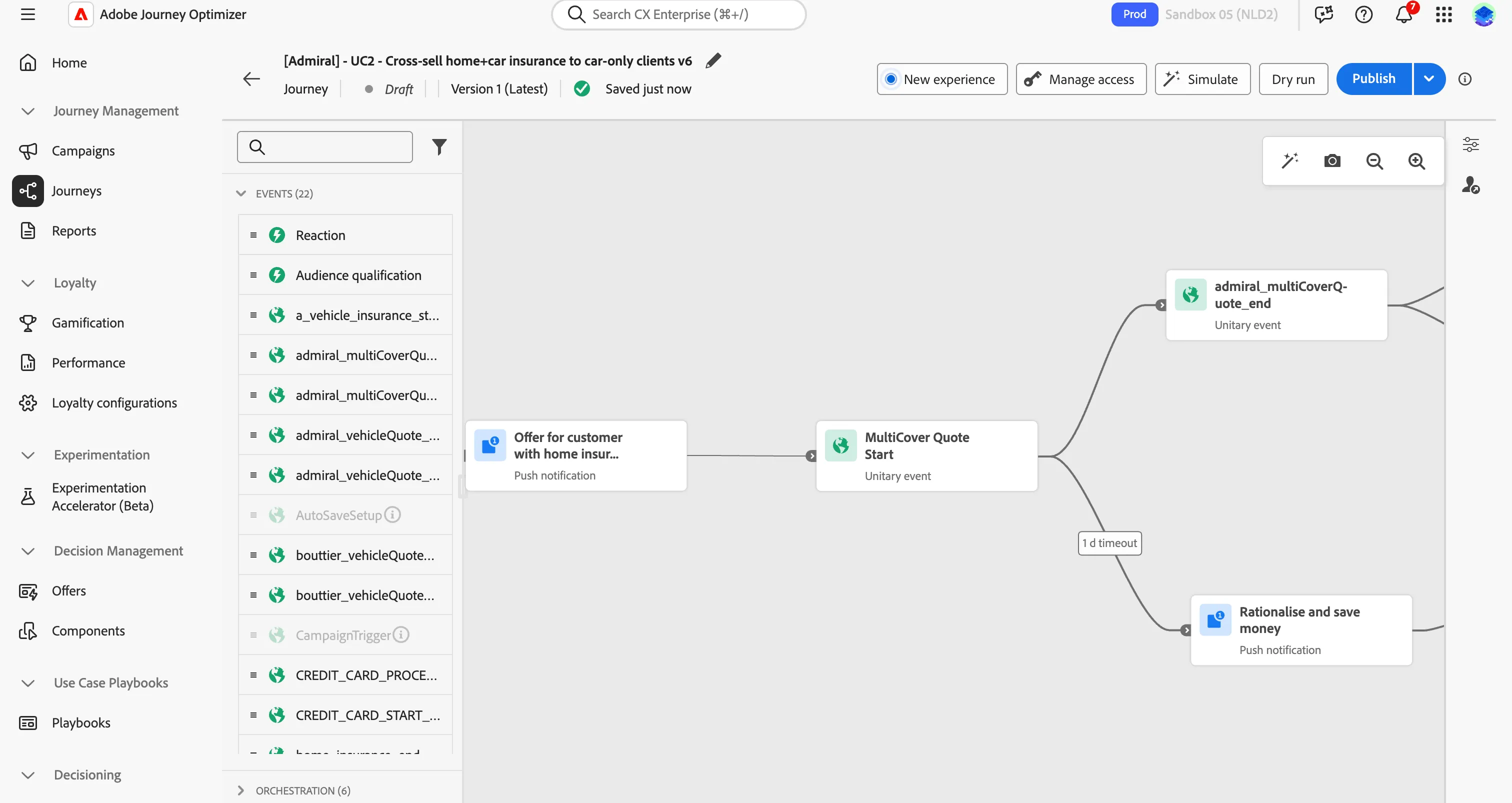
The journey is now similar to this :
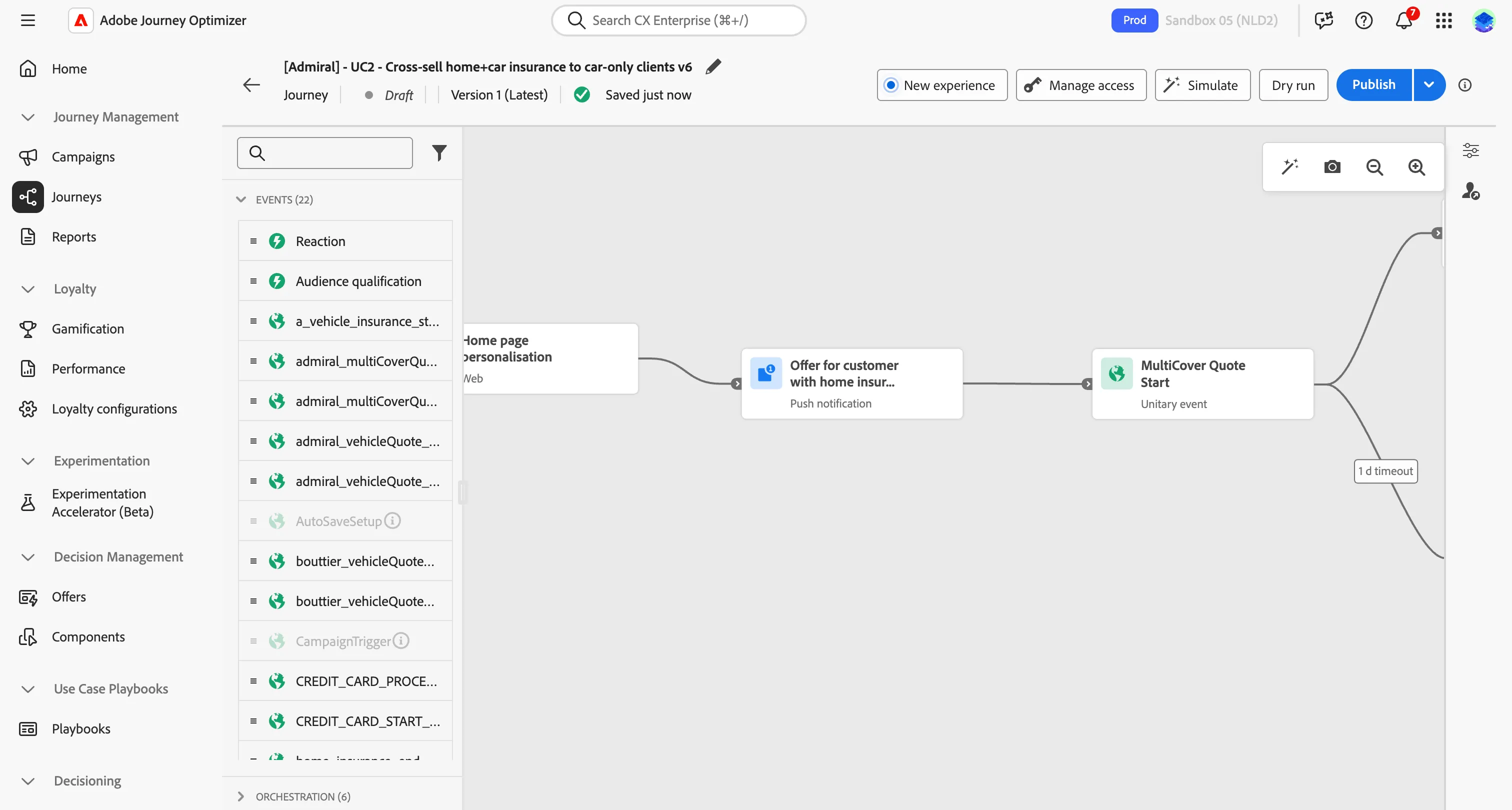
The main path will wait for the end of the quote event, meaning the quote is completed and the journey is no longer needed.
- In the main branch, drag and drop an event admiral_multiCoverQuote_end and name it MultiCover Quote End.
- Check the Set a timeout path option and leave the default values.
The second branch (timeout) will contact the customer to encourage the Multi-Cover insurance subscription because they haven't started a quote yet.
- Drag and drop an action of type Push
- Set the Label to Rationalise and save money and click Configure Action
- Select the pushMobile channel configuration.
- In the optimization section, click on Create experiment
- Choose a name and keep the success metric to Unique Clicks (AJO) and experiment type to A/B Experiment.
- Scroll down and click on Add treatment to create a second variant. Automatically the 50/50 split is setup. You don't need a Holdout (control group) in this experiment.
- Name the first one FOMO Message and the other one Offers
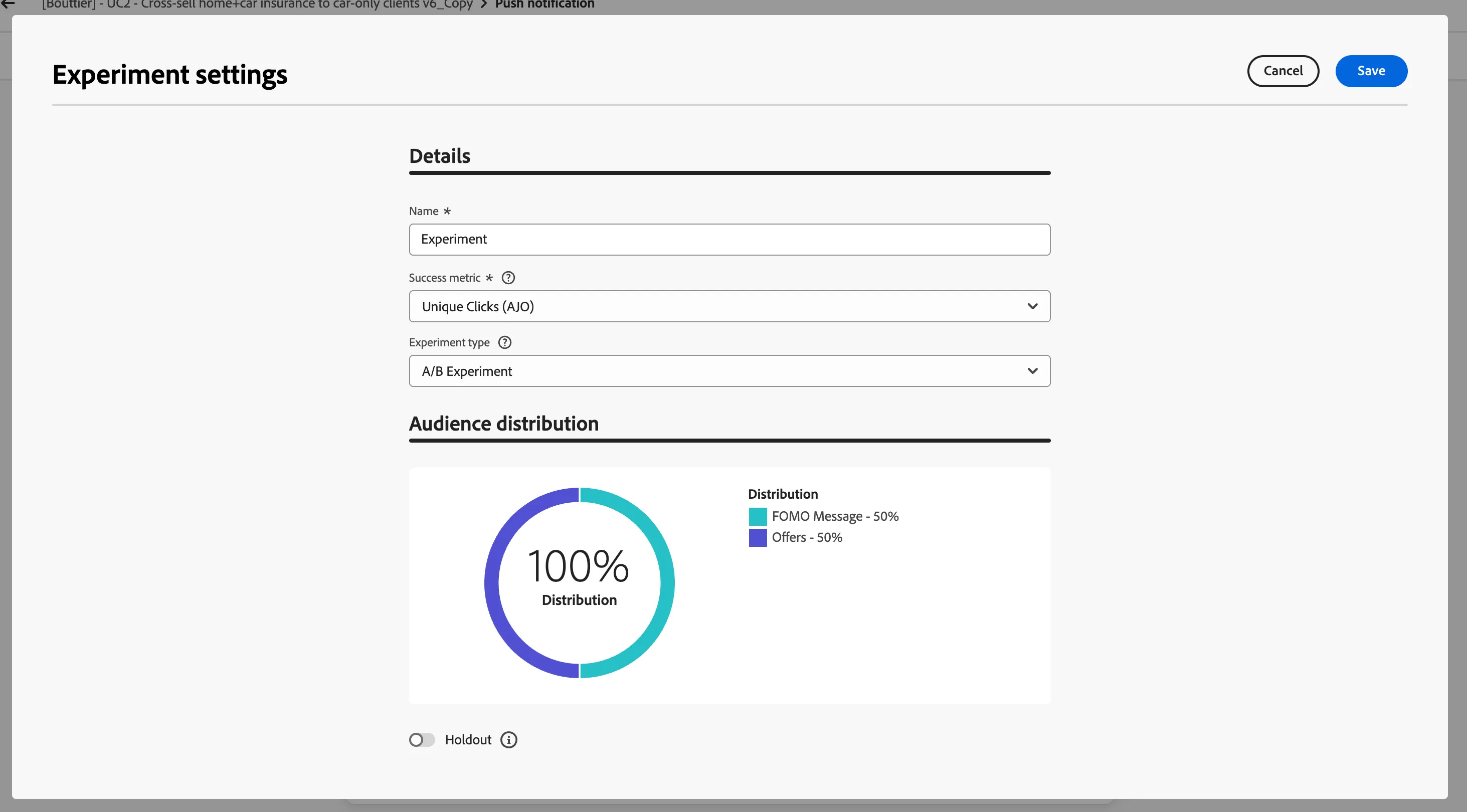
- Click on create and then click on Edit content at the top of the screen
- Select the FOMO Message on the left side of your screen and set the title to Save money on your insurance and the body to Don’t let your car feel left out—combine and save now!
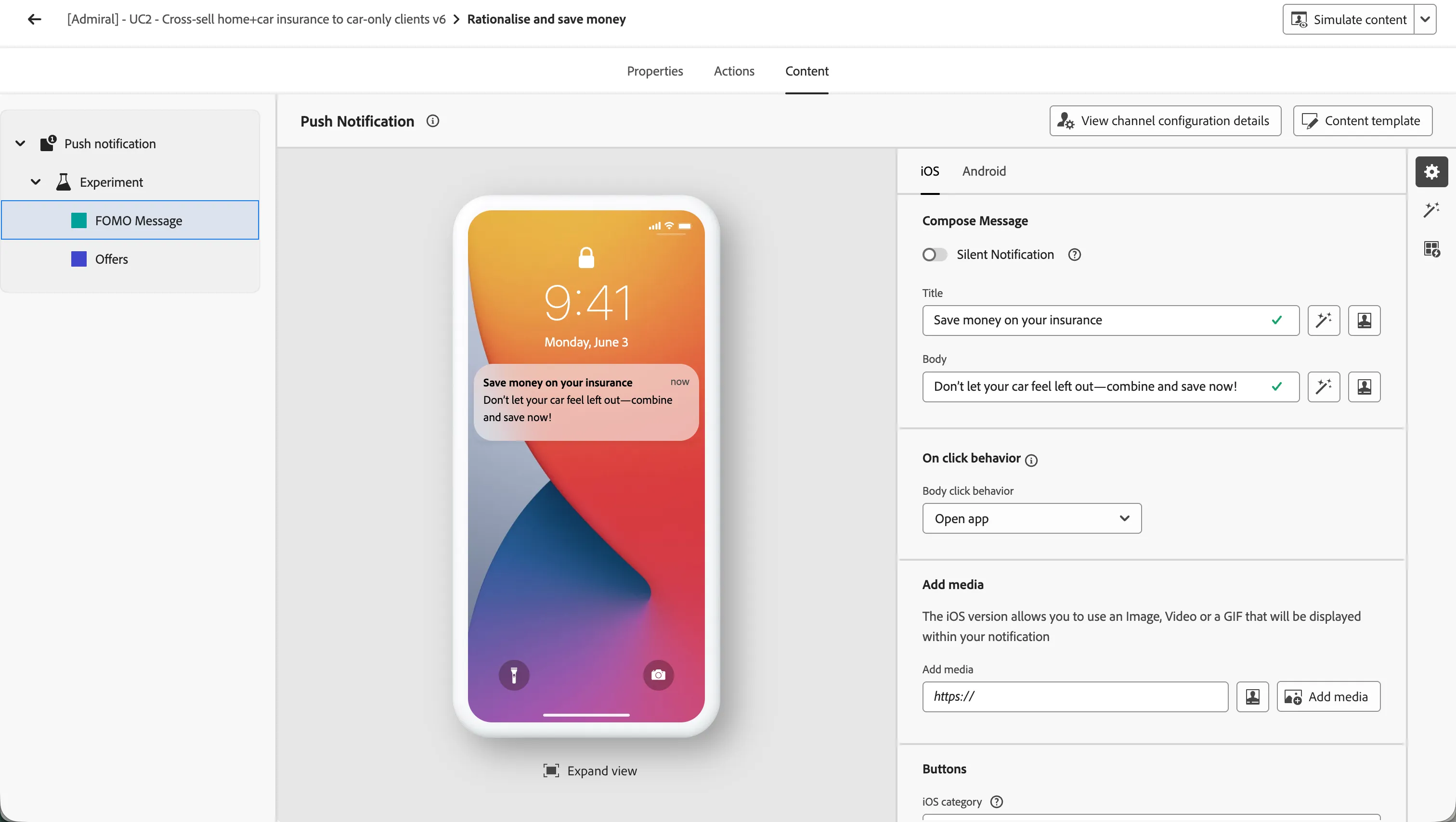
- Now select the Offers variant and set the title to A chance to win an Amazon voucher and the body to Complete a Multi-Cover quote today and get a chance to win an Amazon voucher !
- The marketers will then be able to experiment both messages and compare which one brings the clients to complete a Multi-Cover quote.
- Click on the icon in the top left corner.
- Your journey should look like this:
Handling the quote completion process
The journey will now listen to the multiCover quote completion event.
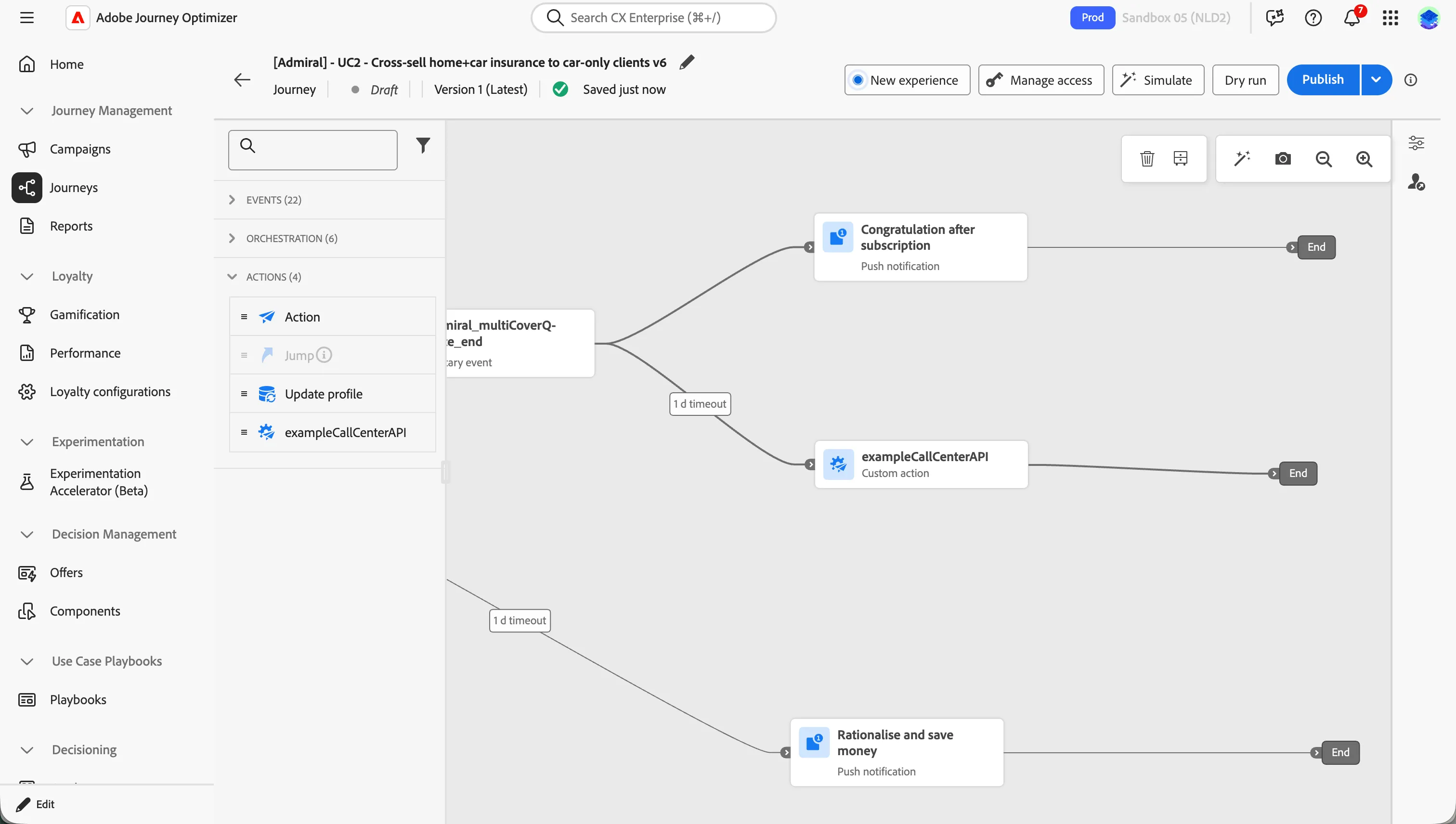
- If it happens, the journey will send a congratulations push to the Customer.
- If not, the next contact will be with the Call Center team to encourage the completion of the quote, with the offer. This means that all the profile and offer information need to be shared with the Call Center team.
Let's now build this logic into the journey:
- First, drag and drop an action of type Push at the end of the main branch of the MultiCover Quote End event.
- Set the Label to Congratulations after subscription and click Configure Action
- Select the channel pushMobile and click on Edit content
- In the title section write Congratulatiosn and in the body Thank you for your subscription.
- Click on the icon in the top left corner to save and close the push notification window to get back to the journey.
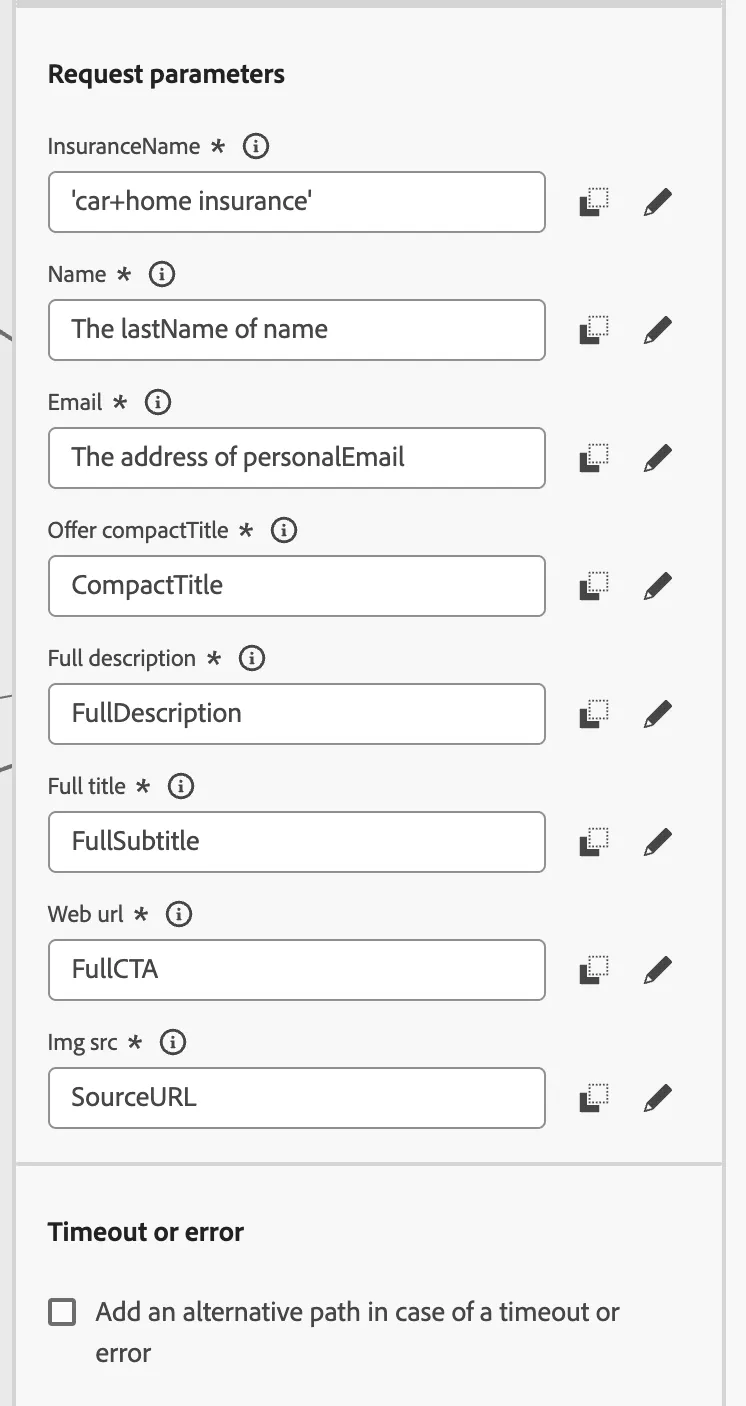
- In the time out branch, drag and drop a exampleCallCenterAPI action and configure the request parameters:
- Insurance Name: click inside the field, then on Advanced mode and write'car+home insurance'
- Name: click inside the field and search for last name. Select the first attribute and click OK to add the field.
- Email: search for personalEmail and add the address field
- Offer compact title: click inside the field, then on Advanced mode and search for CompactTitle. Click on the + button next to the field and click Ok.
- Full Description: Repeat the steps from the previous field and search for FullDescription
- Full Subtitle: Repeat the steps from the previous field and search for FullSubtitle
- Web url: Repeat the steps from the previous field and search for FullCTA
- Img src: Repeat the steps from the previous field and search for SourceURL
The Request parameters section should look like this :
And your journey should now look like this.
Adding an Exit Criteria
The last step is to configure the exit criteria so that the customers who have completed the quote quickly don't experience this journey in its entirety.
- Click on the Show exit icon
 on the right-hand side.
- Name it Exit Criteria
- Select Audience as exit criteria
- Choose the Admiral Customer with multi insurance audience as the exit criteria
You have successfully created the cross-sell home insurance to car-only clients journey. Next, we are going to test our journey using the Website.