Analysing the Journey
In this exercise you'll learn how we can analyse the different experiences delivered across the Quote to Conversion customer and agent journey.
Unlike traditional digital only Analytics platforms, Adobe Experience Platform enabled omnichannel event based analysis so we can understand the full customer journey regardless of which channel they are interacting on.
For this exercise we need to switch modules, click on the solution switcher and select Customer Journey Analytics.
Then change the org to Adobe demo Americas 275.
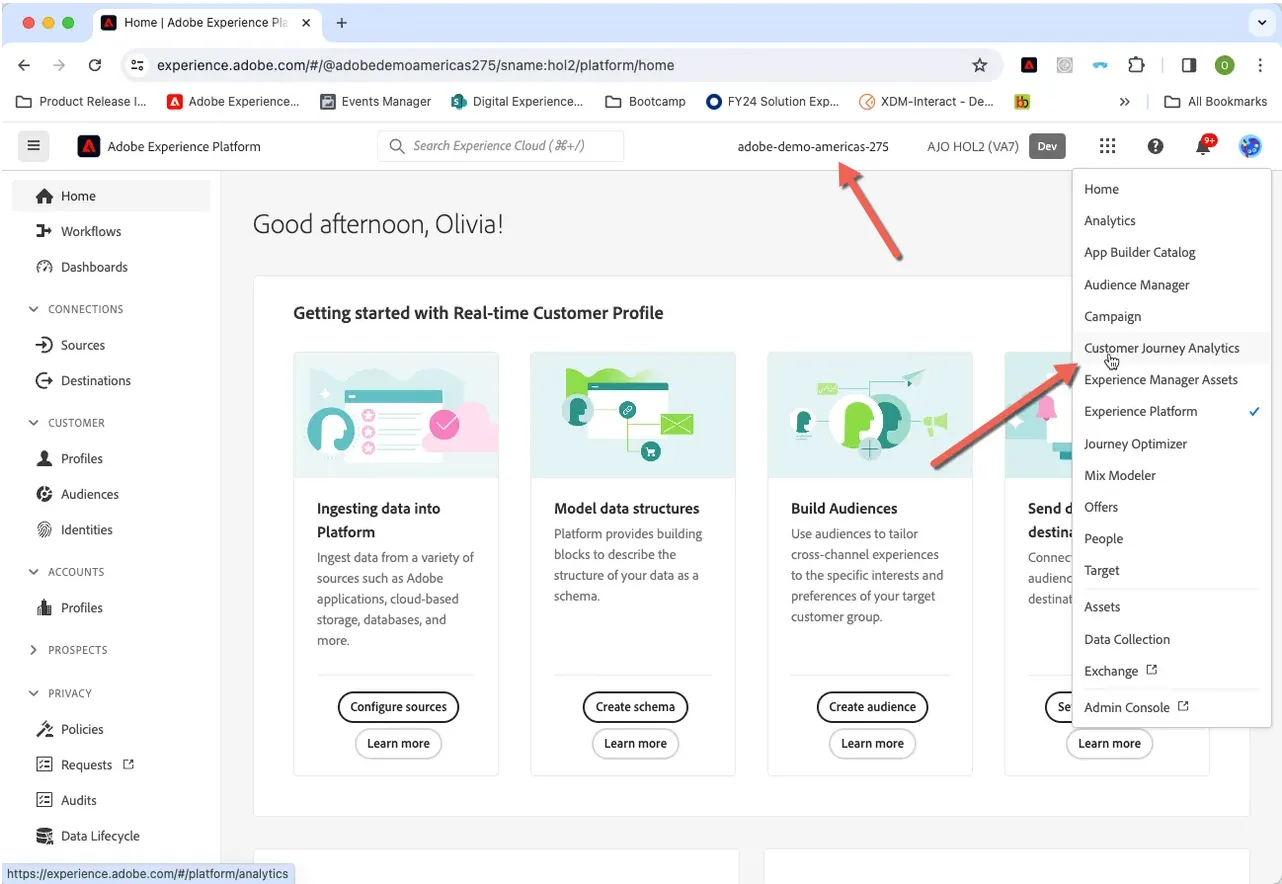
Create your dashboard
For this exercise we will start our dashboard from a pre-defined template. Adobe provides a number of pre-built templates but you can also create your own company specific templates.
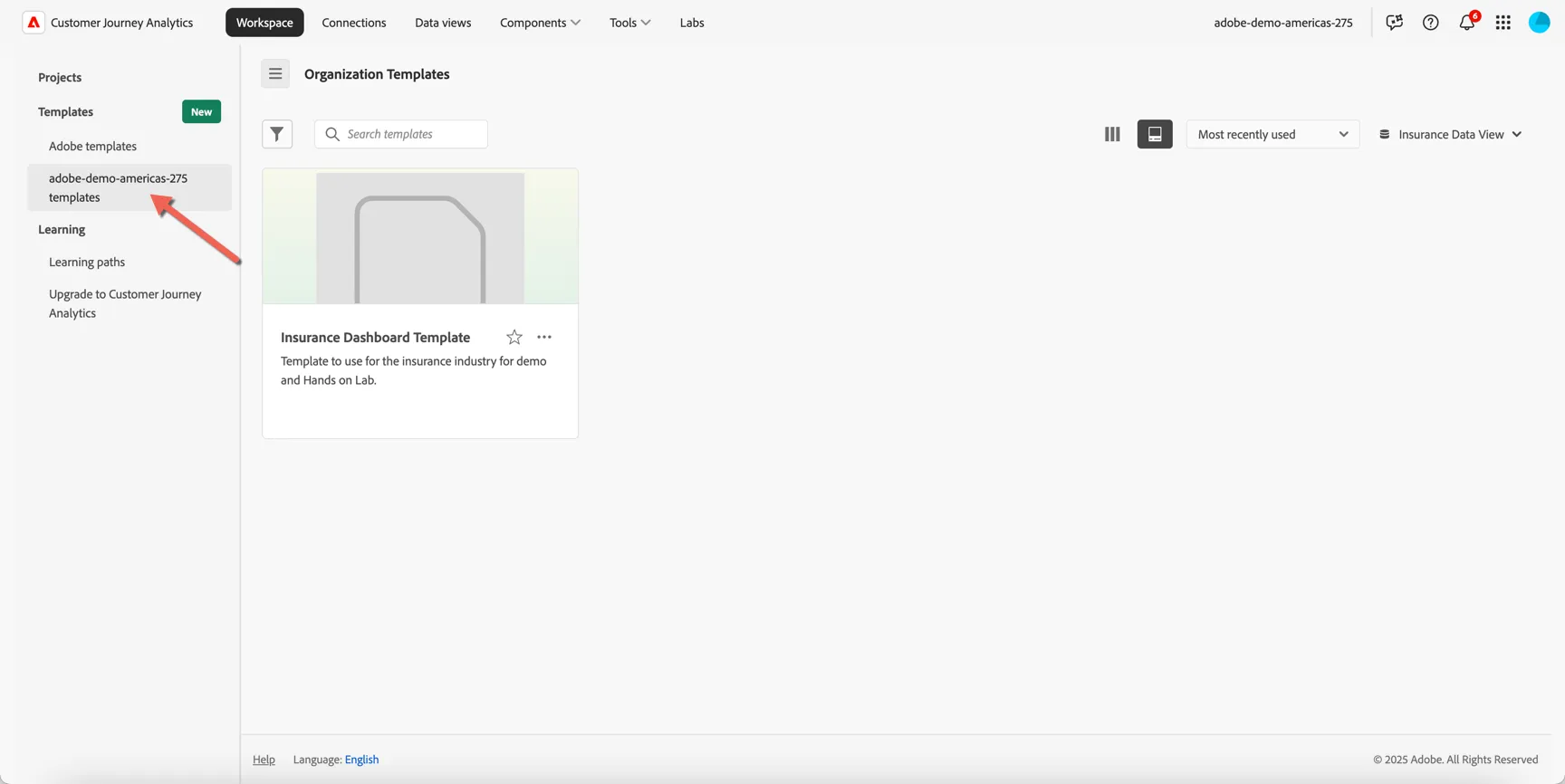
Click to view the adobe demo americas 275 templates
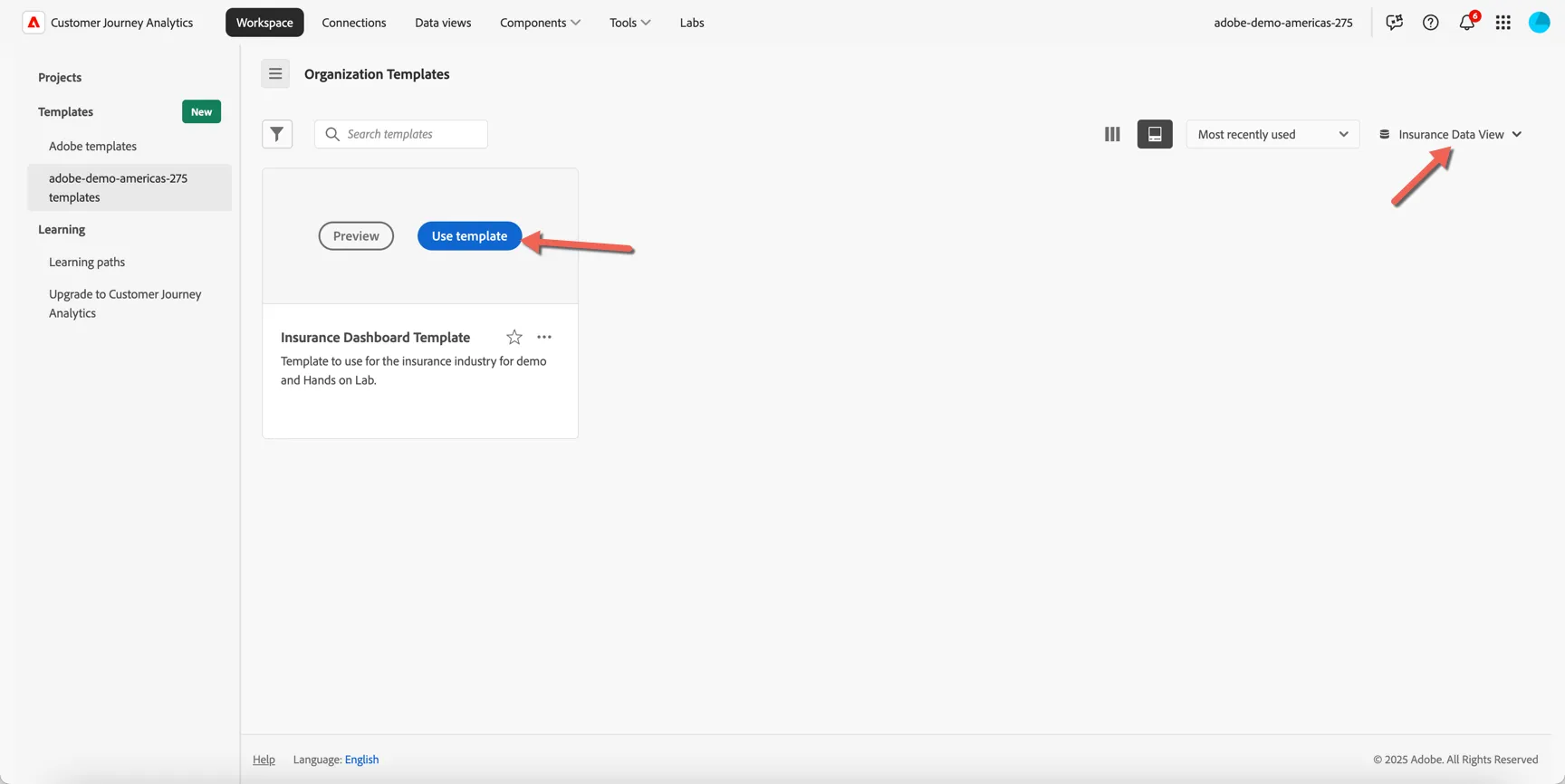
If you don't see anything, make sure the data view is set to Insurance Data View. Hover over the template and click Use template
Before we start modifying the dashboard let's save it, click on Project menu and select Save.
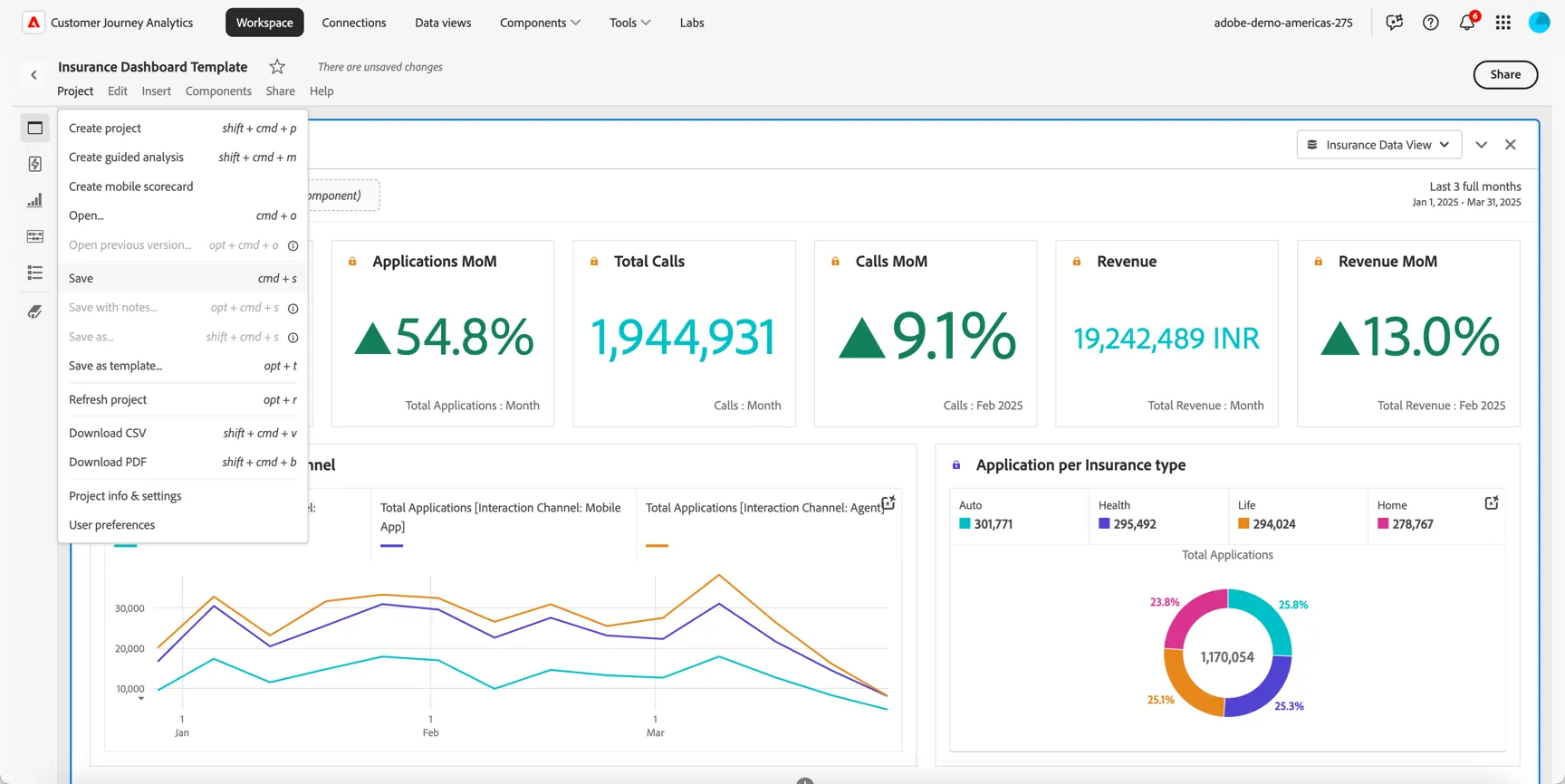
Add your initials to the project name so you can recognise it as yours and click Save.
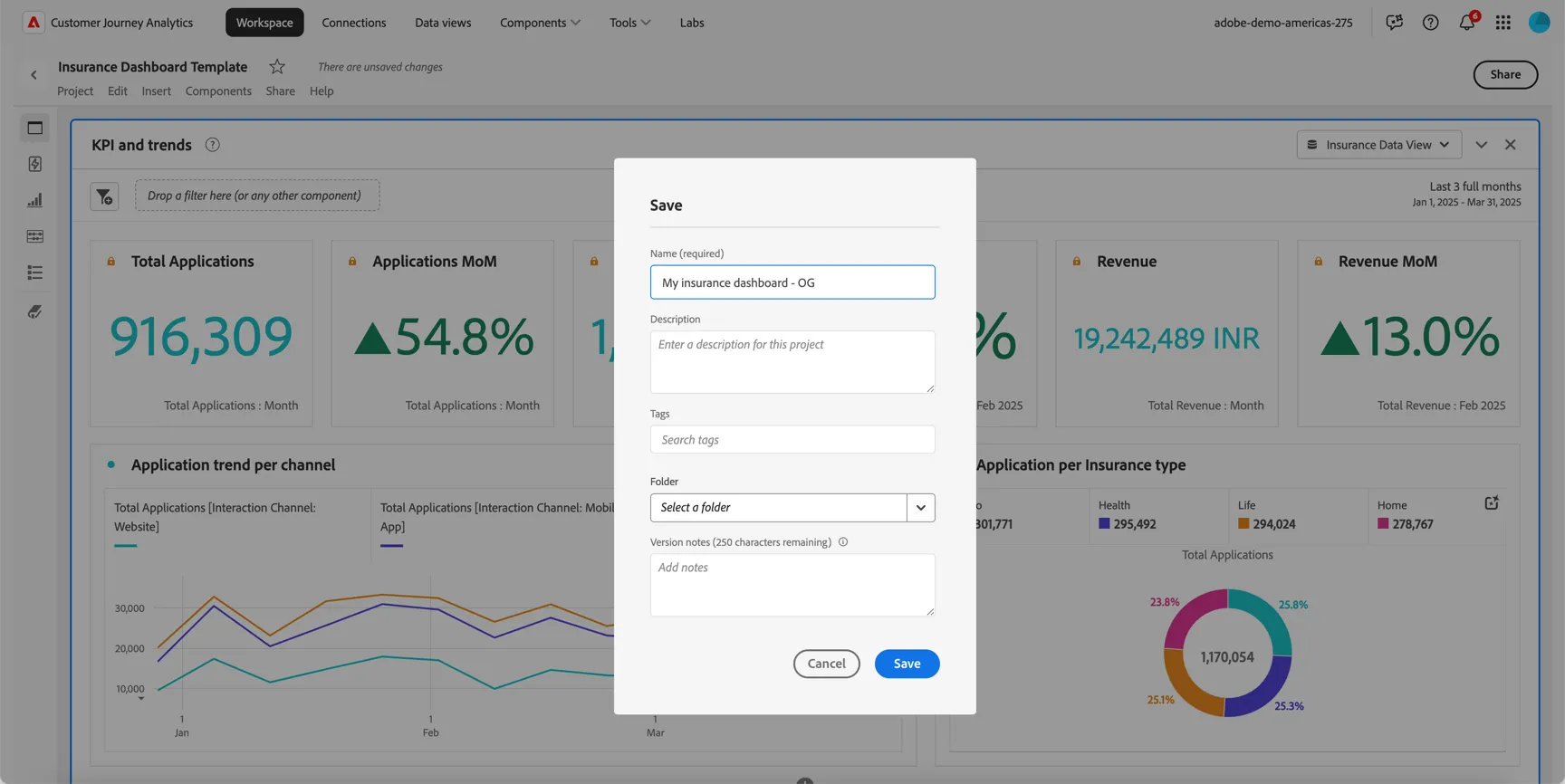
You can peruse some of visualisations that are preconfigured for you.
Conversion Attribution
In our acquisition journey we know that many of the conversions are coming from Agents and data is not shared before the conversion. In order to encourage agents to share customer data earlier we can propose to partially attribute online conversions to the agent if they submitted the lead initially, most recently or touched it in any way during the sales cycle. In this exercise we will assign direct attribution to the applications / policies that we're converted directly by the agent, and demonstrate how attribution modelling can be used to indirectly attribute online or cross channels sales to agents who might have either initiated the lead or submitted the same along the way.
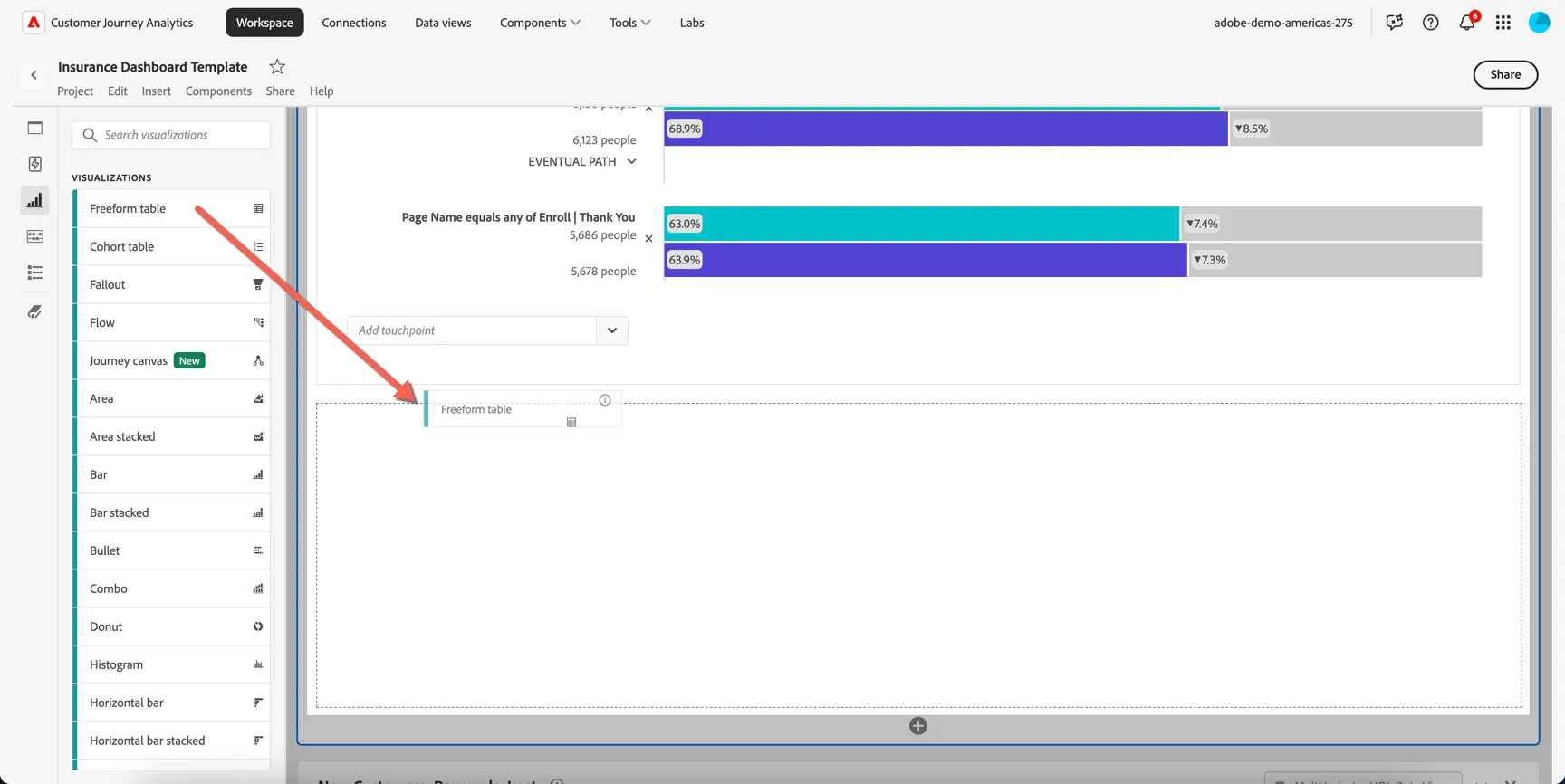
Add a freeform table to the bottom of our Quote to Conversion panel.
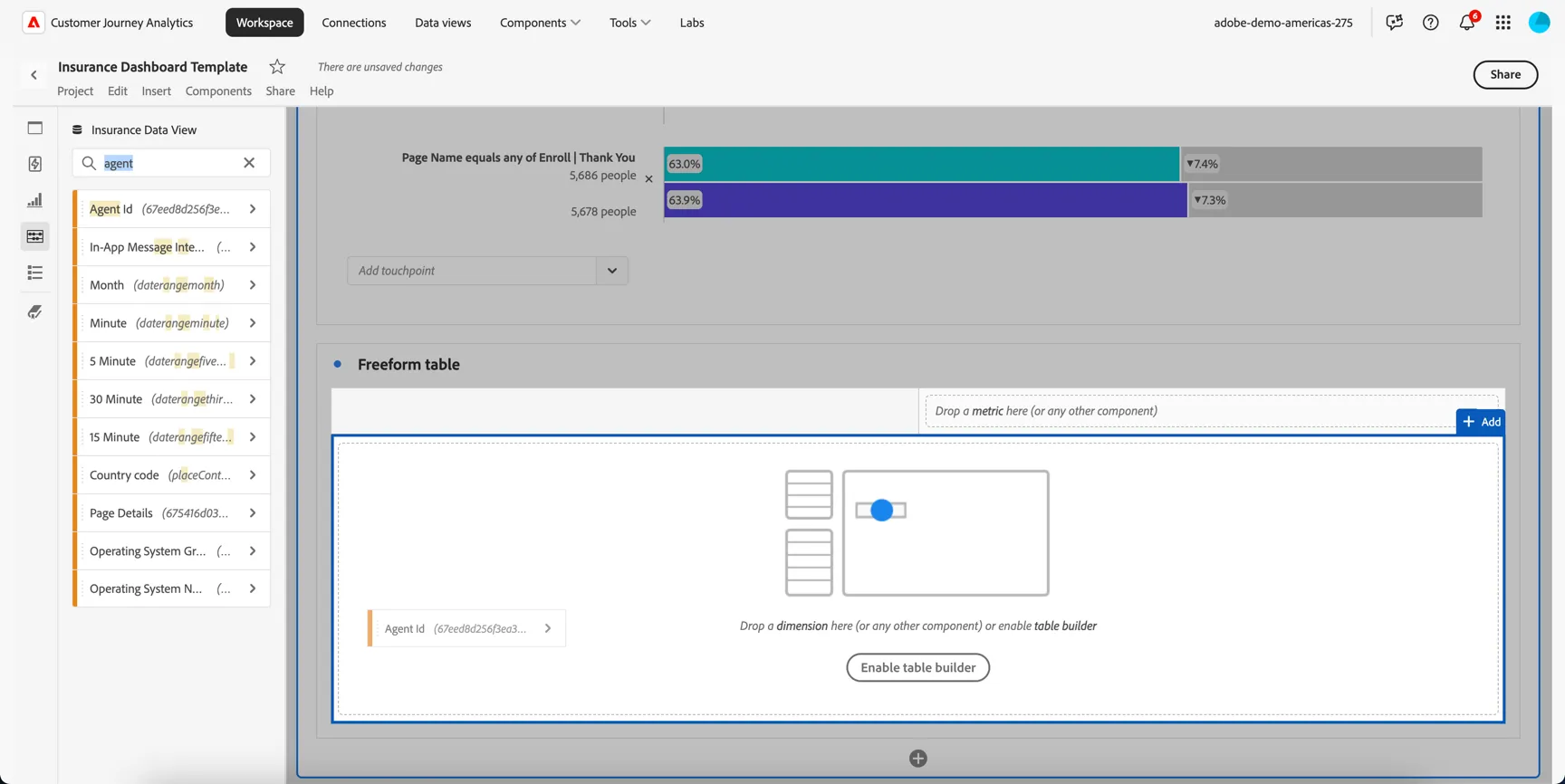
Drag the Agent Id dimension into the table.
We used the Total Applications metric in the top panel but for this use case we want to separate online and offline applications so we can leverage different attribution depending on the source channel.
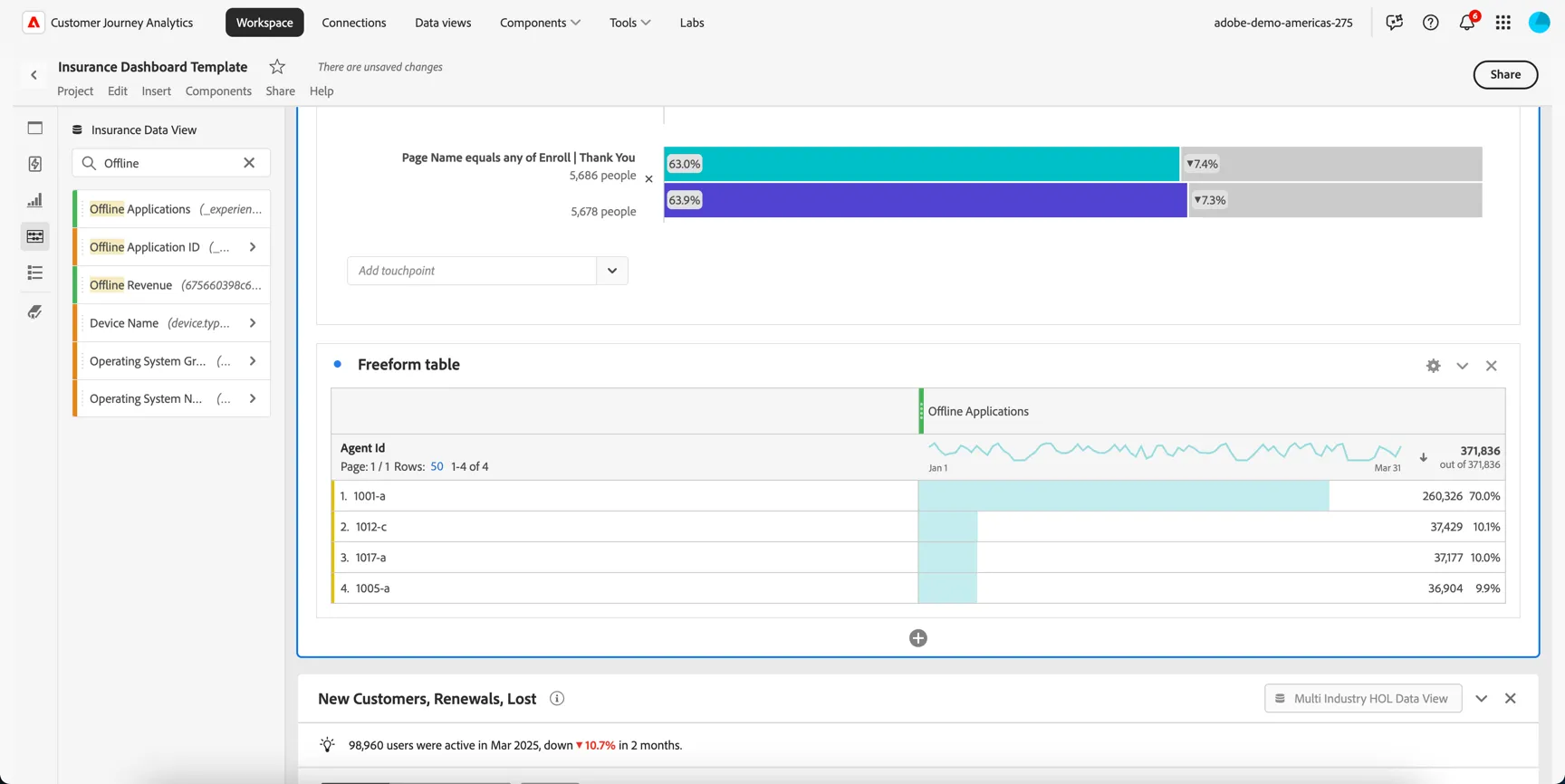
Replace the Events metric with Offline Applications
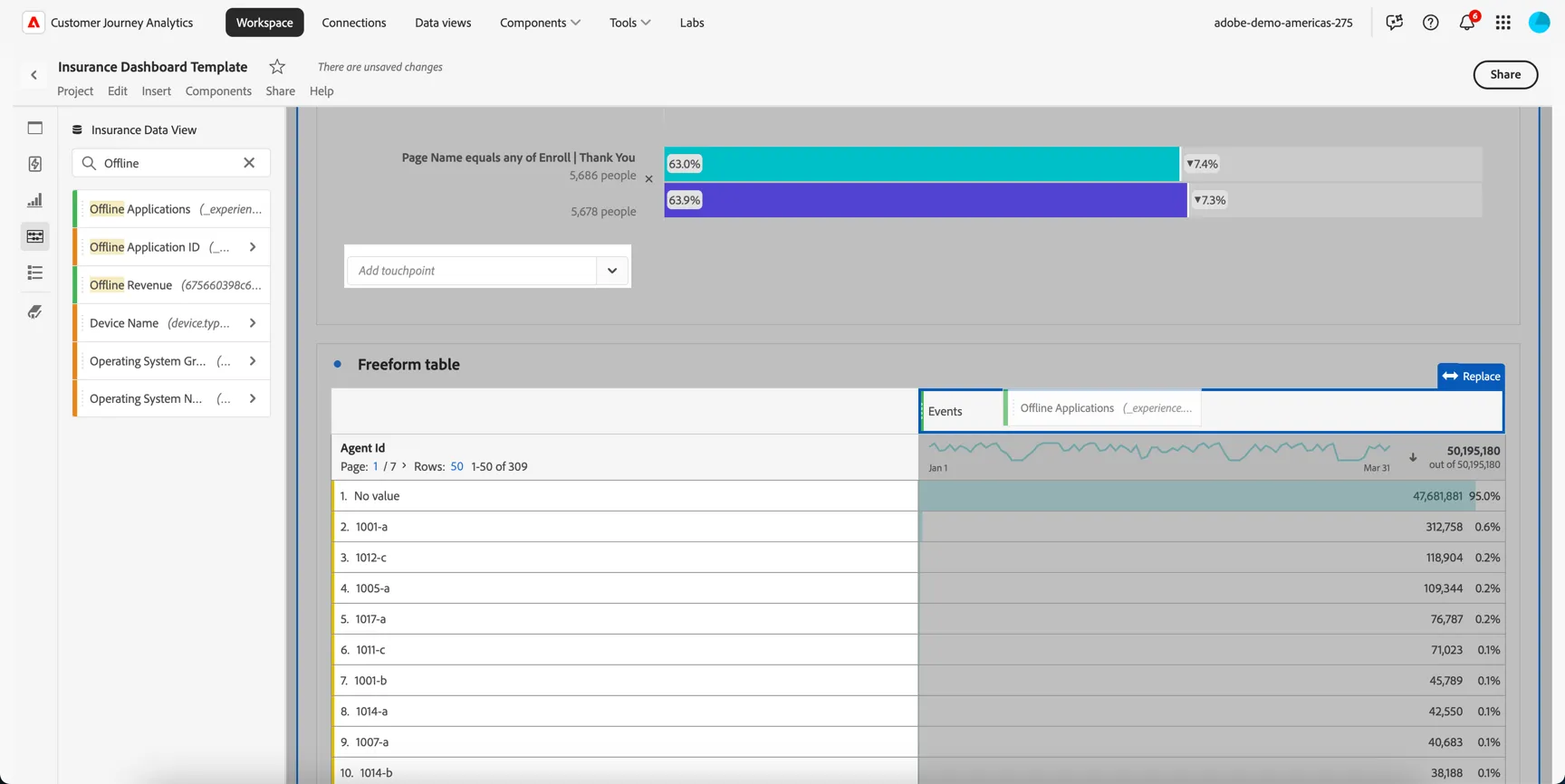
You can see that 4 agent Ids are attributed to all of the offline applications. This is using same touch attribution. Which means the event that we're reporting on - the application or policy creation event in this case - has the agent id as an attribute of that event. This gives agents 100% attribution for every conversion that came directly from them.
Drag the Online Applications metric and add it to the table.
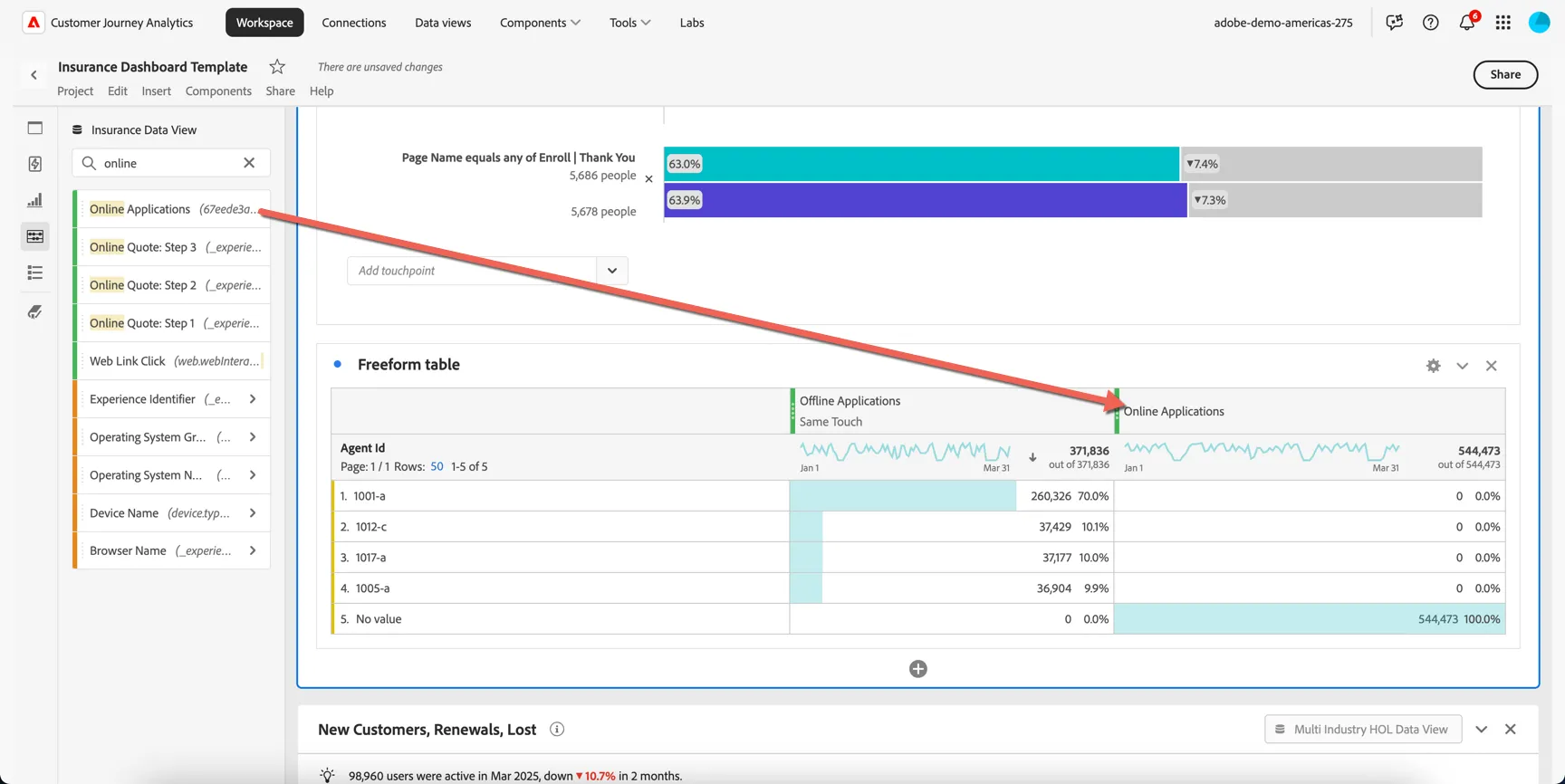
We can see that no agents are attributed to these applications. This is expected, the agent Id won't have been submitted on the same event as these online applications. We need to use a different attribution model to understand whether any event recorded against the customer in the lead up to the conversion had an agent Id attached.
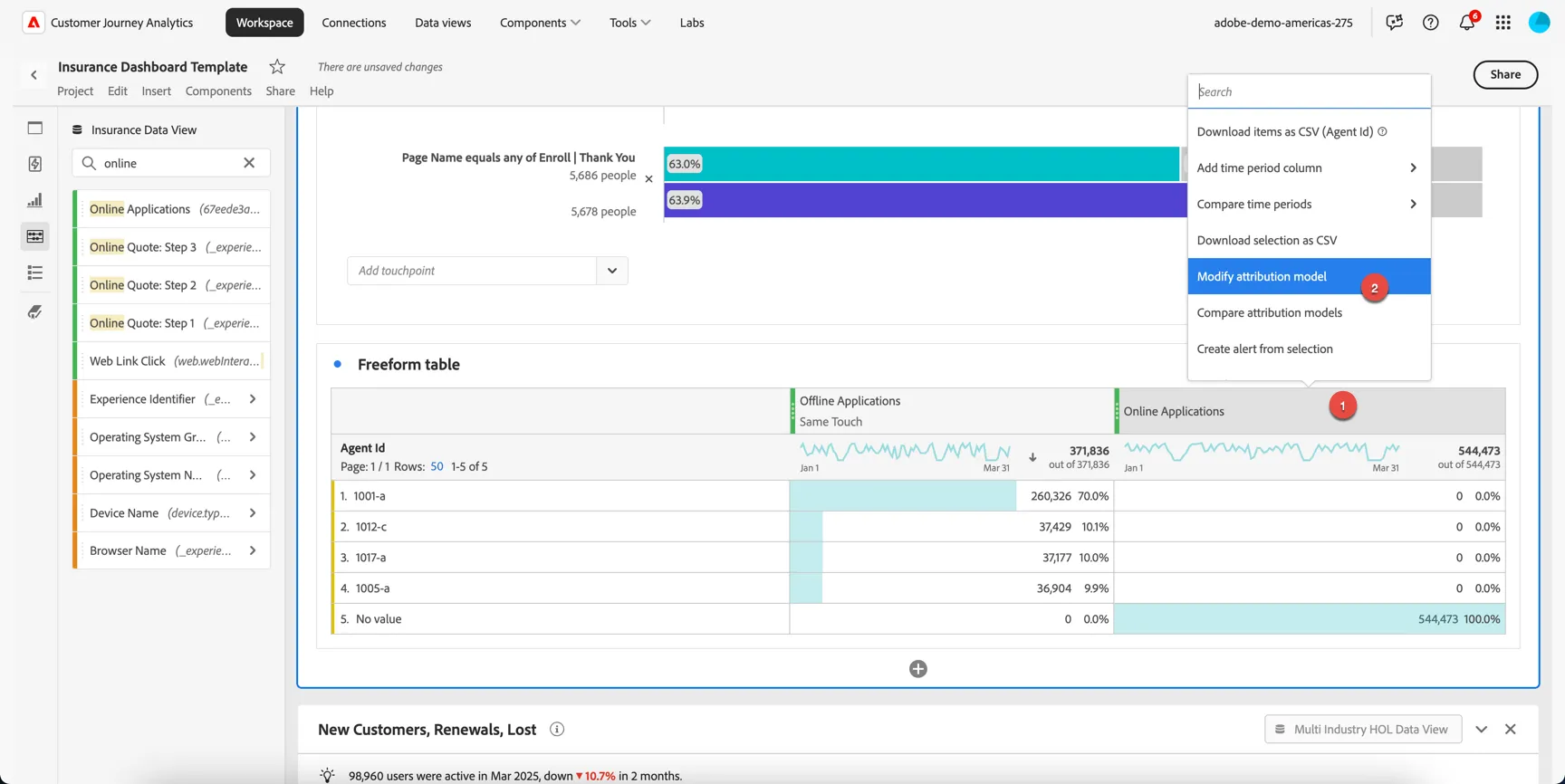
- Right click on the column heading
- Select to Modify attribution model
Adobe supports many attribution models. If we only want to attribute online conversions to agents if they were the originator of the lead, then we would use First Touch attribution.
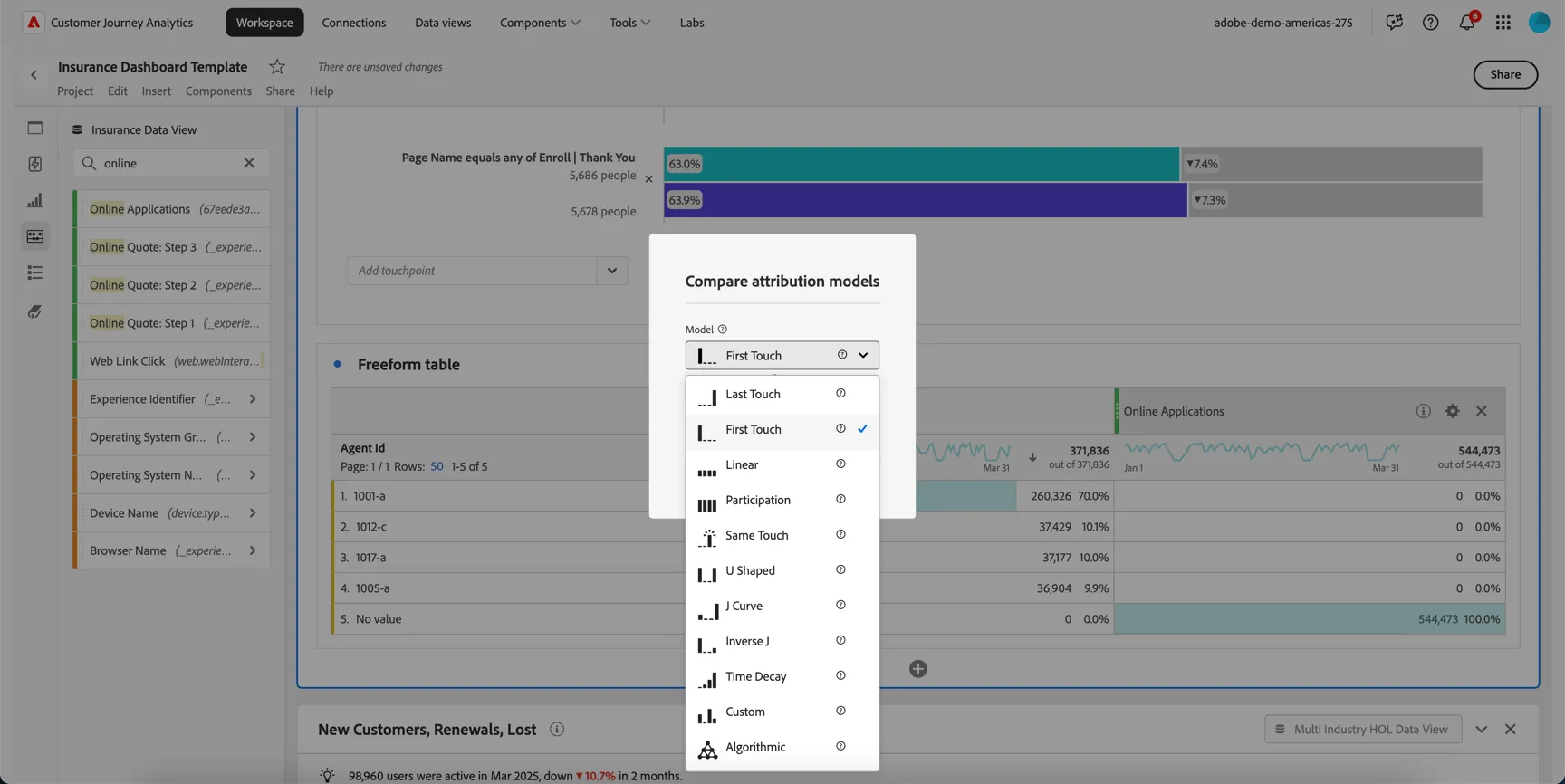
Every attribution model has a lookback window attached - the default lookback is 30 days which means if the agent submitted the lead more than 30 days before they converted online we won't consider them as having influenced this conversion.
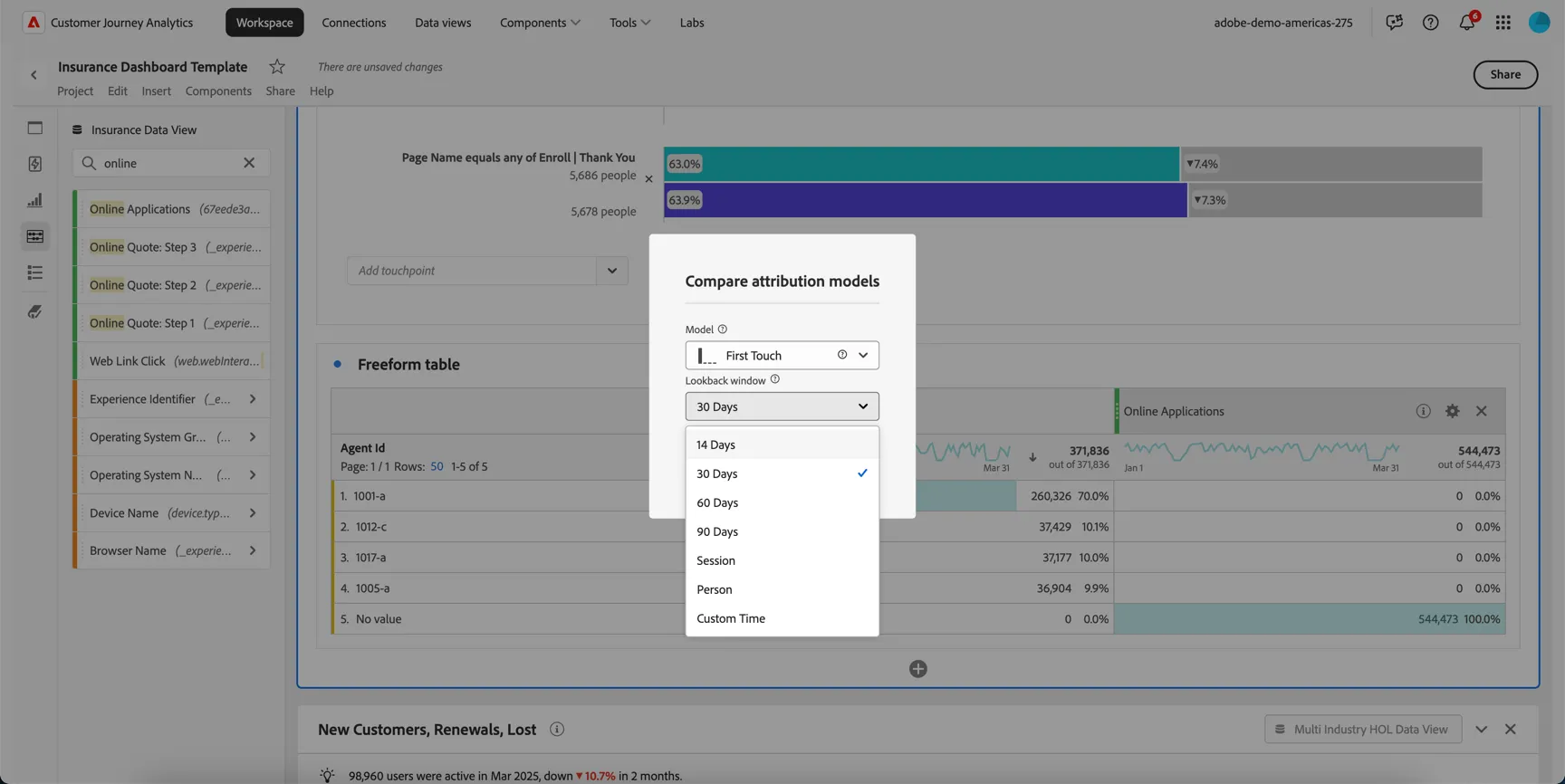
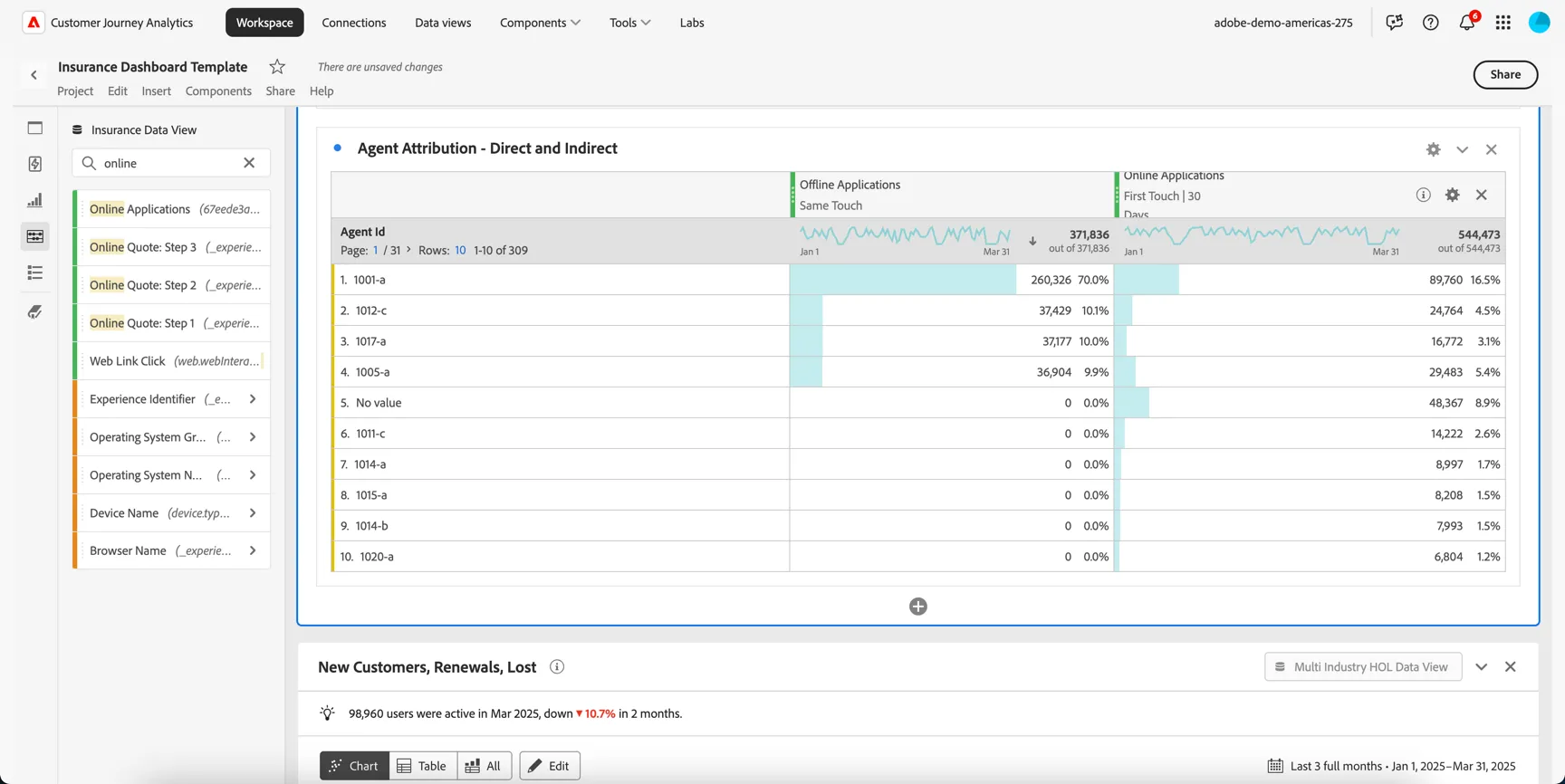
We can see now that many agents initially submitted leads that eventually converted through an online channel (direct web sales).
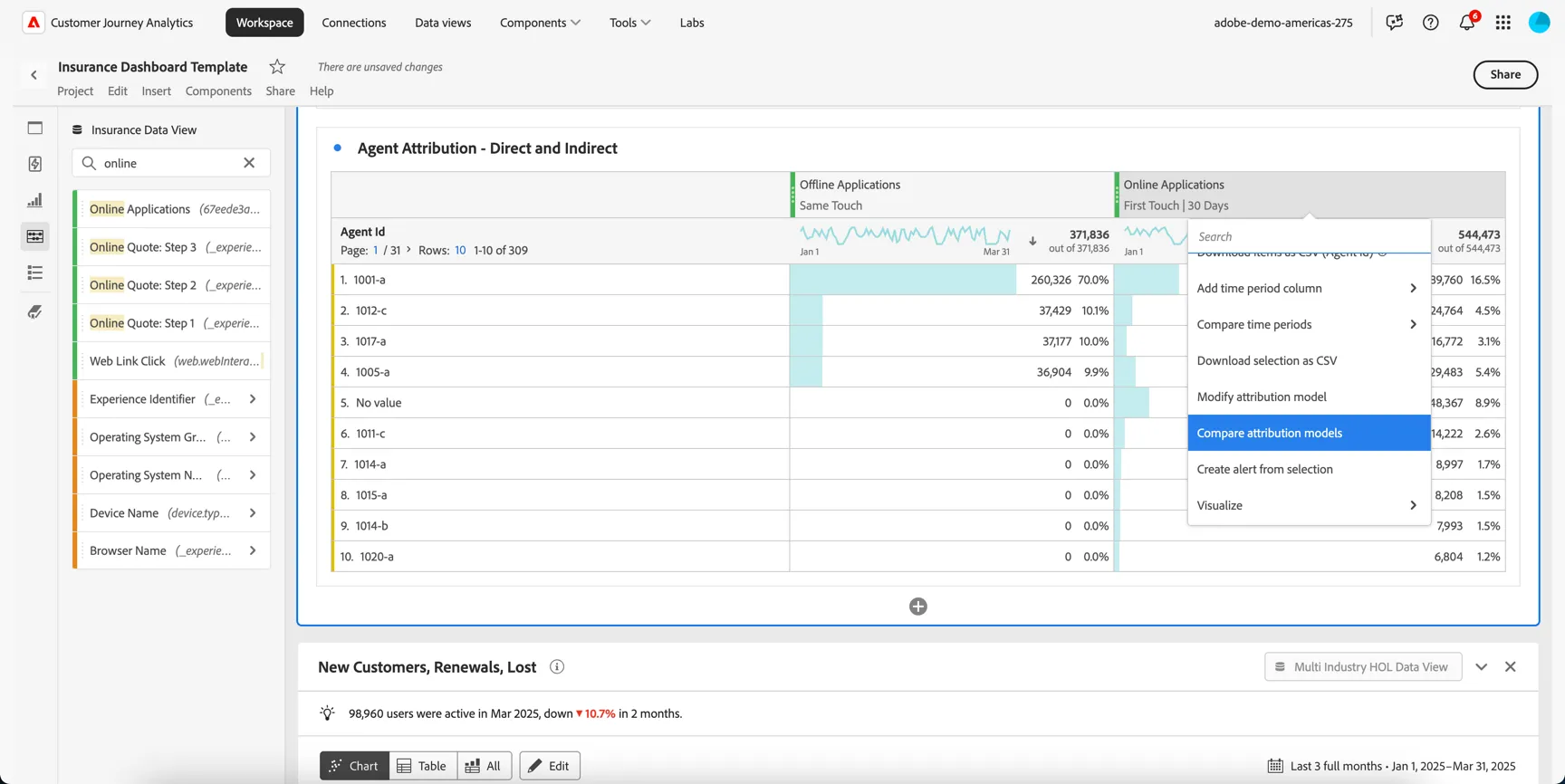
Alternatively, we can use multi-touch attribution to ensure that if more than one agent submitted the same lead we'll distribute the attribution across all parties.
- Right click on the column heading
- Select to Compare attribution models
Adobe's algorithmic attribution model uses machine learning to apply fractional attribution across all agents that influenced the eventual conversion.
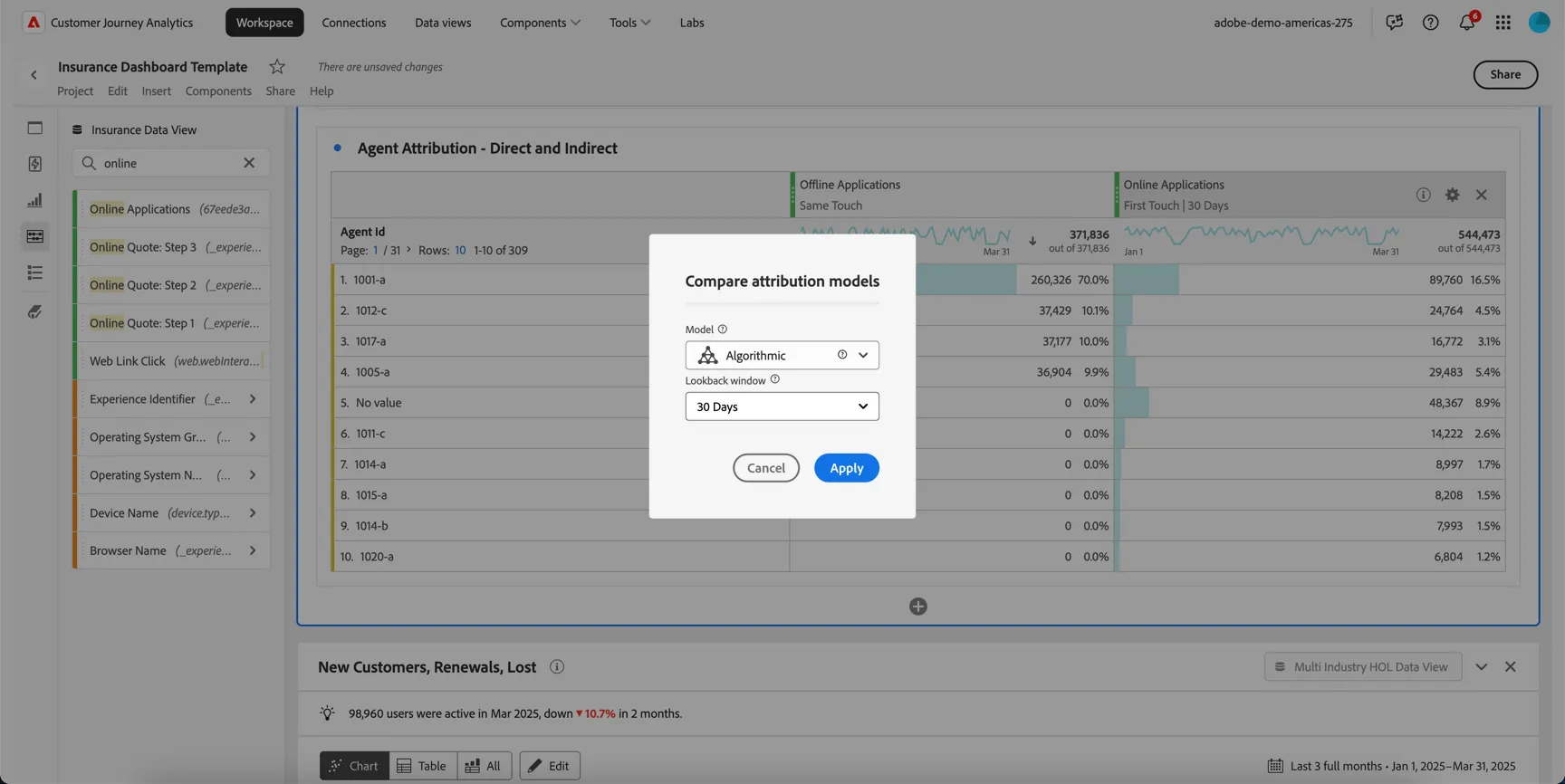
We can see that using multi-touch attribution reduces the individual attribution numbers for most agents since in our demo data multiple agents have submitted events for the same customer. This may not reflect your reality!
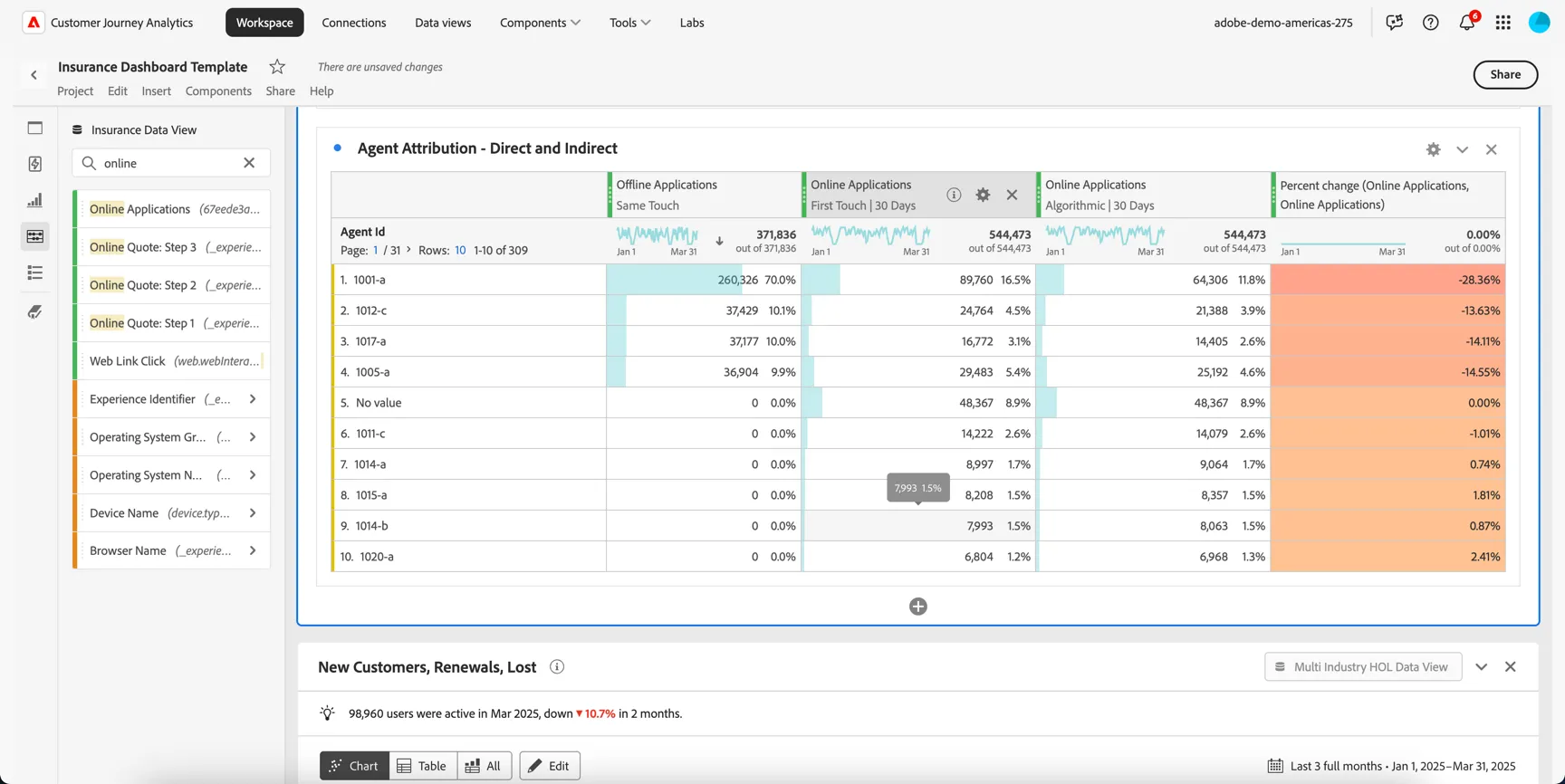
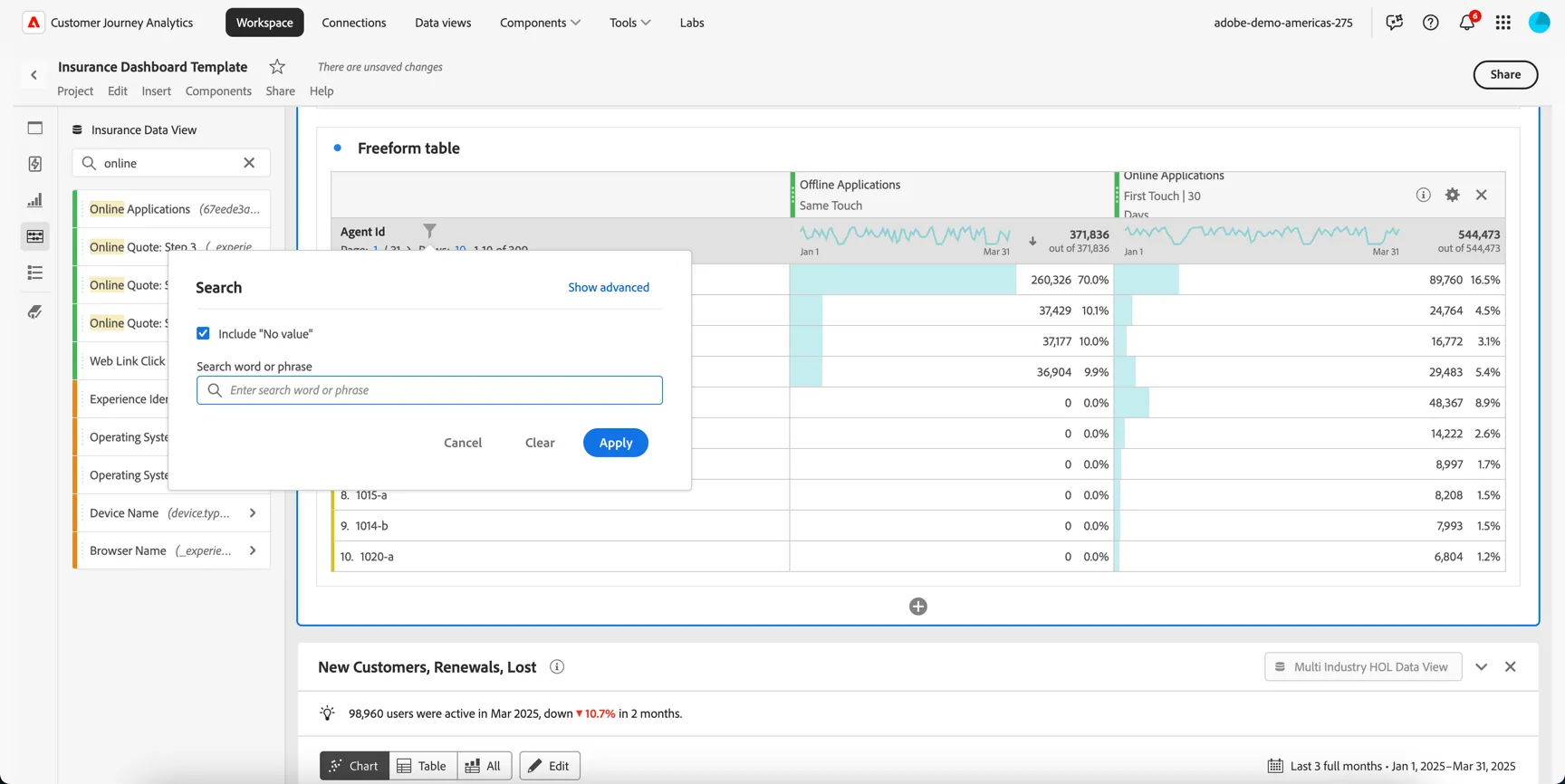
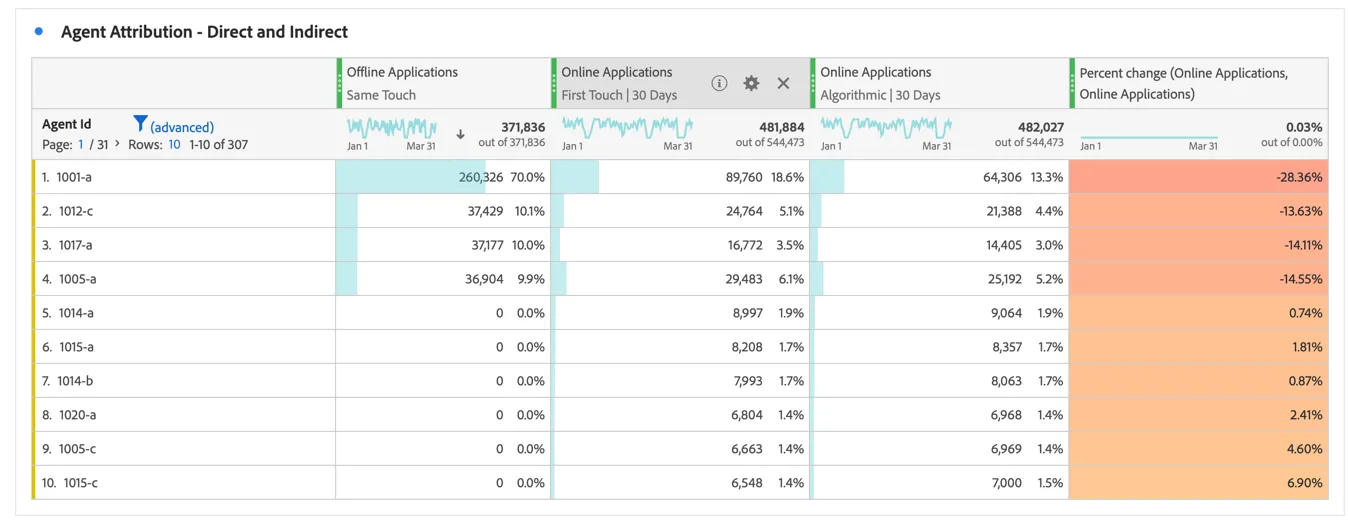
To clean our table, change the number of agents to return less than the 400 available and filter the no value dimension.
Give your table a name Agent Direct and Indirect Attribution.
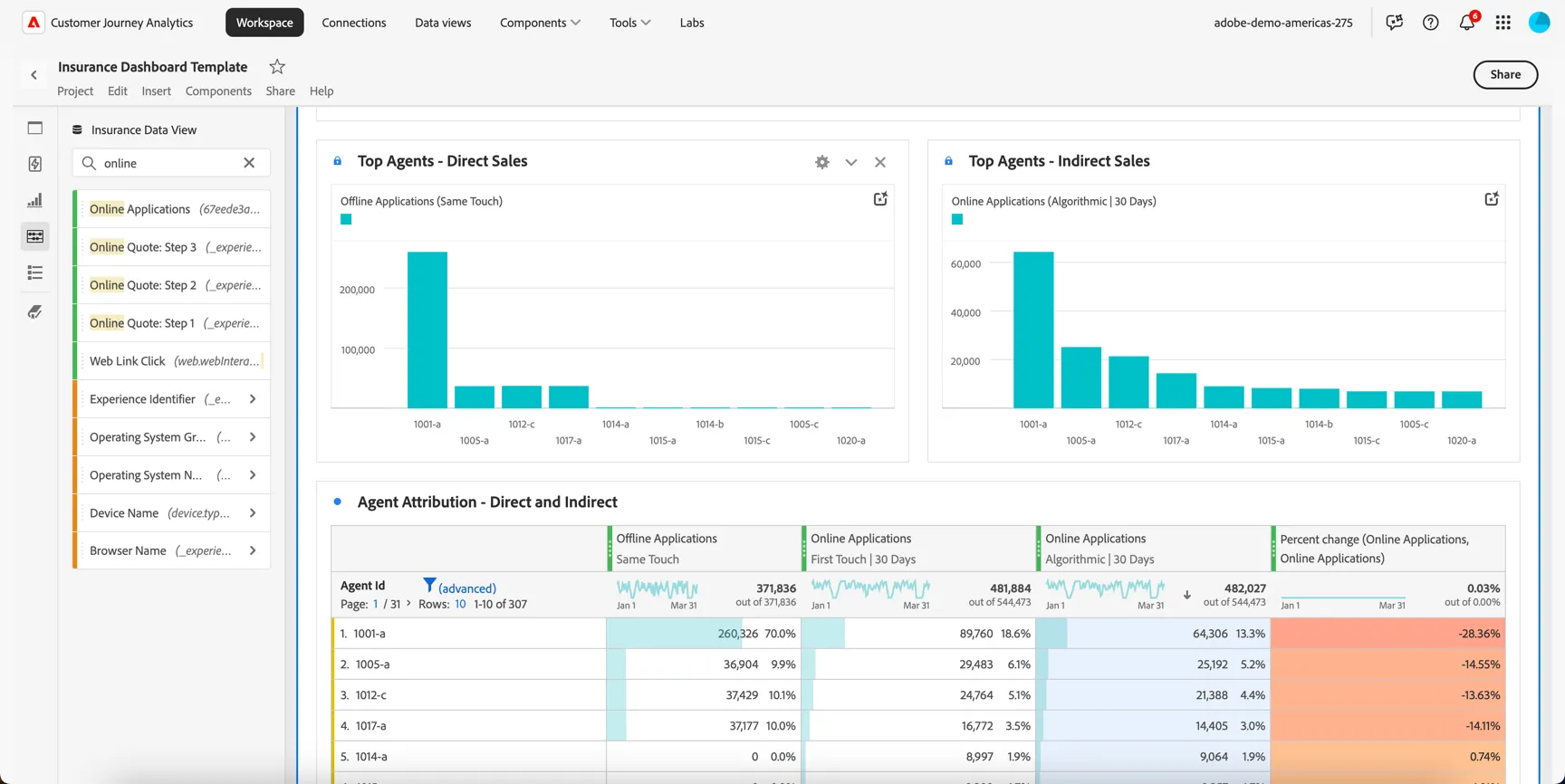
Lastly we can add some visualisations to show the top 10 performing agents across direct and indirect channels!
Congratulations, you've completed the exercise on attribution modelling using Customer Journey Analytics!