Batch Journey
We've seen so far how to create a journey triggered from a real time event. In this exercise we'll build a different type of journey, that is scheduled daily to target customers who 2 weeks away from renewal.
Create the Journey
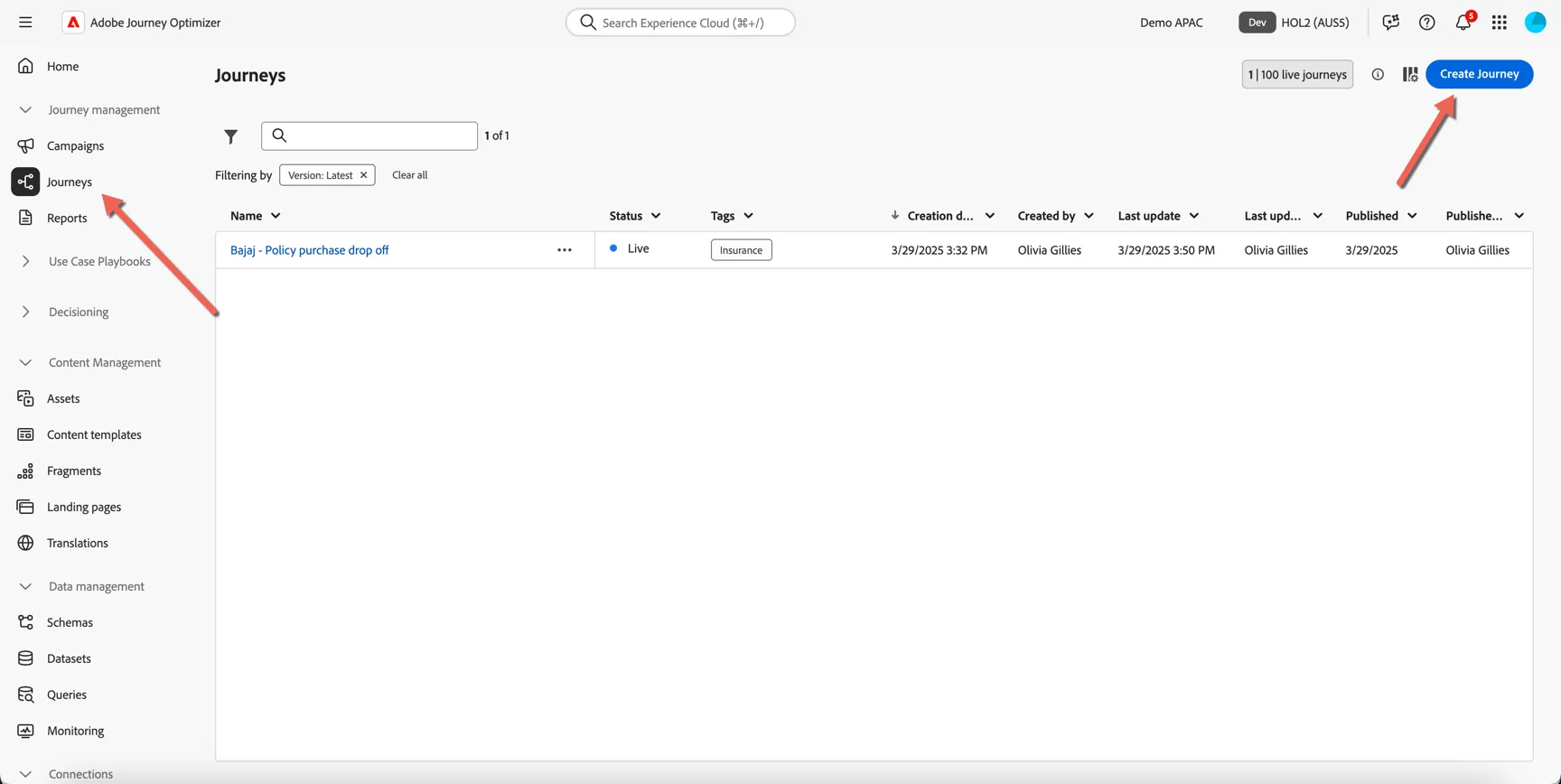
Click on Journey Management -> Journeys in the left hand navigation. Then click to Create Journey.
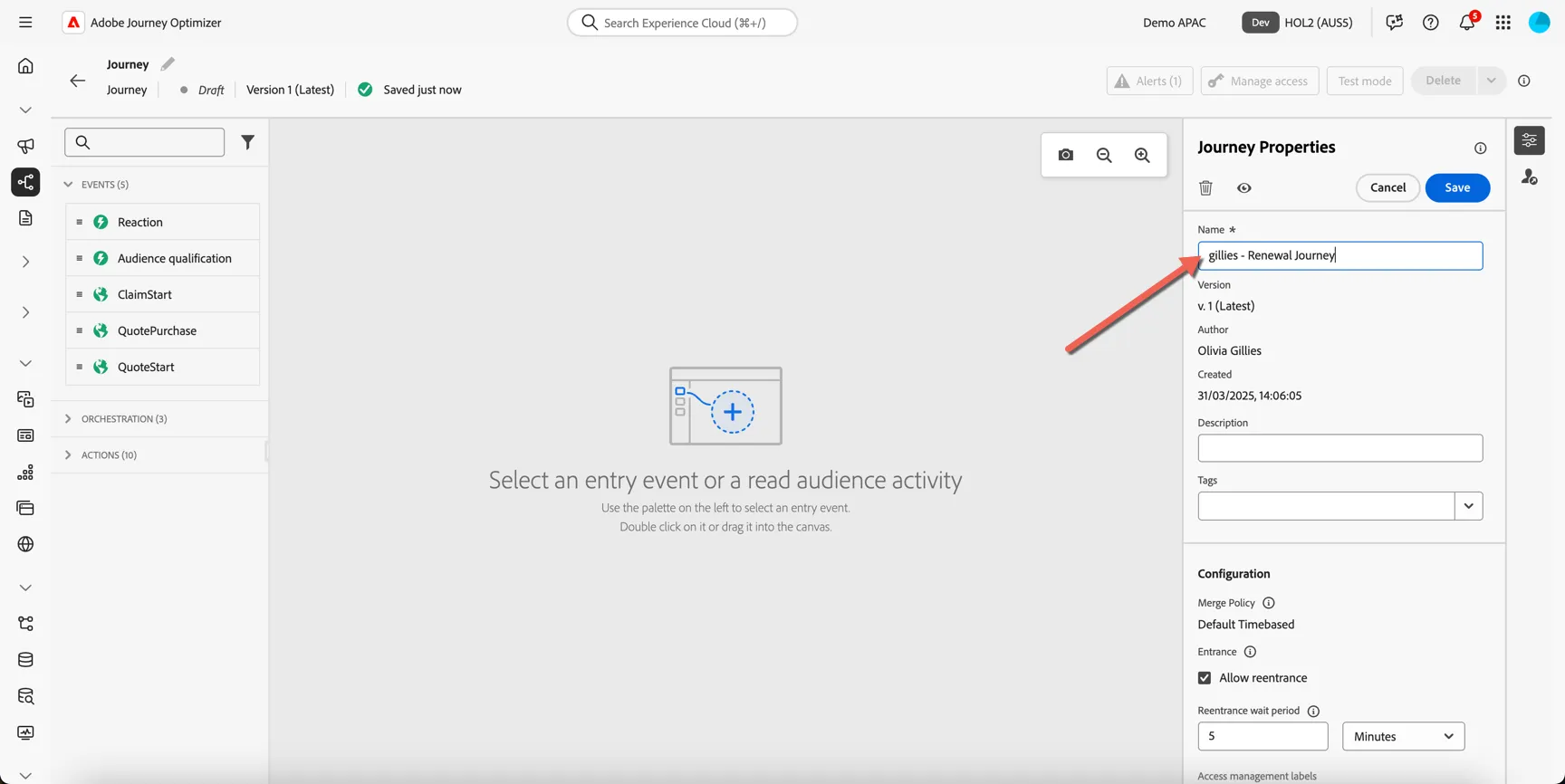
Give your journey a name. Something unique like [your last name] - renewal journey.
We're going to use the pre-defined Renewal audience as the starting point for this journey. Customers will enter this audience when they have one or more policies which are due for renewal in 2 weeks.
From the orchestration panel:
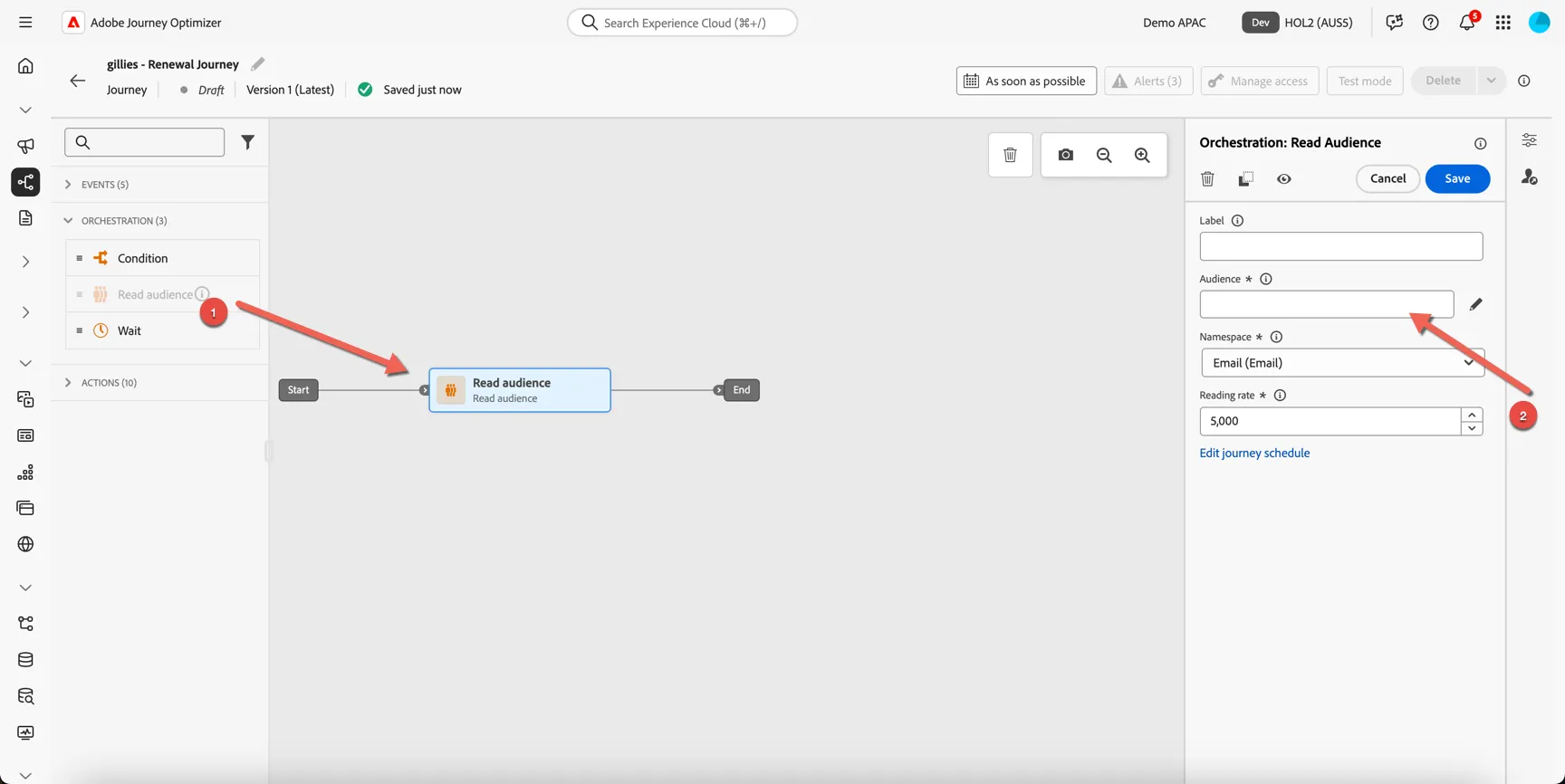
- Drag the Read Audience activity into the canvas.
- Click to select the audience
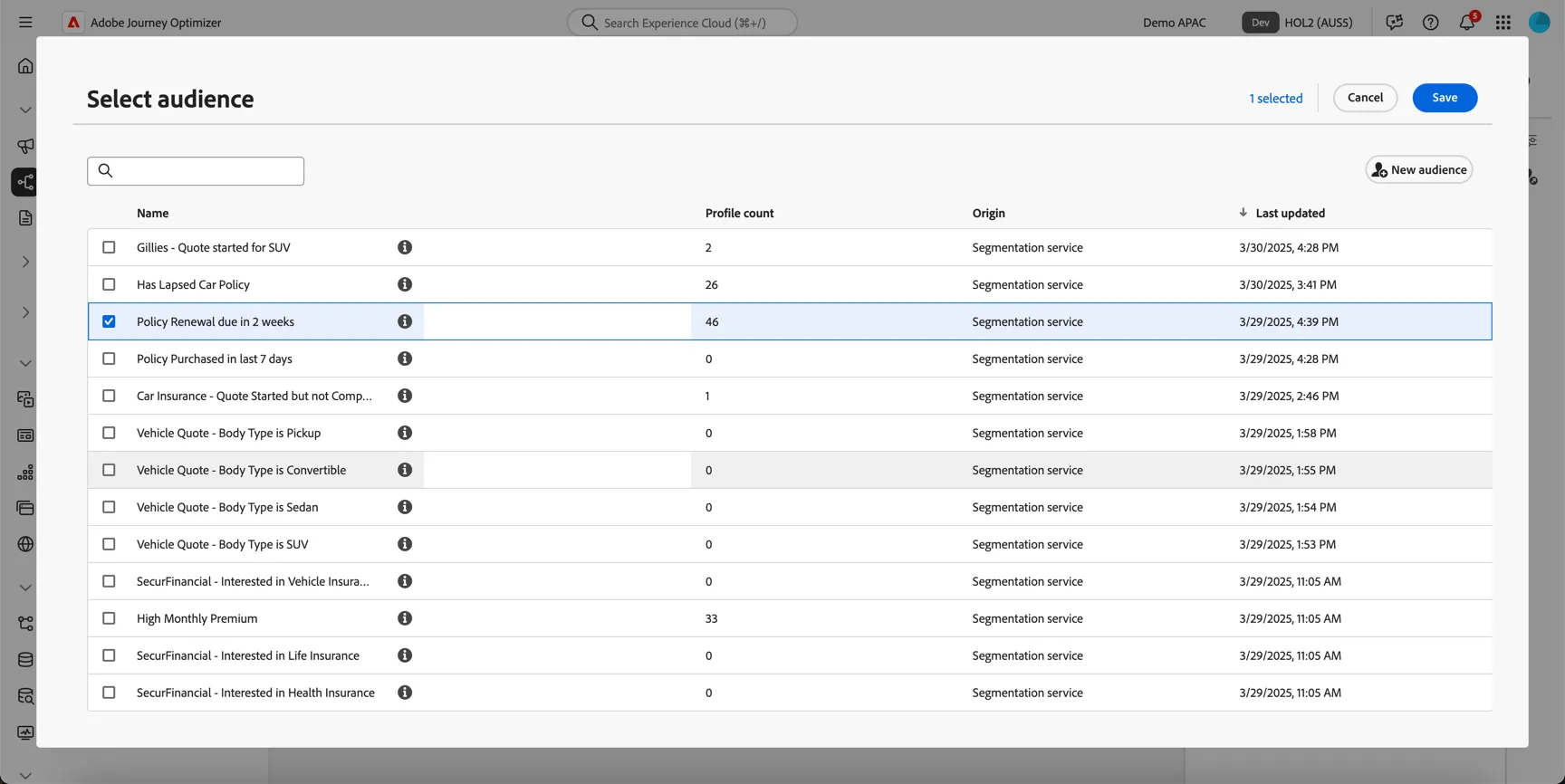
In the audience selector, select your renewal audience from the last exercise. Click Save.
In the Read Audience activity properties you can configure the scheduling for the journey. You can configure this journey to execute daily or weekly as desired. By setting it to incremental read it will pick up only new customers that have entered the audience each time it executes.
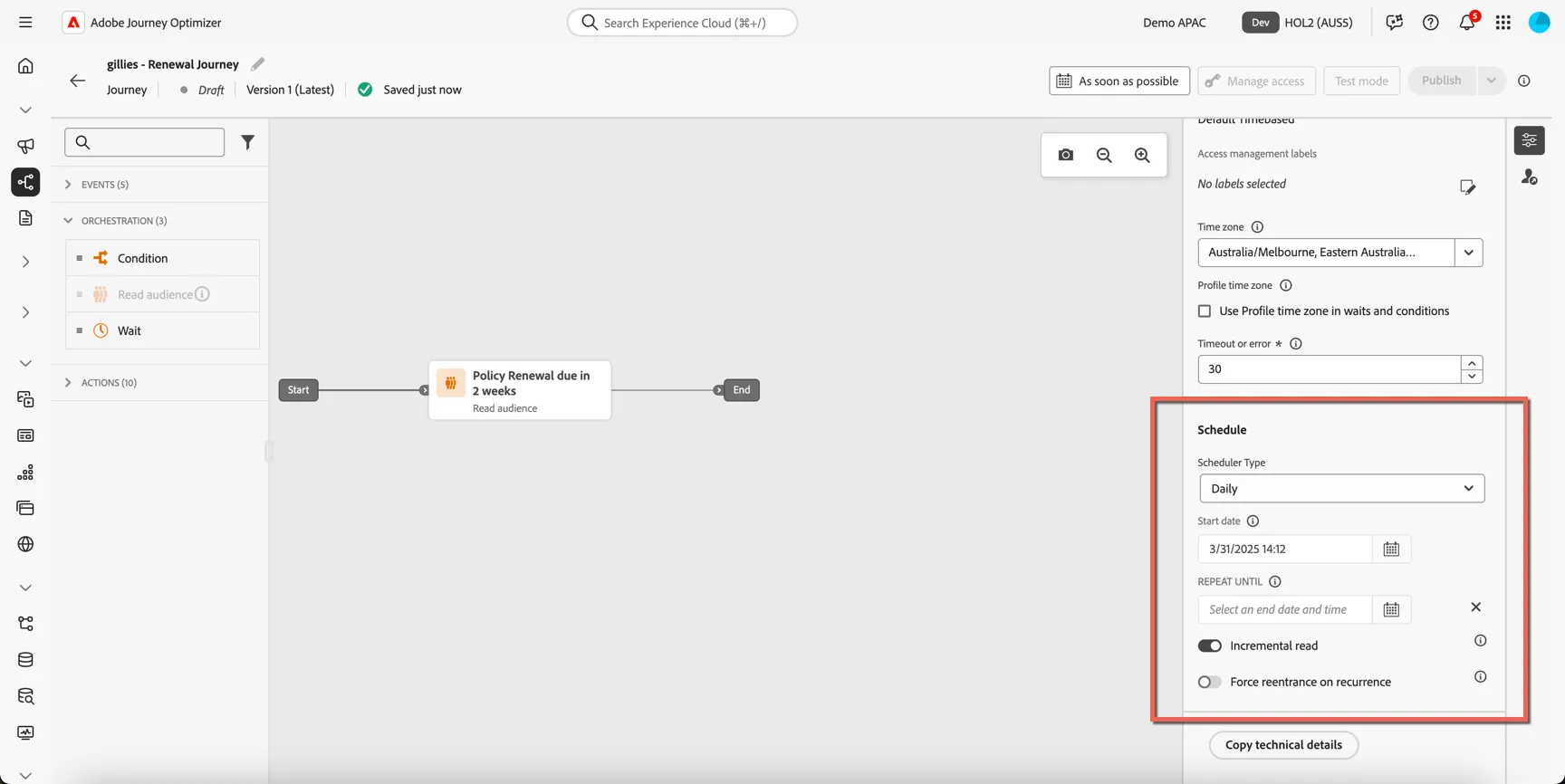
We want to prioritize customers who are high risk or high value. To do this we will add a condition to split the journey into 2 paths, high priority and low priority.
- Drag the condition activity and add it to the end of the journey.
- Click to edit the expression
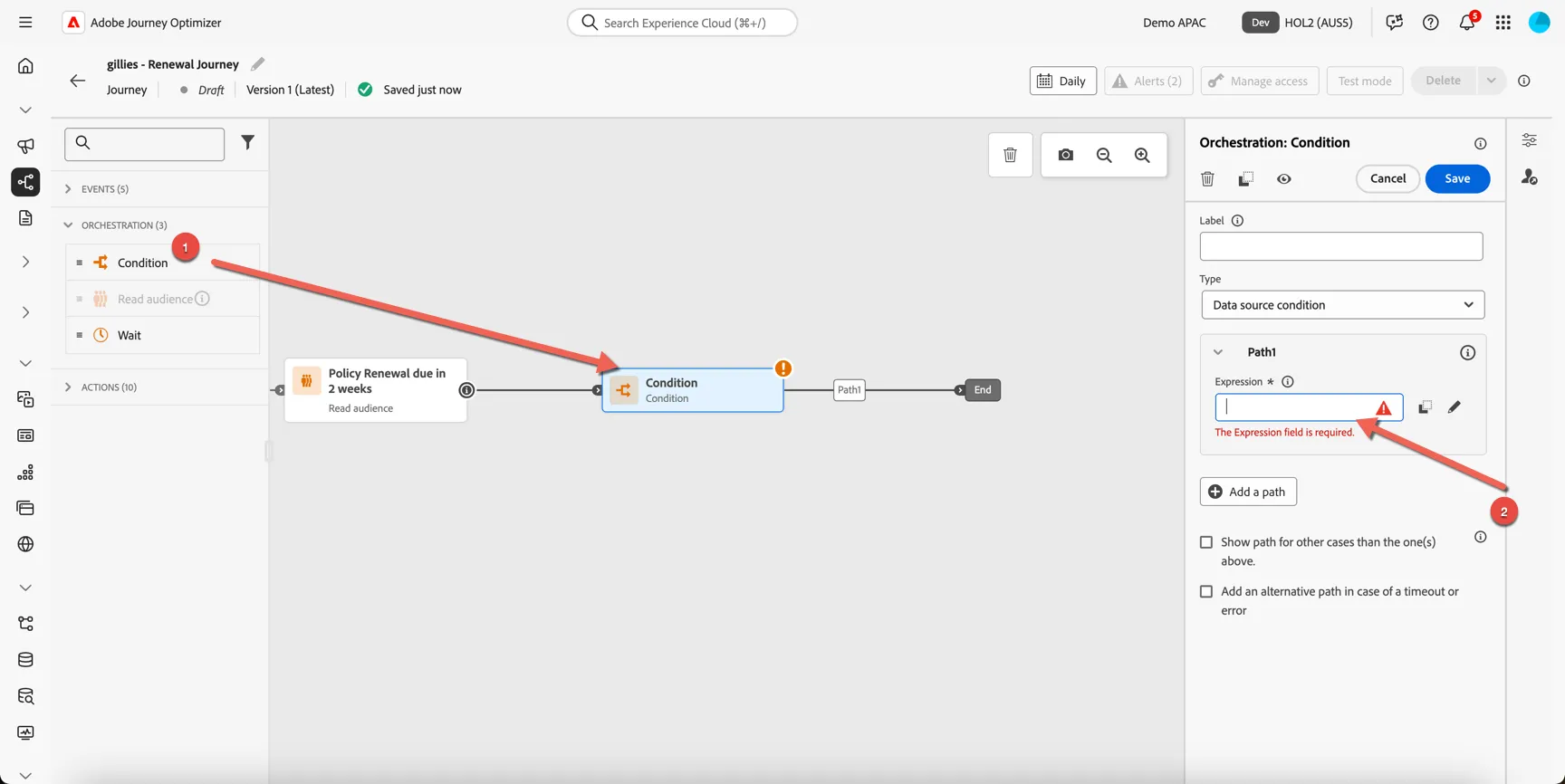
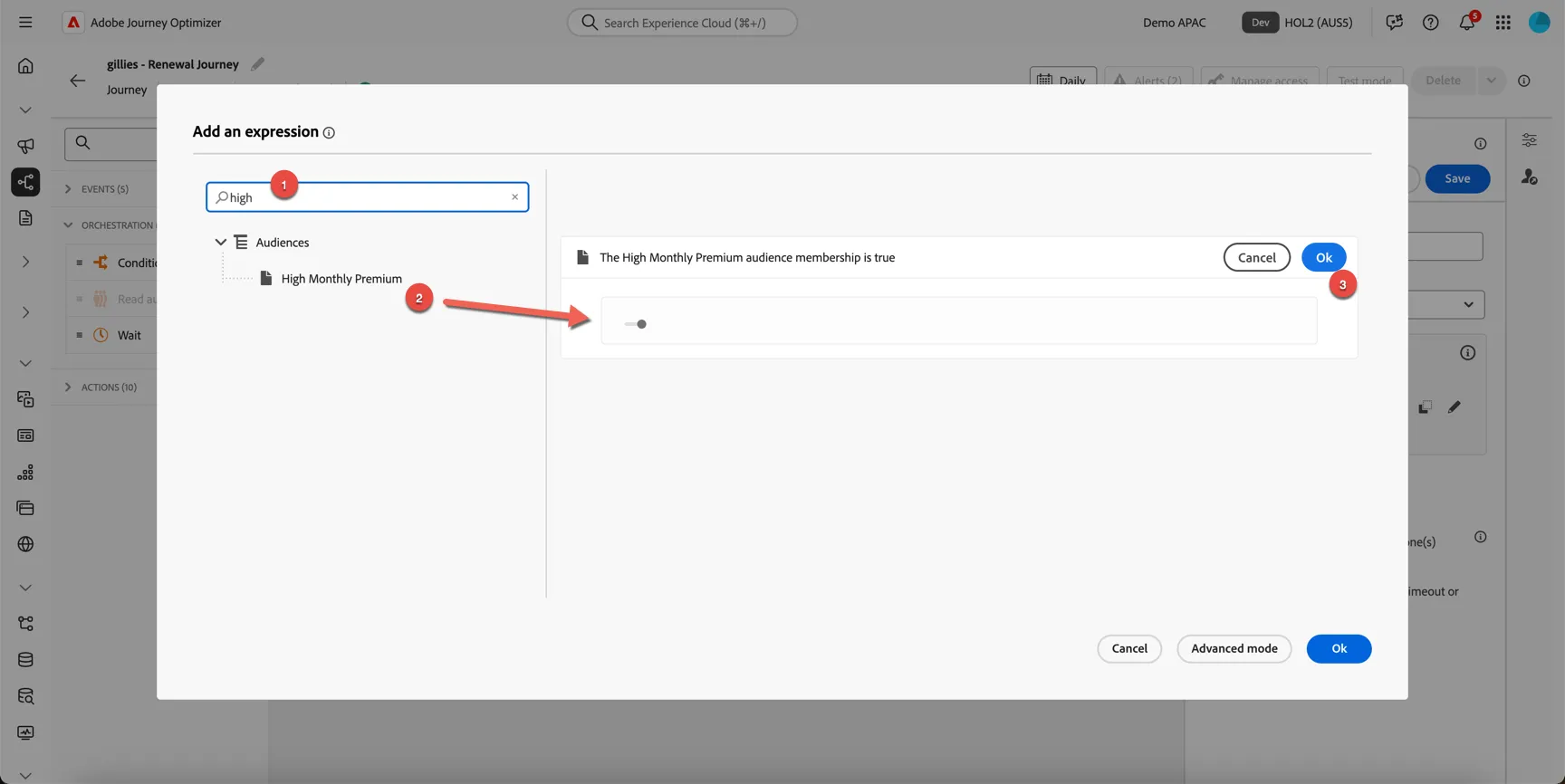
In the expression editor:
- Search for high
- Drag the High Monthly Premium audience into the expression
- Click Ok
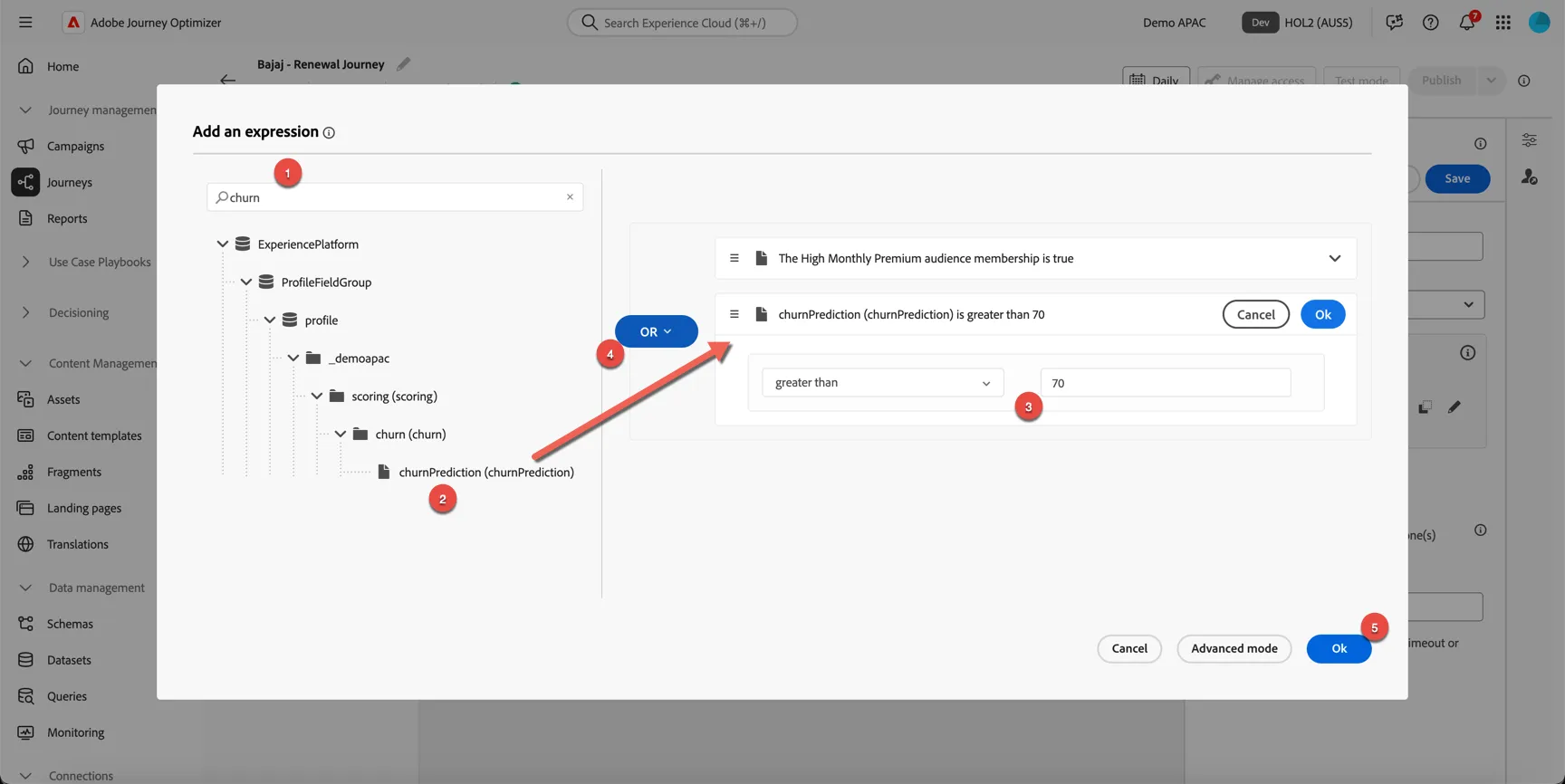
We also want to prioritize customers that Adobe's Predictive AI has identified as being high risk of churn.
- Search for churn
- Drag the churnPrediction into the editor
- Set the operator to greater than and the value to 70
- Change the condition from AND to OR
- Click Ok to store the expression.
In the condition properties, update the path name to High Value Customers and tick the checkbox to Show path for cases other than the one(s) above. Click Save.
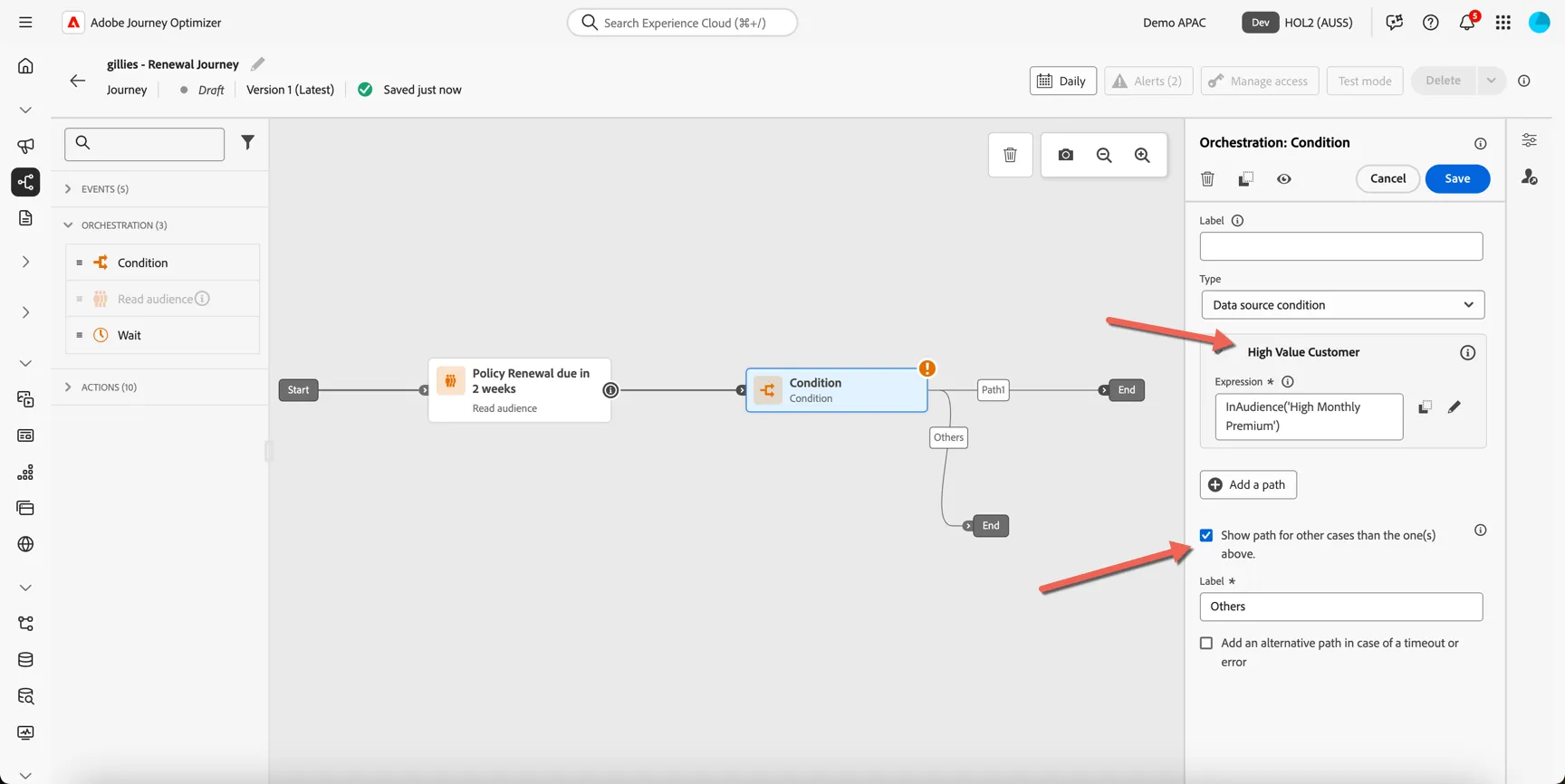
We will send the high value customers directly to the call center for outbound contact. To do this we have a custom action NotifyAgent. Drag this action and add it to the end of your journey.
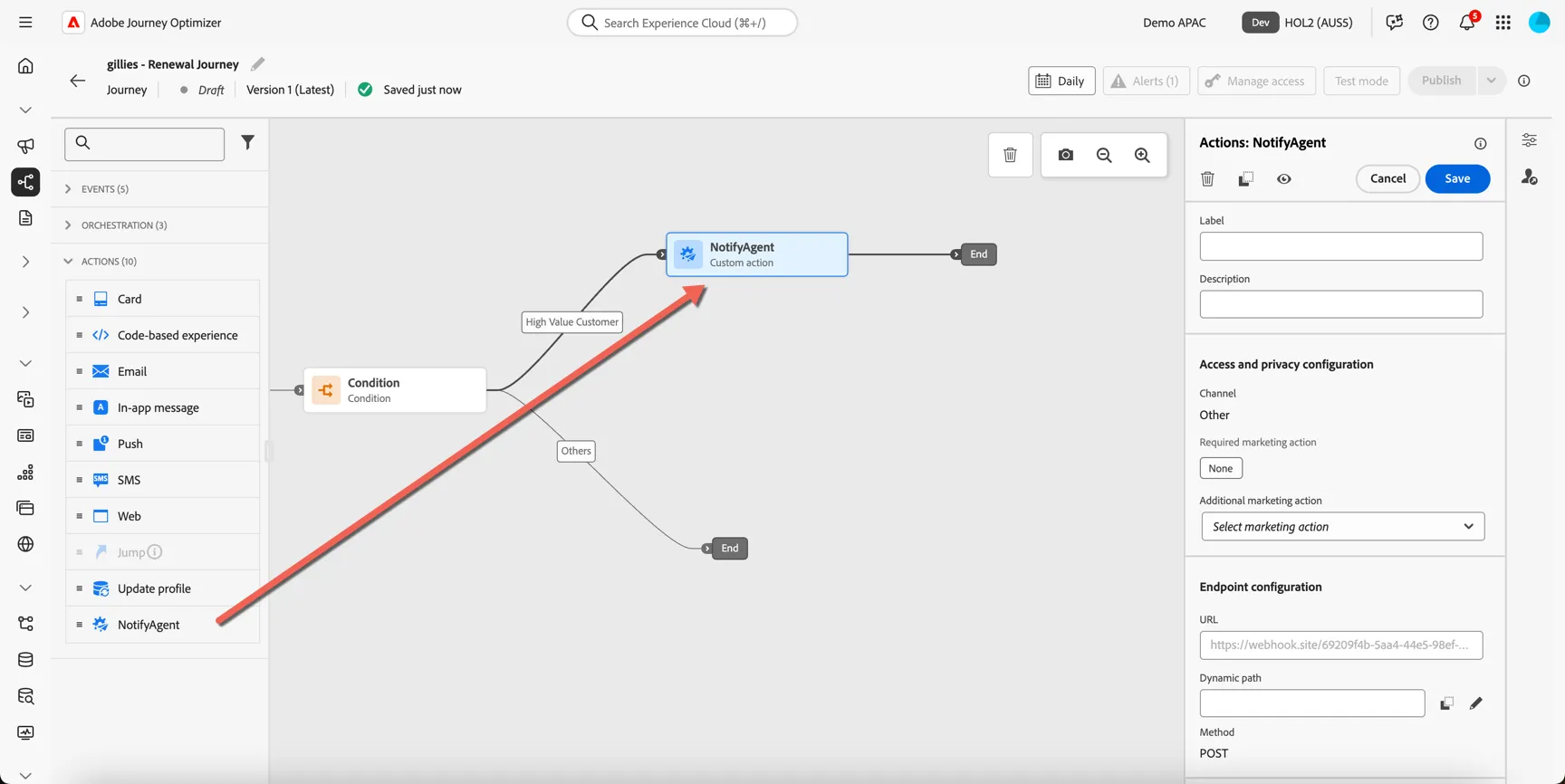
In the action properties we need to configure the action to send the customer phone number, email and first name to the agent.
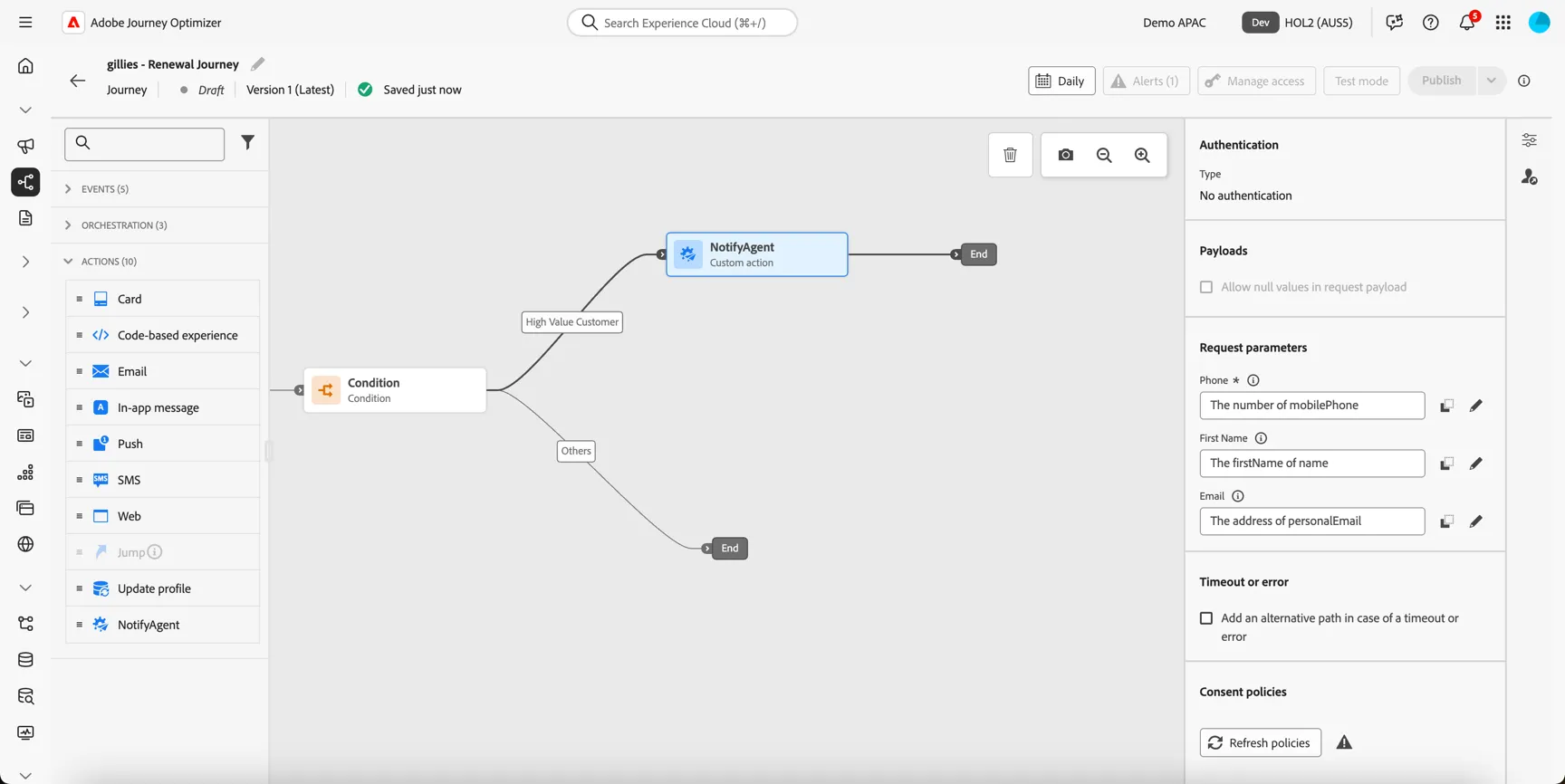
Click on each of the parameter fields and add the appropriate field from the profile.
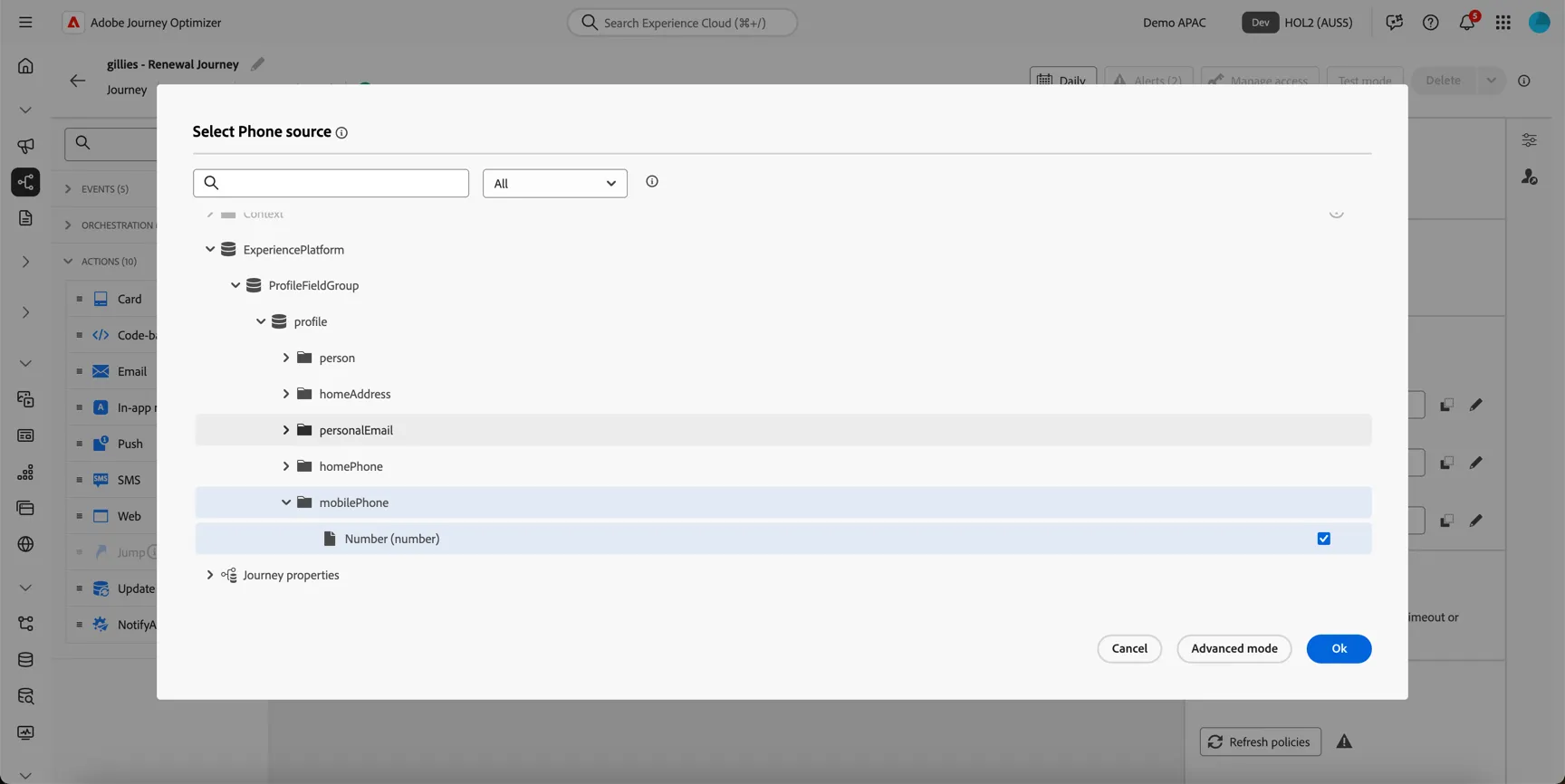
Click to save the activity once you're done.
For lower value customers we will automate their reminder communications. Drag an Email activity onto the canvas and join it to the others path. Set the Email Configuration to email-marketing.
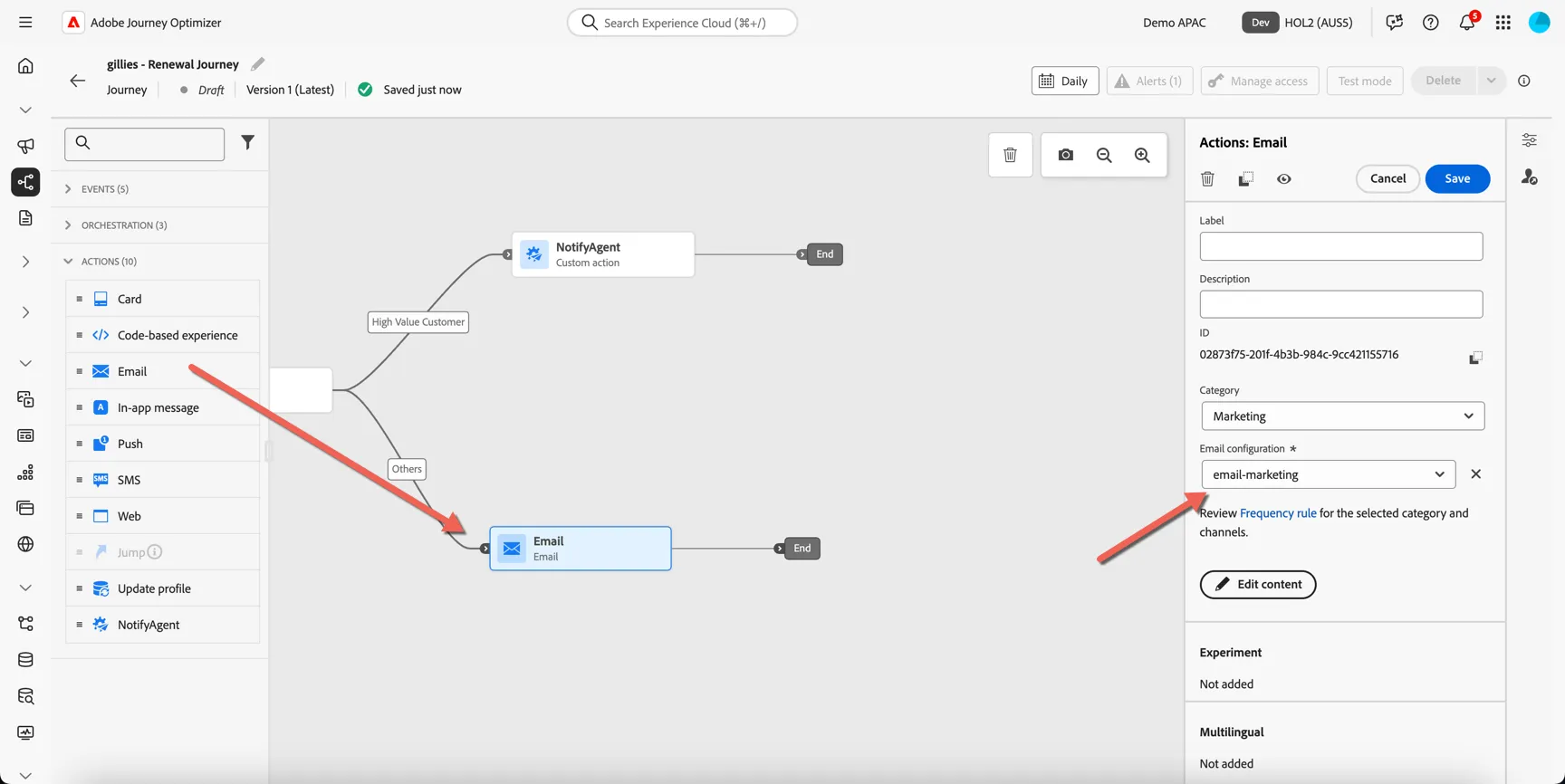
We'll add the email content once we've finished building the journey structure.
Next we'll use a reaction activity to check whether a customer has clicked on the email or not. Drag the reaction node and add it to the end of your journey. Configure a timeout of 1 day and add a timout path.
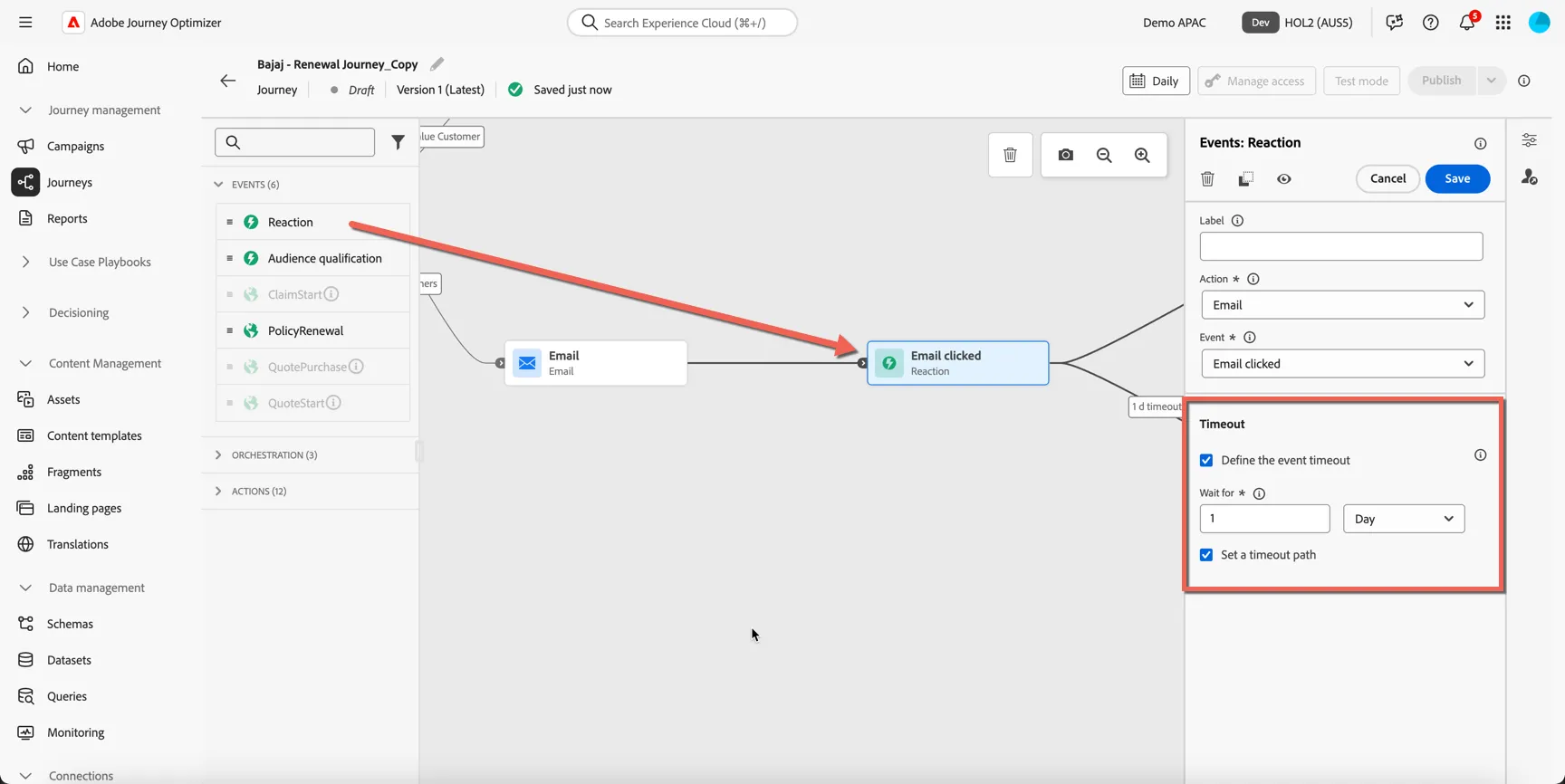
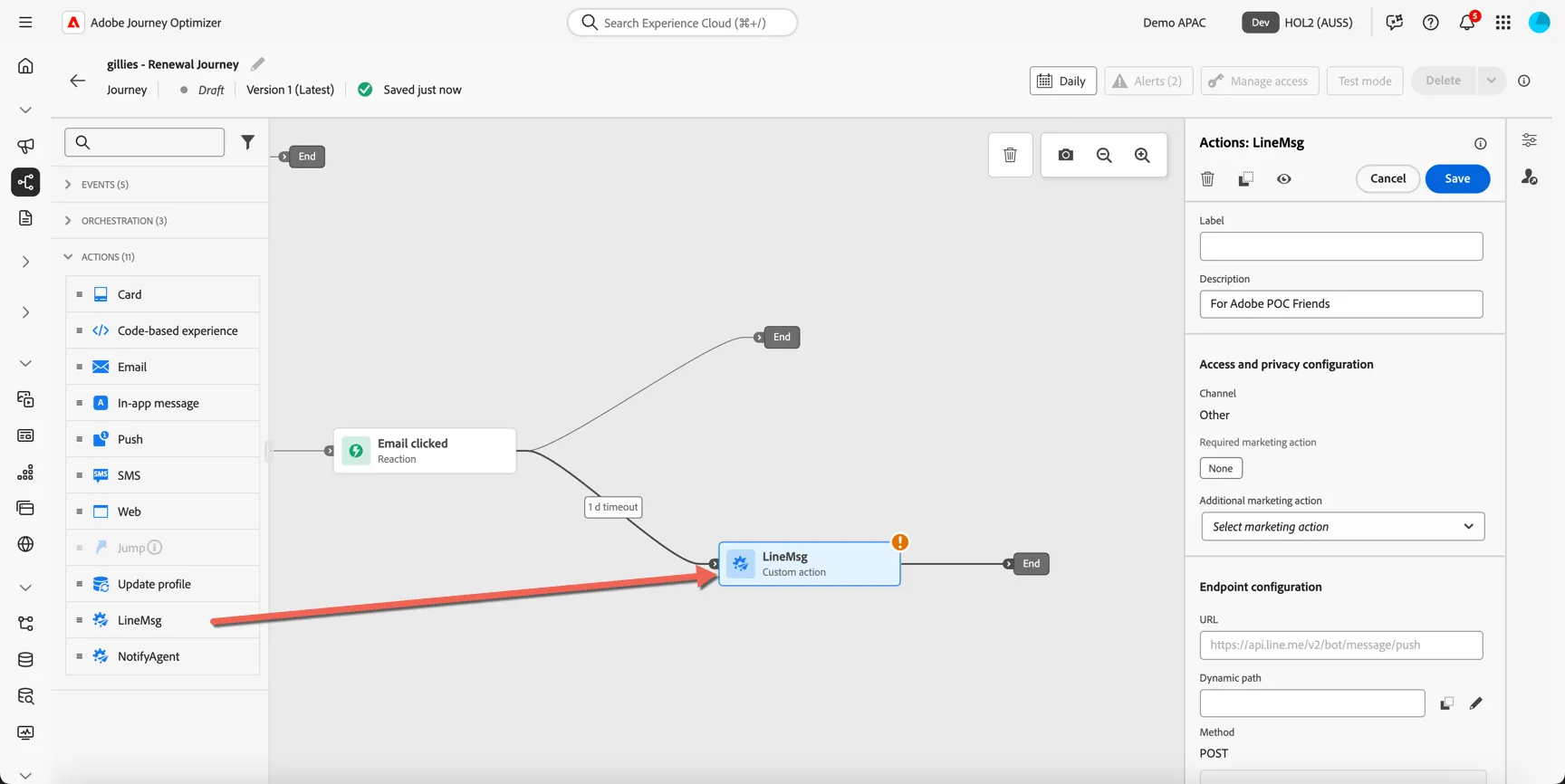
If the customer does not click on any of the links in the email after 1 day we will retarget them on a different channel. For this exercise we will use Line channel but this could be Whatsapp or SMS or any other channel as desired.
Drag the LineMsg action into the canvas and add it to the timeout path.
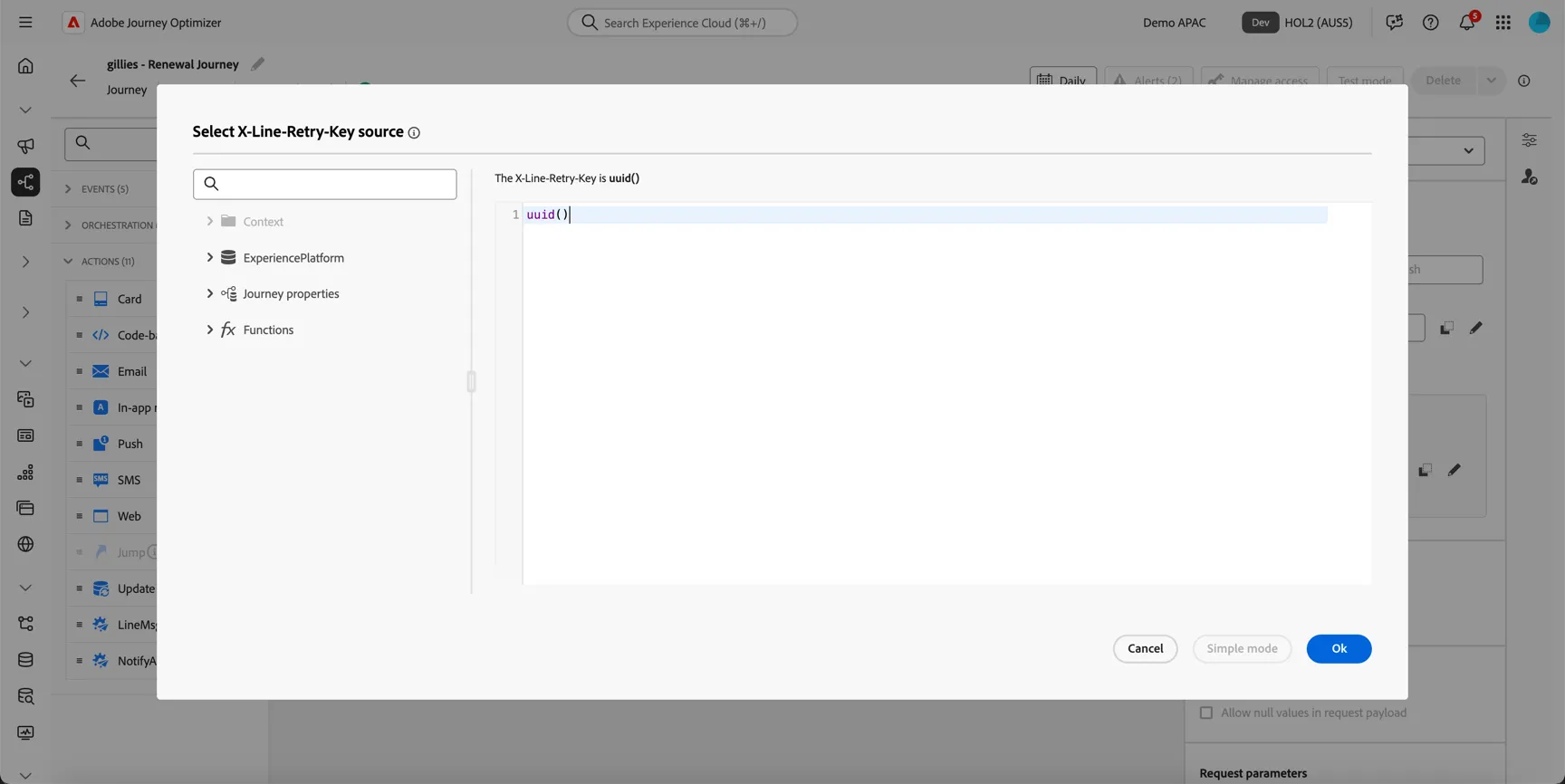
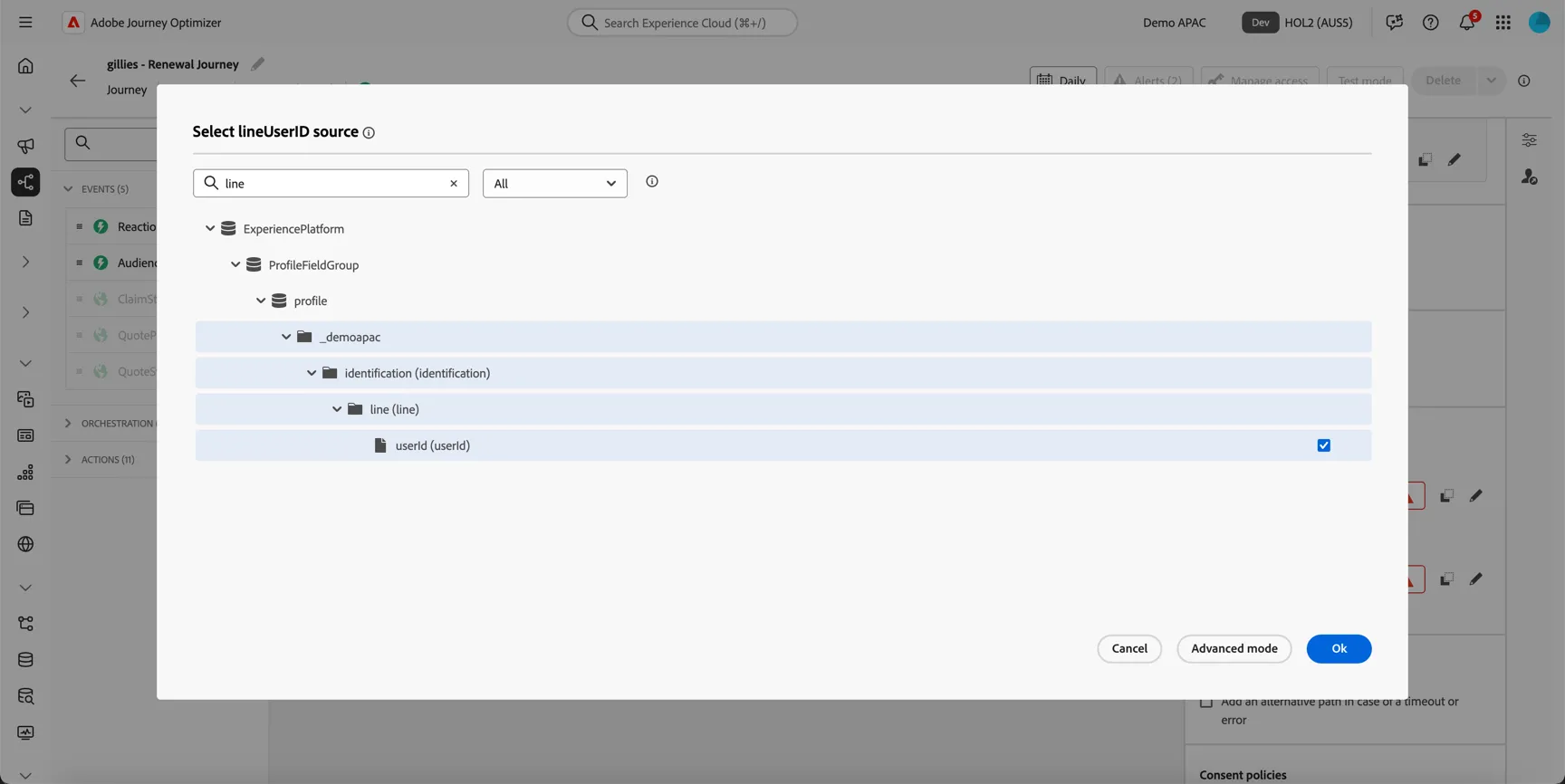
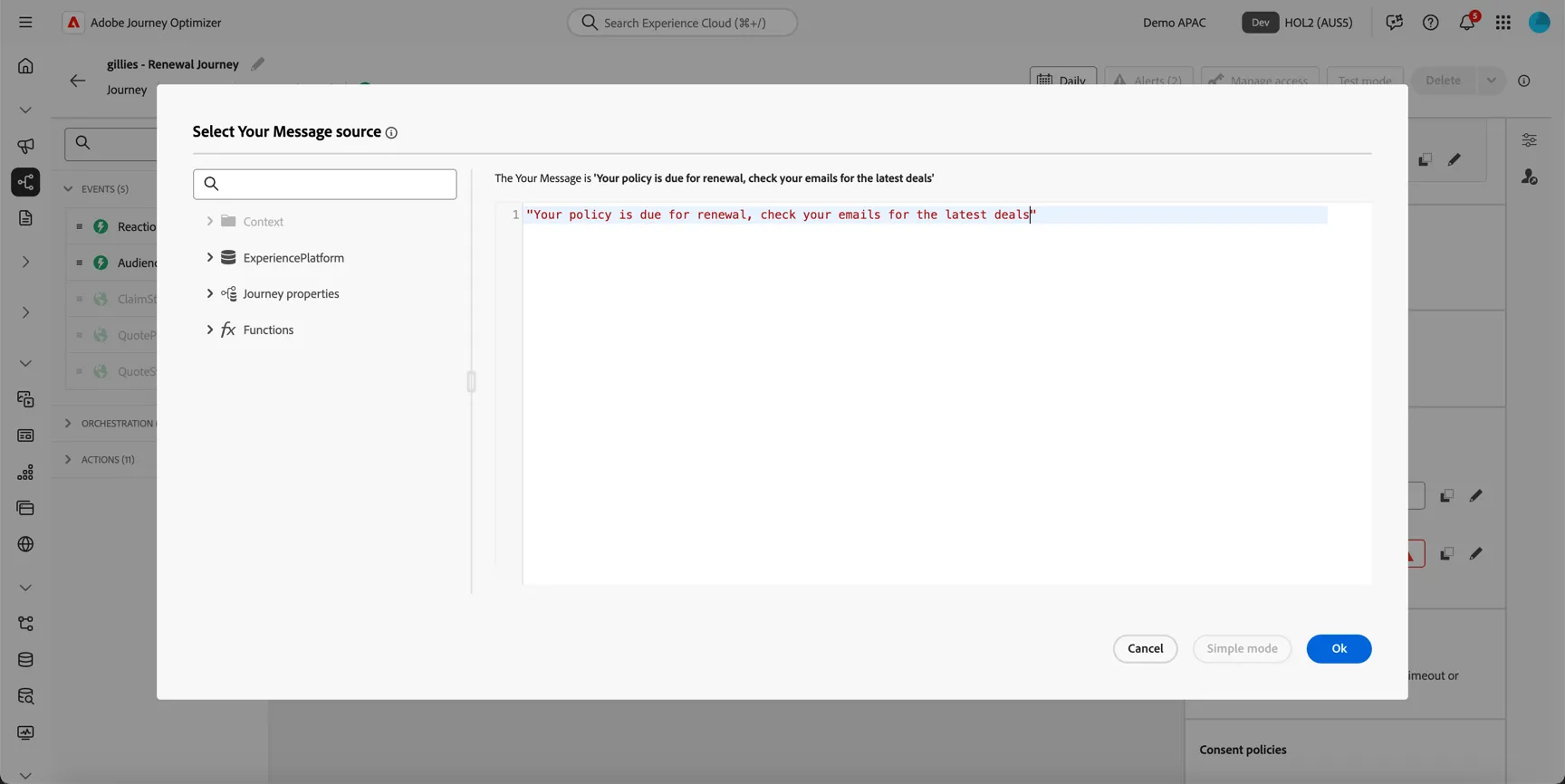
Scroll down in the action properties, there are 3 fields we need to configure:
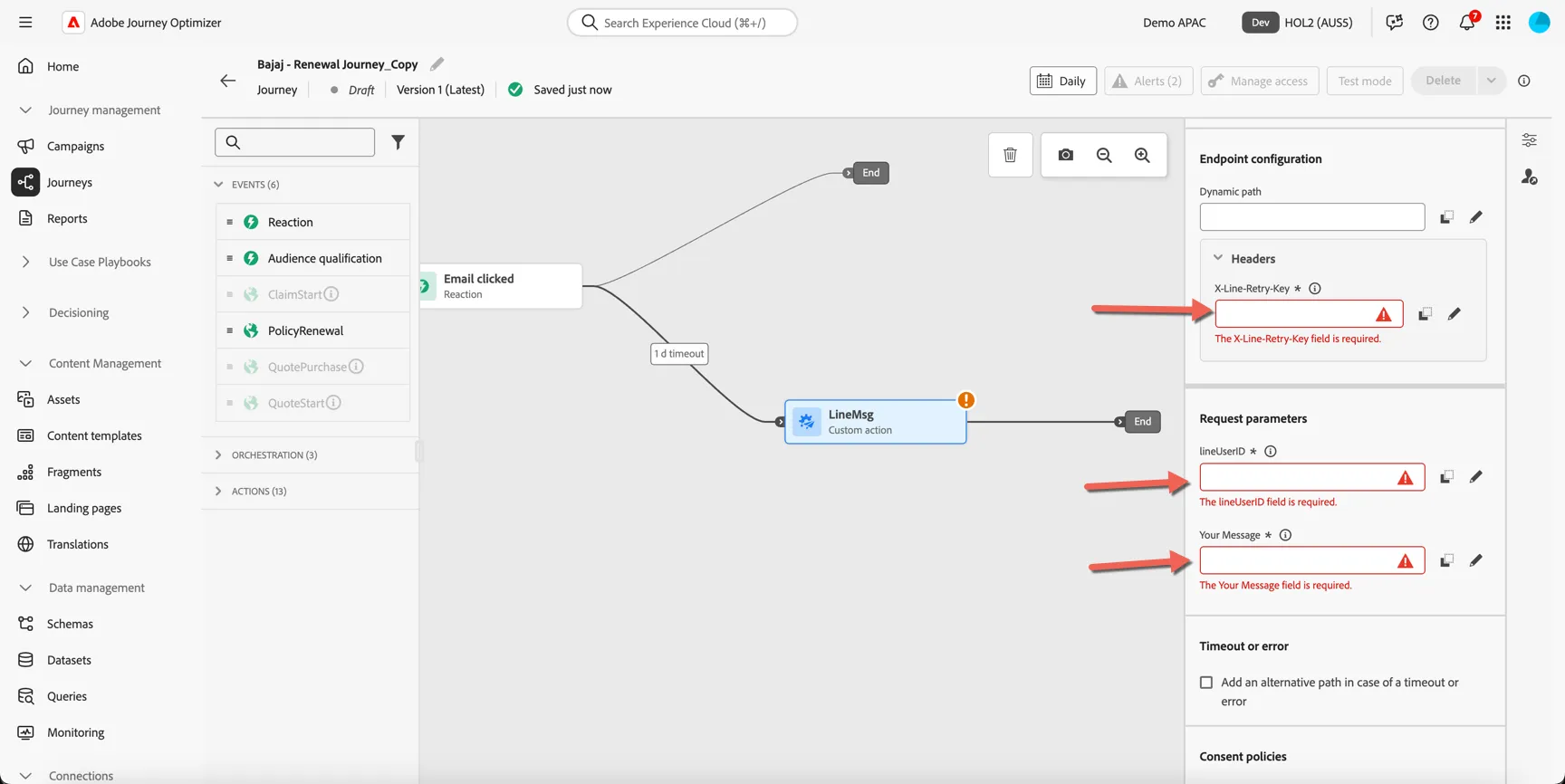
Using the editor populate these fields with the following:
- X-Line-Retry-Key = uuid()
- UserId = profile._demoapac.indentification.line.userId
- Message = whatever message you want!
Click to Save the activity.
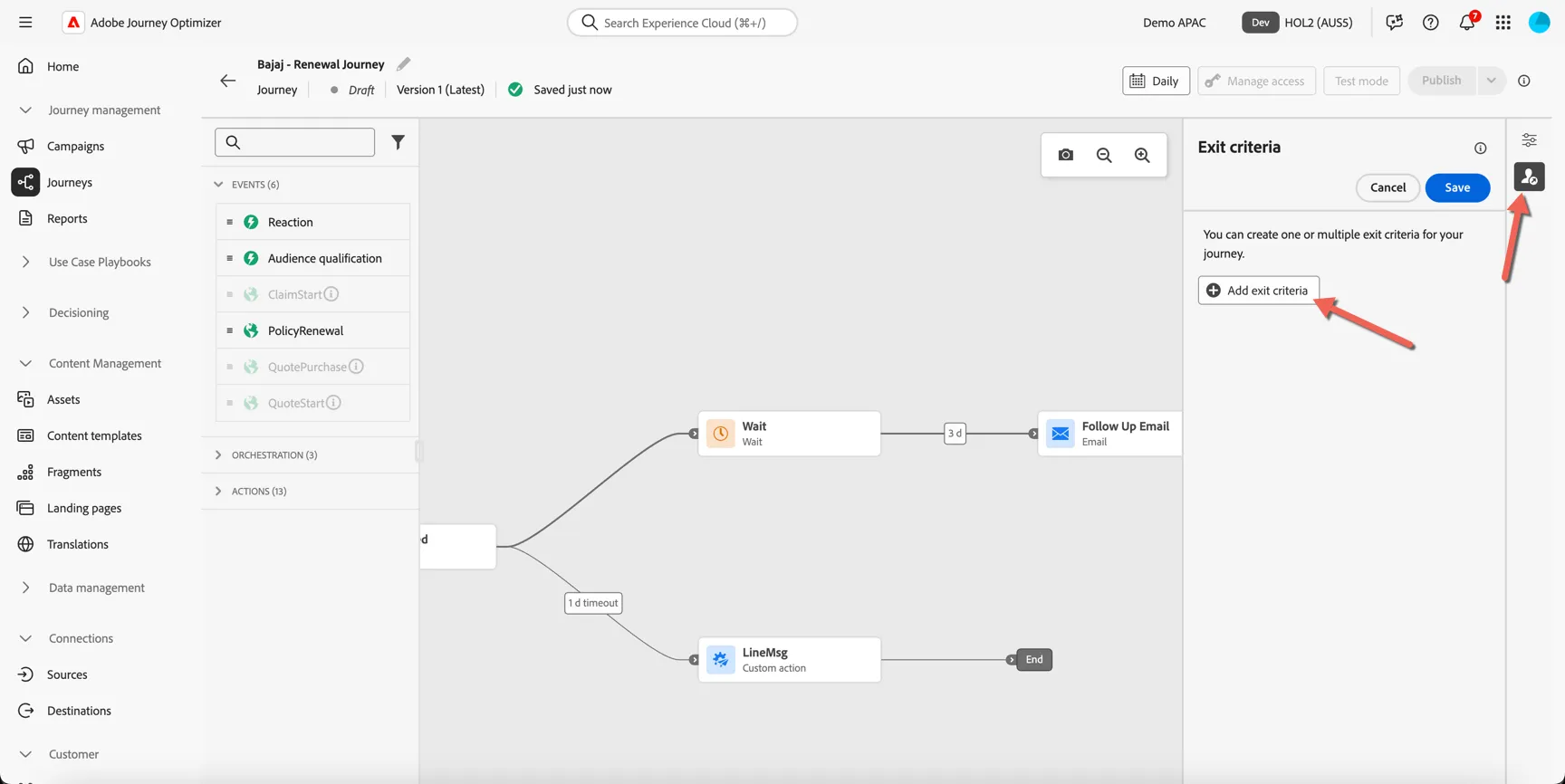
Lastly we want to make sure that if customers renew their policy at any time during this journey that we stop messaging them. For this we can use the journey's global Exit Criteria.
Click the Exit criteria button on the right side of the journey canvas and click to Add exit criteria.
Add a label for Policy Renewal and click to select the event.
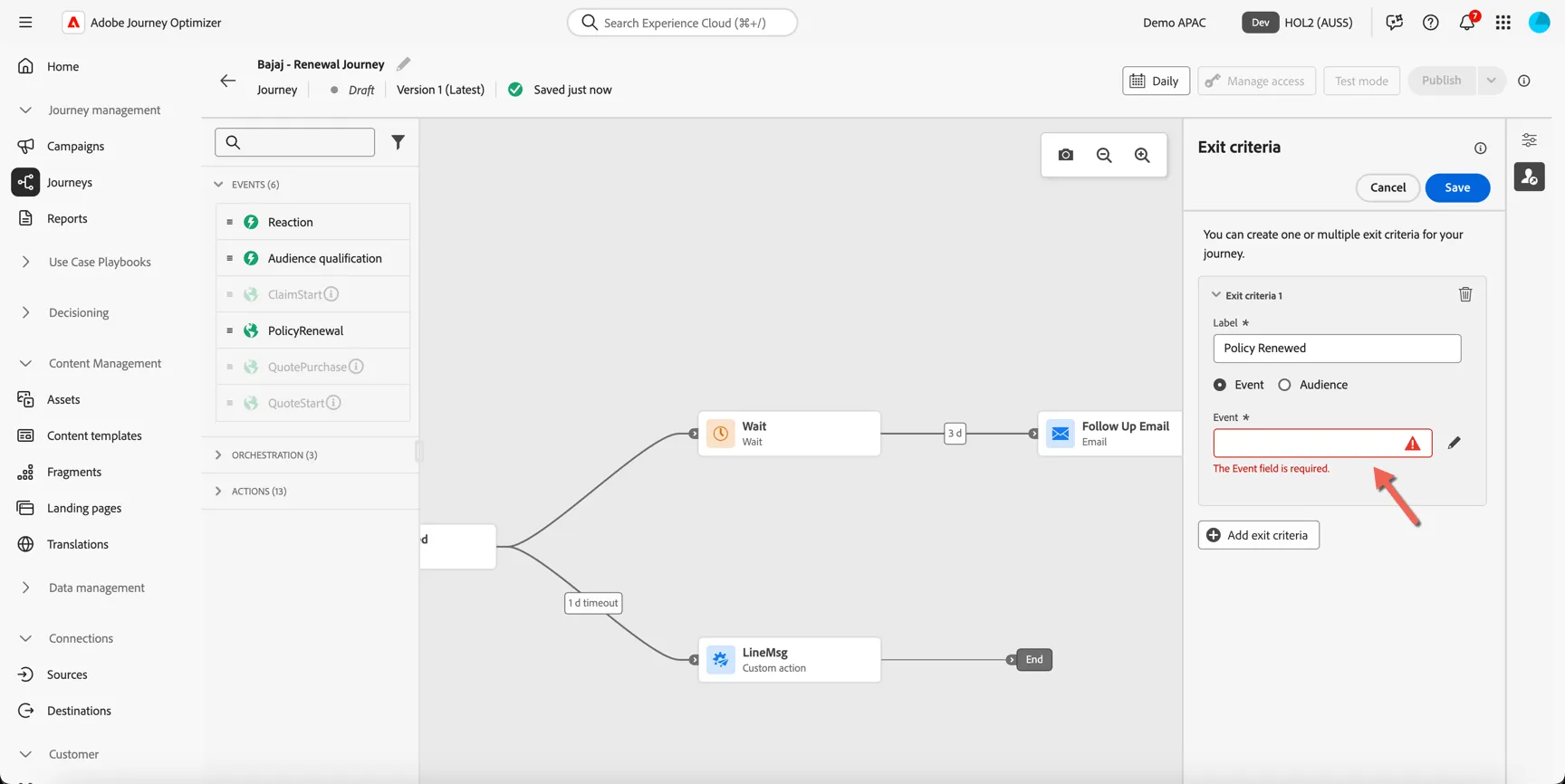
Select the Policy Renewal event that has been preconfigured for you, then click Save
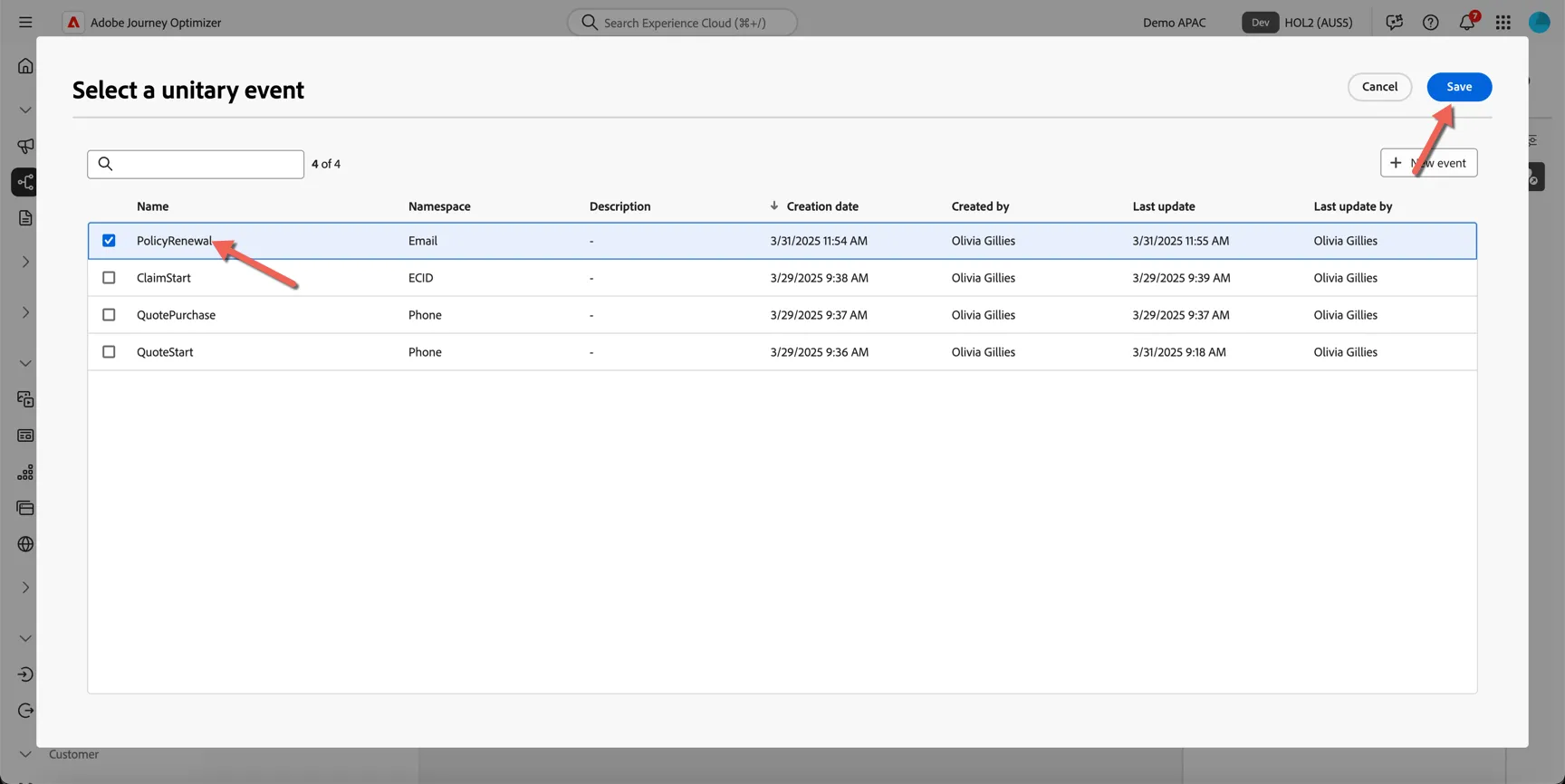
Click to Save the exit criteria.
Add the Email Content
In this exercise you'll learn how Adobe's Generative AI features can be used to speed your content creation.
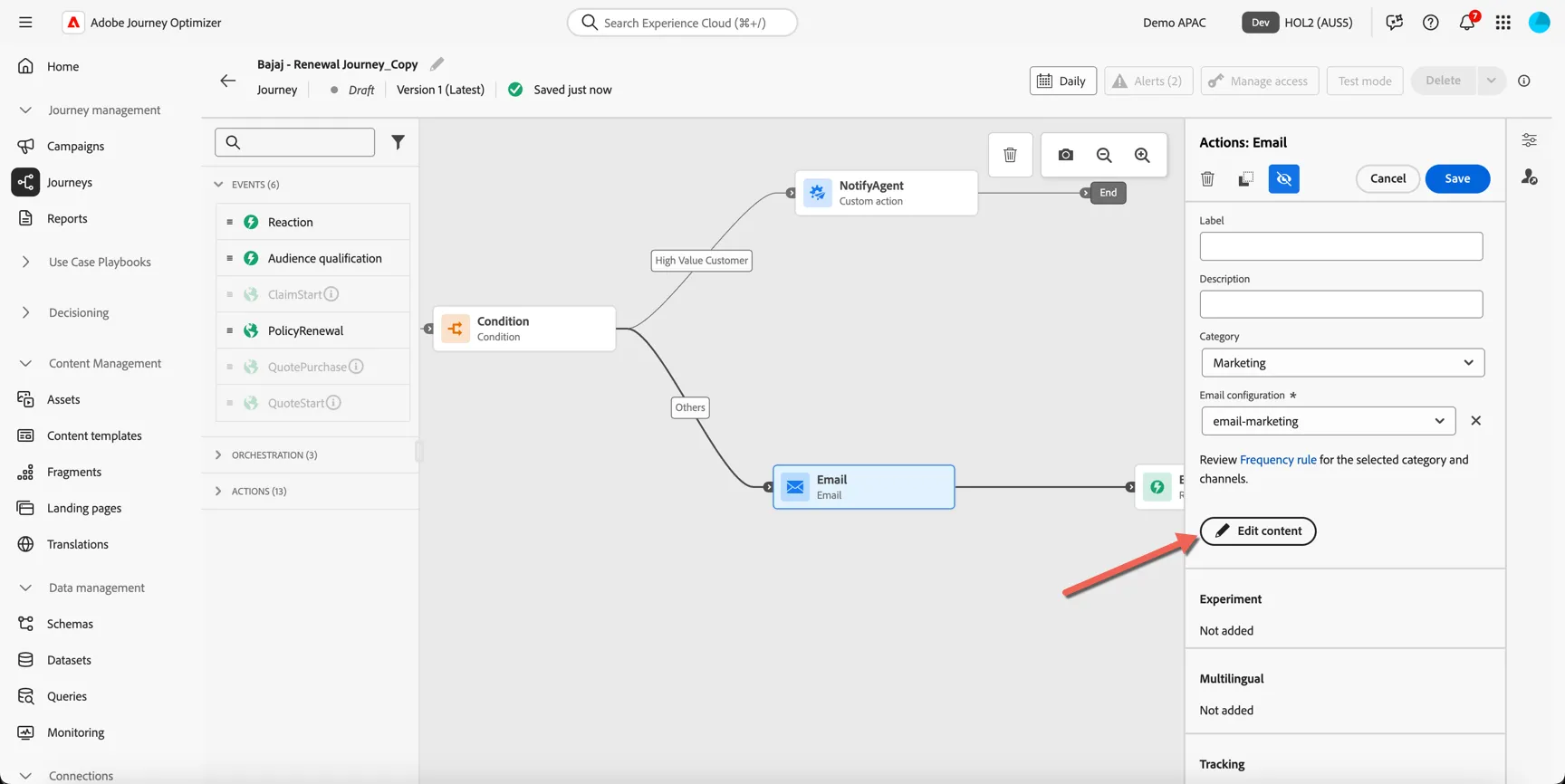
Return to the email node and click to Edit the Content
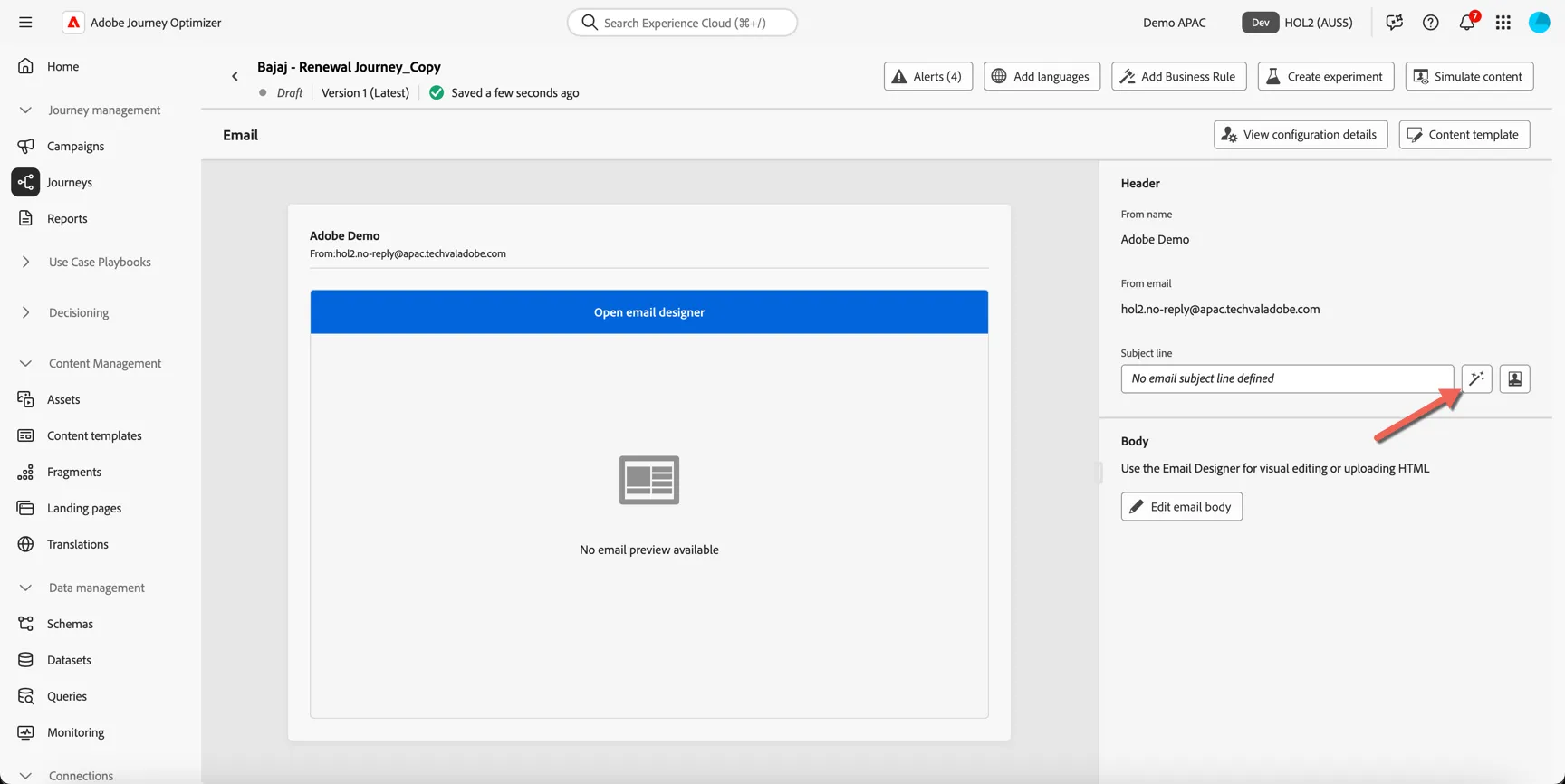
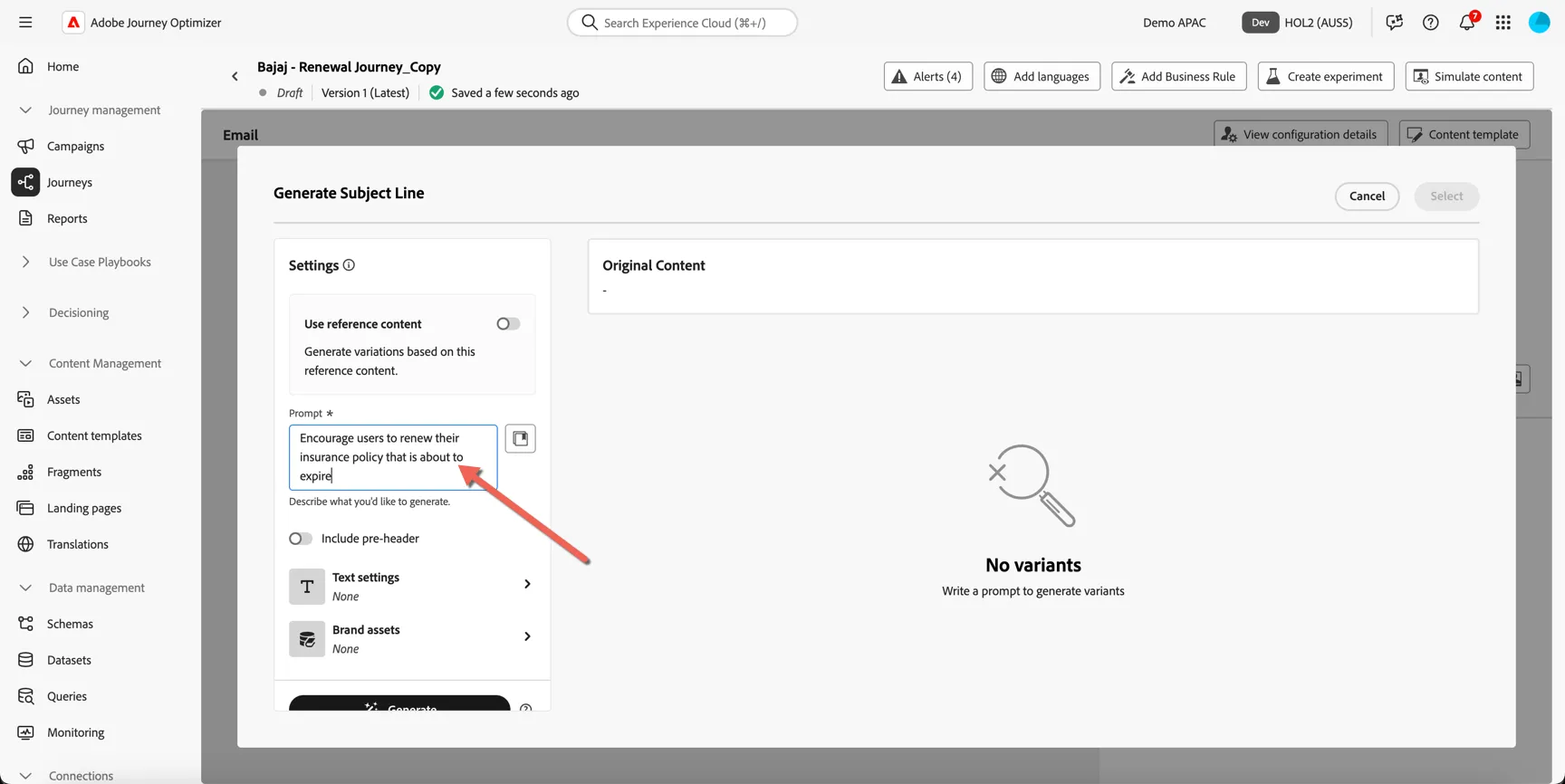
We'll start by using AI to generate an engaging subject line. Click the magic wand next to the subject field.
Add a text prompt describing the call to action for this email.
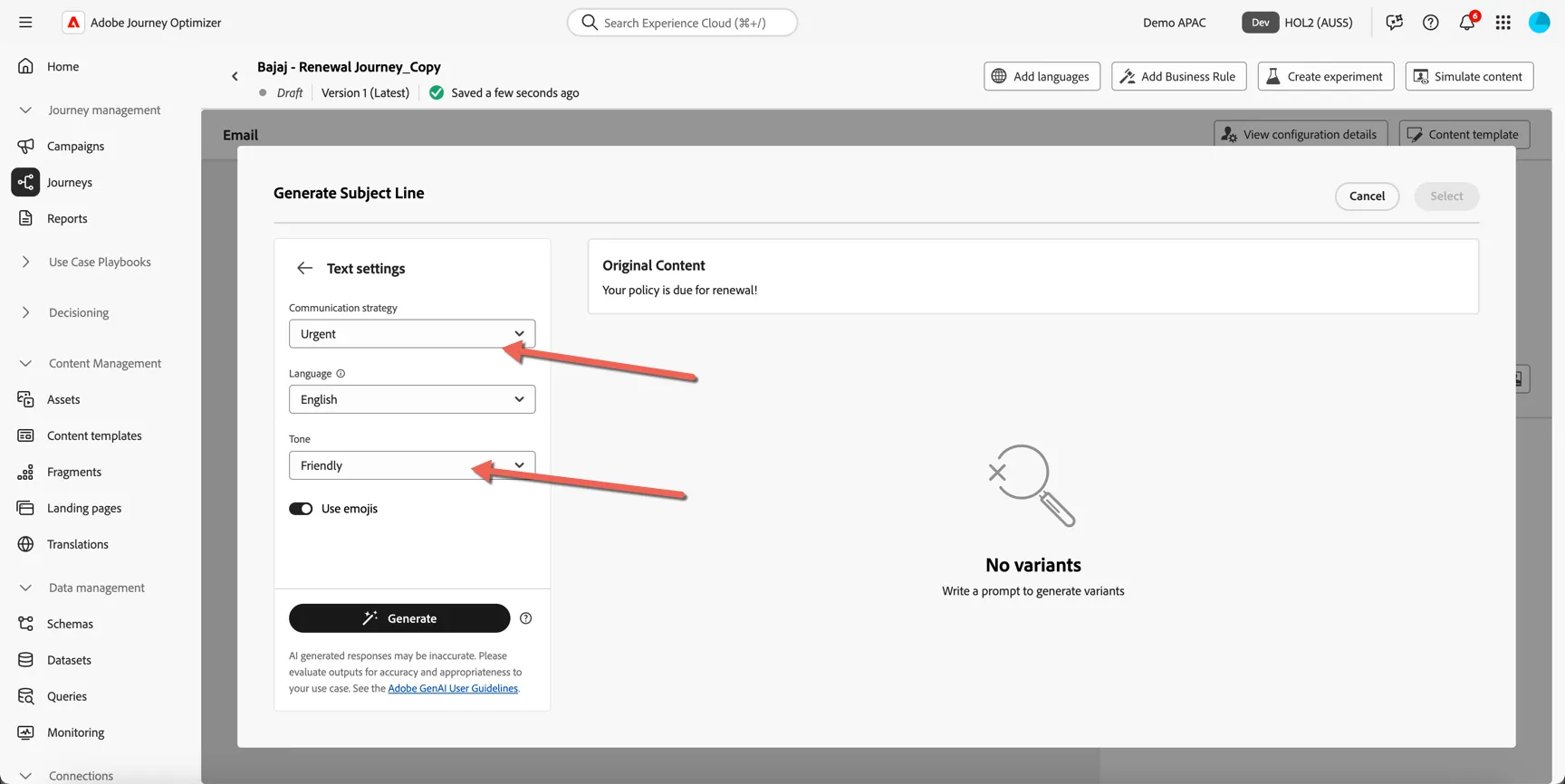
Open the text settings to provide the AI with additional guidelines around the communication strategy and tone.
Click Generate
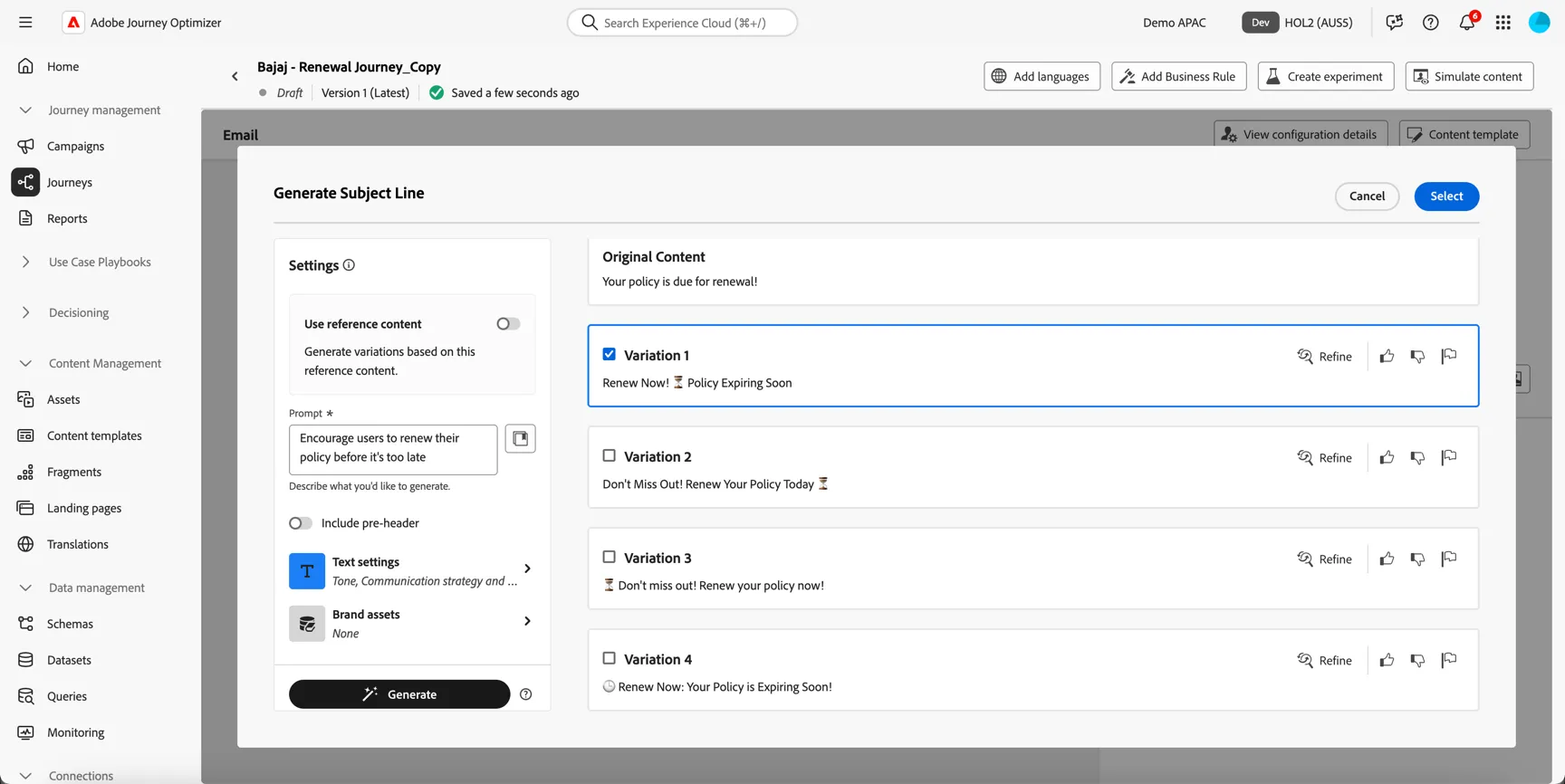
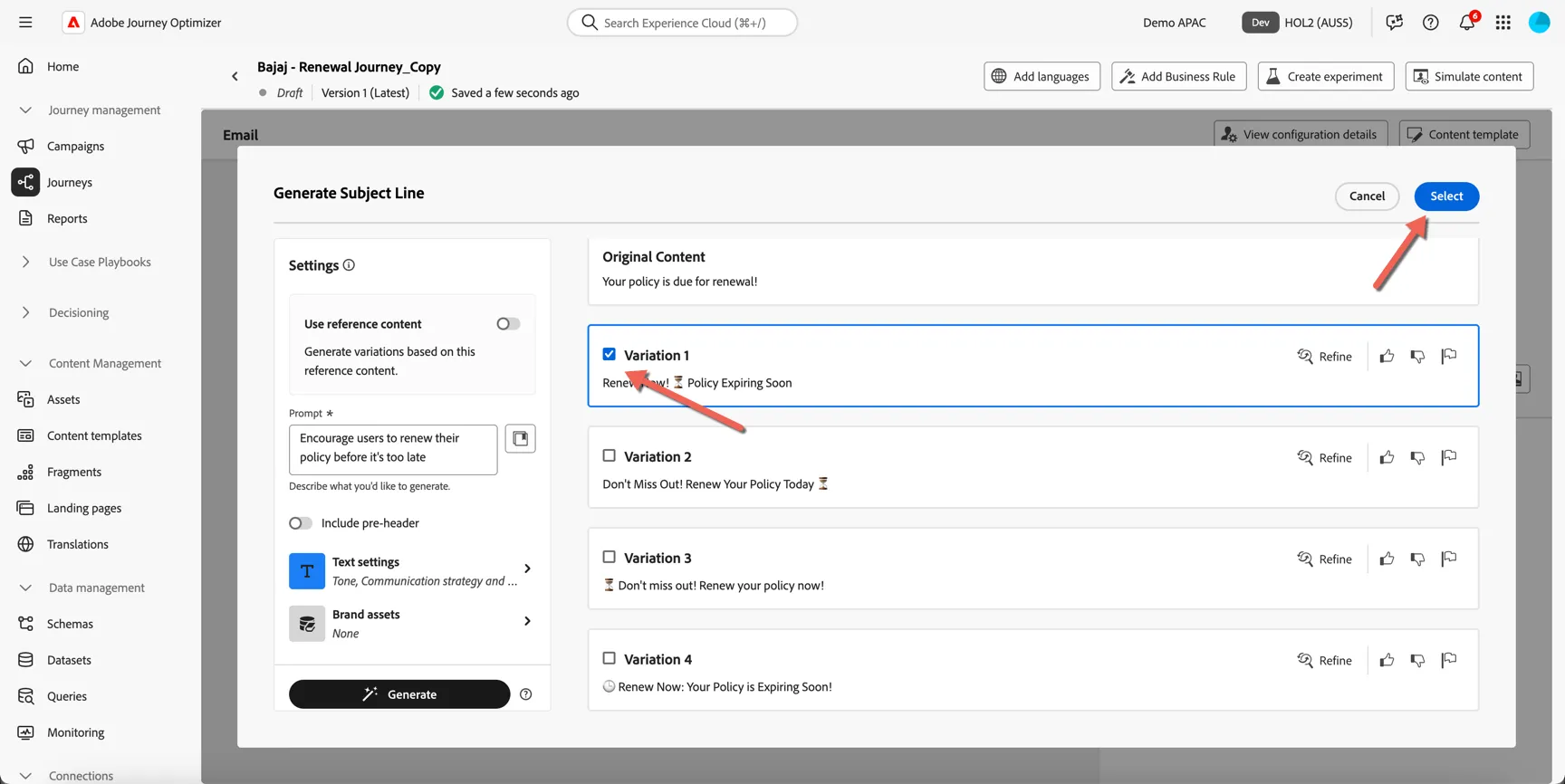
You can review each variation, refine or regenerate with updated prompt as needed. Once you have selected the variation you want click Select to insert it into the subject line.
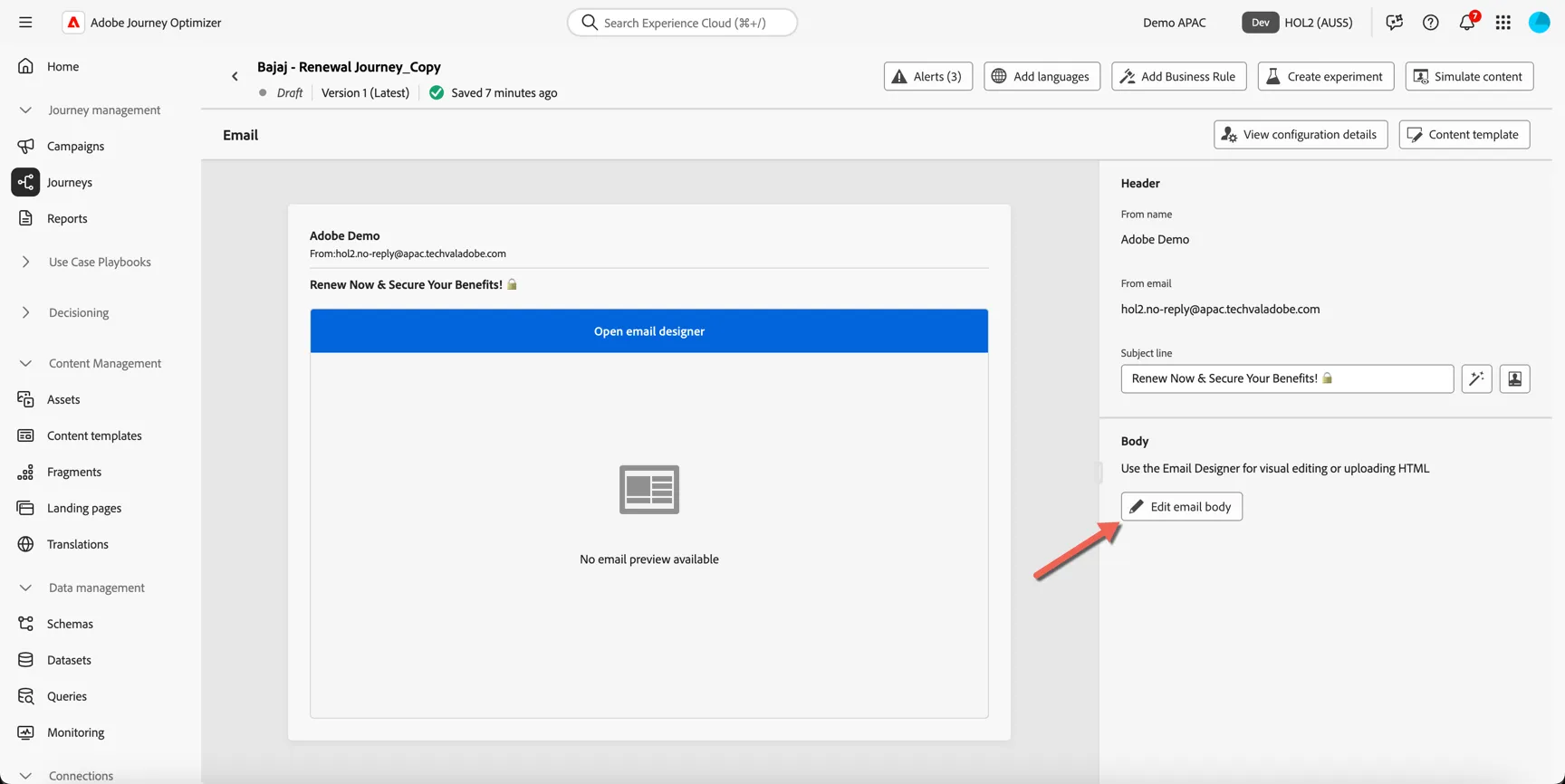
Click now to edit the email body.
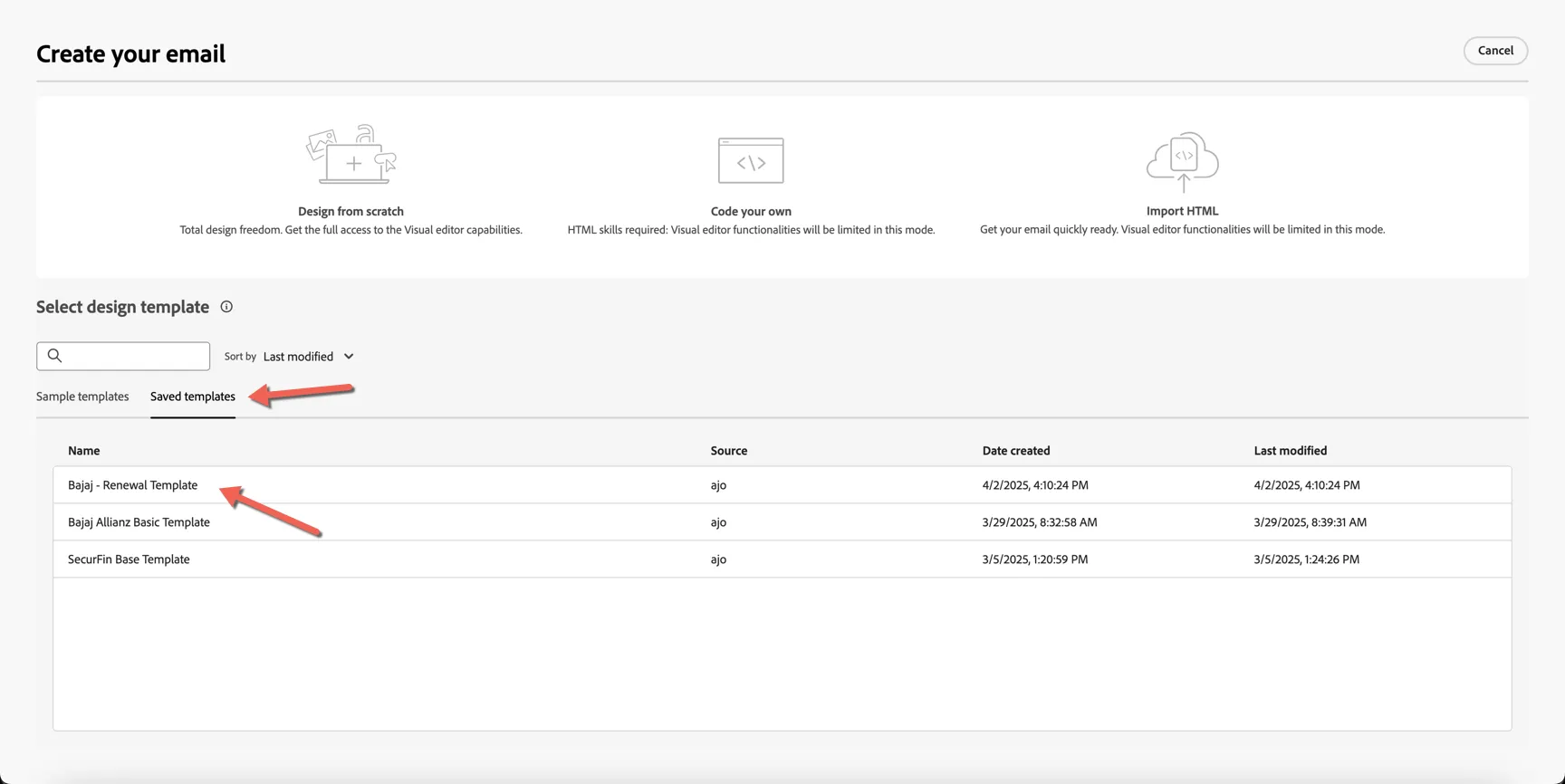
We will start with the pre-saved email template Bajaj - Renewal Template.
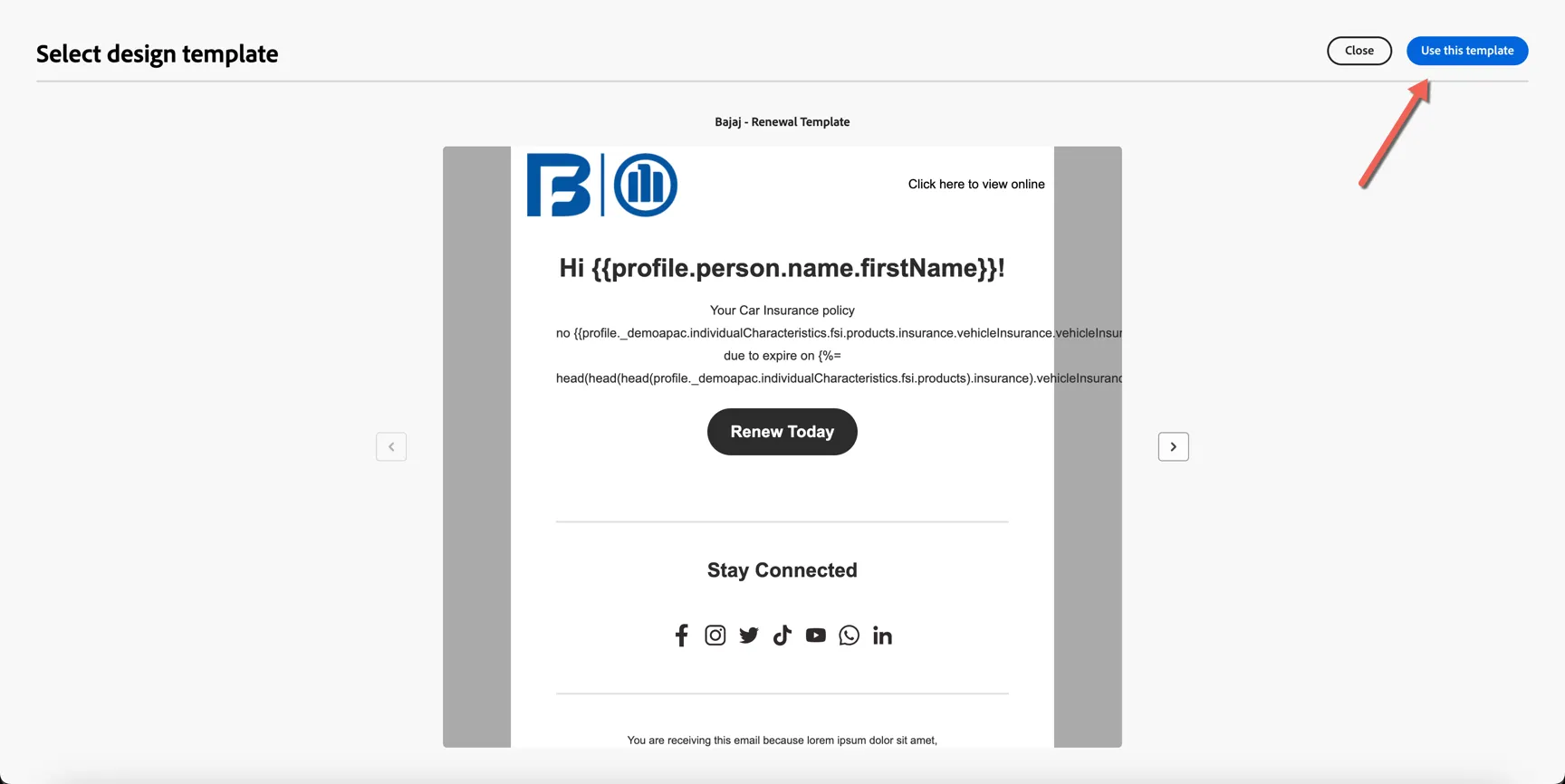
Once the template loads click to Use this template
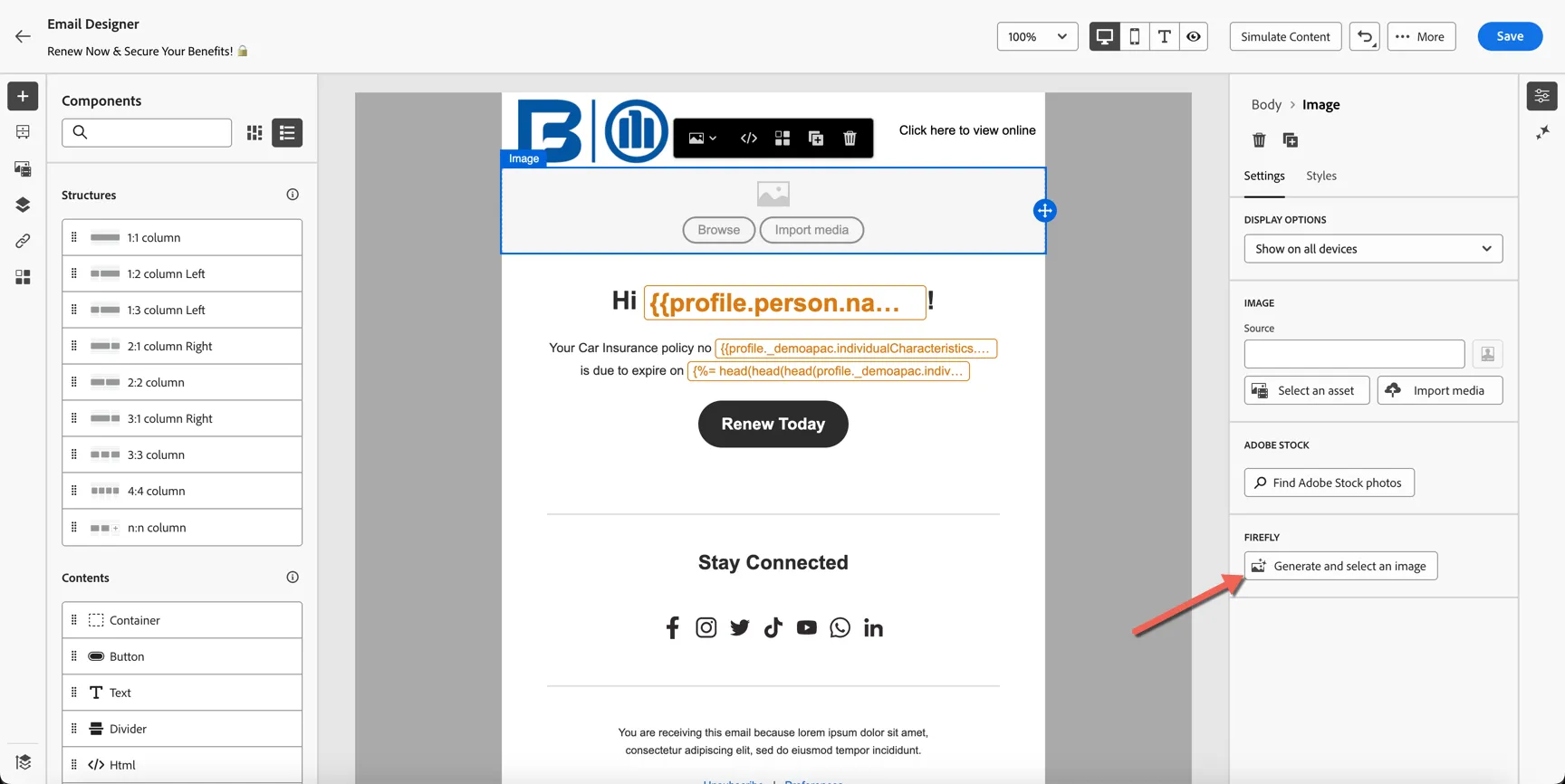
Once you're in the editor, select the banner image and click to open the image generator powered by Adobe's Firefly APIs.
This will open the image generator. Add a text prompt such as Someone driving along a busy road in an Indian city without a care in the world because they are adequately insured!
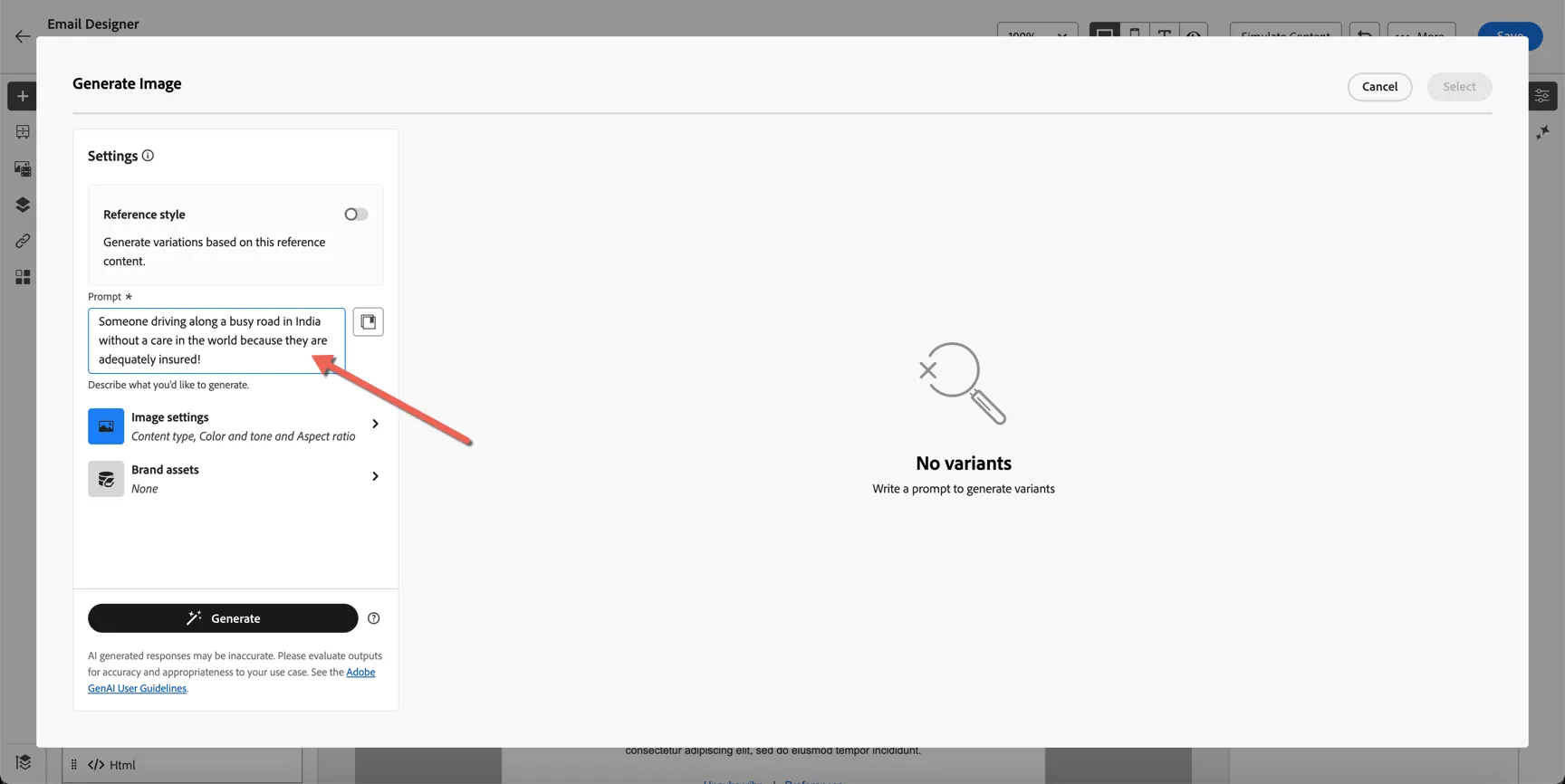
Open the image settings and define the type of image you want to generate, including the size and tone.
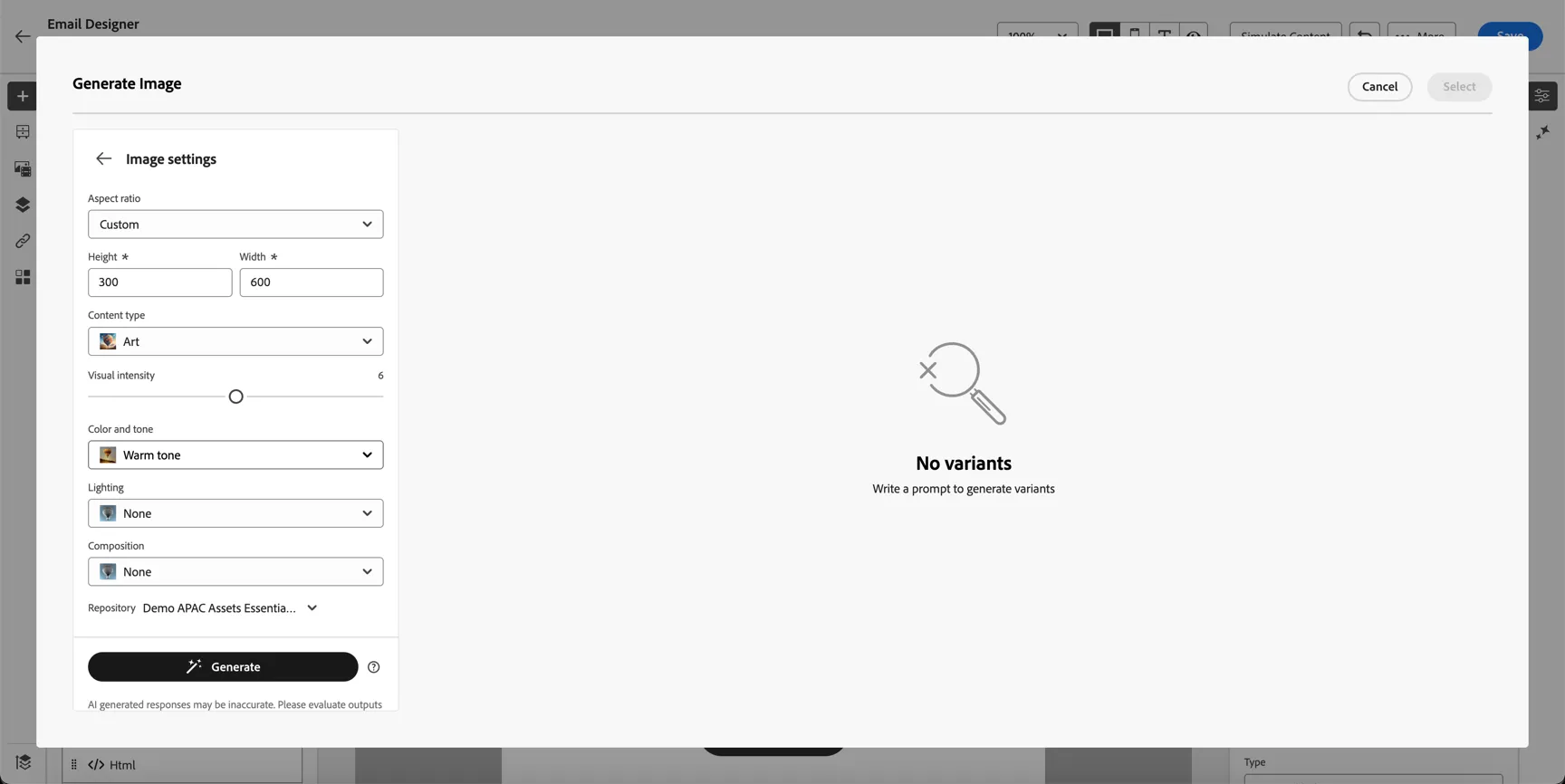
Click to Generate.
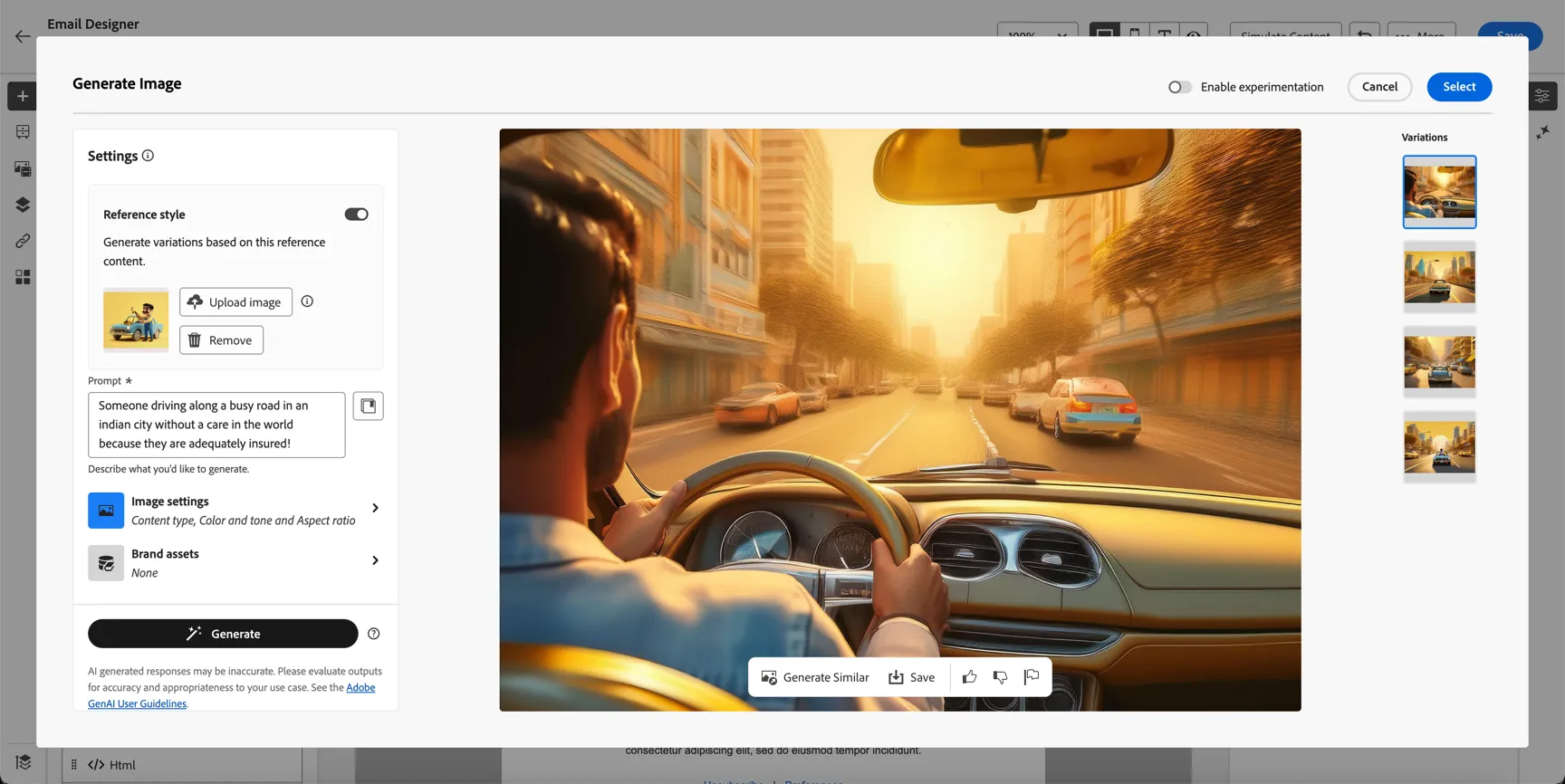
After a minute or tow you'll see the generated variations. Click the one you want to use and click Select.
You'll be prompted to add the new asset to your existing AEM Assets repository. Click Next.
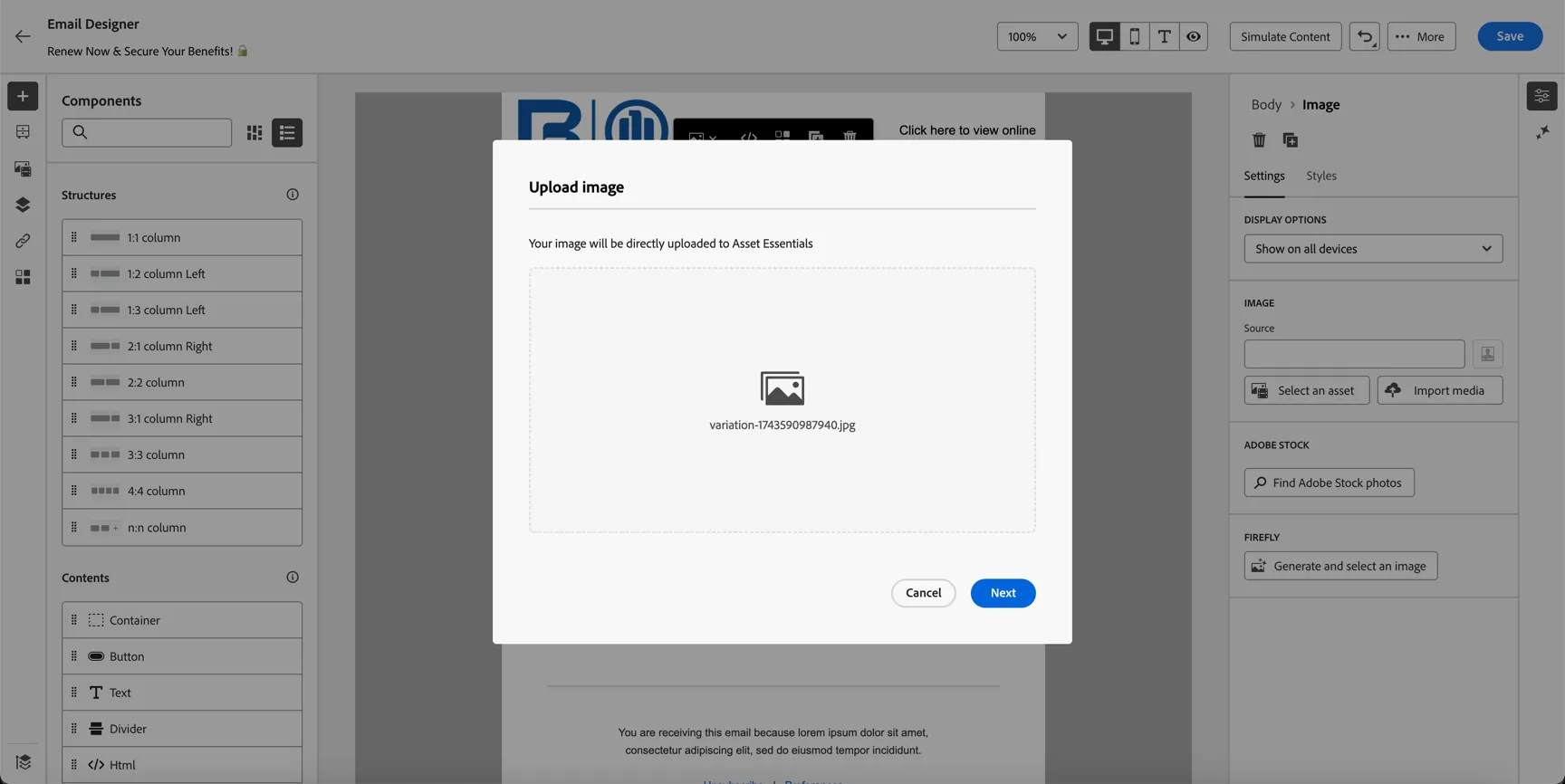
Select the Bajaj Allianz folder
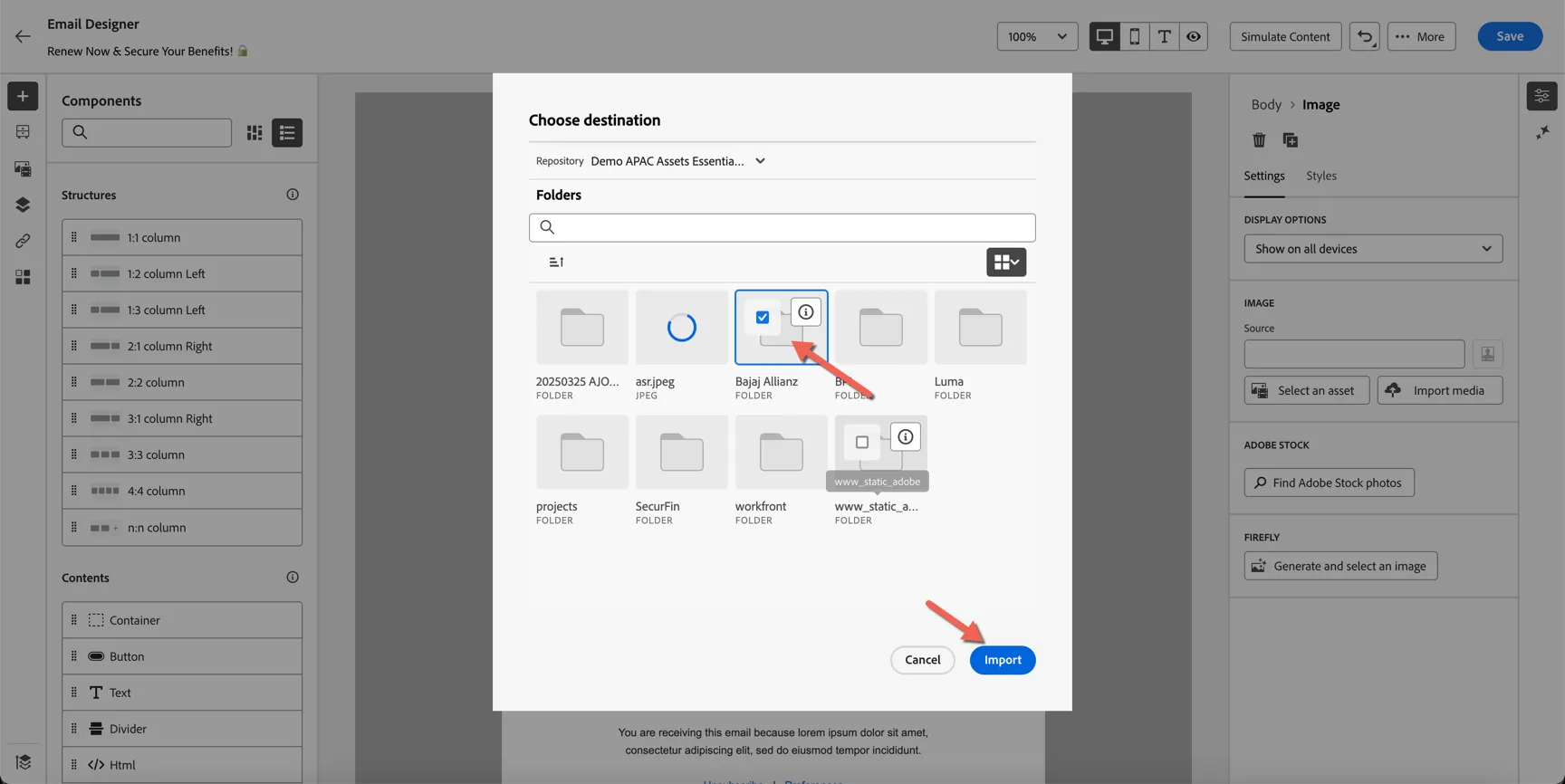
Your new image is now inserted into the email content.
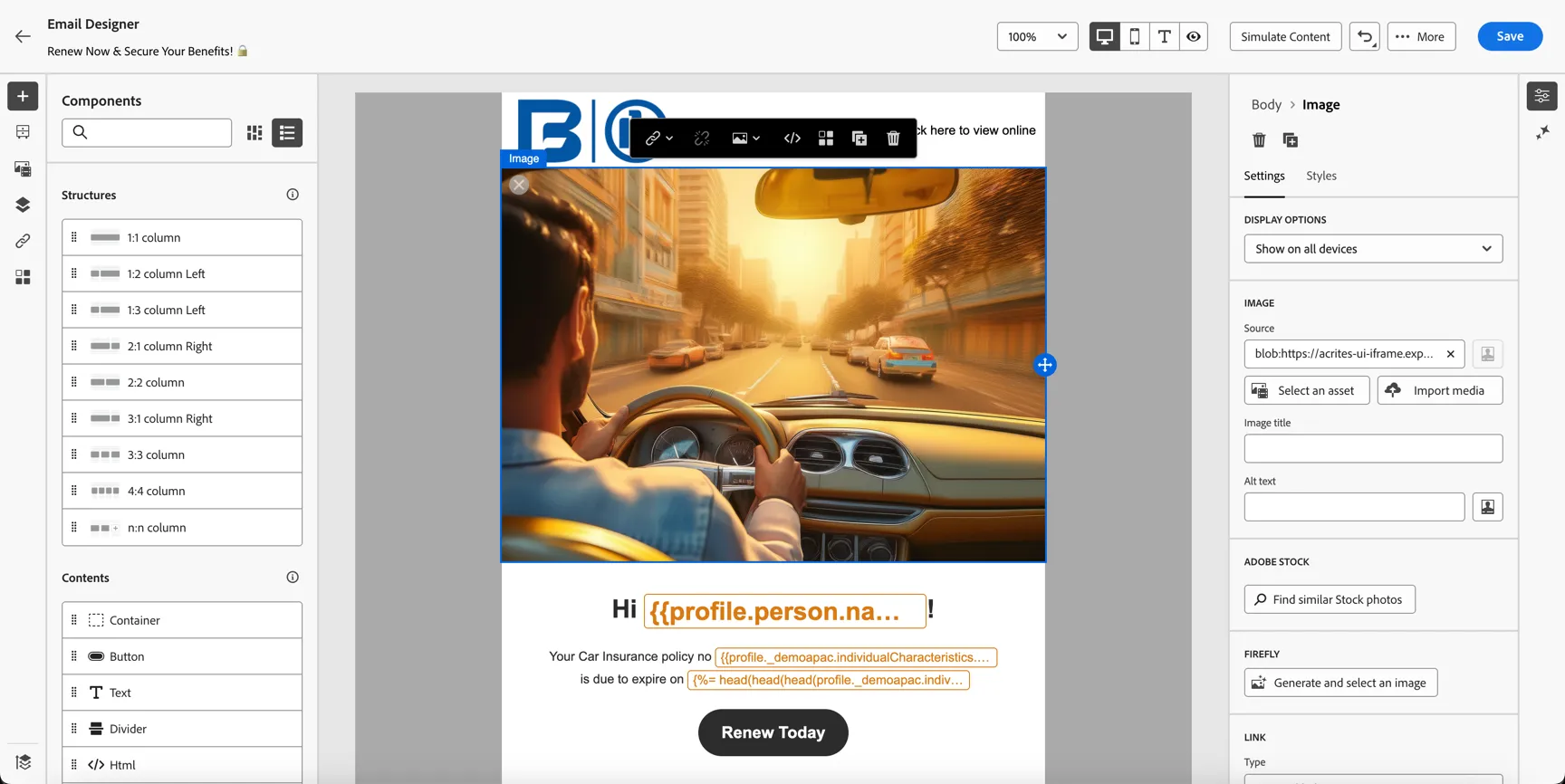
Click to Save the email and return to your journey.
Congratulations you've completed creating your renewal journey.