Payment Abandonment Journey
Journeys are designed for in-the-moment communications, in this exercise we will create an Abandoned Payment journey triggered when the customer starts a quote but does not proceed past the the payment page. If they don't complete a purchase within an hour we will send an email reminder - or whichever channel is preferred.
This is just one example of how journeys can be triggered from streamed events, some other ideas could be:
- Claim Optimization - provide helpful information during the claim process
- Garage Proximity - promote a new garage or partner business when the customer is nearby
- New Policy Purchases - request feedback after purchasing
Create the Journey
For this exercise we will switch modules to Journey Optimizer. Use the solution switcher in the top right to change to Journey Optimizer.
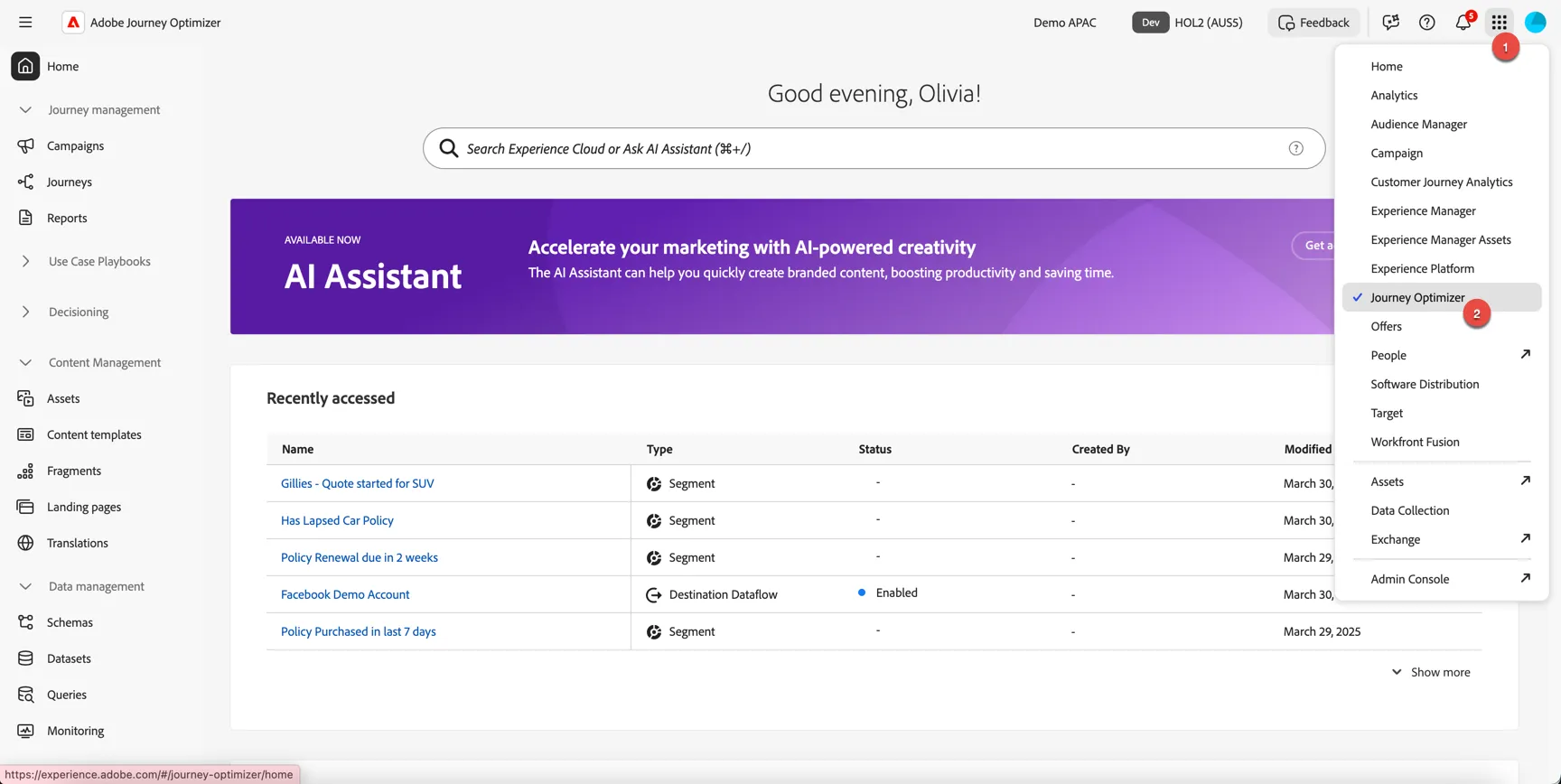
Journey Optimizer is where you can build out your customer journeys starting from individual streaming events for in the moment communications or scheduled batch communications leveraging pre-defined audiences.
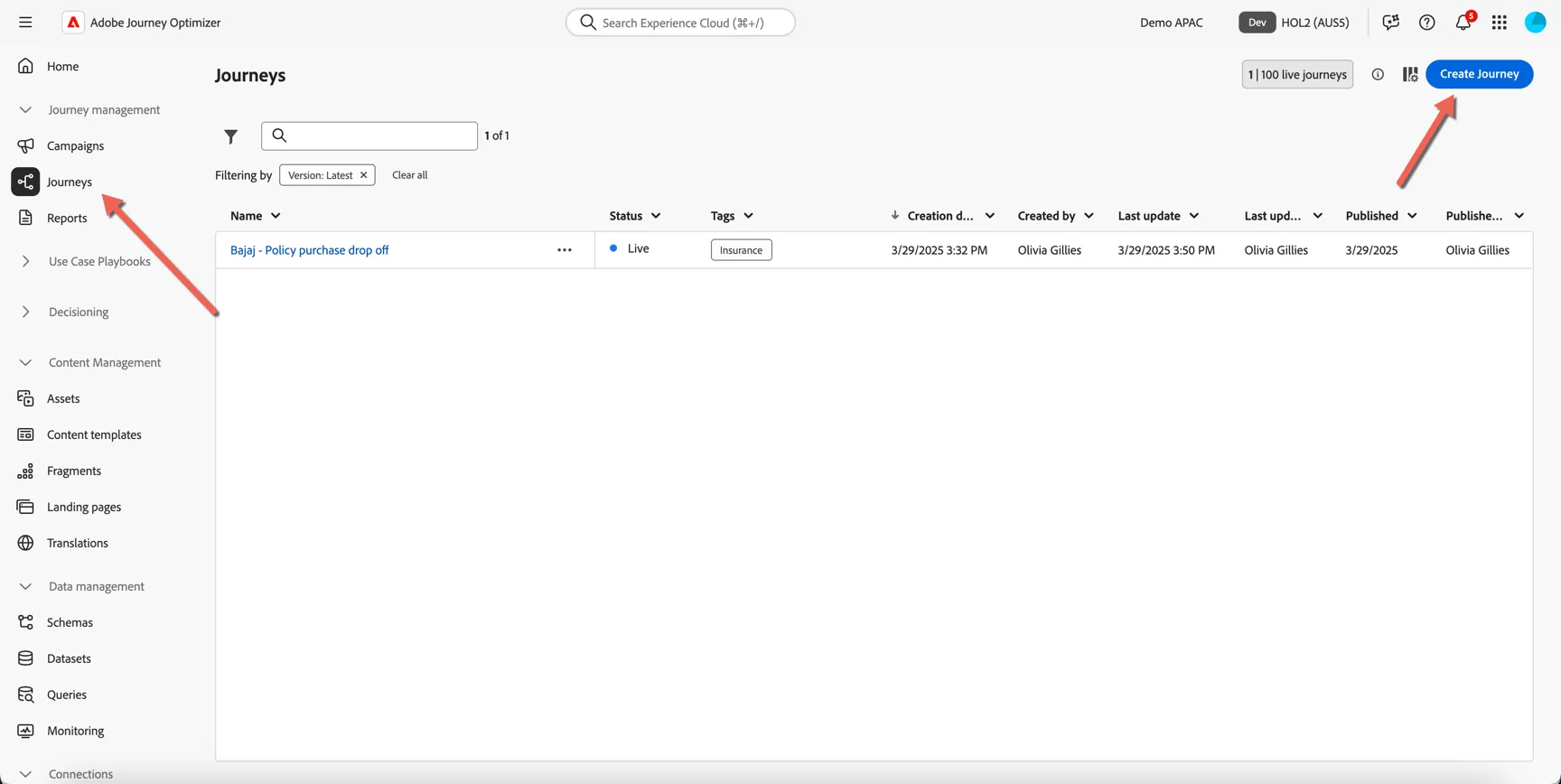
Click on Journey Management -> Journeys in the left hand navigation. Then click to Create Journey.
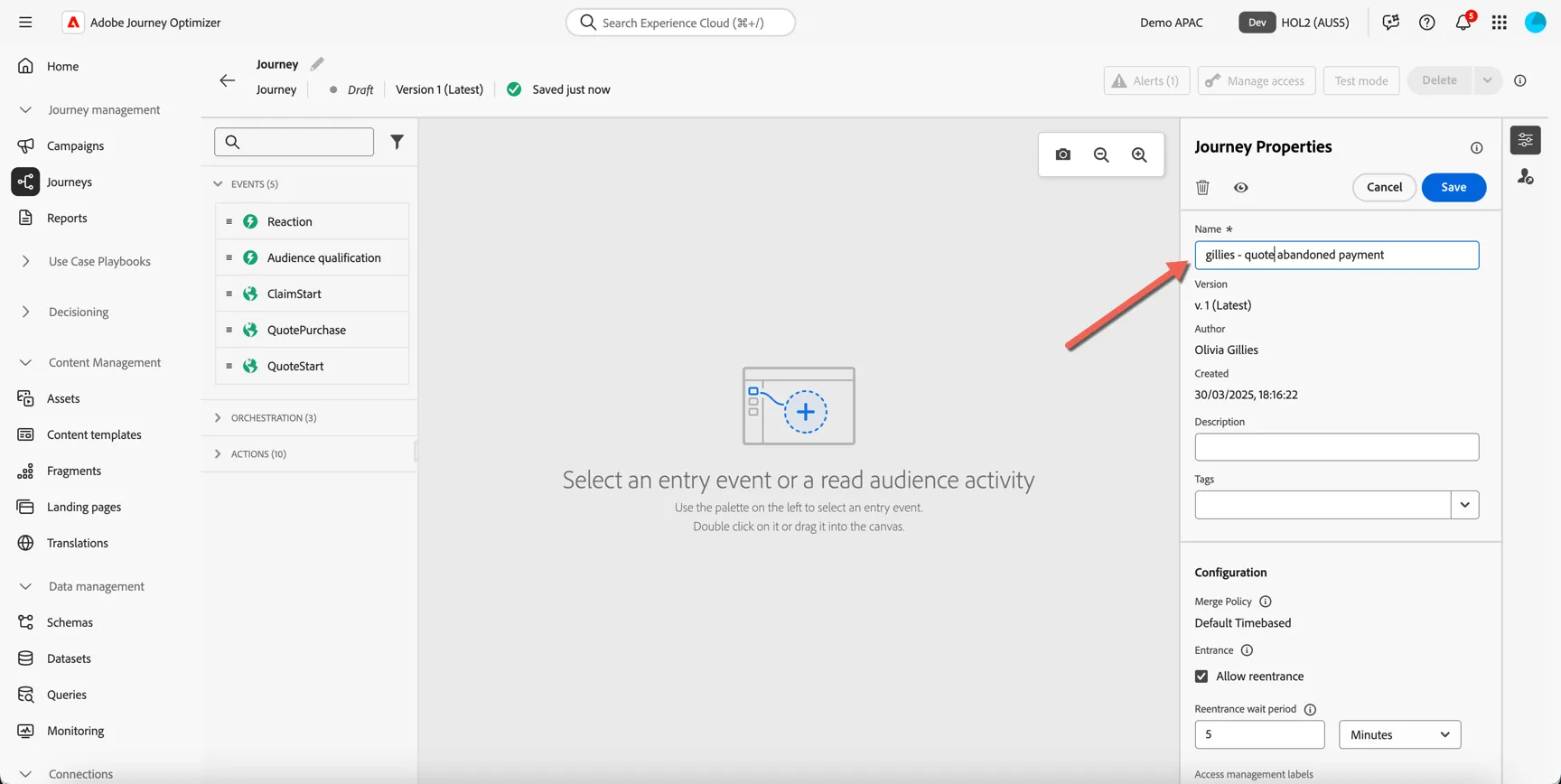
Give your journey a name. Something unique like [your last name] - quote abandoned payment.
It's in the journey properties that we can configure re-entrance settings, by default journeys allow customer to re-enter them after 5 minutes if they take the same action. In this real world you probably wouldn't want a customer to enter this journey more than once per day, but you can leave the settings as is for the exercise.
Click Save
Every event received by Adobe Experience Platform can be used to start a journey, but to improve usability only events defined by an administrator as available for journeys will appear in the journey builder. An administrator has pre-configured the quote start and quote purchase events for you.
Drag the QuoteStart event into the canvas.
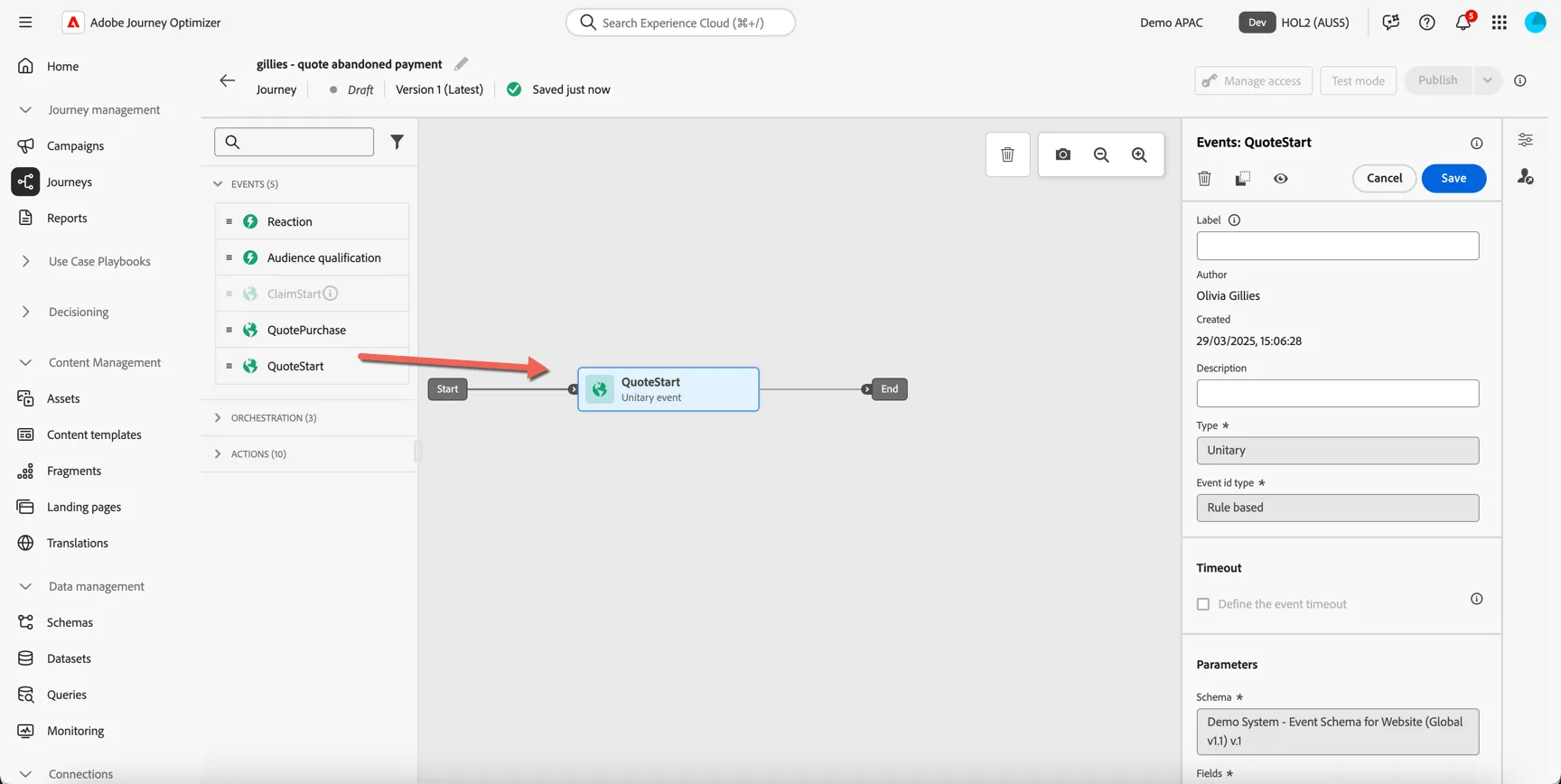
Click Save, there is nothing to configure for this activity.
Drag the QuotePurchase event into the canvas and attach it to the end.
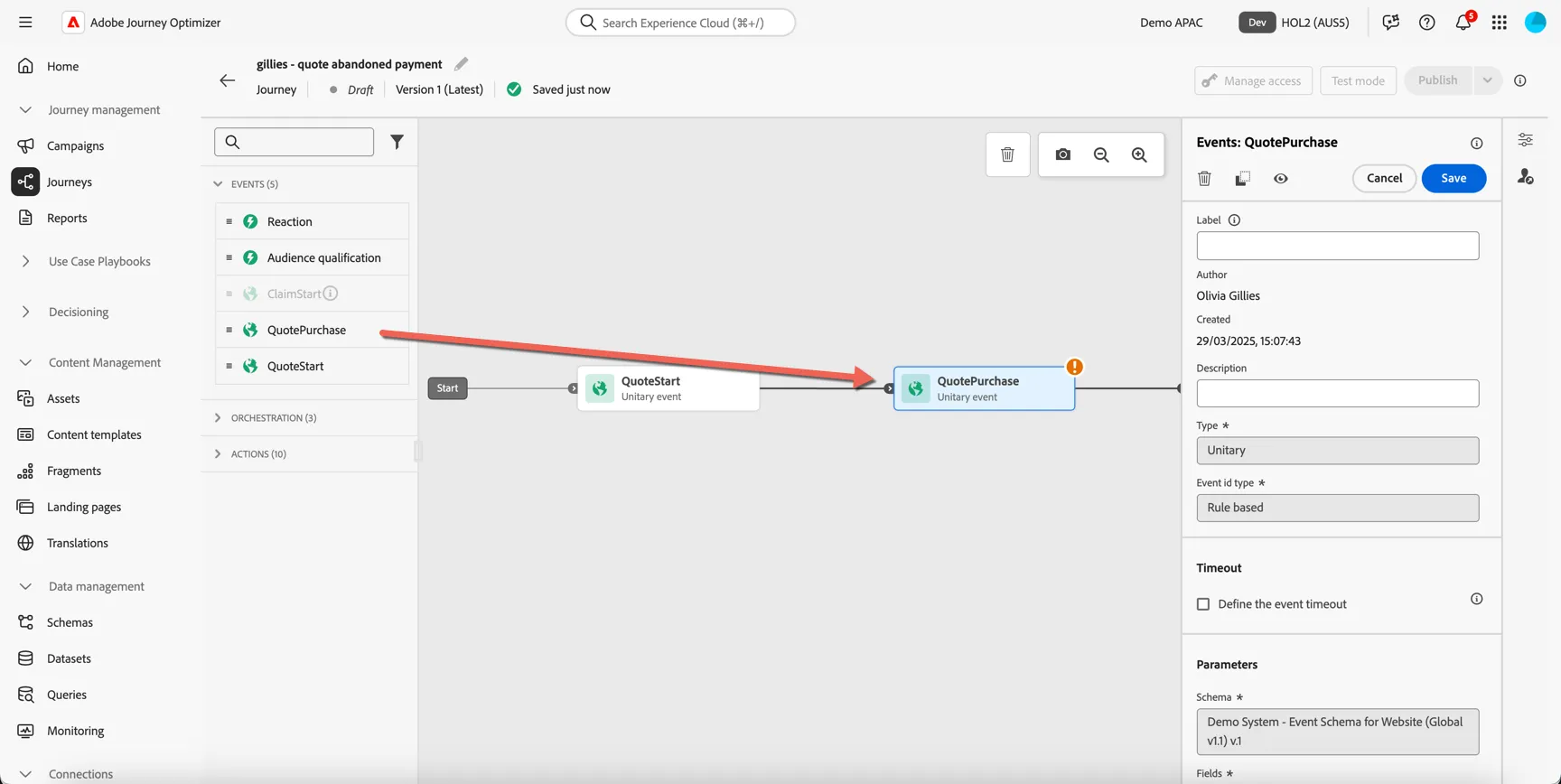
In the event properties, we want to add a timeout condition. Set the timeout to wait for 10 minutes for the purchase event to be received. If the customer does not complete the form within this time this is when we will start to retarget them. Make sure the Set a timeout path checkbox is ticked.
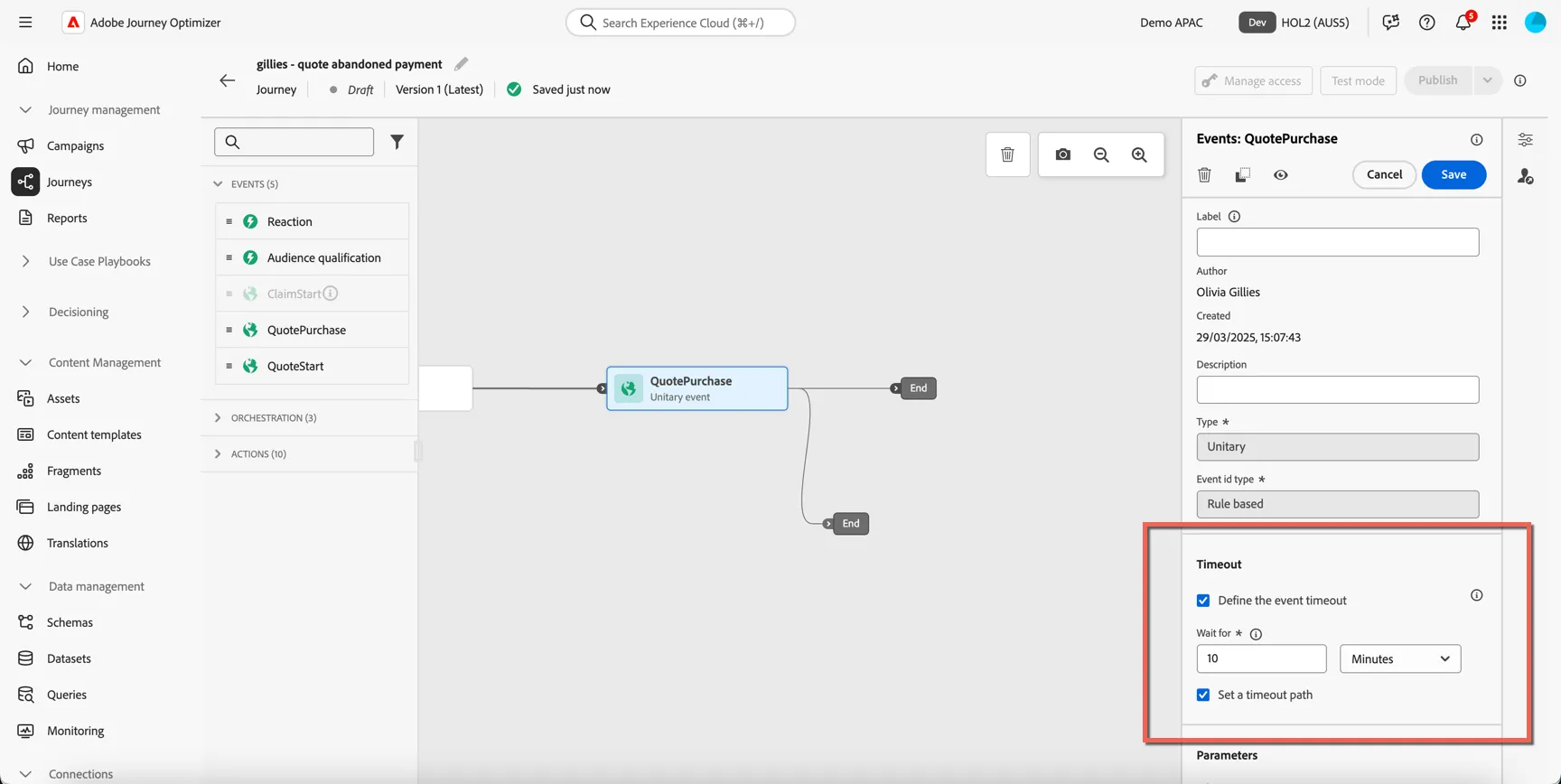
Click Save
Drag an Email to action to the timeout path. Set the Email configuration property to email-marketing.
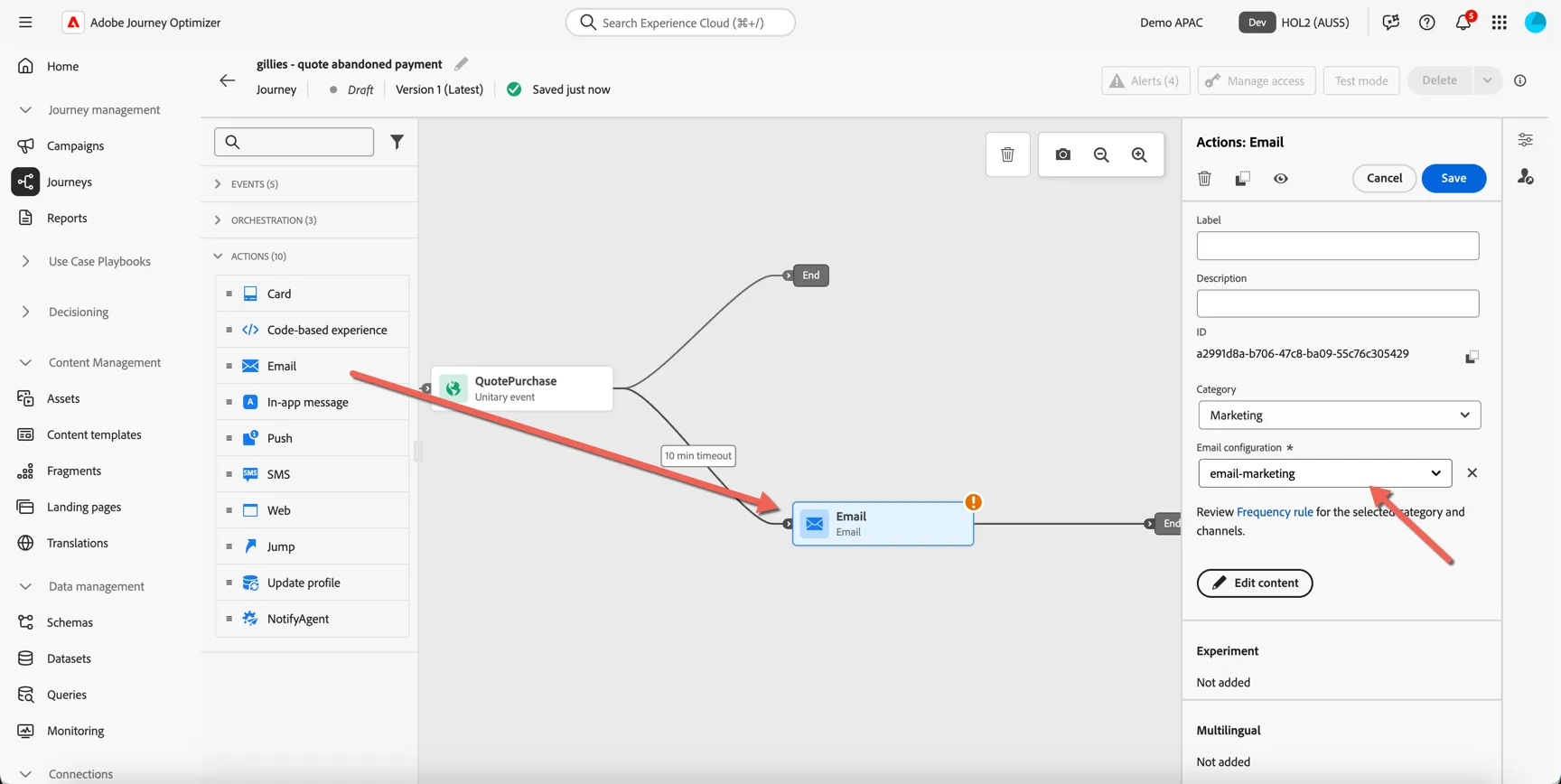
Click Save
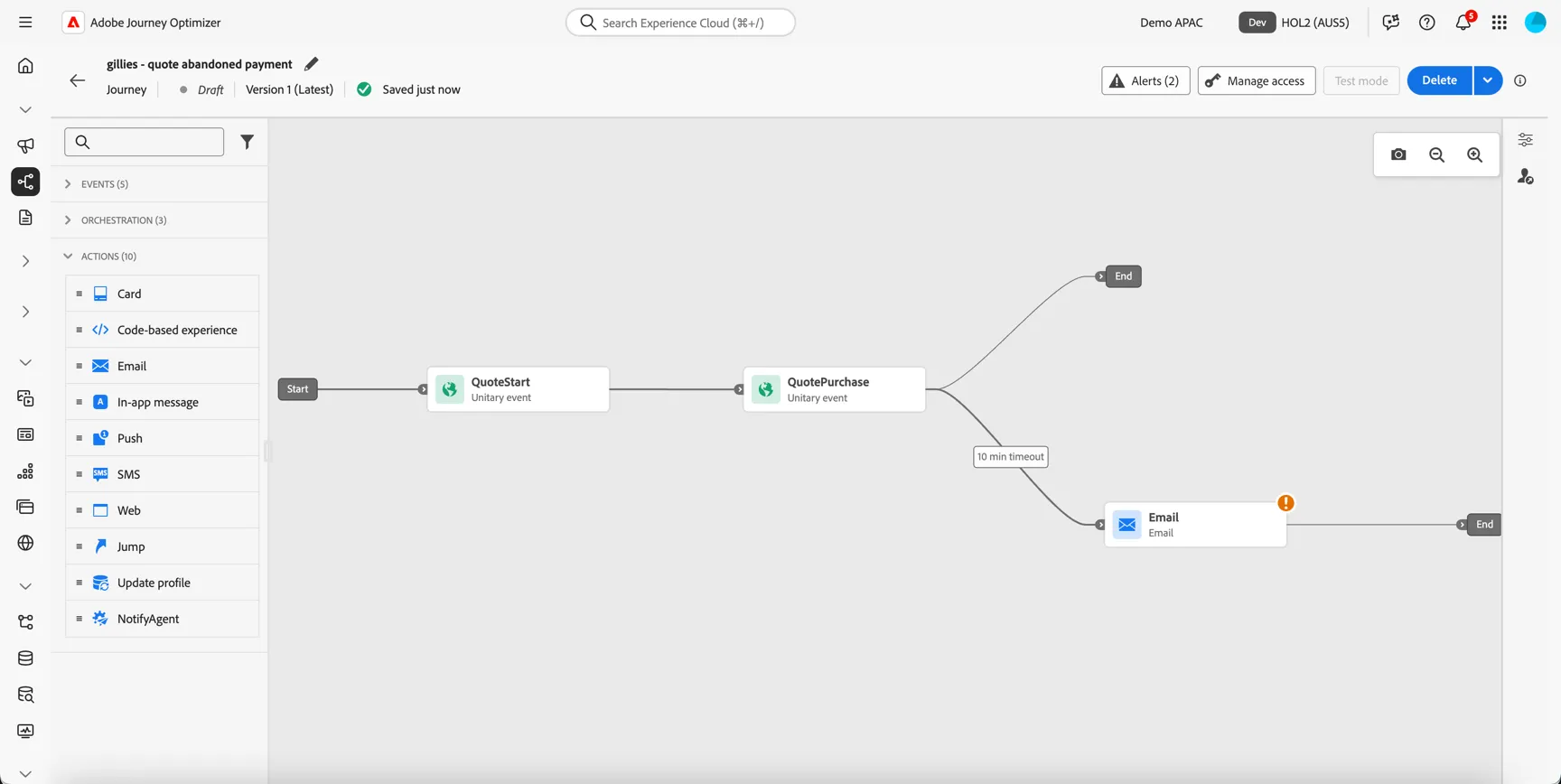
Your journey should look like this.
Add Email Content
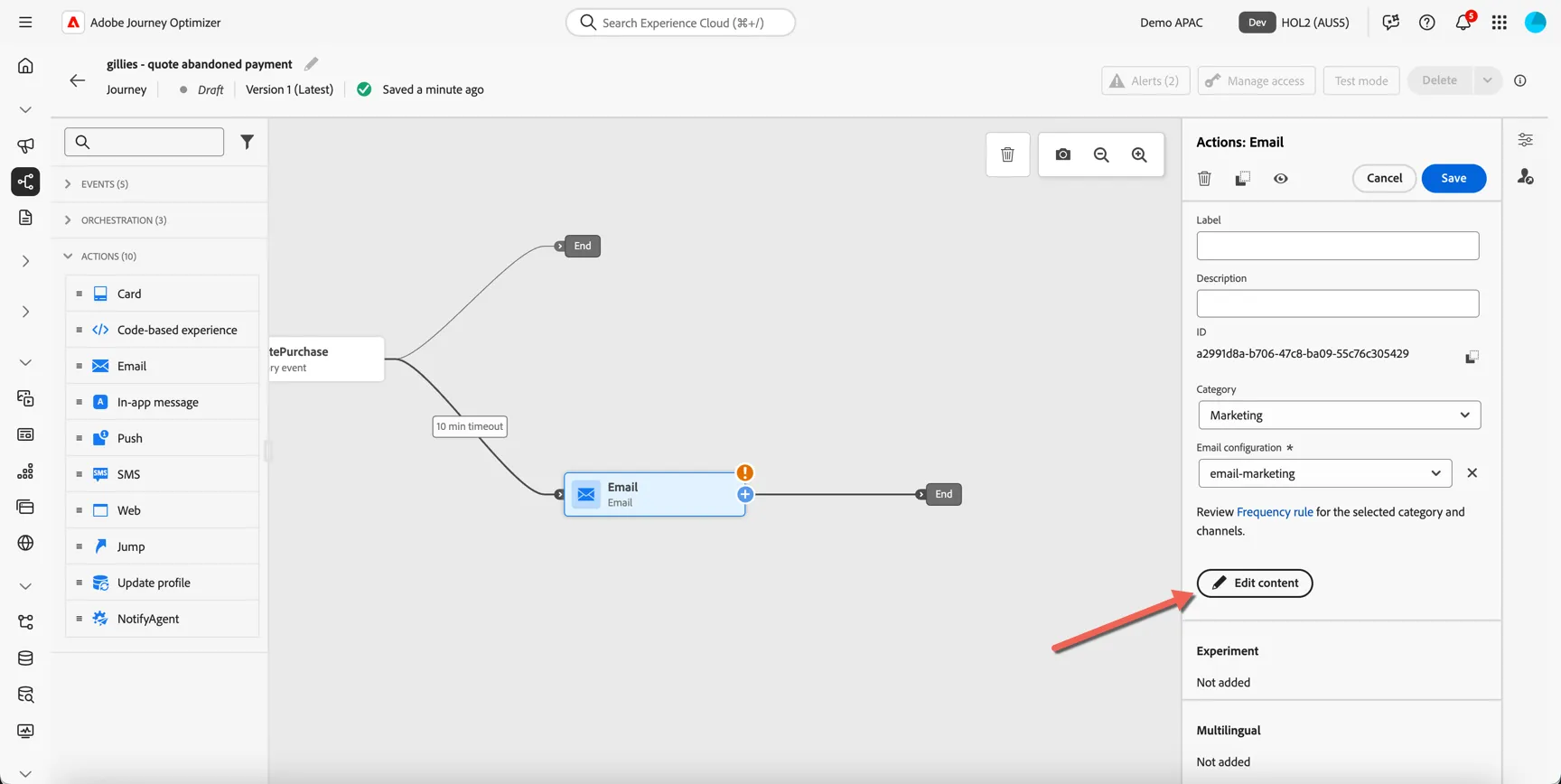
Click on the Email activity and click Edit Content.
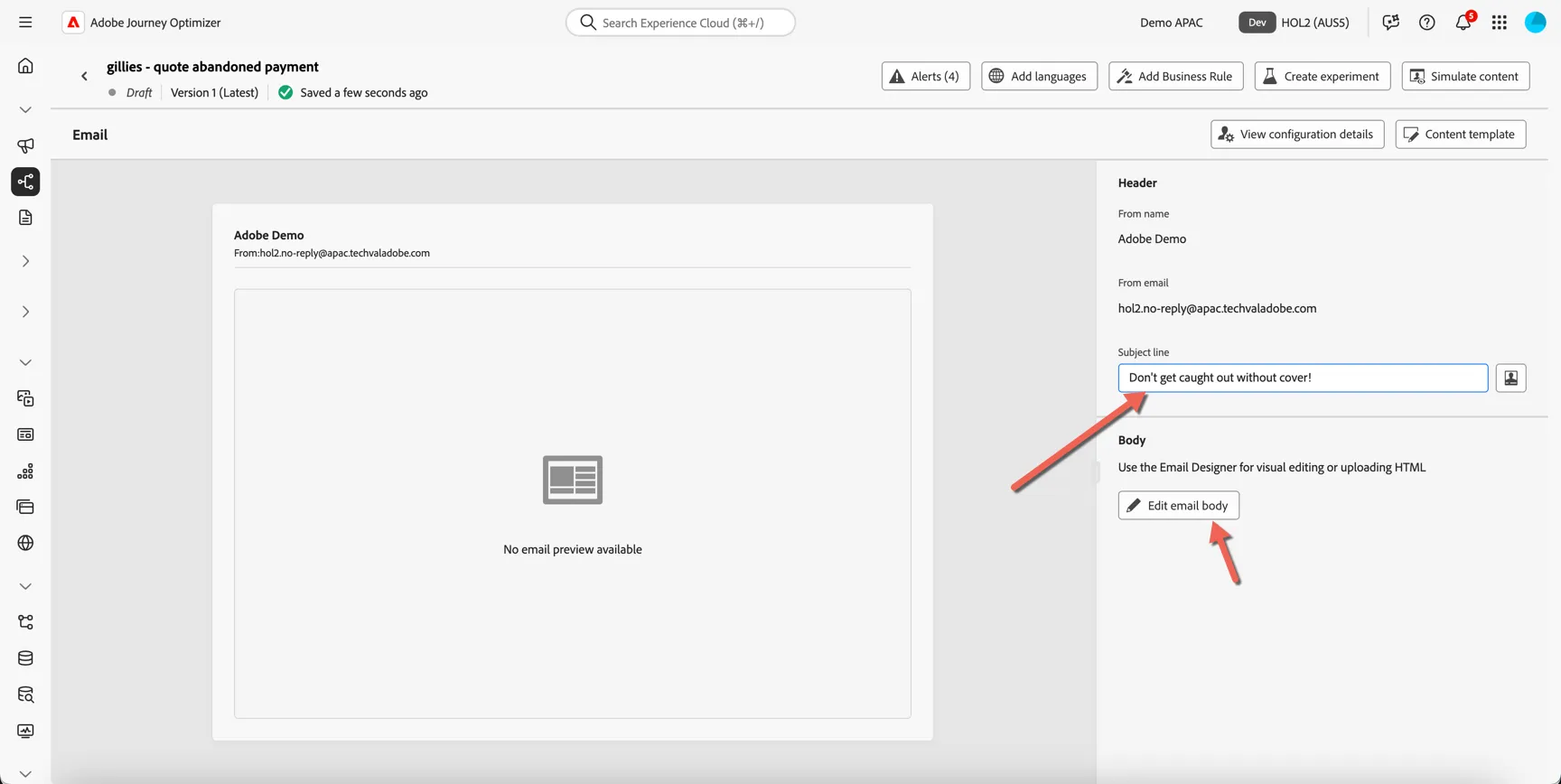
Give your email a Subject line, then click to Edit email body
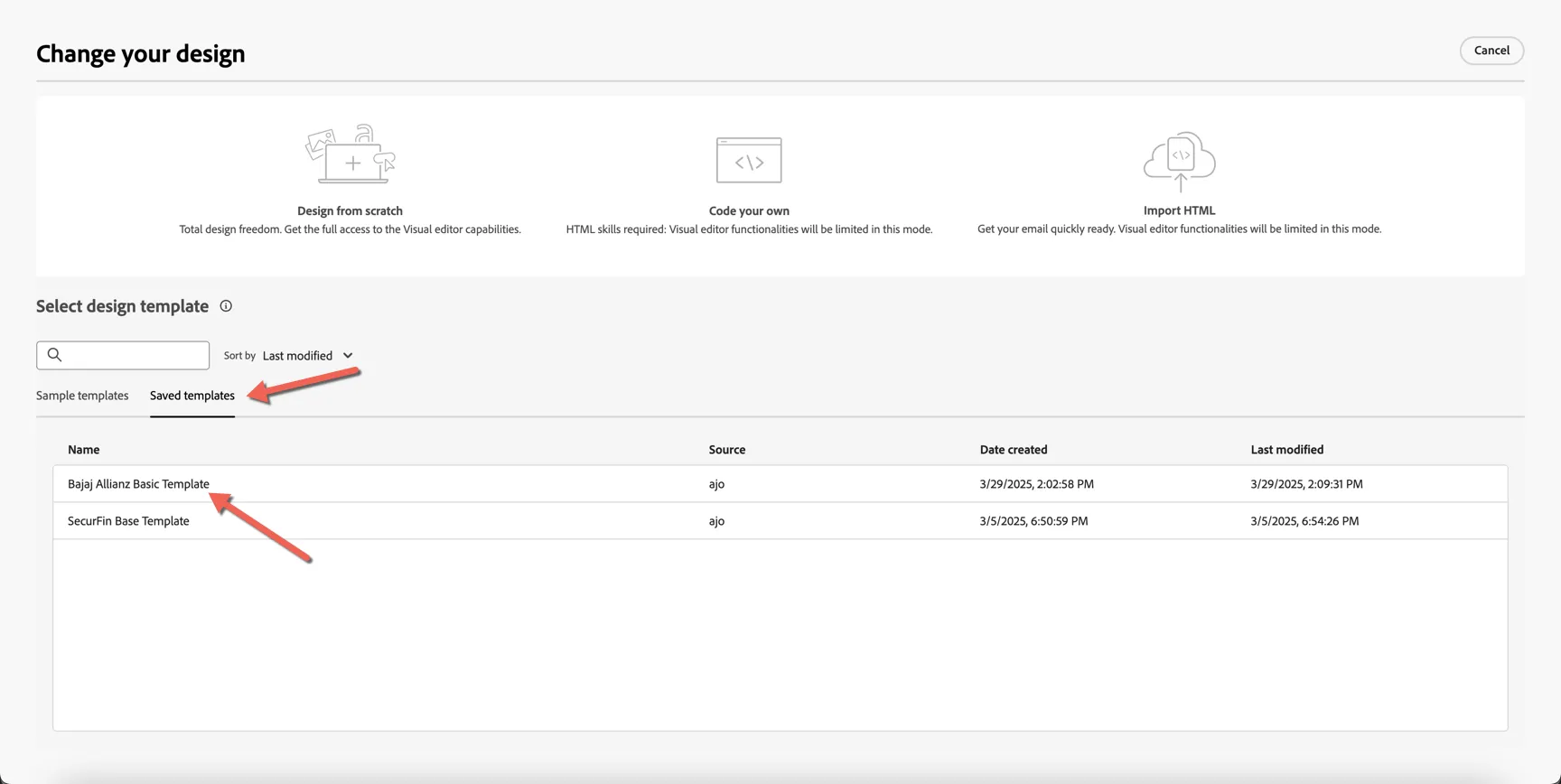
We're going to start with a brand approved email template, click to view Saved templates then select the Bajaj Allianz Basic Template.
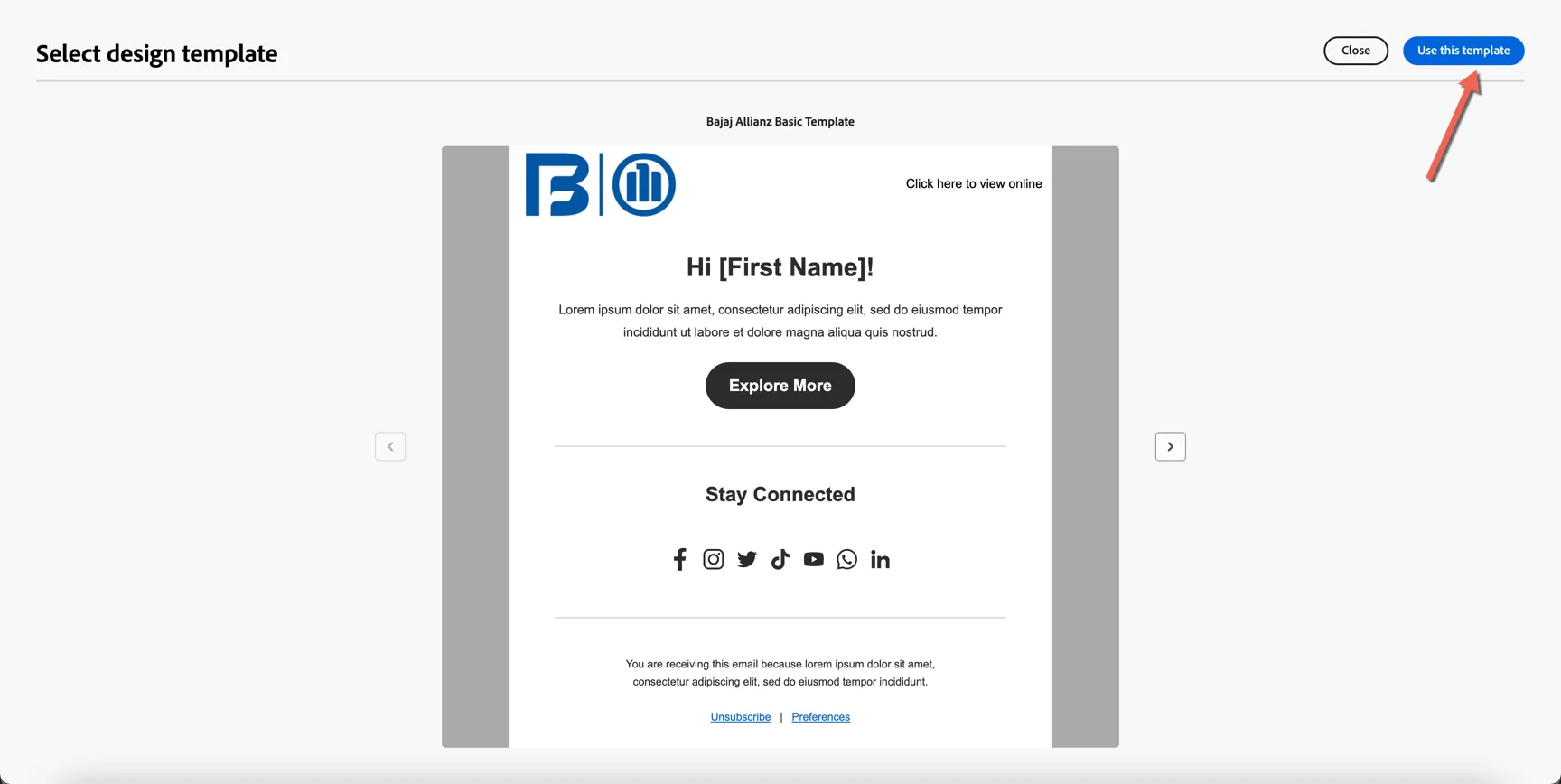
Once the preview has loaded click to Use this template
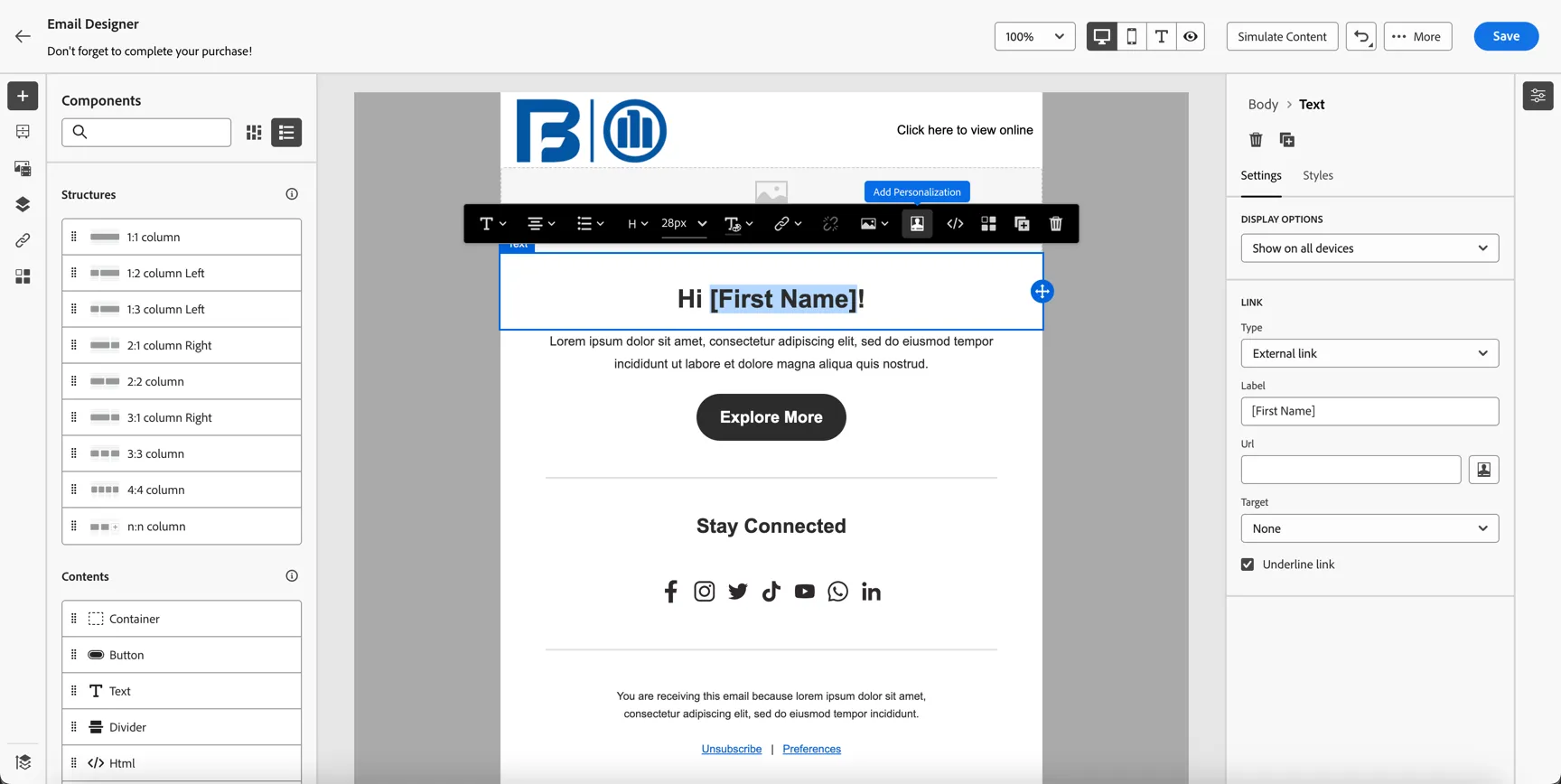
Let's add the customer's firstname to the content, highlight the placeholder and click on the Add Personalisation button.
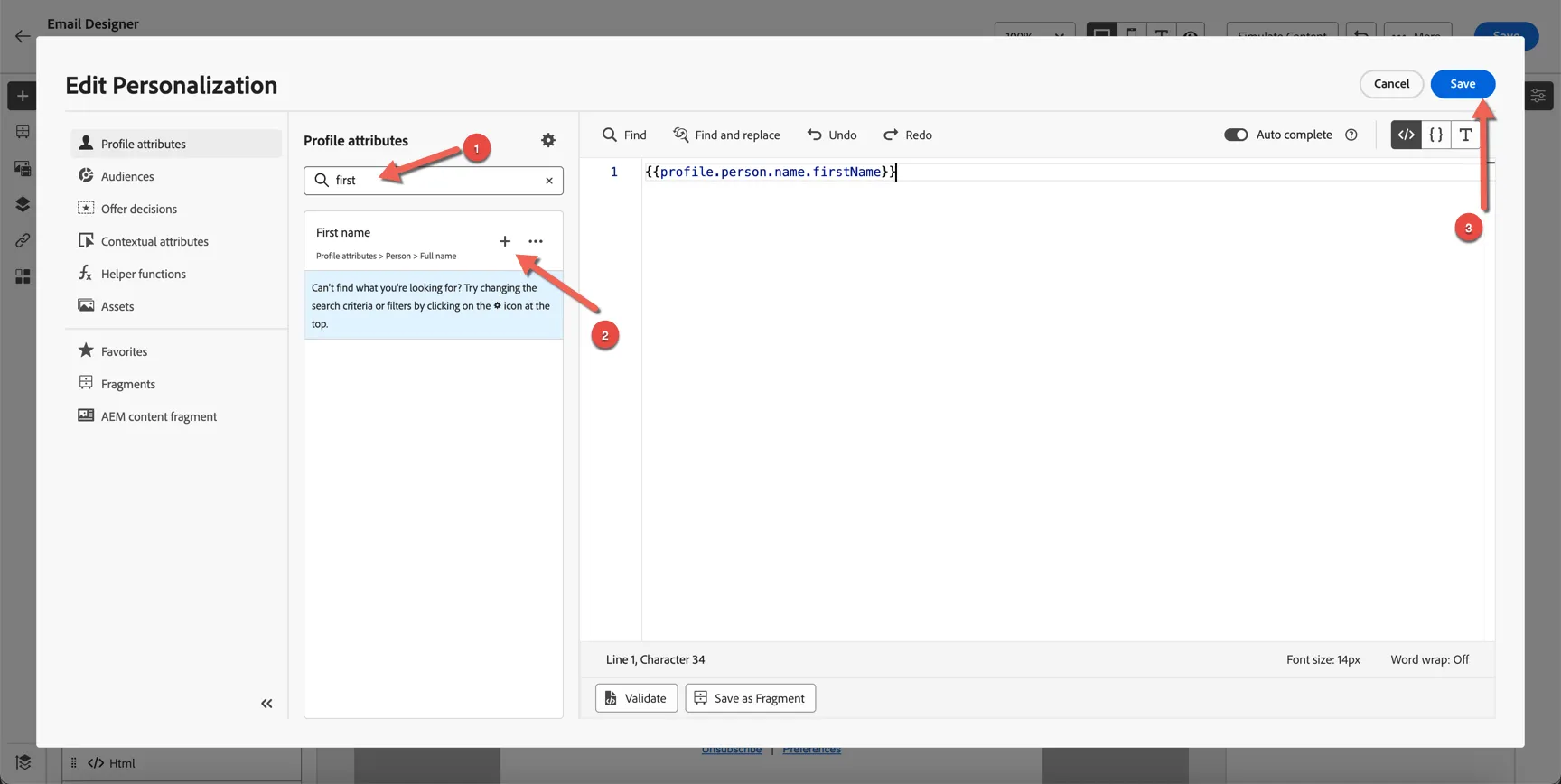
The personalisation editor gives you access to all of the known profile attributes.
- Search for first
- Click the + icon to add the first name syntax
- Click Save
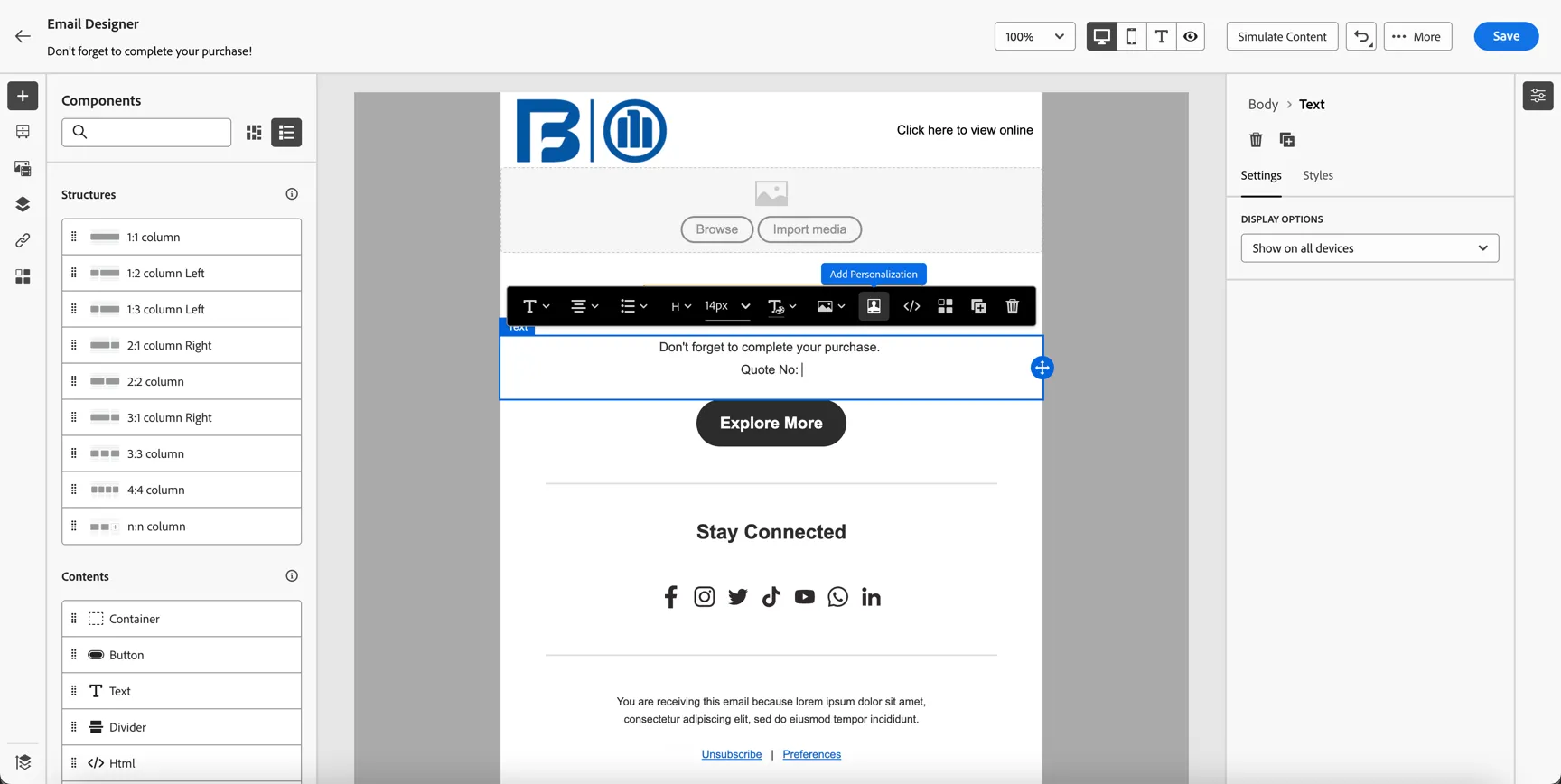
Next, update the main text content of the email. We can add additional personalisation data coming from the event that triggered the journey not just the profile attributes. In this case we can access attributes such as registration number or the quote number.
Click to Add Personalisation.
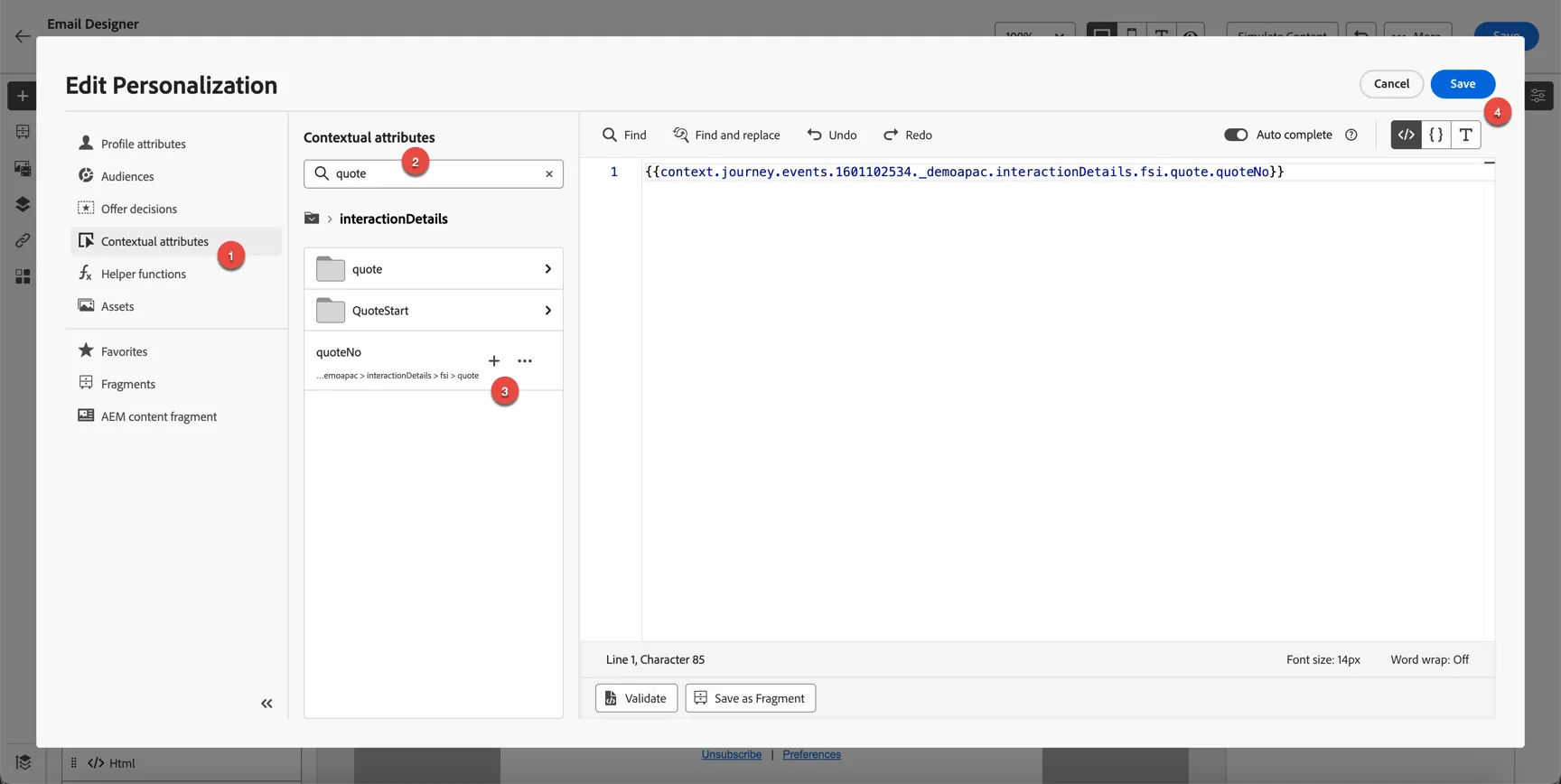
In the personalisation editor
- Click from Profile attributes to Contextual Attributes
- Search for quote
- Click the + icon to insert the quote no syntax into the editor
- Click Save
Update the Call to Action, click the button and update the label and URL. Note that the quote number or other contextual information could be appended to this URL if needed to return to the right place in the process.
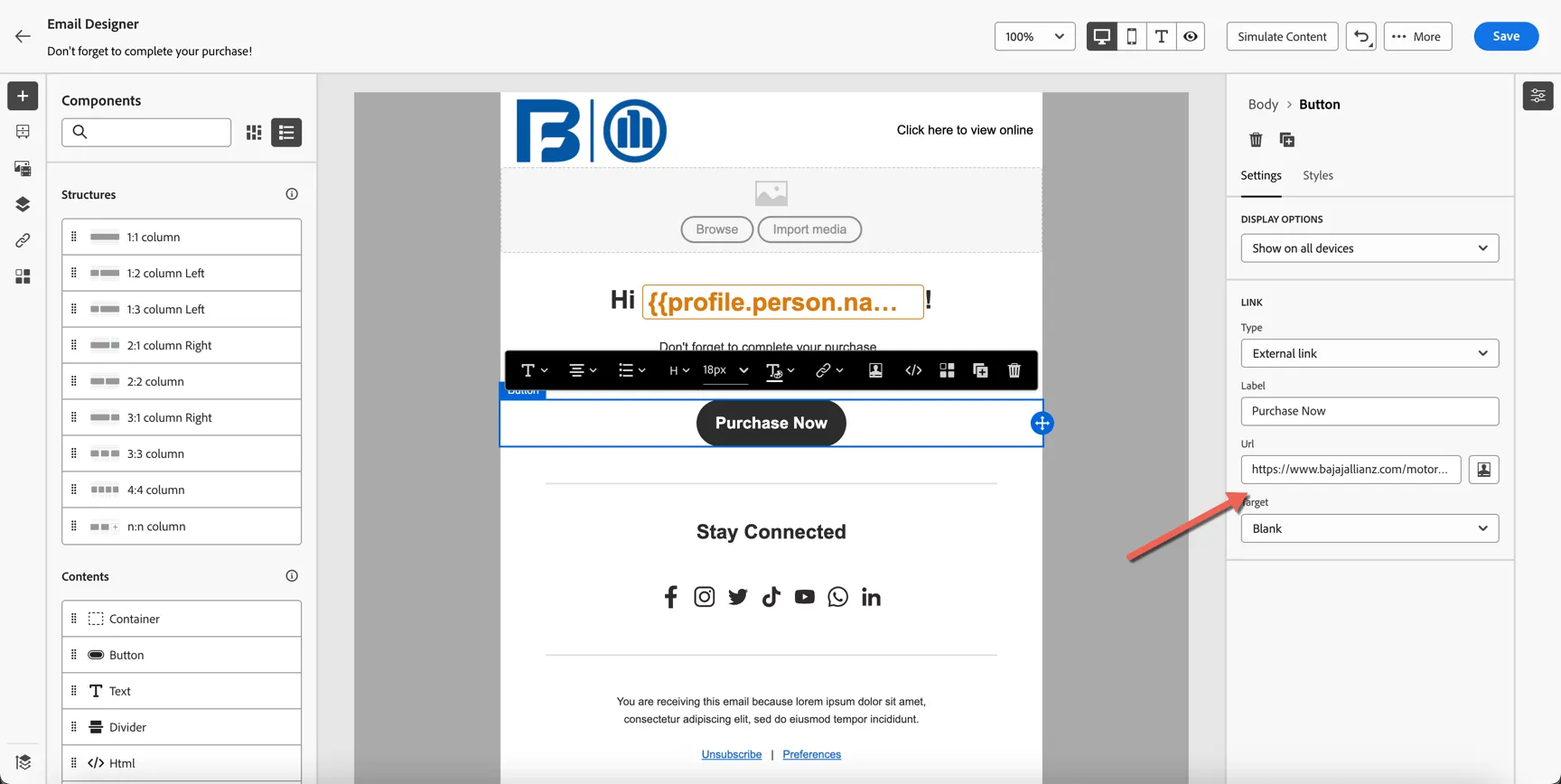
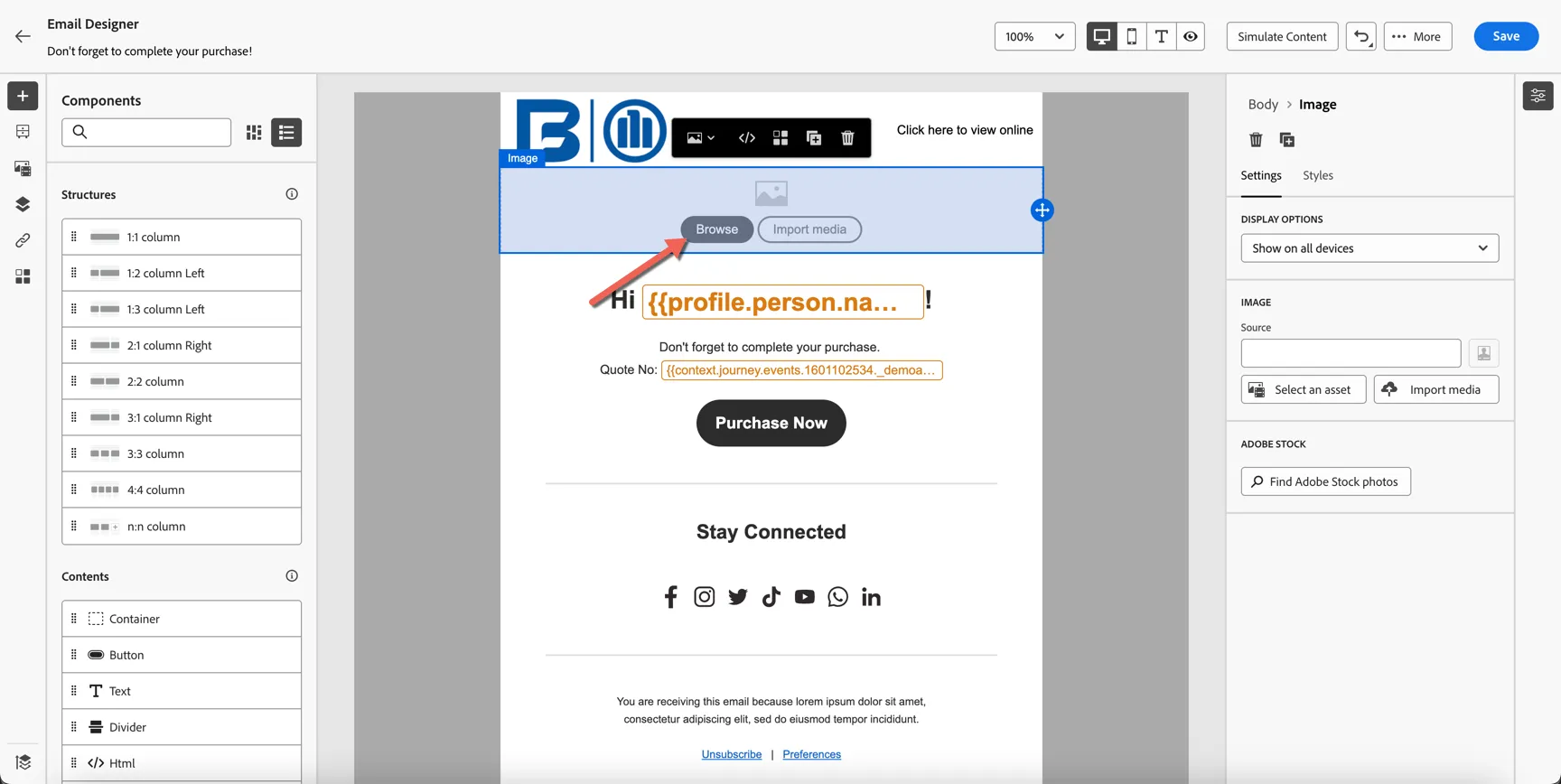
Lastly, let's update the imagery to match the experience from the website.
Click on the image block, and click Browse.
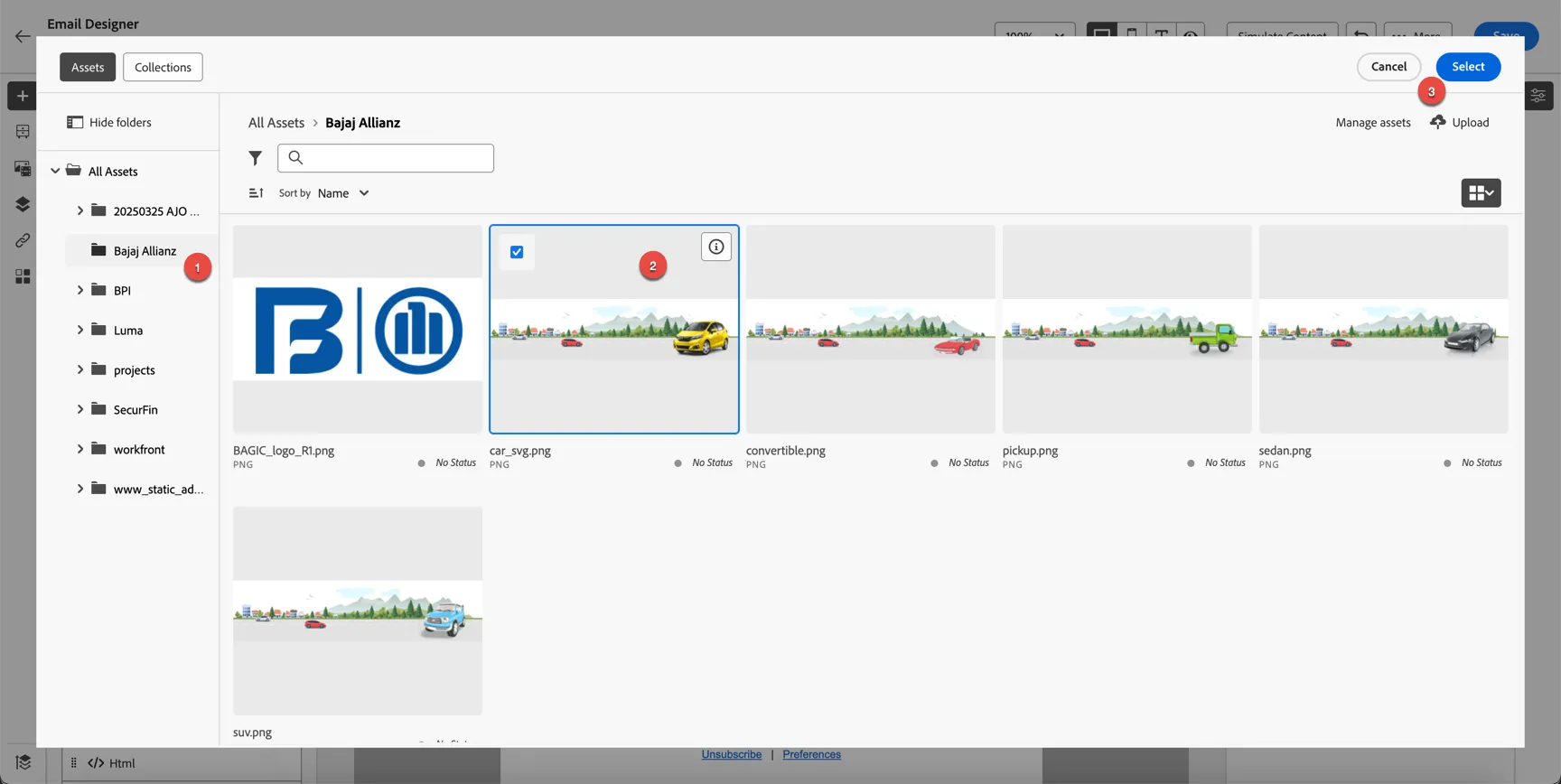
This opens the Asset Explorer where you can access the Adobe Experience Manager Asset library. These are the same assets used to build your website.
- Click on the Bajaj Allianz folder.
- Select the car_svg.png image.
- Click Select to insert the image into the email
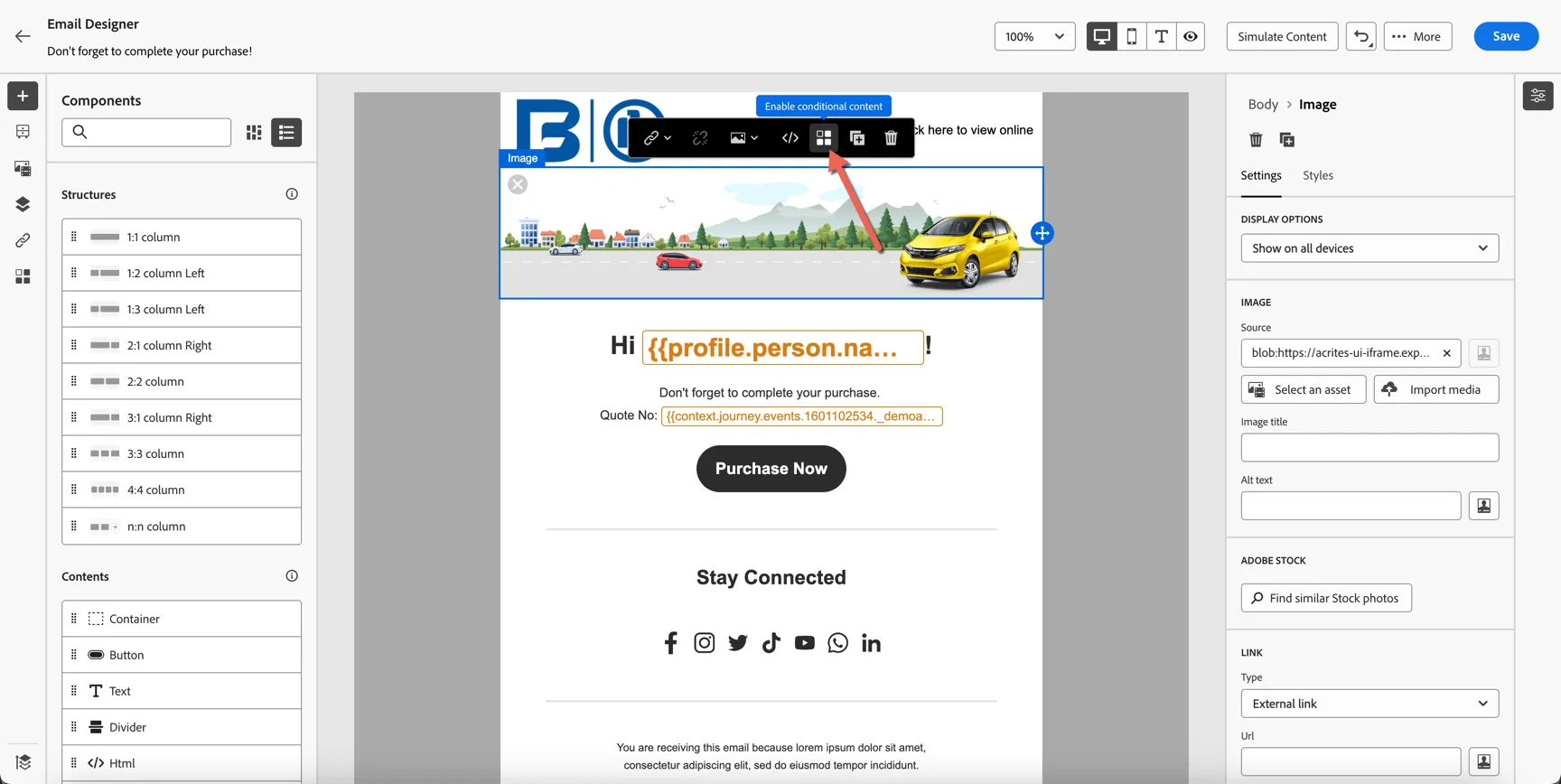
We now have a default banner in the email, but we want to personalize it to match the website experience depending on the vehicle body type. Select the newly inserted image and click to Enable conditional content.
In the left hand panel you can see the dynamic content variants. Rename the second variant to SUV then click to select condition.
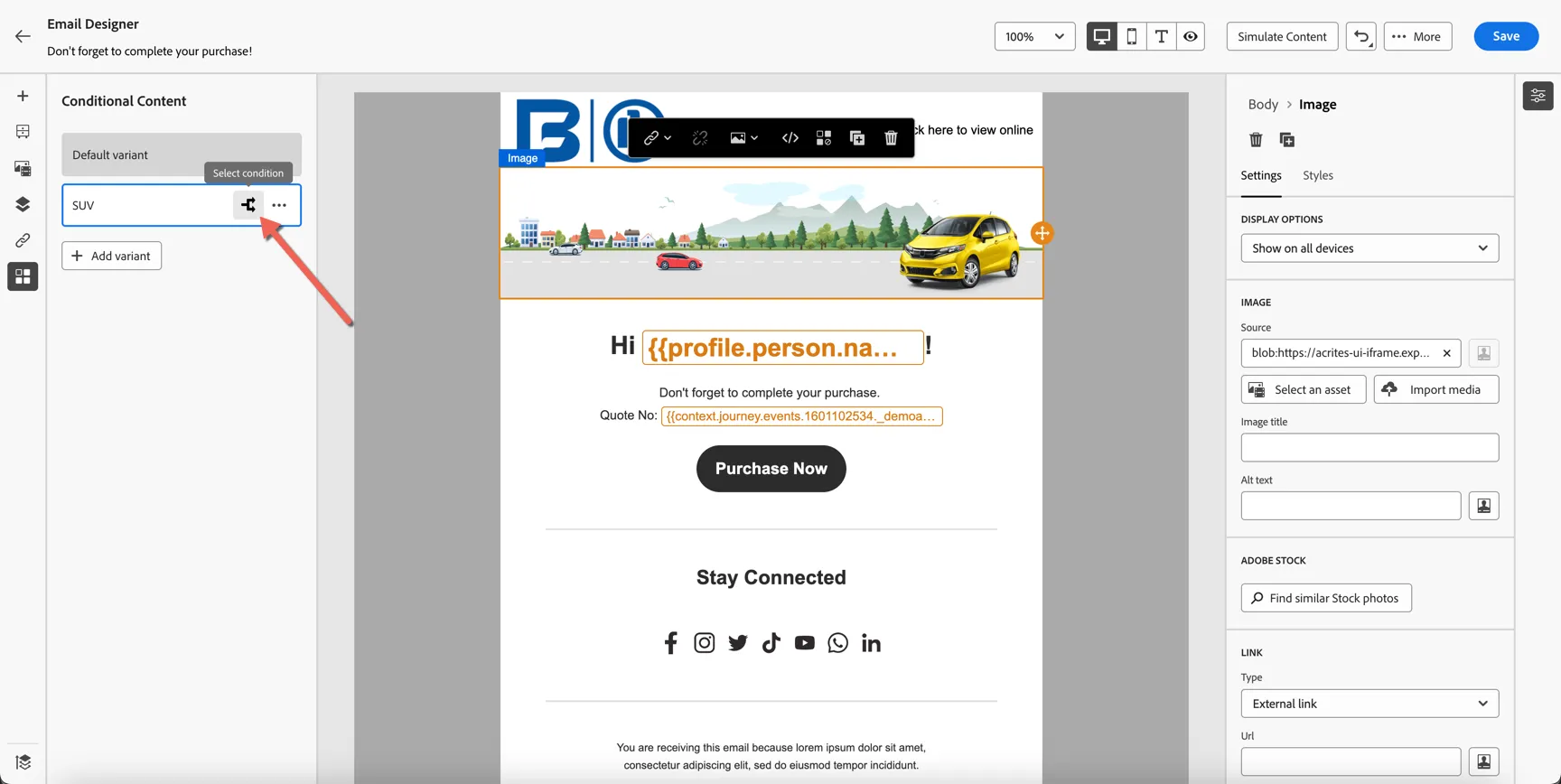
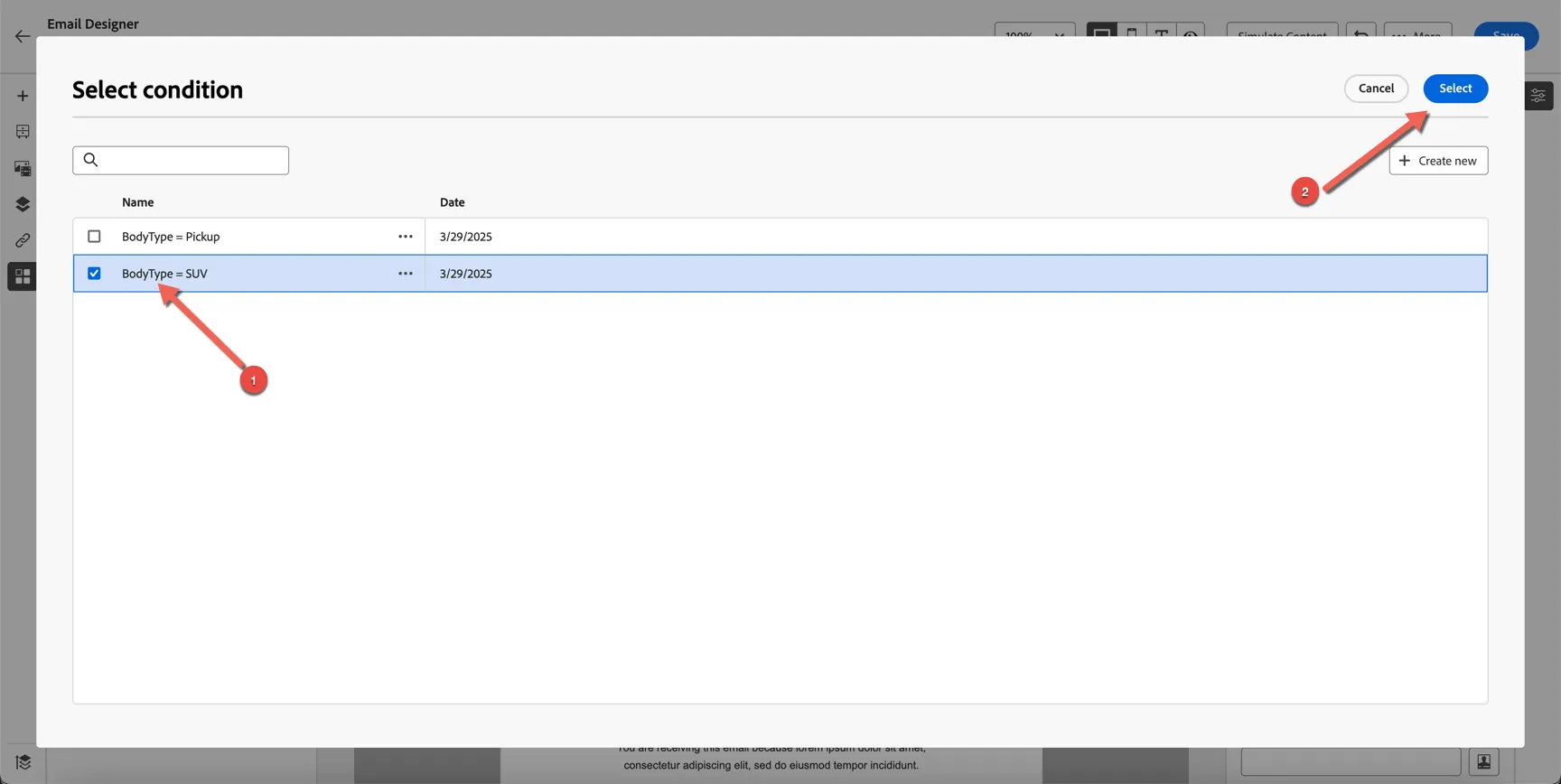
Once again, we can leverage profile attributes, audiences or contextual information from the event that triggered the journey to create dynamic content conditions.
- Select the pre-exisitng condition Bodytype = SUV.
- Click Select
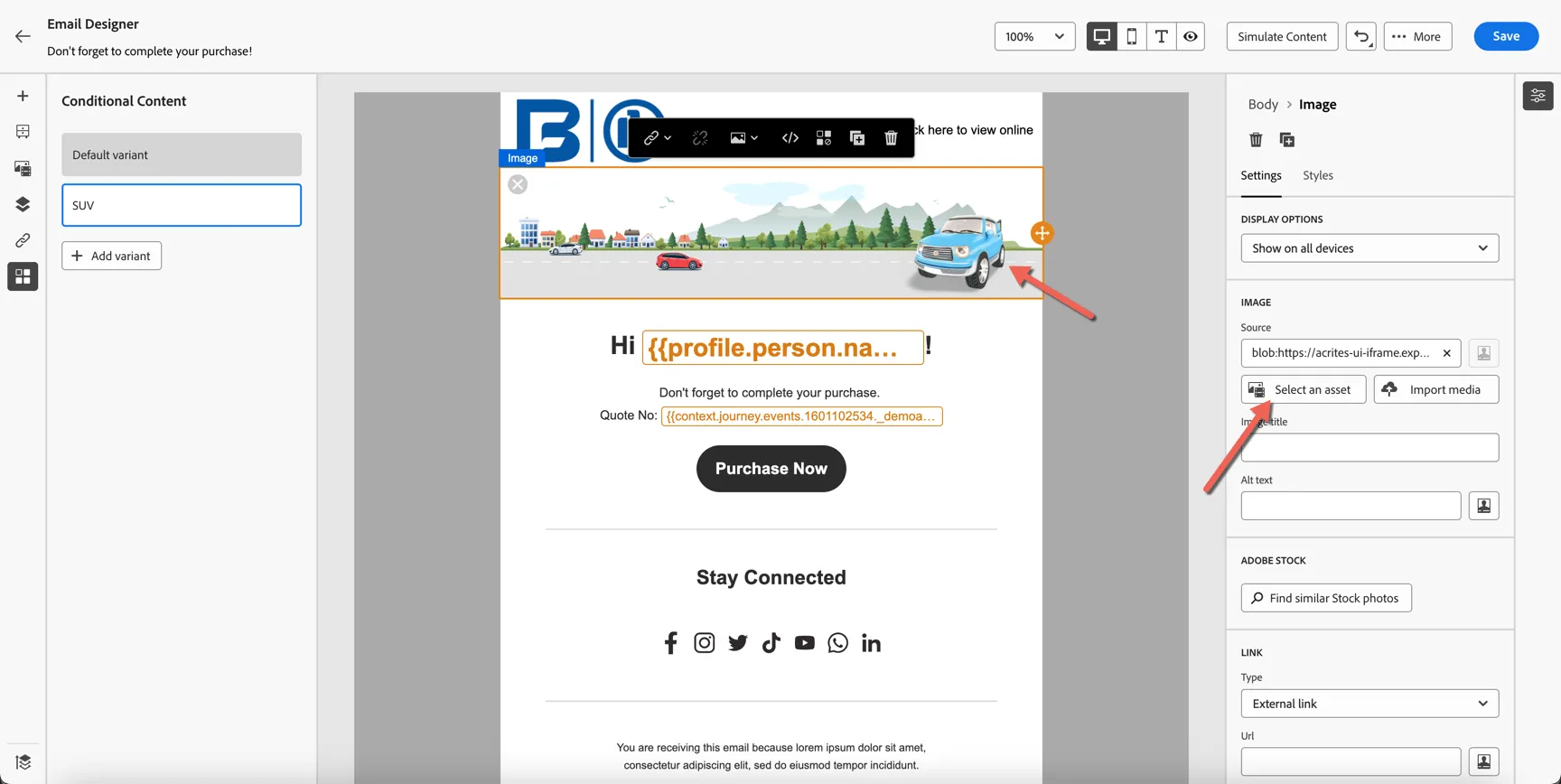
Lastly update the image for this variant to use the suv.png image.
You can configure additional variants as needed, by clicking the + Add variant button.
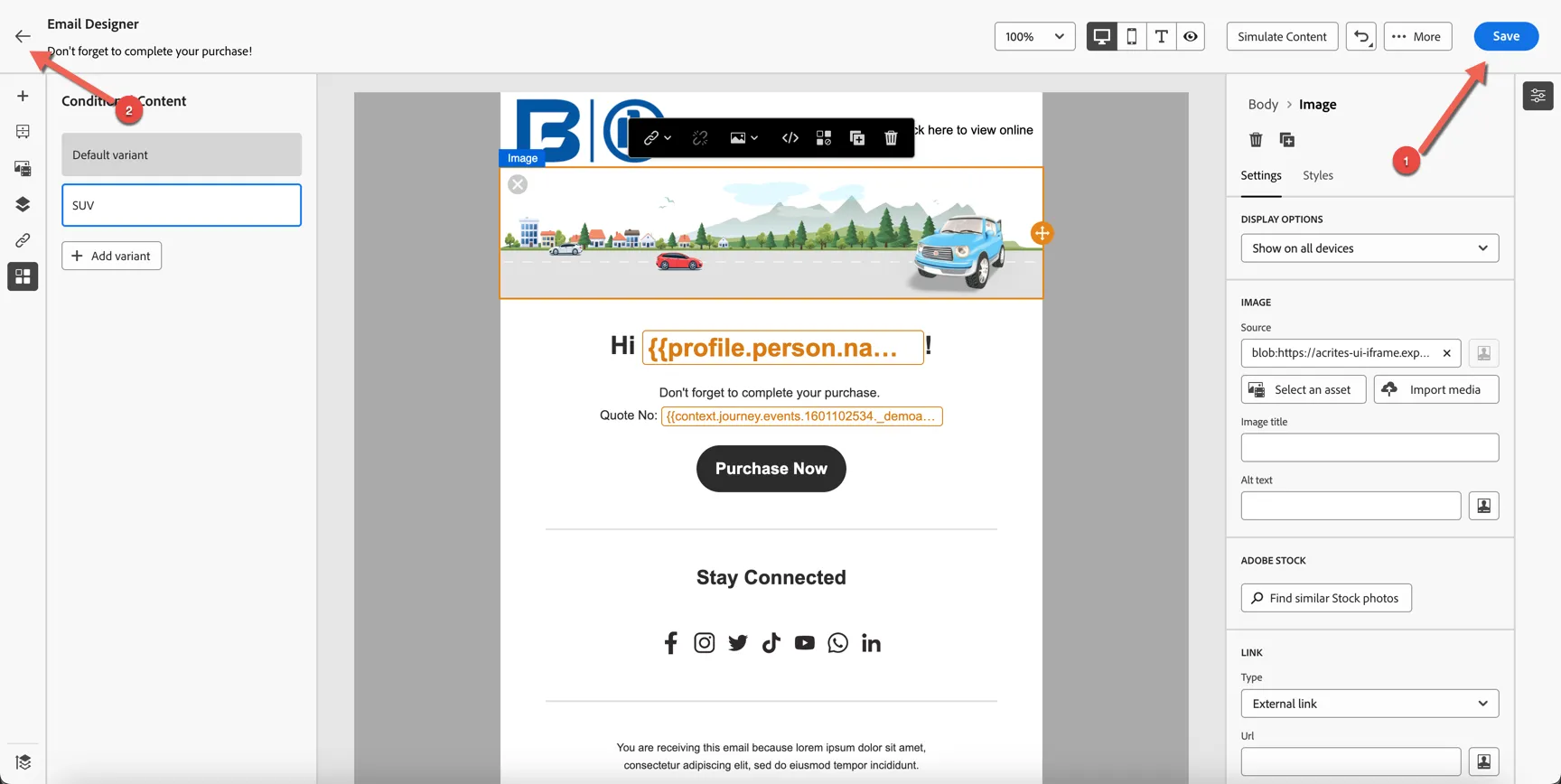
Once you're happy with the content click Save in the top right, then click the <- arrows in the top left corner to return to the journey.
Once you're back to the journey canvas, click Save on the email activity properties.
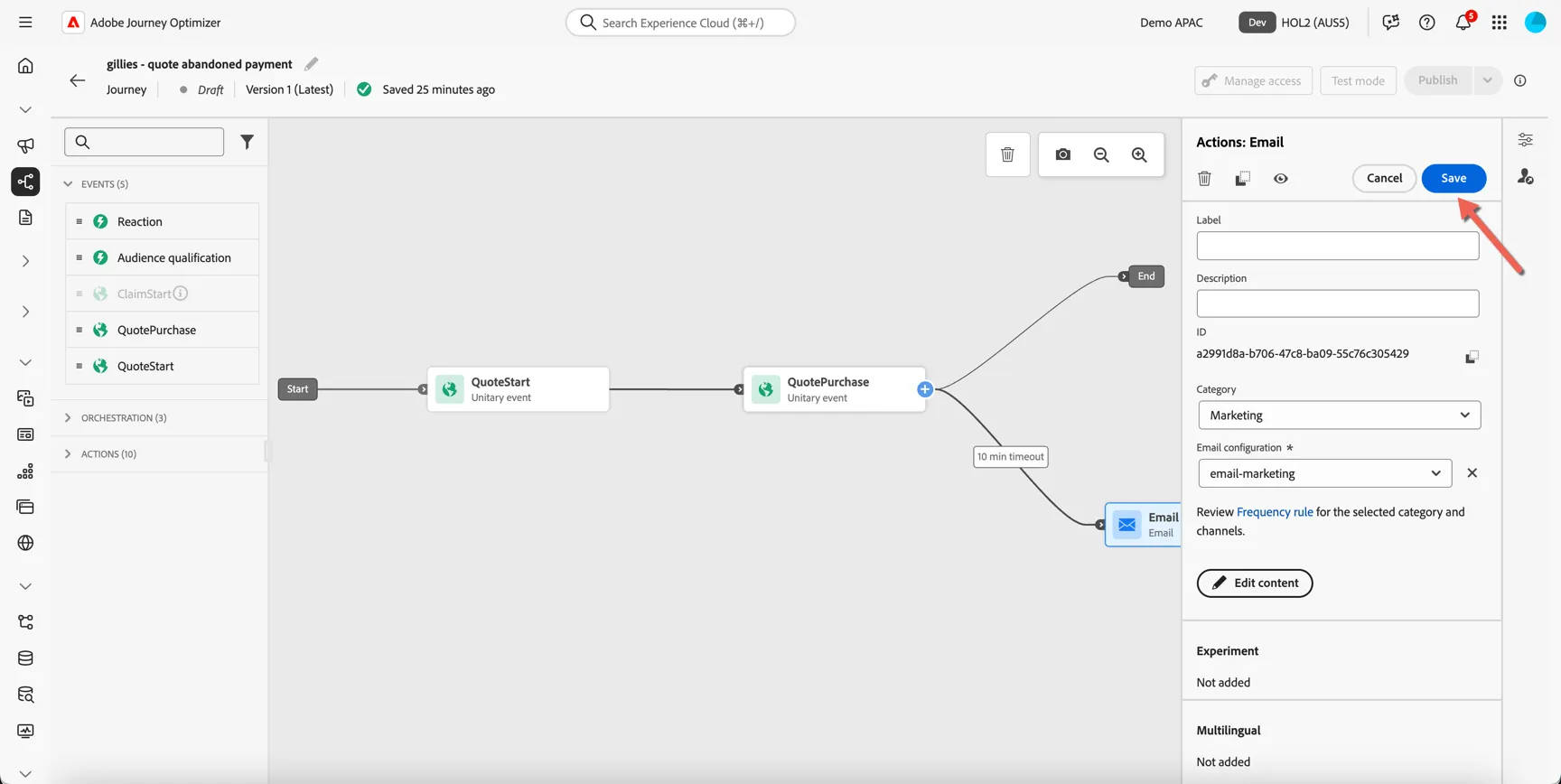
Congratulations you've created your first journey. It's now ready for testing.
Test the journey
The journey is now ready for testing. Click the Test mode button to move the journey to testing mode.
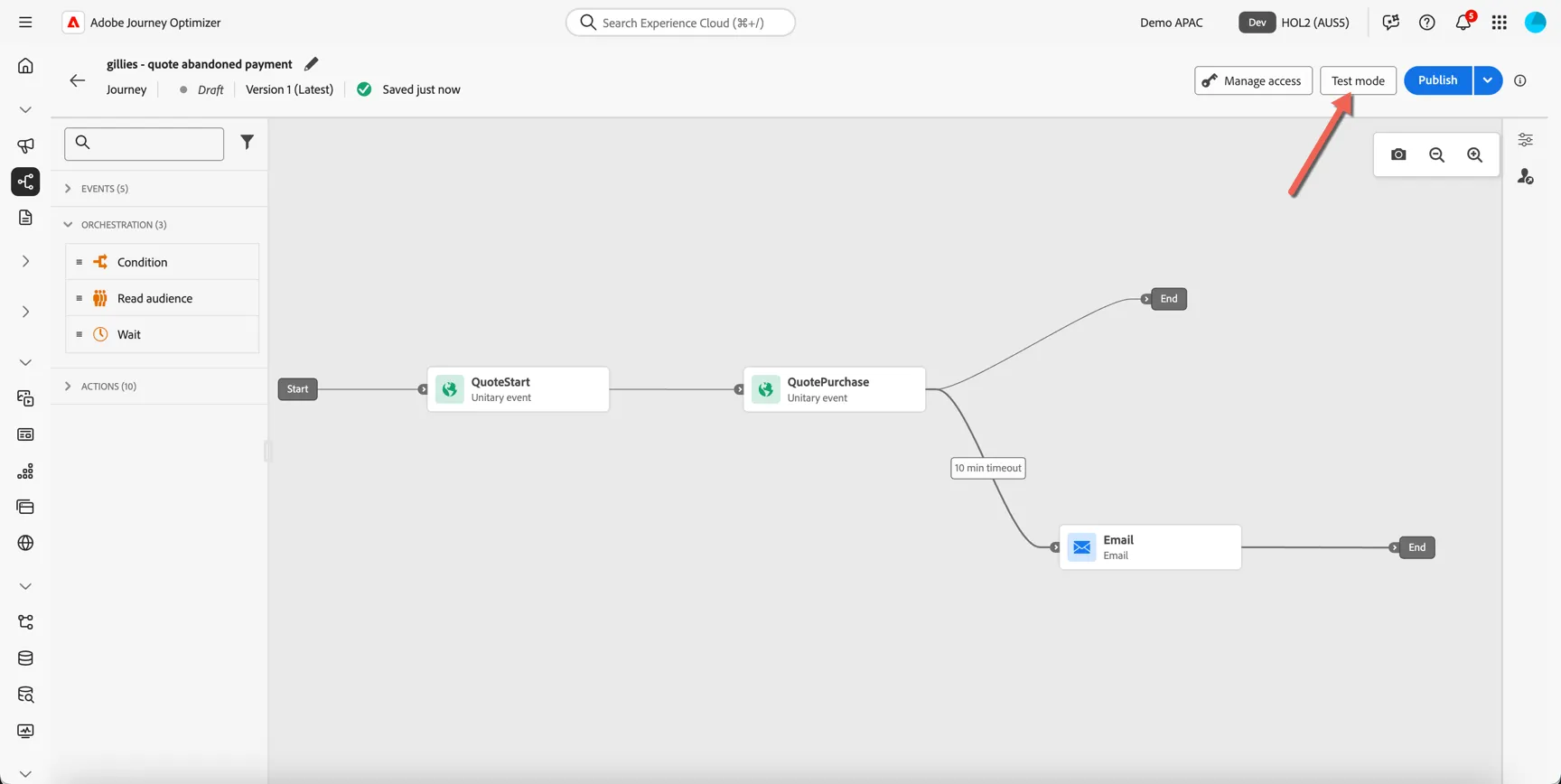
Once the journey moves to Draft(Test) status it's ready for testing. When in test mode, you can override any wait times defined in the journey to reduce the duration. By default the journey will wait only 10 seconds for the purchase event instead of waiting the 10 minutes that we configured.
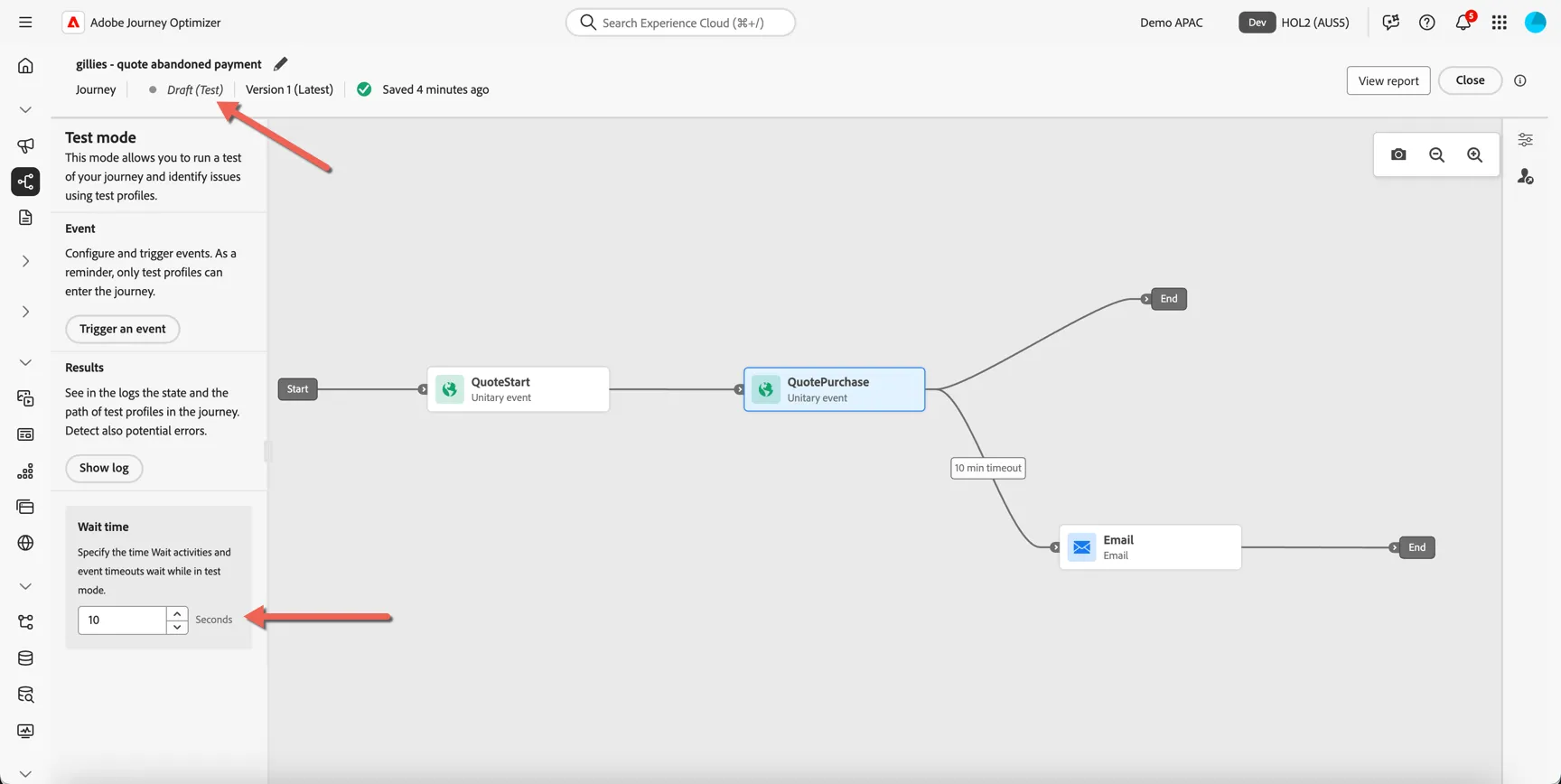
Click to Trigger an event
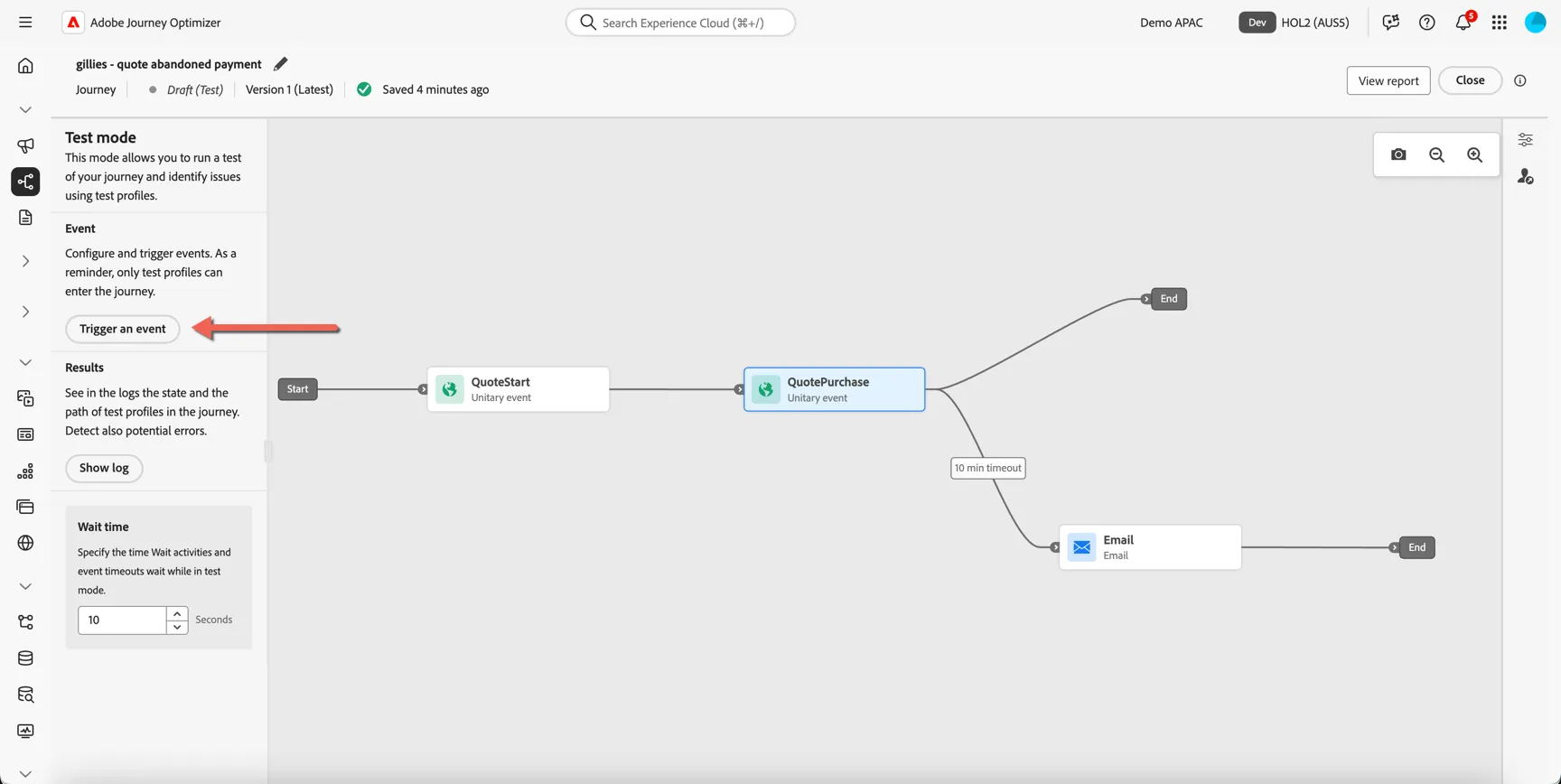
Select the QuoteStart event:
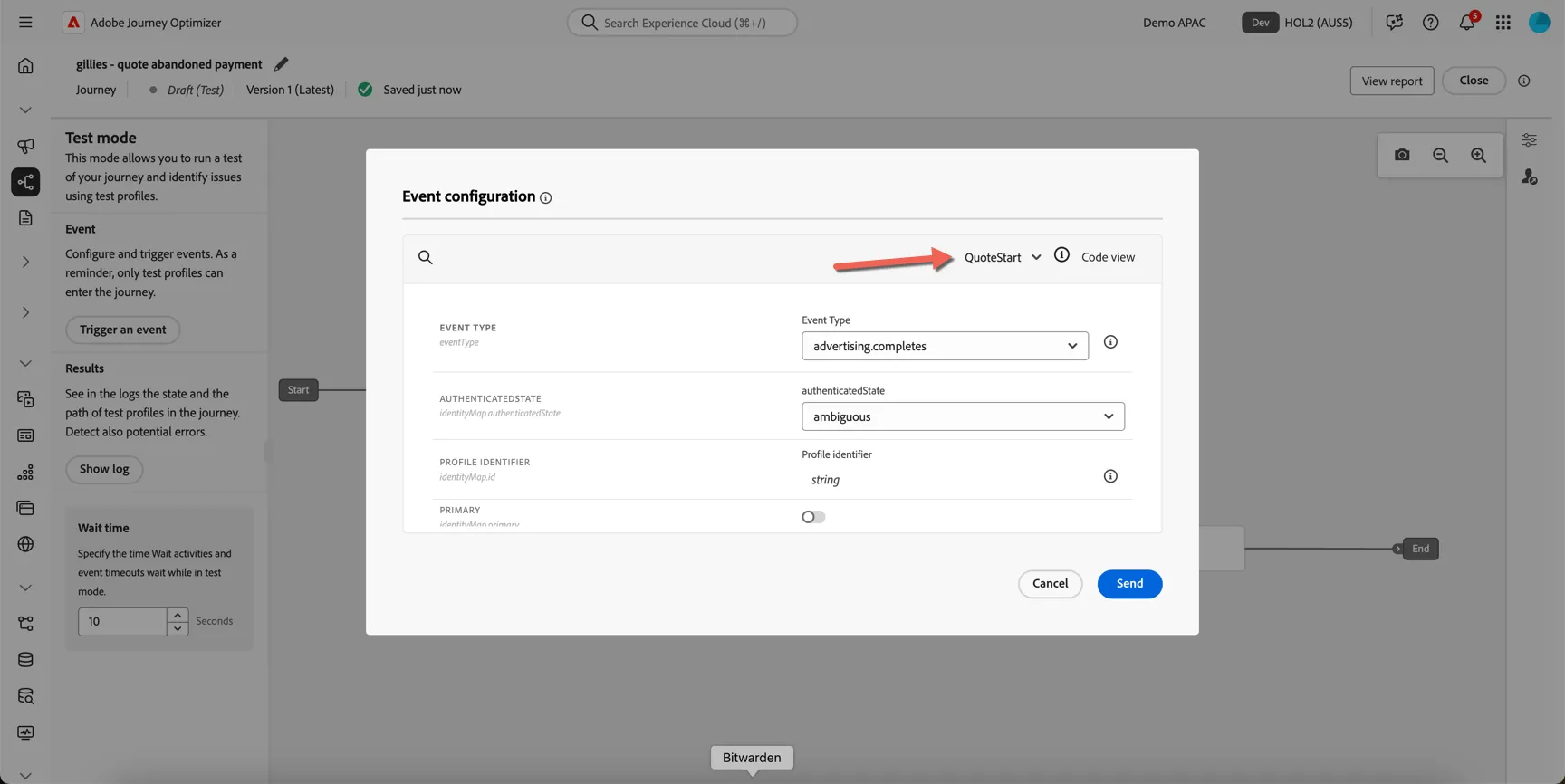
Then set the event attributes as follows:
Attribute | Value |
|---|---|
EVENT TYPE | quote.start |
PROFILE IDENTIFIER identityMap.id | Retrieve the phone number from your customer profile - you can copy it from the xray panel on the website 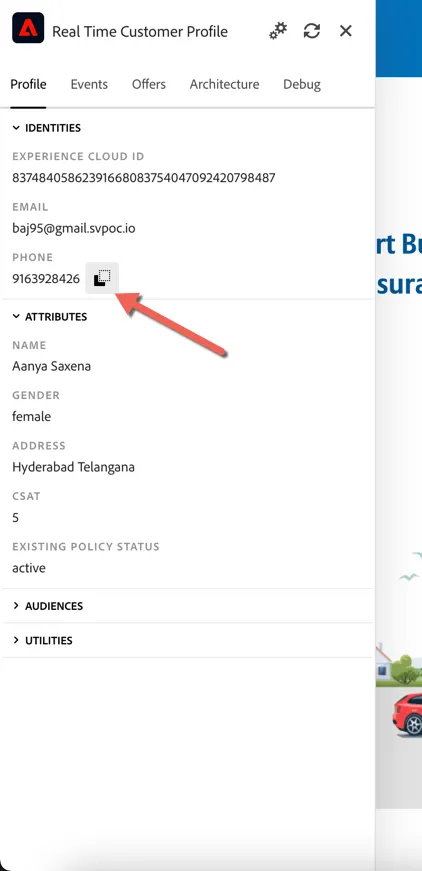 |
PRIMARY identityMap.primary | Toggle the switch to on |
CORE _demoapac.identification.core.ecid | Retrieve the ECID from the website xray panel 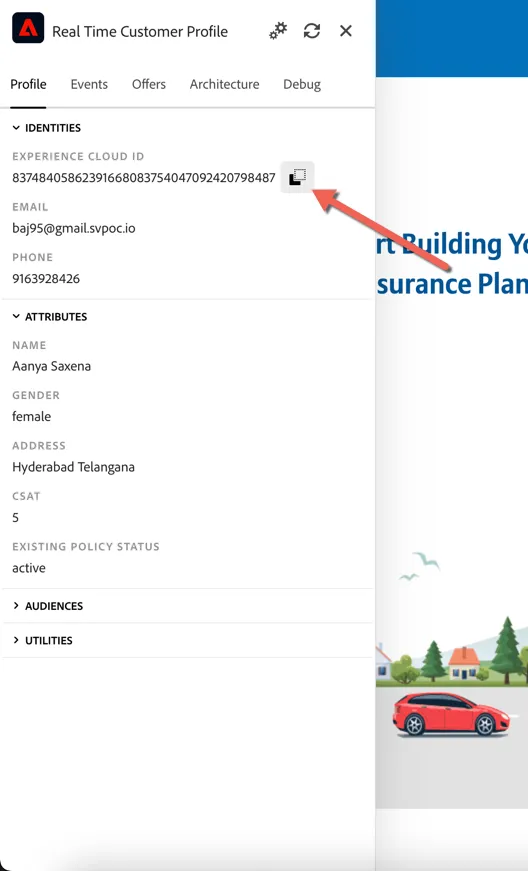 |
QUOTE _demoapac.interactionDetails.fsi.quote.policyType | Car |
QUOTE _demoapac.interactionDetails.fsi.quote.quoteNo | anything you want can go here |
VEHICLE DETAILS _demoapac.interactionDetails.fsi.quote.vehicleDefails.bodyType | SUV |
VEHICLE DETAILS _demoapac.interactionDetails.fsi.quote.vehicleDefails.make | anything you want can go here |
VEHICLE DETAILS _demoapac.interactionDetails.fsi.quote.vehicleDefails.model | anything you want can go here |
VEHICLE DETAILS _demoapac.interactionDetails.fsi.quote.vehicleDefails.vehicleInformationNumber | your rego number |
Once the event attributes are set, click Send to trigger the test event.
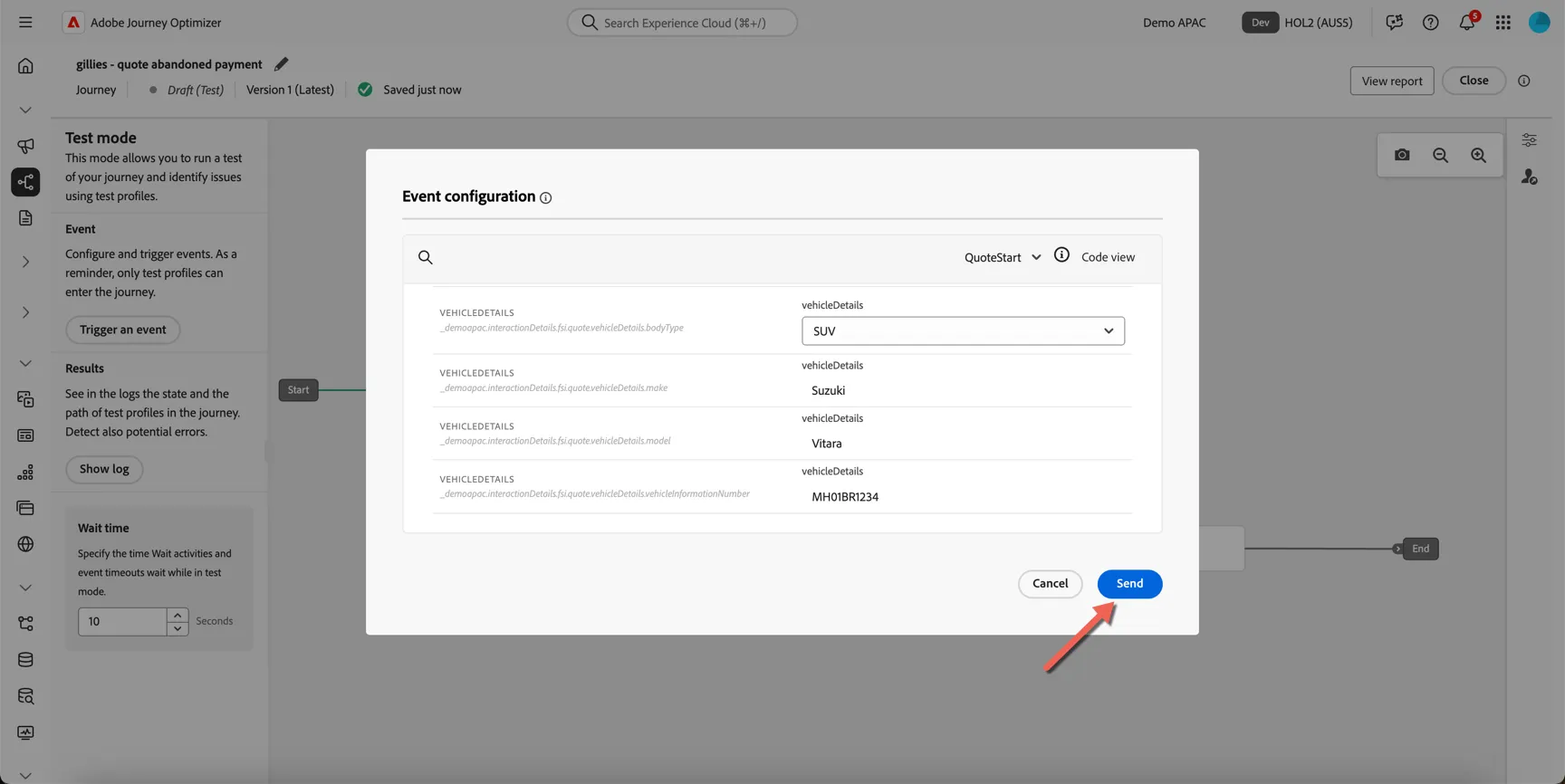
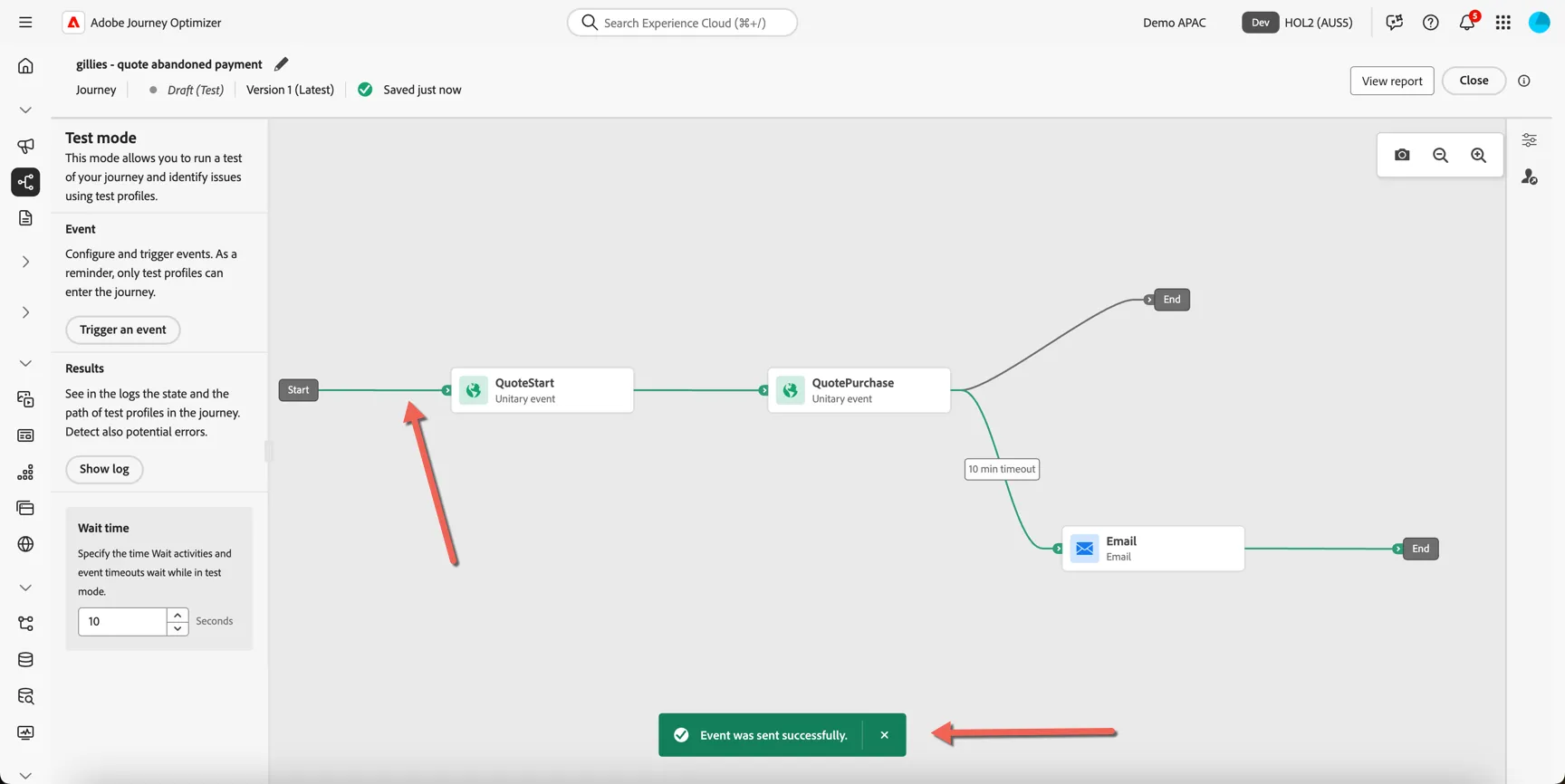
You'll see a notification that the test event was sent successfully and a greenline will indicate the profile's progress through the journey.
Congratulations you've created your first journey! This concludes the exercise on Quote to Conversion.