Website Setup
For the lab, we will use the Bajaj Allianz website, but we will replace the existing adobe library on there with one that points to our lab environment.
If you haven't done it yet, install Adobe experience platform debugger chrome extension https://chromewebstore.google.com/detail/adobe-experience-platform/bfnnokhpnncpkdmbokanobigaccjkpob
We need to change the data collection that is happening on your web site to send your web behaviour to our HOL instance instead of your production Adobe Analytics. To do that:
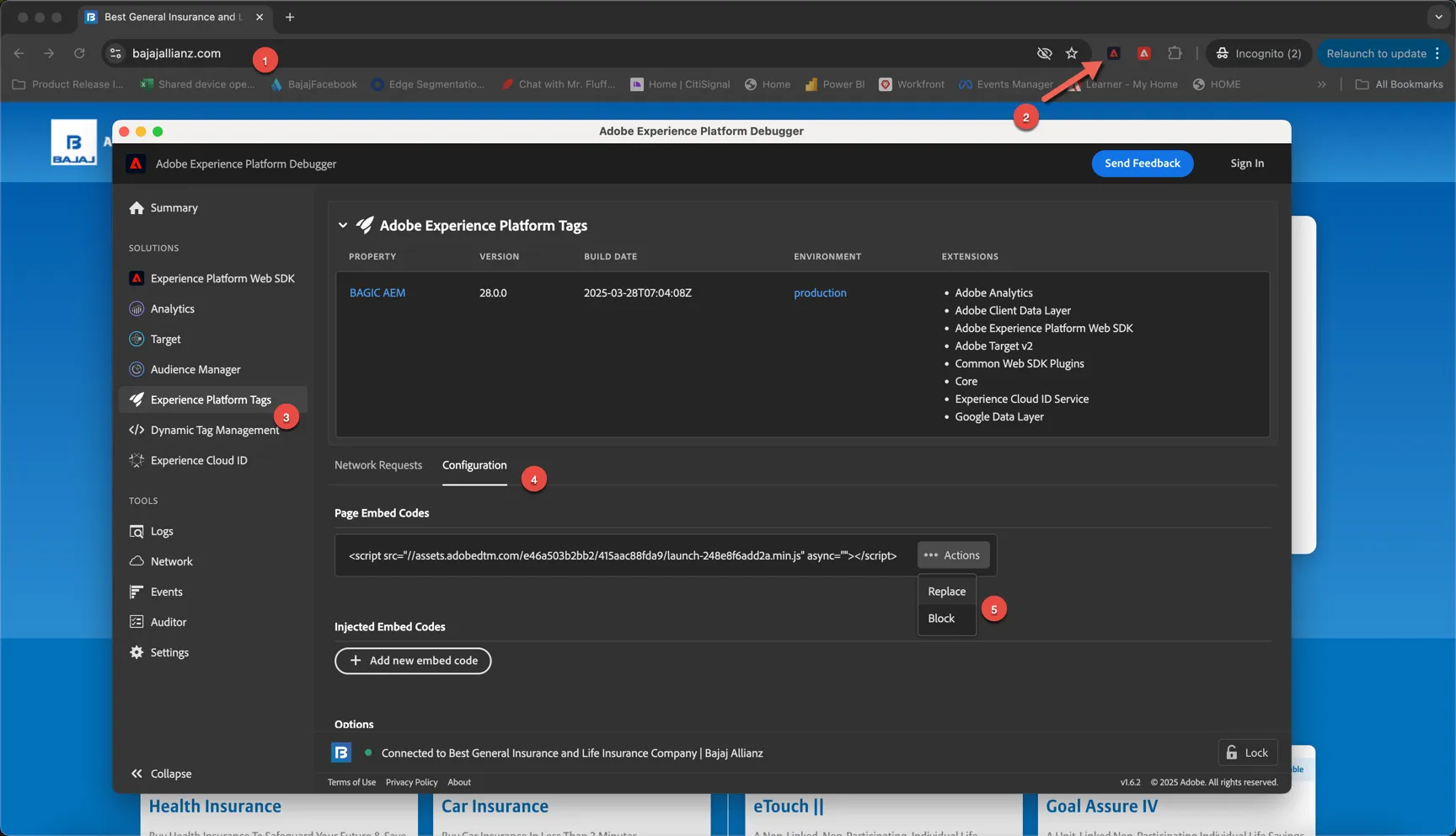
- Click on the adobe debugger extension
- Click on Experience platform tags on the left menu
- Go to Configuration tab
- Click to Replace the current Page embed codes
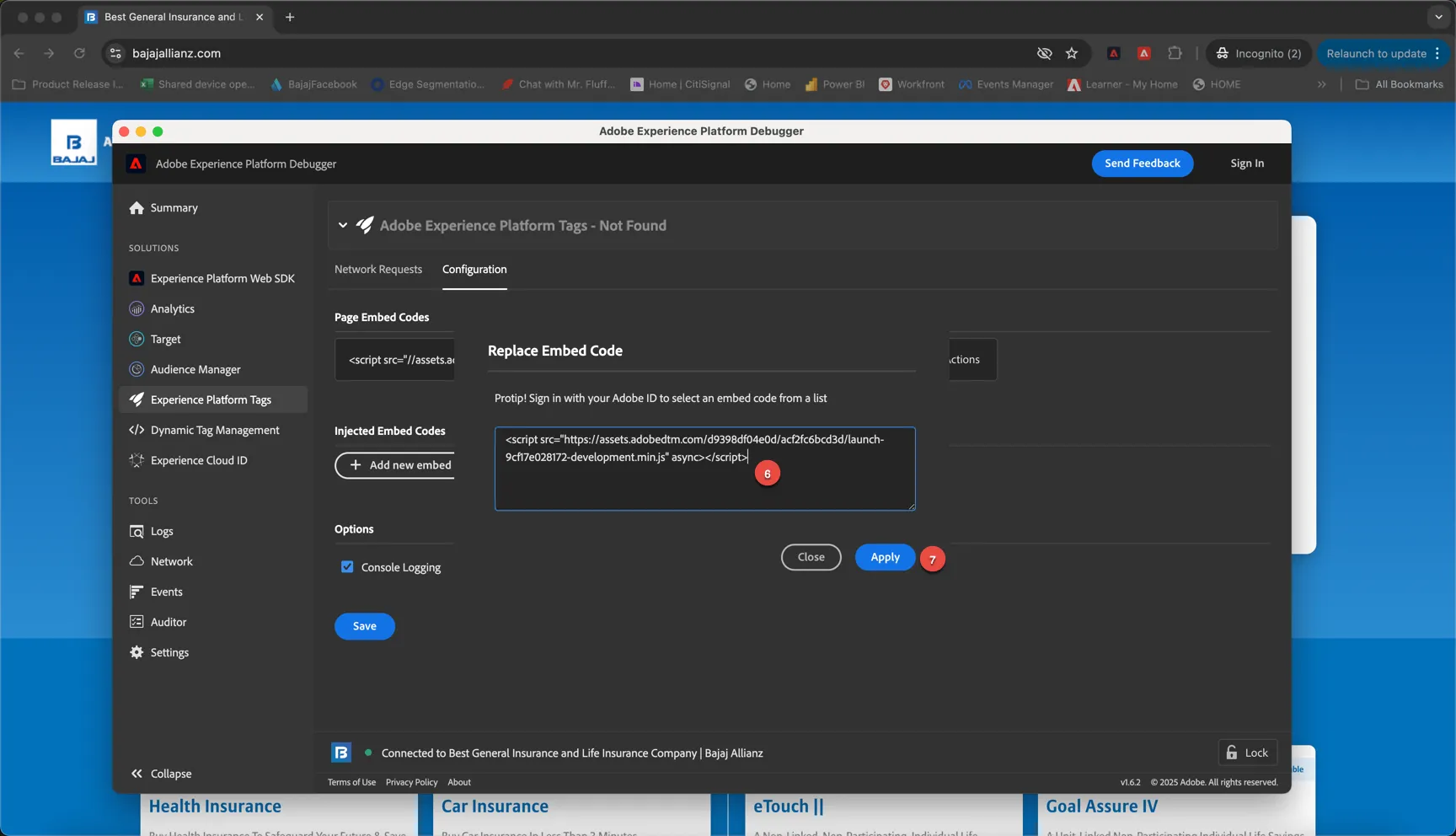
6. Copy and paste this code : <script src="https://assets.adobedtm.com/d9398df04e0d/acf2fc6bcd3d/launch-9cf17e028172-development.min.js" async></script>
7. click Apply
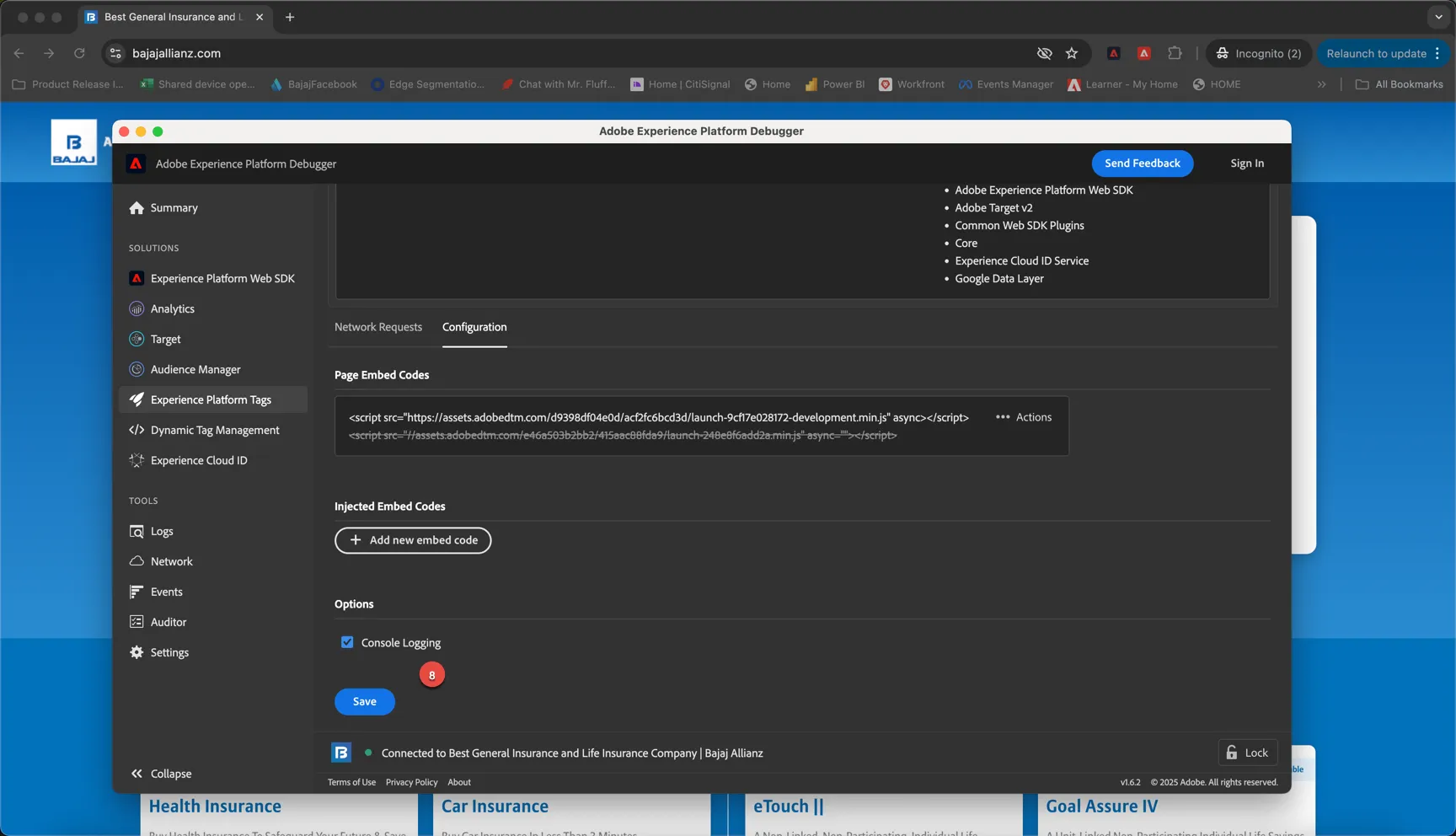
8. Click Save
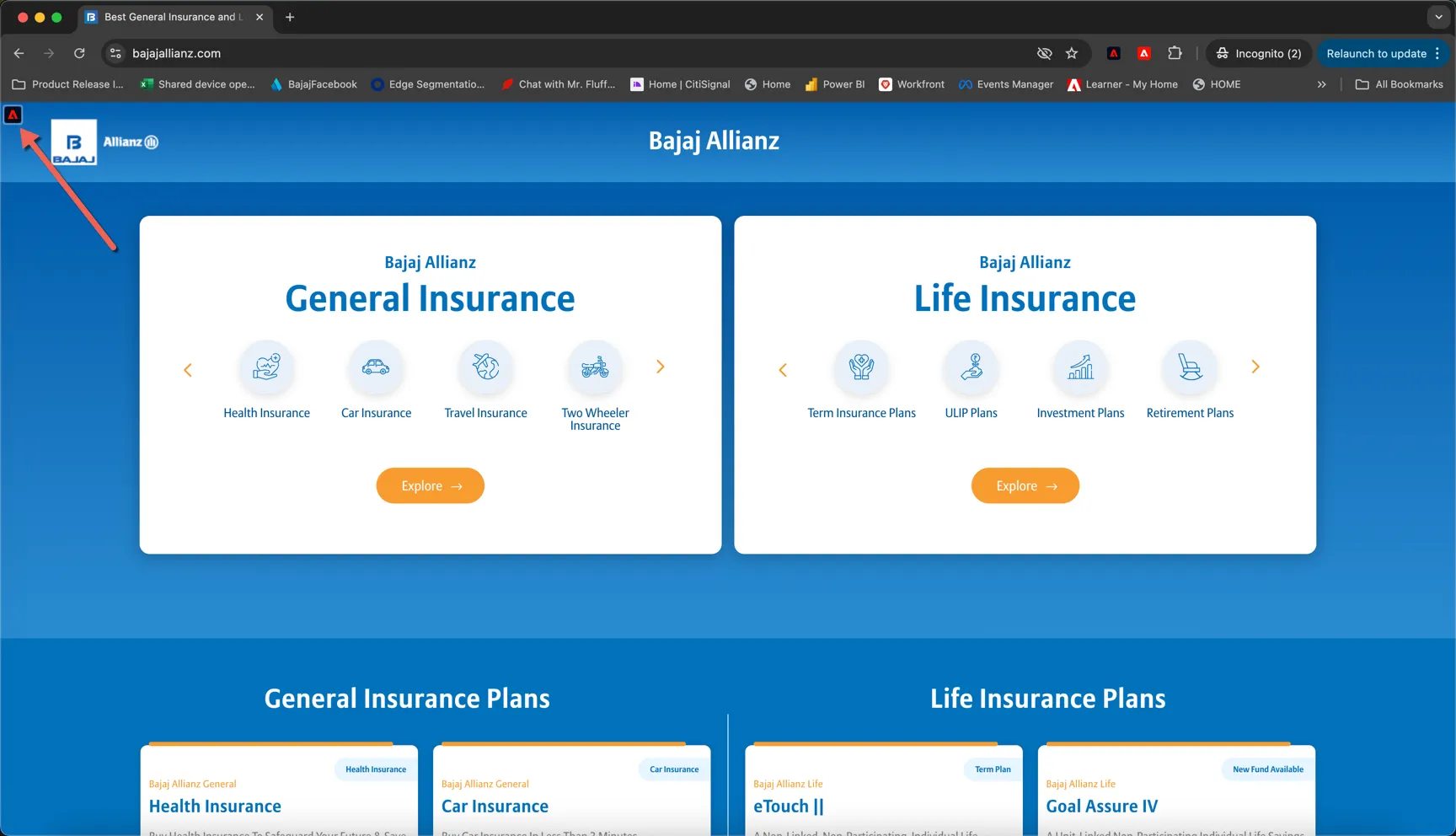
Return to the website. You should see a new Adobe icon on the top left of your web site. This give you access to the helper we will use during this hands on lab
Do not close the debugger - it must stay open for the settings be retained.
If you do not see the adobe icon in the top left, let us know and we will help set it up for you.