Audience Composition
Overview
This section describes the steps to create an audience of high value past purchasers leveraging historical transaction data in the warehouse, without copying those transactions into Adobe Experience Platform
Create an audience
In the menu on the left side:
- Click on Audiences to see a dashboard overview with information on a specific audience.
- Click on Federated compositions at the tab bar to see an overview of all existing federated compositions.
The goal is to create an audience of customers who have made many purchase in the past quarter.
- Click on Create composition
- Set Label = [your name] - High value past purchasers
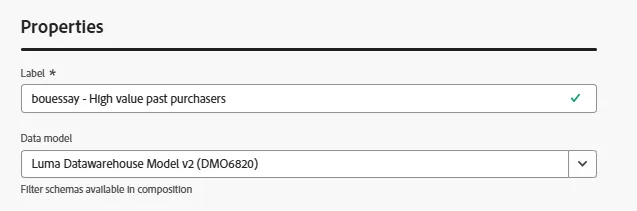
- Click on Create to land to this screen:
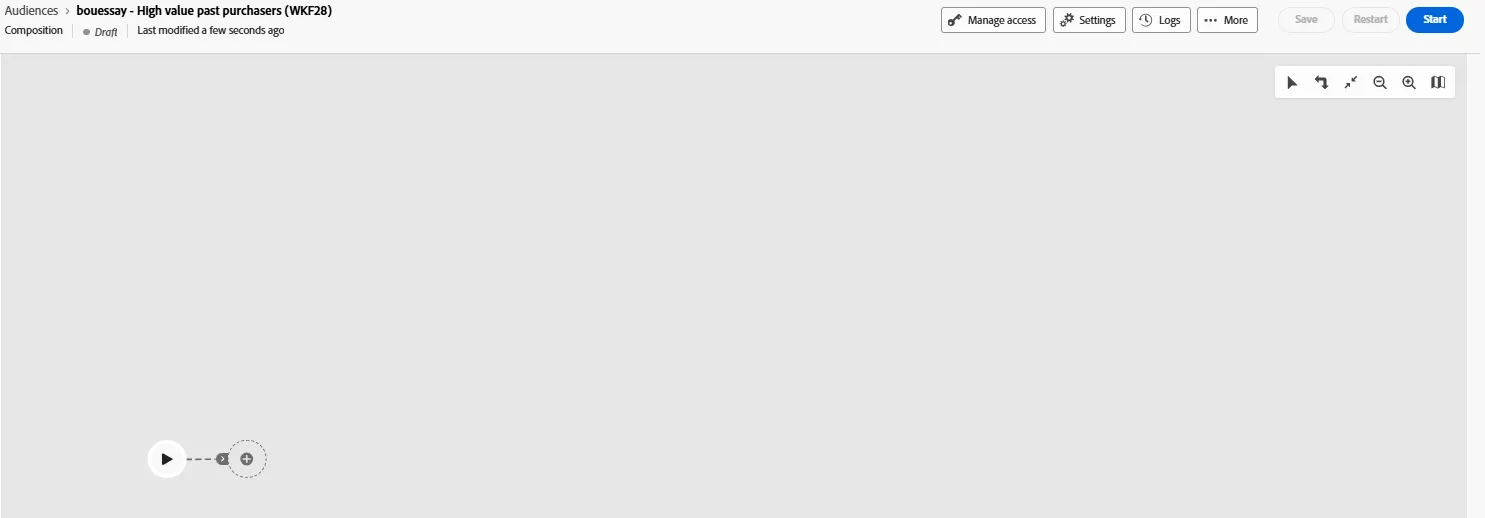
- Click on the + icon to add the activity named Build audience
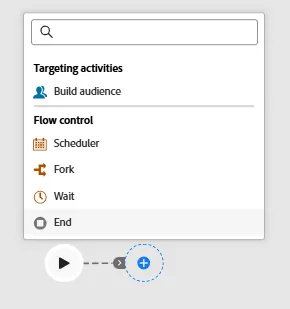
- Set the activity properties this way:
- Select the schema named LUMAORDER
- Click on the Create audience button in order to define the condition to filter records
- Add these 3 conditions
- TSORDER on or after Last quarter
- AND (
- SPRODUCTCATEGORY contains ORANGE
- OR SPRODUCTCATEGORY contains BLUE)
- Click on Calculate
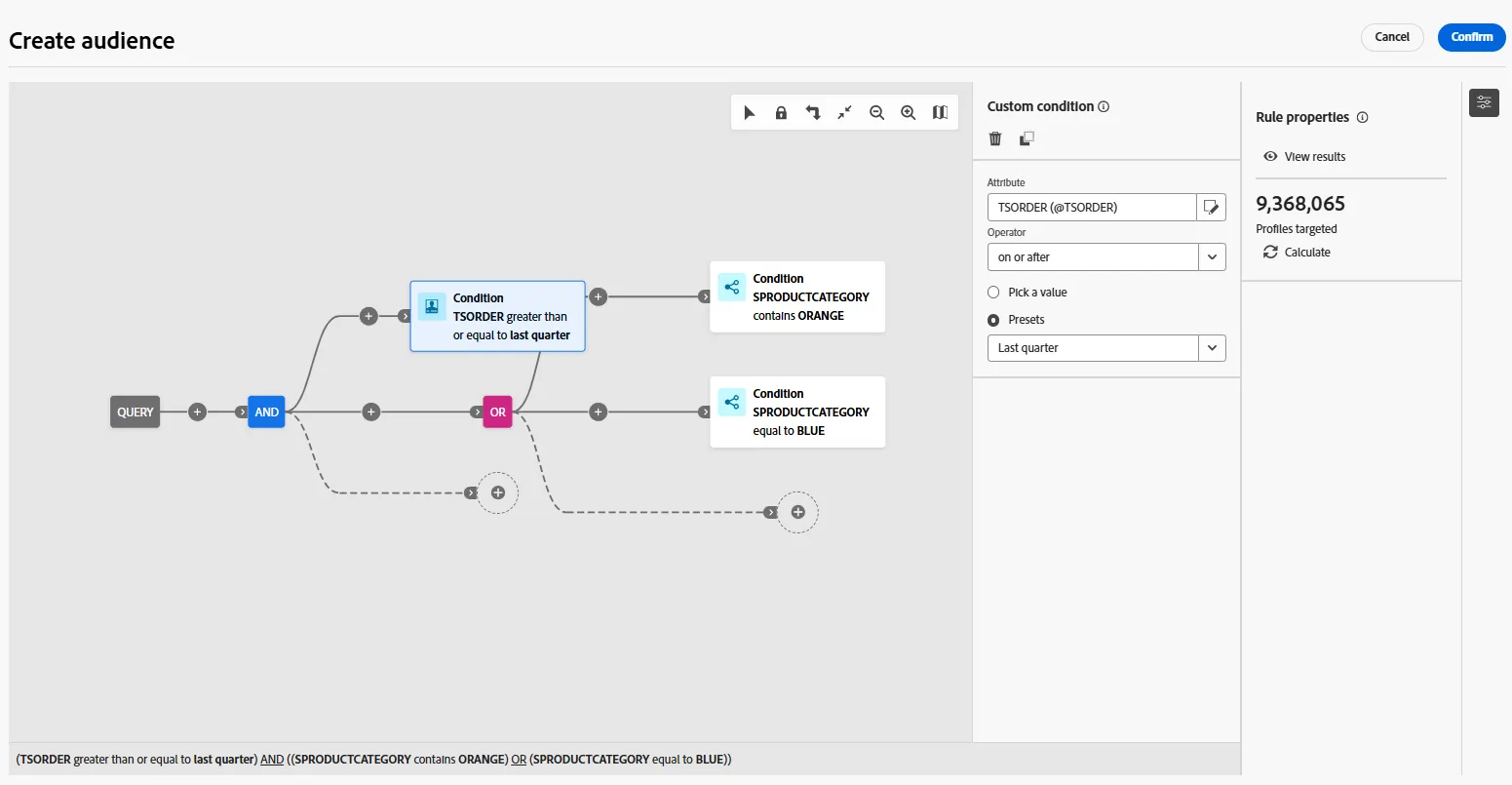
- Click on Confirm and Start the composition flow:
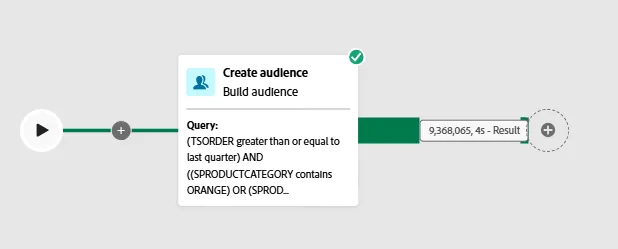
- Click on the transition (the green line after the card) and click on the Preview results to look at the data:
- The temporary table contains the primary key of the records
- It's possible to view other data by clicking on the Configure columns button in the top right corner
The next step step is to calculate aggregate data in order to select the high value customers
- Click on the + icon and select the Enrichment command
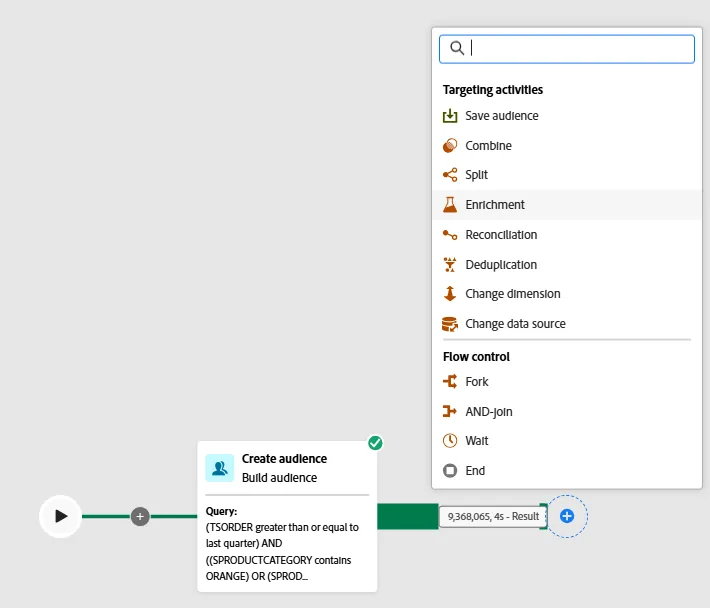
- Click on +Add enrichment data button
- Add the SACCOUNT field
- Define the alias to @account
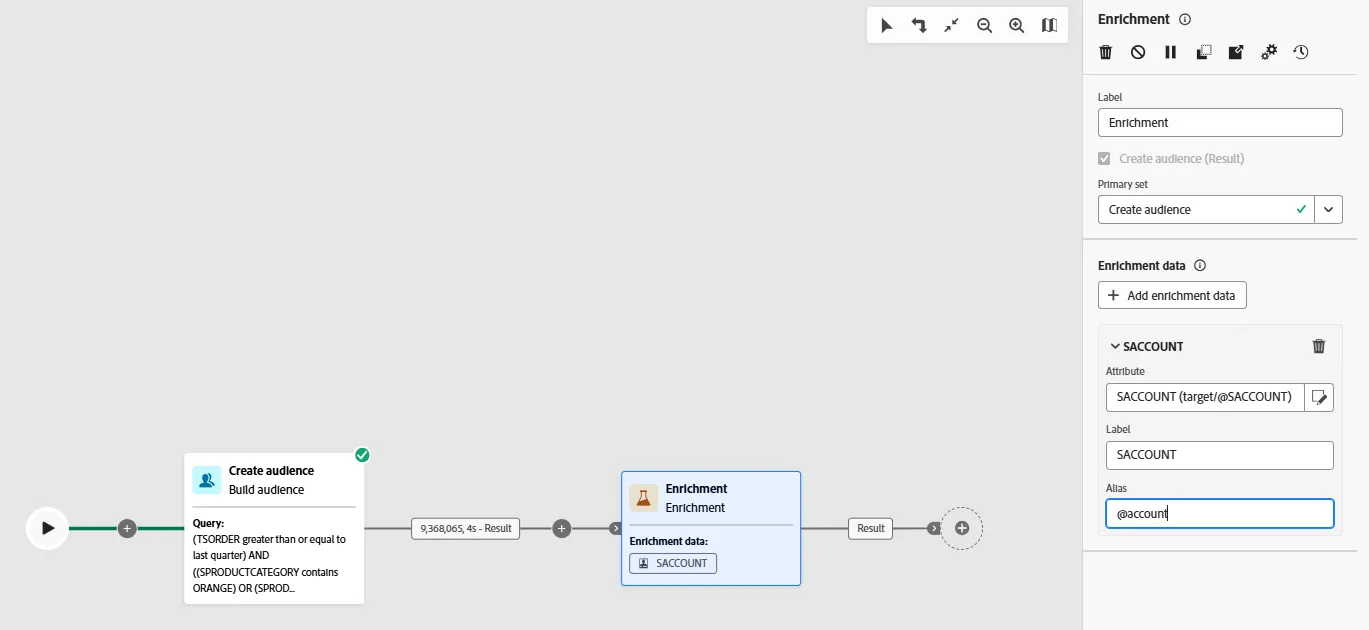
- Repeat the task
- Click on + Add enrichment data
- In the data model, click on Targeting dimension > Items > FAMOUNT
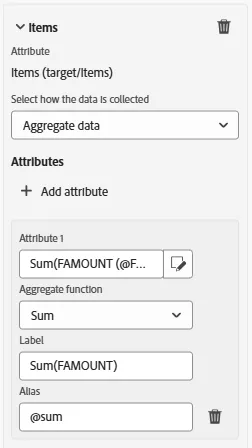
- Change the setting named 'Select how the data is collected' from 'Collect data' to 'Aggregate data'
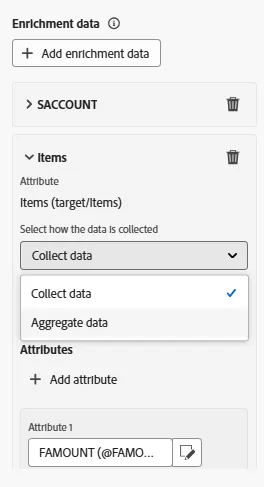
- Click on the little pen icon of the Attribute 1
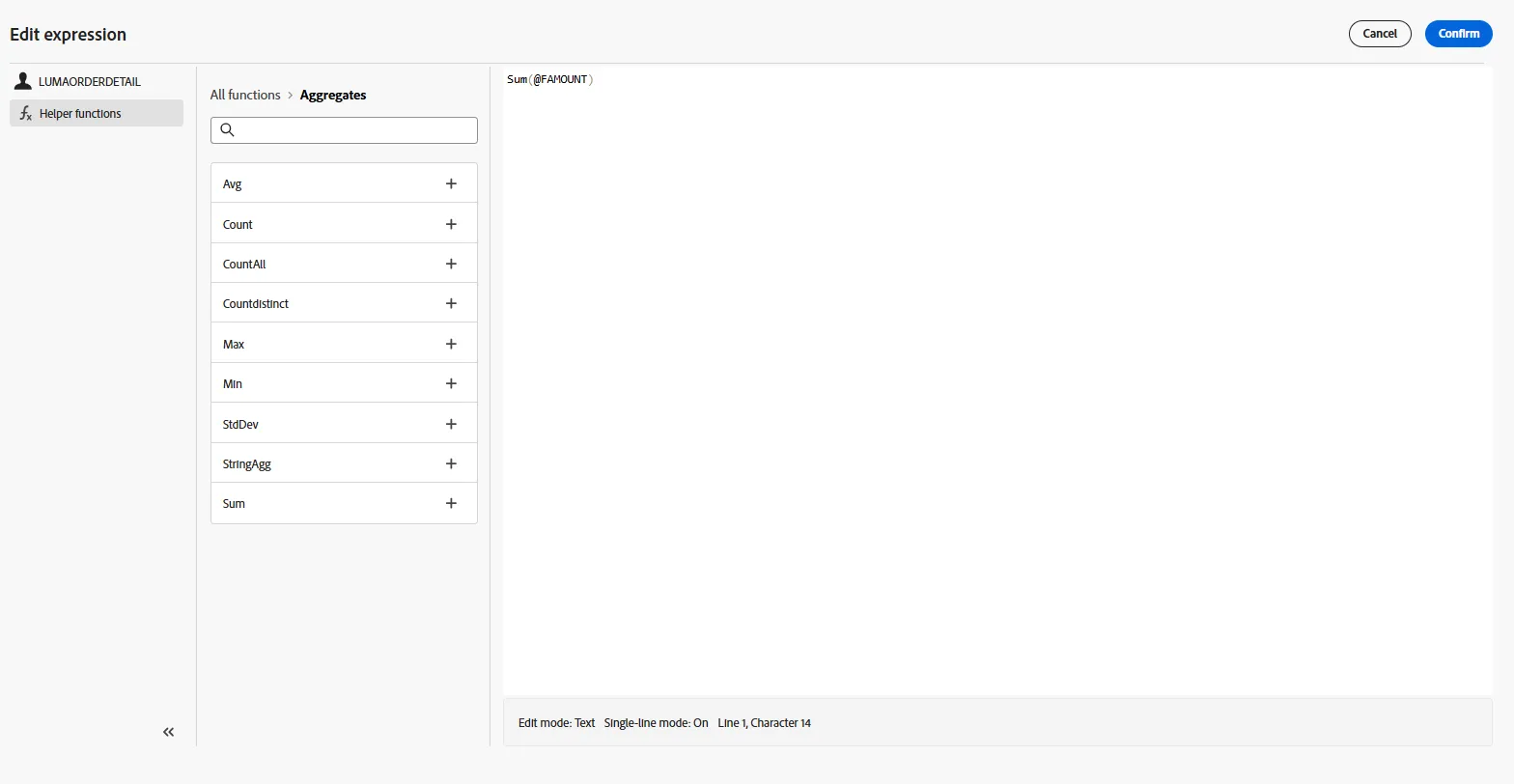
- Click on Edit expression button
- Go to the Helper functions
- Expand the Aggregates menu
- And define the expression this way: Sum(@FAMOUNT)
- Confirm and set the alias to @sum
- Save, Resume the composition flow and Preview results
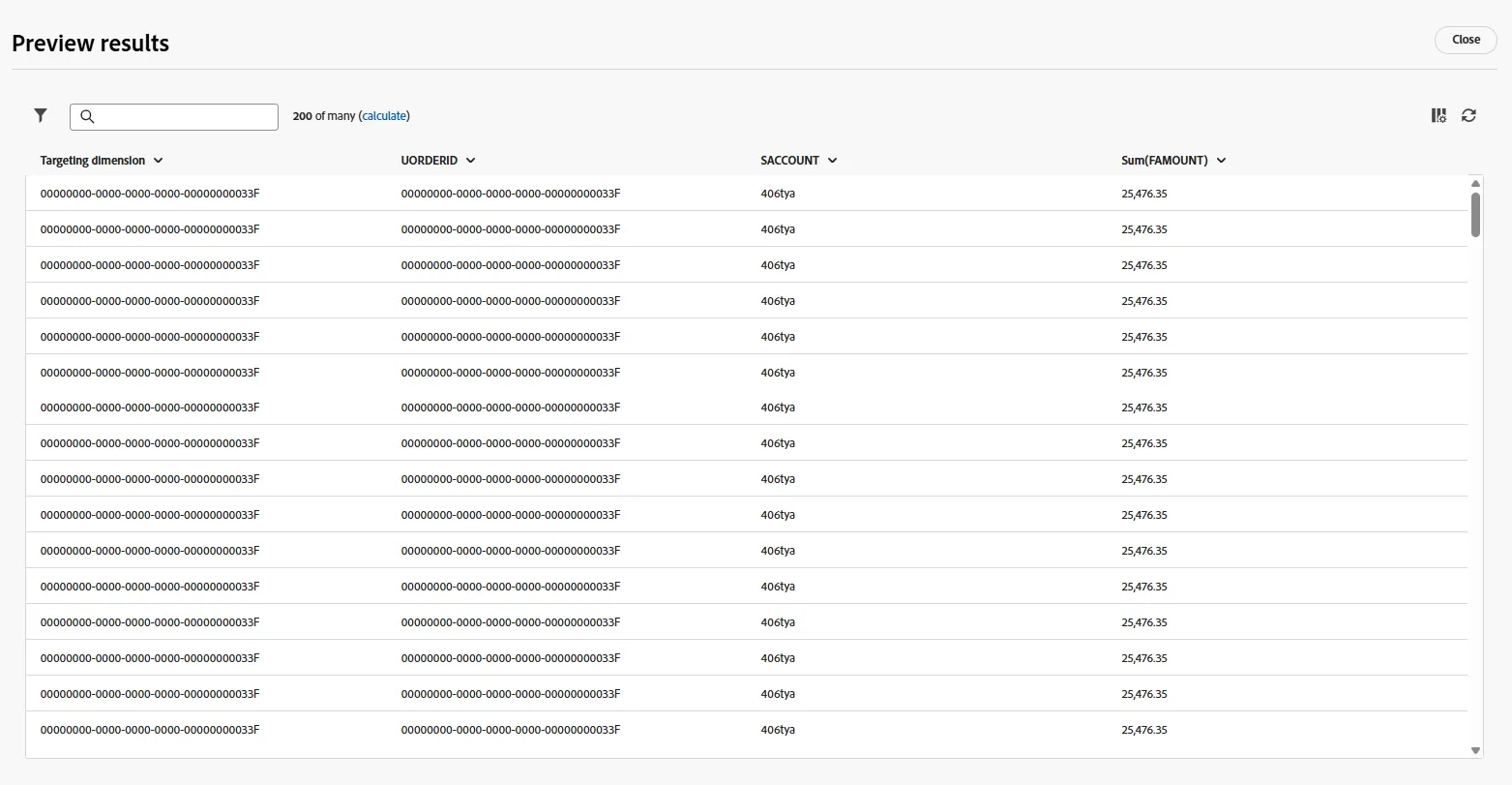
The next step is to filter this population and keep high value customers, those who have spent more than 25,000 ($,€,kr,...) in the past quarter.
- Define the subset
- Segment code = HIGH_VALUE_CUSTOMERS
- Filter Sum(FAMOUNT) greater than 25,000
- Enable the Generate complement option
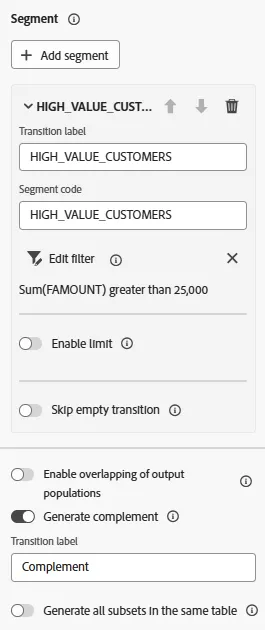
- Save and Resume
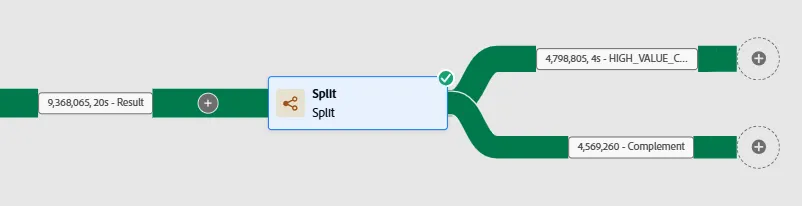
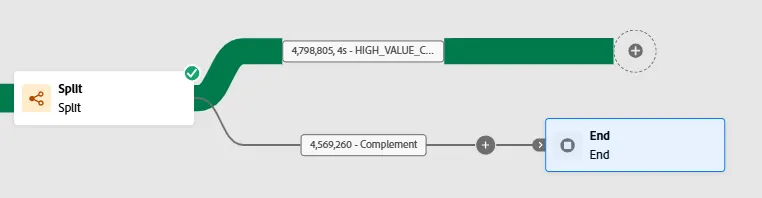
- Add an End activity after the Complement transition
- Add a Deduplication activity after the HIGH_VALUE_CUSTOMERS segment
- Deduplicate on SACCOUNT
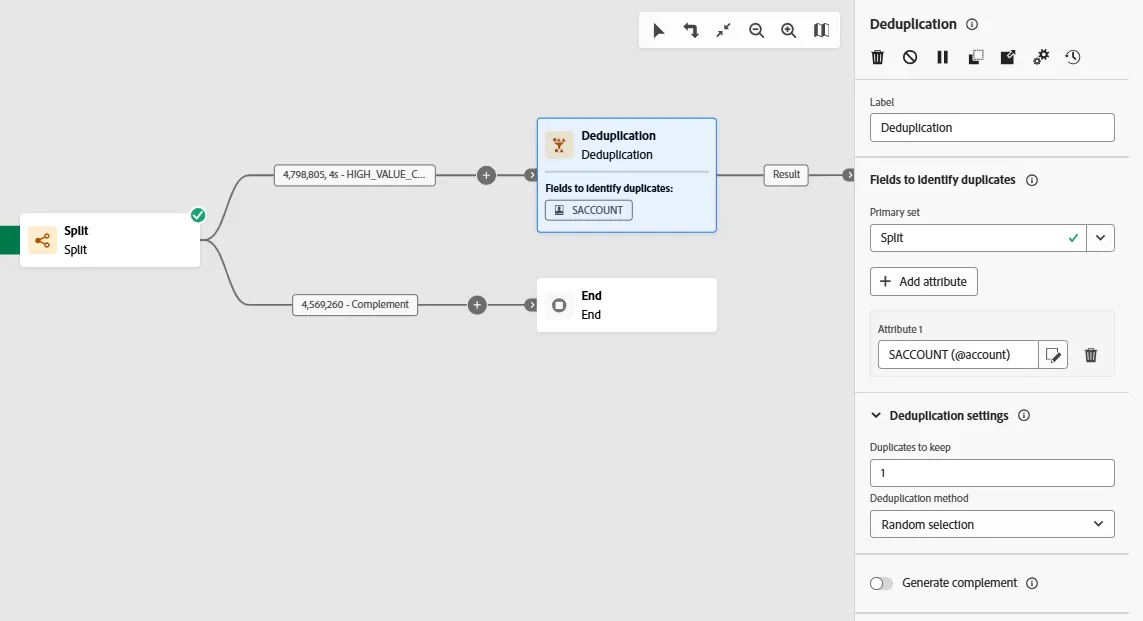
- Save, Resume, Preview results

- Finish the flow by adding the Save audience activity
- Set Audience label = [your name] - High value past purchasers
- Click on Add Audience Mapping to add the SACCOUNT field
- Set Primary identity field = SACCOUNT
- Set Identity namespace = Demo System - CRMID
- Save and Resume
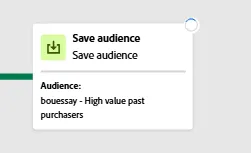
- When this activity is done, the audience is available in the Audiences > Browse section
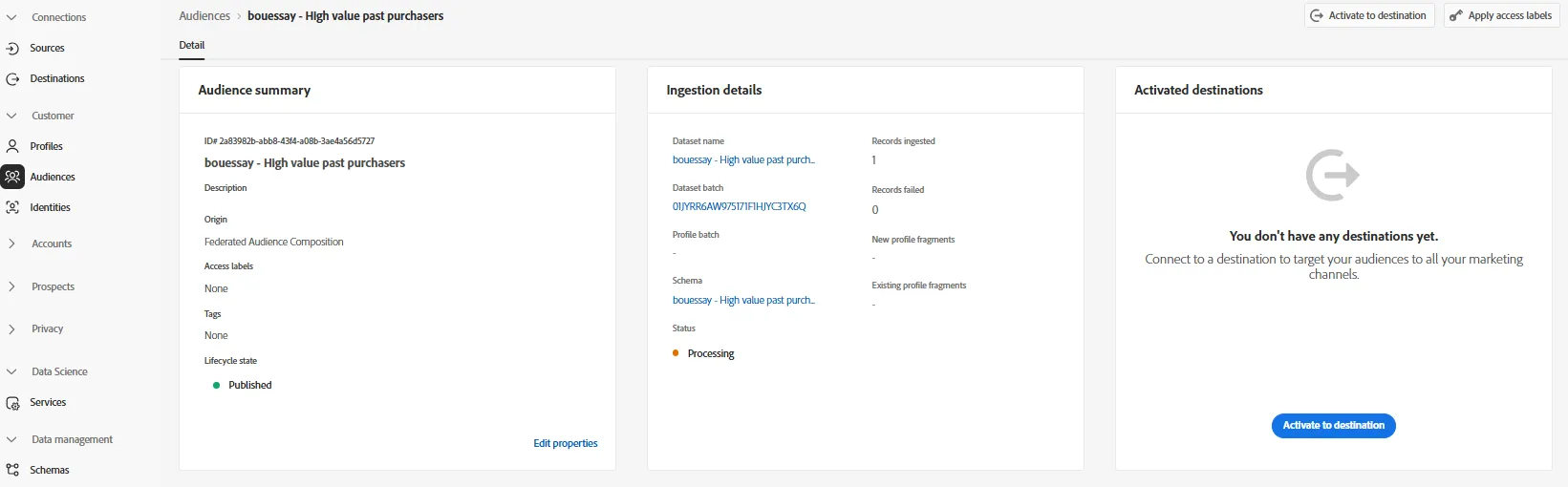
- Click on the Dataset name to land to this screen
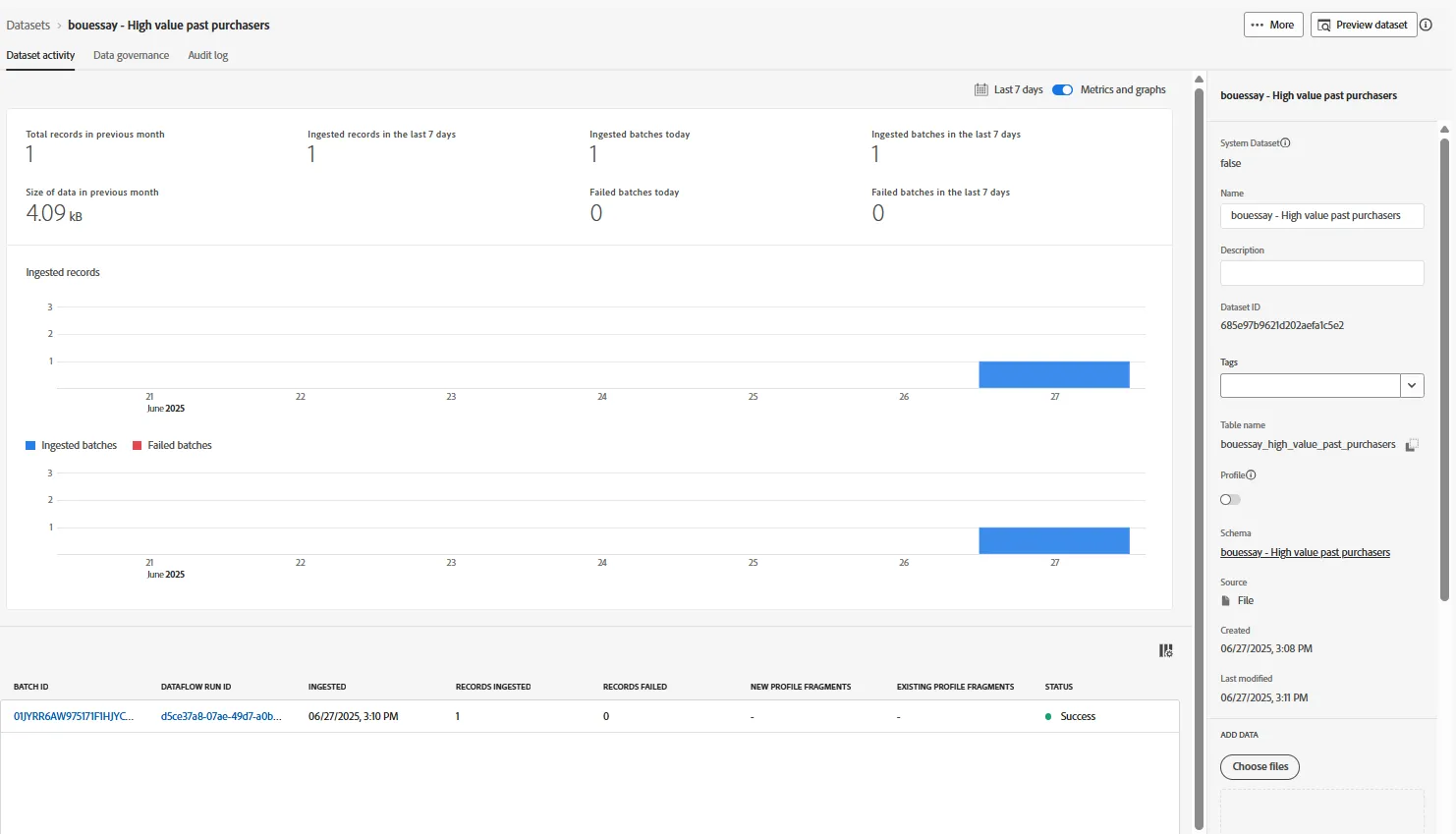
- Click on the Preview dataset button to look at the data put in Adobe Experience Platform:
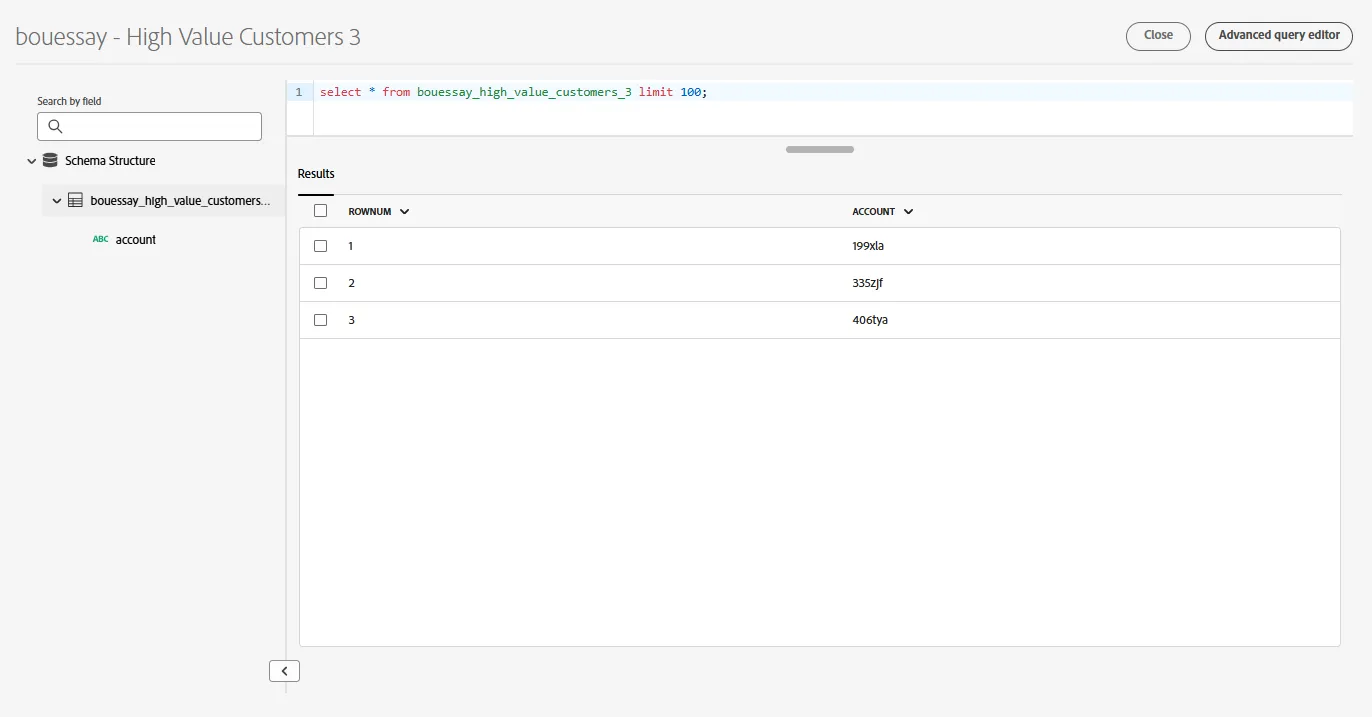
- Go the Profiles screen and look for the profile
- Demo System - CRMID = 406tya

- There is a recurring job which calculates the audience memberships of profiles; the federated audience will appear in the Audience membership screen after the execution of this job
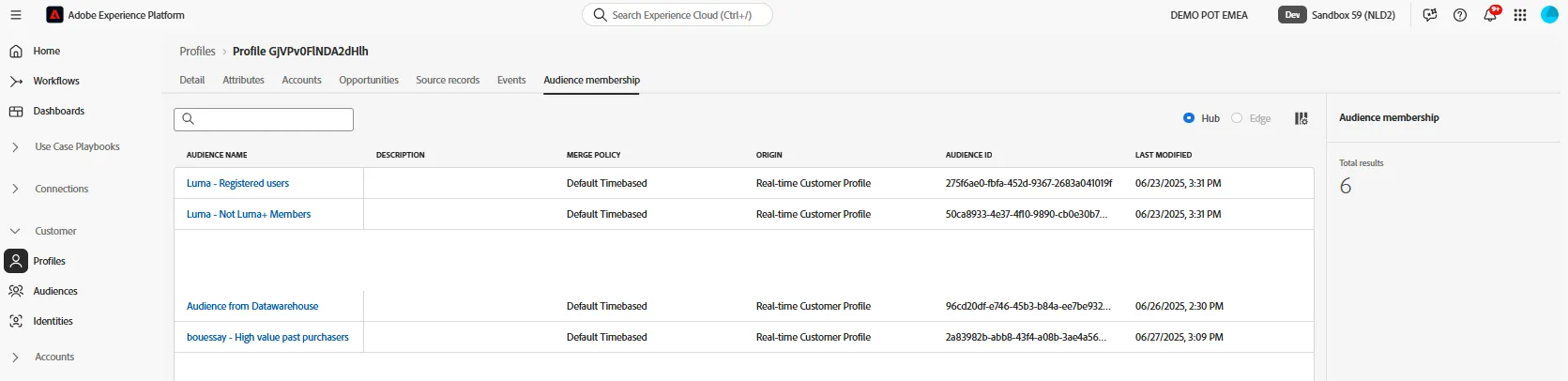
You have now successfully created an audience of high value past purchasers leveraging historical transaction data in the warehouse, without copying those transactions into Adobe Experience Platform