Journey Visualisation
Objective
Visualise the end to end customer journey.
Context
The Flow visualisation is very powerful for understanding customer journeys through your website or app. Now with CJA you can leverage the same visualisation to discover the journey your customers are taking across all of your channels. How many customers are starting their journeys in the app but switching quickly to desktop, what are customers doing directly before and after they call the call center?
Creating a Flow visualisation
Let's start:
- click the "+" beneath the last panel that you created to create a new panel;
- Title it “Flow Analysis” and ensure your date range is set to Last 3 Full Months
- Select the Flow visualisation and this will bring you to the Flow visualisation configuration view:
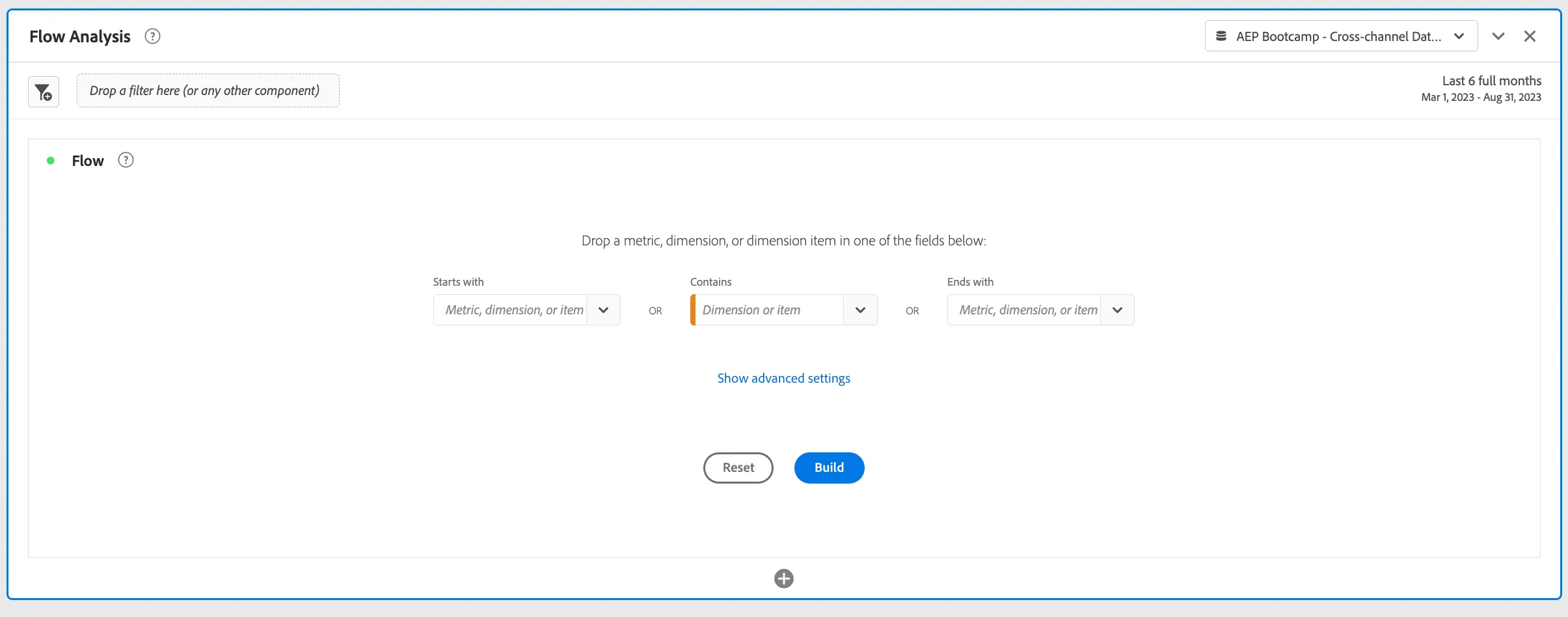
Notes on Dimension configuration
- Dropping a dimension as the Entry point will show the top first values seen in that dimension either at a Session or Person level.
- Dropping a dimension as the Exit point will show the top last values seen for a dimension at a Session or Person level.
- Dropping a dimension or a dimensional element in the middle will show you how often that element is the entry or exit, as well as the top elements a person saw prior or after from a pathing perspective. This can also be configured at the Session or Person level.
Let's try this from a Web Pathing perspective to start with.
Page flow
From the Components menu:
- search for Page Name;
- click on the arrow to the right of the Page Name dimension;
- if needed, click on Show items from last X months until the values show up;
- drag the “Home” item and drop it into the centre drop zone for the Flow visualisation:
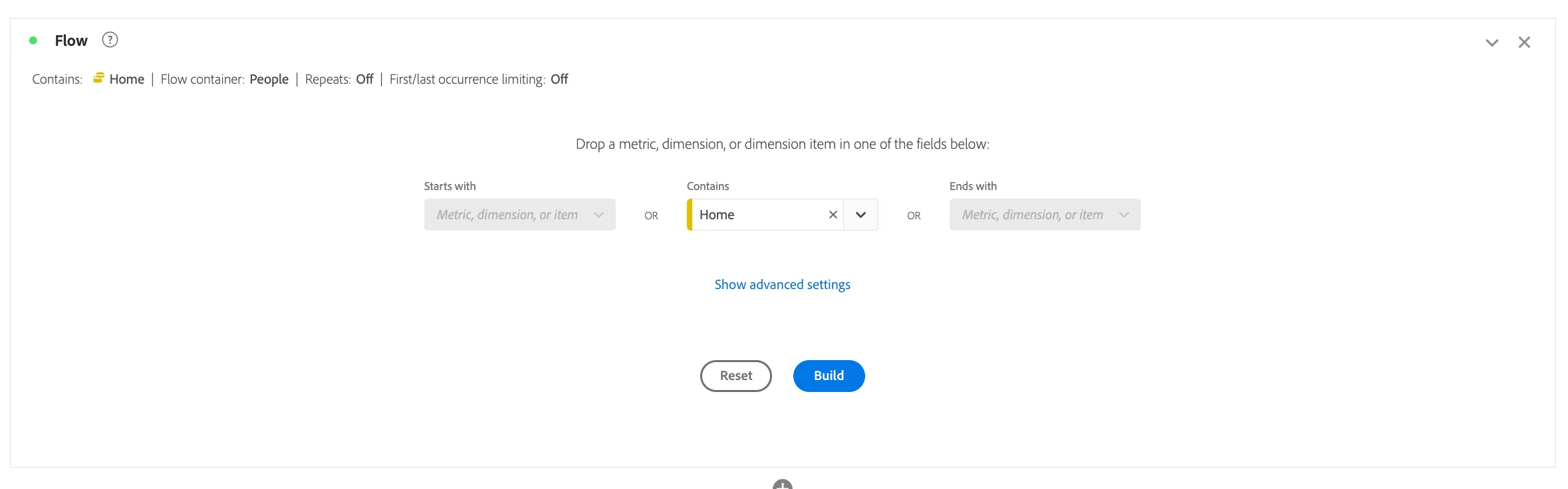
- Click Build.
This is what your panel should look like now:
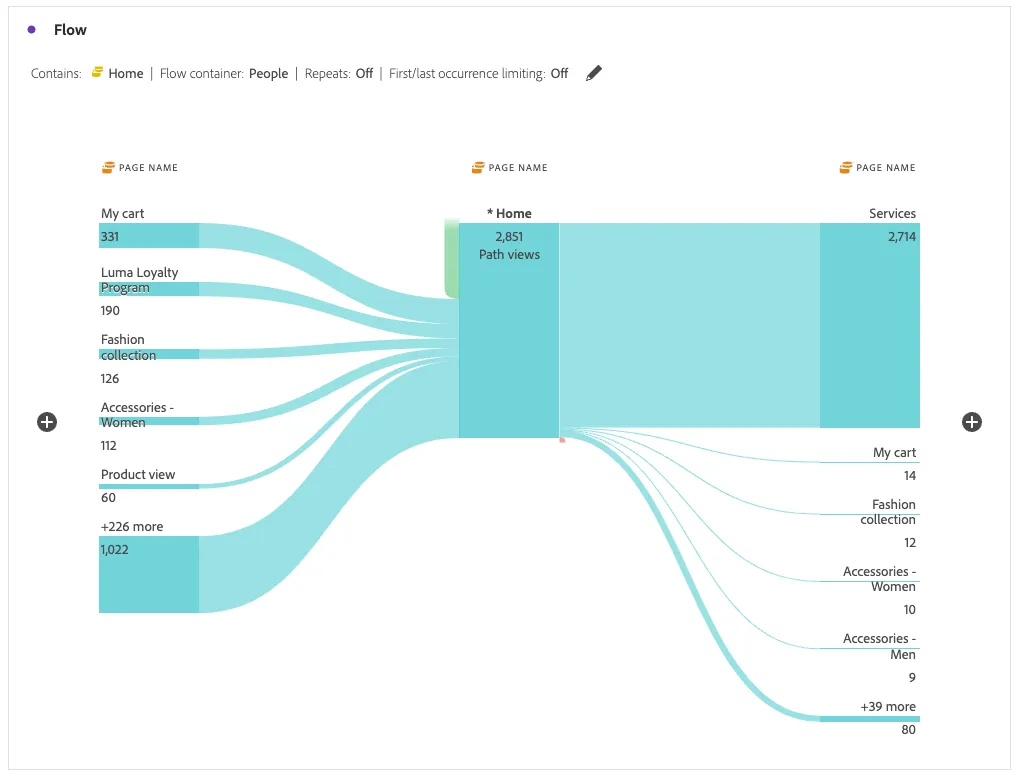
This view allows you to see:
- how many people enter the site at the home page;
- how many people exit the site at the home page;
- the top pages that drive customers to the home page;
- the top pages that customers go to from the home page.
This is the starting point. From here you can further analyse the customer journey:
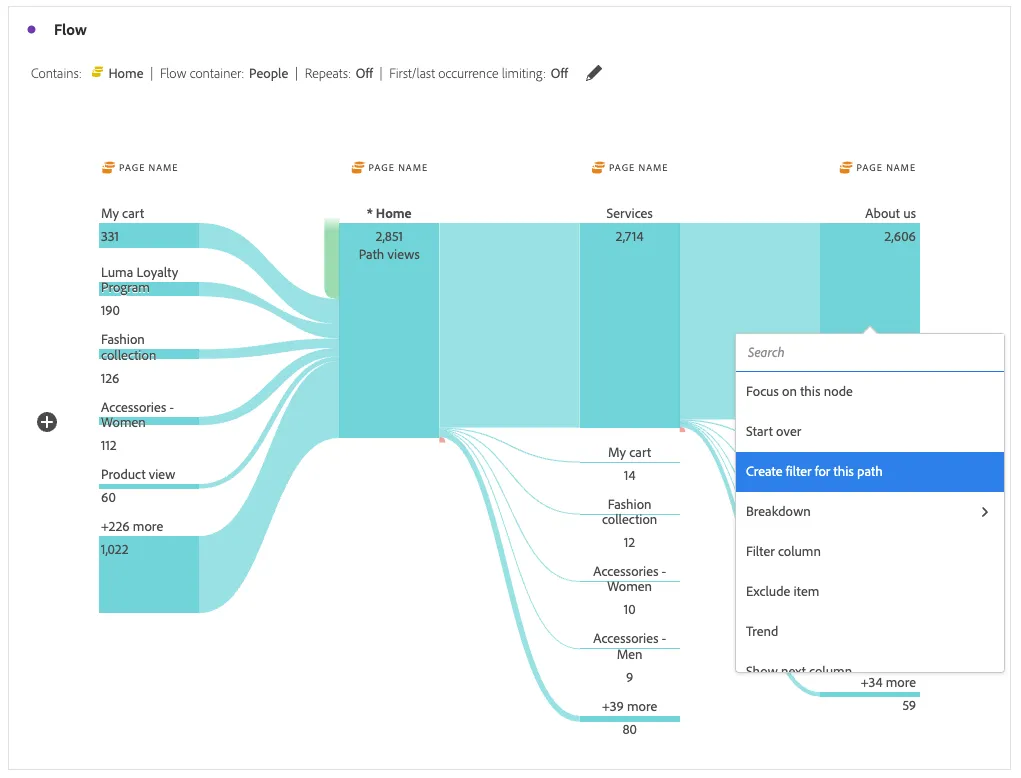
- click on the Customer Login page on the branch on the right to see where customers go to from there;
- then right-click on the Deals node within the branch to the right to see the various options, as it relates to digging deeper into this data.
For example selecting Create filter for this path will create a filter based on customers that follow that specific path. The Filter UI will show up. Click Save. This becomes an interesting way to do further analysis around the types of customers that follow a specific path.
Call Reason flow
From the Visualisations menu, drag another Flow visualisation beneath the one we just created, drop it into the Panel we're working on.
Let's go back to the use case that we've been working on:
Understanding how customers navigate from Web to the Call Center.
We want to understand the journey that customers are taking from the website into the call center. To do this, we will start with Call Reason:
- search for the Call Reason dimension in your components;
- drag this onto the Ends with drop zone in your Flow configuration;
- click Build.
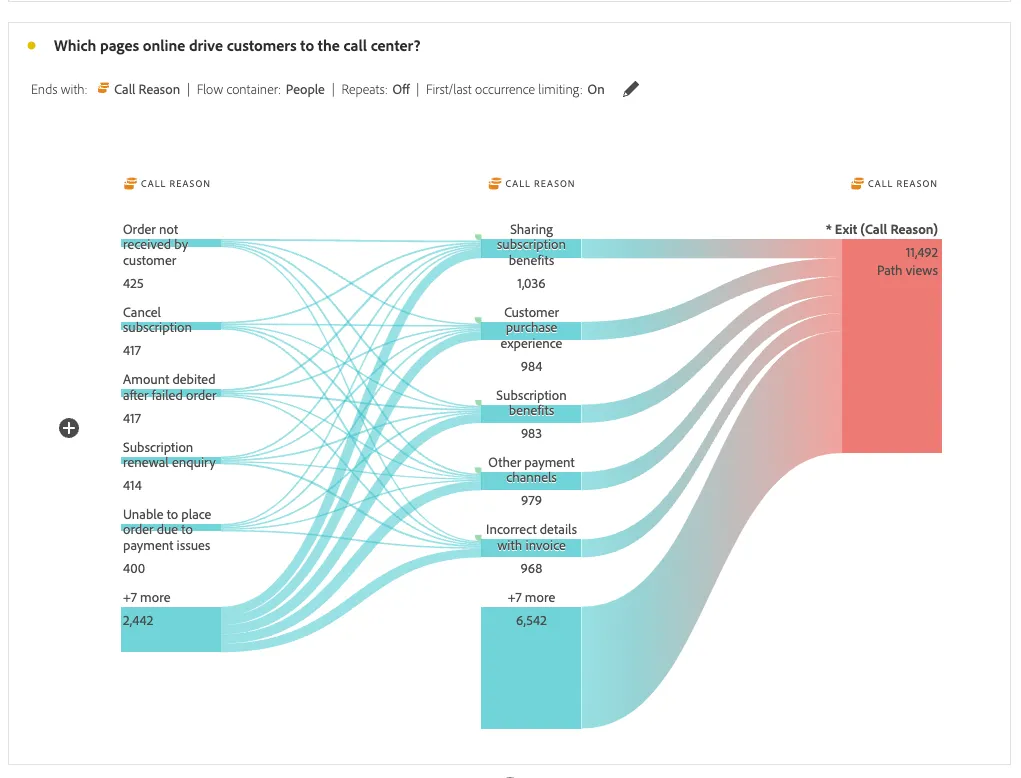
This shows us the top call reasons for customer calls into the call centre.
One very powerful capability the Flow visualisation supports is the ability to mix and match the dimensions being used.
- Search for the Page Name dimension in your components;
- drag this into your visualisation panel over the values on the left side, to replace this Call Reason dimension.
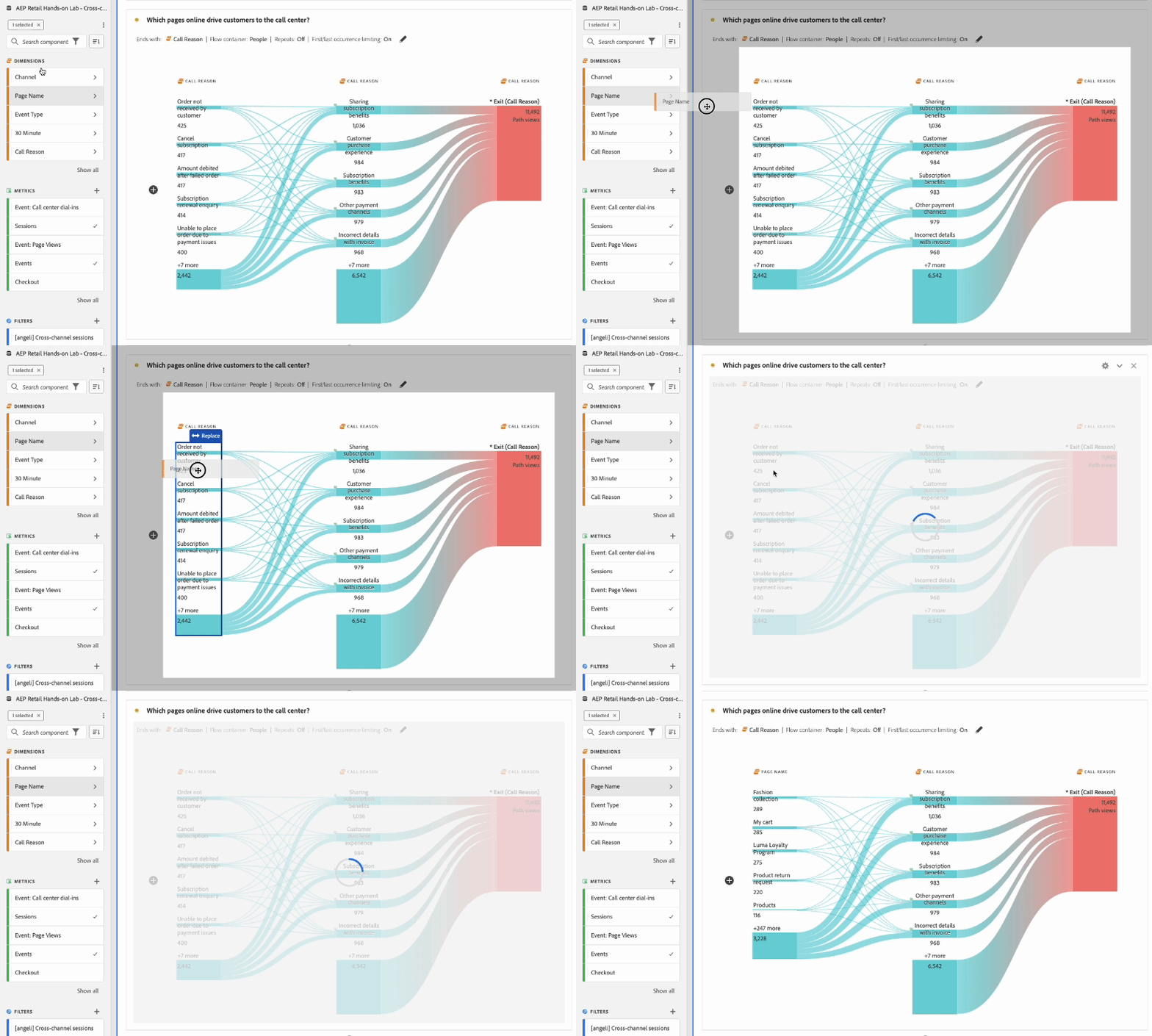
- Click into the Customer Login page to see what customers interact with prior to that on their path to a call.
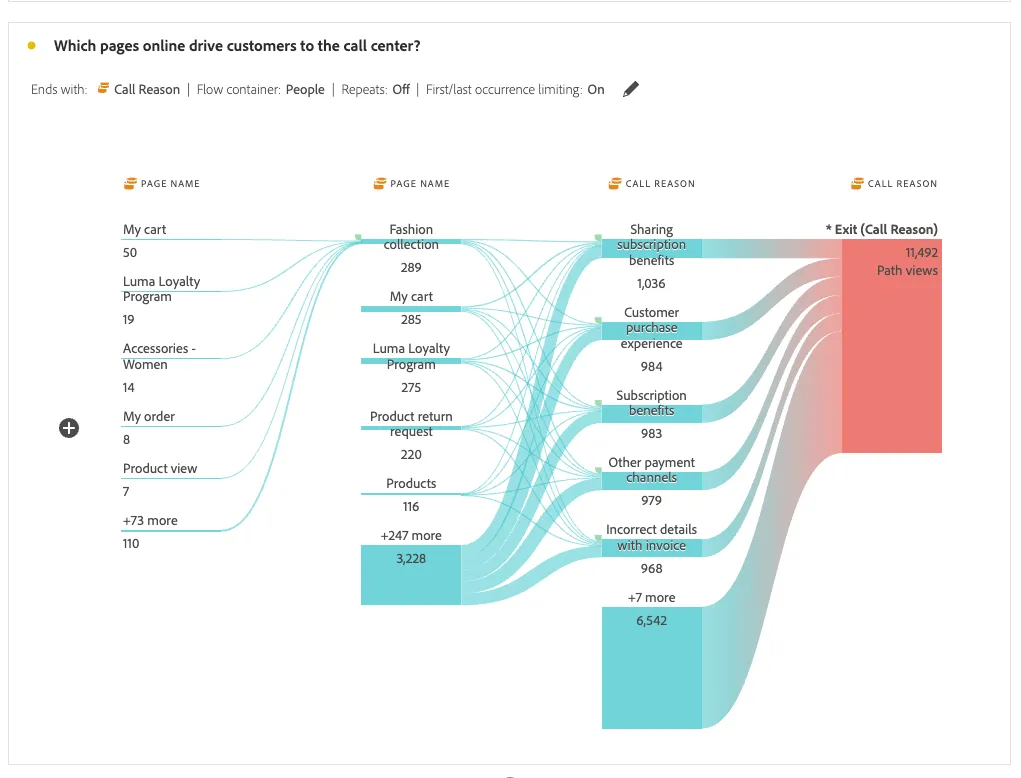
This can be very powerful in understanding customer journeys across channels.
Congratulations, this completes the Flow Visualisation exercise!
[Bonus] Flow by Channel
- Add a new Flow visualisation to your panel, by selecting the + icon below the last Visualisation;
- rename this as, Multi-Channel Reporting: Journey Analysis;
- in the 'contains' box in the middle, select Channel, then click build. This will now build out your flow visualisation.
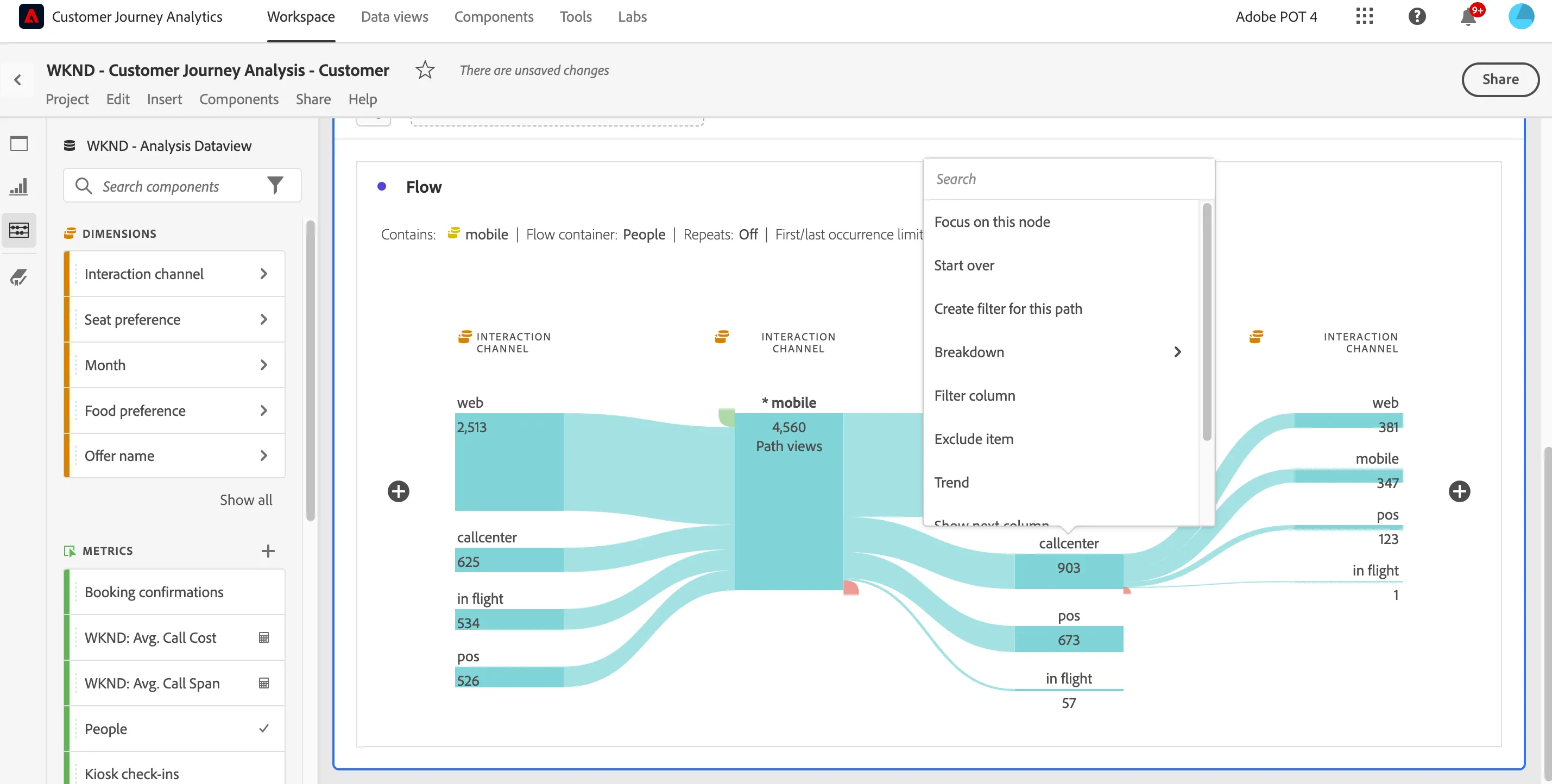
- Click on Callcenter on the right hand side to expand the flow one more time and the report should look like this:
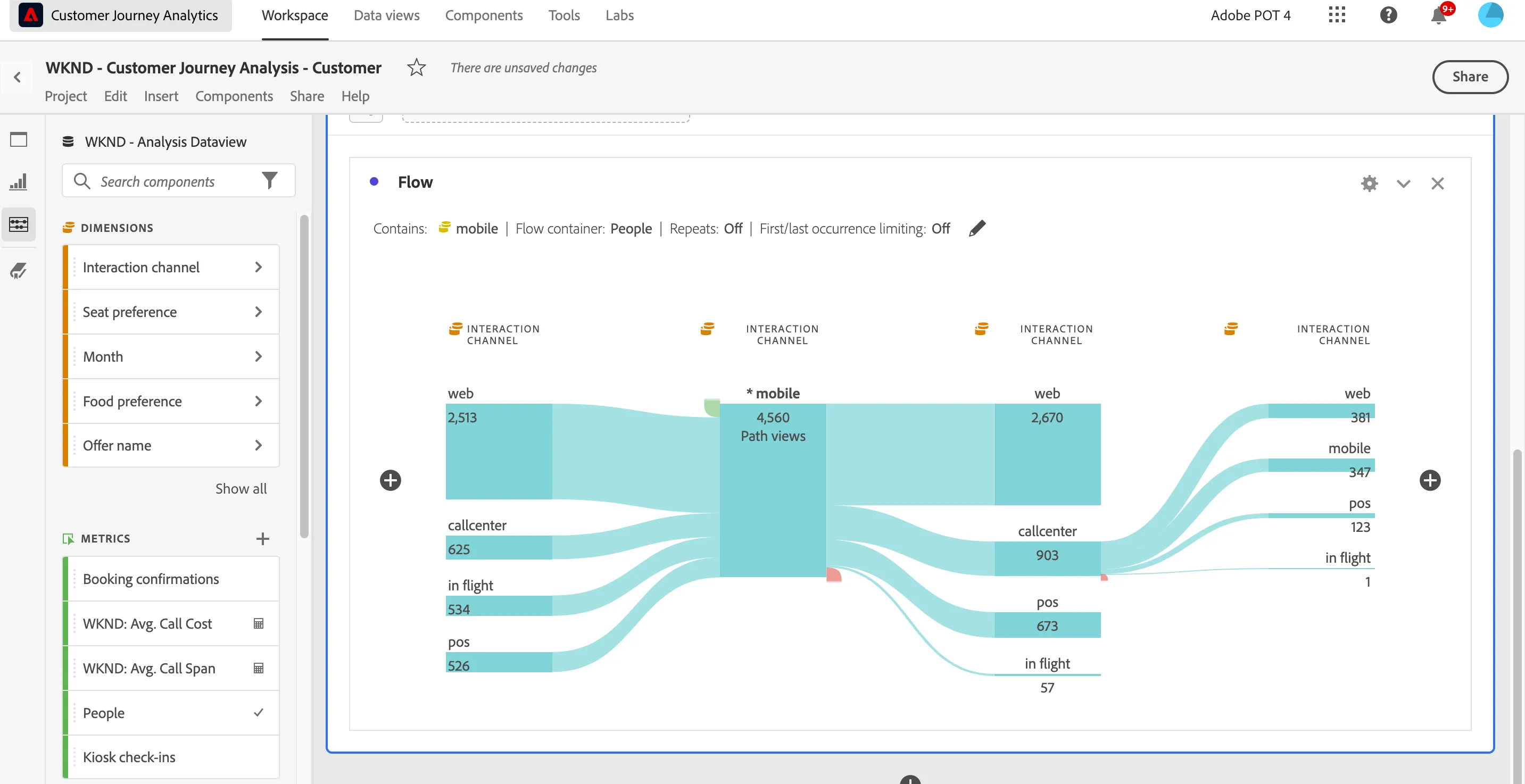
There may be a case where we need to break this down further to see what is happening if a particular flow is not expected. E.g. too many people going from web to call center. Let's check why people are calling the call center...
- If you want to break down the call centre channel by call reason, right click on the item you just expanded, then click breakdown, then Dimensions and search for Call Reason. This will bring up a box below with the call reasons why customers on this particular path, called in.
You can play around with adding filters in at this stage, or breaking down other routes.