Lab: Basic Journey
This lab will walk through the steps to create a Basic Journey in Adobe Journey Optimizer.
NOTE: Some exercises may vary during the actual Hands on Lab versus what is listed in the Archbee Page, due to industry setup and / or Presenter preferences.
Create a Journey
Navigate to Journeys
Click on “Create Journey”
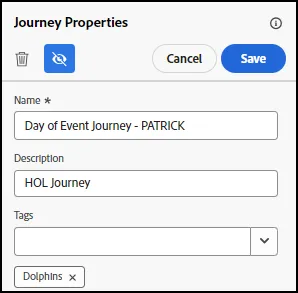
Under Journey Properties, give your Journey a Name. Please include your name or attendee ID to make it unique. You can also provide a description and tags, if desired:
Define the Target
- Under Events Node, drag the “Audience Qualification” onto the Canvas.
- Click on the Pencil to open the Select Audience window.
Select the "Event in Next Day" Audience:
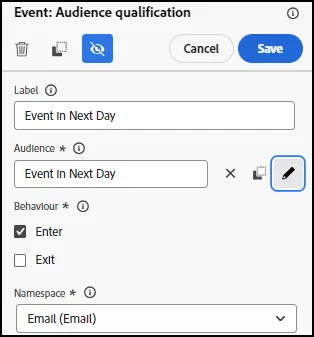
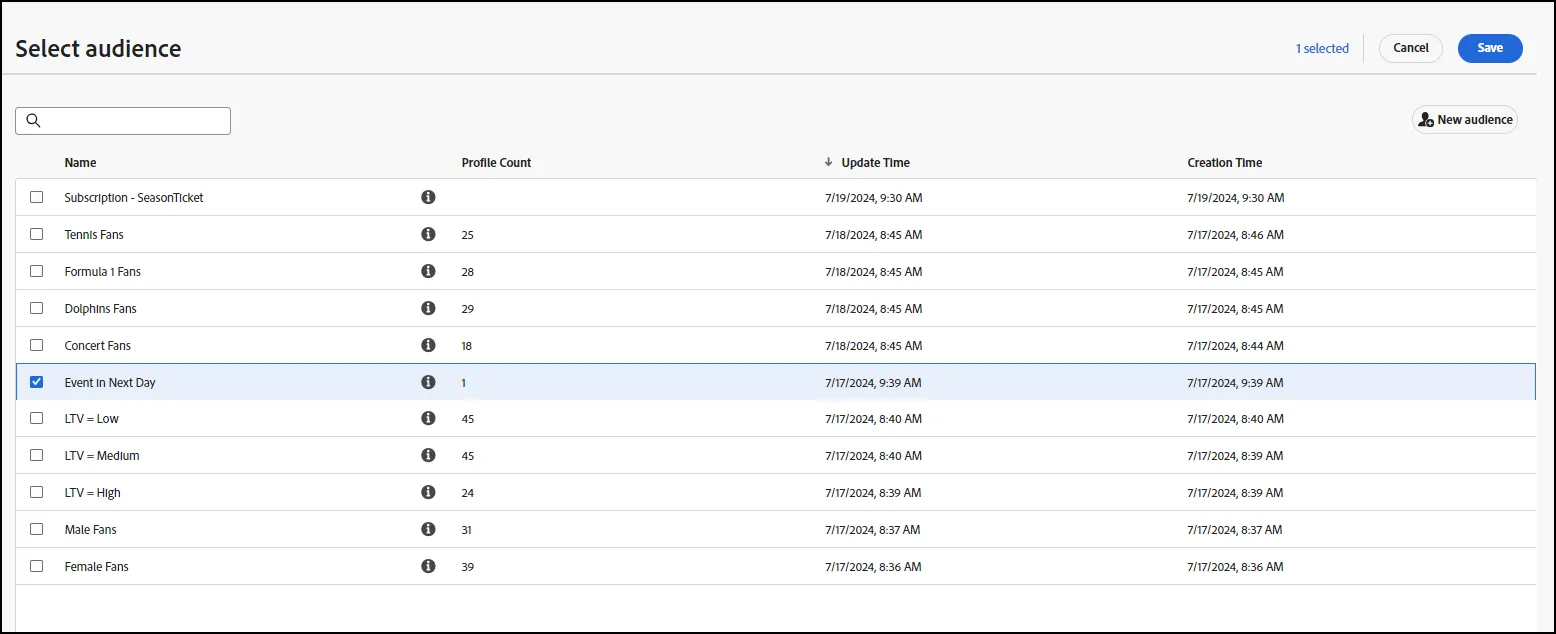
- Click Save
- From the Actions Menu, add an "Email" node:
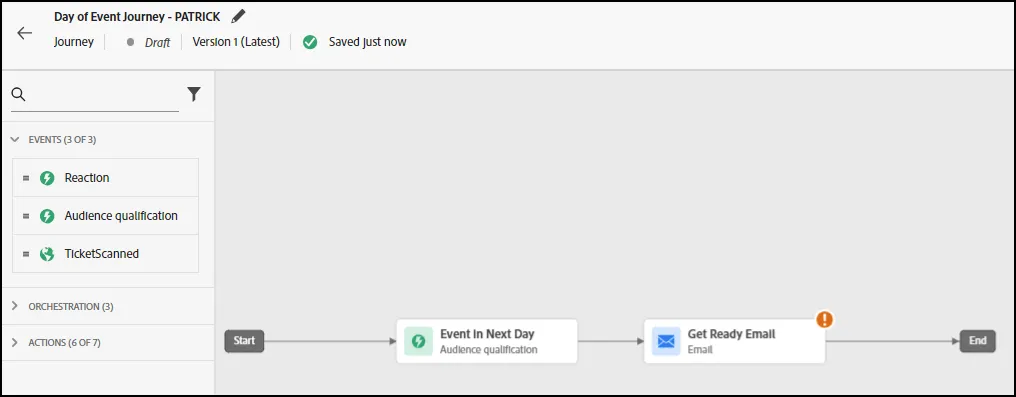
Review the content under: Actions: Email:
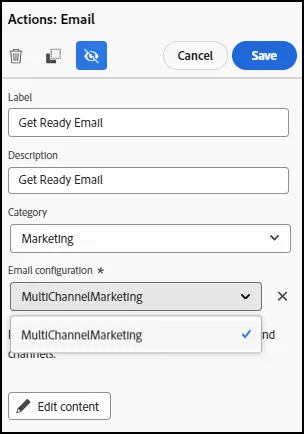
- Change the Label to "Get Ready Email". Select "MultiChannelMarketing" for the Email Configuration, as depicted above. Click Save.
- From the Events Menu, add the "TicketScanned" event. Then click Save:
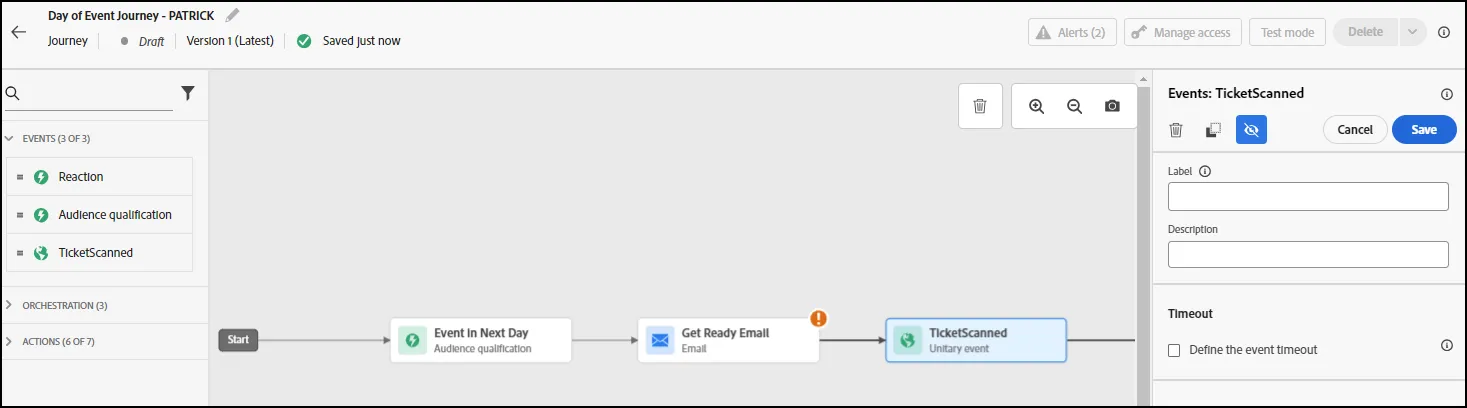
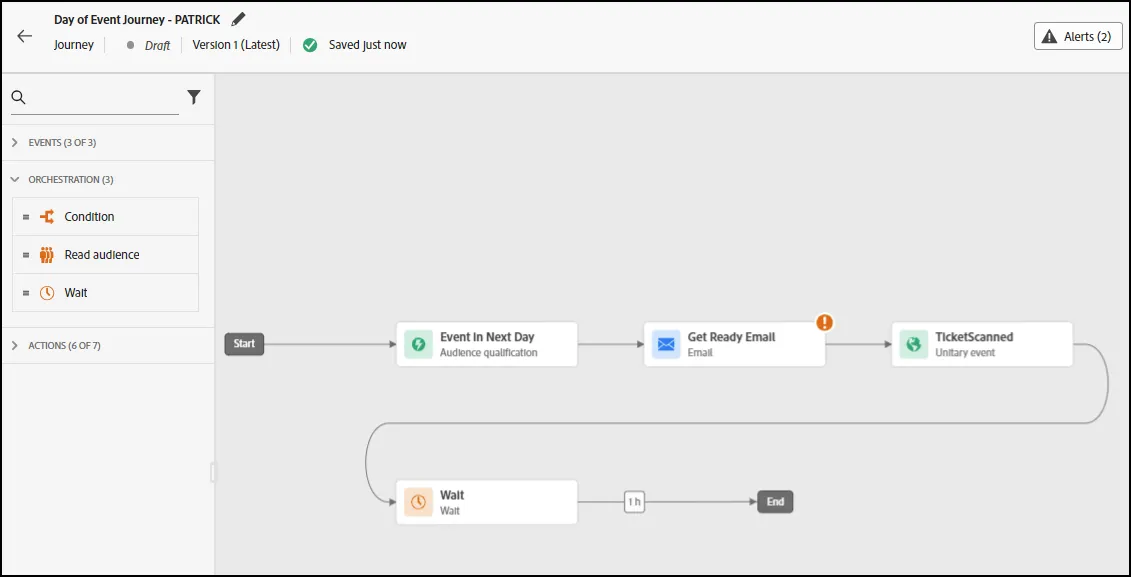
- From the Orchestration Menu, select the "Wait" step and add it to the Journey.
NOTE: You can drag the Wait and End below the first row to make it more easy to fit on the screen:
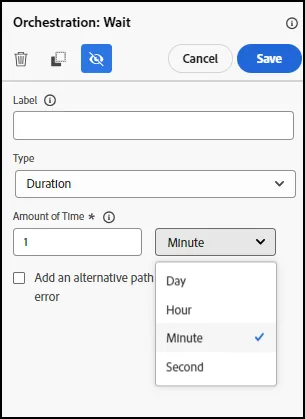
Change the Amount of Time to 1 Hour:
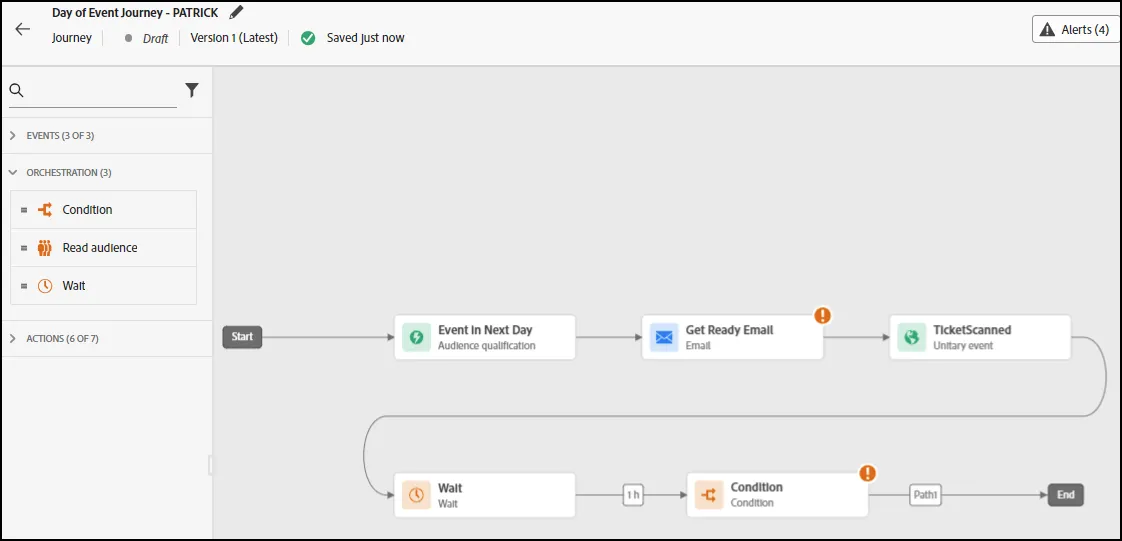
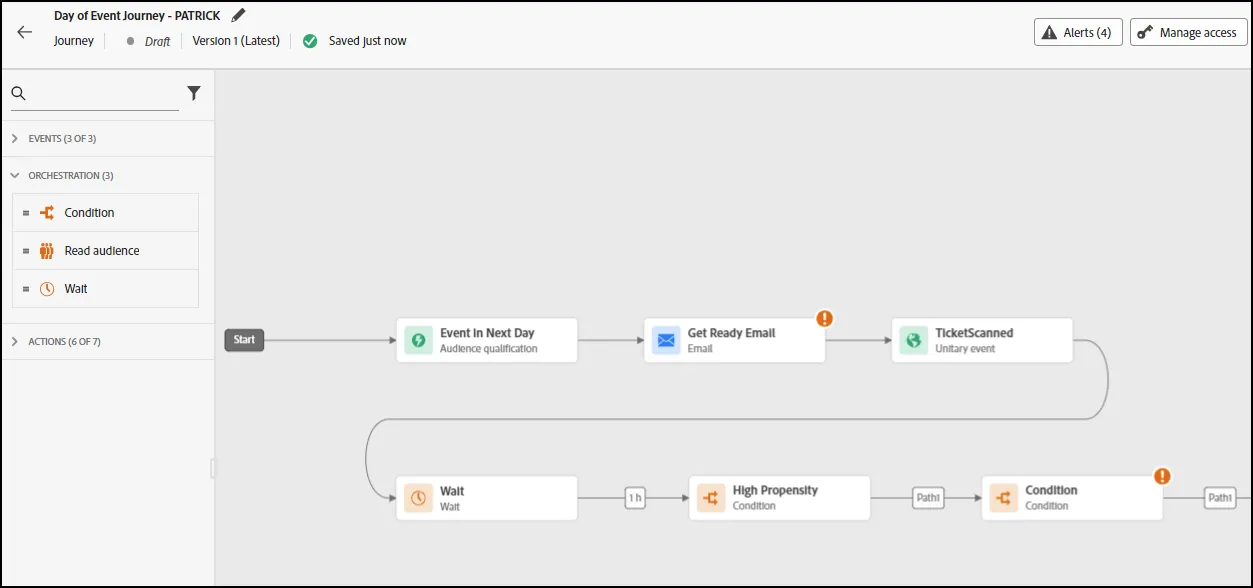
- Add a Condition node to the Journey after the Wait Step:
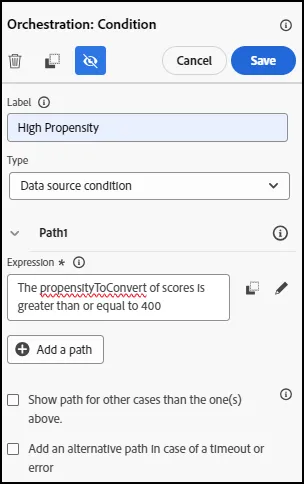
- Click the Orchestration: Condition to open the Properties. Add a Label of "High Propensity" to the label.
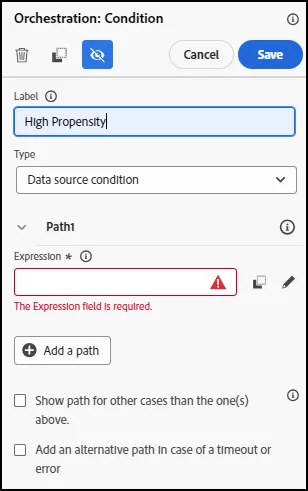
- Click on "Path1" and rename it to "High Propensity". Next, click on the expression field or the pencil to open the expression editor:
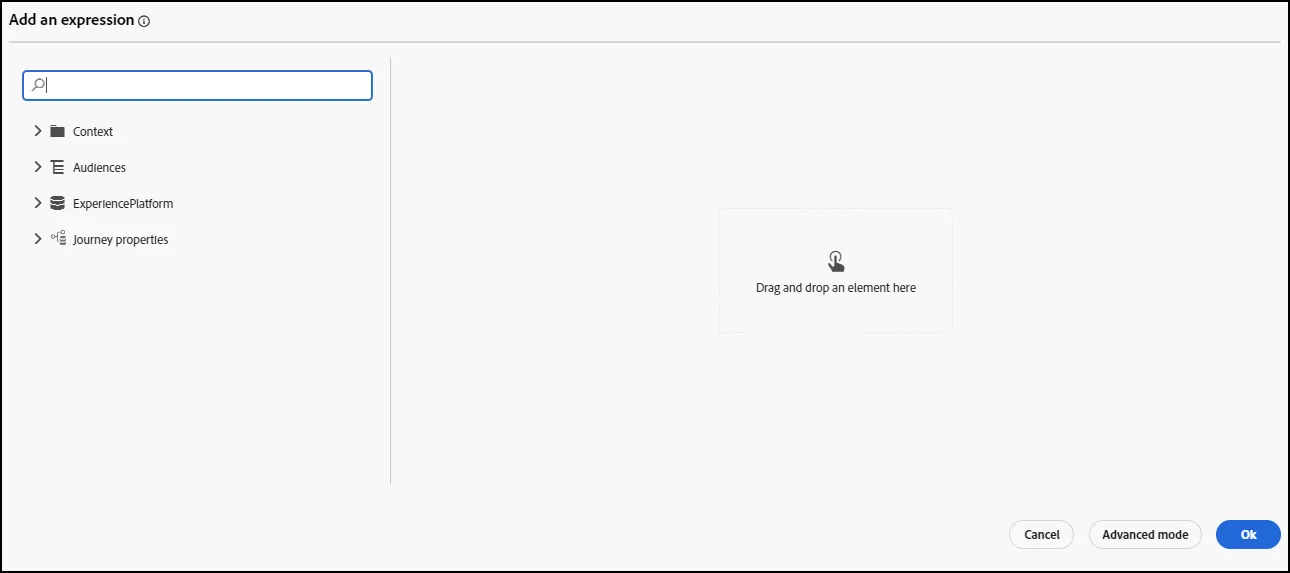
- Using the search bar, find "Propensity to Convert" and drag it onto the canvas:
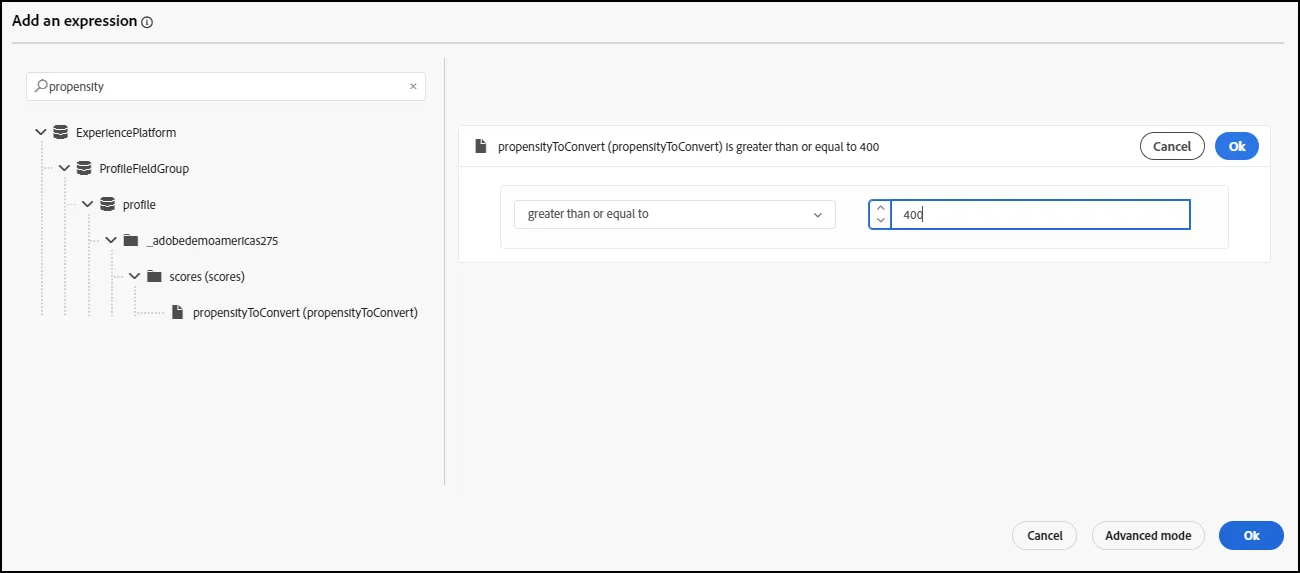
- From the drop downs, select "Greater Than or Equal to" and add the value "400". Click OK. Click OK to close. Click Save to close the Properties on teh Condition:
Add another Condition Node after the High Propensity Condition:
- Click on the Add a Path button to add 2 additional paths:
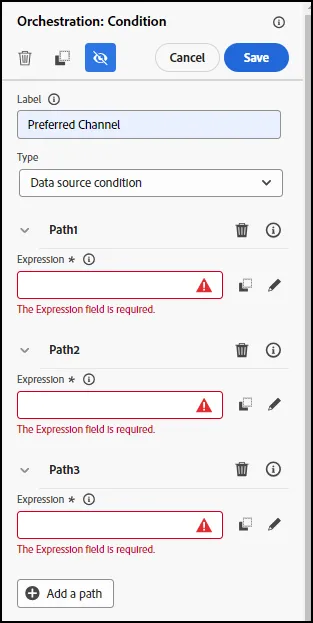
- Click on Path1, Path2 and Path3 and label then as "Push, SMS and Email", respectively.
- Click on the Expression Edito for each path:
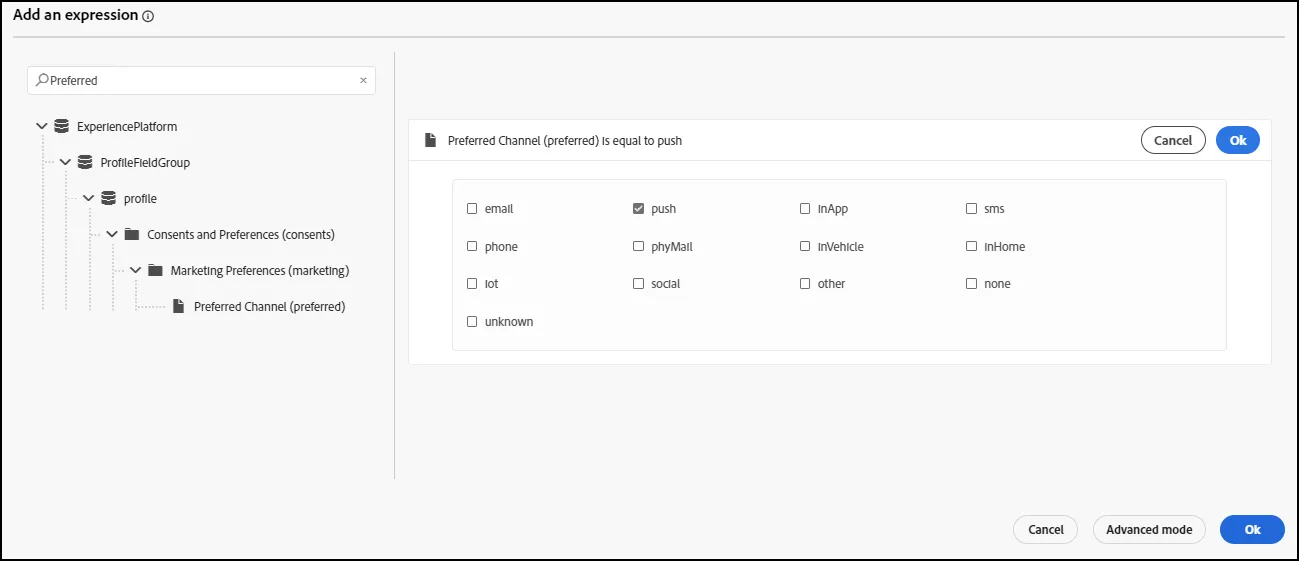
- From the Search bar, choose "Preferred Channel" and select the appropriate channel for each path. Click Ok. Click OK.
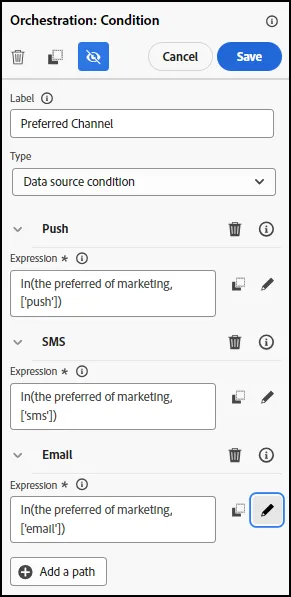
- Click "Save" after all three paths have been modified.
- From the Actions Menu, add a Push Message to the Push Path. Add an SMS Message to the SMS Path. Add an Email Message to the Email Path:
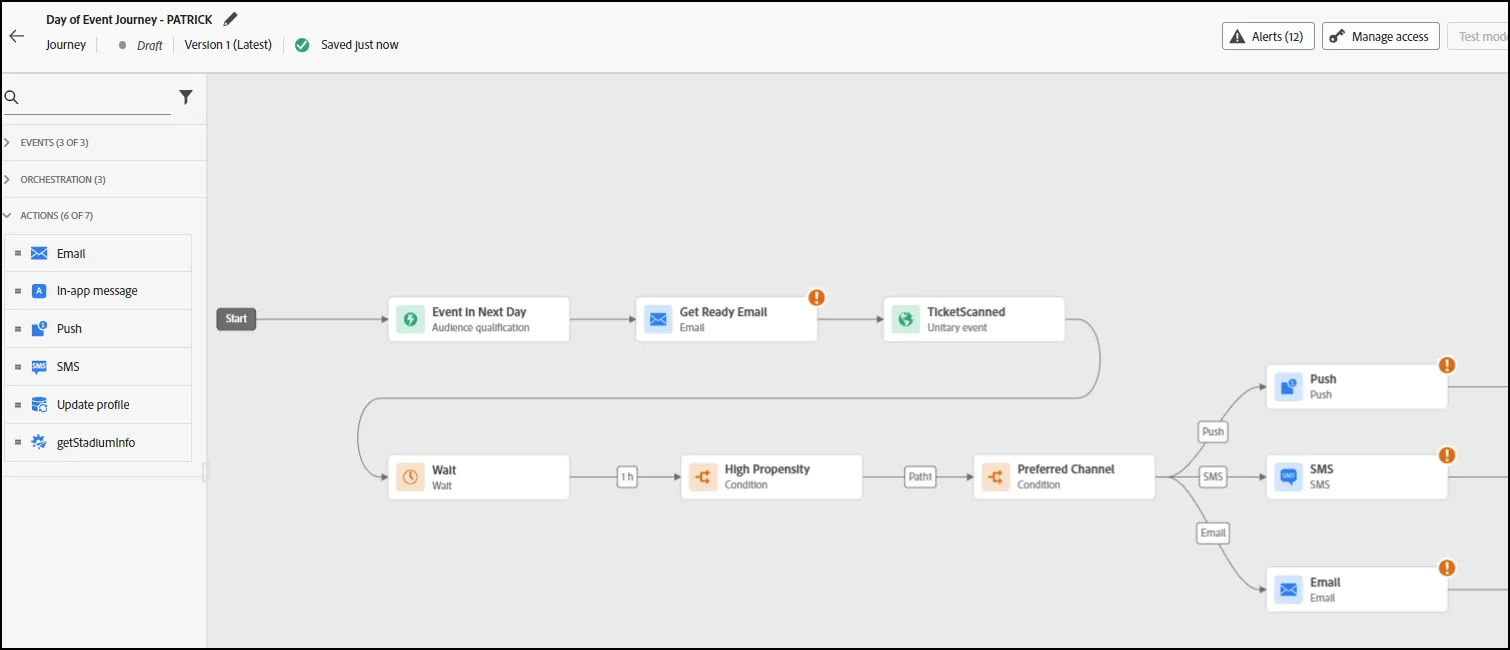
- Message Design will be covered in the next lab exercises.
- End of Lab.