Lab: Push Message Designer
1 min
This lab will walk through the steps for creating a Push message within the context of a Journey in Adobe Journey Optimizer.
NOTE: Some exercises may vary during the actual Hands on Lab versus what is listed in the Archbee Page, due to industry setup and / or Presenter preferences.
Create a New Push Message
- Within the Complex Journey, click on Push action node.
- Click on the Label and change to "Push Offer".
- Set the Push Configuration to "MultiChannelMarketing":
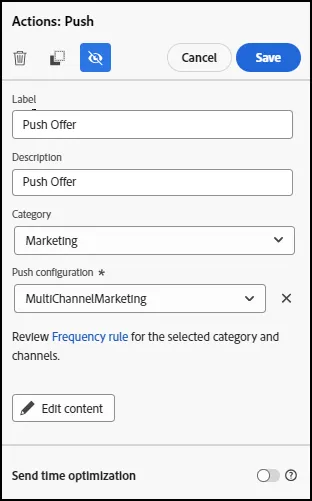
- Click on Edit Content to Open the Push Notification Editor:
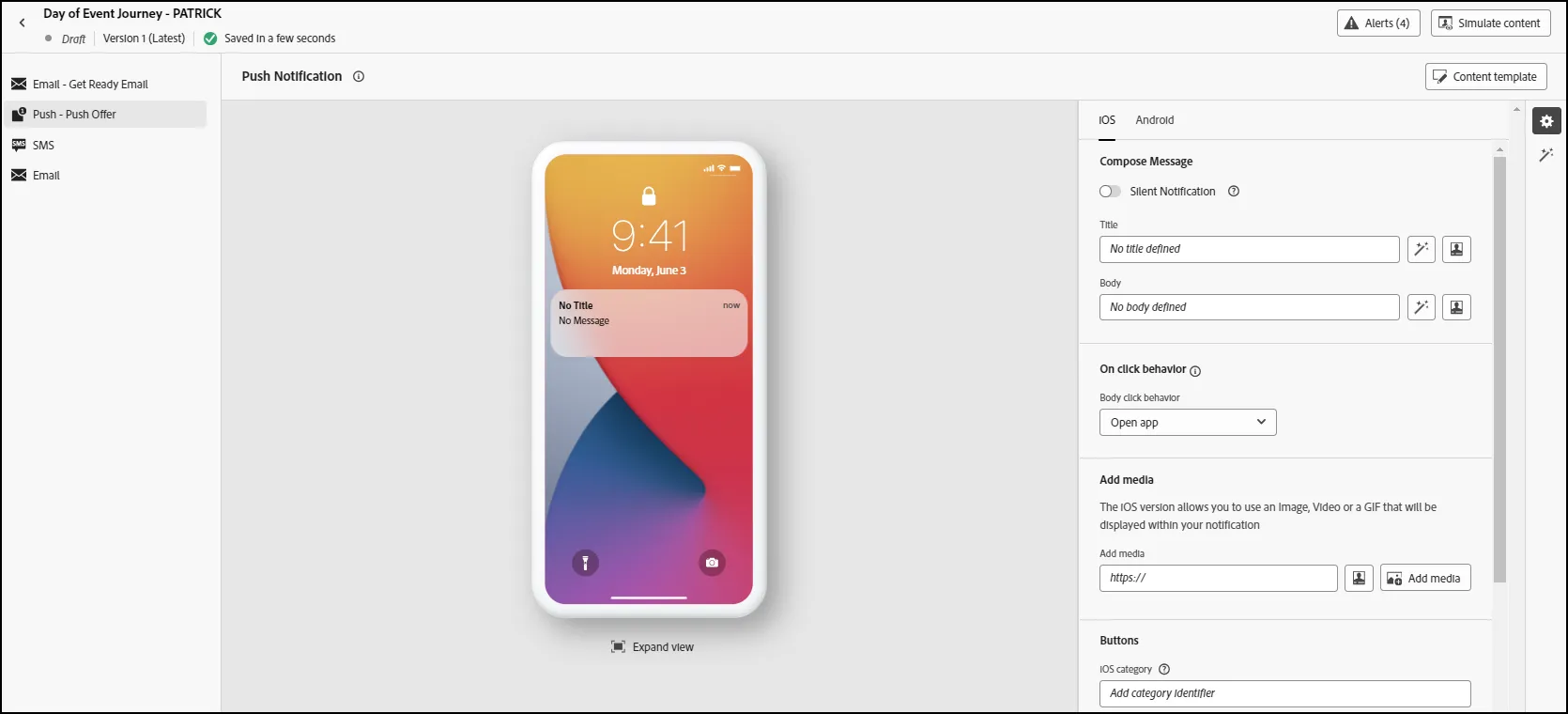
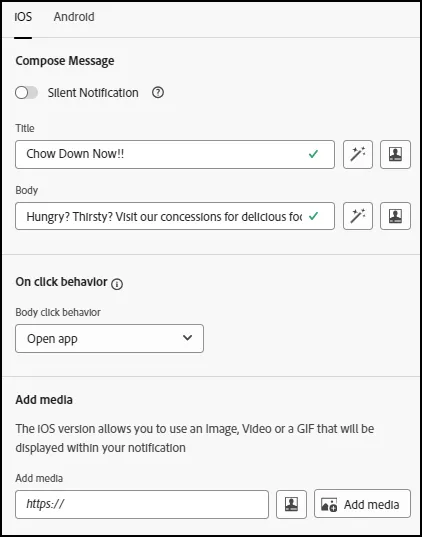
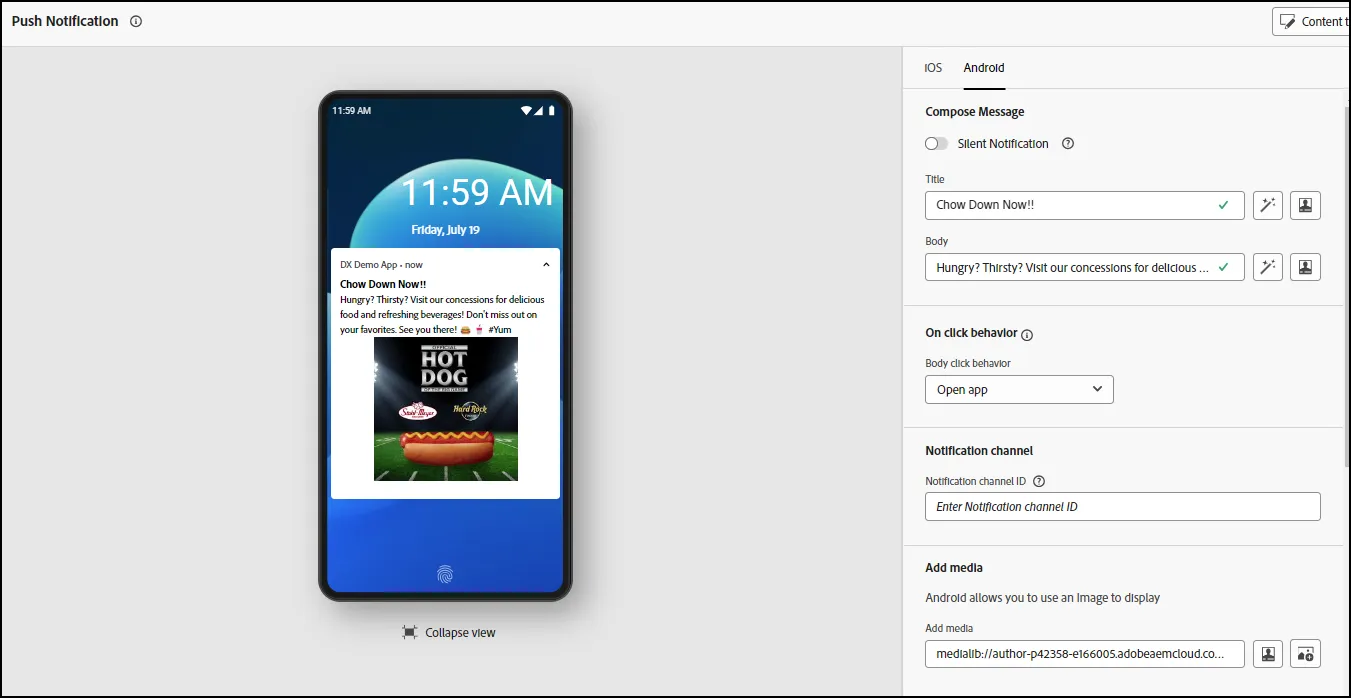
- Under "Compose Message", add a Title and Body:
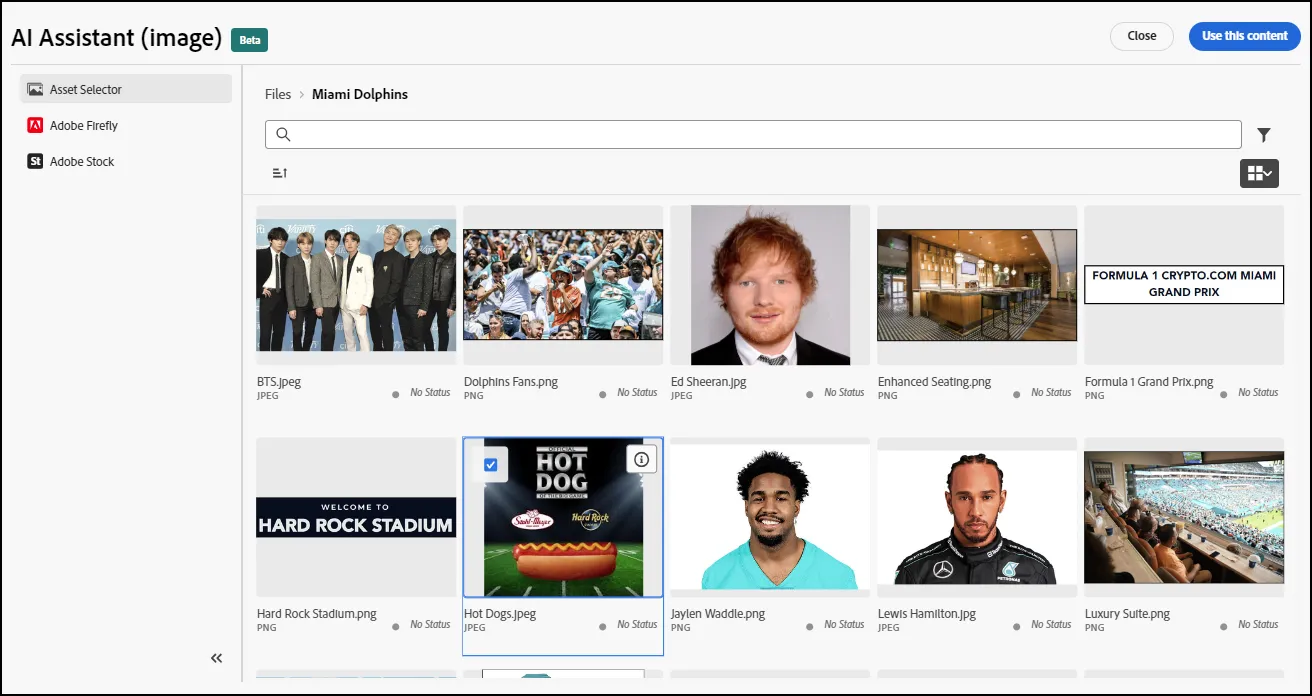
- Under Add Media, click on the Add Media Button to open the Asset Selector. Click on the "Hot Dog" image to select it. Click on "Use this content":
- Click on the Android tab and repeat the same steps as above for Android Platform Users:
- End of Lab