Lab: Email Designer
1 min
This lab will walk through the steps to create a Basic Email in Adobe Journey Optimizer.
NOTE: Some exercises may vary during the actual Hands on Lab versus what is listed in the Archbee Page, due to industry setup and / or Presenter preferences.
Create a New Message
- Within the Basic Journey, click on Email action node at the beginning of the journey to open the Email Actions Window:
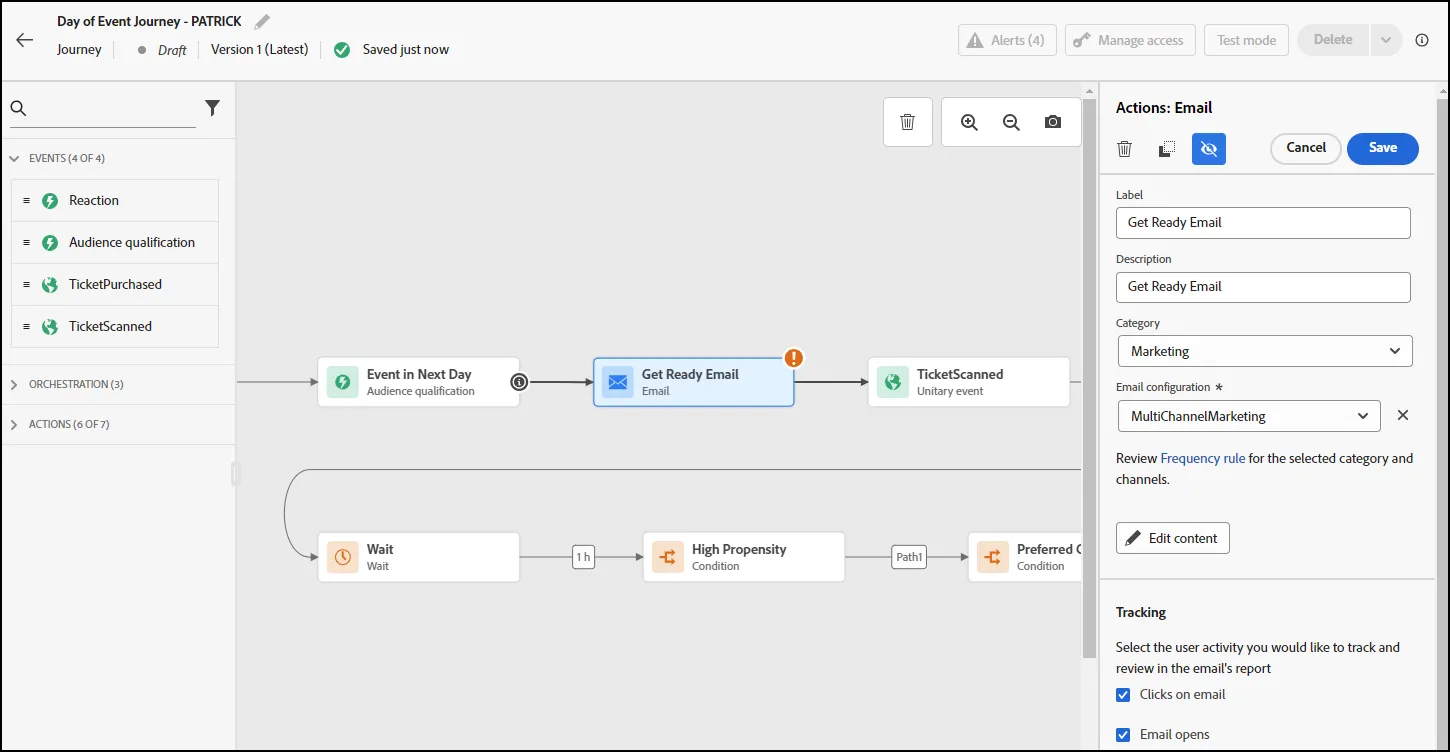
- Click on the "Edit Content" button to open the Email Designer.
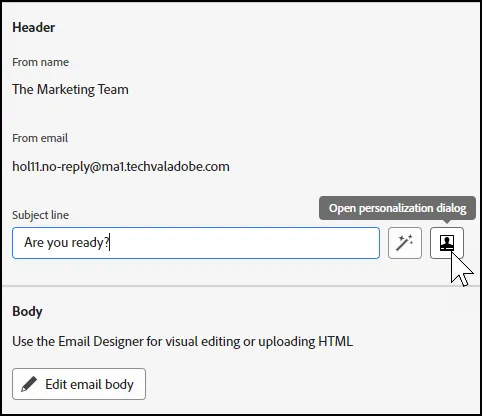
- On the right side, click on the Subject Line and add a Subject Line, such as "Are you ready?". Click on the personalization icon.
- In the proflle attributes, search for the Live Event Name. Add that to your Subject Line to make it more personalized:
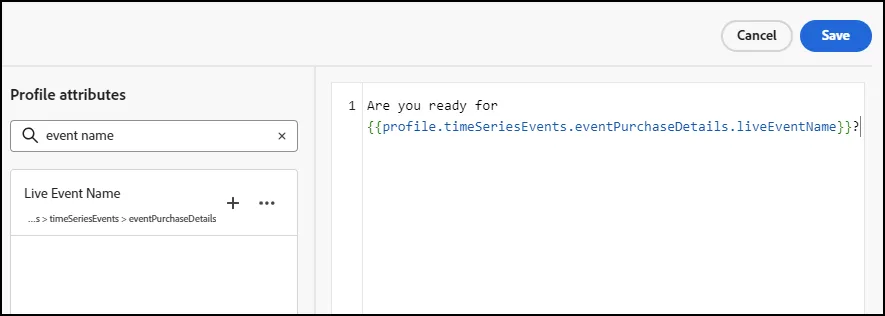
- Click Save to complete the Subject Line.
- Next, click on the "Edit Email Body" button to open the Email Editor Window:
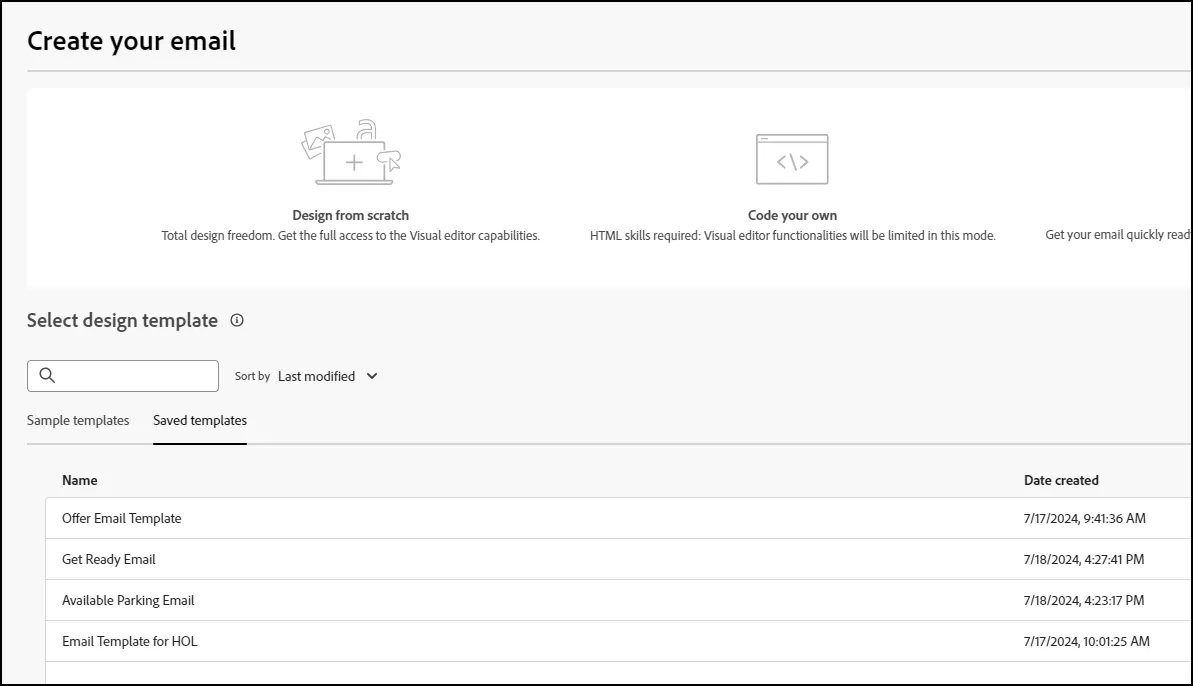
- On the Create your Email page - select the "Design from Scratch" option:
- You should now see the Email Designer Window:
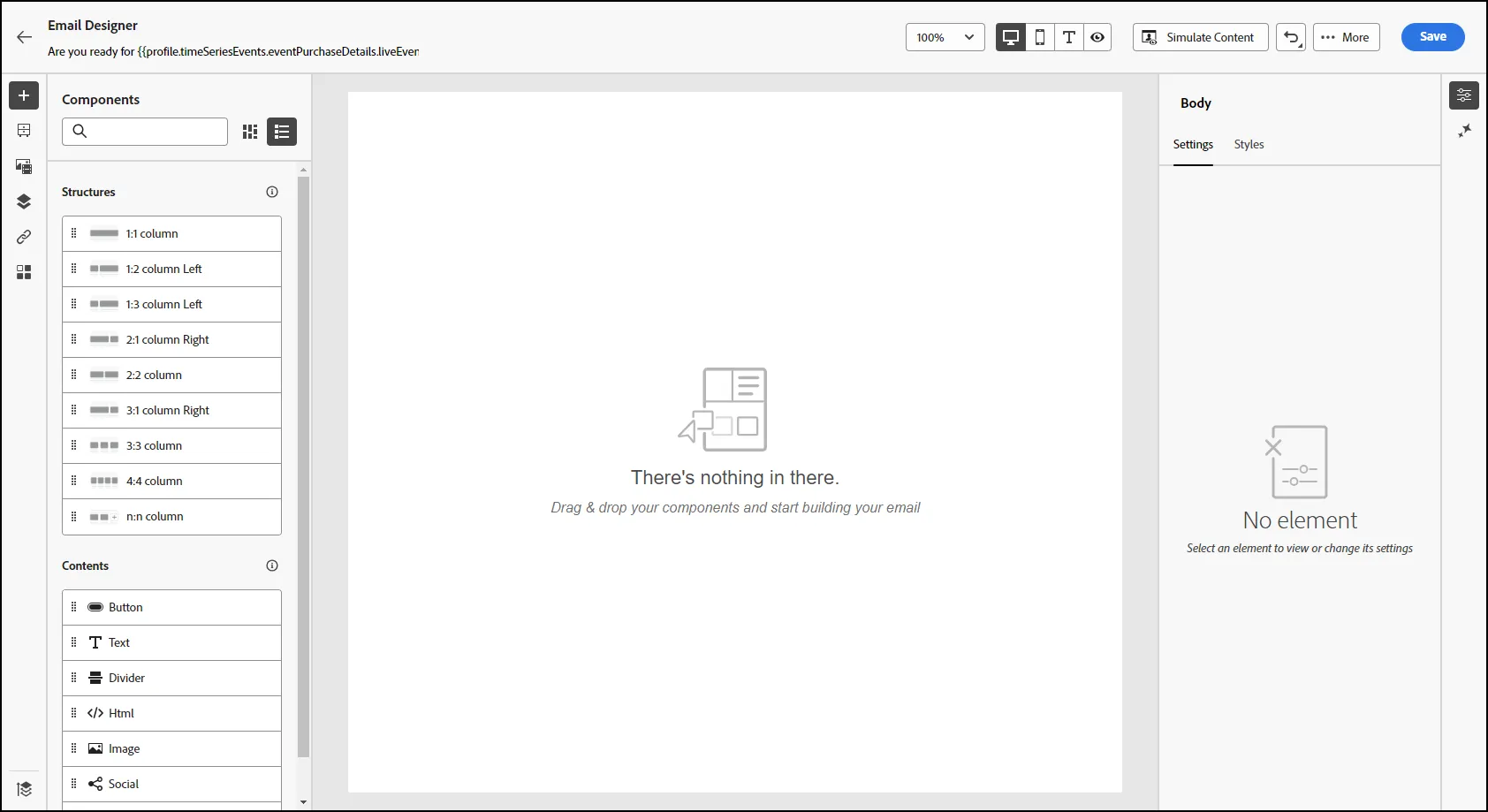
- In order to jump start our design, click on the "More" button at the top right of the screen and select "Change Your Design":
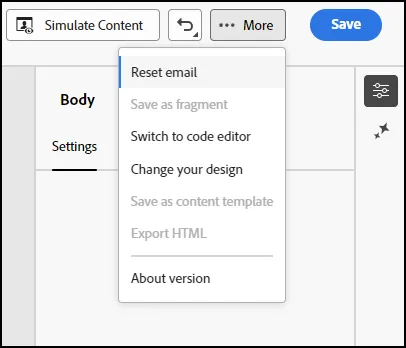
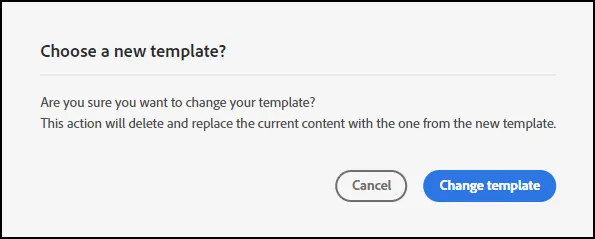
Select "Change Template":
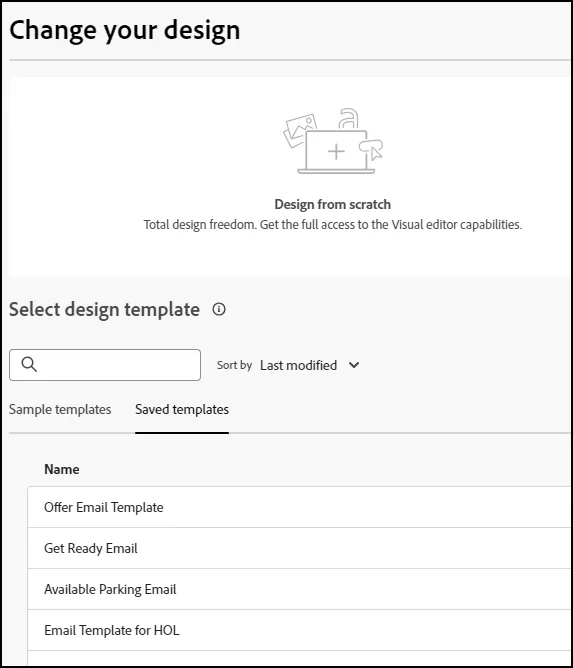
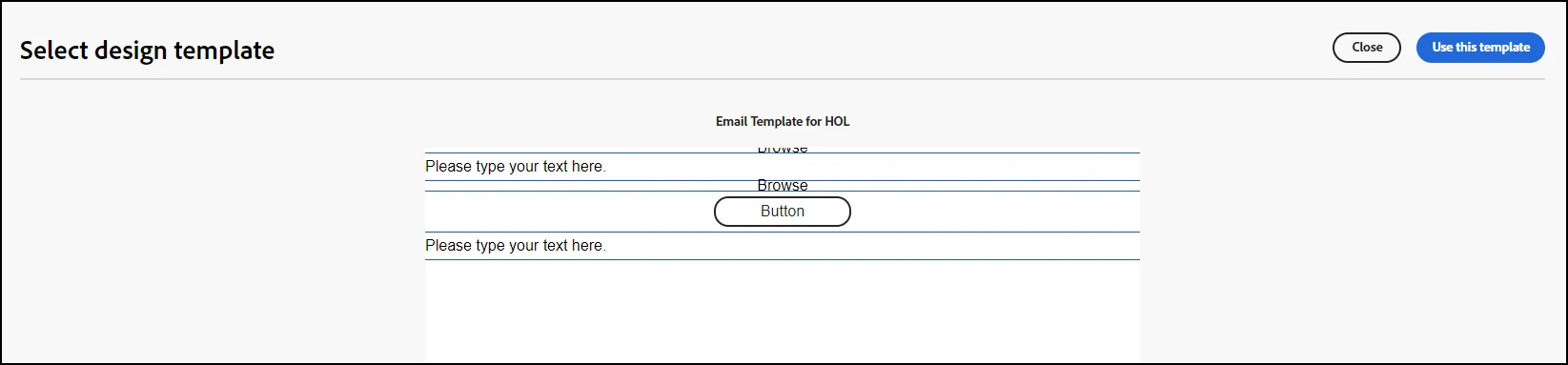
- From the list of saved templates, select "Email Template for HOL":
- On the next screen, select "Use this Template":
- If prompted, select "Replace Email"
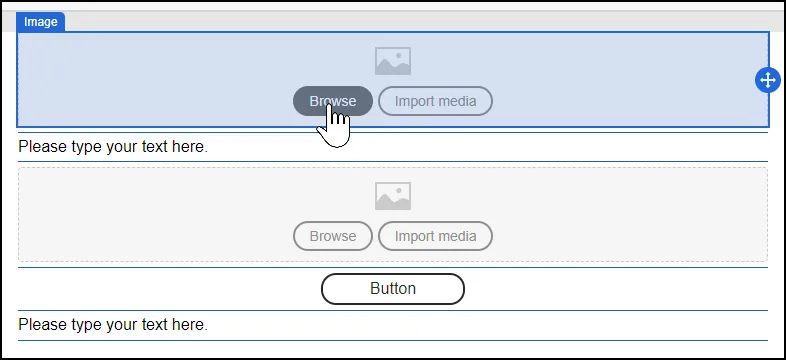
- Click on the Browse button to open the first image selection:
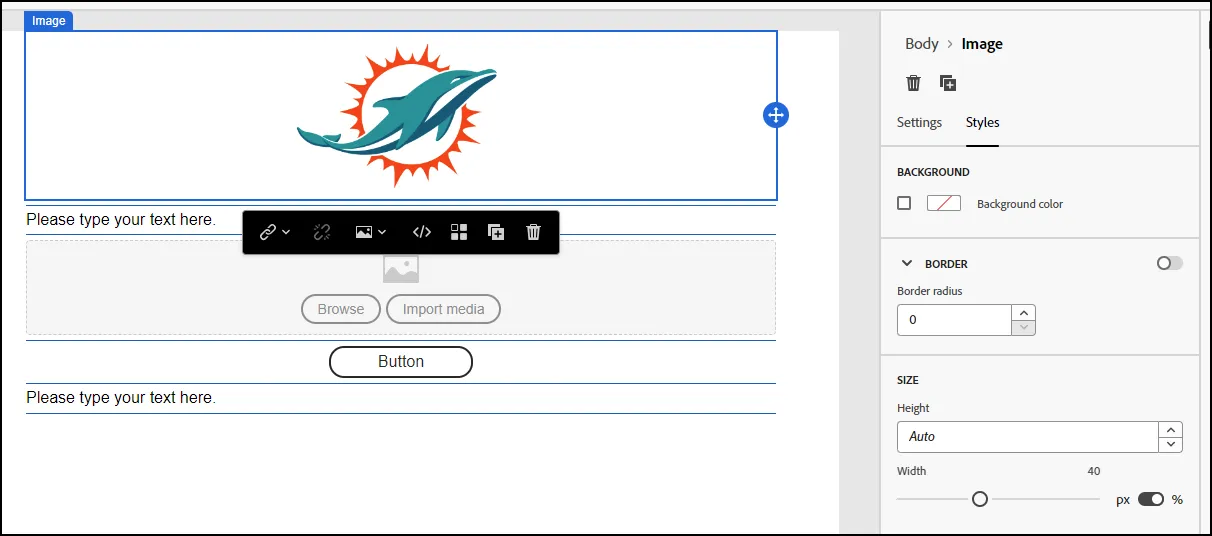
- Select the Miami Dolphins Logo. Under Styles, set the size of the image to 40% of the original, so that it fits in the email better:
- Modify the next text line to say "Get ready for your event now!" (Note: Change the font to Size 26 and center it, for better visibility.)
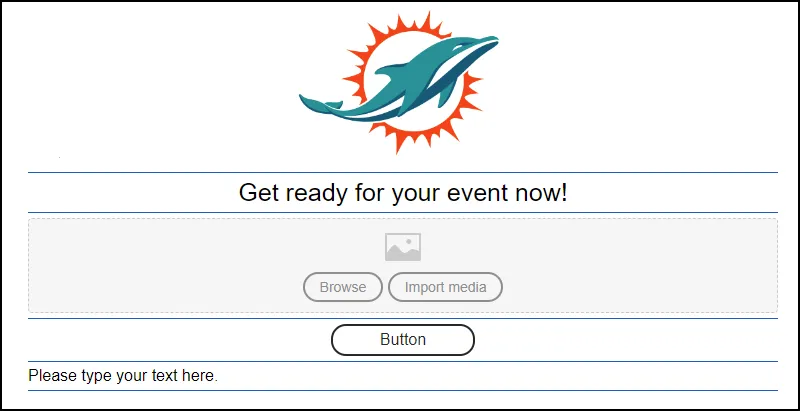
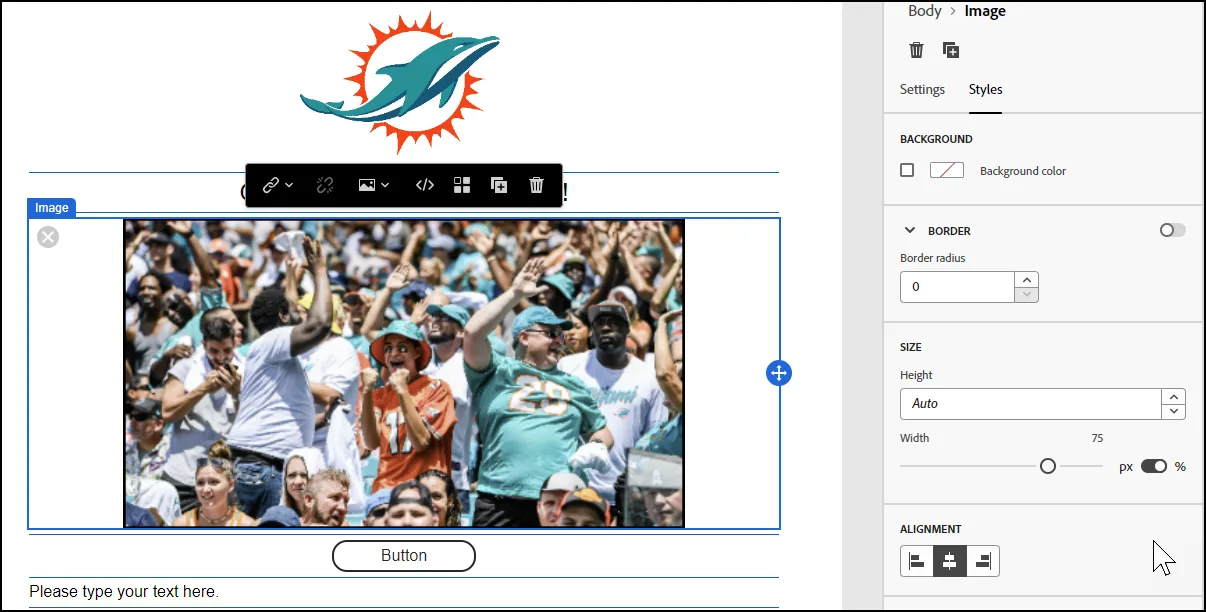
- Click on the next image and select the fan picture. Change the size of the picture to 75% to make it fit better in the email:
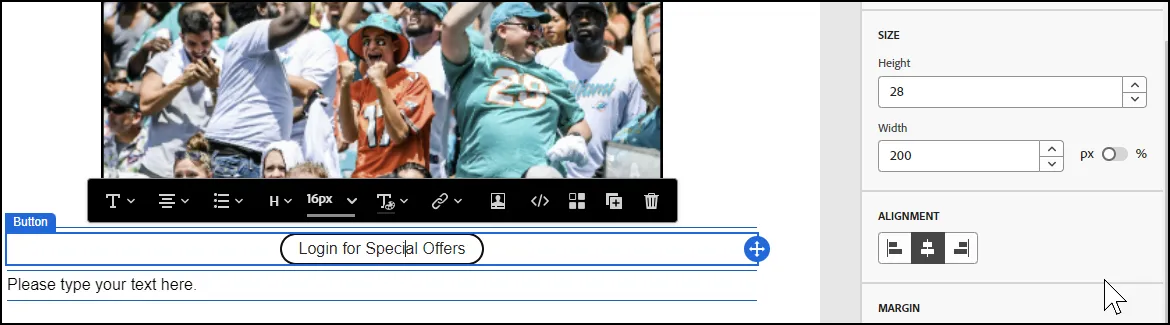
- Click on the button. Change the name of the button to "Login for Special Offers". Also, change the height to 28 and the width to 200, so that the text fits in the button:
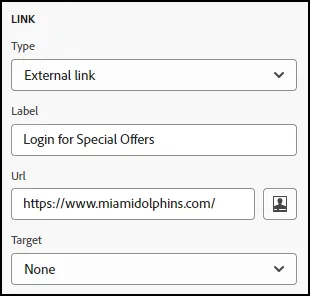
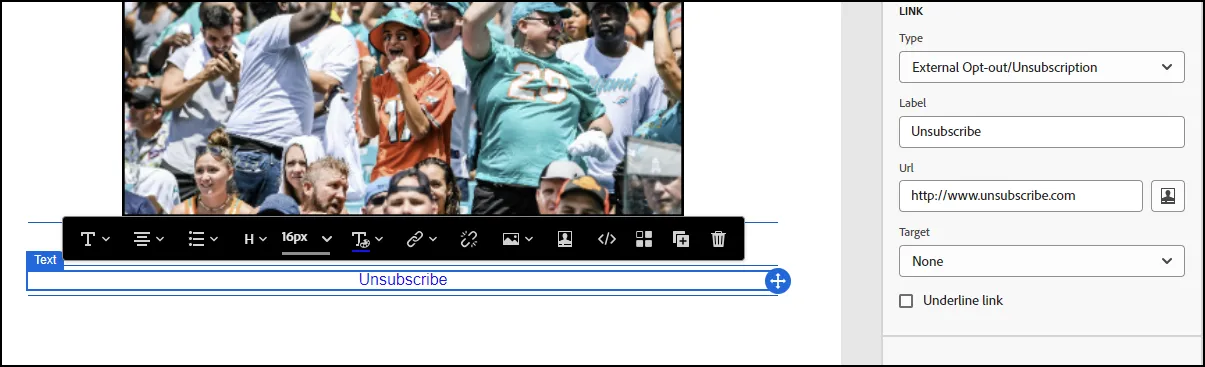
- Click on the last text content structure and add the word "Unsubscribe" to the email. Change the link type to "External Opt-out/Unsubscription":
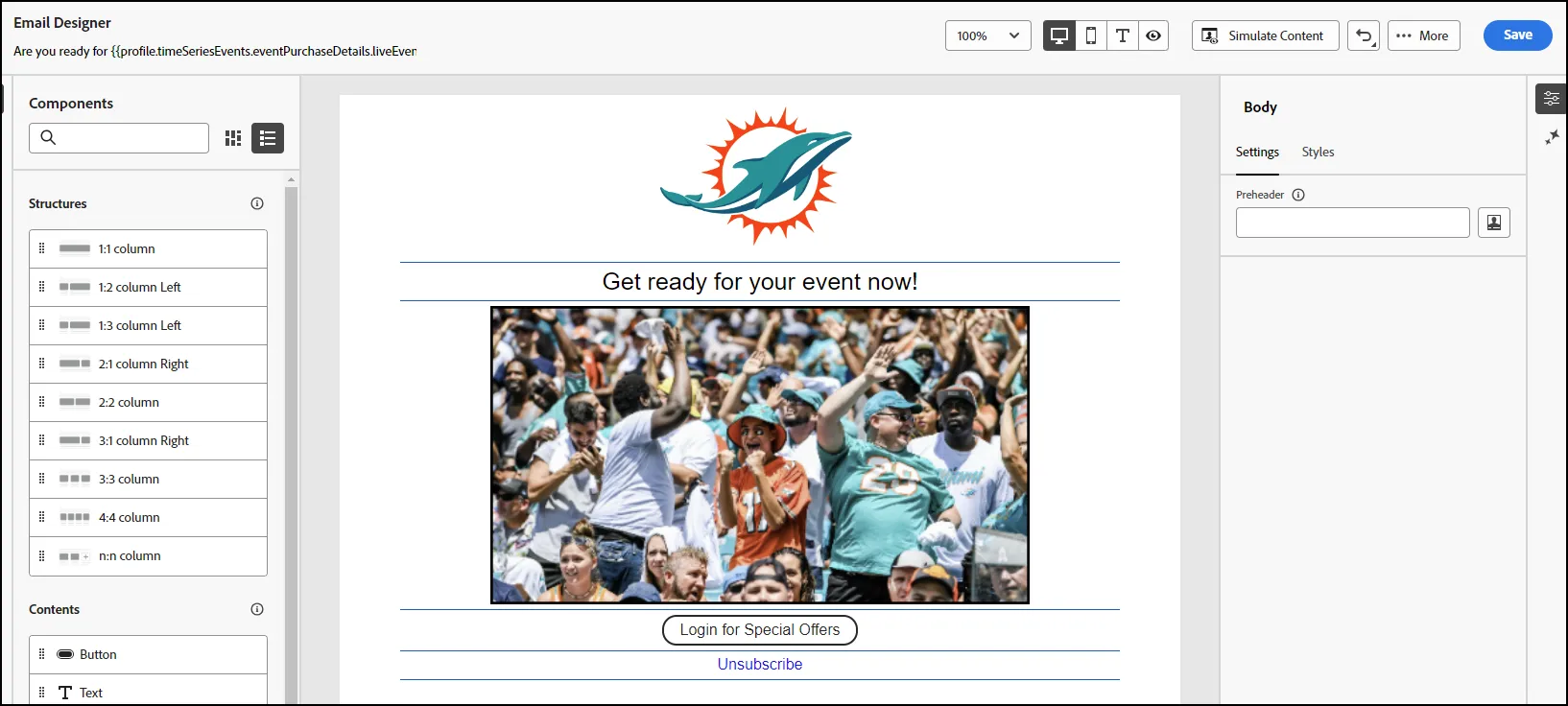
- Once complete, your email should look similar to the following:
- Click Save.
- End of Lab.