Offer Creation
Duplicate Offer
We just saw offers proposed for an individual on the dealer App. The same offers are also displayed on the web site when you start the configuration process. (configure -> Start -> Check acessories)
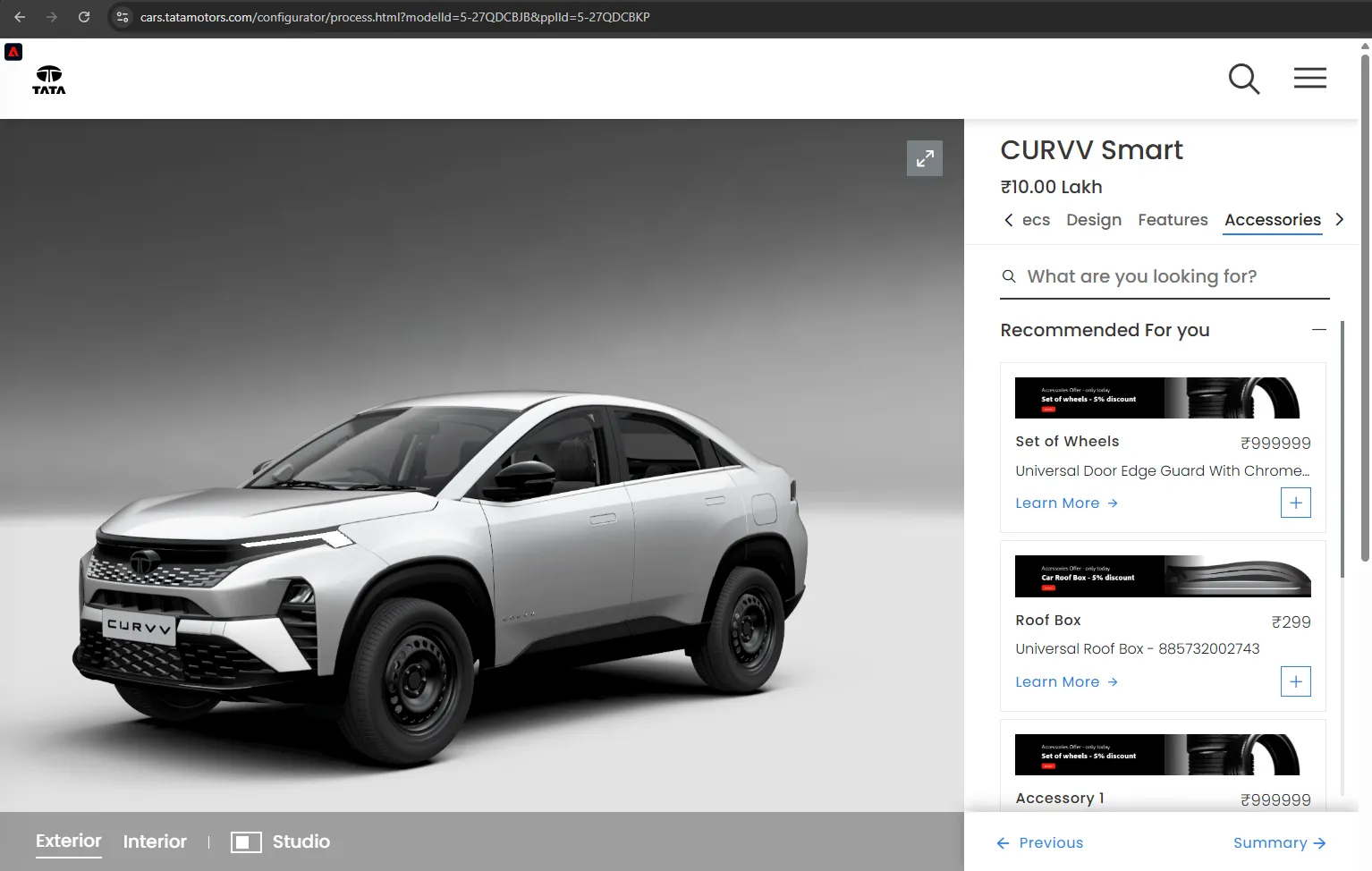
Those offers are selected by AEP using AI. You can see the list of available offers by going to Adobe Experience Platform -> Decision Management -> Offers.
Only a subset of those offers are available for a specific context based on their tag.
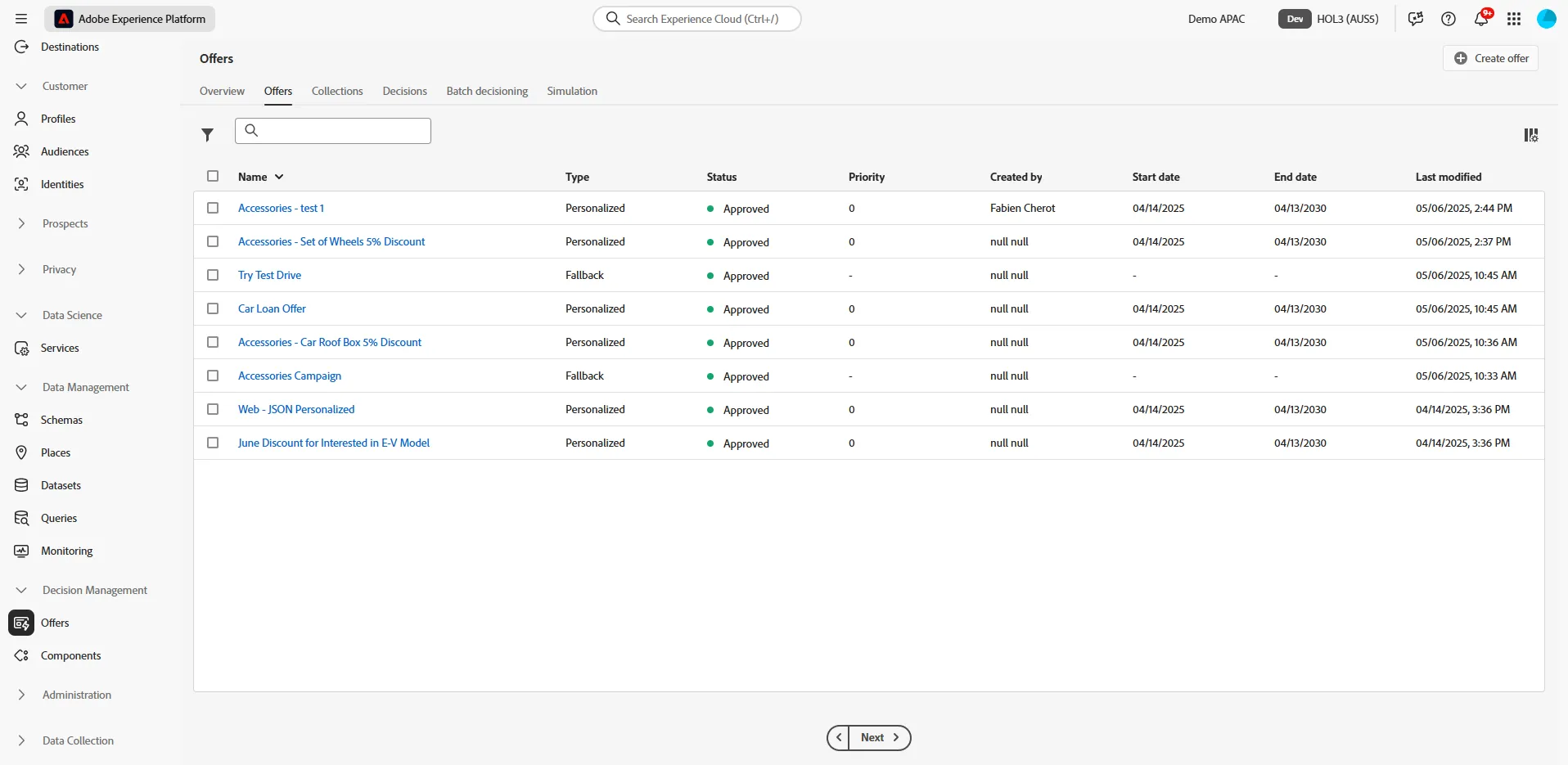
For this exercise, we will just duplicate an existing one. This will simplify the process.
Select Accessories - Set of Wheels 5% Discount offer, then click on duplicate.
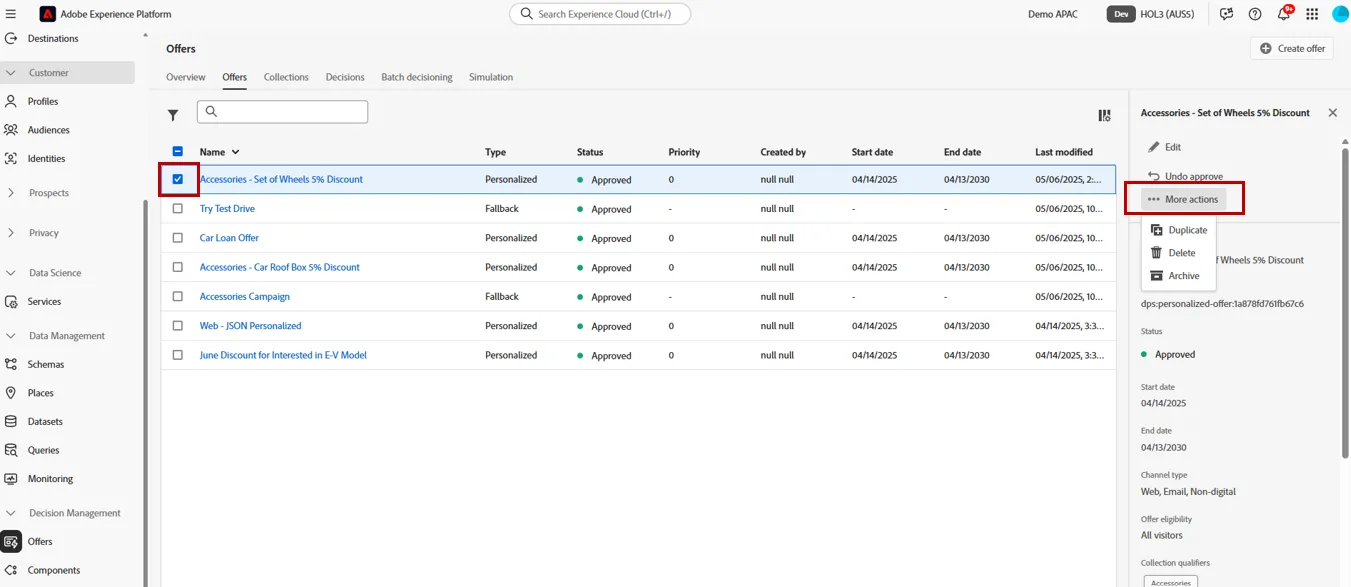
After a few seconds, you will see this new offer. Click on it to edit it.
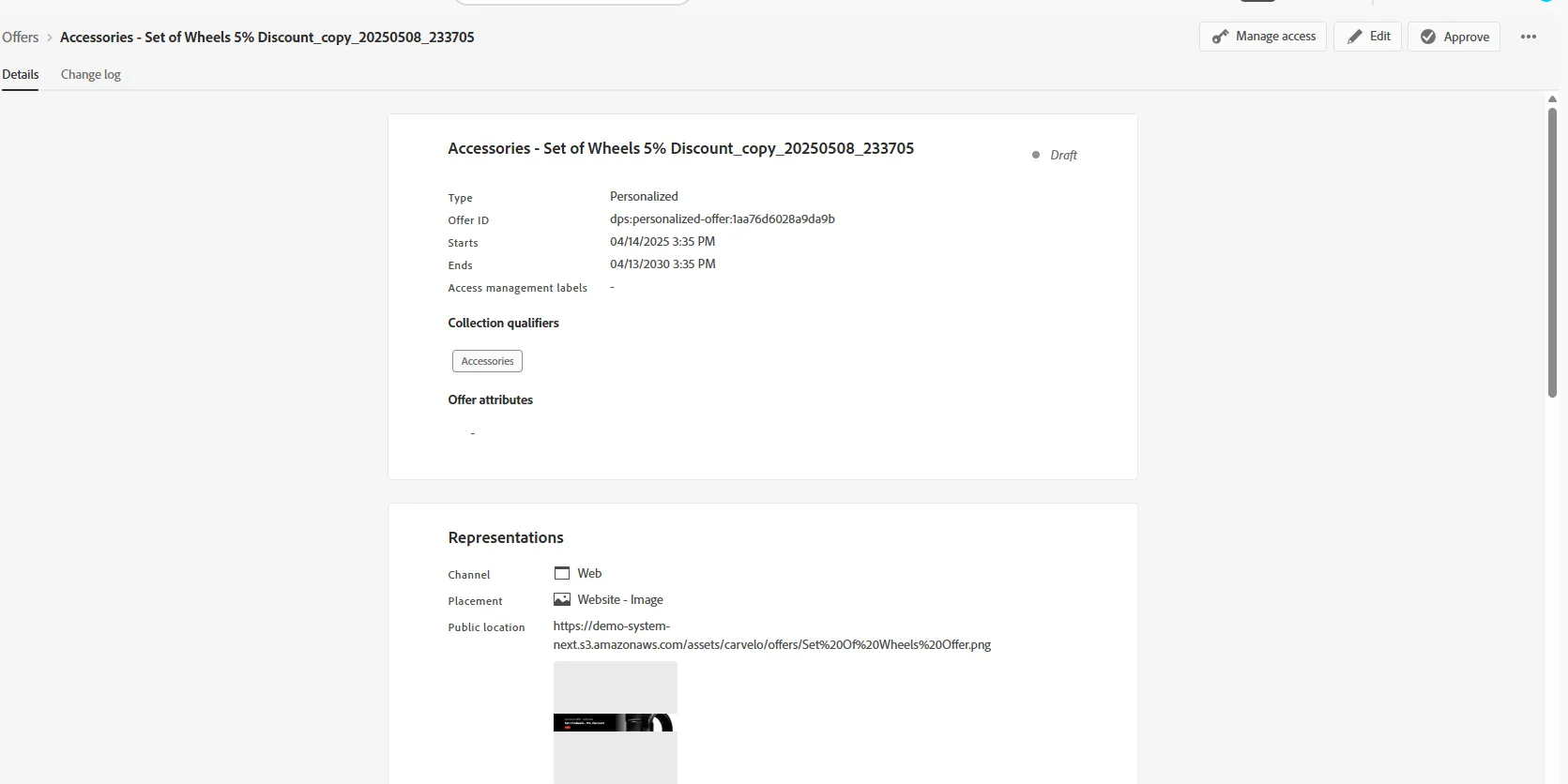
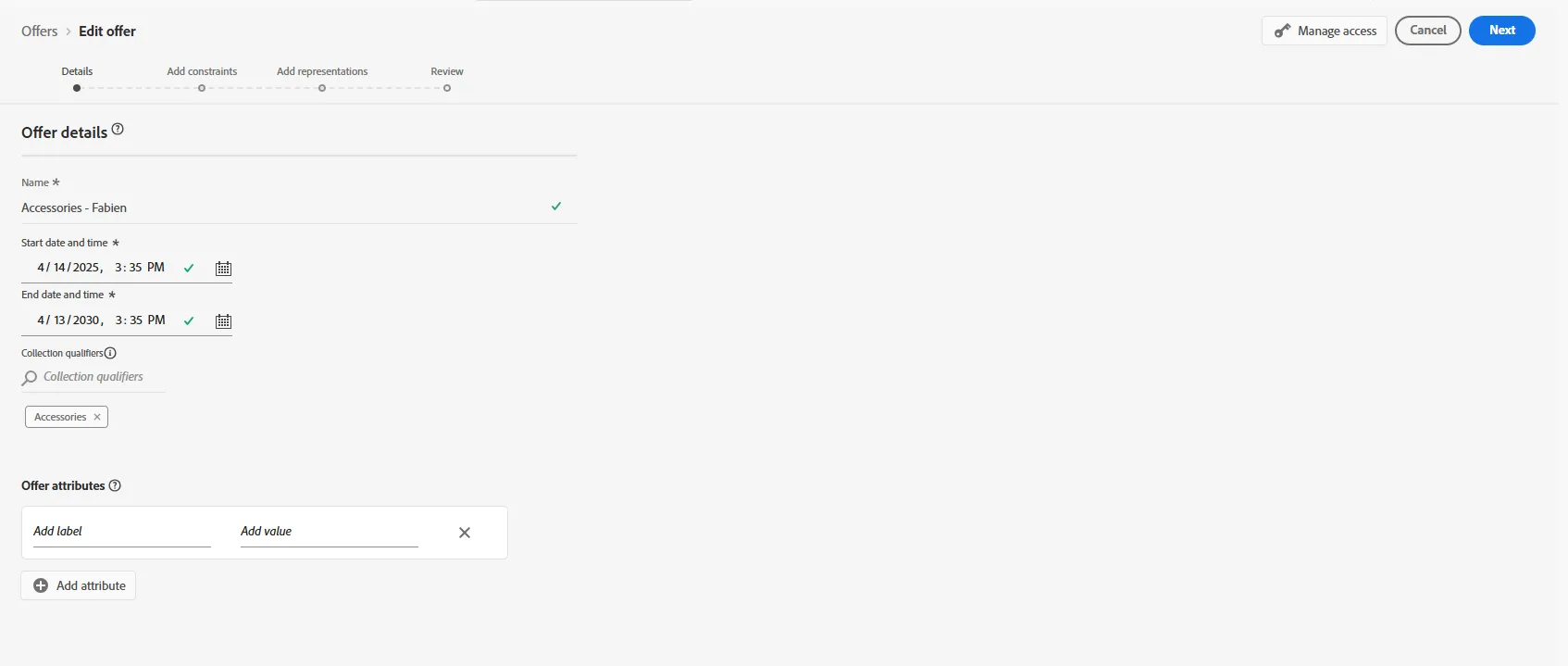
In the first screen, just change the name of the offer with your name.
The other informations are :
- eligibility date : offer will only be available and displayed during this period
- Collection qualifier : Used to categorize the offer. This tag is used to select the set of offers (called collection) to be display on a specific placement.
- Offer Attributes : flexible information you can add to your offer. This can be used for selection or reporting
Do not change anything else. Click on Next
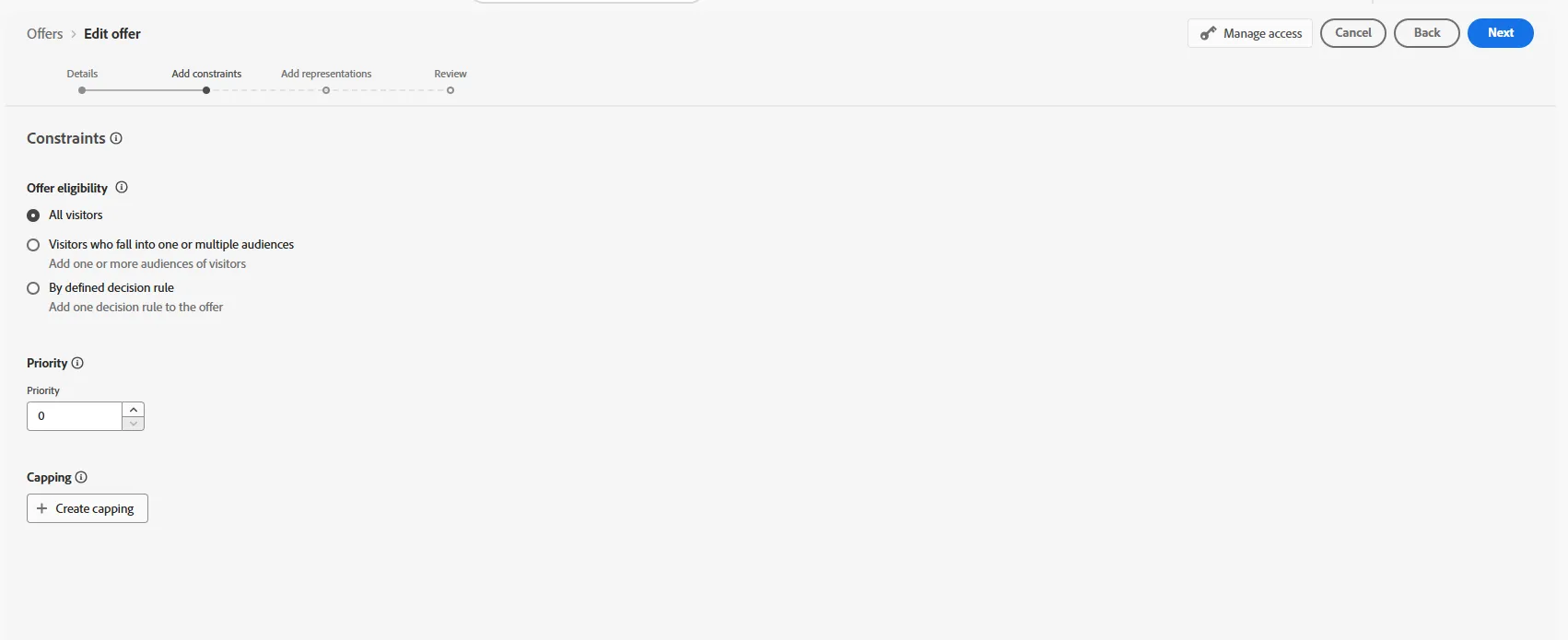
The second screen will let you select the eligibility. You can restraint an offer for a specific audiences. For example, you can remove people who already purchase this accessory. We can also define rules to not display this offer more than X time (capping).
Don't change anything and click on next.
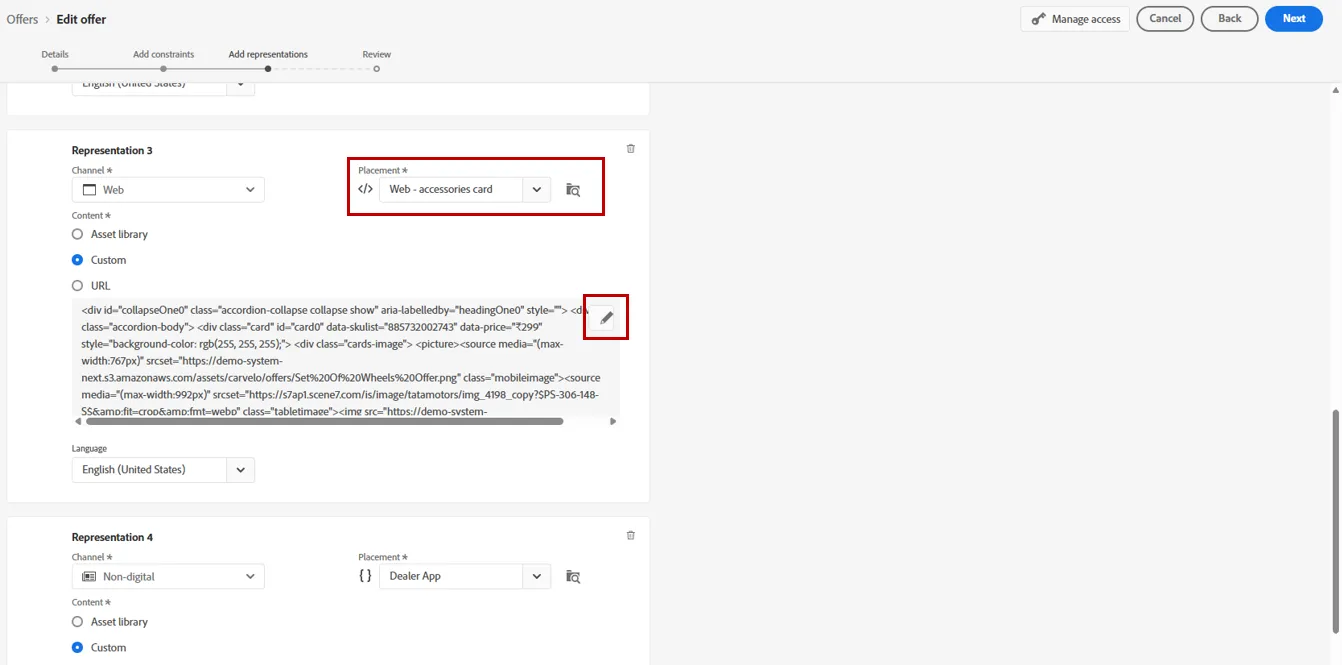
We can change representation of the offer for each channel / space. Most of them used images. scroll down to Web representation and edit it.
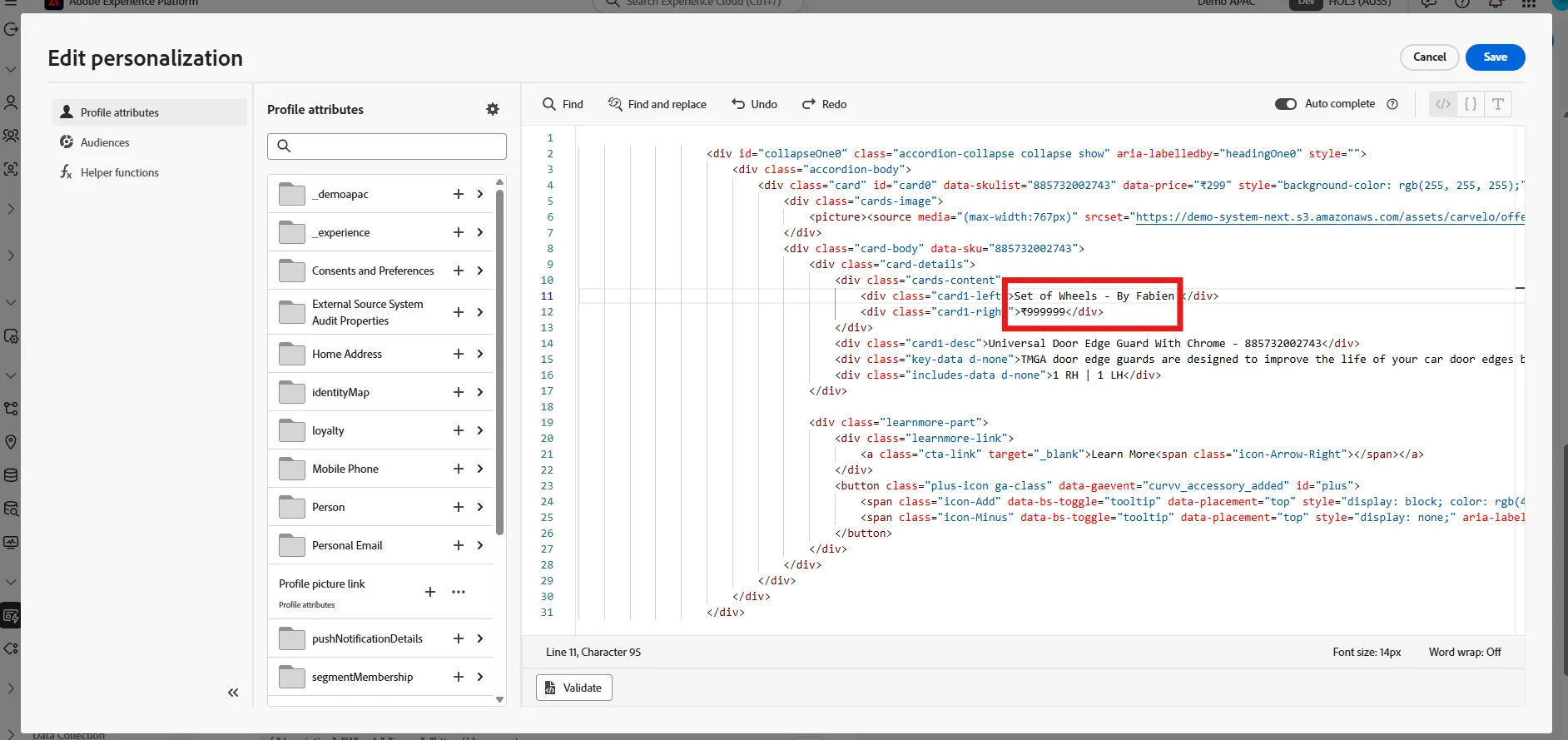
We will just change the title to test the process. Change Set Of Wheel title by any text of your choice. Insert your name to test it.. Then Save, then Finish.
You should come back to the offer list. Select the one you just created. then click on approve.
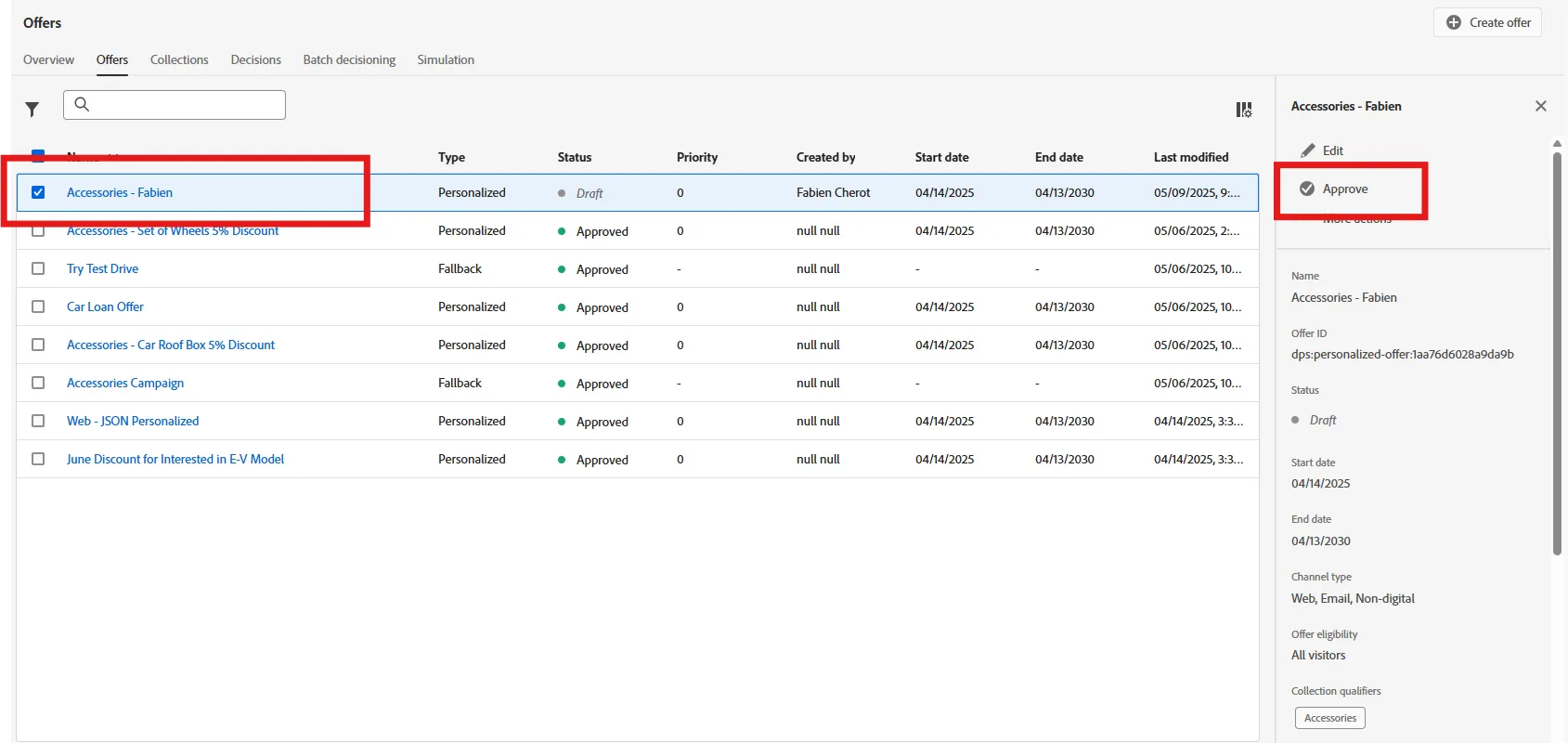
After a few second, your offer should be available on the web site. Go back to the accessory configurator and refresh the page.
Insert Offer in Email
We may also want to use those offers in email, in a post test drive campaign for example.
For that, go back to Adobe Journey Optimizer, go to journey, and create a new one. Name it "Tata post drive - your name"
This time, we will use a batch daily campaign, that we will send every day to people who've done a test drive yesterday.
For that, Drag and drop the Read Audience activity onto the canvas. On the right pannel, click on edit audience then select the once created for you : test drive done yesterday
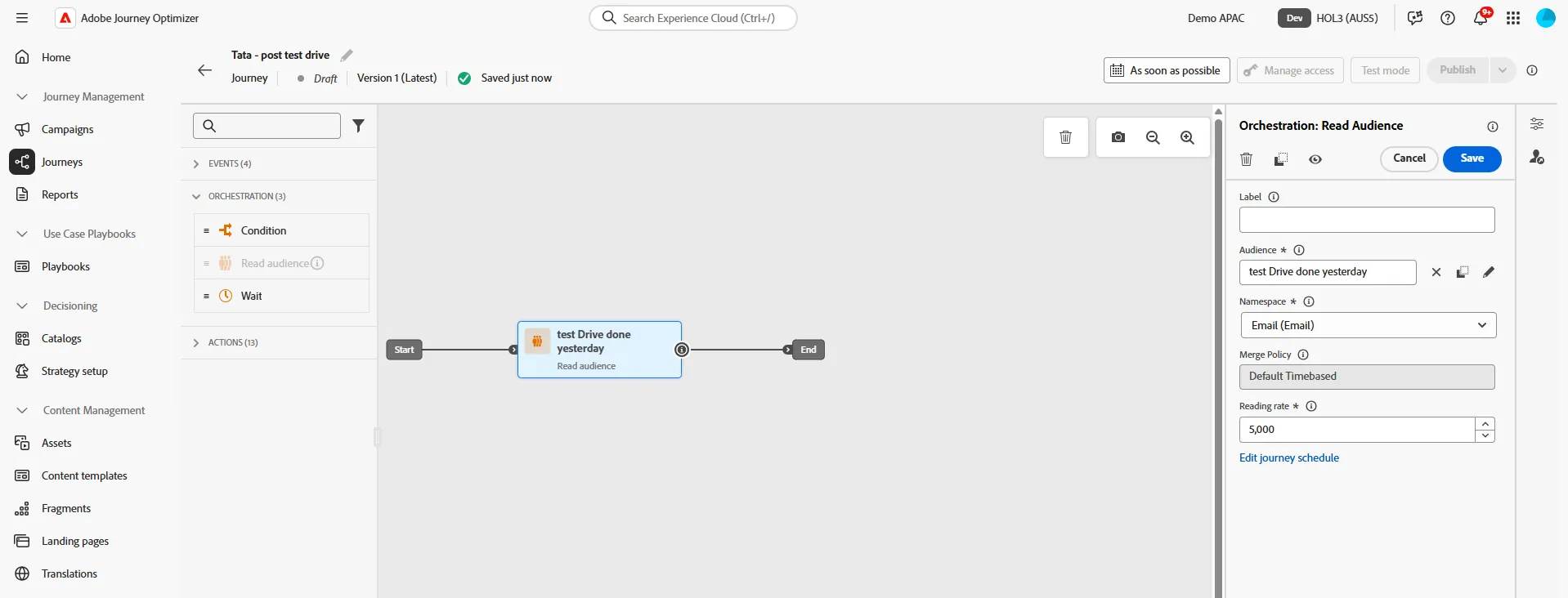
Then, Add an email after your audience.
As done previsously, click on edit email body, then select the tata Email template.
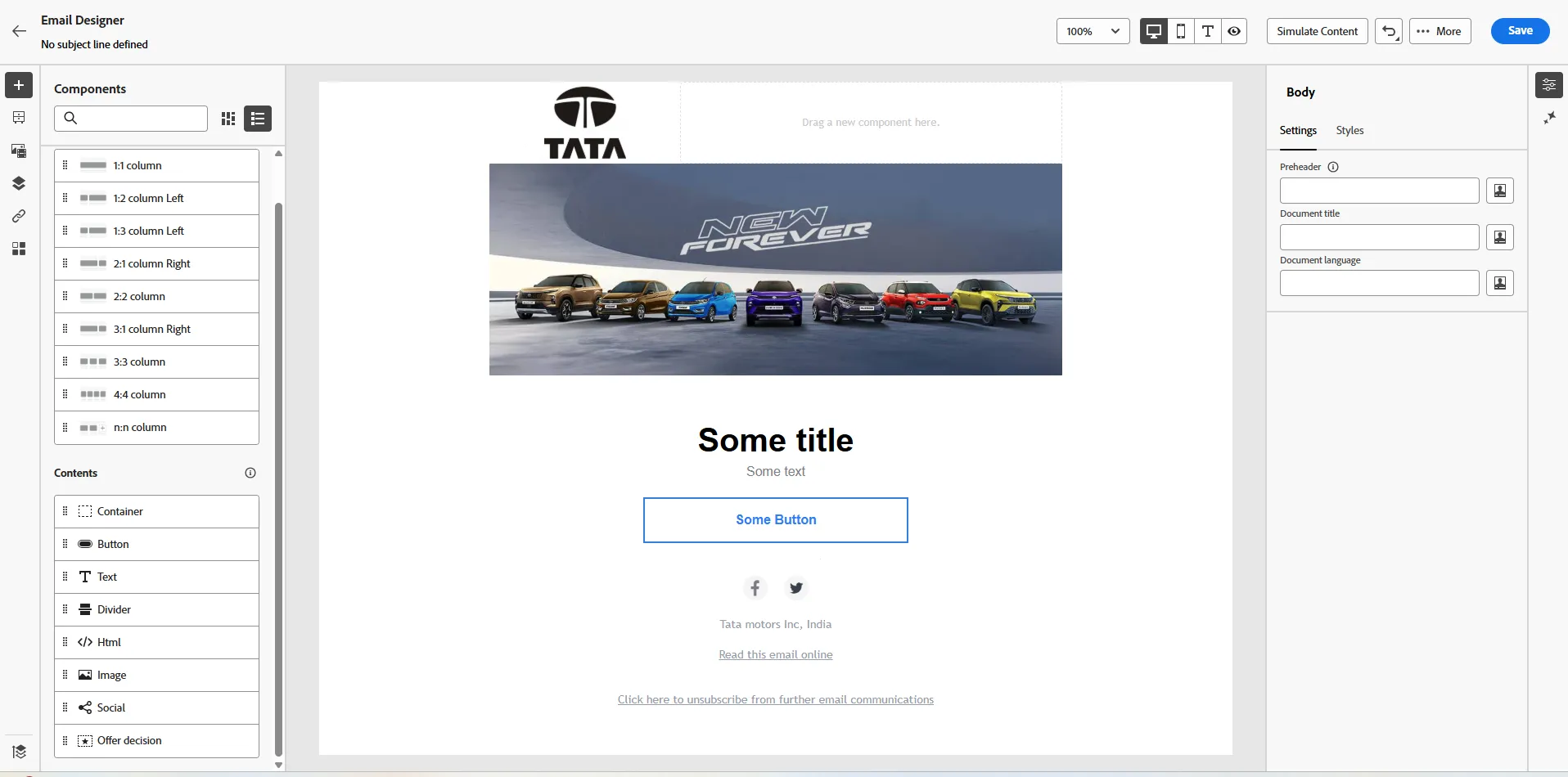
In this exercice, we will insert Offer personalisation. From the left element pannel, drag and drop the offer decision component under the hero image.
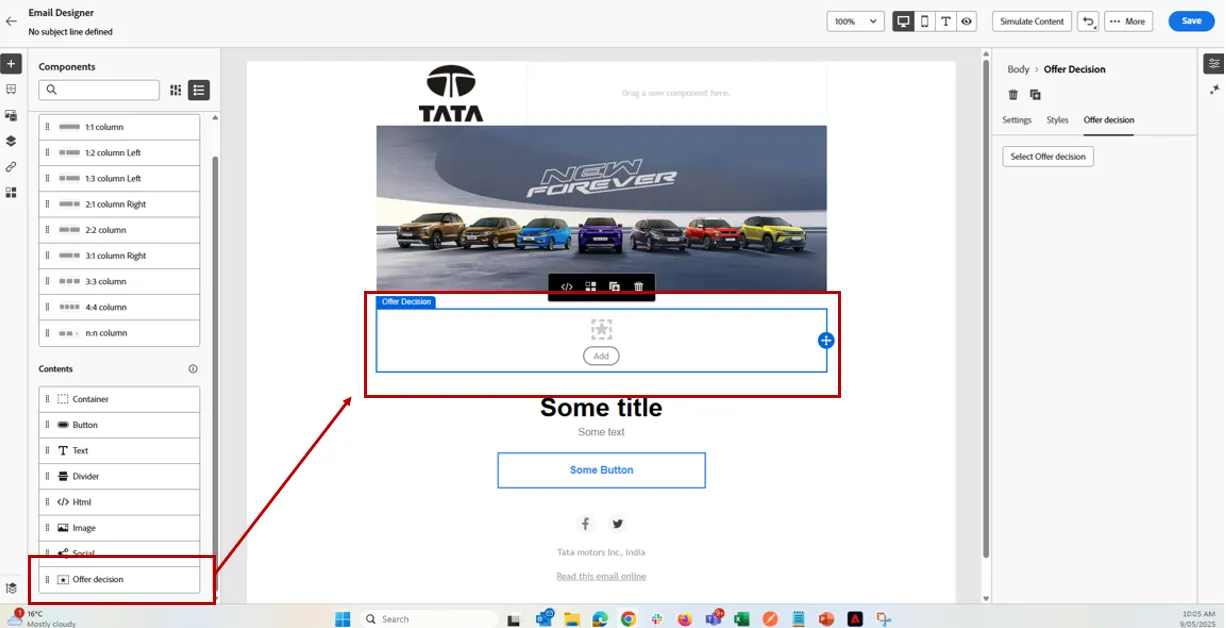
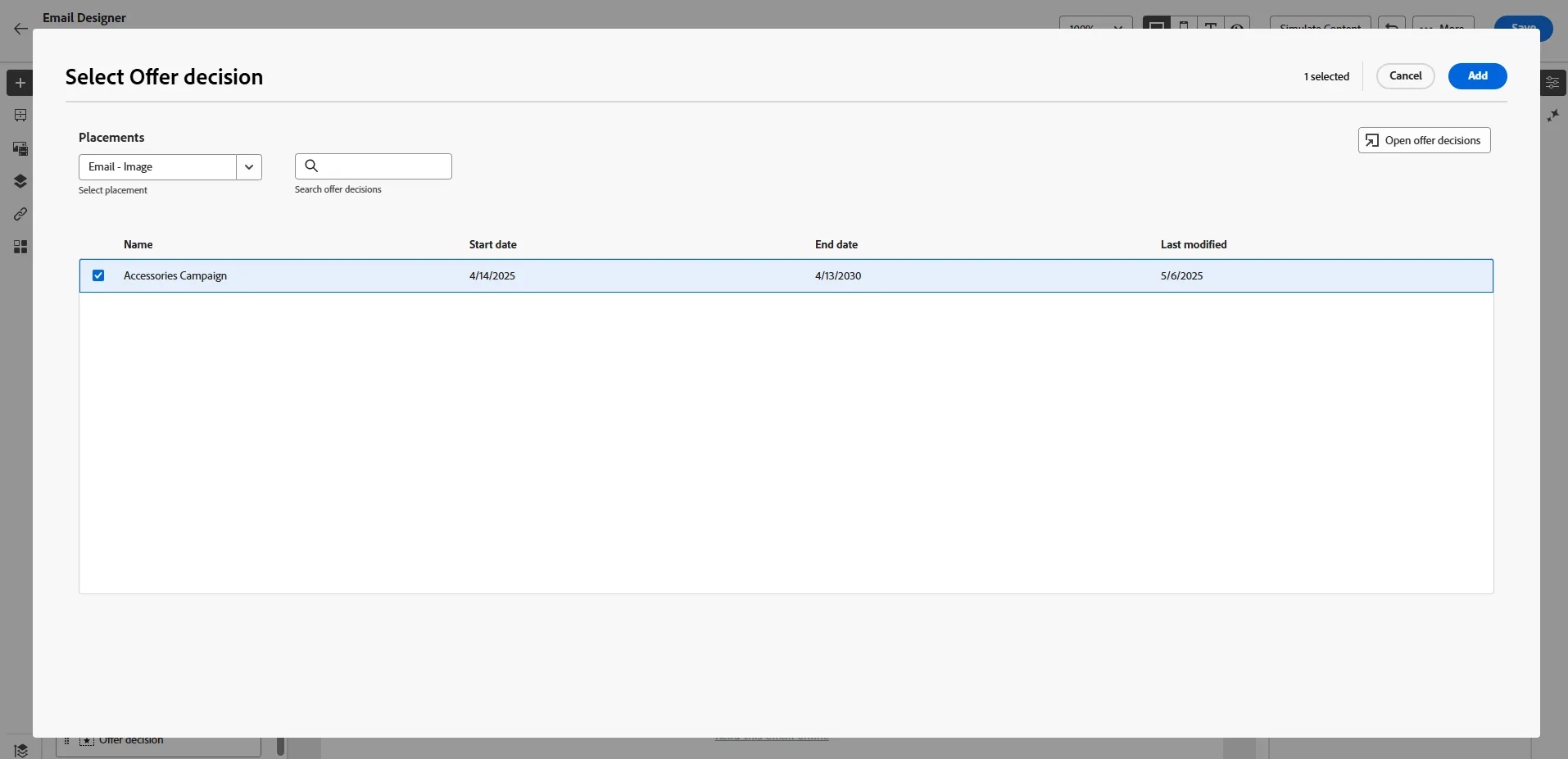
Then, click on Select offer decision on the right pannel.
Select Email - Image as placement, and Accessories campaign. Click on Add
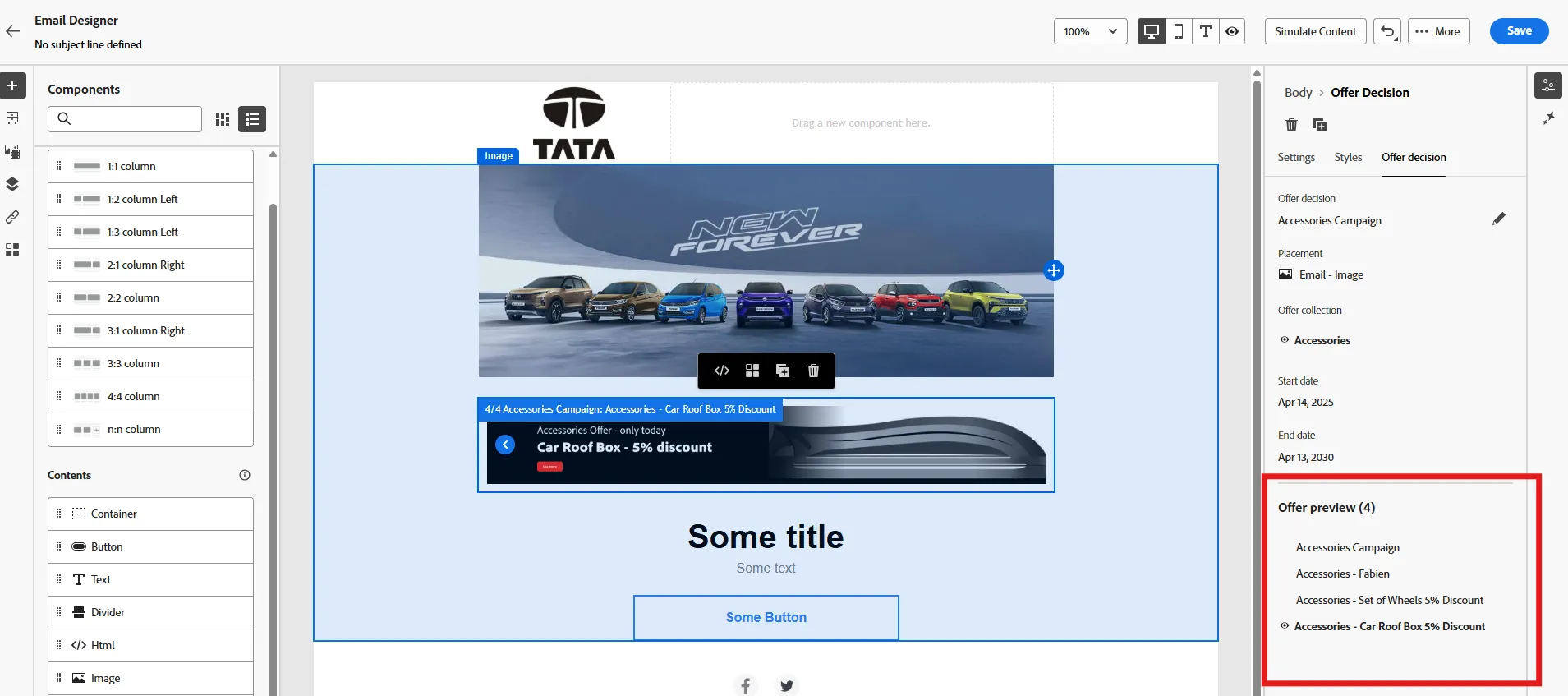
You can then test the different variation of your Email by selecting a specific Offer. If you have not changed the images on your offer, you may not see the difference, but test the Car Roof Box Offer.
This conclude the exercise. Offer Decisioning is a very powerfull way to personalize inbound or outbound communication. This is the best option to:
- Manage 1 to 1 personalisation
- keep consistency of the message cross channel.