Website personalisation
In this exercise you'll learn what is required to implement the website personalisation.
Create a Real-time Audience
Edge audiences are designed for real-time personalisation use cases occuring on your website or app. The banner changing on the overvew page was controlled by an Audience evaluated on the Edge. This exercise will show you how to create one.
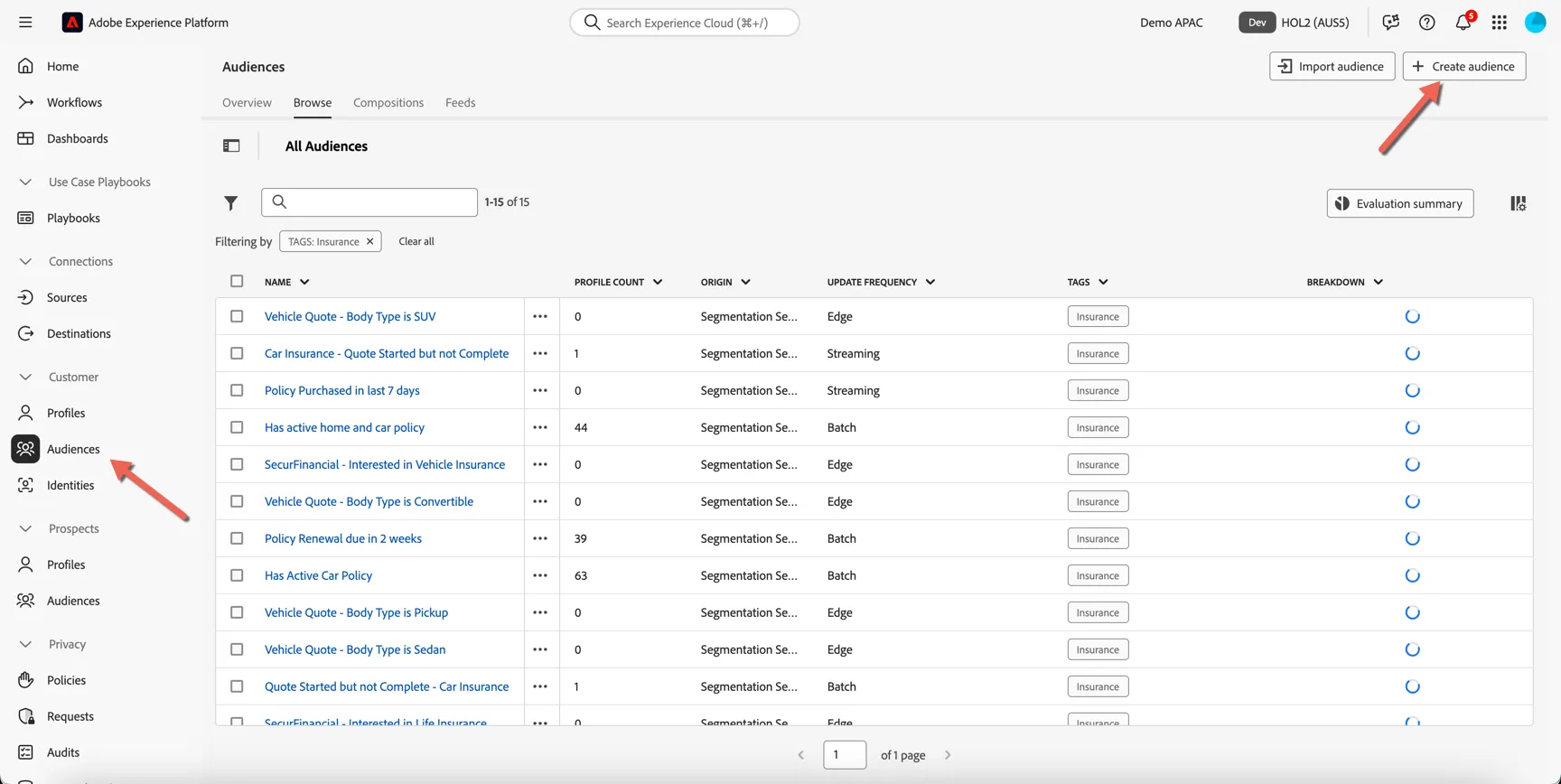
Open the Audience Portal by clicking to Customer -> Audiences in the left hand navigation.
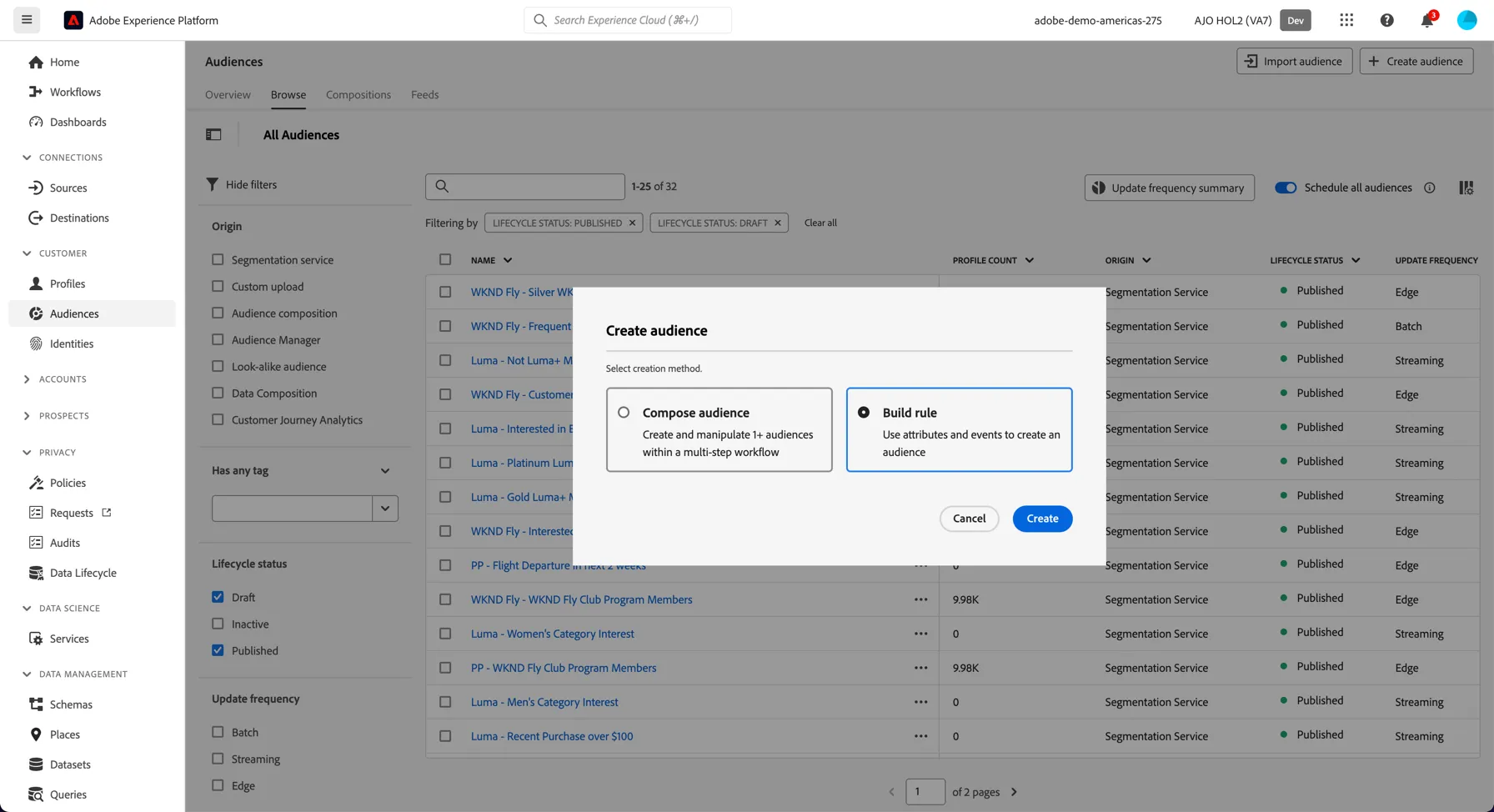
Select to build a rule based audience:
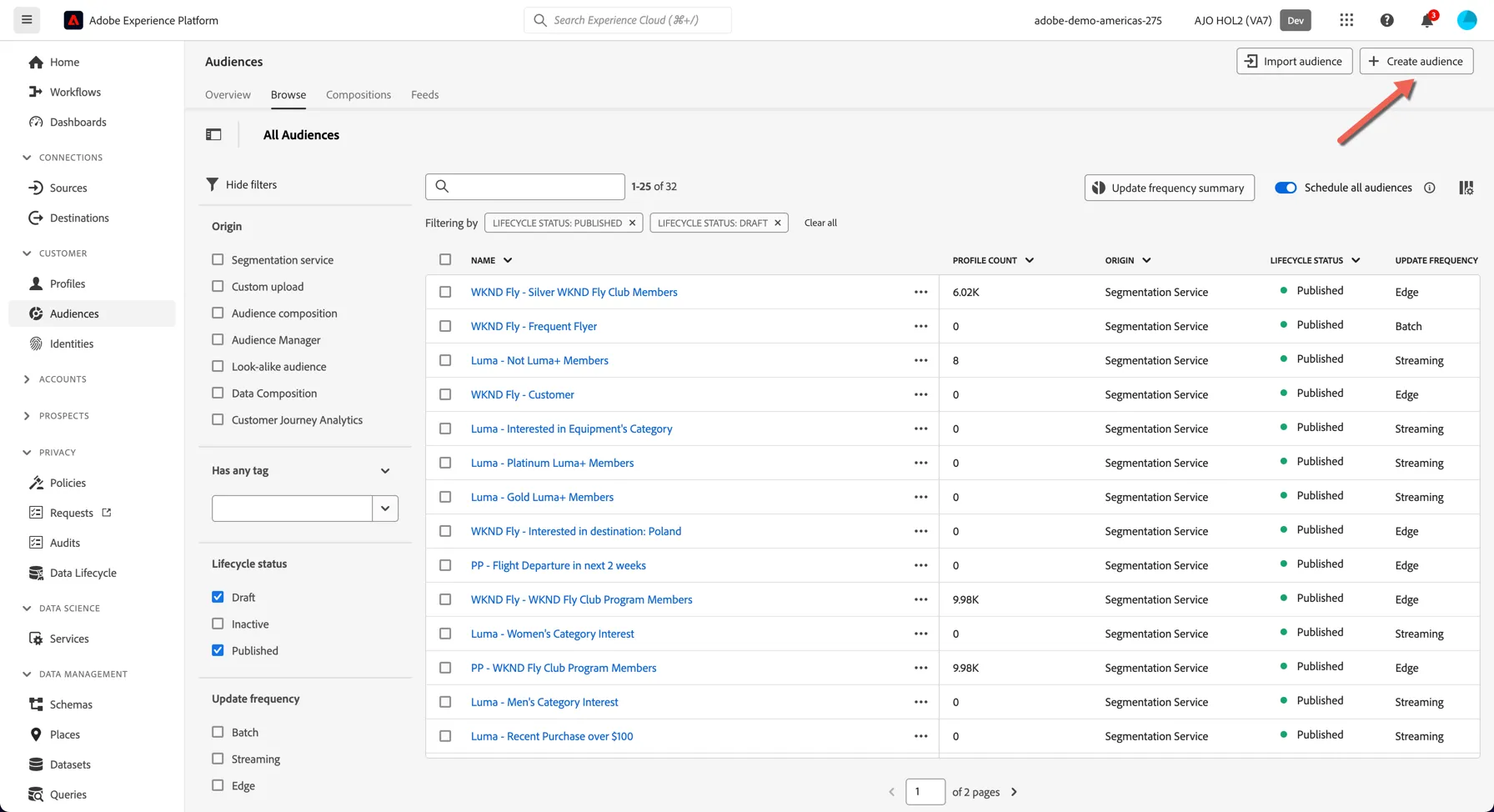
Browse to the Audiences page in the left hand navigation and click to Create Audience.
In the audience builder you have access to all of the profile attributes and events.
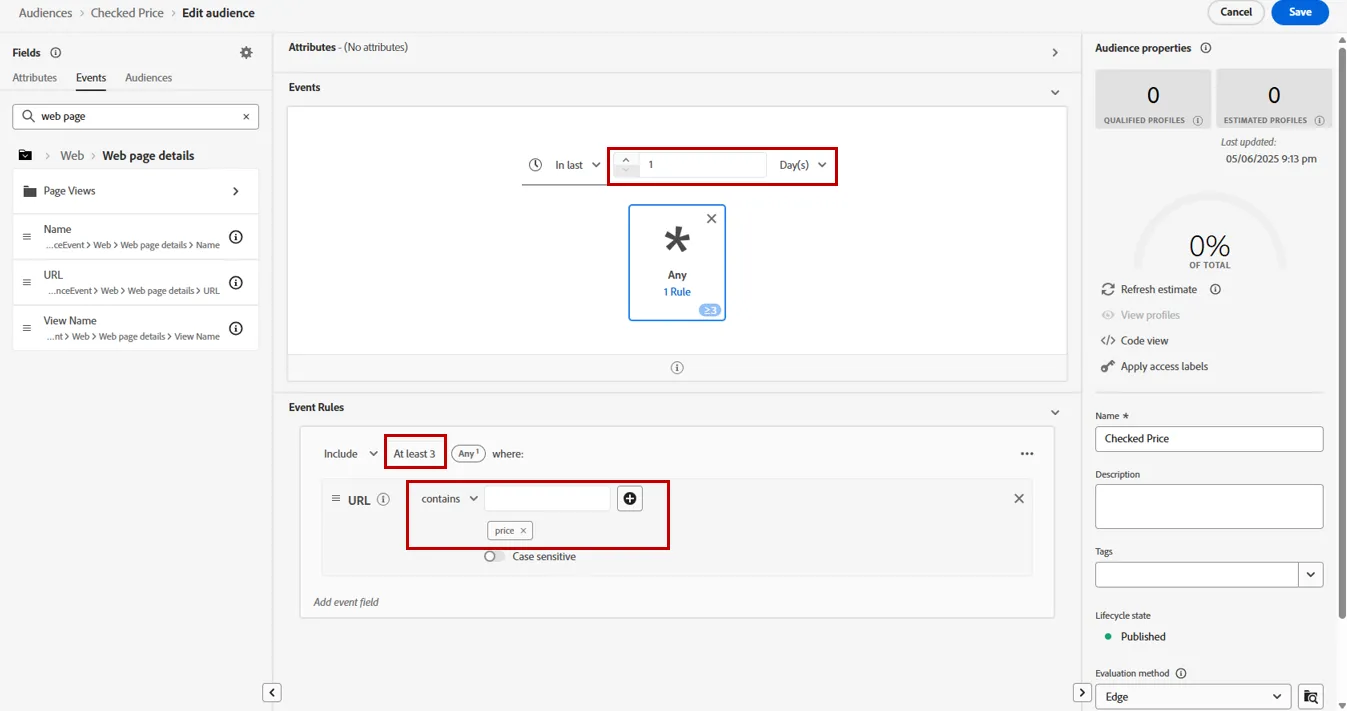
- Change to the events tab to create an audience based on a real time event.
- Search for web page detail.
- click on the folder, Drag the url attribute type into the canvas.
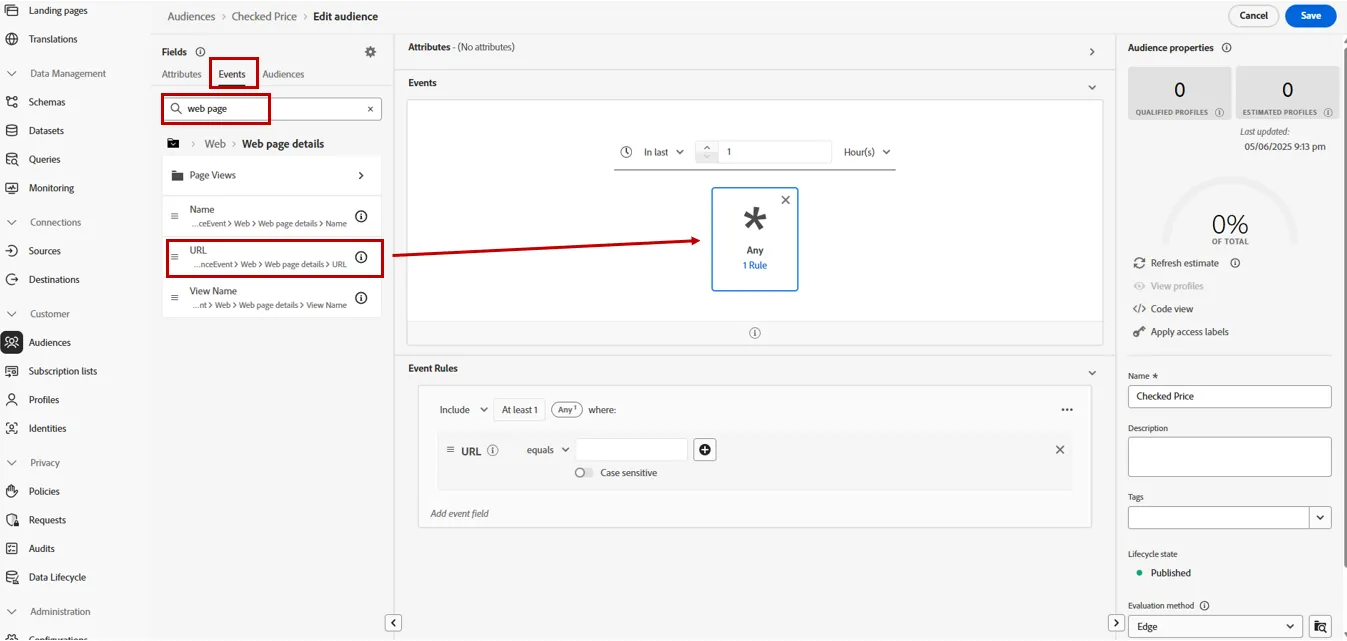
On the bottom pannel, change the condition on URL to contains, then type price and click enter to add the value.
replace the condition "at least 1" by 3
You can also change the time condition to specify "in the last day"
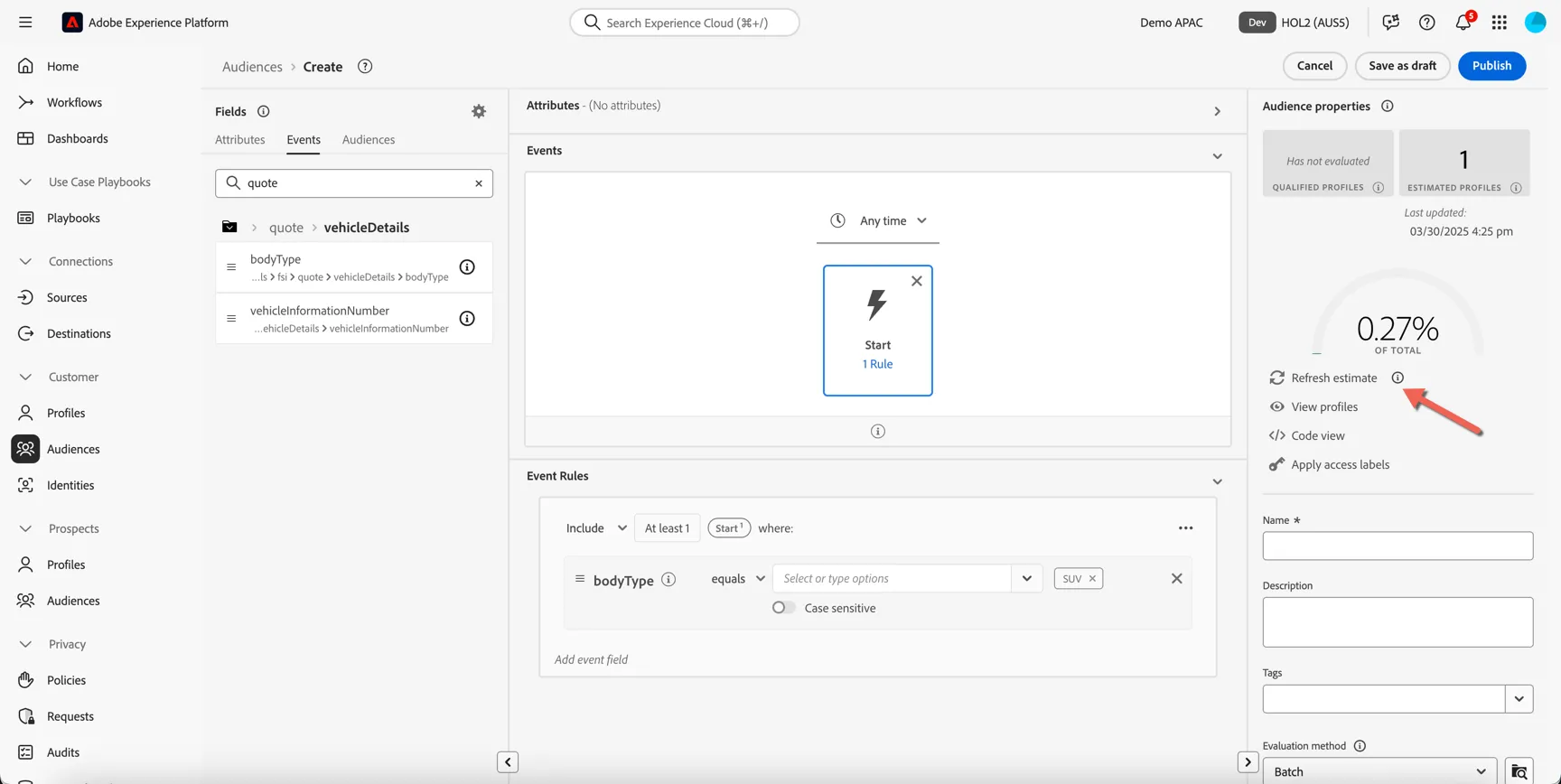
You can click to Refresh estimate to understand how many profiles fit this condition currently.
Now let's give your audience a Name - add a prefix, something unique to distinguish your audience from everyone else's like your last name Eg. [last name] - Checked price multiple time
Add a description to help others quickly understand your audience logic.
Now set the Evaluation method to Edge. This specifies that the audience can be calculated on the edge for qualification within milliseconds.
Click Publish. To save your audience and enable it for further use.
Audiences must be published before they are included in any kind of evaluation (edge, streaming or batch).
Congratulations you've created your first real-time Audience!
Activate to Adobe Target
Adobe Target controls the personalisation, we need to share the audience details with Adobe Target.
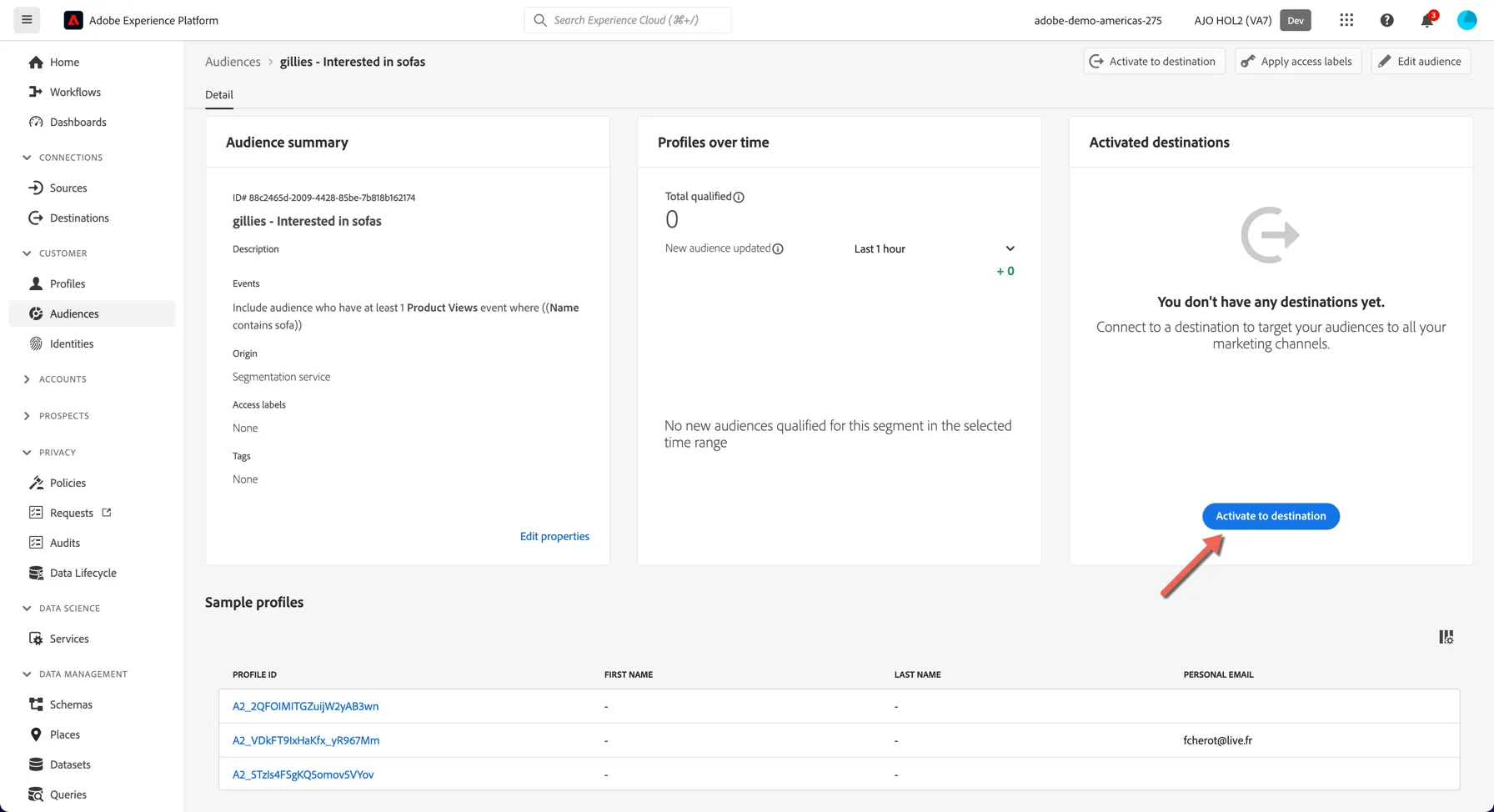
The counts reported on this page update at intervals even though profiles will qualify for the audience in real time. Total qualified count will update nightly, the new audience updated count will update each hour.
Click on the Activate to destination button.
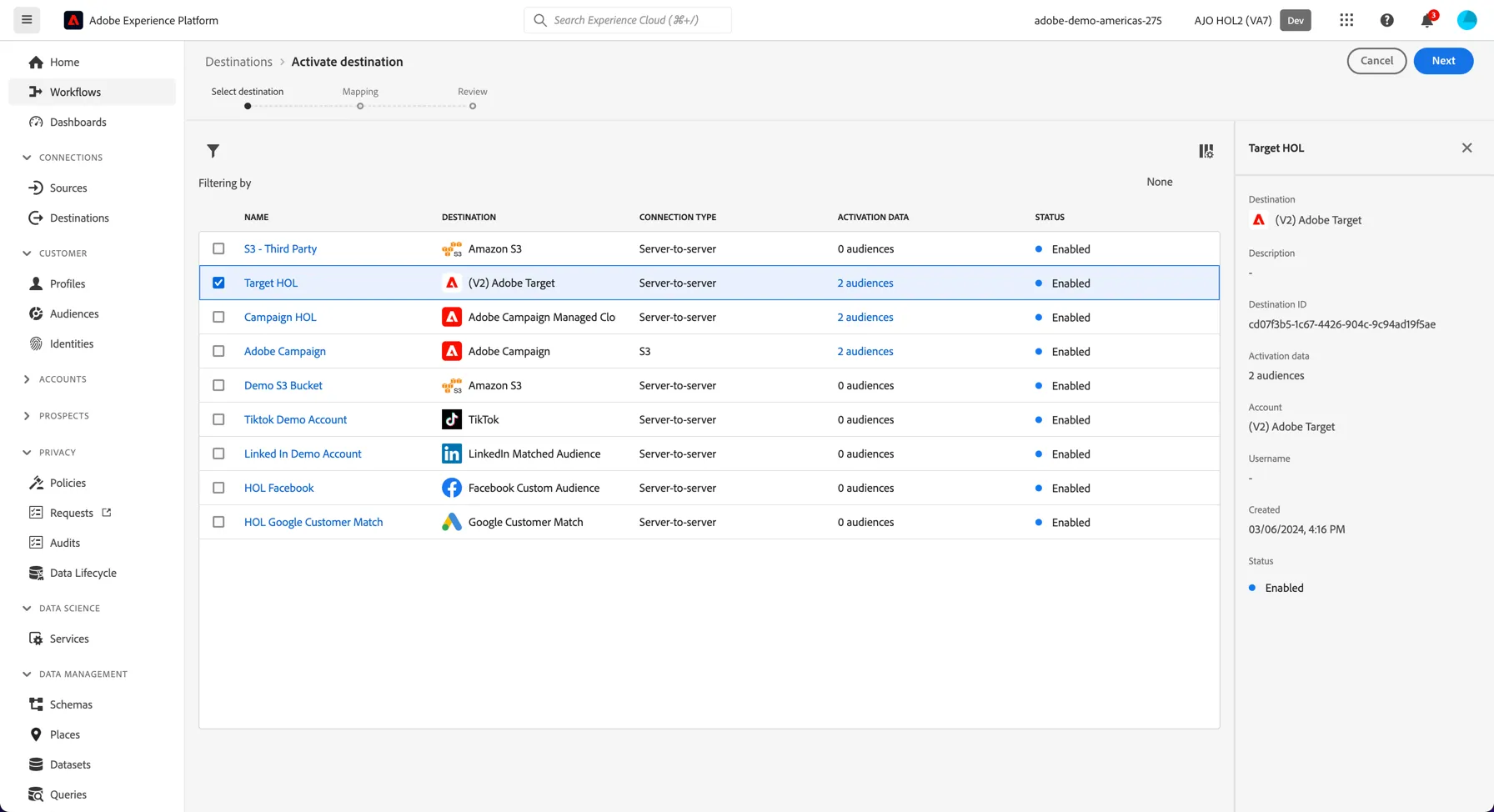
Here you can see all of the destinations that are currently connected to this instance for Activation. Select Website (Target) and click Next.
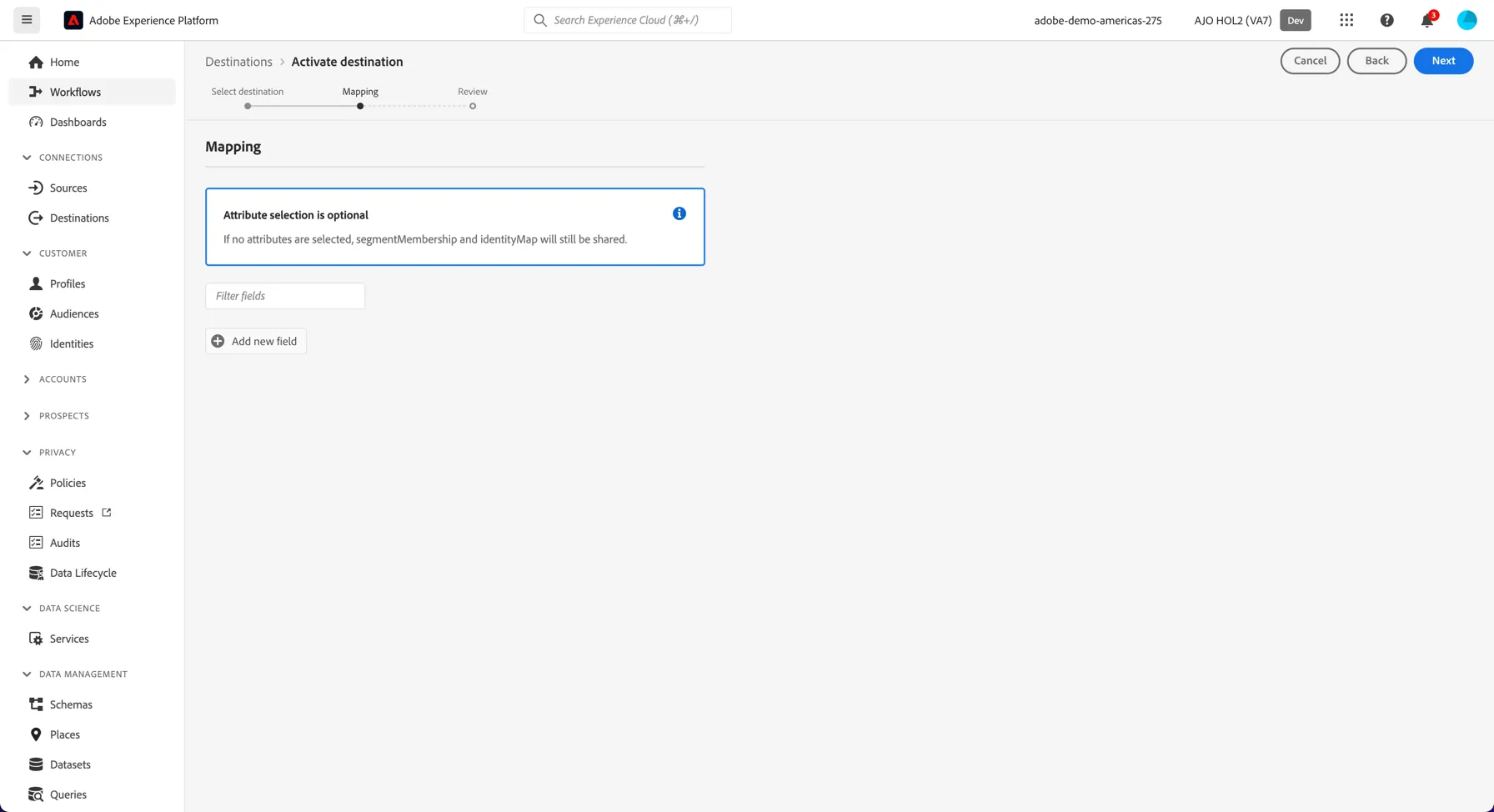
The mapping step allows you to share profile attributes from Adobe RTCDP to Adobe Target for inclusion in your Target experiences. Eg. we could share the customer's first name and show this on the site through Target. For this use case though, no attributes are required so we can simply skip this step by clicking Next.
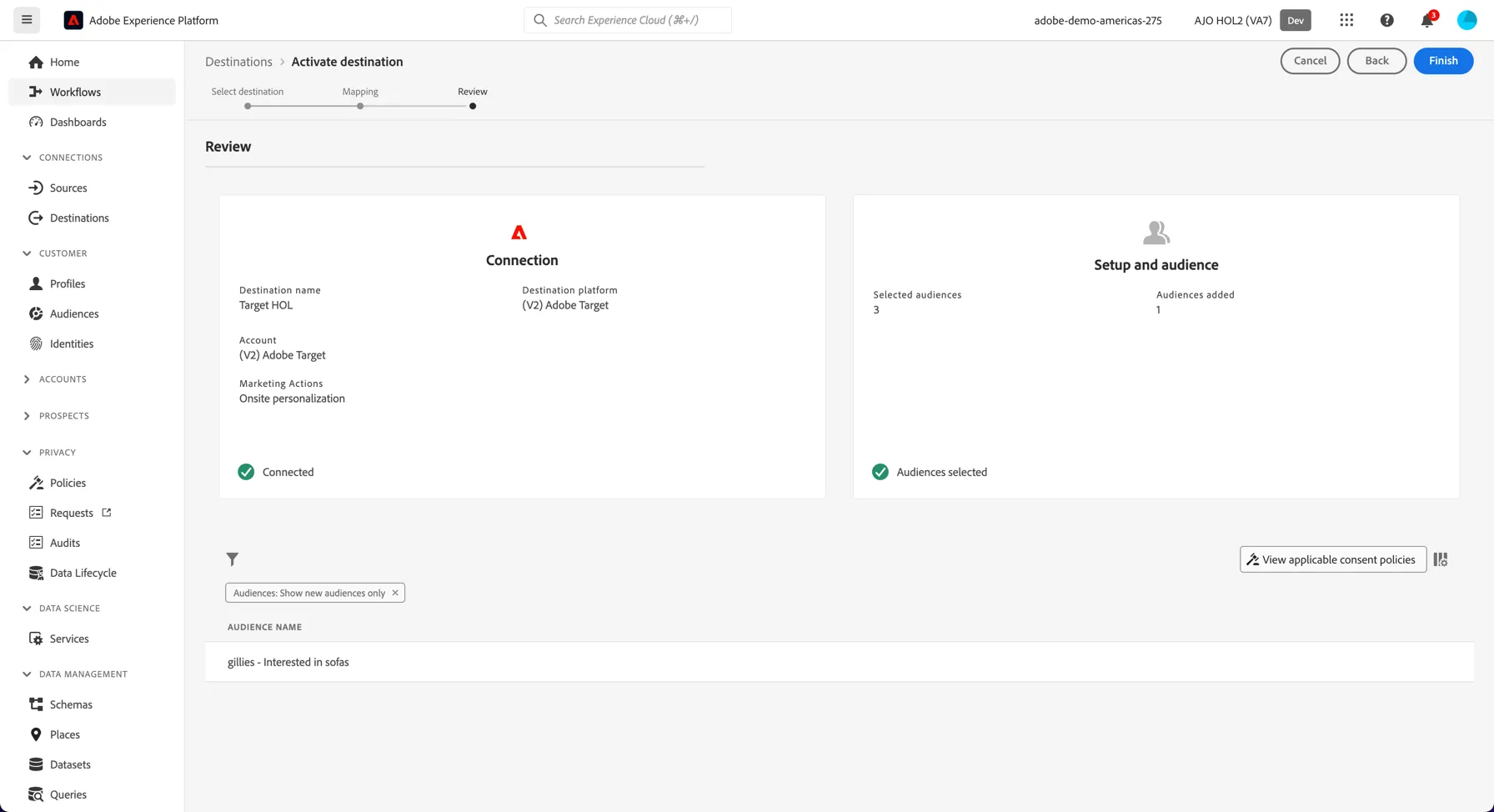
Review the activation details and click Finish to connect your audience with Adobe Target.
The interface does not expect multiple users to be activating audiences to the same destination at the same time. If you get an error that looks like:
Close the error window and start the activation wizard again.
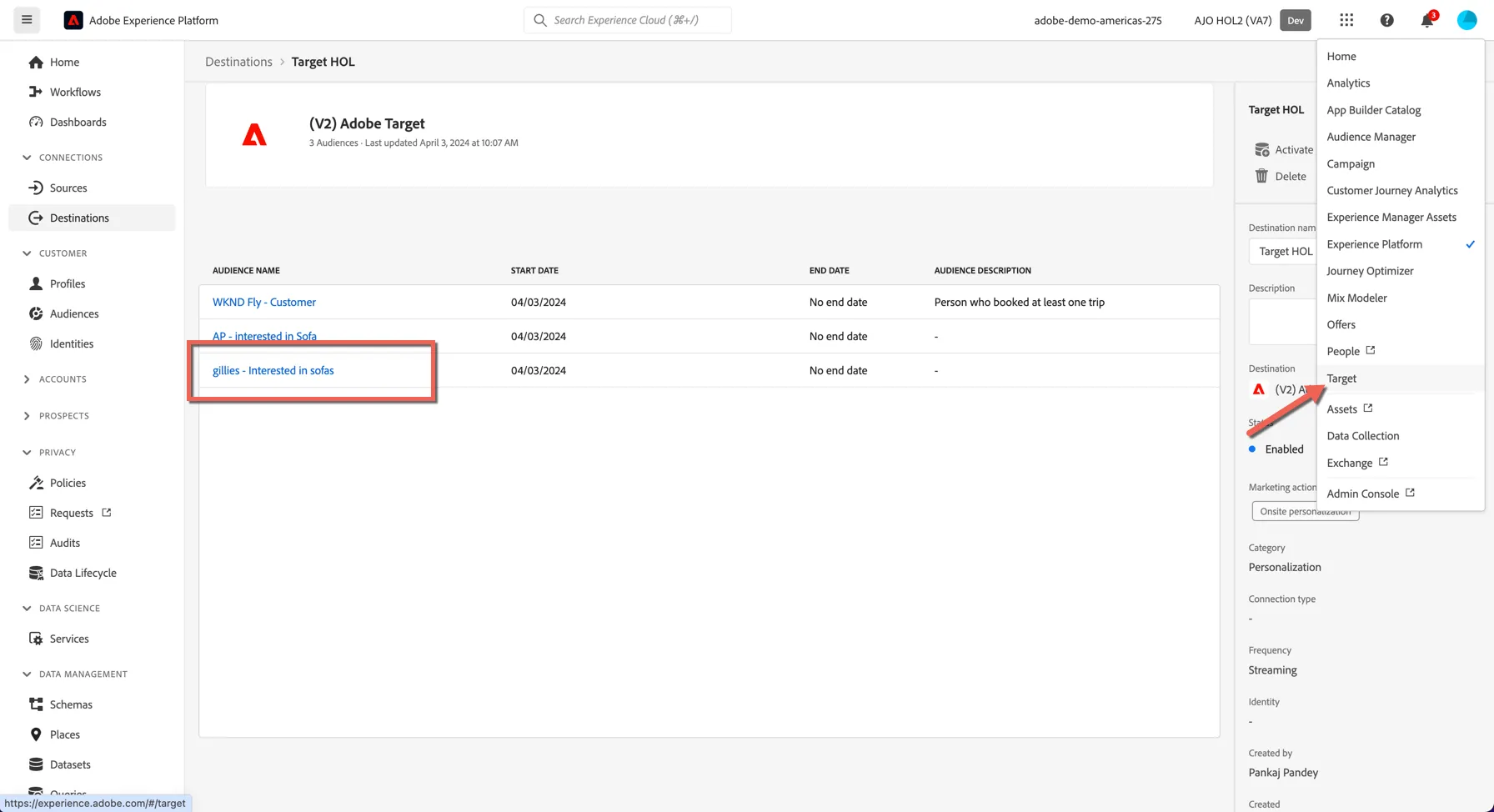
Once your segment is successfully activated, click the product switcher to open Adobe Target.
Switch to the Audiences tab in Target and filter to view Adobe Experience Platform audiences. You'll see your audience is available natively and ready to be used within a personalisation activity.
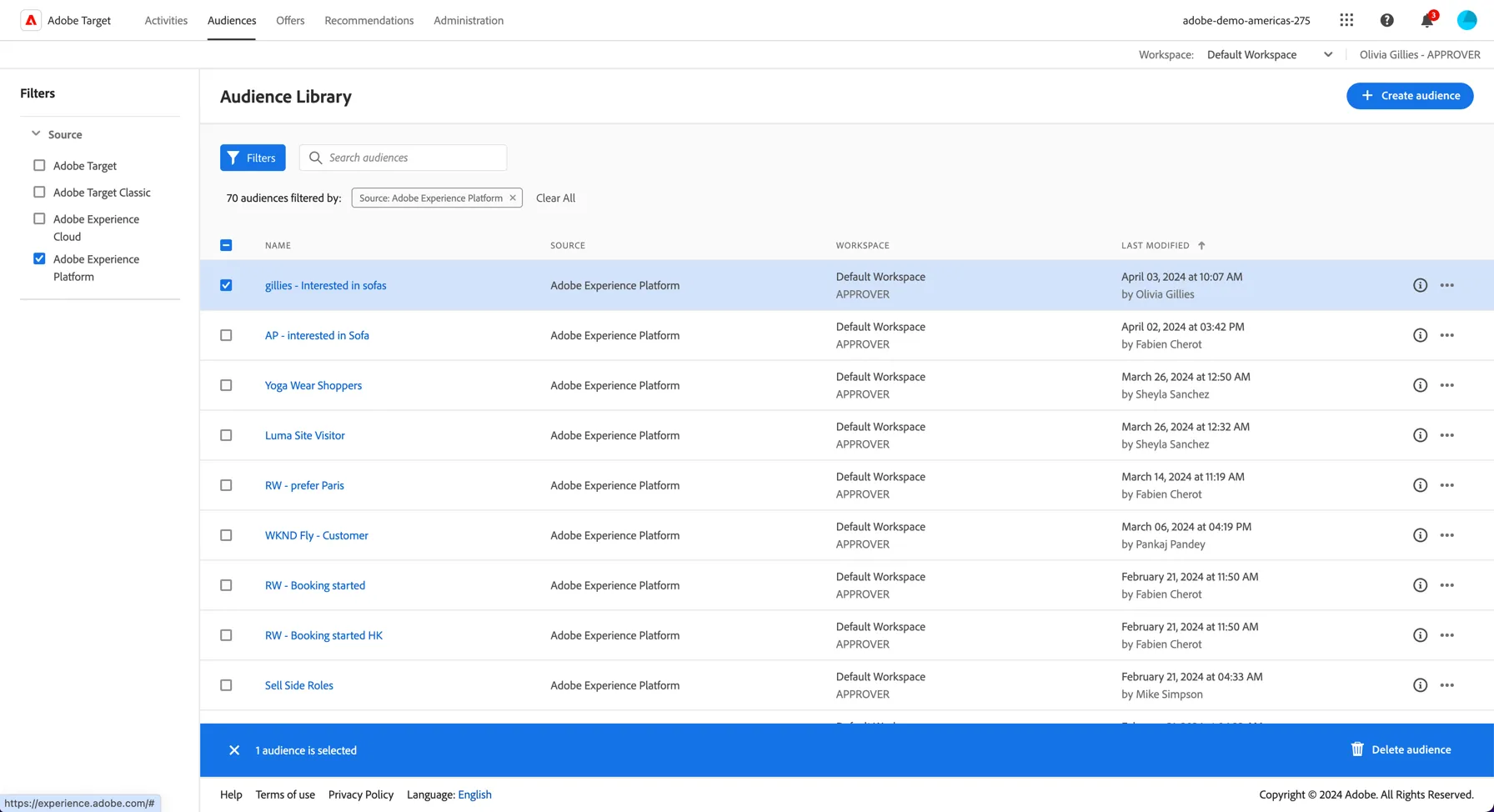
Congratulations you've activated your first audience to Adobe Target, ready for use in a personalisation activity.