Creating the journey
In this exercise, you'll be creating and testing a journey using the components you've created in the previous exercises. Go to Adobe Journey Optimizer by clicking on the 9 dots on the top right and select Journey Optimizer.
To log into the Adobe Experience Platform, and open Adobe Journey Optimizer, check the Welcome! section.
Journey overview
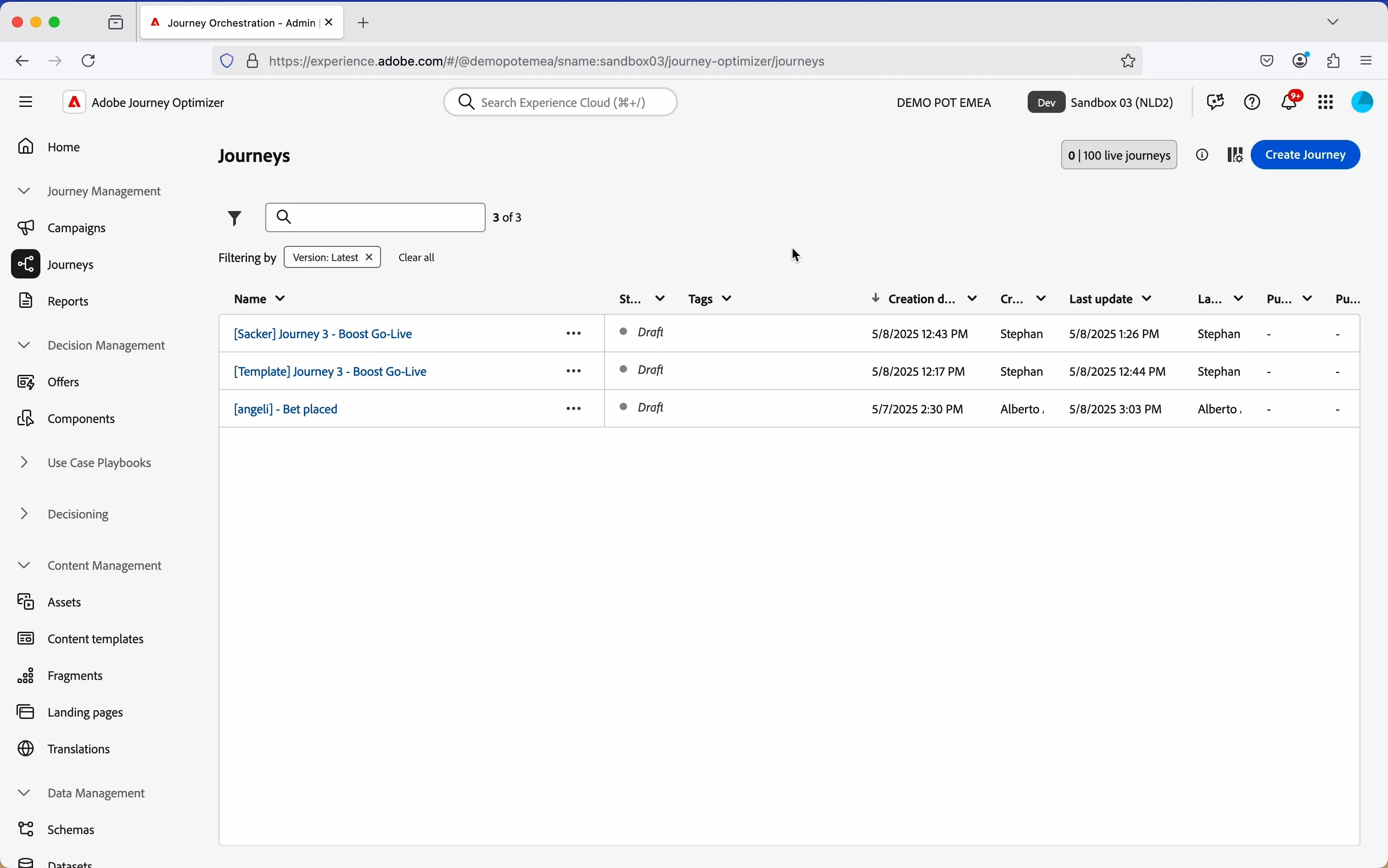
To get an overview of all journeys in Adobe Journey Optimizer:
- In the menu on the left side, under Journey Management, click on Journeys. You will see a overview with all existing journeys.
Creating a journey
We'll be creating a journey that will send an email to people that have a added the products to the cart but didnt purchase the product yet. We need to ensure we exclude the people who has purchased as well.
Click on Create Journey. You'll be taken to the Journey canvas with the journey properties opened.
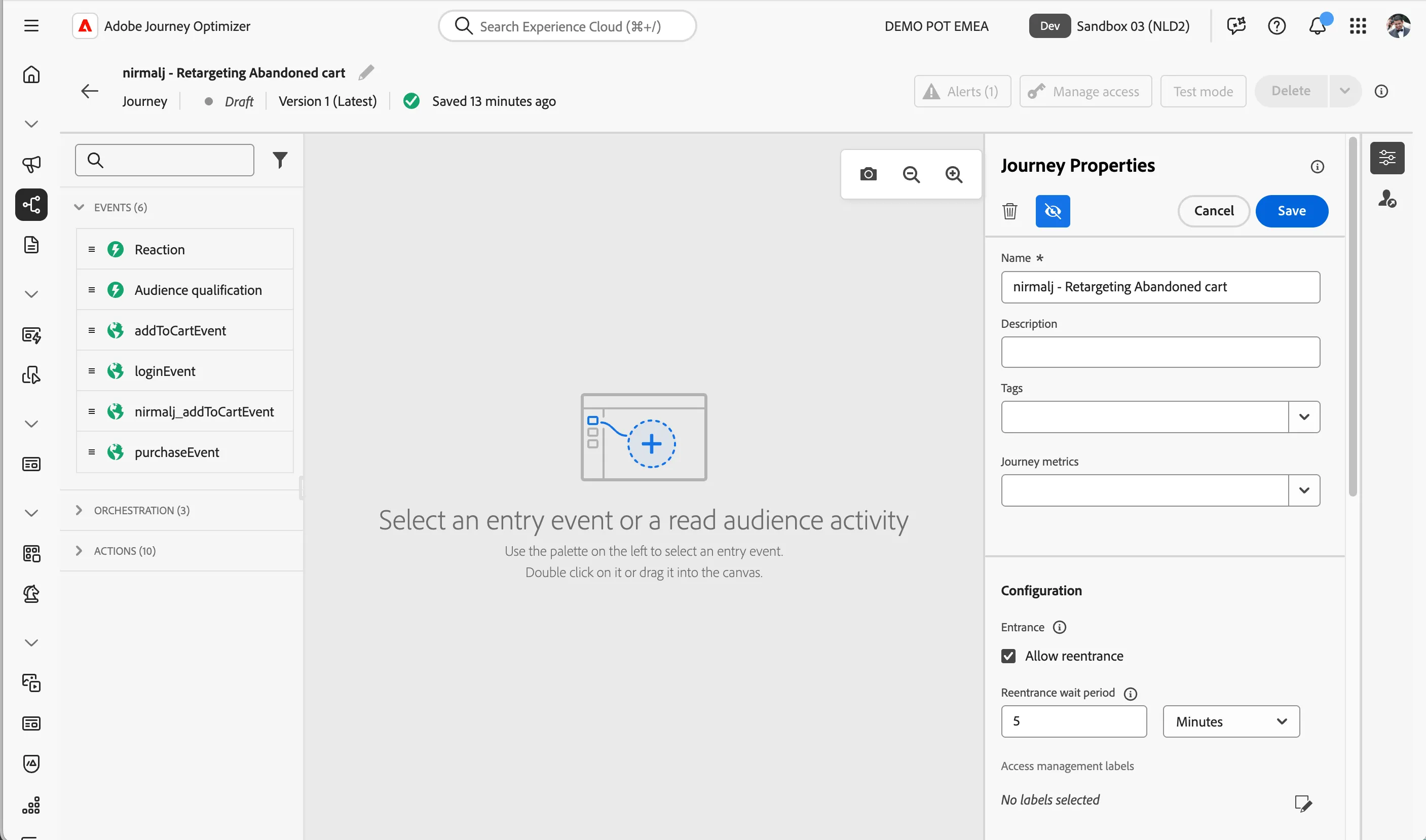
- Set the name to [your name] - Retargeting Abandoned cart
- For the other properties we'll keep the default values.
Your screen should look like the image below. Click Save to save and close the properties.
You're now in the journey canvas. This is where you'll be creating your journey's logic. In the left menu you have activities. There's three types of activities:
Events are the triggers that can start or continue your journey.
Orchestration is the logic of your journey. It looks at conditions, audiences, but can also be used to make your workflow wait or end.
Actions are the results of your journey. This can be messages, profiles updates or API calls.
Event trigger - Add to Cart
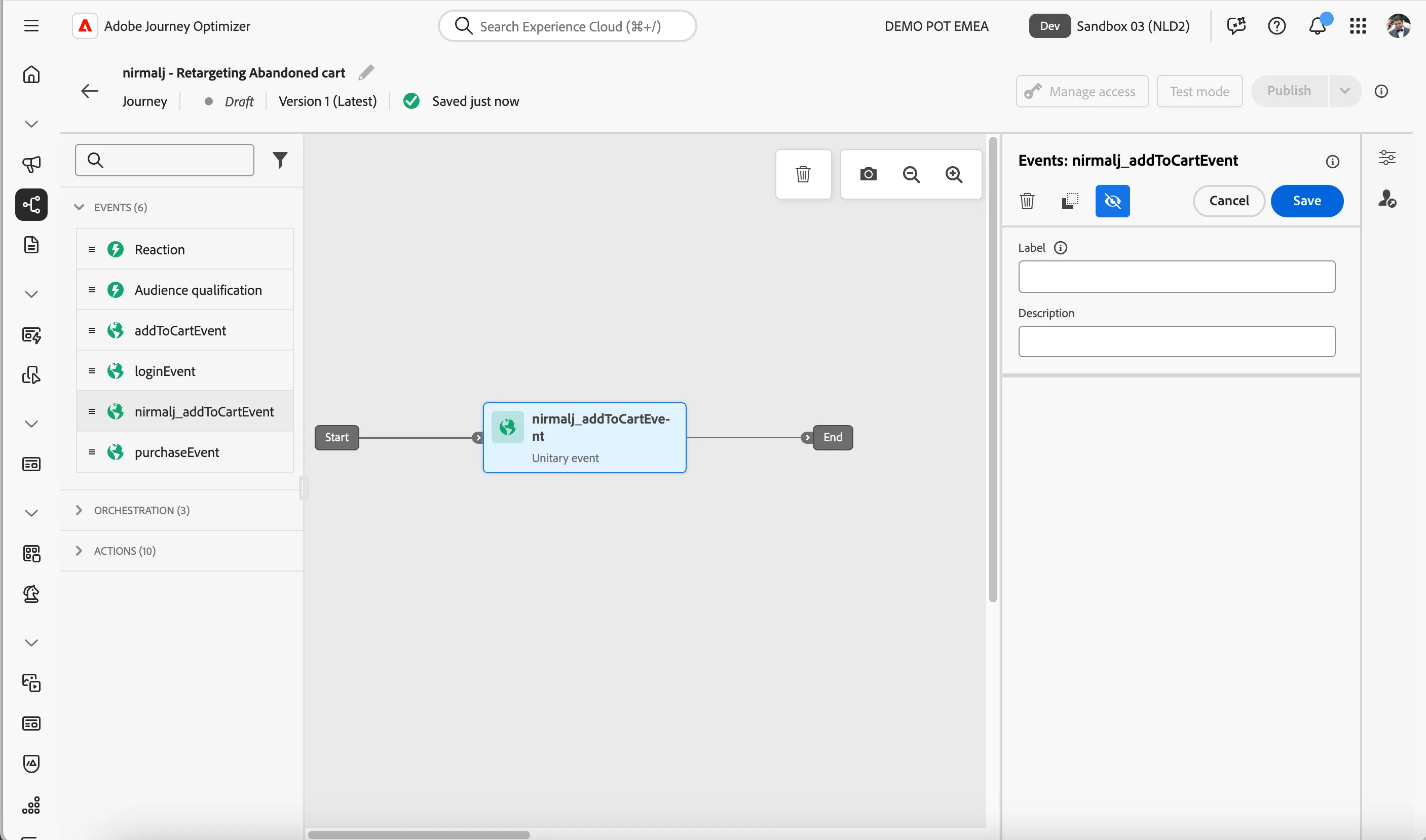
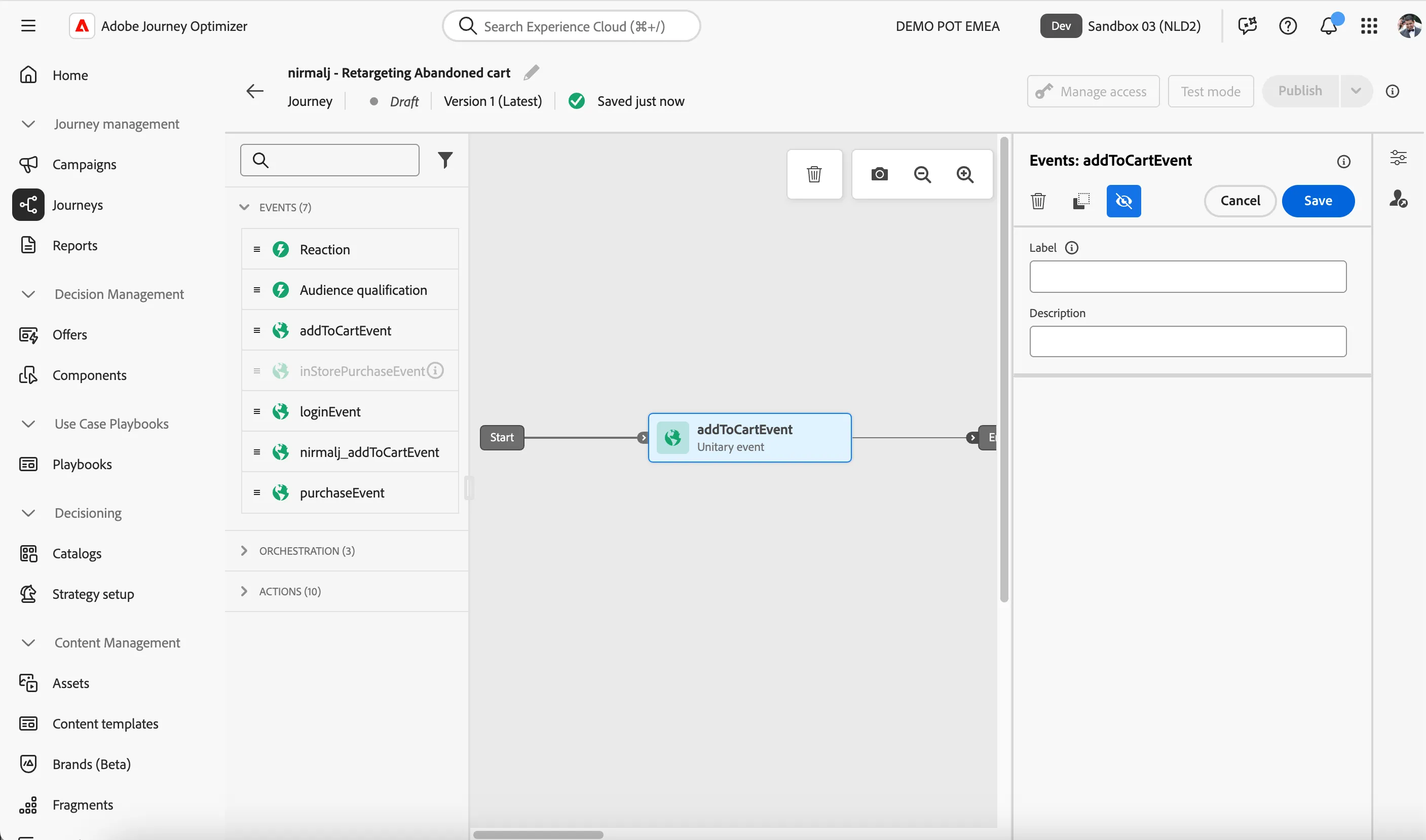
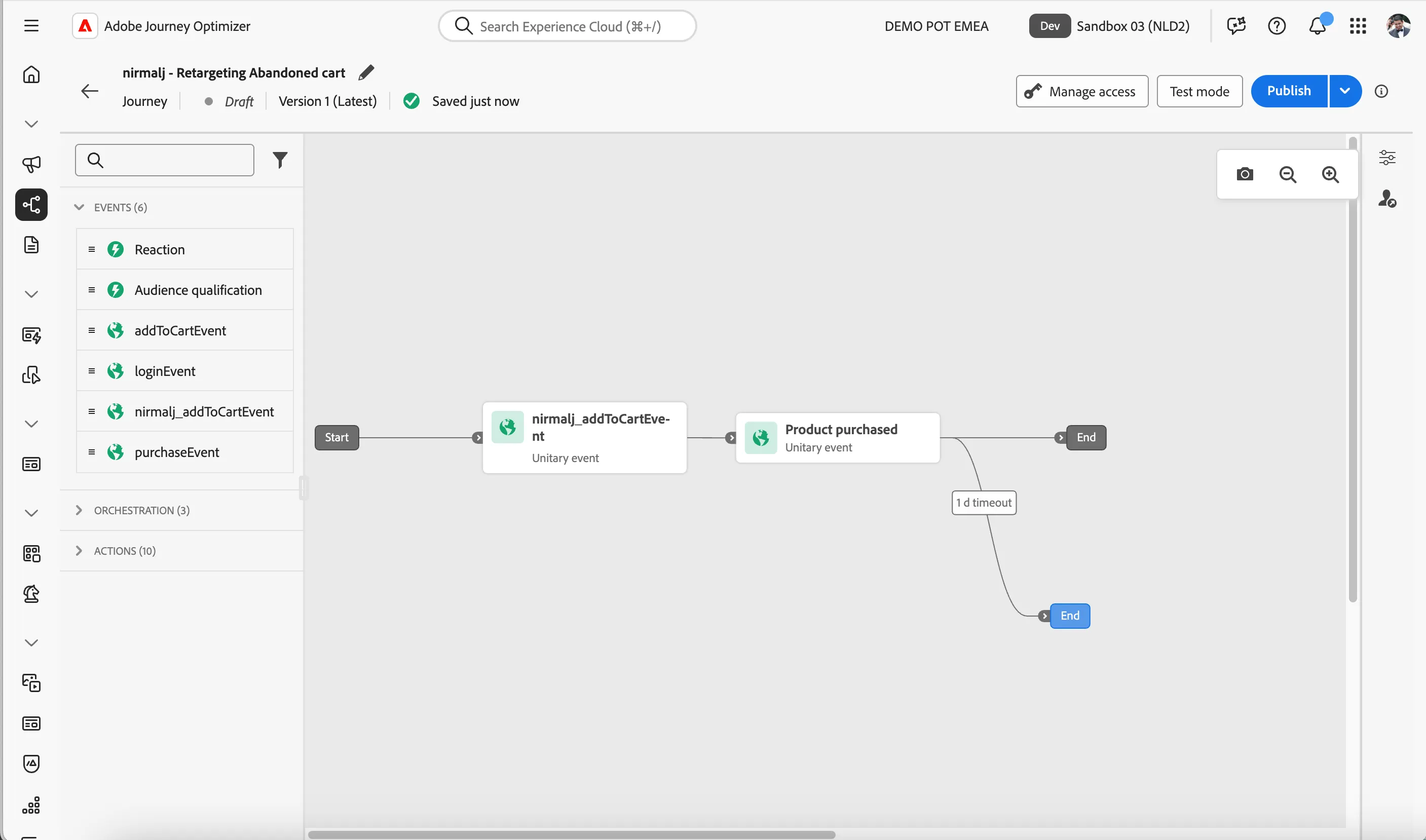
- We're starting our workflow of with an event trigger. From the events tab, choose the event your created addToCartEvent and drag it onto the canvas.
- There's nothing we need to configure for this as we have already done this when we configured our event. Click Save to close the menu.
Exclude Customers who purchased
Now you want to filter out all the people who has purchased the product while the journey got triggered. Also, we want to sent a reminder email for the customer only after 24 hours of not purchasing the product after adding the product to the cart.
- For this, we drag the purchaseEvent in the Events tab to the -icon next the addToCartEvent in the journey canvas.
- Update the Label as Product purchased.
- Click on the checkbox next to Define the event timeout to enable a branch when it times out. Keep the default of Wait for 1 Day. Click on Save.
Create a personalised Homepage experience
As the first step in retargeting, we want to remind the customer about the items in the cart when they first land back on the website. We want to use code-based experience action to personalise the homepage banner.
As the first step in retargeting, we want to remind the customer about the items in the cart when they first land back on the website. We want to use code-based experience action to personalise the homepage banner.
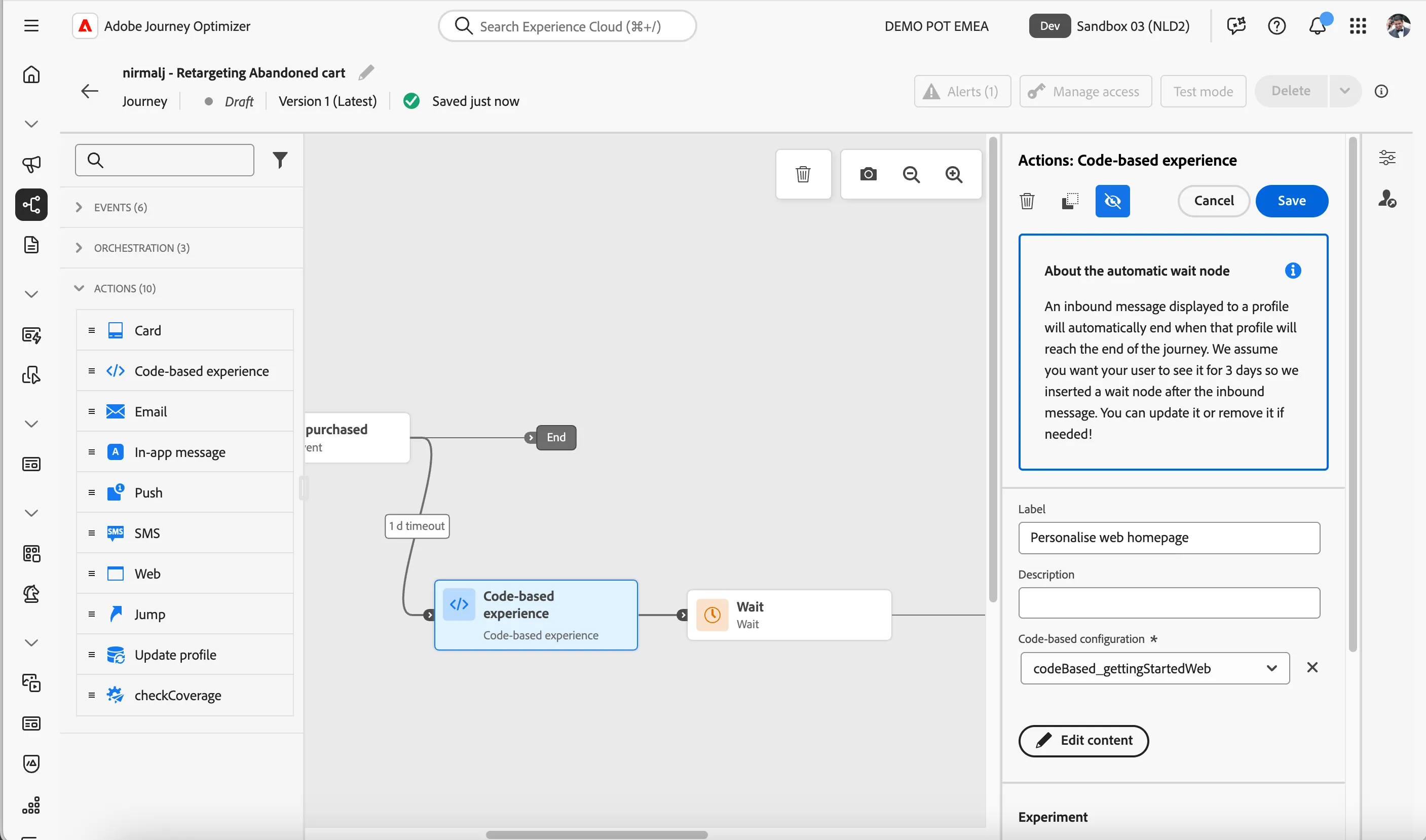
- Add Code-based experience from the actions tab to the -icon in the branch labelled as 1 d timeout.
- Update label as Personalise web homepage
- Select Code-based configuration as codeBased_WebHomepage. This configuration is already pre-setup with what is needed for updating the Homepage banner.
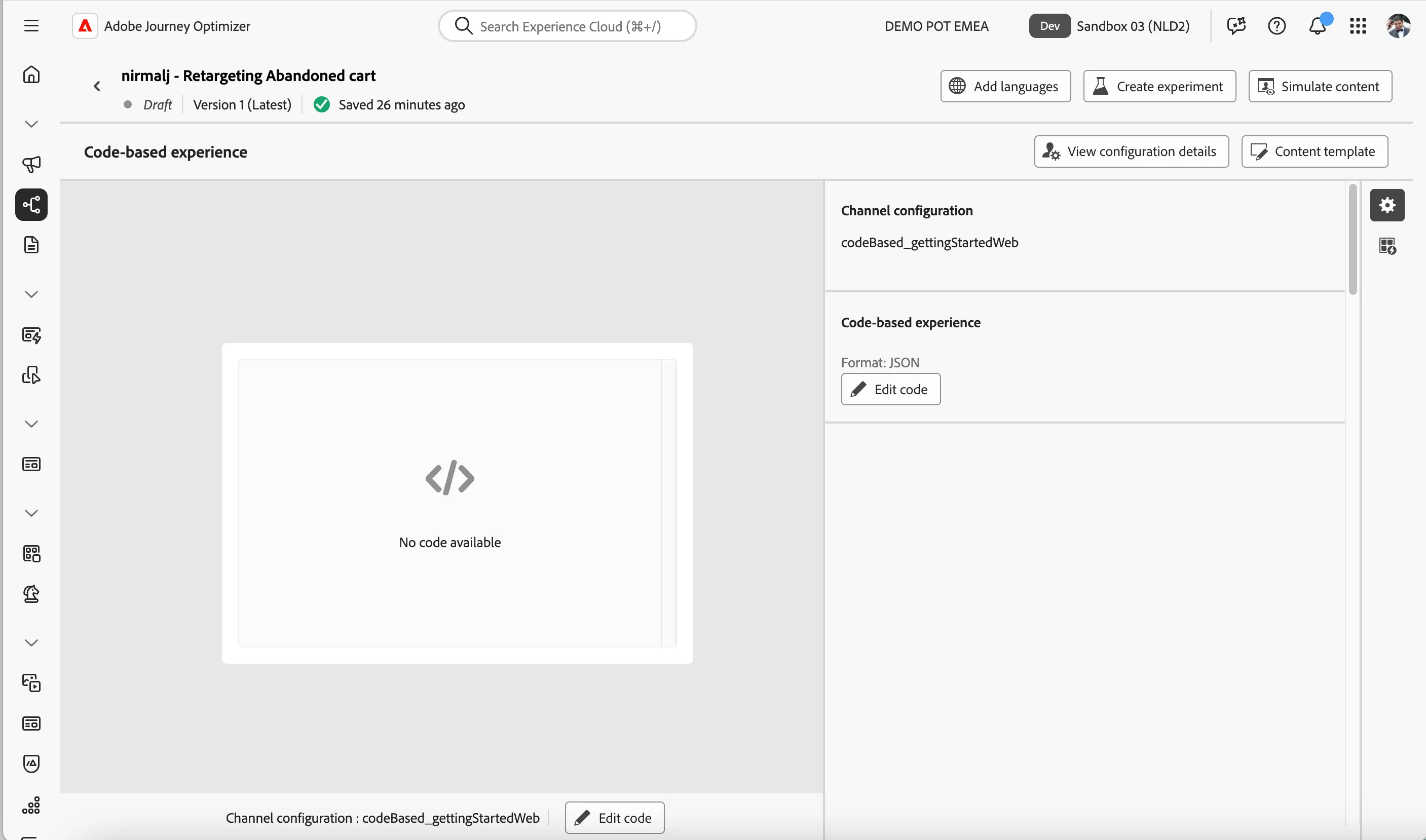
The screen will look like below. Click on Edit content to add the personalised content.
Click on Edit code
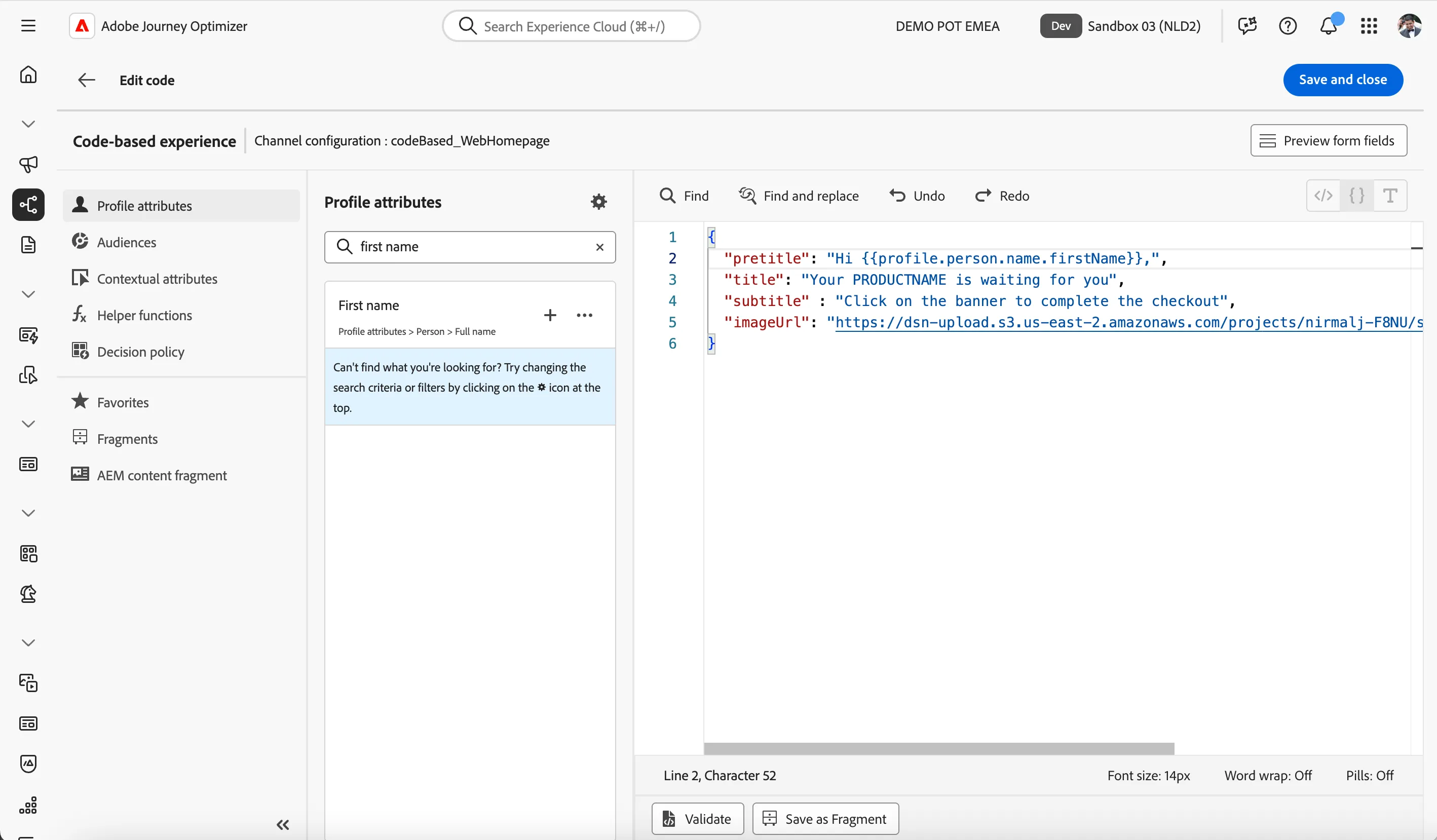
- Remove the text FIRSTNAME and search for first name in profile attributes.
Find the field First Name in the path Profile attributes > Person > Full Name and click on the -icon to add it. It should be now Hi {{profile.person.name.firstName}},
- Now lets add the Product name to the title field.
- Remove the text PRODUCTNAME from the field.
- Go to Contextual attributes and navigate to Journey Orchestration > Events > yourname_addToCartEvent > productListItems.
Add Name by clicking on -icon next to it.
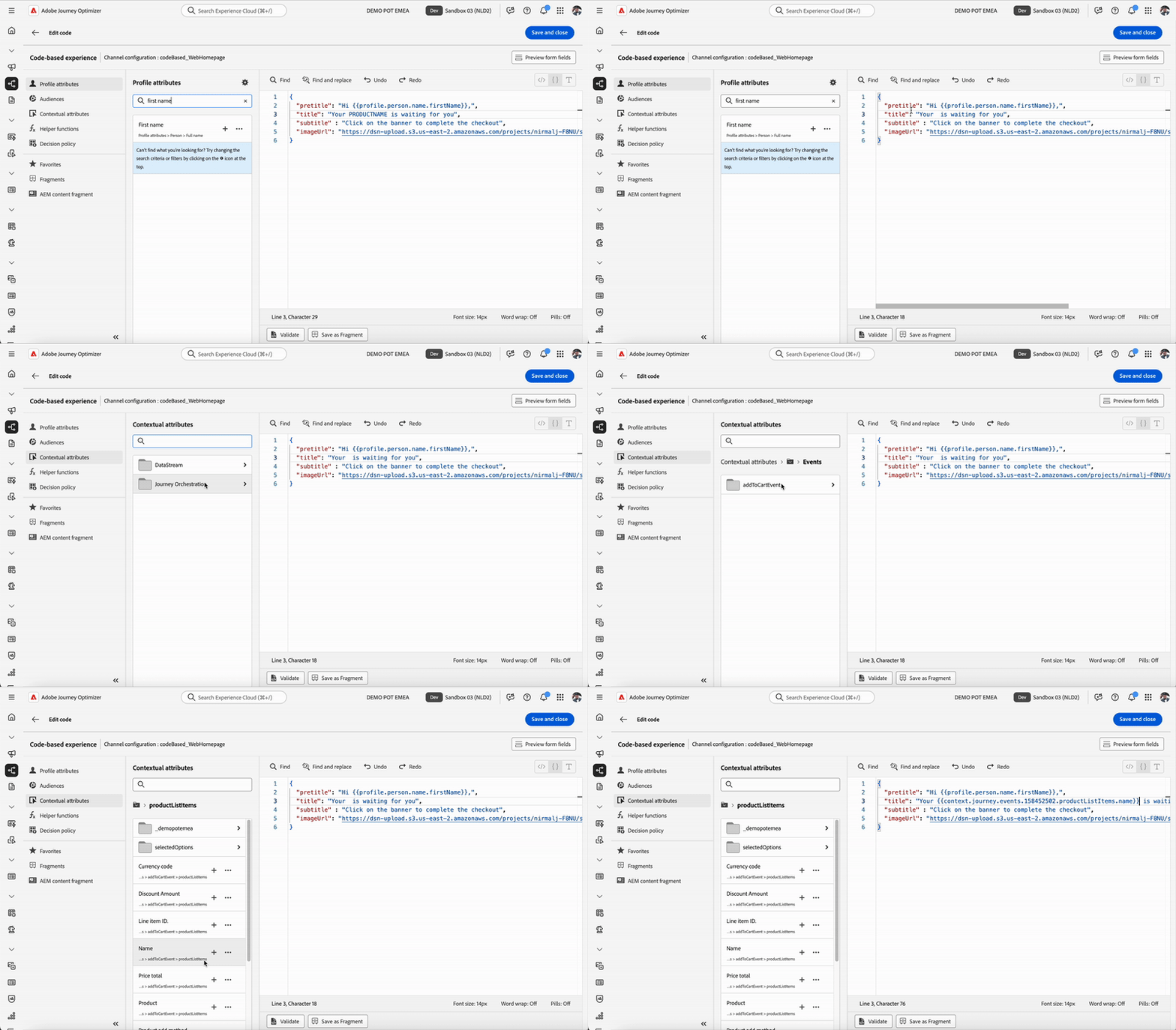
Click on Save and Close to save it.
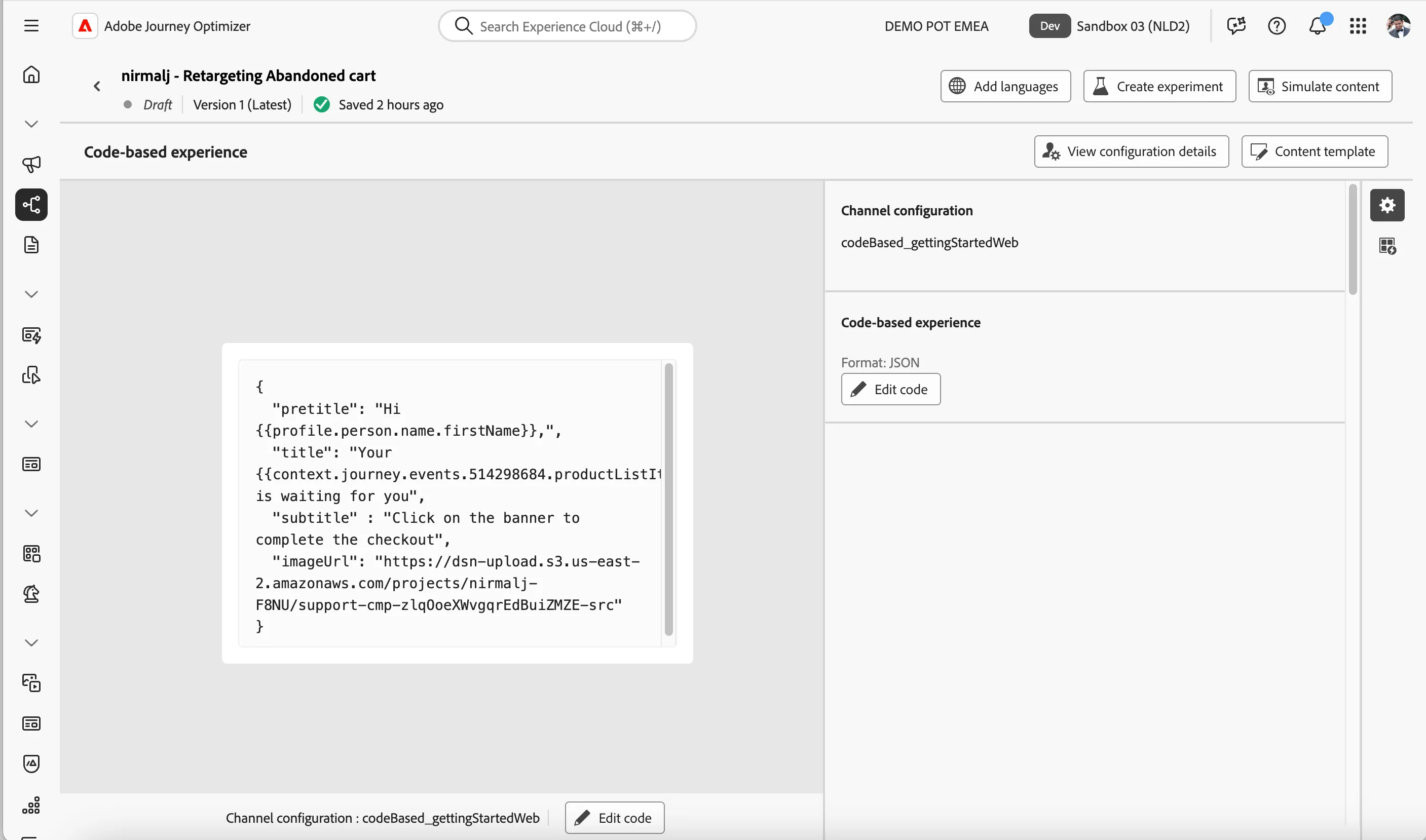
- Click on the -icon to go back to the journey. Click on Save to save the journey step.
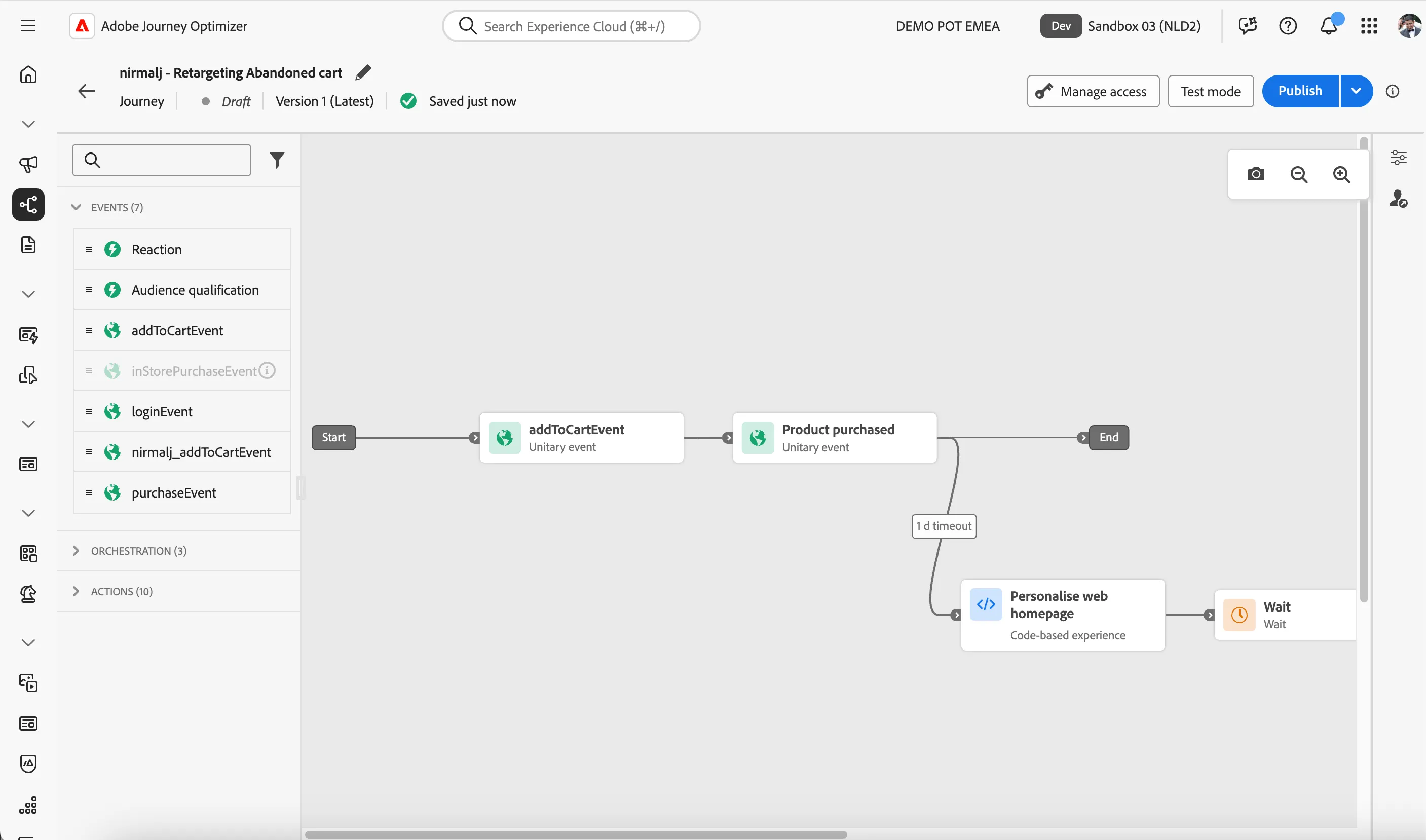
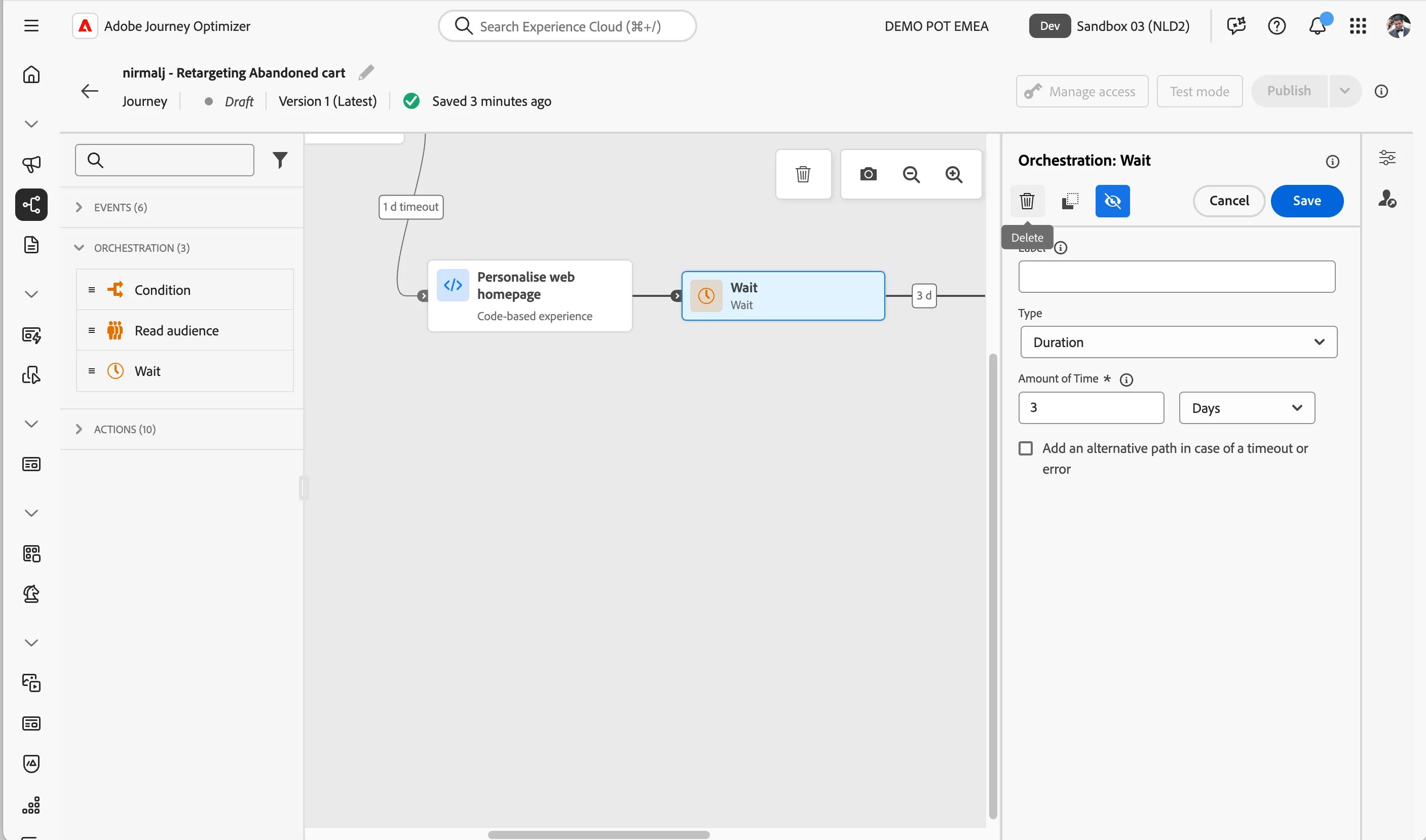
Code-based experience action always add an automatic wait node after the inbound message. For our journey, we can click on the wait step after the code-based experience and delete it by clicking on the delete icon. Confirm deletion by clicking Delete on the popup.
We have now created a step to personalise the Demo website homepage banner using code-based experience action. We selected first name from the profile and and we choose the device name of the product added to the cart to trigger the journey.
Create reminder email
In the next steps you will be building the email to remind to the customer that they have left something in their shopping cart.
You'll pick a fully completed template of the basic email so that you don't have to build any components in the email.
Building the Email
- From the actions tab, choose Email and drag it onto the empty circle at the Win-path.
- Click on the activity to open the detailed view.
- Set the label to Email - Cart reminder
- Set the category to Marketing.
- Set the email surface to marketingEmailMessages.
- Click on Edit content to start designing your email.
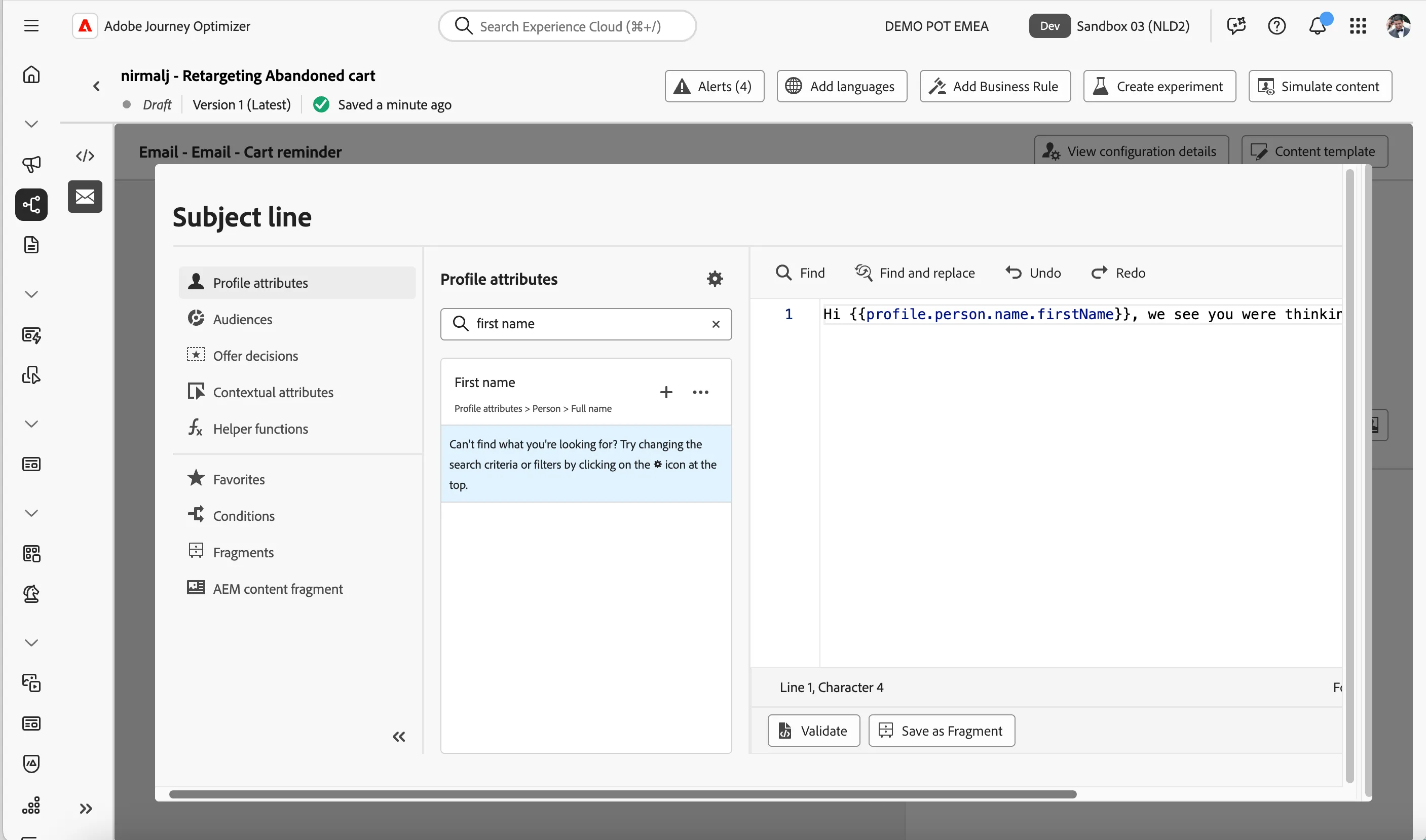
- Click on to create a subject line. Set it to Hi FIRSTNAME, we see you were thinking of joining us
- Remove the text FIRSTNAME and search for first name in the profile attributes.
- Find the field First name (... attributes > person > Full name) and click on the icon to add it to your subject line. It should now beHi {{profile.person.name.firstName}}, we see you were thinking of joining us
- Click Save.
- Click on Edit email body and under Saved templates, choose Secure your cart - Advanced Email template. It will show you a preview of the template. Click on Use this template.
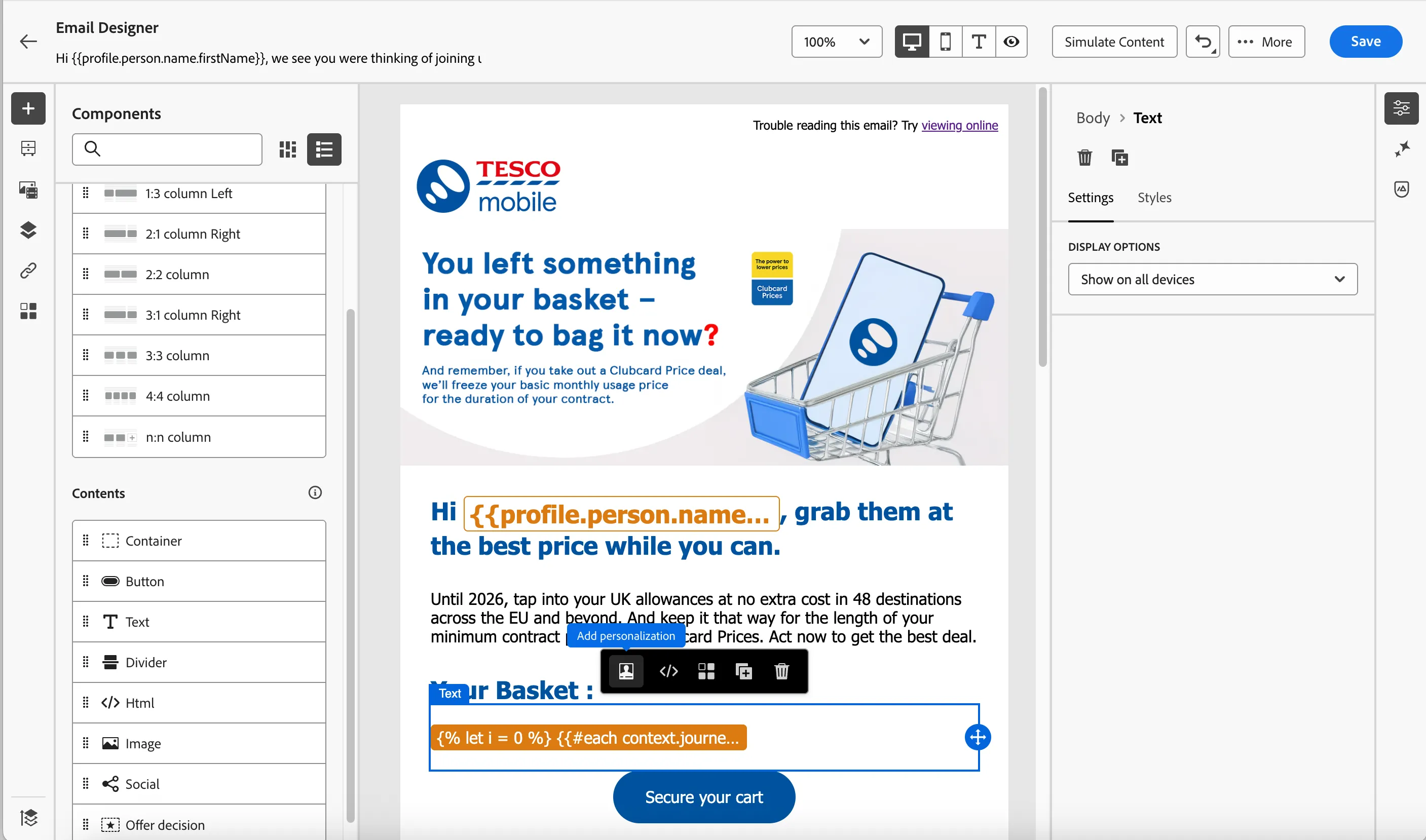
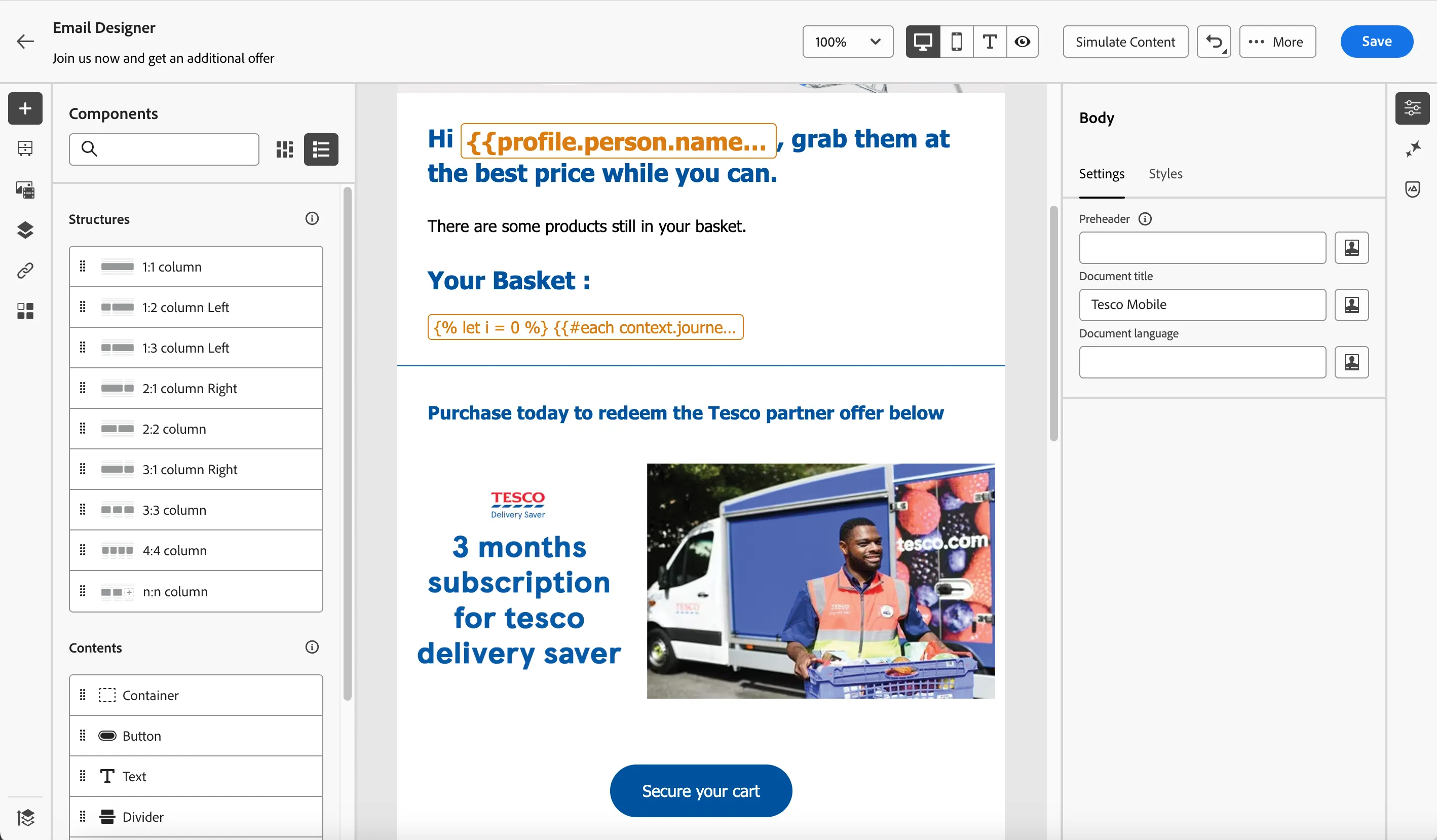
- The email designer will now open. It should look like the image below. Click Save in the top right.
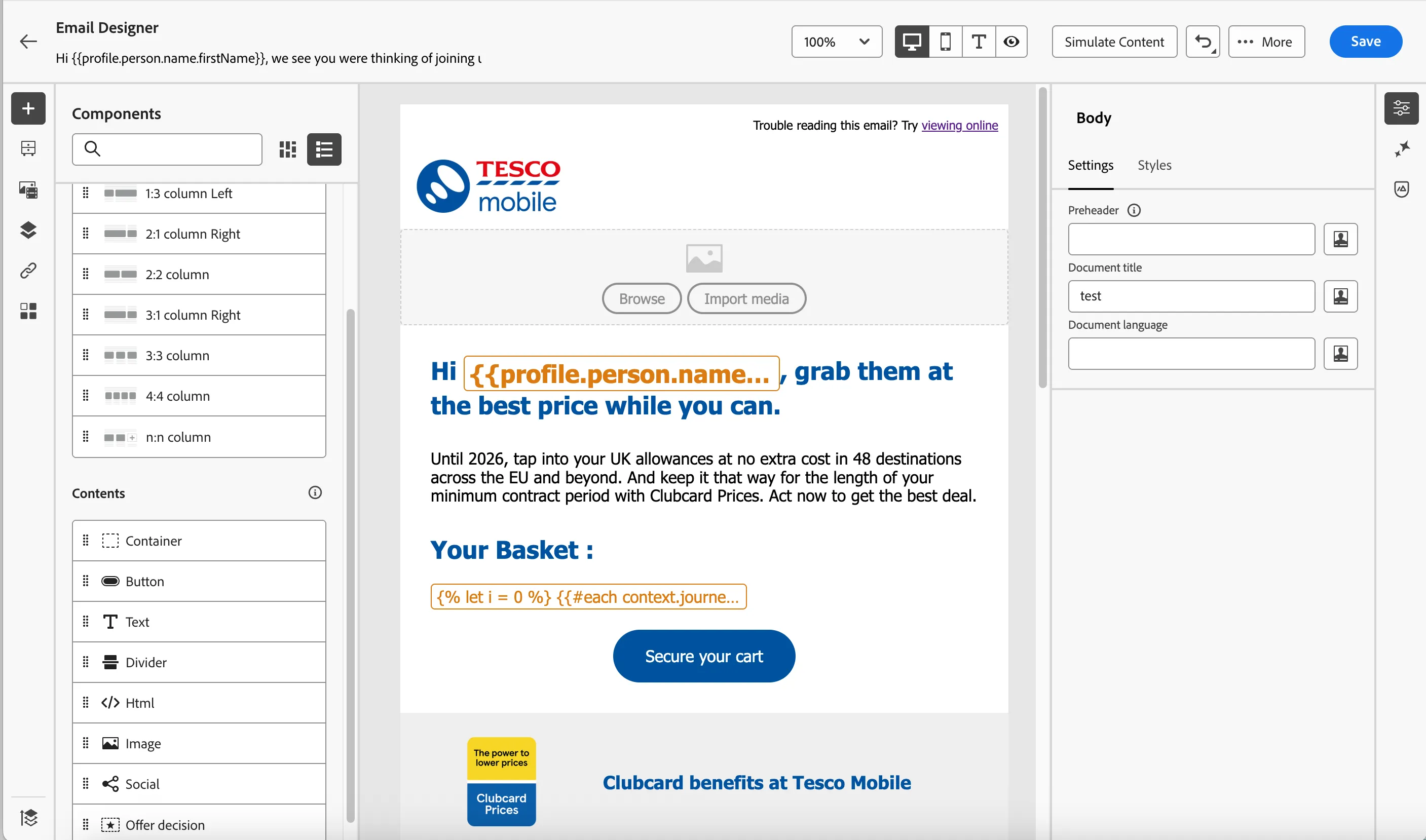
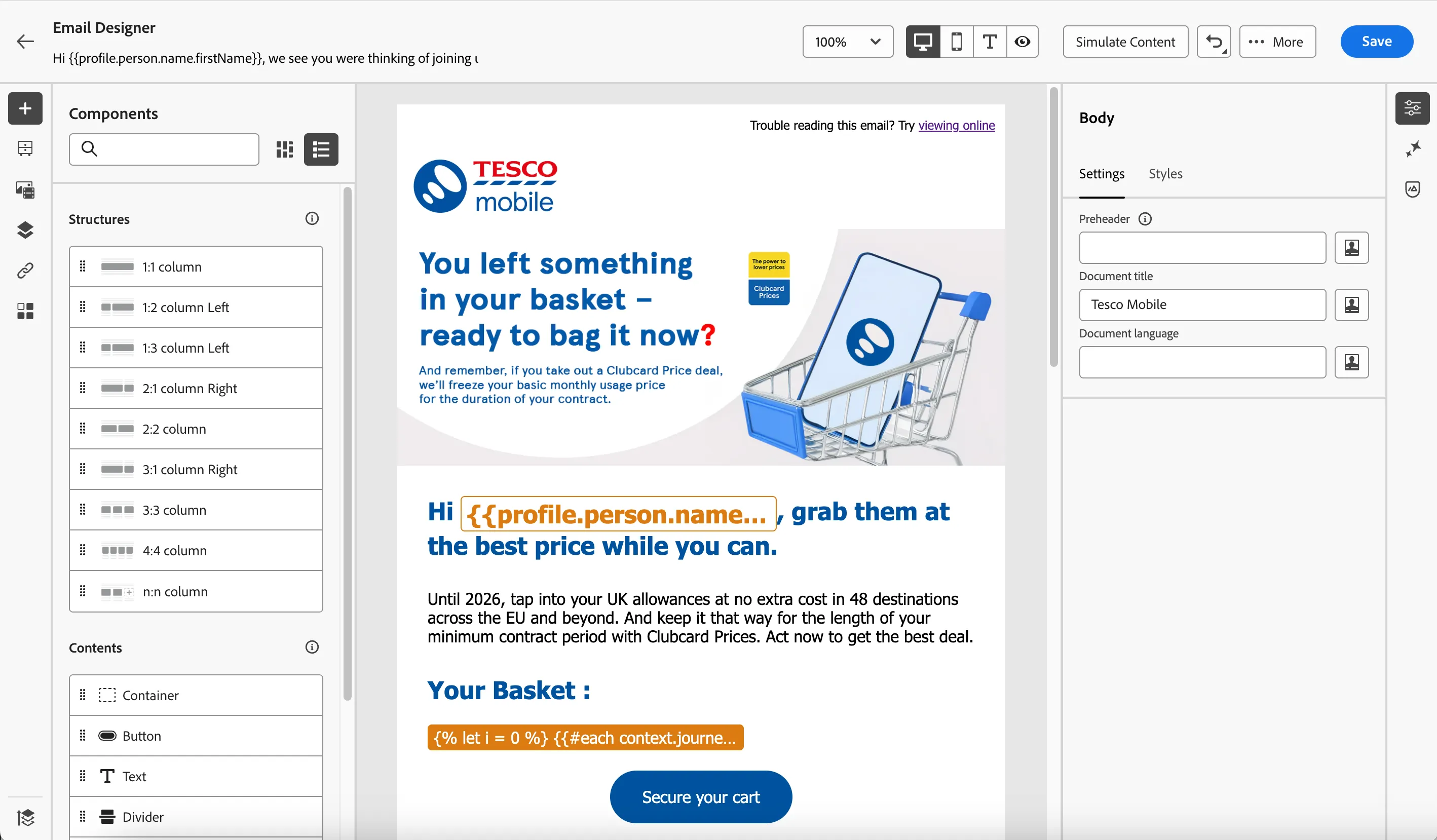
The Email Designer
In the left menu you have components.
Structure components are the building blocks of your email, they will determine the layout of your email.
Content components are the different forms of content that you can place inside your structure components, like text, buttons and images.
Edit content component - image
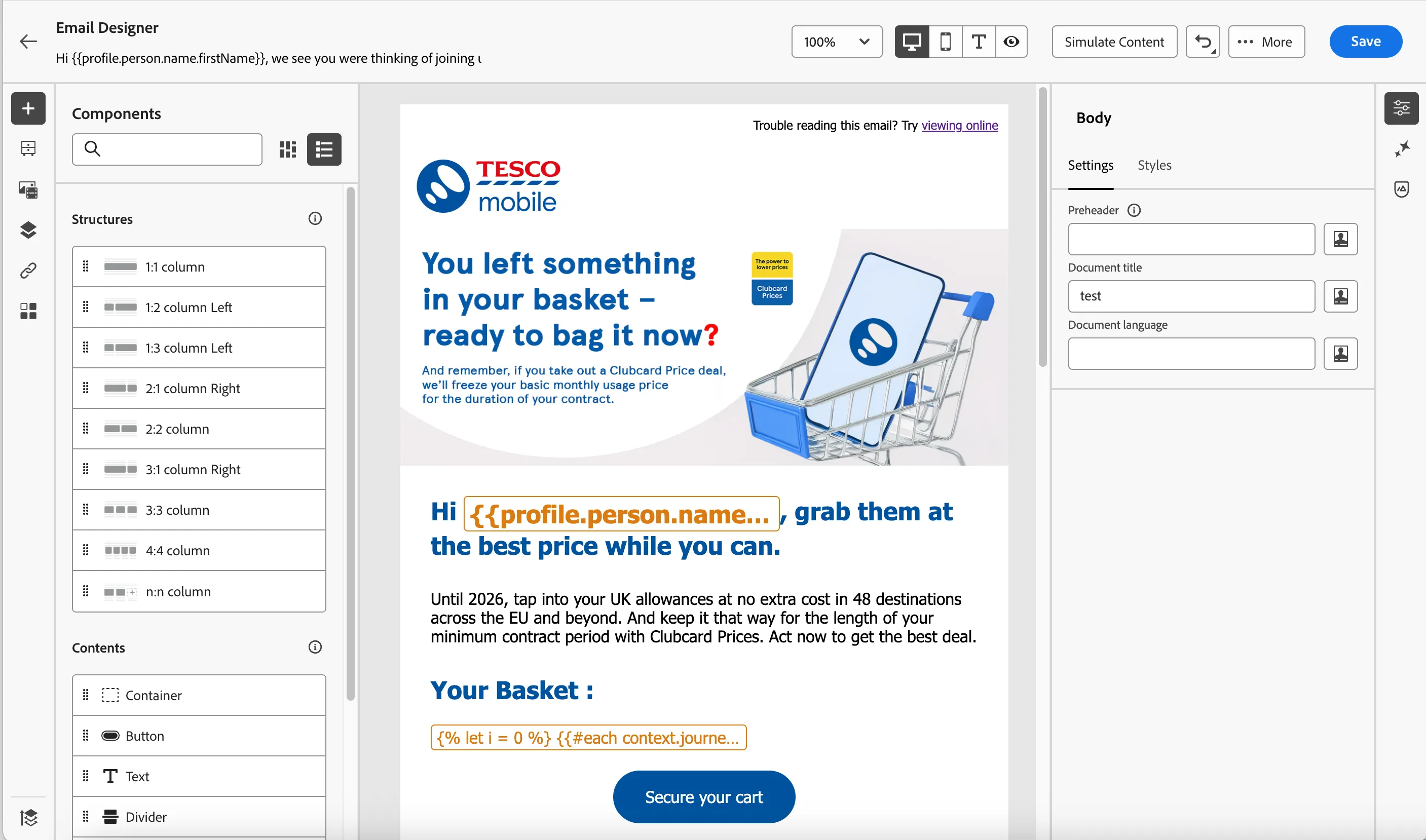
As first step, let's add an hero image, based on the outcome of the bet.
- Click on Browse button in the hero banner placement to open up Asset Selector popup.
- Navigate to Hands-on Lab > Tesco Mobile
- Search for cart and select the image cartAbandonmentBanner.png by clicking on Select button.
Edit content component - text and personalisation
Now, lets update the template with the correct basket product. Click on the yellow text in the Our basket section to see the popup menu and then click personalisation menu to open up the personalisation editor.
As you can see, this is an HTML content block which iterates through the basket and render the products in them. The template contains the basket items from the default addToCartEvent (event ID is 158452502) and you need to update it with your custom yourname_addToCartEvent product details.
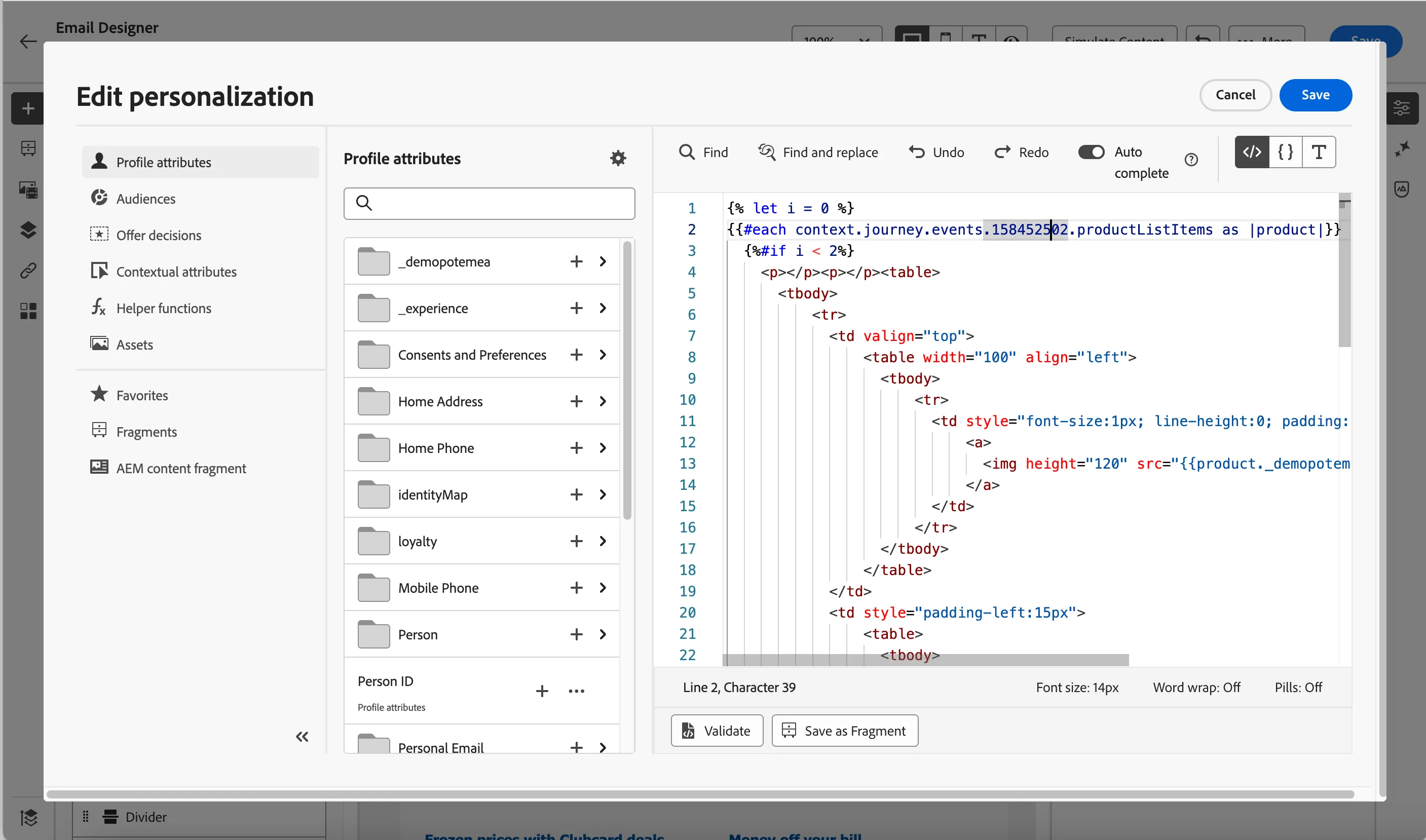
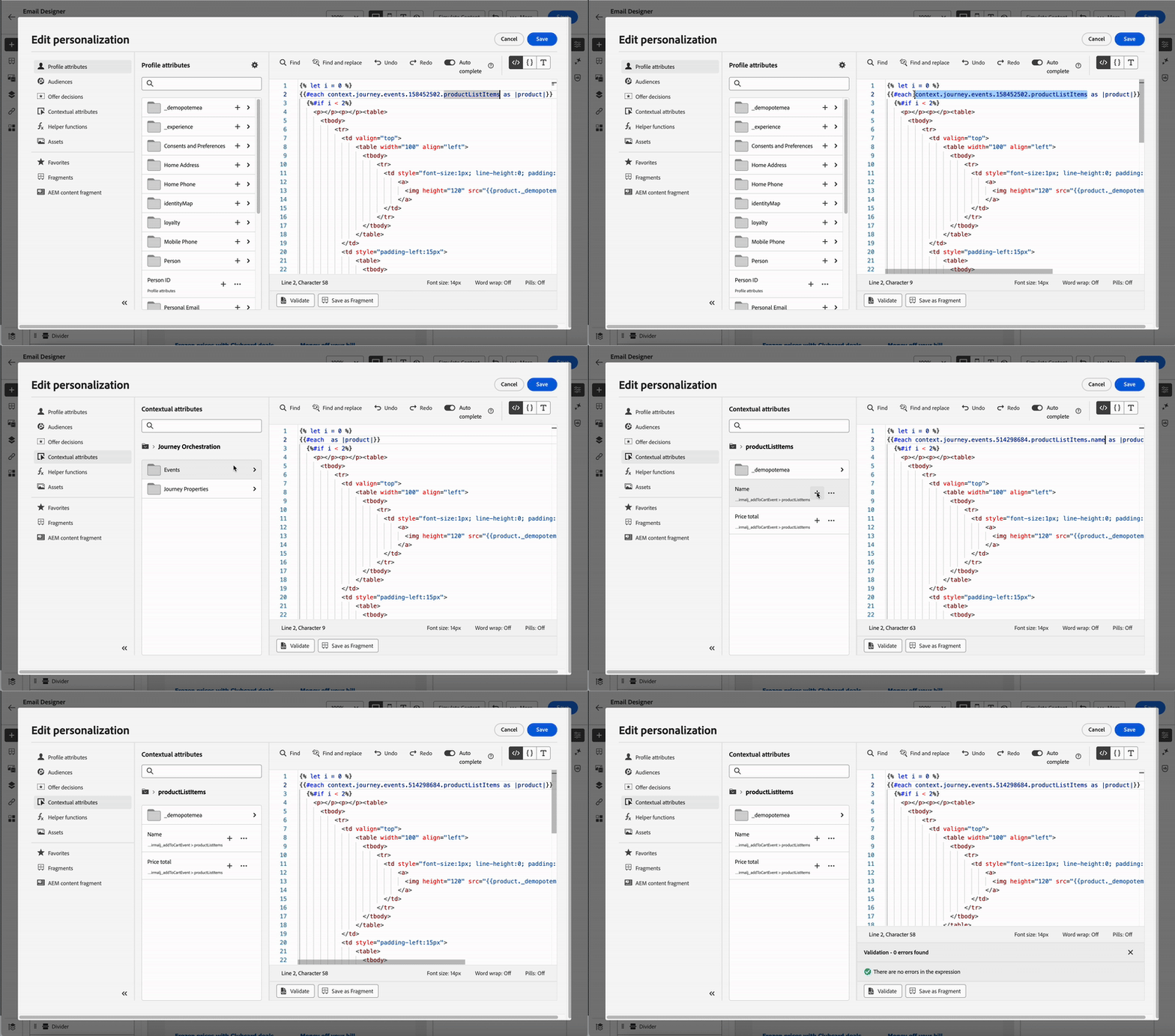
Replace the template provide productListItems with your custom event productListItems. For this, select the text context.journey.events.158452502.productListItems and remove it. Navigate to Contextual attributes tab > Journey Orchestration > Events > yourname_addToCartEvent > productListItems > Name. Add the attribute by clicking on -icon next to the attribute. Remove .name from end of the text so that it will loop through the entire object. Click on Save to go back to email designer.
-
- Click on Save on top right, Navigate out of the email editor by clicking on the -icon in the top left corner; then click the -icon to come back to the main canvas. Click on Save to save the journey step progress.
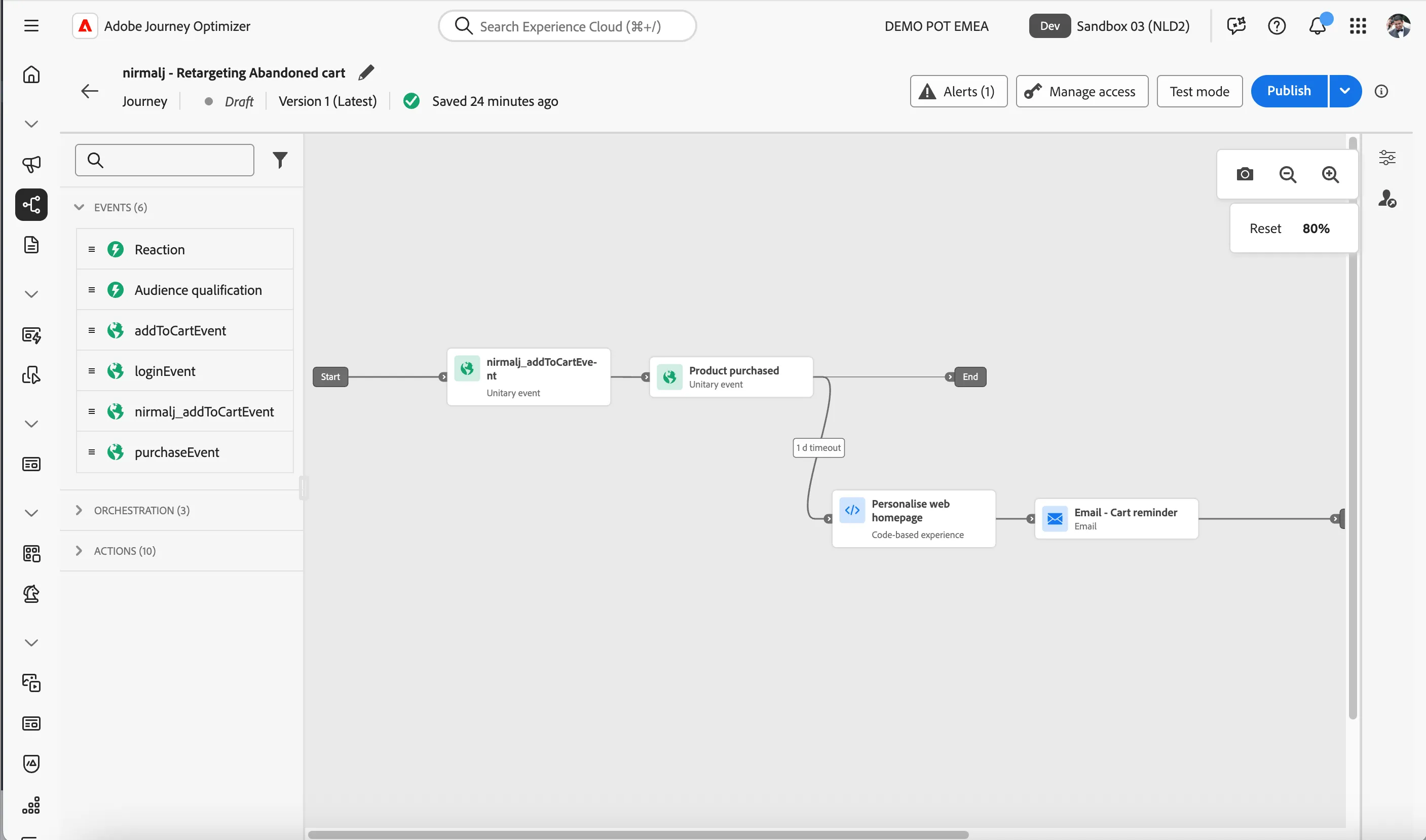
Check whether they purchased the product.
Now that the customer has received an email reminder, we will wait for a product purchase event. If they purchase the product we will exit the product.
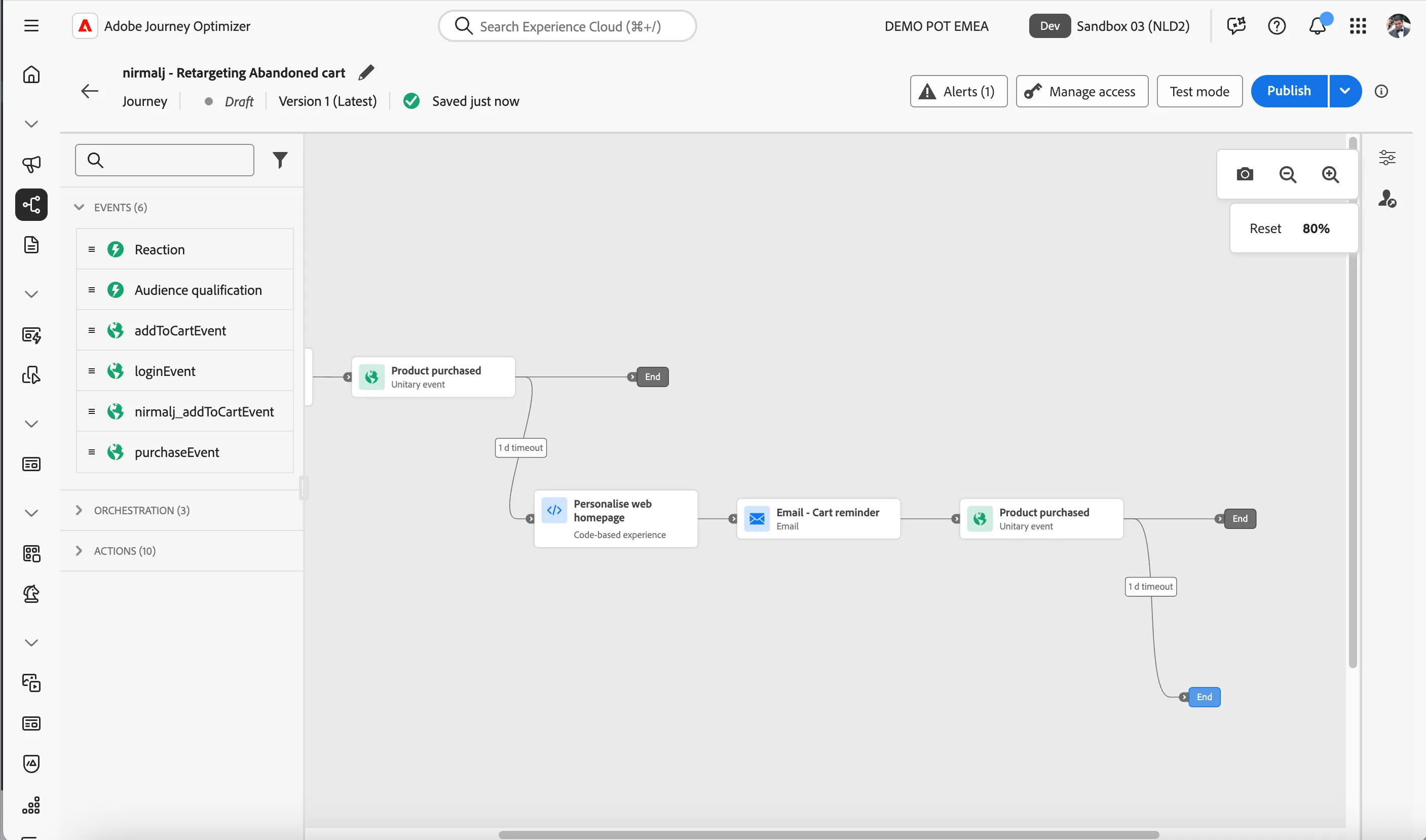
To do this, drag and drop purchaseEvent from Events tab and drag it as the next step to the cart reminder email in the -icon.
Update the label as Product purchased and enable the time out flow by clicking checkbox Define the event timeout. Click Save.
Cart reminder email with offers
Even with the reminder, the customer didn't buy it for another day, so we are going to provide him with an offer.
As this email is an extension to the first email, we are going to copy the email and use it.
- Click on Email - cart reminder step to open the Actions menu
- Click on -icon to copy the step.
- Close the menu by clicking on Save button.
- In Windows - press Ctrl+V and in Mac - press Cmd+V to clone the Email - cart reminder step.
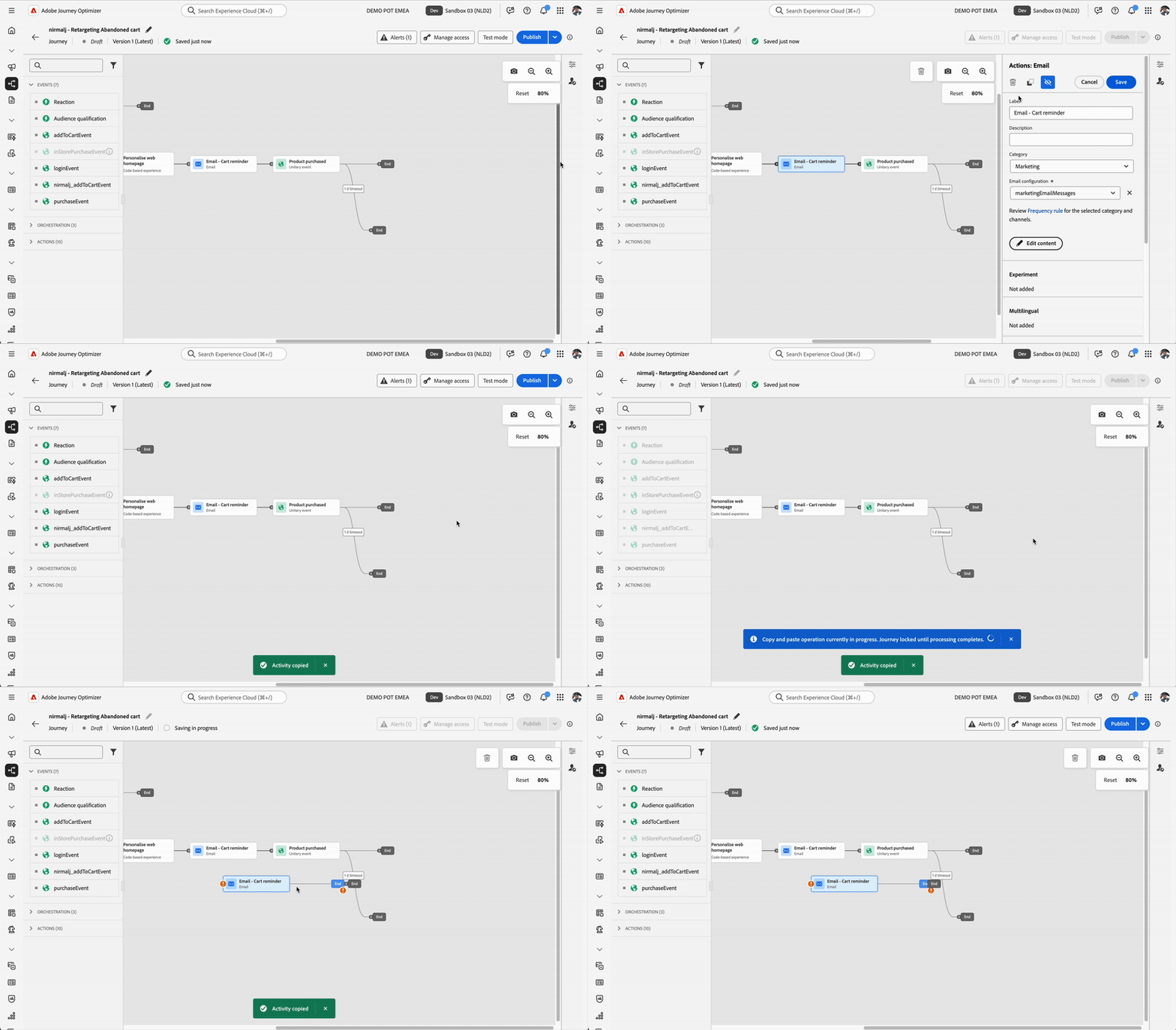
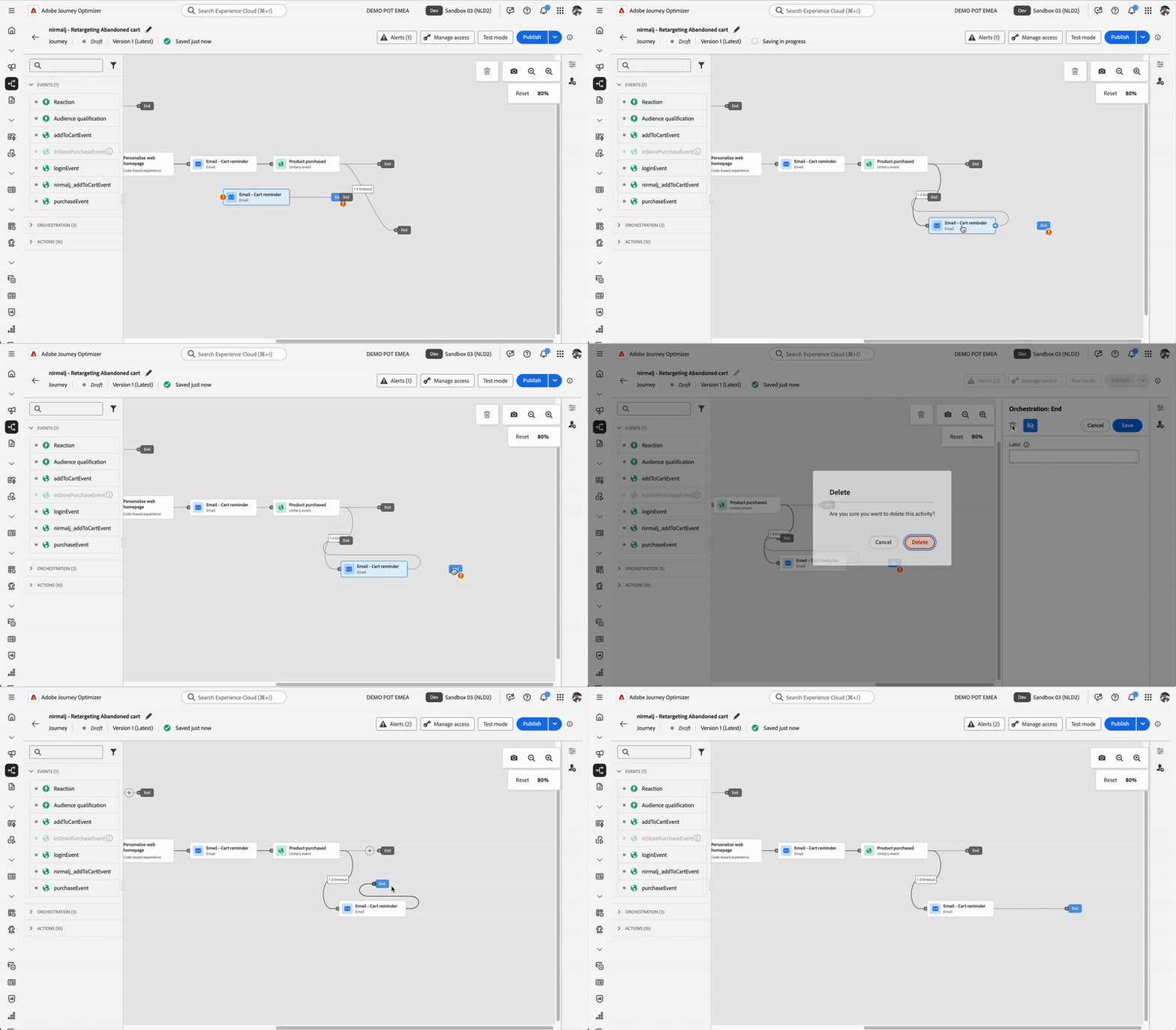
- Now, drag the newly created Email - cart reminder step on to -icon the 1d timeout branch until the branch turns in blue colour. Thats how we move the cloned step to the branch so that that email will be sent to the customer if the customer didn't purchase the product in another 24 hours.
- Click on the orphaned End step in the canvas to open the Action menu.
- Click on Delete icon to delete the step.
- Re-arrange the branches to clean up the overlapping branches if any.
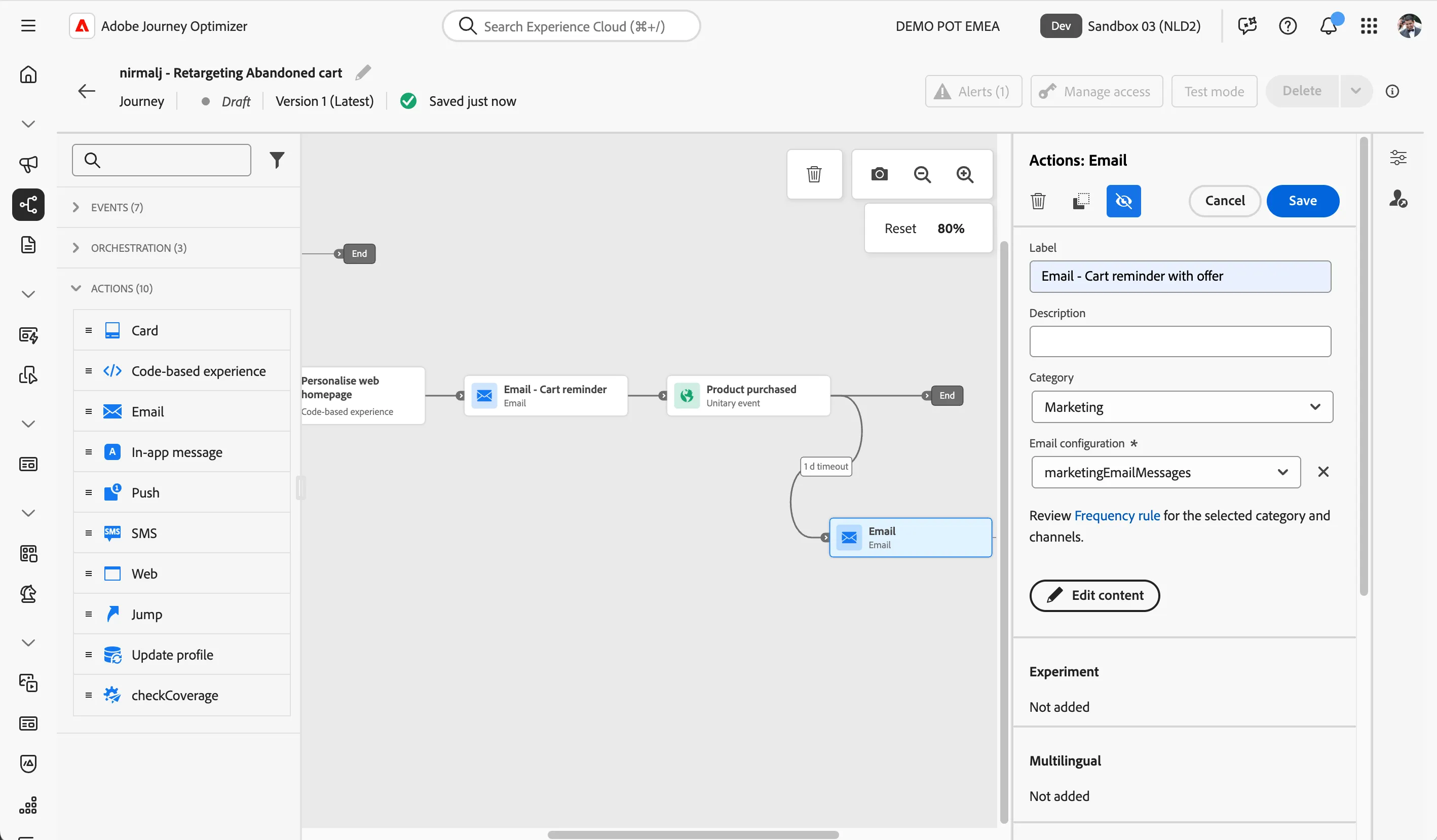
- Click on the newly created Email - Cart reminder step to open the Actions menu.
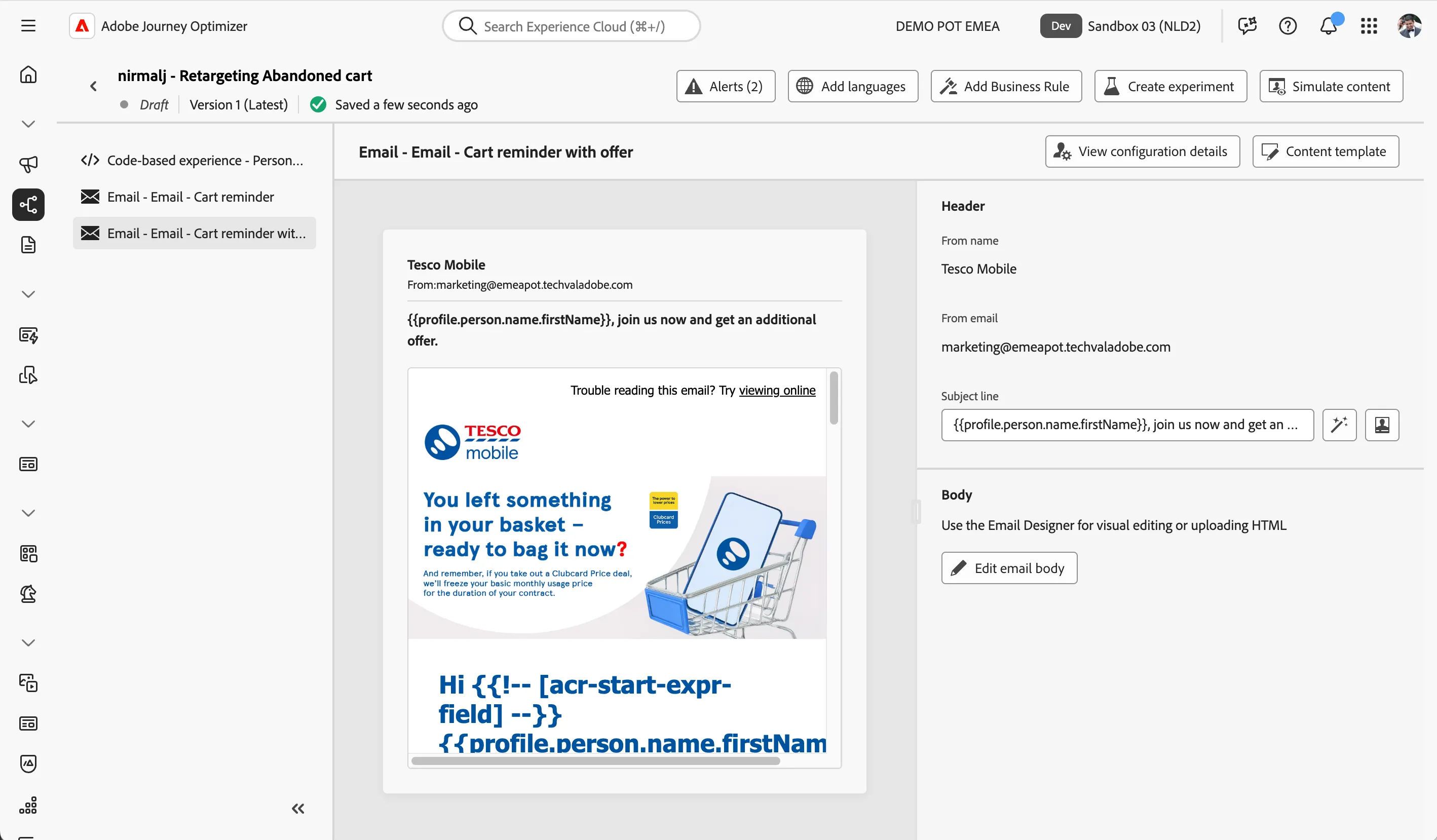
- Rename the label to Cart reminder with offer and click on Edit content.
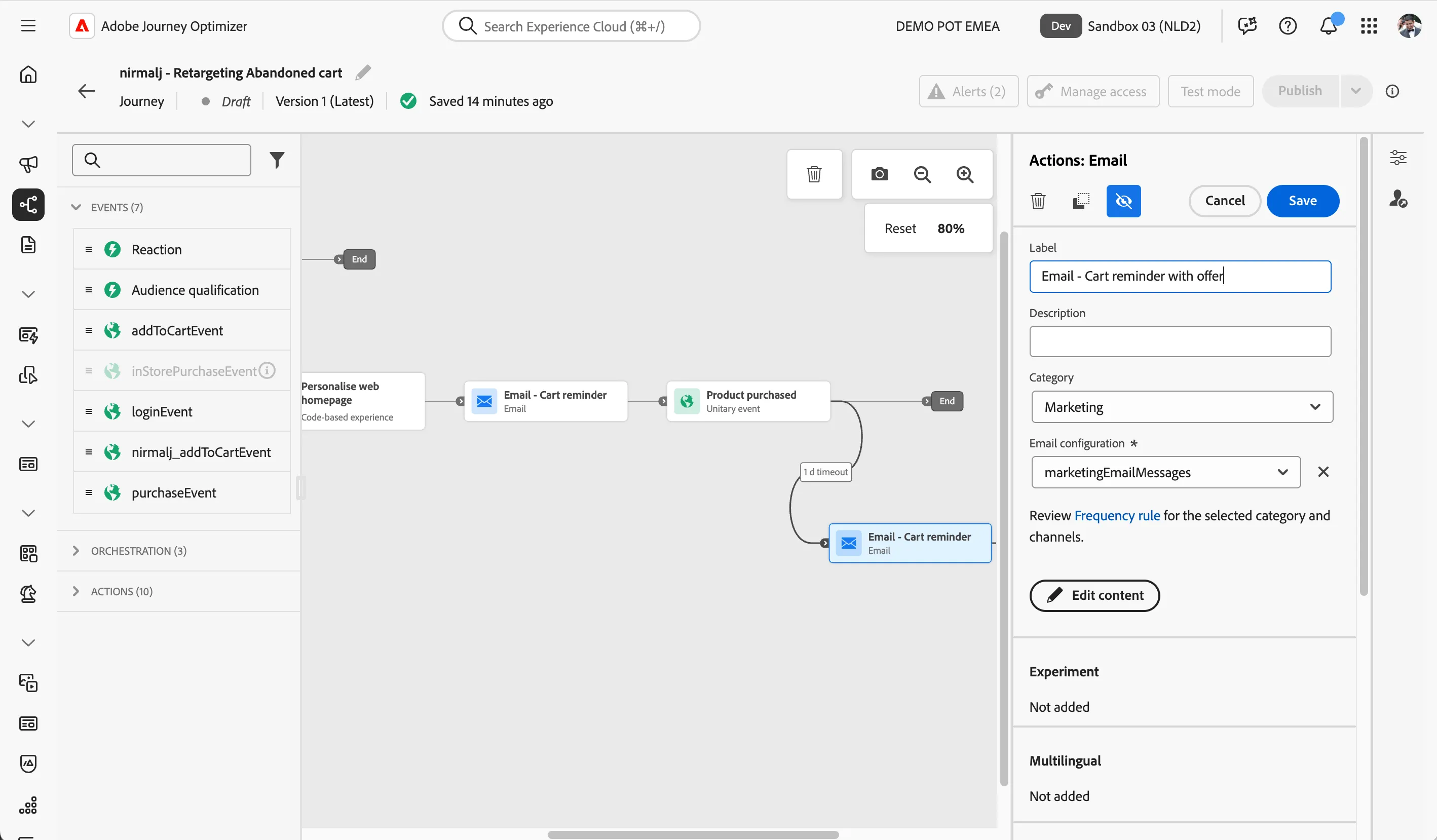
- Update the subject line as {{profile.person.name.firstName}}, join us now and get an additional offer.
- Click on Edit content to edit the email content.
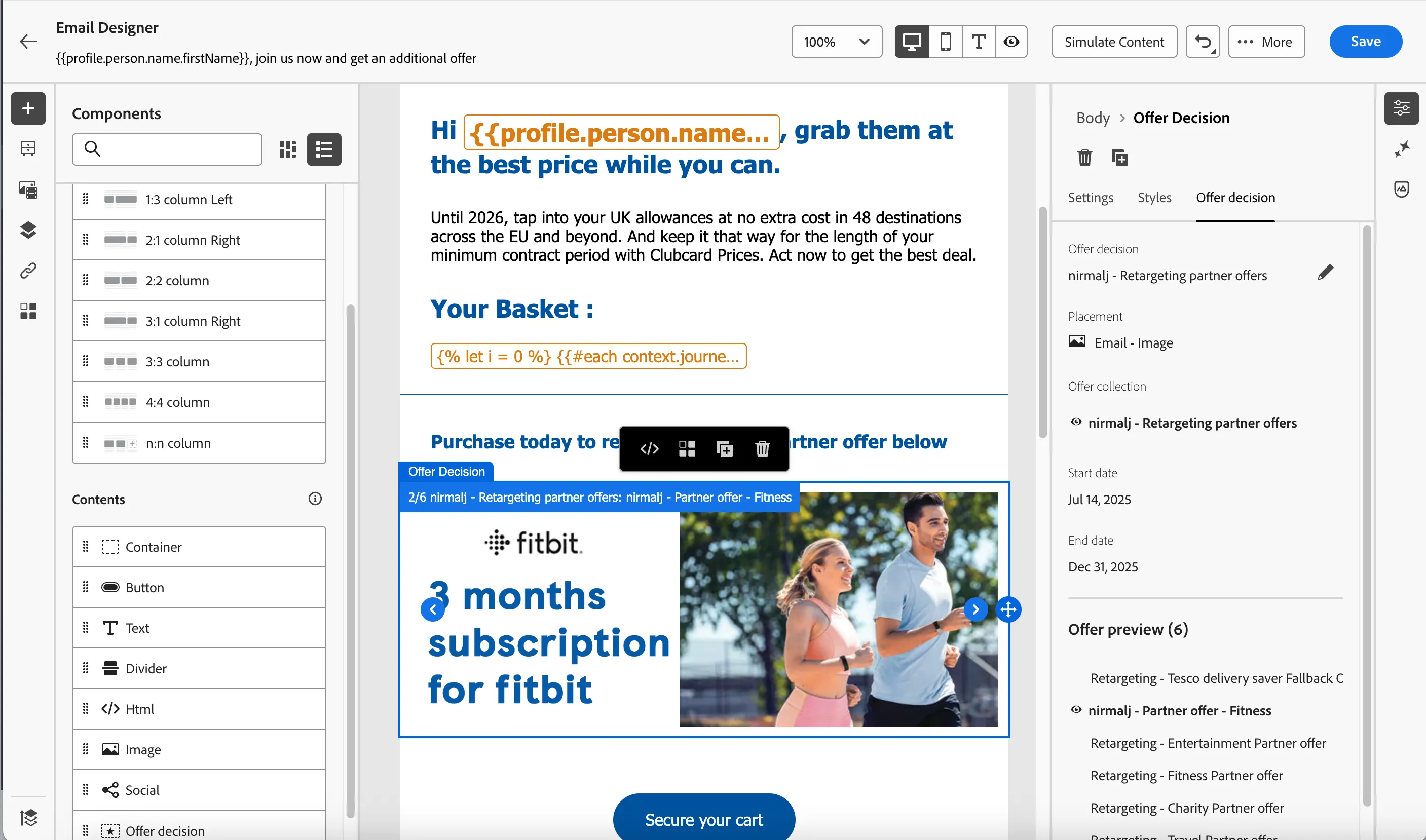
- In the email designer, drag a Text component and add it below the Secure your cart button.
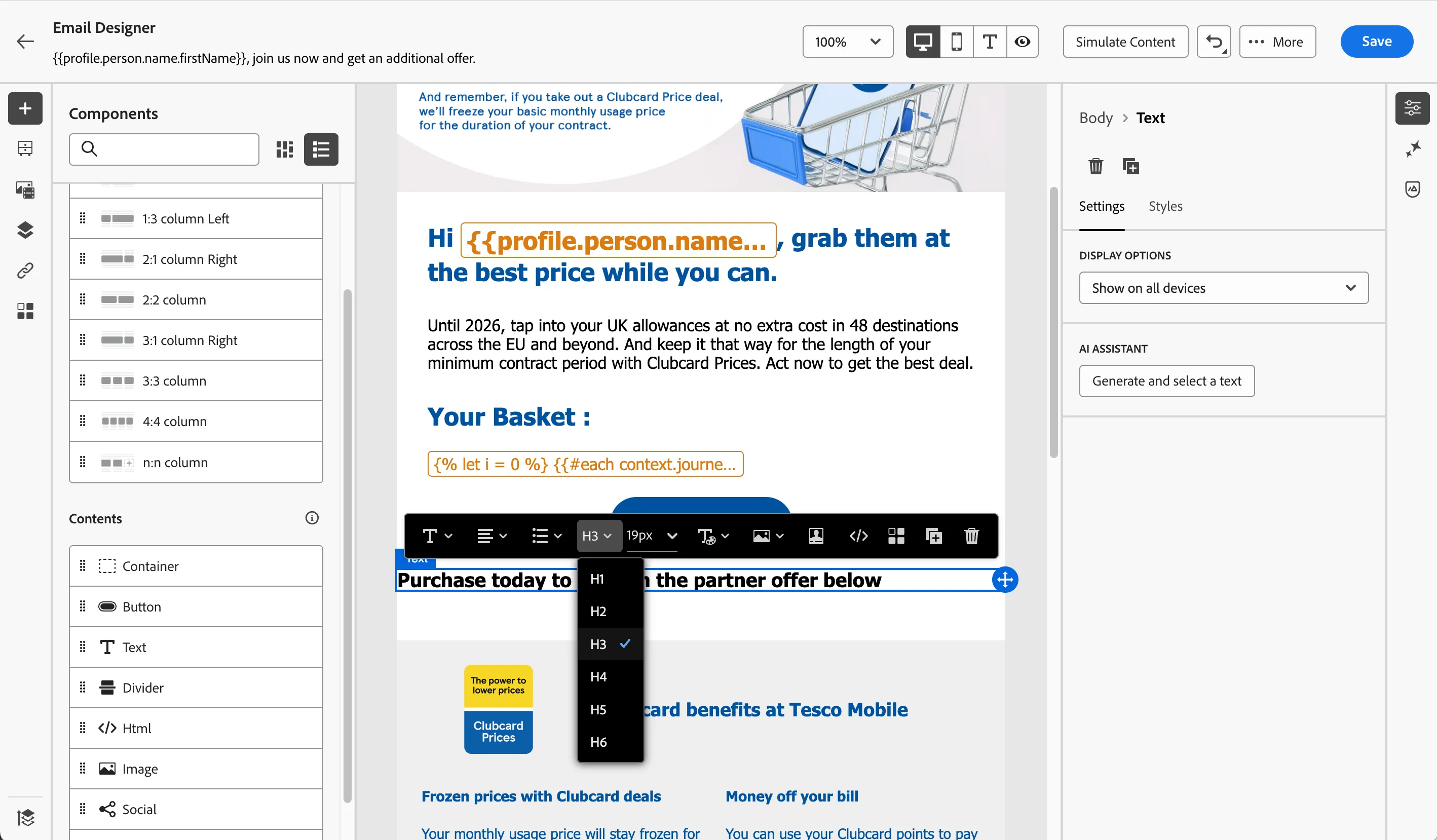
- Update the text as Purchase today to redeem the partner offer below
- Click on H-menu in the popup menu and select H3
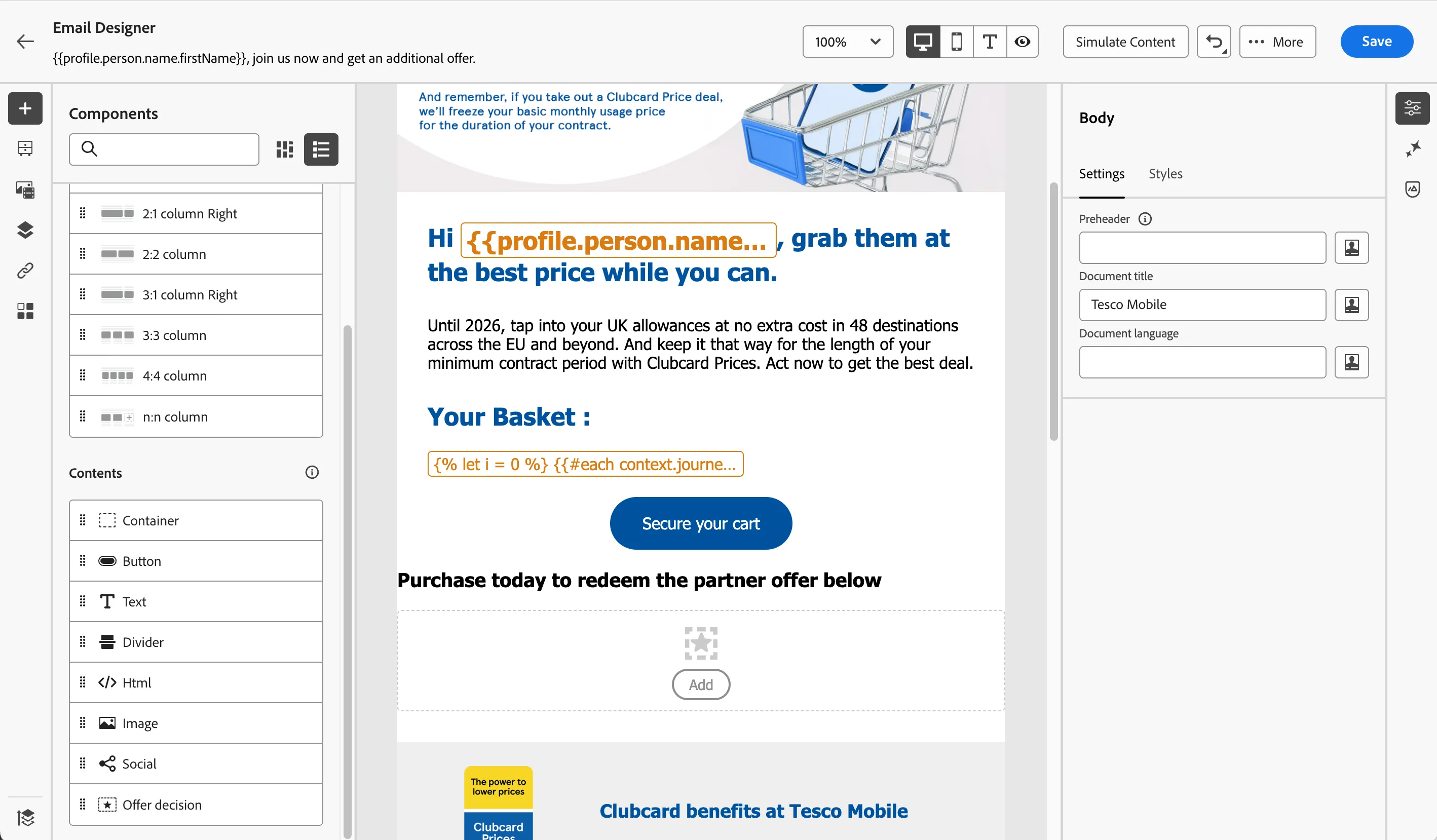
- Drag and drop an Offer decision component below the text.
- Click on Add button to add an offer.
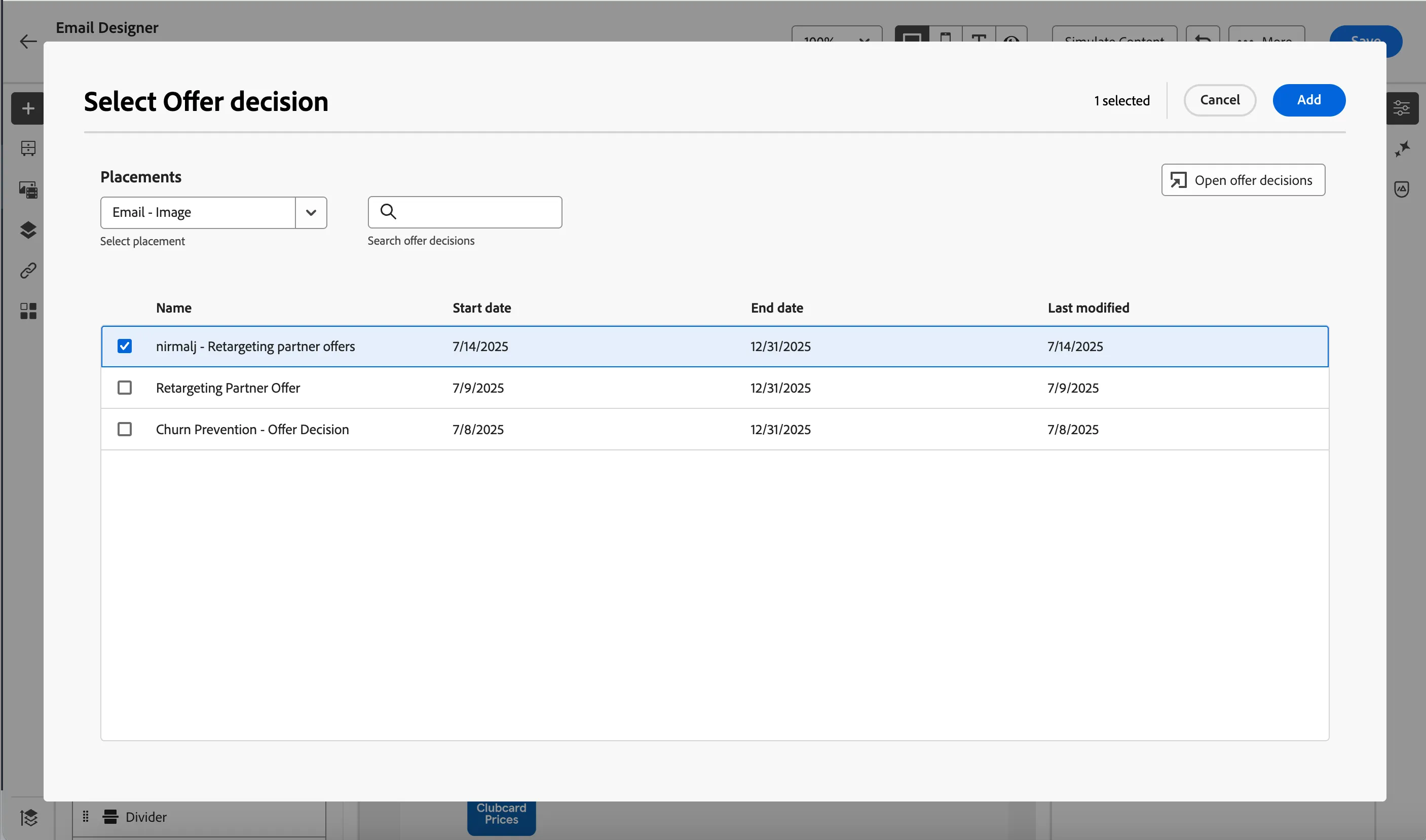
- Select Placement as Email - Image
- Select your offer decision your built in the previous steps. Click on Add to add the offer to the email.
This adds the offer to the email and you can browse the various offers in the collection by clicking on and icons.
To avoid losing your work, click Save, on the top-right corner.
Navigate out of the email editor by clicking on the -icon in the top left corner; then click the -icon to come back to the main canvas.
Once you're in the main canvas, click Save to apply the changes.
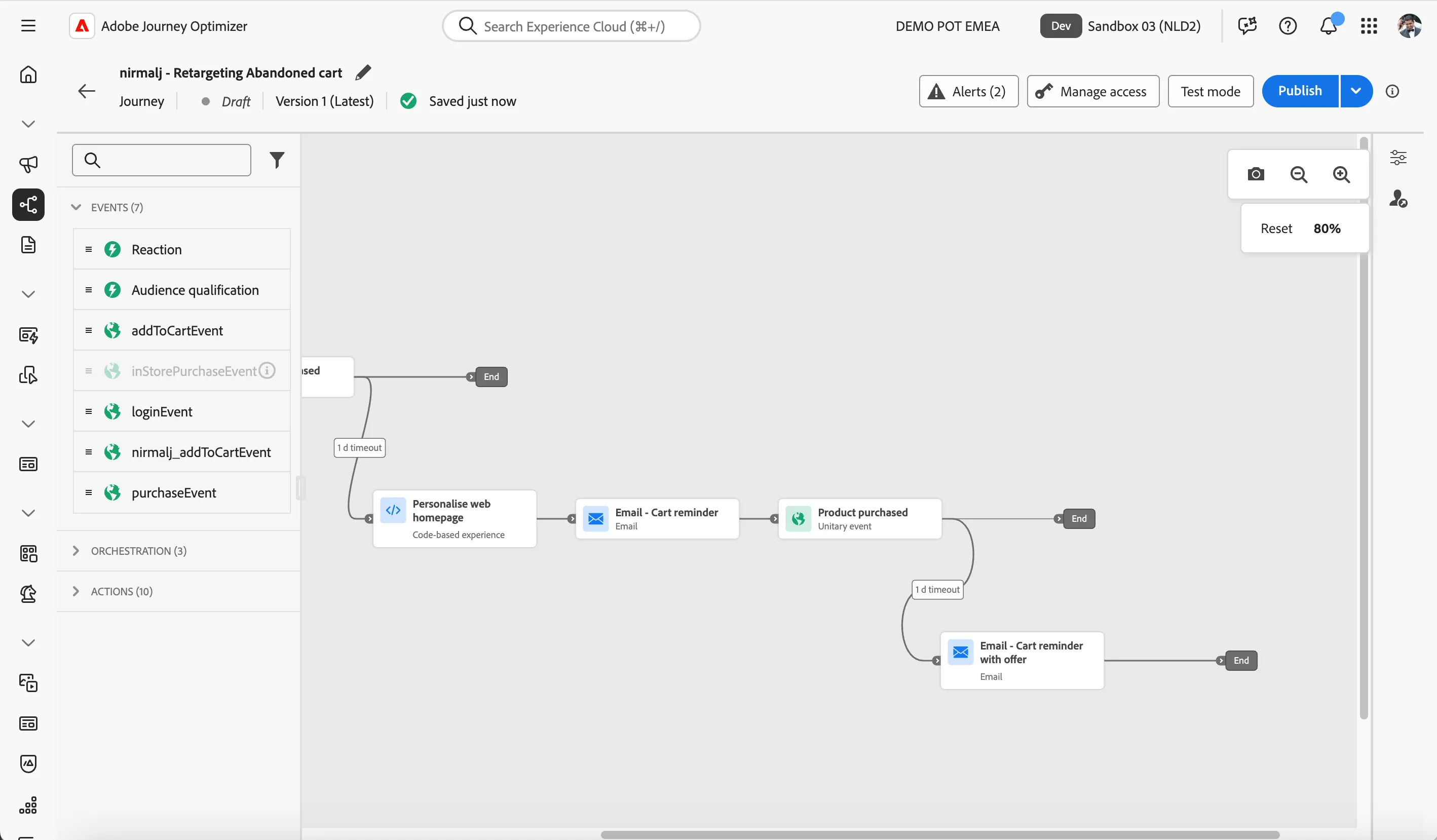
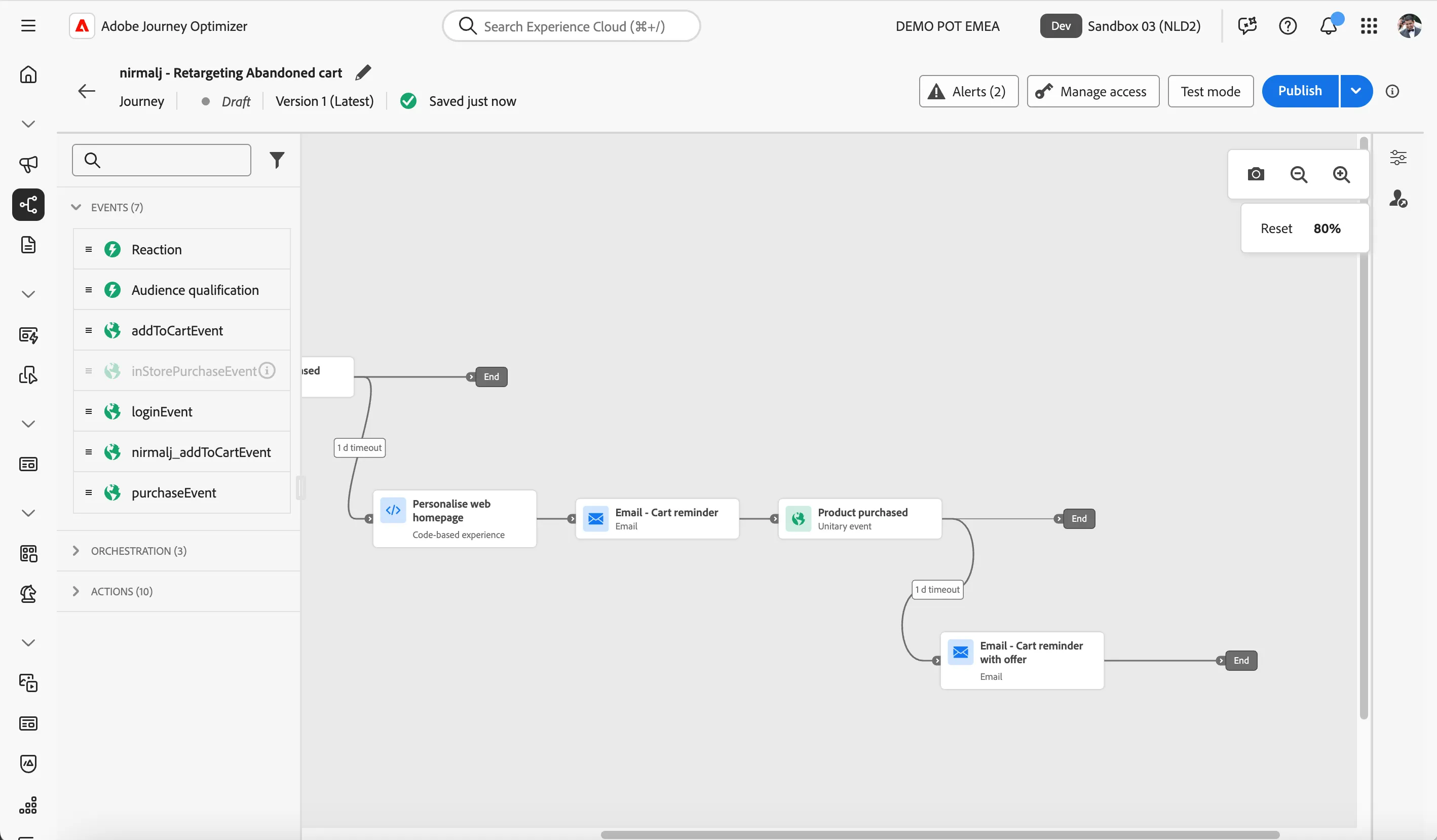
You have now successfully created the application journey using the Adobe Journey Optimizer. Next, we are going to test our journey using Test Mode.