Testing the journey
In this exercise we'll test the journey we've build.
In Adobe Journey Optimizer you can run journeys in test mode to test if the outcome of your journeys aligns with your requirements.
To enable test mode, click on Test mode on the top right of your journey.
While in test mode, you can not make changes to the journey. You'll also notice that the left menu is replaced with the Test mode panel.
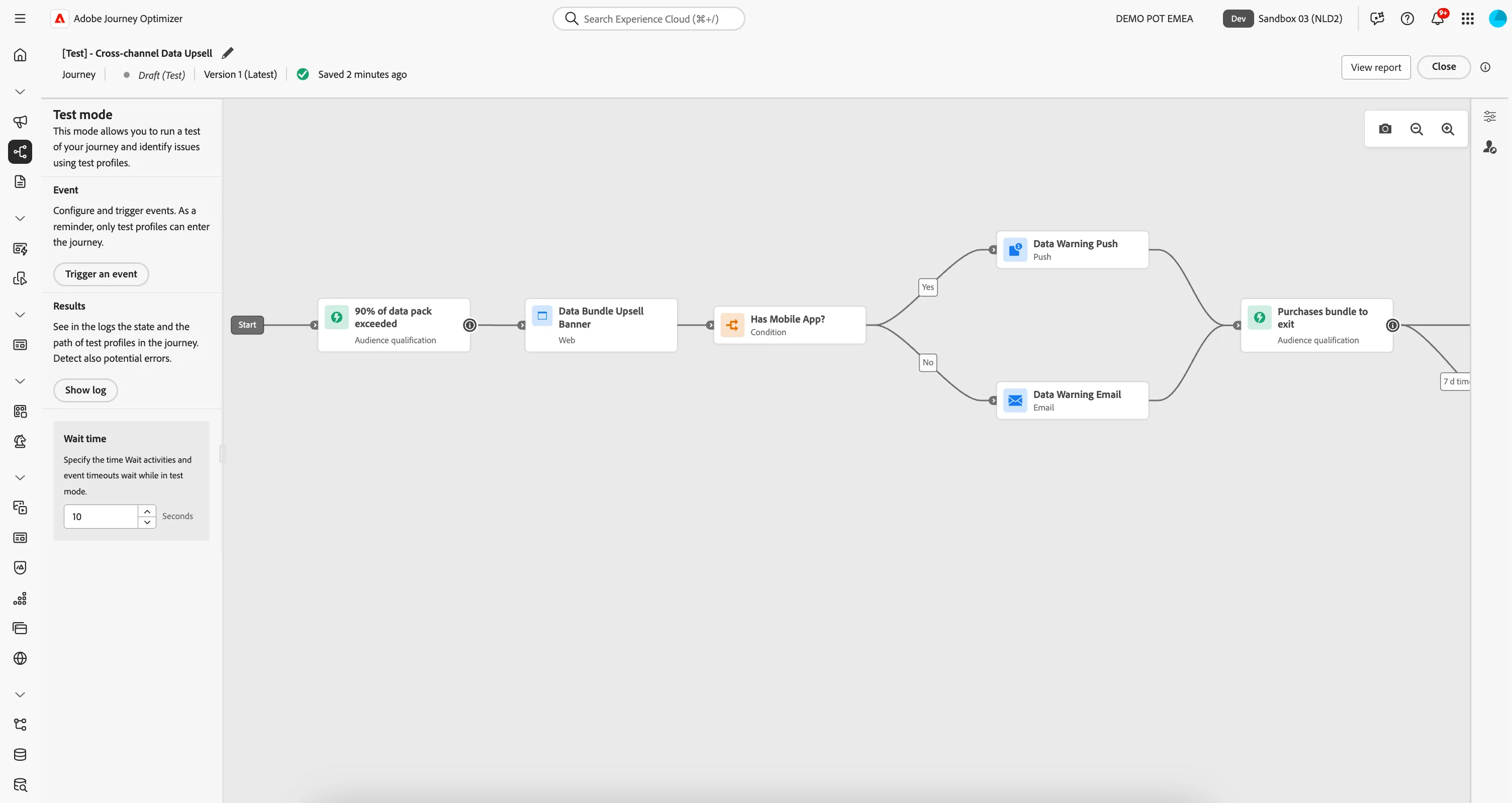
- Set the Wait Time to 10 seconds. This feature overwrites any wait-activities or timeouts with the given value. This will mean we do not have to wait 7 days for the Audience Qualification to time out.
- Click on Trigger an event. This will open a window. In this window you can enter your profile's email as the Profile identifier
- Click Send to start the test.
*For the Profile Identifier, please use the same email address you've been using for the previous Labs if you want to receive the test emails.
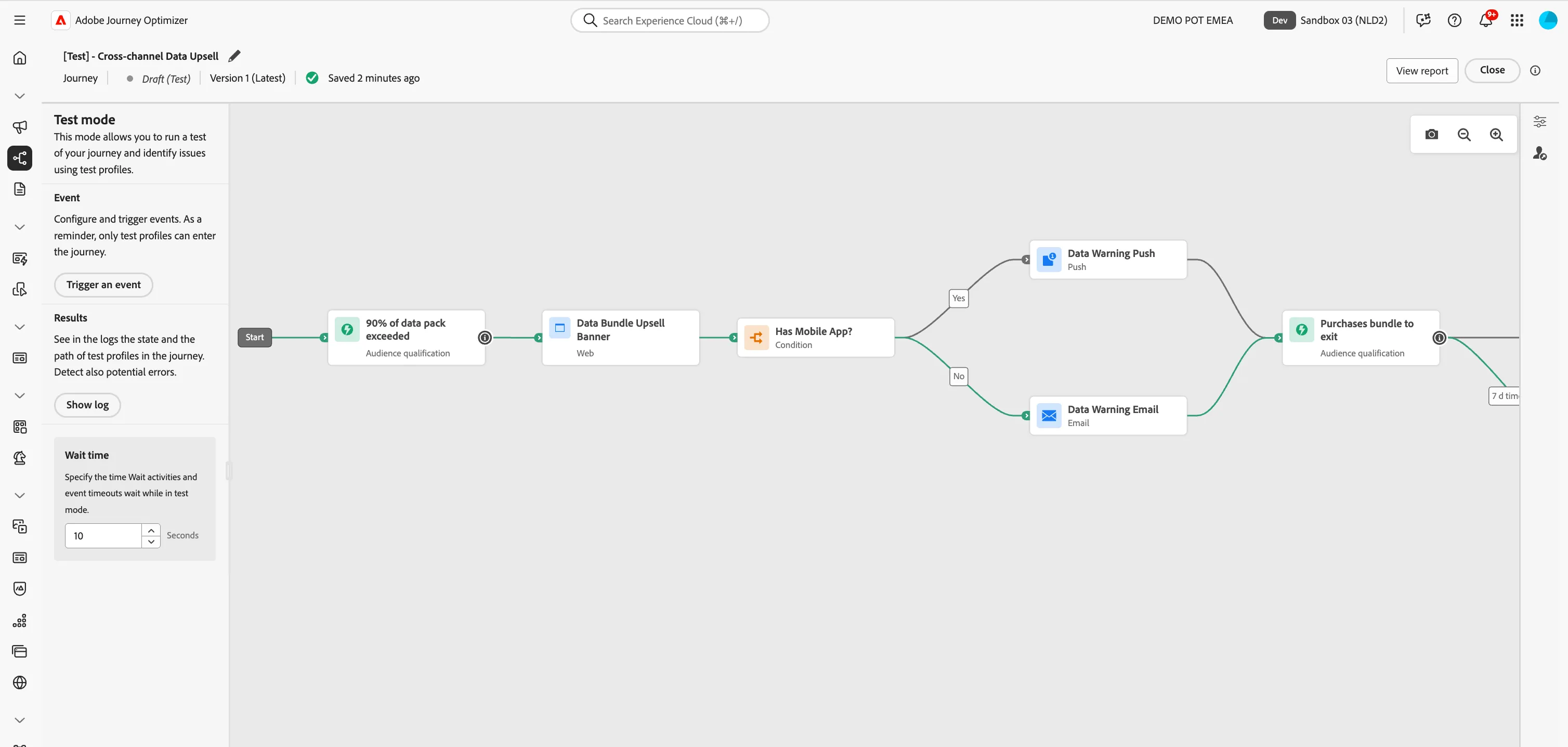
The window will close and the test will now start. In a few moments you'll see more arrows turn green. This is your test profile moving through the journey. You will receive the email(s) within the next minute. Your screen should look like this:
You've now tested your journey.
- Turn off test mode by clicking Close in the top right corner.
- Click the < in the top left to navigate back to the Journeys overview.
Congratulations! You have now successfully configured and tested an end-to-end upsell journey for customers who almost exceed their montly data usage!