Completing the Journey
3 min
Audience trigger - Purchased Data Bundle
To complete the Journey we want to wait for a purchase event to occur. If the customer purchases the data add-on, they will exit the Journey and no longer see the personalised website experience.
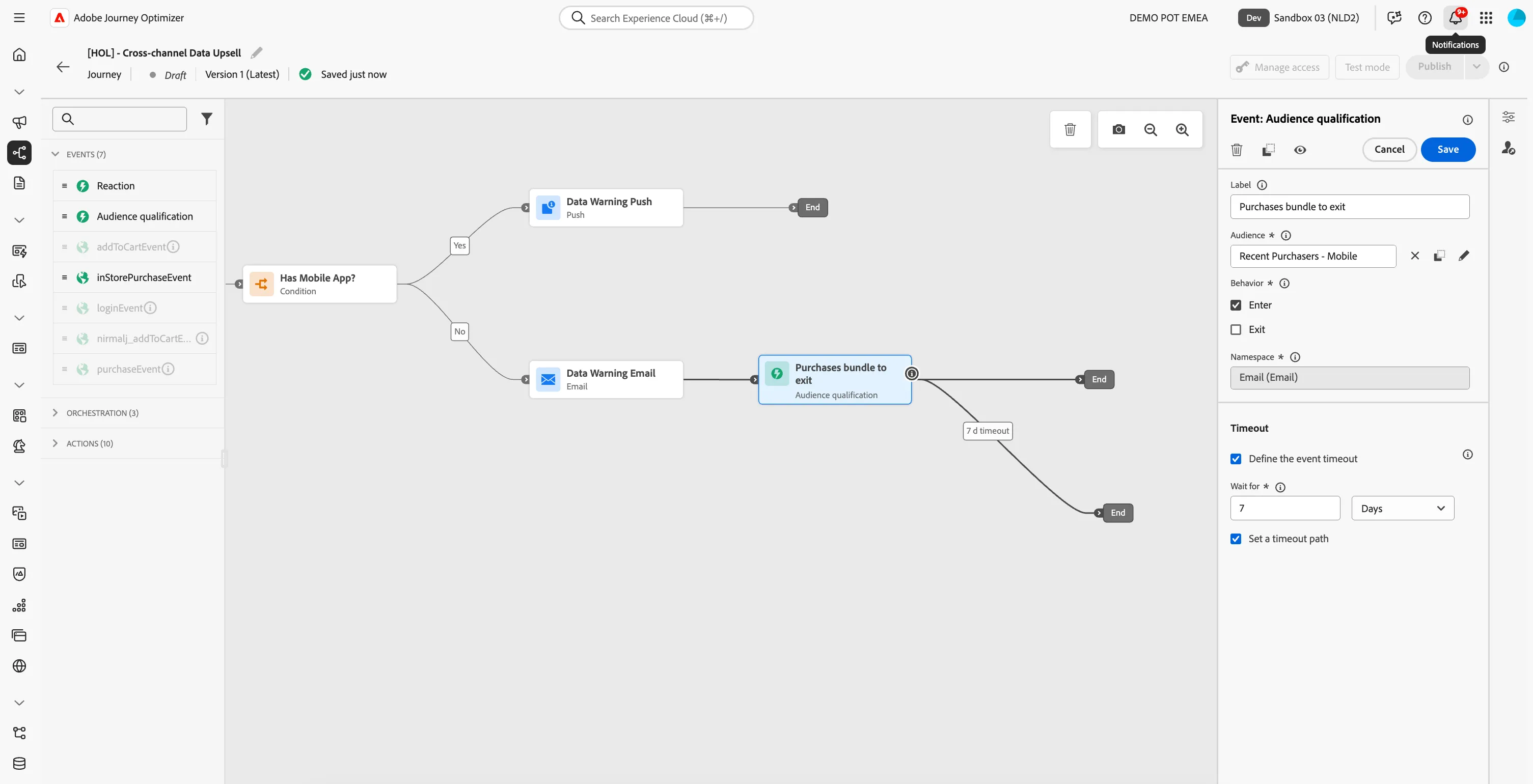
- From the events tab, choose Audience Qualification and drag it onto the empty circle on the canvas after the Email path.
- Set the Label to Purchases Bundle to Exit.
- Click the pencil icon next to Audience, and select the audience Recent Purchasers - Mobile from the list. Click Save.
- Check Define the event timeout and set it to Wait for 7 Days. Make sure Set a timeout path is checked.
- Note: We will define an event Timeout that waits for 7 days for the purchase to occur before ending the journey. This way, the Customers will only remain in the journey for one week after they see the personalised content on the website homepage.
- Your screen should look like the image below. Click Save.
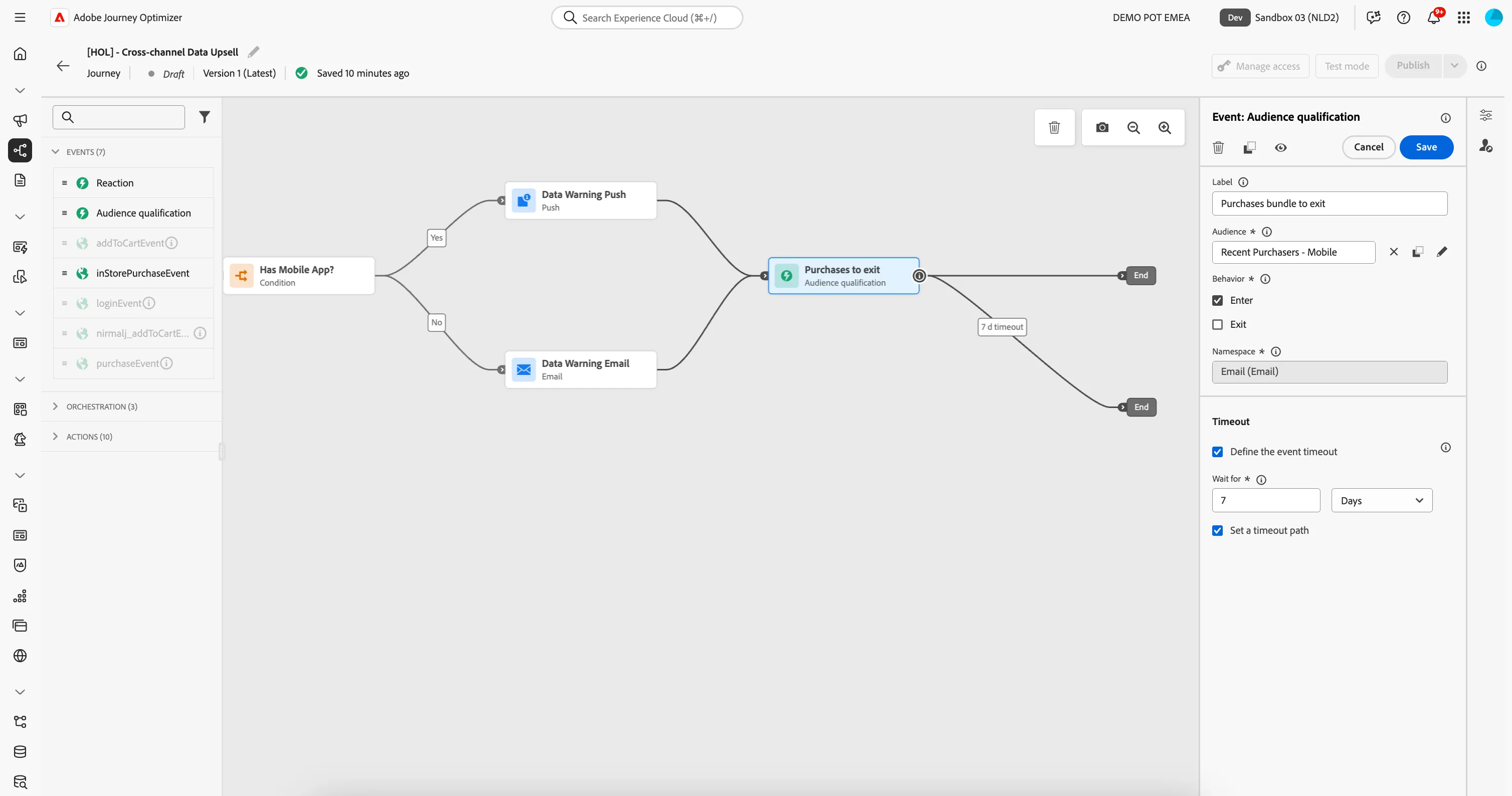
We also want to connect the Push journey path to this audience entry event.
- Select the Document Signed Event and drag it over the End of the Push path until the + appears, this will connect the 2 paths.
- Your journey canvas should now look like:
Completed Journey
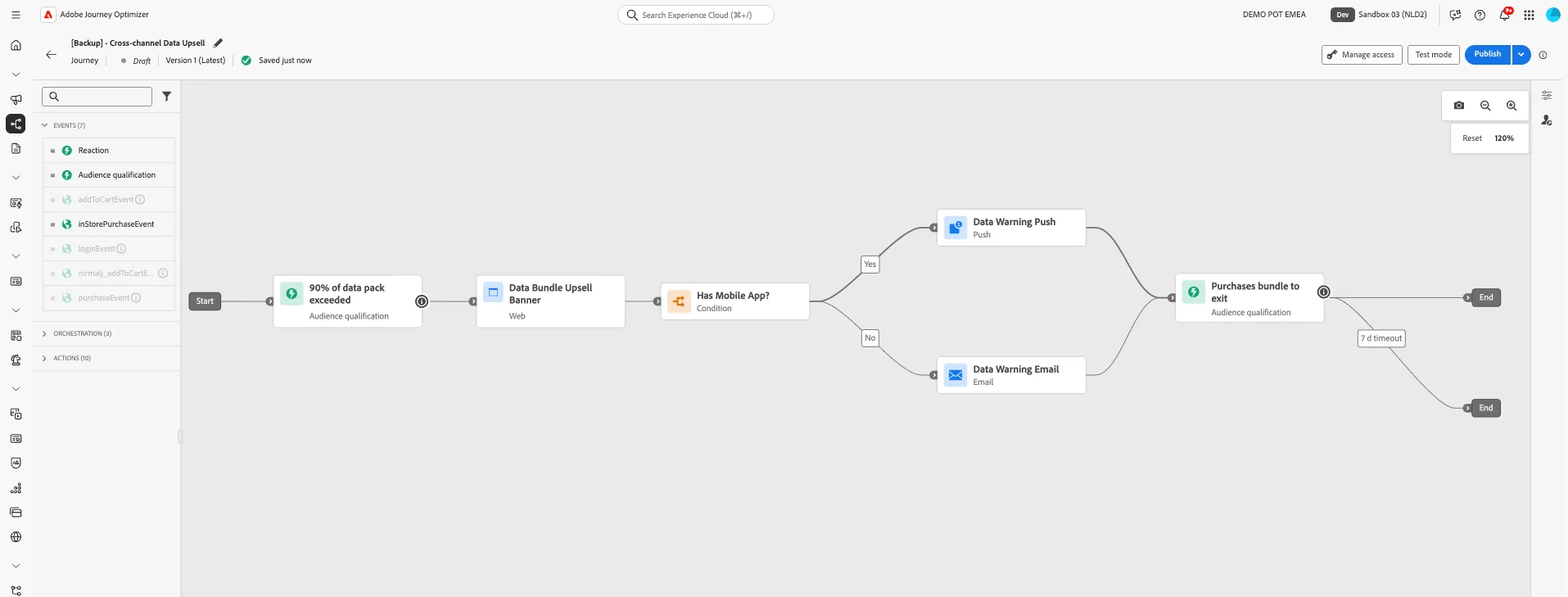
You have now successfully created the Cross-channel data upsell journey using Adobe Journey Optimizer. Next, we are going to test our journey using Test Mode.