Email Message Action
Our Journey so far:
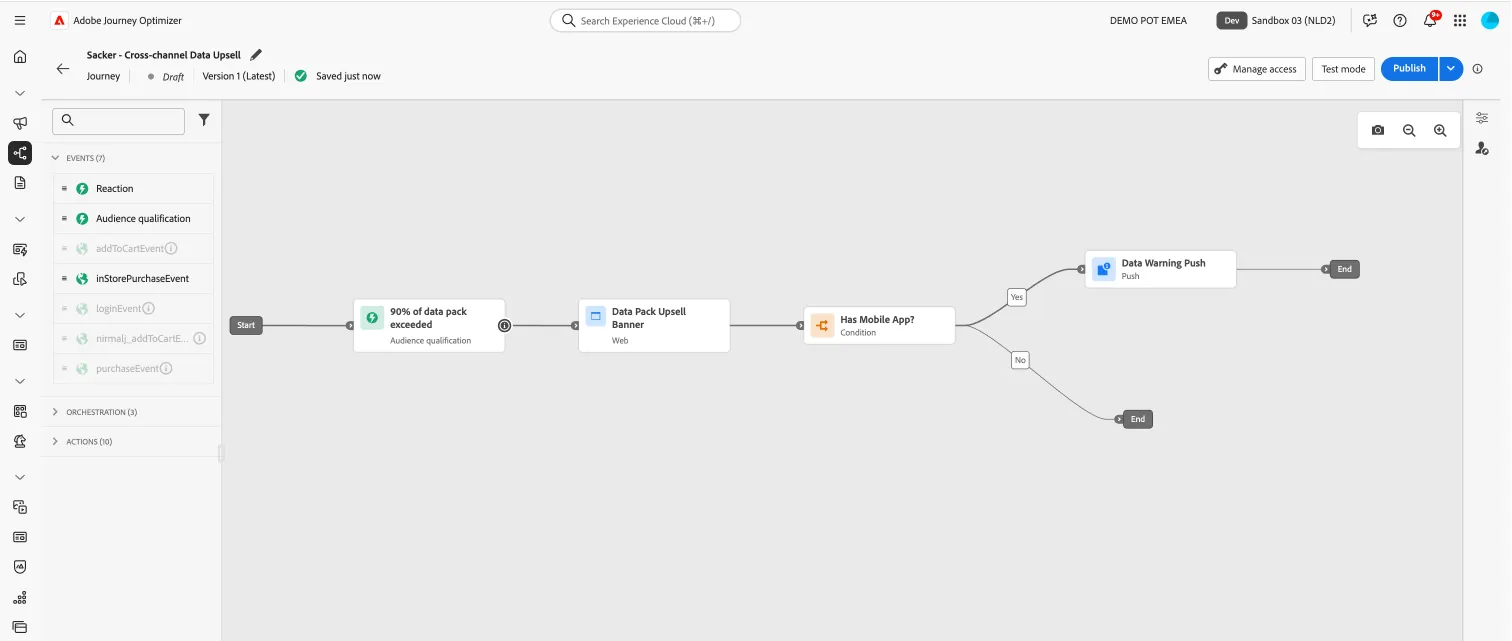
Email - Data Warning Email
In the next steps you will be building the email for your journey. You'll pick a fully completed template of the email so that you don't have to build anything at all, we'll just add our personalisation to the template.
Building the Email
- From the actions tab, choose Email and drag it onto the icon after the custom action.
- Click on the activity to open the detailed view.
- Set the label to Data Warning Email.
- Set the category to Marketing.
- Set the email surface to marketingEmailMessages.
- Click on Edit content to start designing your email.
- Click on to create a subject line. Set it to You're close to your data limit – here's what you can do 📶
- Click Save.
- Click on Edit email body. Under Saved templates, choose Tesco Mobile - Data Upsell Email Template. It will show you a preview of the template. Click on Use this template.
- The email designer will now open. It should look like the image below. Click Save in the top right.
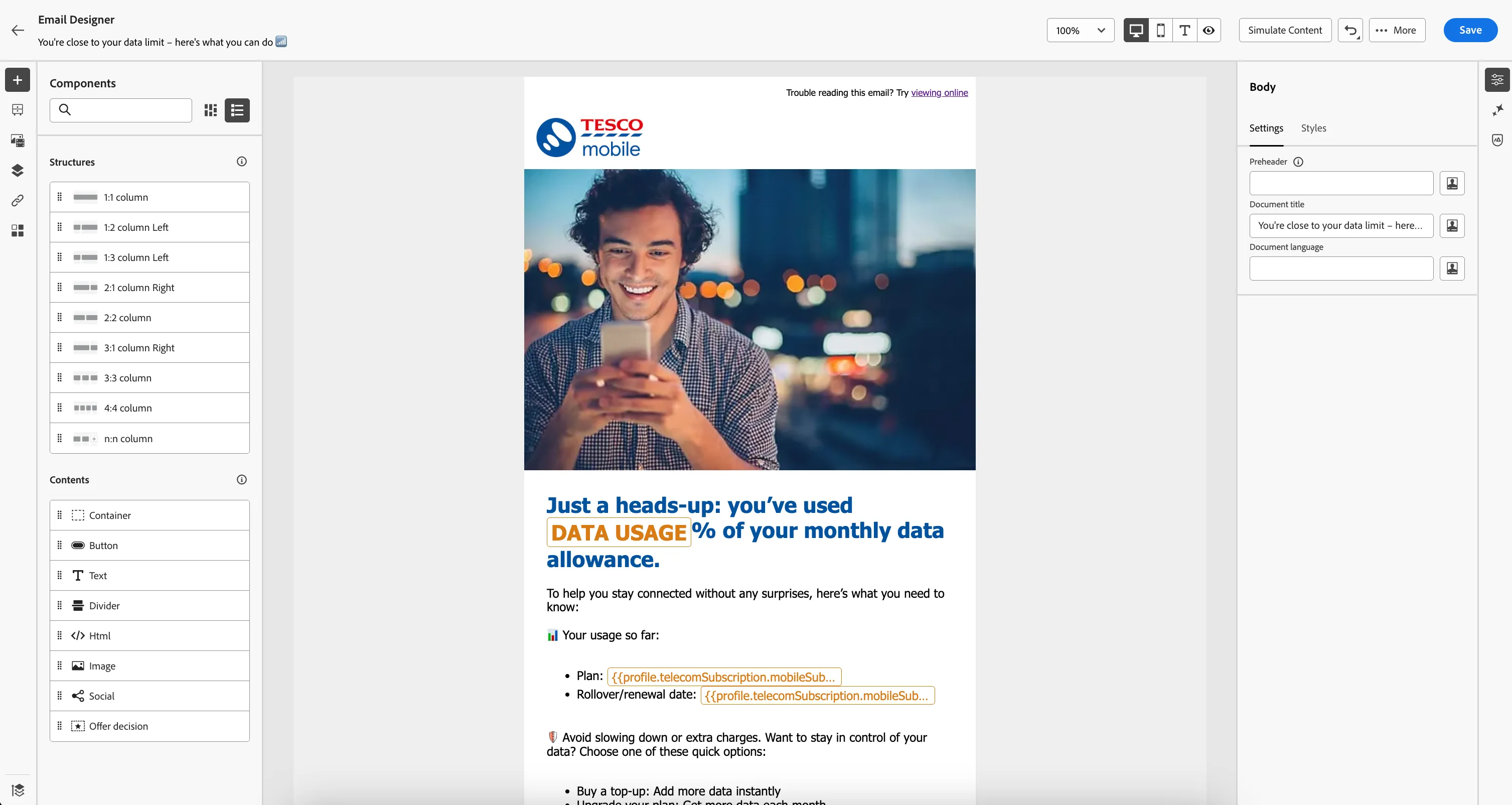
Configuring the email
We had most of the content prebuilt into the email using the template. Now lets customise the email for our journey with some 1:1 personalised messaging.
- Double click on the text DATA USAGE to open the personalisation editor.
- Delete the text DATA USAGE.
- From the left menu, Profile attributes, search for data usage
- You'll see the attribute Data Usage - Monthly. Click the + icon to add this attribute into the expression editor.
- After the replace, your screen will look like below. Click Save to save the expression.
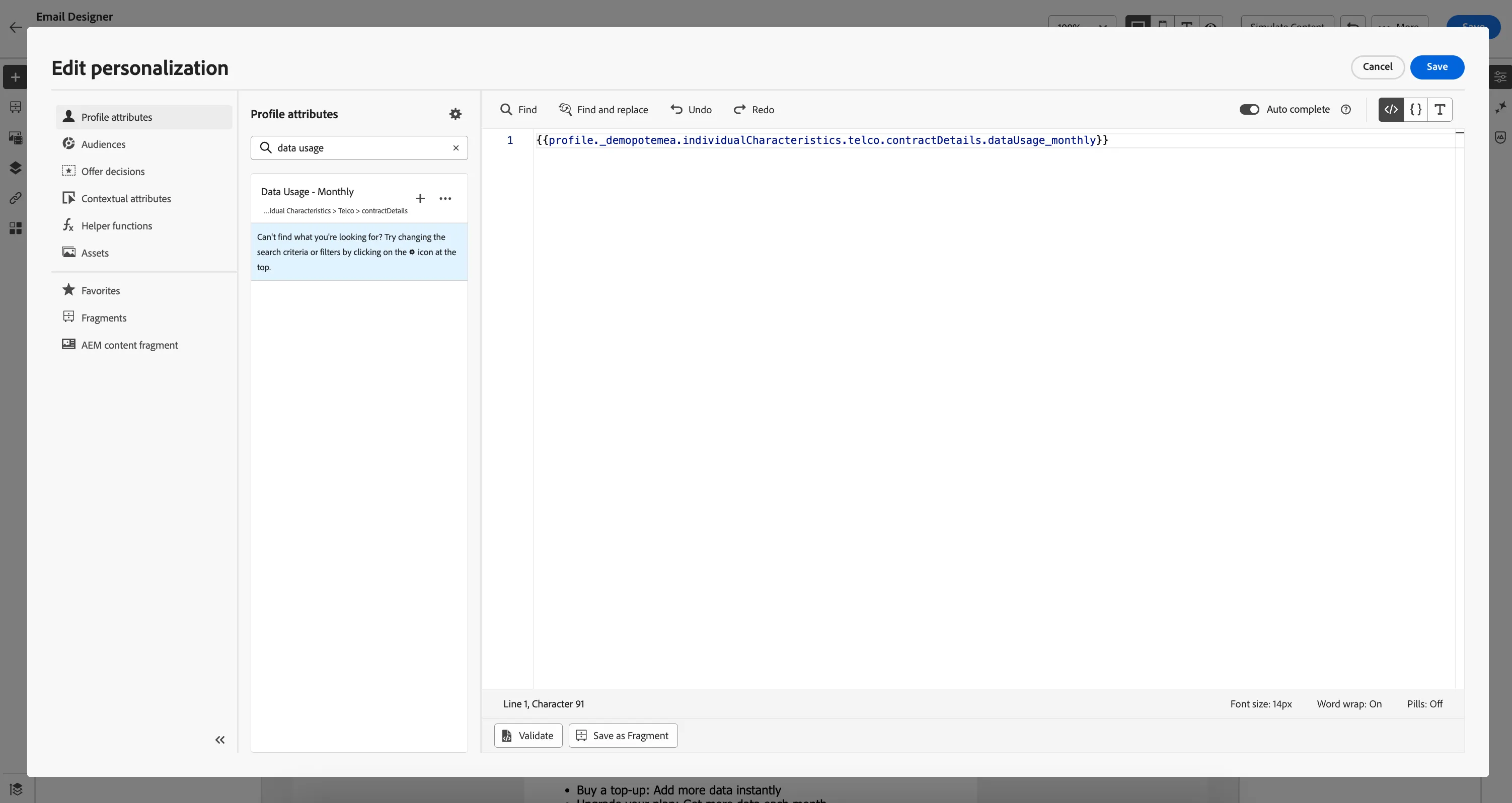
The personalization editor is the centerpiece of the personalization in Journey Optimizer. It is available in every context where you need to define personalization like emails, push and offers.
In the personalization editor interface, you can select, arrange, customize and validate all the data to create a customized personalization for your content.
In this case, the Profile Attribute will be replaced dynamically with the data usage for each customer that receives the email.
To find out more information, visit Adobe Experience League.
Adding Dynamic content
Now let's add some Dynamic Content to our Email. We want to personalise the main email banner for our customers, depending on how they use their data.
We will create dynamic content for the following personas:
- Customers that mostly use their data for social media.
- Customers that mostly use their data for streaming shows.
- Customers that have a family plan.
We want to create a variant for each of our personas:
- Select the main banner image.
- From the options that appear above, select Enable conditional content. This will open the conditional content panel on the left.
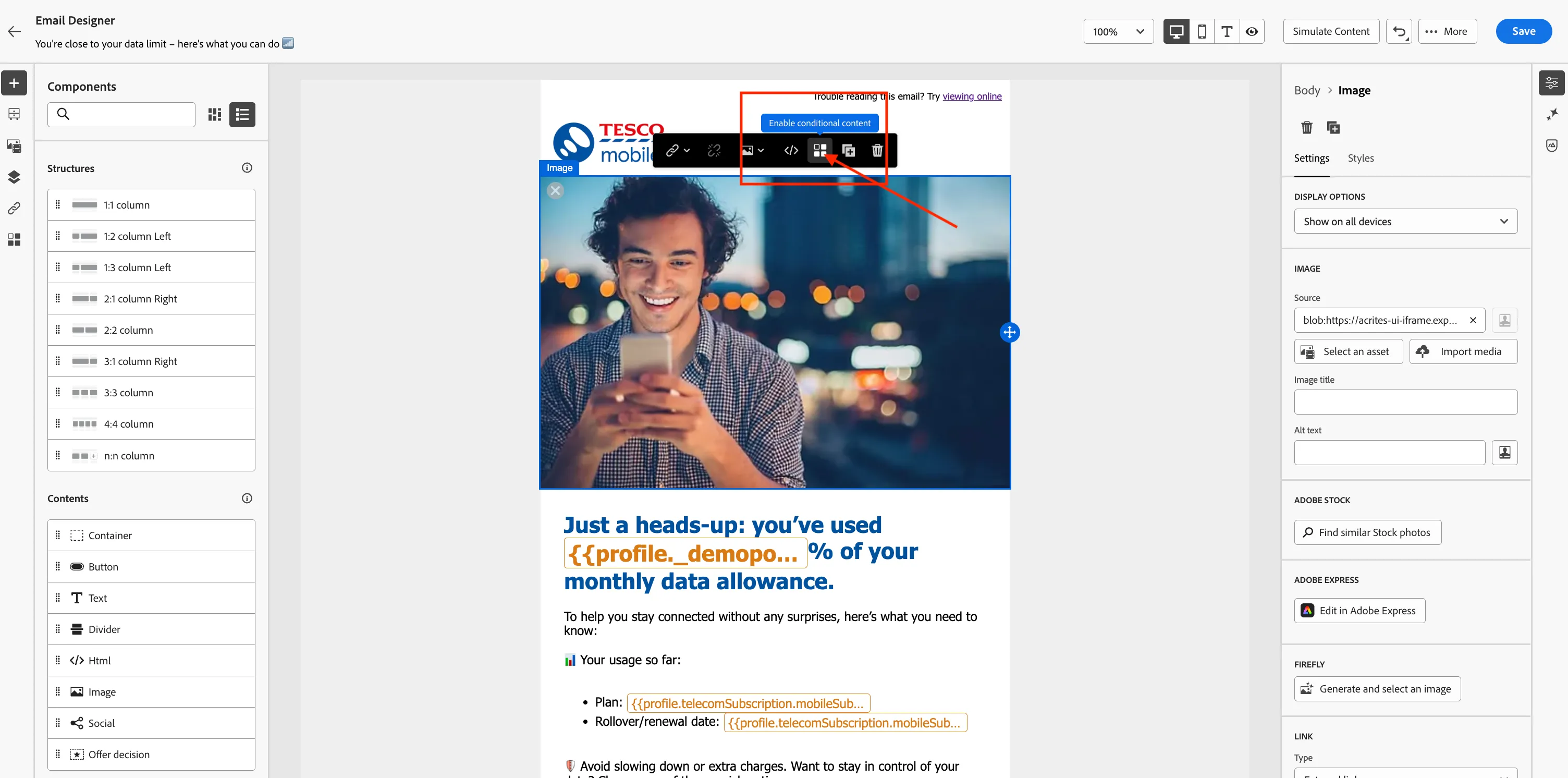
You'll see 2 content variations, the Default variant and Variant - 1
- Click + Add variant until you have 3 variants.
- Click Variant - 1, and select the three dots ... and Rename the variant to Data Usage - Social.
- Click the Arrow icon next to the three dots ... to Select condition
- In the Condition editor, click + Create new
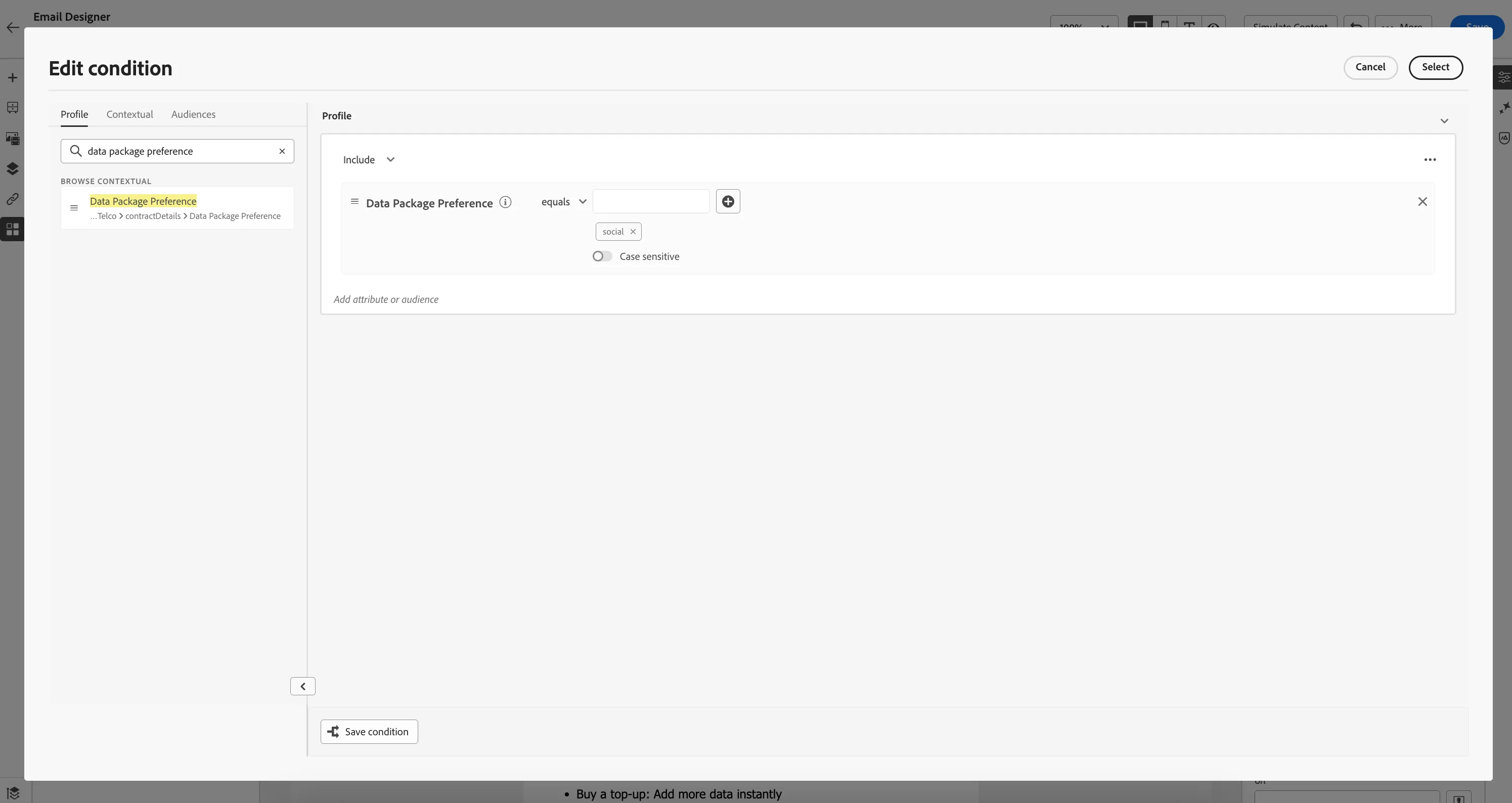
- Search for data package preference, drag the attribute onto the canvas where it says "Start building conditions".
- Set the condition rule to Data Package Preference equals social.
Your condition should look like:
- Click Save Condition at the bottom of the window.
- Give your condition a Title, [Your name] Data preference = Social
- Click Add.
- Click Select to close the editor.
Reminder! Now is a good time to Save your email (top, right Save button).
Repeat the same steps for variants 2 and 3, with the following changes:
Variant - 2:
- Rename the variant to Data Usage - Streaming.
- Set the condition rule to Data Package Preference equals streaming.
- Set the Title as [Your name] Data preference = Streaming
Variant - 3:
- Rename the variant to Data Usage - Family.
- Set the condition rule to Data Package Preference equals family.
- Set the Title as [Your name] Data preference = Family
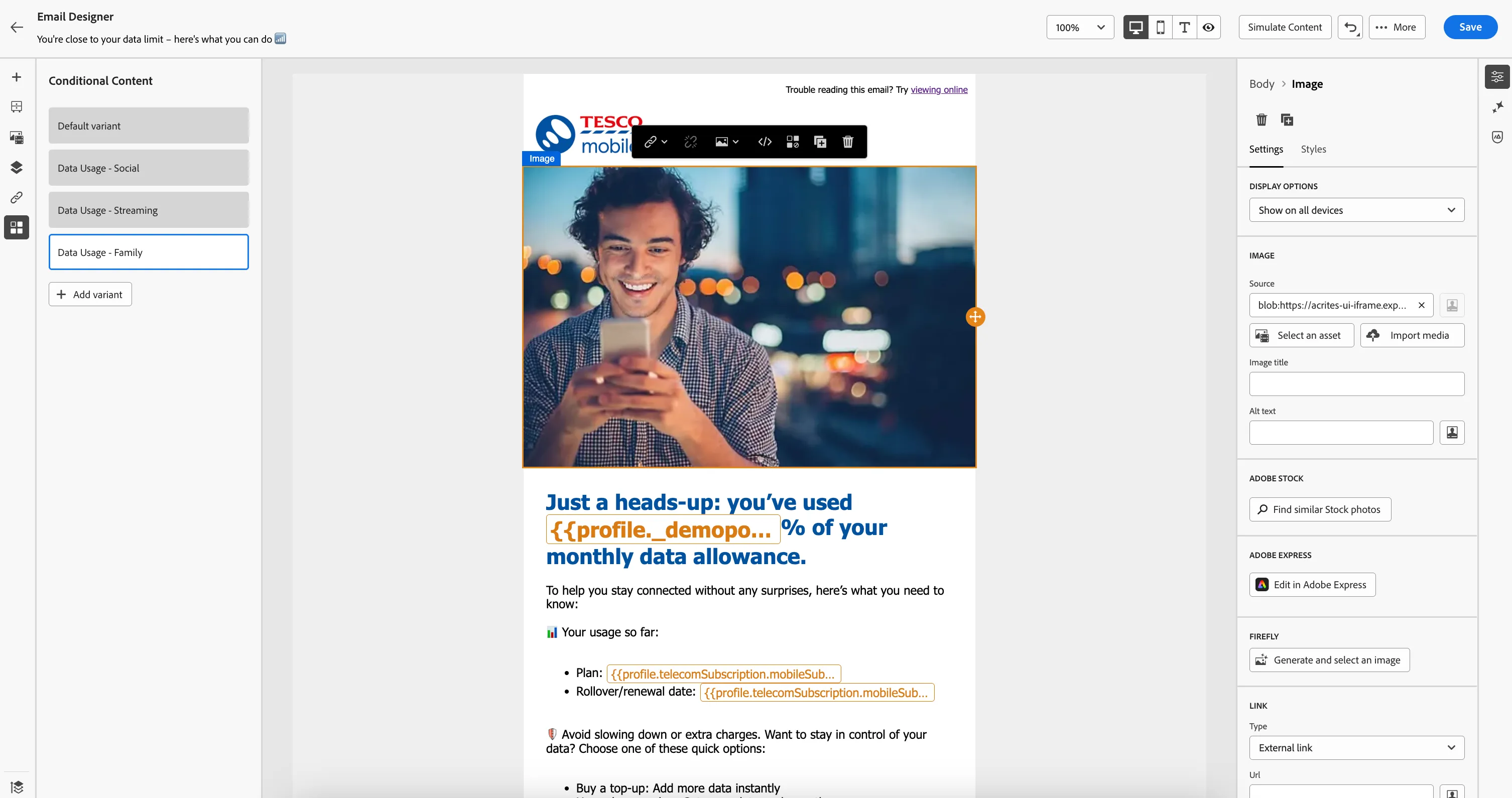
Your Email Designer should now look like:
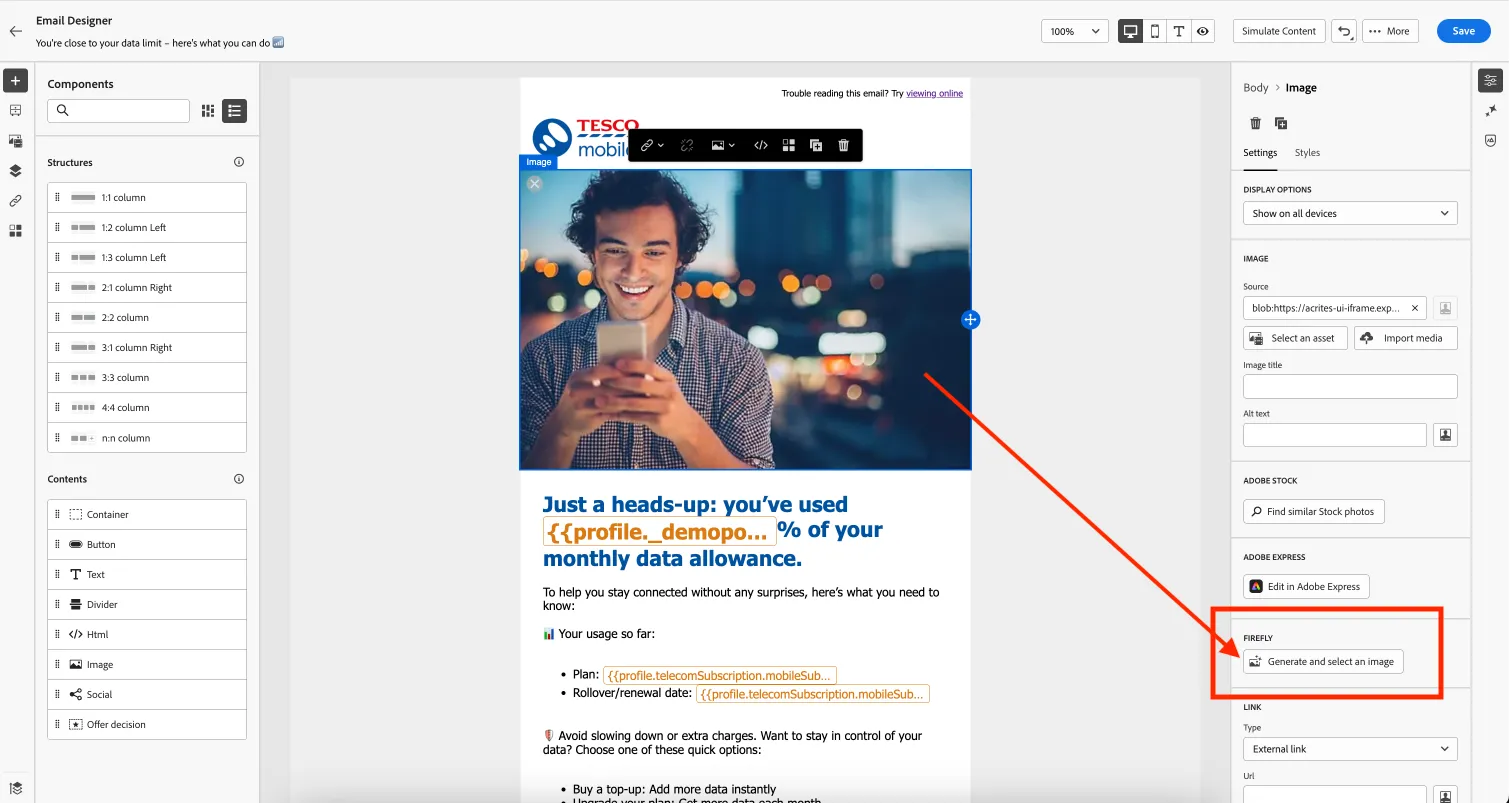
We will explore some of the Generative AI capabilities in the Email designer to create our banner images.
- Select the Data Usage - Social variant.
- Select the main banner image.
- From the right-hand menu, under Firefly, click Generate and select an image.
Here we can input a prompt to generate an image that will resonate with our customer persona.
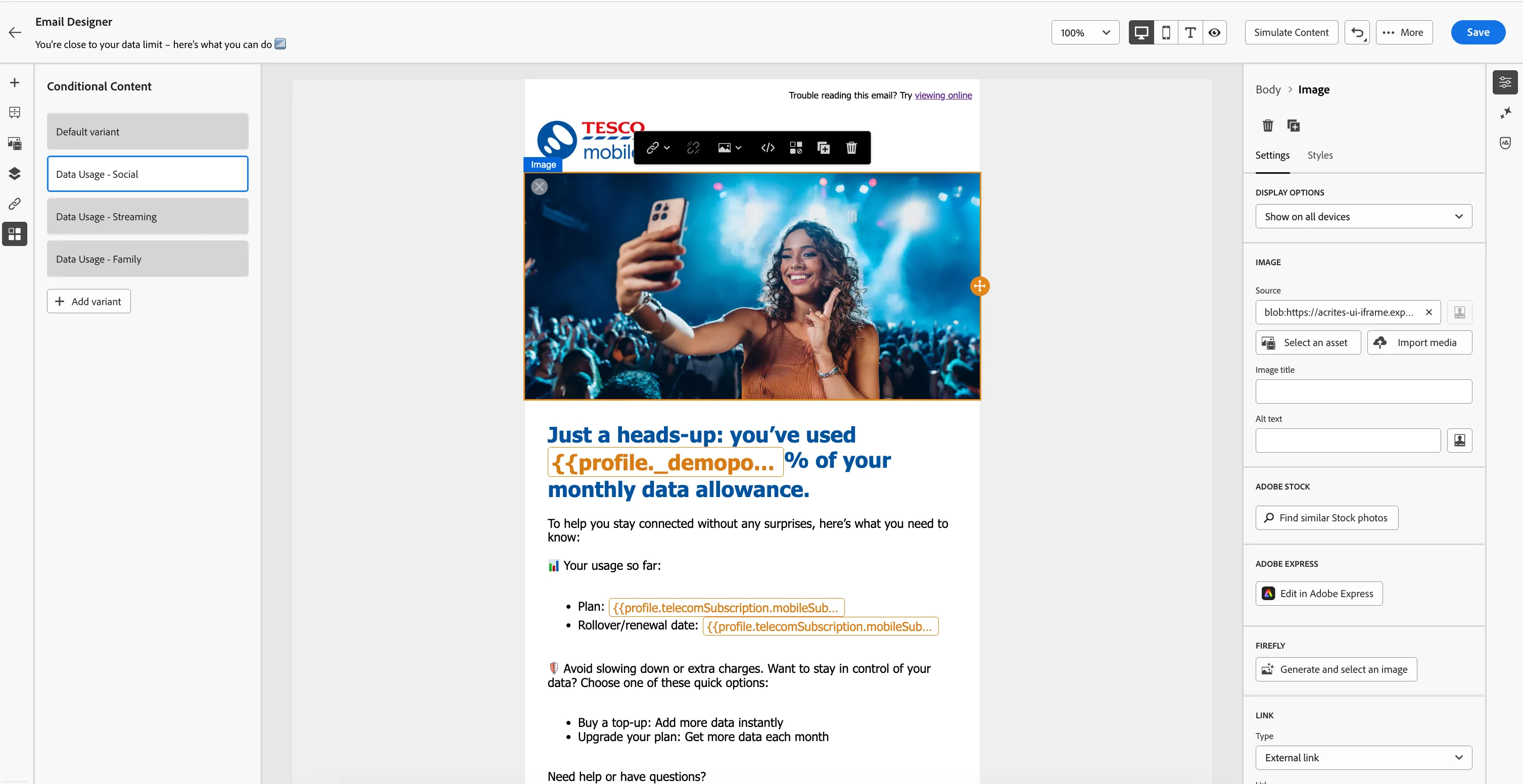
- Since this is the Data Usage - Social variant, try a prompt like: "Person taking a selfie for social media at a music concert".
- Click the Image Settings and set the height to 600, and the width to 1200.
- Click Generate. (Feel free to try your own prompts!)
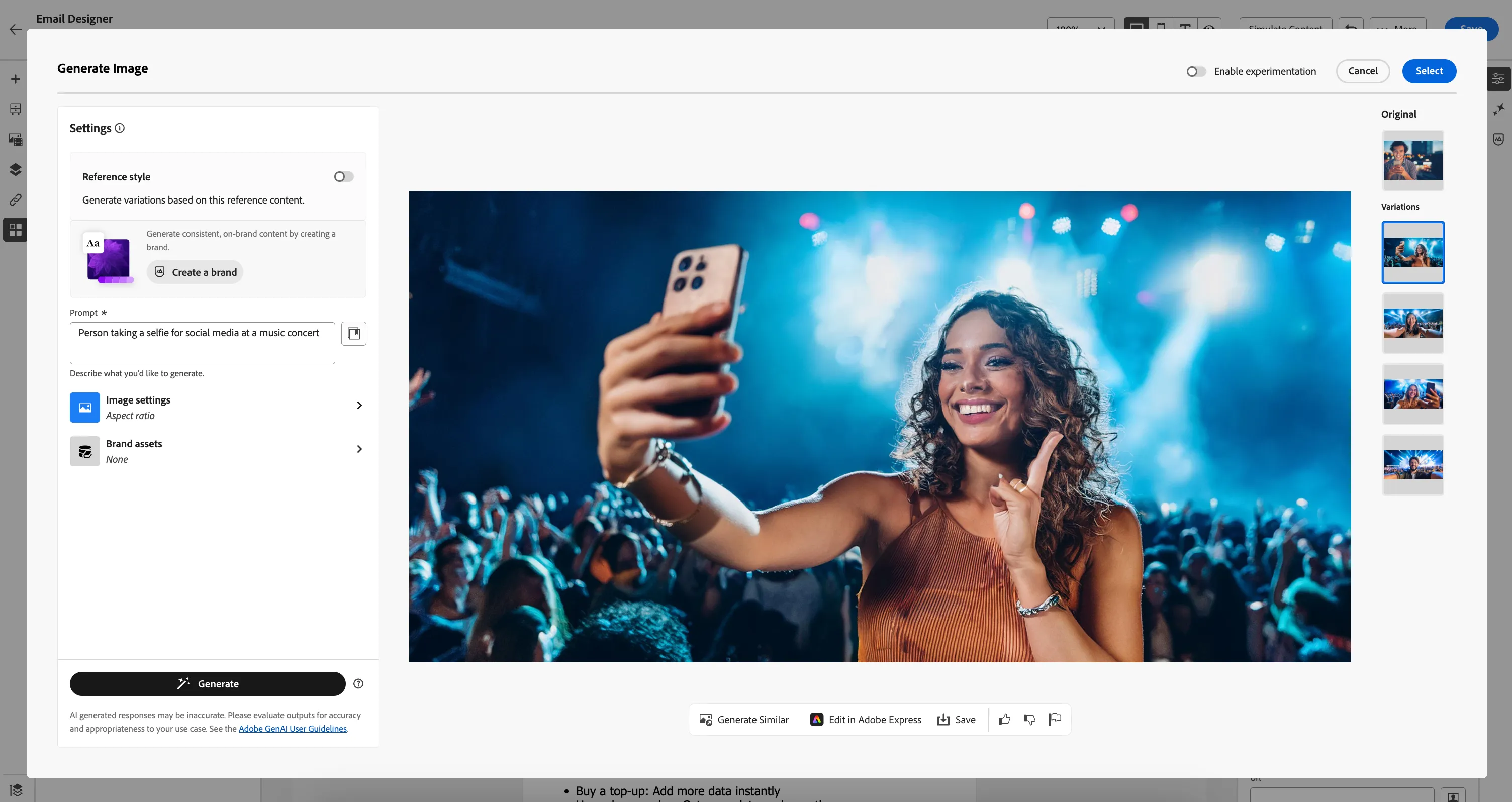
- Choose your favourite generated variation. Click Select.
- You'll be asked to upload your image. Click Next.
- Navigate to the correct folder for this lab: Hands-on Lab > Tesco Mobile.
- Click Import.
You'll now see the newly generated image added to your email for your social variant. It should look something like:
Repeat the same steps for variants 2 and 3, with the following changes:
Data Usage - Streaming variant:
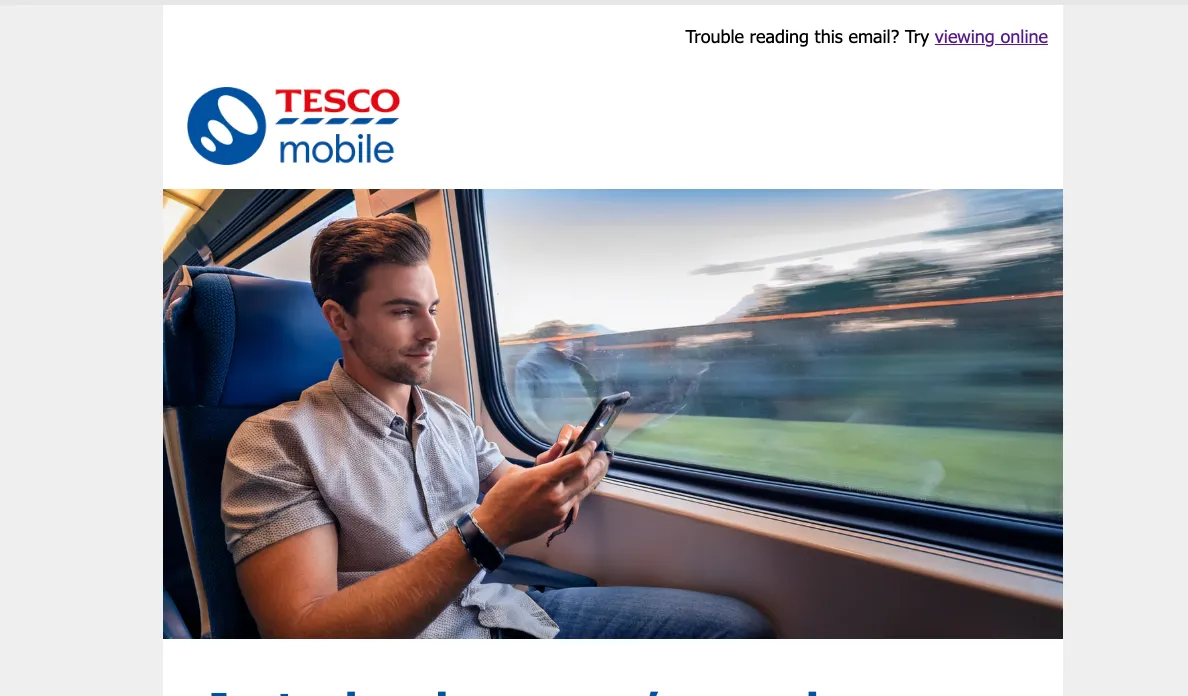
- Try a prompt like: "Person watching a TV show on their mobile phone in landscape mode, whilst commuting on a train".
- Don't forget to adjust the height and width of the image (600x1200).
Data Usage - Family variant:
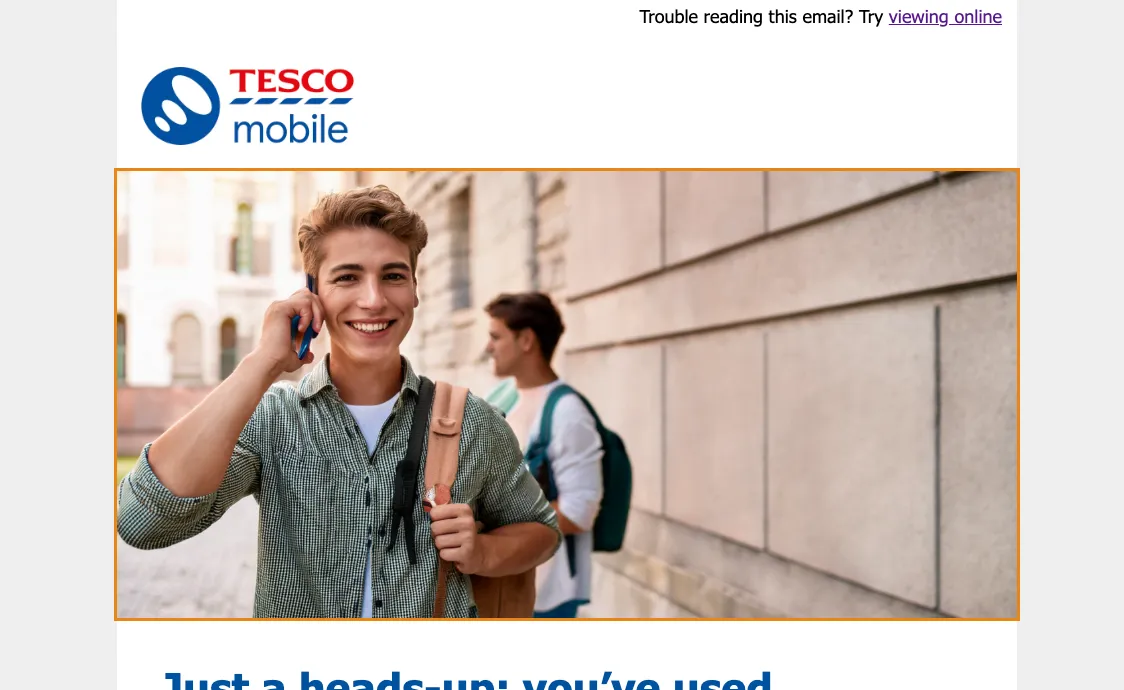
- Try a prompt like: "A college student calling their parent".
- Don't forget to adjust the height and width of the image (600x1200).
Final image examples:
- Click Save in the top right.
- Navigate out of the email designer by clicking the back arrow icon in the top left. You'll be taken to the messages overview for your journey.
- Navigate out of the messages overview by clicking the back < icon in the top left.
- You'll return to the Journey canvas. Click Save in the Actions: Email panel.
Your journey should now look like:
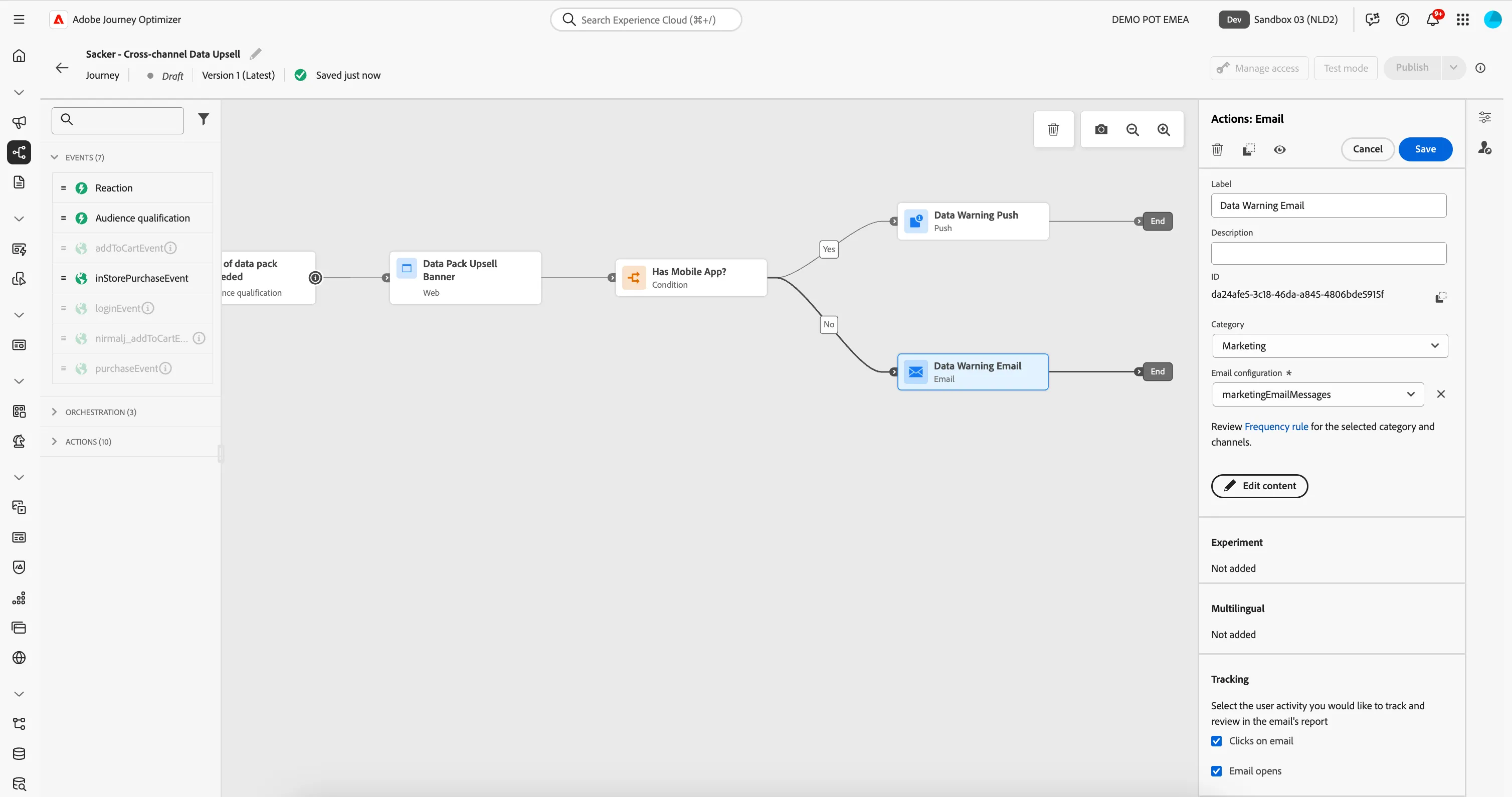
You've successfully composed a personalised Email Message to be sent to qualifying customers. You've used Adobe Firefly to generate images for your email.
Now, let's put everything together and complete our Journey.