Push Message Action
2 min
Our Journey so far:
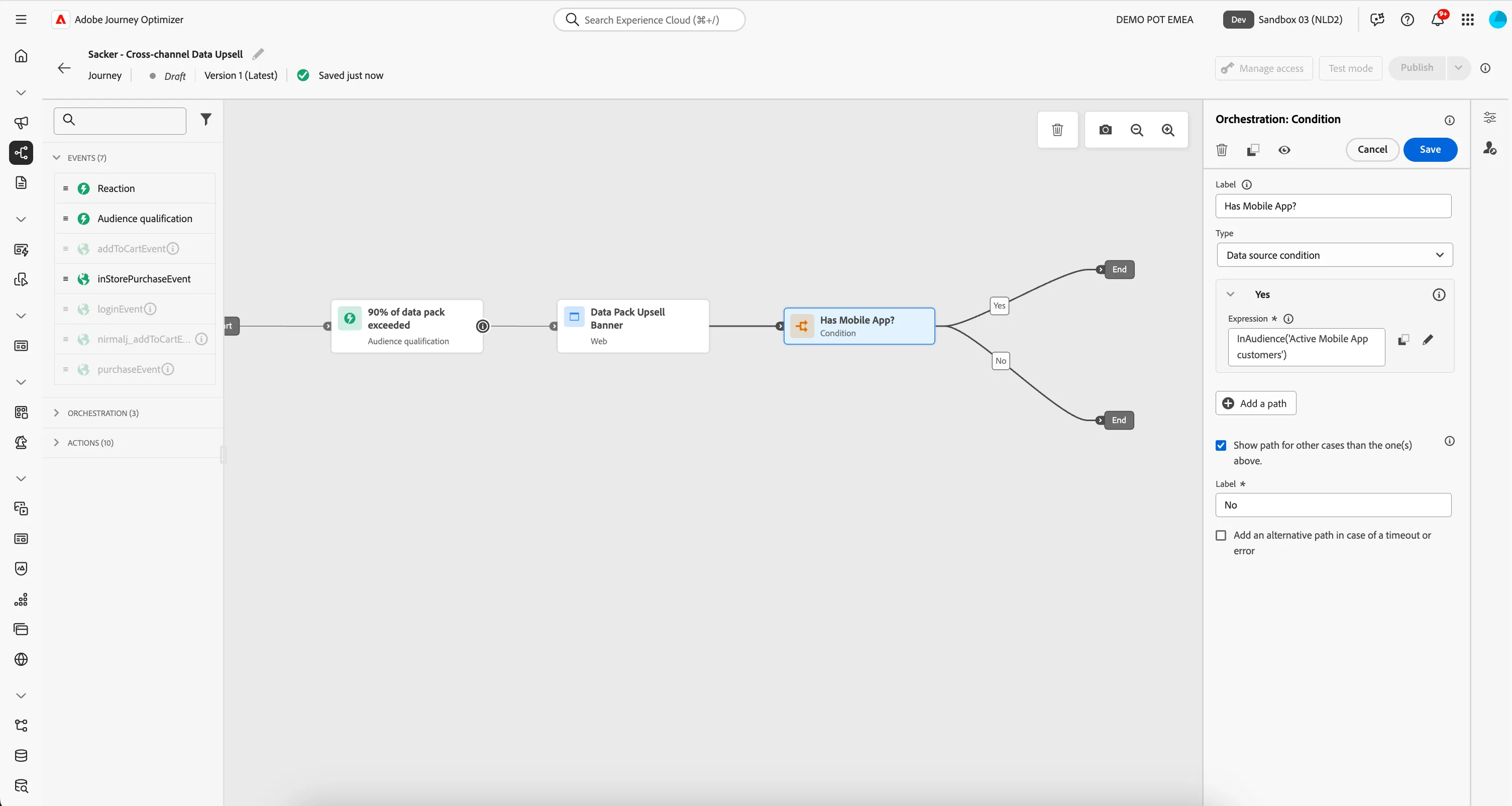
Push - Data limit warning
If we know the customer has been active on the mobile app, we're going to send them a push-notification containing an offer for data add-ons, letting them know they're near their limit. This pushes a short message to the profile's smartphone that they can easily interact with. When they click on the push they'll be taken to the mobile app directly.
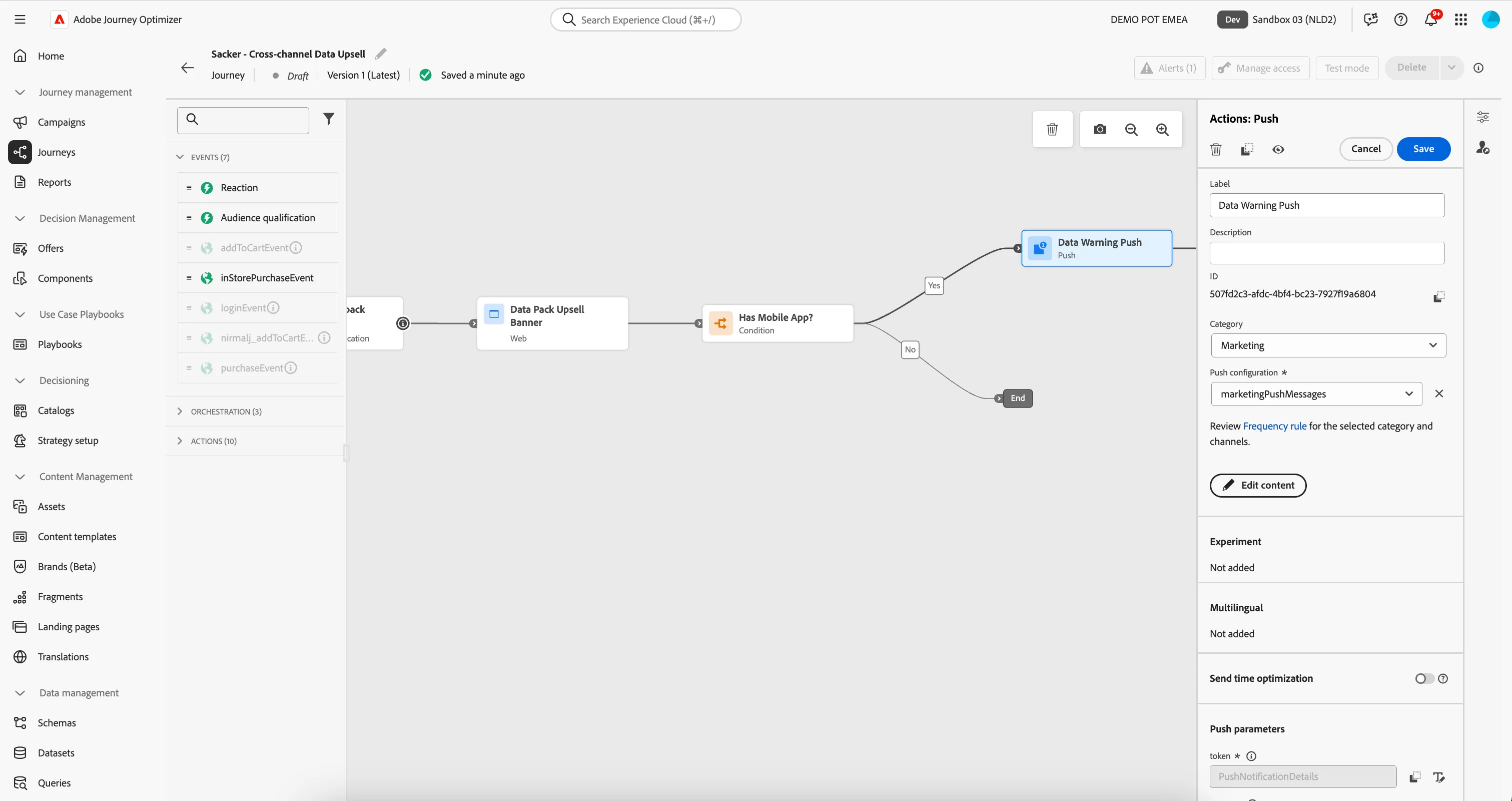
- From the actions tab, choose Push and drag it onto the canvas following the Yes path after the "Has mobile App?" condition.
- Click on the activity to open the detailed view.
- Set the label to Data Warning Push.
- Set the category to Marketing. This should already be pre-populated, since the previous message was a marketing message.
- Set the push configuration to marketingPushMessages.
- Click on Edit content to start designing your push.
- if you don't see the properties panel on the right, click on Properties, at the bottom of the page, then:
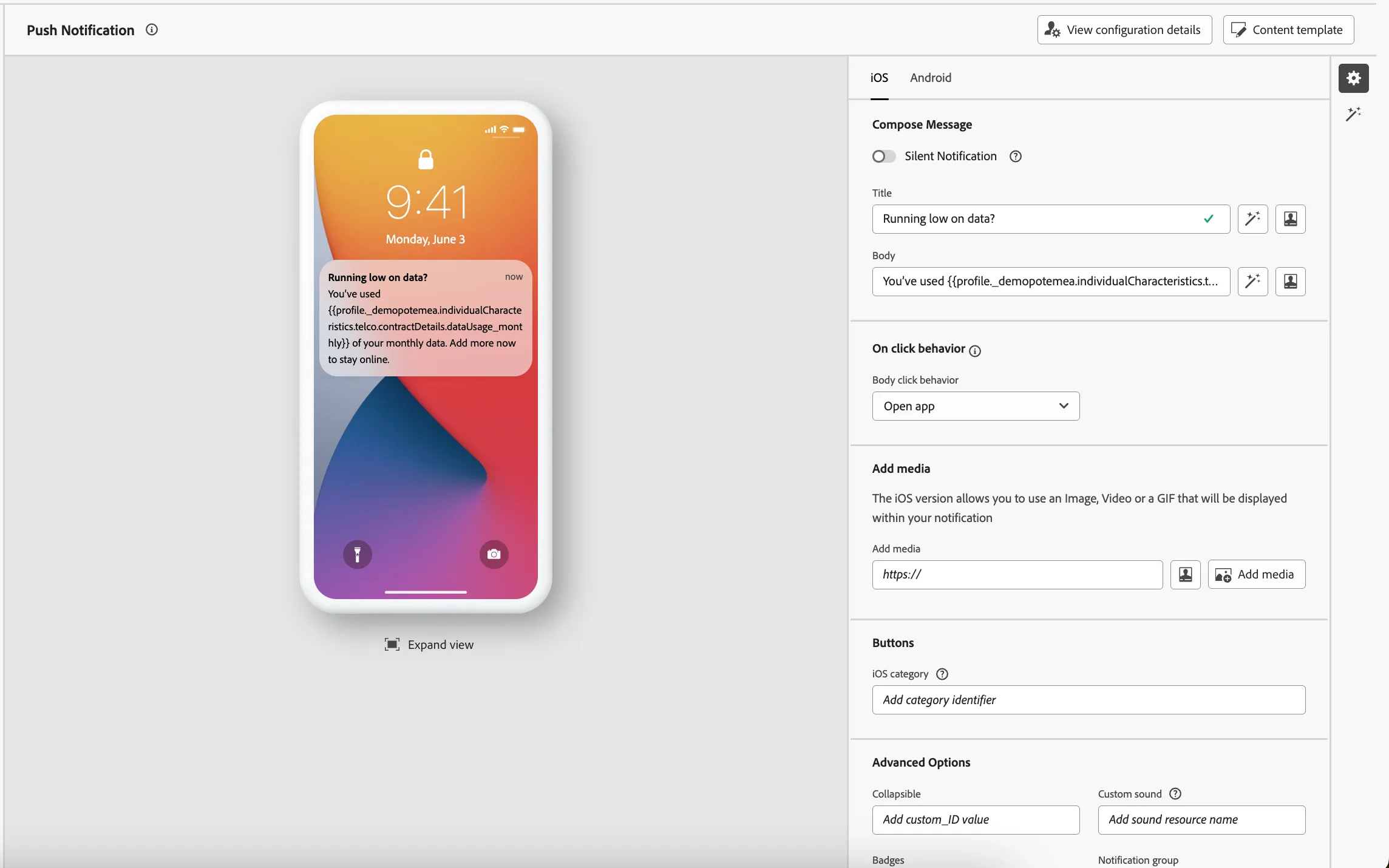
- Set the title to Running low on data?.
- Select and remove the text DATA USED AMOUNT.
- In Profile attributes, search for data usage. You'll see the attribute Data Usage - Monthly.
- Click on the icon next to the attribute to add this to your expression. It should read: You’ve used {{profile._demopotemea.individualCharacteristics.telco.contractDetails.dataUsage_monthly}} of your monthly data. Add more now to stay online.
- Click Save.
- Your screen should look like the image below:
-
- Navigate out of the designer by clicking the arrow in the top left. Your screen should now look like the image below. Click Save to close the in-app message detail panel.
You've successfully orchastrated a Push message to be sent to qualifying customers. Let's now build an email message for customers without the mobile app.