Ingest data via the UI
In the previous section you have completed your Schema definition for Customer Profile data. You will now need to create a corresponding dataset before onboarding your data.
To log into the Adobe Experience Platform, check the Welcome! section.
Step 1: Create a Dataset
To do this:
- Navigate to Datasets in the left hand menu.
- Click on + Create dataset, in the top right corner.
- Select Create Dataset from Schema.
- Search CRM in the searchbox and choose the schema Demo System - Profile Schema for CRM (Global v1.1), click Next.
- Give your Dataset a name. E.g. [Your name] - Customer Profile Dataset.
- Click Finish and you will be taken to the Dataset UI.
Do not enable your Dataset for Profile.
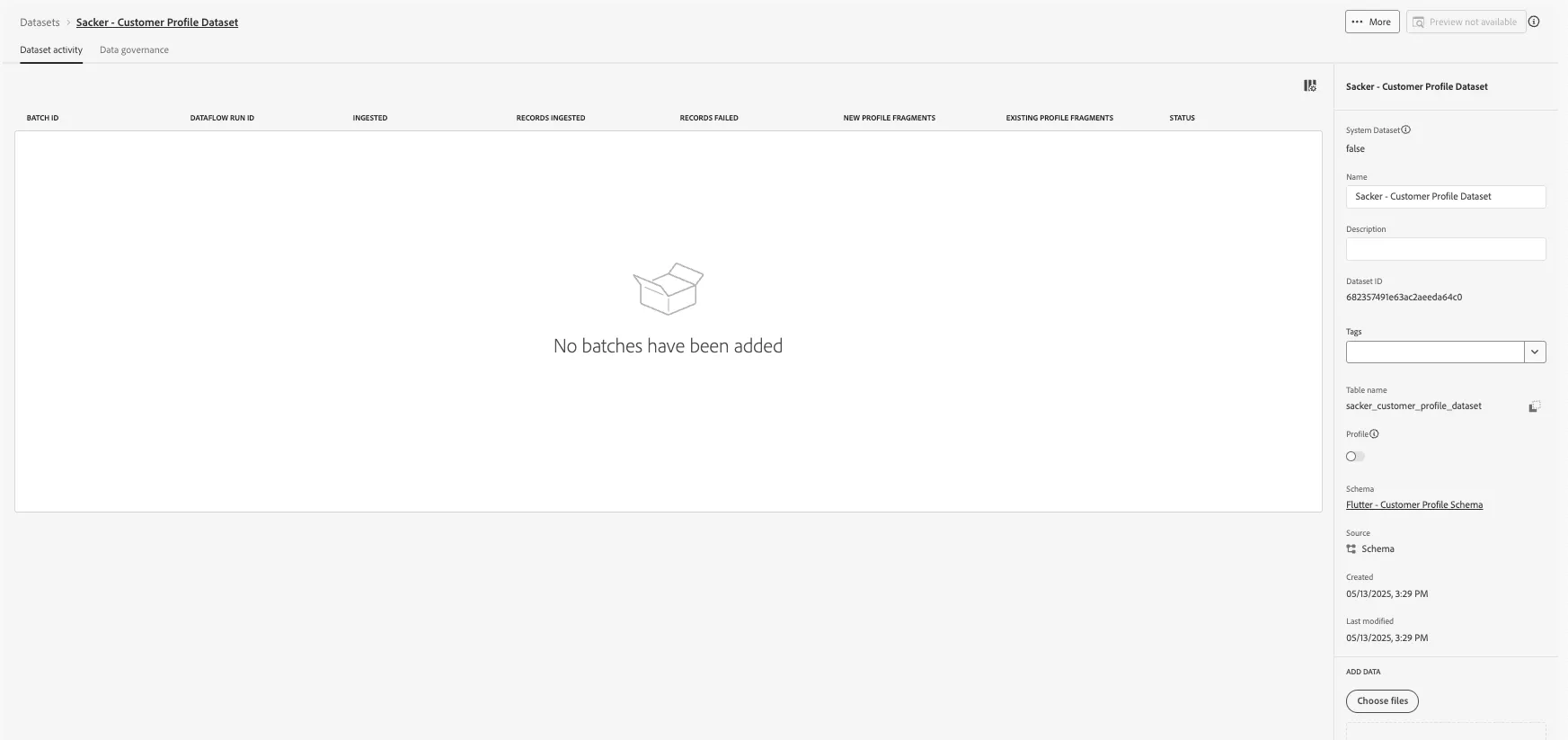
We can have any number of datasets ingesting data into Adobe experience platform. But the data from the dataset that get stitched into the real time customer data profile is determined by the Profile enable toggle on the dataset. If enabled, any data ingested into the dataset is picked up they profile services and will generate a profile fragment and will stitch it to the customer profile based on the identity graph mapping in the data.
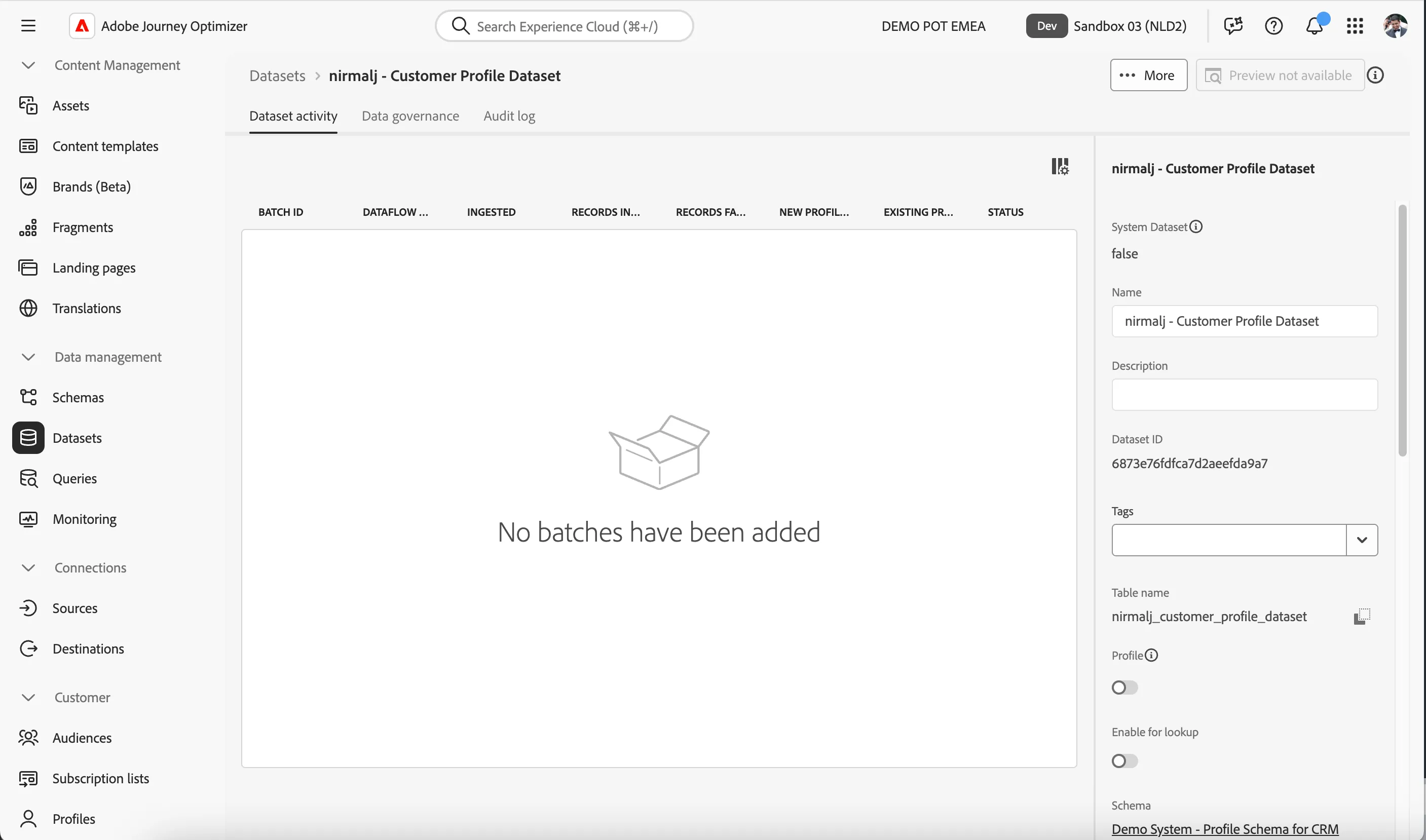
In our case, we want the data ingested to be available in the profile. We will use this information later on in the labs.
- Click on Profile toggle to enable it.
- Confirm enabling the dataset for profile by clicking the Enable button on the popup.
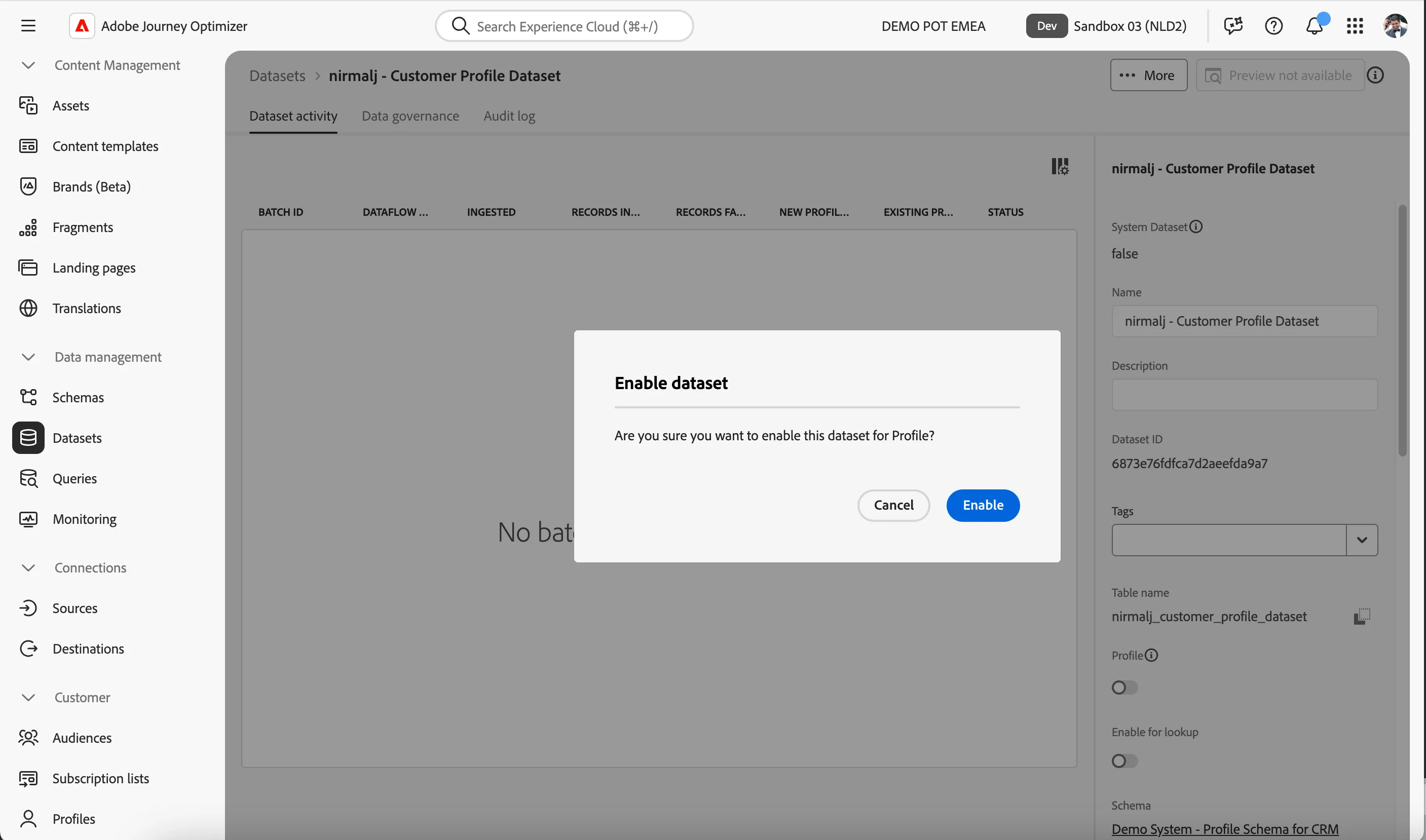
Step 2: Ingest Data
Now, we can onboard our Customer Profile data to our Dataset.
- Download the JSON file with Demo Customer Profile data from below:
In order to ingest data into Adobe Experience Platform, the format and structure of the data must comply with an existing Experience Data Model (XDM) schema. Notice the JSON file is formatted to represent the XDM structure of the Customer Profile schema we previously created.
- Open the file and update the crmId to your crmId from your profile. To find your CRM ID, go to your profile, in the attribute tab, search for crmId
- Update the favouriteCategory to your favourite category from entertainment, fitness, charity and travel
- Save the file.
- In the Dataset UI you have just created, drop the JSON file under Add Data (as shown in the screenshot below). Your JSON file will now be ingested into the Dataset. You should see a new processing batch. This will change to success once your records have ingested.
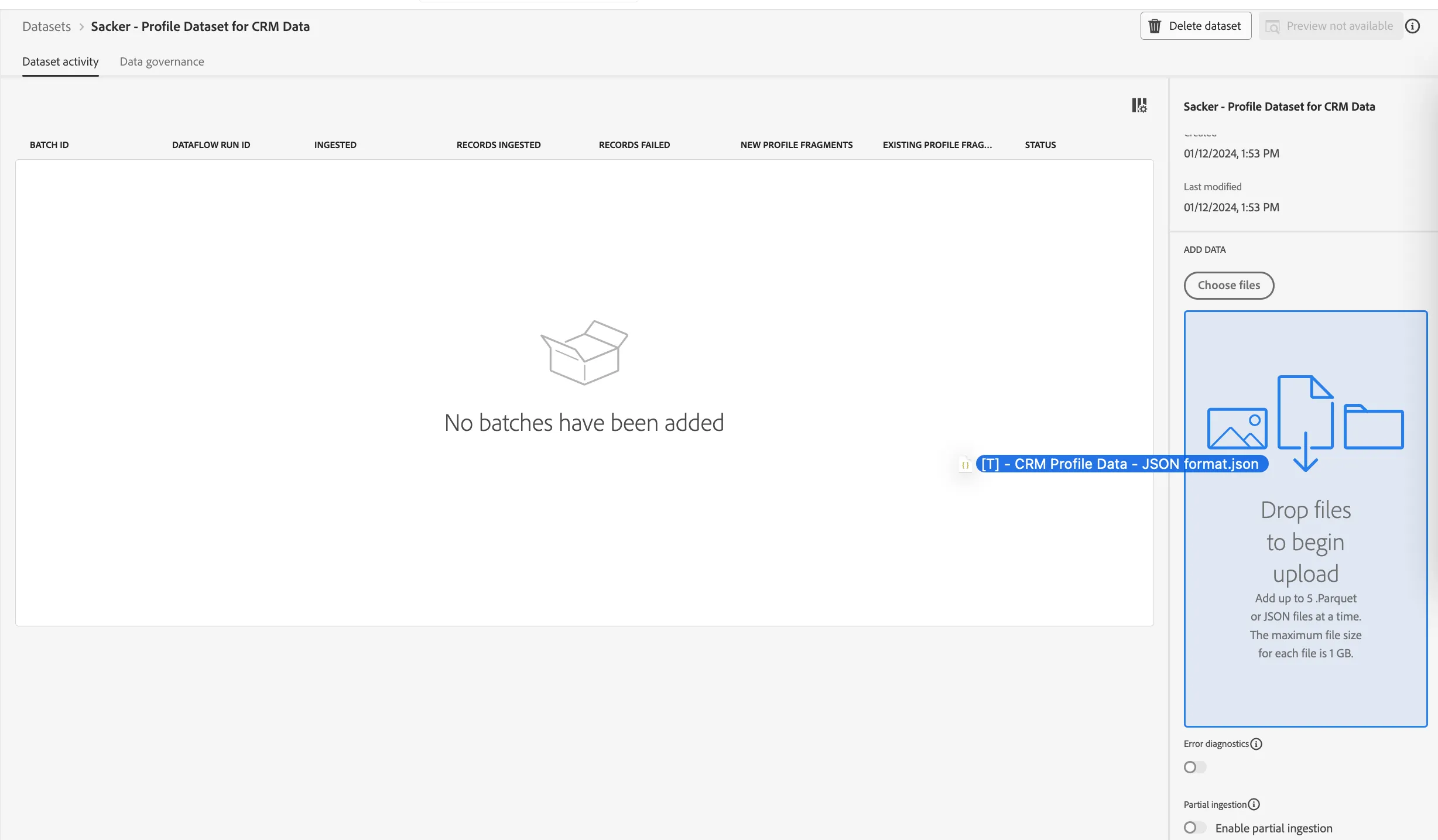
Adobe Experience Platform will perform the conversion from JSON format to parquet and make this data available on the data lake and in the profile store. This process usually only takes a couple minutes. Refresh the page to see the updates.
Once your batch status has a status of success, you can preview the data by clicking the Preview Dataset button in the top right corner.
- Click on the Preview Dataset button to get a quick view of a small sample of the data ingested to ensure that it loaded correctly.
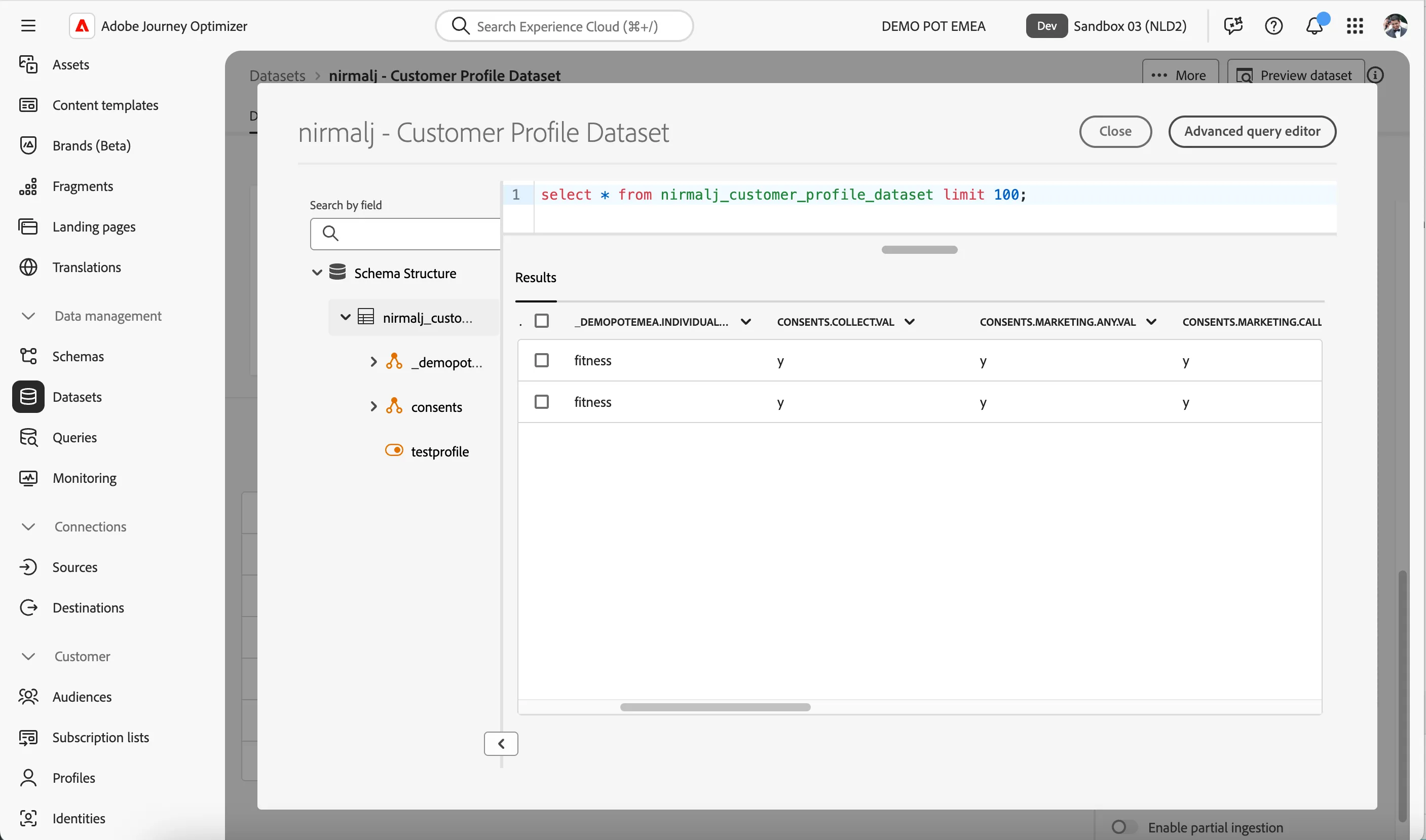
With this, you’ve now successfully ingested CRM Data in Adobe Experience Platform. You will use this attribute later in the lab exercise.