Create Journey
We will first create the Journey flow, then add the content for each message.
Create a Journey
Create a Journey Manually
Navigate to Journey Management -> Journeys and click on Create Journey.
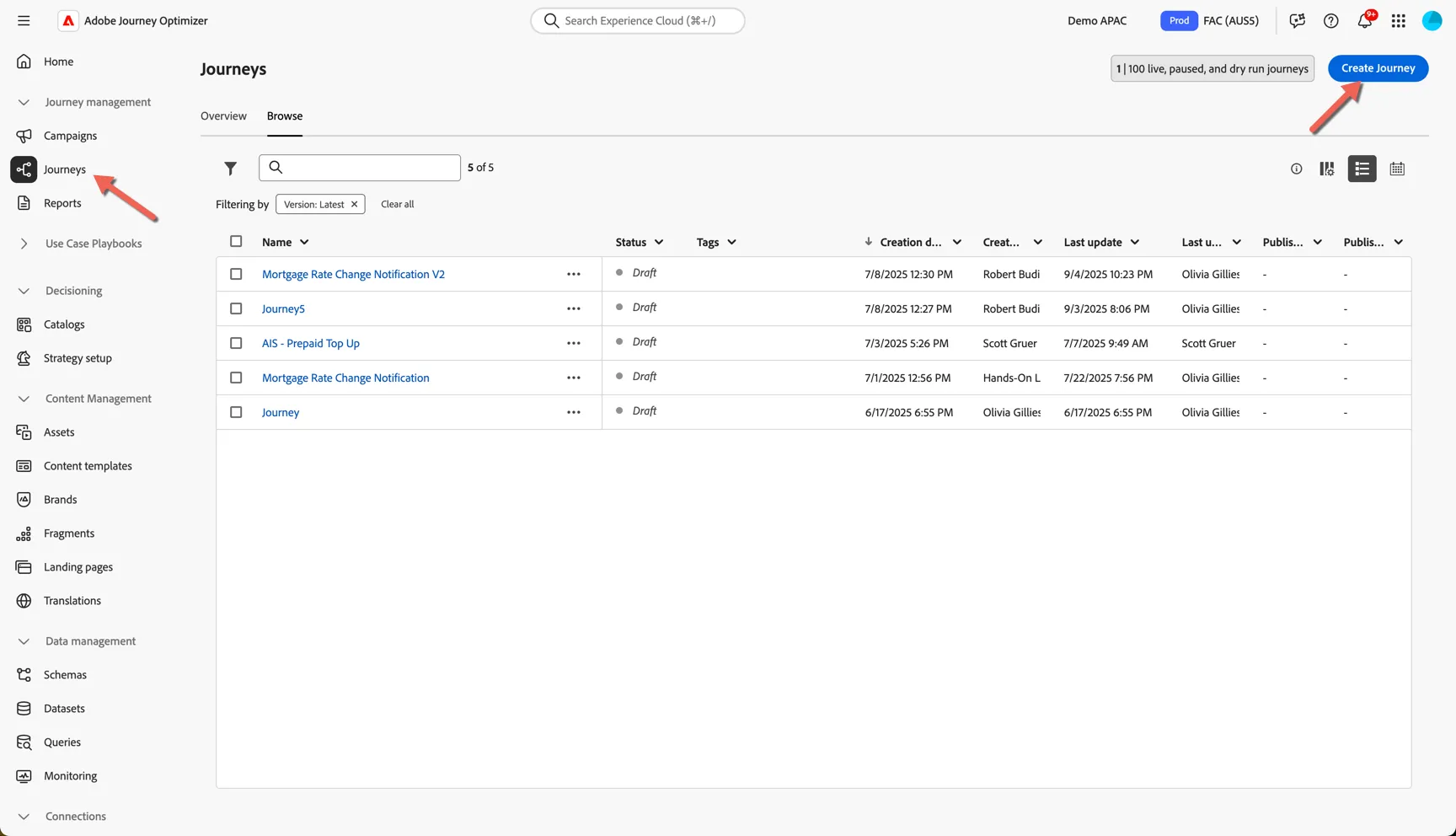
If proposed, select Create from scratch
Give your journey a name, add your initials so you can recognise it from other lab participants.
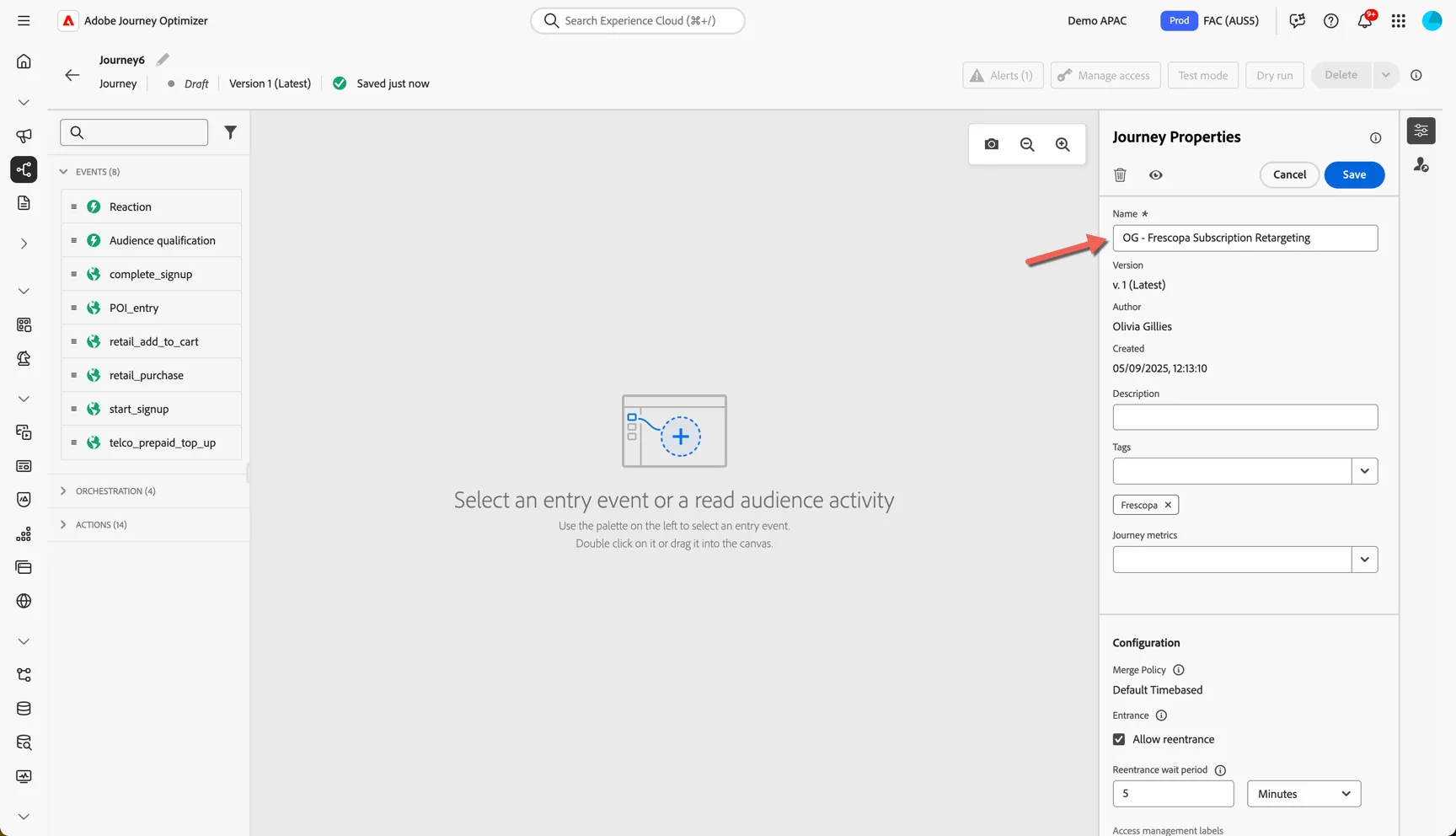
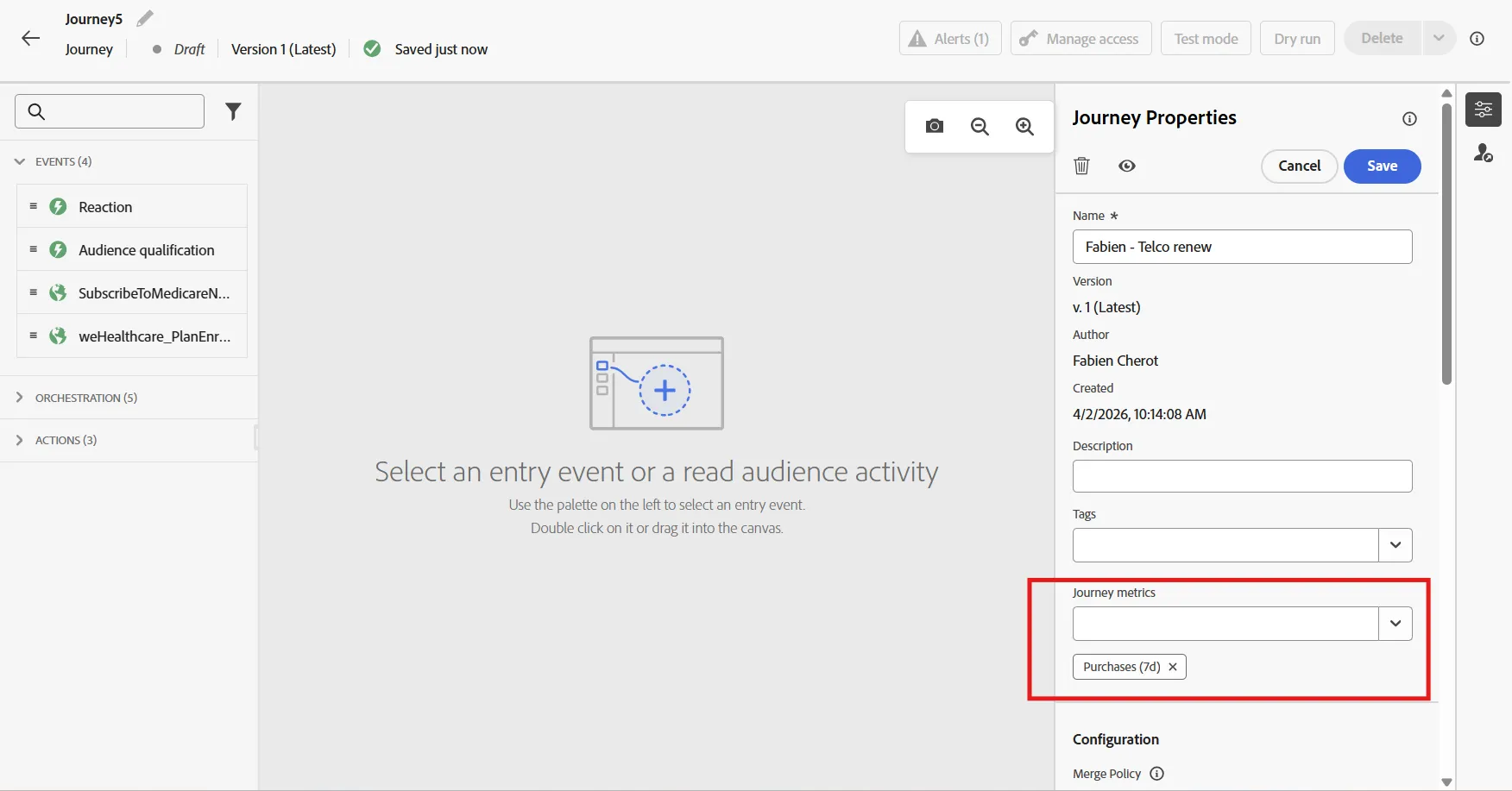
Measurement is critical to any journey, Adobe Journey Optimizer can use any of the metrics defined in Customer Journey Analytics as journey success metric. For this journey we are encouraging subscription, click on the Journey Metric drop down and select Purchases (7d). The attribution in this case is pre-set to Last Touch 7 days, but you can modify this within Customer Journey Analytics or create different versions for different purposes.
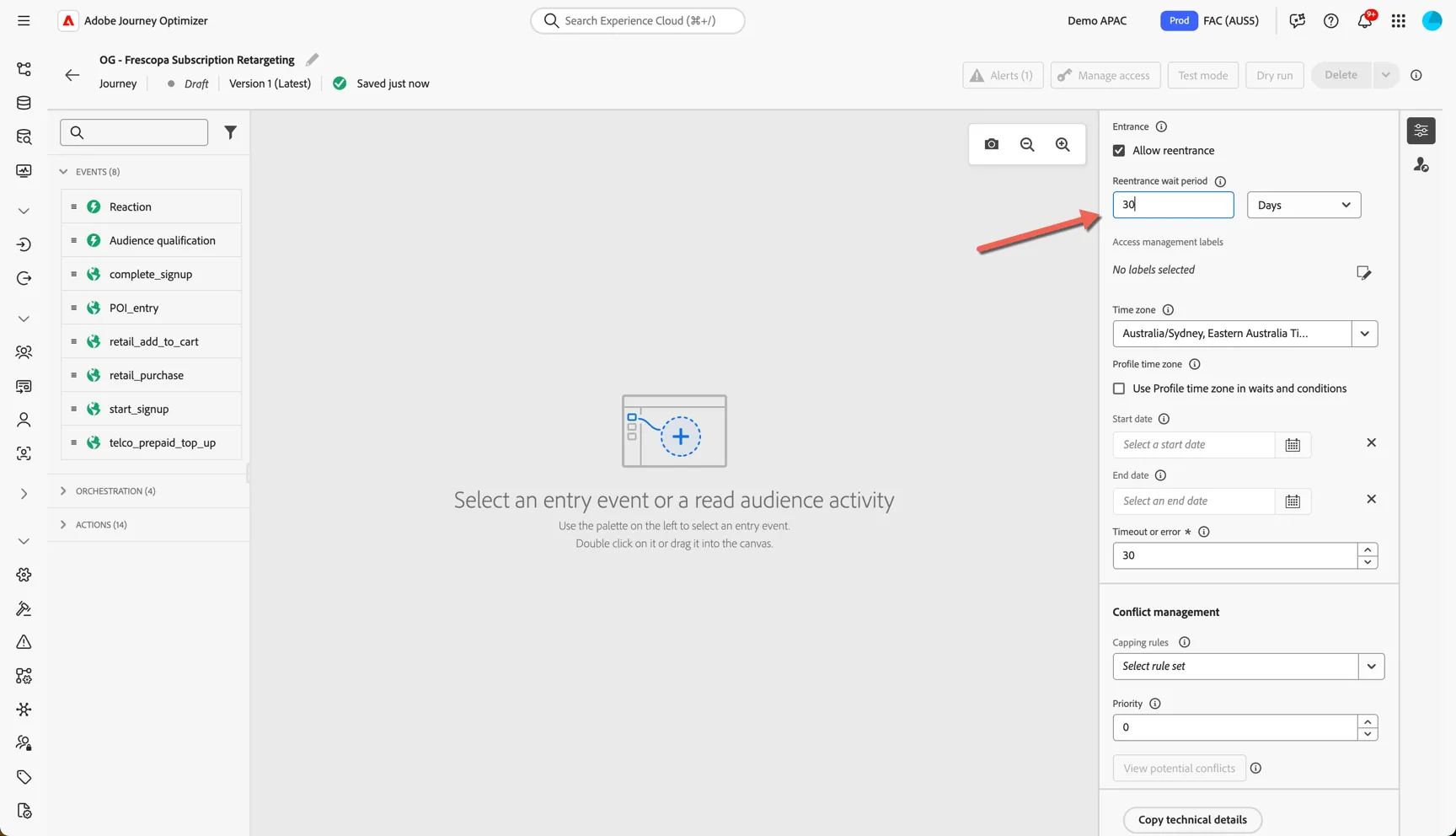
The journey properties are also where you can set up the re-entrance criteria to ensure we're not fatiguing customers multiple entries into the same journey, scroll down and set re-entry wait period to every 1 days. Click Save.
Click to save the properties.
Journeys can be triggered from individual events or when a customer enters or exits a streaming audience. You can see the events that are configured as journey triggers in the left panel - this list is configurable and will depend on your implementation.
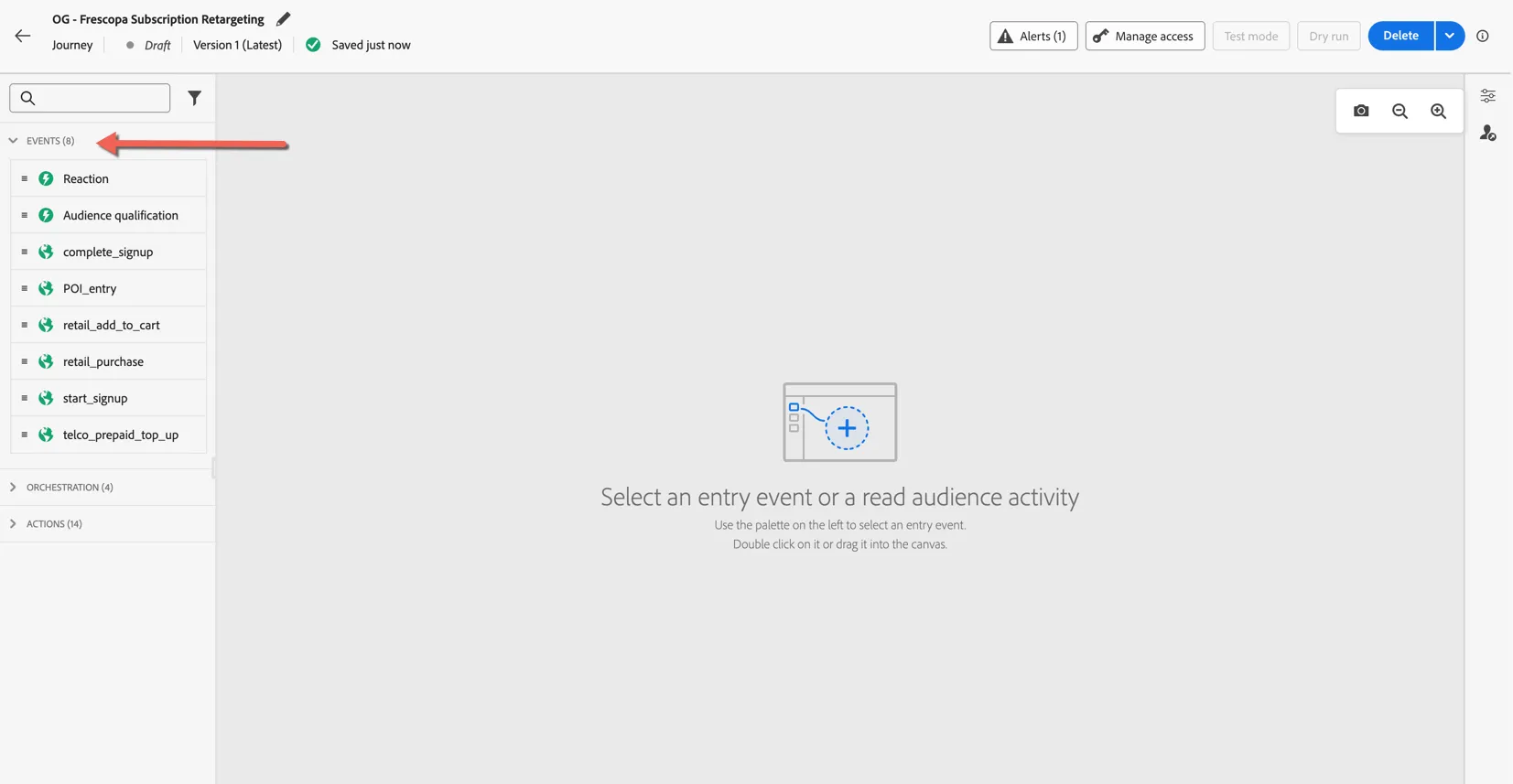
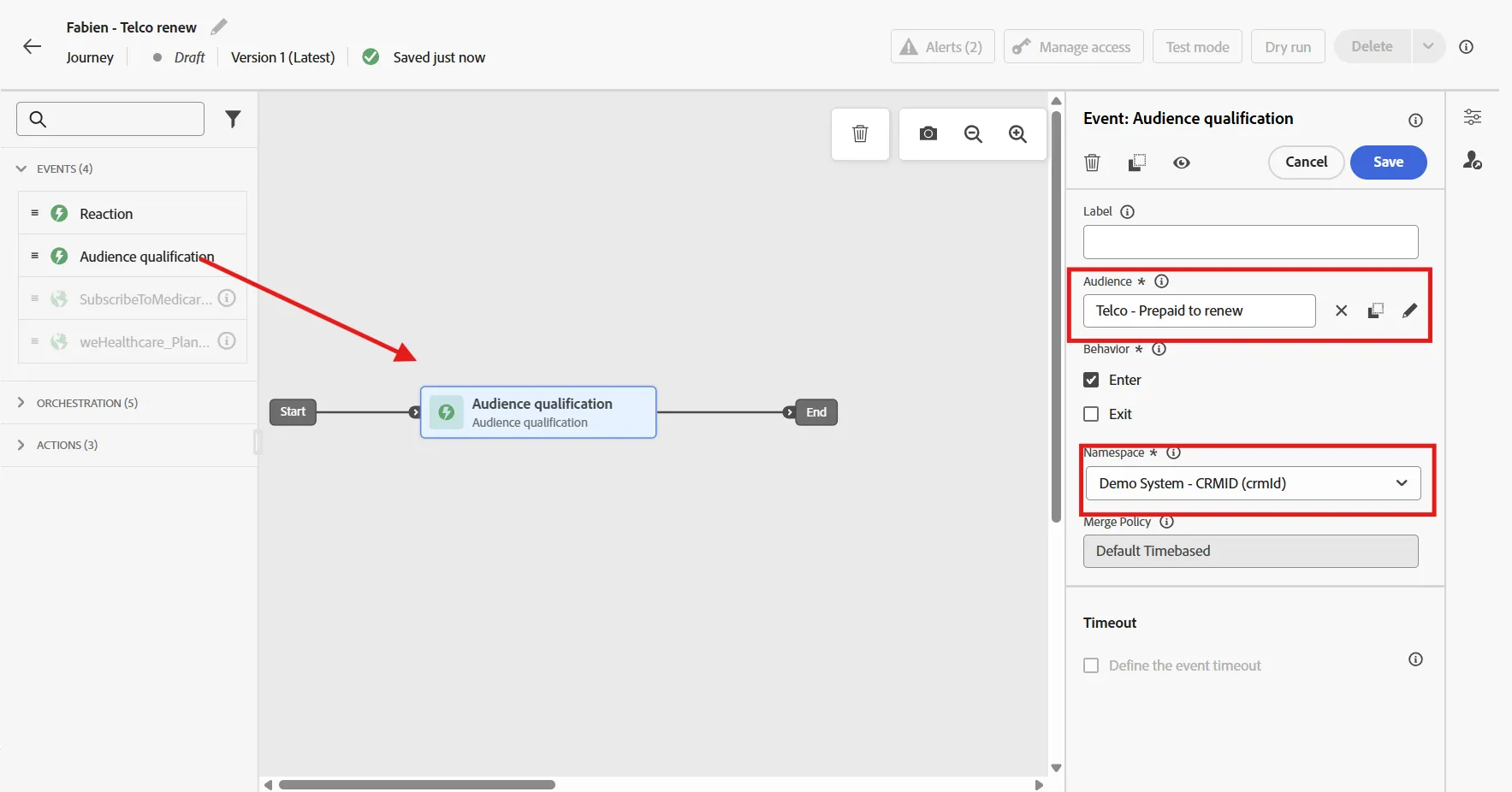
Drag the Audience Qualification activity into the panel as your journey trigger.
Select the audience you have created for Prepaid customer to renew, or use "Telco - Prepaid to renew" if you have not created your own audience.
Change the namespace to CRMID.
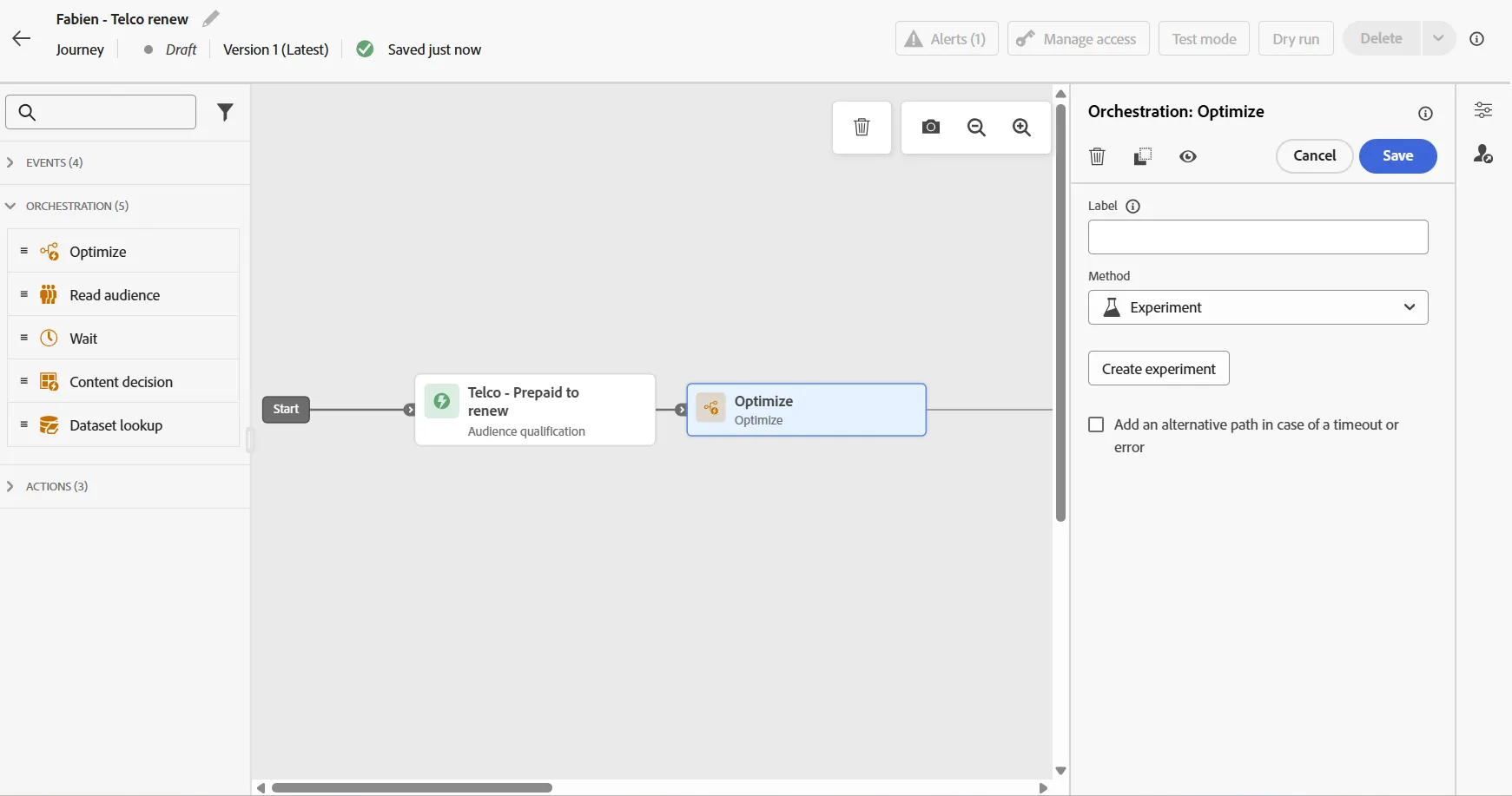
The orchestration panel is where we can find activites to control the pathing and flow of the journey. As we want to test 2 different type of channel )(SMS and Push), we need to branch customer to one or the other, and have some process to check what works the best. For that, we wil luse an experiement. Drag a optimize activity just after your audience qualification, then change the method to experiment.
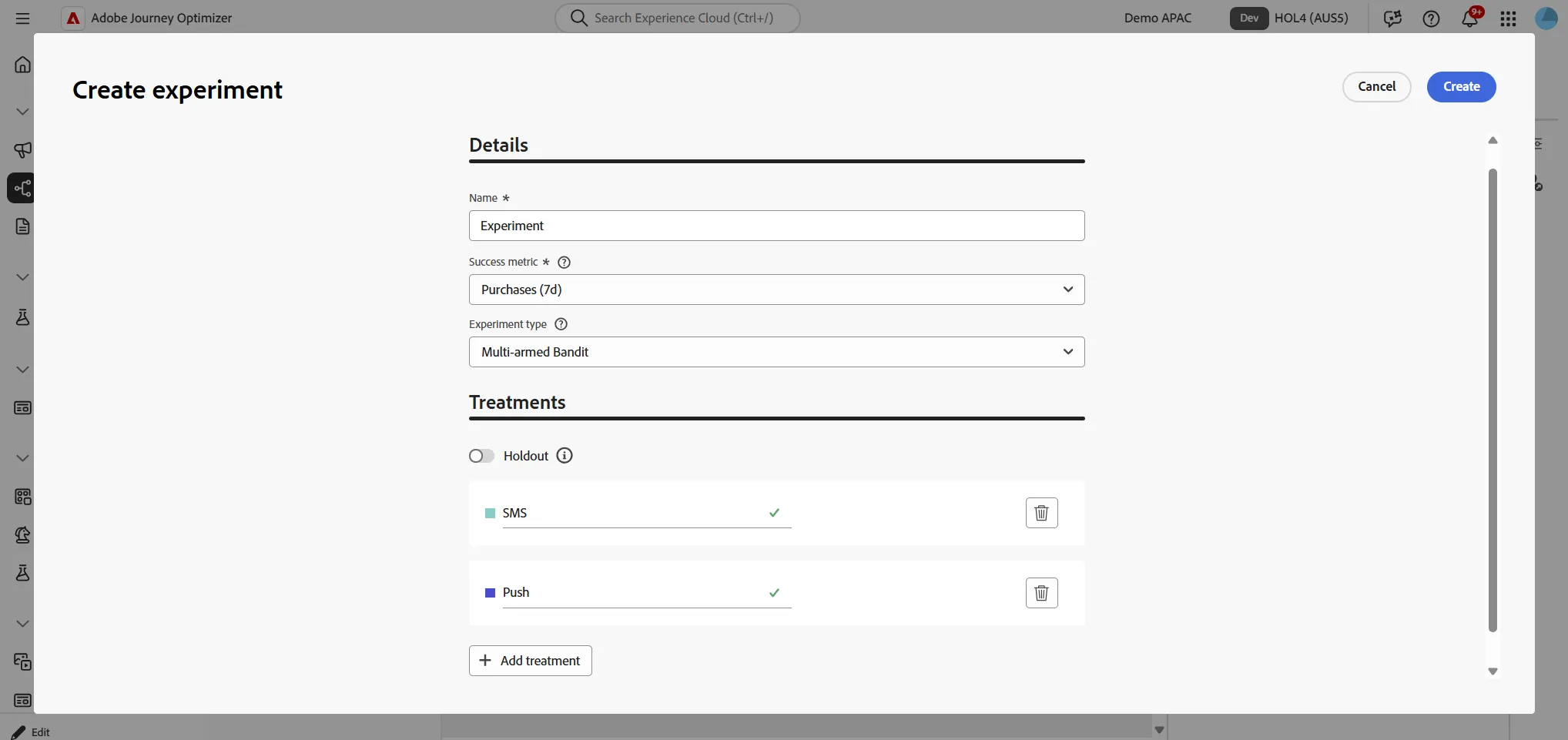
Click on create Experiment
Change the success metrics to Purchase
Change the experiement Type to Multi-arms Bandit
Add a treatment, then rename your treatment SMS and Push
Then click create
You should now see 2 paths after your activity names SMS and Push
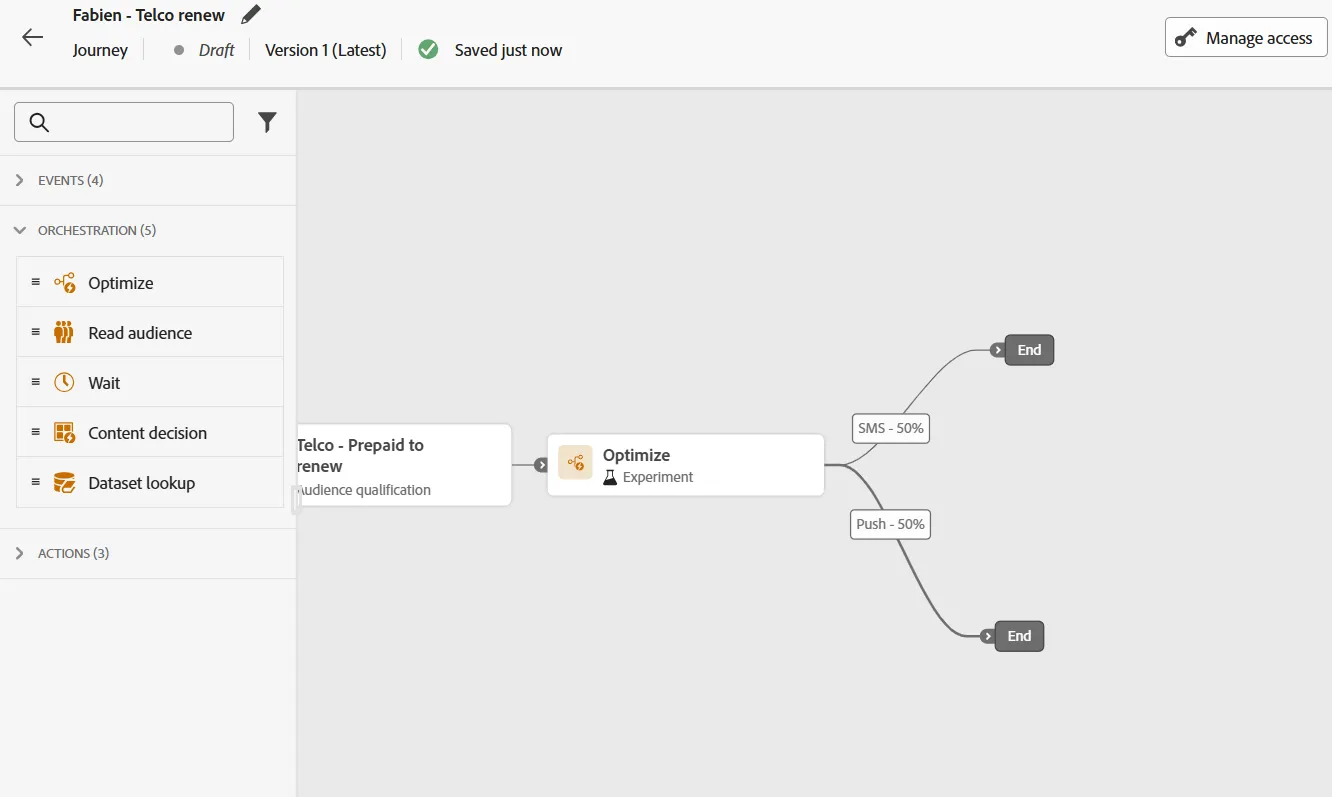
Open the Actions menu on the left side, and drag and drop the Action activity into the canvas on the SMS path, select SMS as a channel
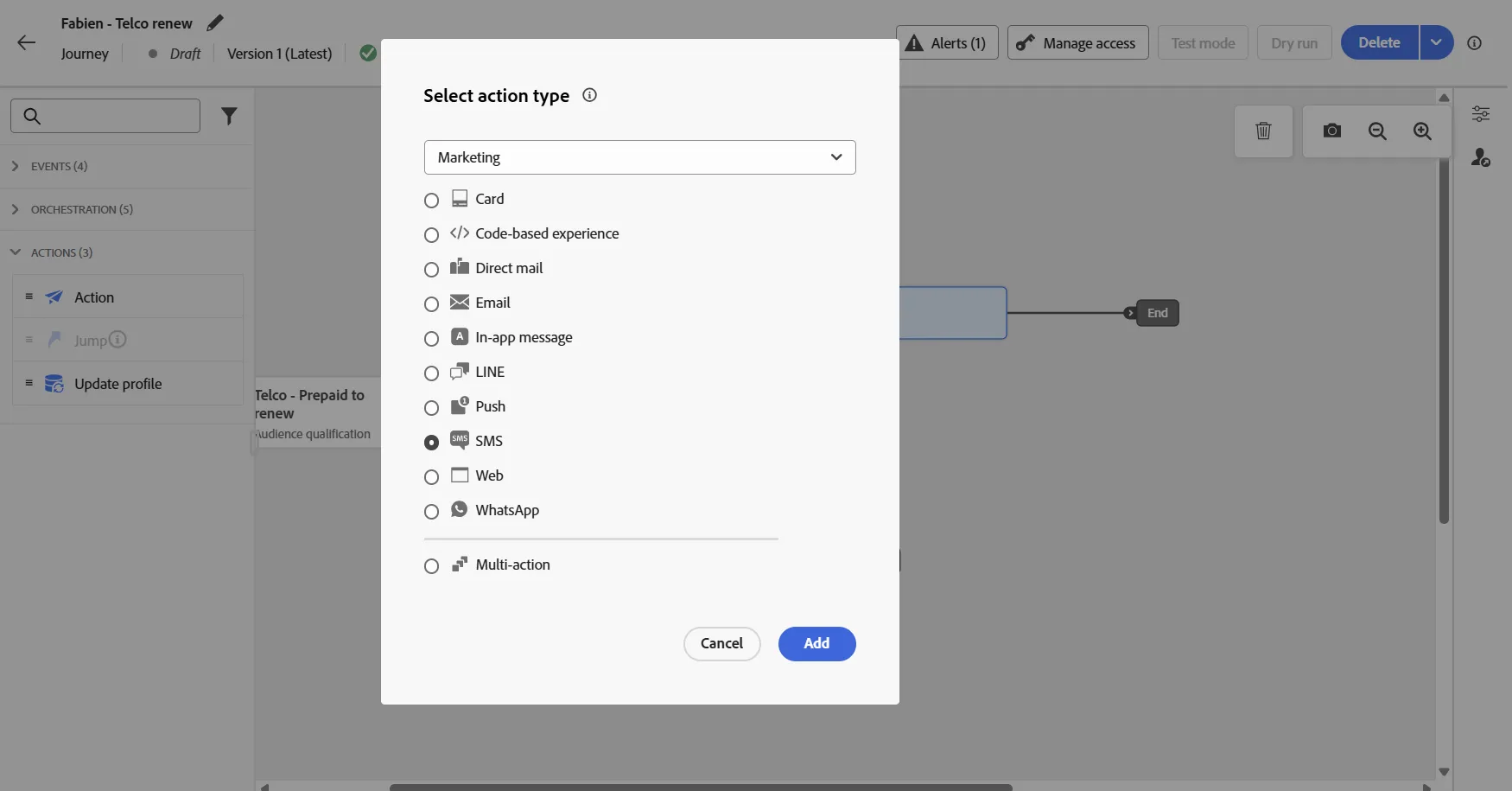
Repeat the same for the Push path, but select Push Channel. you should end up with a journey like this one:
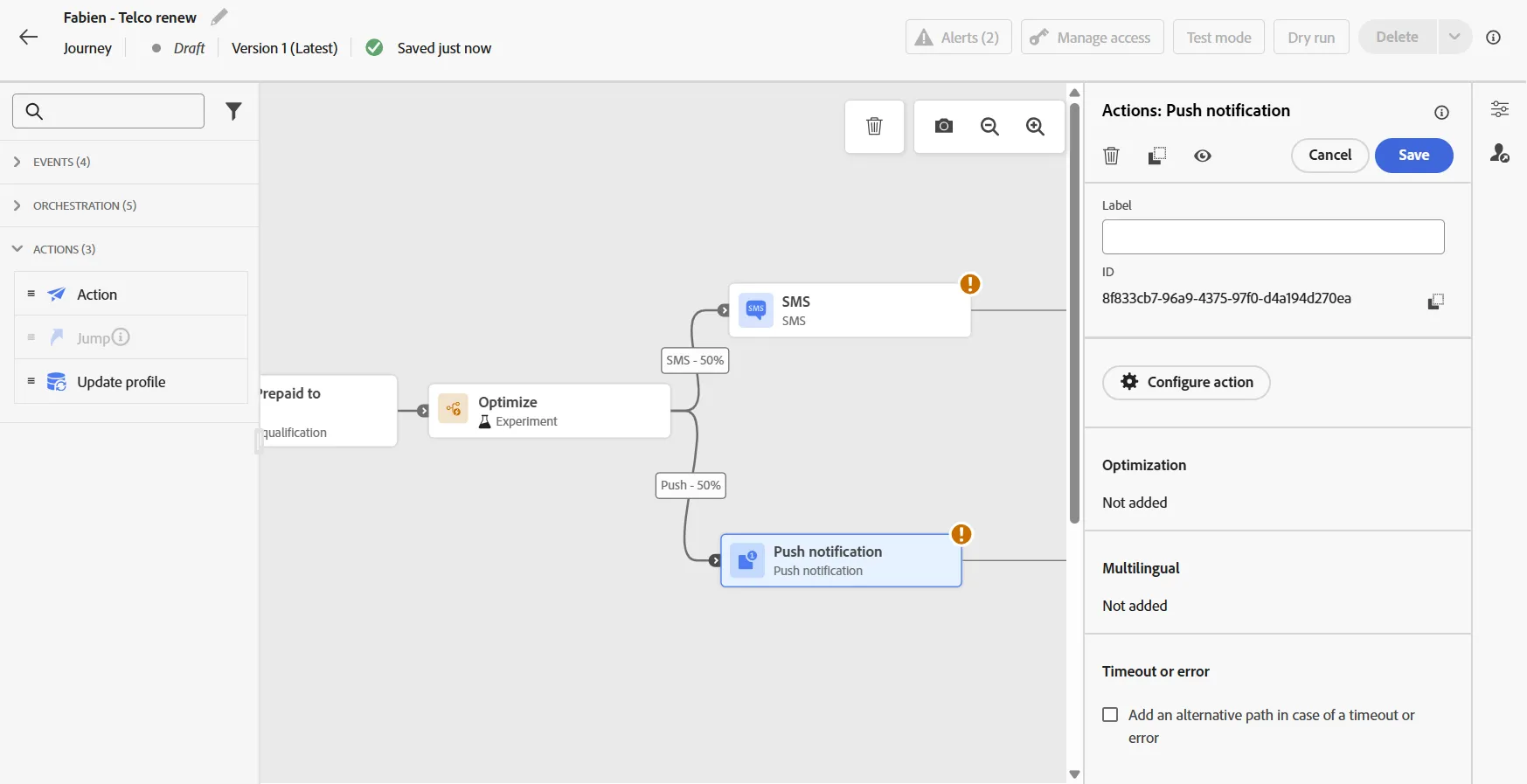
We now need to set up the content for each of those messages in the next exercise