Offer set up
Offer overview
To get an overview of all offers in Adobe Experience Platform:
- In the menu on the left side, under Decisioning, click on Catalog. You will see a dashboard with information on your offers and collections.
- Click on Offers. You will see an overview of all existing offers.
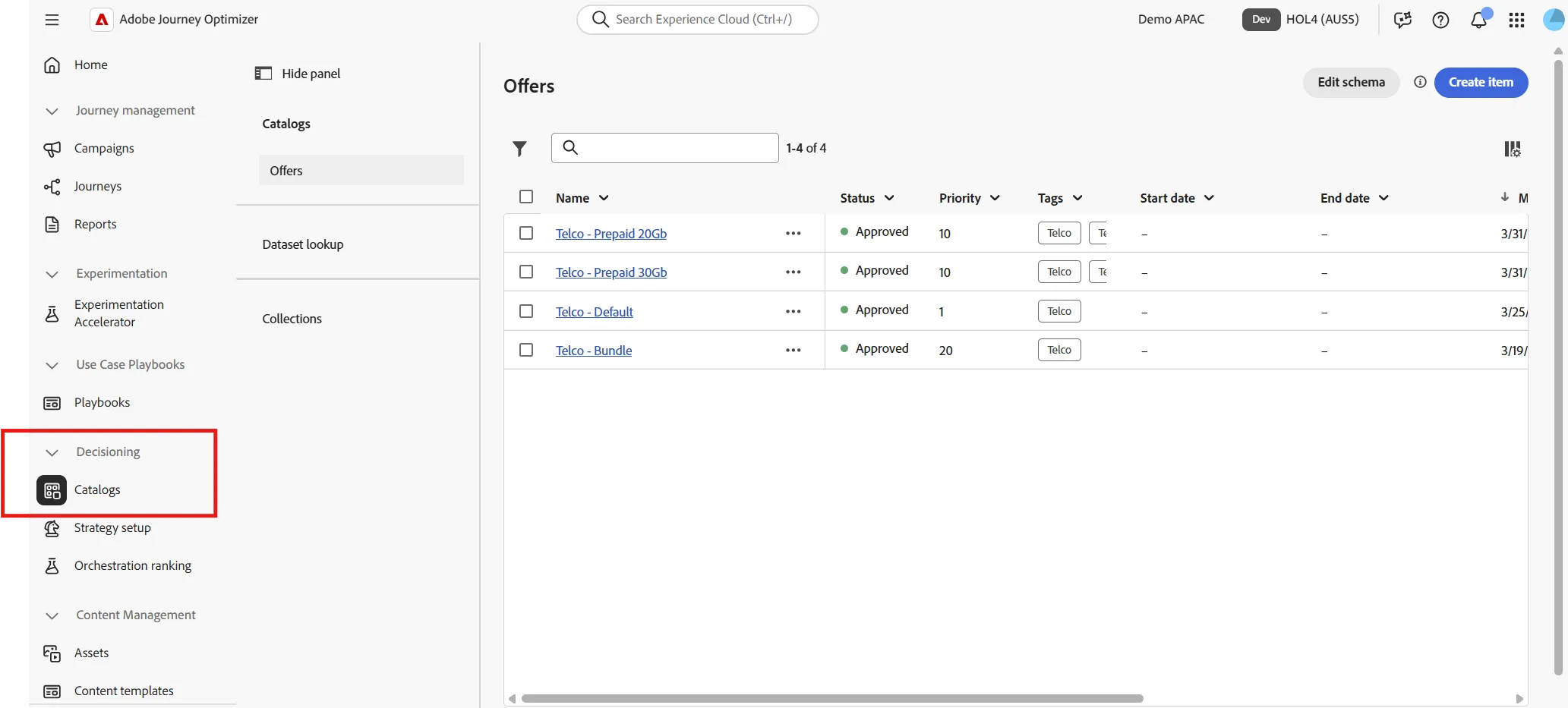
Each offers comes with content, eligibility, constraint, and priority.
Creating an offer
An offer can be anything you like. It can be a discount, a product, a reminder, or any type of message you want to push.
In this exercice, we will create an offer for people who are running out of data before the end of their subscription, and we will propose them an increase / top up.
We will display this offer on the Web, and we will also include it in our Push
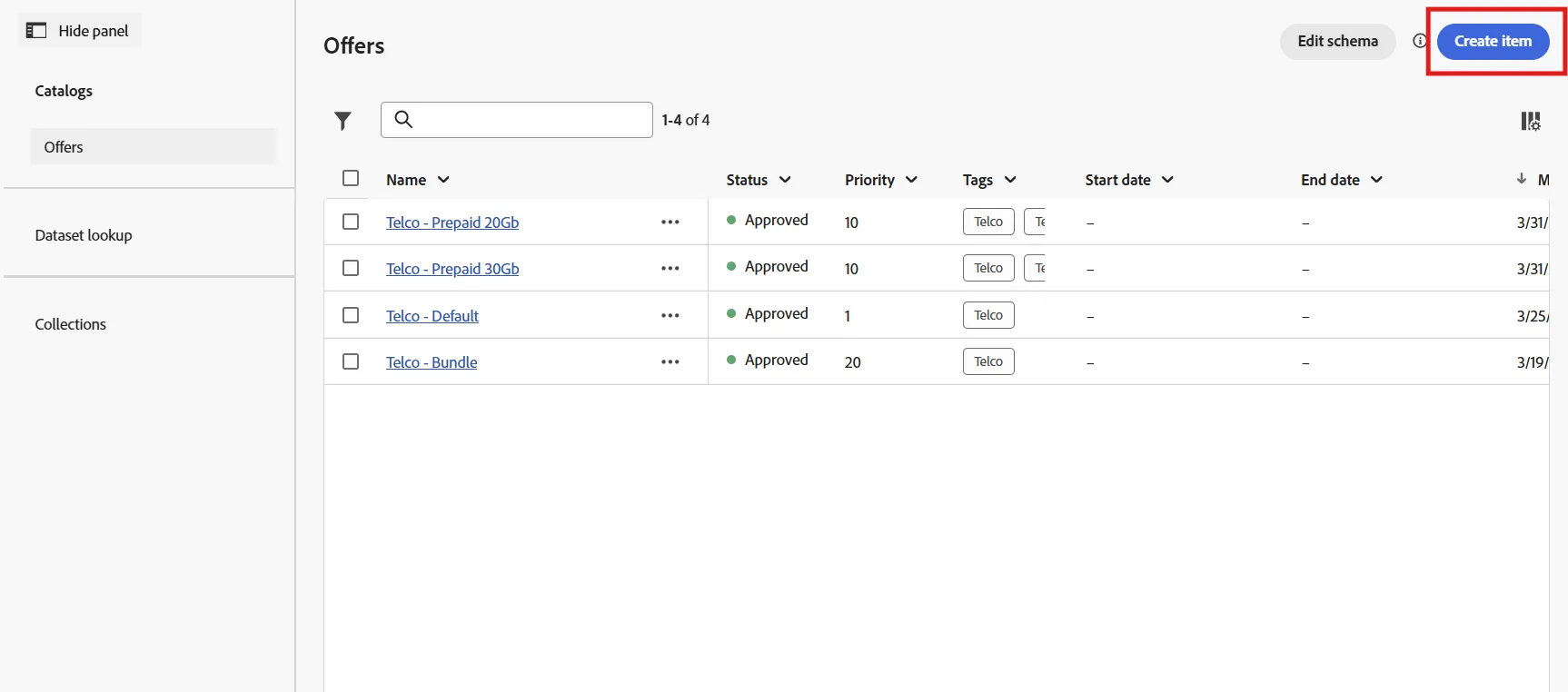
Click on Create Item on the top right corner.
Our offer Item can be fully customized based on your need. They are composed of a few standard elements, such as name, eligibility, etc, and custom attributes that can be used for display (you may want to have different image size depending on where you want to display this offer), or store specific attribute such as price, data, validity, etc.
Start by entering:
Offer Name : something like "your name - Top up"
Description : optional
Start date - End date : can be used if you want to avoid proposition this offer before/after a specific date. Let it empty for this example.
Priority : used if a customer is eligible to multiple offer. Put 30 for this example
Tag : will be used to categorize offer and group them into a colection of offer eligbiel for a specific context. Add Telco here
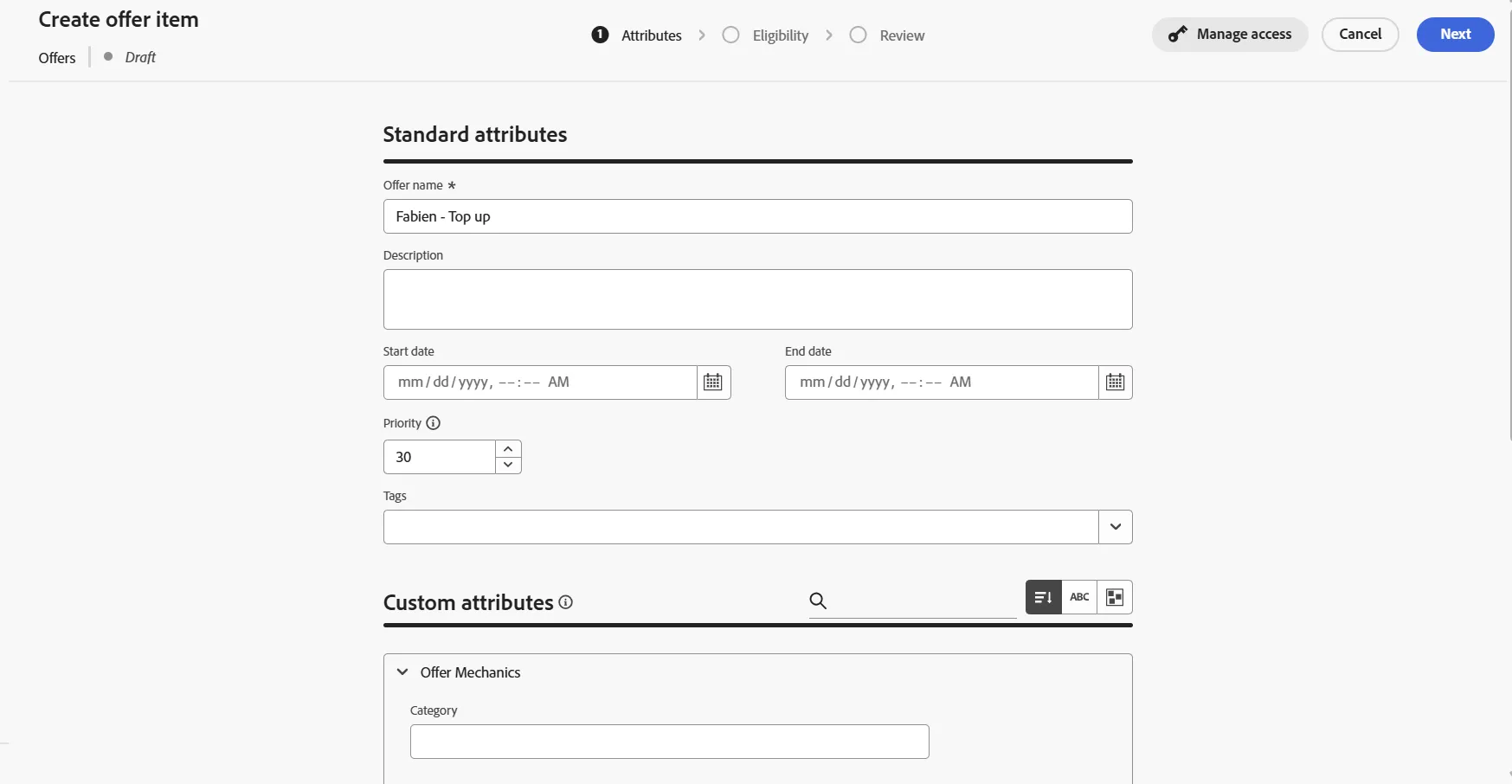
Then move to the cusom attributes.
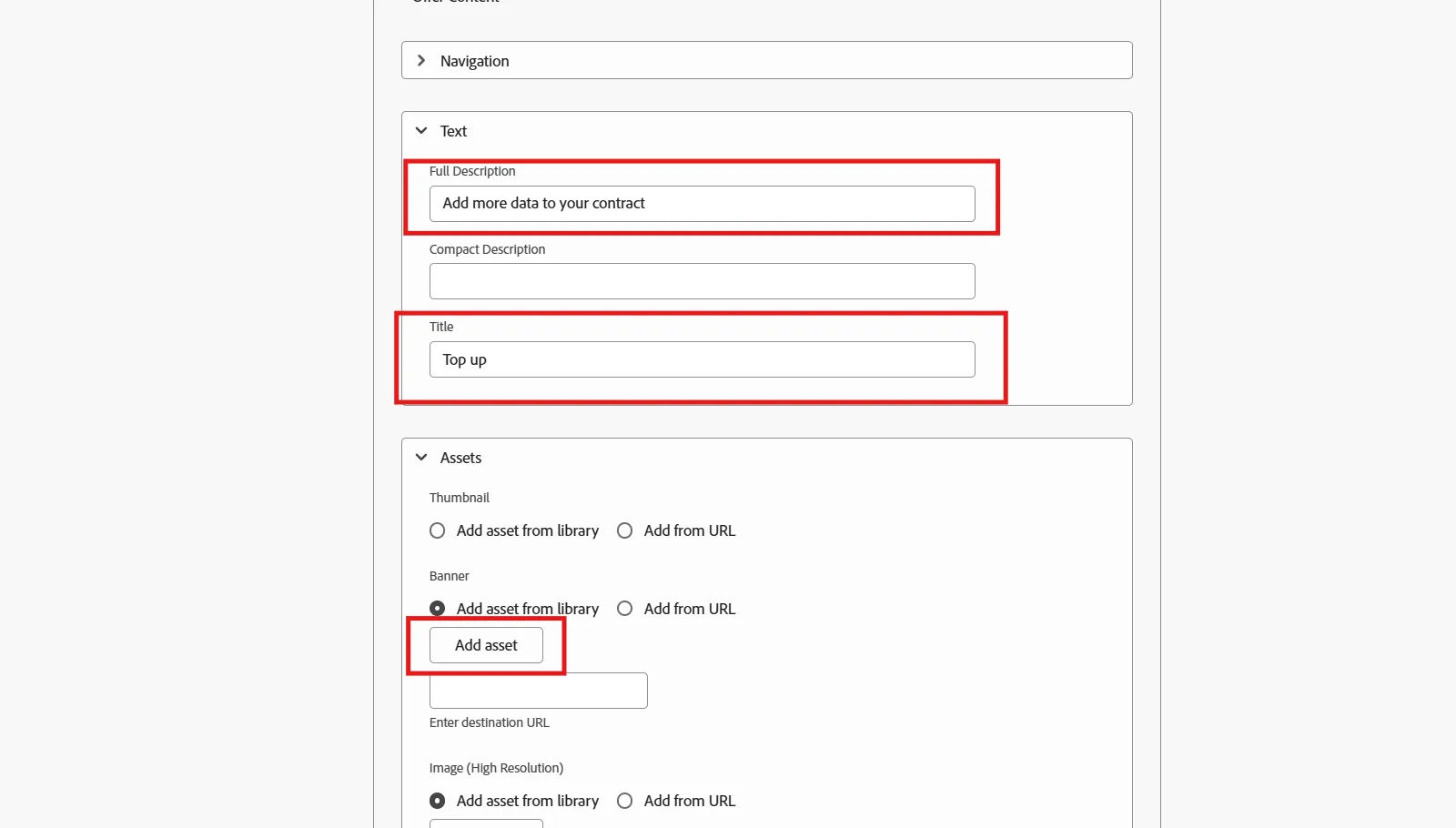
Add a Title and Full description of your choice.
Exemple:
Title : Top up
Full description : "Add more data to your plan"
Then go to the asset section, select add Asset from library for the banner, then click on Add asset.
That will open the asset repository. Go to the Telco folder, and select one offer of your choice.
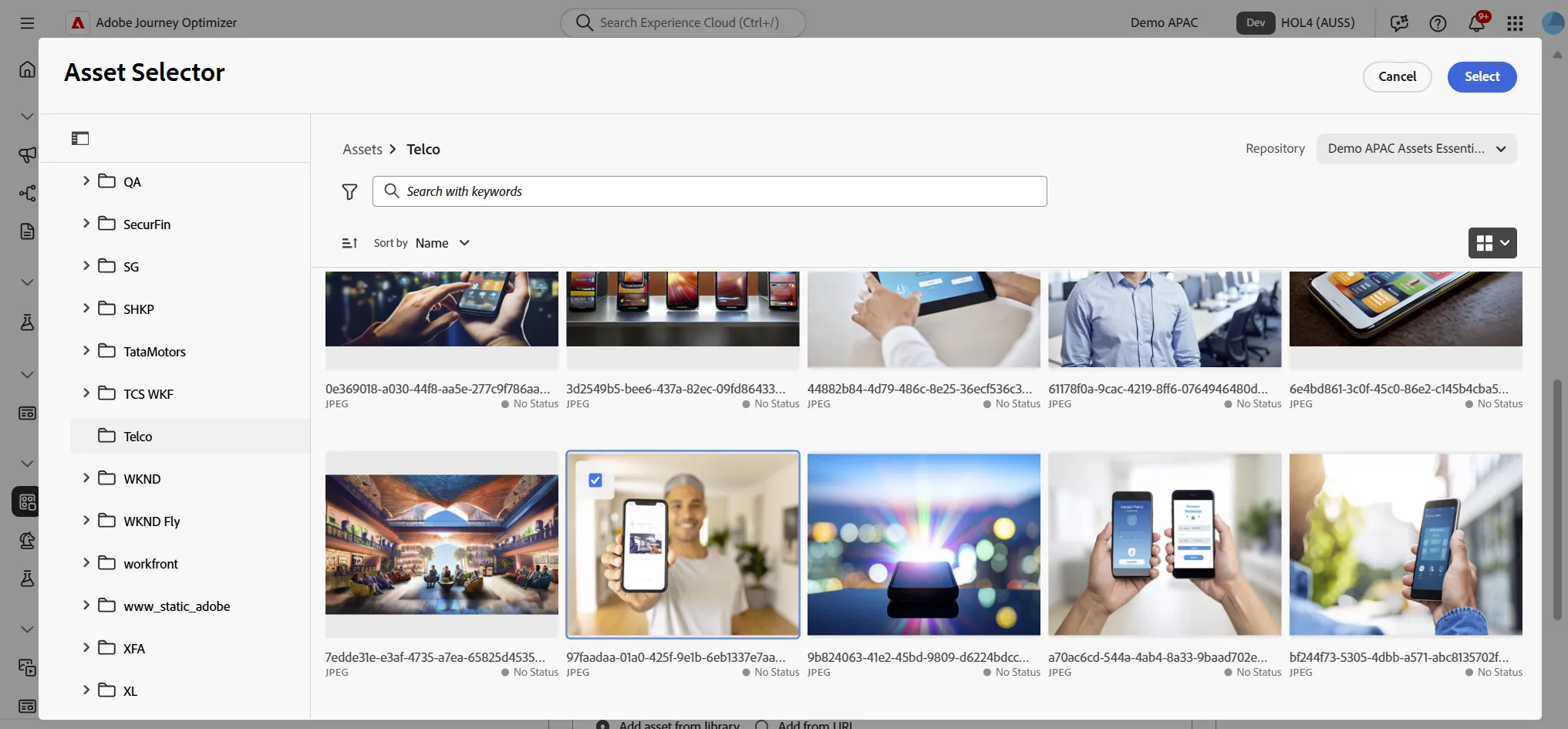
Once done, scroll up to beginning of the page, then click on Next.
2nd Step is to define the business rules about this offer presentation.
We want to present this offer ONLY if you have no data left. We already have created an audience for that. Select the option Visitors who fall into one or more audience, then select the Telco - Data Almost empty audience.
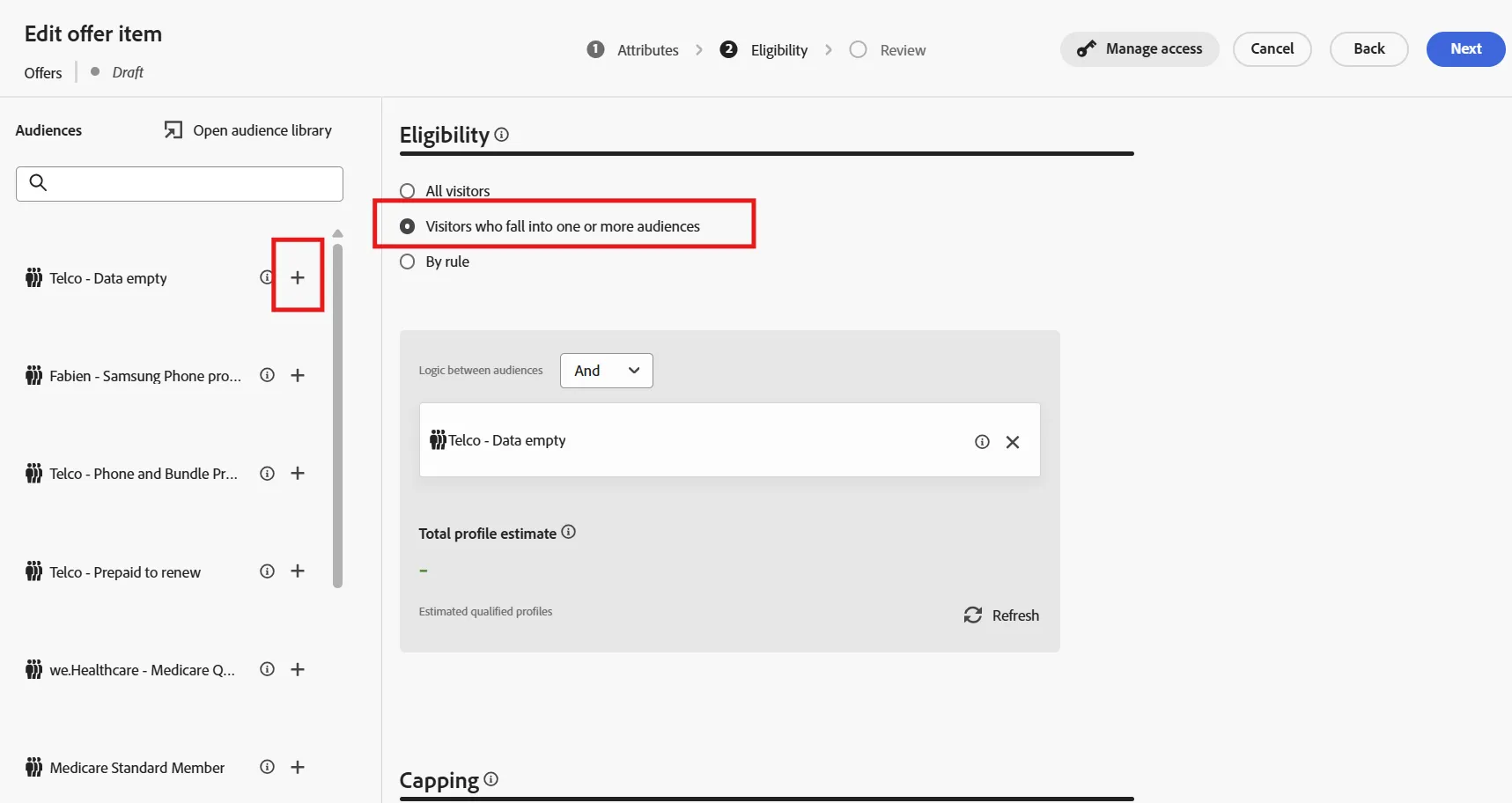
We can add capping if we don't want to present this offer more than X time. We will not set up this rule today.
Click oon Next to see the recap screen, then save your offer.
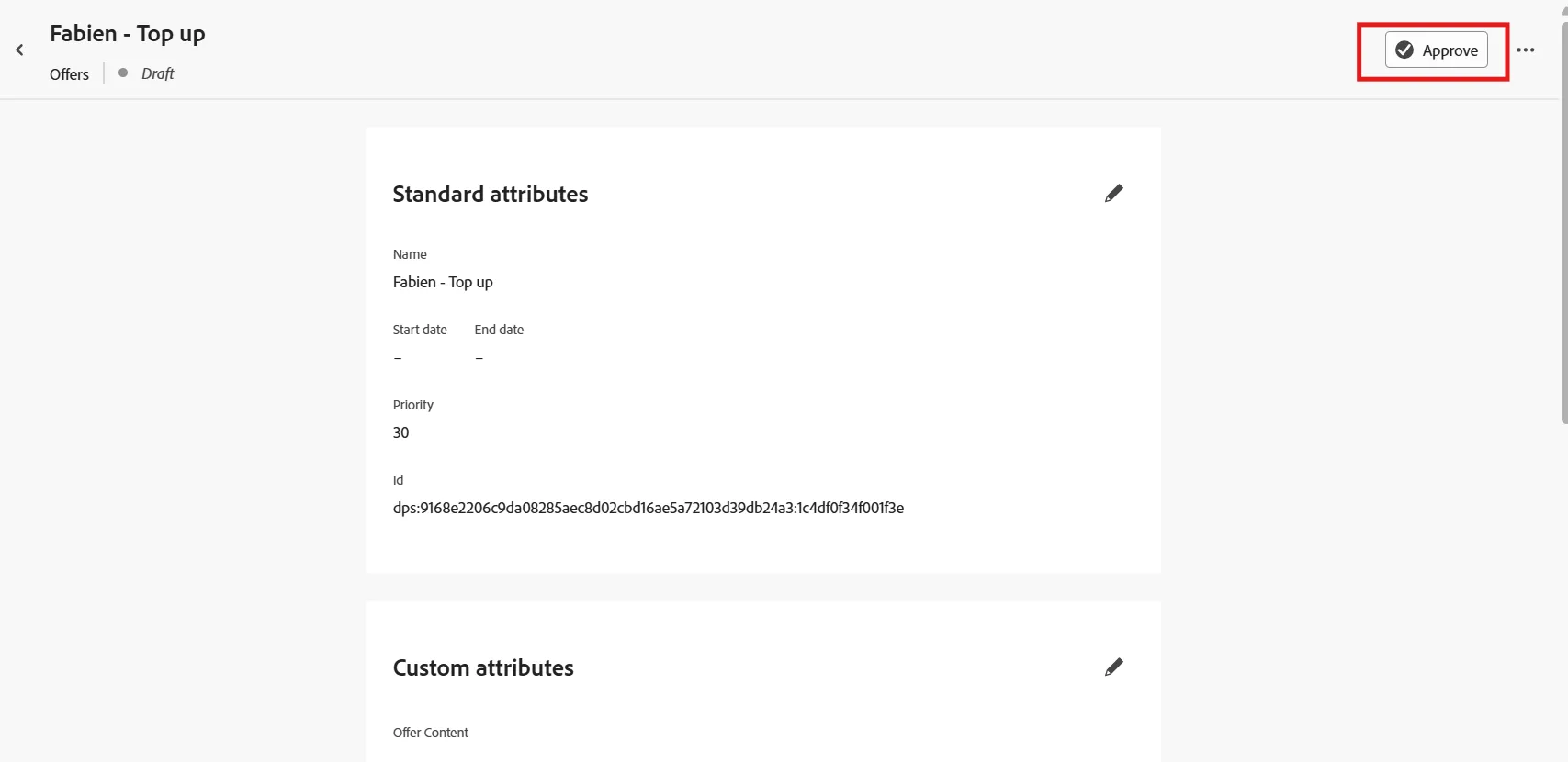
Before this offer can be used, it need to be published. Click on the Approve button to do so.