Prepare message
We now need to set up the content for each of those messages.
Add Mobile Content
To complete the journey, we need to add content to the SMS and Push Notification activities.
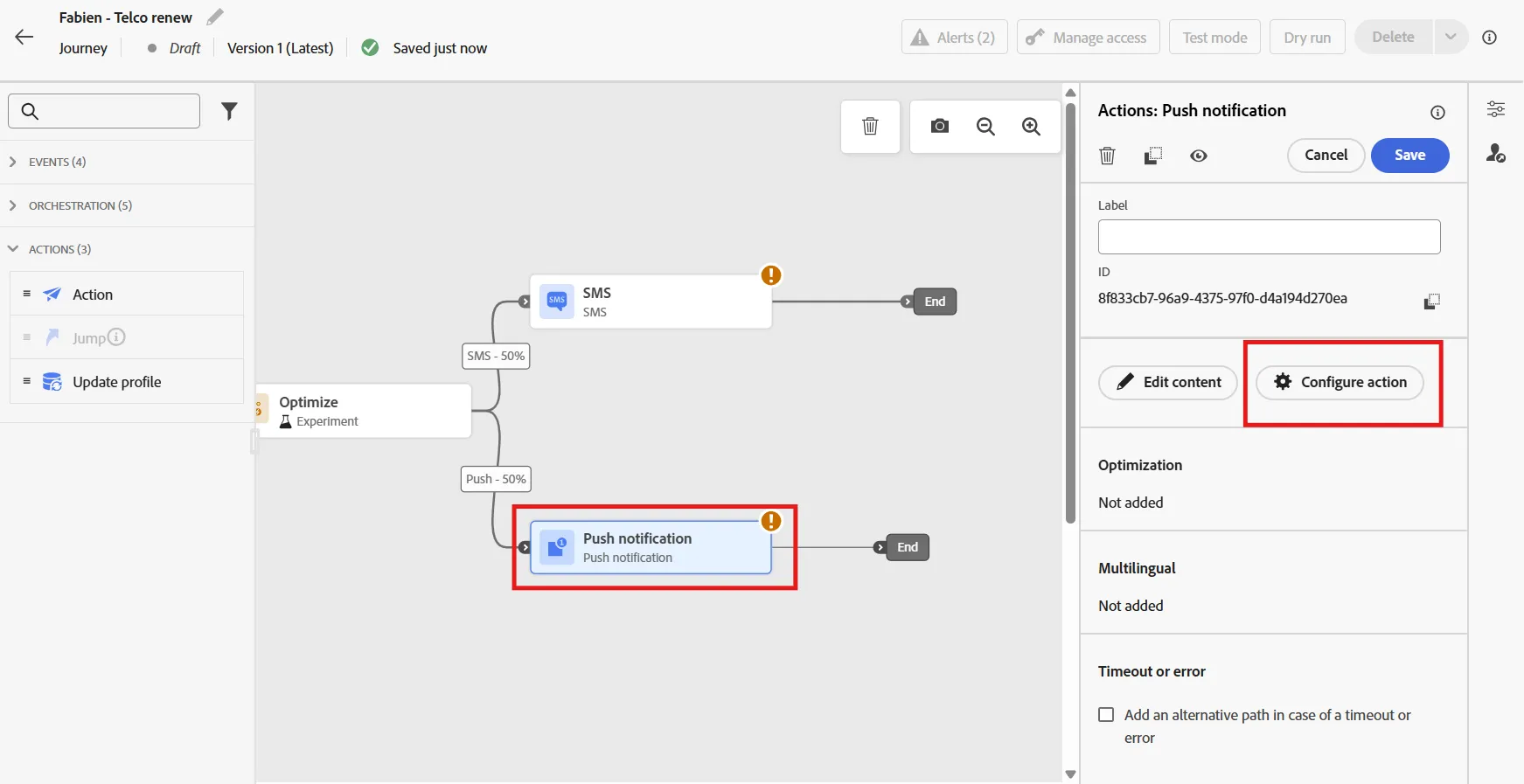
Click on the Push activity, then click Configure action.
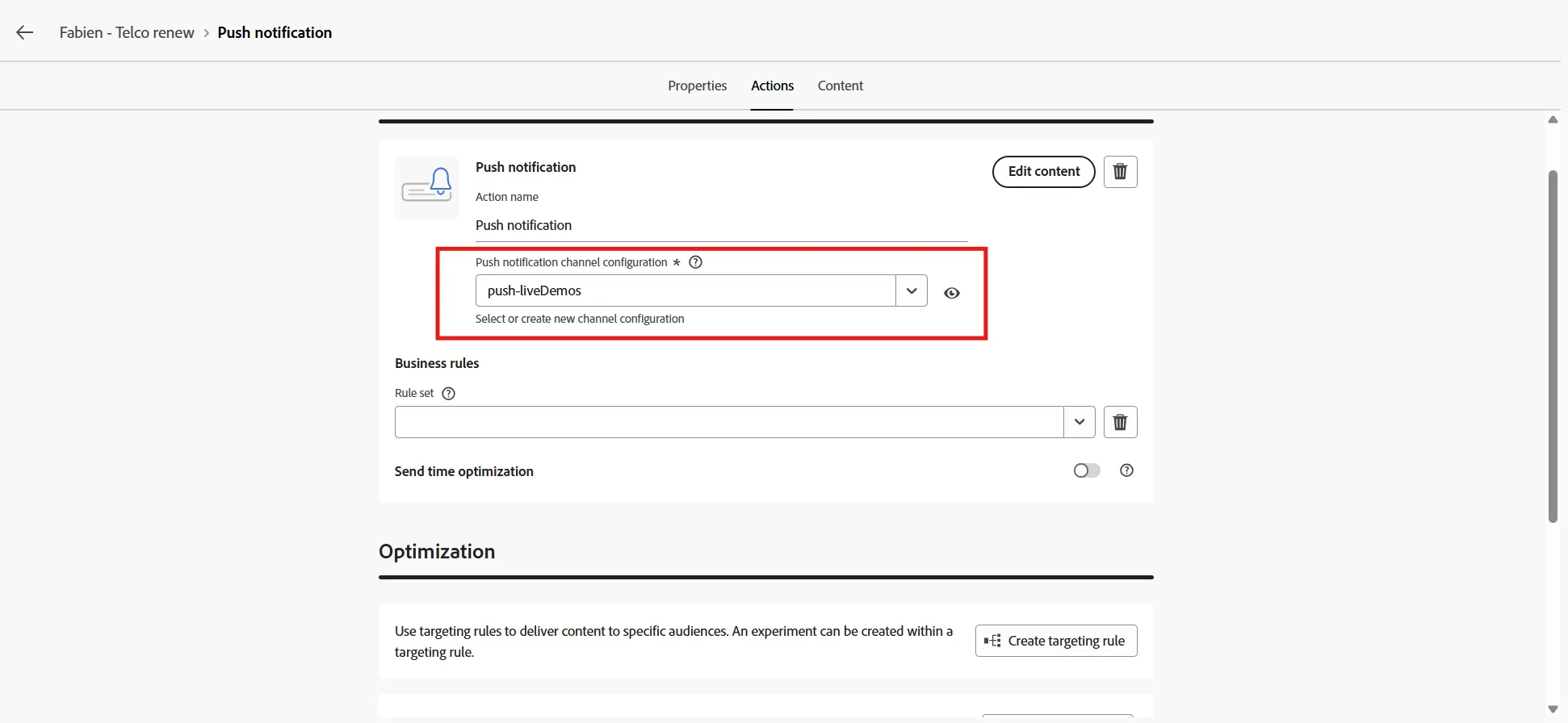
Select Push-LiveDemos as a channel configuration (this is needed if you have multiple apps and need to choose which one to use)
We have the option here to create multiple variation for different language or different message, we will not do that today.
Click edit content
You can set up the message yourself, or ask AI to generate it for you.
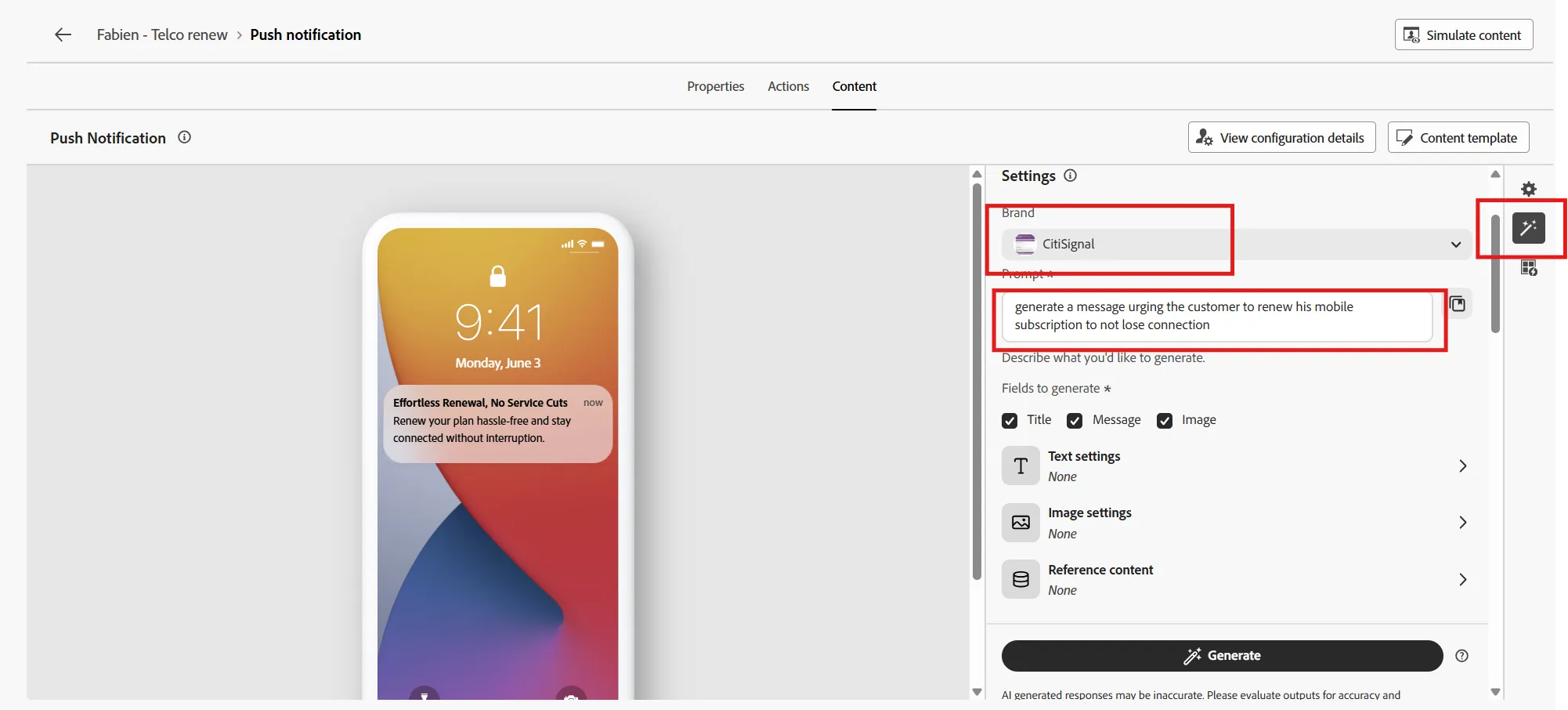
Click on the magic wand icon on the right side to access Gen AI.
Select the Brand CitiSignal. The brand will contains guideline that will be use by AI to generate the message depending on your policy.
Describe what you want to generate, you can use this prompt as an example : "generate a message urging the customer to renew his mobile subscription to not lose connection"
Then click on generate.
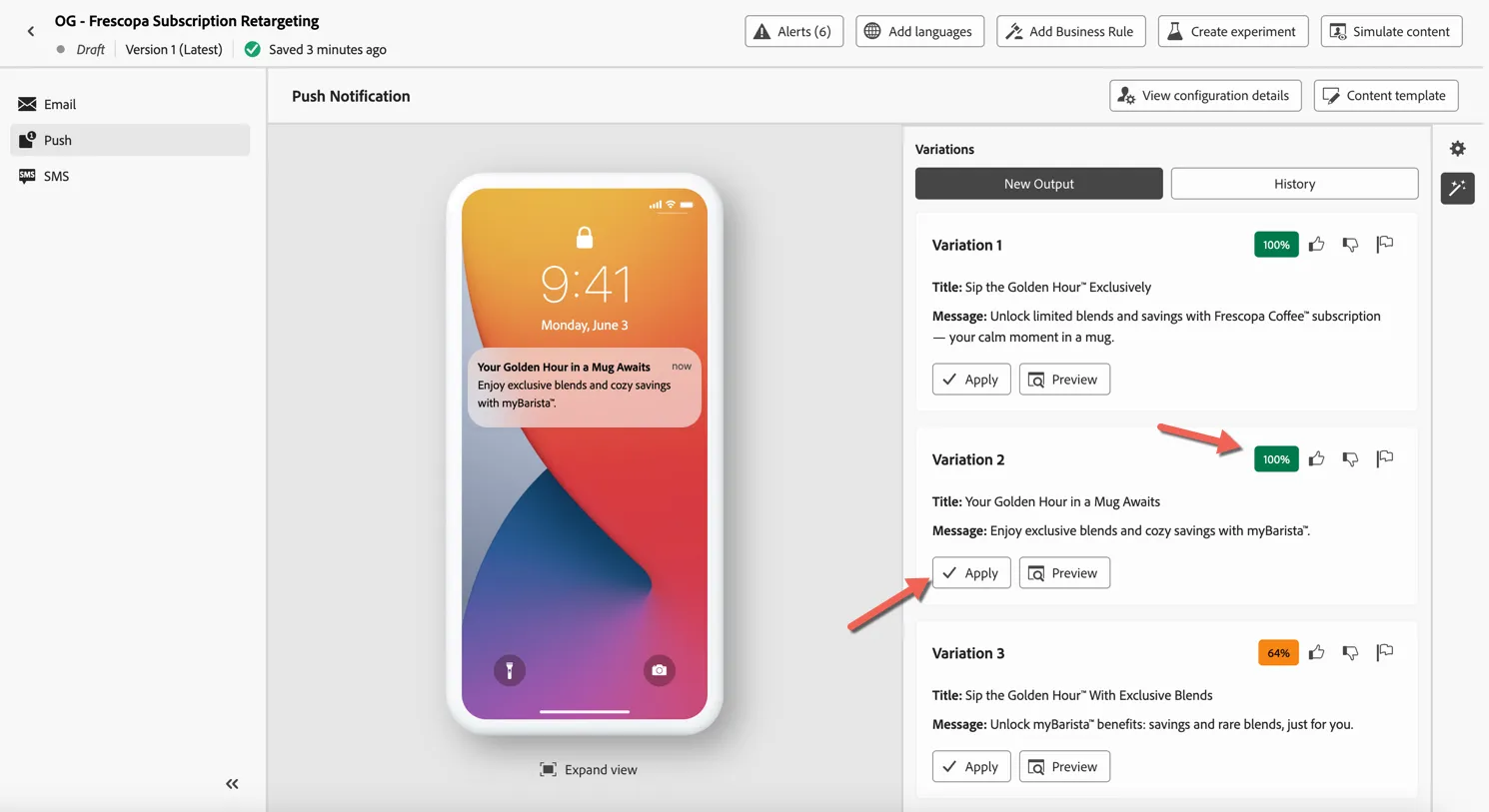
The generated content is again scored against the Brand Guidelines. Select the variation you prefer and click to Apply it to your message.
Click the arrow in the top left to return to your journey.
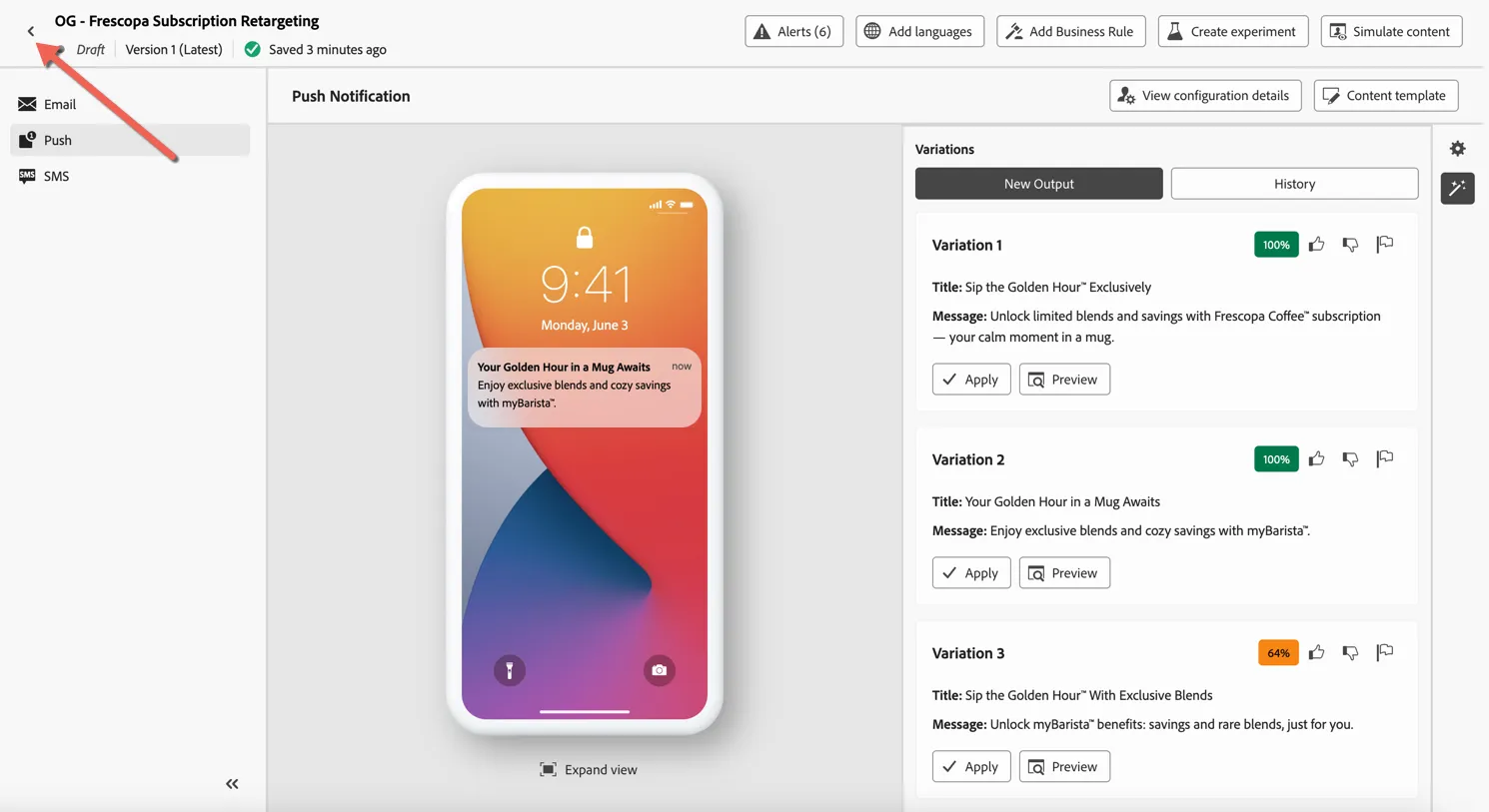
Repeat the same process for the SMS Activity.
Summary
Adobe Journey Optimizer enables brands to deliver contextual, personalised experiences at scale by combining real-time triggers, intelligent decisioning, and dynamic content generation—all within a unified orchestration canvas.
Adobe Journey Optimizer's integration with Adobe Experience Manager (AEM) and Adobe Firefly has enabled:
- Faster creative cycles: No need to manually design every variant.
- Brand integrity: All content aligns with approved guidelines.
- Higher engagement: Personalised, relevant content drives better results.
- Cross-channel consistency: AEM assets and content fragments ensure that messaging in email, push, and web banners is aligned.
Congratulations you've completed the exercise on Adobe Journey Optimizer...