Connections
7 min
description: >-
  Seamlessly connect various online and offline datasets to gain a comprehensive
  view of a customer’s journey
The Connection creation and edit workflow experience brings all the dataset and connection configuration settings to the center of the screen with assistive workflow. It provides detailed dataset selection, configuration, and review experience with critical information like dataset type, size, schema, dataset id, batch status, backfill status, Person IDs, and much more to reduce the risk of wrong connection configuration.
Note: Connections and Data Views modules are not Hands-on due to HOL technical limitations. Please follow the presenter on-screen.
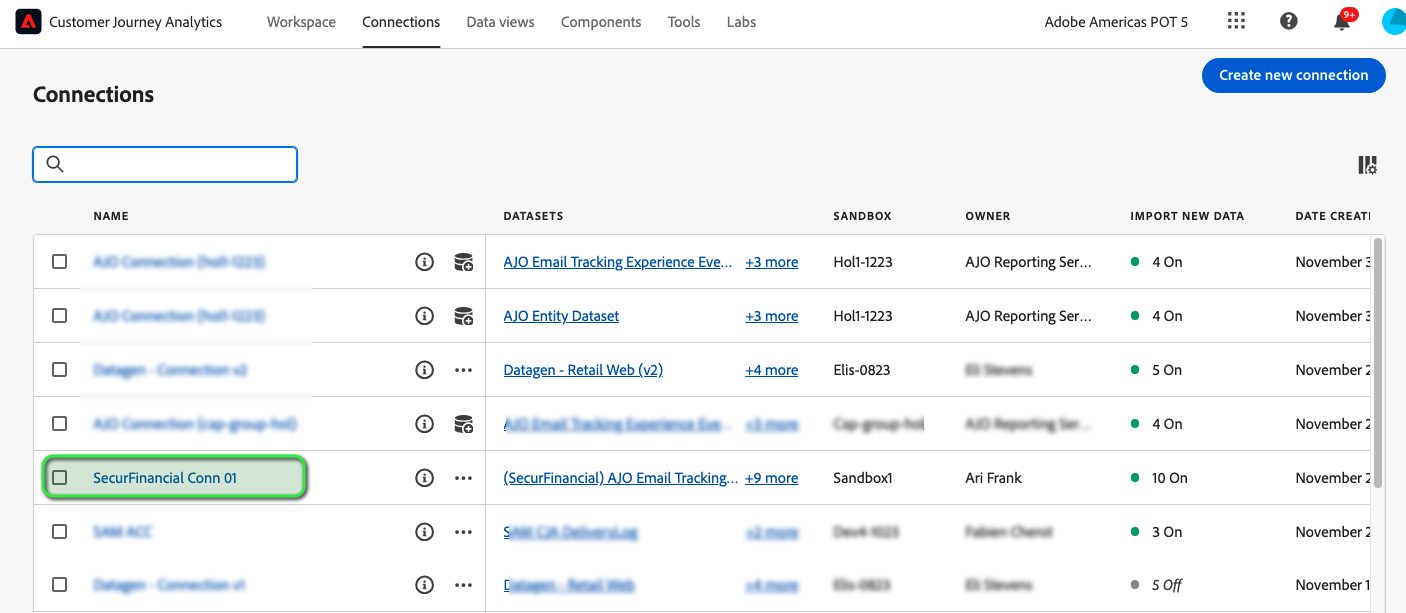
- We have one Connection pre-configured that we’re going to use to build our dashboard later on. That said, you could have several connections based on your reporting needs.
- At the bottom of our window we see the datasets which we’ve ingested in the data lake and which are being used in this Connection. We can see details around records added and when they were added. For our use-case, we are joining datesets for Web, CRM, App, Call Center, AJO, and POS.
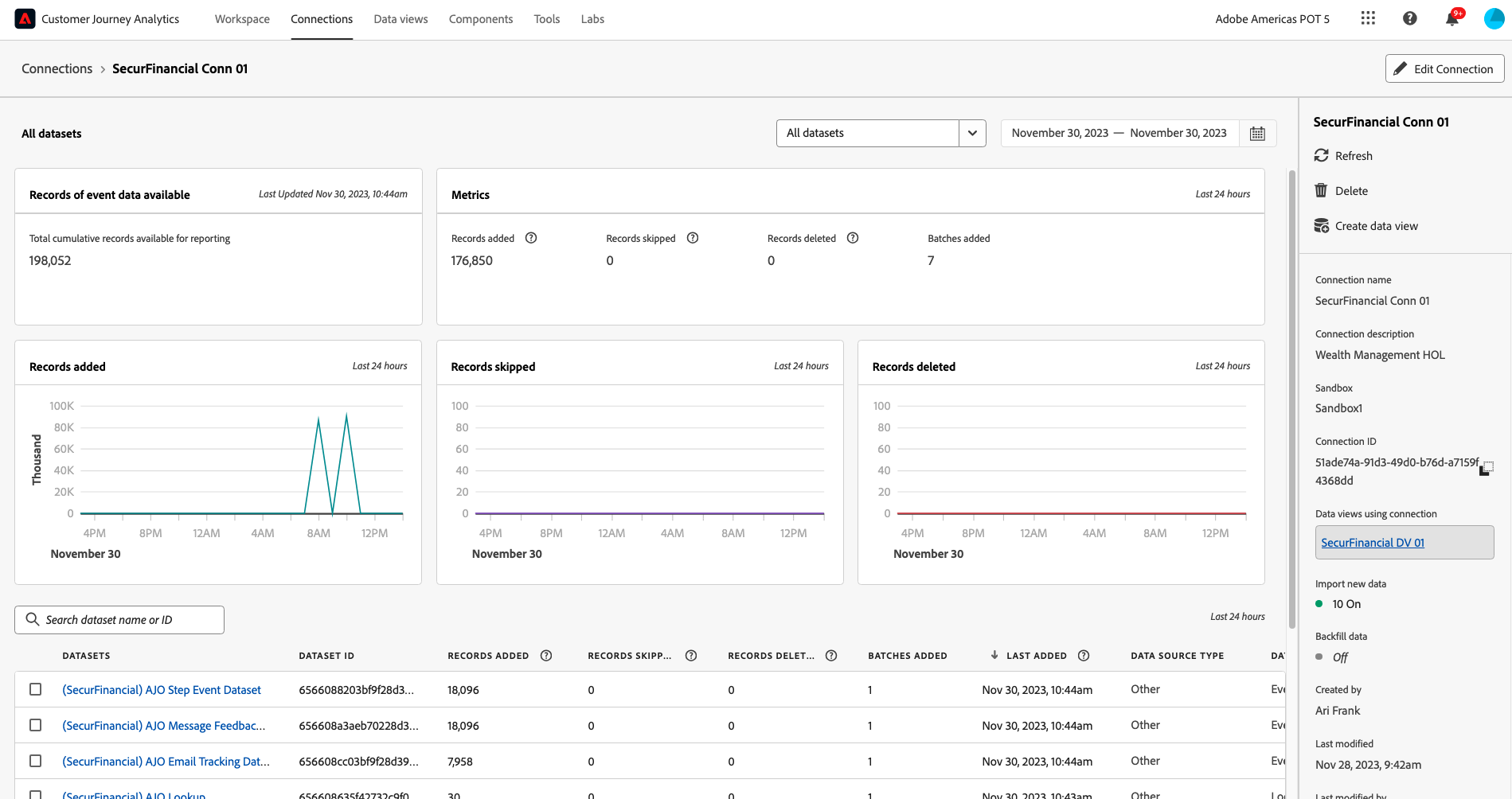
- We have the ability to edit this connection at any time (even as data is flowing in) by clicking on the pencil icon "Edit Connection".
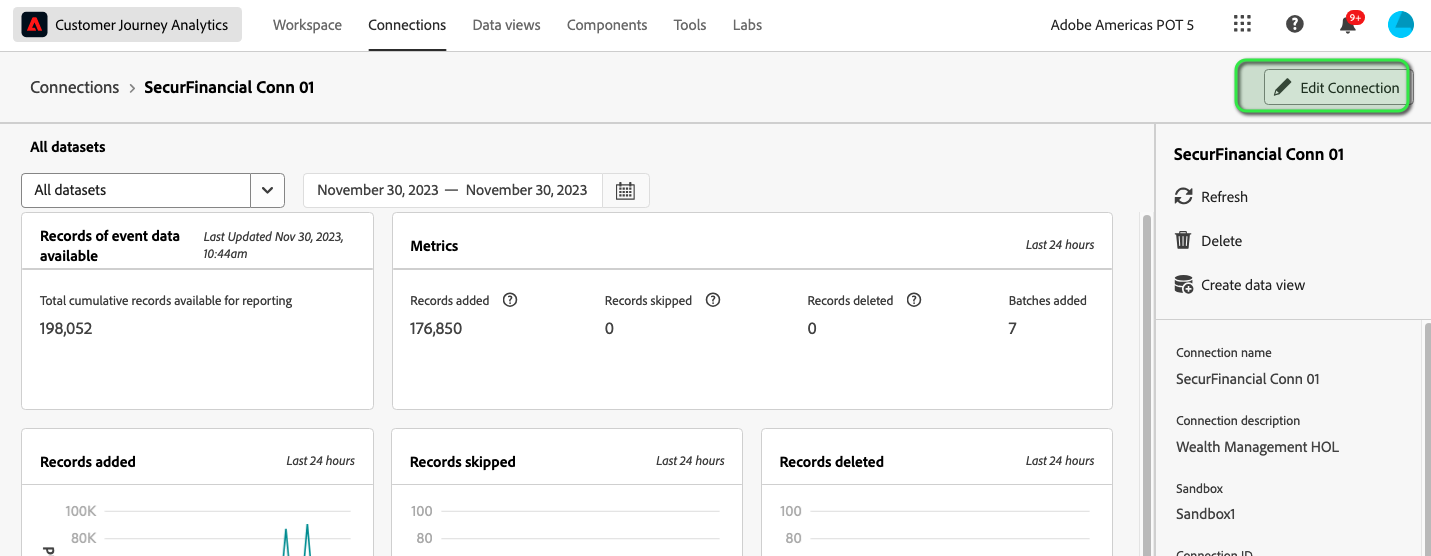
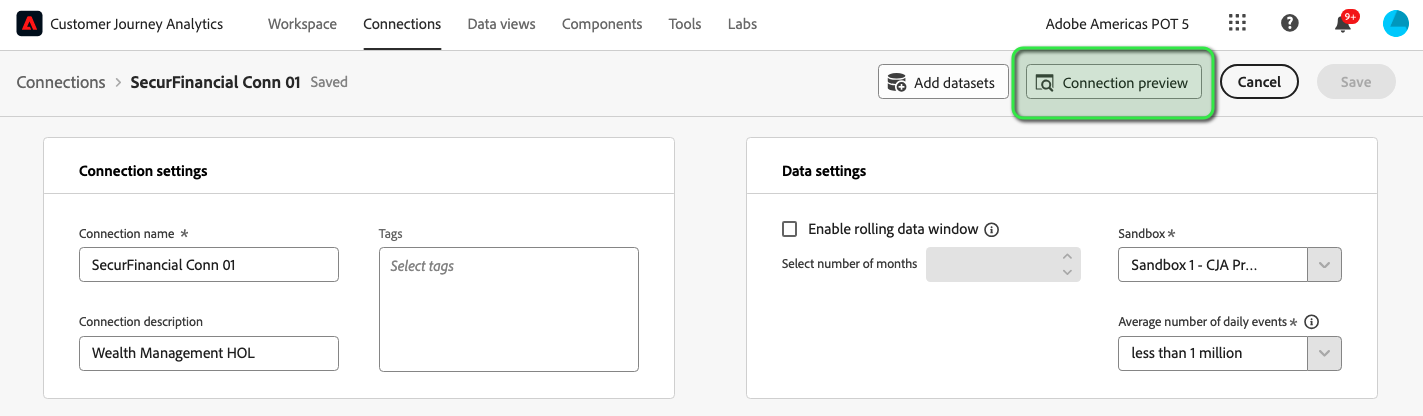
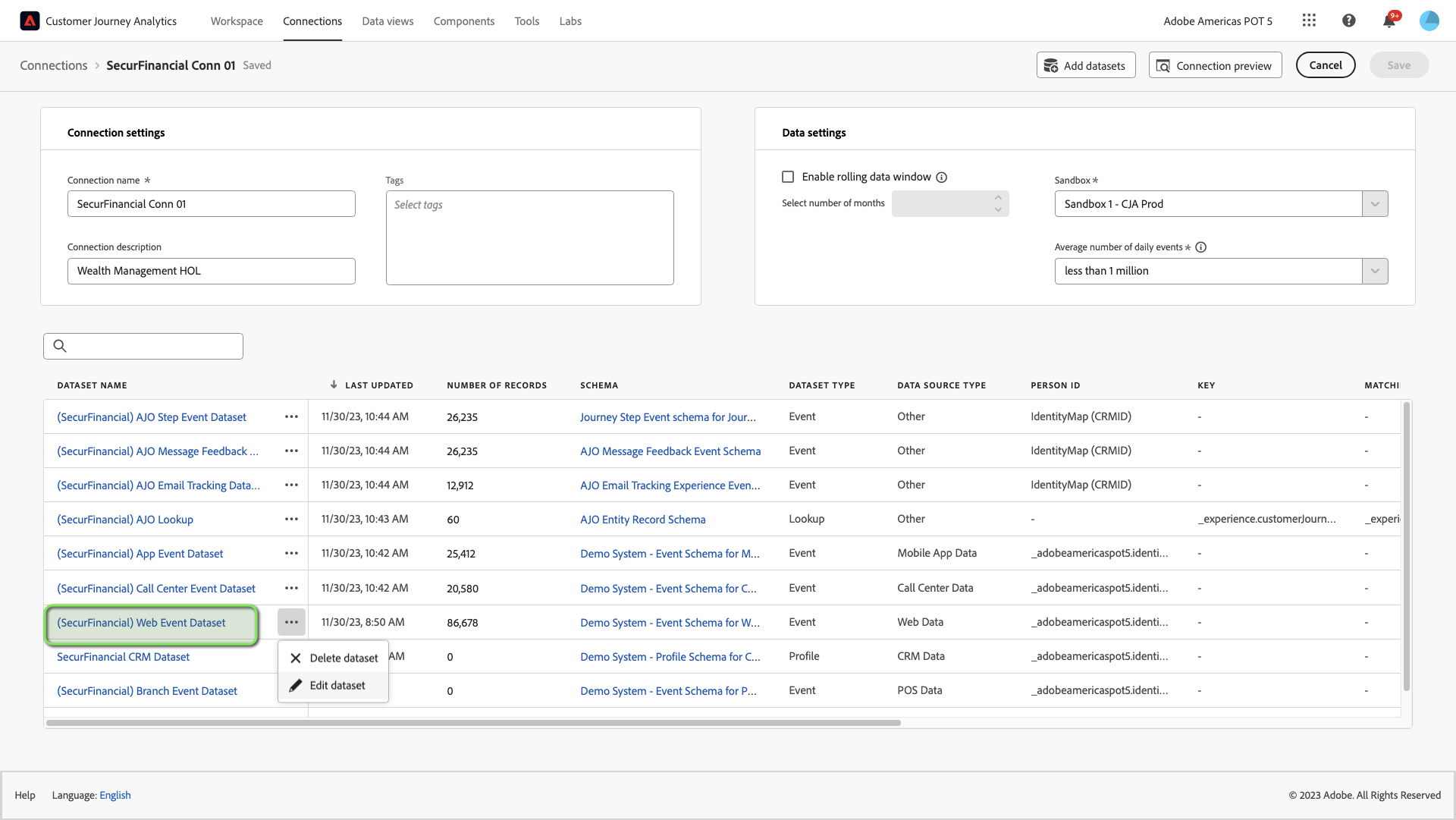
- From the following window we can:
- rename our Connection
- enable a "rolling data window" (limits data for a certain number of months)
- edit or remove a dataset by clicking on the three dots next to a dataset name.
- note: once the sandbox has been selected for a Connection it can no longer be modified.
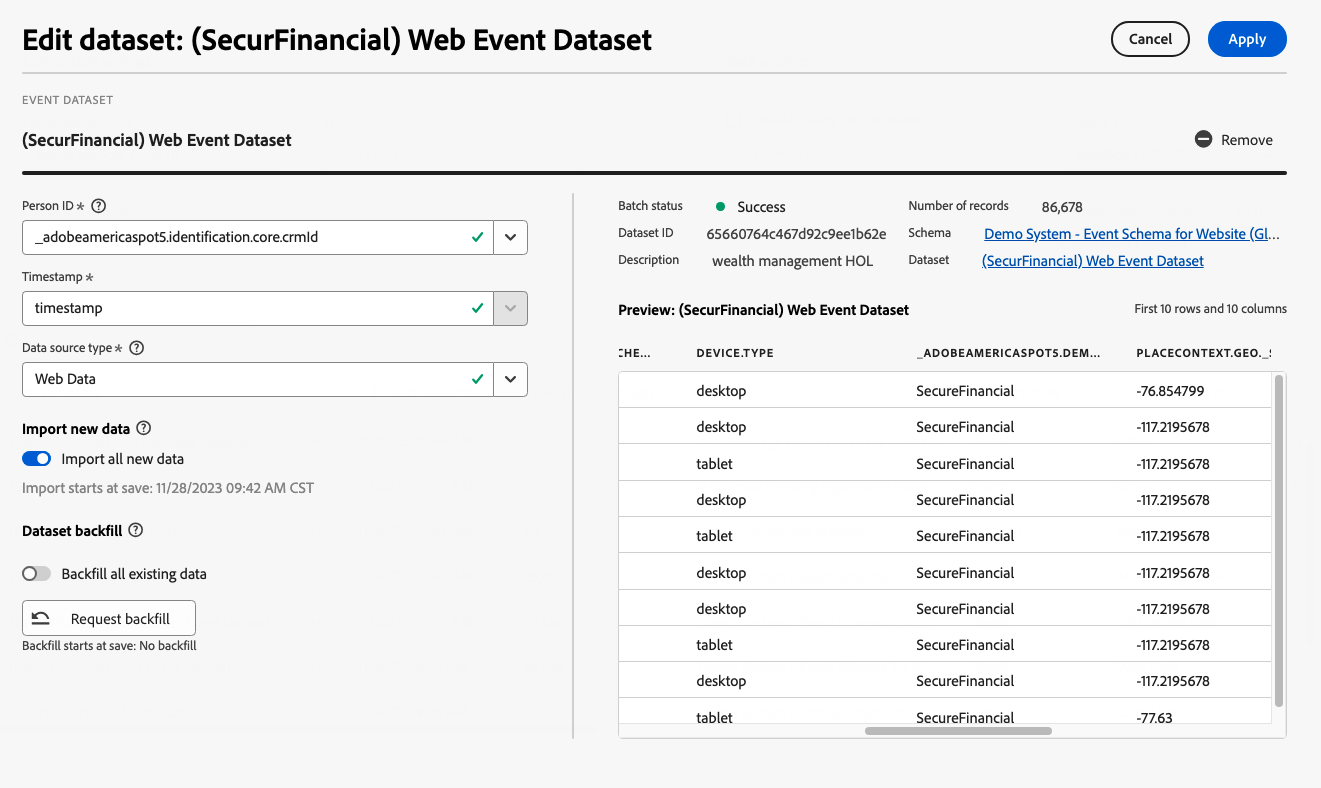
- By clicking "edit dataset" we can review/modify the settings we've selected for any dataset:
- the Person ID (we are using CRMID to connect all our datasets)
- Data source type
- Import new data
- backfill existing data
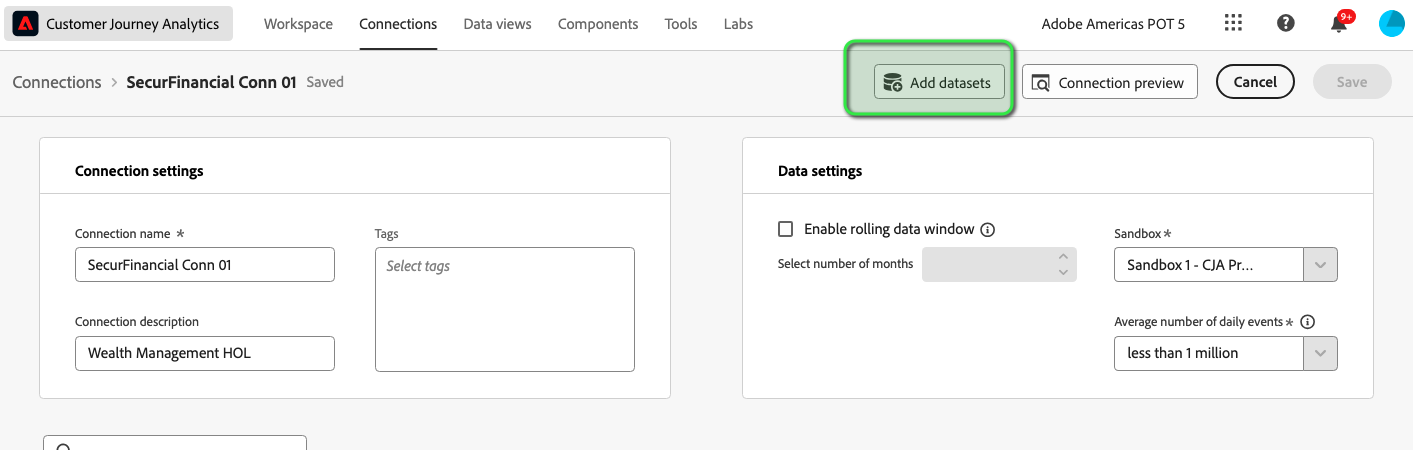
- Back on the Connection settings screen we have the ability to add new datasets to our connection at anytime by clicking on "add datasets"
- note: we can choose from any dataset (event or profile) and join them so long as they have a common ID.
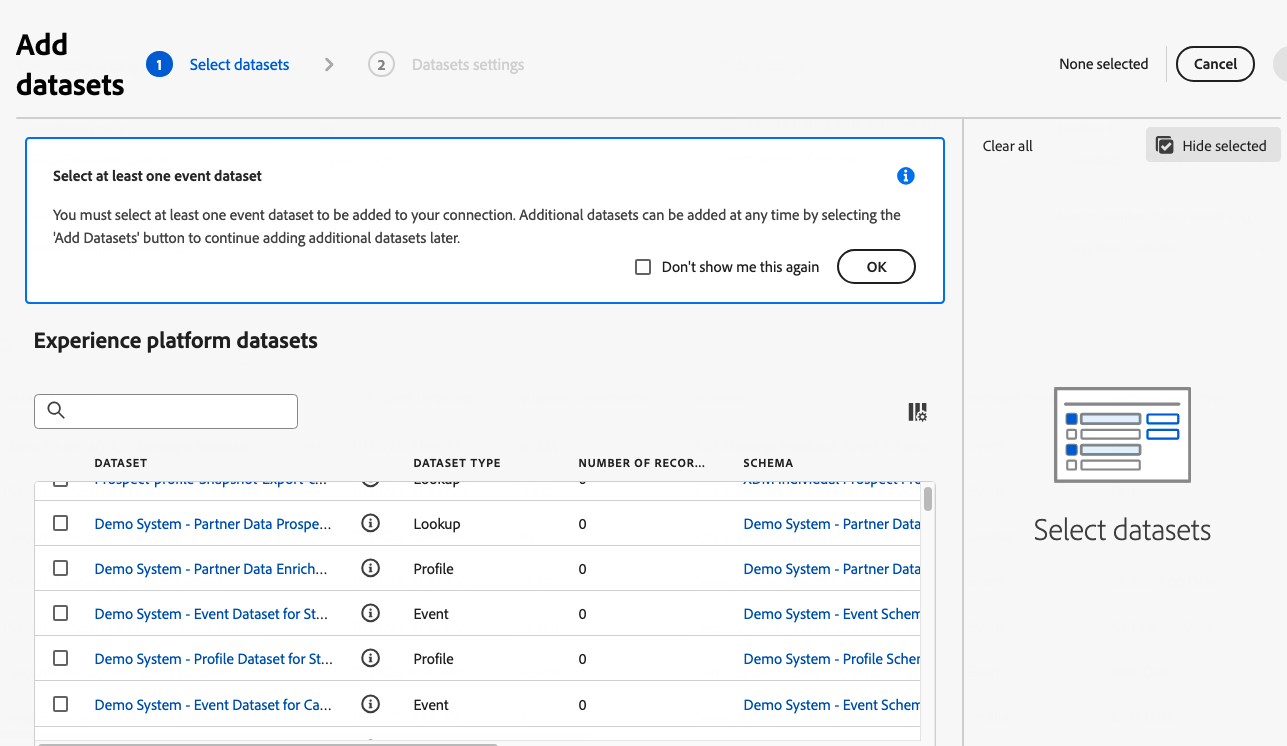
- By clicking on any dataset we can review the settings we've selected:
- Person ID (needs to be the same for every dataset in our selection)
- Timestamp (event datasets only)
- Data source type
- Import new data
- Dataset backfill\
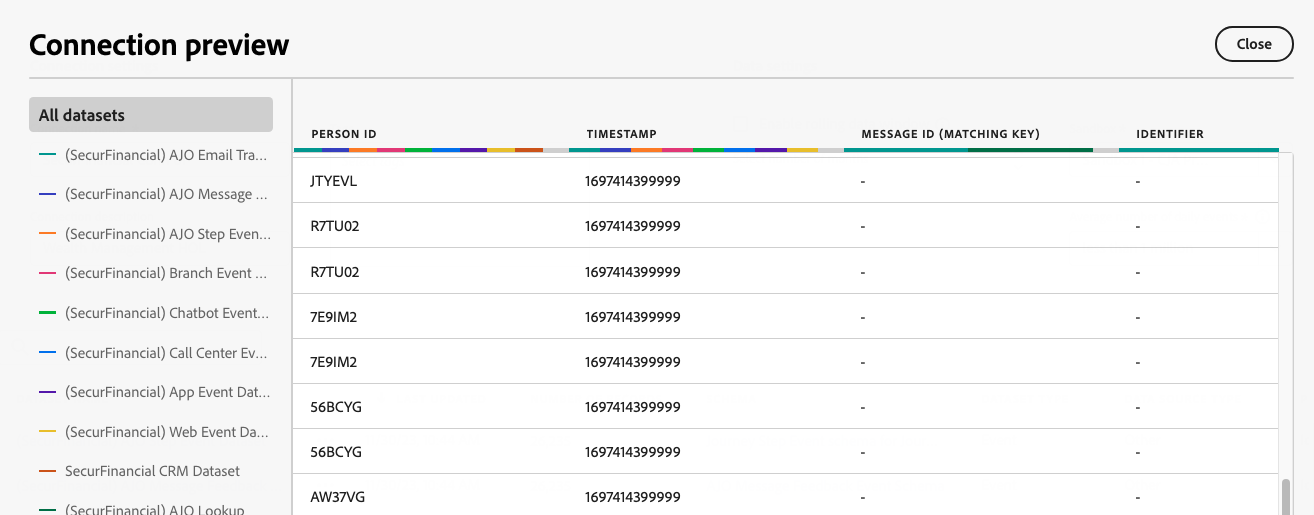
- Before saving a Connection we have the ability to preview the columns in a dataset and in our Connection.