Lab: Email Designer
6 min
Create a New Message
If you have done the below step, skip to the next subject.
Configuring Action/Message Presets
- Within the Basic Journey Canvas, click on each action node properties.

- Choose Marketing for Category and MultiChannelMarketing for Email Surface.
- All 3 nodes must have the above configuration. You can use different presets for different purposes in the same journey. Remember to Click Edit Content Once to alert the journey we are about to start with our messages. This will allow us to switch between emails comfortably without having to come back to the journey again.
Define a Subject Line
- Click on Edit Content from the First Email Node Property Menu.
This will bring you to the Message Designer menu:
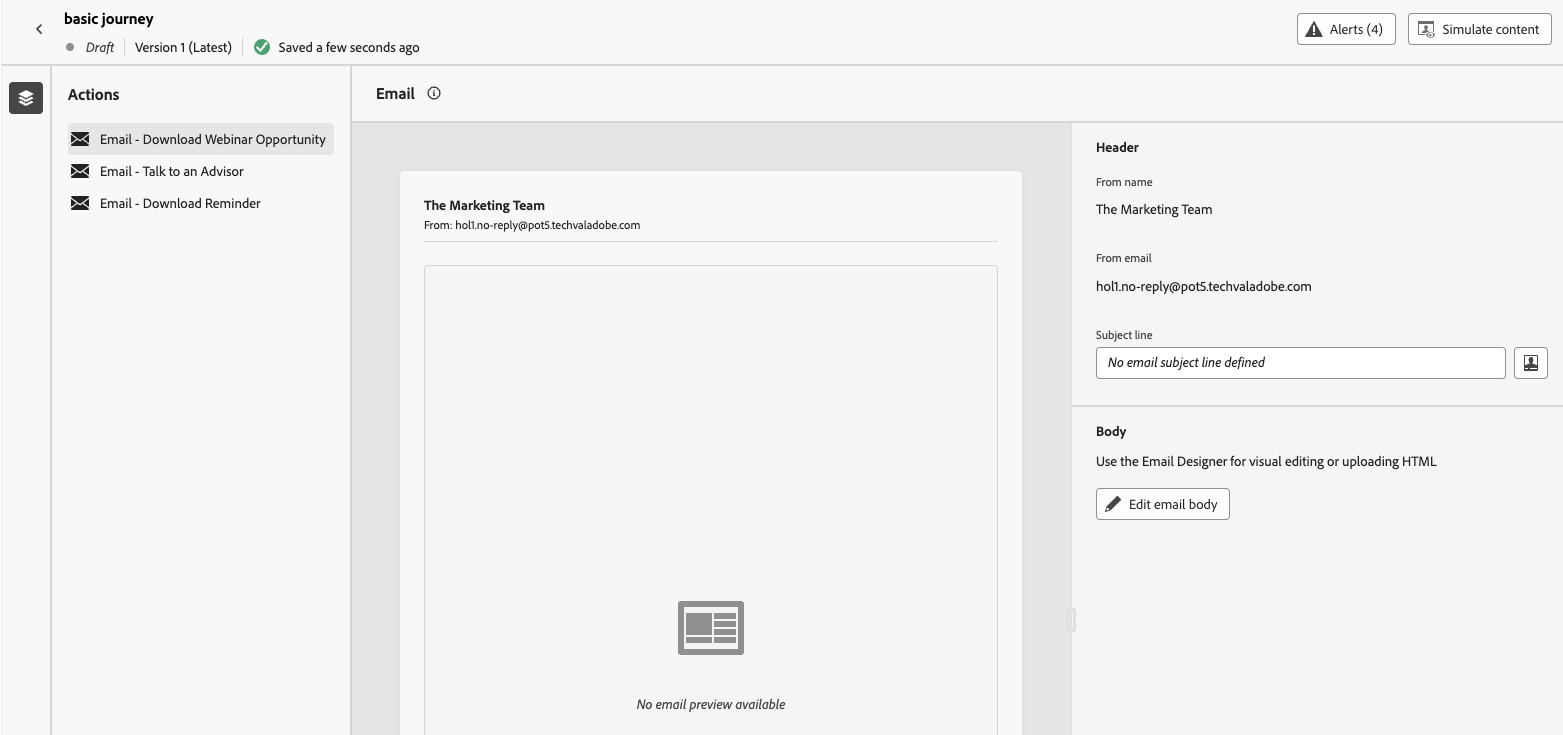
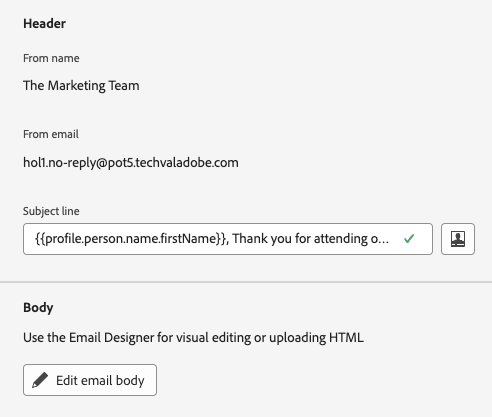
- Enter a Subject Line for the first email on the list (Top to bottom). "Thank you for attending our webinar session!"
- Click on the Personalization icon to add personalized data available for customer record. You can search for First Name.
Design Your First Email
- Click Edit Email Body:

Select “Design from Scratch”

Click on the 1:1 Column. Drag it 9 times onto the Canvas. Click Save.

-
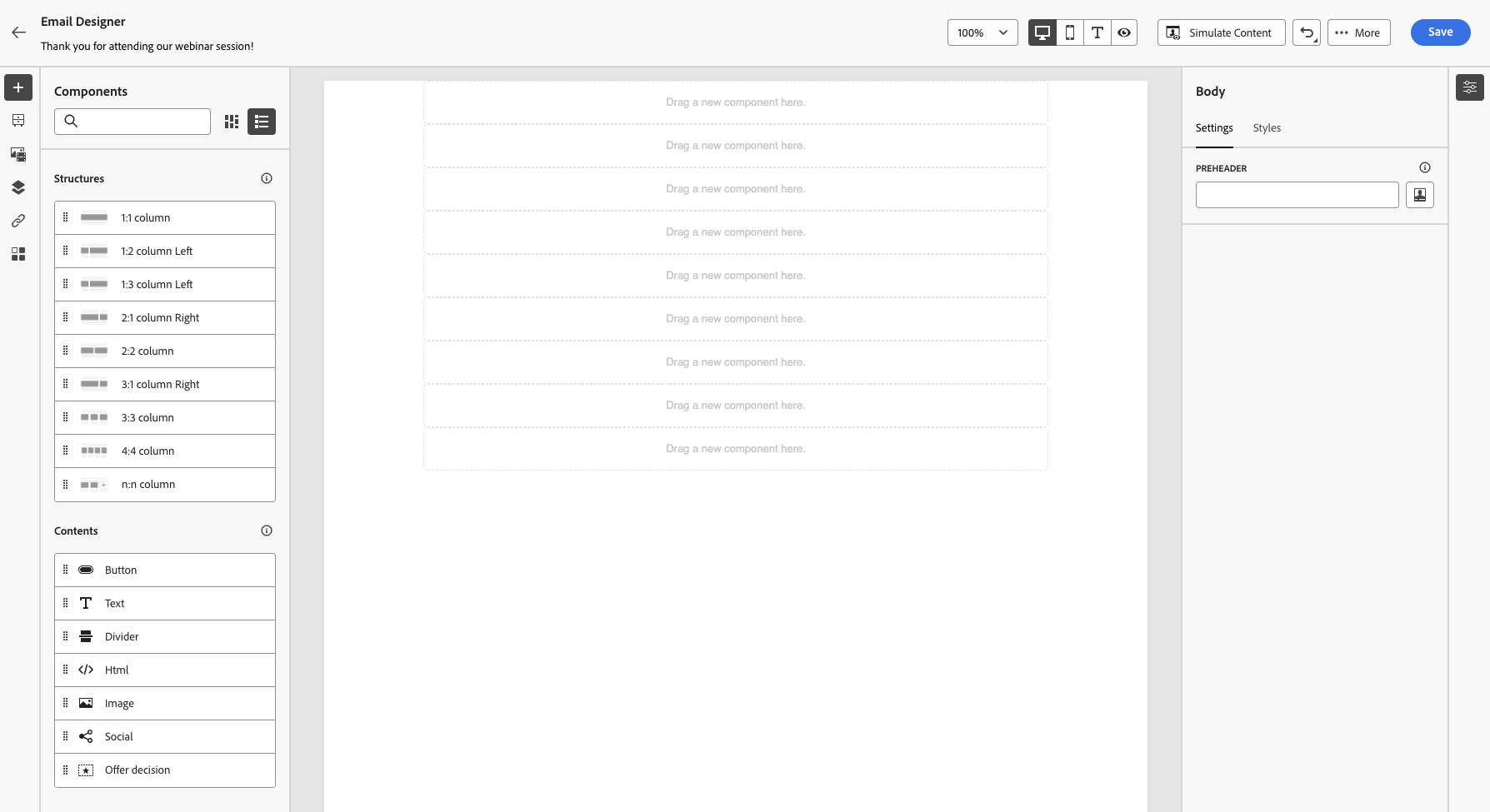Select Content Components

- Add an Image Component in the first Component
- Add a Divider in the Second Component
- Add Image in the Third Component
- Add a Text in the Fourth Component
- Add an Button in the Fifth Component
- Add a Divider as the Sixth Component
- Add a Offer Decision in the Seventh Component
- Add a Divider in the Eight Component
- Add Social as the Ninth Component
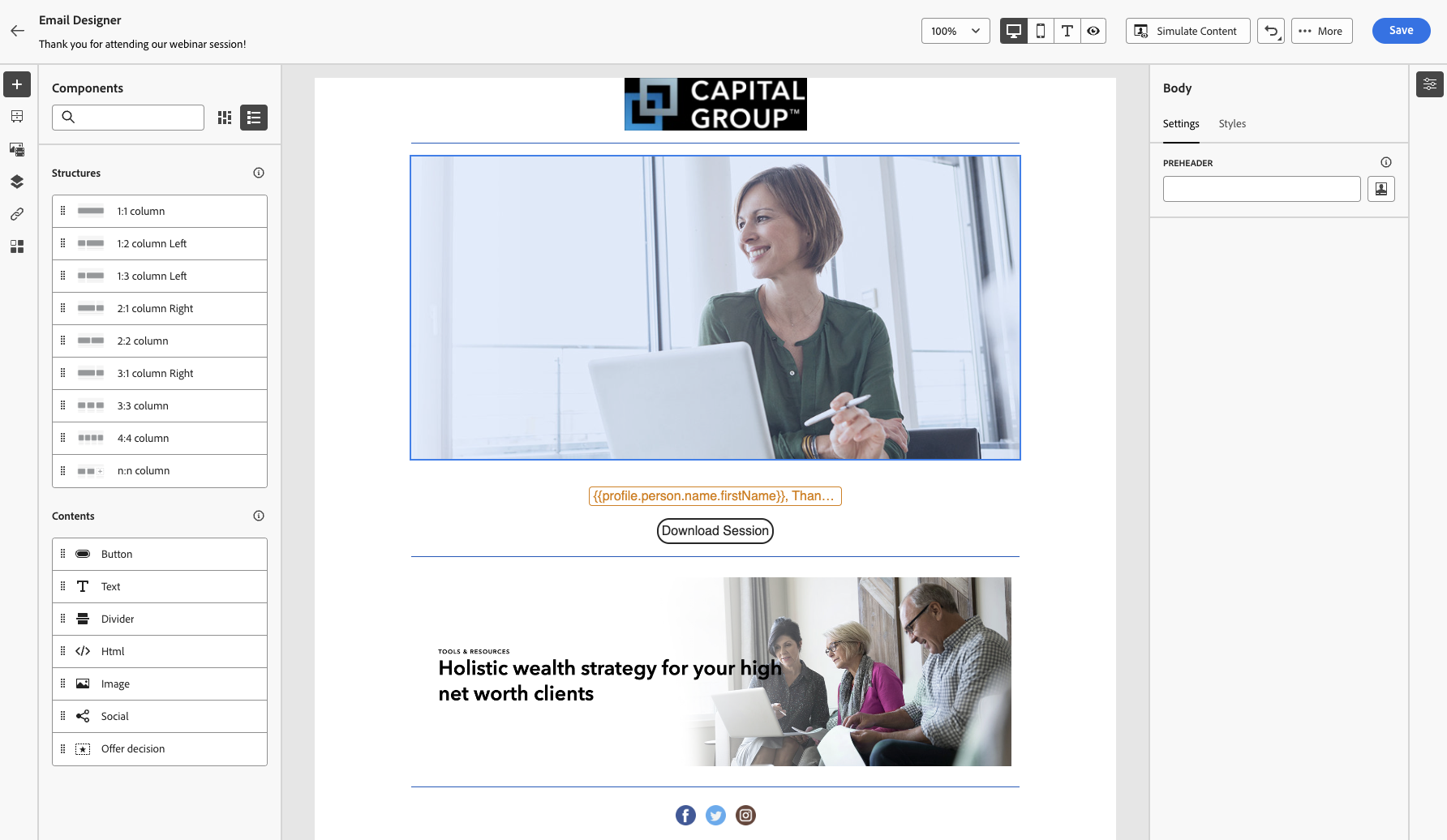
- Select Browse to select an Logo for your 1st Image. Note: Use the Styles menu on the right to resize the Logo using the width and the height settings.
- Select Browse to select an Image for 3rd component. Use image called "ria-banner_smiling_businesswoman_desk_1440x480.jpeg"
- Edit the Text node and double right click to select the entire paragraph, let's center it, and click on personalization. Then copy and paste this: "{{profile.person.name.firstName}}, Thank you for attending our webinar. We hope this content is helpful in the future. "
- For the button, add the text "Download Now". You can also add a hyperlink to the button for the redirect URL you wish to use. We chose "https://www.capitalgroup.com/ria/tools.html".
- Click on Add Offer, and proceed to add the offer decision for your placement.
- Your email should appear like the following now:
- Click Save to save the message and then exit out of the Designer.
Let's use Templates and Fragments Instead
- Click on the Email - Talk to an Advisor, and Give the following Subject Line: "Let's get together and discuss more tools". Then Click Edit Email Body button.
- Click on "Saved Templates" and select "Basic Journey - Meeting Invite". Click "Use This Template" button.
- Click "Save." Then Go back to Message Selection Menu.
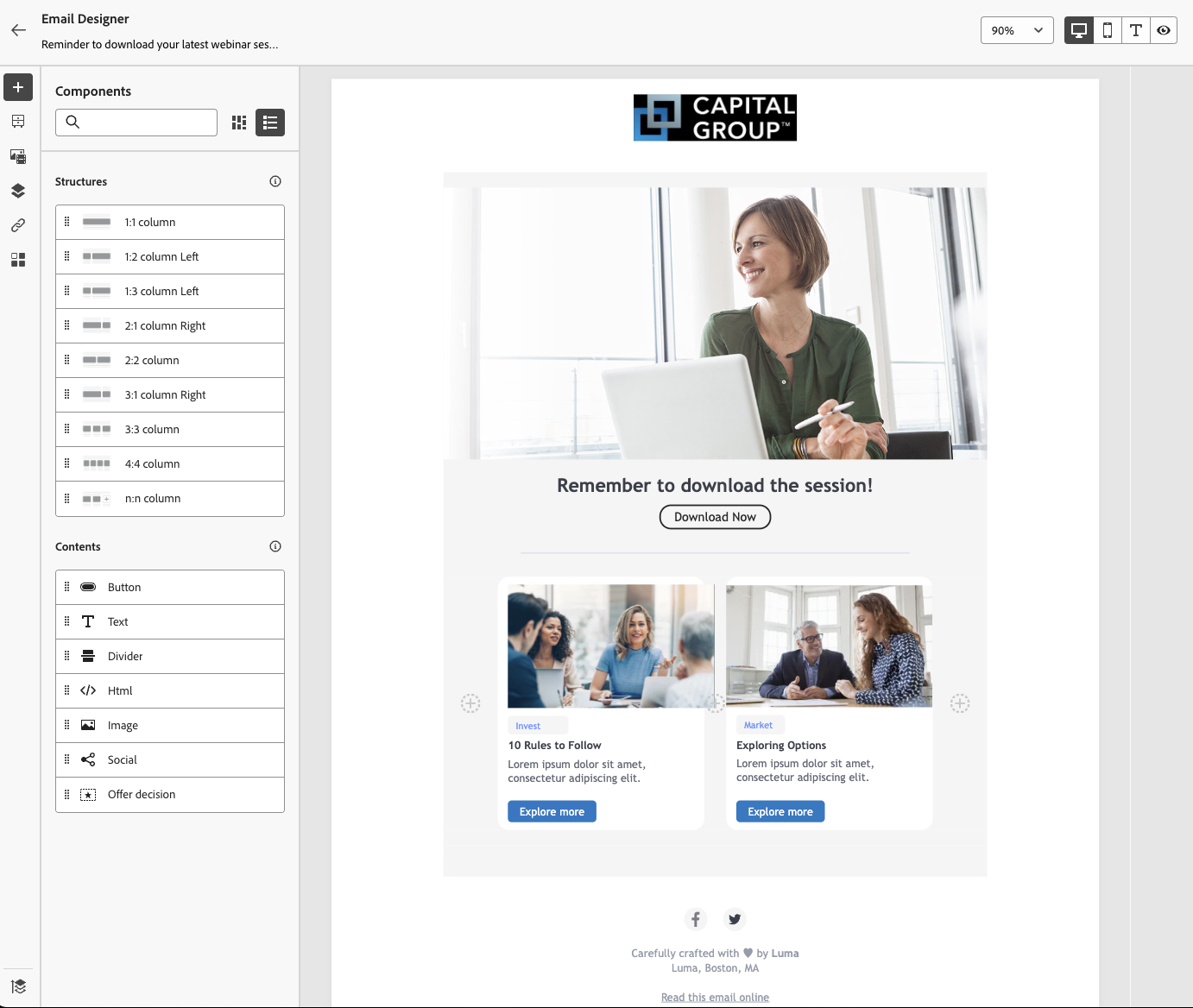
- Click on the "Email - Download Reminder". Give a Subject Line: "Reminder to Download your latest webinar session." Then click on "Edit Email Body."
- Click on Saved Templates and pick "Basic Journey - Reminder." Then, click "Use This Template" button.
- Let's browse the first image for our hero.
- Let's browse the Invest Image Article image called Invest.png. Then do the same for Market Article Image but select the Market.png image instead.
- Lastly, click on fragments and drag it to the bottom of our email.
- Click Save.
Your Email should look like this:
- End of Lab.