Lab: Complex Journey and Advanced Journey Concepts
description: >-
  This lab outlines the steps to create a Complex Journey, along using some more
  Advanced Journey Concepts.
Create A Journey
NOTE: This Lab assumes the user has completed the Create Basic Journey Lab. If not, you can go to the Basic Journey Lab HEREHERE.
- Navigate to Journeys.
- Click Create a Journey.
- Give the name Complex Journey - Webinar Signups - Initials.
- Click Ok.
Add the Nodes to the Canvas
- We will add the WebinarSignups Event.
- Next a Condition node.
- The Condition will have 2 Paths. Click the Add a Path button.
- Drop an Email node to one Path.
- Drop an SMS node to the other Path.
- Drop a Journey Jump right after the Email, and connect it to the end of the SMS right before the jump.
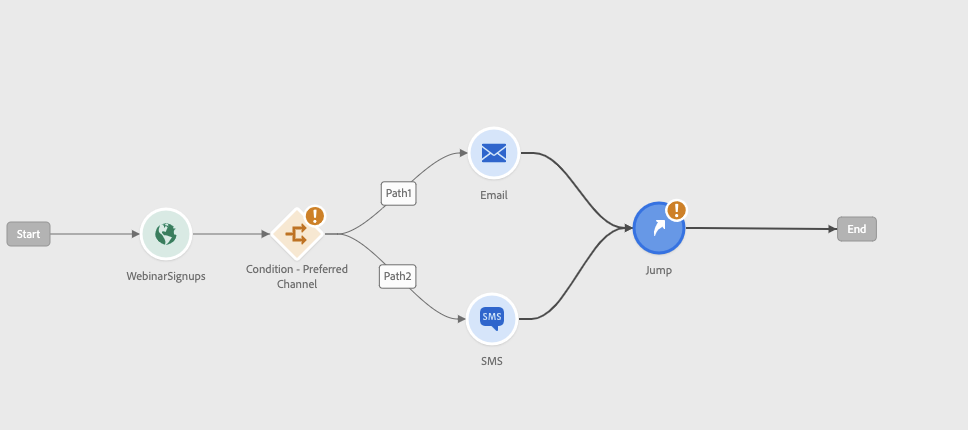
Let's add Logic to our Condition Node
- Click on the condition node. Label "Preferred Channel".
- Label the first path as "Email". Second Path "SMS".
- Then Add a Expression. Search for an attribute called "Preferred Channel." Drag and drop it and select "Email." Click "Ok," then "Ok. "\
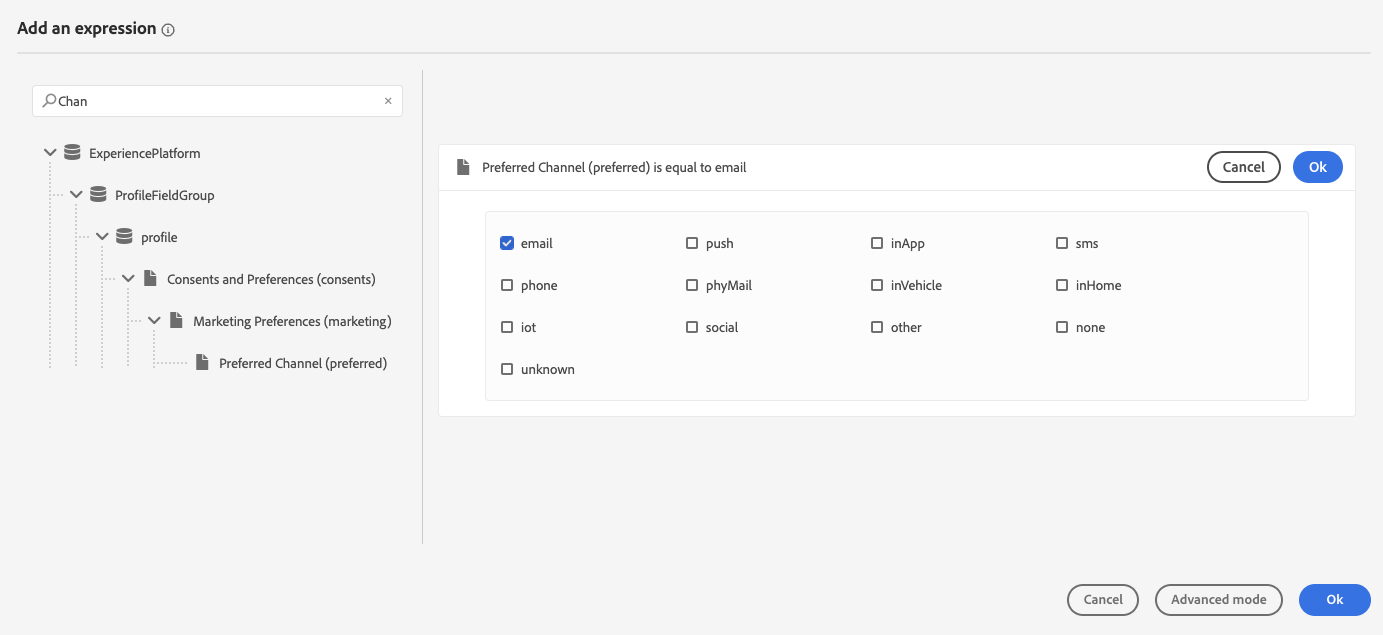
- Do the same as step 3 but this time select "SMS. "
Use Event Data as Personalization Attributes
- Click on the "Email" Node. Then Select Category "Marketing" and Email Surface "MultichannelMarketing", Click "Edit Content" and go back to Journey Canvas.
- Do the same as Step 1 for the "SMS" node.
- For our SMS, Let's add the text "Thank you for signing up for the webinar. "
- Click on the Personalization Button. Click on "Contextual Attributes" button. Then Navigate Journey Orchestration > Events > WebinarSignups > _adobeamericaspot5 > Webinar Event > Webinar Name.
- Click Save.
- Click on the Email Action. Give it a subject line: "Thank you for signing up for the webinar. Then Click Edit Email Body. "
- Click Saved Templates.
- Select "Complex Journey - Webinar Confirmation." Then, Click "Use this template."
Using your mouse Select an item from the unordered list and click the "add personalization" icon.
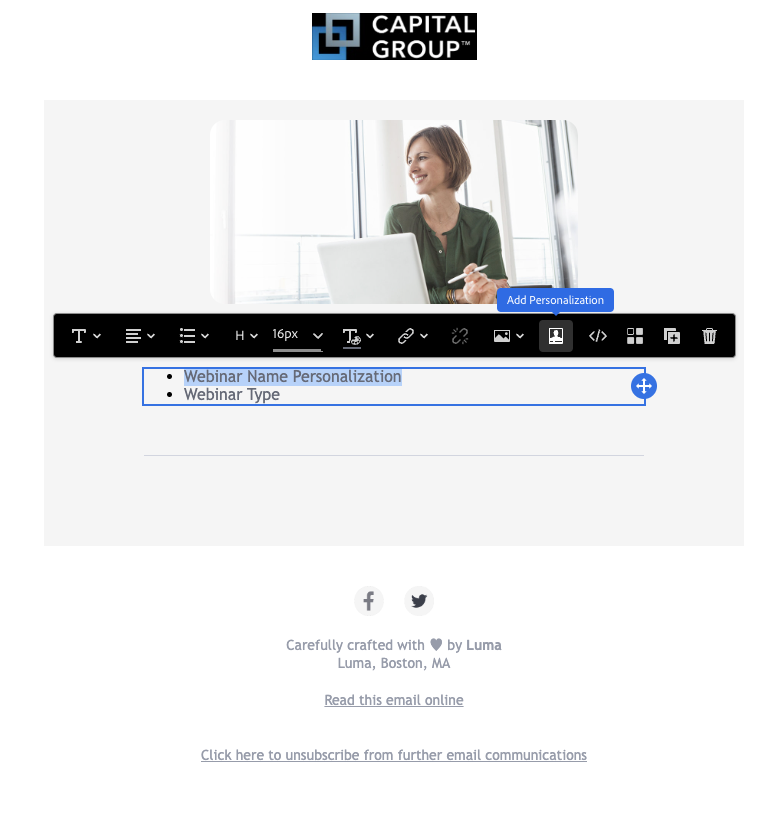
Delete the Text, and Click on Contextual Attributes button. Then, navigate: Journey Orchestration > Events > WebinarSignups > _adobeamericaspot5 > Webinar Event > Webinar Name.
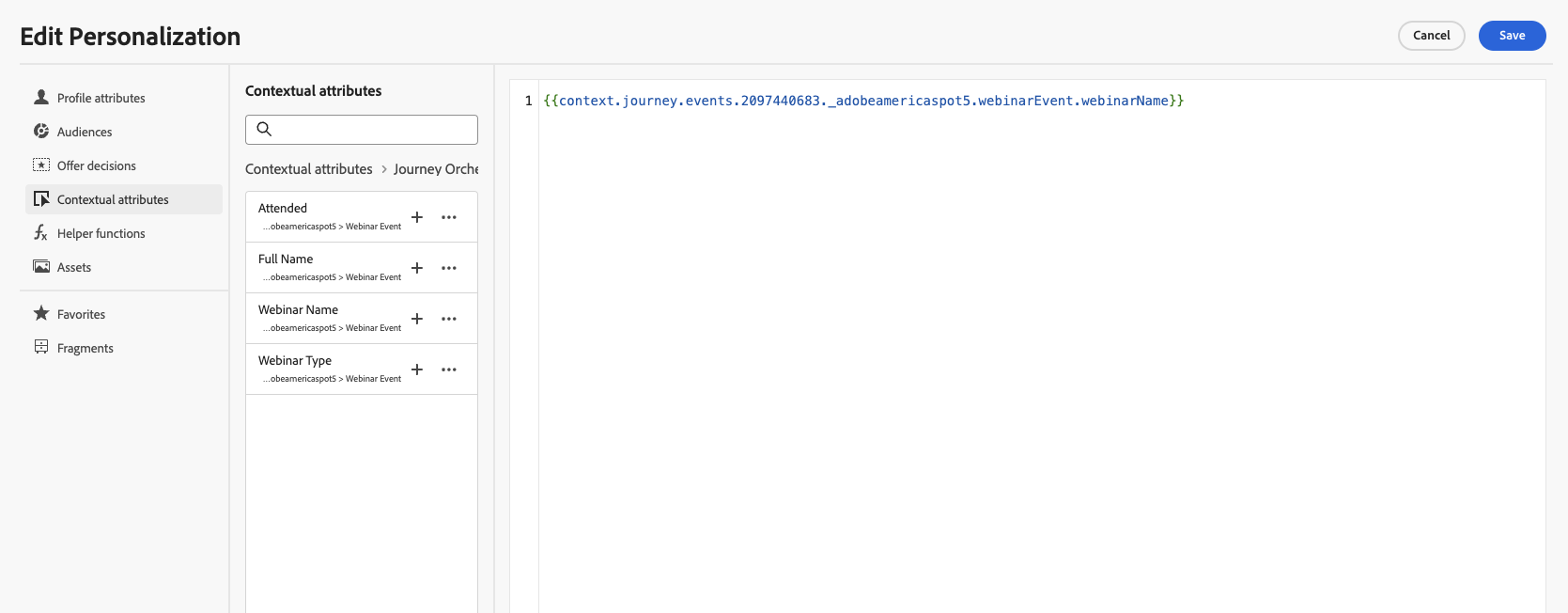
- Click Save.
- Optional to do the same for the second Item on the list, but this time let's use the webinar type attribute.
- Once you are done. Let' click Save button and get back to our journey.
Leverage Journey Jumps
- Click on the Journey Jump node.
- Select Target Journey Jump.
Pass the Action Parameters needed for our next journey.
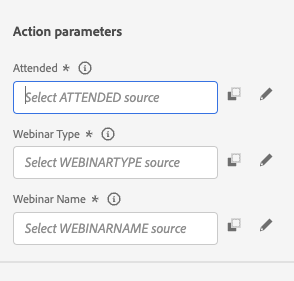
Click on the pencil for the first one, and under context insert this attribute:
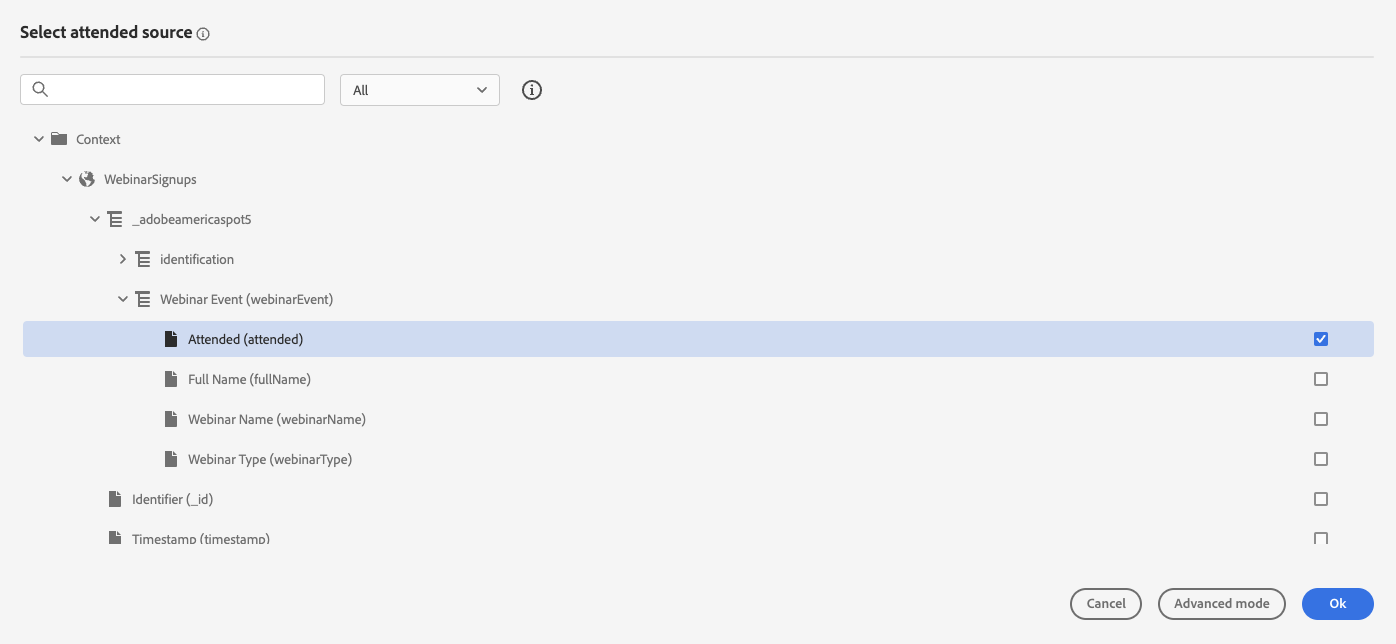
Do the same for our other two fields.
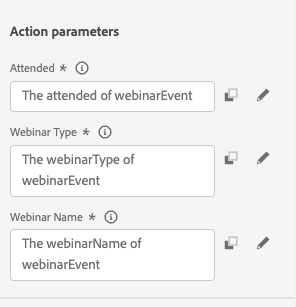
Flexibility using Custom Actions
- Go to Journeys.
Select the 3 dots next to the "Target Journey Jump" and click the option Duplicate Journey. Add your initials at the end of the name, then hit duplicate.
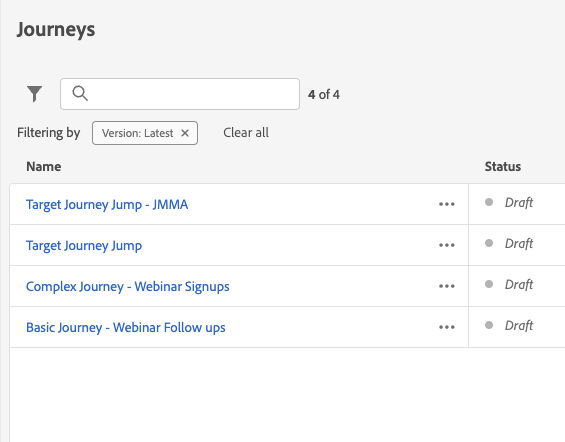
Find Your Journey Filtering. Click on the filter icon.

- Click on the duplicated journey you created to edit.
- Click on the wait node. Change this to 10 days.
- Click ok.
- Click on the NotifyAdvisor - Opportunity Expansion Custom Action.
Notice the Parameters required. Add Customer ID and use Email. Add First Name and use First Name, then Use the Context Attributes from our event to give the Webinar Type to our Agent.

More on Conditions
- Let's Add A Condition next to our custom Action.
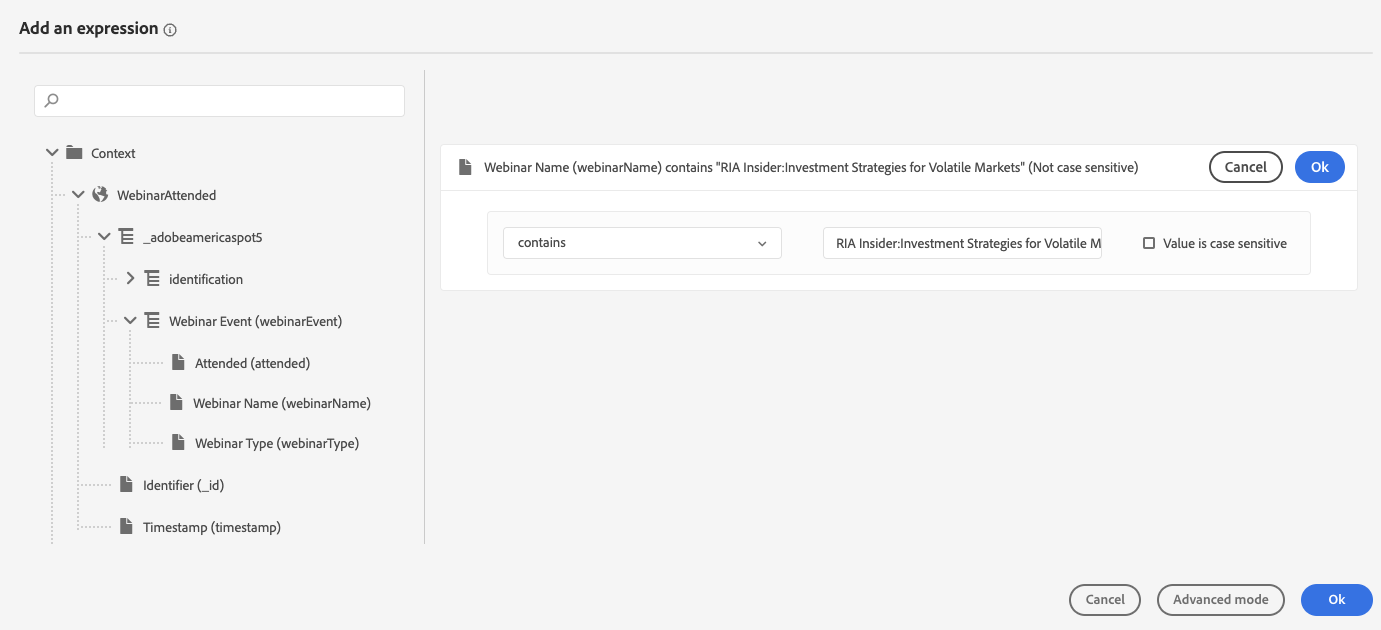
- Click on the Expression Field.
- Click on Context Folder.
- Click on WebinarAttended > _adobeamericaspot5 > Webinar Event > Webinar Name.
- Drag Webinar Name into the canvas.
- Change to Contains.
- Value: RIA Insider: Investment Strategies for Volatile Markets.
- Uncheck Value is Case Sensitive.
Click Ok, Click Ok.
- Check Show path for other cases and Add an Alternative timeout or error.
- Click Ok.
Quality of Life Operations
- Go back to Journeys.
- Click on your basic journey.
Using your mouse (Hold right click and draw a big square), Select From the Email - Download Webinar Opportunity all the way to the end of the journey:
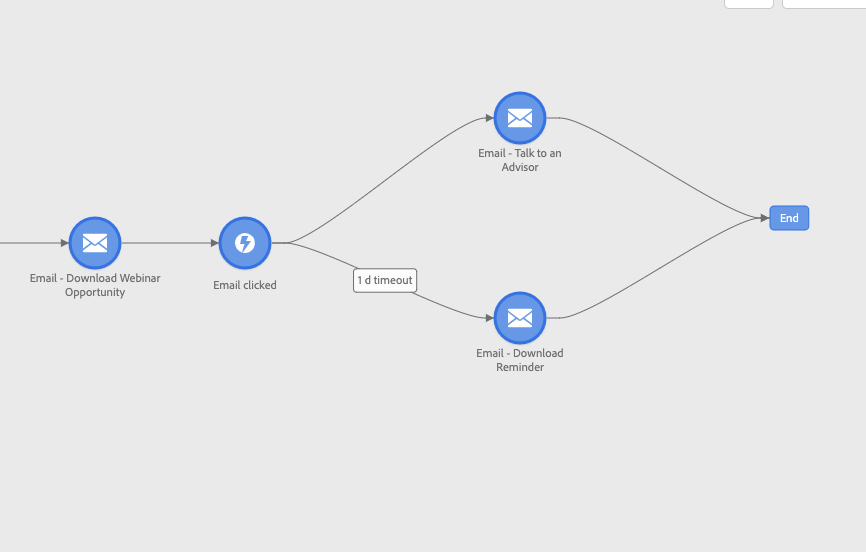
- Then on your keyword, press control (Command) + "c" to execute the copy command. Then click on journeys again to go back to select a journey.
- Search for your Target Journey. Click on the name to edit.
- Press Control (Command) + "v" to paste command.
Connect what you pasted to path1.
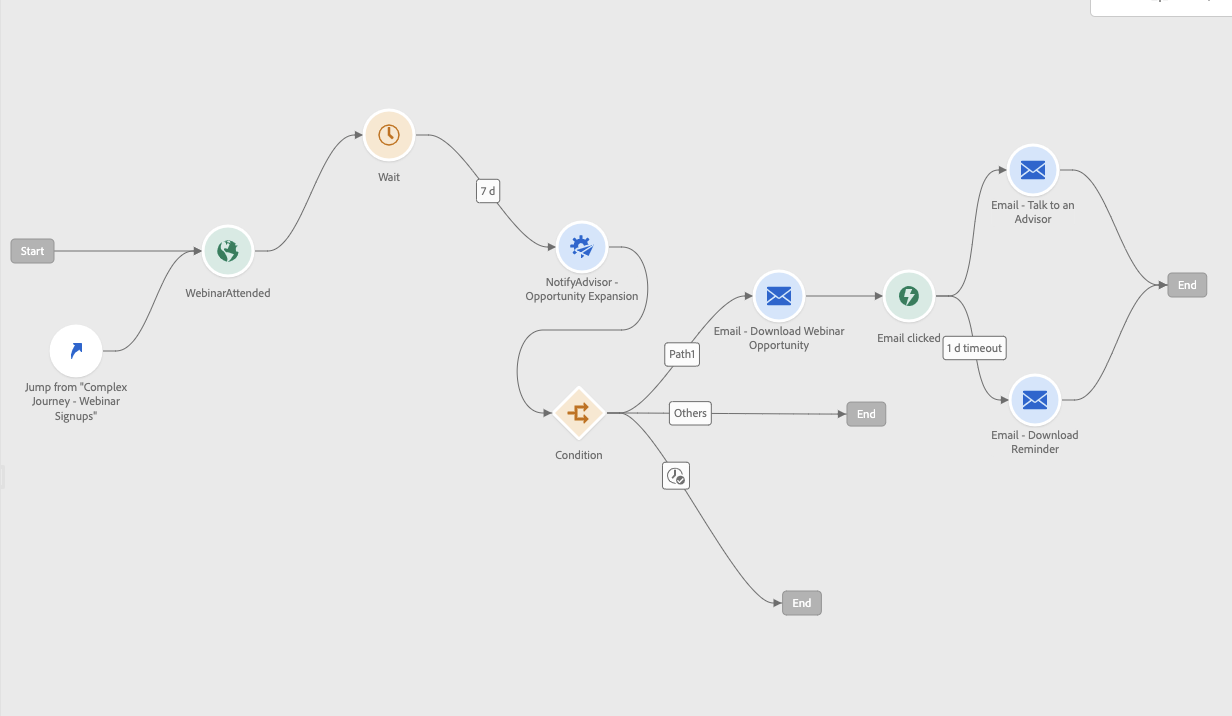
- Check your warnings, and adjust if needed.
We created a Real Time Journey that connects with customers as soon as they sign up for a webinar. Personalizing along the way their journey multi-channel and with offers. Responding in real-time post their initial engagement.
End of Lab.