Advanced Journey Concepts
This lab will walk through the adding advanced actions and workflows in journeys.
NOTE: Exercises may vary during the Hands-on Lab at the presenter's discretion.
Create a Journey
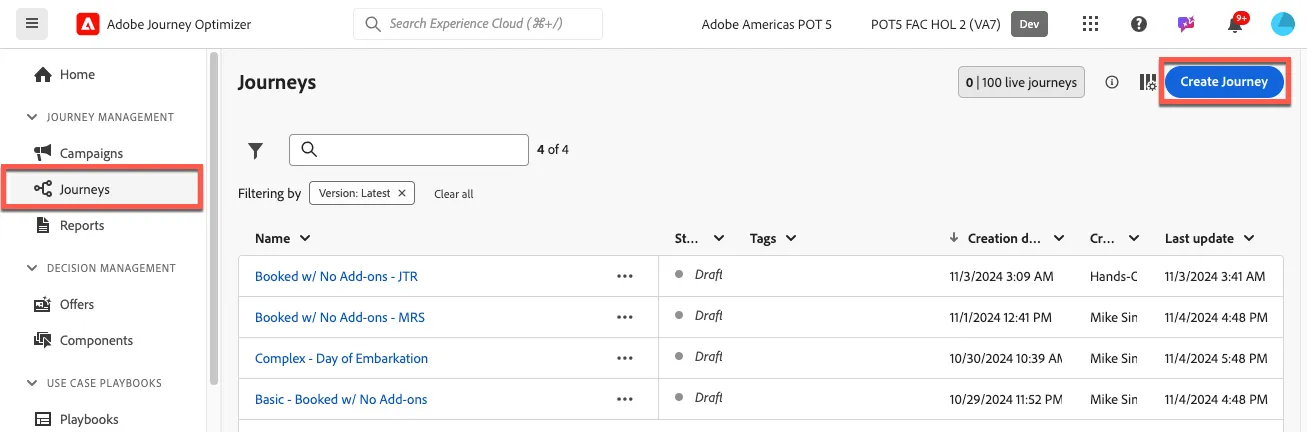
Create a new journey by selecting Journeys from the left hand sidebar and clicking the Create Journey button
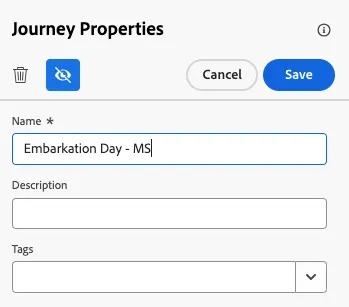
Name your journey Embarkation Day - and append your initials. Click Save.
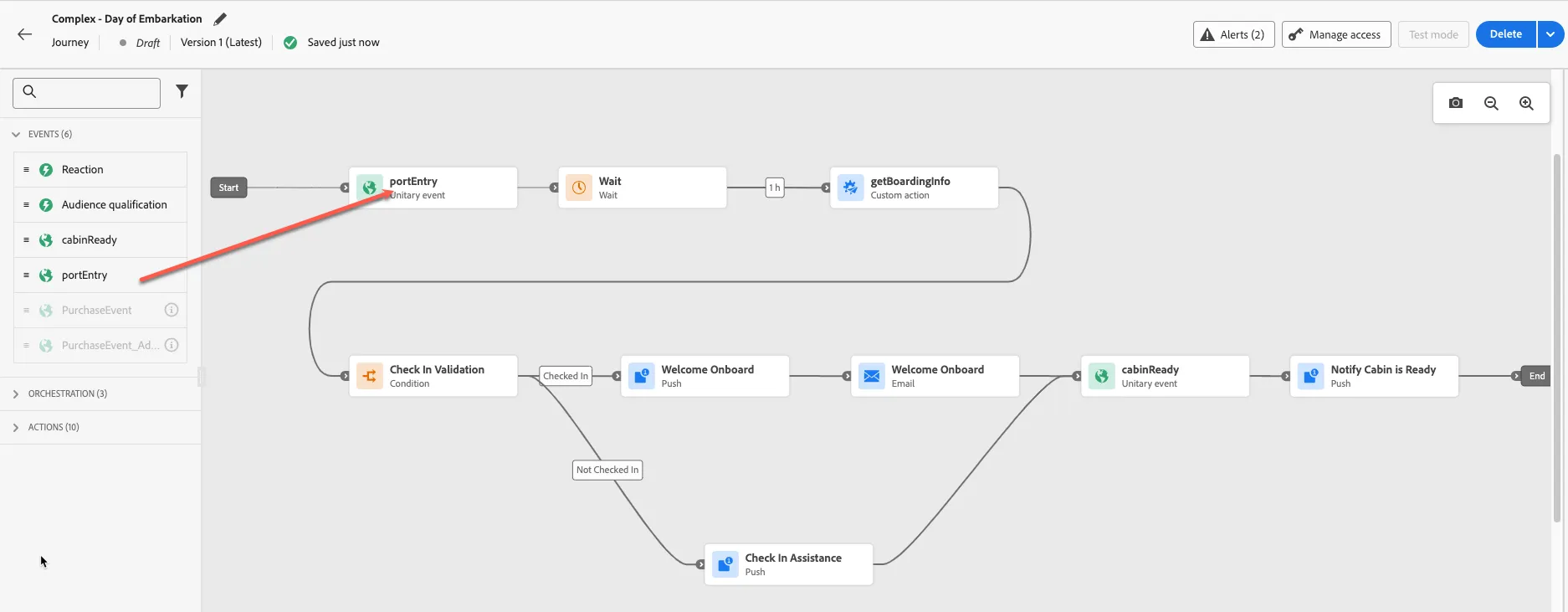
Select the portEntry event and drag it into the canvas
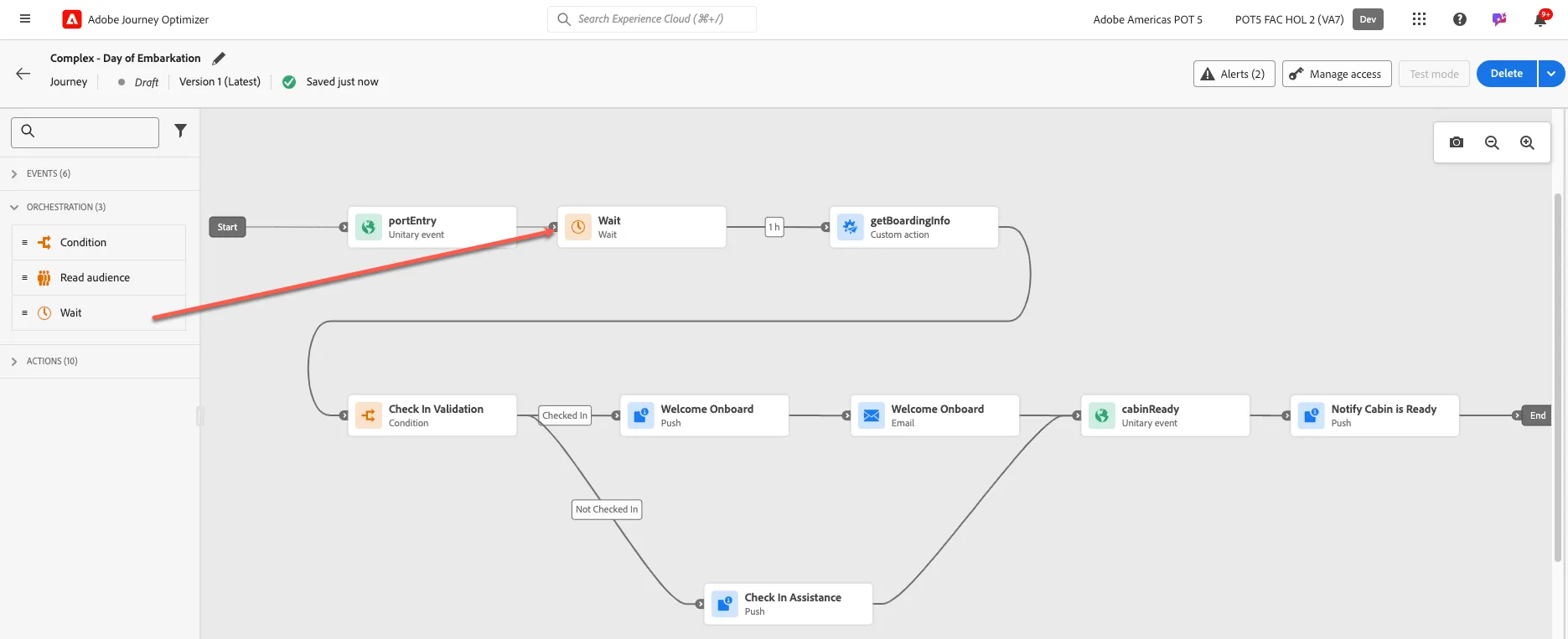
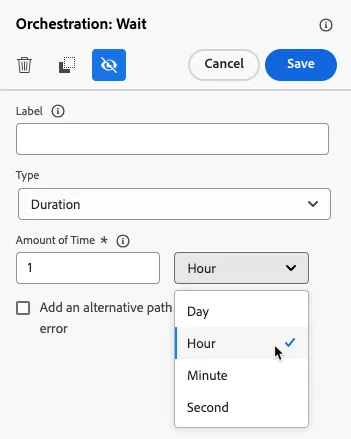
Drag a Wait condition onto the end of the portEntry event and change the duration to 1 hour
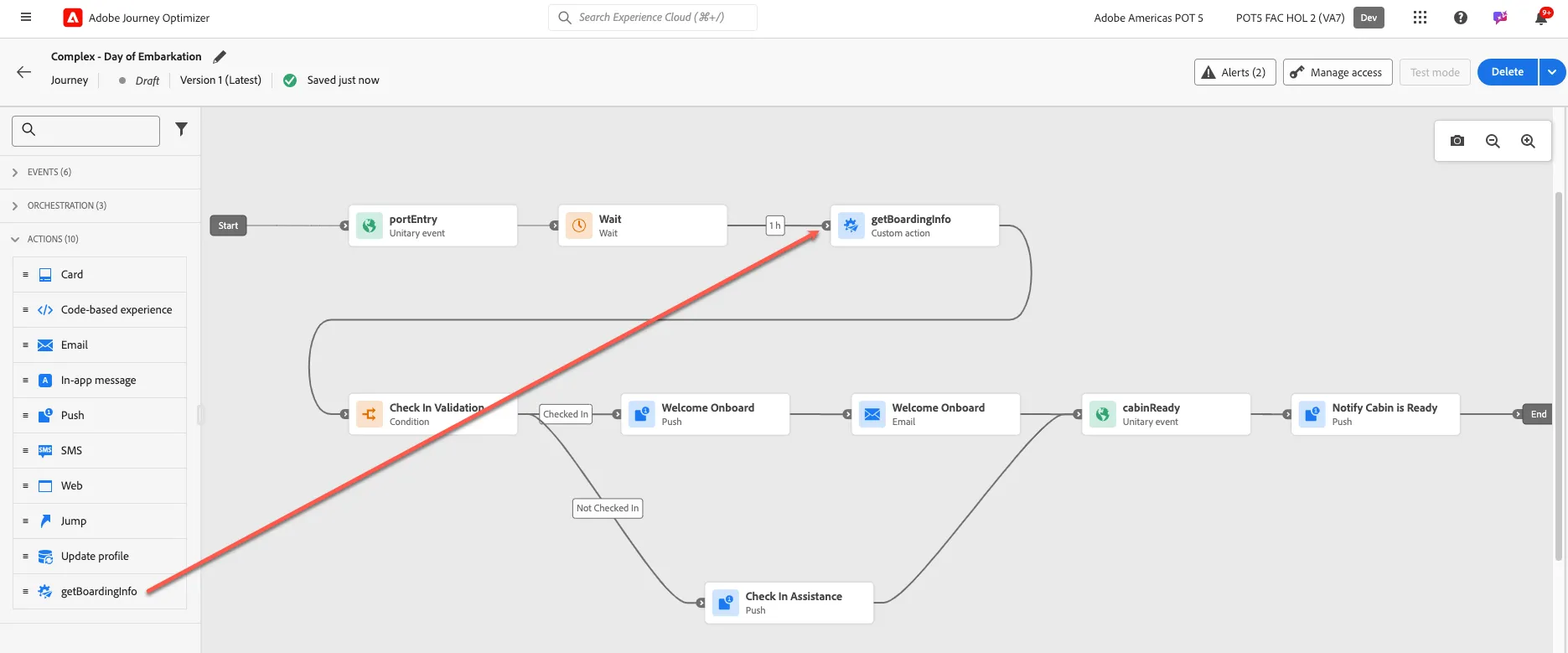
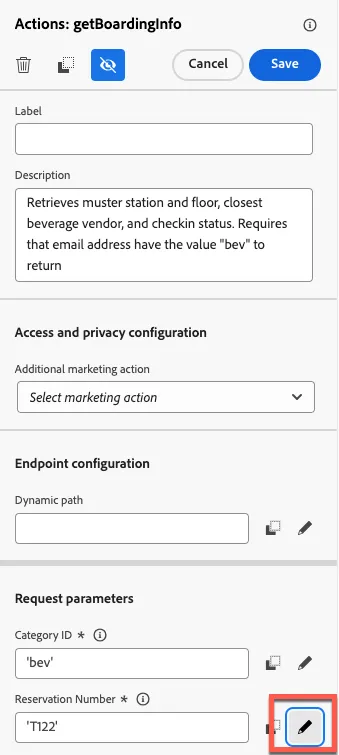
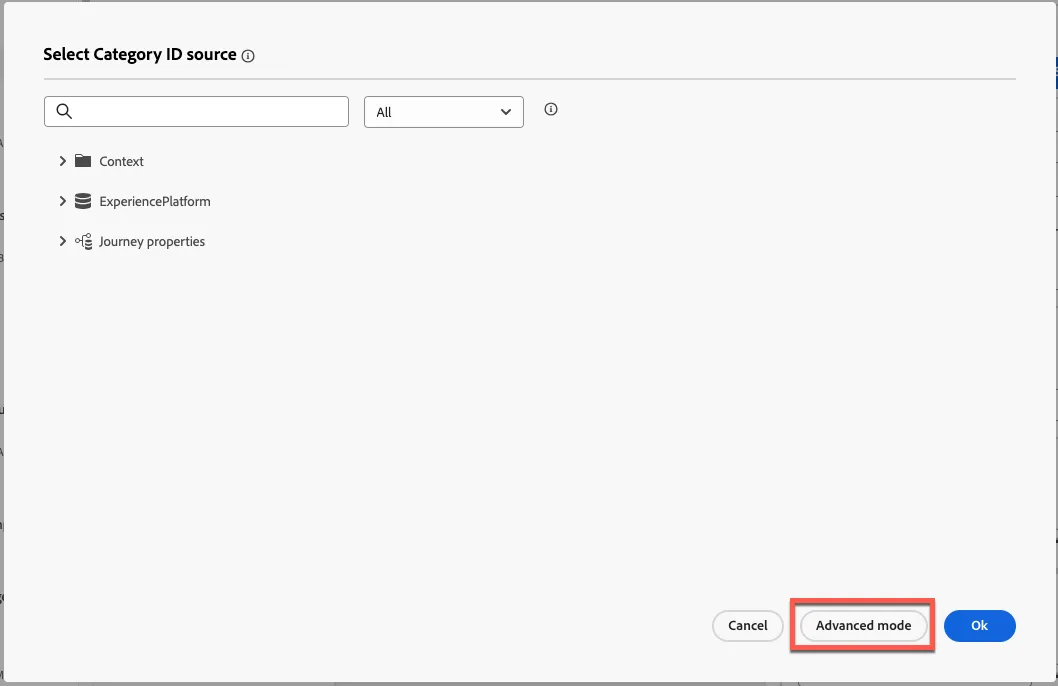
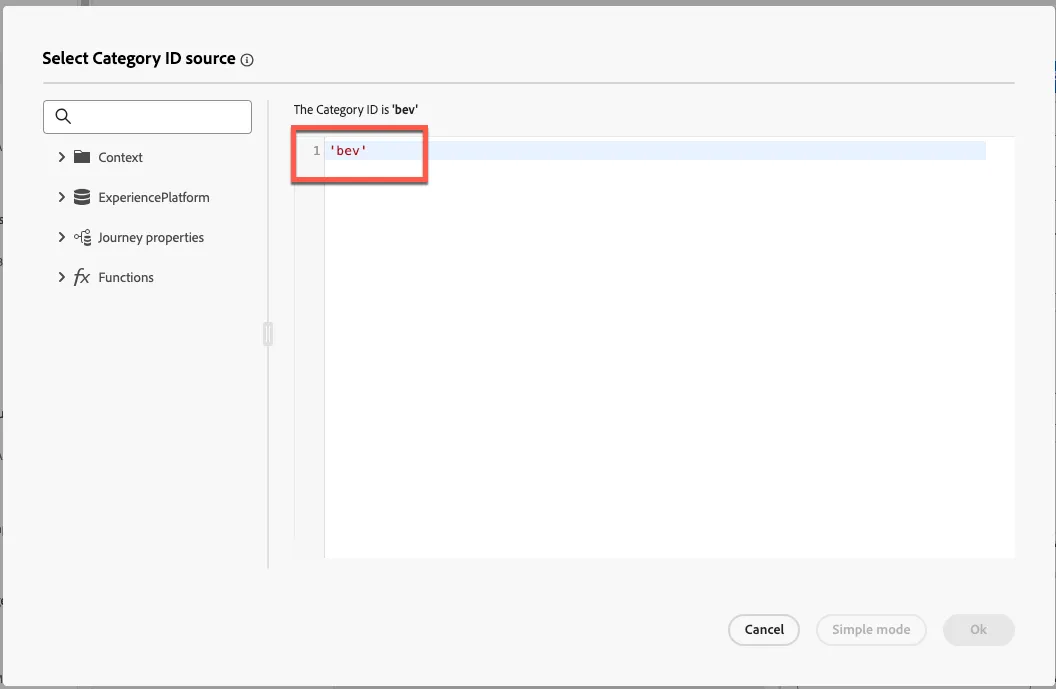
Drag a getBoardingInfo action onto the end of the wait condition. For now, hardcode the values 'bev' and 'T122' in the Category ID and Reservation Number request parameters, respectively, by clicking into the field or clicking on the pencil icon. A modal will pop up. Select the Advanced Mode option to hardcode a value. We'll discuss what these parameters do.
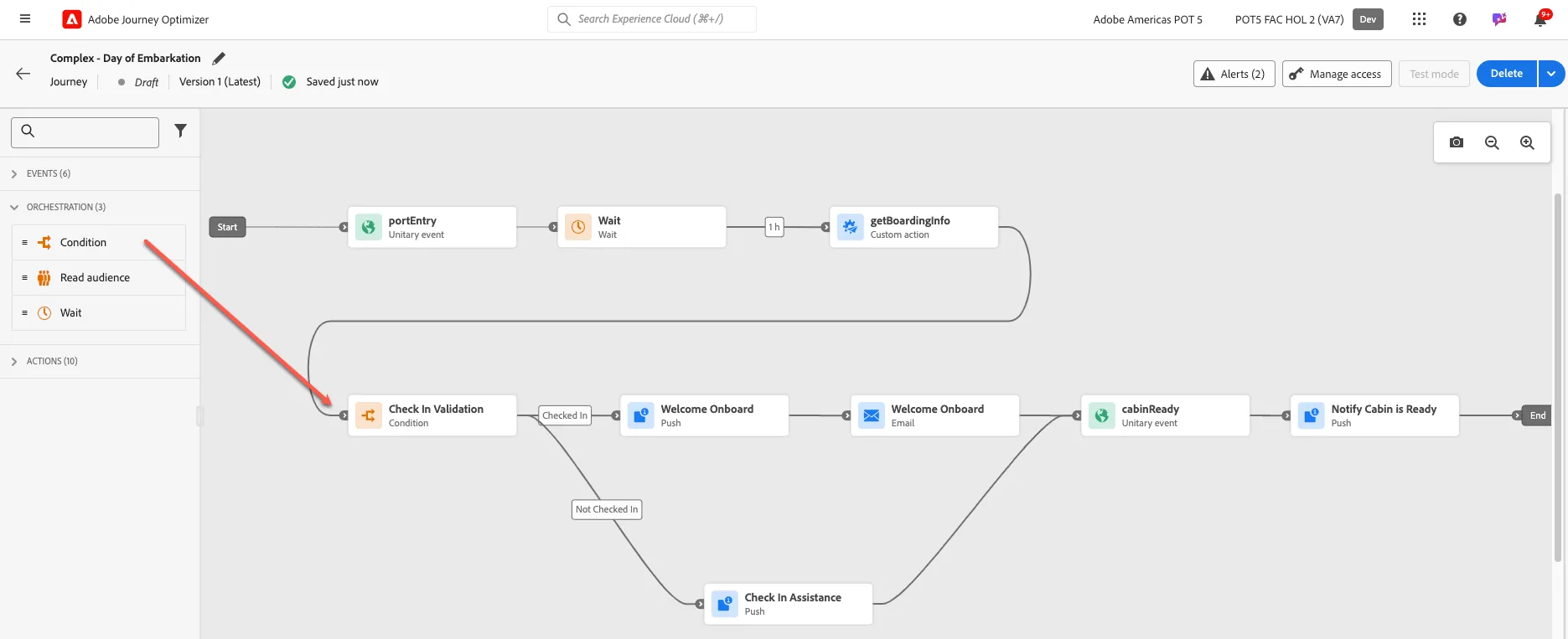
Drag a Condition node to the end of the getBoardingInfo action. Add a second path and name the paths Checked In and Not Checked In.
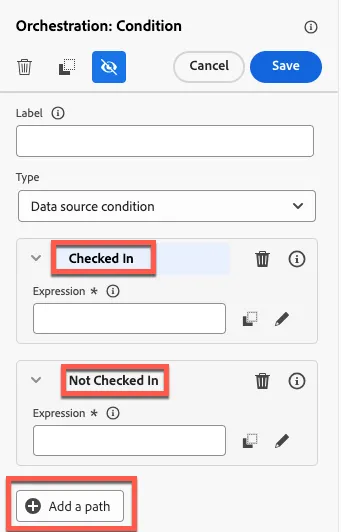
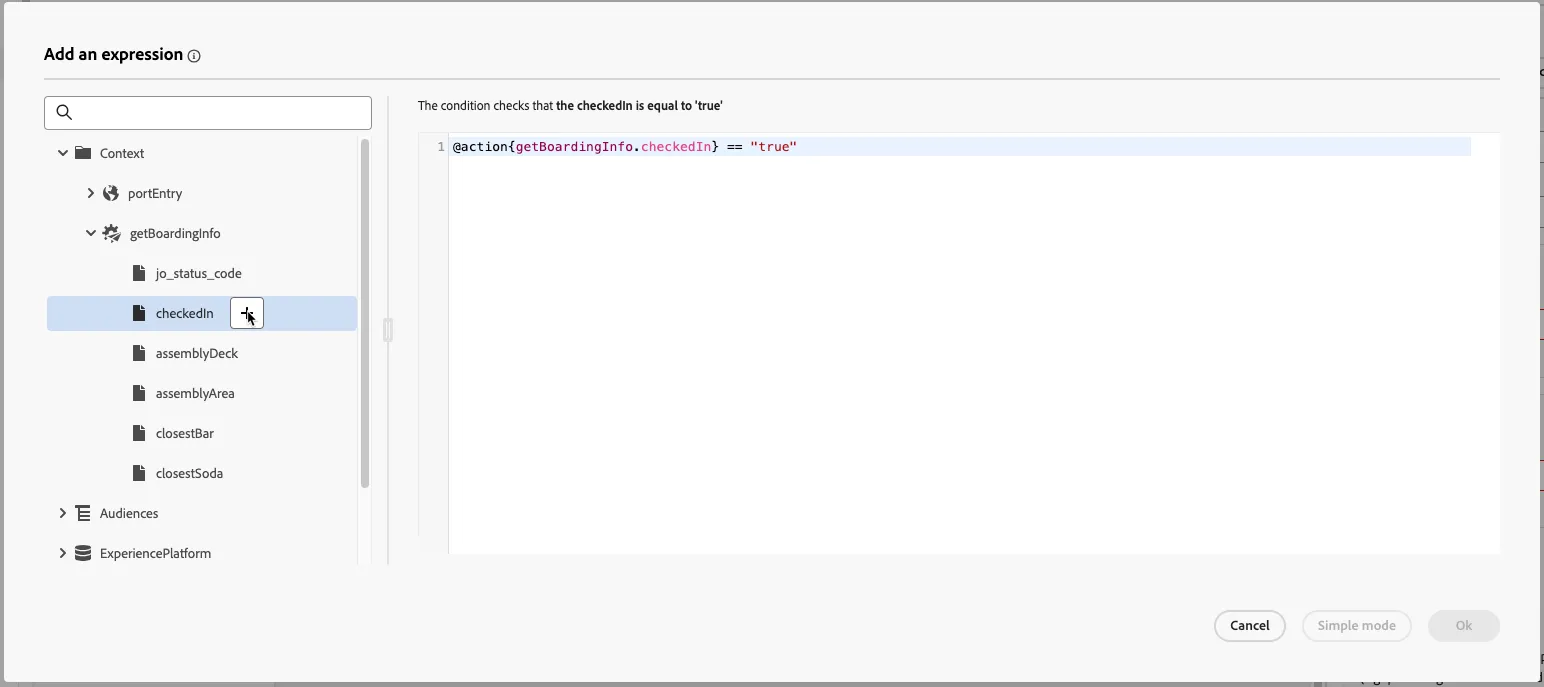
Click the pencil icon for Checked in. A modal will appear. Switch to Advanced mode. Expand Context and then getBoardingInfo. Add the checkedIn attribute by clicking the + and then type in == "true". Click Save. Repeat these steps for the Not Checked in Path, but set the attribute to == "false". Click Save.
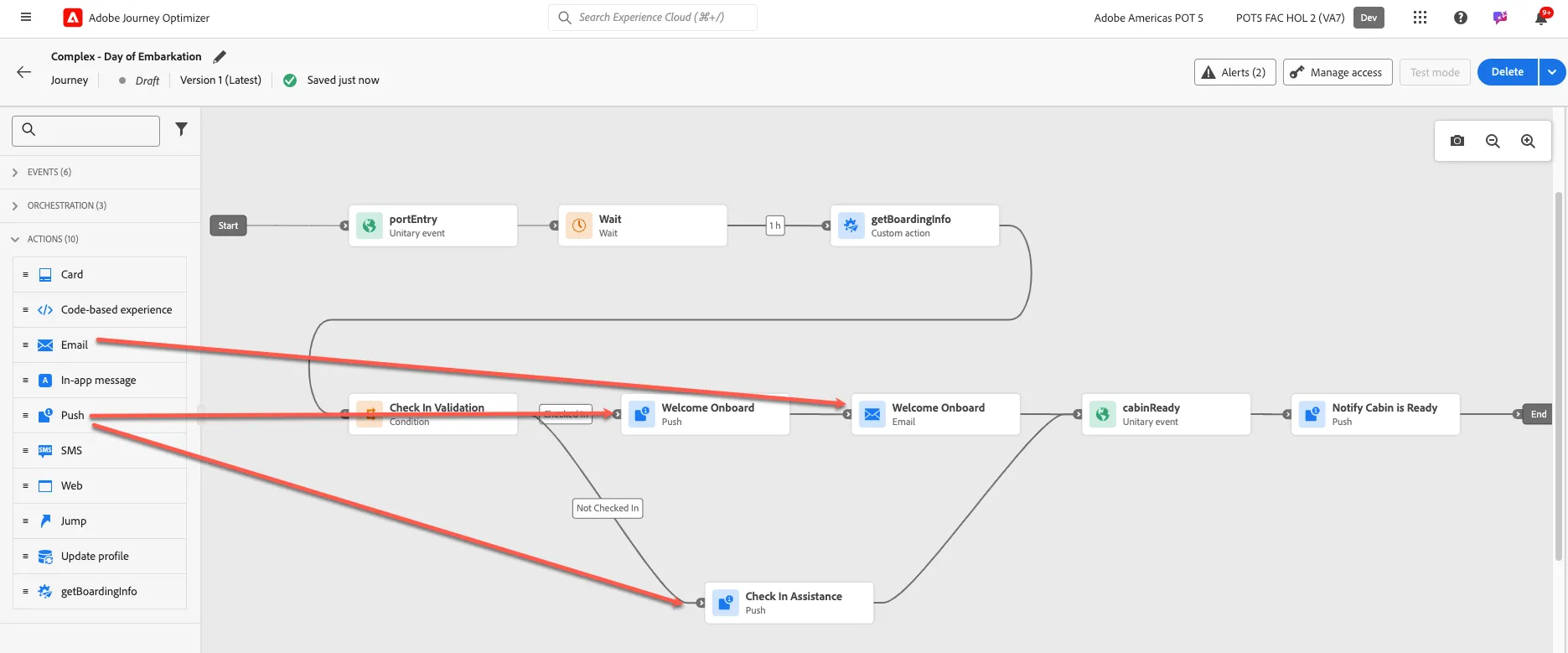
Drag a Push action to the end of the top condition fork and another to the bottom fork. Drag an Email action to the end of the top Push action.
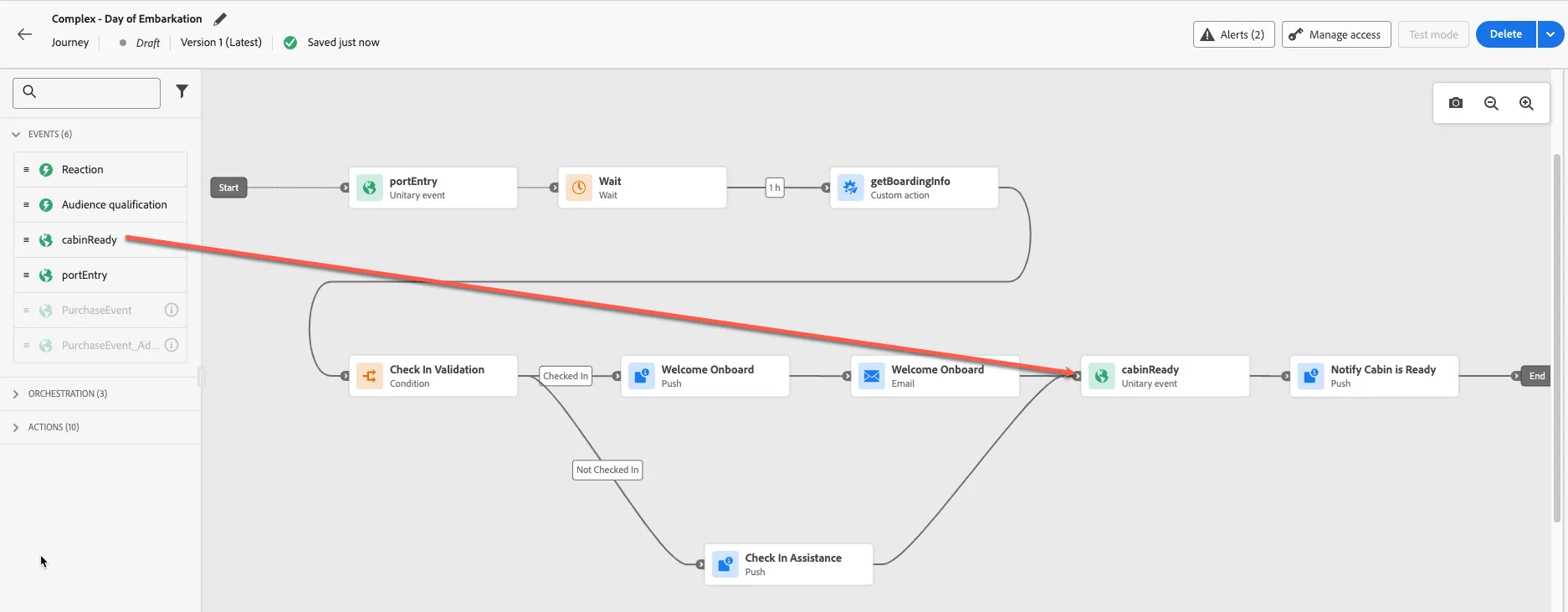
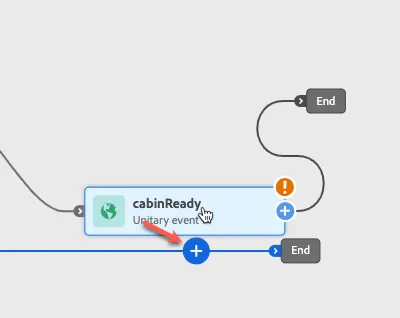
Drag a cabinReady event to the end of the top branch. Let go and then drag the same cabinReady event over the end of the bottom fork so that the forked paths merge.
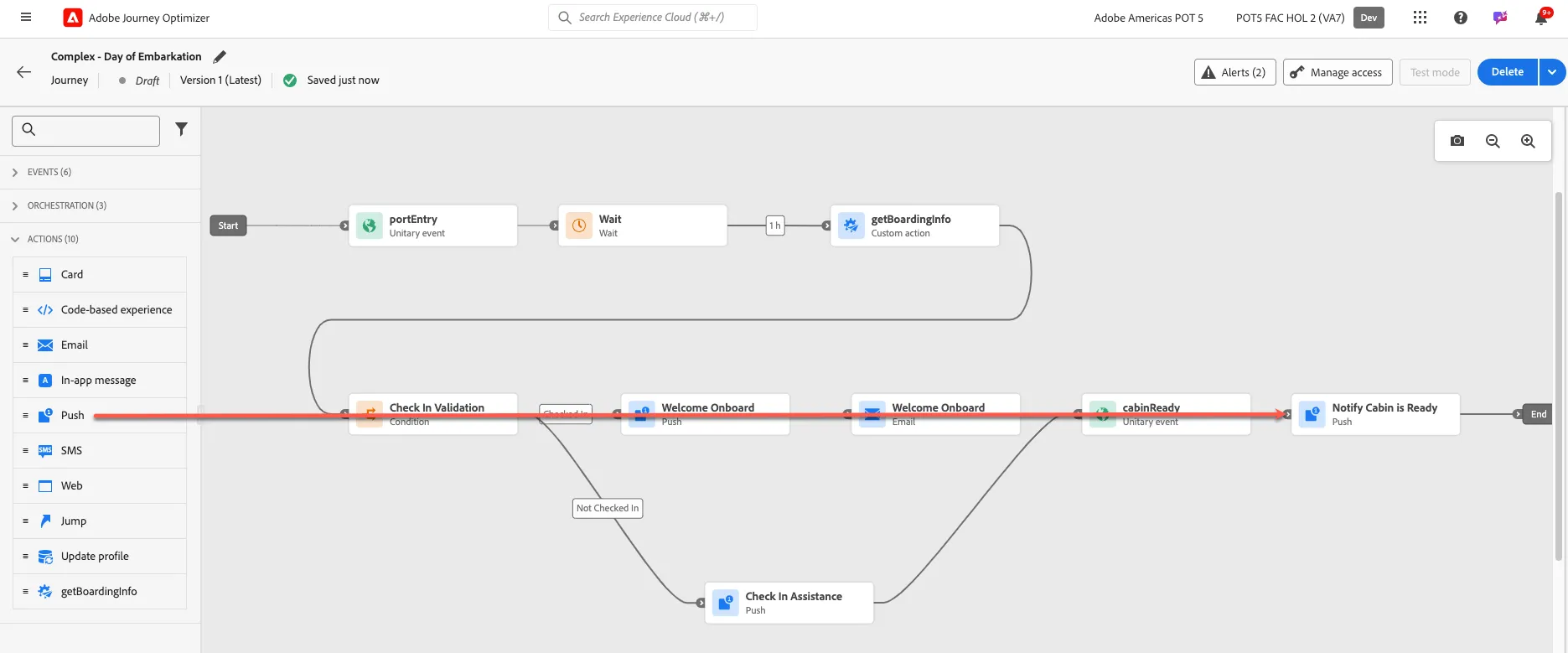
Drag a Push action to the end of the cabinReady event
Add Messages