[Tech] Configuring an event
3 min
Configuring an event
Event overview
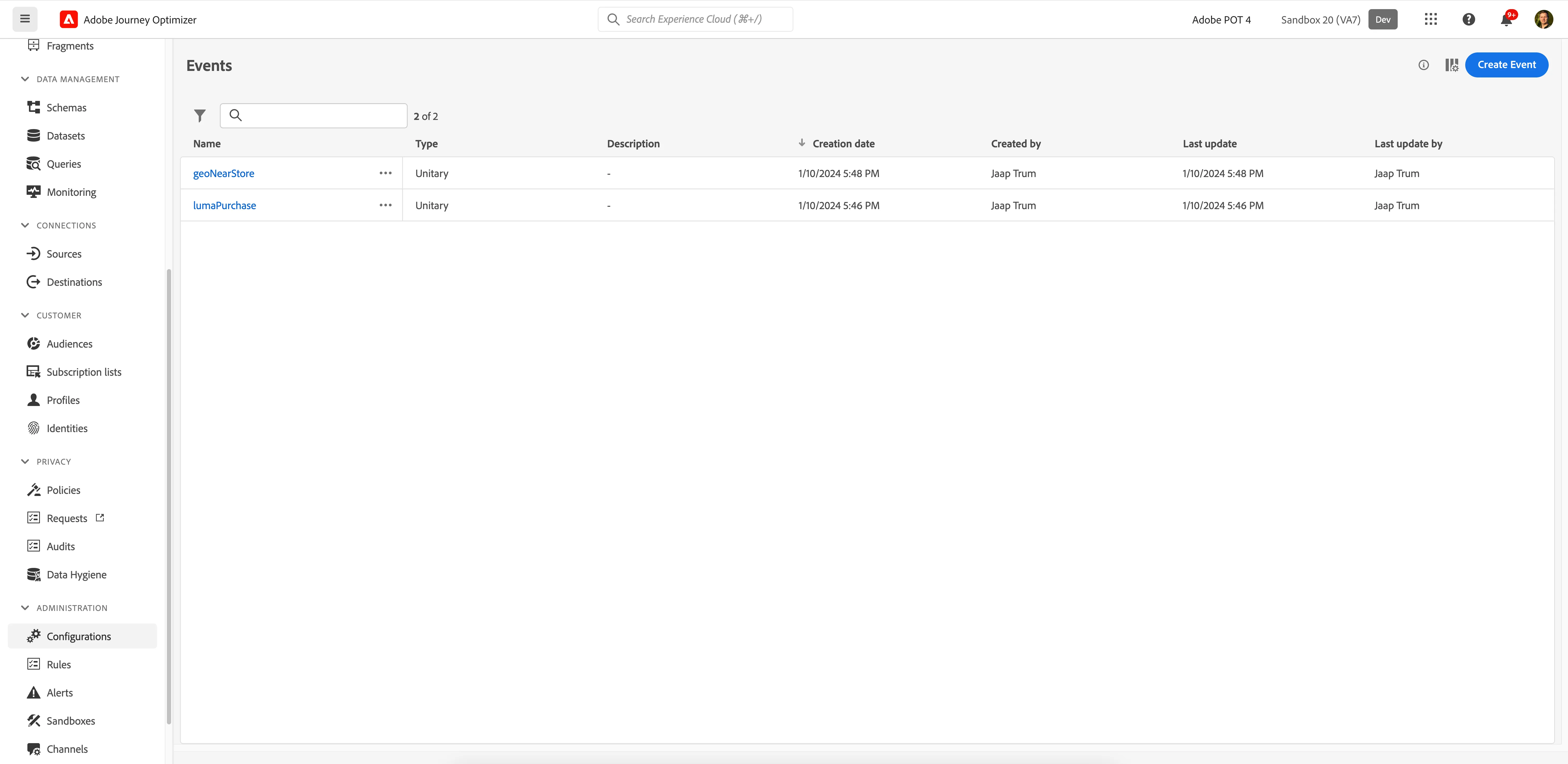
To get an overview of all events in Adobe Journey Optimizer:
- In the menu on the left side, scroll down to the bottom and click on Configurations. You will see a set of tiles.
- Click on Manage in the Events tile to get an overview with all existing events.
Configuring an event
We'll be configuring an event that we can use to start our journey. The event should trigger whenever a customer enters one of our defined geolocations.
To configure a new event, click Create Event. A menu will open on the right side.
- Set the name to yournameGeoNearStore
- e.g. angeliGeoNearStore
- Scroll down to Parameters
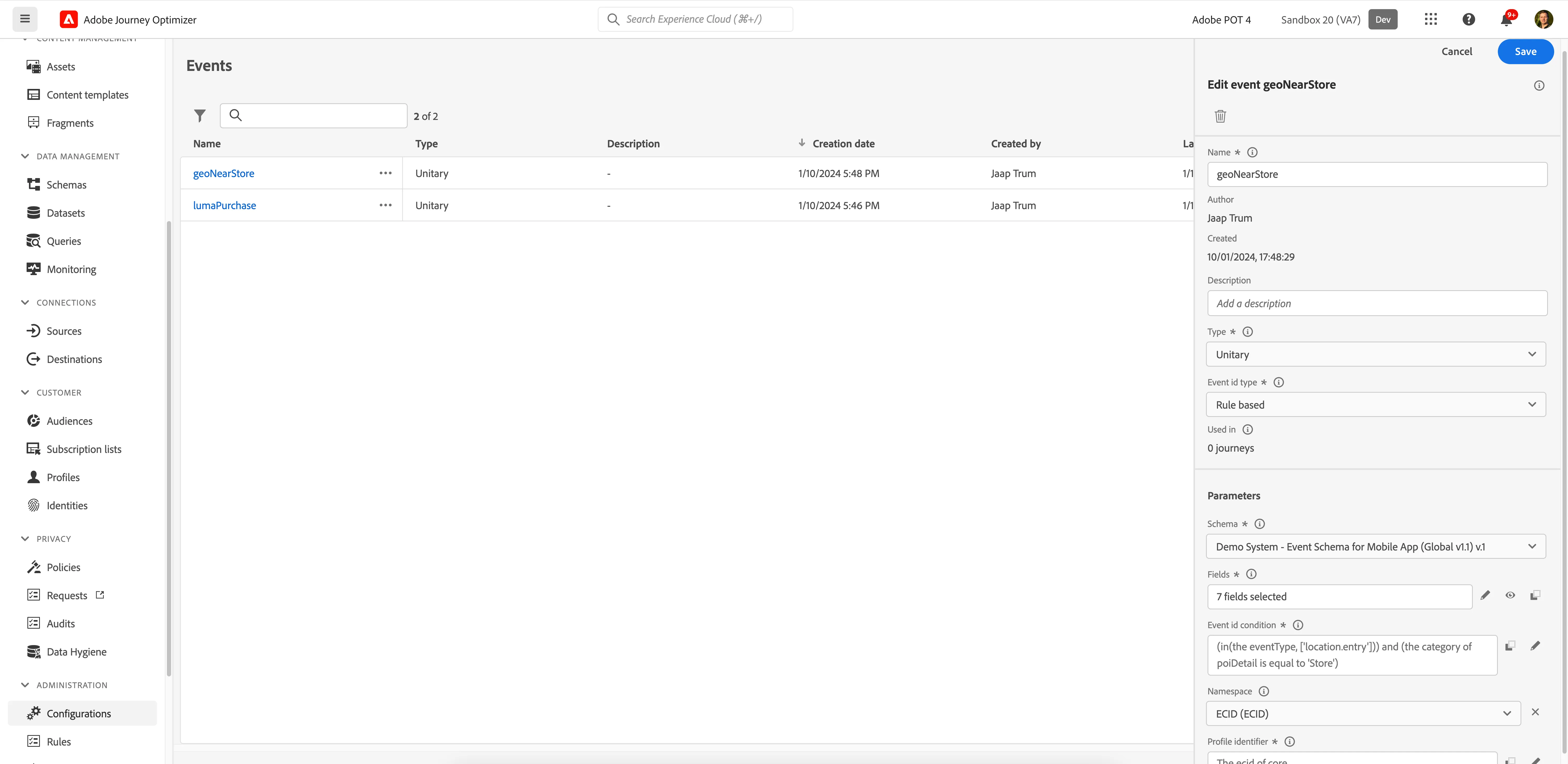
- For Schema, click on Select a schema and choose Demo System - Event Schema for Mobile App (Global v1.1)v.1 in the dropdown.
- For Fields, click on 4 fields selected, a pop-up window will open. In this window we can select the data fields we want to have available for the event. Add the following fields to the selection:
- eventType (eventType)
- Place context > POI interaction > POI detail > POI category (category)
- Place context > POI interaction > POI detail > POI name (name)
- Click Ok; now you should see 7 fields selected.
- For the Event ID condition, click on Add a condition. Another pop-up window will open.
- Drag the Event Type (eventType) from the left menu onto the right side.
- You'll be prompted to choose a value. Scroll down and the search for location.entry. Check this value then scroll back up and click Ok.
- Search for category and drag POI Category (category) onto the right side.
- You'll be prompted to input a value. Set it to Store.
- The rule should now say
- Event Type (eventType) is equal to location.entry
- POI category(categorry) is equal to "Store"
- Click Ok to save and close the pop-up window.
- Your screen should look like the image below.
- Scroll up and click Save.