[Tech] Setting up a Data Source
5 min
Adobe Journey Optimizer lets you define API connections to (external) systems to retrieve additional information to use in your journeys.
Setting up a Data Source
Data Source overview
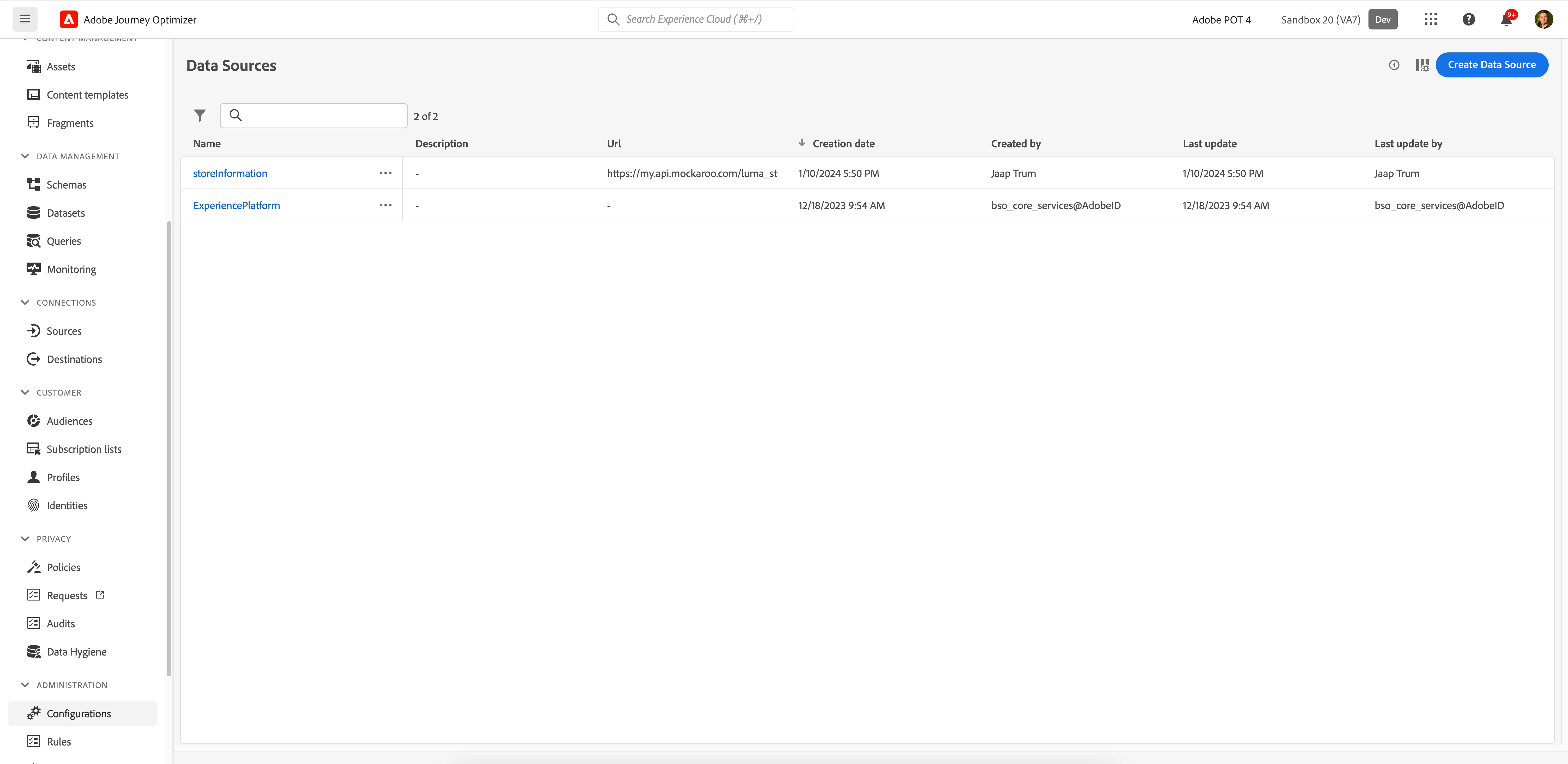
To get an overview of all data sources in Adobe Journey Optimizer:
- In the menu on the left side, scroll down and click on Configurations. You will see a set of tiles.
- Click on Manage in the Data Sources tile to get an overview of all existing data sources.
Configuring a new Data Source
We'll be configuring a data source to use in our journey. The data source is used to retrieve information from a store location. This way we can know if the store is open.
To configure a new event, click Create Data Source. A menu will open on the right side.
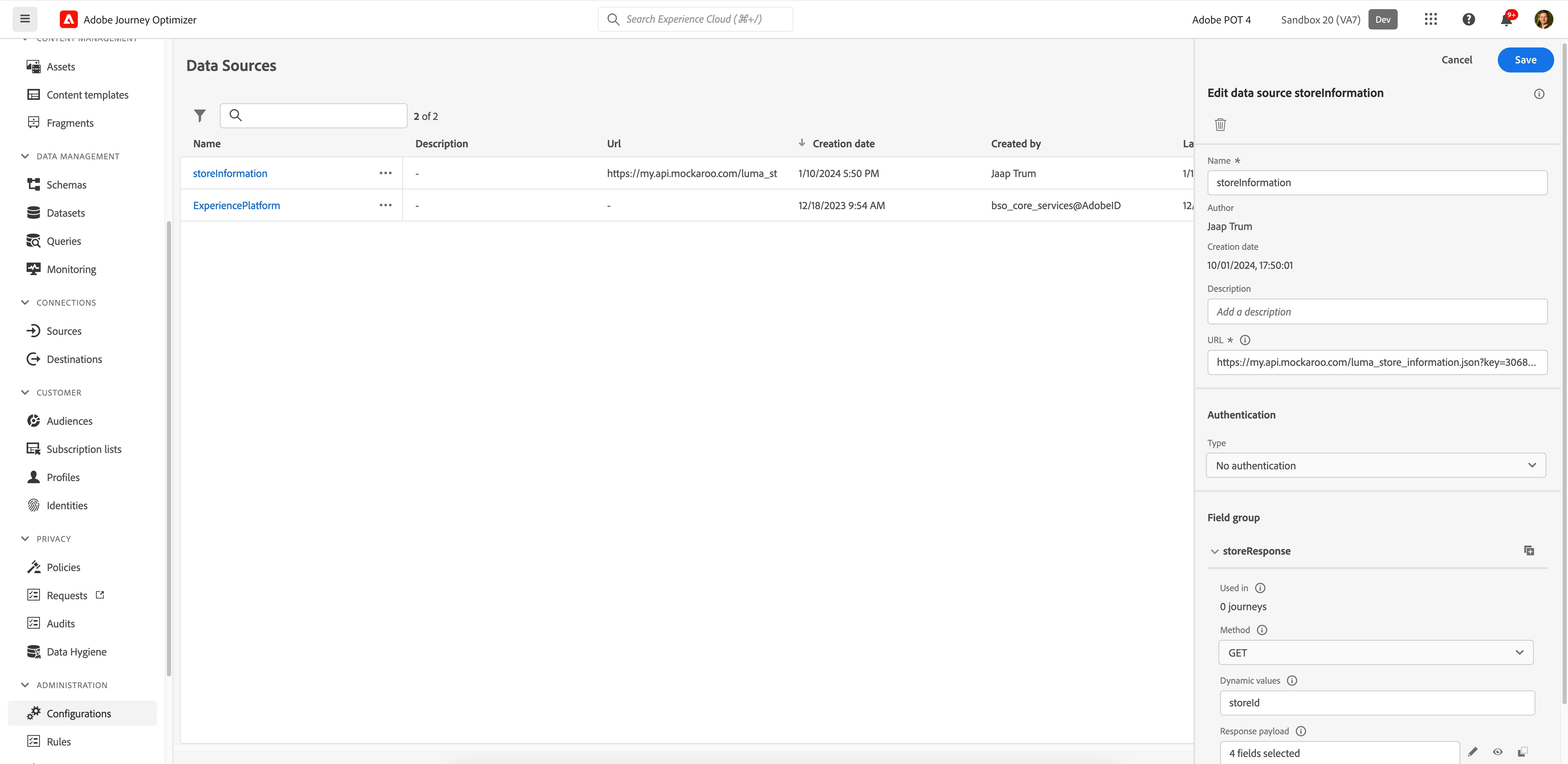
- Set the name to yournameStoreInformation
- e.g. angeliStoreInformation
- Set the URL to https://api-v5rrckz3mq-uc.a.run.app/generic/getStoreInformation
- Under Authentication, leave Type set to No authentication. This is where you would normally add your API's authentication headers.
- Under Field group, click fieldgroup1 and change the label to yournameStoreResponse.
- When calling the Data Source, we need to be able to change the value of the store based on the geolocation. To do this, we need to set dynamic values for the data source.
- Click on the text field under Dynamic values
- Type storeId.
- Now we need to provide an example payload that Adobe Journey Optimizer can expect when calling this API. To do this click on 0 fields selected below Response payload. A window will open.
- Copy the payload below and paste it into the window.
{
    "storeId": "STRING",
    "isOpen": true,
    "nextOpenDateTime": "2023-05-09 09:00:00",
    "minutesTillNextOpen": 1
}
The interface will directly try to assign data types to the given payload. Check if the field configuration is set correctly.
- storeId should be string
- isOpen should be boolean
- nextOpenDateTime should be dateTime (need to be changed)
- minutesTillNextOpen should be integer
Click Save. The response payload should now say 4 fields selected.
Your screen should look like the image below. Click Save.