Creating the journey
In this exercise, you'll be creating and testing a journey using all the components you've created in the previous exercises.
Creating the journey
Journey overview
To get an overview of all journeys in Adobe Journey Optimizer:
- In the menu on the left side, under Journey management, click on Journeys. You will see a overview with all existing journeys.
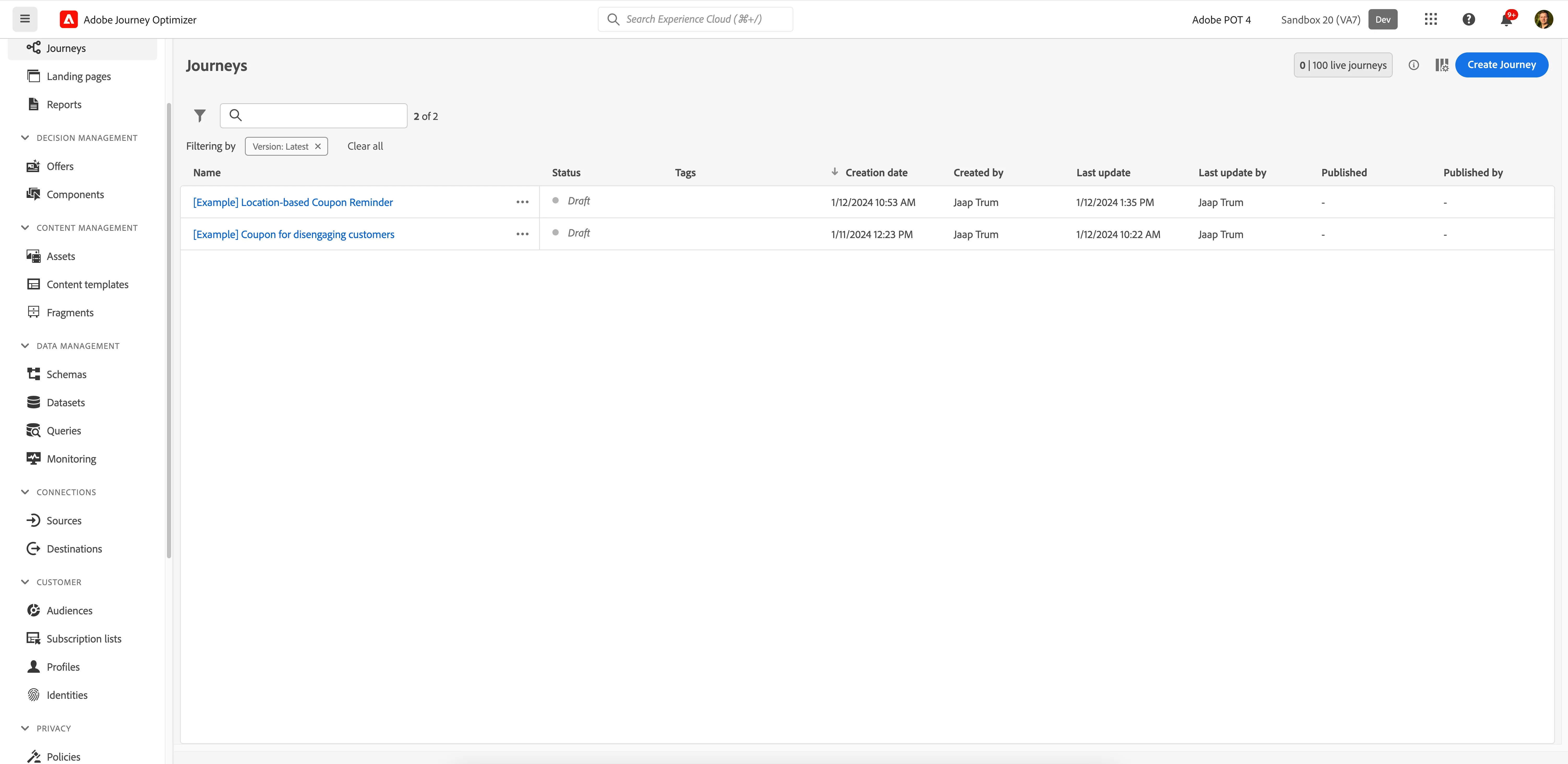
Creating a journey
We'll be creating a journey that will make an HTTP call to an external endpoint, when a customer is near a store. The journey needs to check if the customer has an unused coupon as well as check with the local store if they are open for business.
The HTTP call is a way to mimic the interaction with any external platform that is able to receive an HTTP request (like a CRM, Marketing Automation...).
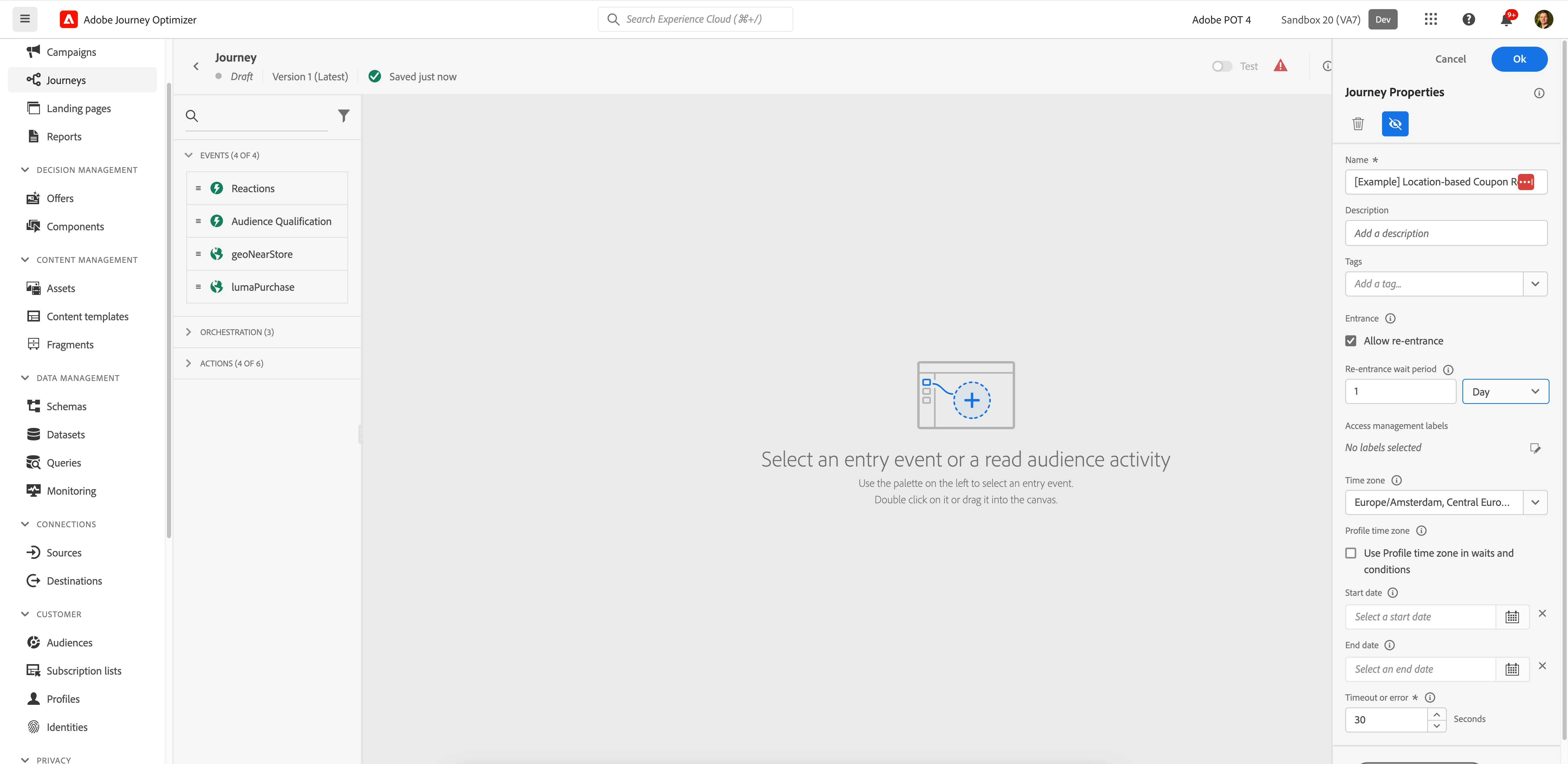
Click on Create Journey. You'll be taken to the Journey canvas with the journey properties opened.
- Set the name to [your name] - Location-based Coupon Reminder.
- Set the re-entrance wait period to 1 Day. This prevents the journey from triggering multiple times a day for the same customer.
- For the other properties we'll keep the default values.
- Your screen should look like the image below. Click Ok to save and close the properties.
You're now in the journey canvas. This is where you'll be creating your journey's logic. In the left menu you have activities. There are three types of activities:
Type | Description |
|---|---|
Events | Triggers that can start or continue your journey. |
Orchestration | Allow to orchestrate the logic of your journey. It looks at conditions, audiences, but can also be used to make your workflow wait or end. |
Actions | Are the results of your journey. This can be messages, profiles updates or API calls (for Journey Orchestration only API calls). |
Event trigger
We're starting our workflow of with an event trigger.
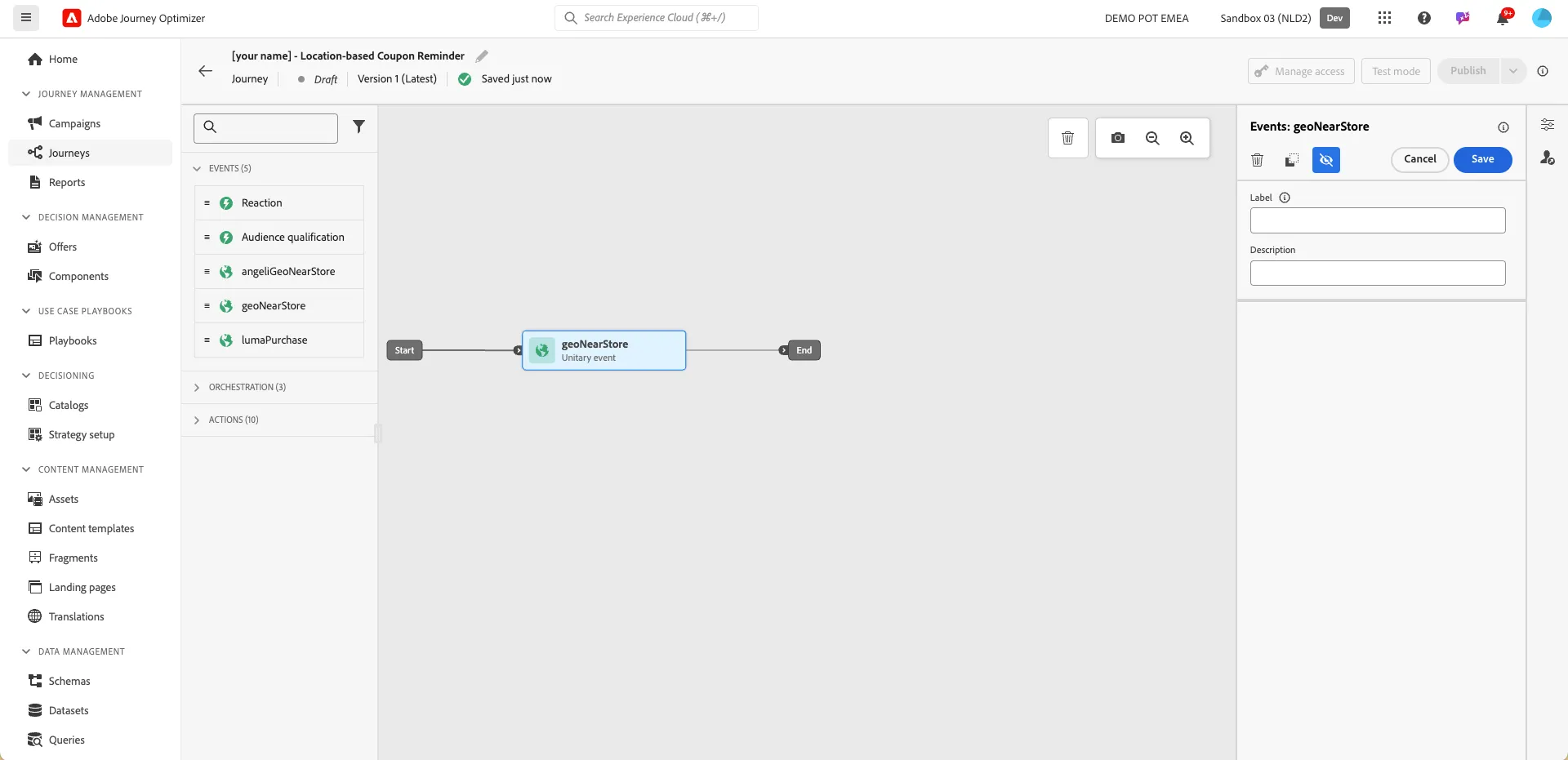
- From the Events tab, choose the event you created (yournameGeoNearStore) and drag it onto the canvas. If you did not create an event, use the geoNearStore event.
- There's nothing we need to configure for this as we have already done this when we configured the event. Click Save to close the menu.
Condition - Has unused coupon
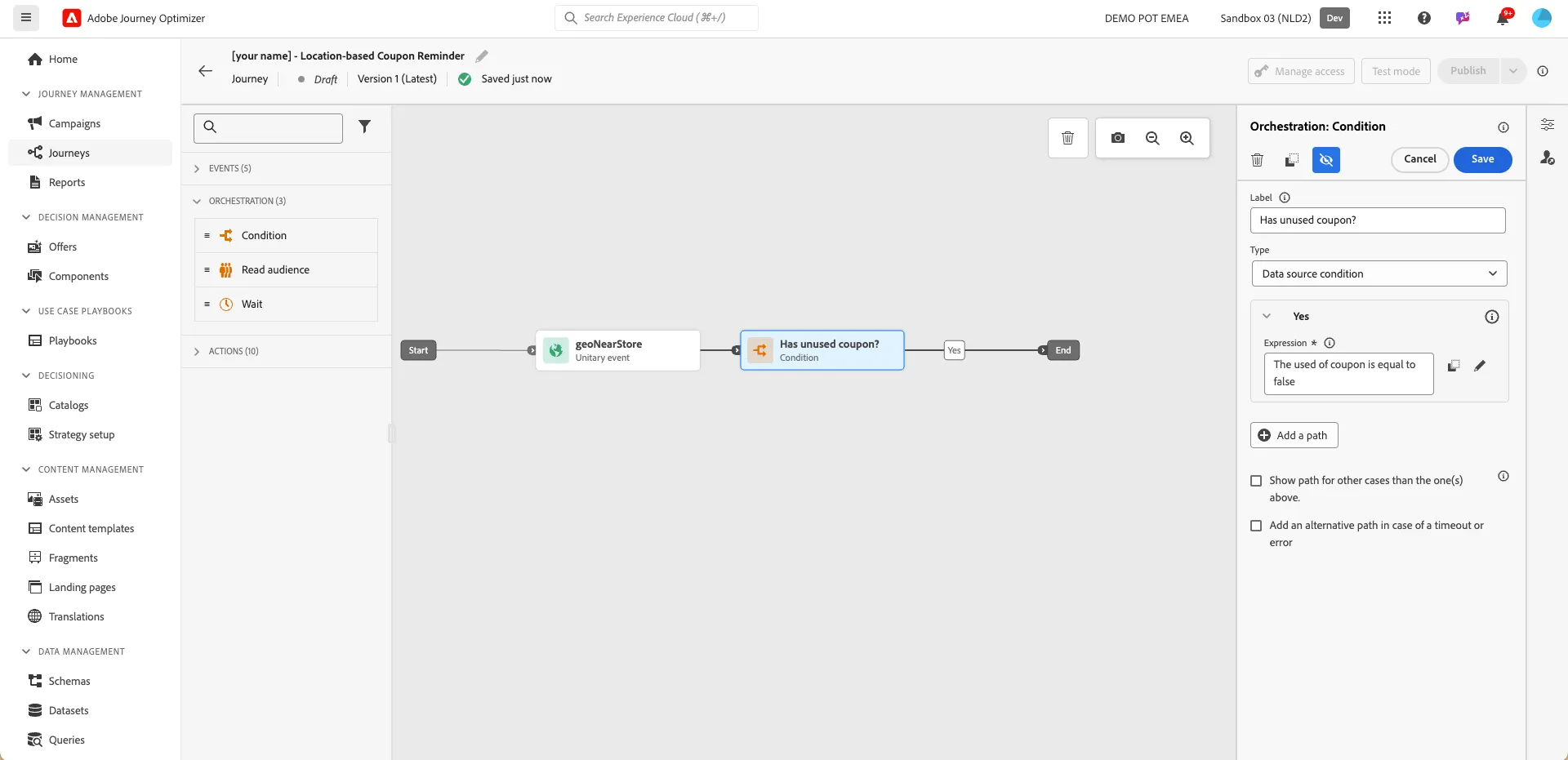
When the customer enters the Point of Interest (POI), the first thing we want to check is if the customer has an unused coupon.
- From the Orchestration tab, choose Condition and drag it onto the empty circle on the canvas.
- Click on the activity to open the detailed view.
- Set the Label to Has unused coupon?.
- Leave Type as it is.
- Click on Path1 and change the label to Yes.
- Click on the text field below Expression to open a window.
- On the left side, search for used, find the field Coupon Used (used) and drag it to the right side.
- In the pop-up, the statement should be on false, if not click the toggle. Checks if the title reads Coupon Used (used) is equal to false and click Ok.
- Click Ok to save the conditions.
- Your screen should look like the image below.
- Click Save.
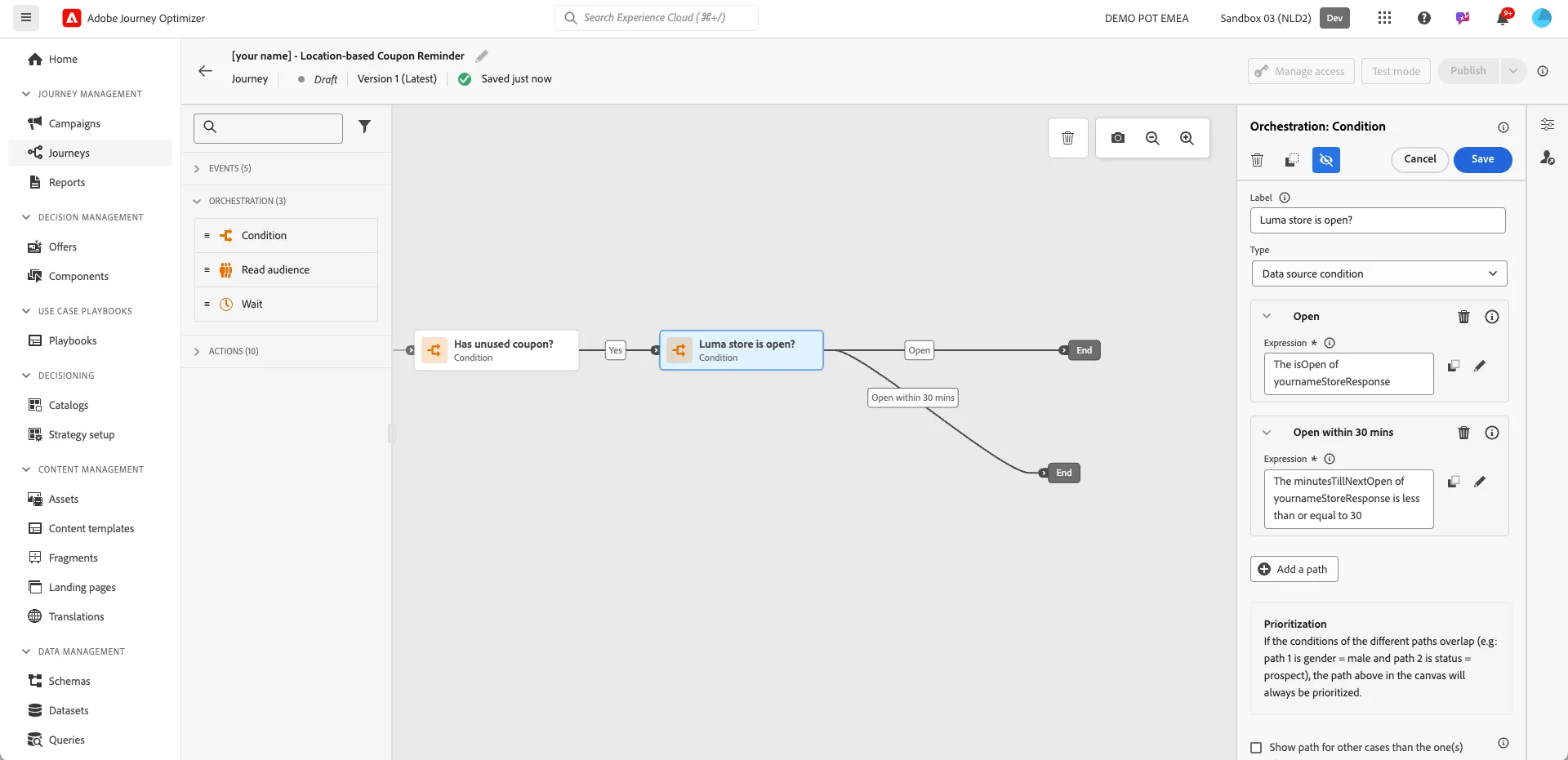
Condition - Luma store is open?
If the customer has an unused coupon, we want to check if the local store is open for business. This prevents you from sending a message to the customer if the customer can't enter the store.
- From the Orchestration tab, choose Condition and drag it onto the empty circle on the canvas.
- Click on the activity to open the detailed view.
- Set the Label to Luma store is open?.
- Leave Type as it is.
- Click on Path1 and change the label to Open.
- Click on the text field below Expression to open a window.
- To write expressions using an external data source, you'll have to first open the Advanced mode. Click on Advanced mode in the bottom right.
- On the left side, open the Data Source you created in the previous exercise (yournameStoreInformation). If you didn't create the Data Source, you can use storeInformation. Open storeResponse and click on isOpen to add it to the middle section.
- You'll notice a warning appearing in the top saying The expression is invalid : Mandatory dynamic value : storeId is missing We defined a variable field when creating the Data Source. We'll now need to populate this with data.
- On the right side click on dynamic val.: storeId. The middle screen will change.
- On the left side, open Context > yournameGeoNearStore. This is the event that we chose in our journey. In here we can reference any field that is part of the event. Navigate to Place context > POI interaction > POI detail and click on POI name to add it to the middle section. In this way the storeId parameter will be populated dinamically with the value coming from the geolocation event.
- On the right side click on Expression to go back to the original expression. There is no warning in the top anymore as we just populated the variable.
- Click Ok to save the conditions.
- Click on Add a path and change it's label to Opens within 30min.
- Click on the text field below Expression to open a window.
- To write expressions using an external data source, you'll have to first open the Advanced mode. Click on Advanced mode in the bottom right.
- On the left side, open the Data Source you created in the previous exercise (yournameStoreInformation). If you didn't create the Data Source, you can use storeInformation. Open yournameStoreResponse and click on minutesTillNextOpen to add it to the middle section.
- We need to make this an expression that returns true whenever the value is at or below 30. Add <= 30 to the expression. It should now read:#{yournameStoreInformation.storeResponse.minutesTillNextOpen} <= 30
- You'll notice a warning appearing in the top saying: The expression is invalid : Mandatory dynamic value : storeId is missing We defined a variable field when creating the Data Source. We'll now need to populate this with data.
- On the right side click on dynamic val.: storeId. The middle screen will change.
- On the left side, open Context > yournameGeoNearStore. This is the event that we chose in our journey. In here we can reference any field that is part of the event. Navigate to Place context > POI interaction > POI detail and click on POI name to add it to the middle section.
- On the right side click on Expression to go back to the original expression. There is no warning in the top anymore as we just populated both variables.
- Click Ok to save the conditions.
- Your screen should look like the image below.
- Click Save.
Custom Action #1 - Send to SFDC
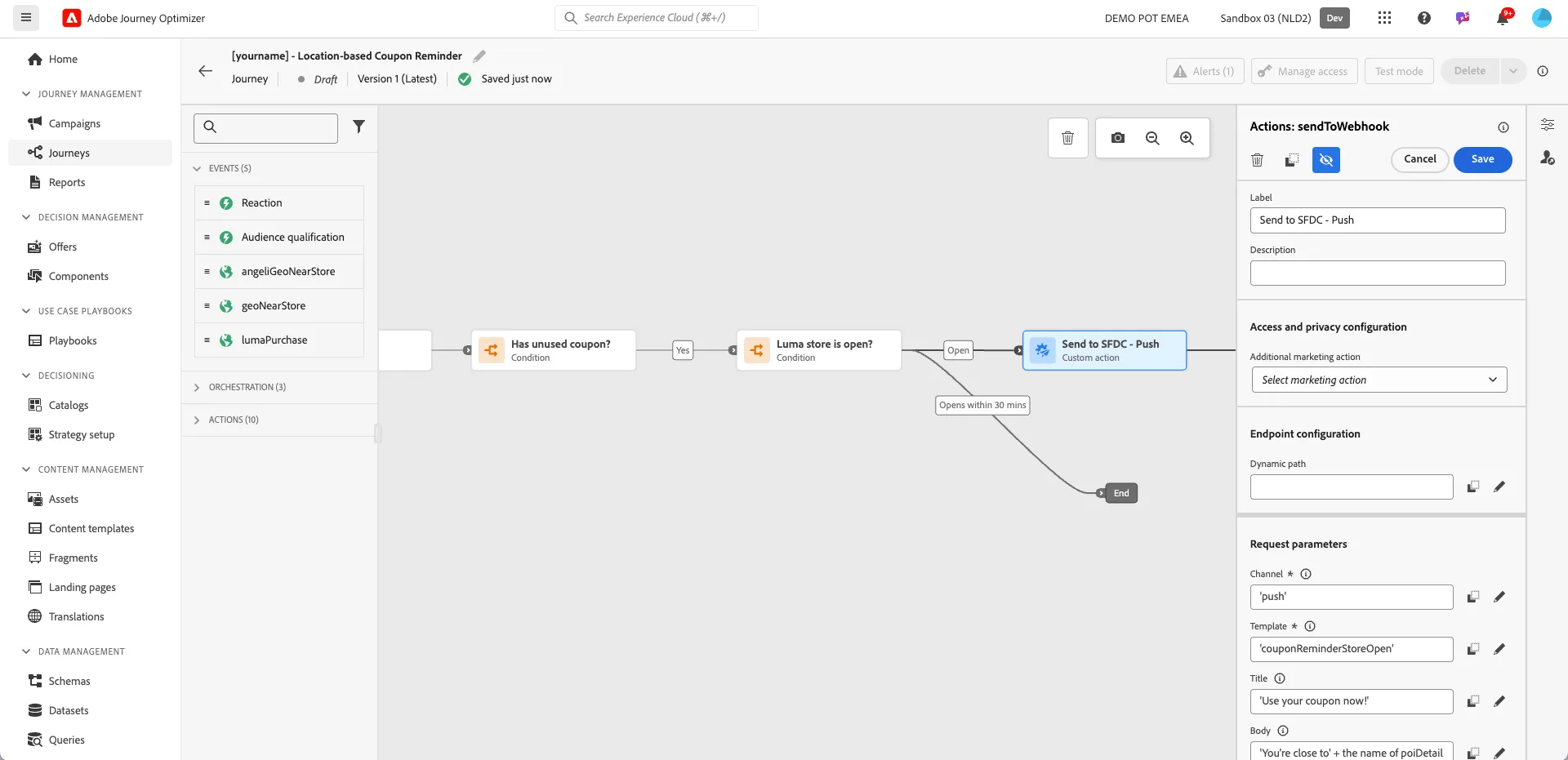
- In this example we'll be simulating the use of an external system to send out messages. For this we'll be using a Custom Action. The Custom Action activity allows you to send an API call to anywhere and optionally receive a response. In our example the Custom Action has been prepared and is calling a webhook so we can visualise outgoing API calls.
- From the actions tab, choose sendToWebhook and drag it onto the empty circle on the canvas at the Open-path.
- Click on the activity to open the detailed view.
- Change the label to Send to SFDC - Push.
- For each field in the Request Parameters, click on the pen-icon to open the editor, then open the Advanced Mode, and add the following values. (When you click to edit a field, a window will open. Click on the button Advanced Mode in the bottom right.)
- Set Channel to "push"
- Set Template to "couponReminderStoreOpen"
- Set Title to "Use your coupon now!"
- Set Body to the following:
- Copy the following text in: "You're close to" + STORE_NAME + ", use your coupon for " + COUPON_DESCRIPTION + " now!"
- Select and remove the text STORE_NAME and open the folder Contextual attributes. Search for POI and add POI name by clicking the + icon.
- Select and remove the text COUPON_DESCRIPTION, click on Profile attributes and search for coupon description in the search bar. Add Coupon Description to the expression by clicking on the + icon.
- Your expression should now be: "You're close to" + @event{geoNearStore.placeContext.POIinteraction.poiDetail.name} + ", use your coupon for " + #{ExperiencePlatform.ProfileFieldGroup.profile._demopotemea.coupon.description} + " now!"
- Click Ok
- Set Profile identifier to the following
- Open Advanced Mode
- Search for token and add Token (token) under Personal Email by clicking the + icon.
- Your expression should now be: #{ExperiencePlatform.ProfileFieldGroup.profile.pushNotificationTokens.at(0).token}
- Your screen should look like the image below.
- Click Save.
Custom Action #2 - Send to SFDC
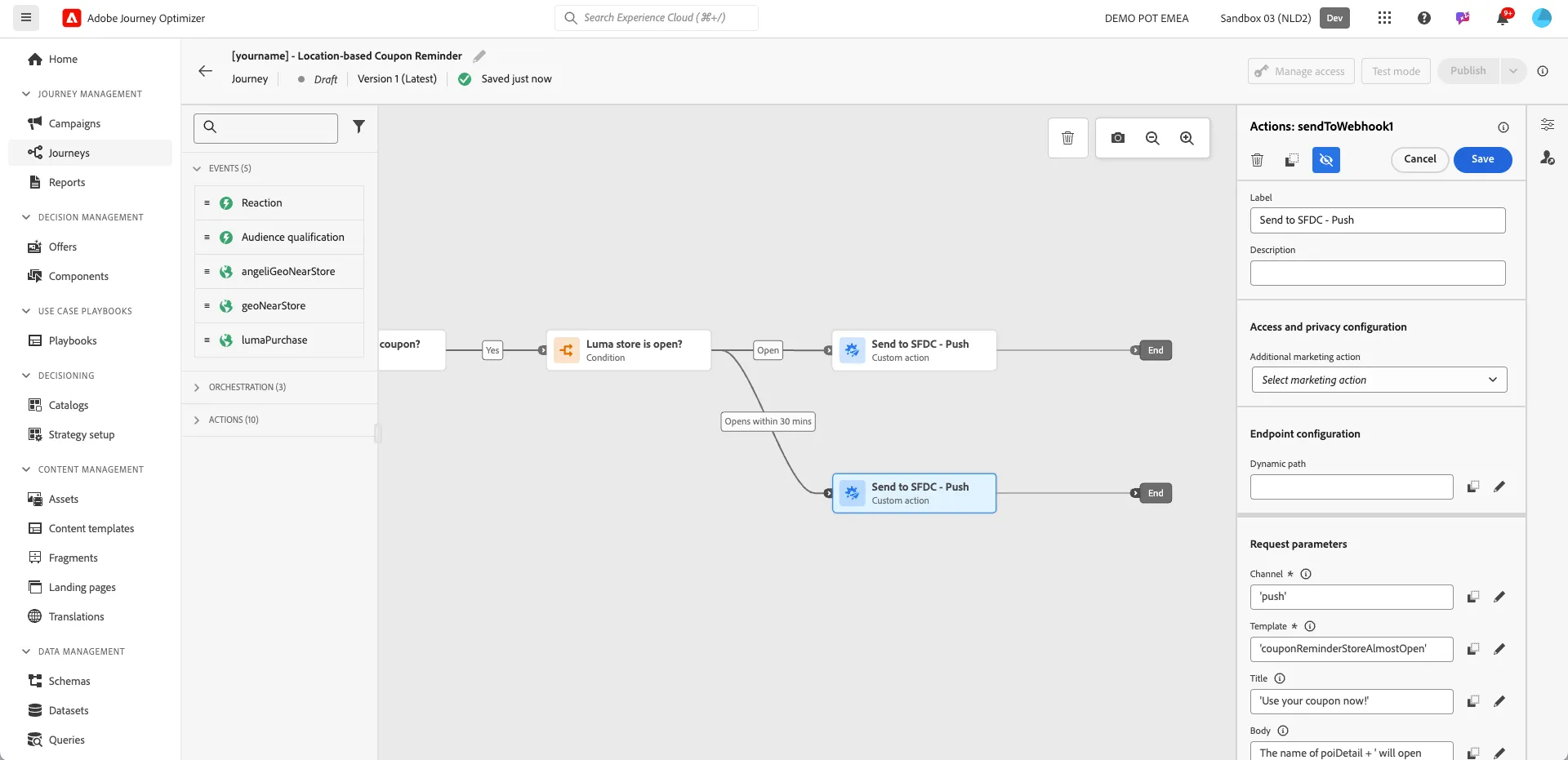
- From the actions tab, choose sendToWebhook and drag it onto the empty circle on the canvas at the Open within 30 mins-path.
- Change the label to Send to SFDC - Push.
- For each field in the Request Parameters, click on the pen-icon to open the editor, then open the Advanced Mode, and add the following values. (When you click to edit a field, a window will open. Click on the button Advanced Mode in the bottom right.)
- Set Channel to "push"
- Set Template to "couponReminderStoreAlmostOpen"
- Set Title to "Use your coupon now!"
- Set Body to the following:
- Copy the following text in: STORE_NAME + " will open soon, use your coupon for " + COUPON_DESCRIPTION + " now!"
- Select and remove the text STORE_NAME and open the folder Contextual attributes. Search for POI and add POI name by clicking the + icon.
- Select and remove the text COUPON_DESCRIPTION, click on Experience Platform and search for coupon description in the search bar. Add Coupon Description to the expression by clicking on the + icon.
- Your expression should now be: @event{geoNearStore.placeContext.POIinteraction.poiDetail.name} + " will open soon, use your coupon for " + #{ExperiencePlatform.ProfileFieldGroup.profile._demopotemea.coupon.description} + " now!"
- Click Ok.
- Your screen should look like the image below.
- Click Save.
Event - Purchase
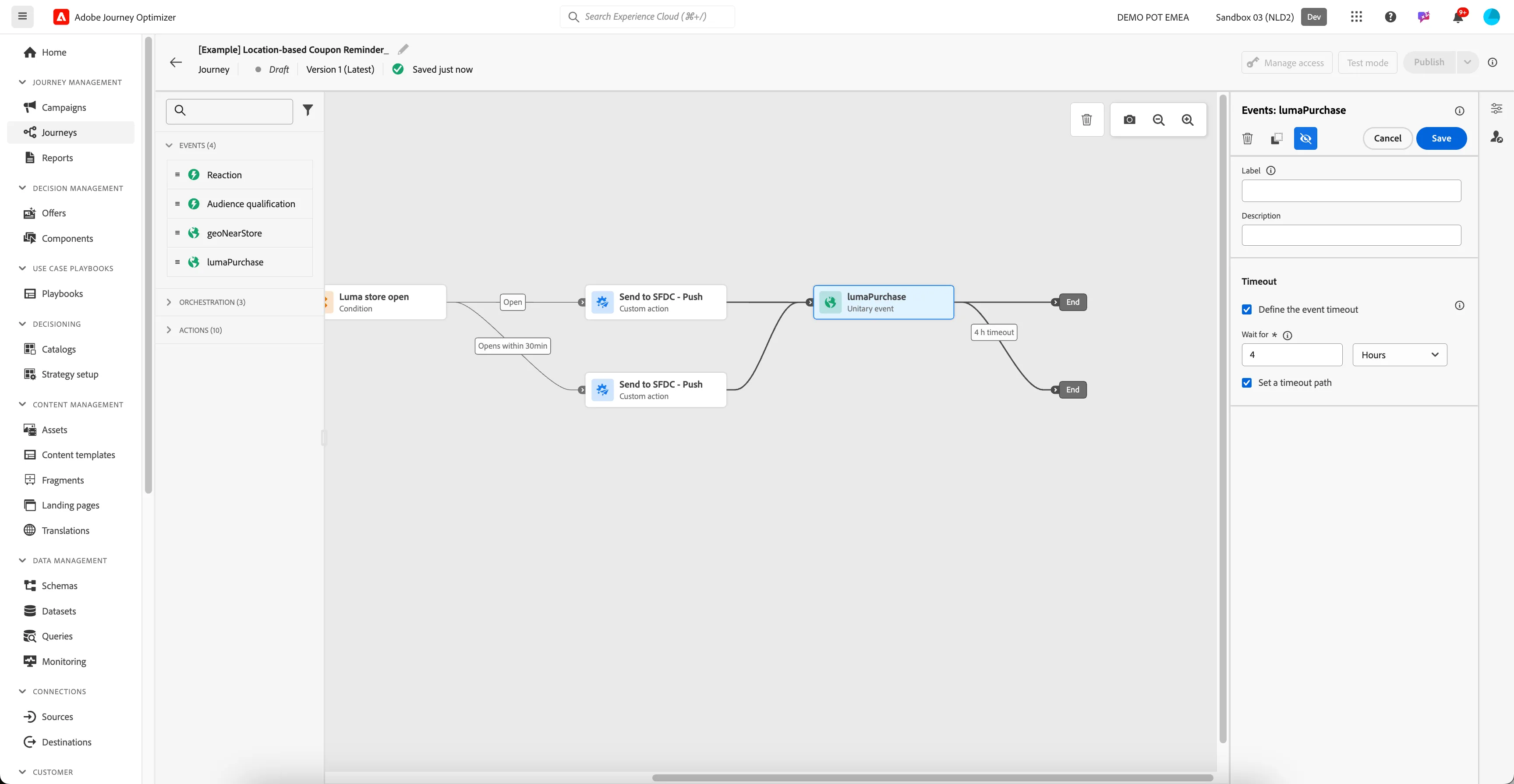
- From the EVENTS tab, choose the event lumaPurchase and drag it onto the empty circle on the top path.
- Check Define the event timeout and set it to wait for 4 hours.
- Check the box Set a timeout path.
- Drag the activity onto the bottom path to merge both paths into this activity.
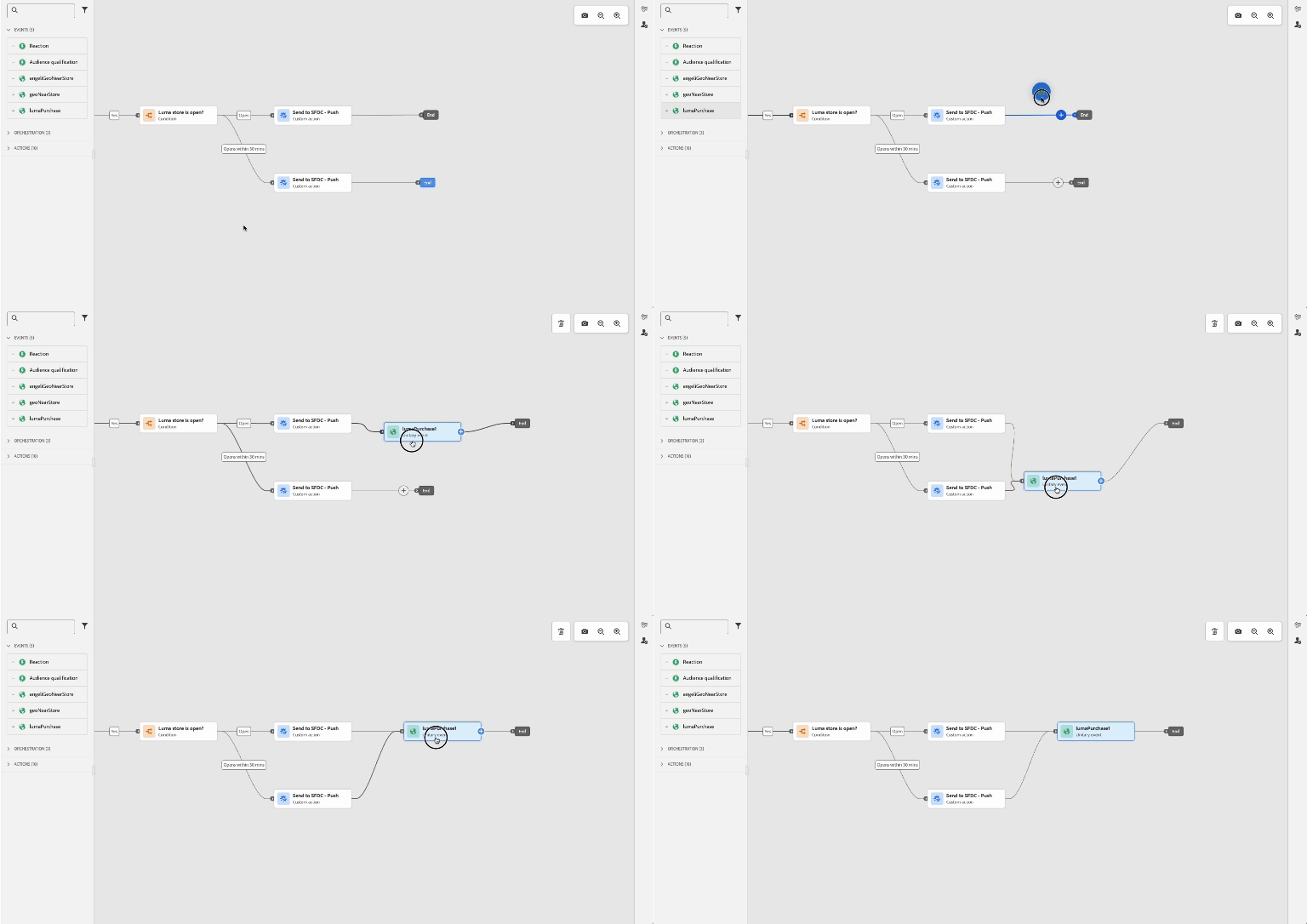
- Your screen should look like the image below.
- Click Save.
Custom Action #3 - Send to SFDC
- From the ACTIONS tab, choose sendToWebhook and drag it onto the empty circle on the canvas (see the image).
-
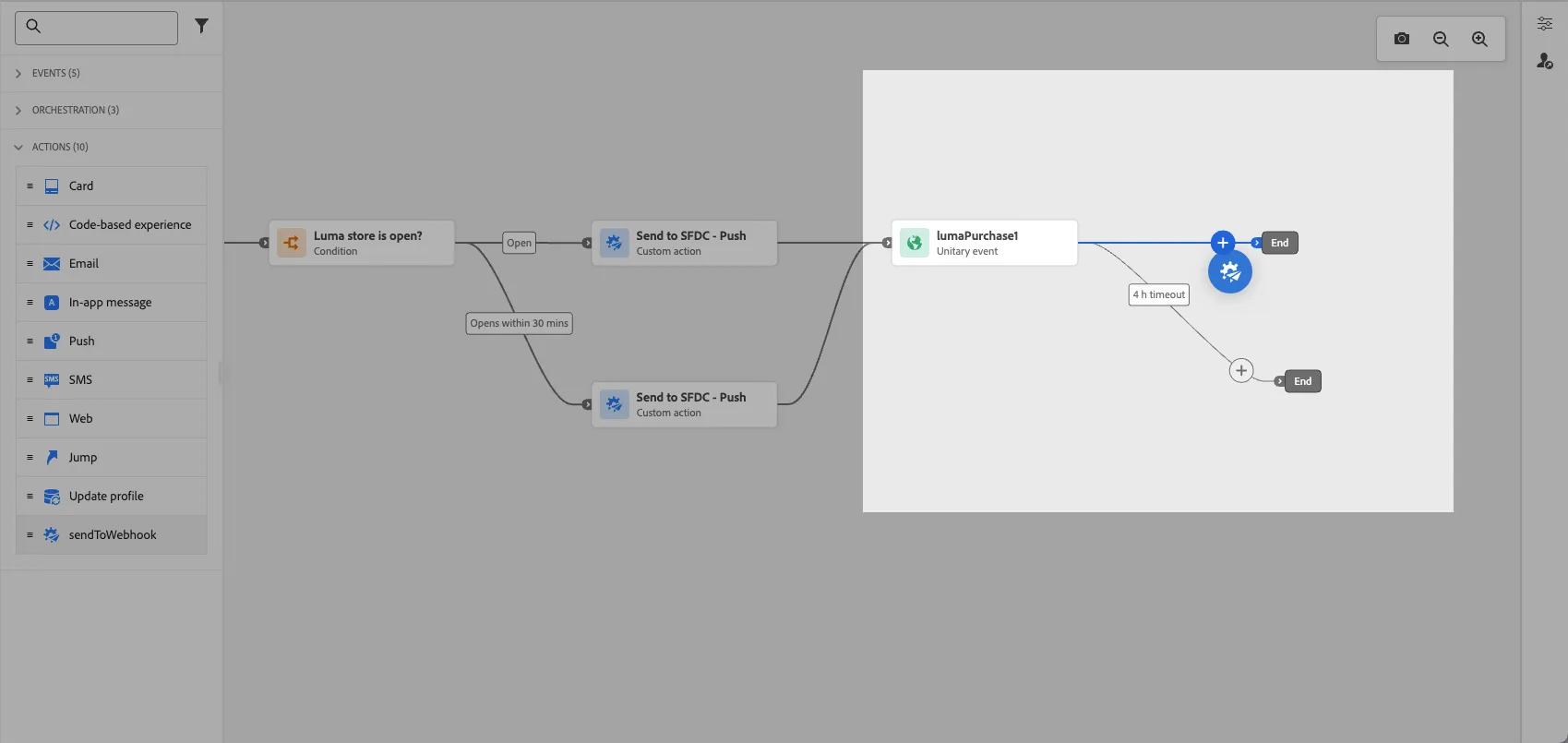
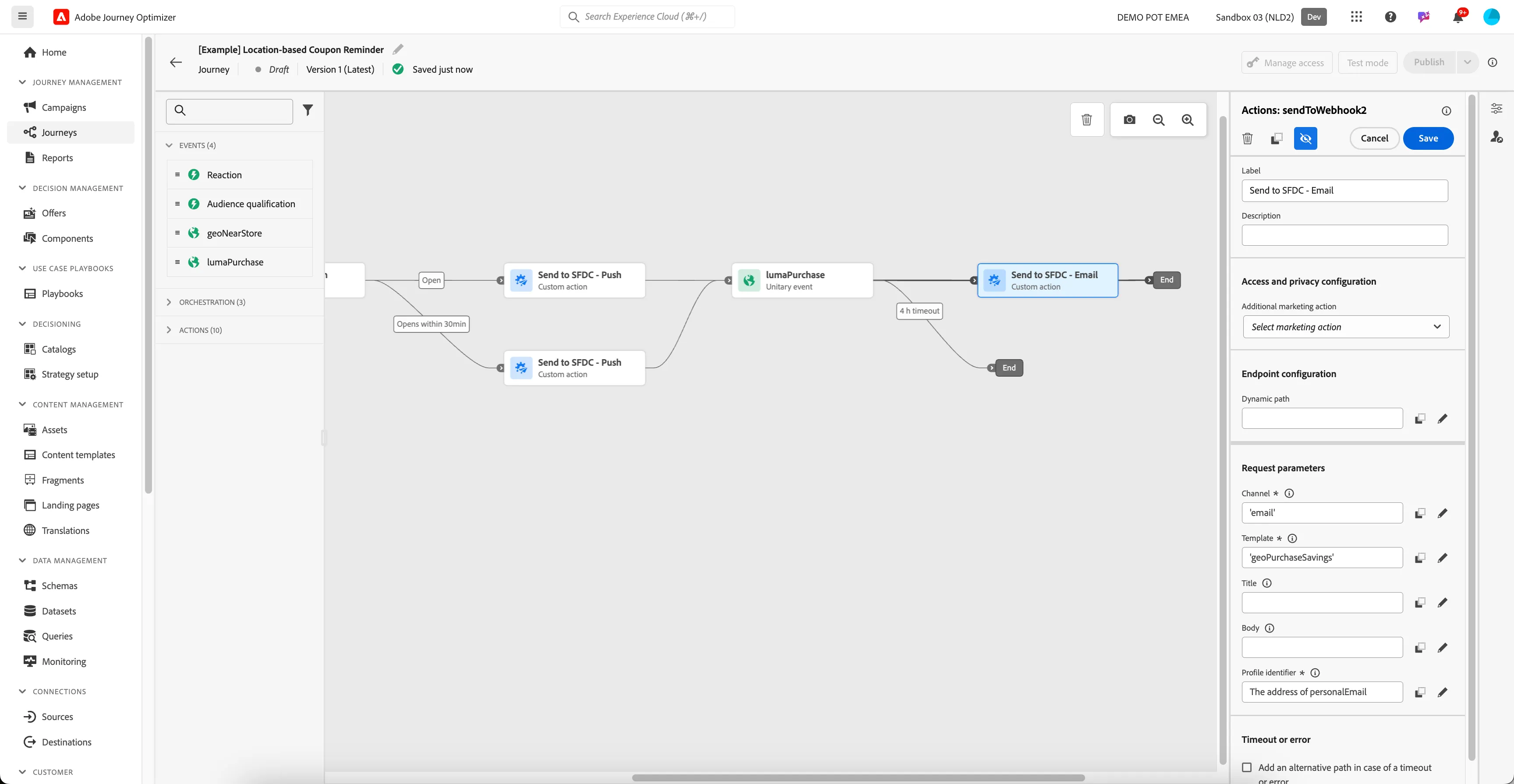
- Change the label to Send to SFDC - Email.
- For each field in the Request Parameters, click on the pen-icon to open the editor, then open the Advanced Mode, and add the following values. (When you click to edit a field, a window will open. Click on the button Advanced Mode in the bottom right.)
- Set Channel to "email"
- Set Template to "geoPurchaseSavings"
- Set Title to "Use your coupon now!"
- Set Body as "order-confirmation"
- Set Profile identifier to the following
- Search for address and add Address (address) under Personal Email by clicking the + icon.
- Your expression should now be: #{ExperiencePlatform.ProfileFieldGroup.profile.personalEmail.address}
- Your screen should look like the image below.
- Click Save.
The journey is now finished.
