Start the Journey - Trigger Event
6 min
To log into Adobe Journey Optimizer, check the Welcome! section.
Journey overview
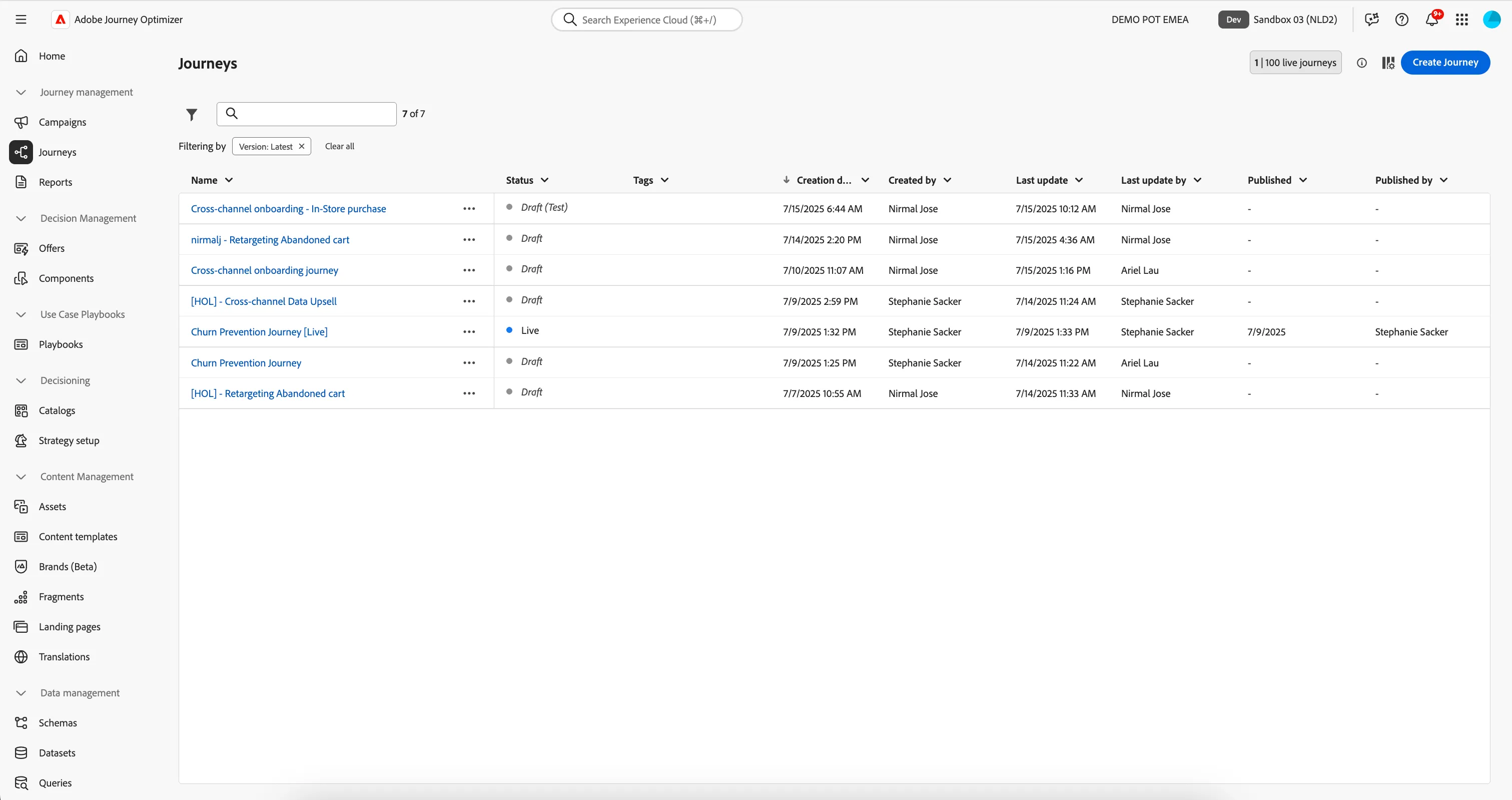
To get an overview of all journeys in Adobe Journey Optimizer:
- In the menu on the left side, under Journey Management, click on Journeys. You will see a overview with all existing journeys.
Creating a journey
We'll be creating a journey that will send an email or push message to people that are about to exceed their data limit for the month, but haven't yet purchased a data add on.
- The channel of the communication depends on whether the customer is a mobile app user
- The content of the communication is based on the customer behaviour; do they stream content? Do they mostly use social media?
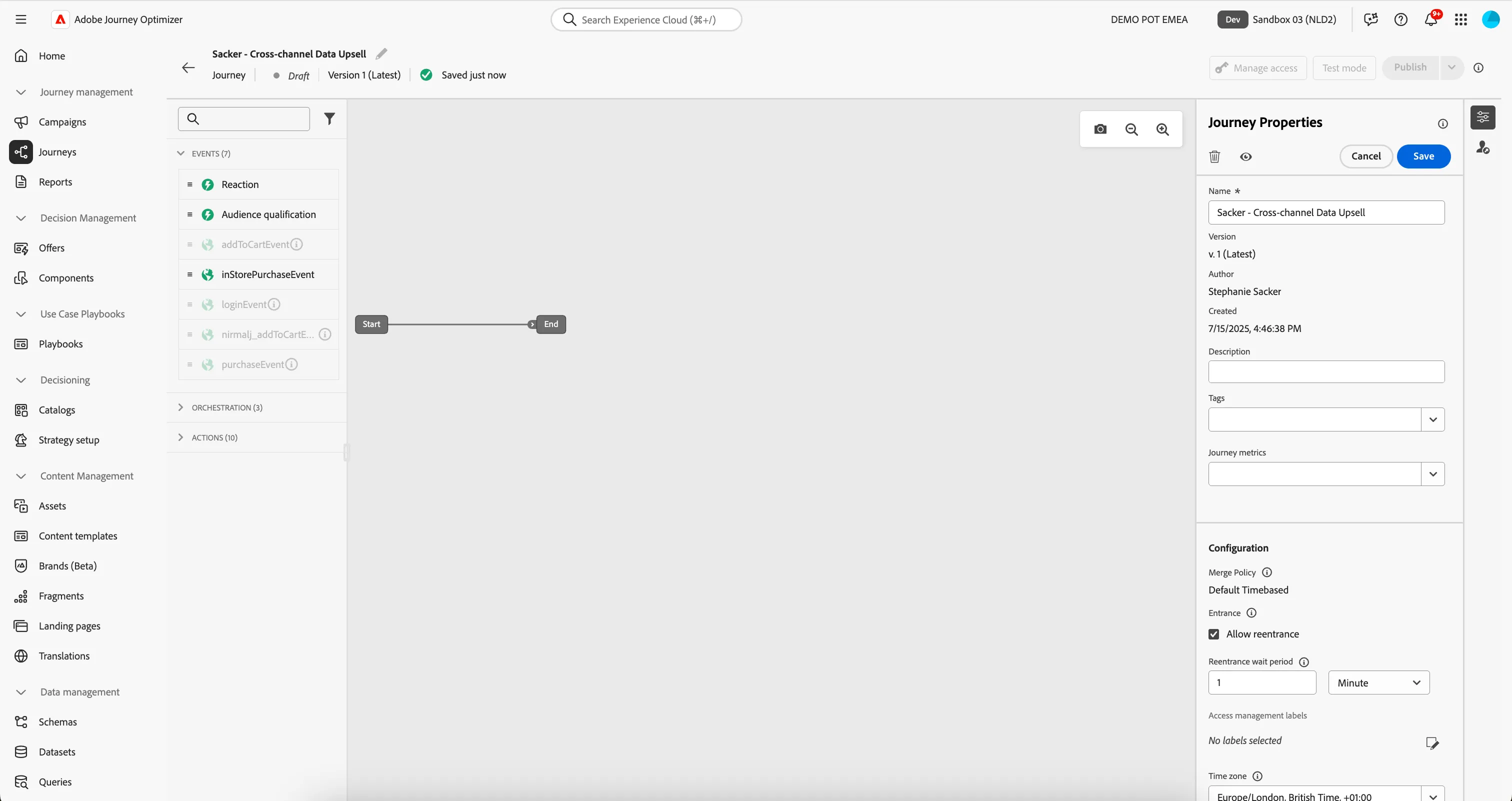
Click on Create Journey. You'll be taken to the Journey canvas with the journey properties opened.
- Set the name to [your name] - Cross-channel Data Upsell.
- For the other properties we'll keep the default values.
- Your screen should look like the image below. Click Save to save and close the properties.
You're now in the journey canvas. This is where you'll be creating your journey's logic.
Audience Qualification
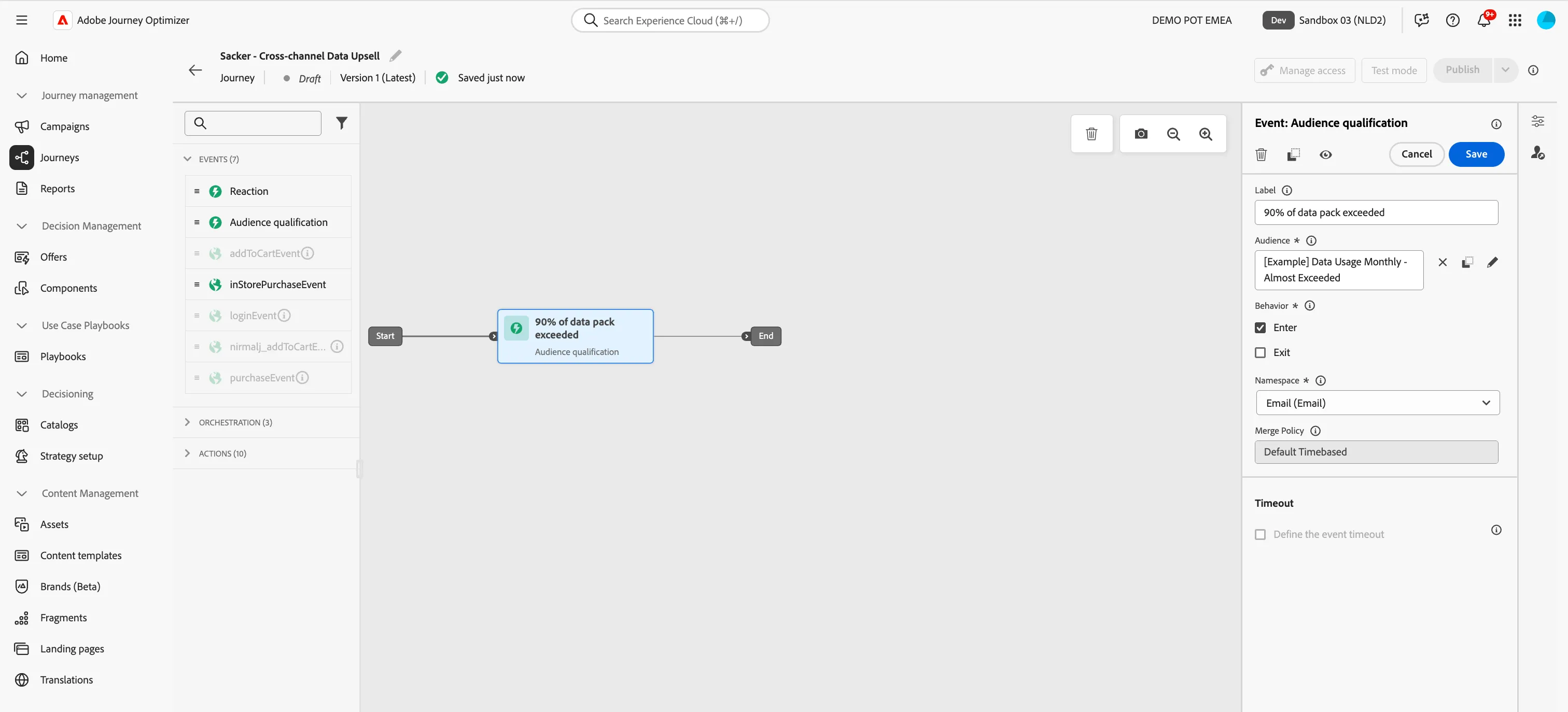
- We're starting our workflow of with an audience qualification trigger. From the events tab, choose Audience Qualification and drag it onto the canvas.
- Click on the activity to open the detailed view.
- Set the label to 90% of data pack exceeded.
- Click on Audience to open a window, select your audience from the list and click Save. If you didn't create the audience, you can use [Example] Data Usage Monthly - Almost Exceeded
- Set the namespace to Email (Email).
- Your screen should look like the image below. Click Save.
You've created the Journey and the Trigger Event that will qualify our customers into this Journey. Proceed to the next step where we will create a personalised homepage experience on the website.