Web Channel Action
Personalising web experiences
Journey Optimizer allows you to personalize the web experience you deliver to your customers through inbound journeys or campaigns.
Configuring the web experience
- From the actions tab, choose Web and drag it onto the icon after the Audience Qualification.
- Click on the activity to open the detailed view.
- Set the label to Data Bundle Upsell Banner.
- Set the web configuration to webChannel. This is the channel configured we have pre-configured with the demo site details.
- Click on Edit content to start designing your web experience.
- When the Tesco Mobile website loads, click the pause button on the main homepage carousel on the banner that you want to replace with our personalised banner.
- Once the carousel is paused, click on Edit web page from the right side pane.
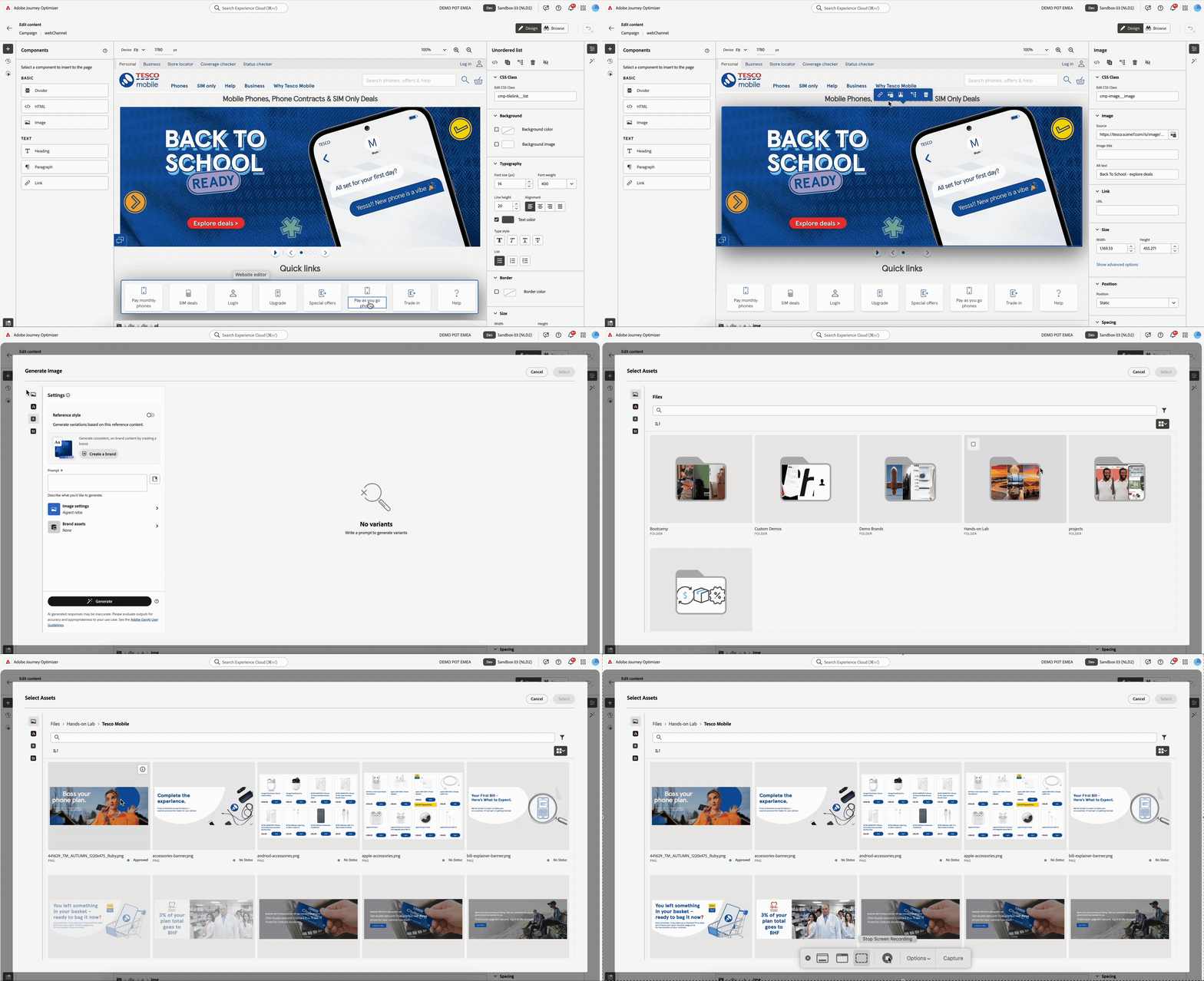
- Click on the main banner image to show the editing options available. From the options click Choose Image. This will open the Assets popup.
From here you can get images from various sources or you can generate image using firefly. We'll use an image stored in AEM Assets.
- Click Select Assets from the options on the left of the window.
- Search for data_upsell_banner and select data_upsell_banner_v1.png.
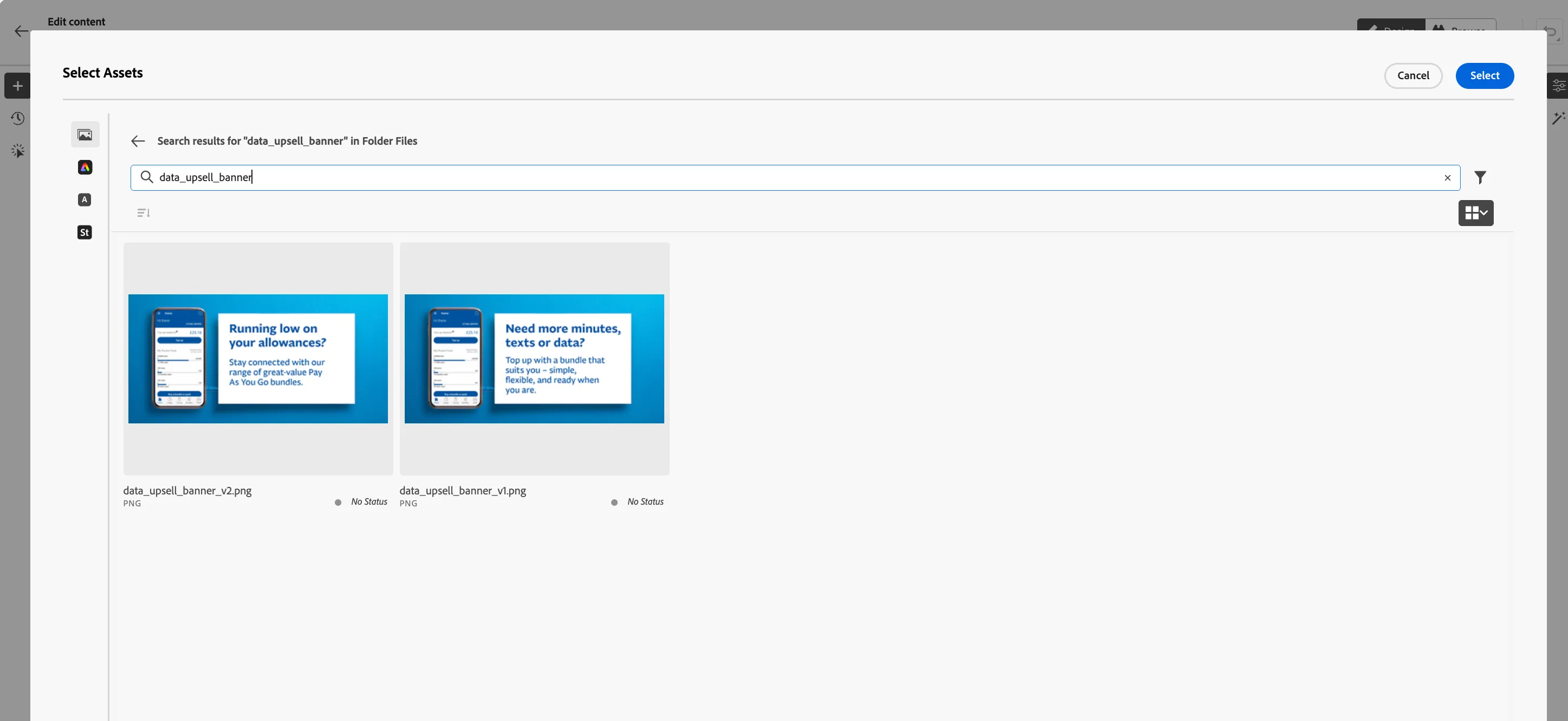
Your Homepage banner should now look like:
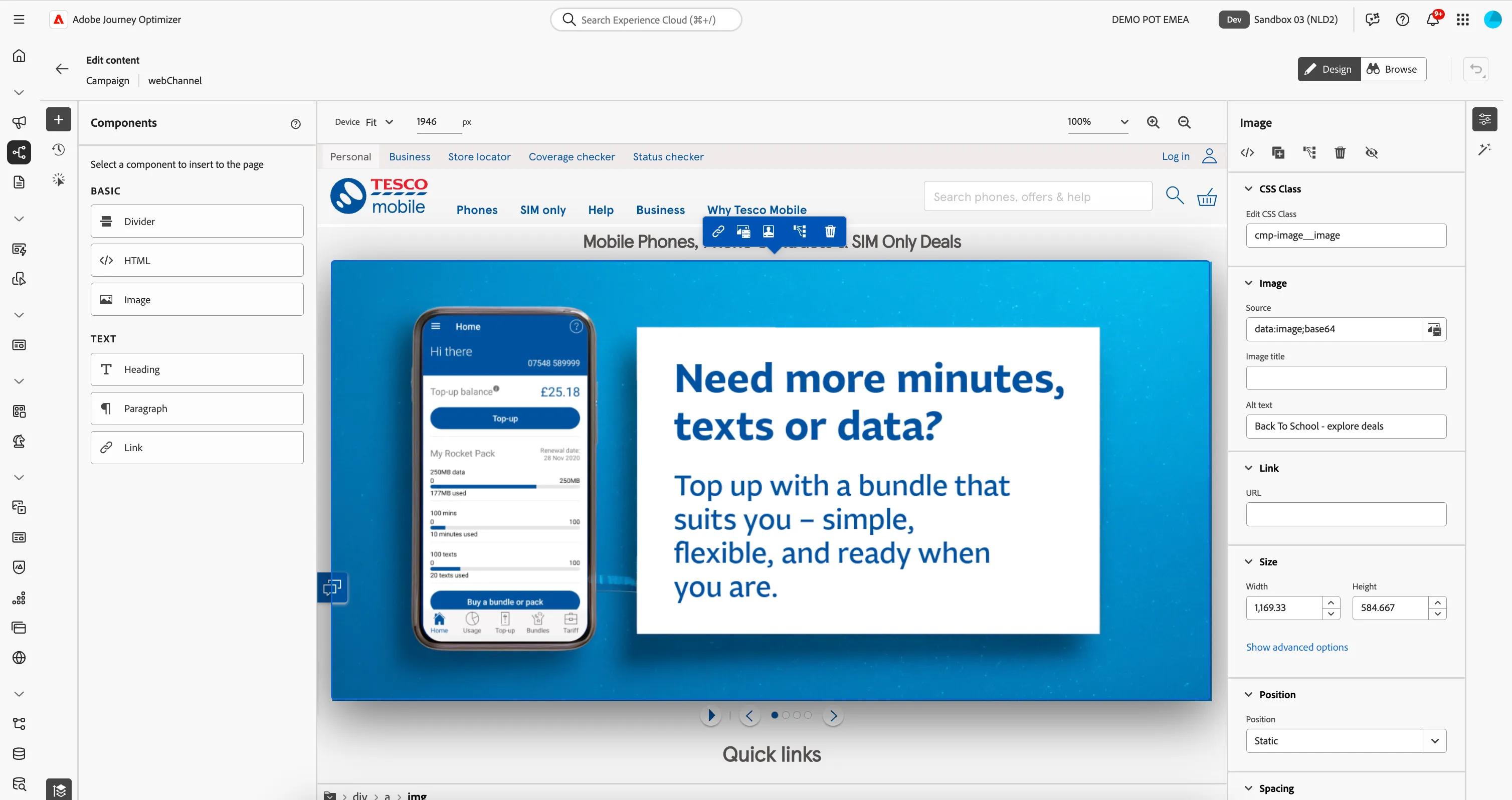
- Click on icon of the top left to go back to web configuration summary.
Creating a web experiment
As part of our drive to increase the conversion rates of our web experience, we want to run an A/B Experiment to see which banner copy performs the best. So we are going to configure a Content Experiment for our web experience.
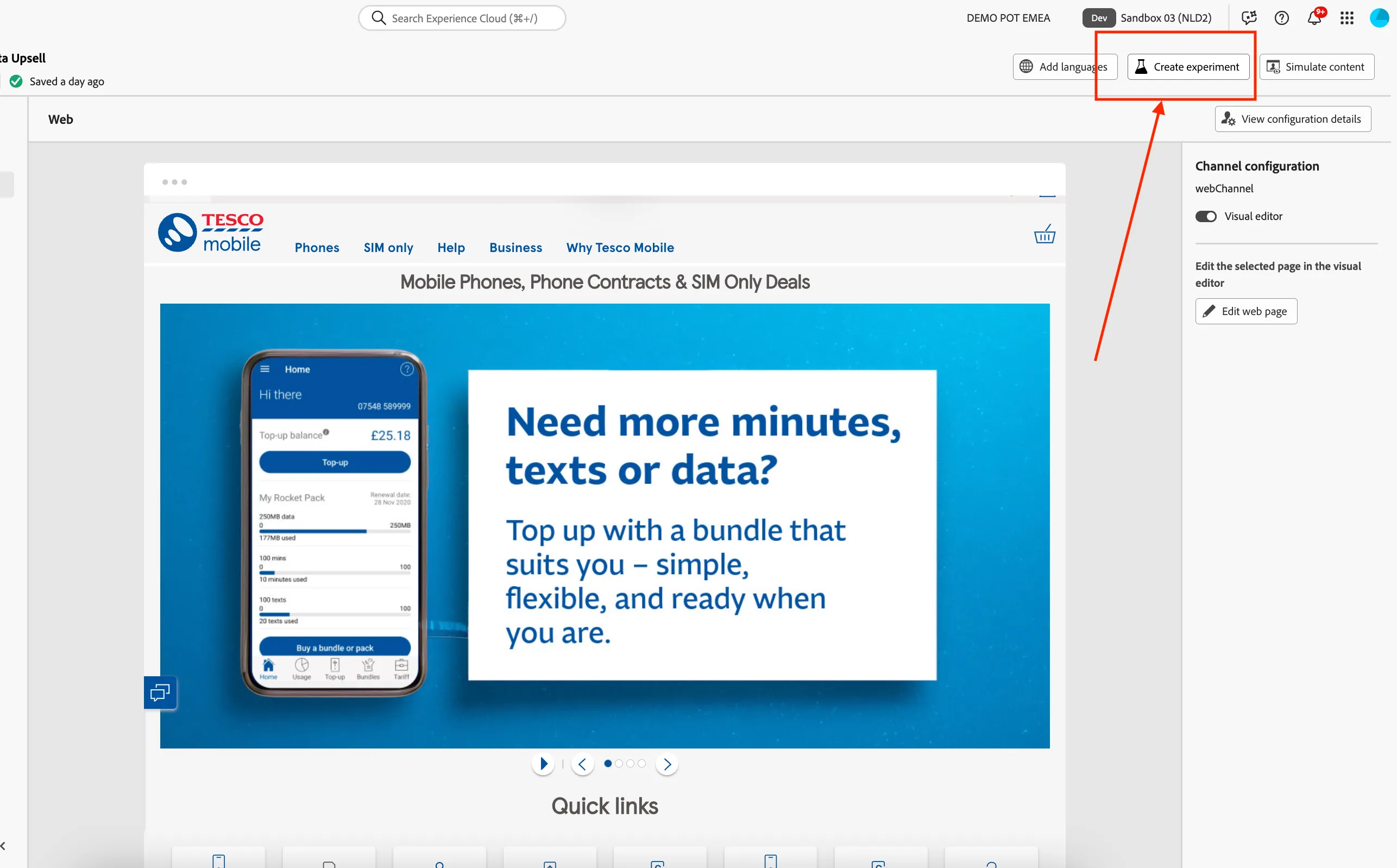
- In the top right, click on Create experiment. A window will open.
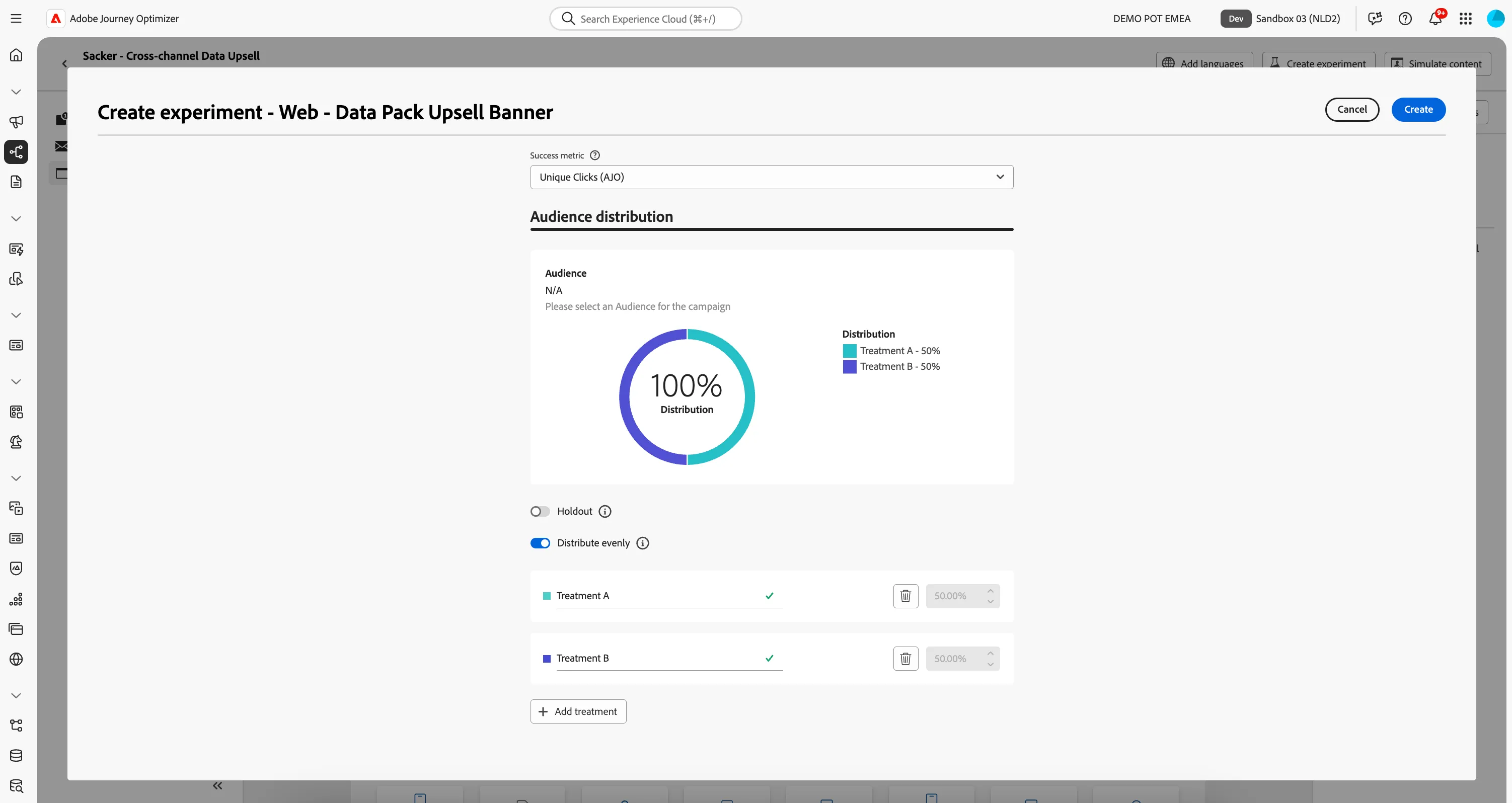
- Set the success metric to Unique Clicks (AJO).
- Leave the holdout off, this is the default setting. Enabling this will allow you to add a percentage of the audience to a control group, receiving none of the content treatments.
- Leave distribute evenly on, this is the default setting. Disabling this will allow you to customly distribute the incoming audience over your treatments.
- Click Add treatment to add a second treatment to your experiment.
Your Experiment should now look like this:
- Click Create in the top right.
Notice how the interface changed and now displays your treatments on the left menu.
The web content for Treatment B is the default website. Let's change the same banner in the Homepage carousel to V2 of the data_upsell_banner for Treatment B.
- Click on the Web icom under Treatment B.
- Click the pause button on the main homepage carousel on the banner that you want to replace with our personalised banner.
- Once the carousel is paused, click on Edit web page from the right side pane.
- Click on the main banner image to show the editing options available. From the options click Choose Image. This will open the Assets popup.
- Click Select Assets from the options on the left of the window.
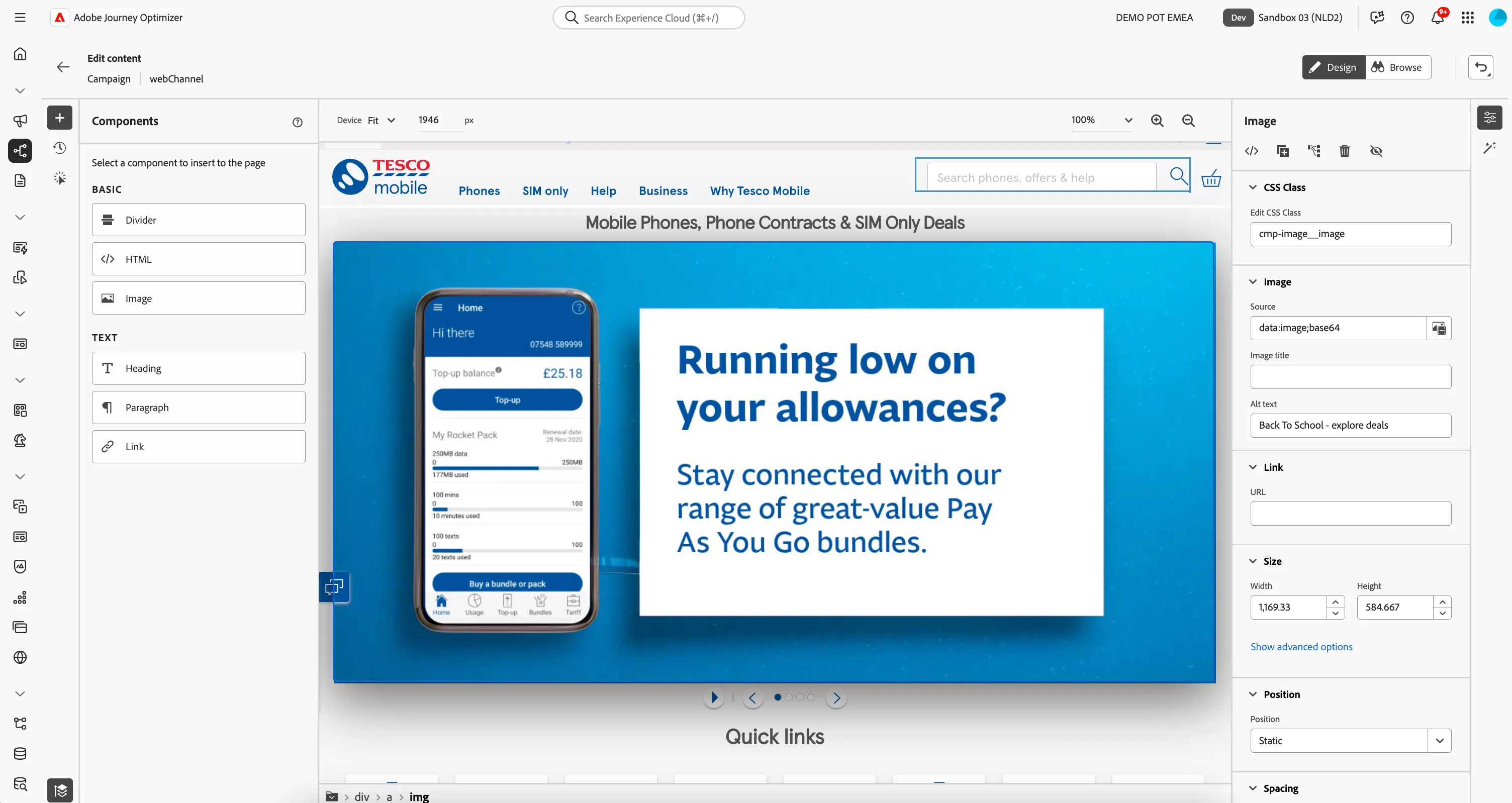
- Search for data_upsell_banner and select data_upsell_banner_v2.png.
Your Treatment B Homepage should now look like:
Note: you can rename the Treatments for reporting purposes, but we'll leave them as Treatment A and B for this Lab.
- Click on icon of the top left to go back to web configuration summary
- You see now two treatments with two different messages as the web experience.
- Click on icon to go back to the journey. Your screen will look like this. Click Save to save the configuration of web channel step in the journey.
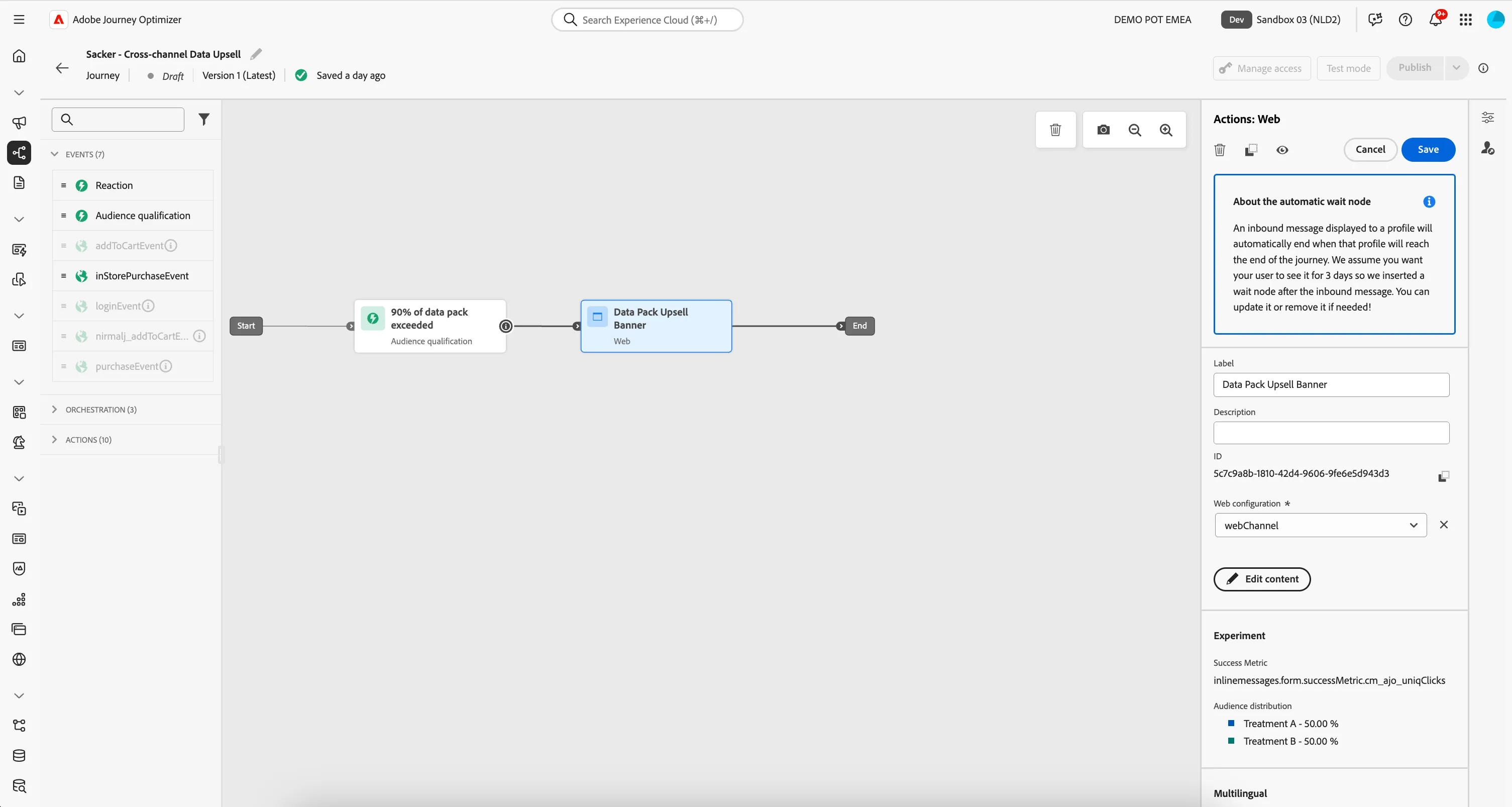
You've successfully created a personalised website experience and Content Experiment.
Let's proceed to building the next step of our Journey where we will add a condition to check the best channel to send communication.