Data Ingestion via Google Big Query Source Connector
In a production deployment, the data ingestion process will likely be automated using batch APIs provided by the Platform, or the several Source Connectors available in Experience Platform.
Experience Platform provides a RESTful API and an interactive UI that lets you set-up source connections to various data providers with ease. These source connections enable you to authenticate your storage systems and CRM services, set times for ingestion runs, and manage data ingestion throughput.
Let's see how we can onboard data using a source connector. In this exercise we will onboard Campaign Summary data stored in a Google Big Query table.
Pre-requisite
The connection between AEP and Big Query has already been setup for this exercise. No action needed.
In order to ingest data from Google Big Query, this is required:
- Setup a Google Big Query environment;
- Create a Service Account credentials in Google;
- Create a table in Google Big Query with the data.
Step 1: Connecting to a Source
- Select Sources from under Connections in the left hand navigation.
- Click on the Catalog tab.
- You will see a list of all Source Connectors. Search for Google Big Query and select Add data.
We've already set up a connection to a Google Big Query environment for the purpose of this Lab.
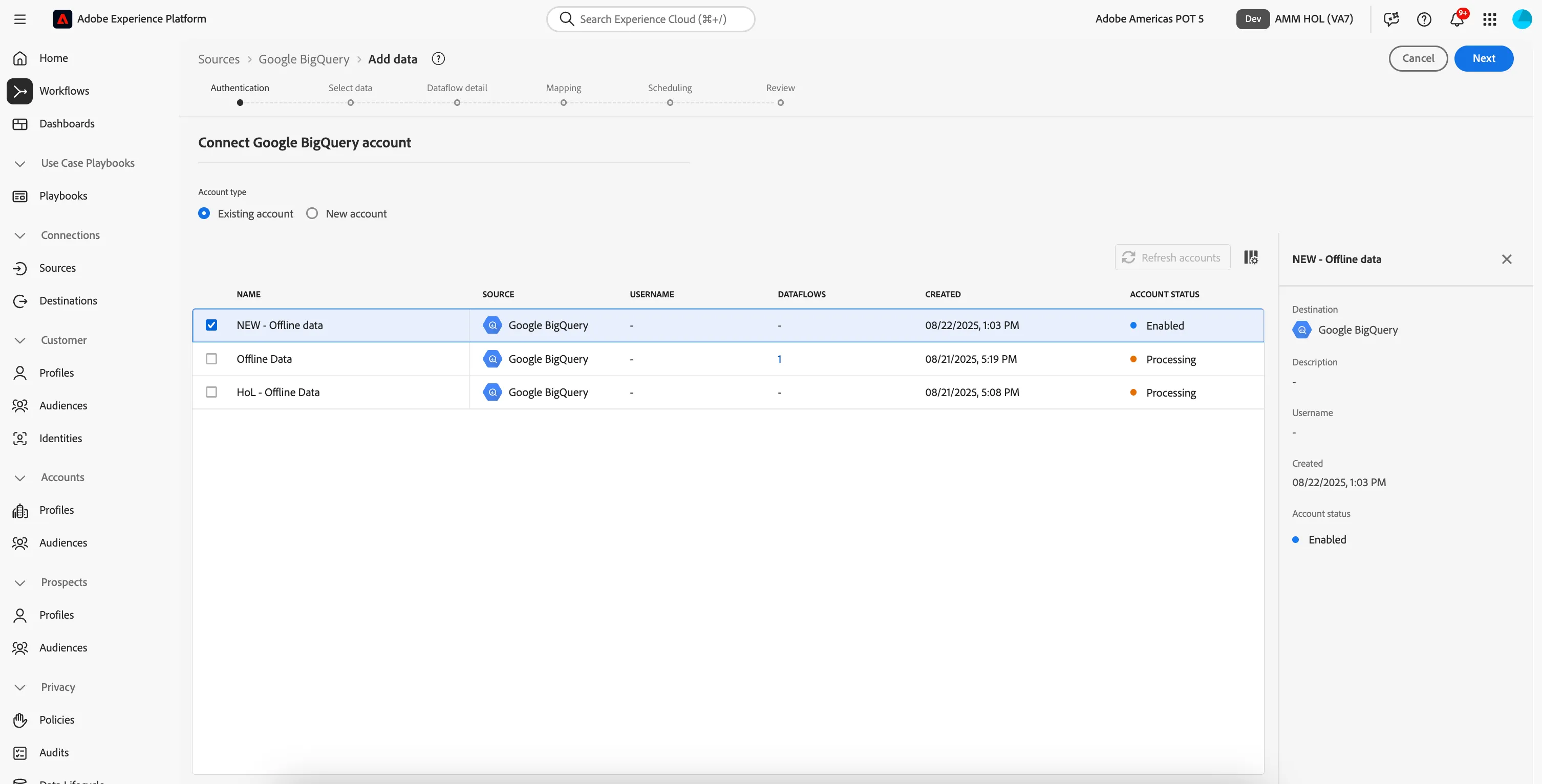
- Select NEW - Offline Data from the Accounts list.
- Select Next.
Now we need to select the table we want to onboard:
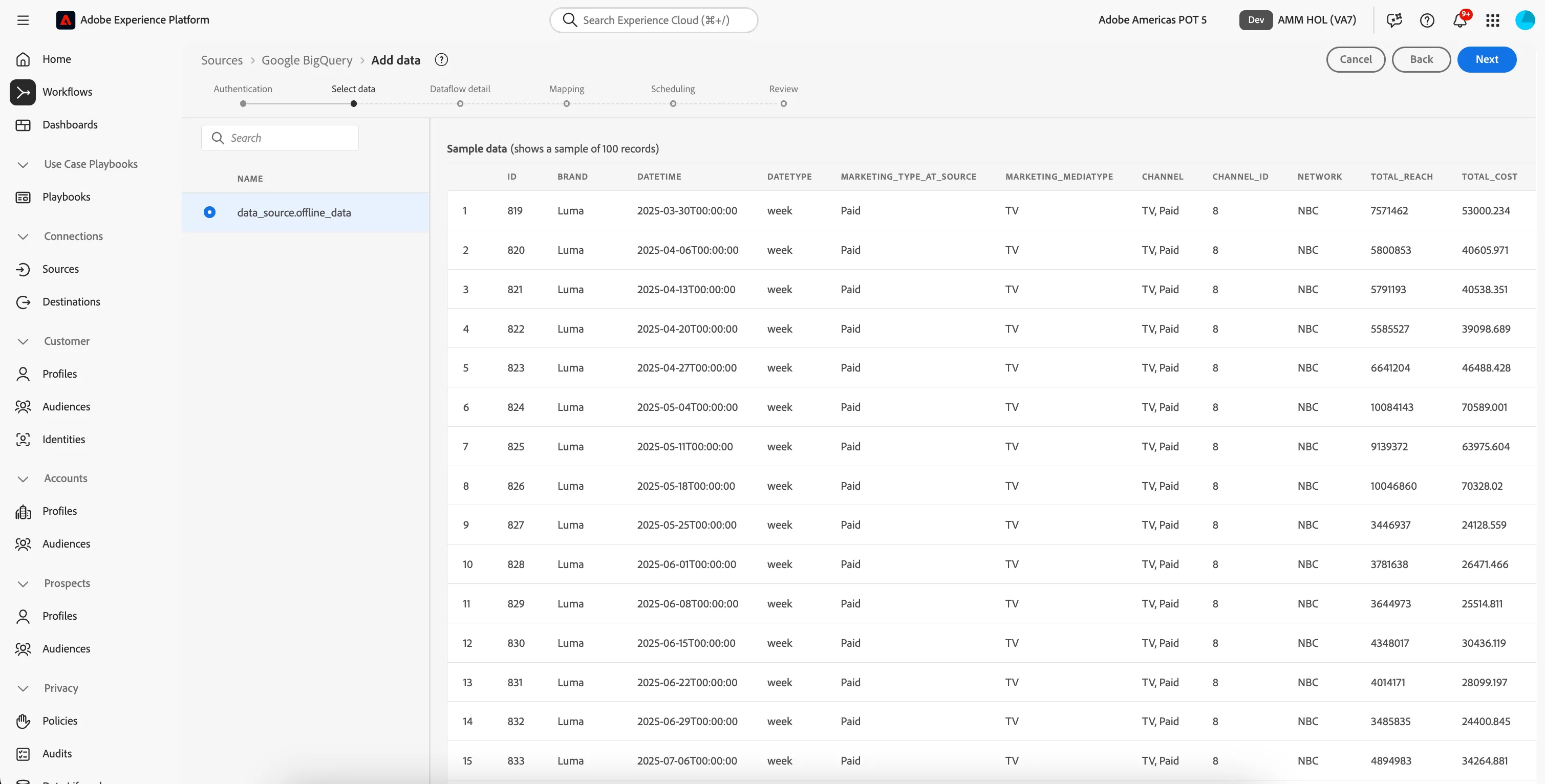
- select the file data_source.offline_data from the list on the left.
You will be shown a preview of the data so you can validate the Adobe Experience Platform is interpreting the data correctly.
Click Next.
We now need to specify the Dataset where this file will be ingested:
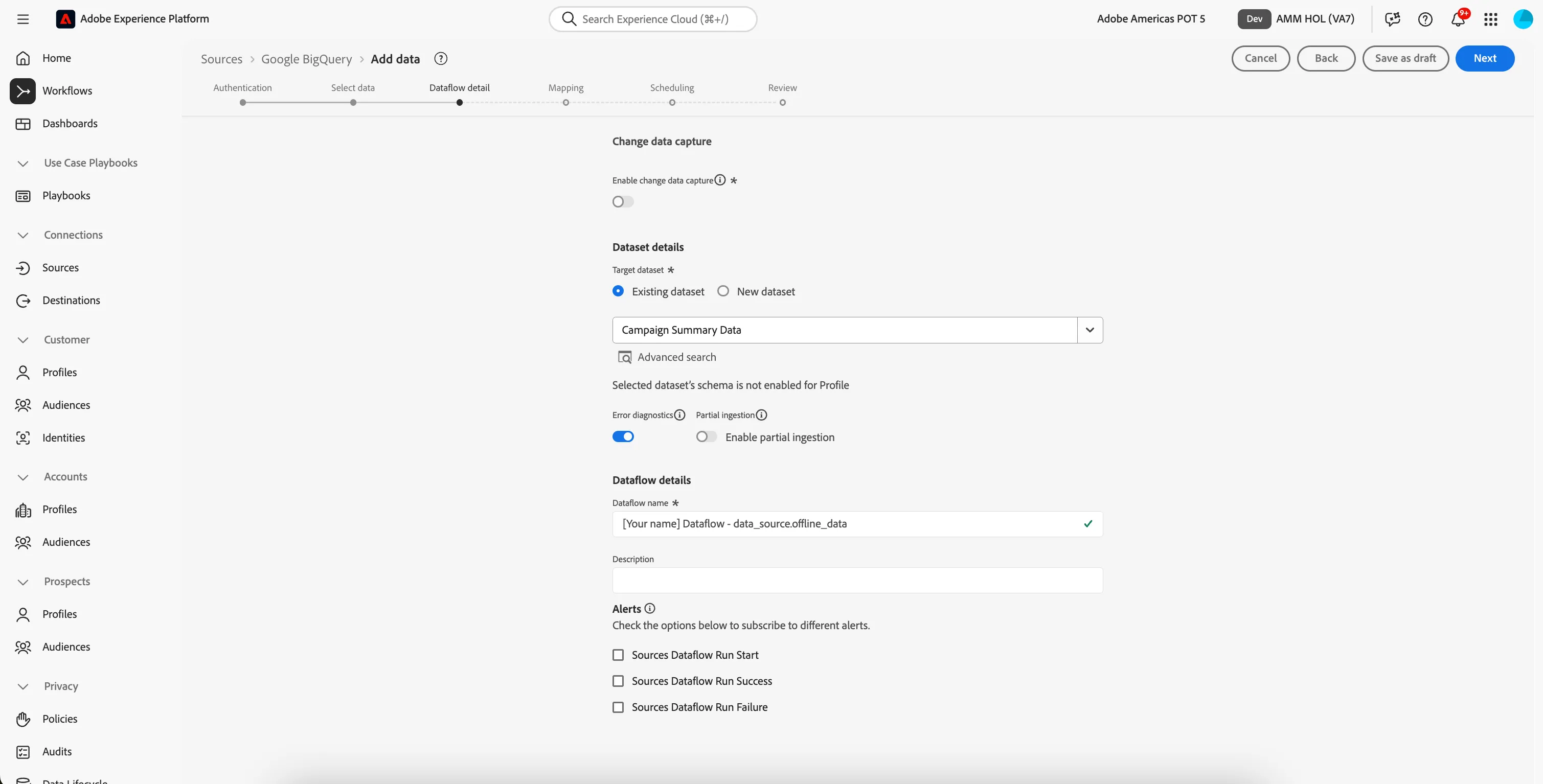
- From the dropdown list under Target dataset, select Campaign Summary Data .
- Under Dataflow details prefix the Dataflow name with your own name so you can find this later.
- Leave the other settings as the default.
- Click Next.
Now you can proceed with mapping it to the corresponding fields in the call center XDM Schema.
Step 2: Using a Workflow to map a CSV file to an XDM Schema
The goal of this is to onboard Campaign Summary data in Platform. Most of the data that is ingested in Platform should be mapped against a specific XDM Schema. What you currently have is a flat table on one side, and a dataset that is linked to a schema on the other side. To load the table data in that dataset, a mapping needs to take place. To facilitate this mapping exercise, we have Workflows available in Adobe Experience Platform.
You should now be on the mapping step of the Workflow to onboard the data from Google Big Query.
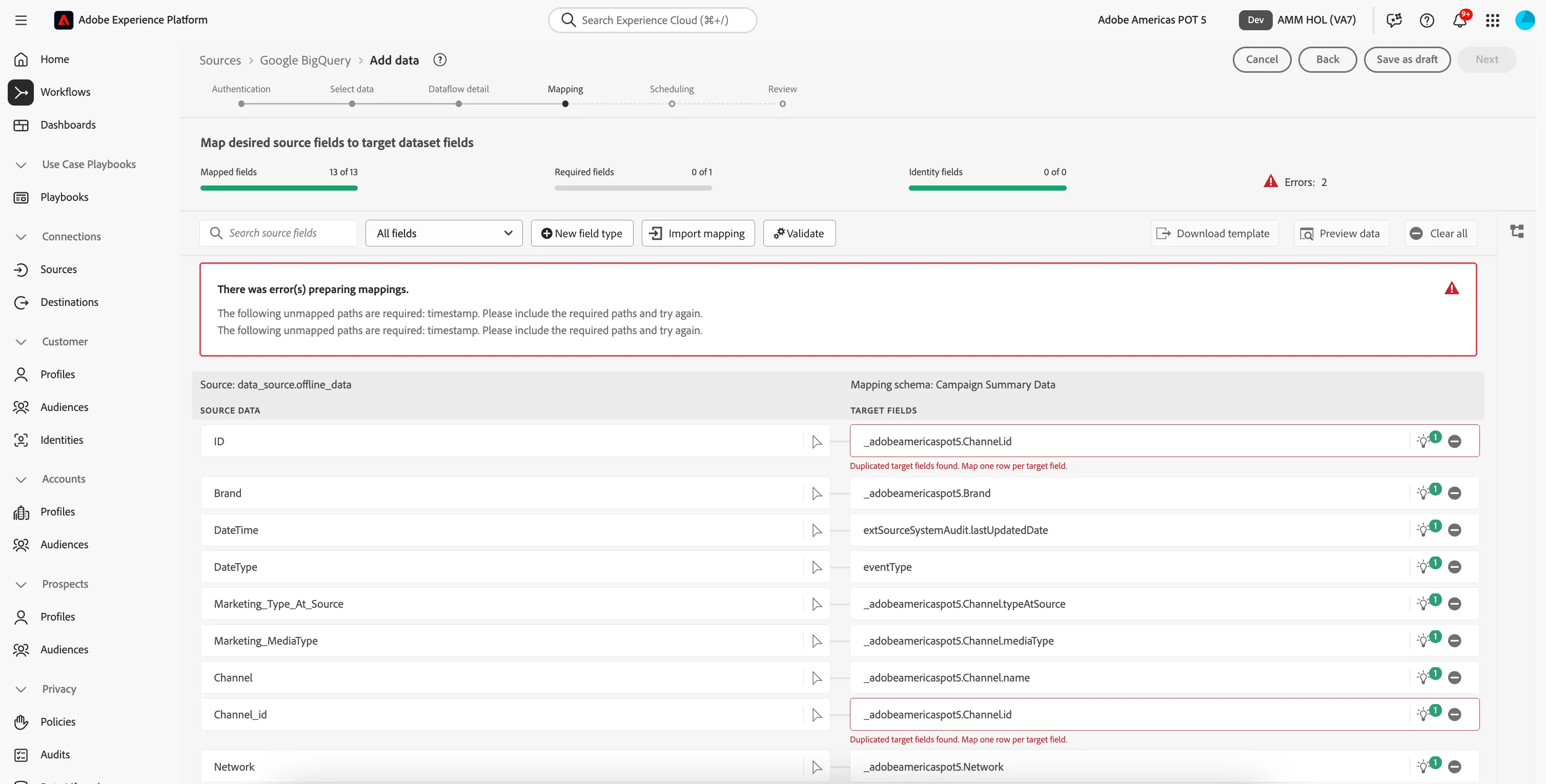
You now need to map your table Column Headers with an XDM-property in your Dataset.
NOTE: for the Schema Mappings, Adobe Experience Platform has linked fields together already. However, in the case not all proposals of mapping are correct, you can adjust the individual mappings in the UI.
To edit the mappings:
- Select the lightbulb icon on the Target field you want to change.
- If your chosen field doesn't appear in the list, choose Select manually.
- Select your chosen field from the schema structure.
- Your source attribute is now mapped to your chosen Target field.
- You can also type your Target field directly in the text box if you know the path.
For this exercise you will not need to edit any of the mappings. Instead will choose to Import Mapping from a previous ingestion.
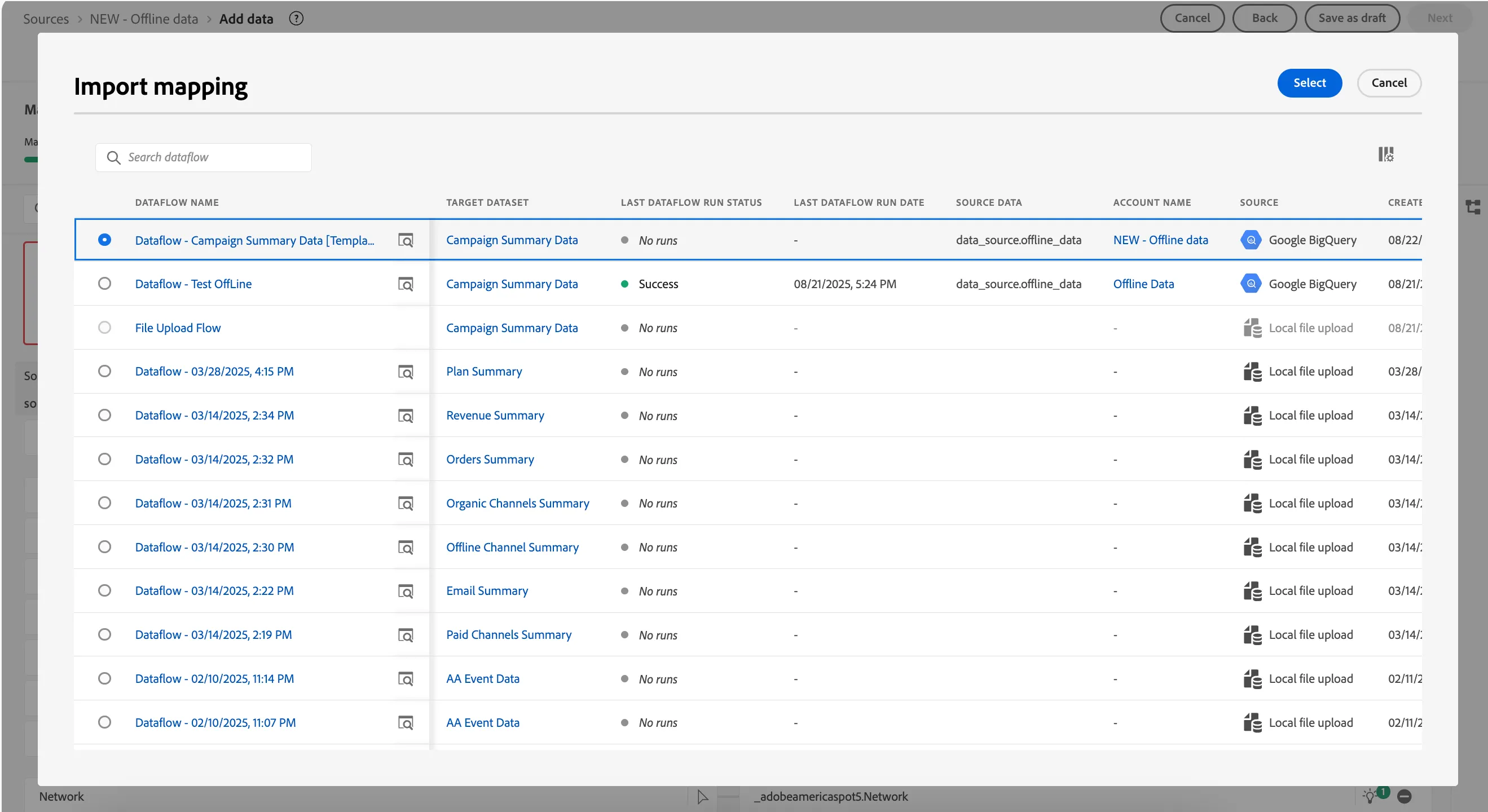
- Select Import mapping from the menu above the mappings near the center of the screen.
- This will open a window with mappings from previous Dataflows.
- Select the Dataflow - Campaign Summary Data [Template].
- Click Select.
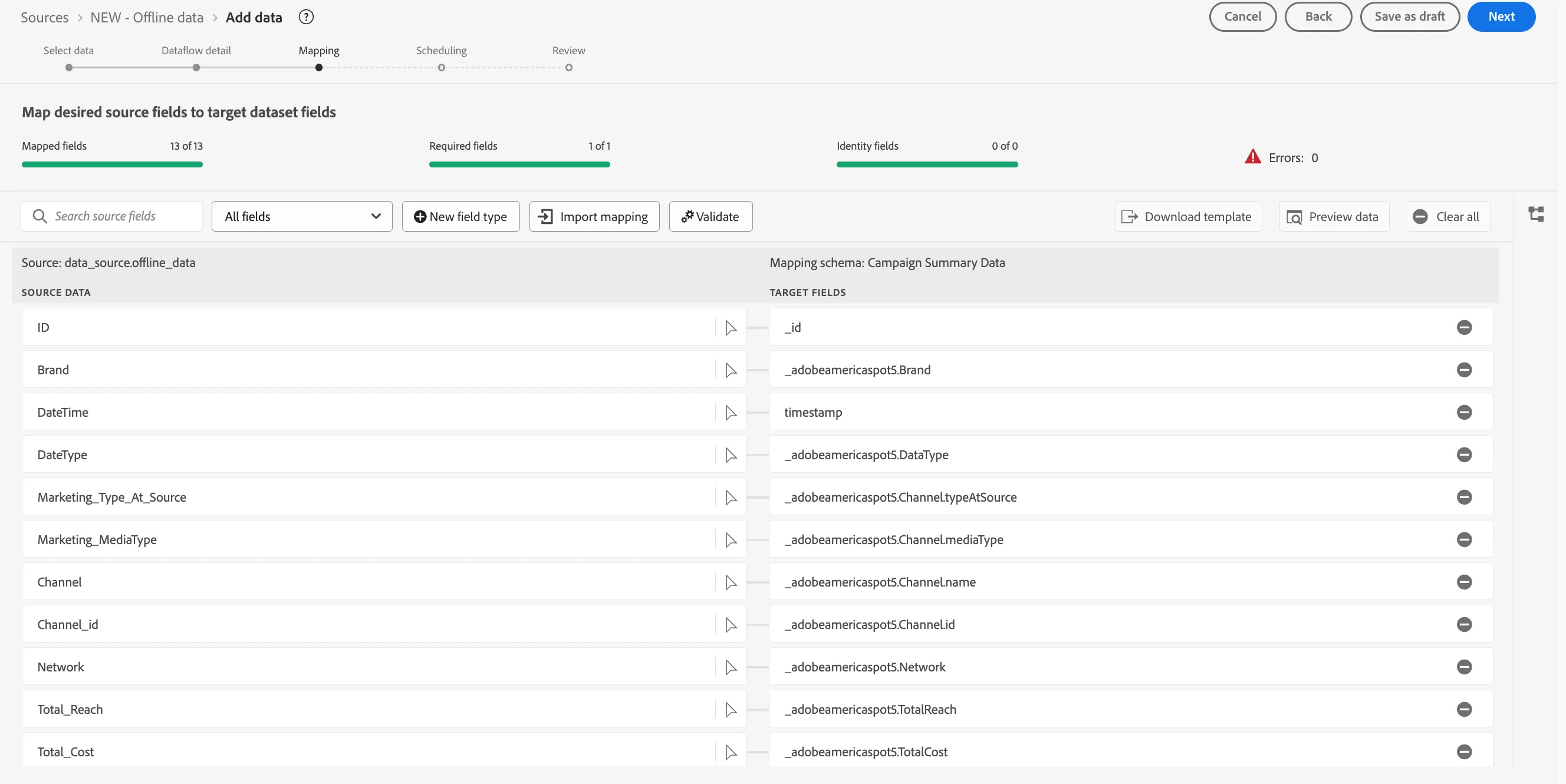
Verify your final mappings
Your final mapping should be:
- Click Next, you'll then see the Scheduling options available for this Source Connector.
- Keep the default settings of Once, and click Next.
- On the final Review step, click Finish to onboard your data.
You'll then be directed to the Sources overview, where you will see the list of the Dataflows configured for this source.
The ingestion job is started at the time selected during the setup. If you have not changed anything, it will be triggered and completed in 5 minutes.
In the Dataflows list, find yours and wait until the LAST DATAFLOW RUN STATUS colum say Success. (refresh the page sometimes).
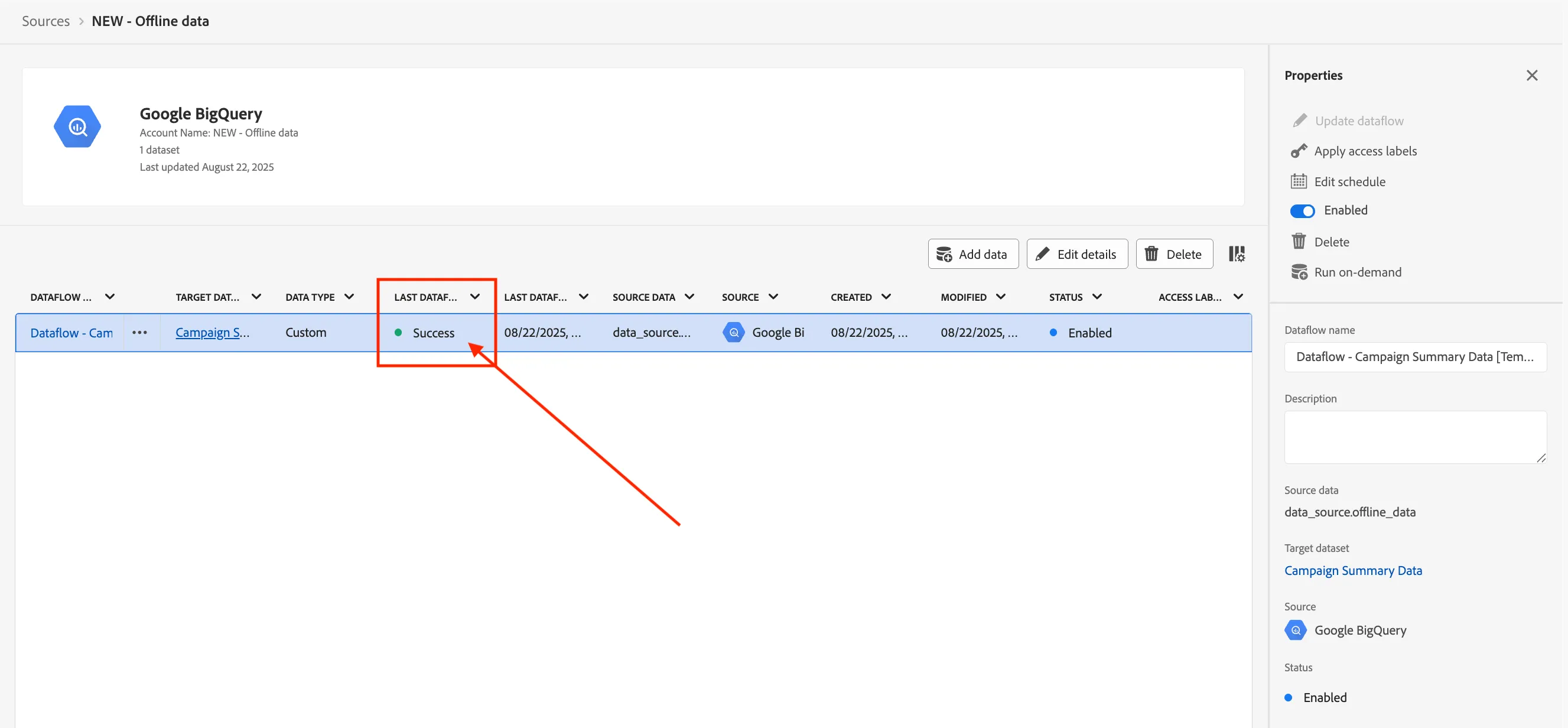
Once the data have been successfully uploaded:
- find your dataflow and click the Target Dataset to view the Dataset Activity.
- You'll then see the Dataset Overview where your ingestion has processed, and after a couple of minutes you can refresh your screen to see if your workflow completed successfully.
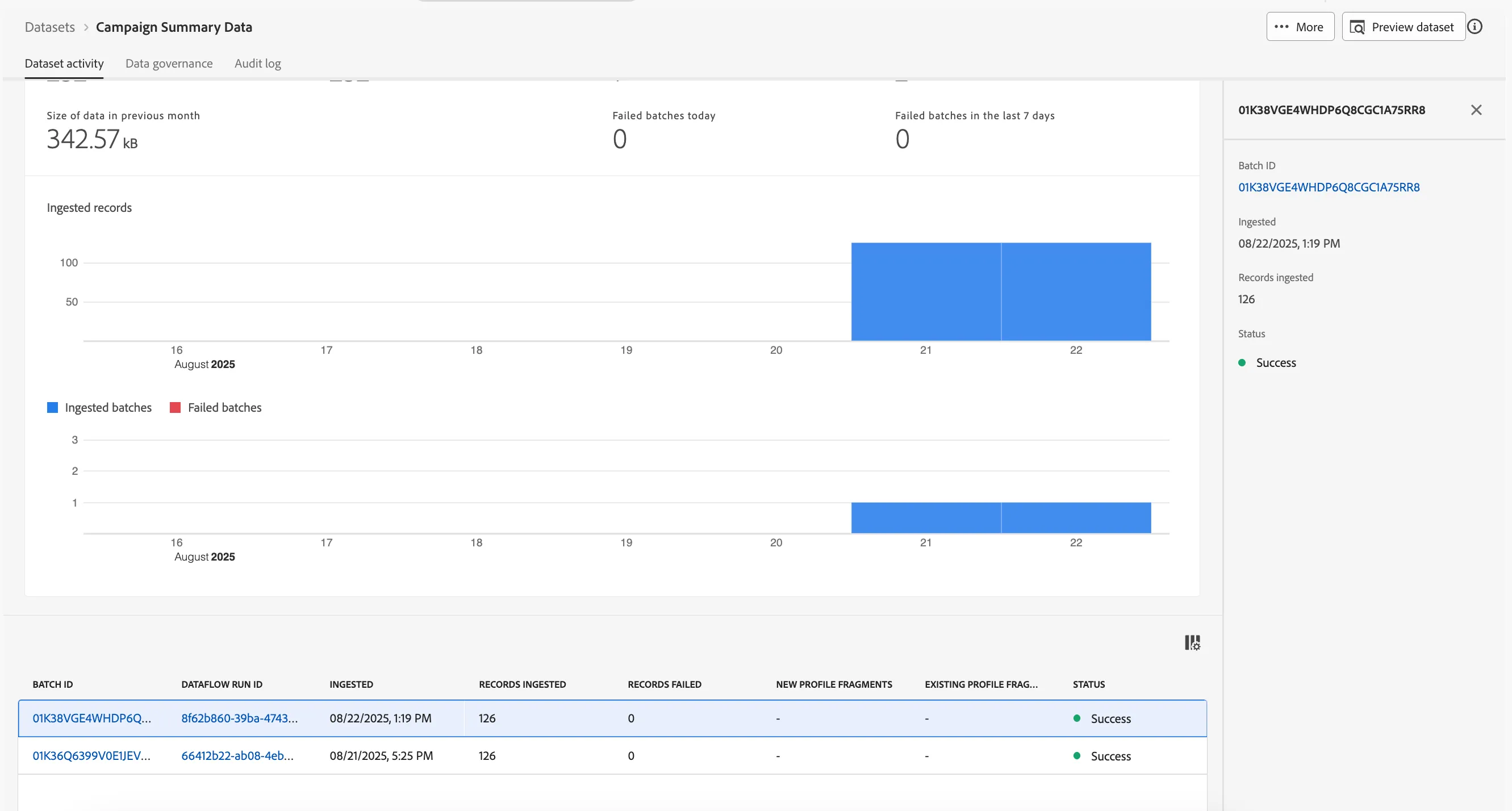
On the Dataset activity screen, you'll see a Batch ID that has been ingested just now, with 126 records ingested and a status of Success.
- Click on the Preview Dataset button to get a quick view of a small sample of the data ingested to ensure that it loaded correctly.
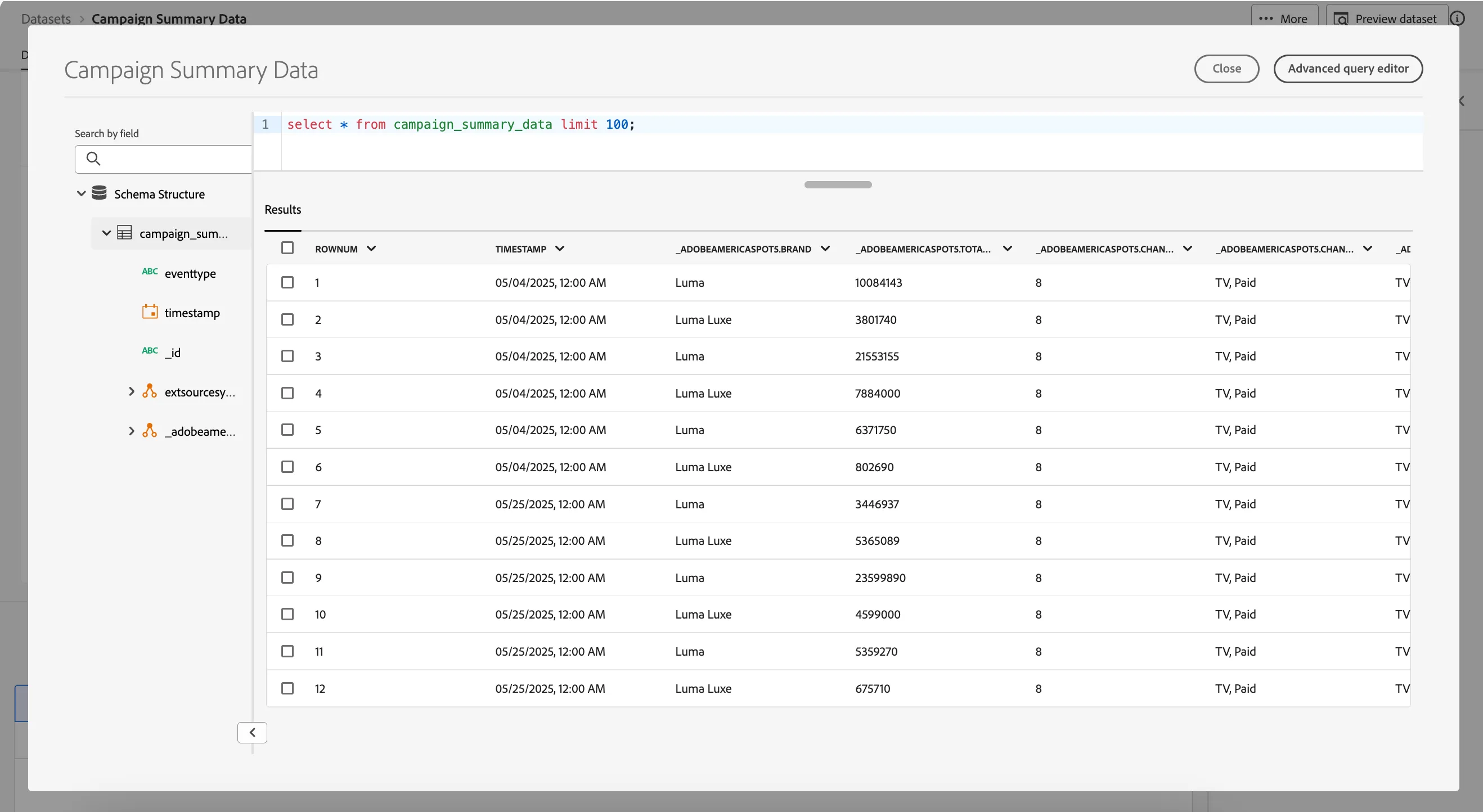
With this, you’ve now successfully ingested Campaign Summary Data in Adobe Experience Platform!