IKEA Use Cases
We have built-in the use cases with a detailed explanation on how you can build by yourself on the solution.
To access to the workspace we have created, sign in to the Adobe Experience Cloud.
For Login information, refer to the Getting Started section.
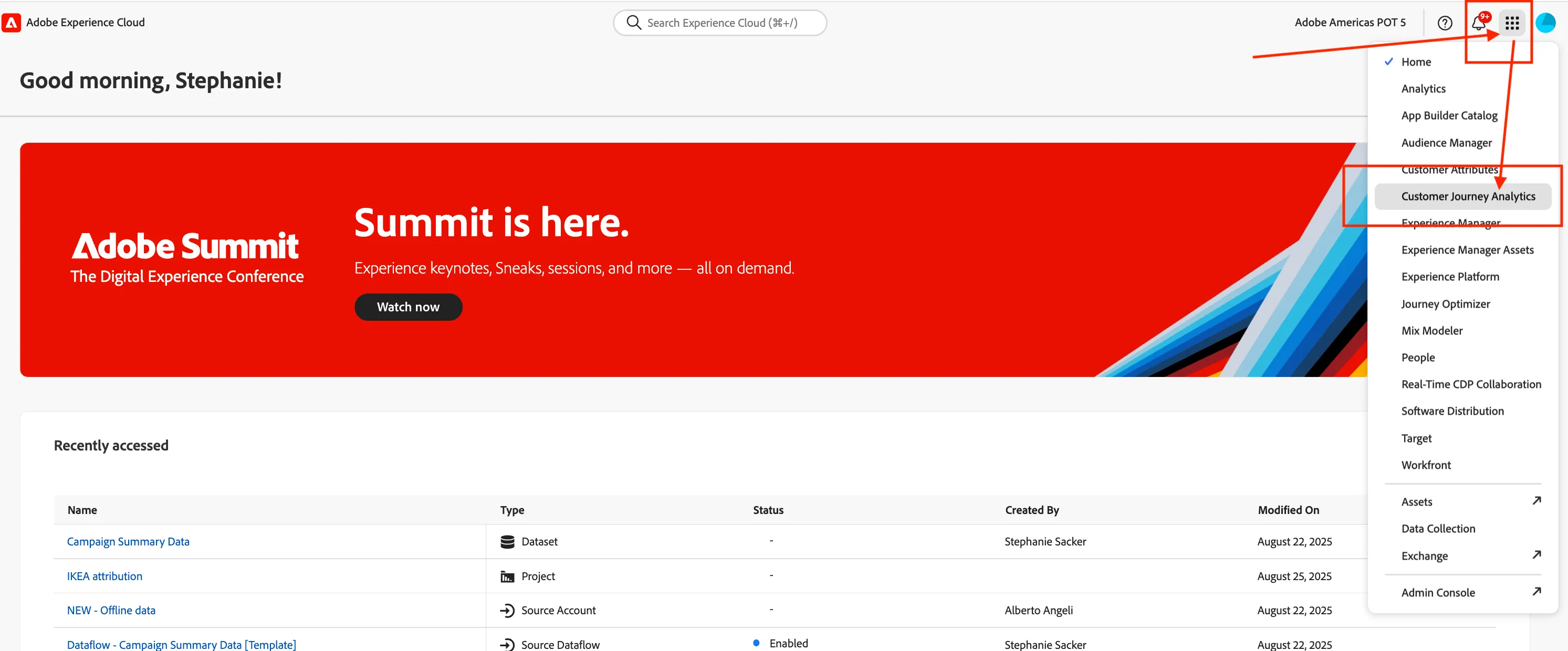
Once you're logged in, navigate to the Customer Journey Analytics product
- In the top right-hand corner select the nine dots from the menu
- Select Customer Journey Analytics from the drop down.
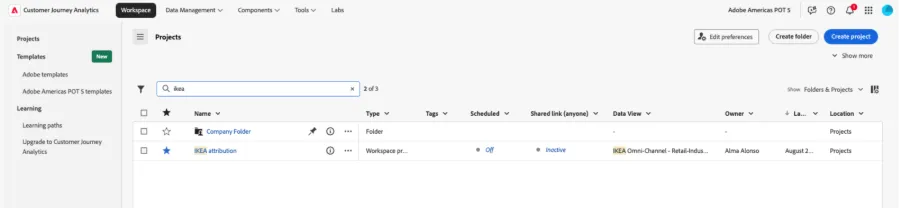
You’ll see a list of Workspace Projects, select IKEA attribution
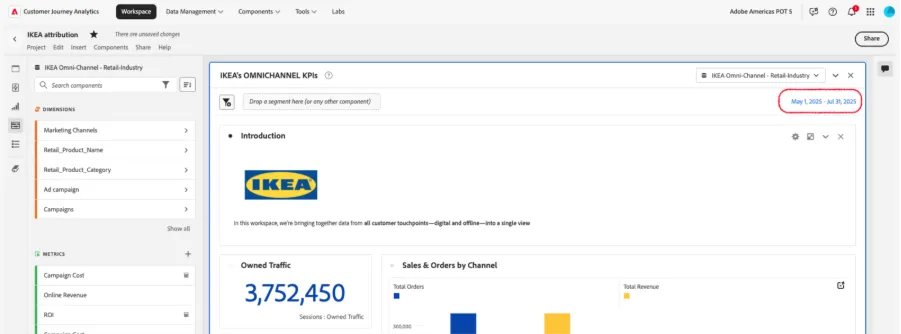
It opens a workspace with different panels. You can fold/unfold the panel clicking on the top-right arrow. Now you can see the use cases’ panels.
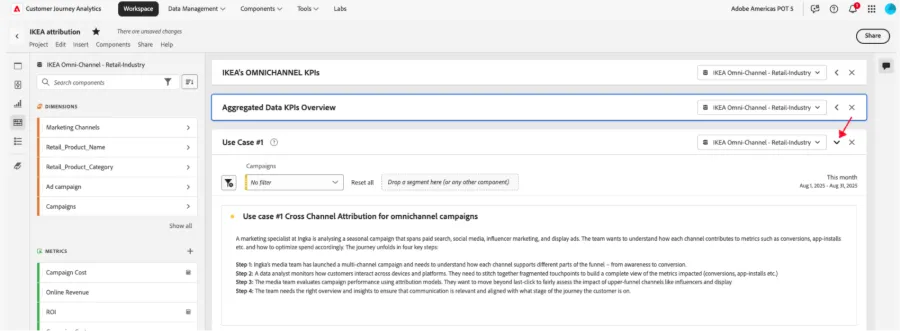
You can see that there is already a Data View selected, the IKEA Omni-Channel – Retail Industry is the data view we are using for this exercise.

As well as a default Date Range:
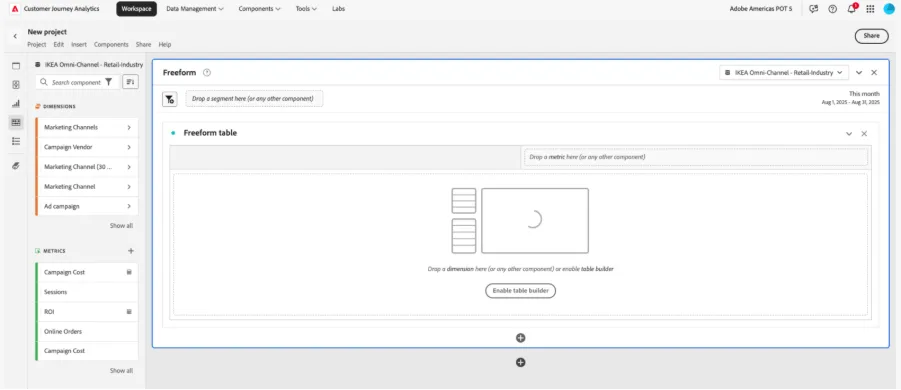
If you want to recreate the use cases step by step in a new workspace, create a new project from the Customer Journey Analytics landing
- Click on Create project

A ‘Blank Workspace project’ is preselected
- Click on Create. A new project will open.
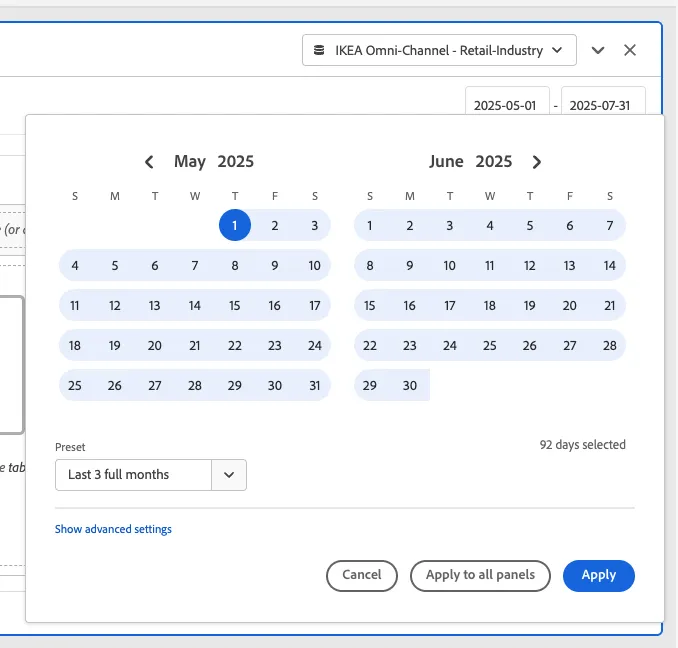
In the data range component of the panel, select the preset last 3 full months.
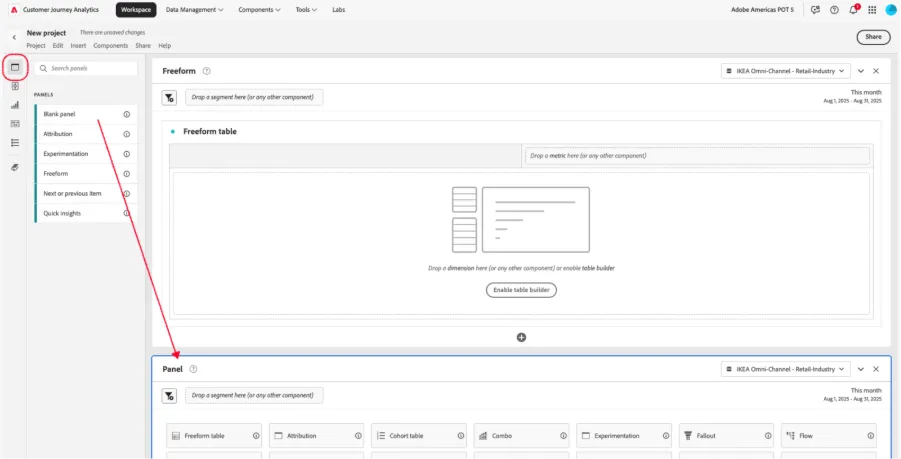
If you want to add a new panel
- In the left rail, click on the first element to see the list of available panels.
- Drag and drop Blank panel below the previous panel.